Updated . Built against the tool’s current screens and checked step by step. How we check this lesson
Chat answers questions. Work gets a job done. In this free tutorial you switch ChatGPT to Work and hand it a real multi-step task: compare three suppliers' prices and build a spreadsheet with a recommendation. You approve the websites it opens, skip a login it doesn't need, steer it with a follow-up, answer its question, check every step and the file, then make it a weekly check.
At a glance
| Question | Answer |
|---|---|
| What you build | Switch ChatGPT to Work, hand it a real job (compare three suppliers into a spreadsheet), approve the sites it opens, skip a login, answer its question, check the file and make it a weekly task. |
| Tools | ChatGPT |
| Time | About 8 minutes, 20 steps in 5 parts |
| Level | Beginner, no coding needed |
| Cost | Free |
| Ways to learn it | Practice it step by step |
The 5 parts, in short
- Switch to Work: Switch to Work.
- Give it the job: Describe the job, Start it.
- Approve and steer: Allow the first site, Open the progress panel, Allow the second site, Skip the sign-in, and 4 more steps.
- Check the result: See what it did, Open the spreadsheet, Check the Summary tab, Close the preview, and 2 more steps.
- Make it repeat: Make it weekly, Send it, Find it in Scheduled.
Start here first: Summarize a Meeting Transcript with ChatGPT (module 1 of ChatGPT for Everyday Work)
In the course: Part 3 · ChatGPT for Everyday Work (Module 16 of the full course)
Part of: ChatGPT Jump Start (step 8 of 8)
What you will do
You play Sam at Hollow Oak Landscaping, a small, made-up landscaping company. Every season Sam compares bulk hardwood mulch, river rock and delivery fees from three local suppliers, one website at a time. The suppliers in this lesson are made up too.
You work in a practice copy of ChatGPT on the web with Work turned on: the Chat and Work switch, the Work on anything box, the grey progress lines, the side panel with Progress, Outputs and Sources, and the Scheduled page.
What ChatGPT Work is
OpenAI launched ChatGPT Work on July 9, 2026. It is built for longer, multi-step jobs that end in a finished deliverable, such as a spreadsheet, a document or slides, and it took over from the older agent mode. On the web you turn it on with the Chat and Work switch at the top of a new chat. ChatGPT decides when it needs a browser in the cloud to visit websites, and it asks before opening each new site unless you change that in Settings, Cloud browser.
How to write a job ChatGPT Work can finish
Write it like a work order for a new employee. Say where to look, what to collect, what the finished file should look like, and what it must not do. "Flag anything you can't find" matters as much as the task itself: it turns a gap into a note in the sheet instead of an invented number.
Then supervise. Work shows what it's doing as it goes, and you can type a follow-up at any time to change course. If it opens the wrong site or uses the wrong information, stop it and say what to do instead.
Staying safe with an AI that browses
Never type a password, card number or security code into the chat. When a site needs a login, ChatGPT shows a secure Sign in to continue form that the model can't see, and you can also skip it. Skip logins the job doesn't need.
Treat what websites say as untrusted. A page can hide instructions meant to trick an AI (prompt injection), which is one reason to keep Work on the sites you named and to approve sites one by one. ChatGPT also stops to ask before consequential actions such as submitting a form or making a purchase. Always spot-check a few numbers against their sources before you rely on the result.
Which plan you need
On the web and mobile, Work is available on Plus, Pro, Business, Enterprise and Edu plans, not Free or Go. OpenAI's new desktop app includes Chat, Work and Codex on every plan, including Free. Work doesn't have a fixed monthly number of tasks: it shares a usage allowance with Codex, and your remaining Work usage shows in the sidebar. Signing in to websites through the cloud browser is available on Plus and Pro. Scheduled tasks are capped by plan, for example 5 active tasks on Plus.
Try it yourself, free
Reading the steps is a start. Doing them is how it sticks. The interactive module walks you through every click in a practice copy of ChatGPT, checks each step, and never touches your real accounts.
Start “ChatGPT Work: Have ChatGPT Do a Multi-Step Task”Step by step: ChatGPT Work: Have ChatGPT Do a Multi-Step Task
All 20 steps of the interactive module, in order. In the module you watch each one, then do it yourself in a practice copy that checks your work.
1. Switch to Work
- Switch to Work. At the top of a new chat, click Work.
This is Sam at Hollow Oak Landscaping. Every spring Sam checks three suppliers' prices for mulch and river rock, one website at a time. ChatGPT Work can do that kind of multi-step job for you. It arrived in July 2026 and took over from the older agent mode. At the top of a new chat, click Work.
2. Give it the job
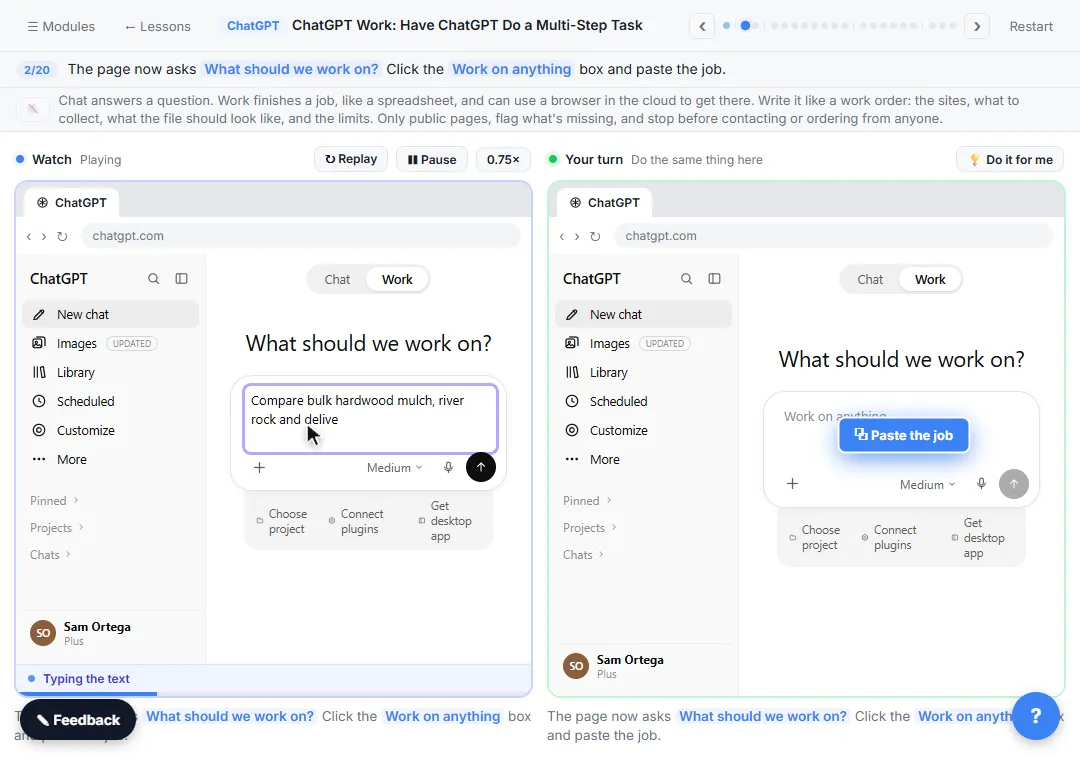
- Describe the job. The page now asks What should we work on? Click the Work with ChatGPT box and paste the job.
Chat answers a question. Work finishes a job, like a spreadsheet, and can use a browser in the cloud to get there. Write it like a work order: the sites, what to collect, what the file should look like, and the limits. Only public pages, flag what's missing, and stop before contacting or ordering from anyone.
Compare bulk hardwood mulch, river rock and delivery fees from these three suppliers near Millbrook: valleystone.example, pineridge.example and hilltop.example. Build a spreadsheet with a Comparison tab (price per cubic yard, delivery fee, source link for every number) and a Summary tab that prices our usual order, 10 yards of mulch and 4 yards of river rock, and recommends one supplier. Use only public pages, flag anything you can't find, and stop before contacting or ordering from anyone.
- Start it. Click the send arrow.
3. Approve and steer
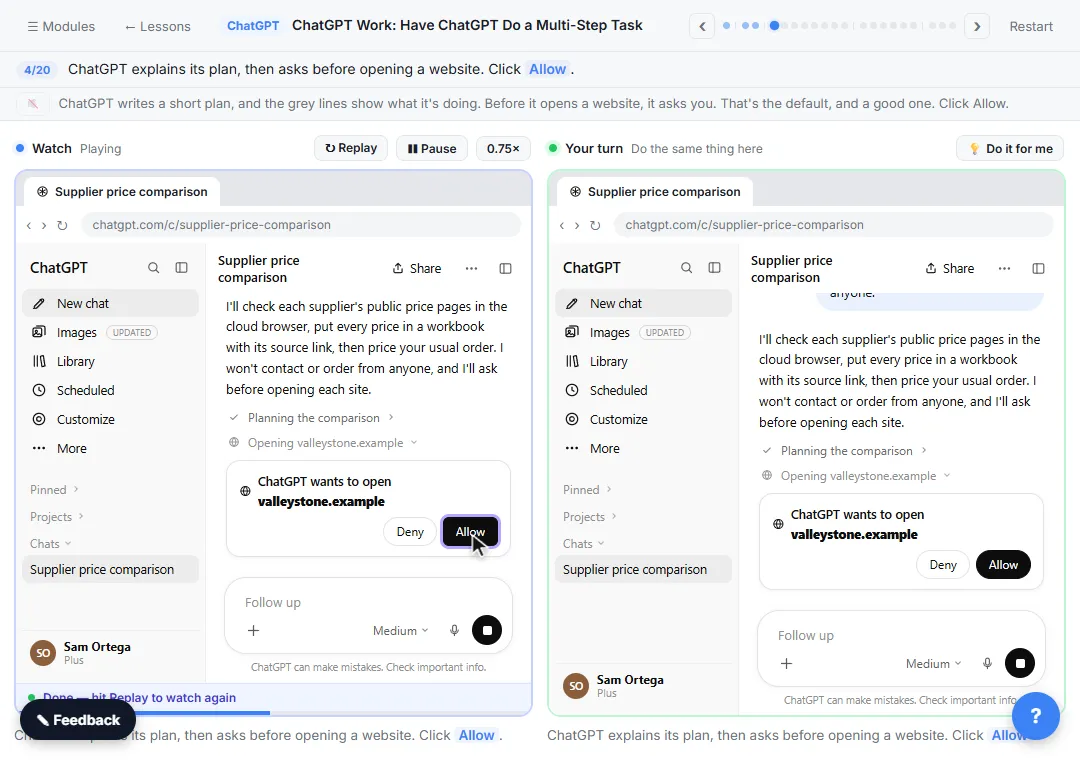
- Allow the first site. ChatGPT explains its plan, then asks before opening a website. Click Allow.
ChatGPT writes a short plan, and the grey lines show what it's doing. Before it opens a website, it asks you. That's the default, and a good one.
- Open the progress panel. At the top right, click the panel icon to see its progress.
You can watch its progress in the chat, or open the panel for the files it's making and the sources it used.
- Allow the second site. It finished the first site and asks about the next one. Click Allow.
It's read the first supplier's prices, and it asks again for the second site.
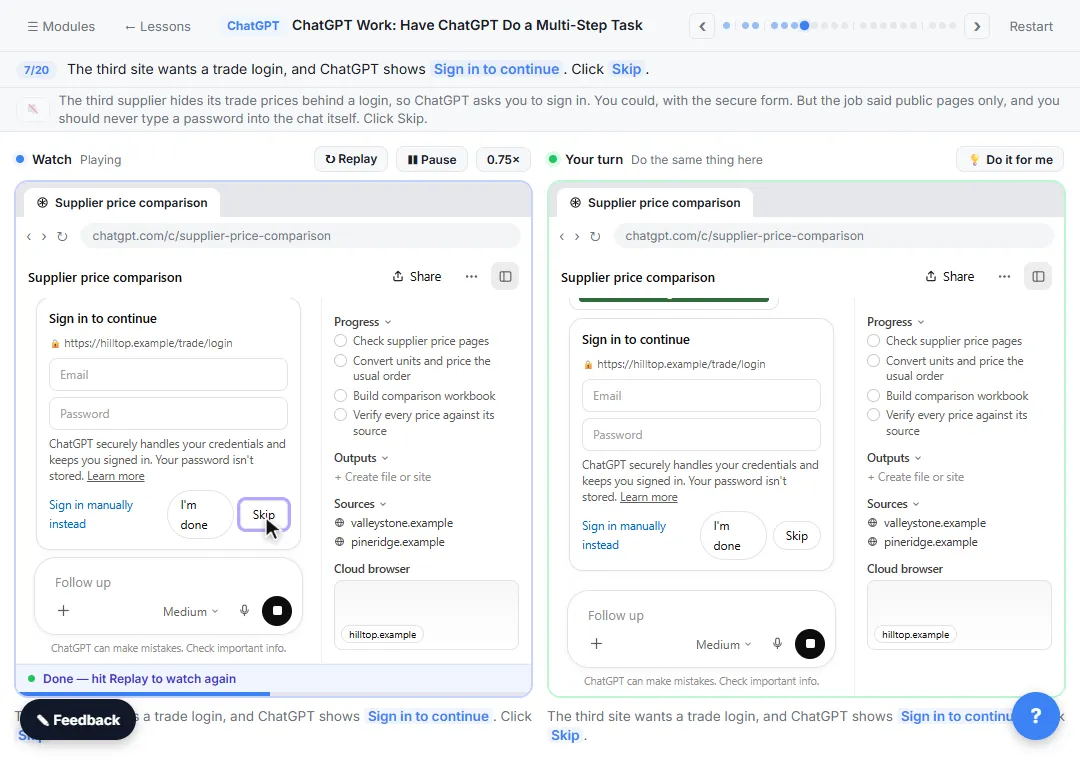
- Skip the sign-in. The third site wants a trade login, and ChatGPT shows Sign in to continue. Click Skip.
The third supplier hides its trade prices behind a login, so ChatGPT asks you to sign in. You could, with the secure form. But the job said public pages only, and you should never type a password into the chat itself.
- Tell it what to do instead. Click the message box and paste your instruction.
While it works, you can still type in the message box and steer it in plain words. Tell it what to do instead.
- Send it. Click the send arrow.
- Answer its question. ChatGPT asks how to convert bag prices to cubic yards. Paste your answer.
Now it has a question. One supplier sells mulch by the bag, not by the yard. Good. It asked instead of guessing. Answer it.
- Send the answer. Click the send arrow.
4. Check the result
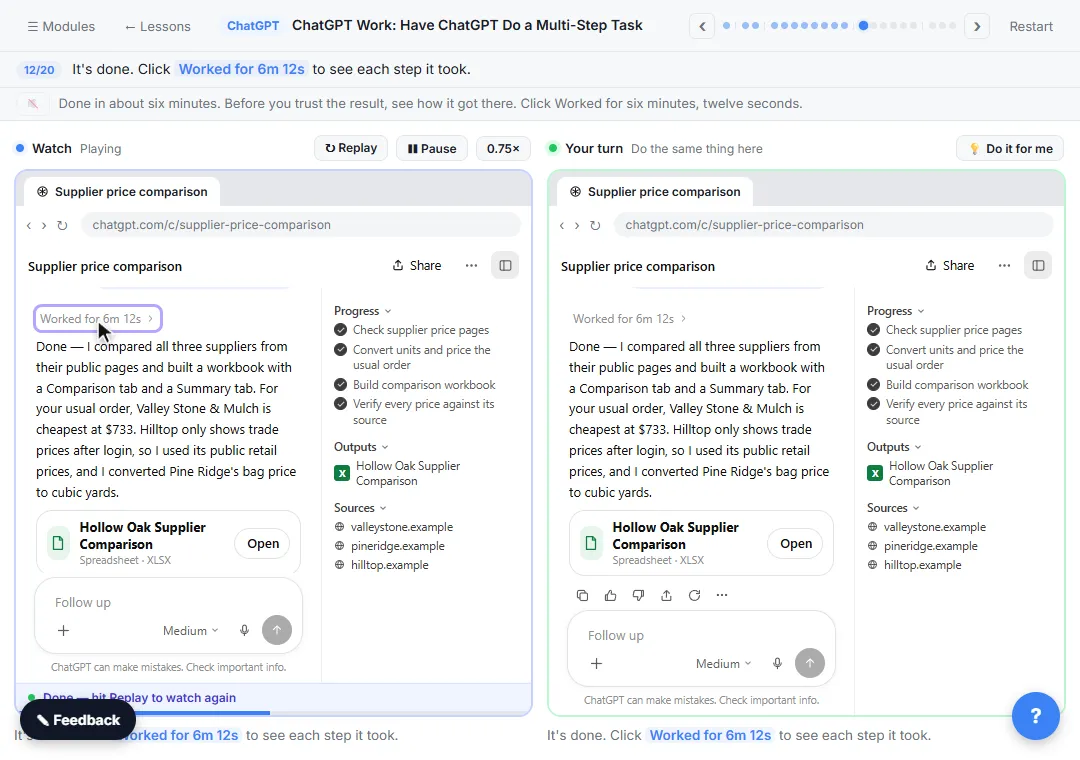
- See what it did. It's done. Click Worked for 6m 12s to see each step it took.
Done in about six minutes. Before you trust the result, see how it got there.
- Open the spreadsheet. Every site it used is listed. Click the spreadsheet card to open it.
Every site and every step is listed. Now the file.
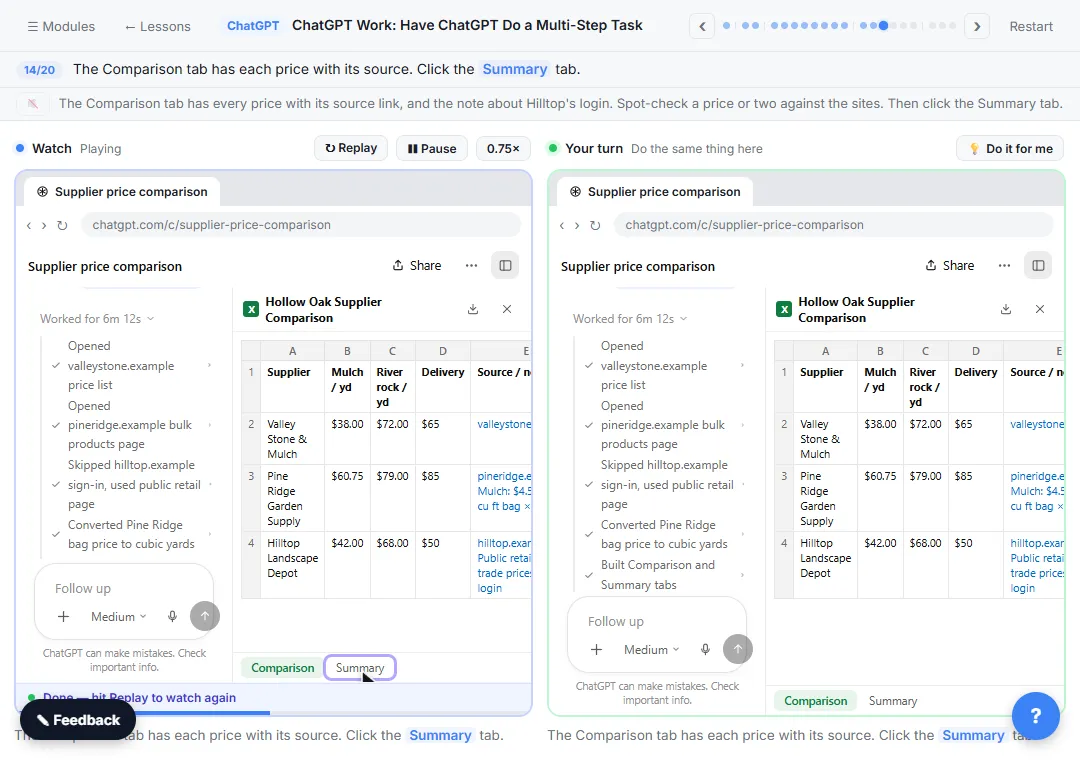
- Check the Summary tab. The Comparison tab has each price with its source. Click the Summary tab.
The Comparison tab has every price with its source link, and the note about Hilltop's login. Spot-check a price or two against the sites.
- Close the preview. Valley Stone & Mulch comes out cheapest at $733 for the usual order. Close the preview with the X.
For the usual order, Valley Stone comes out cheapest at seven hundred thirty-three dollars, with Hilltop close behind. Close the preview.
- Ask for a change. Paste a change request into the message box.
Changes are just another message. Ask for the one thing you want added.
- Send it. Click the send arrow.
It updates the same workbook and gives you a new version.
5. Make it repeat
- Make it weekly. Paste the schedule request.
Prices change, so make this a weekly check. Just say when, in plain words.
- Send it. Click the send arrow.
- Find it in Scheduled. In the sidebar, click Scheduled.
It's set. In the sidebar, click Scheduled. Your weekly check lives here, where you can edit, pause or delete it.
Screenshots
Frequently asked questions
- What happened to ChatGPT agent mode?
- ChatGPT Work, launched July 9, 2026, took over from agent mode for multi-step jobs. On the web you turn it on with the Chat and Work switch at the top of a new chat instead of the old Tools menu.
- Is ChatGPT Work free?
- Not on the web: it needs Plus, Pro, Business, Enterprise or Edu. The ChatGPT desktop app includes Work on every plan, including Free. Stepthrough itself is completely free, and this practice copy needs no account.
- Should I give ChatGPT Work my passwords?
- Never type a password into the chat. If a site needs a login, use the secure Sign in to continue form, or click Skip if the job doesn't really need it.
- Can ChatGPT Work run a task every week?
- Yes. Ask in plain words, like "every Monday at 7 AM", and the task appears under Scheduled in the sidebar, where you can edit, pause or delete it.
- How do I check what ChatGPT Work did?
- Click the "Worked for" line above its answer to see every step and site it used, open the side panel for Progress, Outputs and Sources, and spot-check numbers against their source links.
More in ChatGPT for Everyday Work
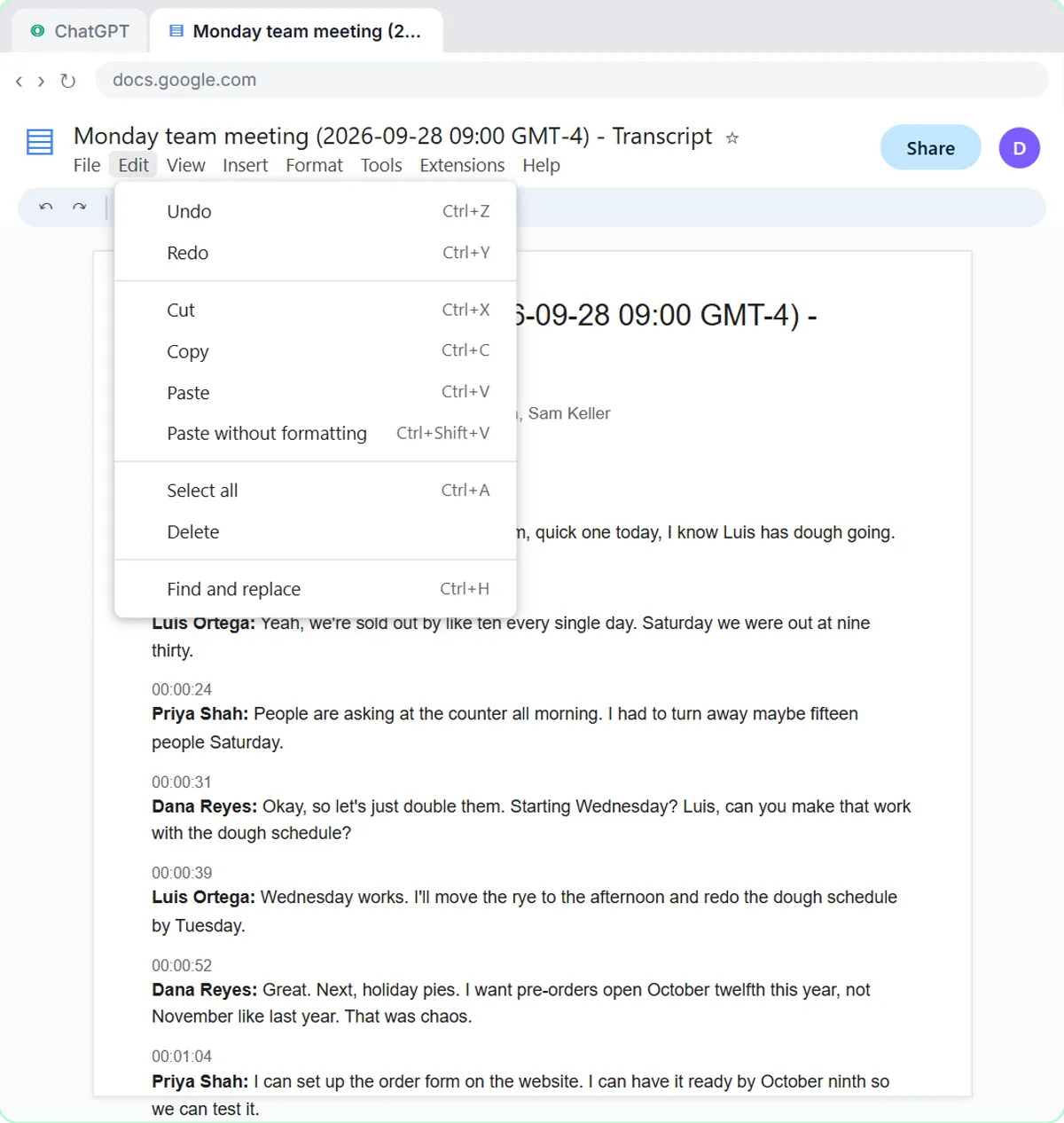 Summarize a Meeting Transcript with ChatGPT
Paste a long meeting transcript into ChatGPT and get the decisions, an action items table with owners and due dates, and a follow-up email ready to send.
Free · Live ~9 min
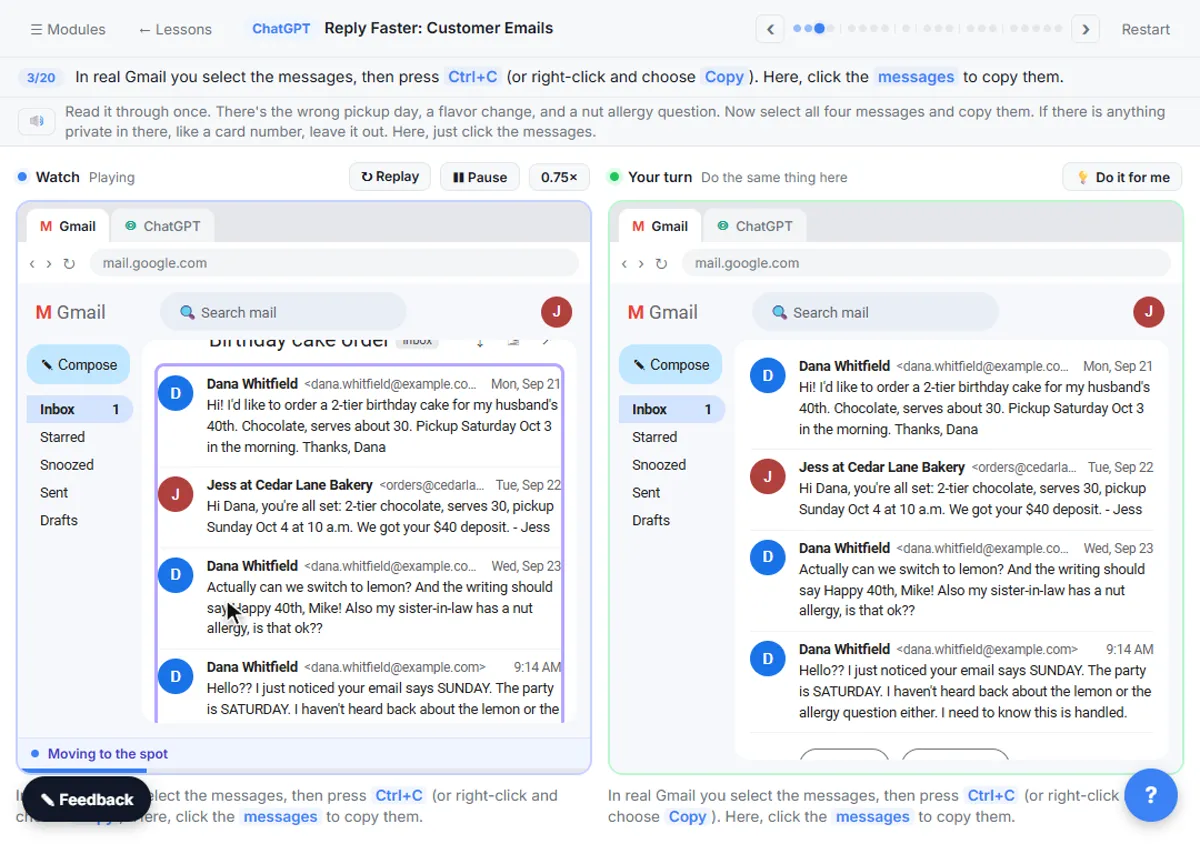 Reply Faster: Turn a Messy Customer Email Thread into a Clear, Friendly Reply
Turn a messy customer email thread into a clear, friendly reply: give ChatGPT the thread and your facts, check every promise, fix the tone, and send it from Gmail.
Free · Live ~9 min
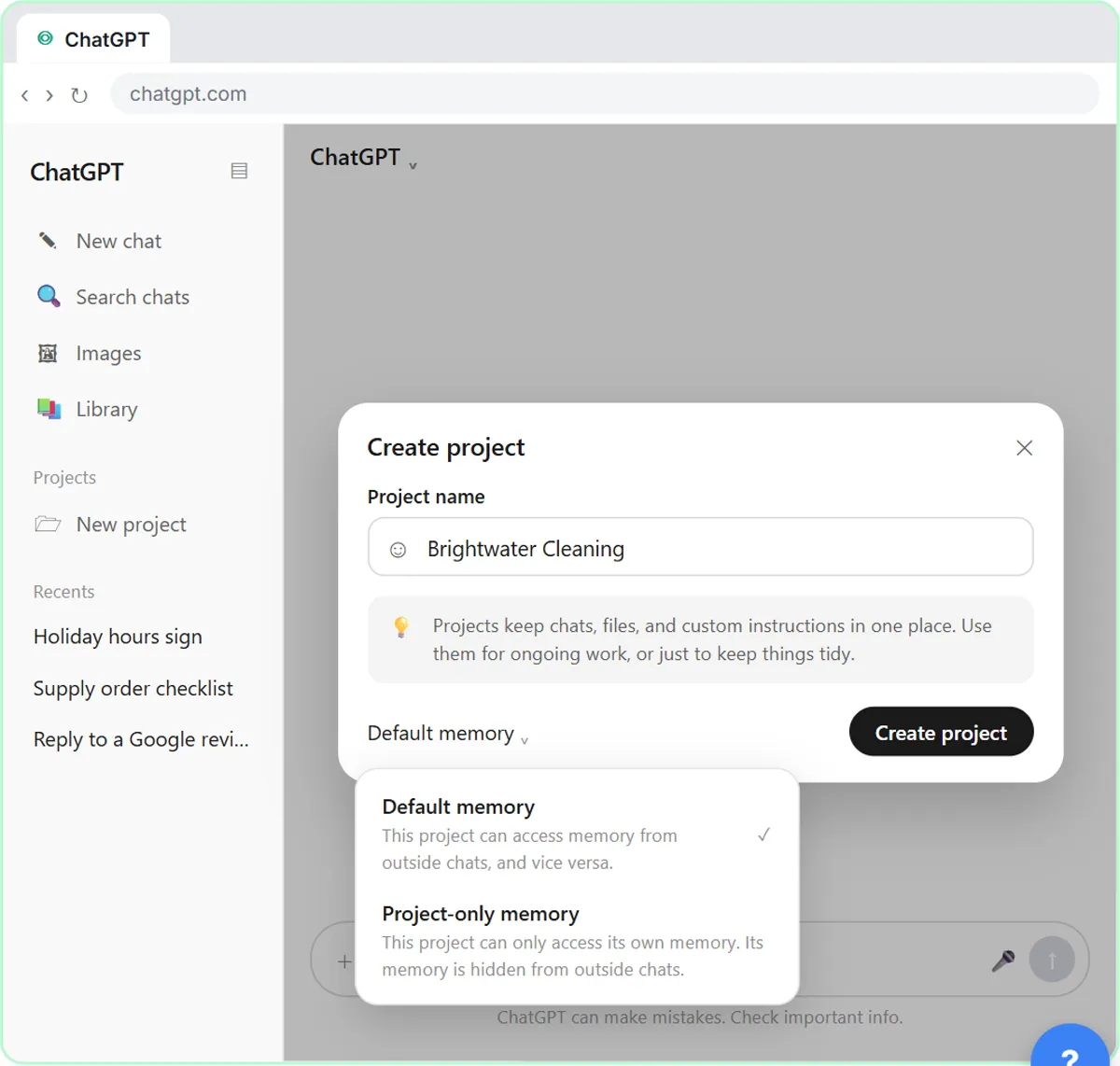 ChatGPT Projects: Keep Your Brand Voice, Files and Instructions in One Place
Set up a ChatGPT Project with your brand voice instructions, your price list and your style guide, so every new chat already knows your business.
Free · Live ~9 min
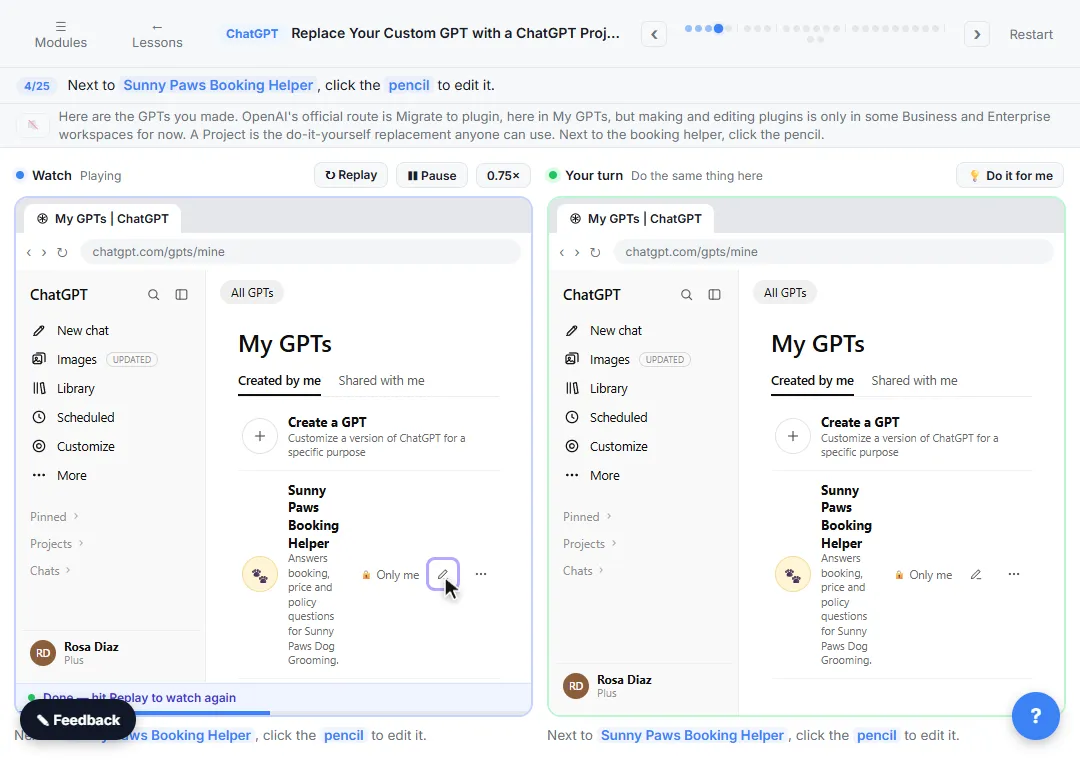 Replace Your Custom GPT with a ChatGPT Project
Custom GPTs retire on December 11, 2026. Copy your GPT's instructions, starters and files, rebuild it as a ChatGPT Project with project-only memory, and test it on a…
Free · Live ~7 min
All 7 modules in ChatGPT for Everyday Work
More ChatGPT tutorials
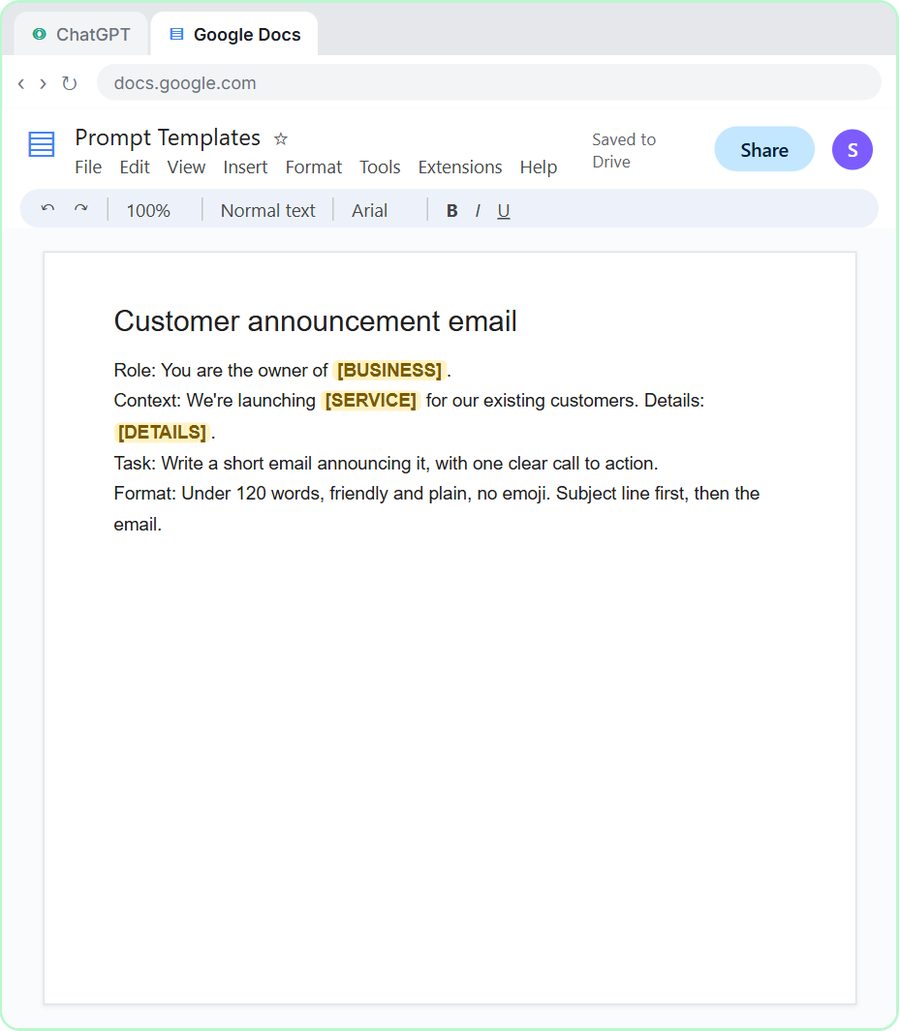 Prompt Writing 101: Role, Context, Task, Format
Ask ChatGPT for the same customer email twice, once vaguely and once with a four-part prompt, and see exactly why structure gets a better answer.
Free · Live ~8 min
 Get Your Business Recommended by ChatGPT
Ask ChatGPT who it recommends in your town, see which pages it trusts, then use it to write an FAQ page and Business Profile copy that answer real customer questions.
Free · Live ~10 min
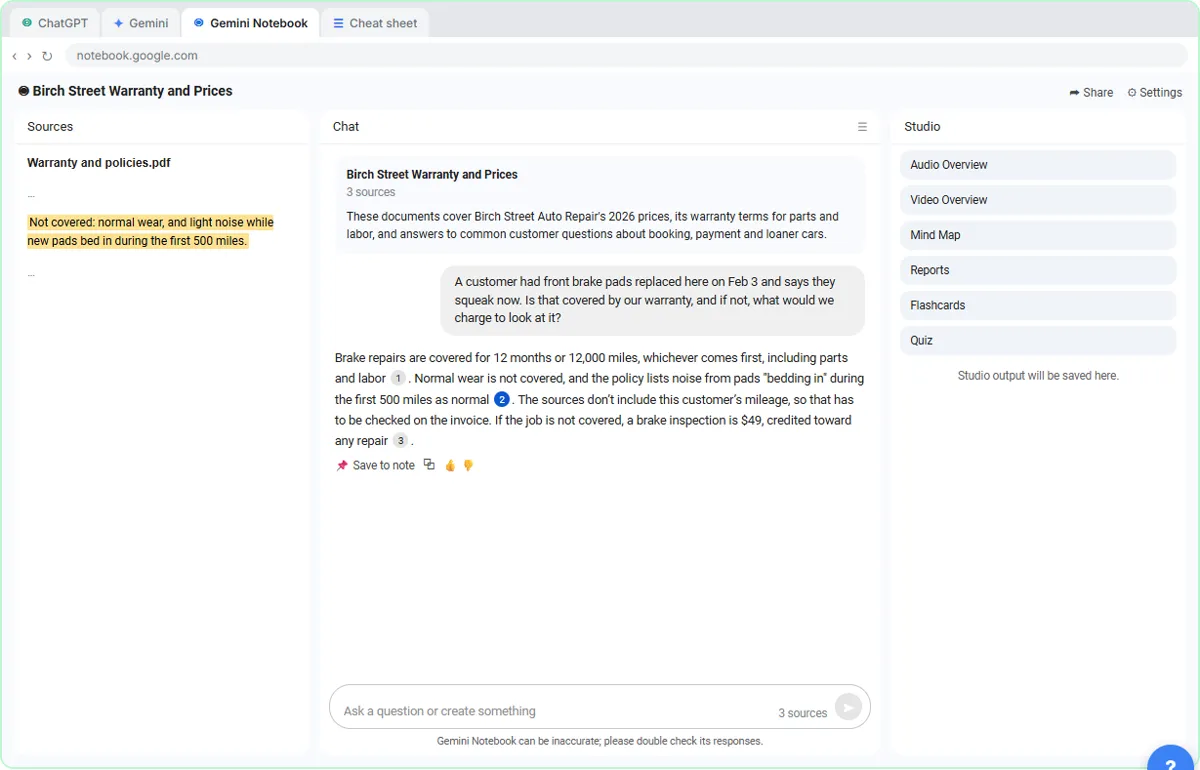 ChatGPT Projects vs Gemini Gems vs Gemini Notebook: Which to Use
Load an auto shop's price list, warranty and FAQ into a ChatGPT Project, a Gemini Gem and Gemini Notebook, ask each the same question, and see which fits which job.
Free · Live ~9 min
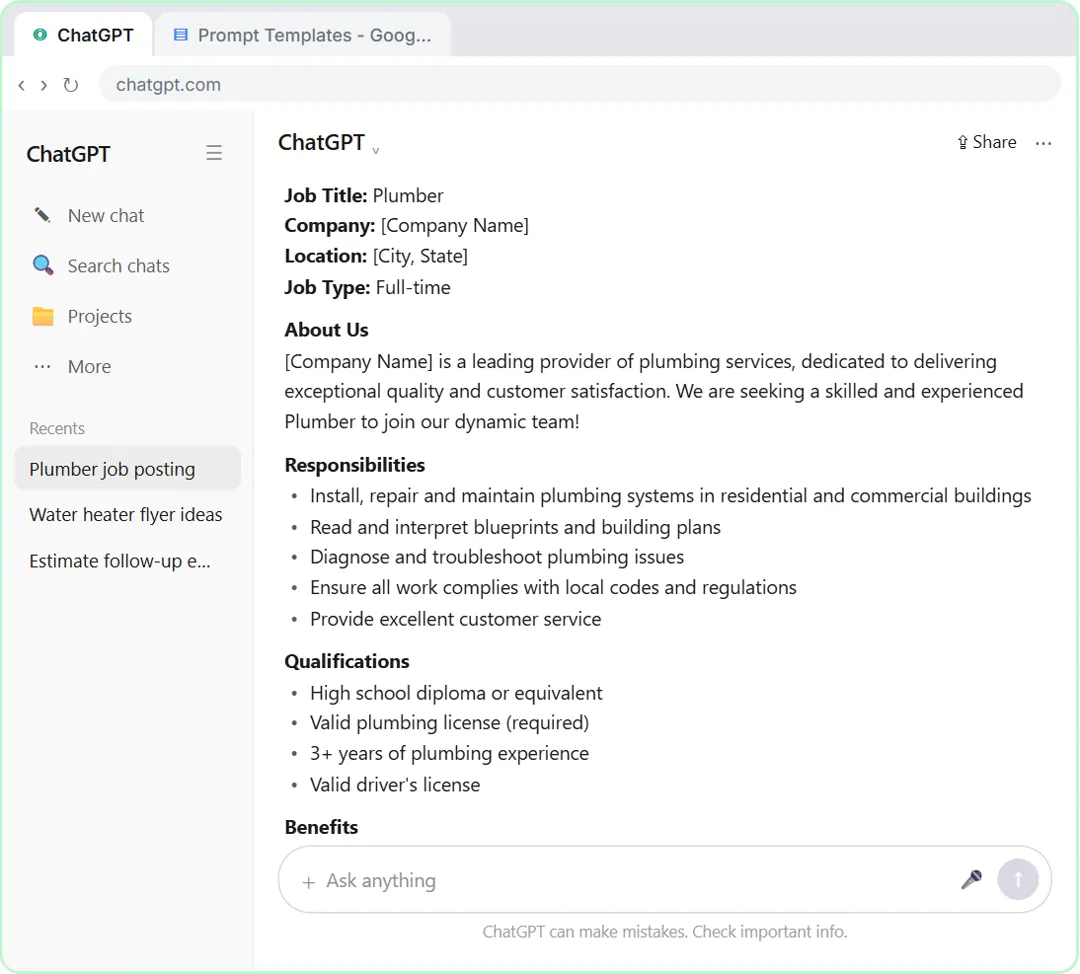 Make ChatGPT Ask You Questions First: The Interview Prompt
Ask for a job posting the quick way, then with the interview prompt: ChatGPT asks what it needs, one question at a time, and writes a posting you can actually use.
Free · Live ~6 min
 Give Examples: Few-Shot Prompts That Copy Your Style
Paste three of your real past replies into ChatGPT and get new Google review replies that sound like you, not like a template.
Free · Live ~6 min
 Break Big Jobs into Steps: Prompt Chaining for a Marketing Plan
Ask ChatGPT for a whole marketing plan in one prompt, then build a better one in four small steps: customers, offers, a calendar table and the posts.
Free · Live ~7 min
Terms in this lesson
Plain-English definitions, each with an example from a free lesson.