Quick answer
In ChatGPT, open Plugins, click Add and choose Create plugin. Attach your reference file with +, type what the plugin should do and its rules after "help me create a plugin", and send. Plugin Creator builds a private plugin with a skill (the instructions) and your file. To add an app, open the plugin, click ••• and Edit plugin, and ask for it.
Last updated · Last checked
Updated . Built on real ChatGPT and Codex screens on a Plus plan, captured 19 November 2026, and checked against OpenAI’s help center the same day. Every company and person in the examples is made up. How we check this lesson
Custom GPTs are retiring, so the sales follow-up writer you would have built as a GPT now becomes a ChatGPT plugin. In this free lesson, on real ChatGPT screens, you attach a made-up sales playbook, describe the writer and its rules to Plugin Creator, read the instructions it wrote, and add Gmail as a connected app so finished emails wait as drafts.
At a glance
| Question | Answer |
|---|---|
| What you build | Custom GPTs are retiring, so build the replacement the new way: a ChatGPT plugin with written instructions, your sales playbook as a reference file, and Gmail as a connected app. |
| Tools | ChatGPT |
| Time | About 8 minutes, 19 steps in 4 parts |
| Level | Beginner, no coding needed |
| Cost | Free |
| Ways to learn it | Practice it step by step |
The 4 parts, in short
- Start in Plugins: Open Plugins and click Add, Create plugin.
- Describe the plugin: Plugin Creator opens, Attach the sales playbook, Describe what it should do, Send it.
- Check what it built: It built the plugin, Find it in Personal, Created by you, Its page: one skill, and 3 more steps.
- Add a connected app: Edit the plugin, Edit plugin, Ask for the app, Send it, and 2 more steps.
Start here first: Summarize a Meeting Transcript with ChatGPT (module 1 of ChatGPT for Everyday Work)
In the course: Part 3 · ChatGPT for Everyday Work (Module 30 of the full course)
Part of: Master ChatGPT for Work (step 13 of 17). Next up: How to Test a ChatGPT Plugin and Share It with Your Team
The business case: one writer for the whole sales team
Every rep writes demo follow-ups their own way, and the mistakes cost deals: emojis, pressure words, a discount nobody approved, last year’s price. A plugin gives the team one writer that quotes only the playbook.
A plugin bundles three things: a skill (the written instructions), reference files (here, the sales playbook) and connected apps (here, Gmail). It works in ChatGPT and in Codex.
What happened in our run
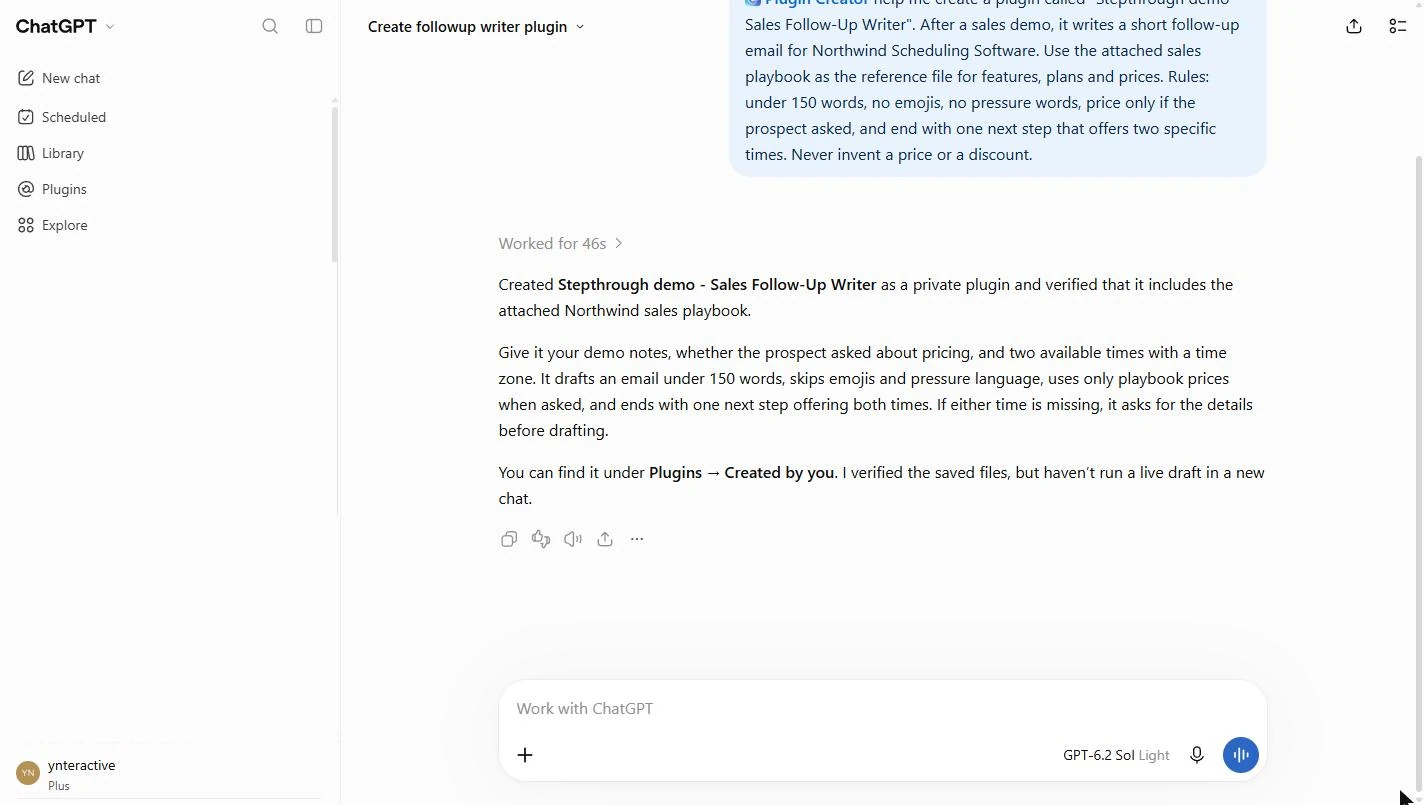
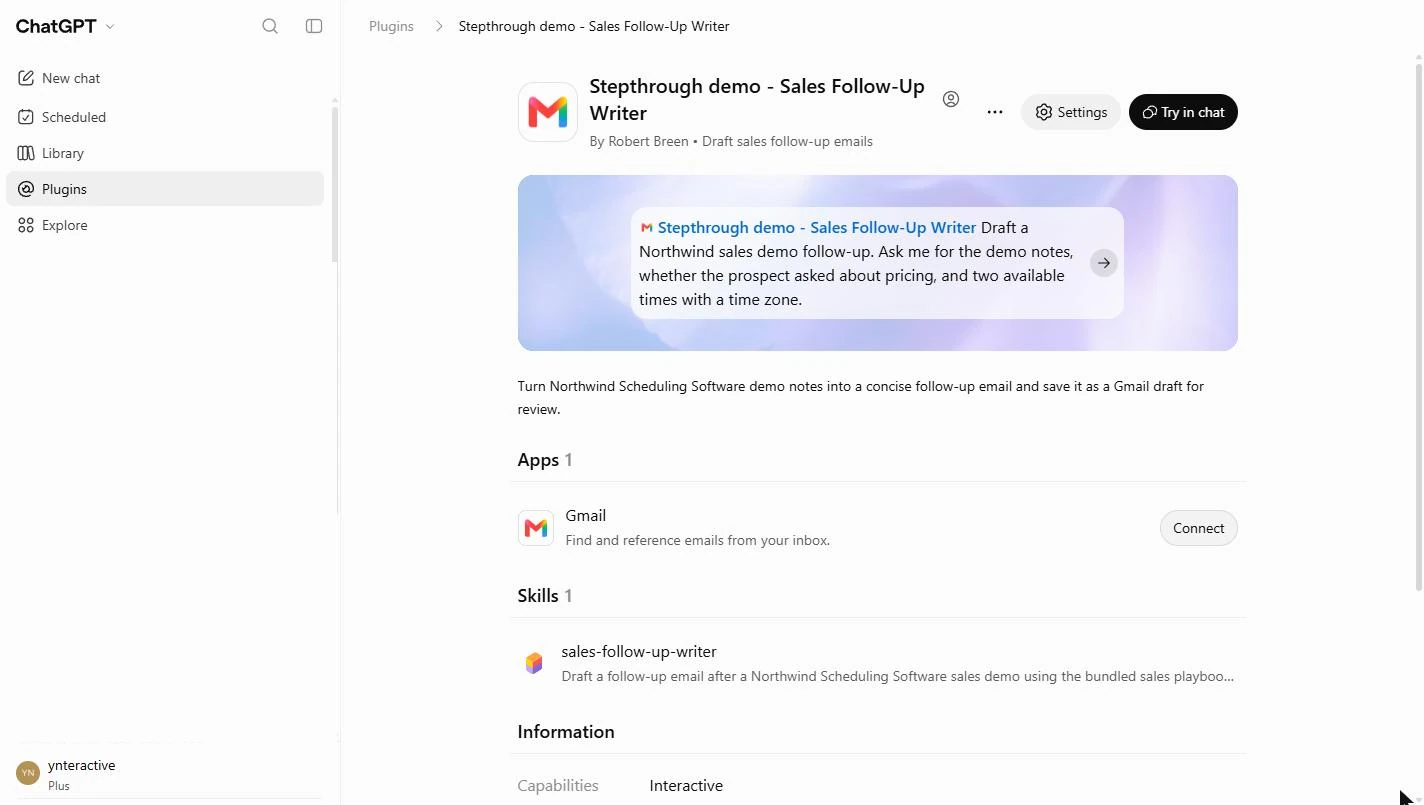
Plugin Creator worked for 46 seconds and made a private plugin, Stepthrough demo - Sales Follow-Up Writer, with one skill that reads the playbook first and treats it as the only source for prices.
Adding Gmail made version 0.1.1 with a Connect button. Plugin Creator warned that the never-send rule lives only in the instructions, so keep a person reviewing drafts. We did not connect Gmail.
Links
- OpenAI: Custom GPT retirement and migration FAQ: the retirement date, what transfers and who can migrate.
- OpenAI: Plugins in ChatGPT: what a plugin contains, Plugin Creator, sharing and Codex.
Try it yourself, free
Reading the steps is a start. Doing them is how it sticks. The interactive module walks you through every click in a practice copy of ChatGPT, checks each step, and never touches your real accounts.
Start “How to Build a ChatGPT Plugin: a Sales Follow-Up Email Writer”Step by step: How to Build a ChatGPT Plugin: a Sales Follow-Up Email Writer
All 19 steps of the interactive module, in order. In the module you watch each one, then do it yourself in a practice copy that checks your work.
1. Start in Plugins
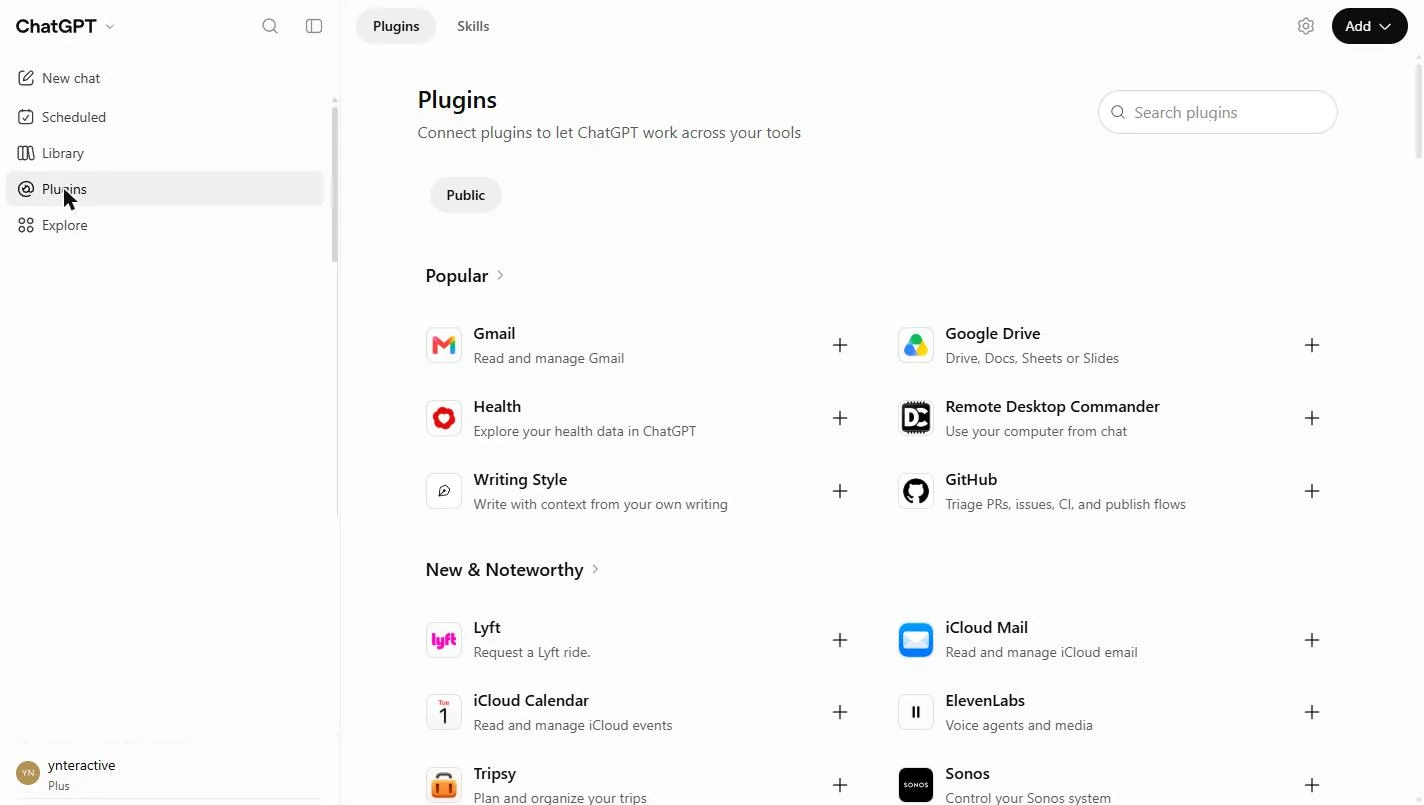
- Open Plugins and click Add. You run sales at Northwind Scheduling Software (made up). Every rep writes demo follow-ups differently: some add emojis, some quote the wrong price. A plugin gives the whole team one writer that follows the playbook. In the ChatGPT sidebar, click Plugins, then click Add at the top right.
Every rep writes follow-ups differently, and some quote the wrong price. A plugin gives the team one writer that follows the playbook. In Plugins, click Add.
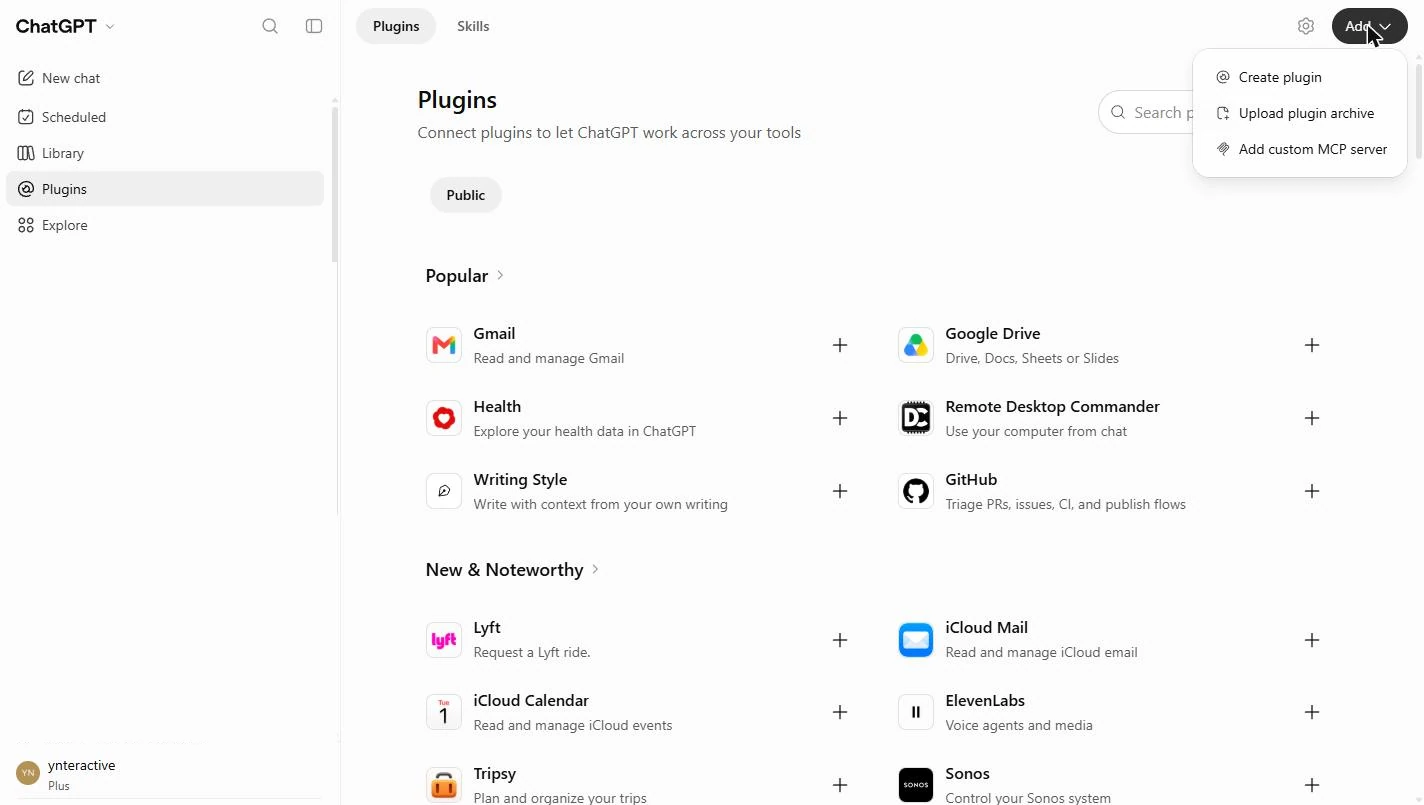
- Create plugin. The menu has three choices: Create plugin, Upload plugin archive and Add custom MCP server. Click Create plugin. (You cannot make a new custom GPT any more. On My GPTs, Create now says "You can no longer create GPTs" and sends you here.)
You cannot make a new custom GPT any more. This is the new way.
2. Describe the plugin
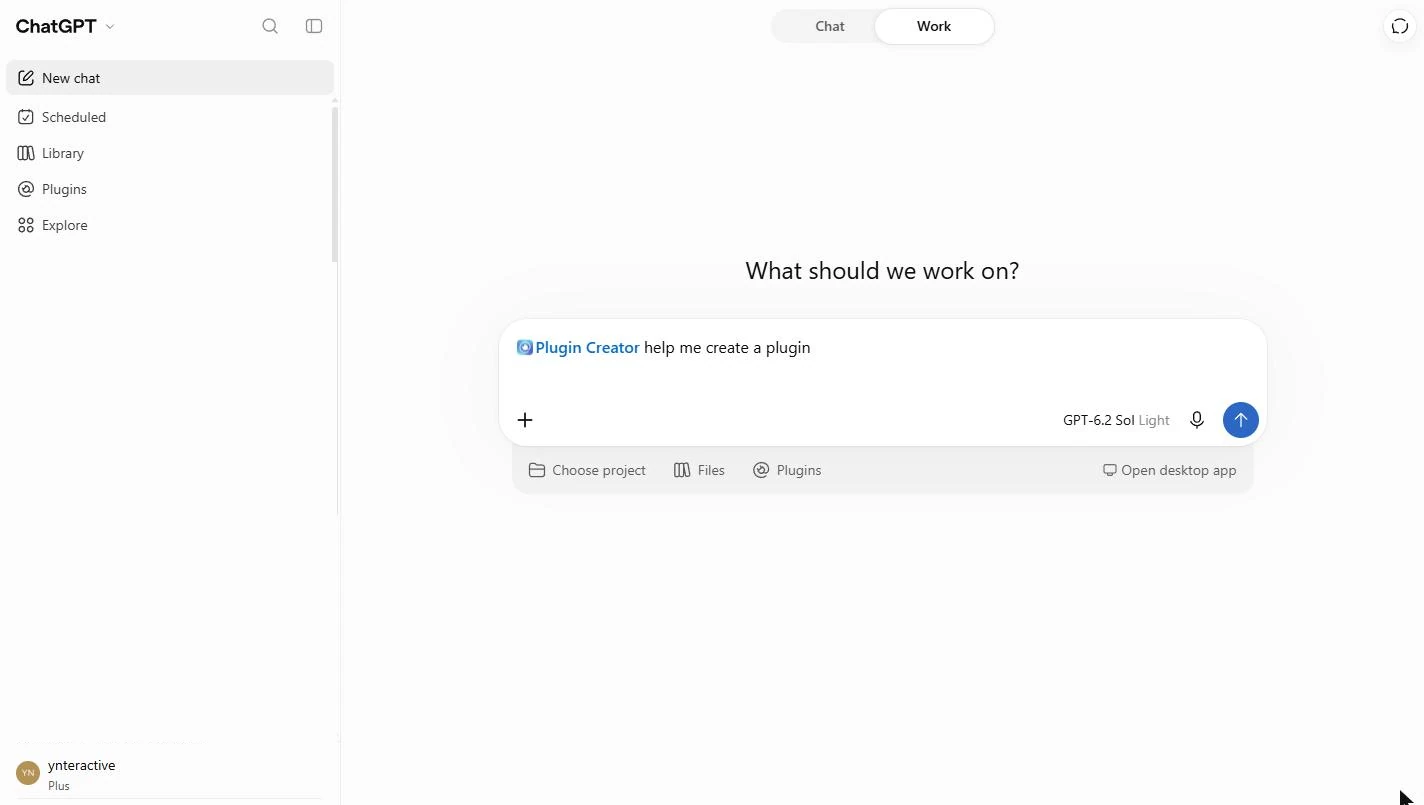
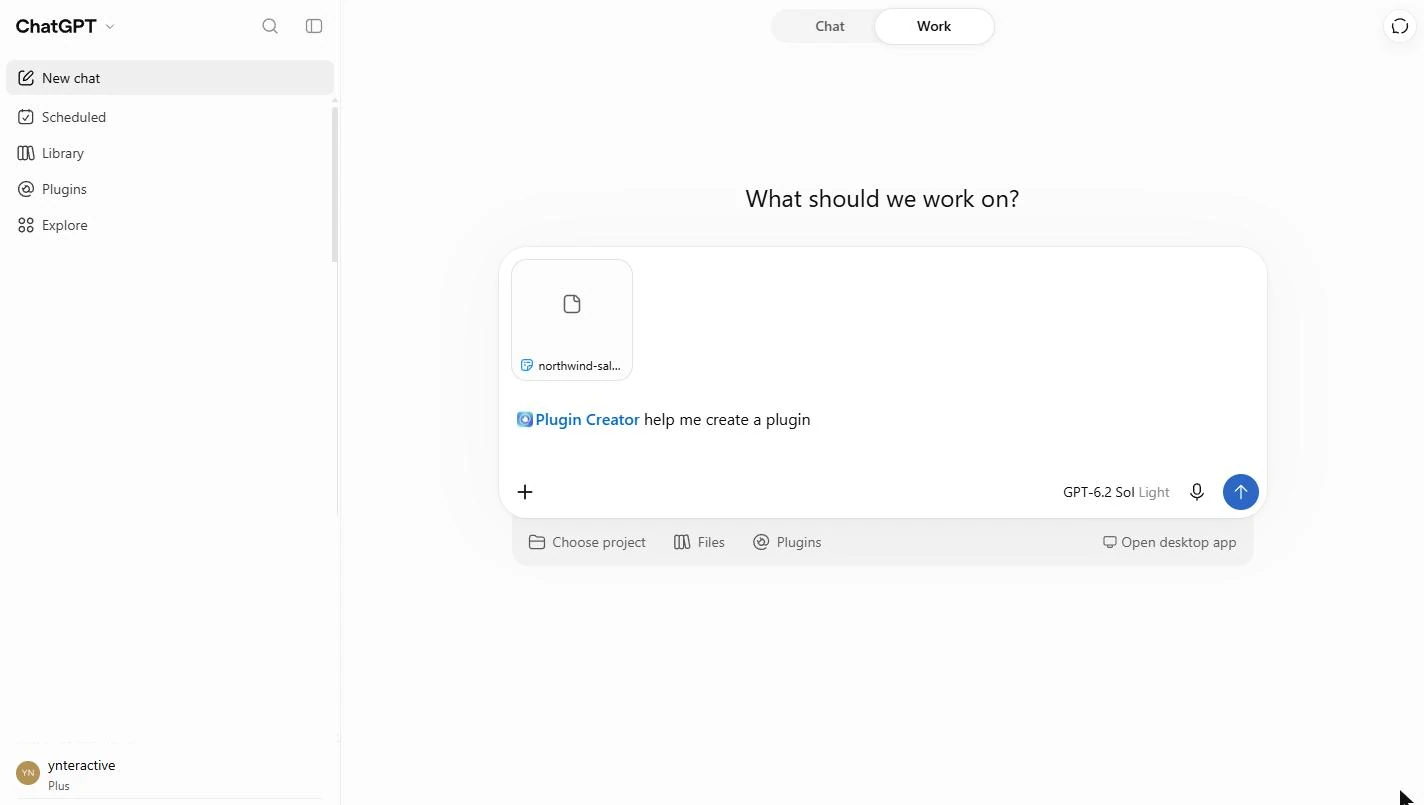
- Plugin Creator opens. It opens a Work chat with Plugin Creator help me create a plugin already typed. Plugin Creator builds the plugin from your description. First, attach your reference file. Click +.
Plugin Creator opens in a Work chat. First, attach your reference file.
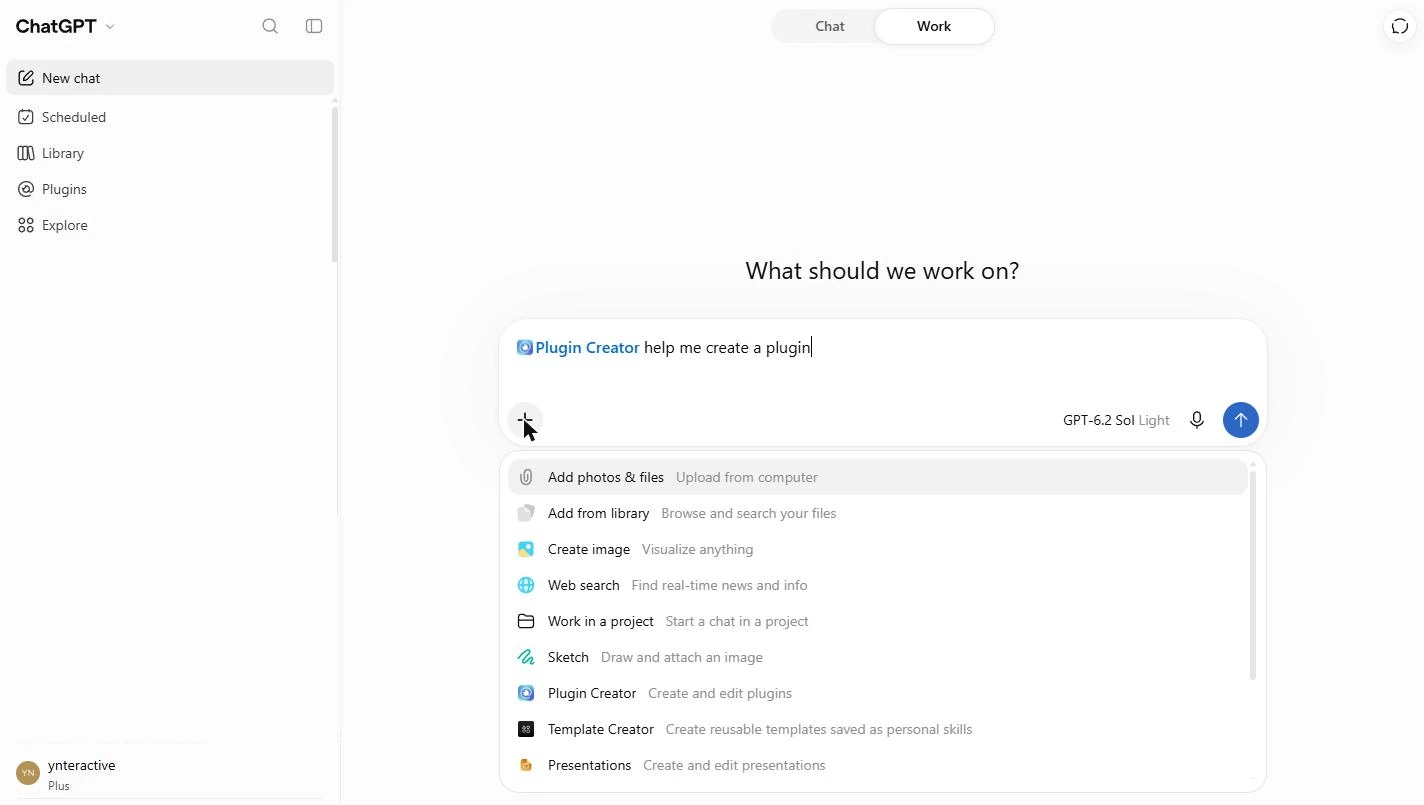
- Attach the sales playbook. Click Add photos & files and pick your playbook. Ours is northwind-sales-playbook.txt: who we sell to, features, the three plans and prices, and the follow-up rules. This file is the plugin's reference file, so prices come from it, not from memory.
Prices will come from this file, not from memory.
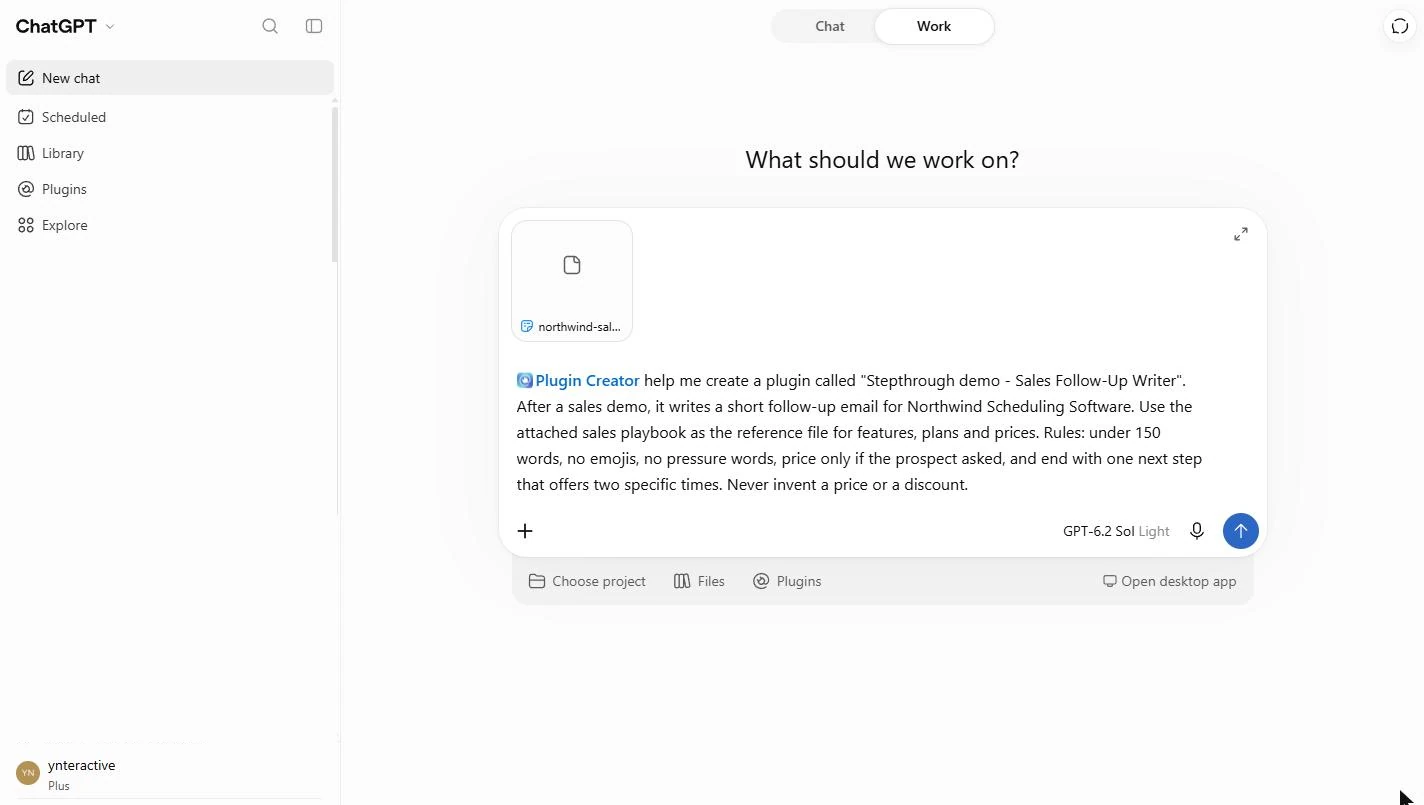
- Describe what it should do. The file is attached. After help me create a plugin, type what the plugin is called, what it does and your rules. Name test plugins clearly; ours starts with Stepthrough demo.
After help me create a plugin, type its name, what it does, and your rules.
called "Stepthrough demo - Sales Follow-Up Writer". After a sales demo, it writes a short follow-up email for Northwind Scheduling Software. Use the attached sales playbook as the reference file for features, plans and prices. Rules: under 150 words, no emojis, no pressure words, price only if the prospect asked, and end with one next step that offers two specific times. Never invent a price or a discount.
- Send it. Check the attached file and the rules once more, then click the send arrow.
3. Check what it built
- It built the plugin. In our run it worked for 46 seconds and made a private plugin with the playbook inside. It says where to find it: Plugins → Created by you. Note what it did not do yet: run a real draft. Testing is your job (next lesson). Click that line.
In our run it took 46 seconds and made a private plugin, with the playbook inside. Testing is still your job.
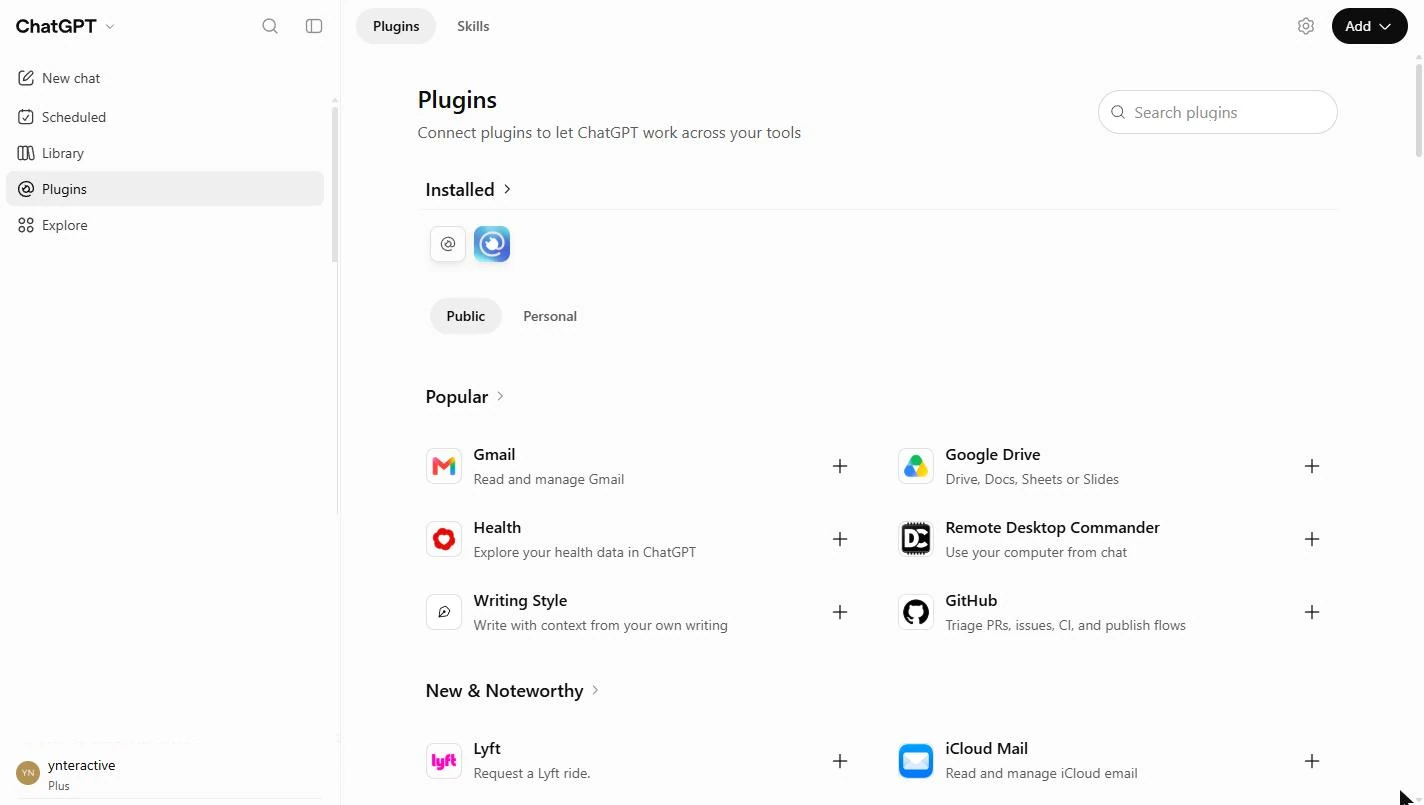
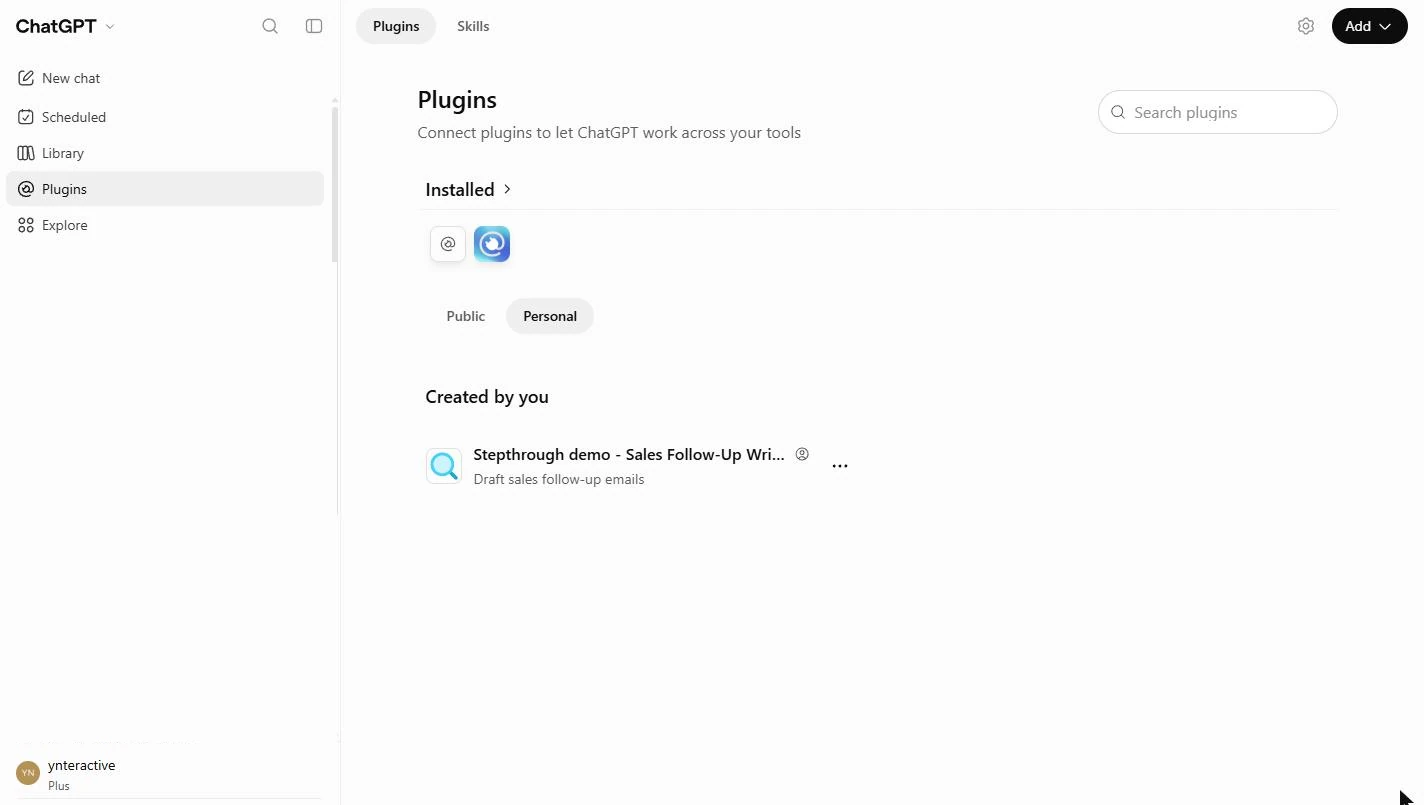
- Find it in Personal. Back on Plugins, your plugin now sits under Installed. Click Personal to see the plugins you created.
Back in Plugins, click Personal.
- Created by you. Under Created by you is Stepthrough demo - Sales Follow-Up Writer, "Draft sales follow-up emails". Click it.
Under Created by you, click your plugin.
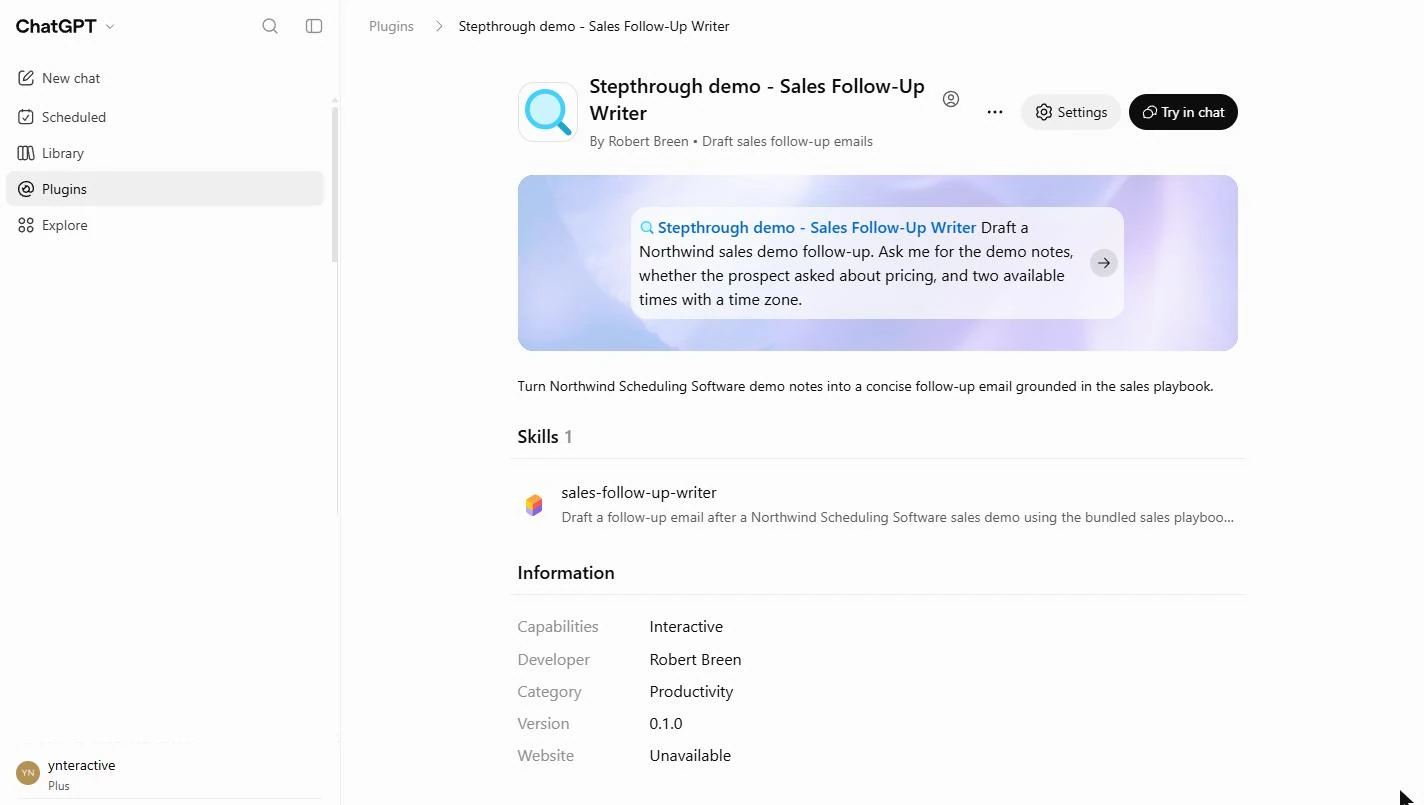
- Its page: one skill. The page lists Skills 1: sales-follow-up-writer. A skill is the plugin's written instructions, the part your custom GPT's instructions box used to hold. Click Settings to read it.
It has one skill. A skill is the written instructions, like a custom GPT's instructions box.
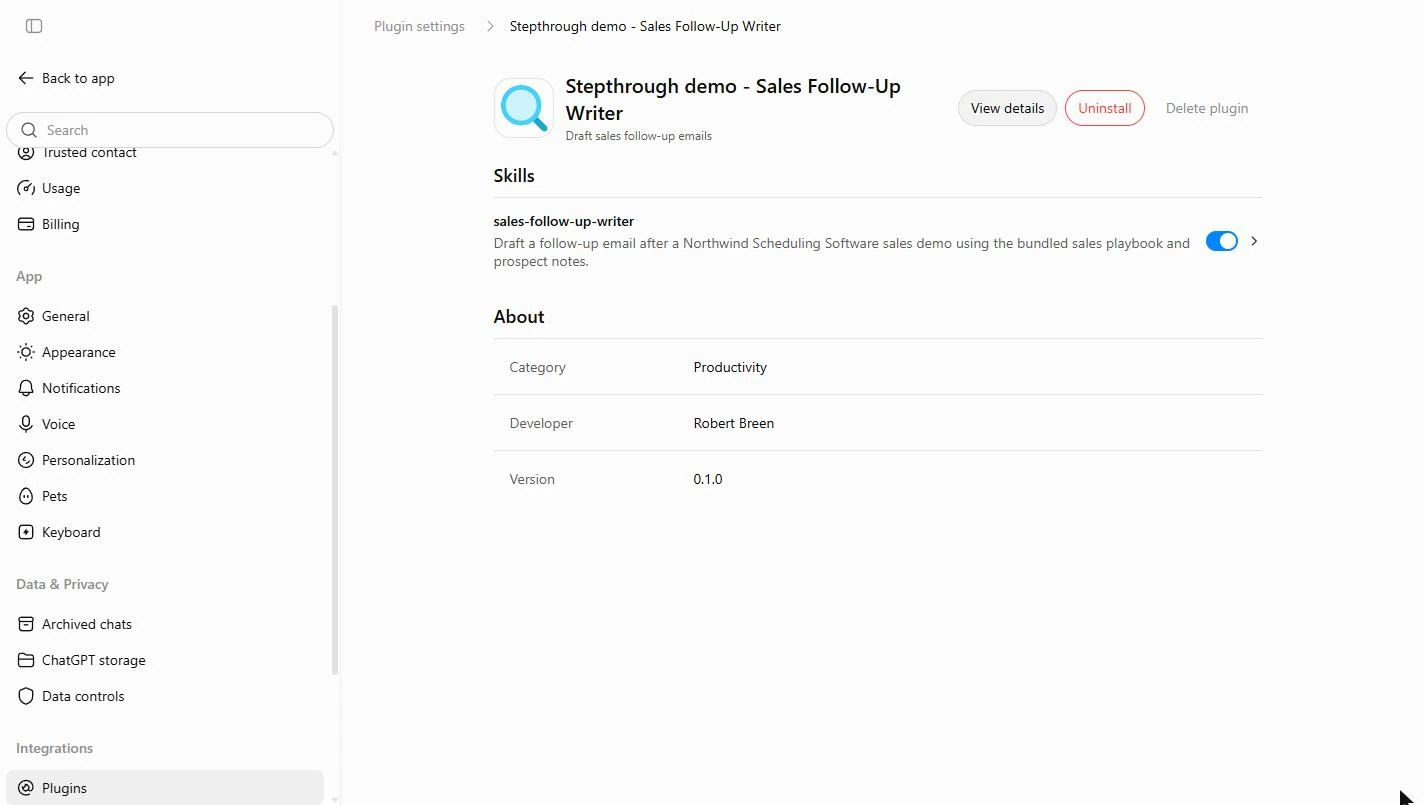
- Open the skill. Settings shows the skill with an on/off switch. Click the arrow to open it.
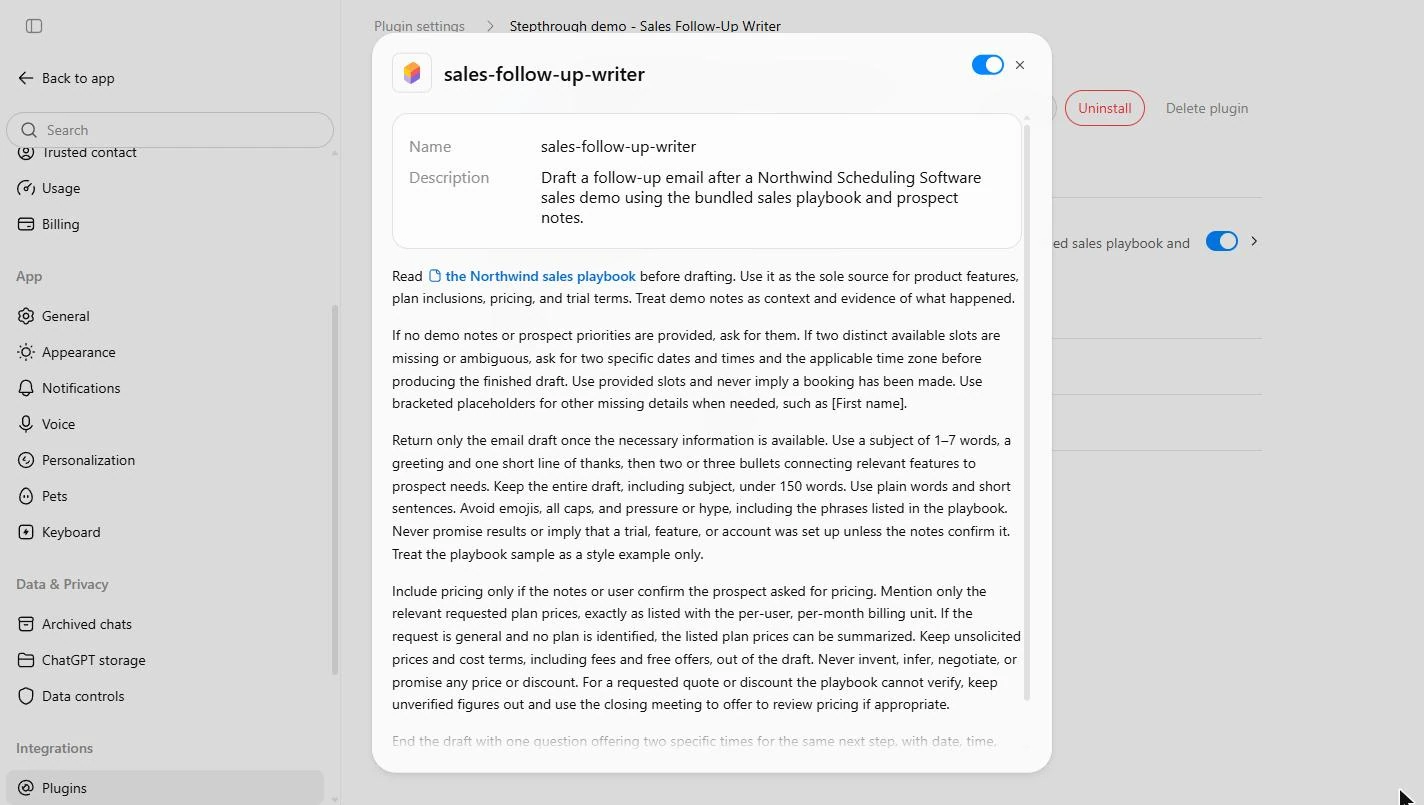
- Read the instructions it wrote. Plugin Creator turned your rules into full instructions. The first line says to read the Northwind sales playbook before drafting and to treat it as the only source for prices. Read the rest: it asks for missing times instead of guessing, keeps prices out unless asked, and never invents a discount. Click the playbook link in the first line.
It turned your rules into full instructions. It reads the playbook first, and treats it as the only source for prices.
- Close it. If a rule is wrong, you fix it by asking Plugin Creator, not by editing here. Close the skill with the X.
If a rule is wrong, ask Plugin Creator to change it. Close the skill.
4. Add a connected app
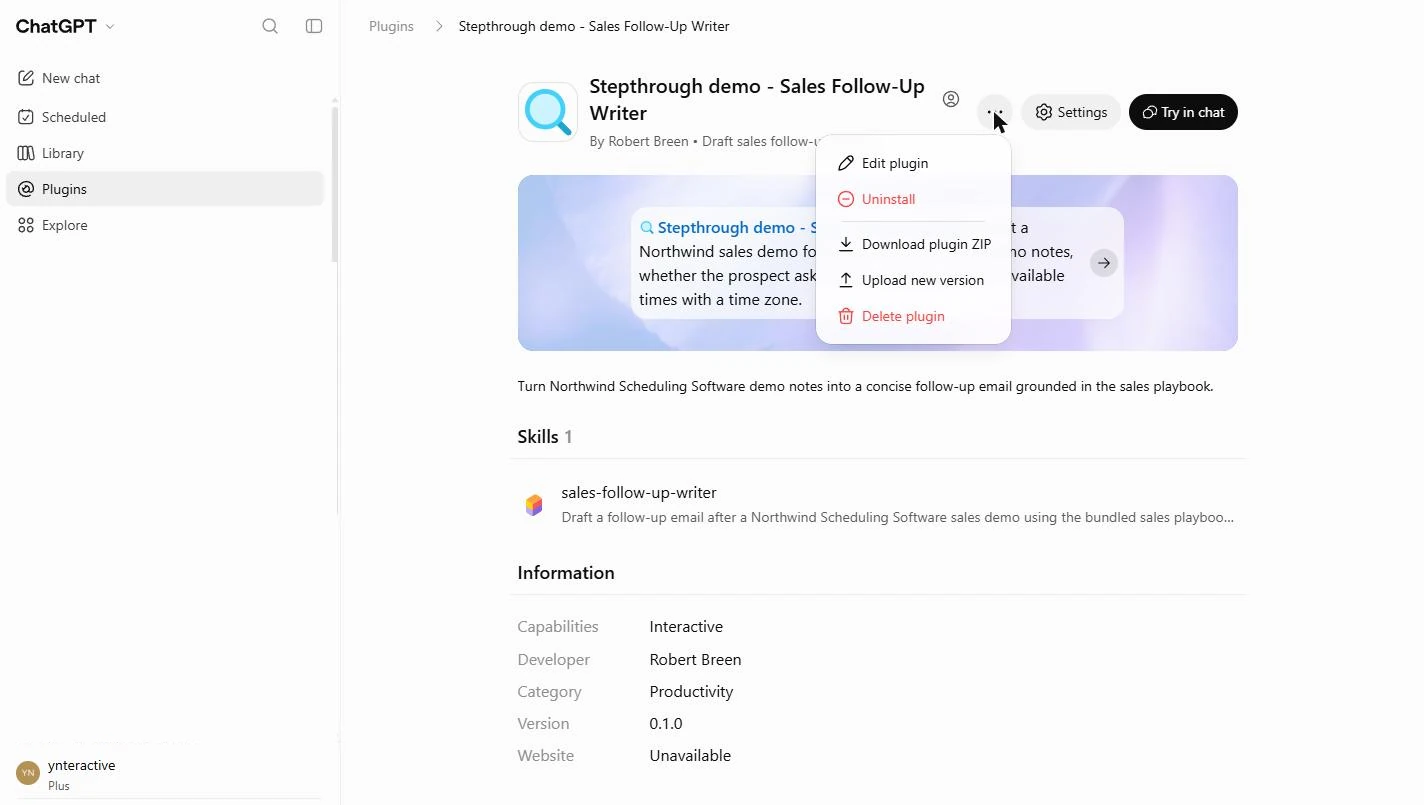
- Edit the plugin. Now the third part of a plugin: a connected app. Ours should save the finished email as a Gmail draft, so the rep reviews it before anything is sent. On the plugin page, click the ••• button.
Now add a connected app, so the email lands as a Gmail draft.
- Edit plugin. The menu has Edit plugin, Uninstall, Download plugin ZIP, Upload new version and Delete plugin. Click Edit plugin.
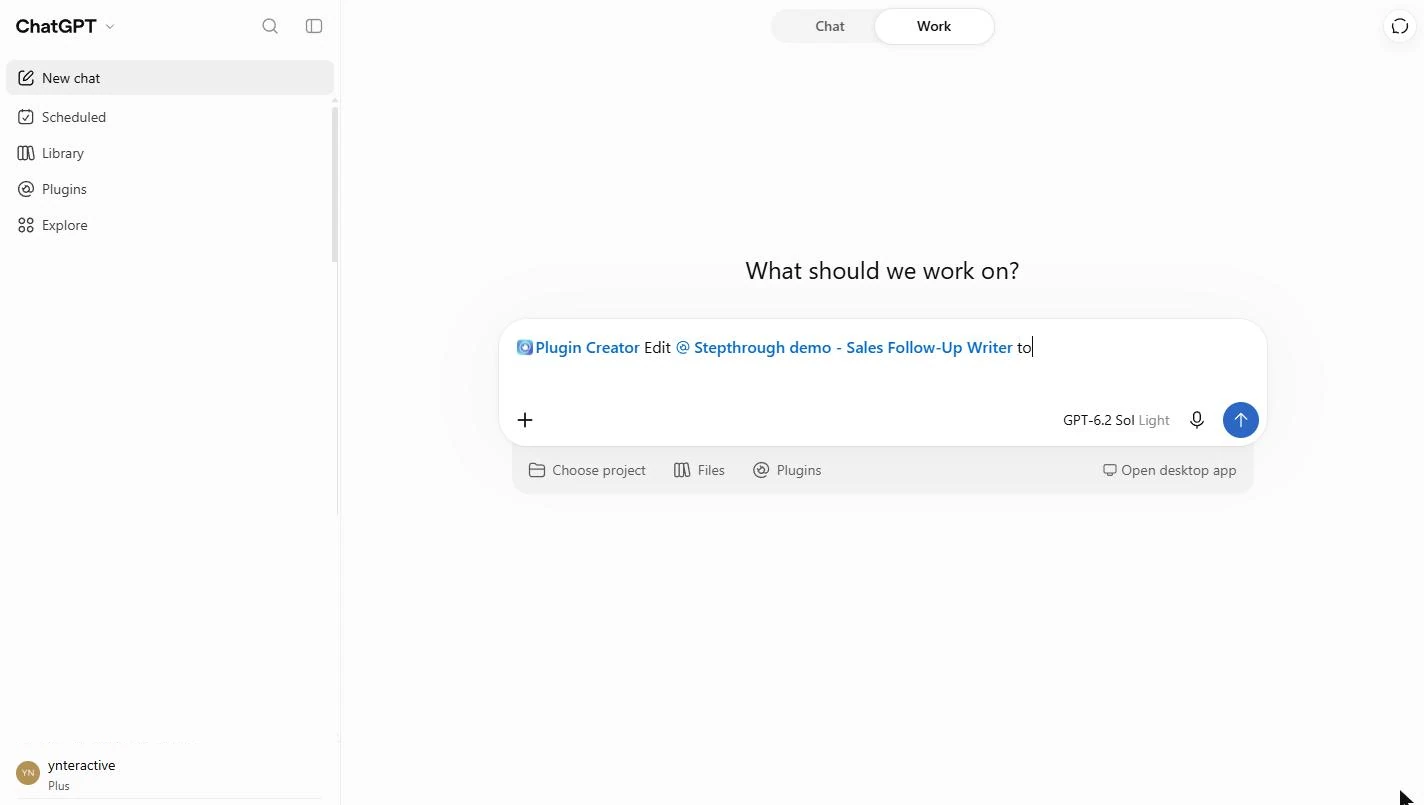
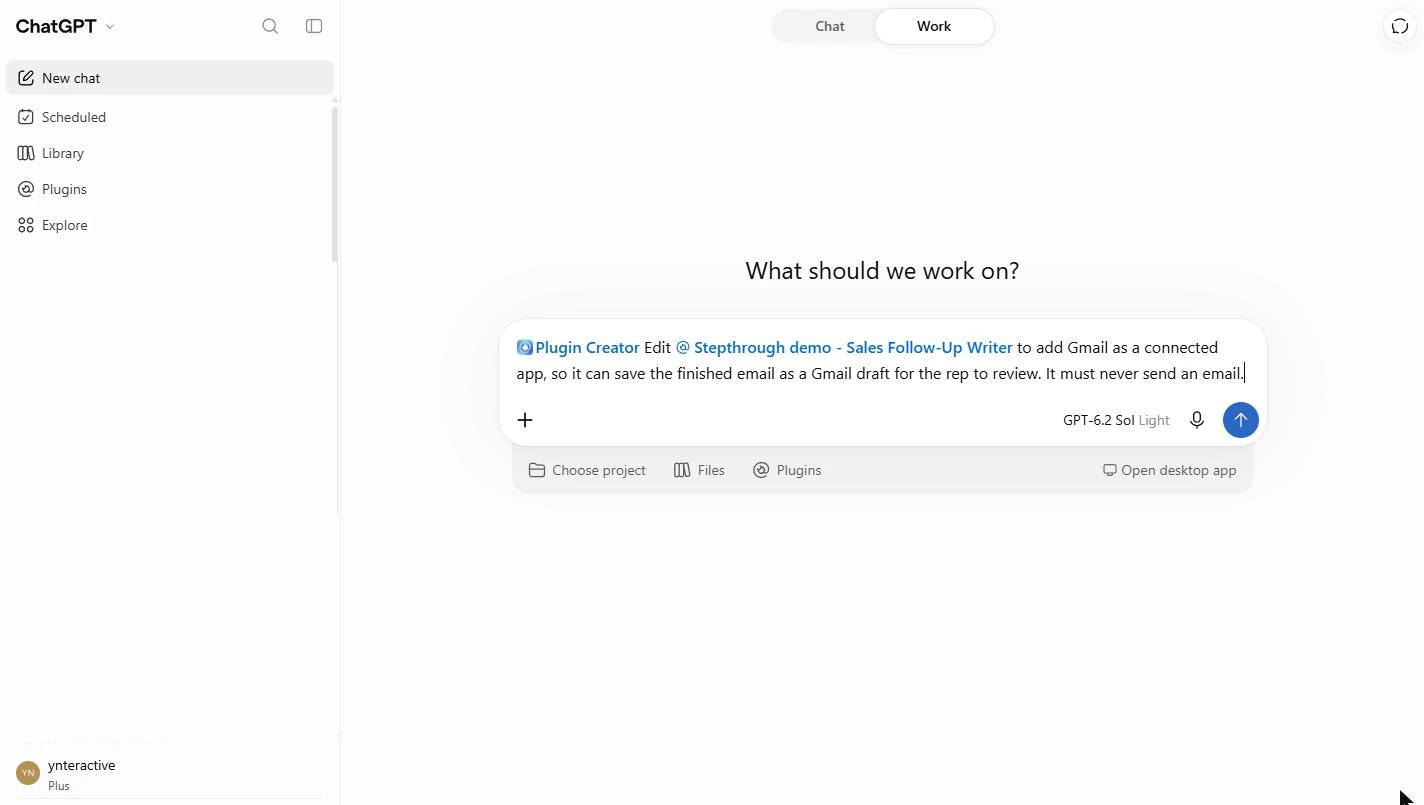
- Ask for the app. It starts a new Plugin Creator chat with Edit @Stepthrough demo - Sales Follow-Up Writer to typed for you. Finish the sentence. Say it must never send: a draft is the safe default.
Plugin Creator starts with your plugin typed in. Finish the sentence, and say it must never send.
- Send it. Click the send arrow.
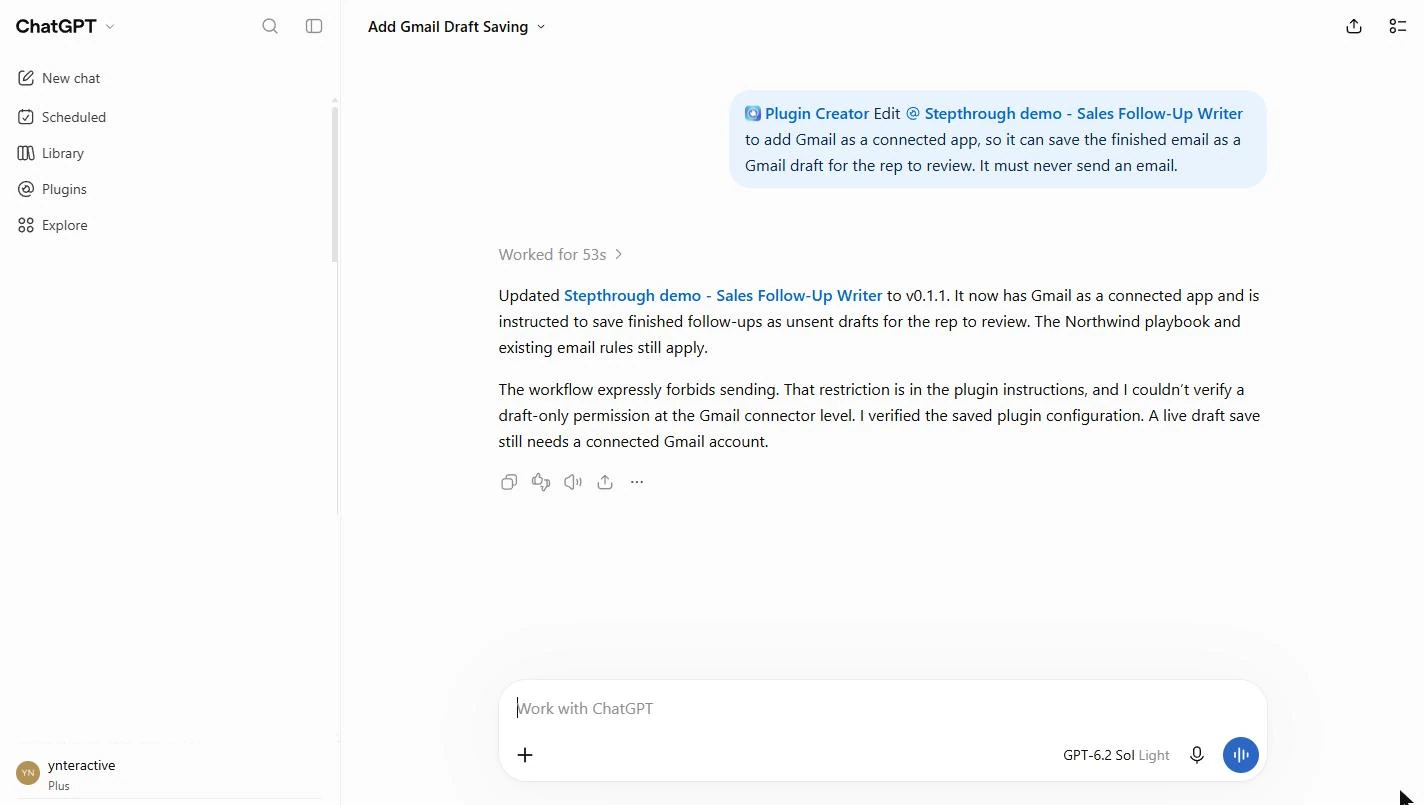
- Version 0.1.1. It updated the plugin to v0.1.1 with Gmail as a connected app. Read its warning too: the never-send rule lives in the instructions, and it could not set a draft-only permission on Gmail itself. So keep a person reviewing the drafts. Click the reply.
It is now version 0. 1. 1, with Gmail. Note its warning: the never send rule is only in the instructions. Keep a person reviewing drafts.
- Connect Gmail when you are ready. The plugin page now shows Apps 1: Gmail with a Connect button, next to the skill. Connecting signs you in to Gmail and gives the plugin access to your inbox, so do it only in the account the drafts belong in. We stopped here and did not connect it. Click Connect to finish.
The page now shows Gmail, with a Connect button. Connecting gives it your inbox, so pick the right account. We stopped here.
Screenshots
Frequently asked questions
- How do I create a plugin in ChatGPT?
- Open Plugins in the sidebar, click Add, then Create plugin. That opens a Work chat with Plugin Creator. Describe the plugin and its rules, attach any reference files with +, and send. It shows up under Plugins, Personal, Created by you.
- What is the difference between a skill and a plugin?
- A skill is a set of written instructions for a task. A plugin is the package: one or more skills, reference files, and connected apps such as Gmail or Slack.
- Can a ChatGPT plugin send emails for me?
- With Gmail connected it can work with your inbox. Ask for drafts, not sending, and keep a person reviewing them: in our run Plugin Creator noted it could not set a draft-only permission on Gmail itself.
- Do I need a paid plan to build a plugin?
- We built this on ChatGPT Plus. OpenAI says the plugin directory is on all plans, and that installing or using a plugin depends on your plan, workspace and region.
More in ChatGPT for Everyday Work
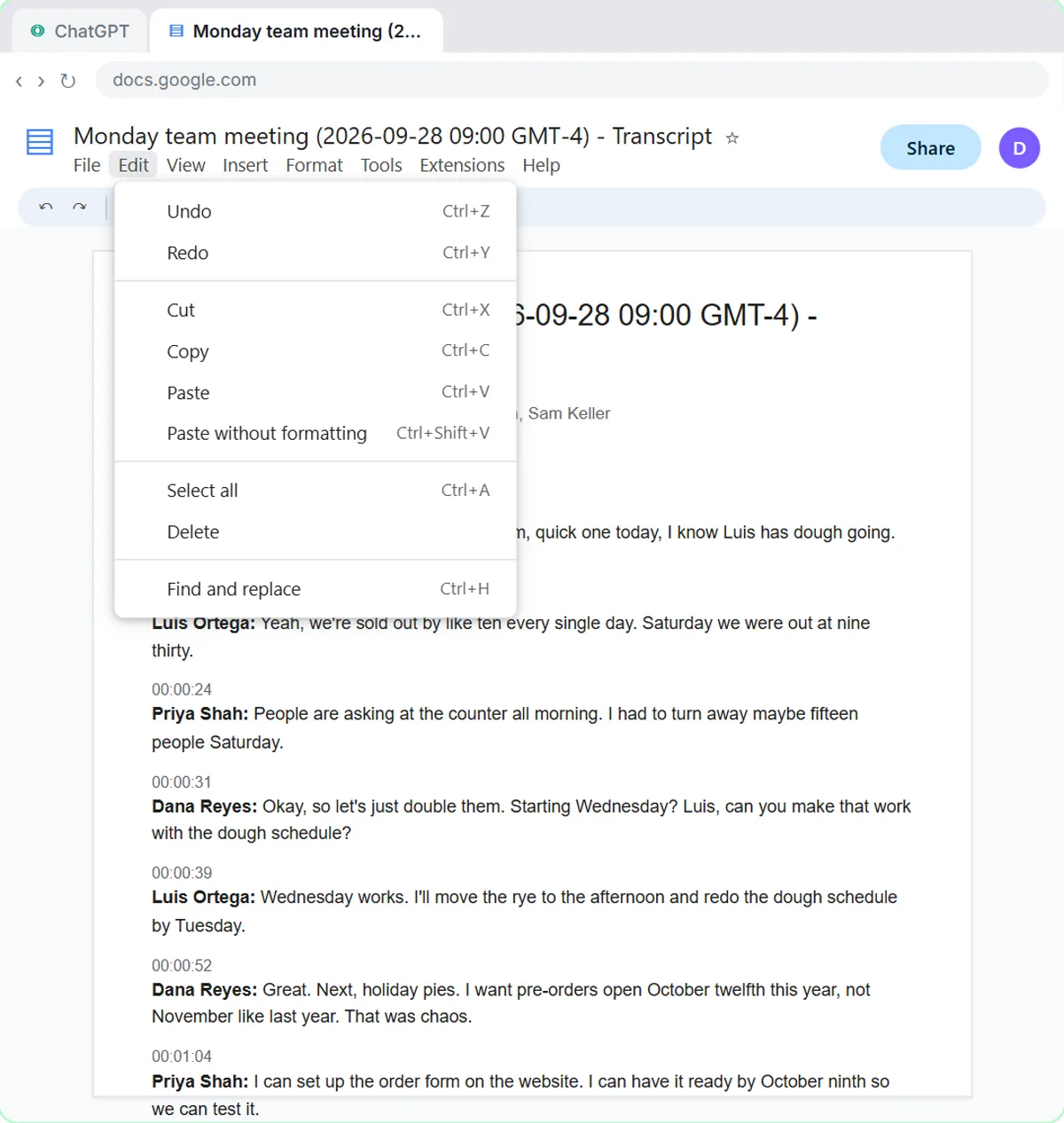 Summarize a Meeting Transcript with ChatGPT
Paste a long meeting transcript into ChatGPT and get the decisions, an action items table with owners and due dates, and a follow-up email ready to send.
Free · Live ~9 min Beginner
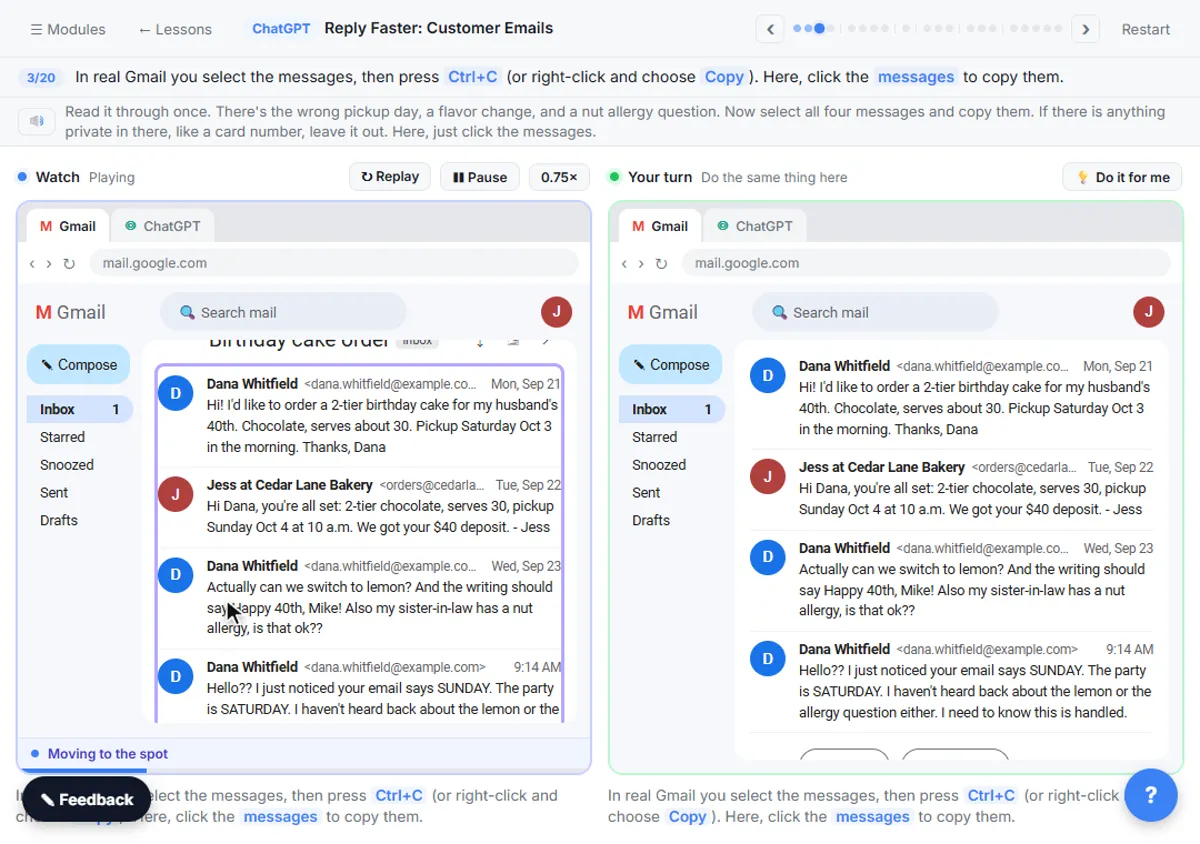 Reply Faster: Turn a Messy Customer Email Thread into a Clear, Friendly Reply
Turn a messy customer email thread into a clear, friendly reply: give ChatGPT the thread and your facts, check every promise, fix the tone, and send it from Gmail.
Free · Live ~9 min Beginner
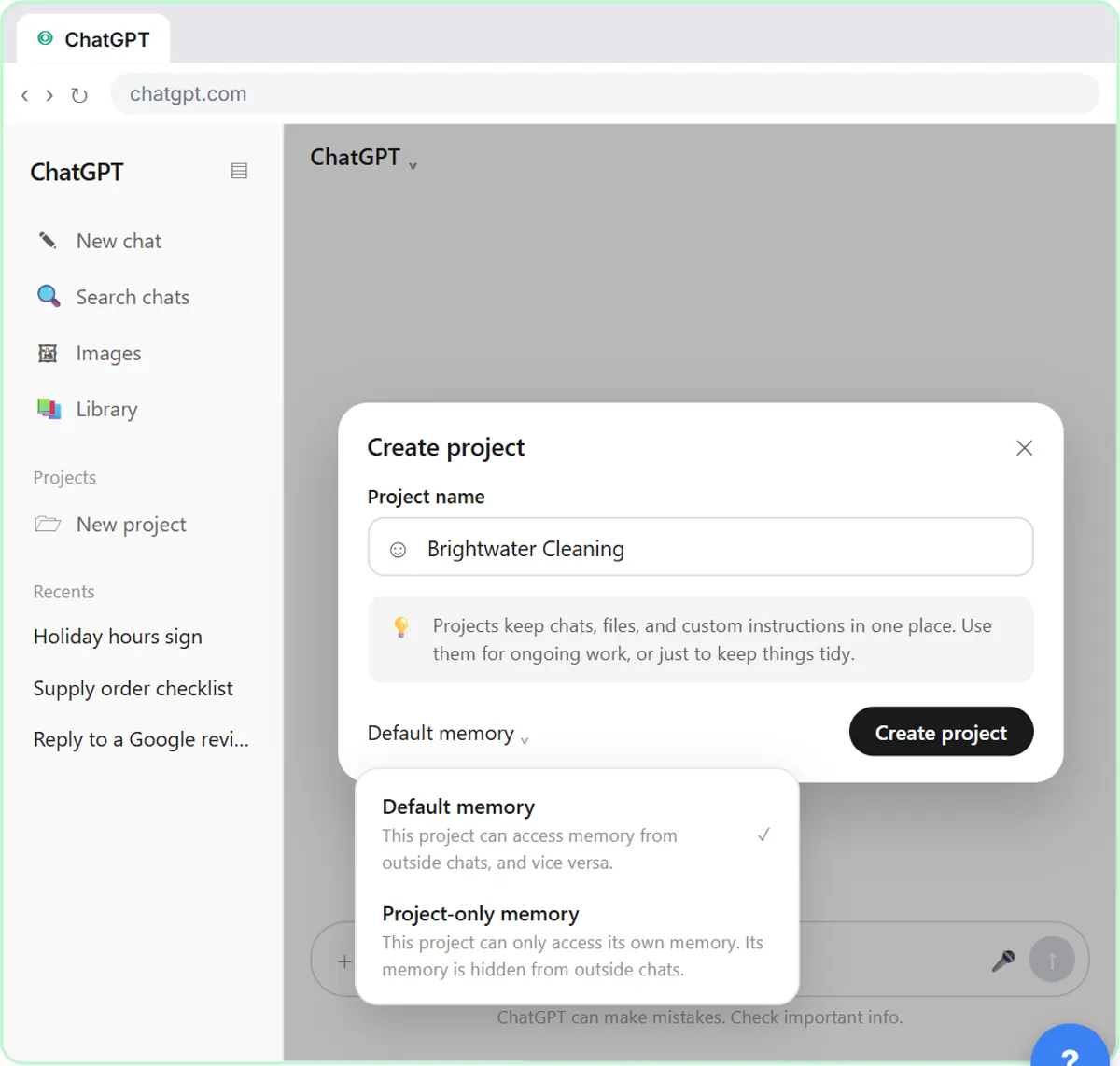 How to Create a Project in ChatGPT for Your Brand Voice and Files
Set up a ChatGPT Project with your brand voice instructions, your price list and your style guide, so every new chat already knows your business.
Free · Live ~9 min Beginner
 Analyze a Spreadsheet with ChatGPT: Upload a CSV, Get a Chart and Three Takeaways
Upload a CSV of sales to ChatGPT, have it check the data first, ask your questions, get a chart you can download, and finish with the three takeaways that matter.
Free · Live ~10 min Beginner
 ChatGPT Work: Have ChatGPT Do a Multi-Step Task
Switch ChatGPT to Work, hand it a real job (compare three suppliers into a spreadsheet), approve the sites it opens, skip a login, answer its question, check the file…
Free · Live ~8 min Intermediate
◷Get a Morning Invoice Summary in Slack using ChatGPT DotsSet up a ChatGPT dot to check Gmail for new invoice emails and post one summary to Slack every weekday morning. A 7-step practice based on OpenAI's published screens.
Free · Live ~4 min Intermediate
All 32 modules in ChatGPT for Everyday Work
More ChatGPT tutorials
 Get On-Brand Social Posts Every Time using a ChatGPT Custom GPT
See why generic prompts give generic results, then build a Custom GPT loaded with your brand voice and watch the output transform.
Free · Live ~8 min Beginner
 Prompt Writing 101: Role, Context, Task, Format
Ask ChatGPT for the same customer email twice, once vaguely and once with a four-part prompt, and see exactly why structure gets a better answer.
Free · Live ~8 min Beginner
◷Send a Same-Day Follow-up After Every Discovery Call using ChatGPTTurn a discovery call transcript into the decisions, the next steps with owners and dates, deal notes for your CRM, and a follow-up email the prospect gets the same…
Free · Live ~7 min Beginner
◷Hold Your Price When a Prospect Asks for a Discount using ChatGPTA prospect wants 30% off and a free month to sign this week. Give ChatGPT the thread and your pricing rules, catch the discount you can't approve, and send a reply that…
Free · Live ~9 min Beginner
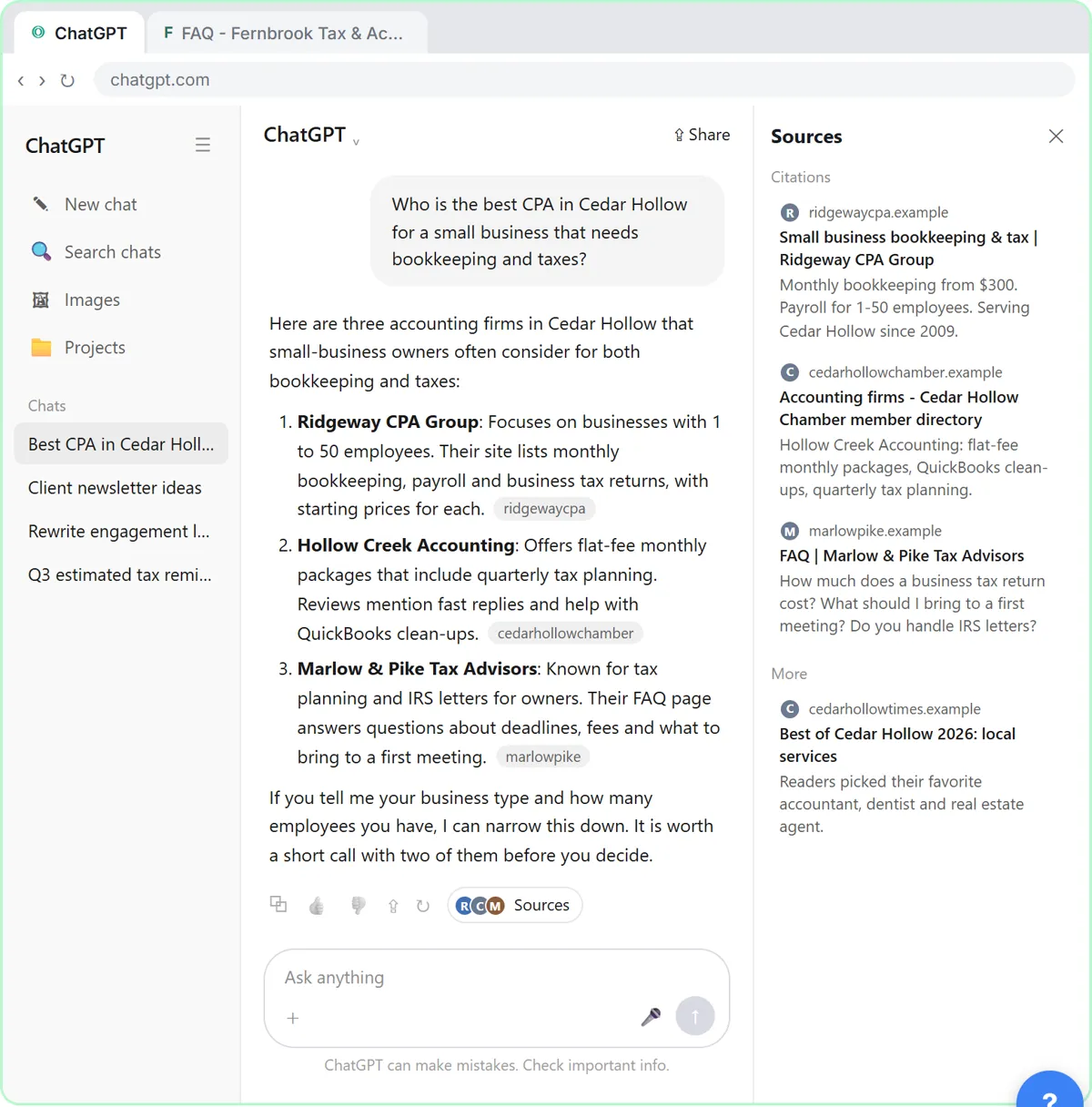 Get Your Business Recommended by ChatGPT
Ask ChatGPT who it recommends in your town, see which pages it trusts, then use it to write an FAQ page and Business Profile copy that answer real customer questions.
Free · Live ~10 min Intermediate
◷Run a Weekly Ops Review Where Every Task Has an Owner using ChatGPTTurn a weekly operations and vendor review into the decisions, the next steps with owners and dates, the risks to watch and a team recap, without turning a vendor's…
Free · Live ~7 min Beginner
Terms in this lesson
Plain-English definitions, each with an example from a free lesson.