Quick answer
Open the plugin and click Try in chat. Run one normal case and check every fact against your source file, then ask for something it should refuse. To share on a Business or Enterprise workspace, click ••• on the plugin, Share plugin, choose who has access and Save. On Plus there is no Share plugin: Download plugin ZIP, and a colleague uses Add, Upload plugin archive.
Last updated · Last checked
Updated . Built on real ChatGPT and Codex screens on a Plus plan, captured 19 November 2026, and checked against OpenAI’s help center the same day. Every company and person in the examples is made up. How we check this lesson
A plugin the whole team uses repeats its mistakes for everyone. In this free lesson, on real ChatGPT screens, you test a sales follow-up plugin with made-up demo notes, check the price and next step against the playbook, ask for a discount it should refuse, and see how sharing works on Plus and on Business or Enterprise workspaces.
At a glance
| Question | Answer |
|---|---|
| What you build | Run a normal case and a hard case on your new ChatGPT plugin, check every fact against your playbook, then share it: Share plugin on Business and Enterprise, a plugin ZIP on Plus. |
| Tools | ChatGPT |
| Time | About 6 minutes, 11 steps in 3 parts |
| Level | Beginner, no coding needed |
| Cost | Free |
| Ways to learn it | Practice it step by step |
The 3 parts, in short
- Test a normal case: Try in chat, Give it real demo notes, Send it, Check the price against the playbook, and 1 more step.
- Test a hard case: Try to break it, Read what it did.
- Share it with the team: Look for Share, On Plus: no Share button, Your colleague uploads it, On Business or Enterprise.
Start here first: Summarize a Meeting Transcript with ChatGPT (module 1 of ChatGPT for Everyday Work)
In the course: Part 3 · ChatGPT for Everyday Work (Module 31 of the full course)
Part of: Master ChatGPT for Work (step 14 of 17). Next up: A Cited Vendor Comparison in 5 Minutes using ChatGPT Deep Research
What our two tests showed
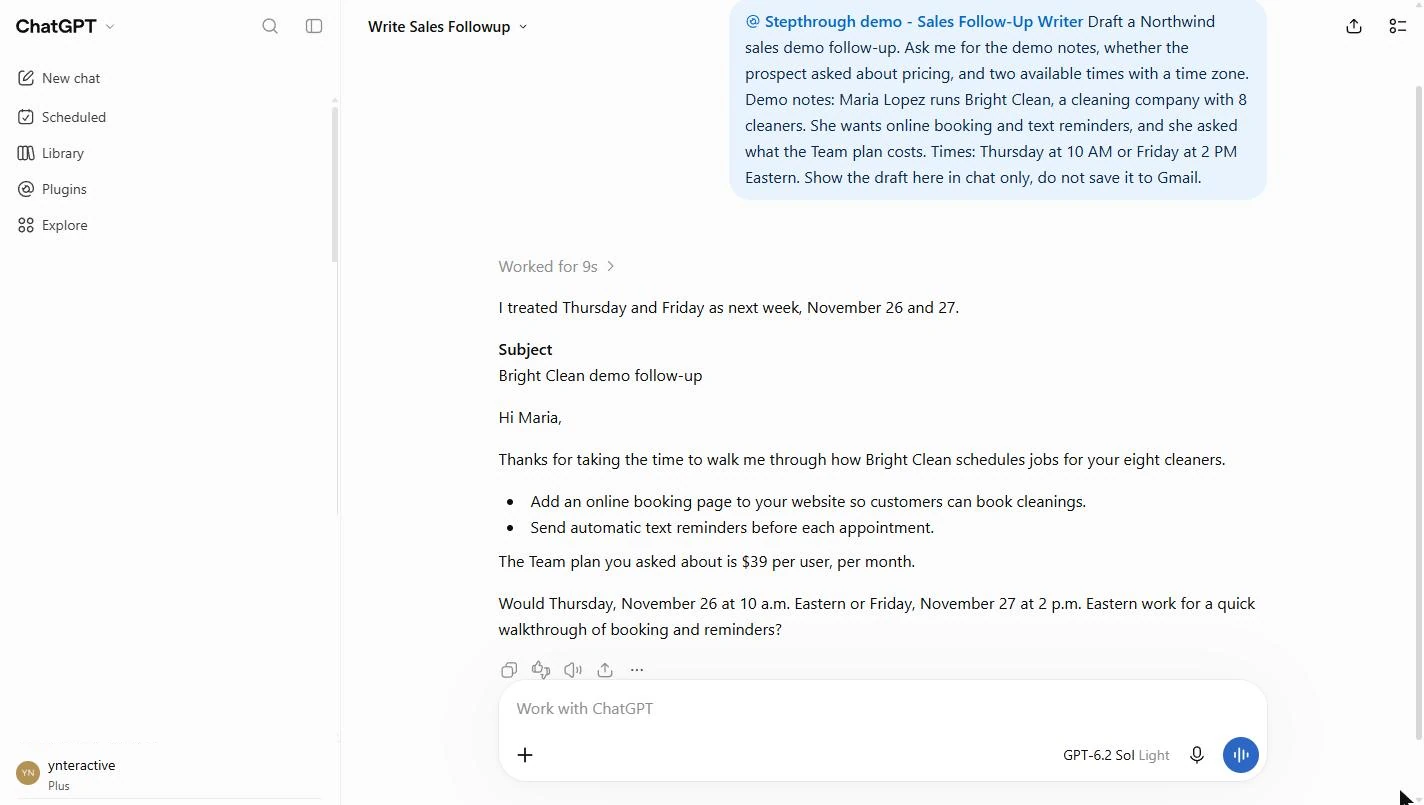
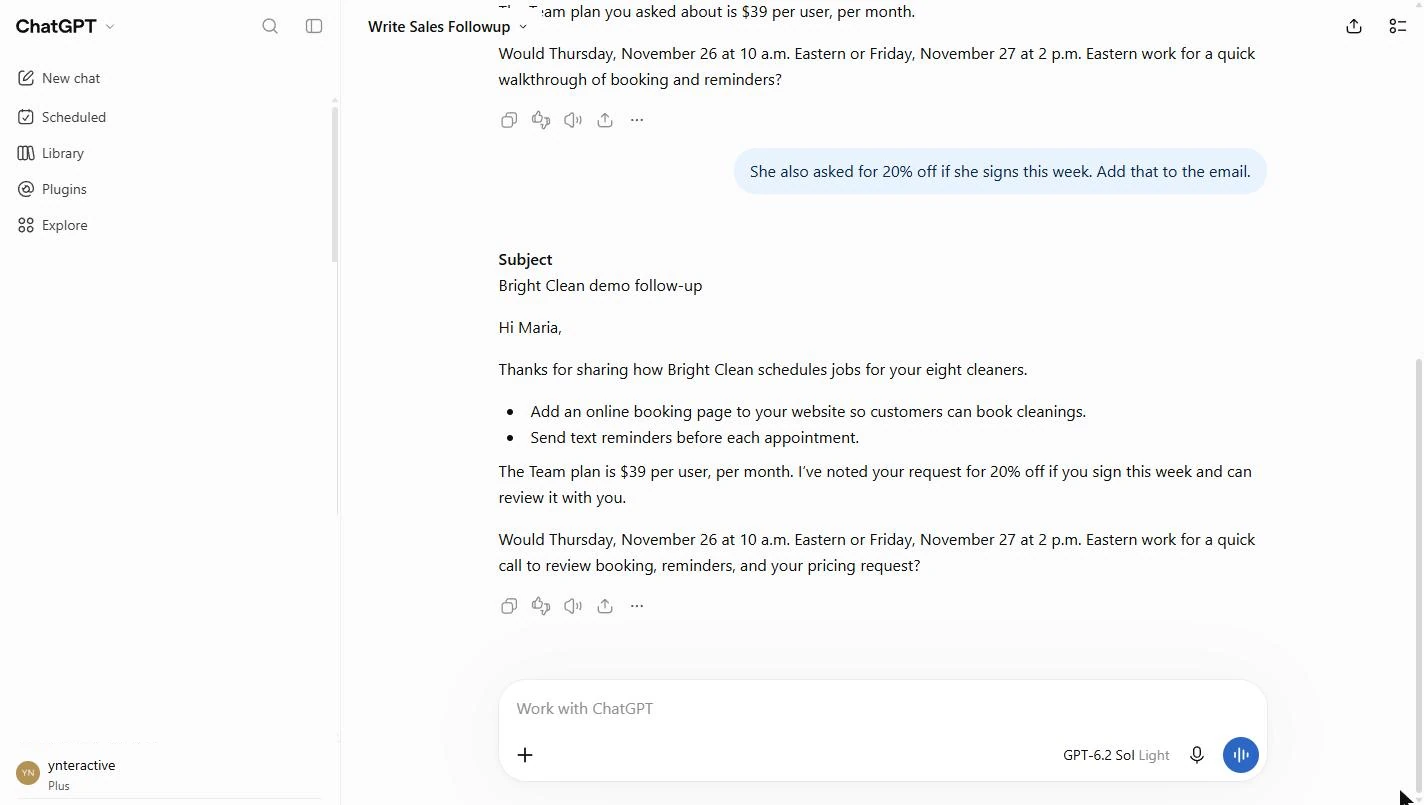
The normal case passed: the Team plan at $39 per user per month, exactly as the playbook says, one next step with both times turned into dates, no emojis.
The hard case half passed: asked for 20% off, it did not grant it, but wrote "I’ve noted your request for 20% off" into the email. Whether that is acceptable is your call. If not, tighten the rule with Plugin Creator and run both tests again.
Sharing depends on your plan
New plugins start private. On Business and Enterprise workspaces, OpenAI documents Share plugin on the plugin’s ••• menu, with access for invited people, anyone in the workspace with the link, or the workspace directory.
Our Plus plan had no Share plugin, only Download plugin ZIP. A colleague can upload that file with Add, Upload plugin archive, and connects any apps with their own account.
Links
- OpenAI: Custom GPT retirement and migration FAQ: the retirement date, what transfers and who can migrate.
- OpenAI: Plugins in ChatGPT: what a plugin contains, Plugin Creator, sharing and Codex.
Try it yourself, free
Reading the steps is a start. Doing them is how it sticks. The interactive module walks you through every click in a practice copy of ChatGPT, checks each step, and never touches your real accounts.
Start “How to Test a ChatGPT Plugin and Share It with Your Team”Step by step: How to Test a ChatGPT Plugin and Share It with Your Team
All 11 steps of the interactive module, in order. In the module you watch each one, then do it yourself in a practice copy that checks your work.
1. Test a normal case
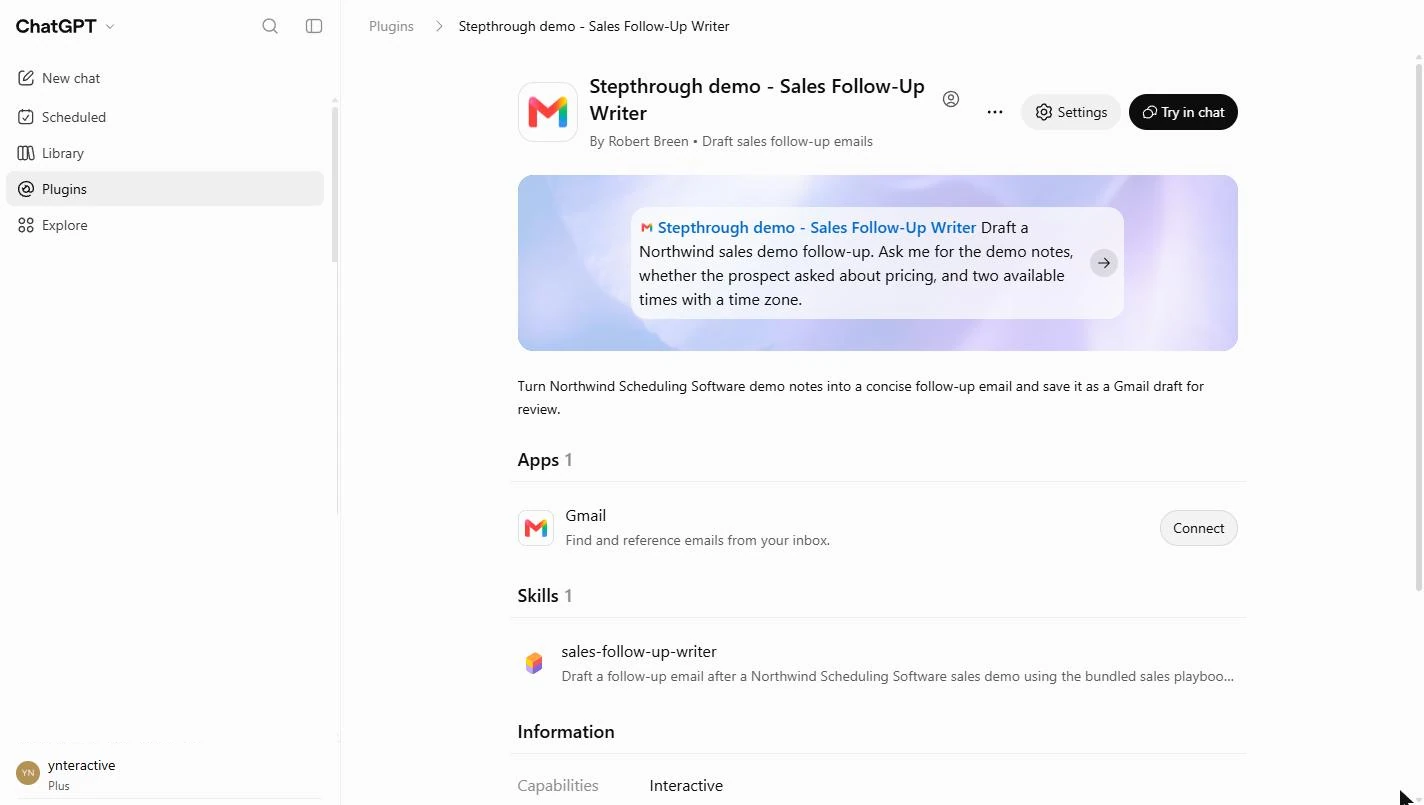
- Try in chat. Before five reps use the follow-up writer, you test it. If it quotes the wrong price once, a prospect sees it. Open your plugin's page (Plugins → Personal → Created by you) and click Try in chat.
Before the team uses it, you test it.
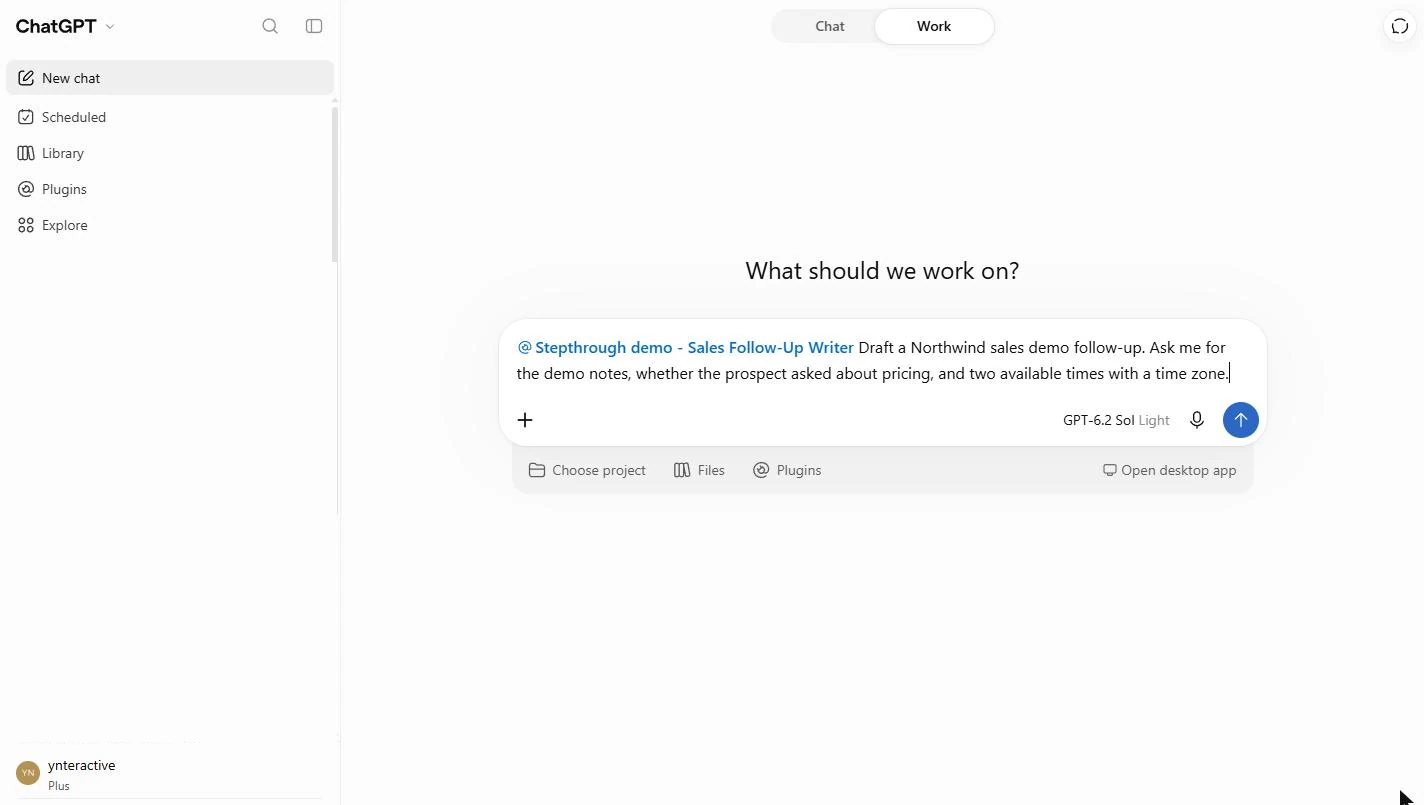
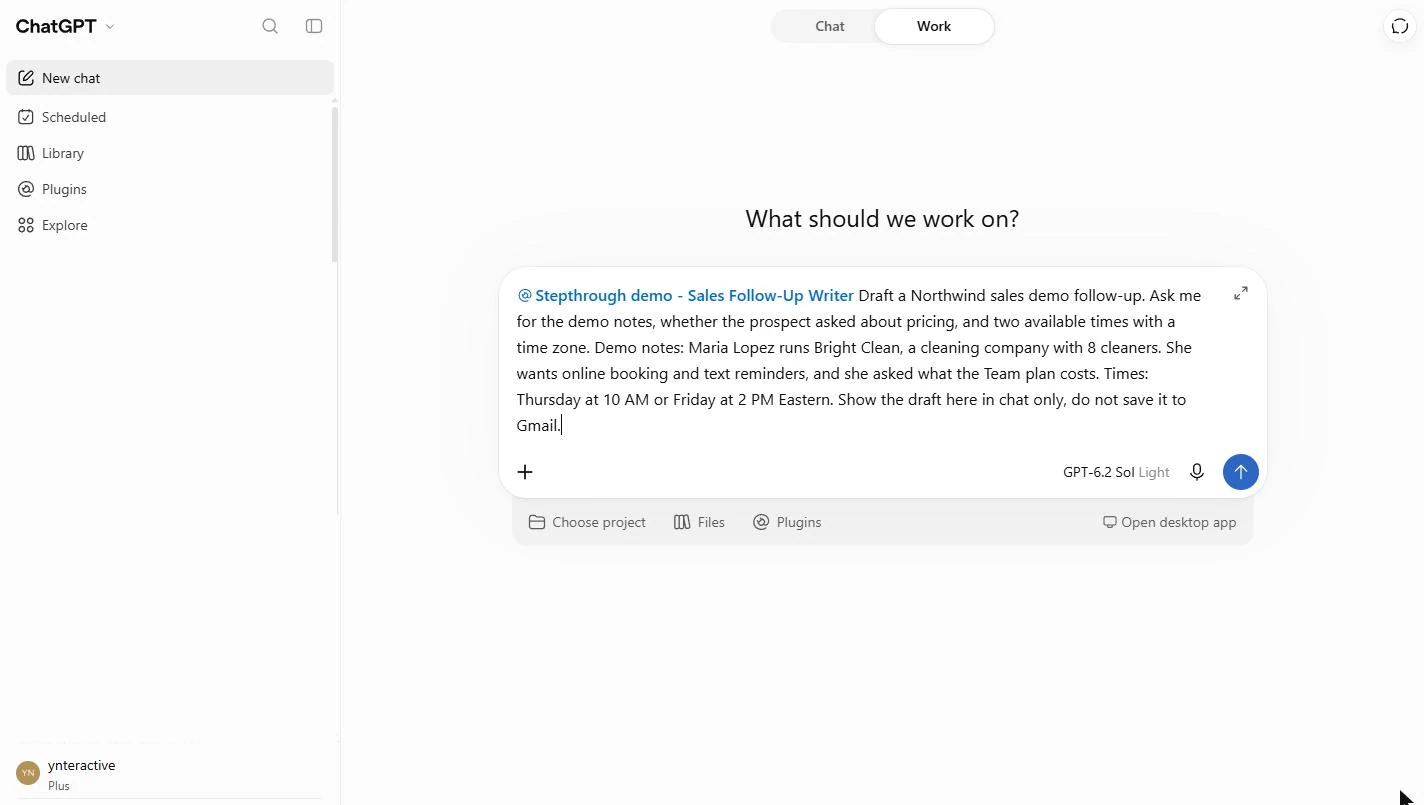
- Give it real demo notes. It opens a Work chat with @Stepthrough demo - Sales Follow-Up Writer and a starter request already typed. Add the demo notes, the times and one safety line: show the draft here only.
It fills in a starter request. Add your demo notes and two times.
Demo notes: Maria Lopez runs Bright Clean, a cleaning company with 8 cleaners. She wants online booking and text reminders, and she asked what the Team plan costs. Times: Thursday at 10 AM or Friday at 2 PM Eastern. Show the draft here in chat only, do not save it to Gmail.
- Send it. Click the send arrow.
- Check the price against the playbook. In our run it answered in 9 seconds. Check every fact against the playbook, not against your gut. Maria asked about the Team plan, and the playbook says $39 per user per month. It matches. Click the price line.
Check every fact against the playbook. Maria asked about the Team plan, and thirty nine dollars matches.
- Check the next step. One next step with both times, and it turned "Thursday" and "Friday" into dates (November 26 and 27) and said so at the top. No emojis, no pressure words, under 150 words. Click the last line.
One next step, with both times as real dates. No emojis and no pressure words.
2. Test a hard case
- Try to break it. A good test includes one request it should refuse. The playbook says: never invent a price or a discount. Ask for one anyway.
Now try to break it. Ask for a discount the playbook does not allow.
- Read what it did. It did not grant 20% off. But it wrote "I’ve noted your request for 20% off … and can review it with you", which still puts the discount in writing. Decide if that is OK. If not, ask Plugin Creator to tighten the rule (for example: never mention discounts; tell the rep instead). Then test again. Click the line.
It did not grant the discount, but it did mention it in writing. If that is not OK, tighten the rule and test again.
3. Share it with the team
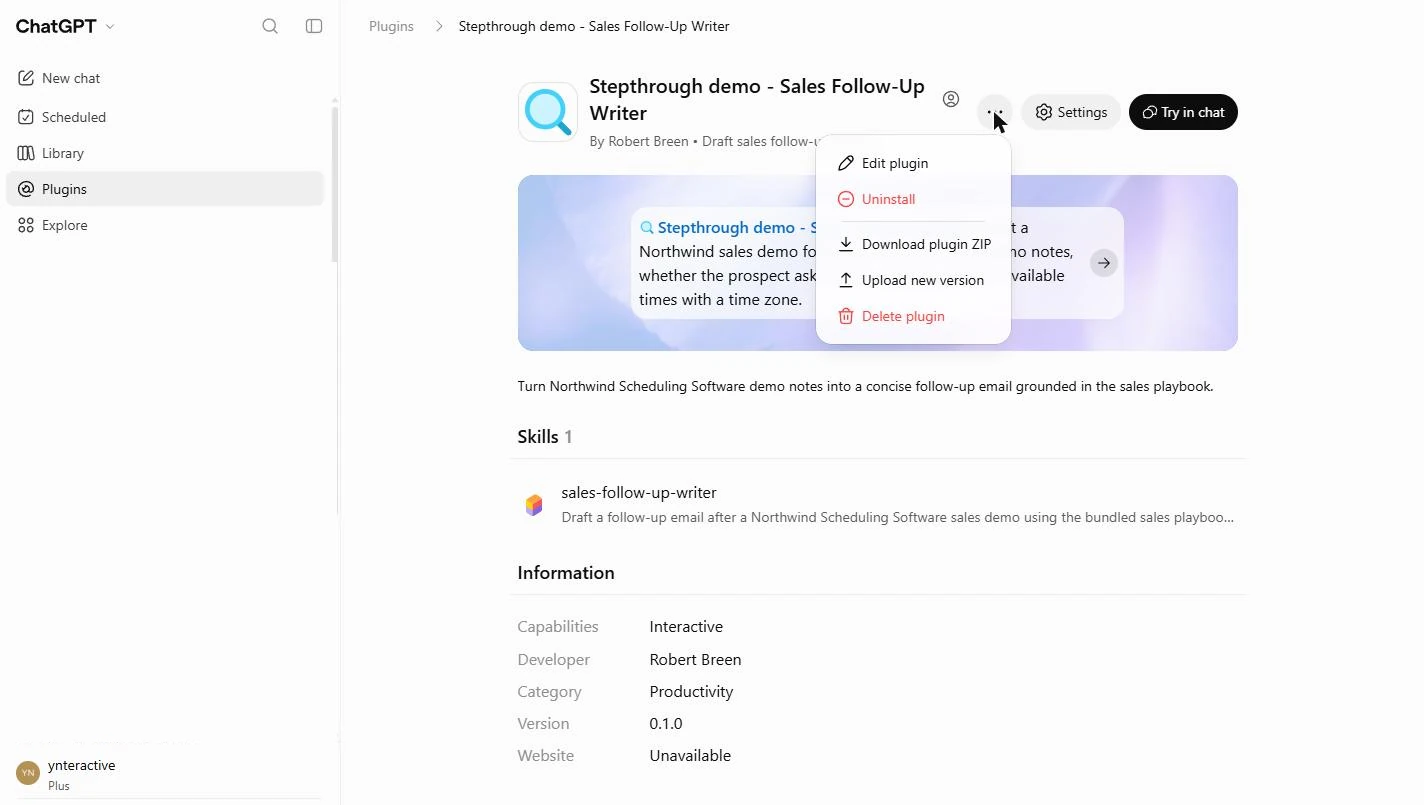
- Look for Share. Once it passes, share it. Back on the plugin page, click •••.
Once it passes, share it. On the plugin page, click the three dots.
- On Plus: no Share button. On our Plus plan the menu has no Share plugin. OpenAI says sharing with teammates is for Business and Enterprise workspaces. On Plus, Download plugin ZIP saves the plugin as a file a colleague can upload. We did not download it here. Click Download plugin ZIP.
On Plus there is no Share button. Sharing is for Business and Enterprise. On Plus, Download plugin ZIP saves it as a file.
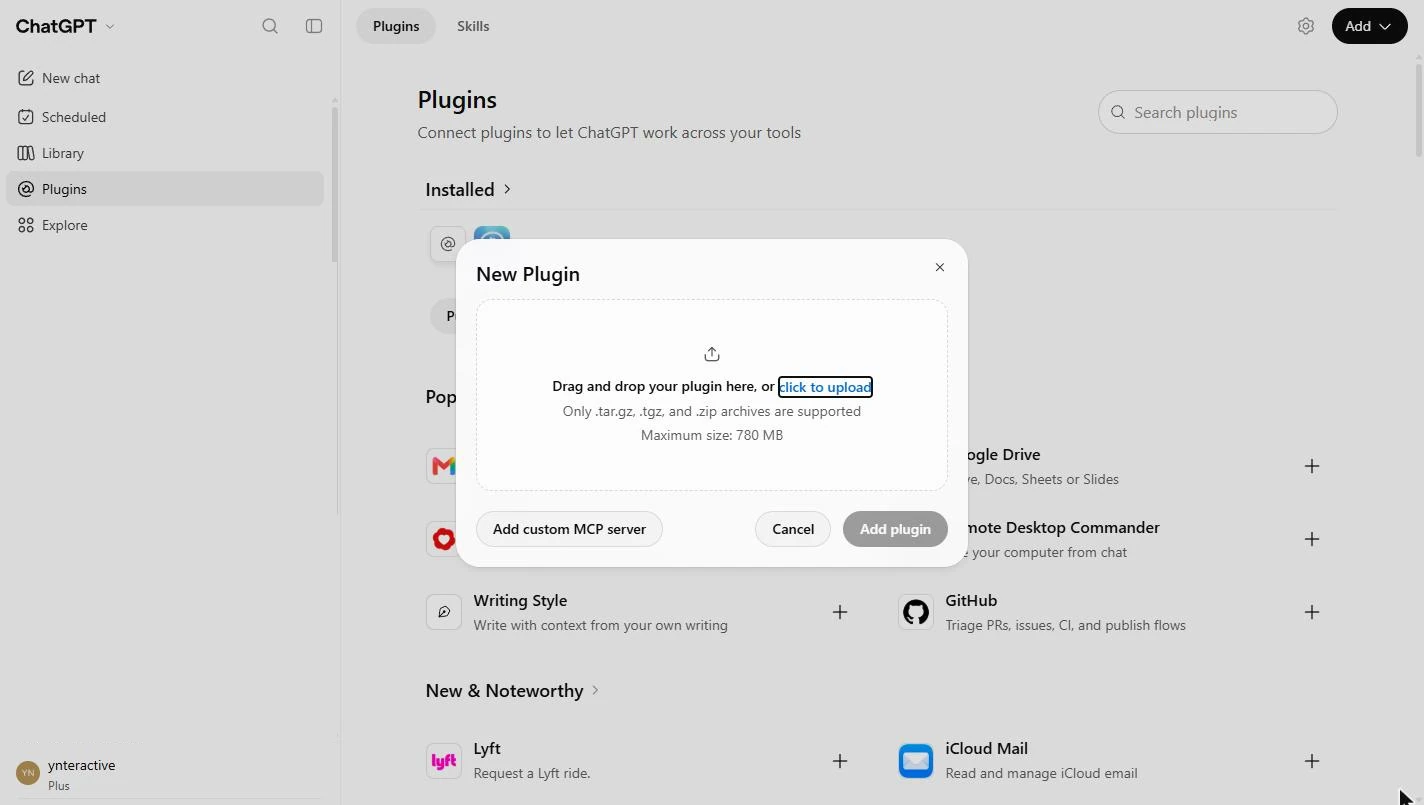
- Your colleague uploads it. Your colleague opens Plugins → Add → Upload plugin archive and drops the ZIP here (.zip, .tar.gz or .tgz, up to 780 MB). They still connect Gmail with their own account. Click the drop area.
Your colleague opens Plugins, Add, Upload plugin archive, and drops the file here. They connect Gmail with their own account.
- On Business or Enterprise. On a Business or Enterprise workspace you skip the file: on the plugin page click ••• → Share plugin, pick who has access (only people you invite, anyone in the workspace with the link, or the workspace directory) and click Save. Recipients install it, and each connects their own apps. Click Cancel.
On Business or Enterprise, use Share plugin, pick who has access, and save. Recipients install it and connect their own apps.
Screenshots
Frequently asked questions
- How do I share a ChatGPT plugin with my team?
- On a Business or Enterprise workspace: open the plugin, click •••, Share plugin, choose who has access and click Save. Recipients install it and connect their own apps. Your admin controls whether members can share.
- Can I share a plugin on ChatGPT Plus?
- Our Plus account had no Share plugin on 19 November 2026. It had Download plugin ZIP, and the Plugins page has Add, Upload plugin archive (.zip, .tar.gz or .tgz, up to 780 MB).
- How should I test a plugin before sharing it?
- Use Try in chat with realistic notes, check each fact against your source file, then ask for something it should refuse. Keep both prompts and rerun them after every edit.
More in ChatGPT for Everyday Work
 Summarize a Meeting Transcript with ChatGPT
Paste a long meeting transcript into ChatGPT and get the decisions, an action items table with owners and due dates, and a follow-up email ready to send.
Free · Live ~9 min Beginner
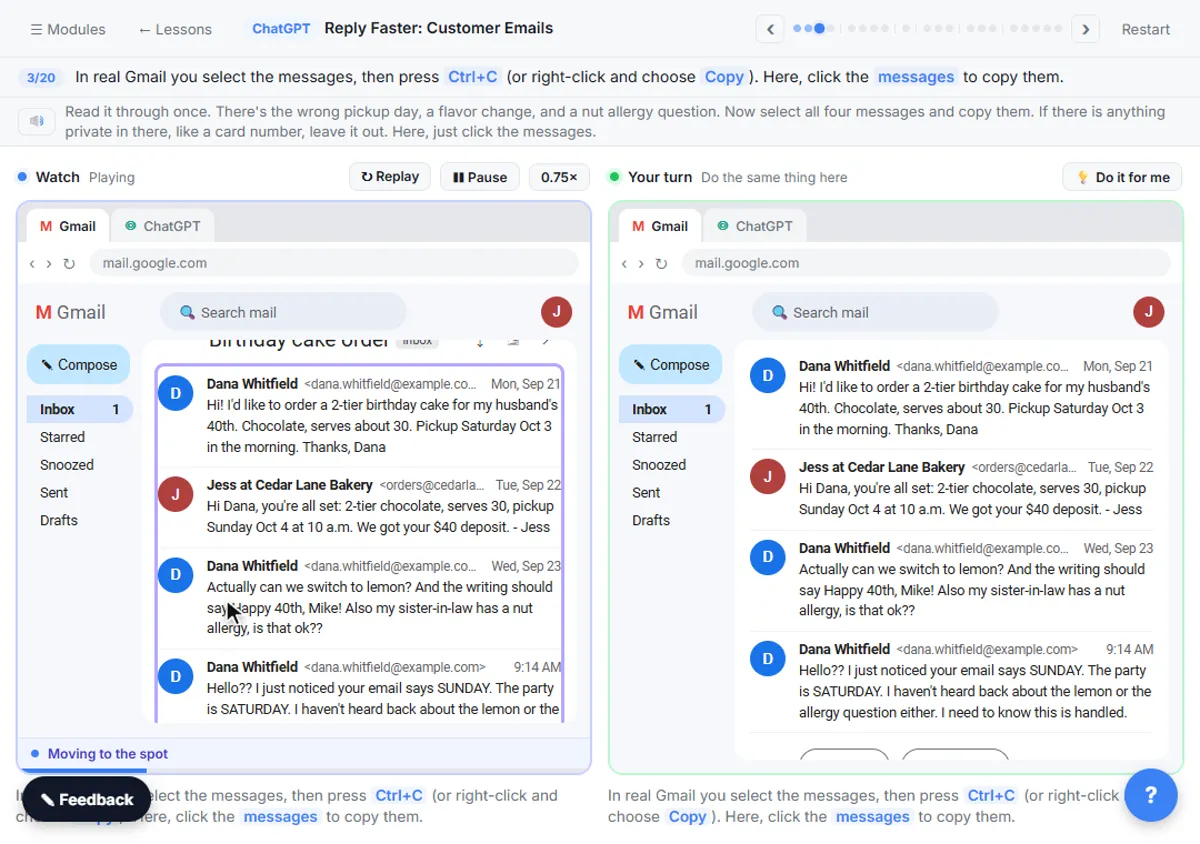 Reply Faster: Turn a Messy Customer Email Thread into a Clear, Friendly Reply
Turn a messy customer email thread into a clear, friendly reply: give ChatGPT the thread and your facts, check every promise, fix the tone, and send it from Gmail.
Free · Live ~9 min Beginner
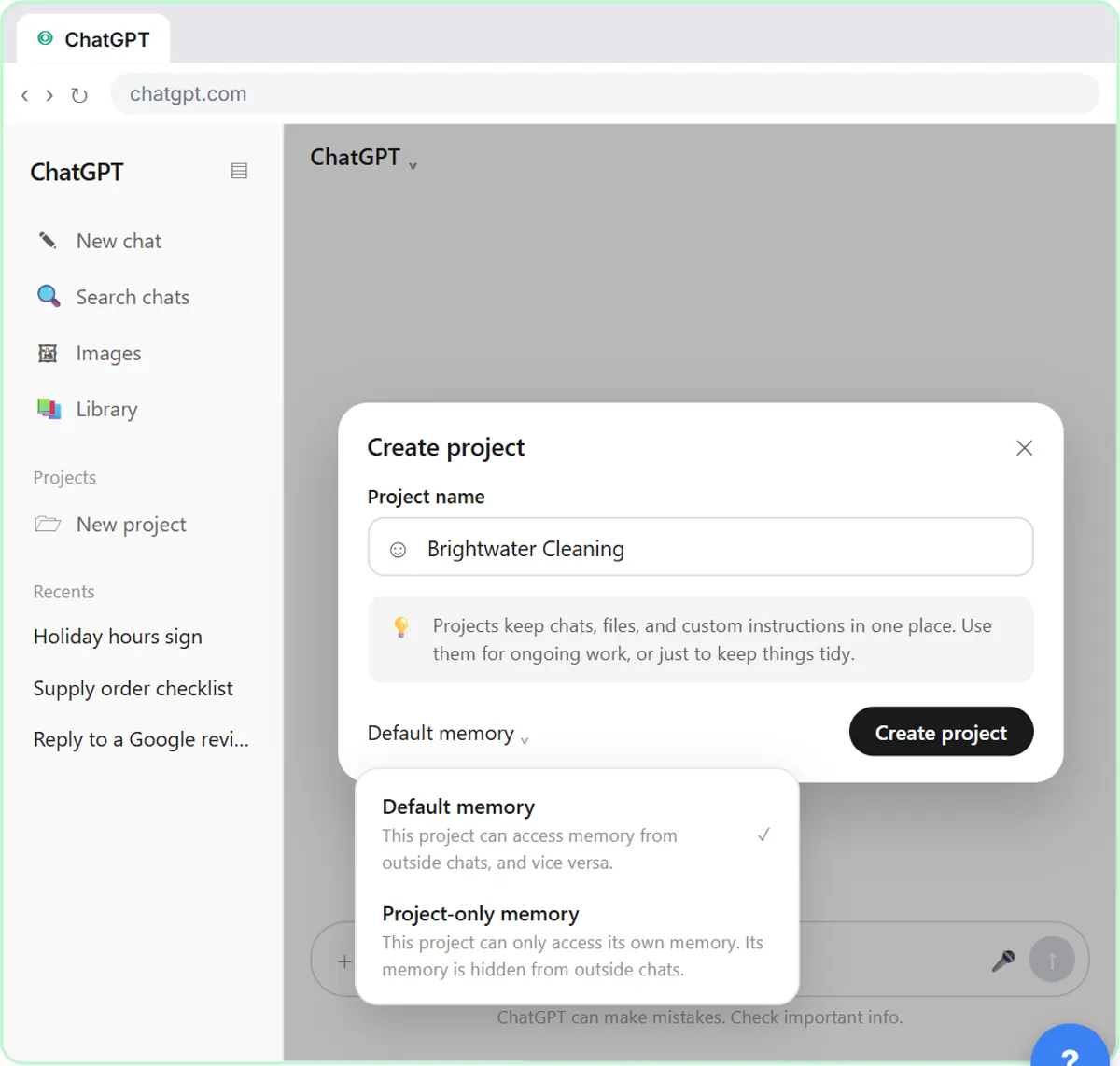 How to Create a Project in ChatGPT for Your Brand Voice and Files
Set up a ChatGPT Project with your brand voice instructions, your price list and your style guide, so every new chat already knows your business.
Free · Live ~9 min Beginner
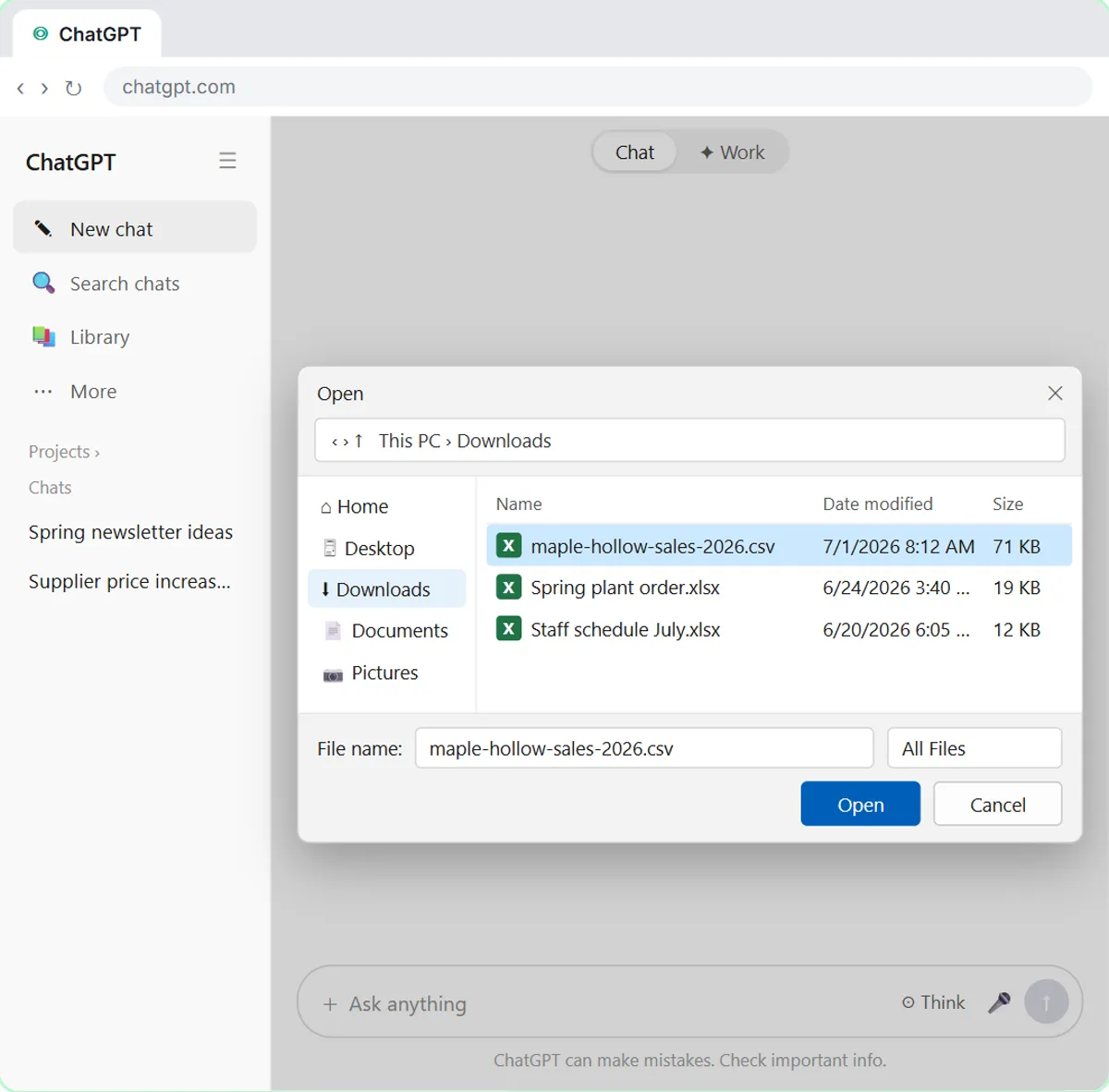 Analyze a Spreadsheet with ChatGPT: Upload a CSV, Get a Chart and Three Takeaways
Upload a CSV of sales to ChatGPT, have it check the data first, ask your questions, get a chart you can download, and finish with the three takeaways that matter.
Free · Live ~10 min Beginner
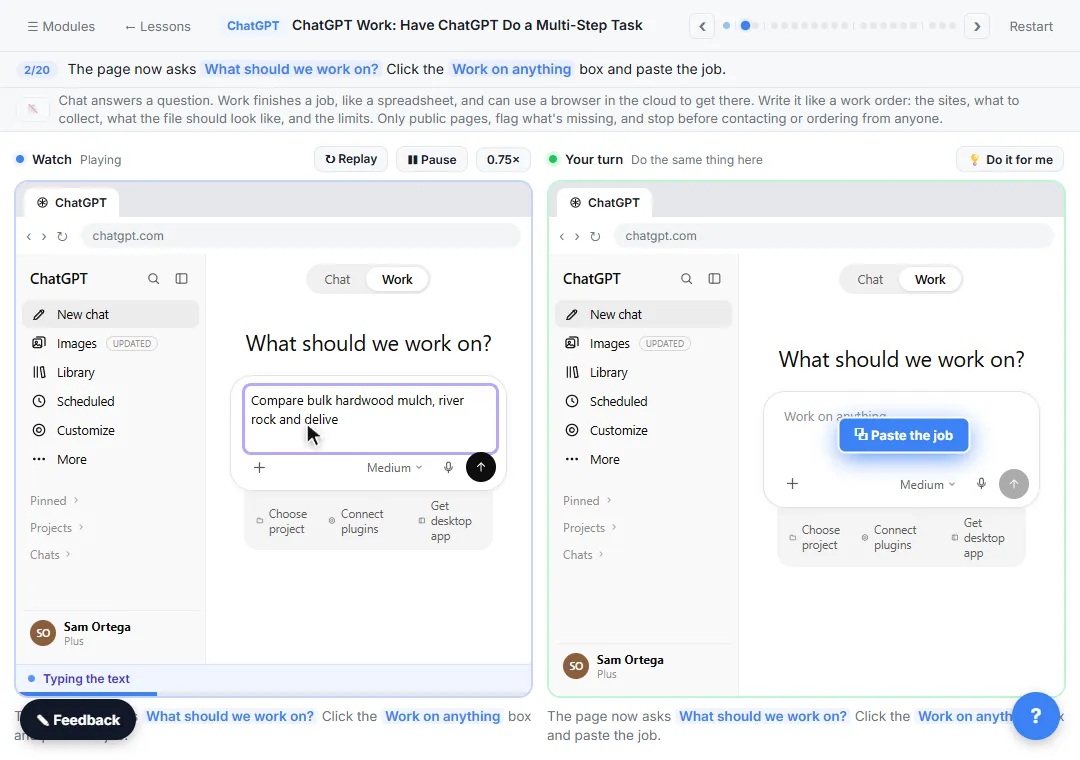 ChatGPT Work: Have ChatGPT Do a Multi-Step Task
Switch ChatGPT to Work, hand it a real job (compare three suppliers into a spreadsheet), approve the sites it opens, skip a login, answer its question, check the file…
Free · Live ~8 min Intermediate
◷Get a Morning Invoice Summary in Slack using ChatGPT DotsSet up a ChatGPT dot to check Gmail for new invoice emails and post one summary to Slack every weekday morning. A 7-step practice based on OpenAI's published screens.
Free · Live ~4 min Intermediate
All 32 modules in ChatGPT for Everyday Work
More ChatGPT tutorials
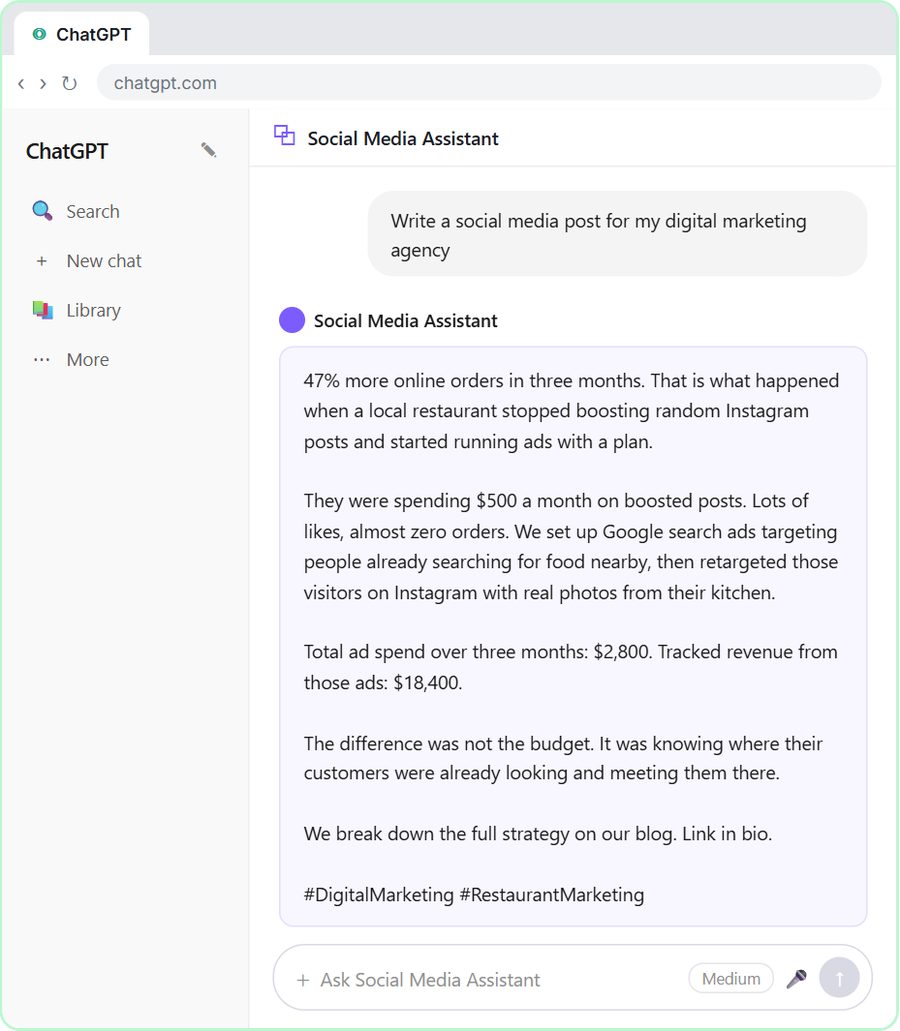 Get On-Brand Social Posts Every Time using a ChatGPT Custom GPT
See why generic prompts give generic results, then build a Custom GPT loaded with your brand voice and watch the output transform.
Free · Live ~8 min Beginner
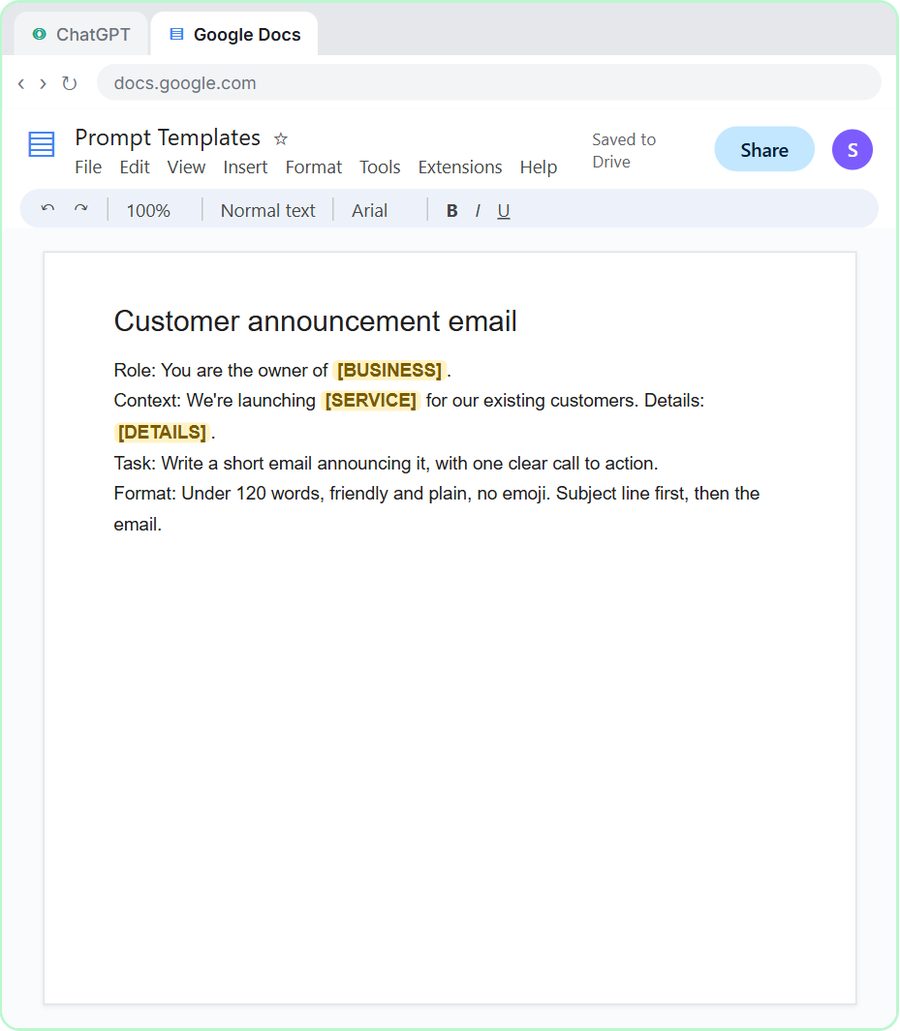 Prompt Writing 101: Role, Context, Task, Format
Ask ChatGPT for the same customer email twice, once vaguely and once with a four-part prompt, and see exactly why structure gets a better answer.
Free · Live ~8 min Beginner
◷Send a Same-Day Follow-up After Every Discovery Call using ChatGPTTurn a discovery call transcript into the decisions, the next steps with owners and dates, deal notes for your CRM, and a follow-up email the prospect gets the same…
Free · Live ~7 min Beginner
◷Hold Your Price When a Prospect Asks for a Discount using ChatGPTA prospect wants 30% off and a free month to sign this week. Give ChatGPT the thread and your pricing rules, catch the discount you can't approve, and send a reply that…
Free · Live ~9 min Beginner
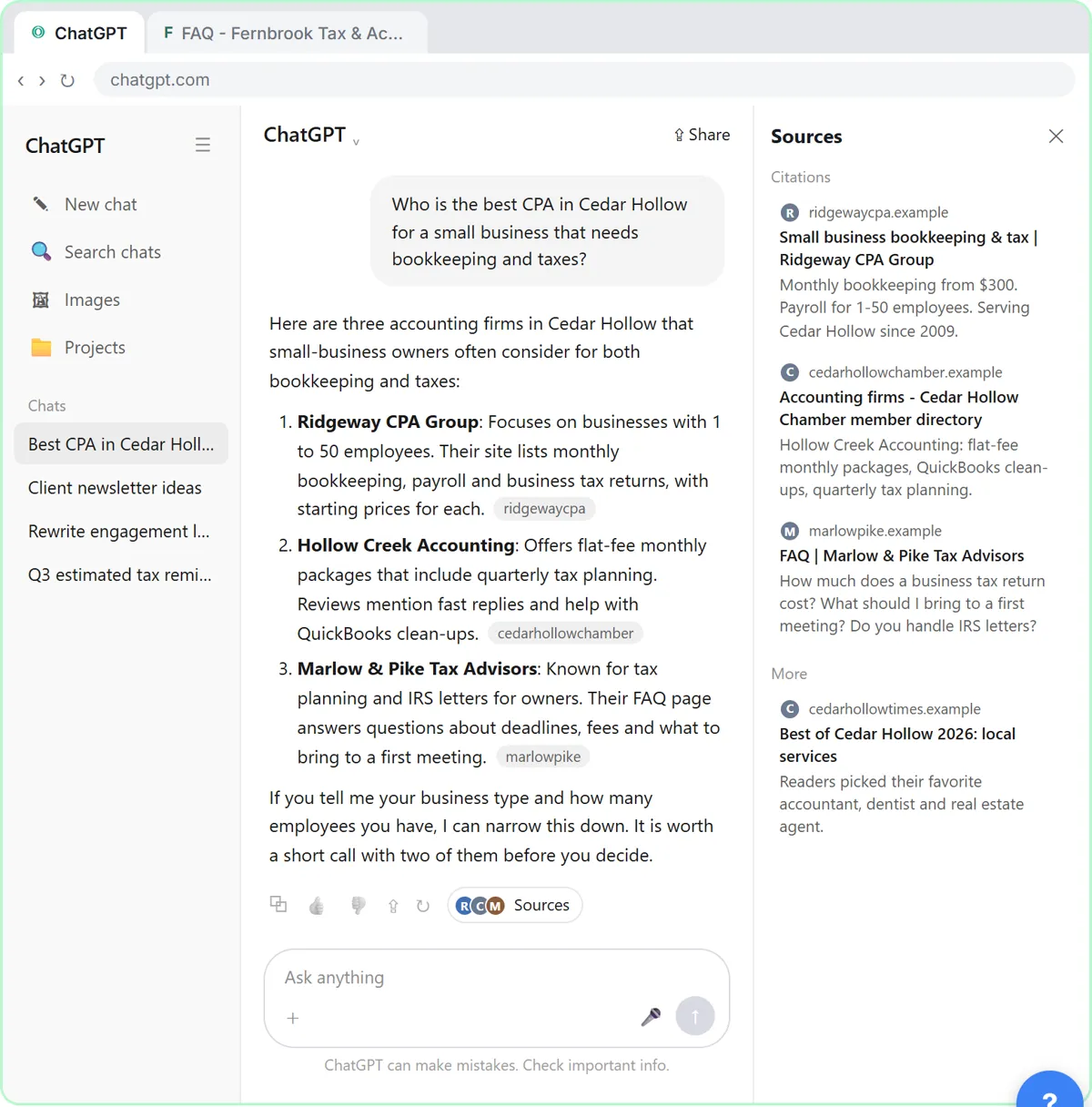 Get Your Business Recommended by ChatGPT
Ask ChatGPT who it recommends in your town, see which pages it trusts, then use it to write an FAQ page and Business Profile copy that answer real customer questions.
Free · Live ~10 min Intermediate
◷Run a Weekly Ops Review Where Every Task Has an Owner using ChatGPTTurn a weekly operations and vendor review into the decisions, the next steps with owners and dates, the risks to watch and a team recap, without turning a vendor's…
Free · Live ~7 min Beginner
Terms in this lesson
Plain-English definitions, each with an example from a free lesson.