Updated . Built against the tool’s current screens and checked step by step. How we check this lesson
Choosing software means reading pricing pages, help docs and billing fine print for every vendor, then writing it up for whoever signs off. In this free, interactive lesson you write one four-part brief for ChatGPT Deep research, approve its research plan and get a cited report comparing three real time-tracking tools against a made-up studio's needs and budget, with a recommendation, a risk for each and five demo questions. Then you check a citation on the vendor's own site and export the report.
At a glance
| Question | Answer |
|---|---|
| What you build | Write a four-part brief, approve Deep research’s plan, read a cited report comparing three real tools against your needs and budget, check a source yourself and export it as a PDF. |
| Tools | ChatGPT |
| Time | About 9 minutes, 15 steps in 6 parts |
| Level | Intermediate |
| Cost | Free |
| Ways to learn it | Practice it step by step |
The 6 parts, in short
- Turn on Deep research: Open the + menu, Choose Deep research.
- Write the brief: Click the message box, Paste the brief, Send it.
- Approve the plan: Read the research plan, Start the research.
- Read the report: Open the report, Read the recommendation, Read the comparison table, Read the risk.
- Check a source: Open a citation, Check it on the vendor’s site.
- Share it: Open the download menu, Export to PDF.
Start here first: Summarize a Meeting Transcript with ChatGPT (module 1 of ChatGPT for Everyday Work)
In the course: Part 3 · ChatGPT for Everyday Work (Module 32 of the full course)
Part of: Master ChatGPT for Work (step 12 of 14). Next up: ChatGPT Work: Have ChatGPT Do a Multi-Step Task
Part of: AI for Consulting & Agencies (step 26 of 30). Next up: ChatGPT Projects vs Chats: Keep Each Client's Work Together and Stop Re-explaining
Part of: AI for Operations Teams (step 35 of 36). Next up: Analyze a Donor Gift Export with ChatGPT: Board-Ready Giving Numbers for a Nonprofit
Part of: AI Back Office for Small Business (step 16 of 18). Next up: AI Workflow Automation for Beginners: Sort Every Client Inquiry and Draft the Reply using n8n
The business case: research you can defend
Vendor research is slow and easy to get wrong. Prices hide behind "starting from", the feature you need is on a higher plan, and the integration works only with certain editions of your accounting software. Most people stop after the second pricing page and pick the name they know.
Deep research reads dozens of sources for you and links every claim. In the real run it took 5 minutes, ran 173 searches and cited 21 sources, mostly the vendors' own pricing pages and help articles.
What changes: you spend your time on the brief (what you need and what you can spend) and on checking the two or three claims that decide it, not on tabs.
The example: a time tracker for a 12-person studio
Harbor Lane Studio (made up) bills clients by the hour. It needs time tracked against client projects, invoices from tracked hours, QuickBooks Online sync, a weekly hours report per person, and a bill under $200 a month for 12 users. The brief compares three real tools: Harvest, Toggl Track and Clockify. The buyer can be made up; the vendors must be real, because Deep research searches the public web.
The report recommended Toggl Track Starter ($144 a month for 12 on monthly billing, as listed on October 20, 2026), named Clockify Standard the lowest cost ($83.88) and flagged that Harvest's Flex plan adds usage charges on top of its $132 seat price. Prices change, which is why the lesson has you open a source.
Read the full report from the real run: [time-tracking-report-2026-10-20.md](/content/files/chatgpt-deep-research-vendor-brief/time-tracking-report-2026-10-20.md).
Who this lesson is for
Operations managers, office managers, consultants and owners who choose software or suppliers. You need a ChatGPT plan that includes Deep research to do it for real. It is a module in [Master ChatGPT for Work](/courses/master-chatgpt-for-work), and it is also listed in AI for Operations Teams, AI for Consulting & Agencies and AI Back Office.
What this saves you
- Time: an afternoon of pricing pages and help docs becomes a five-minute run and fifteen minutes of checking.
- A better decision: the risks (usage charges, editions that aren't supported, invoices that stop syncing) are in the report, not discovered after you sign.
- A report you can forward, with a link behind every claim.
- What it does not replace: opening the key sources yourself, a demo with your own data, and a written quote.
Gotchas
- Name real vendors. Deep research can't find anything about made-up products.
- Put the budget and the must-haves in the brief. Without them you get a feature list, not a decision.
- Read the plan before it starts. Editing the plan is free; a wasted run uses one of your monthly Deep research runs.
- Open at least one citation per price. Vendors change pricing often.
- Don't put private data in the brief. The research runs on the public web; your needs and budget are enough.
Next business case
Next in Master ChatGPT for Work: Hand off a multi-step task with ChatGPT Work. For quotes you already have in your inbox, see Compare Vendor Quotes Side by Side.
Try it yourself, free
Reading the steps is a start. Doing them is how it sticks. The interactive module walks you through every click in a practice copy of ChatGPT, checks each step, and never touches your real accounts.
Start “A Cited Vendor Comparison in 5 Minutes using ChatGPT Deep Research”Step by step: A Cited Vendor Comparison in 5 Minutes using ChatGPT Deep Research
All 15 steps of the interactive module, in order. In the module you watch each one, then do it yourself in a practice copy that checks your work.
1. Turn on Deep research
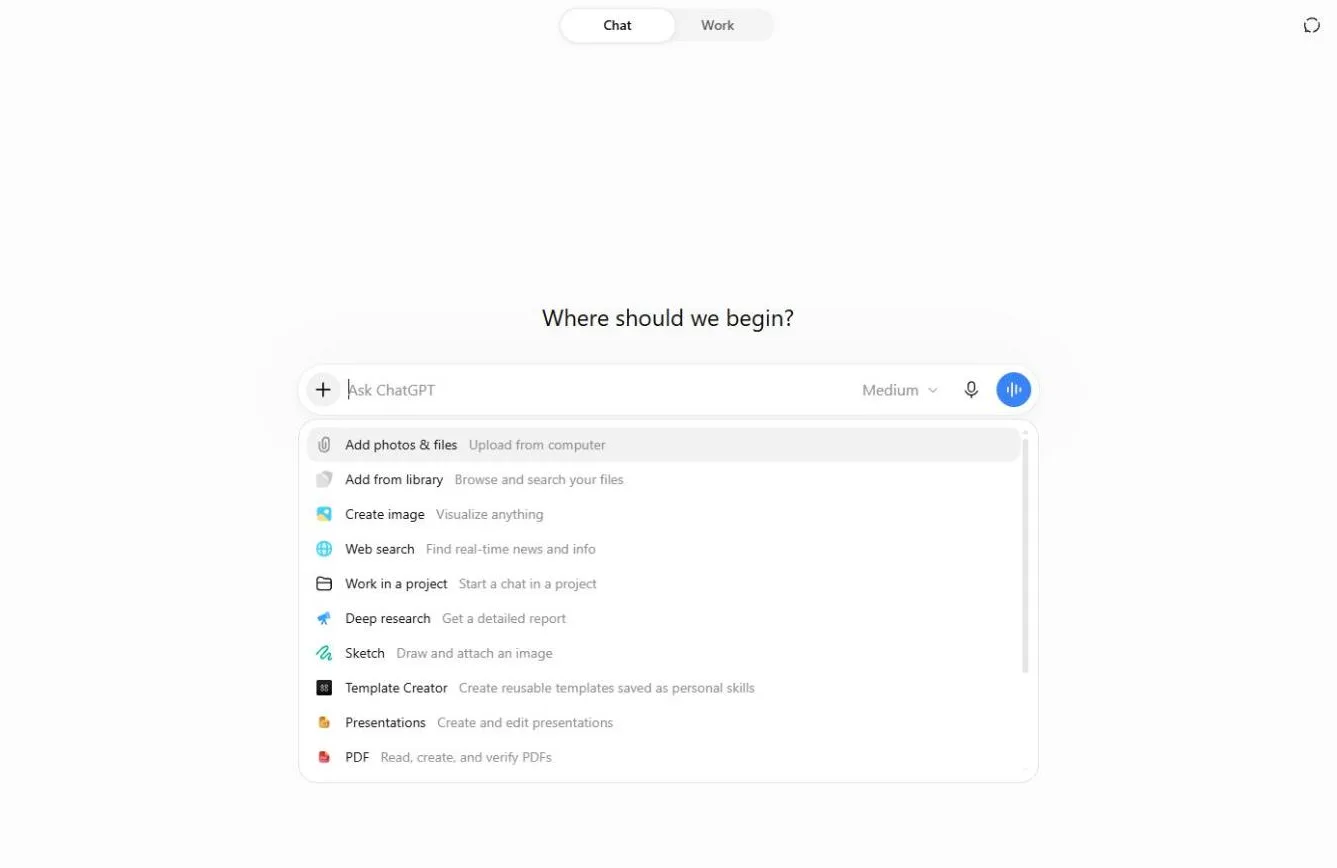
- Open the + menu. Harbor Lane Studio (made up) bills clients by the hour and must pick a time tracker. Comparing three vendors by hand means an afternoon of pricing pages and help docs. Deep research does that reading for you and cites every claim. Start in a new chat (Deep research isn’t offered in a Temporary Chat). Click the +.
Harbor Lane Studio has to pick a time tracking tool. Comparing three vendors by hand means an afternoon of pricing pages and help docs. Deep research does that reading for you, and cites every claim. Start in a normal new chat, because temporary chats don't offer it.
- Choose Deep research. Click Deep research (“Get a detailed report”). A blue Deep research chip appears in the message box. Paid plans have a monthly number of deep research runs, so save it for questions worth a report.
A blue chip appears in the message box. Your plan gives you a set number of these each month, so save it for questions worth a report.
2. Write the brief
- Click the message box. A good brief has four parts: who you are (a made-up studio is fine, the vendors must be real), what to compare, your must-haves and budget, and what the report must contain. Click the message box.
A good brief has four parts. Who you are. What to compare. Your must-haves and budget. And what the report has to contain.
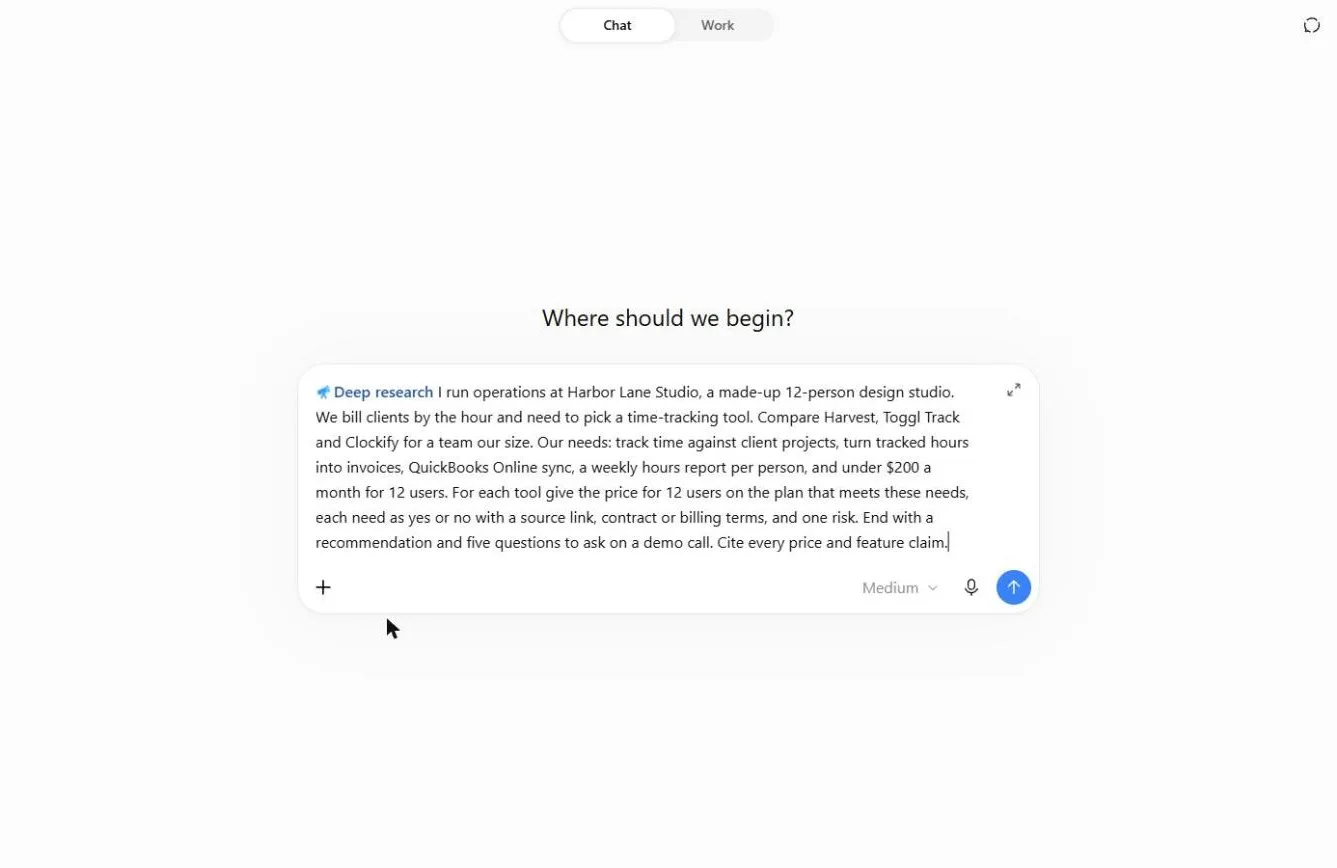
- Paste the brief. Paste in the request. It names Harvest, Toggl Track and Clockify, lists 5 needs and a $200/month for 12 users budget, and ends with “Cite every price and feature claim.”
This brief names the three tools, lists five needs, and a two hundred dollar budget. And it ends with, cite every price and feature claim.
I run operations at Harbor Lane Studio, a made-up 12-person design studio. We bill clients by the hour and need to pick a time-tracking tool. Compare Harvest, Toggl Track and Clockify for a team our size. Our needs: track time against client projects, turn tracked hours into invoices, QuickBooks Online sync, a weekly hours report per person, and under $200 a month for 12 users. For each tool give the price for 12 users on the plan that meets these needs, each need as yes or no with a source link, contract or billing terms, and one risk. End with a recommendation and five questions to ask on a demo call. Cite every price and feature claim.
- Send it. Click Send.
3. Approve the plan
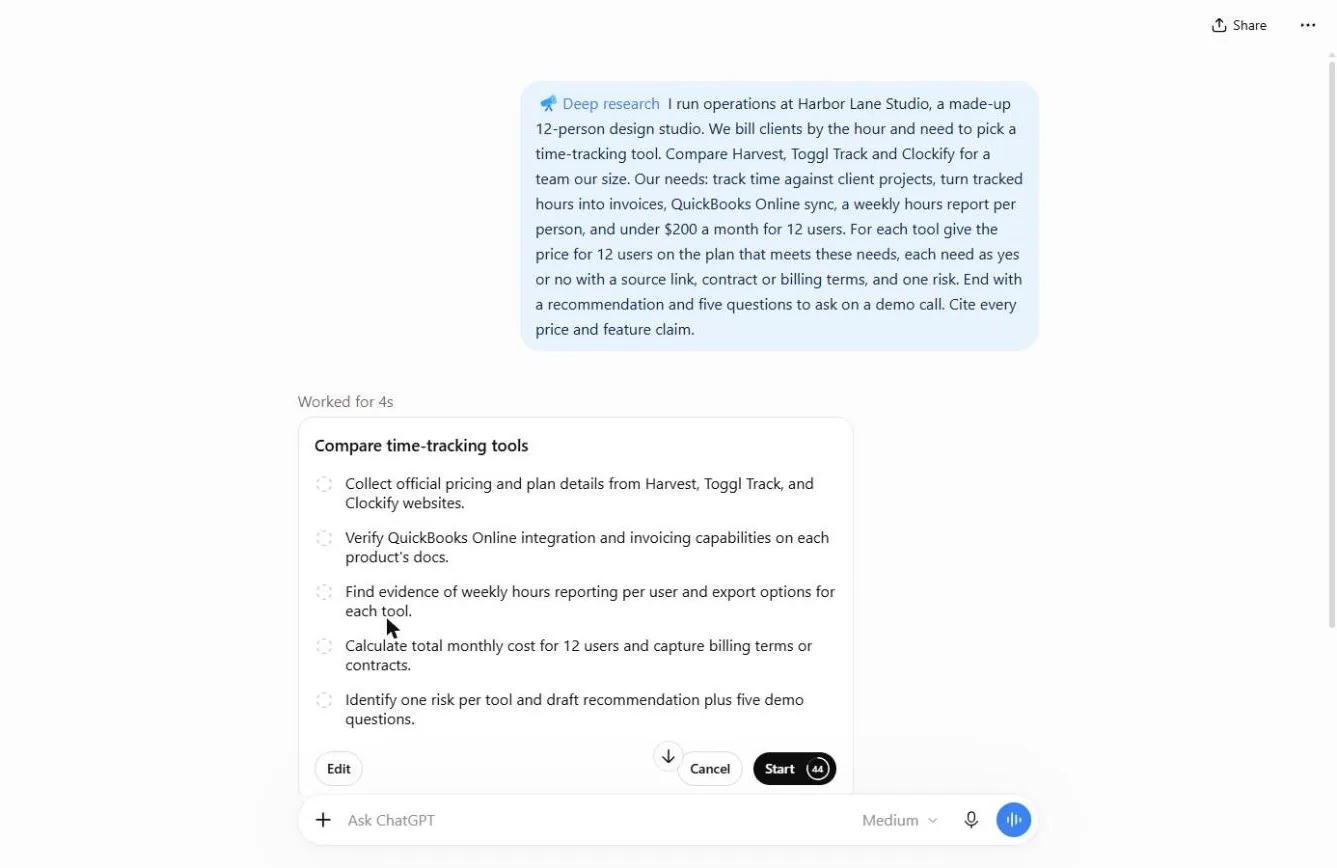
- Read the research plan. Before it searches, ChatGPT shows its plan: five steps, from official pricing pages to the five demo questions. If a step is wrong, click Edit. If you do nothing, it starts on its own when the countdown ends. Click the plan.
Before it searches anything, it shows you a plan. Five steps, from the official pricing pages, to the demo questions. If something's wrong, click Edit. If you do nothing, it starts by itself.
- Start the research. The plan covers everything you asked. Click Start. The real run took 5 minutes: 173 searches and 21 citations. You can leave and come back; the report waits in the chat.
The plan looks right. In the real run, it took five minutes. A hundred and seventy-three searches, twenty-one citations. You can go do something else meanwhile.
4. Read the report
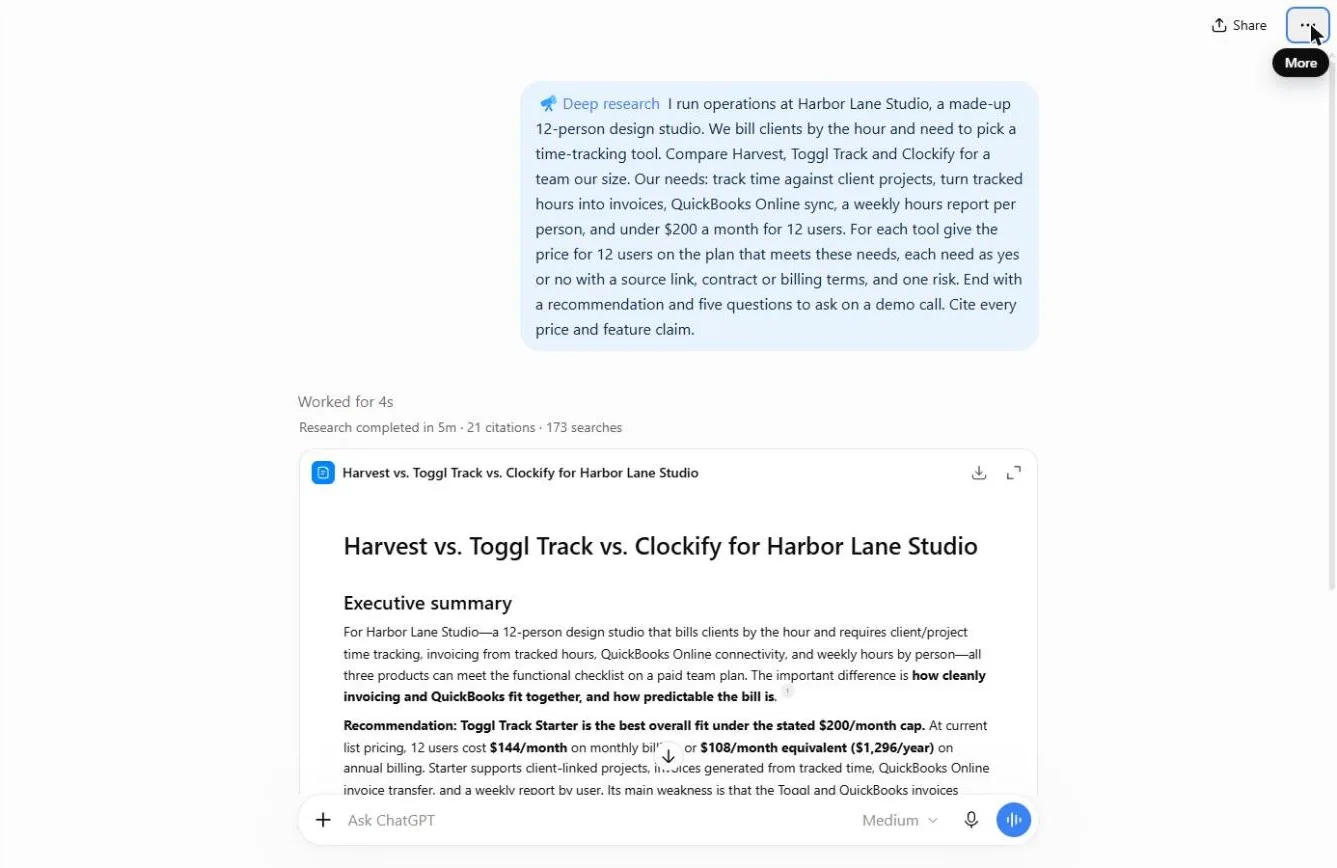
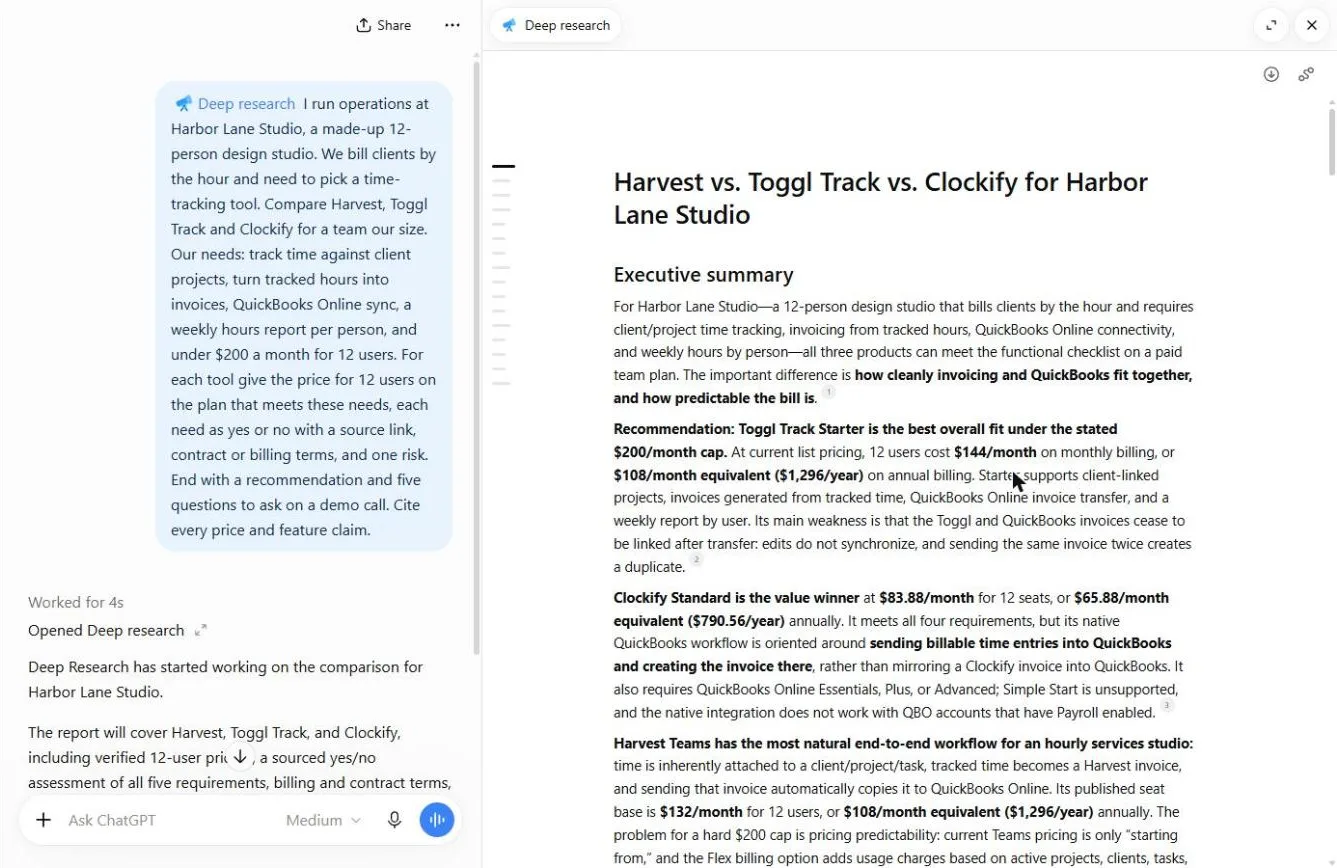
- Open the report. The report arrives as a card: “Research completed in 5m · 21 citations · 173 searches”. Click the expand icon at its top right to read it full size.
Done. The report arrives as a card.
- Read the recommendation. The answer is up top: Toggl Track Starter, $144 a month for 12 users, inside the $200 cap. And it tells you the weak spot: invoices stop syncing once they reach QuickBooks. Click the recommendation.
The answer comes first. Toggl Track Starter, a hundred and forty-four a month for twelve people. Under budget. And it names the weak spot. Invoices stop syncing once they reach QuickBooks.
- Read the comparison table. Every need is a Yes with a Source link, and every price shows its math (12 × $12 = $144). Clockify is cheaper at $83.88; Toggl wins on the invoice flow. Click the Toggl row.
Every need is a yes, with a source link. Every price shows its math. Clockify is cheaper, but Toggl fits the invoice workflow better.
- Read the risk. Harvest’s $132 looks safe, but its Flex plan adds usage charges, so the report won’t call it under budget without a written quote. That is the kind of catch you’d miss on a pricing page. Click the risk.
Harvest looks cheap at a hundred and thirty-two. But its plan adds usage charges, so the report won't call it under budget without a written quote. That's the catch you'd miss on a pricing page.
5. Check a source
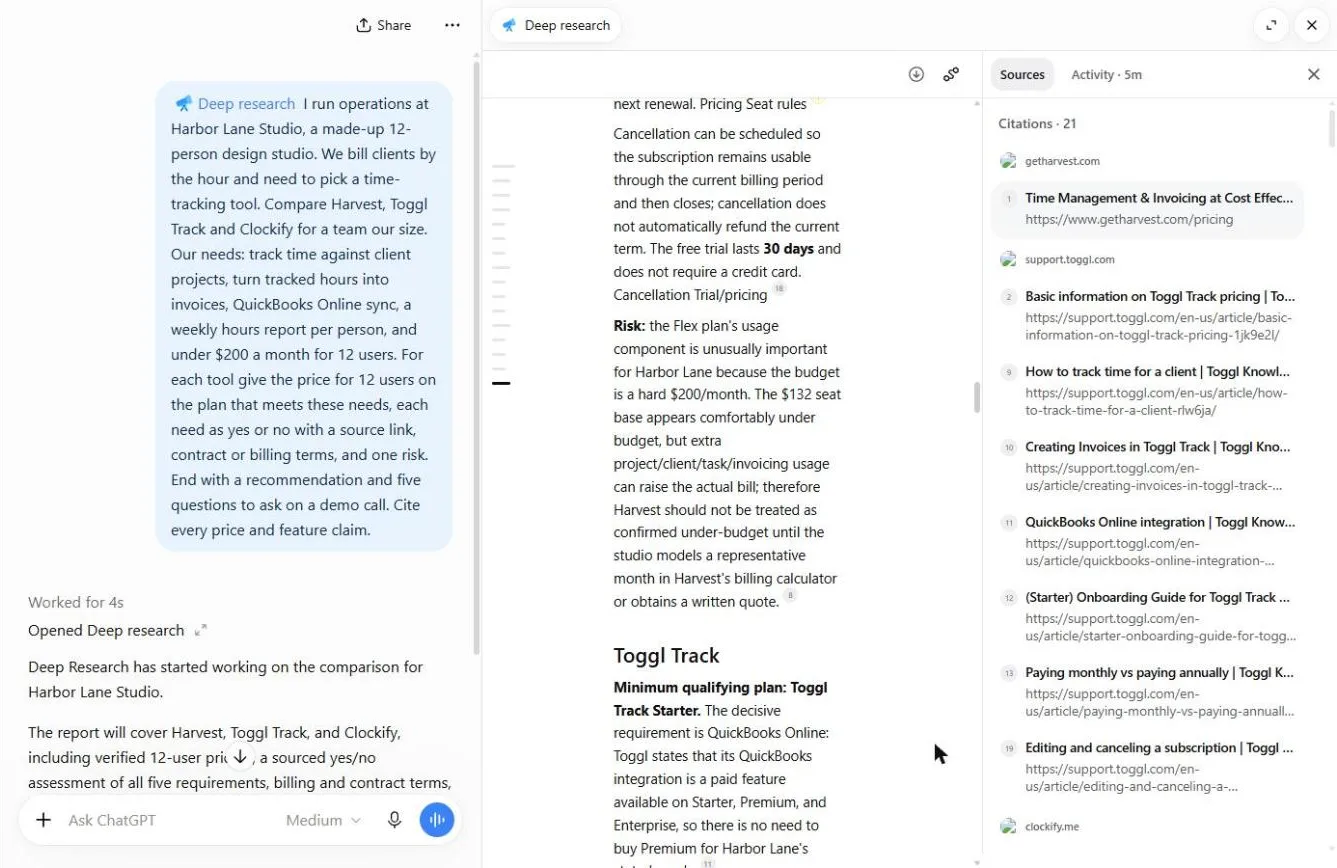
- Open a citation. Never forward a report you haven’t spot-checked. Click the small 1 after the Harvest price: the Sources list opens on the right, with citation 1 highlighted.
Never forward a report you haven't spot checked. The sources list opens.
- Check it on the vendor’s site. Citation 1 is getharvest.com/pricing, the official page. Click it and confirm the per-seat price yourself. Prices change; the page is the truth, the report is the summary.
Citation one is Harvest's own pricing page. Prices change. The page is the truth. The report is the summary.
6. Share it
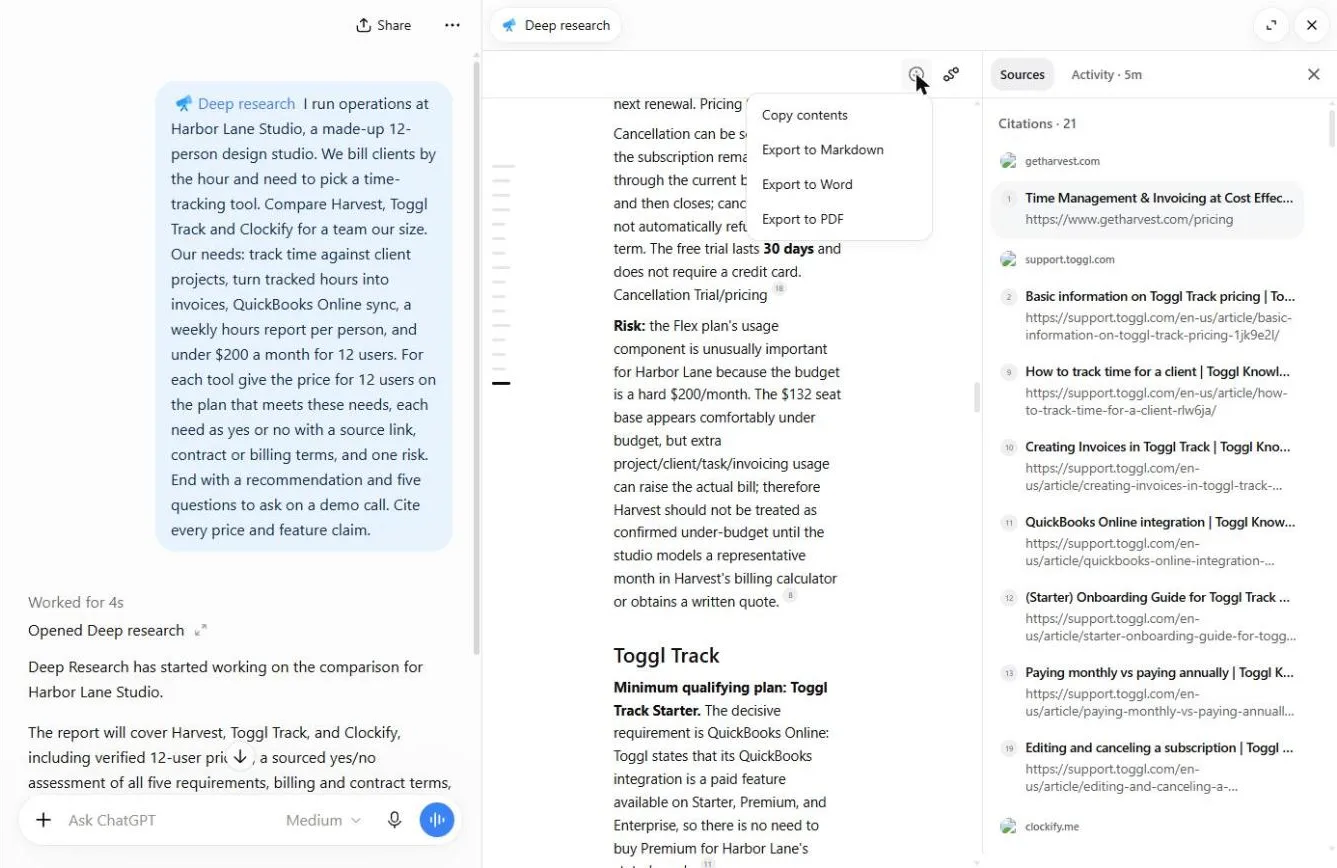
- Open the download menu. Now share it with whoever signs off. Click the download icon at the top of the report.
Now share it with whoever signs off.
- Export to PDF. Choose Export to PDF (Word and Markdown are there too, or Copy contents). Attach it with your pick and the five demo questions. An afternoon of research, done in five minutes, with every claim linked.
Send it with your pick, and the five demo questions. An afternoon of research, done in five minutes, with every claim linked.
Screenshots
Frequently asked questions
- How do I use ChatGPT Deep research?
- Start a new chat, click + in the message box and choose Deep research. Write a brief with your situation, what to compare, your must-haves and budget, and what the report should contain. Review the plan, click Start, and open the report when it's done.
- How long does Deep research take?
- It varies with the question. The run in this lesson took 5 minutes and ran 173 searches. You can leave the chat; the report appears there when it's finished.
- Can I export a Deep research report?
- Yes. The download icon on the report offers Copy contents, Export to Markdown, Export to Word and Export to PDF.
- Is Deep research free?
- Deep research comes with a monthly allowance that depends on your ChatGPT plan. This Stepthrough lesson is free and its practice copy needs no account.
More in ChatGPT for Everyday Work
 Summarize a Meeting Transcript with ChatGPT
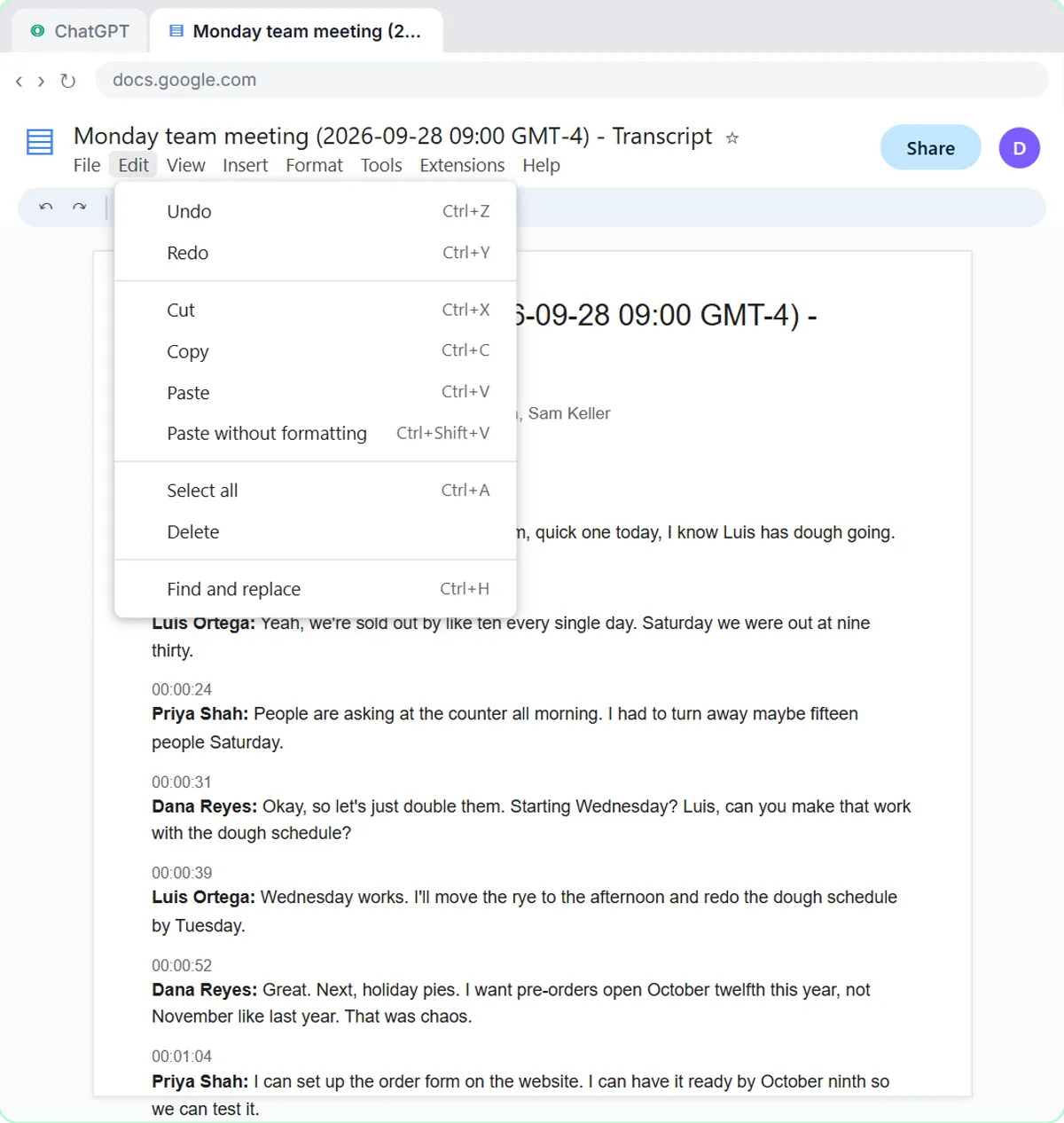
Paste a long meeting transcript into ChatGPT and get the decisions, an action items table with owners and due dates, and a follow-up email ready to send.
Free · Live ~9 min Beginner
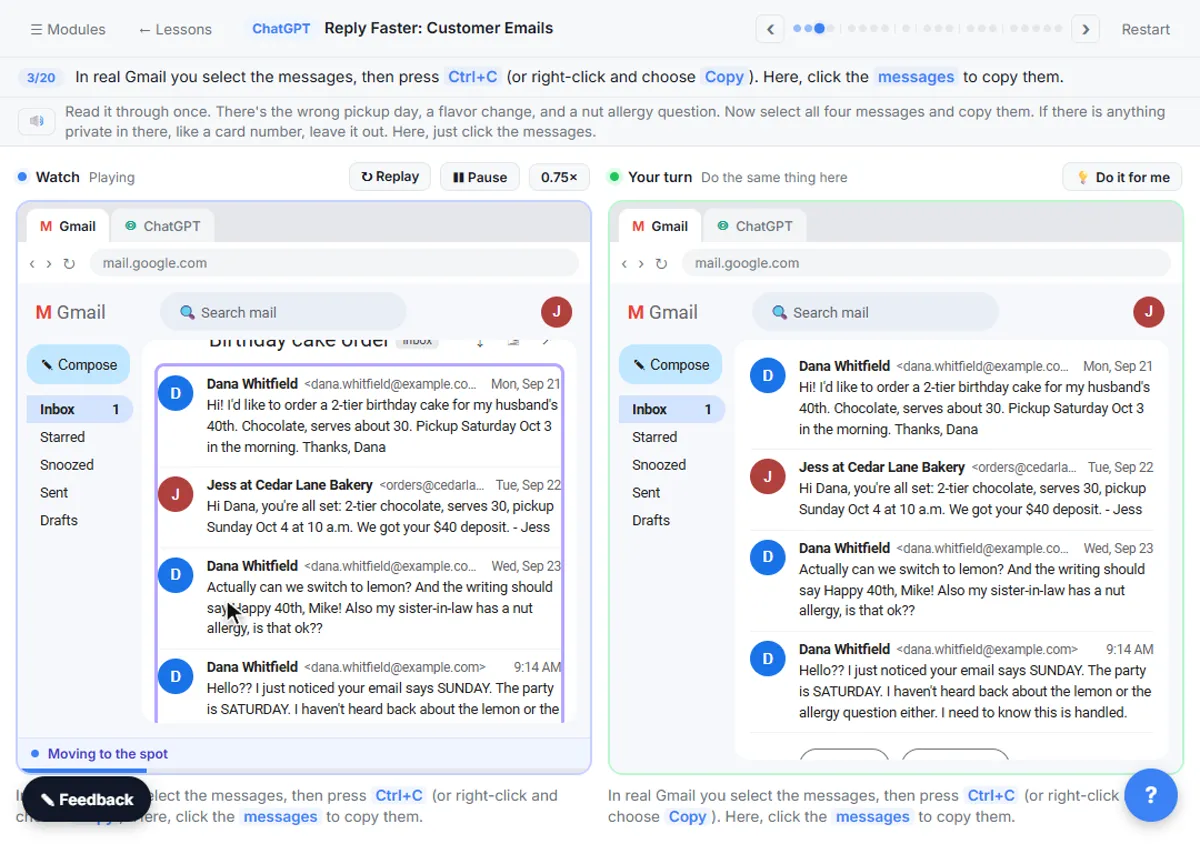 Reply Faster: Turn a Messy Customer Email Thread into a Clear, Friendly Reply
Turn a messy customer email thread into a clear, friendly reply: give ChatGPT the thread and your facts, check every promise, fix the tone, and send it from Gmail.
Free · Live ~9 min Beginner
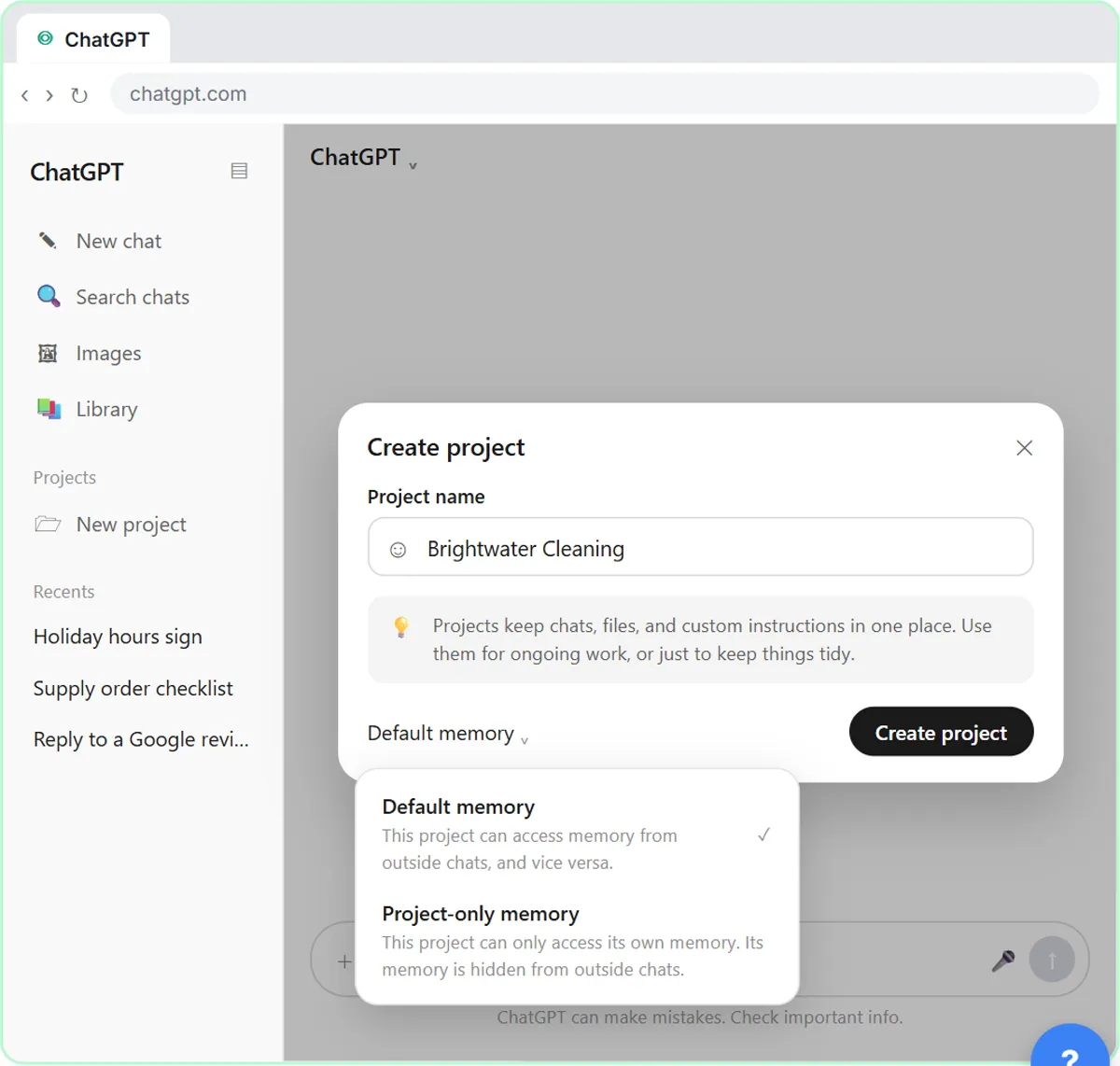 ChatGPT Projects: Keep Your Brand Voice, Files and Instructions in One Place
Set up a ChatGPT Project with your brand voice instructions, your price list and your style guide, so every new chat already knows your business.
Free · Live ~9 min Beginner
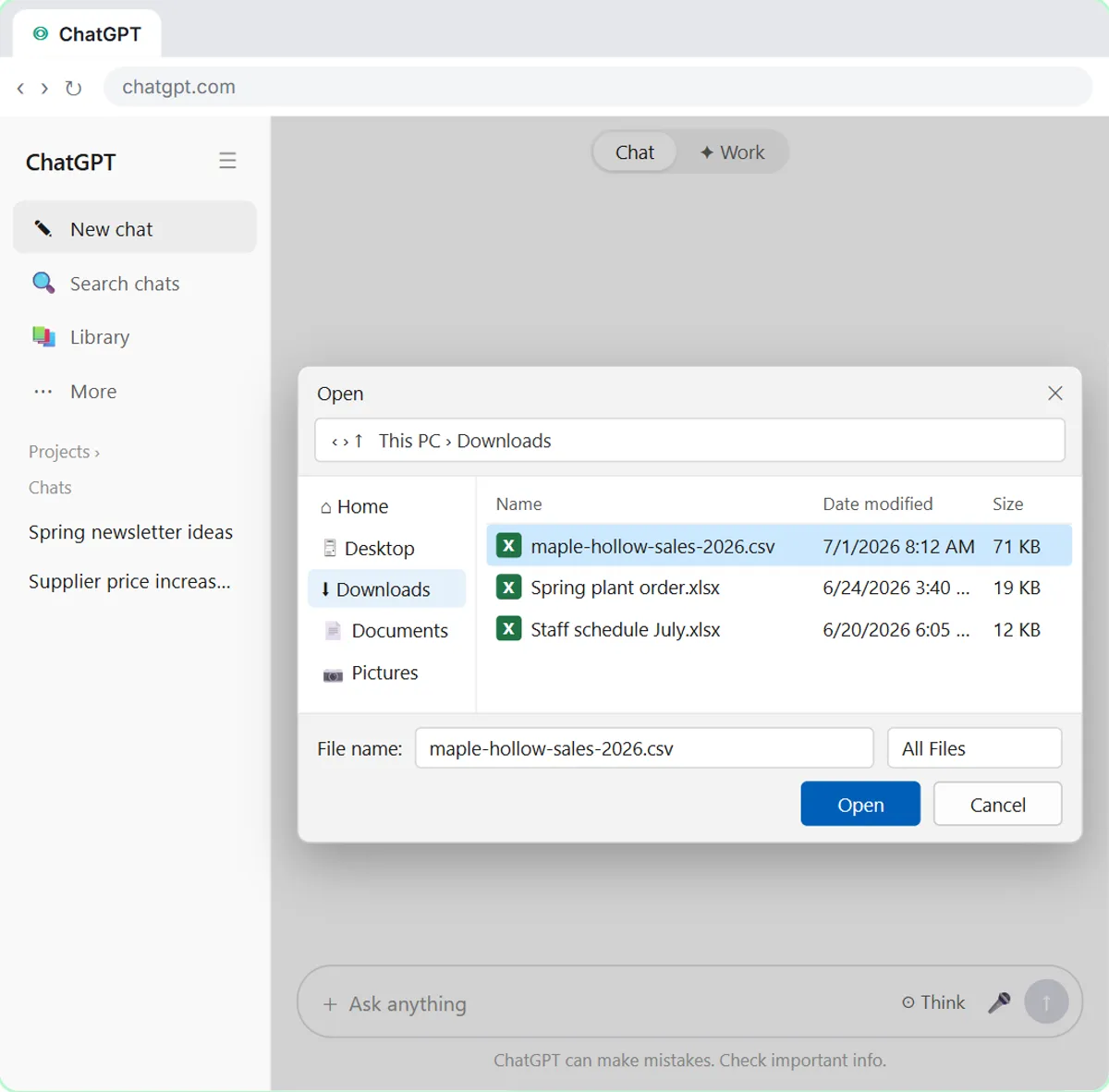 Analyze a Spreadsheet with ChatGPT: Upload a CSV, Get a Chart and Three Takeaways
Upload a CSV of sales to ChatGPT, have it check the data first, ask your questions, get a chart you can download, and finish with the three takeaways that matter.
Free · Live ~10 min Beginner
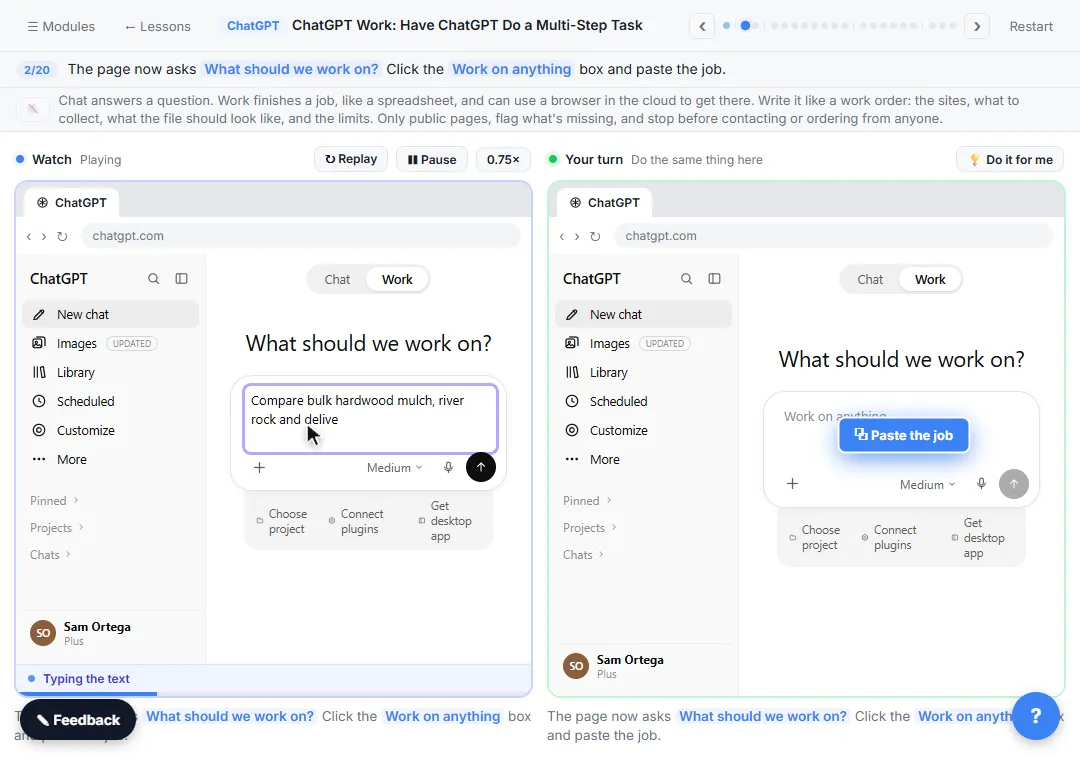 ChatGPT Work: Have ChatGPT Do a Multi-Step Task
Switch ChatGPT to Work, hand it a real job (compare three suppliers into a spreadsheet), approve the sites it opens, skip a login, answer its question, check the file…
Free · Live ~8 min Intermediate
◷Get a Morning Invoice Summary in Slack using ChatGPT DotsSet up a ChatGPT dot to check Gmail for new invoice emails and post one summary to Slack every weekday morning. A 7-step practice based on OpenAI's published screens.
Free · Live ~4 min Intermediate
All 17 modules in ChatGPT for Everyday Work
More ChatGPT tutorials
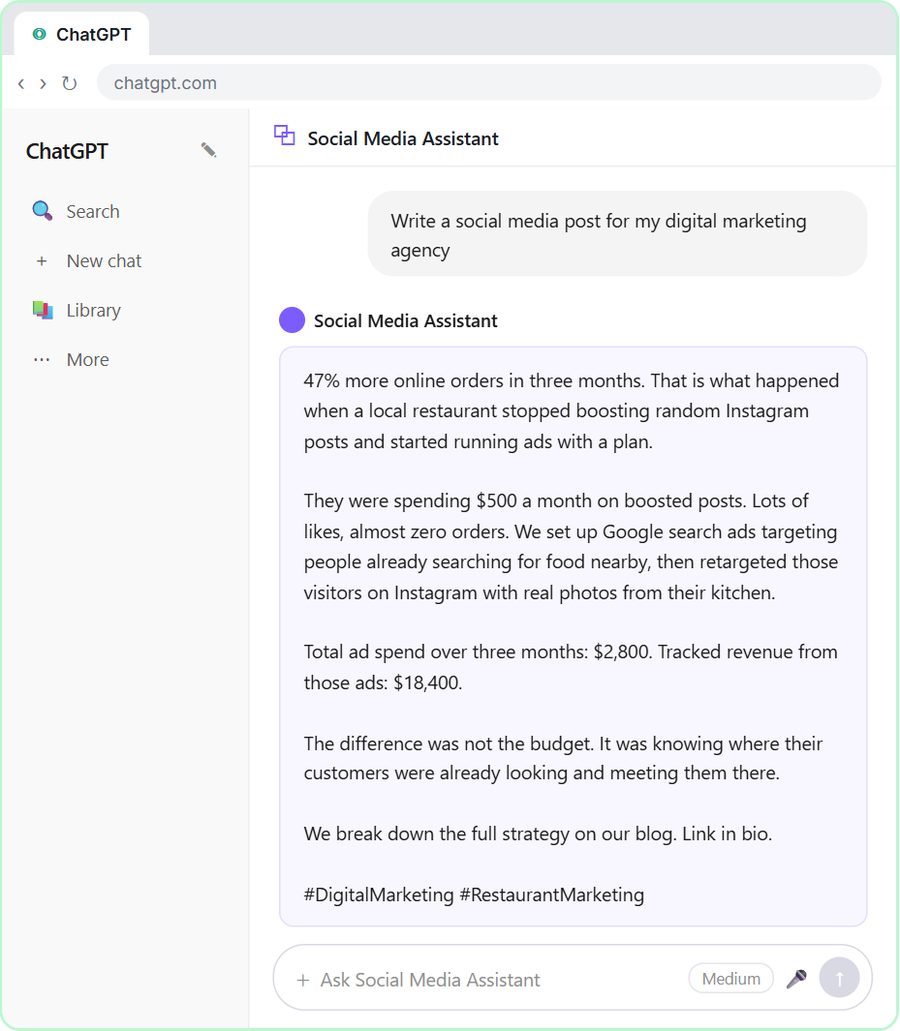 Get On-Brand Social Posts Every Time using a ChatGPT Custom GPT
See why generic prompts give generic results, then build a Custom GPT loaded with your brand voice and watch the output transform.
Free · Live ~8 min Beginner
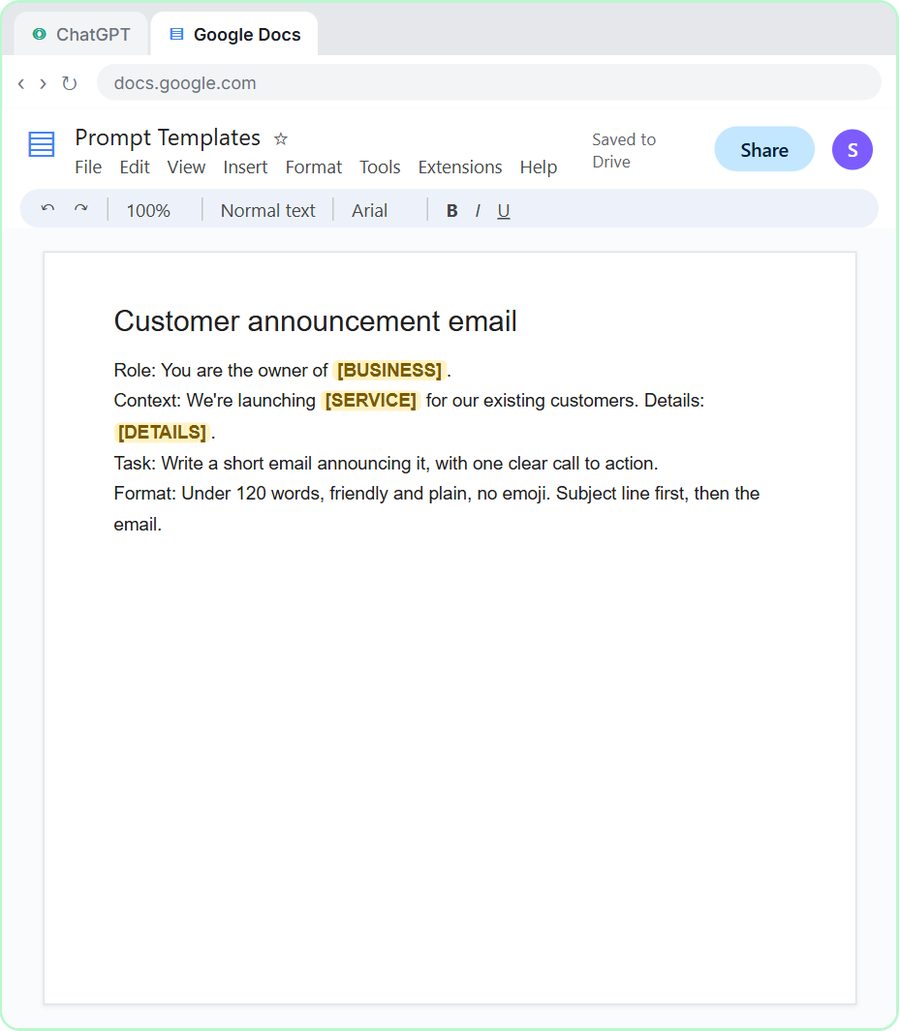 Prompt Writing 101: Role, Context, Task, Format
Ask ChatGPT for the same customer email twice, once vaguely and once with a four-part prompt, and see exactly why structure gets a better answer.
Free · Live ~8 min Beginner
◷Send a Same-Day Follow-up After Every Discovery Call using ChatGPTTurn a discovery call transcript into the decisions, the next steps with owners and dates, deal notes for your CRM, and a follow-up email the prospect gets the same…
Free · Live ~7 min Beginner
◷Hold Your Price When a Prospect Asks for a Discount using ChatGPTA prospect wants 30% off and a free month to sign this week. Give ChatGPT the thread and your pricing rules, catch the discount you can't approve, and send a reply that…
Free · Live ~9 min Beginner
 Get Your Business Recommended by ChatGPT
Ask ChatGPT who it recommends in your town, see which pages it trusts, then use it to write an FAQ page and Business Profile copy that answer real customer questions.
Free · Live ~10 min Intermediate
◷Run a Weekly Ops Review Where Every Task Has an Owner using ChatGPTTurn a weekly operations and vendor review into the decisions, the next steps with owners and dates, the risks to watch and a team recap, without turning a vendor's…
Free · Live ~7 min Beginner
Same business, other tools
Harbor Lane Studio shows up in these modules too, built with different tools.
Terms in this lesson
Plain-English definitions, each with an example from a free lesson.