Updated . Built against the tool’s current screens and checked step by step. How we check this lesson
A ChatGPT chat is one conversation. A project is a folder for one client or ongoing job, with its own instructions, files and chats, and every new chat inside it starts with those instructions. In this free lesson an agency account manager (made up) who juggles six clients creates a project for one of them, gives it the client's rules once, and starts a new chat inside it: the answer follows the rules without being told. The same kind of request in a normal chat does not. Every screen is real ChatGPT, tested on 20 October 2026.
At a glance
| Question | Answer |
|---|---|
| What you build | When to use a ChatGPT project and when a normal chat is enough: give one client a project with its own instructions, see a new chat follow them, and see a normal chat ignore them. Real ChatGPT screens. |
| Tools | ChatGPT |
| Time | About 8 minutes, 17 steps in 6 parts |
| Level | Beginner, no coding needed |
| Cost | Free |
| Ways to learn it | Practice it step by step |
The 6 parts, in short
- The business case: What scattered chats cost, Chats vs projects, The client rules.
- One project per client: Add a new project, Name it after the client, Create it.
- Write the client rules once: Open the project menu, Project settings, Paste the client rules, Save.
- New chats inside the project: Ask inside the project, Send it, It followed the rules.
- Project chat vs normal chat: The same client, in a normal chat, Archive, delete or move.
- What it saves: What this saves, Up next.
Start here first: Summarize a Meeting Transcript with ChatGPT (module 1 of ChatGPT for Everyday Work)
In the course: Part 3 · ChatGPT for Everyday Work (Module 33 of the full course)
Part of: AI at Work: Start Here (step 19 of 20). Next up: An AI Assistant for Bookkeepers using ChatGPT: Client Emails and Call Notes, with Your Firm's Rules
Part of: ChatGPT Jump Start (step 5 of 15). Next up: Stop Losing Context: When to Start a New Chat vs Keep Going using ChatGPT
Part of: Master ChatGPT for Work (step 2 of 14). Next up: Stop Losing Context: When to Start a New Chat vs Keep Going using ChatGPT
Part of: AI for Accounting & Bookkeeping Firms (step 33 of 35). Next up: An AI Assistant for Bookkeepers using ChatGPT: Client Emails and Call Notes, with Your Firm's Rules
Part of: AI for Insurance Agencies (step 5 of 16). Next up: Stop Losing Context: When to Start a New Chat vs Keep Going using ChatGPT
Part of: AI for Consulting & Agencies (step 27 of 30). Next up: n8n + ProLevelMax: Weekly Review Themes From Trustpilot to Google Sheets
Part of: AI for Real Estate (step 4 of 13). Next up: Stop Losing Context: When to Start a New Chat vs Keep Going using ChatGPT
Part of: AI for Marketing Teams (step 32 of 35). Next up: Write a Creative Brief Your Client Signs Off On: Make ChatGPT Ask You Questions First
Part of: AI for Sales Teams (step 5 of 20). Next up: Stop Losing Context: When to Start a New Chat vs Keep Going using ChatGPT
Projects vs chats at a glance
What we saw in ChatGPT (Plus plan) on 20 October 2026.
| Normal chat | Project | |
|---|---|---|
| What it is | One conversation | A folder with its own instructions, files (Sources) and chats |
| Instructions | Only what you type in that chat (plus your account-wide custom instructions and memory) | Project settings > Instructions apply to every chat inside it |
| Our test | A post for the client, with emojis and no approval question | Four blog ideas in the client tone, ending with a question for Kim to approve |
| Use it for | One-off questions that belong to no client | Each client or ongoing job: one project, one new chat per task |
The business case
Jordan, an account manager at Harbor Lane Marketing (made up), runs six retainer clients through ChatGPT. Every new chat starts from zero, so the client, contacts and tone get pasted in again: 5 to 10 minutes a day, and about once a month a draft goes out with another client's detail in it. A project per client fixes both.
Create a project and give it the client rules
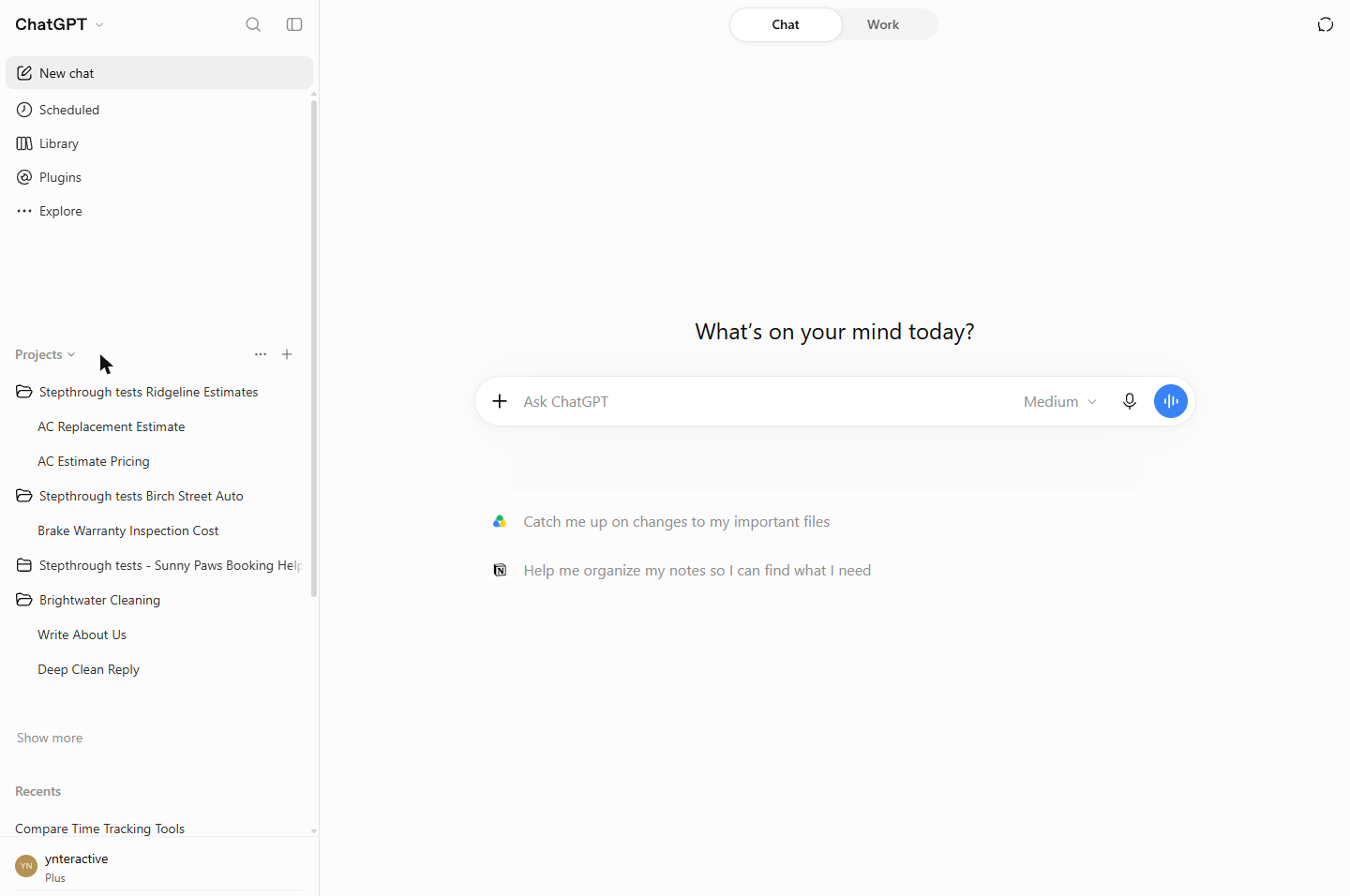
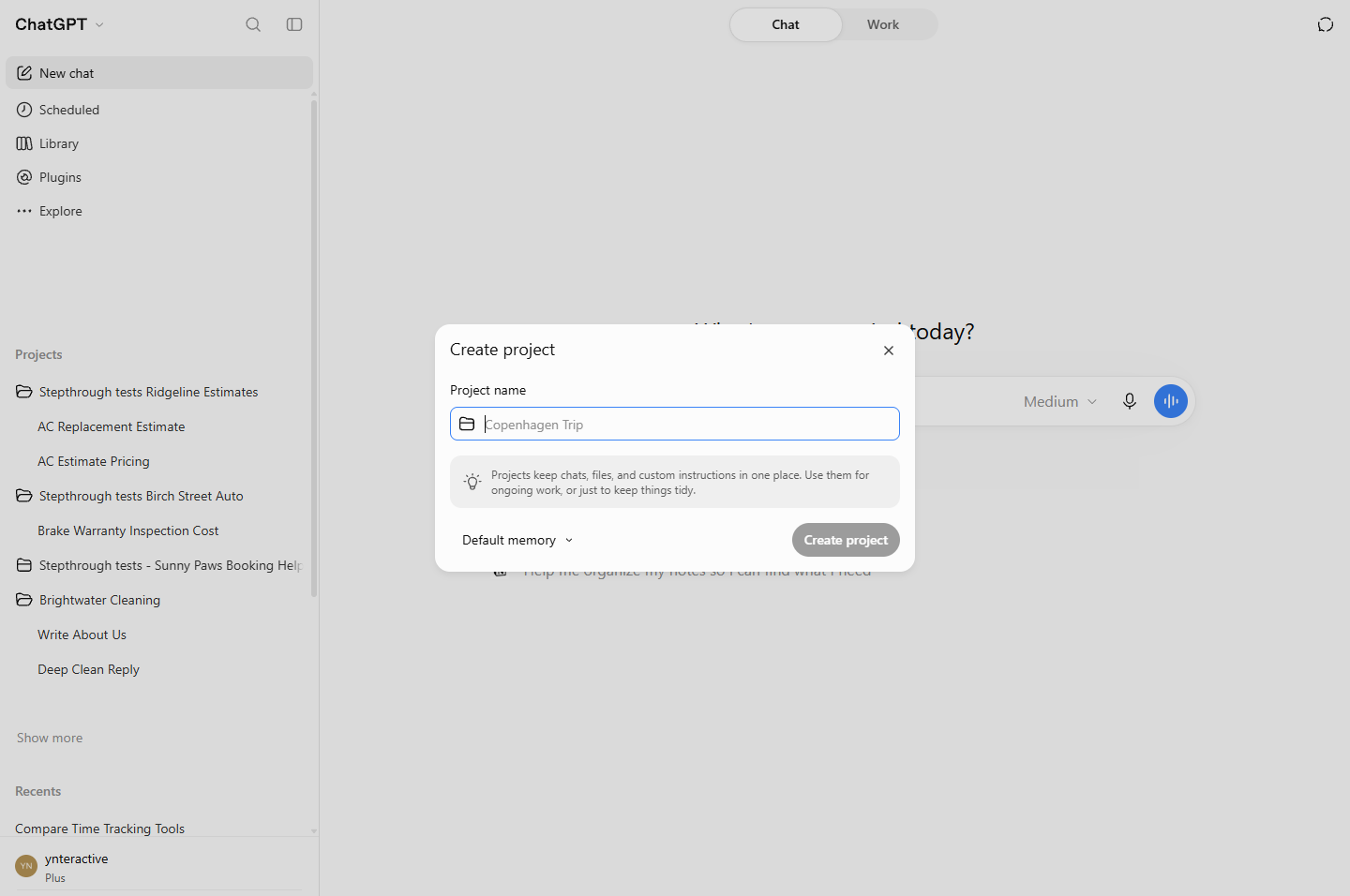
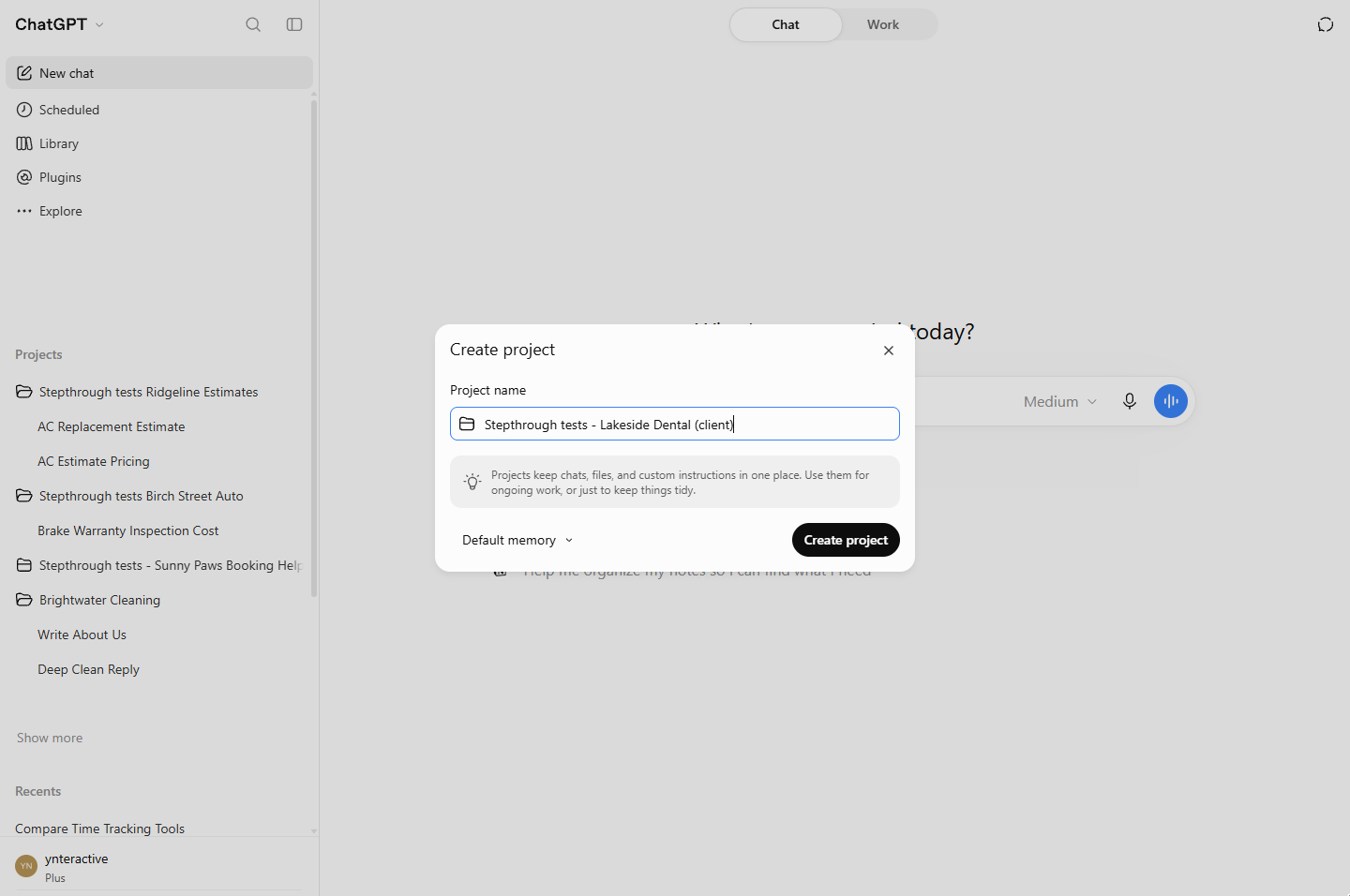
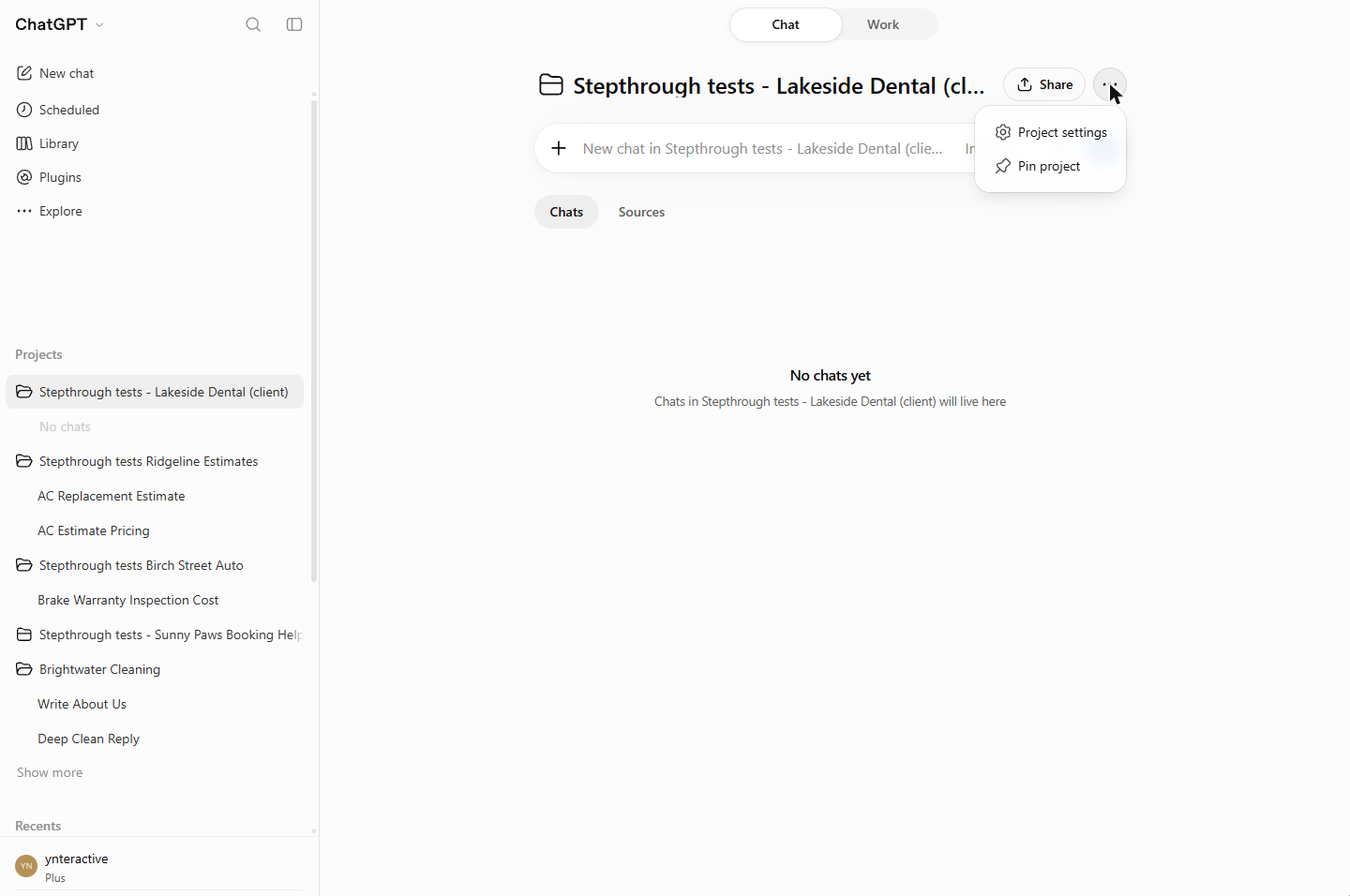
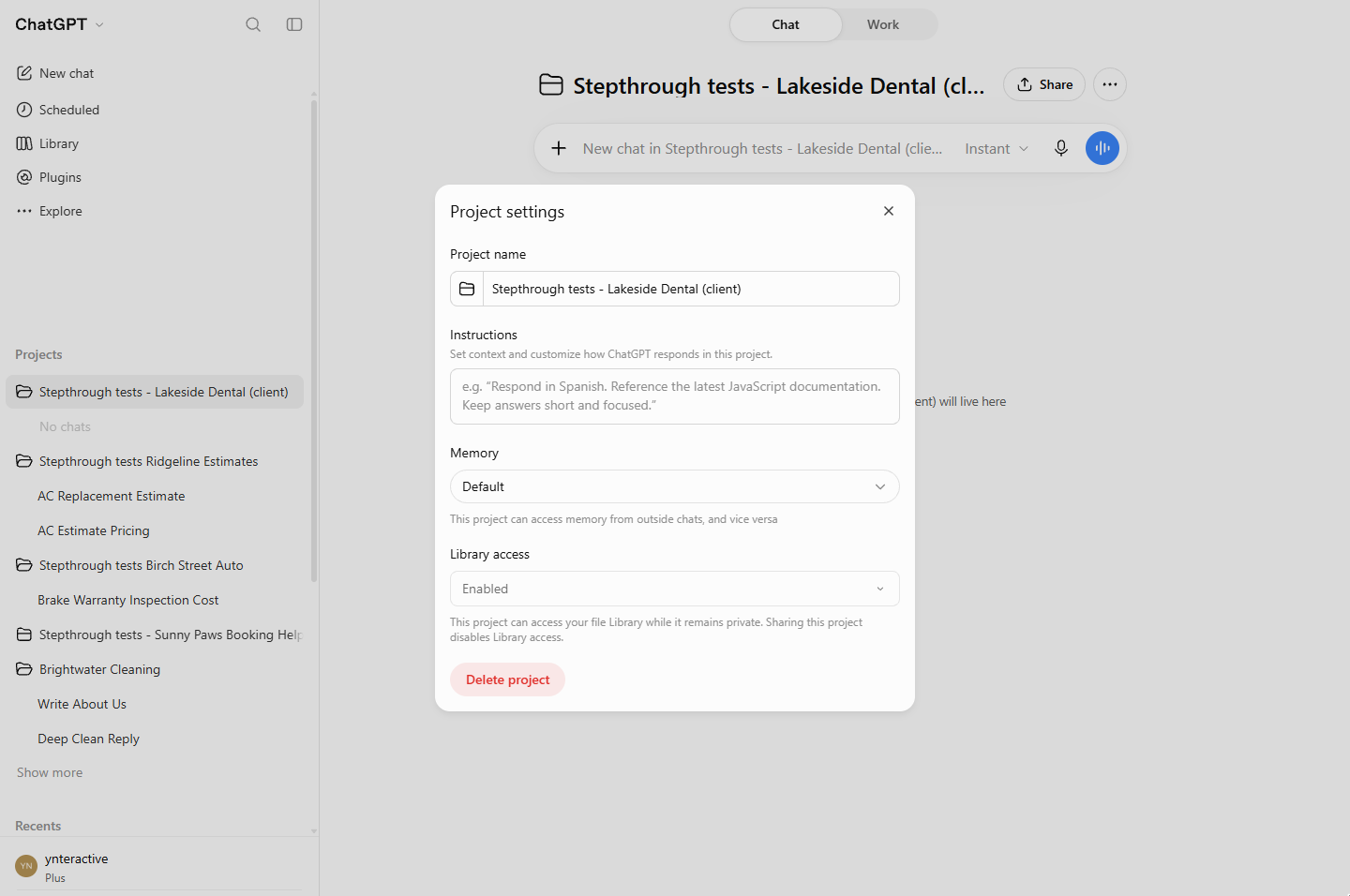
In the sidebar, point at Projects and click +. Create project asks for a Project name (and shows a Default memory option); click Create project. On the project page, click ··· next to Share, then Project settings. Paste the client rules into Instructions and click Save.
Project settings also has its own Memory option. Default says the project "can access memory from outside chats, and vice versa". Check it against your firm's rules when you set up a client project.
Start chats inside the project
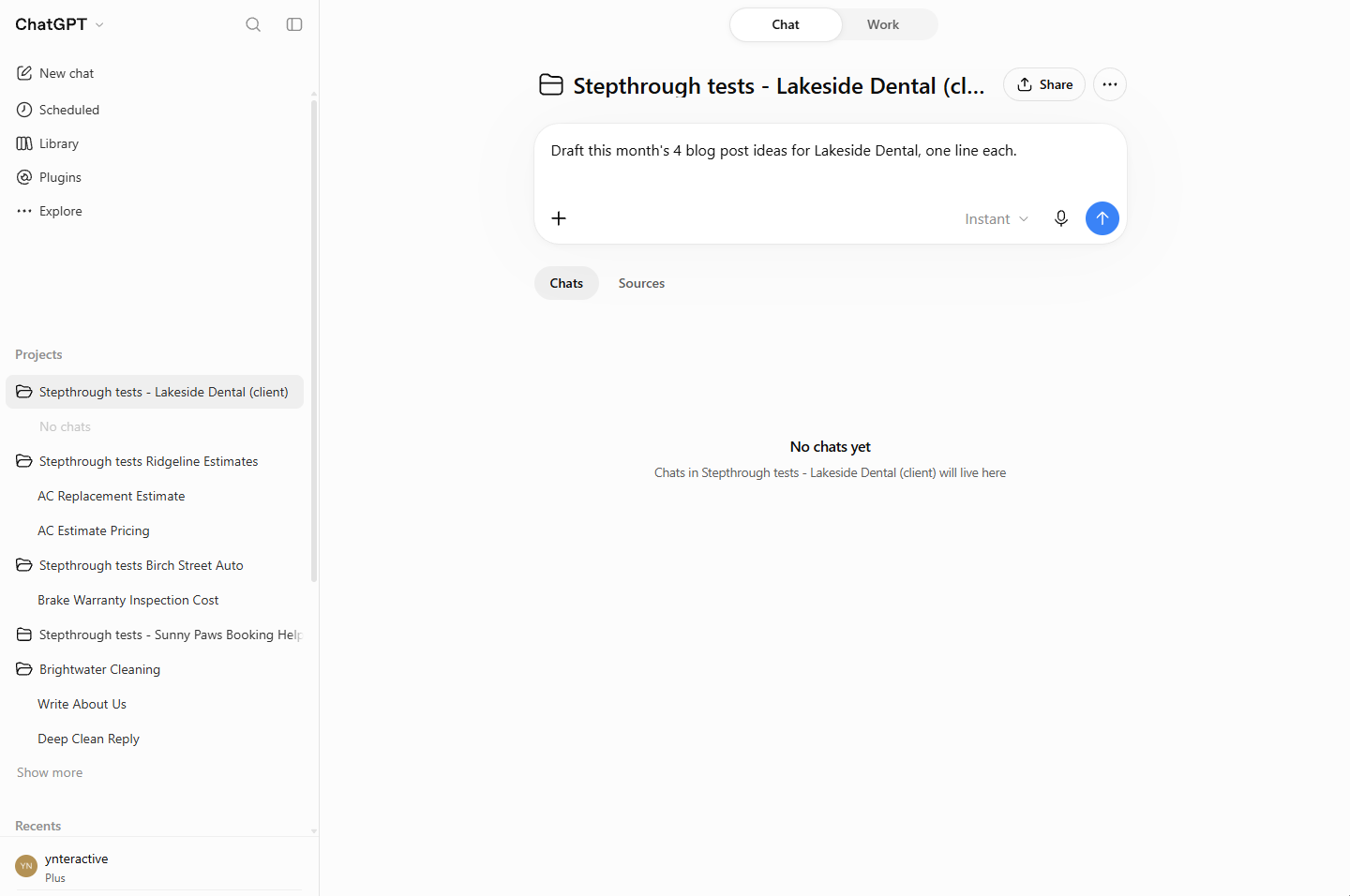
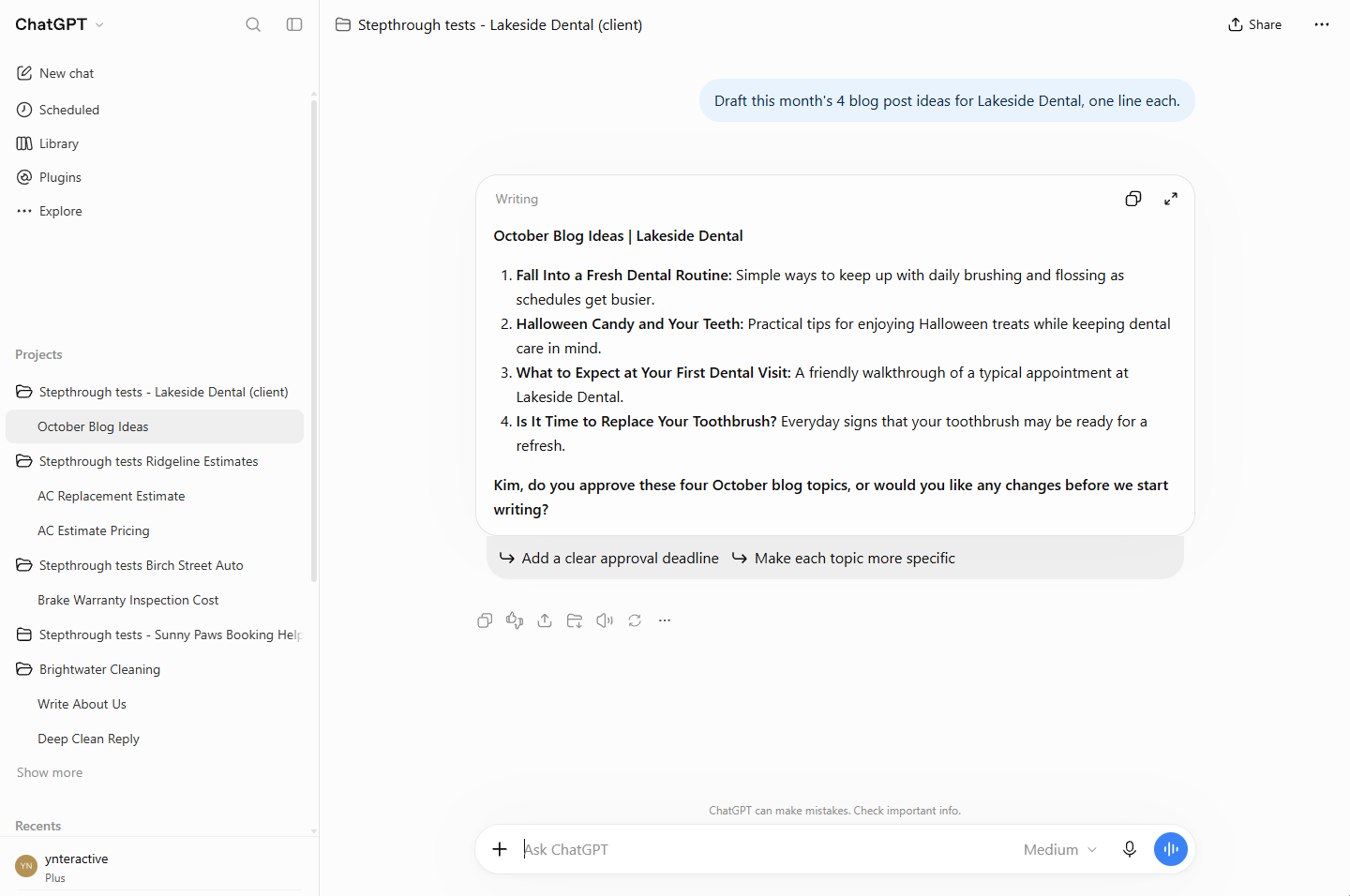
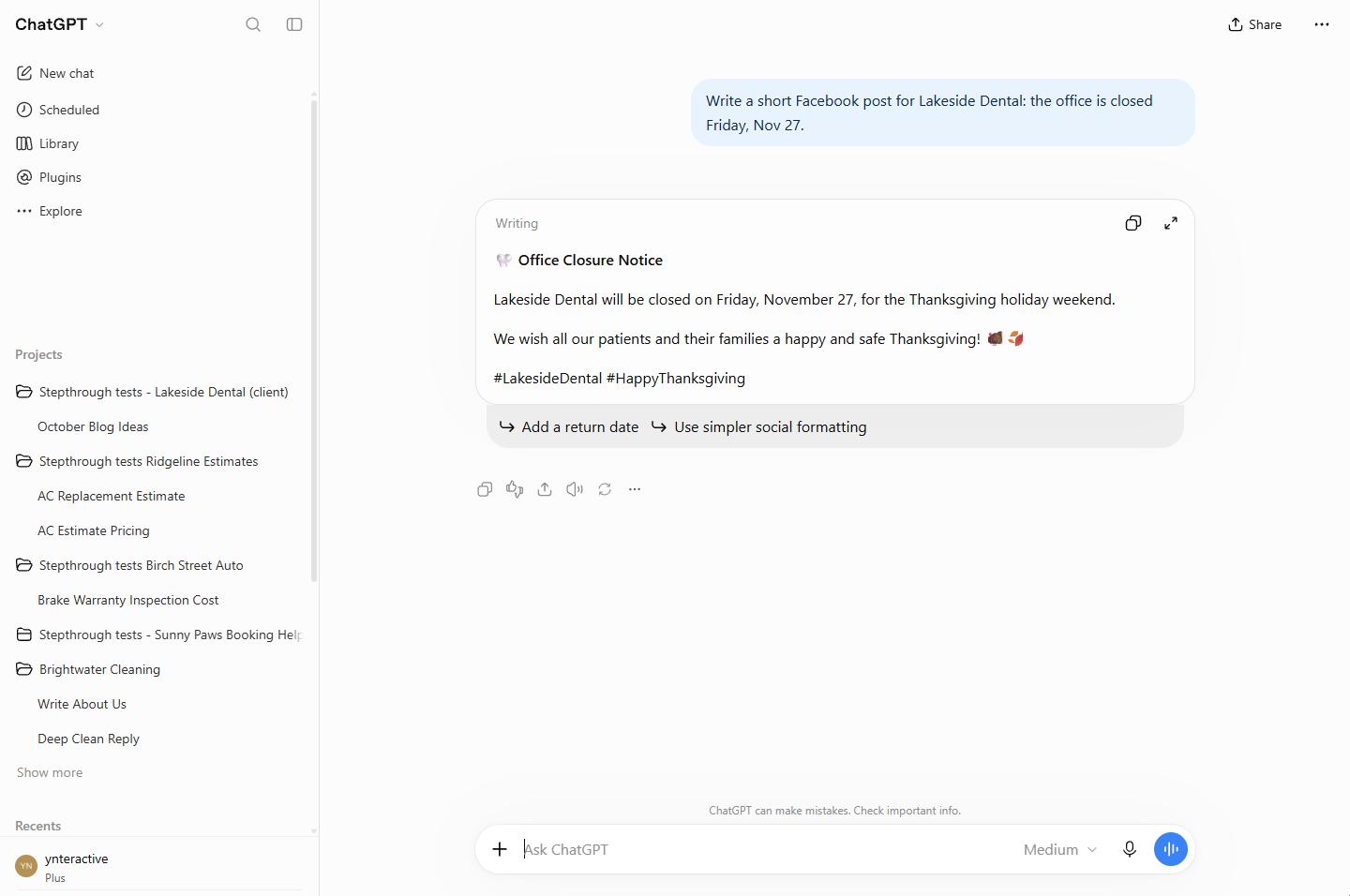
Type the task into New chat in [project name] on the project page. In our test the answer used the client tone and ended with the approval question from the instructions, and the chat appeared under the project in the sidebar. A request for the same client in a normal chat did neither: project instructions only apply inside the project.
Archive, delete and move
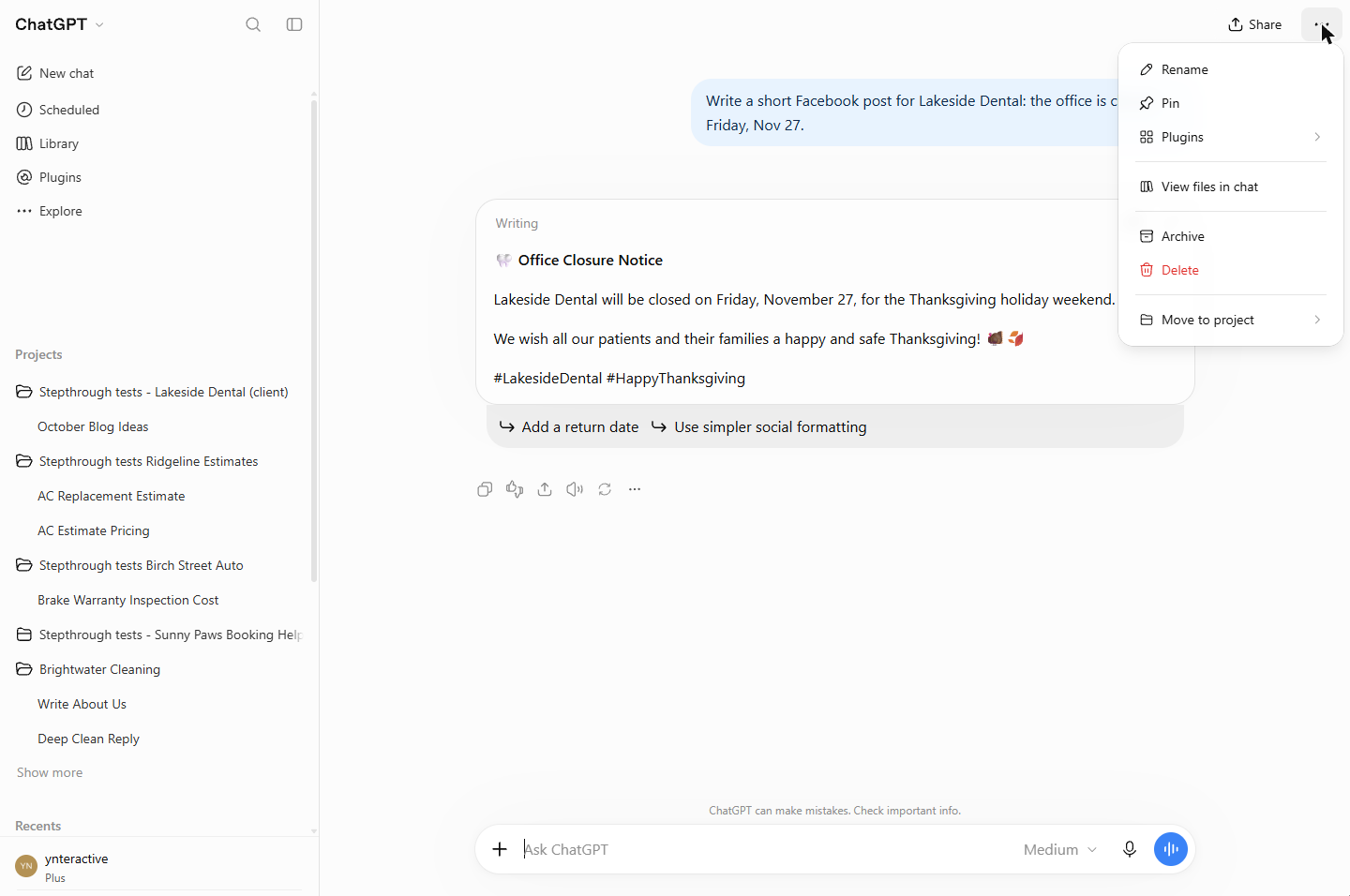
Every chat has a ··· menu with Archive, Delete and Move to project. Archive hides a chat from the sidebar but keeps it (find it under Settings > Archived chats); Delete removes it for good. In our test, Move to project did not move a chat that had a canvas answer, so the reliable habit is to start client chats from the project page.
Links
- ChatGPT: Projects are in the sidebar under Projects (the + creates one).
- OpenAI Help Center: search "Projects" for what projects can hold and which plans have them.
Try it yourself, free
Reading the steps is a start. Doing them is how it sticks. The interactive module walks you through every click in a practice copy of ChatGPT, checks each step, and never touches your real accounts.
Start “ChatGPT Projects vs Chats: Keep Each Client's Work Together and Stop Re-explaining”Step by step: ChatGPT Projects vs Chats: Keep Each Client's Work Together and Stop Re-explaining
All 17 steps of the interactive module, in order. In the module you watch each one, then do it yourself in a practice copy that checks your work.
1. The business case
- What scattered chats cost. Jordan manages 6 retainer clients at a small agency. Every new ChatGPT chat starts from zero, so Jordan re-pastes the client, the contacts and the tone: 5 to 10 minutes a day, and about once a month a draft goes out with another client's detail in it. Click the monthly total.
Six clients. Every new chat starts from zero. Re-pasting costs minutes a day, and a mix-up once a month.
- Chats vs projects. A chat is one conversation. A project is a folder for one client: its own instructions, files and chats. Every new chat inside it starts with those instructions. Rule of thumb: one project per client, one new chat per task. Click the rule.
A chat is one conversation. A project is a folder for one client, with its own instructions. One project per client. One new chat per task.
- The client rules. These are the instructions you will give the project: who the client is, the contacts, the tone, and one house rule (end every draft with a question for Kim). Download a copy, then click the instructions.
These are the client rules. Who they are. The tone. And one house rule.
2. One project per client
- Add a new project. In the ChatGPT sidebar, point at Projects and click the + next to it.
In the sidebar, point at Projects.
- Name it after the client. Create project opens. Paste the client name into Project name. (Ours starts with "Stepthrough tests" because it lives in our test account.) Leave Default memory as it is for now.
Name the project after the client.
- Create it. Click Create project.
3. Write the client rules once
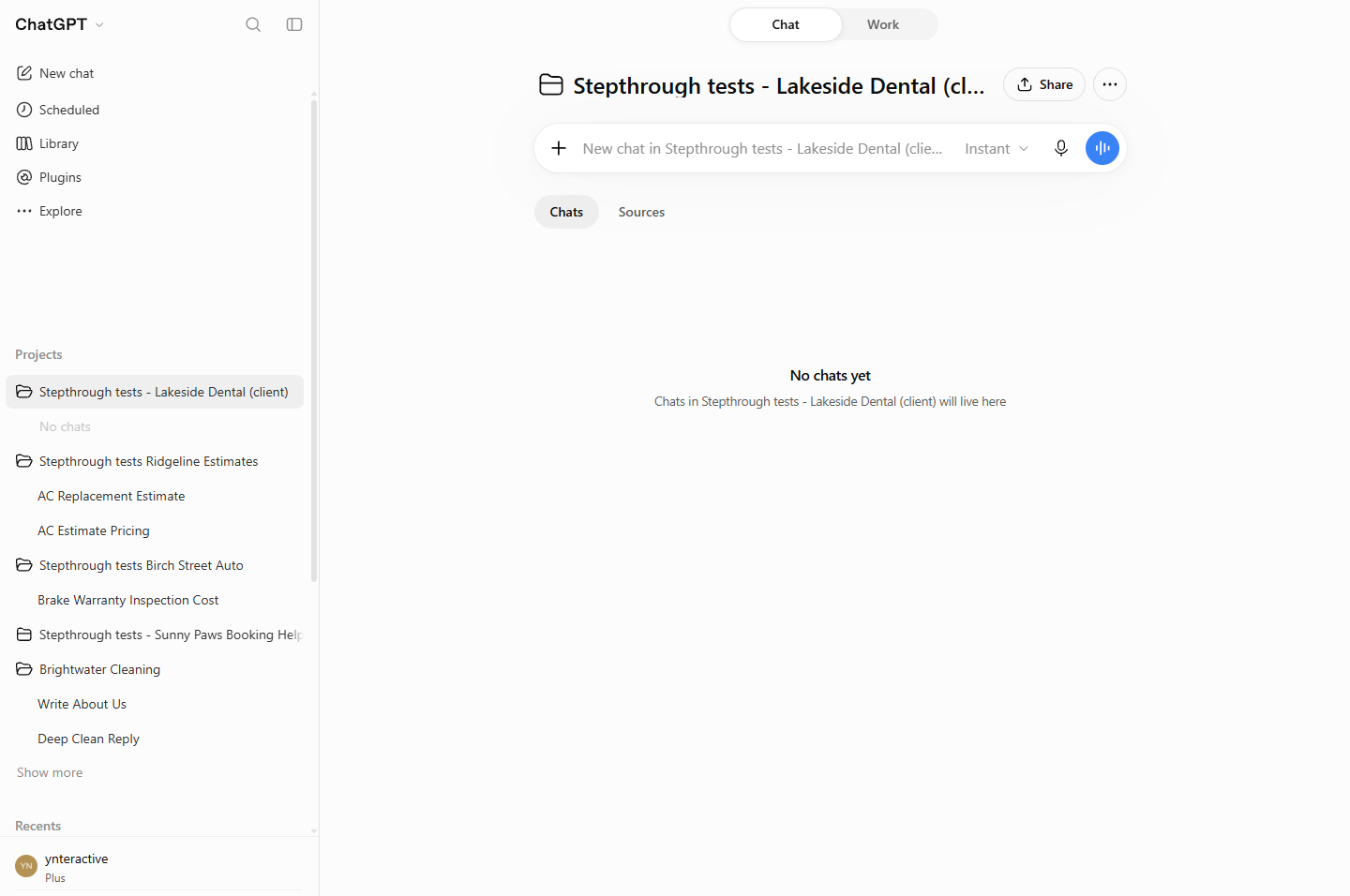
- Open the project menu. The project page opens, with Chats and Sources and "No chats yet". Click the ··· next to Share.
The project is empty.
- Project settings. Click Project settings.
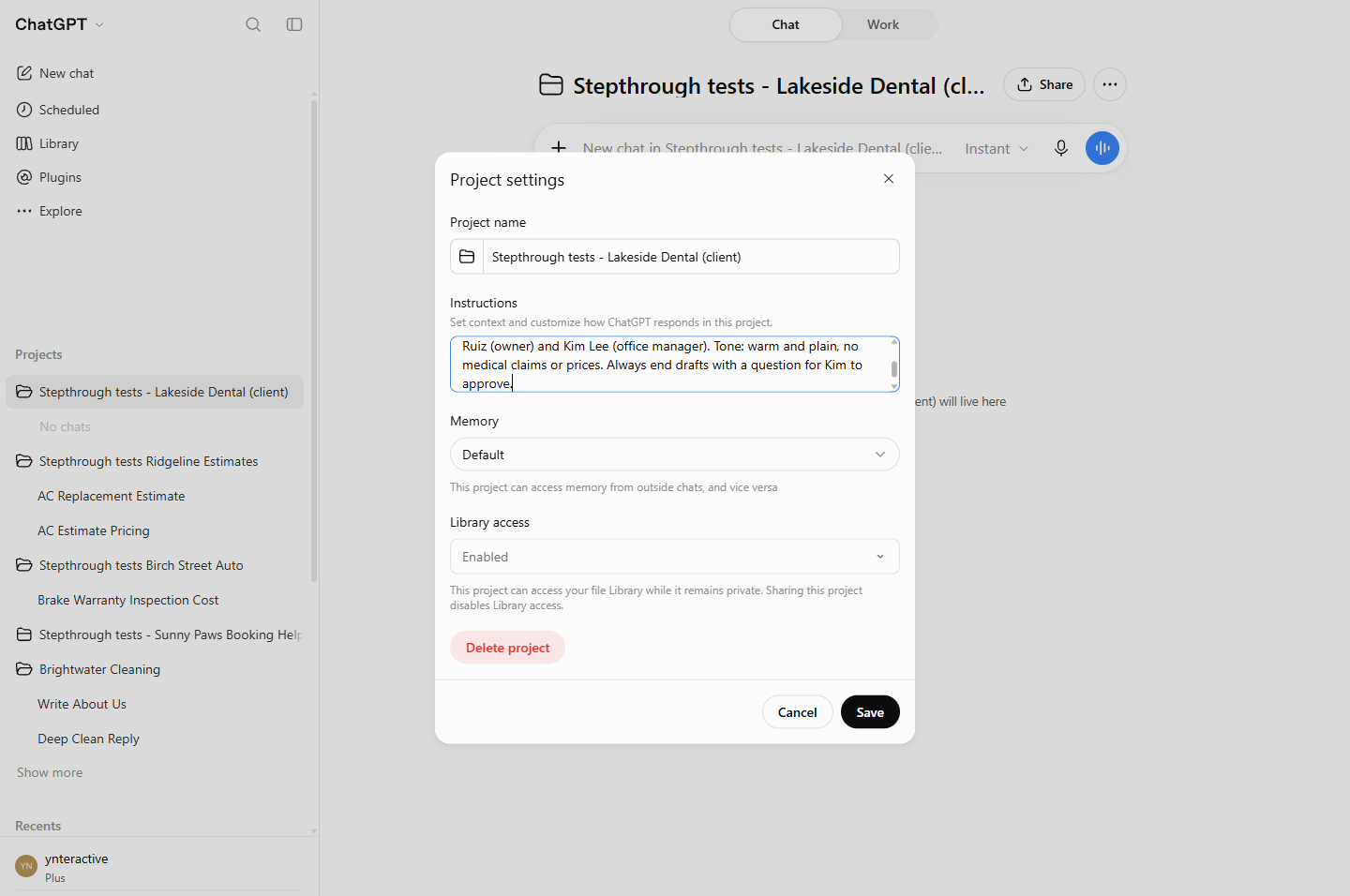
- Paste the client rules. Paste the client rules into Instructions. Below it, Memory: Default says "This project can access memory from outside chats, and vice versa". Note it; we leave it alone here.
Notice the memory setting below. We leave it as it is.
Client: Lakeside Dental, a 3-dentist practice in Madison, WI (made up). Retainer: 4 blog posts and 8 social posts a month. Contacts: Dr. Ana Ruiz (owner) and Kim Lee (office manager). Tone: warm and plain, no medical claims or prices. Always end drafts with a question for Kim to approve.
- Save. Click Save.
4. New chats inside the project
- Ask inside the project. Back on the project page, type the task into New chat in Stepthrough tests - Lakeside Dental (client). You do not repeat who the client is.
Start a new chat inside the project. No need to explain the client again.
- Send it. Click the arrow to send it.
- It followed the rules. Four October blog ideas, plain and warm, and the last line asks "Kim, do you approve these four October blog topics...", exactly as the instructions said. The chat now sits inside the project in the sidebar. Click Kim's question.
Four ideas, in the client's tone. And it ends with the question for Kim.
5. Project chat vs normal chat
- The same client, in a normal chat. Now a quick request for the same client in a normal chat (New chat, outside the project). The post is fine, but it uses emojis and hashtags and does not ask Kim to approve: the project's rules only apply inside the project. Click the post.
Same client, normal chat. No approval question. Project rules only work inside the project.
- Archive, delete or move. The ··· menu of any chat has Archive (hides it from the sidebar; it is still stored), Delete (gone for good) and Move to project. In our test, Move to project did not move this chat, so the reliable habit is to start client chats from the project page. Click the menu.
Archive hides a chat. Delete removes it. Move to project did not work for us here. So start client chats from the project.
6. What it saves
- What this saves. No more re-pasting client details, no other client's tone in a draft, and every chat for Lakeside Dental in one place. Click What you have now.
No more re-pasting. No mixed-up clients. Everything for one client in one place.
- Up next. Next: when to keep going in the same chat and when to start a new one. Click Up next.
Next, when to keep going in a chat, and when to start a new one.
Screenshots
Frequently asked questions
- What is the difference between a ChatGPT project and a chat?
- A chat is one conversation. A project is a folder with its own instructions, files and chats; every new chat inside it starts with the project instructions.
- When should I use a ChatGPT project instead of a new chat?
- For any client or ongoing job you come back to. Use one project per client and start a new chat inside it for each task. Use normal chats for one-off questions.
- Do project instructions apply to my other chats?
- No. In our test a normal chat for the same client ignored the project's rules. Project memory is a separate setting in Project settings.
- Does ChatGPT remember archived chats?
- Archiving only hides a chat from the sidebar; it is still stored and listed under Settings > Archived chats until you delete it. What ChatGPT uses from past chats depends on your memory settings.
More in ChatGPT for Everyday Work
 Summarize a Meeting Transcript with ChatGPT
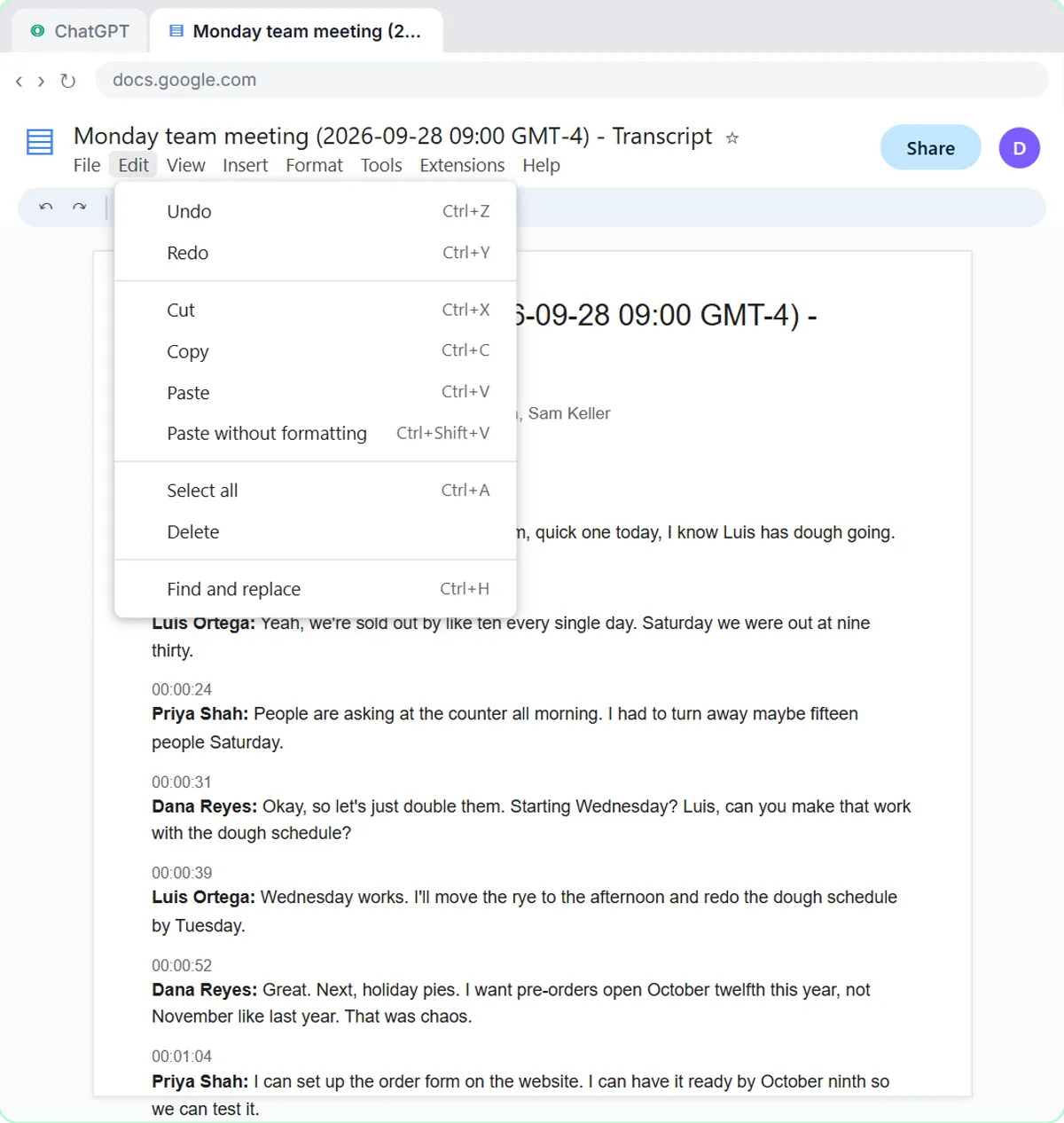
Paste a long meeting transcript into ChatGPT and get the decisions, an action items table with owners and due dates, and a follow-up email ready to send.
Free · Live ~9 min Beginner
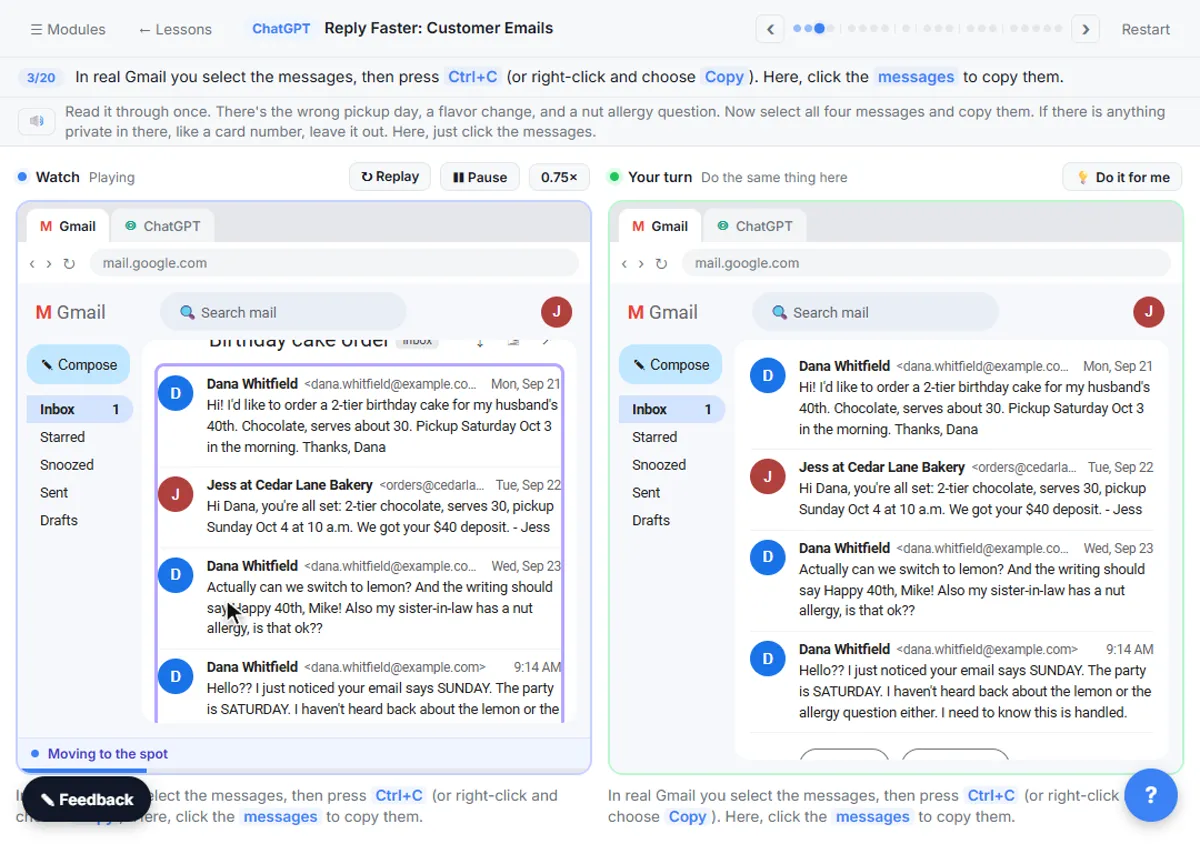 Reply Faster: Turn a Messy Customer Email Thread into a Clear, Friendly Reply
Turn a messy customer email thread into a clear, friendly reply: give ChatGPT the thread and your facts, check every promise, fix the tone, and send it from Gmail.
Free · Live ~9 min Beginner
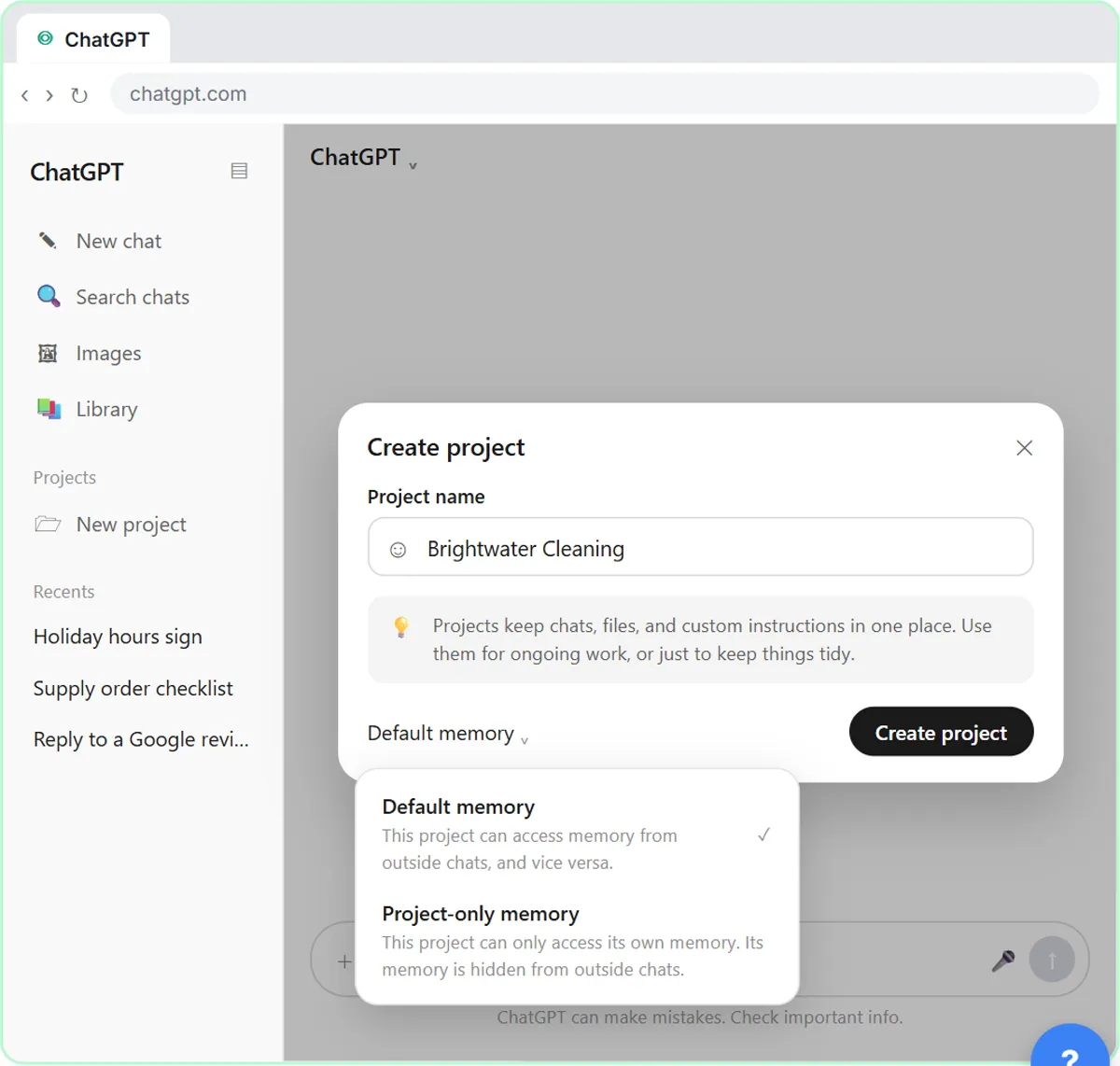 ChatGPT Projects: Keep Your Brand Voice, Files and Instructions in One Place
Set up a ChatGPT Project with your brand voice instructions, your price list and your style guide, so every new chat already knows your business.
Free · Live ~9 min Beginner
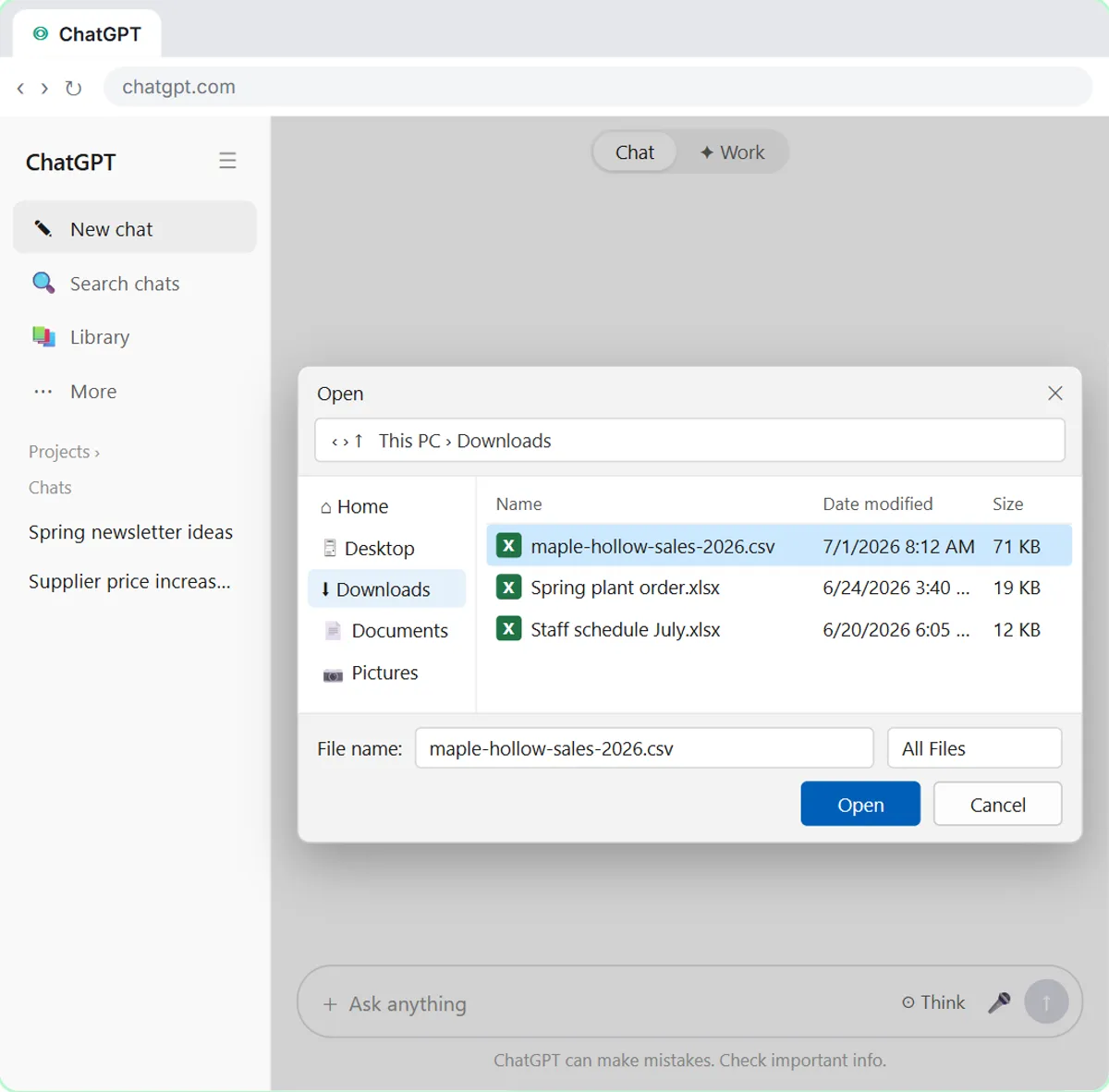 Analyze a Spreadsheet with ChatGPT: Upload a CSV, Get a Chart and Three Takeaways
Upload a CSV of sales to ChatGPT, have it check the data first, ask your questions, get a chart you can download, and finish with the three takeaways that matter.
Free · Live ~10 min Beginner
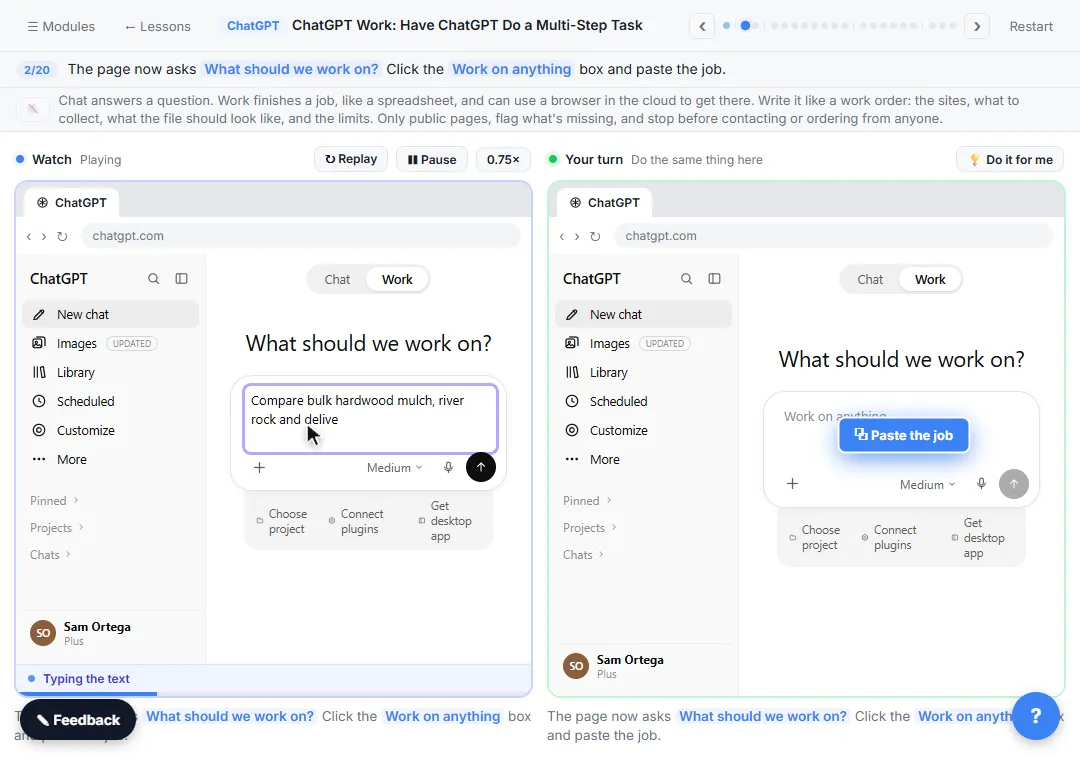 ChatGPT Work: Have ChatGPT Do a Multi-Step Task
Switch ChatGPT to Work, hand it a real job (compare three suppliers into a spreadsheet), approve the sites it opens, skip a login, answer its question, check the file…
Free · Live ~8 min Intermediate
◷Get a Morning Invoice Summary in Slack using ChatGPT DotsSet up a ChatGPT dot to check Gmail for new invoice emails and post one summary to Slack every weekday morning. A 7-step practice based on OpenAI's published screens.
Free · Live ~4 min Intermediate
All 17 modules in ChatGPT for Everyday Work
More ChatGPT tutorials
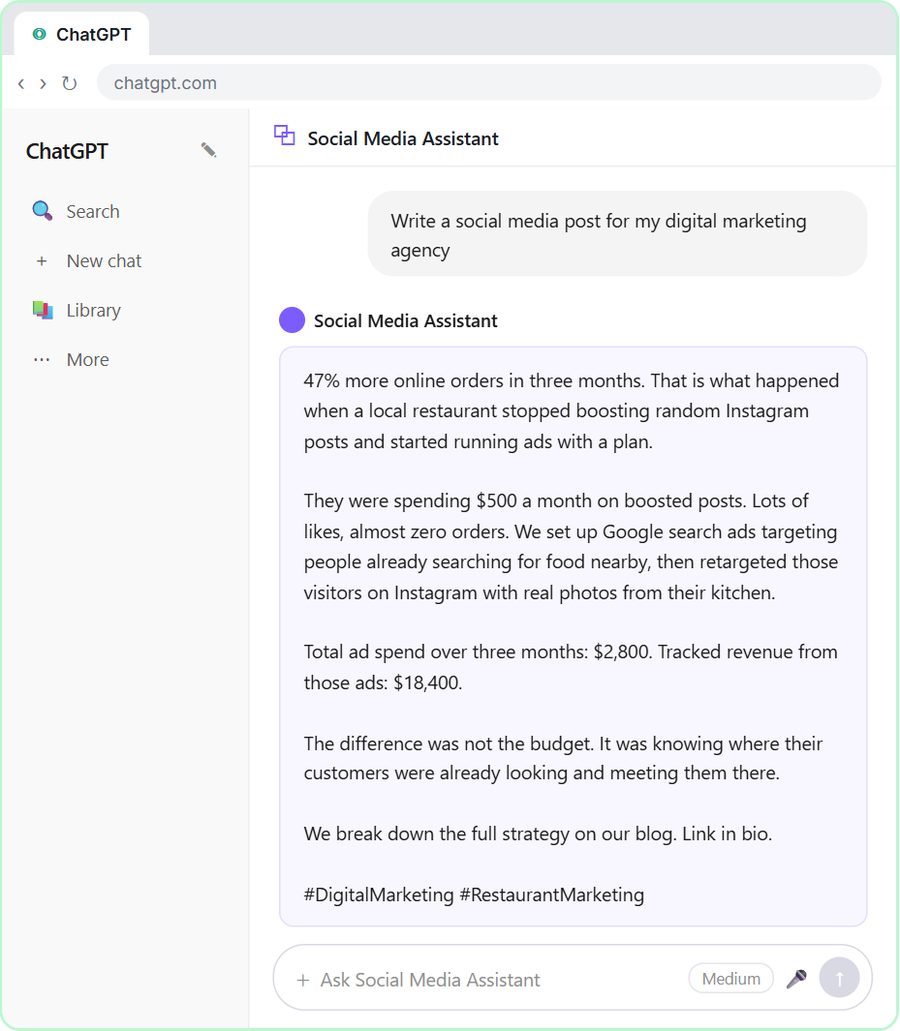 Get On-Brand Social Posts Every Time using a ChatGPT Custom GPT
See why generic prompts give generic results, then build a Custom GPT loaded with your brand voice and watch the output transform.
Free · Live ~8 min Beginner
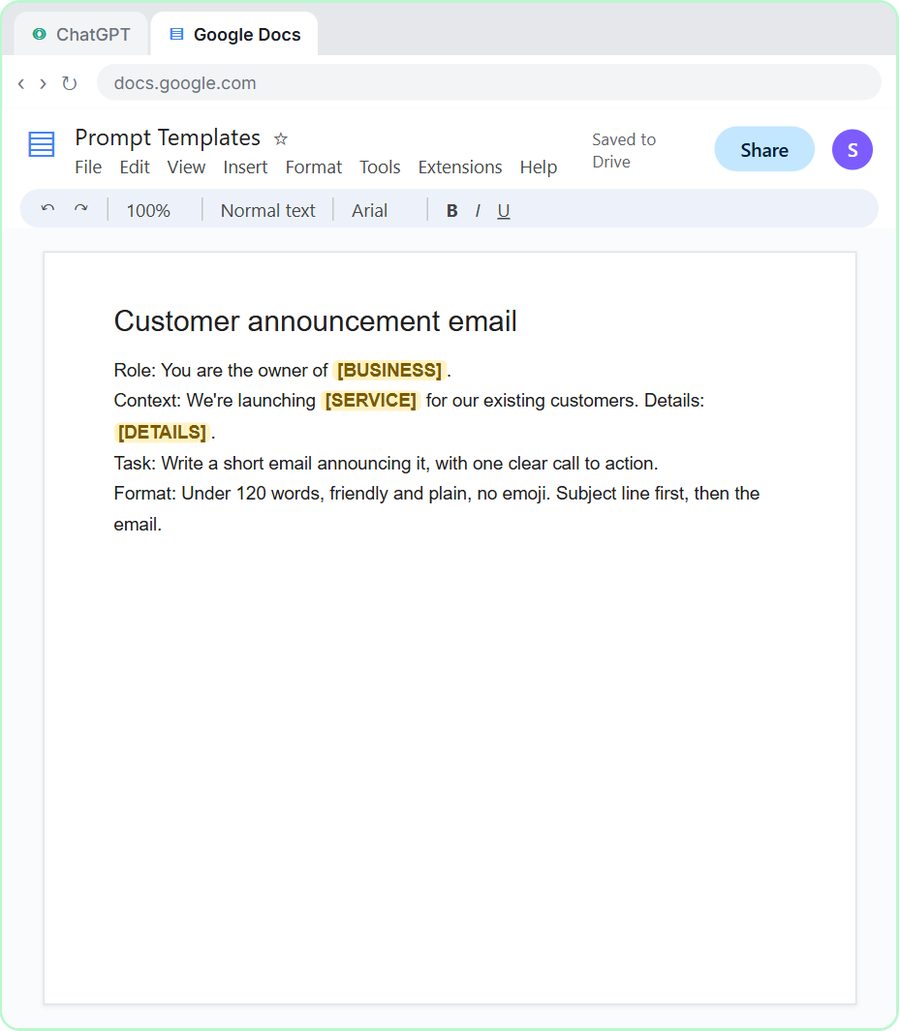 Prompt Writing 101: Role, Context, Task, Format
Ask ChatGPT for the same customer email twice, once vaguely and once with a four-part prompt, and see exactly why structure gets a better answer.
Free · Live ~8 min Beginner
◷Send a Same-Day Follow-up After Every Discovery Call using ChatGPTTurn a discovery call transcript into the decisions, the next steps with owners and dates, deal notes for your CRM, and a follow-up email the prospect gets the same…
Free · Live ~7 min Beginner
◷Hold Your Price When a Prospect Asks for a Discount using ChatGPTA prospect wants 30% off and a free month to sign this week. Give ChatGPT the thread and your pricing rules, catch the discount you can't approve, and send a reply that…
Free · Live ~9 min Beginner
 Get Your Business Recommended by ChatGPT
Ask ChatGPT who it recommends in your town, see which pages it trusts, then use it to write an FAQ page and Business Profile copy that answer real customer questions.
Free · Live ~10 min Intermediate
◷Run a Weekly Ops Review Where Every Task Has an Owner using ChatGPTTurn a weekly operations and vendor review into the decisions, the next steps with owners and dates, the risks to watch and a team recap, without turning a vendor's…
Free · Live ~7 min Beginner
Same business, other tools
Harbor Lane Marketing shows up in these modules too, built with different tools.
Terms in this lesson
Plain-English definitions, each with an example from a free lesson.