Updated . Built against the tool’s current screens and checked step by step. How we check this lesson
A nonprofit board decides real things from the development report: whether to hire, expand a program or plan for a lean year. If the total counts a gift twice or treats a pledge as cash, the board decides on money you don't have. In this free, interactive lesson you upload a donor database's gift export to ChatGPT, have it check the file before it adds anything up, decide yourself what counts as a gift, and then get giving by month and by source, a chart and three takeaways for the board, each backed by a number.
At a glance
| Question | Answer |
|---|---|
| What you build | Upload your donor database’s gift export to ChatGPT, catch gifts that synced twice and pledges that were never received before anything is added up, then get giving by source, a chart and three takeaways for the board. |
| Tools | ChatGPT |
| Time | About 11 minutes, 26 steps in 5 parts |
| Level | Beginner, no coding needed |
| Cost | Free |
| Ways to learn it | Practice it step by step |
The 5 parts, in short
- Upload the CSV: Open the plus menu, Add photos & files, Pick the gift export, Open it.
- Check the data first: Click the message box, Ask it to check the file, Send it, Read the problems it found, and 5 more steps.
- Ask your question: Click the message box, Ask for giving by source, Send it.
- Get a chart: Click the message box, Ask for a chart, Send it, Open the chart, and 2 more steps.
- The three takeaways: Click the message box, Ask for the three takeaways, Send it, Copy the takeaways.
Start here first: Analyze a Spreadsheet with ChatGPT: Upload a CSV, Get a Chart and Three Takeaways. This Operations version follows the same build with its own example business, Hillside Literacy Project.
Part of: AI for Operations Teams (step 36 of 36)
Part of: AI for Finance Teams (step 22 of 22)
The example: six months of gifts at a literacy nonprofit
Hillside Literacy Project is a made-up nonprofit that runs after-school reading programs. Its board meets next week and will use the mid-year development report to decide whether to hire a second reading coordinator. The export from the donor database has 1,212 rows from January to June 2026, with names and contact details removed and a donor ID on every row.
ChatGPT's check finds two problems: five online gifts the giving platform synced twice ($1,240 counted twice), and 14 pledges ($18,750) that donors promised but haven't paid. You tell it to remove the duplicates and mark the pledges "Pledge - not received", out of every total. The cleaned data shows $157,765 received, up 42% from the first quarter to the second, and a third of it in two foundation checks.
Who this lesson is for
Development directors, development coordinators, executive directors and nonprofit operations or finance staff who build the board's giving report from a donor database export. No formulas and no technical skills, and no ChatGPT account to practice here.
It is part of the AI for Operations Teams and AI for Finance Teams courses.
Why the pledges matter
Donor databases often keep pledges in the same list as gifts received. A spreadsheet total adds them up without a word, and an $18,750 pledge looks exactly like $18,750 in the bank. The check step is what catches them.
Marking the rows instead of deleting them keeps them in the file, so the report can show the board what is pledged and not yet received. That is a decision about your policy, so the lesson has you make it, not ChatGPT.
What the three takeaways say
- The Spring Appeal worked: one-time gifts jumped from $8,400 in March to $21,600 in April, and the second quarter brought in 65% more one-time giving than the first.
- Monthly donors are the steadiest money: giving grew every month, from $3,150 to $3,725, $20,565 for the half year, or 13.0% of everything received.
- A third of giving came in two checks: foundations gave $55,000, 34.9% of the total, in two payments, so a late or smaller grant leaves a large gap.
- The double-check: list the pledges separately, ask finance whether the June grant payment belongs to this year, and match the totals to recorded deposits.
Keeping donor data safe
- Remove names, emails, addresses and card or bank details before you upload. A donor ID is enough for this analysis.
- Use a business ChatGPT plan that doesn't train on your data, and follow your privacy policy and any promises you made to donors.
- Tie every total back to the deposits your finance team or bookkeeper recorded before the report goes out.
Try it yourself, free
Reading the steps is a start. Doing them is how it sticks. The interactive module walks you through every click in a practice copy of ChatGPT, checks each step, and never touches your real accounts.
Start “Analyze a Donor Gift Export with ChatGPT: Board-Ready Giving Numbers for a Nonprofit”Step by step: Analyze a Donor Gift Export with ChatGPT: Board-Ready Giving Numbers for a Nonprofit
All 26 steps of the interactive module, in order. In the module you watch each one, then do it yourself in a practice copy that checks your work.
1. Upload the CSV
- Open the plus menu. The board's mid-year development report is due next week, and you exported January to June gifts from your donor database as a CSV file, with names and contact details removed. Click the + button on the left of the message box.
Hillside Literacy Project's board wants a mid-year giving report next week, and they'll use it to decide whether to hire another reading coordinator. You exported six months of gifts from your donor database, about twelve hundred rows, with names and contact details taken out. Let's hand it to ChatGPT.
- Add photos & files. Click Add photos & files.
- Pick the gift export. Click hillside-gifts-jan-jun-2026.csv.
Your file browser opens. An Excel file works the same way.
- Open it. Click Open.
The file sits above the message box, marked Spreadsheet. You can also just drag a file onto the chat.
2. Check the data first
- Click the message box. Don't ask for insights yet. Click the message box.
Here's the mistake most people make: they type analyze this and trust whatever comes back. First, make sure ChatGPT reads the file correctly.
- Ask it to check the file. Paste in the request. It asks what each column means, the row count, the date range, and any duplicates, blanks or rows that may not be money you received, with no insights yet.
Before it adds anything up, ask it to check the file: what each column means, how many rows, the date range, and anything that looks wrong, including rows that might not be money you actually received. Tell it no insights yet.
This is the gift export from our donor database for Hillside Literacy Project, a nonprofit, from January to June 2026. Names and contact details are removed; each donor has an ID. Before you analyze anything, check the file: tell me what each column means, how many rows there are, the date range, and any problems like duplicates, blank cells or rows that may not be money we actually received. Don't give me any insights yet.
- Send it. Click Send.
- Read the problems it found. Check the columns and row count. Then click Problems found: five online gifts appear twice, and 14 rows are pledges, promises that may not have been paid yet.
ChatGPT read the file and explained every column, so you know it understood it. Now look at Problems found. Five online gifts were synced twice by your giving platform, and fourteen rows are pledges: almost nineteen thousand dollars that donors promised but may not have paid yet. Count them and the board sees money you don't have.
- Click the message box. Fix those before you ask anything else. Click the message box.
You decide what counts as a gift, not ChatGPT.
- Tell it how to clean the data. Paste in the fix. It removes the second copy of each synced gift and marks the 14 pledges Pledge - not received, so they stay in the file but out of every total.
Tell it the duplicates are sync errors, so it removes the second copy of each, and that pledges aren't money received yet. Mark them pledge, not received, and leave them out of every total until they're paid.
The 5 duplicates are online gifts our giving platform synced twice: remove the second copy of each. The 14 pledge rows are promises, not money received: change their gift_type to "Pledge - not received" and leave them out of every total until they're paid. Use the cleaned data from now on, and give me the cleaned file.
- Send it. Click Send.
- Open the cleaned file. ChatGPT made a new file. Click hillside-gifts-jan-jun-2026-cleaned.csv to look at it. (It may already be open on the right.)
Twelve hundred and seven rows, and a new file you can keep for the auditor.
- Close the preview. The rows open in a panel, like a spreadsheet, with a download button at the top. Click the X to close it.
The rows open right next to the chat, like a spreadsheet, and the button at the top downloads it. The foundation's ten thousand dollar pledge now says pledge, not received. Close the panel with the X.
3. Ask your question
- Click the message box. Now ask a real question. Click the message box.
Now the data is clean, ask what you actually want to know.
- Ask for giving by source. Paste in the question: gifts received by month, split by source, with a total row, then January to March against April to June for each source, as tables.
Ask for what the board will want to see: what came in each month from individuals, monthly donors, foundations and businesses, then the first quarter against the second for each one. Splitting by source shows what one big total hides.
Show gifts received by month, split into one-time gifts from individuals, monthly donors, foundations and businesses, with a total row. Then compare January to March with April to June for each source, with the change. Show both as tables.
- Send it. Click Send.
For questions like this, ChatGPT usually writes and runs a little Python code to add up your rows, so the totals are worked out from the file itself.
4. Get a chart
- Click the message box. Every source grew in the second quarter, but March and June are big only because of two foundation checks. A chart shows it faster. Click the message box.
Every source grew in the second quarter. But look at March and June: they're only big because two foundation checks came in. A chart makes that obvious.
- Ask for a chart. Paste in the request: a line chart by month with one line each for one-time gifts, monthly donors, foundations and businesses.
Say which kind of chart you want and what goes on it: a line chart by month with one line for each source, and a clear title.
- Send it. Click Send.
- Open the chart. Click the chart to open it full size. (If you only see a file path like /mnt/data/…png, ask ChatGPT to show the chart in the chat.)
There it is: the Spring Appeal spike in April, the two foundation spikes, and the monthly donors creeping up underneath.
- Download it. Click the download icon at the top right.
It saves as a picture you can drop into the board report.
- Back to the chat. Click the X at the top right.
5. The three takeaways
- Click the message box. Last step: turn it into lines for the board report. Click the message box.
A chart is nice, but what should the board actually take away?
- Ask for the three takeaways. Paste in the request: three takeaways for the board report, each with its number, plus one thing to double-check.
Ask for three takeaways for the board report, one sentence each, with the number that backs each one up. Then ask what to double-check before it goes out.
Give me the three takeaways I should put in the board's mid-year development report. One sentence each, with the number that backs it up. Then one thing I should double-check before the report goes to the board.
- Send it. Click Send.
- Copy the takeaways. Read the three takeaways and the double-check. Then click the Copy button under the answer.
Three takeaways, each with its number, and an honest warning: show the pledges separately, ask whether the June grant payment belongs to this year, and match the totals to the deposits your finance team recorded.
Frequently asked questions
- Can ChatGPT analyze a donor database export?
- Yes. Upload a CSV or Excel export and it can check the file, clean it the way you tell it, and build tables, charts and takeaways. Ask it to check the file before any analysis, and remove donor names and contact details first.
- How should pledges be handled in a gift report?
- That depends on your organization's policy and how your finance team books them. In the lesson, pledges are marked "Pledge - not received" and left out of every total, so the board sees money received and pledges separately.
- Why check the file before asking for totals?
- Because a total made from a messy export looks just as confident as a correct one. The check finds duplicates from the giving platform and pledges counted as gifts before they reach the board.
- Is it safe to upload donor data to ChatGPT?
- Remove names, emails, addresses and payment details before uploading, use a business plan that doesn't train on your data, and follow your privacy policy. The analysis in the lesson only needs a donor ID, the date, the source, the campaign and the amount.
- Is this lesson free?
- Yes. Stepthrough is completely free and the practice copy needs no accounts.
More in AI Automation for Operations
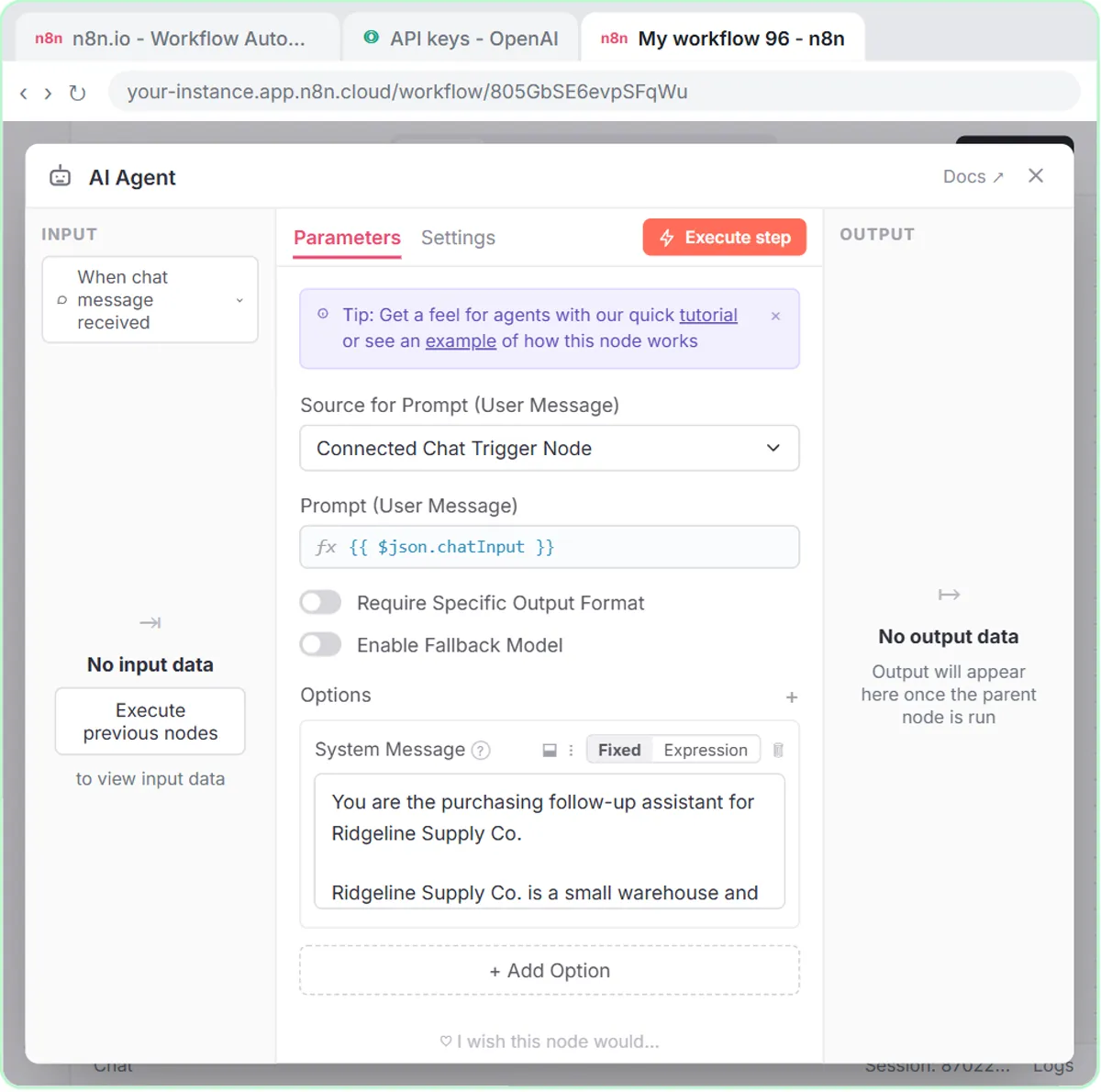 Build an AI Vendor Follow-Up Agent in n8n
Build an AI agent for Ridgeline Supply Co. that writes follow-up messages for late or pending purchase orders and saves them to Google Sheets — chat trigger, AI Agent…
Free · Live ~12 min Intermediate
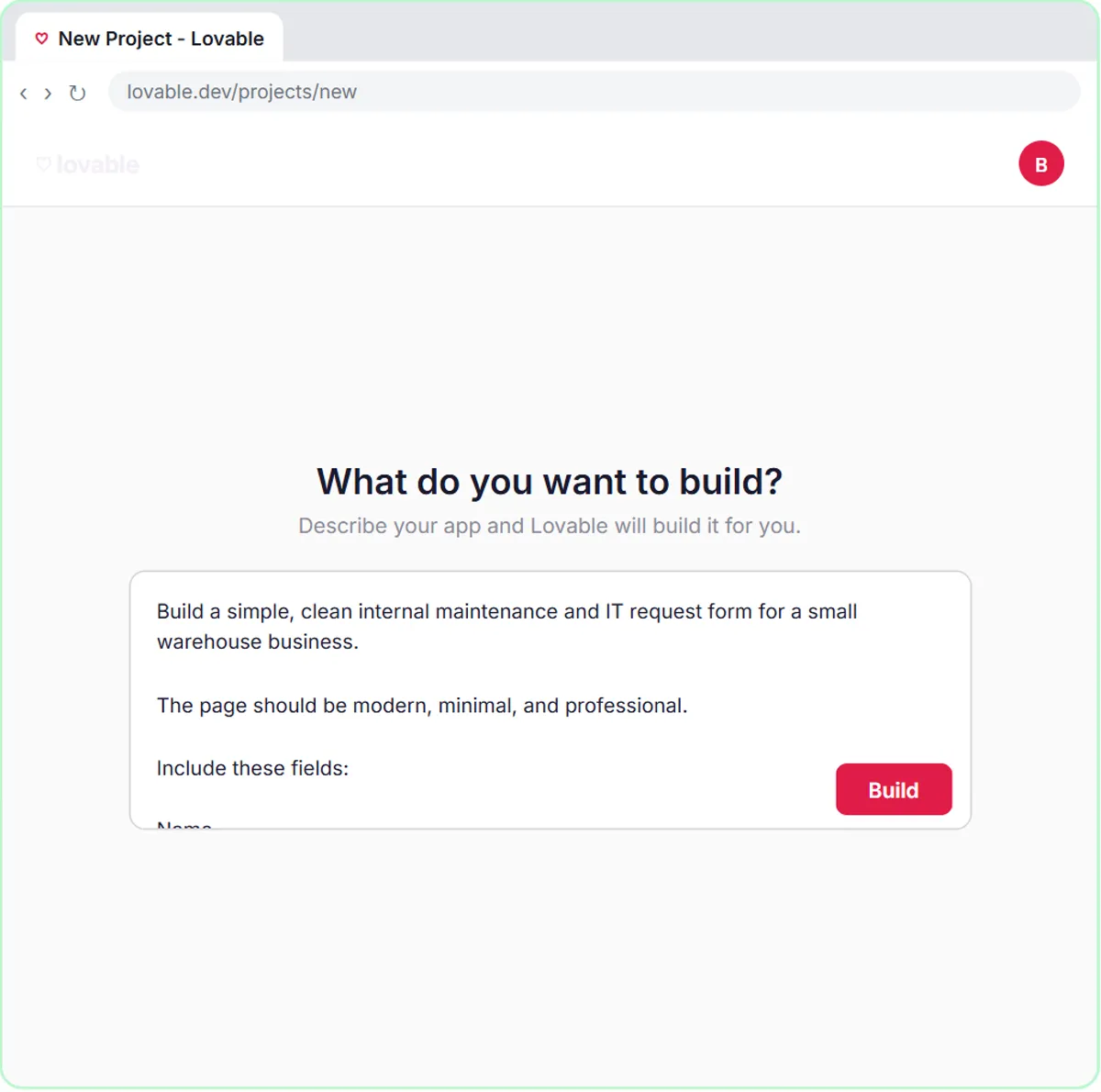 Build an AI Maintenance and IT Request Form
Build an internal maintenance and IT request form in Lovable for Ridgeline Supply Co. and connect it to n8n — the AI agent sets the priority, assigns a team, saves the…
Free · Live ~15 min Advanced
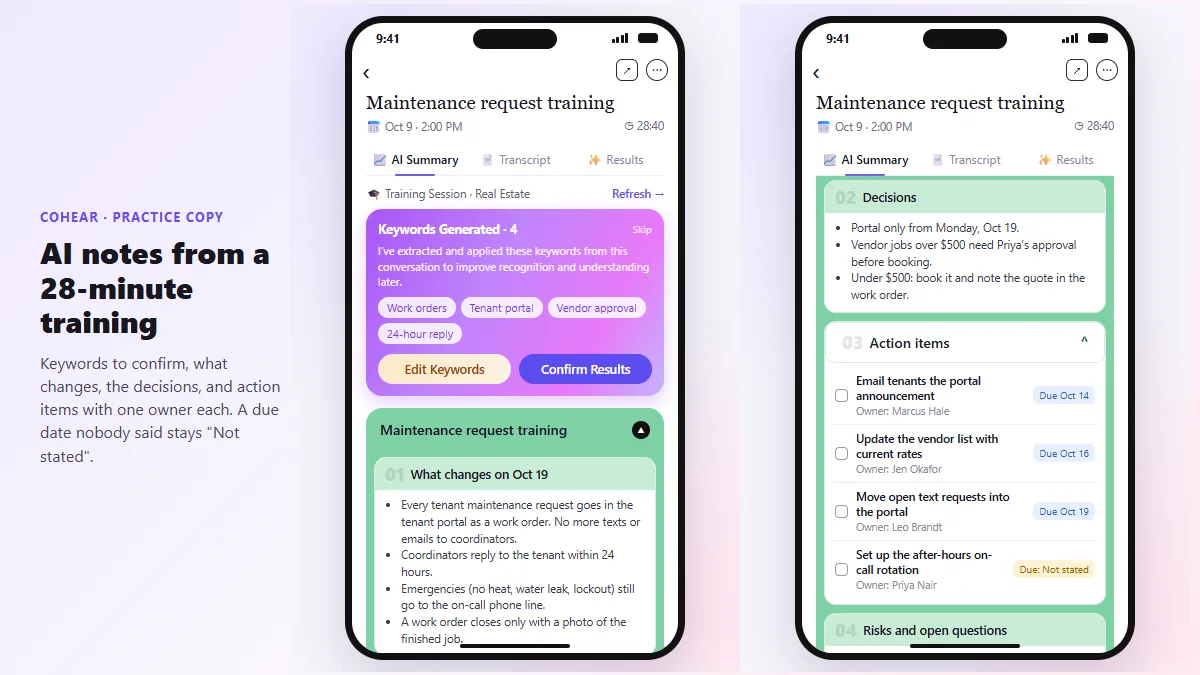 CoHear: AI Meeting Notes from a Team Training Session
Record a team training session on your iPhone with CoHear, check the AI notes and action items against the transcript, make a one-page handout and share it behind a…
Free · Live ~8 min Intermediate
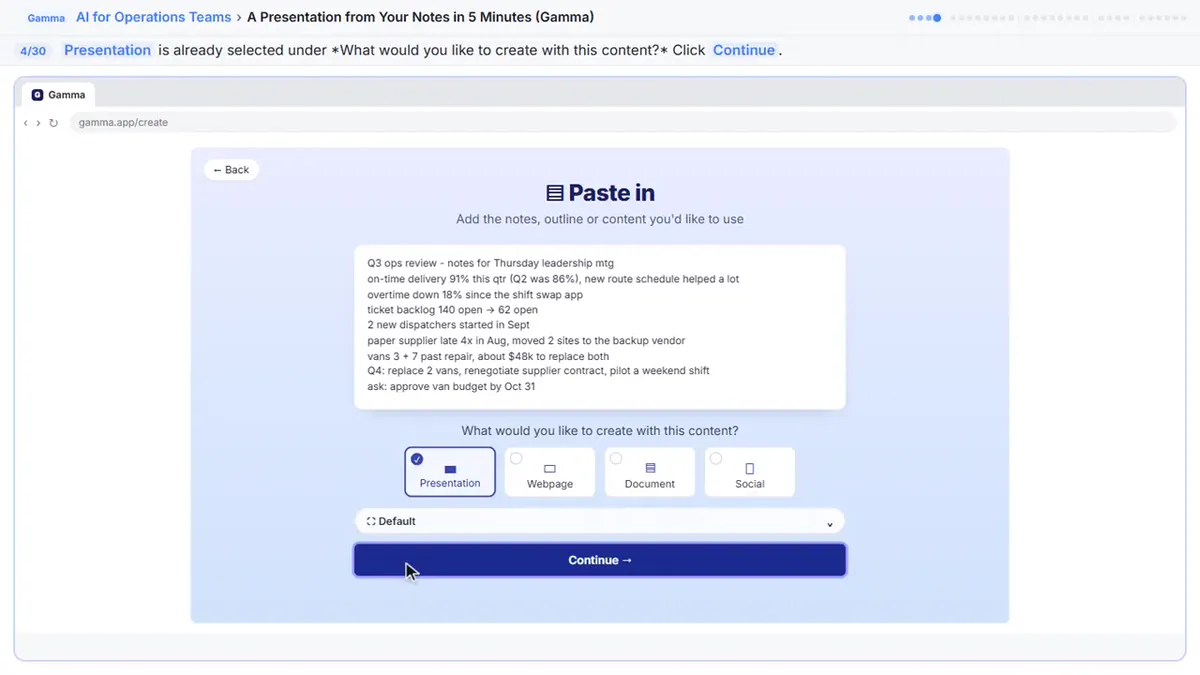 A Presentation from Your Notes in 5 Minutes (Gamma)
Paste rough meeting notes into Gamma, pick a theme, fix one slide by chatting with its AI, and export the deck to PowerPoint and PDF.
Free · Live ~9 min Intermediate
◷AI Contract Review in 10 Minutes using Foxit AISkimmed contracts hide auto-renewals, late fees and liability caps. Upload one to Foxit Workspace, get a plain-English summary and every renewal and exit date, check…
Free · Live ~10 min Beginner
 Answer Employee Policy Questions Instantly Using Airia
HR answers the same time-off and benefits questions all day. Give Airia your handbook, build a no-code agent that answers from it, test it, then share it with your team.
Free · Live ~10 min Intermediate
All 19 modules in AI Automation for Operations
More ChatGPT tutorials
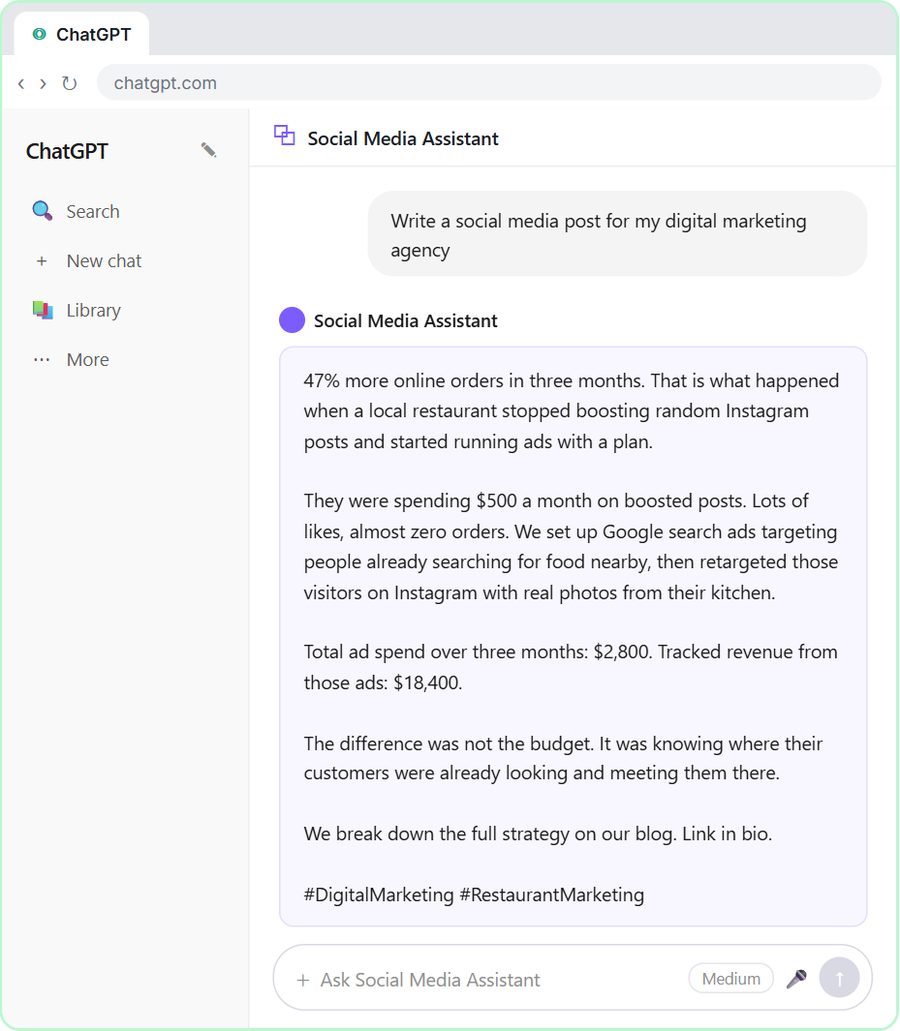 Get On-Brand Social Posts Every Time using a ChatGPT Custom GPT
See why generic prompts give generic results, then build a Custom GPT loaded with your brand voice and watch the output transform.
Free · Live ~8 min Beginner
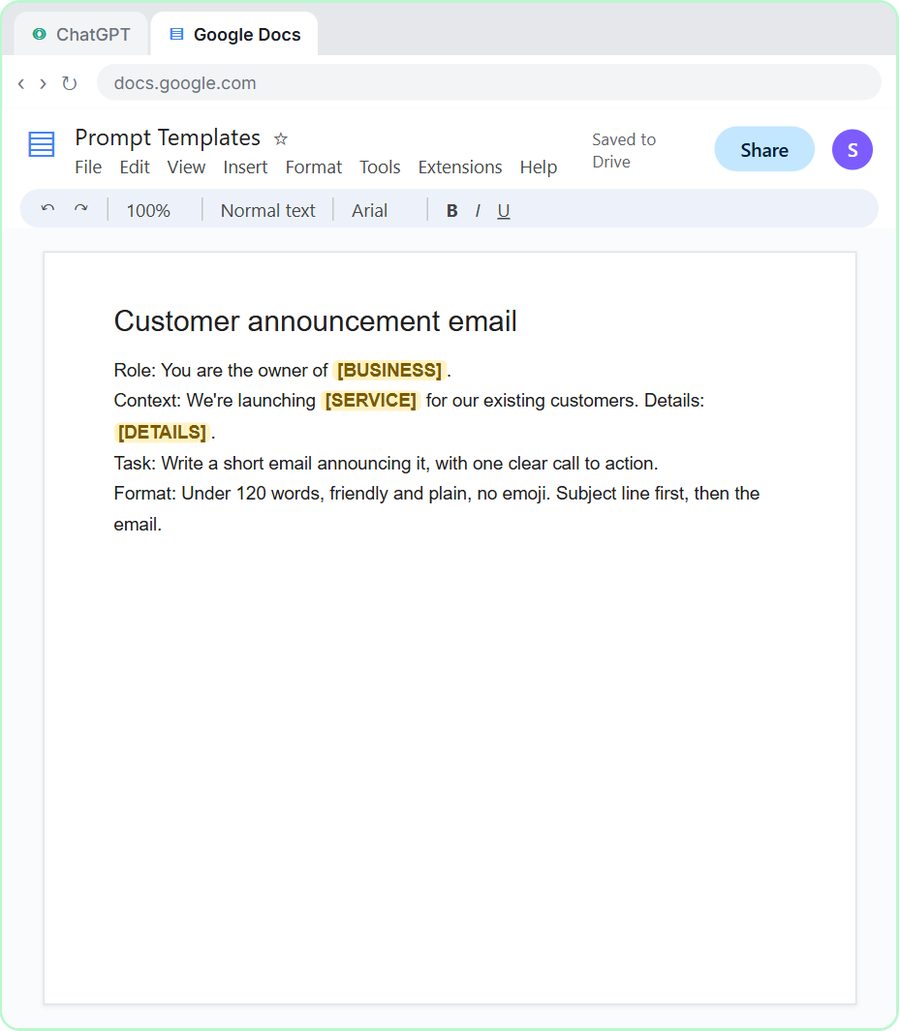 Prompt Writing 101: Role, Context, Task, Format
Ask ChatGPT for the same customer email twice, once vaguely and once with a four-part prompt, and see exactly why structure gets a better answer.
Free · Live ~8 min Beginner
◷Send a Same-Day Follow-up After Every Discovery Call using ChatGPTTurn a discovery call transcript into the decisions, the next steps with owners and dates, deal notes for your CRM, and a follow-up email the prospect gets the same…
Free · Live ~7 min Beginner
◷Hold Your Price When a Prospect Asks for a Discount using ChatGPTA prospect wants 30% off and a free month to sign this week. Give ChatGPT the thread and your pricing rules, catch the discount you can't approve, and send a reply that…
Free · Live ~9 min Beginner
 Get Your Business Recommended by ChatGPT
Ask ChatGPT who it recommends in your town, see which pages it trusts, then use it to write an FAQ page and Business Profile copy that answer real customer questions.
Free · Live ~10 min Intermediate
◷Run a Weekly Ops Review Where Every Task Has an Owner using ChatGPTTurn a weekly operations and vendor review into the decisions, the next steps with owners and dates, the risks to watch and a team recap, without turning a vendor's…
Free · Live ~7 min Beginner
Terms in this lesson
Plain-English definitions, each with an example from a free lesson.
Related prompts
- Timesheet summary prompt: A ChatGPT prompt that turns a timesheet export into a summary: hours by person and project, missing days, unusual entries and…
- Customer complaint log summary prompt: A ChatGPT prompt that turns a customer complaint log into a summary: complaints by type with counts, repeat customers, open…
- Monthly operations report prompt: A ChatGPT prompt for a monthly operations report: this month against last month and target, what drove the big moves, open…
- Overtime and attendance report prompt: A ChatGPT prompt for an overtime and attendance report: overtime by person and week, the trend against last period, and items…