What problem does a project per client solve?
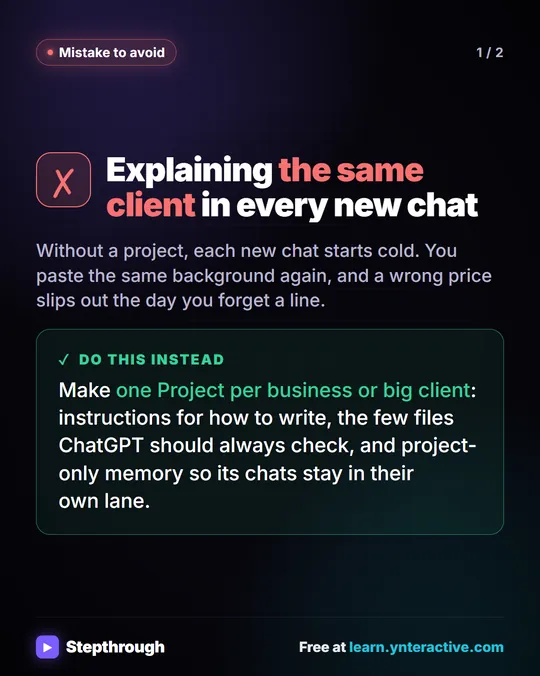
Re-explaining. Picture a made-up bookkeeping firm with a dozen small-business clients. Every time someone asks ChatGPT to draft a client email, they retype who the client is, how formal to be and what the fee schedule says. It is slow, and the day someone forgets a line, a wrong price or the wrong client's detail slips into a reply.
There are two ways this goes wrong, and a project fixes both:
- Starting cold. A new chat starts from zero. You can't count on ChatGPT remembering what you told it in another chat, so you paste the background again.
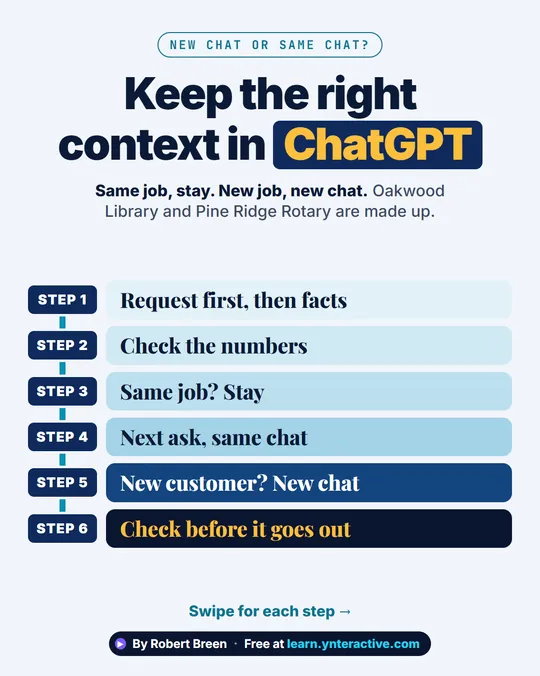
- Mixing clients. Keep one long chat going for everyone and the last client's numbers are sitting there, ready to leak into the next answer. The Stop Losing Context lesson shows that leak with two customers' quotes.
A project gives each client a home: the instructions and files stay put, the chats stay grouped, and clients stay apart.
What goes into a client project?
Three things, as taught in the ChatGPT Projects lesson:
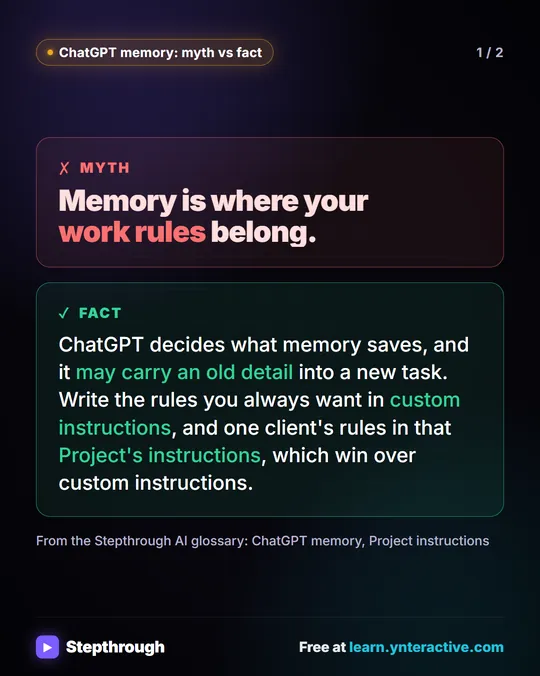
- Instructions. A short note on how to write for this client: who they are, the voice, which file the prices come from ("never invent a price"), and how to sign off. Project instructions apply to every chat in the project and take priority over your general custom instructions.
- Sources. The files every chat should read, such as a fee schedule or a style guide. You can upload PDFs, documents, spreadsheets and images, paste text, or connect Google Drive or Slack. Upload once instead of in every chat.
- Project-only memory. Chats in the project draw only on each other, not on everything else you have asked ChatGPT, and your other chats can't see them. That keeps each client in its own lane.
Keep it small and current. A project with only the documents that matter beats one that holds everything.
How do you set one up?
The steps below are the ones in the lesson. Menus change, so look for the same names in your account.
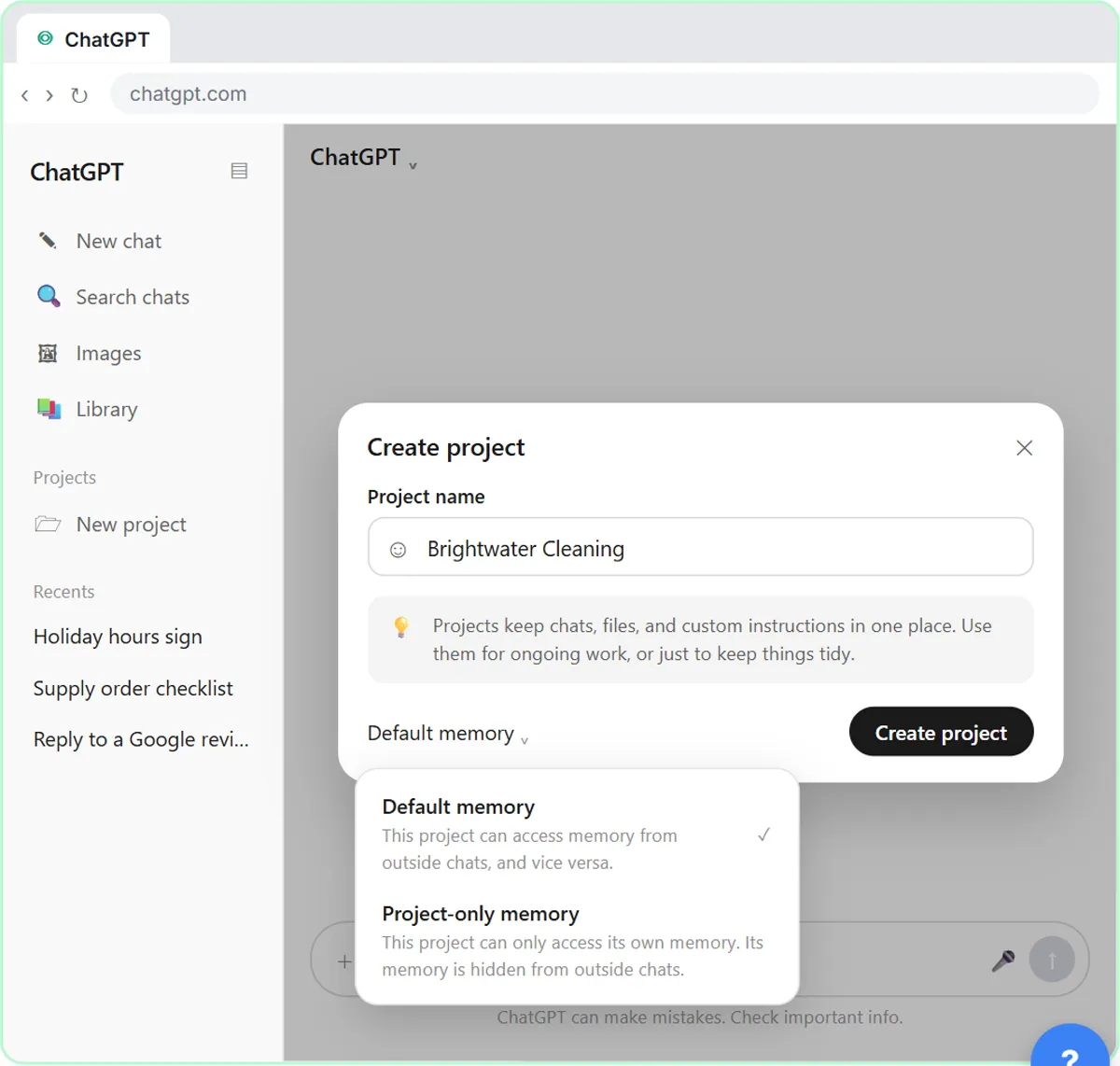
- In the sidebar, under Projects, click New project (or the + next to the Projects heading).
- Type the client's name.
- Click Default memory at the bottom of the box (on some accounts it is behind a gear icon) and choose Project-only memory. Then click Create project.
- On the project page, click the ⋯ next to Share, then Project settings. Paste your instructions in the Instructions box and click Save.
- Open the Sources tab, click Add sources, then Upload, and add the client's files.
- Start work in the New chat in box at the top of the project page.
To come back to the project from a chat, click its name at the top left of the chat.
For your own setup, see how to write project instructions and where they sit next to custom instructions.
How many projects and files can you have?
Projects are on the Free plan too. The lesson lists the file limit per project as 5 on Free, 25 on Plus and Go, and 40 on Pro and business plans. Check your own plan, because limits change.
How do you keep a client project accurate?
Treat the files like the client's paper file. When a fee or a policy changes, remove the old file from Sources and add the new one, so no chat reads last year's prices. When a reply is off, fix one rule in the instructions and test it in a new chat inside the project.
And always read a reply before it goes to a client. The project supplies the background; you still check every number.
Keep the files to what the work needs. Firm documents like fee schedules and templates belong there; tax returns, IDs and account numbers don't. The ChatGPT data controls lesson covers the account settings to check first.
What about custom GPTs?
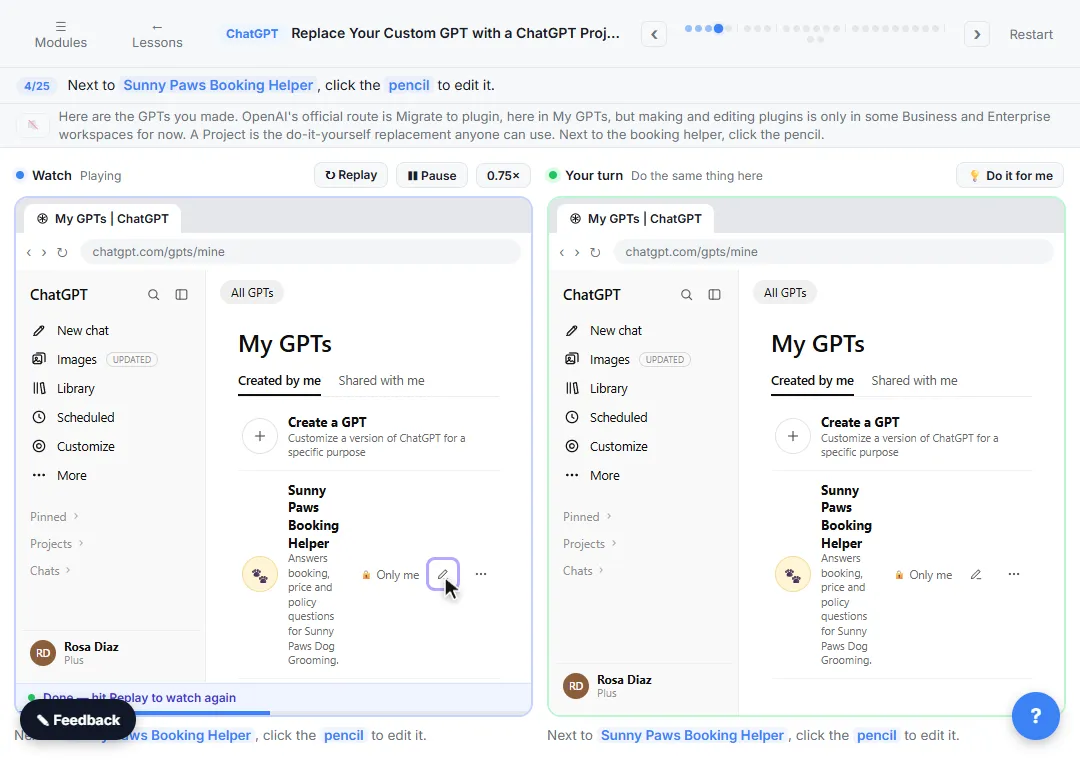
If you built a custom GPT for client work, move it. Custom GPTs are scheduled to stop running on December 11, 2026 in Enterprise workspaces, according to OpenAI, and other plans may follow. The Replace Your Custom GPT with a ChatGPT Project lesson copies a GPT's instructions and files into a project and tests it. For a side-by-side view, see ChatGPT Projects vs custom GPTs.
Try it free, step by step
ChatGPT Projects: Keep Your Brand Voice, Files and Instructions in One Place. Set up a ChatGPT Project with your brand voice instructions, your price list and your style guide, so every new chat already knows your business. You do every step yourself in a practice copy of ChatGPT, it checks your work as you go, and “Do it for me” finishes any step you get stuck on. Free, and nothing touches your real accounts.
Start the free lessonKey takeaways
- One project per client stops the re-explaining and keeps clients' details apart.
- Each project needs short instructions, a few current files under Sources, and project-only memory.
- Start every chat for that client inside its project.
- Replace old files when fees or policies change, and check every number before it goes out.
- Keep confidential client records out of project files.
Frequently asked questions
- Should I make one ChatGPT Project for all my clients?
No. One project per client (or per big recurring job) keeps instructions, files and chats apart, so one client's details don't drift into another client's reply.
- Can I share a client project with a coworker?
There is a Share button at the top of the project page. Before you invite anyone, read shared project vs shared chat link to see what a shared project shows.
- Do old chats change when I edit the instructions?
No. New chats in the project follow the new instructions. Start a fresh chat inside the project to test a change.
- Is a ChatGPT Project free?
Projects are included on the Free plan, with fewer files per project than paid plans. Check OpenAI's pricing page for your plan.