The business risk is simple. Your bookkeeper pastes a client's details into ChatGPT on Monday. On Thursday, writing to a different client, a detail from Monday's chat shows up. Nobody meant to share it. Knowing which setting carried it over is how you stop it happening again.
This guide is for owners and office staff using ChatGPT for work. Menus change between versions and plans, so look for these names in your own Settings.
Does ChatGPT remember other chats?
It can, when memory is on. Inside one chat, ChatGPT always sees everything already written in that chat. Across chats, it only knows what one of its memory features brings in. A brand-new chat starts blank apart from that.
Two settings decide what comes in:
| Saved memories | Reference chat history | |
|---|---|---|
| What it uses | Short notes ChatGPT saved about you | Your past conversations |
| How things get in | ChatGPT decides, or you say "remember that..." | It draws on chats you've had |
| Can you see each item? | Yes, in the saved memories list | No list; you control it by the setting and by deleting chats |
| How to remove one thing | Delete that memory | Delete that chat |
On some accounts you see two switches, Reference saved memories and Reference chat history. Others show a single Enable memory switch with a link to your saved memories, which is the screen the lesson uses. On work accounts, an admin may control these.
What are saved memories?
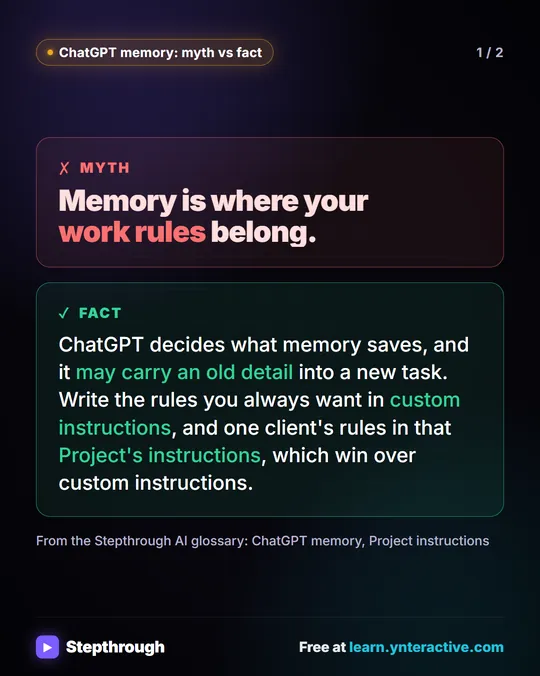
They're short notes, like "runs a bookkeeping firm" or "prefers plain, short answers." ChatGPT can save one on its own when something seems useful, and you can ask on purpose: "Remember that our office closes at 4 on Fridays." To see them, open Settings, then Personalization, then the saved memories list. How ChatGPT memory works covers what memory is good for.
What does Reference chat history do?
It lets ChatGPT pull in context from earlier conversations, not just the saved notes. That is handy for personal use: it can recall the project you discussed last week without you repeating it.
For client work it's the riskier of the two, for one reason: there's no list to review. You can read your saved memories and delete one. You can't see which old chats ChatGPT will draw on. If a chat holds client details that shouldn't carry over, delete that chat, or turn the setting off.
How do I stop ChatGPT using one client's chat?
Delete the chat and check your saved memories. This is the core of the Clear Client Data lesson. Morgan, at a made-up firm, finds a chat called Tidy Okafor client note that holds a client's details:
- In the sidebar under Recents, open the chat and check it's the right one.
- Click ··· at the top right, then Delete, then Delete chat.
- For chats you want to keep but hide, use Archive instead. Archived chats live in Settings, under Archived chats.
- Open Settings, then Personalization. Under memory, click the saved memories link.
- Find the memory about the client, Dana Okafor, click its ··· and Delete. The other memories stay.
The lesson also turns off Improve the model for everyone under Data controls and points out what to leave alone: the Delete all chats button wipes everything, which is rarely what you want.
Try it free, step by step
Clear Client Data Out of ChatGPT Before It Becomes a Problem: Delete Chats, Clear Memory and Use Temporary Chat. Someone pasted client details into ChatGPT. Delete that one chat, archive what you keep, clear the one memory it left, set safe defaults and start using Temporary Chat. You do every step yourself in a practice copy of ChatGPT, it checks your work as you go, and “Do it for me” finishes any step you get stuck on. Free, and nothing touches your real accounts.
Start the free lessonShould I turn off Reference chat history for work?
It depends on how you work. If you use ChatGPT for many clients from one account, or several people share a login, turning it off removes a source of surprise. The lessons' advice for a shared work login is to switch memory off altogether.
If you mostly work on your own business and like ChatGPT recalling past work, keep it on and use two habits instead:
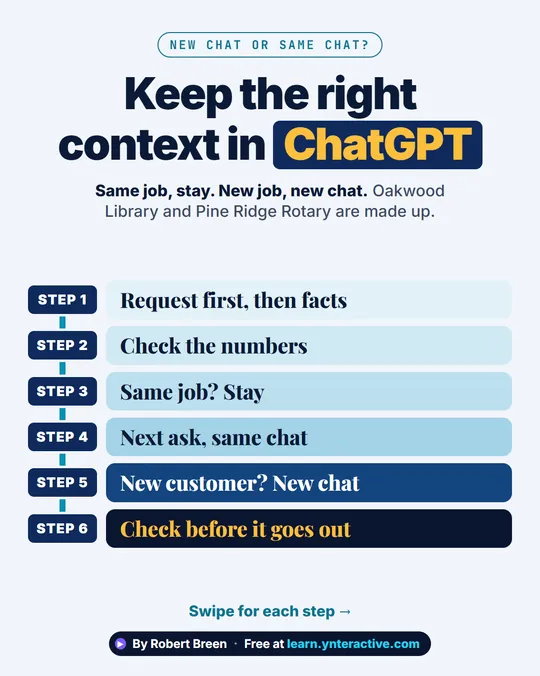
- One customer, one chat. In the Stop Losing Context lesson, the Oakwood Library quote stays in its own chat, and the next customer, Pine Ridge Rotary, gets a new chat with only their facts file. Nothing about the library comes along.
- Put the facts in the chat you're using. Don't count on ChatGPT recalling a price from another conversation. Paste it.
How do Projects and Temporary Chat change this?
They give you two ways to fence a conversation off.
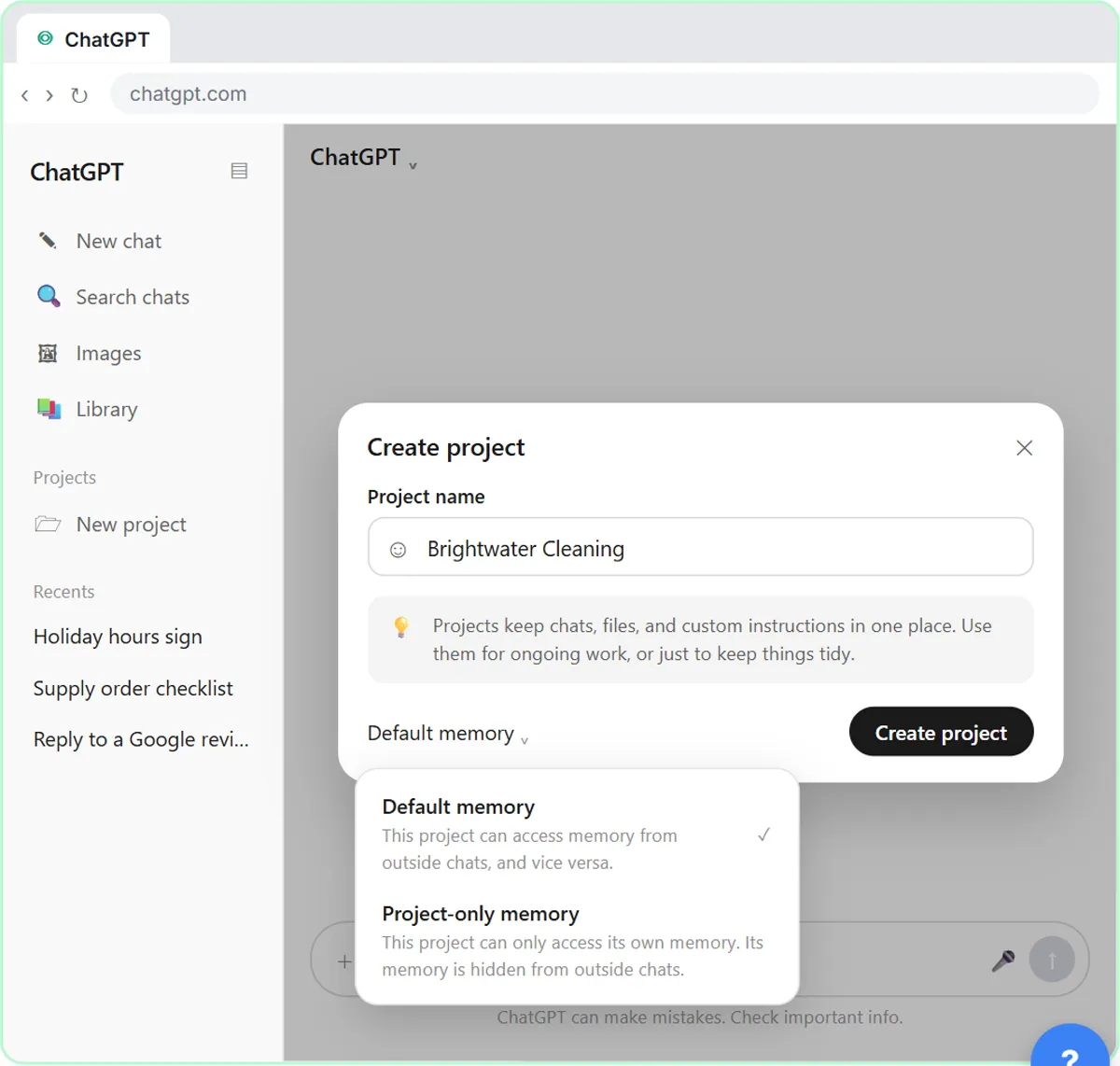
A Project with project-only memory. In the ChatGPT Projects lesson, you pick Project-only memory when you create the project for Brightwater Cleaning. Chats inside it draw on each other, and your other chats can't see them. That suits one project per client. See ChatGPT Projects vs chats.
Temporary Chat. It doesn't appear in your history, doesn't use or create memories, and isn't used to train OpenAI's models. Turn it on before you paste anything. Your text still goes to OpenAI, so it doesn't make it safe to paste details the task doesn't need.
How can I check what ChatGPT remembers?
Open your saved memories list and read it. Delete anything outdated, private or about one client. You can also ask in a chat, "What do you remember about me?" Treat the reply as a summary, not a full record. The list in Settings is the thing you can actually edit.
Do this now and then, and every time someone on your team pastes something they shouldn't have.
Key takeaways
- ChatGPT can remember other chats through saved memories and through Reference chat history.
- Saved memories are a list you can read and edit; chat history has no list, so you control it by deleting chats or turning the setting off.
- To clear one client, delete their chat and delete the memory about them, not everything.
- A Project with project-only memory keeps one client's chats apart; a Temporary Chat uses no memory at all.
- Paste the facts each answer needs instead of relying on what ChatGPT recalls.
Frequently asked questions
- Does ChatGPT remember other chats?
It can. With memory on, it may use saved memories and, if Reference chat history is on, your past conversations. A Temporary Chat uses neither. Within a single chat, it always sees the whole conversation.
- What is the difference between saved memories and chat history?
Saved memories are short notes about you that you can see and delete one by one. Chat history means ChatGPT can draw on past conversations themselves, with no list to review.
- How do I turn off Reference chat history?
Open Settings, then Personalization, and switch it off under memory. Labels vary by version and plan, and on work accounts an admin may manage the setting.
- Does deleting a chat remove it from ChatGPT's memory?
Deleting a chat removes it from your history, which is what Reference chat history draws on. A saved memory made from that chat is separate, so check the saved memories list and delete it too.
- Does Temporary Chat use my memories?
No. A Temporary Chat doesn't use or create memories and doesn't show in your history.
- Can my coworkers see my ChatGPT memories?
Memory belongs to your own account. If several people share one login, they share its memory and history, which is a good reason not to share logins.
Where can I go next?
- Back to basics: when to start a new chat in ChatGPT.
- Why answers change between chats: why ChatGPT gives different answers.
- When it drops a rule: why ChatGPT ignores your instructions.
- Settings in more depth: ChatGPT memory vs custom instructions, ChatGPT data controls for work and how to stop ChatGPT training on your chats.
- What staff can paste: is it safe to paste client data into ChatGPT?