Most small-office AI risk is not a hack. It is a person pasting a client file into a personal login that nobody has checked. Data controls are the settings that decide what happens to that paste afterward.
What are ChatGPT data controls?
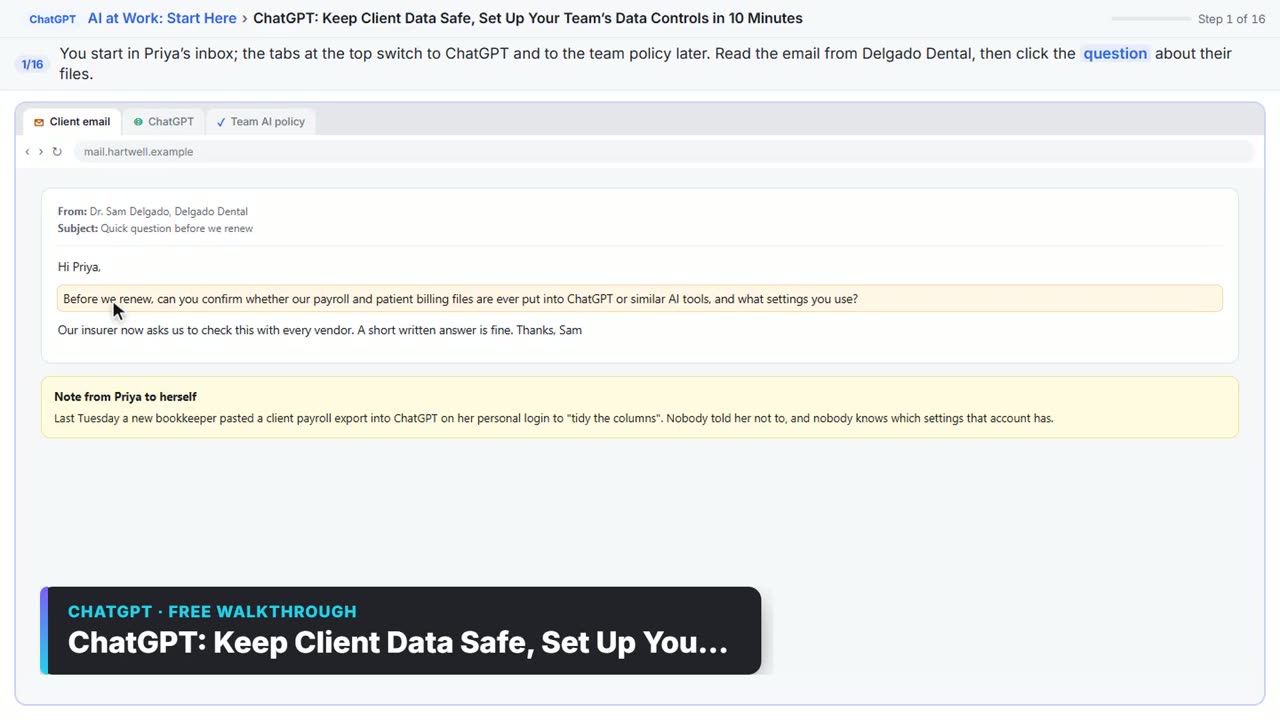
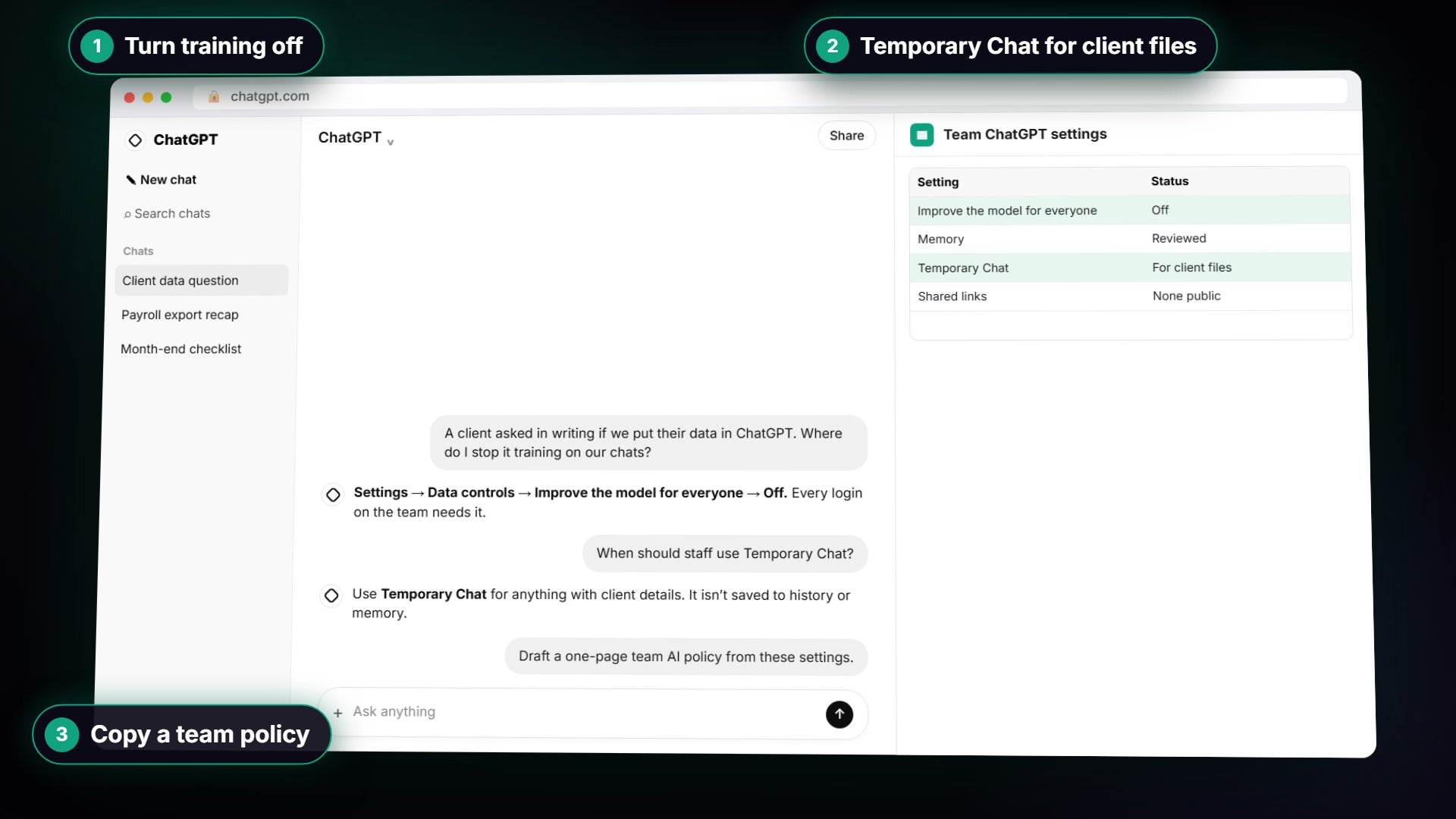
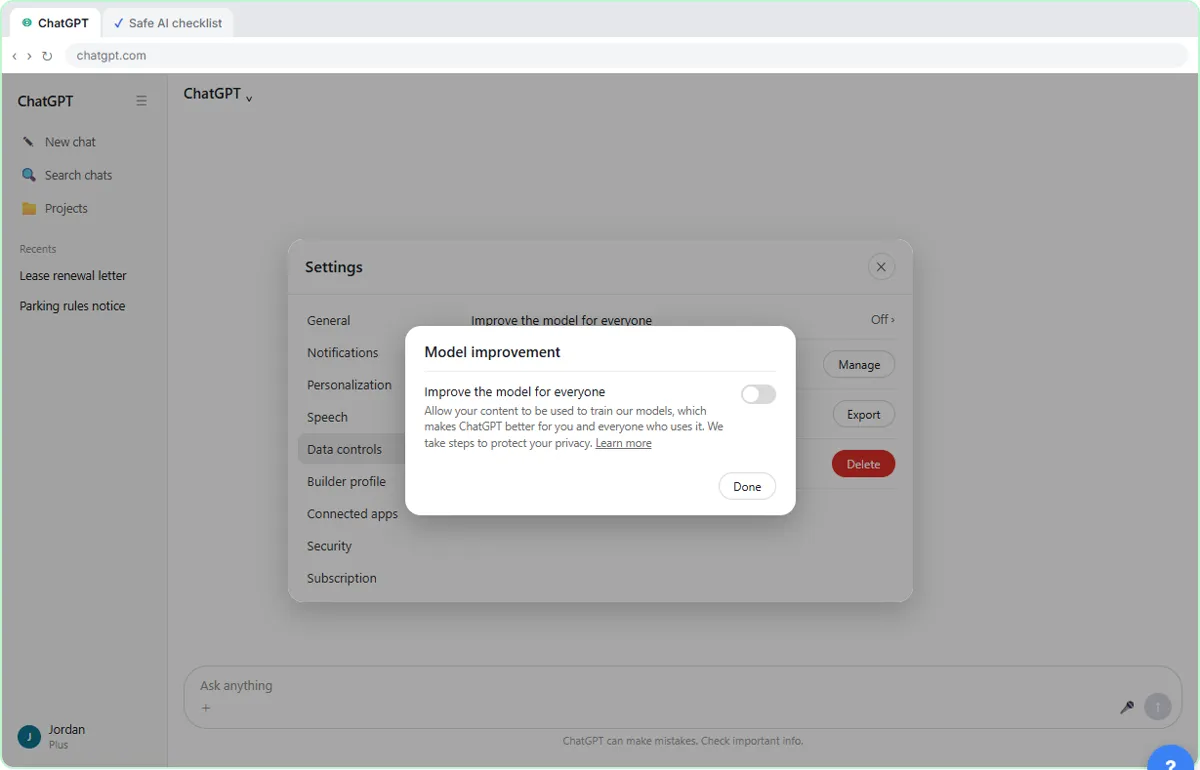
Data controls are the group of settings in ChatGPT that decide what is kept, shared and used for training. In the app, click your name at the bottom left, choose Settings, and you land on Data controls. Memory sits in a different place, under Personalization, but it belongs in the same conversation. In the lesson, the made-up Hartwell Bookkeeping uses both areas to answer a client who asked in writing whether their payroll files go into ChatGPT.
Menu names change over time, so confirm each one in your own account. The steps below are the ones taught in the lesson.
Should you turn off "Improve the model for everyone"?
For work accounts, yes. On personal plans this switch decides whether your chats can be used to train OpenAI's models. The lesson turns it off on every account anyone uses for work. It also notes that business plans do not train on your data by default, which is one reason firms pay for them. Check your own plan's terms rather than assuming.
Turning training off is not the same as private. Your chats are still processed to give you an answer. Take out the names and numbers the task does not need.
Should you turn off memory?
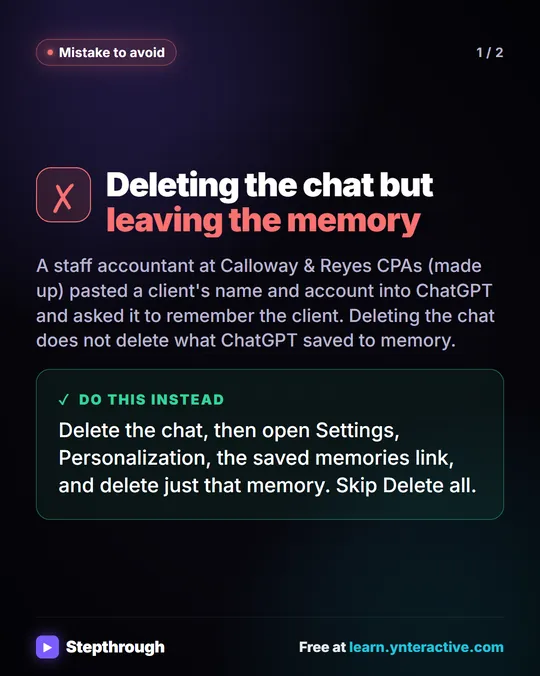
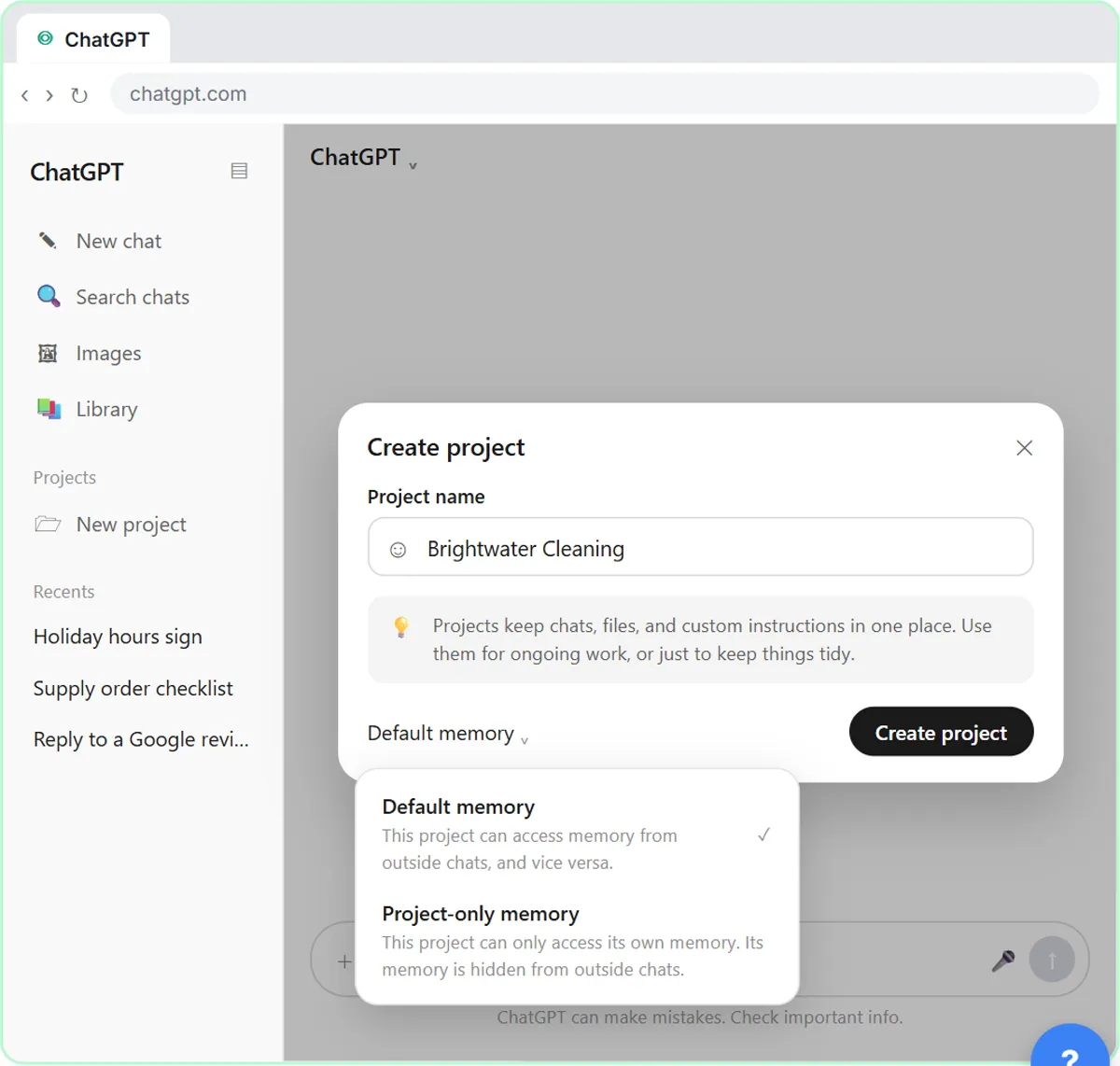
On a shared work login, usually yes. Enable memory, under Personalization, lets ChatGPT personalize answers from your past chats. On a personal login that can help. On a shared one, one client's details could resurface in another client's chat. Beneath it, Memory summary has a Manage button where you can see or clear what ChatGPT has kept.
Turning memory off does not erase what is already saved. If a client's details are in there, delete that one memory too. The Clear Client Data Out of ChatGPT lesson shows exactly where.
What about shared links, export and delete?
Three controls sit further down Data controls:
- Shared links. When someone shares a chat, anyone with the link can read it. A link to a client conversation can sit there for months. Click Manage to see every link and delete the ones nobody needs. Deleting a link stops others viewing it but does not delete your original chat.
- Export data. This emails you a file of your chat history. Use it first if you might need a record.
- Delete all chats. This removes everything. The firm's rule in the lesson is to export first and never use it without a reason.
Put the shared-links check in the calendar once a month. It takes a minute.
When should you use Temporary Chat?
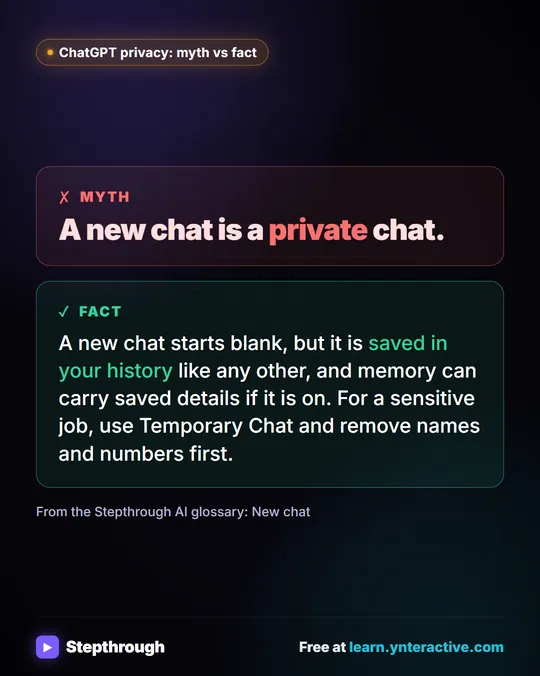
Use it at the moment you must work on something sensitive. The icon is at the top right of the app. In the lesson's practice copy, the notice says a temporary chat ignores memory, plugins and custom instructions and does not appear in your history. It also says that, for safety, OpenAI may keep a copy for up to thirty days.
So Temporary Chat is safer, not secret. It does not replace removing names and numbers before you paste. The Safe AI at Work lesson covers what should never go into a chat at all.
What should you write down for your team?
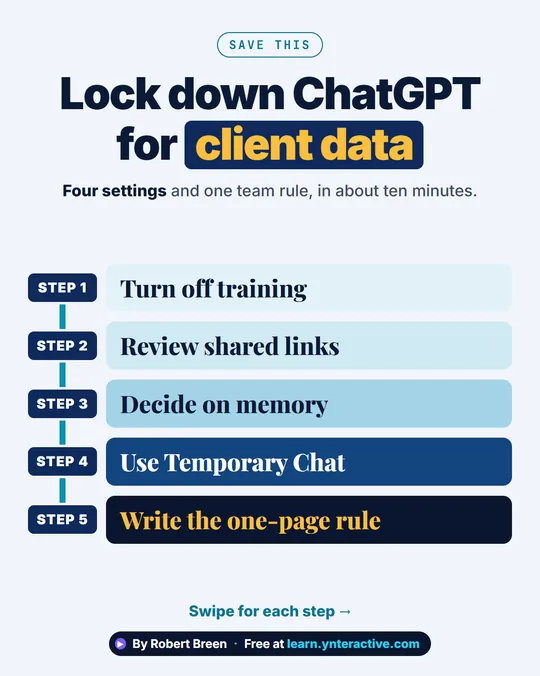
Settings only protect you if everyone uses the same ones. The lesson ends with eight short rules you can copy into your handbook. They are:
- One approved account.
- Training off.
- Memory off on shared logins.
- Temporary Chat for sensitive work.
- Never paste the dangerous things.
- Review shared links monthly.
- Export before you delete.
- Ask when unsure.
When a client or an insurer asks "do you put our data in ChatGPT?", you can send that page as your answer. It is practical guidance, not legal advice, so check it against your contracts and your insurer's requirements.
Try it free, step by step
ChatGPT: Keep Client Data Safe, Set Up Your Team's Data Controls in 10 Minutes. A client asks if their files go into ChatGPT. Answer with confidence: set the data controls, memory, Temporary Chat and shared links, then hand your team a one-page AI policy. You do every step yourself in a practice copy of ChatGPT, it checks your work as you go, and “Do it for me” finishes any step you get stuck on. Free, and nothing touches your real accounts.
Start the free lessonKey takeaways
- For work accounts, turn off Improve the model for everyone under Data controls.
- Turn off Enable memory on shared logins, and delete any memory a client's details already left behind.
- Check Shared links monthly, and export before you delete anything.
- Temporary Chat is safer, not secret: OpenAI may keep a copy for up to thirty days.
- Write the rules on one page so every account uses the same settings.
Frequently asked questions
- Where are ChatGPT data controls?
Click your name at the bottom left of ChatGPT, then Settings. Data controls is the first page that opens in the lesson's practice copy. Memory is under Personalization. The layout can change, so look for the same names.
- Does turning off "Improve the model for everyone" delete my old chats?
No. It changes whether your chats can be used for training. Existing chats stay in your history until you delete them. Use the clear-history lesson to remove a chat and any memory it left behind.
- Do I need to do this if my company pays for ChatGPT?
Still review it. The lesson says business plans do not train on your data by default, but memory, shared links and Temporary Chat habits still matter, and plan terms differ. Read your plan's terms and ask your admin.
- Is this legal advice?
No. It is a practical checklist. Your contracts, your industry rules and your insurer come first.