The switch is a good first step, not a complete answer. The rest of this post covers where it lives, what it protects, and the habits that cover the gaps.
How do you turn off training in ChatGPT?
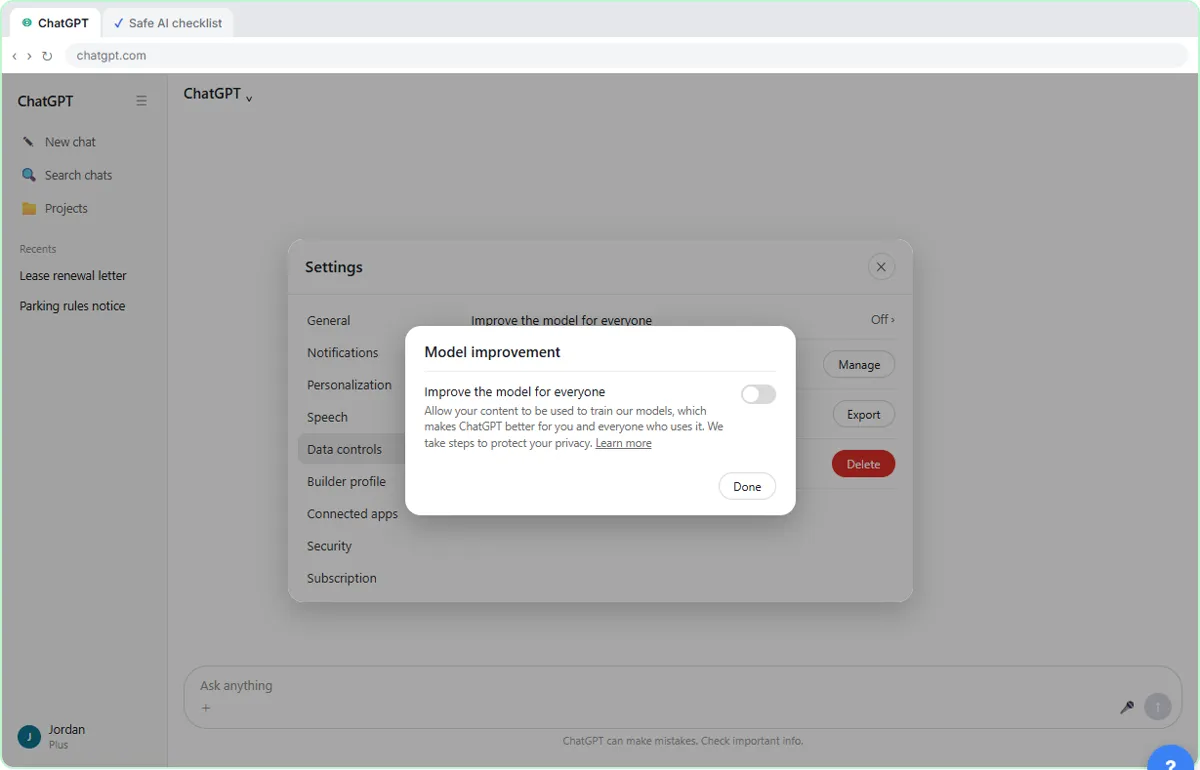
Turn it off in Data controls, in four clicks. The Safe AI at Work lesson walks through exactly this in a practice copy of ChatGPT:
- At the bottom left, click your name.
- Click Settings.
- In the left menu, click Data controls.
- Click the switch next to Improve the model for everyone to turn it off.
Then click Back to app and carry on. ChatGPT's menus change from time to time, so if a label looks different on your screen, look for the setting by name.
Where are ChatGPT's data controls?
They are under your profile: your name, then Settings, then Data controls. The section holds the training switch and the options for exporting and deleting your data. The full list, with a plain-English explanation of each, is on the ChatGPT data controls page.
Work accounts managed by a company can show fewer options, because an administrator sets some of them. If you don't see the switch, ask whoever manages your plan.
What does "Improve the model for everyone" actually do?
It lets OpenAI use your conversations to train and improve its models, when it is on. Turning it off keeps your future chats out of that training. The setting is explained on its own page, Improve the model for everyone.
Two things it does not do:
- It does not delete your chat history. Deleting and exporting are separate options in the same menu.
- It does not stop ChatGPT from receiving what you type. Your text still goes to OpenAI so it can answer you.
What does turning it off not protect?
It does not protect details you paste today. The setting is about what happens to your chats later; it does nothing about what you decide to share. That is why the lesson goes straight from the settings screen to a second skill.
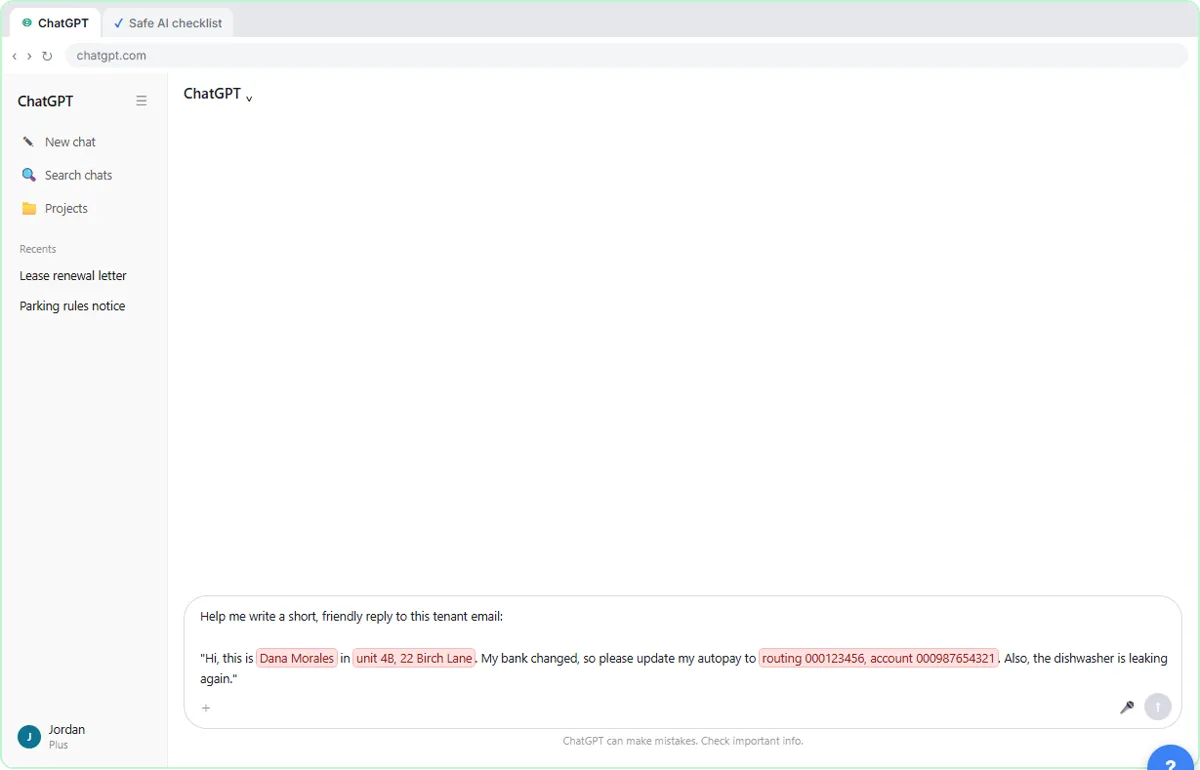
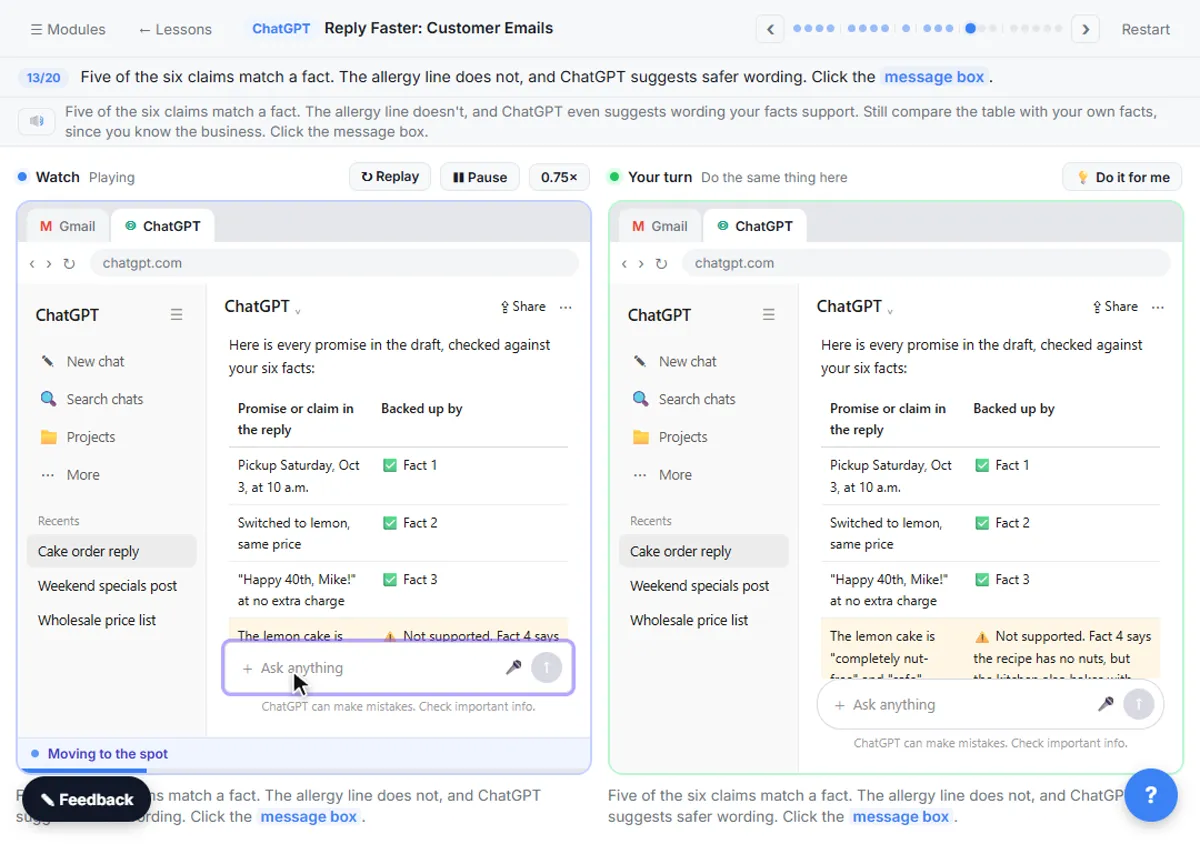
In the lesson, a property manager is answering a tenant's email. The email includes a name, an address and bank routing and account numbers. You click each highlighted detail and swap it for a placeholder before sending, and then you ask ChatGPT to list every fact or promise it added that you didn't give it. It finds two it made up.
The habit: leave out anything the task doesn't need, and check what comes back. Names, account numbers and case details are the usual culprits. See Is It Safe to Paste Client Emails into ChatGPT? for a longer checklist.
Do business plans work differently?
Business plans are set up differently, and OpenAI says it does not train on business data from plans such as ChatGPT Business and Enterprise by default. Check the terms for your exact plan instead of assuming, because plans and policies change.
If your team handles client information, a business plan plus a written rule about what never gets pasted is a sturdier setup than relying on each person's personal switch. The Safe AI at Work lesson ends with a one-page checklist that includes which business plans don't train on your data.
What should your team do first?
Make it a five-minute task on day one, and write it down. A simple order:
- Everyone who uses ChatGPT for work opens Settings, then Data controls, and checks the training switch.
- The owner confirms which plan the team uses and reads its current data terms.
- The team agrees what never gets pasted, such as account numbers, tax IDs and client case facts.
- Someone checks the first week of drafts for details that shouldn't have been there.
To draft the checklist itself, use the ChatGPT settings checklist prompt. It marks every menu location "verify in the app", so the model's memory of the menus never replaces someone looking at the screen.
Key takeaways
- Settings, then Data controls, then switch off Improve the model for everyone.
- The switch keeps future chats out of training. It doesn't delete chats and doesn't stop your text reaching OpenAI.
- Placeholders for names, addresses and account numbers protect what the switch can't.
- Business plans work differently; confirm the terms for your exact plan.
- Check every reply for details you didn't supply.
Frequently asked questions
- Does turning off "Improve the model for everyone" delete my chats?
No. It only changes whether future conversations can be used for training. Deleting chats is a separate option.
- Where is the ChatGPT training switch?
Click your name, then Settings, then Data controls. The switch is named Improve the model for everyone.
- Is my data private if training is off?
More private, not private. Your text is still processed to give you an answer, so leave out details the task doesn't need and follow your company's rules.
- Should every employee do this?
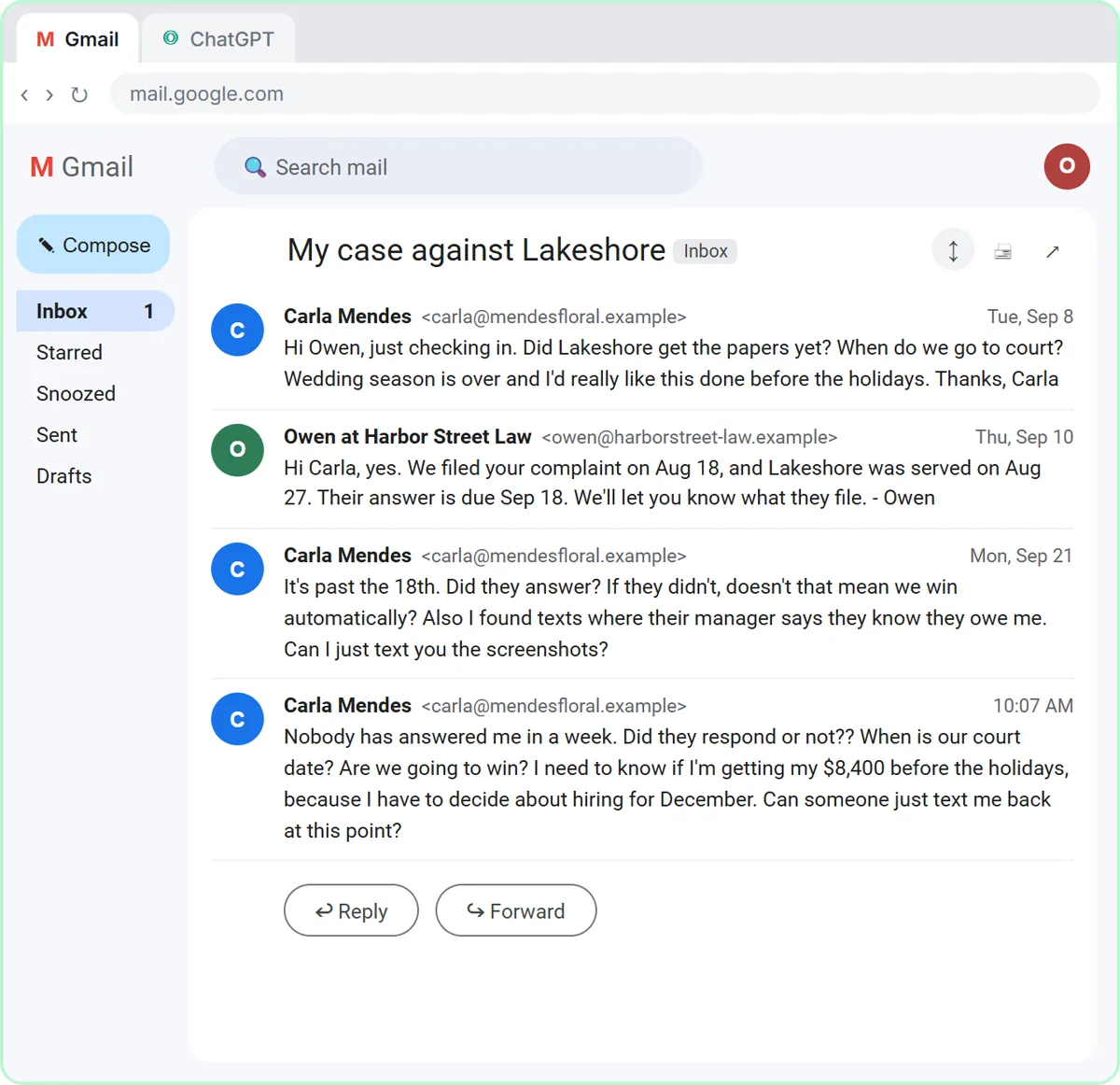
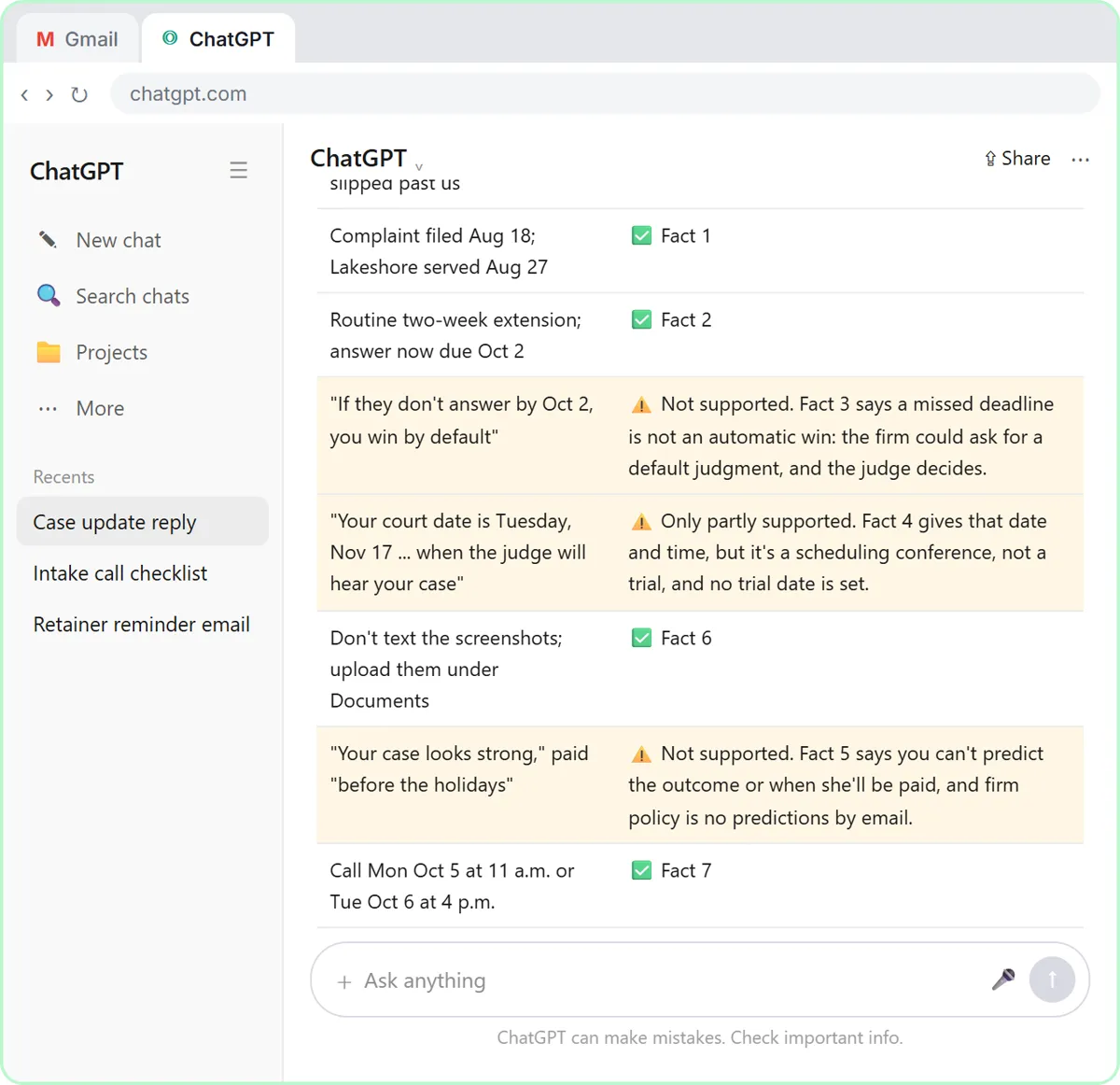
Yes, on every account used for work, unless your company's plan already handles it. Put it in your AI rules so new hires do it on day one. The law firm case-update lesson shows why a firm would insist.