ChatGPT Data Controls for Client Data in 5 Steps
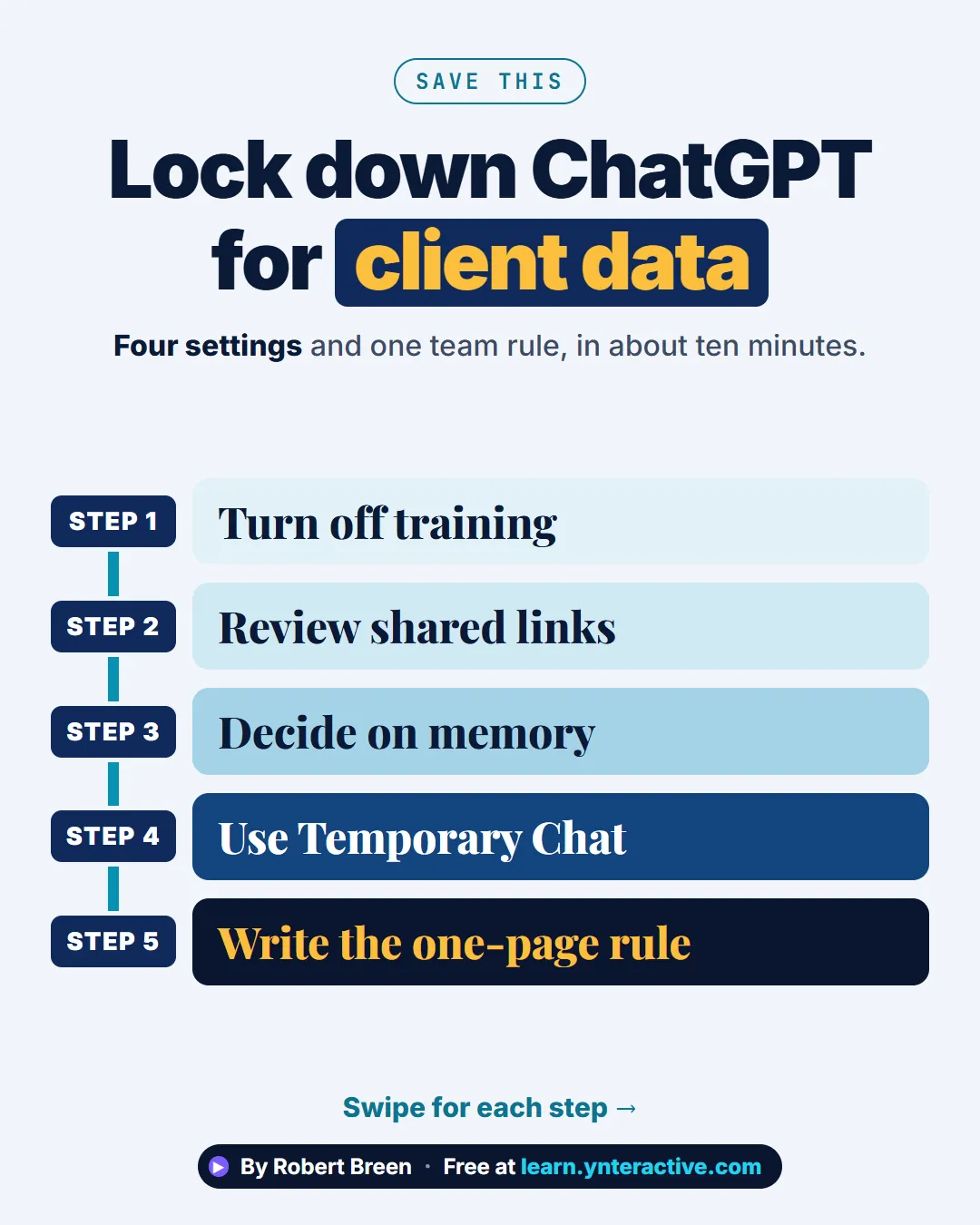
A step-ladder guide: turn off training, review shared links, decide on memory, use Temporary Chat and write the one-page rule, in 5 steps.
Slide 1 of 7 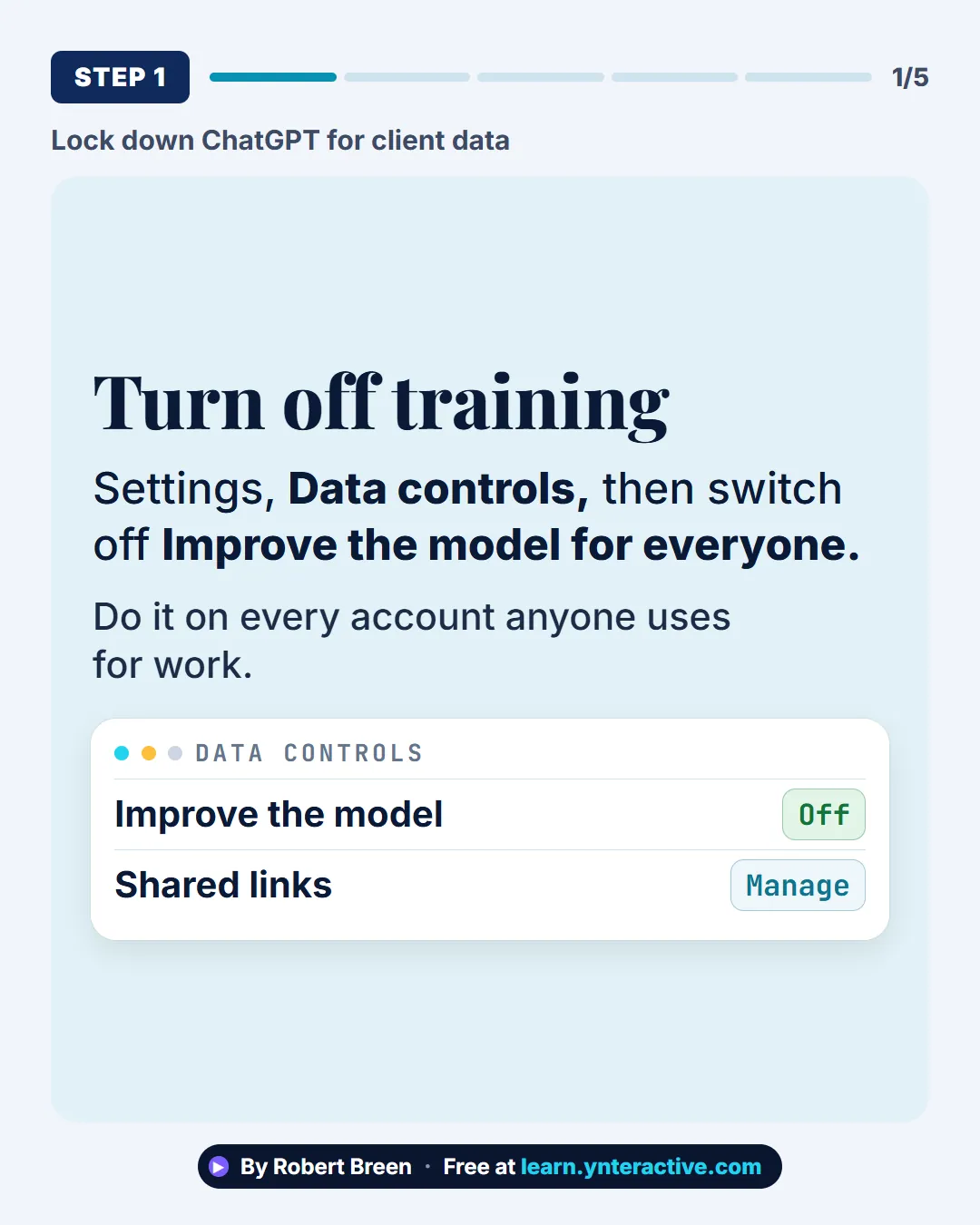
Slide 2 of 7 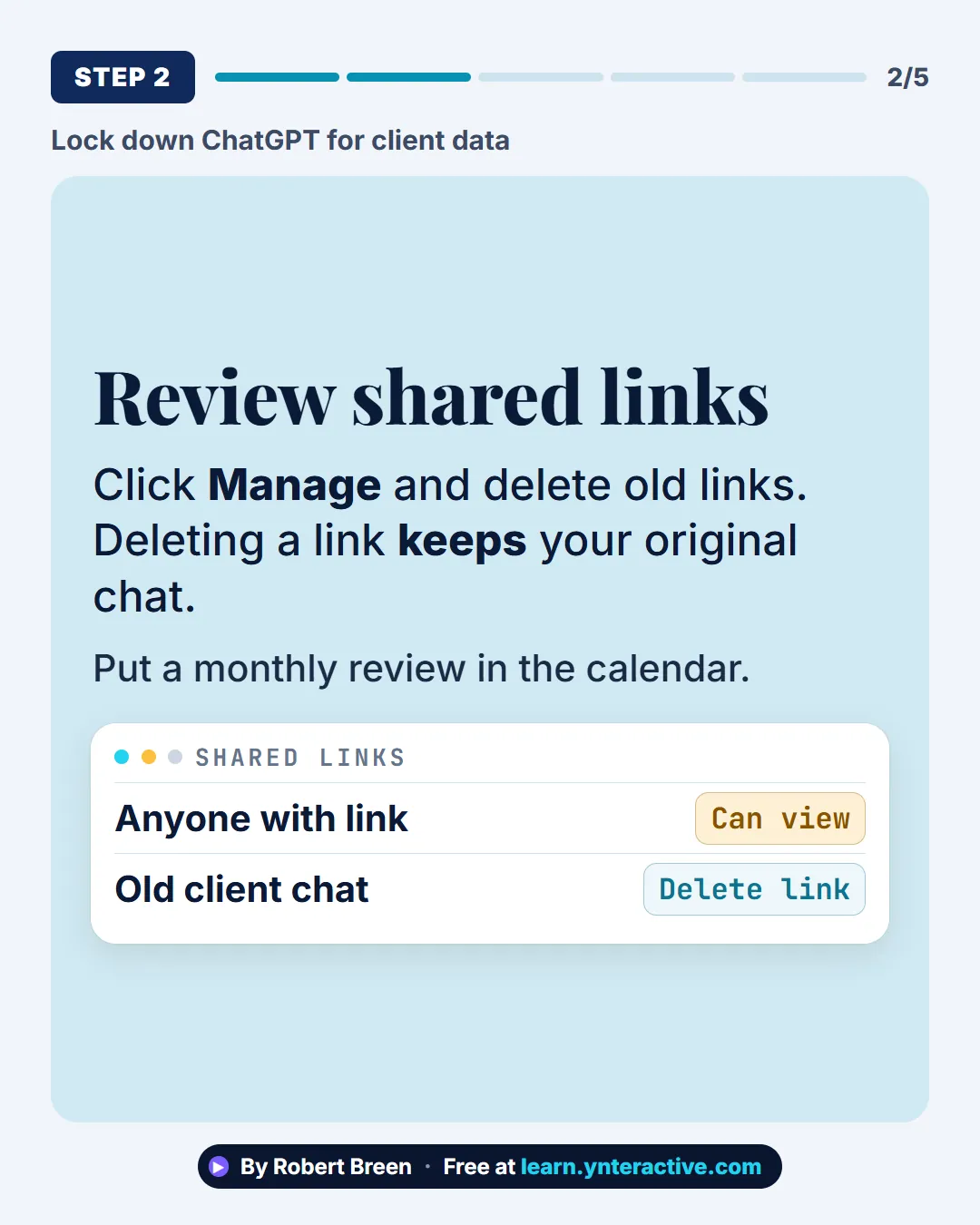
Slide 3 of 7 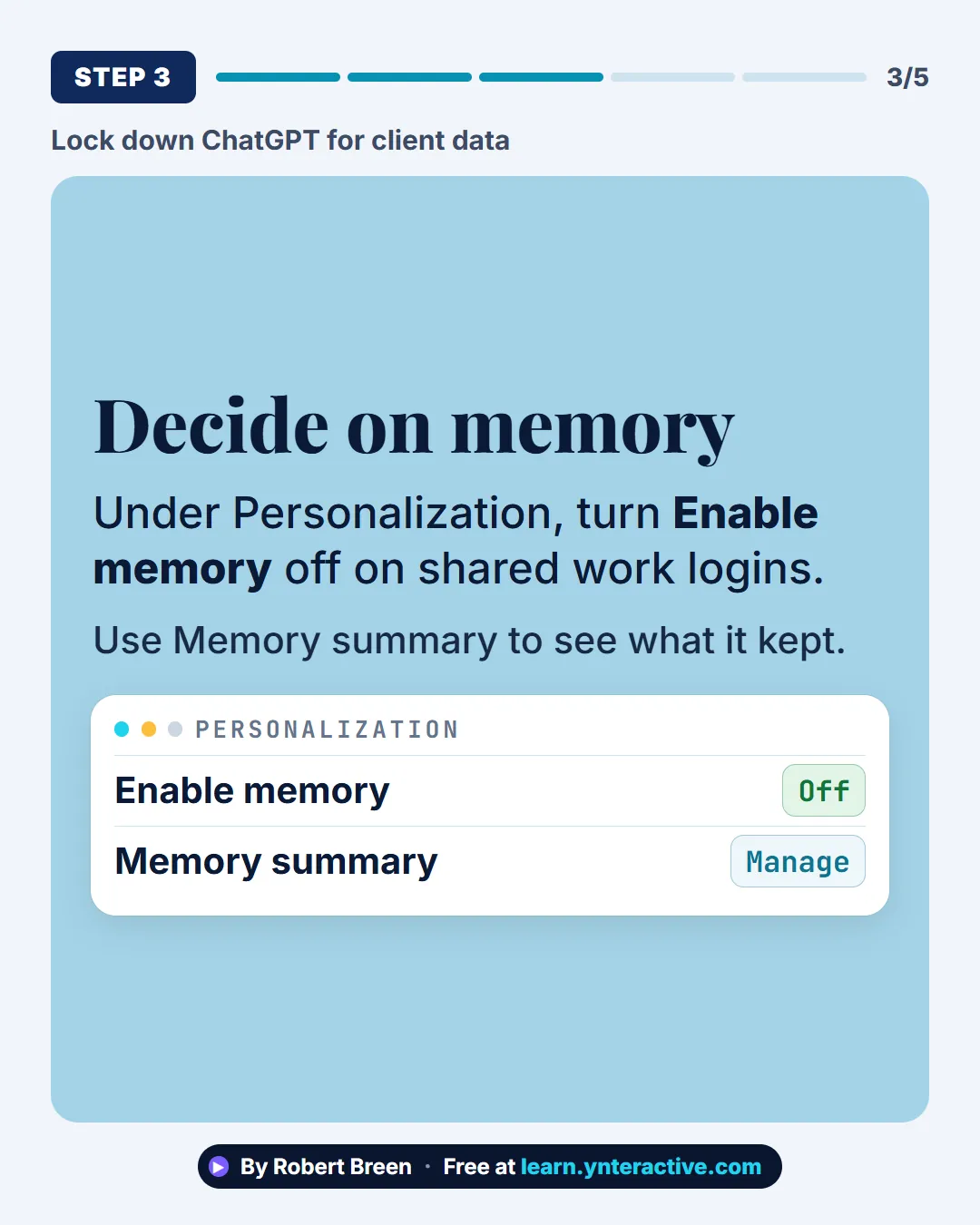
Slide 4 of 7 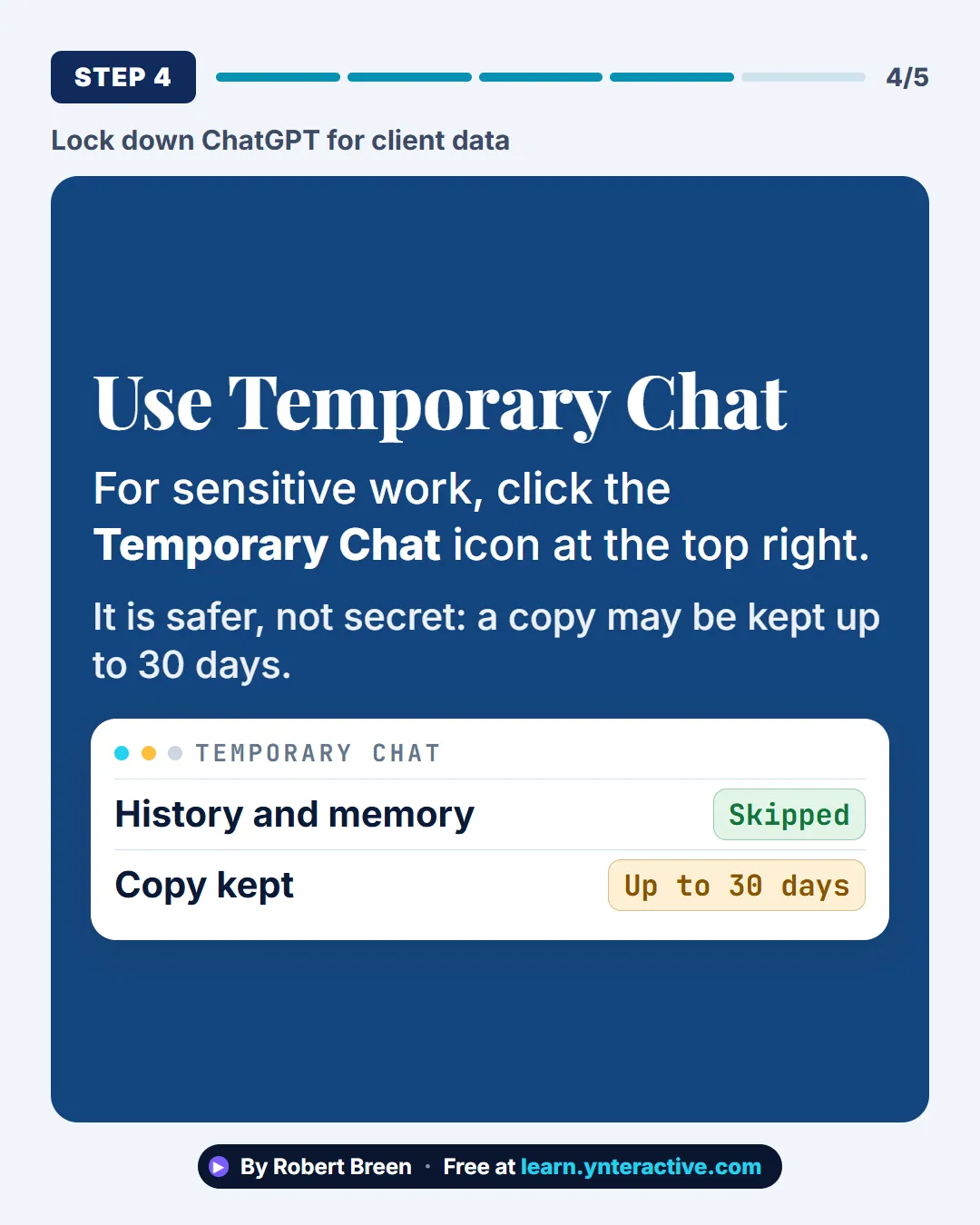
Slide 5 of 7 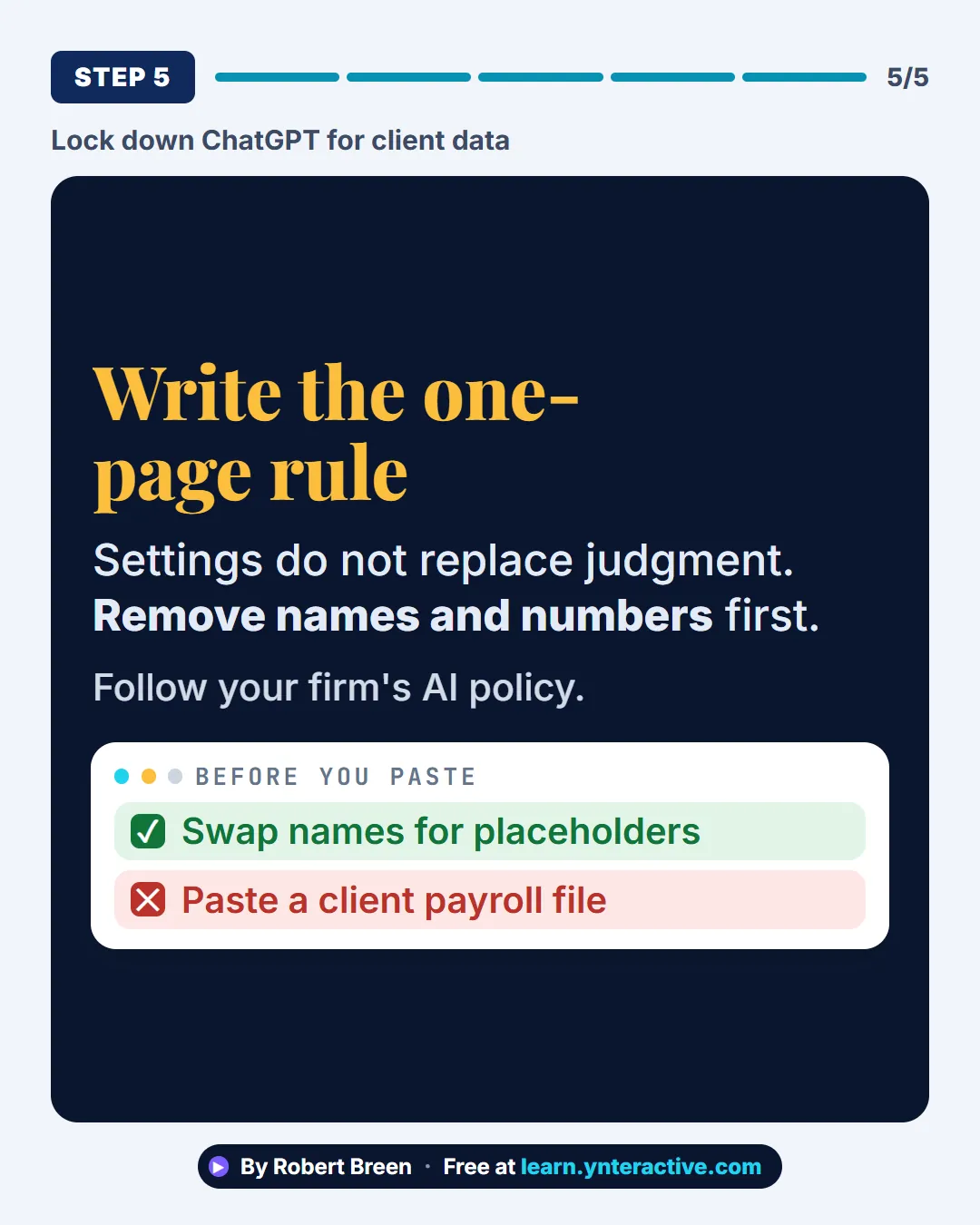
Slide 6 of 7 
Slide 7 of 7
The guide in text
Four settings and one team rule, in about ten minutes.
Step by step
Turn off training
Settings, Data controls, then switch off Improve the model for everyone. Do it on every account anyone uses for work.
Review shared links
Click Manage and delete old links. Deleting a link keeps your original chat. Put a monthly review in the calendar.
Decide on memory
Under Personalization, turn Enable memory off on shared work logins. Use Memory summary to see what it kept.
Use Temporary Chat
For sensitive work, click the Temporary Chat icon at the top right. It is safer, not secret: a copy may be kept up to 30 days.
Write the one-page rule
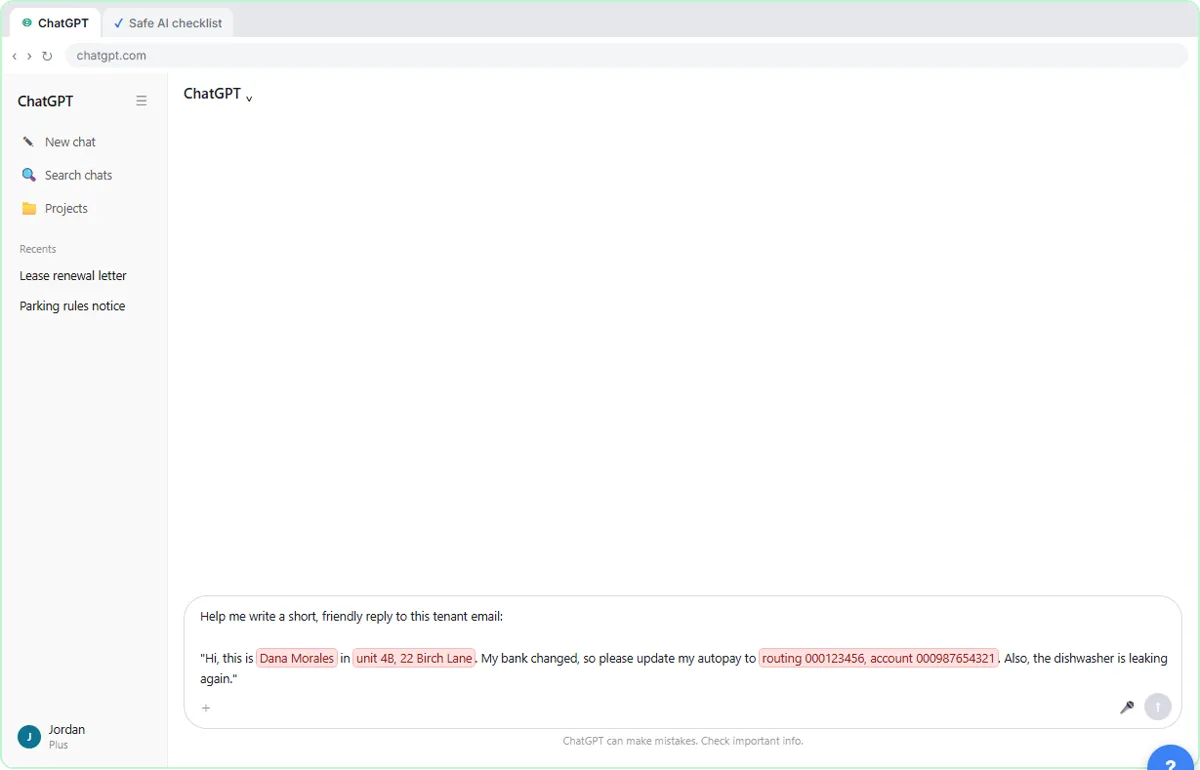
Settings do not replace judgment. Remove names and numbers first. Follow your firm's AI policy.
Businesses and people in the examples are made up (Hartwell Bookkeeping is a made-up business). The steps, screens and wording come from the free lesson and the Stepthrough glossary and prompt library.
Do it yourself, free
ChatGPT: Keep Client Data Safe, Set Up Your Team's Data Controls in 10 Minutes. A client asks if their files go into ChatGPT. Answer with confidence: set the data controls, memory, Temporary Chat and shared links, then hand your team a one-page AI policy. You do every step yourself in a practice copy of ChatGPT, it checks your work as you go, and “Do it for me” finishes any step you get stuck on. Free, and nothing touches your real accounts.
Start the free lessonRelated terms
Plain-English definitions, each with an example from a free lesson.
From the blog
More visual guides
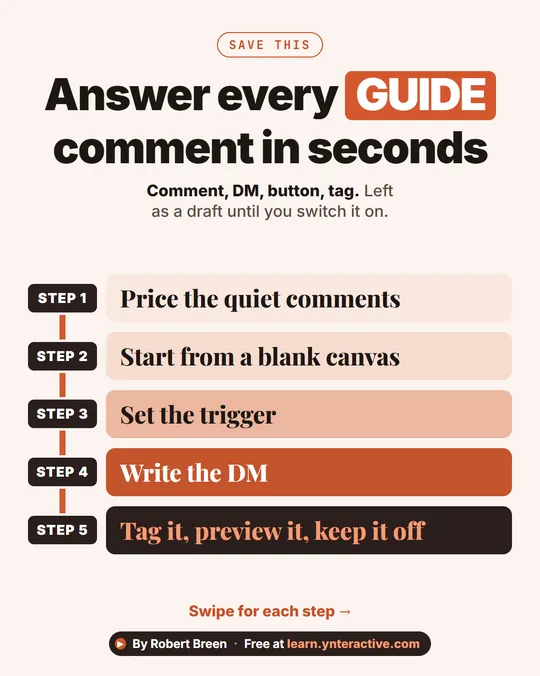 Instagram Comment to DM with Manychat in 5 Steps
A step-ladder guide: turn Instagram GUIDE comments into a DM with a booking button and a tag using Manychat, left as a draft, in 5 steps.
Step-by-step guide 7 slides
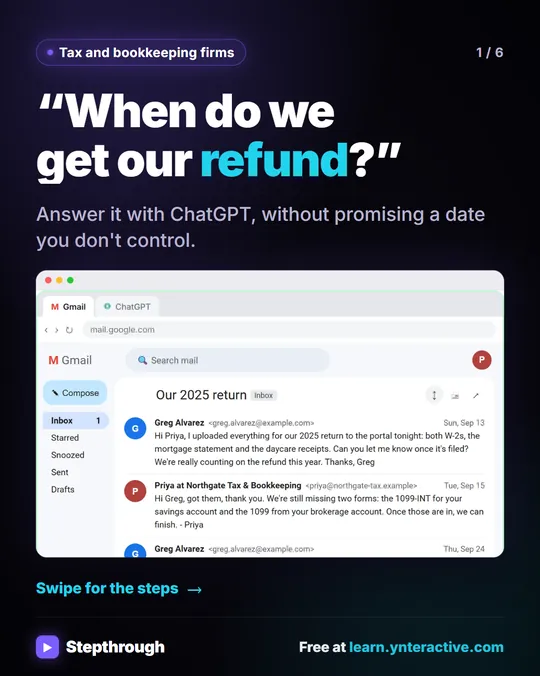 Answer "where's my refund?" emails with ChatGPT
Every tax season the same email lands: "When do we get our refund?" In this lesson the client's return isn't even filed yet.
Step-by-step guide 6 slides
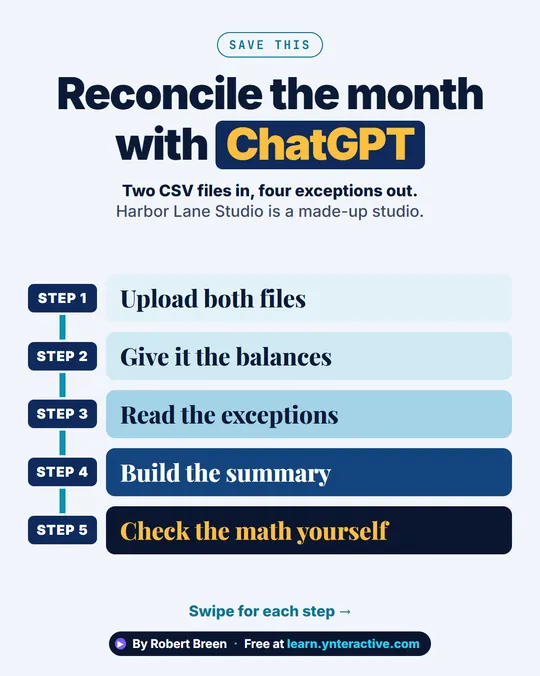 Bank Reconciliation with ChatGPT in 5 Steps
A step-ladder guide: upload a bank CSV and a ledger CSV to ChatGPT, list the exceptions, and check the math yourself, in 5 steps.
Step-by-step guide 7 slides