Updated . Built against the tool’s current screens and checked step by step. How we check this lesson
Jotform is best known for forms, and it also builds AI Agents: chat assistants that answer questions from what you teach them. In this free lesson you use a practice copy of Jotform to create an agent for a made-up small law office. You describe it in one sentence, name it, teach it a question and answer on the Train tab, ask it a question in Test Mode, and find the Embed Code on the Publish tab.
At a glance
| Question | Answer |
|---|---|
| What you build | Create a Jotform AI Agent for a small law office, teach it an answer, test it in the preview chat and find the code that puts it on your website. |
| Tools | Jotform |
| Time | About 7 minutes, 17 steps in 4 parts |
| Level | Beginner, no coding needed |
| Cost | Free |
| Ways to learn it | Practice it step by step |
The 4 parts, in short
- Create the agent: Open the product menu, Go to My Agents, Create an agent, Describe your agent, and 2 more steps.
- Teach it an answer: Open Train, Add a question and answer, The question, The answer, and 1 more step.
- Test it: Back to Build, Turn on Test Mode, Ask it a question, Turn Test Mode off.
- Share it: Open Publish, Copy the embed code.
Start here first: Turn a Client Intake Call into Next Steps and a Conflict-Check List (Law Firms) (module 1 of AI Automation for Law Firms)
Part of: AI for Law Firms (step 3 of 3)
Part of: AI Apps Worth Knowing (step 8 of 8)
What you will do: one agent, start to finish
You help Hartley Law, a made-up small law office whose front desk answers the same questions all day: what to bring to a first consultation and when the office is open. In the practice copy you open the product menu at the top left, choose My Agents, click CREATE AGENT and describe the agent: a client questions agent that answers about practice areas, office hours and what to bring, in a friendly, professional tone.
Jotform builds the agent and opens the AI Agent Builder, where it has already picked a persona name and face and shows a live preview of the chat. You give the agent your own name, teach it an answer on the Train tab, try it in Test Mode on the Build tab, and find the embed code on the Publish tab.
Who this is for
Office managers, front-desk leads, practice managers and small-firm owners who answer the same routine questions all day. You do not need any AI experience. The lesson is a practice copy, so nothing is created, no client is contacted and you do not need a Jotform account to take it.
Teach it with a question and answer
On the Train tab, Knowledge Base lists four ways to teach the agent: Knowledge (plain text), File, Link and Questions & Answer. Questions & Answer takes a question, an answer type of Text and the answer itself. Click Save and a message says Information has been added, and the pair shows in the list with Agent learned on and the date.
Write answers that are true and stable, such as what to bring and when you are open. Keep case-specific information and legal advice out of an agent that talks to the public.
Test it before anyone else sees it
On the Build tab, the Test Mode button at the bottom makes the preview chat live, and the tabs at the top give way to a Mobile, Tablet and Desktop switcher. In our own test we asked a question in different words from the one we taught, and the agent answered from the knowledge we added, with the key items in bold. Read the reply against your answer, and also ask things you did not teach it to see whether it guesses.
Turn Test Mode off with the switch at the top right to get the BUILD, TRAIN and PUBLISH tabs back.
Share it
The Publish tab lists the places an agent can live: Chatbot, Standalone, Instagram Agent, WhatsApp Agent, Phone Agent, Gmail Agent, AI Chatbot for WordPress, Voice Agent and more. Chatbot shows a Welcome Style (Avatar or Quick Input), an Embed Code with a Copy Code button, and a list of platforms such as WordPress, Shopify and Wix. Standalone gives you a direct link instead.
Mistakes to avoid
- Teaching it more than you can stand behind. Only put facts you would say to a client's face into the knowledge base.
- Skipping the test. Ask it questions in your own words, including ones you did not teach it.
- Letting it give legal advice. Have it answer logistics and hand everything else to a person.
- Publishing without a review. Have someone else read a few conversations on the Conversations page before you rely on it.
Plans, privacy and what to check
Jotform has a free plan and paid plans, and the number of agents, conversations and channels depends on your plan. Check jotform.com/pricing for current details. Conversations with a public chatbot are recorded, so read Jotform's terms and privacy pages and your professional rules before you put an agent on a client-facing site.
Links
- Jotform AI Agents: Jotform's page for AI Agents.
- Jotform AI Agents help guide: setup, training and sharing.
- Jotform: the product this lesson teaches. It is a separate product with its own account and plans.
Try it yourself, free
Reading the steps is a start. Doing them is how it sticks. The interactive module walks you through every click in a practice copy of Jotform, checks each step, and never touches your real accounts.
Start “Jotform AI Agents: An Agent That Answers Client Questions”Step by step: Jotform AI Agents: An Agent That Answers Client Questions
All 17 steps of the interactive module, in order. In the module you watch each one, then do it yourself in a practice copy that checks your work.
1. Create the agent
- Open the product menu. You are in My Forms. Jotform keeps its AI Agents in a separate place. Click My Forms at the top left to open the product menu.
This is Jotform, and you're in My Forms. You work for Hartley Law, a small law office. The front desk answers the same questions all day, so you'll build an agent for them. Jotform keeps agents in a separate place.
- Go to My Agents. Click My Agents.
- Create an agent. Click the purple CREATE AGENT button.
- Describe your agent. Say who the agent is for and what it should answer. Paste in the description. Do not press Enter yet: in the real Jotform, Enter creates the agent straight away.
Say what the agent is for, and what it should answer.
Create a client questions agent for a small law office that answers questions about our practice areas, office hours, and what to bring to a first consultation. Keep a friendly, professional tone.
- Create it. Click Create. Jotform builds the agent, gives it a name and a face, and opens the AI Agent Builder.
Jotform builds the agent. It picks a name and a face too, and opens the builder.
- Name it. On the right is a live preview of the chat. Jotform picked a persona name for you. Click the title at the top, replace it with your own, and press Enter.
Here's a live preview of the chat. Jotform picked a first name for your agent. You can leave it. But give the agent your own name at the top, so you can find it later.
2. Teach it an answer
- Open Train. The agent only knows what you teach it. Click TRAIN.
The agent only knows what you teach it.
- Add a question and answer. Under Knowledge Base you can add text, a file, a link or a question and answer. For one clear answer, pick QUESTIONS & ANSWER.
Under Knowledge Base you can add plain text, a file, or a link. For one clear answer, use Questions and Answer.
- The question. Write the question the way a client would ask it. Paste in the question.
Write the question the way a client would ask it.
- The answer. Now the answer. Say only what is true and stable: what to bring and when you are open. Paste in the answer.
Now the answer. Say only what's true. What to bring, and when you're open. Nothing about anyone's case.
Please bring a photo ID, any documents about your matter such as contracts, letters or court papers, and a list of your questions. Our office is open Monday to Friday, 9 AM to 5 PM.
- Save. Click the green Save. A box says Information has been added, and the answer shows with "Agent learned on" and the date.
A box says the information has been added, and the answer shows in the list.
3. Test it
- Back to Build. Now try it like a client would. Click BUILD.
Now try it like a client would.
- Turn on Test Mode. At the bottom, click Test Mode. The chat is live now, and the tabs at the top give way to a device switcher.
At the bottom, click Test Mode. Now the chat is live.
- Ask it a question. Ask in your own words, not the words you taught it. Paste in the question, then press Enter.
Ask the question in different words from the ones you taught it.
- Turn Test Mode off. It answered from what you taught it, with the key items in bold. Read it against your answer, and check nothing was added. Then click the Test Mode switch at the top right to turn it off.
It answered from what you taught it. Read it against your answer, and check that nothing got added. Then turn Test Mode off, with the switch at the top right.
4. Share it
- Open Publish. Click PUBLISH.
- Copy the embed code. CHATBOT adds the chat to your website. Under Embed Code, click Copy Code and send it to whoever manages your site. The other options on the left, like STANDALONE, give you a direct link instead.
Chatbot puts the chat on your website. The other choices on the left, like Standalone, give you a plain link instead.
Frequently asked questions
- How does the interactive lesson work?
- Each step is shown to you first (Watch). Then you do it yourself in a practice copy that checks every click (Your turn). If you get stuck, press Do it for me. It is a practice copy, so nothing is created and no Jotform account is used.
- Is Jotform part of Stepthrough?
- No. Jotform is a separate, third-party product from jotform.com. This lesson is free and teaches its AI Agents as we walked through them in a real account in October 2026. To use it for real you need your own Jotform account.
- How do I create an AI Agent in Jotform?
- Open the product menu at the top left and choose My Agents, then click Create Agent, describe the agent in the box and click Create. Jotform builds it and opens the AI Agent Builder.
- How do I train a Jotform AI Agent?
- On the Train tab, open Knowledge Base and add text, a file, a link, or a question and answer pair. Each source shows in the list once the agent has learned it.
- How do I test a Jotform AI Agent before publishing?
- On the Build tab, click Test Mode at the bottom and chat with the preview. Turn Test Mode off with the switch at the top right when you are done.
More in AI Automation for Law Firms
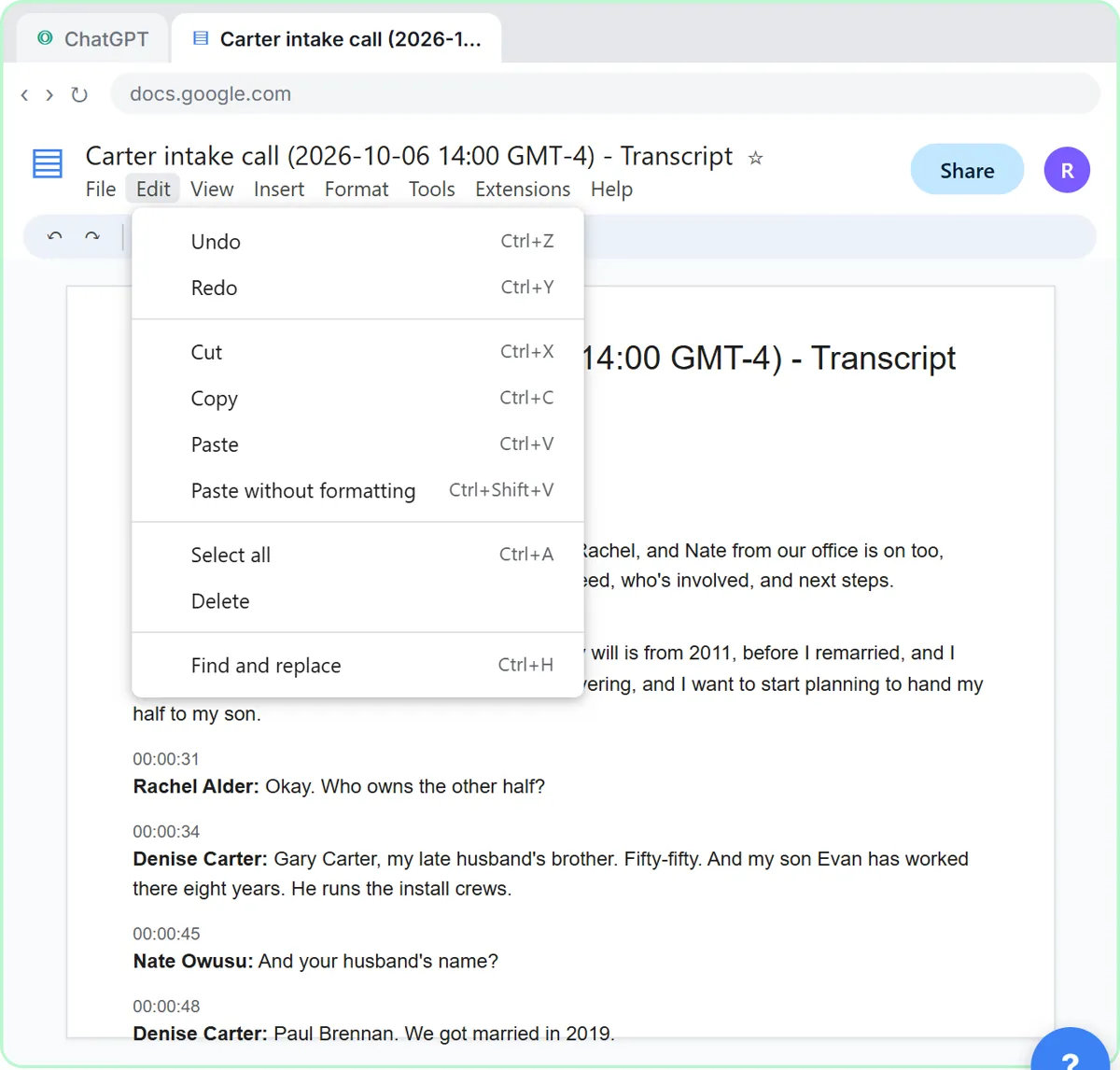 Turn a Client Intake Call into Next Steps and a Conflict-Check List (Law Firms)
Turn a new-client intake call into a summary, the engagement next steps with owners and dates, the names for your conflict check, and a follow-up email to the…
Free · Live ~9 min
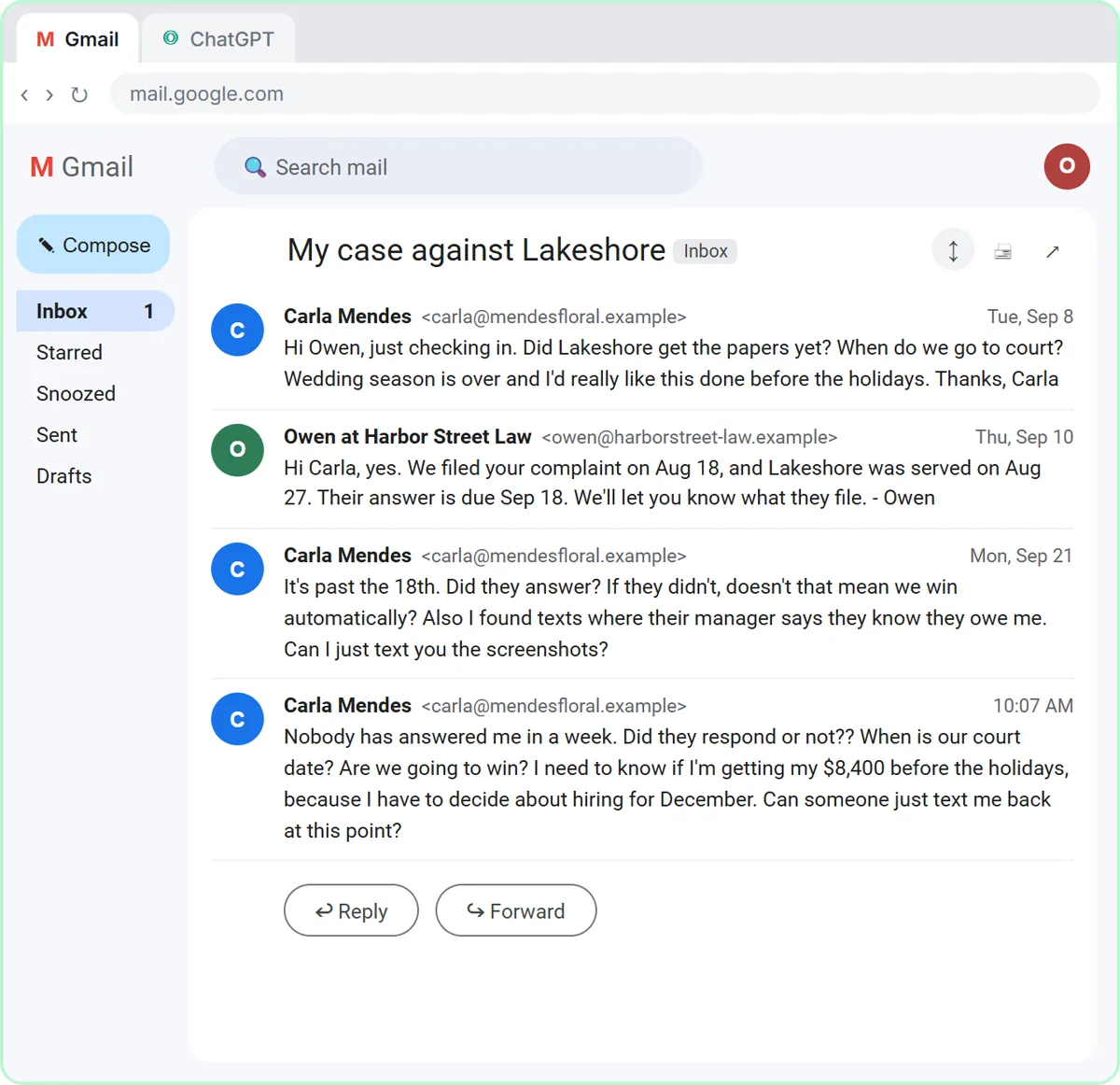 Reply Faster to a Client Asking for a Case Update: ChatGPT for Small Law Firms
A client wants a court date and a promise she'll win. Give ChatGPT the thread and your firm's facts, catch the lines that predict an outcome, and send a clear, kind…
Free · Live ~10 min
All 4 modules in AI Automation for Law Firms
More Jotform tutorials
Terms in this lesson
Plain-English definitions, each with an example from a free lesson.