Updated . Built against the tool’s current screens and checked step by step. How we check this lesson
Flova is a third-party AI video agent. You describe a video in a chat, and it writes a storyboard and then makes the images, video and sound. In this free lesson you use a practice copy of it to plan a ten-second Instagram promo for a made-up neighborhood bakery. You pick the Product Promo Video skill, paste the exact script, ask for the storyboard and the credit cost before anything is made, spend a few credits on one reference image, read the prompt behind it and fix it with a plain-words edit.
At a glance
| Question | Answer |
|---|---|
| What you build | Give Flova's AI video agent a ten-second script for a small business, check its storyboard and credit estimate first, then make and fix one reference image. |
| Tools | Flova |
| Time | About 7 minutes, 17 steps in 4 parts |
| Level | Beginner, no coding needed |
| Cost | Free |
| Ways to learn it | Practice it step by step, read the guide with screenshots |
The 4 parts, in short
- Start a promo from a script: Open the Commercial skills, Pick Product Promo Video, Write the brief and the script, Look at the Models menu, and 1 more step.
- Plan before you spend credits: Ask for the storyboard only, Send it, Read the storyboard, Read the credit estimate.
- Make one image, then fix it: Ask for one image only, Send it, Read the prompt it wrote, Close the prompt, and 3 more steps.
- Know what you can export: Open Export.
Start here first: How to Use n8n in Marketing: An AI Agent That Plans Your Content Calendar (module 1 of AI Automation for Marketing)
In the course: Part 13 · AI Apps Worth Knowing (Module 191 of the full course)
Part of: AI for Marketing Teams (step 14 of 55). Next up: Turn a Raw Client Video into a Captioned LinkedIn Clip using Captions
Part of: AI Apps Worth Knowing (step 23 of 185). Next up: Turn a Raw Client Video into a Captioned LinkedIn Clip using Captions
Part of: AI Video & Audio for Marketing (step 1 of 10). Next up: Turn a Raw Client Video into a Captioned LinkedIn Clip using Captions
Flova: Plan a Promo Video from a Script Before You Spend a Credit: step-by-step guide with screenshots
About the screenshots. They come from Stepthrough’s simulated practice environment (a practice copy of Flova), not the live tool, so no real account appears. The buttons and labels match the real screens the lesson was built against. Practice it yourself free at learn.ynteractive.com.
- Tools: Flova
- Time: about 7 minutes, 17 steps in 4 parts
- Level: beginner, no coding needed
Part 1: Start a promo from a script
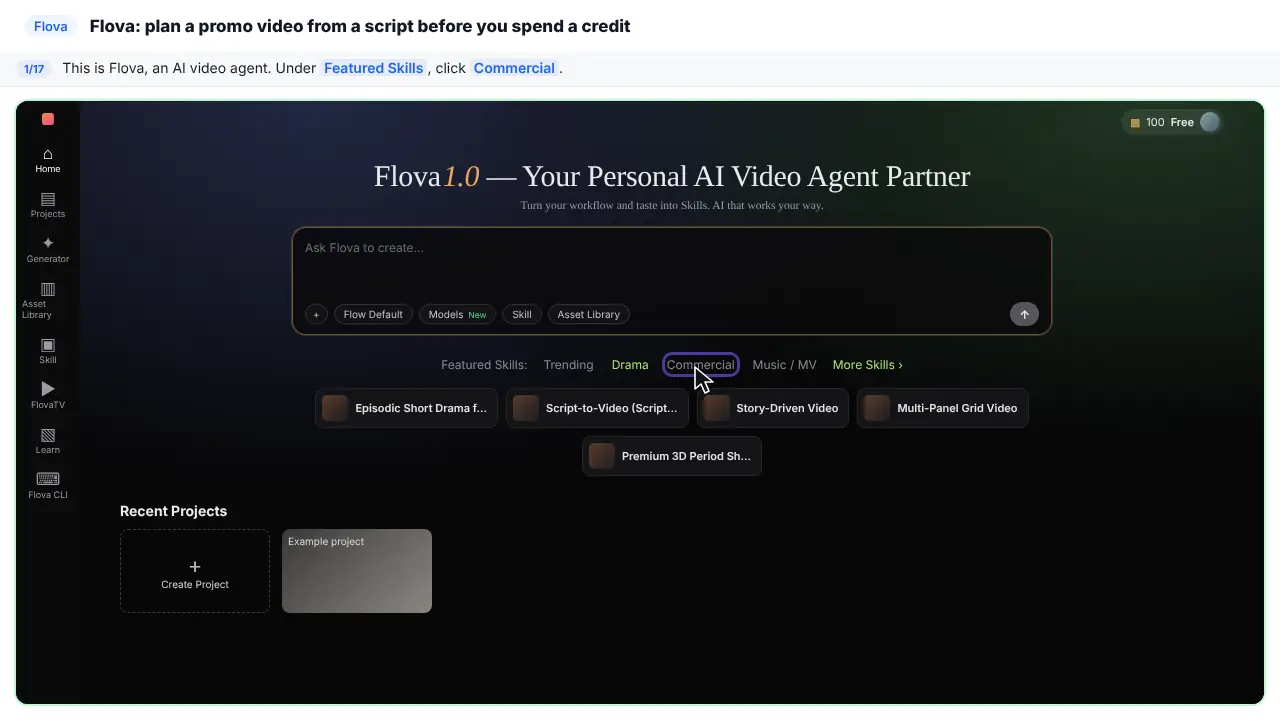
Step 1: Open the Commercial skills
This is Flova. It's an AI video agent. You tell it what you want, and it plans the video. Under Featured Skills, click Commercial.
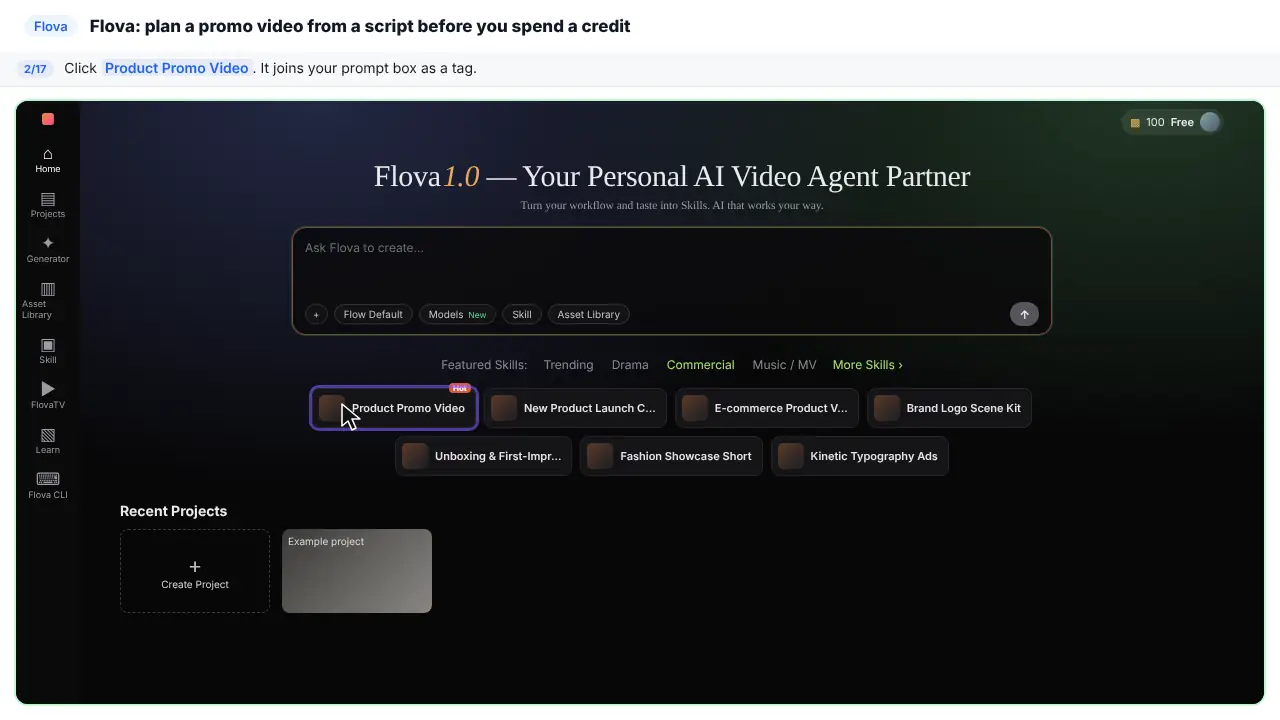
Step 2: Pick Product Promo Video
A skill is a saved way of working. It joins your prompt box as a tag.
Step 3: Write the brief and the script
Now the brief. Say how long it is, and paste the exact words to be spoken. Add the look, and the shape of the video.
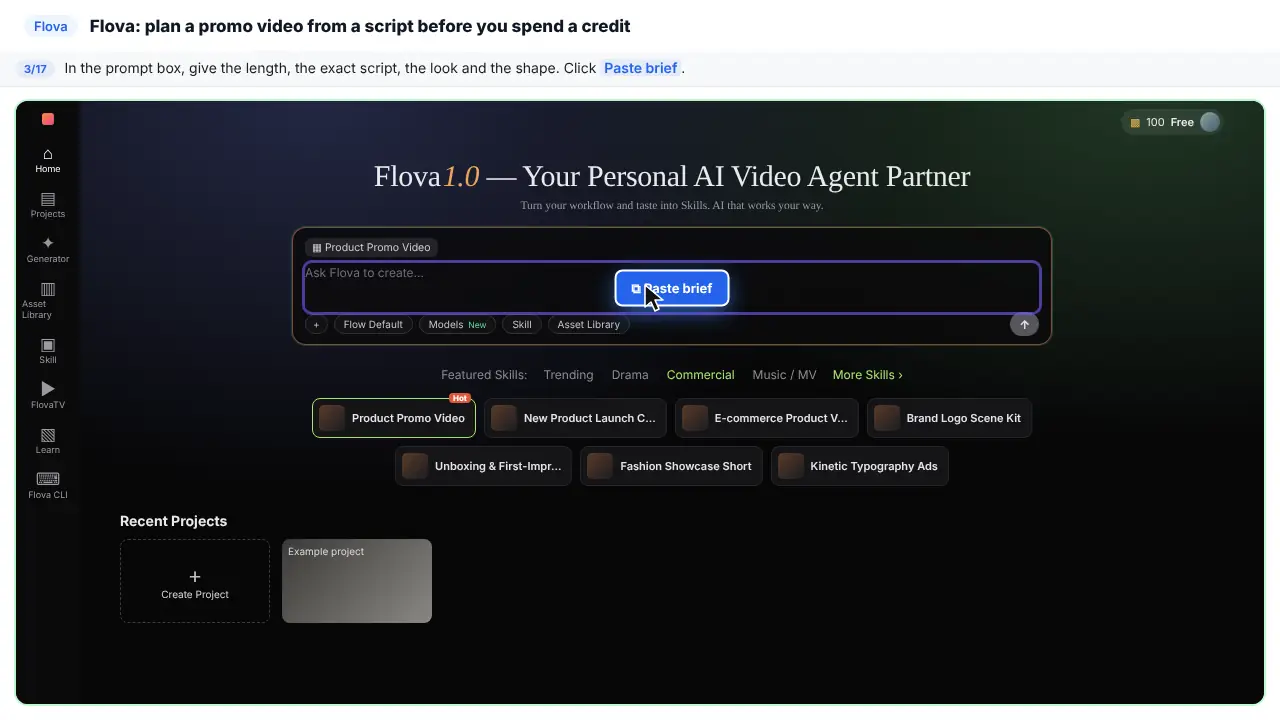
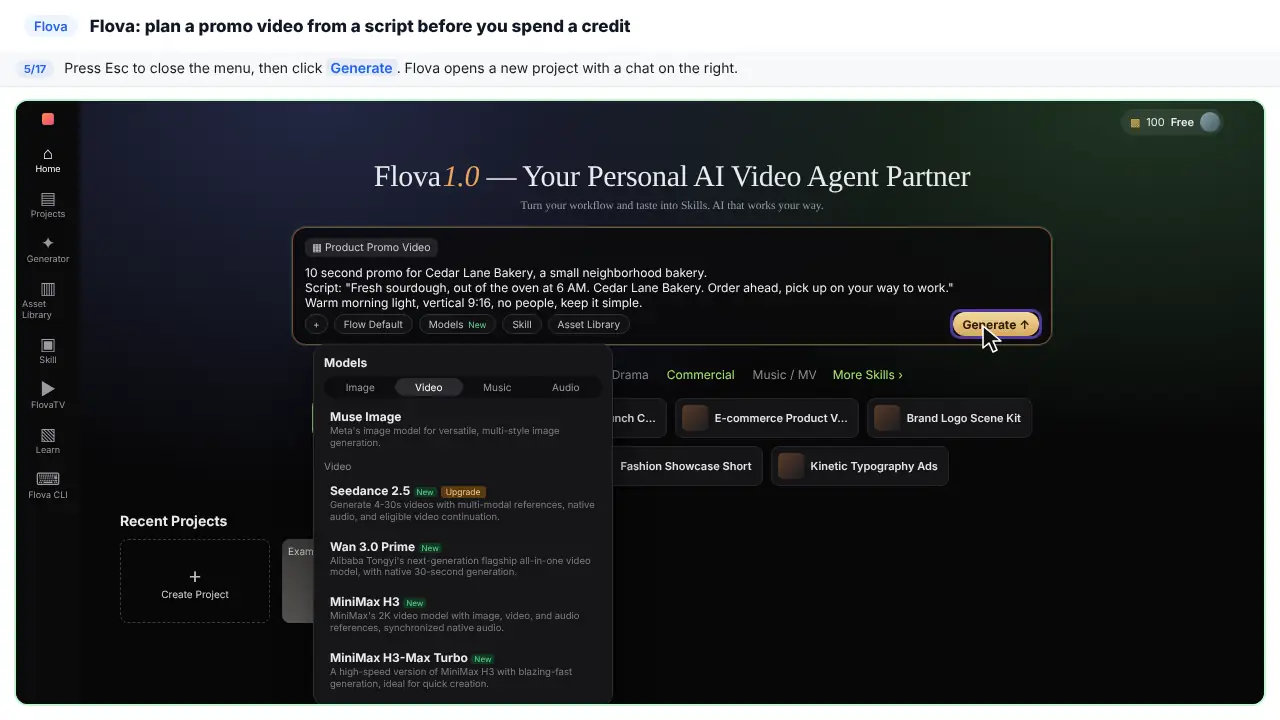
10 second promo for Cedar Lane Bakery, a small neighborhood bakery.
Script: "Fresh sourdough, out of the oven at 6 AM. Cedar Lane Bakery. Order ahead, pick up on your way to work."
Warm morning light, vertical 9:16, no people, keep it simple.
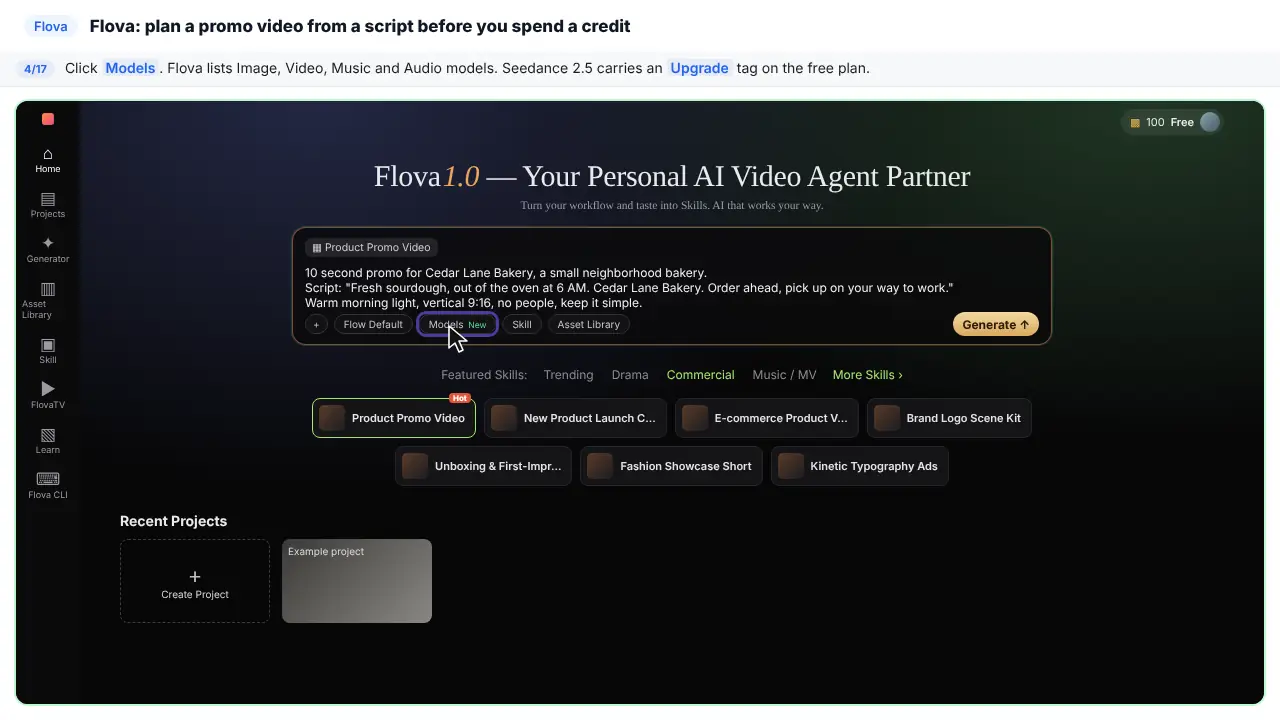
Step 4: Look at the Models menu
Before you start, click Models. Flova lists image, video, music and audio models. On the free plan, Seedance 2. 5 has an upgrade tag.
Step 5: Start the project
Close the menu, then click Generate. Flova opens a new project, with a chat on the right. It has not made any media yet.
Part 2: Plan before you spend credits
Step 6: Ask for the storyboard only
Don't let it spend credits yet. Ask for the storyboard only, and ask for the credit cost first.
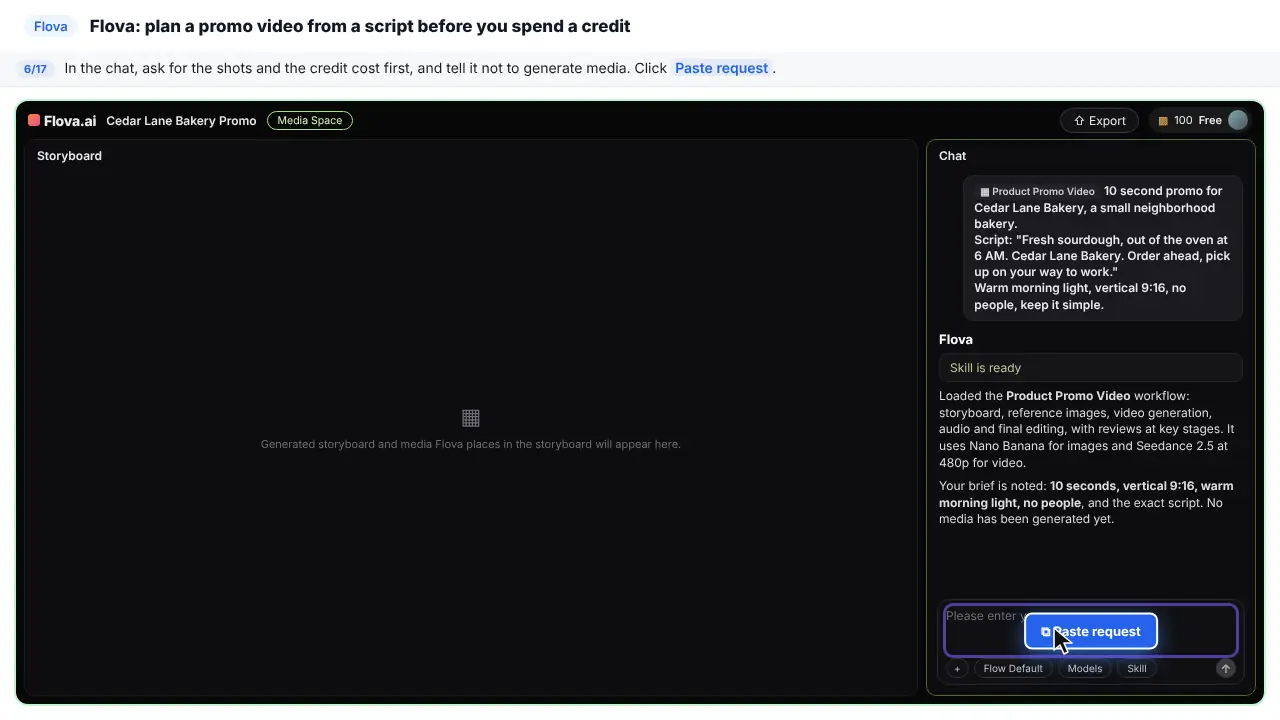
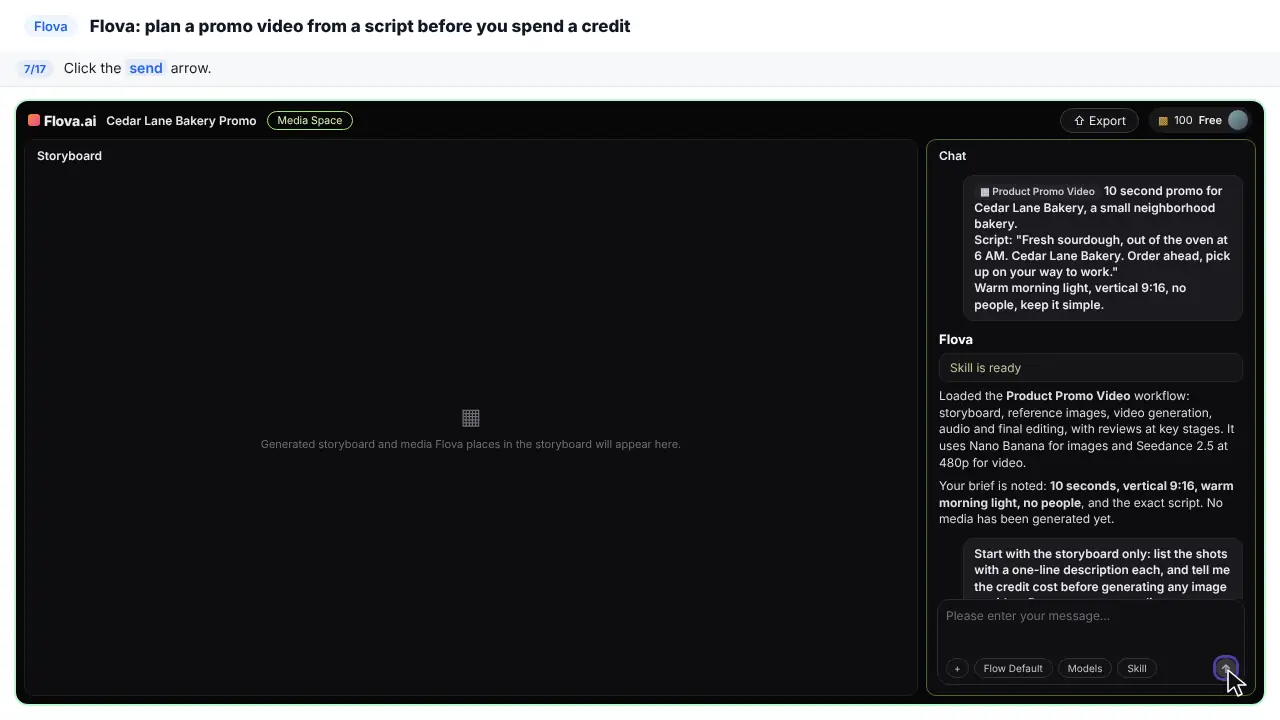
Start with the storyboard only: list the shots with a one-line description each, and tell me the credit cost before generating any image or video. Do not generate media yet.
Step 7: Send it
Step 8: Read the storyboard
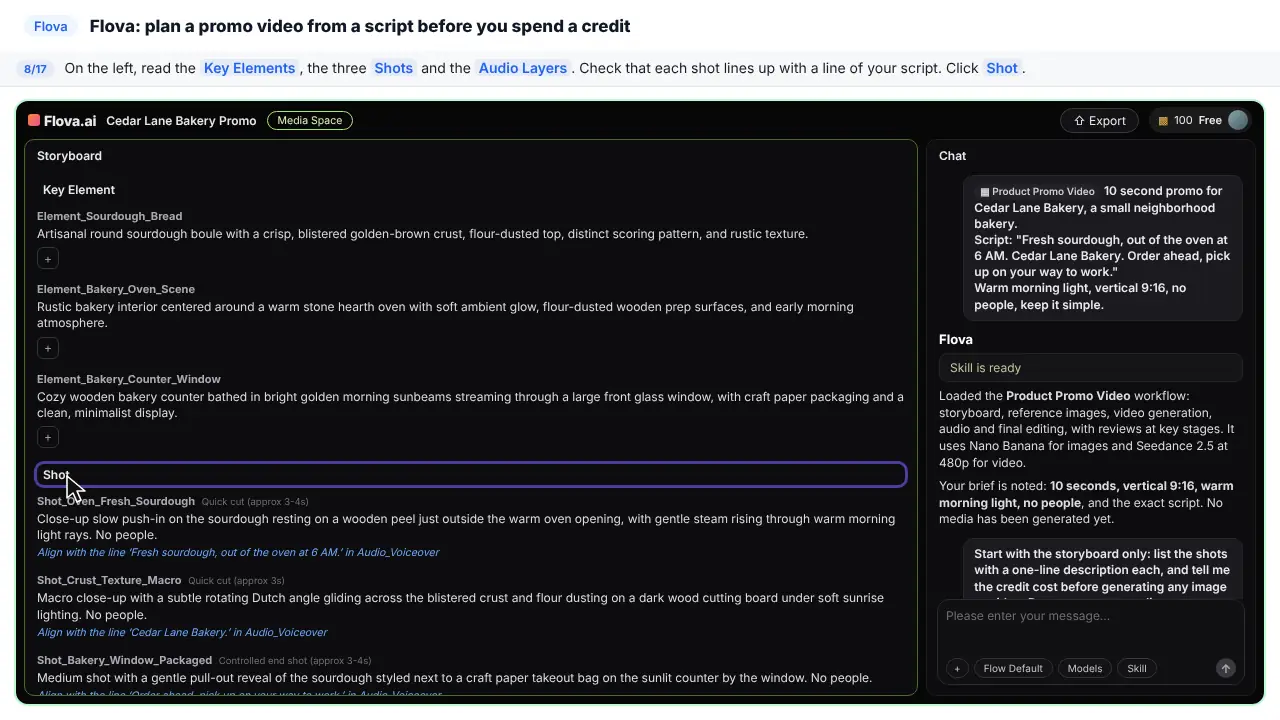
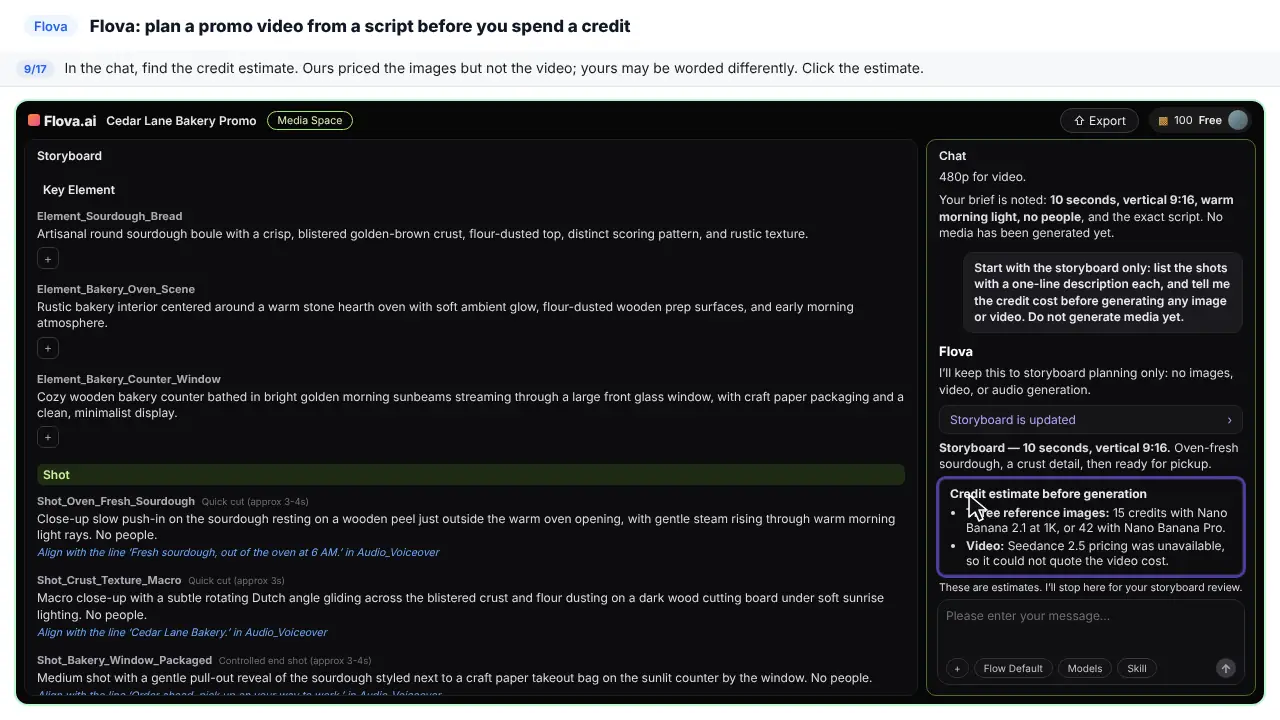
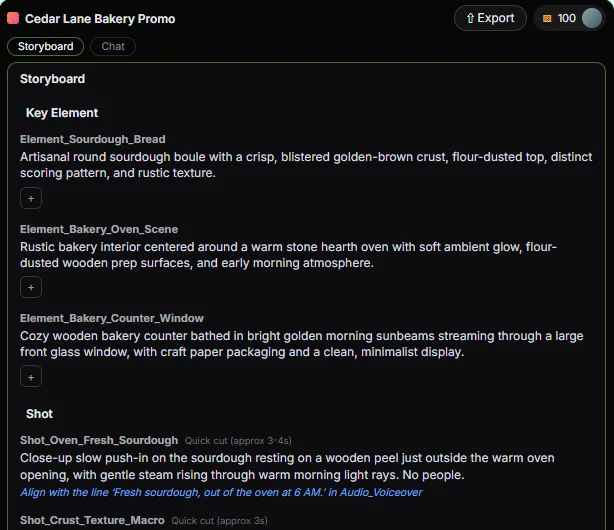
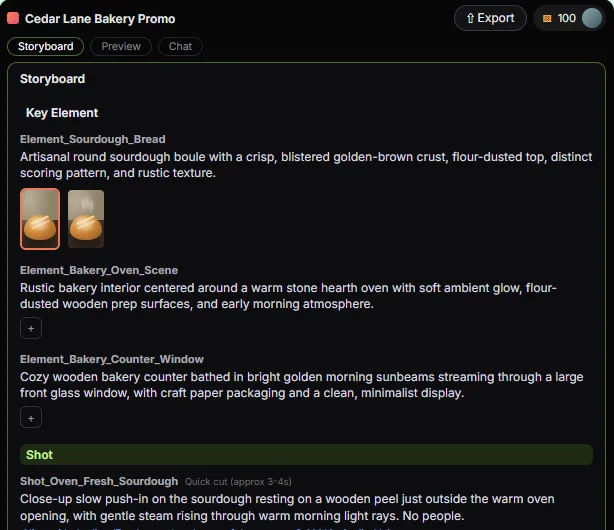
The storyboard is on the left. Read the key elements, then the three shots. Each shot says which line of your script it goes with. Check them.
Step 9: Read the credit estimate
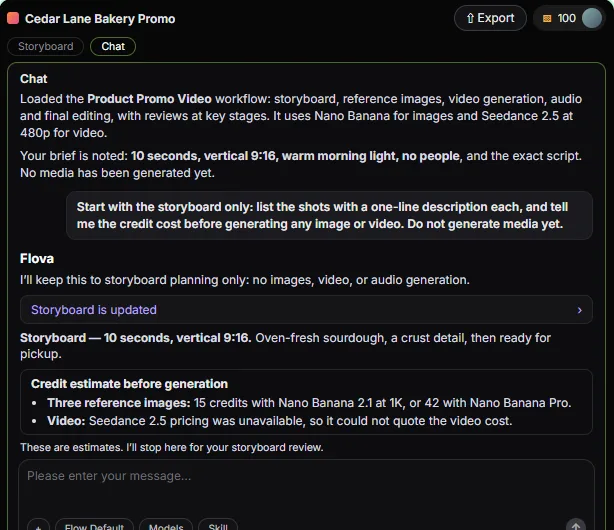
Now the chat. It gives a credit estimate before it makes anything. Ours priced the images, but not the video. Yours may be worded differently. If a price is missing, ask again.
Part 3: Make one image, then fix it
Step 10: Ask for one image only
Now spend a little. Ask for one image only, the sourdough, with the cheaper model. Tell it to stop, so you can review.
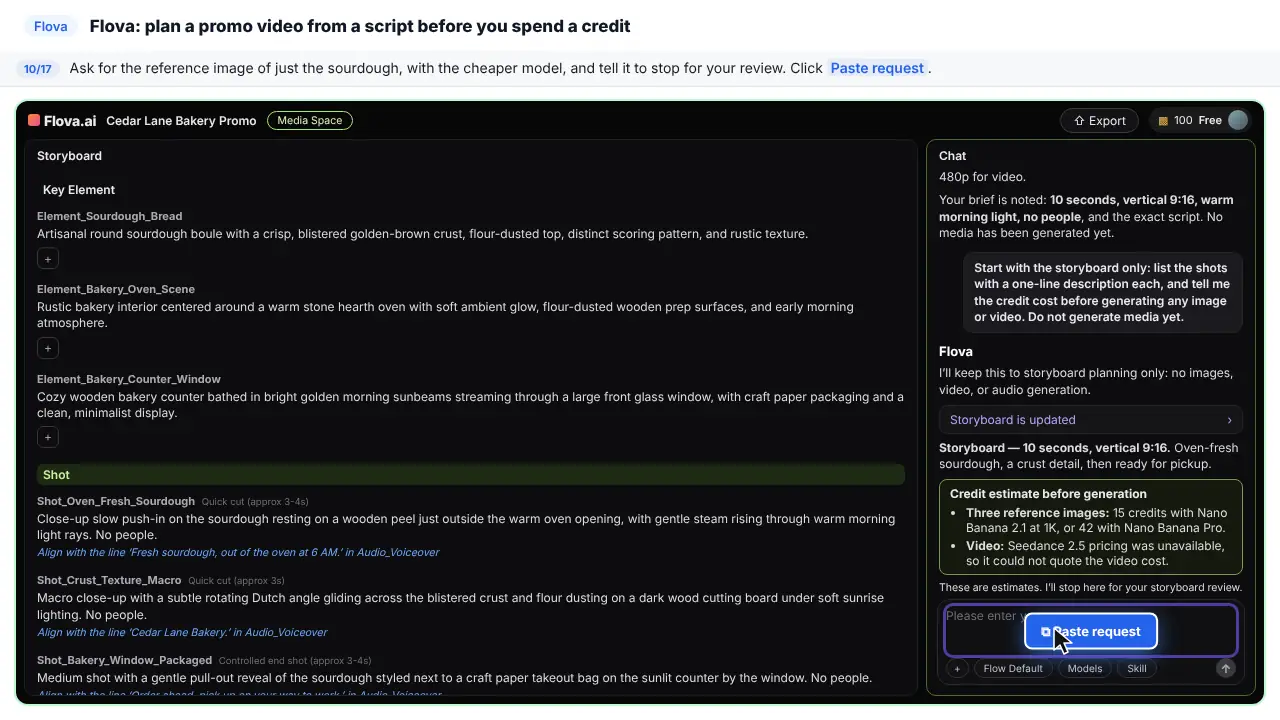
Looks good. Generate only the reference image for the sourdough element with Nano Banana 2.1 at 1K. Do not make the other images, any video or audio. Then stop for my review.
Step 11: Send it
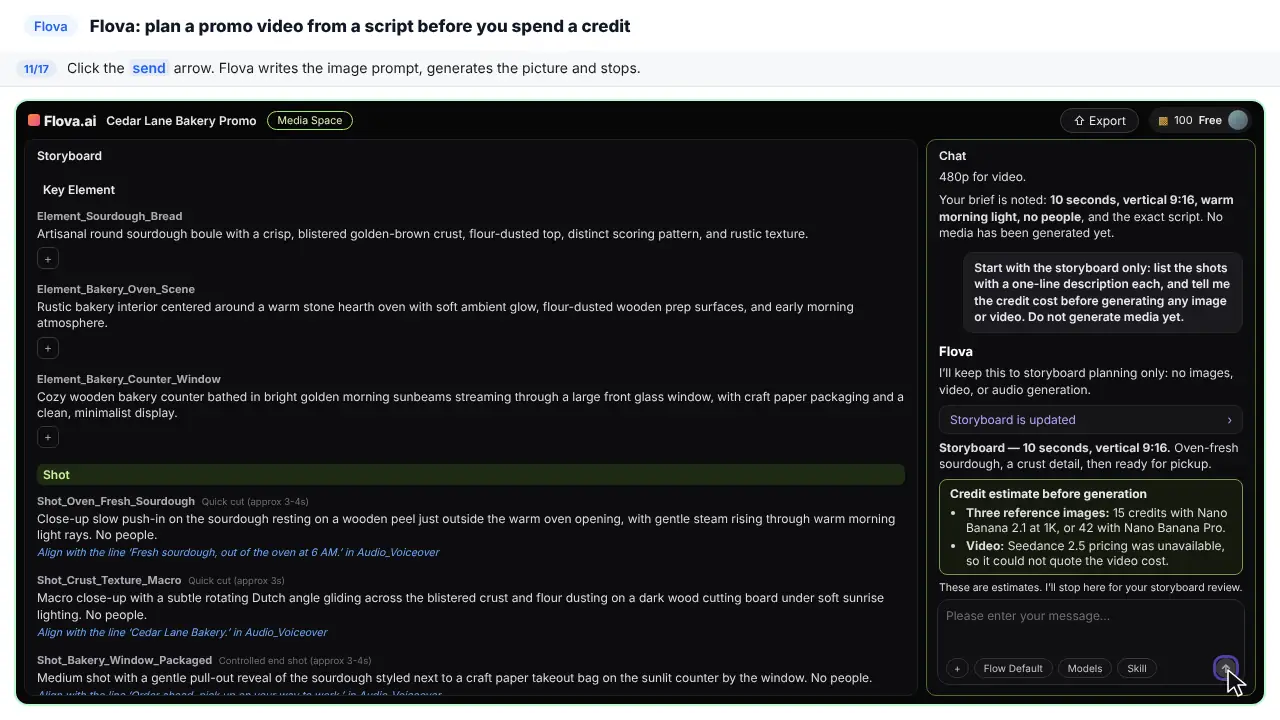
Flova writes the image prompt, makes the picture, and stops.
Step 12: Read the prompt it wrote
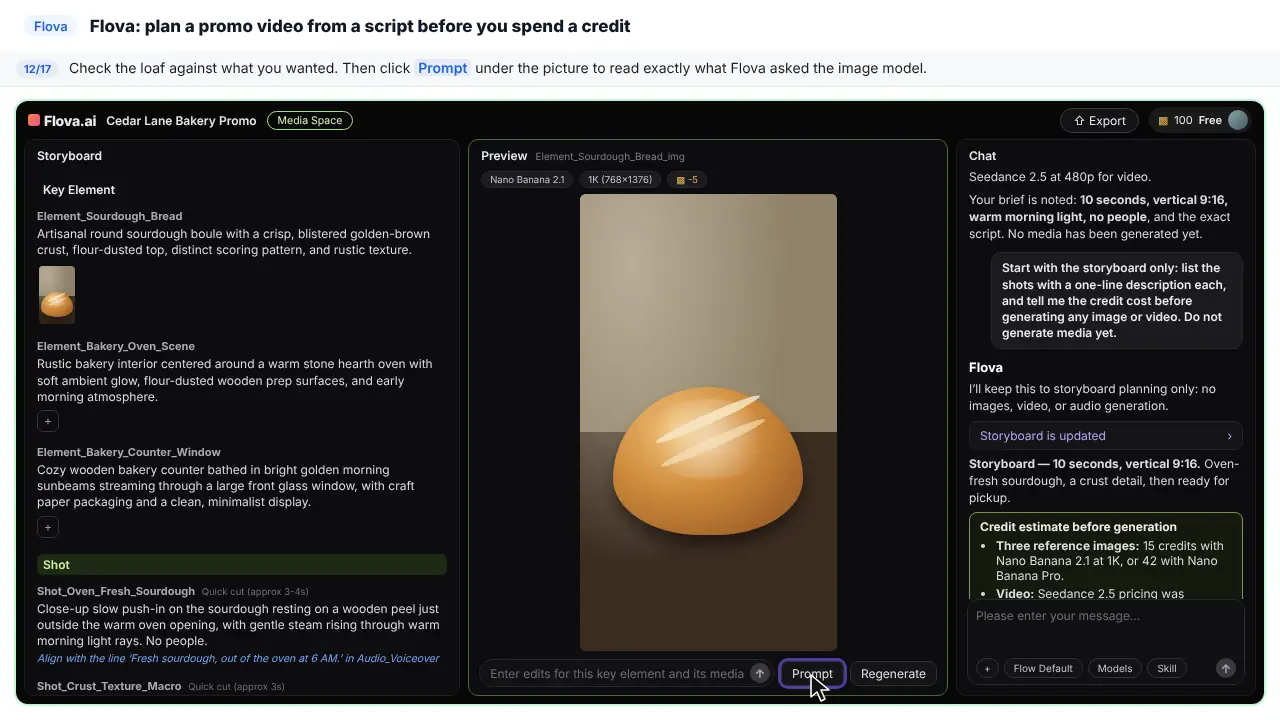
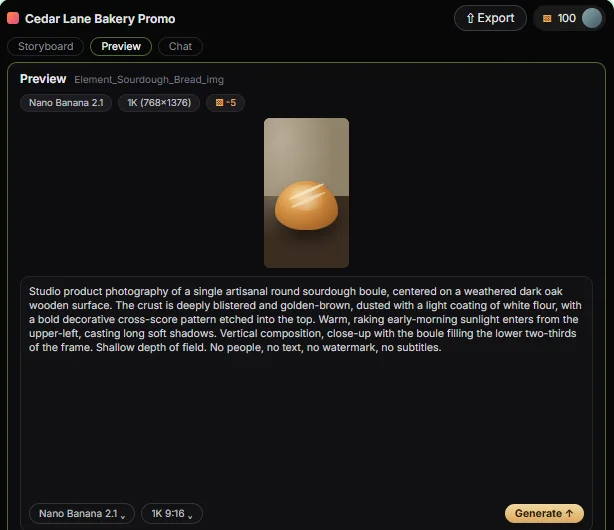
The picture appears in the preview. Check the loaf. Is it round, golden, and flour dusted?
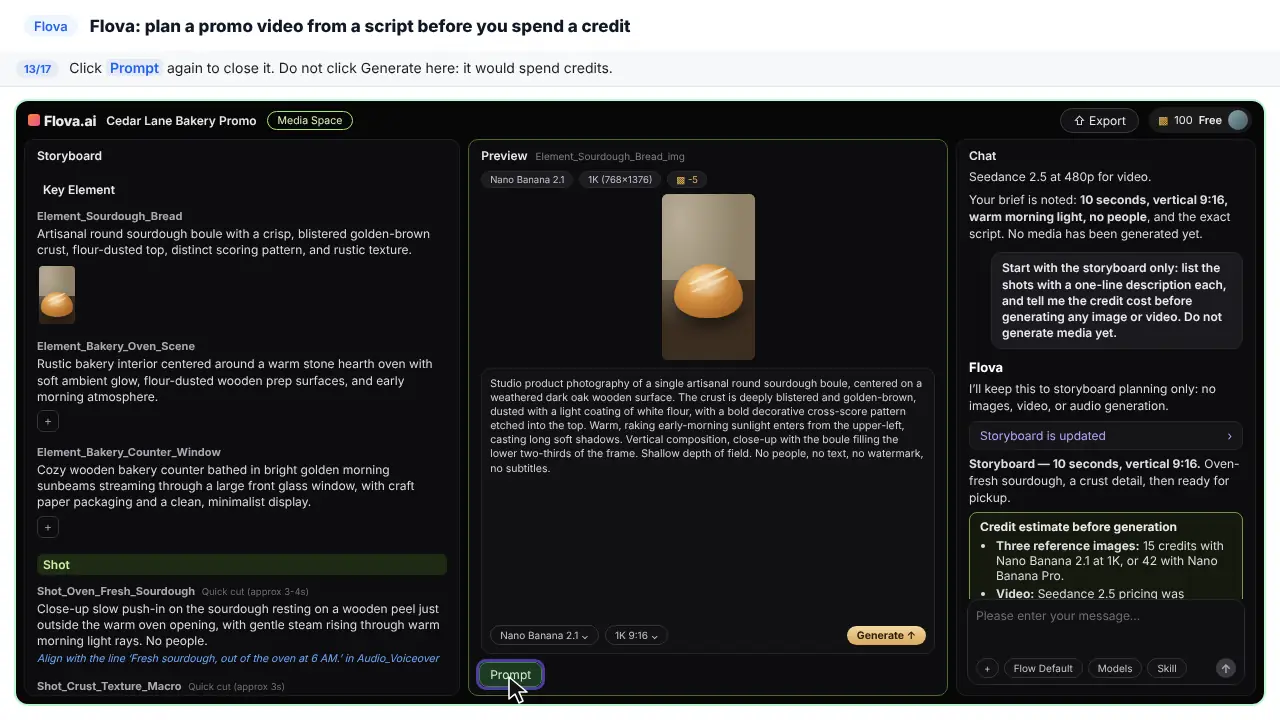
Step 13: Close the prompt
Don't click Generate in there. That would spend more credits.
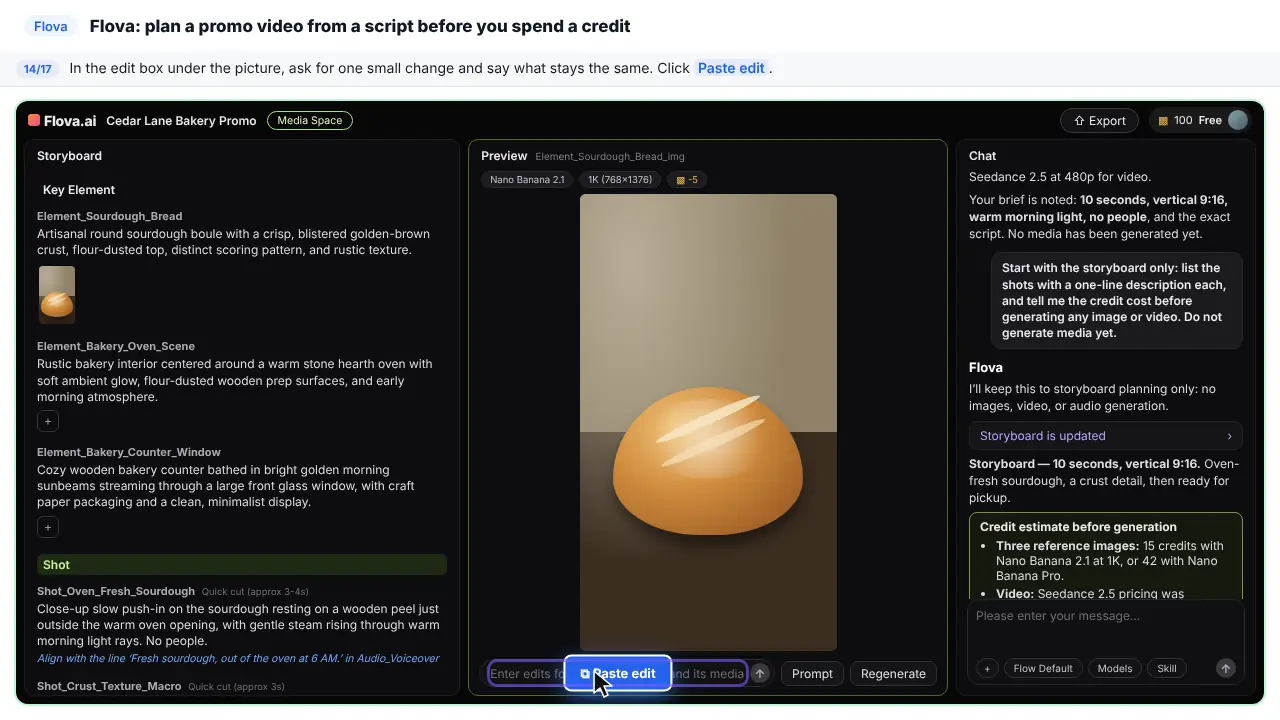
Step 14: Ask for one change
To fix something, use the edit box under the picture. Ask for one small change. Say what stays the same.
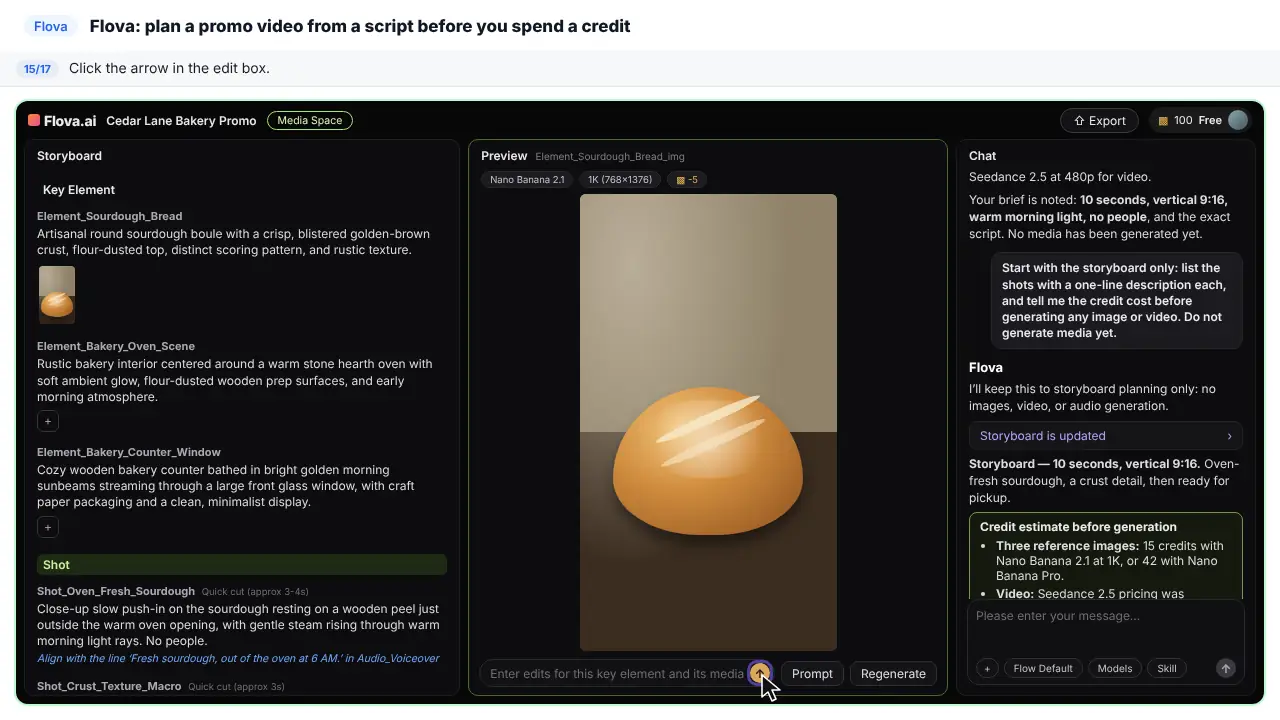
Step 15: Send the edit
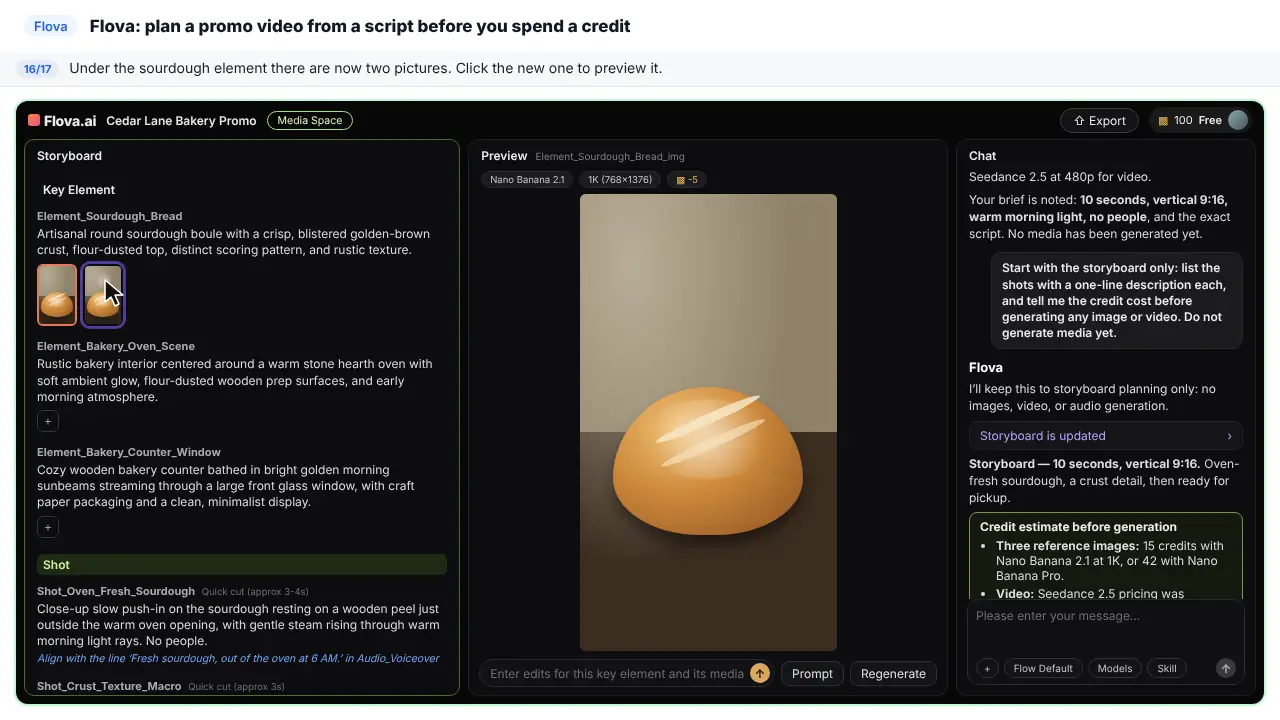
Step 16: Compare the two versions
The sourdough now has two pictures. The old one is kept.
Part 4: Know what you can export
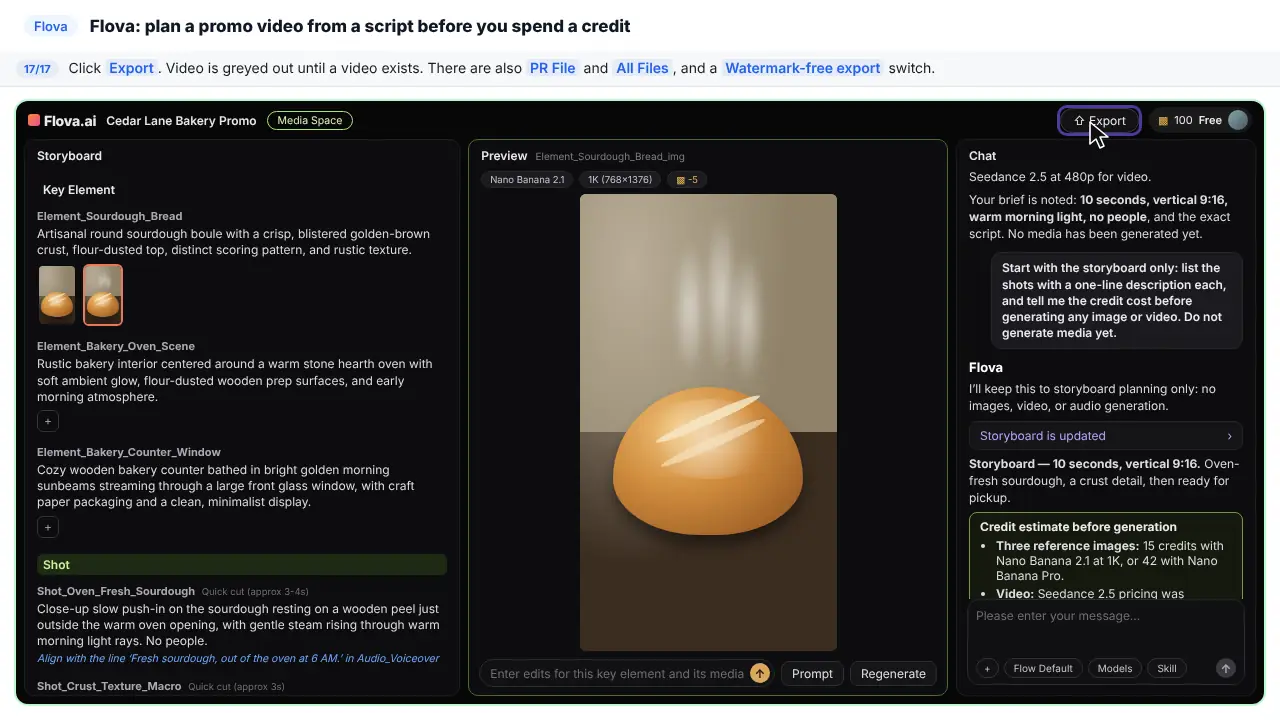
Step 17: Open Export
Last, click Export. Video is grey, because no video exists yet. You can still export all the files. Before you publish anything, check every word, and the product, against the real thing.
Part of these free courses: AI Video & Audio for Marketing
Now do it yourself, free
Reading the steps is a start. Doing them is how it sticks. The interactive lesson puts you in a practice copy of Flova: you do every step yourself, it checks your work, and “Do it for me” finishes any step you get stuck on. Nothing touches your real accounts.
Practice “Flova: Plan a Promo Video from a Script Before You Spend a Credit” step by step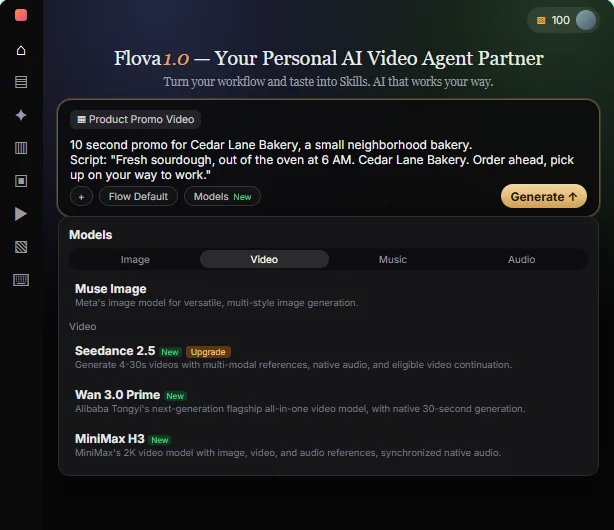
What you will do: one promo, planned before it is paid for
You are Dana, who runs the front office at Cedar Lane Bakery, a made-up neighborhood bakery. The owner wants a ten-second promo for Instagram: fresh sourdough out of the oven at 6 AM, then the bakery name, then order ahead and pick up on the way to work. There is no film crew and no budget for an agency.
In the practice copy you open Flova's Home screen and click Commercial under Featured Skills, then the Product Promo Video skill, which joins your prompt box as a tag. You paste a brief with the length, the exact script, the look and the shape of the video, open the Models menu to see what is available, and click Generate. Flova opens a project with a chat on the right. You ask for the storyboard only, read it, and read the credit estimate. Then you ask for one image, read the prompt Flova wrote for it, fix it with one change and look at what Export offers.
Who this is for
Marketers, office managers, small-business owners and anyone who has been asked for a short promo video without a video team. You do not need any AI or video experience. The lesson is a practice copy, so nothing is generated, no credits are used and you do not need a Flova account to take it.
How Flova is organized
Flova's Home screen has a prompt box (Ask Flova to create...) with buttons for Flow Default, Models, Skill and Asset Library, and a row of Featured Skills grouped as Trending, Drama, Commercial and Music / MV. The Commercial group includes Product Promo Video, New Product Launch, E-commerce Product Video, Brand Logo Scene Kit, Unboxing, Fashion Showcase Short and Kinetic Typography Ads. The left sidebar has Home, Projects, Generator, Asset Library, Skill, FlovaTV, Learn and Flova CLI.
A skill is a saved way of working. When we loaded Product Promo Video, Flova replied that the workflow covers a storyboard, reference images, video generation, audio and final editing, with reviews at key stages, and that it uses Nano Banana for images and Seedance 2.5 for video. It also said no media had been generated yet. Its replies change from run to run, so expect different wording.
Plan first: the storyboard and the credit estimate
A project has a Storyboard on the left, a Preview in the middle once there is a picture, and a Chat on the right. When we asked for the storyboard only, Flova wrote three Key Elements (the sourdough, the oven scene and the counter by the window), three Shots of about three to four seconds each, and two Audio Layers: a voiceover with our exact script and background music. Each shot said which line of the script it lined up with.
Flova also gave a credit estimate before it made anything: 15 credits for three reference images with Nano Banana 2.1 at 1K, or 42 with Nano Banana Pro. For the video it said Seedance 2.5 pricing was unavailable, so it could not quote a total. When we repeated the request in a second new project, Flova's storyboard had different element names and shot times, and its credit answer gave our balance but no per-image price, saying it could not give a verified total because the video rate was unavailable. So the wording and the numbers change from run to run: treat estimates as estimates, ask again if a price is missing, and ask for the cost every time you change the model, the length or the resolution.
Spend a little: one image, then one fix
We asked for just the sourdough reference image with Nano Banana 2.1 at 1K and told Flova to stop for review. The Preview showed the picture with its model, its size (1K, 768 by 1376) and its credit cost. The Prompt button under the picture shows the full text Flova sent to the image model, and you can edit it. We did not click Generate in that panel, because that makes another picture.
To change the picture we used the edit box under it and asked for a little more steam, keeping everything else the same. Flova kept the old picture and added the new one as a second version under the sourdough element, so you can compare them. Read the picture against the real product before you rely on it: a loaf that does not look like your loaf is a problem for a bakery.
Check Models and Export before you plan the video
The Models button lists models in four groups: Image, Video, Music and Audio. In our free account Seedance 2.5, the video model Flova's skill names, carried an Upgrade tag. Open the menu before you promise anyone a finished video, and read the plan details on flova.ai.
Export in the top right offers Video, PR File and All Files, with a Watermark-free export switch. Video was greyed out in our project because no video existed yet. Check what your plan includes, including watermarks and commercial use, before anything is published.
Mistakes to avoid
- Letting the AI rewrite your words. Paste the exact script into the brief and tell Flova to use it as written.
- Generating before you read the plan. Ask for the storyboard only and the credit cost first, and read every shot.
- Spending credits in the wrong place. Ask for one image before three, and use the cheaper model while you are still deciding.
- Trusting a picture of your product. Compare it with the real thing, and check every claim, price and opening hour before it is posted.
- Assuming the free plan covers the video. Look at the Models menu and your plan first.
Plans, credits and what to check
Flova has a free plan and paid plans (Starter, Basic, Plus and Pro on its pricing page). Our free test account started with 100 credits and earned one-time bonus credits for its first storyboard and its first image. Bonus offers and prices change, so check flova.ai/en/pricing for current details, and read Flova's terms before you use anything it makes for a business.
Links
- Flova: the AI video agent this lesson teaches. It is a separate product with its own account, credits and plans.
- Flova pricing: current plans, credits and what each plan includes.
Try it yourself, free
Reading the steps is a start. Doing them is how it sticks. The interactive module walks you through every click in a practice copy of Flova, checks each step, and never touches your real accounts.
Start “Flova: Plan a Promo Video from a Script Before You Spend a Credit”Screenshots
Frequently asked questions
- How does the interactive lesson work?
- Each step is shown to you first (Watch). Then you do it yourself in a practice copy that checks every click (Your turn). If you get stuck, press Do it for me. It is a practice copy, so nothing is generated and no Flova account is used.
- Is Flova part of Stepthrough?
- No. Flova is a separate, third-party product from flova.ai. This lesson is free and teaches what we saw in a real free account in October 2026. To use Flova for real you need your own account.
- What is Flova?
- Flova is an AI video agent. You describe the video you want in a chat, and it writes a storyboard and then generates images, video and audio, with reviews along the way. Its Featured Skills, such as Product Promo Video, are saved workflows you can start from.
- Can I make a promo video from a script in Flova?
- Yes, that is what the Product Promo Video skill is for. Paste the length, the exact script and the look you want. Ask for the storyboard and the credit cost first, then approve the images and video step by step.
- Does Flova have a free plan?
- Yes. Our free test account started with 100 credits and earned bonus credits for its first storyboard and image. In that account Seedance 2.5, the video model named by the Product Promo Video skill, was marked Upgrade, so check the plan and pricing before you plan on a finished video.
- How do I see how many credits a Flova generation costs?
- Ask Flova for the credit estimate before it generates, and look at the credit number shown next to each picture in the Preview. The estimate can be incomplete, as it was for video in our test, so check the cost again before each generation.
More in AI Automation for Marketing
 How to Use n8n in Marketing: An AI Agent That Plans Your Content Calendar
Build an AI agent for Harbor & Pine Coffee Roasters that turns one campaign theme into a two-week email and content calendar in Google Sheets — chat trigger, AI Agent…
Free · Live ~12 min Intermediate
 Build a Lead Magnet Signup Form with an AI Welcome Email
Build a "Get the free guide" signup form in Lovable for Harbor & Pine Coffee Roasters and connect it to n8n — the AI agent tags each lead by interest, saves it to…
Free · Live ~15 min Advanced
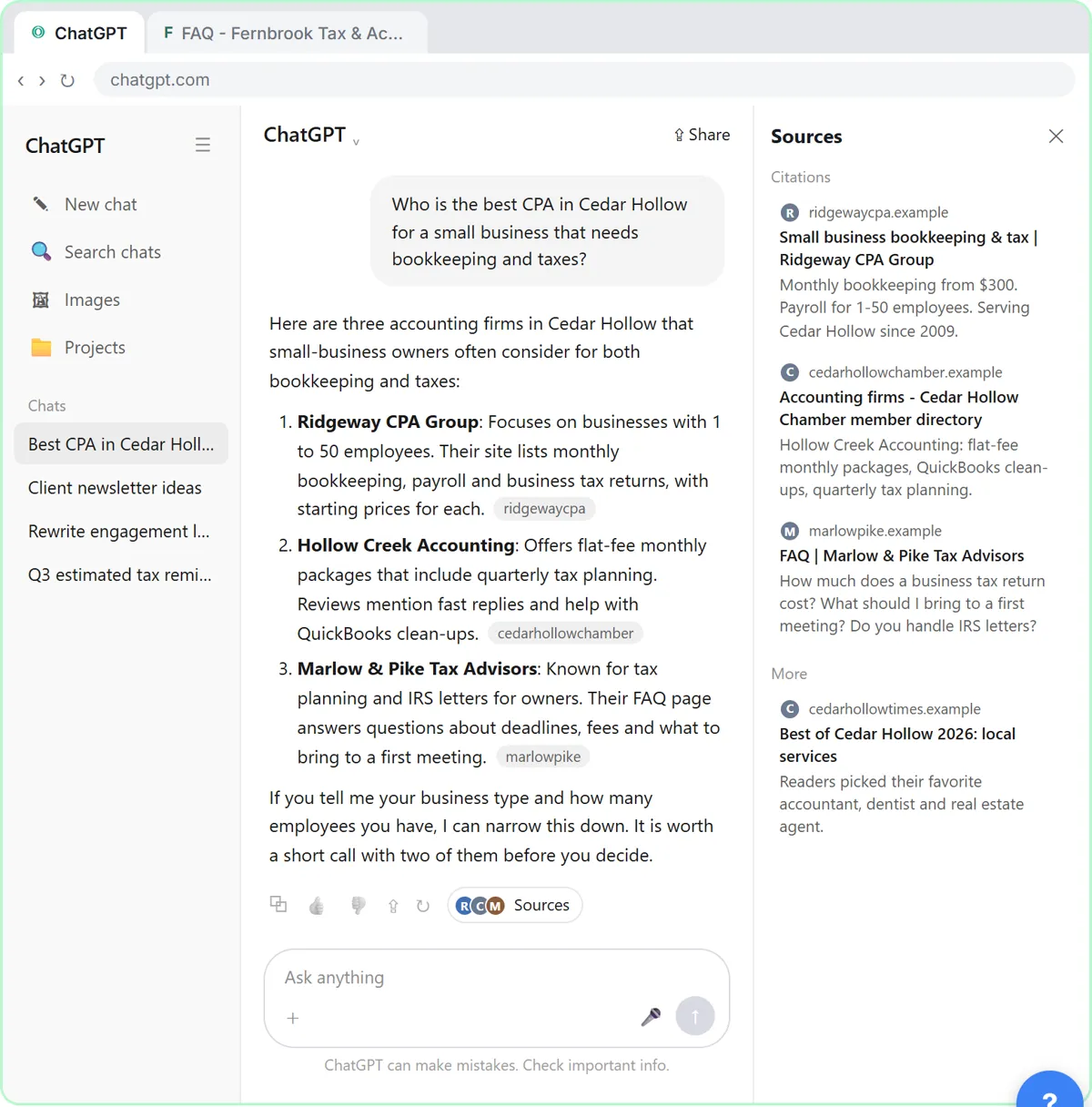 Get Your Business Recommended by ChatGPT
Ask ChatGPT who it recommends in your town, see which pages it trusts, then use it to write an FAQ page and Business Profile copy that answer real customer questions.
Free · Live ~10 min Intermediate
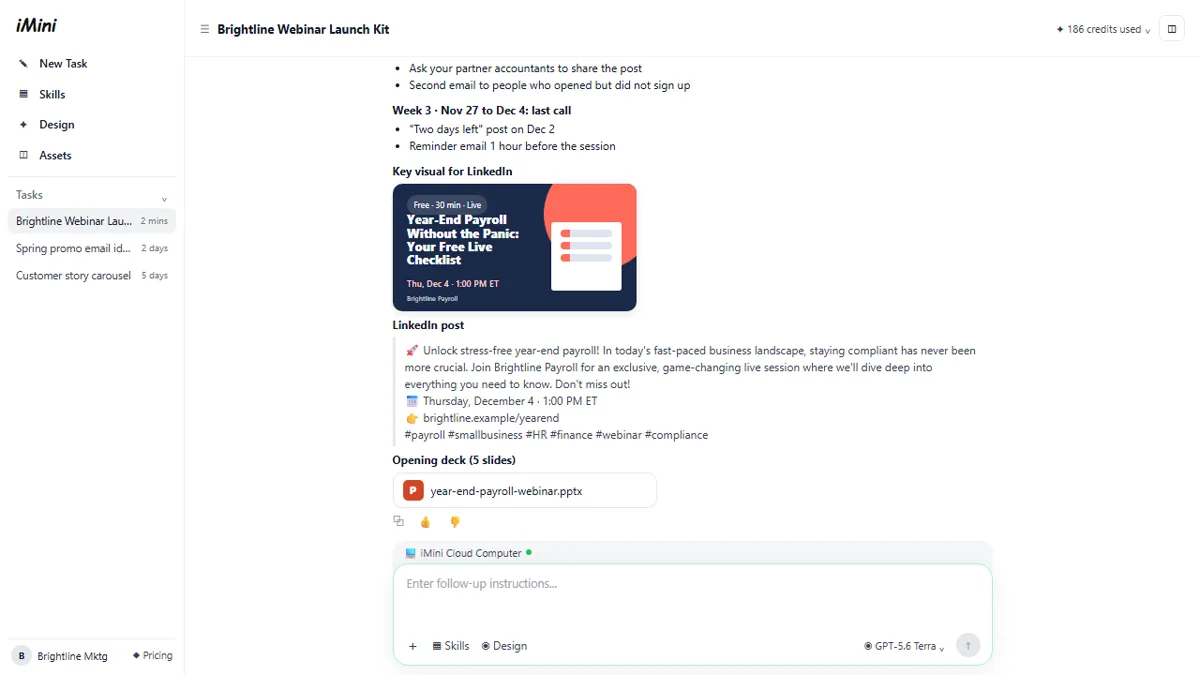 iMini AI Agent: Turn a Rough Idea into a Launch Kit
Brief the iMini Creative Agent once and get a launch plan, a LinkedIn visual, a post and a 5-slide deck, then fix the visual and humanize the post with follow-ups.
Free · Live ~8 min Beginner
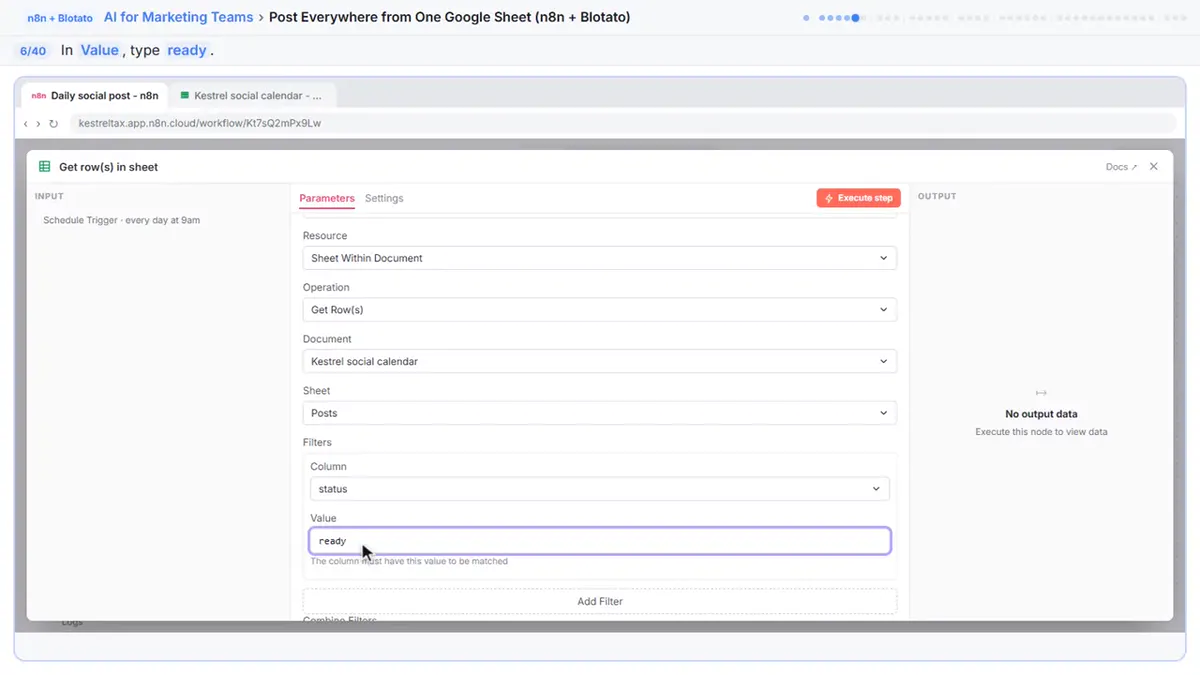 Post to Every Channel Daily from One Sheet using n8n + Blotato
Copying the same post into every social app can take half an hour a day, and on busy days nothing goes out. Plan a week of posts in one Google Sheet; every morning n8n…
Free · Live ~14 min Advanced
◷Turn a Raw Client Video into a Captioned LinkedIn Clip using CaptionsMost people scroll LinkedIn with the sound off, so a talking-head video with no captions gets skipped. Use Captions to add captions, cut the pauses, fix a misheard…
Free · Live ~8 min Beginner
All 33 modules in AI Automation for Marketing
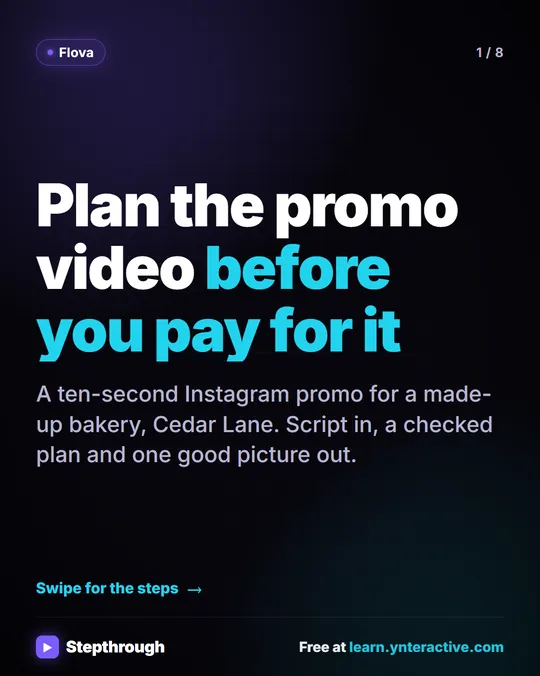
Visual guide
This lesson’s key ideas as quick visual guides: swipe through the slides, or read the same guide as text.
Terms in this lesson
Plain-English definitions, each with an example from a free lesson.
Related prompts
- Promo video brief and script prompt: Write a promo video brief for an AI video agent: the length, exact script, look and shape, plus a request to plan before it…