Updated . Built against the tool’s current screens and checked step by step. How we check this lesson
If you have a prompt that works, you probably paste it again and again, rules and all. In this free lesson you turn one proven prompt, an HVAC company's estimate template, into instructions that are always on in a ChatGPT Project. After that, a one-line request is enough. You also test the instructions, find the gap, and fix it with one new rule.
At a glance
| Question | Answer |
|---|---|
| What you build | Take a prompt you paste every week, sort it into permanent rules and fill-in blanks, put the rules in a ChatGPT Project, and test it with a one-line request. |
| Tools | ChatGPT |
| Time | About 7 minutes, 25 steps in 6 parts |
| Level | Beginner, no coding needed |
| Cost | Free |
| Ways to learn it | Practice it step by step |
The 6 parts, in short
- Sort the prompt: Click the message box, Paste the request, Send it, Check the sort, and 1 more step.
- Pick where it lives: New project, Name the project, Create the project.
- Paste the instructions: Open the project menu, Project settings, Paste the instructions, Save the settings.
- Test it: Send a one-line request, Send it, Find the gap.
- Fix the gap: Back to the project, Open the project menu, Project settings, Add one rule, and 1 more step.
- Test it again: Send the same request, Send it, Send the prices, Send it, and 1 more step.
Start here first: Prompt Writing 101: Role, Context, Task, Format (module 1 of Prompt Writing)
In the course: Part 2 · Better Prompts (Module 10 of the full course)
What you will learn
You will learn how to turn a prompt into standing instructions. The skill is sorting: every prompt you reuse mixes rules that are true every time with details that change every time. The rules belong in instructions. The changing details become the short message you send.
You practice on Ridgeline Heating & Air, a made-up HVAC company whose owner, Mike, writes estimates from rough job notes. His estimate template comes from the Prompt Templates for Trades module in this toolkit. By the end, Mike types one line from the truck and gets a full estimate in his format, using only his prices.
Who this is for
This module is for owners, office managers and anyone who keeps a document of favorite prompts and pastes them into ChatGPT every week. No accounts are needed to practice. It is part of the Prompt Writing Toolkit, and works best after the modules on templates and examples.
Rules versus blanks: how to sort any prompt
Read your prompt line by line and ask one question: is this true every time I use it? Your role, your company, the format you want, your tone and your rules (like "don't invent prices") are true every time. They go in the instructions. The customer, the job, the numbers and anything else in [BRACKETS] change each time. They become the short message you send.
Two things are easy to miss. Blanks that never actually change, like your company name, should become part of the instructions. And the fixes you keep typing after the first answer, like "haul-away is free" or "add the 30-day line", are really rules. Put them in the instructions and you stop typing them.
Where reusable instructions can live in ChatGPT
- Custom instructions: on the web, in Settings under Personalization. They apply to every chat, so use them for things that are always true about you, like your name and how you like answers. Free and Go plans can save up to 1,500 characters; paid plans up to 5,000.
- Project instructions: in a project's ⋯ menu under Project settings. They apply only to chats inside that project and override your custom instructions there. This is the best home for one job, like estimates.
- Custom GPTs: OpenAI is retiring custom GPTs, scheduled for December 11, 2026, and moving them to plugins. Personal accounts (Free, Go, Plus and Pro) can no longer create new GPTs, so a Project is the simpler choice for new work.
Why you test with a lazy one-line request
Instructions get used on busy days, with short messages and missing details. So test them that way. In the lesson, the first test follows every rule and still produces a useless estimate, because the rules only said what to do when one price was missing, not all of them. One new rule, "ask me first," fixes it. When you fix instructions, send the exact same test again, so the new rule is the only thing that changed.
ChatGPT can still get a number or a detail wrong, even with good instructions. Check every price, name and date before an estimate goes to a customer.
Try it yourself, free
Reading the steps is a start. Doing them is how it sticks. The interactive module walks you through every click in a practice copy of ChatGPT, checks each step, and never touches your real accounts.
Start “Turn a Great Prompt into Reusable Instructions”Step by step: Turn a Great Prompt into Reusable Instructions
All 25 steps of the interactive module, in order. In the module you watch each one, then do it yourself in a practice copy that checks your work.
1. Sort the prompt
- Click the message box. Click the message box at the bottom of ChatGPT.
Mike runs Ridgeline Heating and Air. His estimate template works great, but he pastes the whole thing, rules and all, every single time. Let's turn it into instructions that are always on, so all he has to send is the job. Start in a regular chat.
- Paste the request. Paste in the request. It pastes the estimate template and asks ChatGPT to turn it into Project instructions: keep the rules, fill in the company, add two fixes, and list the blanks.
This pastes the estimate template from the trade templates module, and asks ChatGPT to sort it. Rules that are true for every job stay. Blanks that change every job come out. And the two fixes Mike keeps typing become rules.
Here's a prompt I paste every time I write an estimate:

"""
You're helping me write a customer estimate for my company, [COMPANY].
Customer: [CUSTOMER NAME AND ADDRESS]
Job notes: [ROUGH JOB NOTES]
Prices: [YOUR PRICES]
Turn my notes into a clean estimate a homeowner can understand: a one-line summary, a table of line items with prices, what's included, what's not included, and the total.
Don't invent prices. Use only the numbers I give you. If a line item needs a price I didn't give, write PRICE NEEDED instead of guessing.
"""

Turn it into instructions for a ChatGPT Project, so I don't have to paste it anymore. Keep everything that's true for every job, and fill in my company: Ridgeline Heating & Air. Add two fixes I keep typing: haul-away of the old equipment is always Included, and every estimate ends with "This estimate is good for 30 days." Then list the blanks that change every job, so I know what to send each time.
- Send it. Click the send arrow.
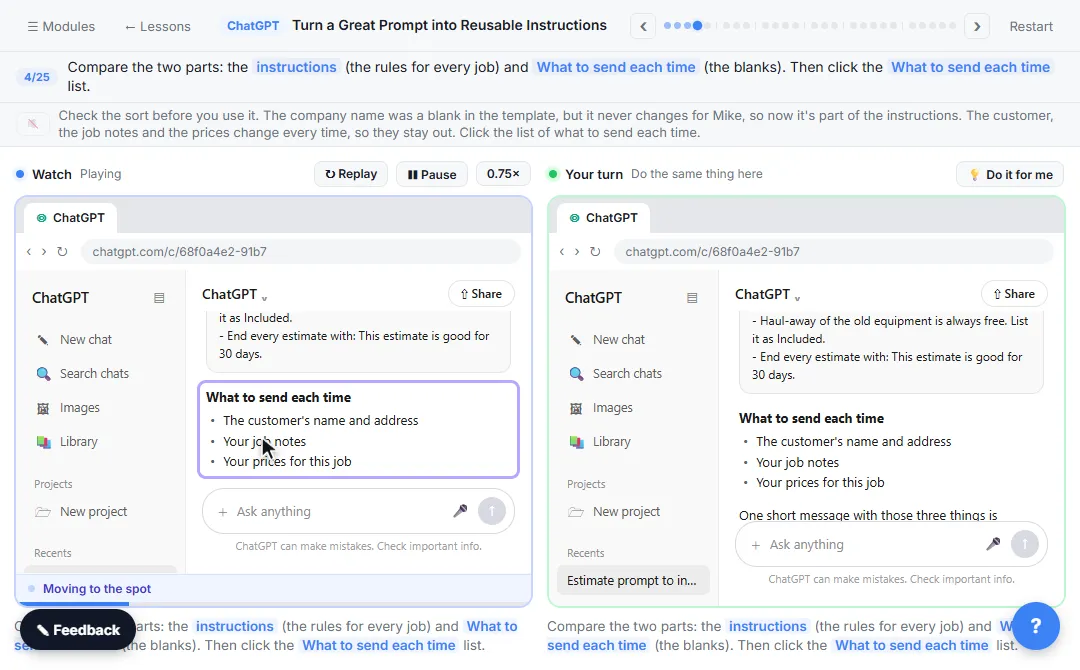
- Check the sort. Compare the two parts: the instructions (the rules for every job) and What to send each time (the blanks). Then click the What to send each time list.
Check the sort before you use it. The company name was a blank in the template, but it never changes for Mike, so now it's part of the instructions. The customer, the job notes and the prices change every time, so they stay out.
- Copy the instructions. Click Copy at the top of the instructions box.
The instructions look right.
2. Pick where it lives
- New project. In the sidebar, click the + next to Projects (it shows when you point at Projects).
Where should they live? Custom instructions, in Settings under Personalization, apply to every chat, which is too broad. Custom GPTs are being retired in December 2026, and personal accounts can't make new ones. Project instructions apply only to chats in that project, which is just right. In the sidebar, click the plus next to Projects.
- Name the project. Type the project name: Ridgeline Estimates
Name it for the job it does.
- Create the project. Click Create project.
3. Paste the instructions
- Open the project menu. Click the ⋯ button next to Share.
Here's the empty project. Instructions live in the project settings.
- Project settings. Click Project settings.
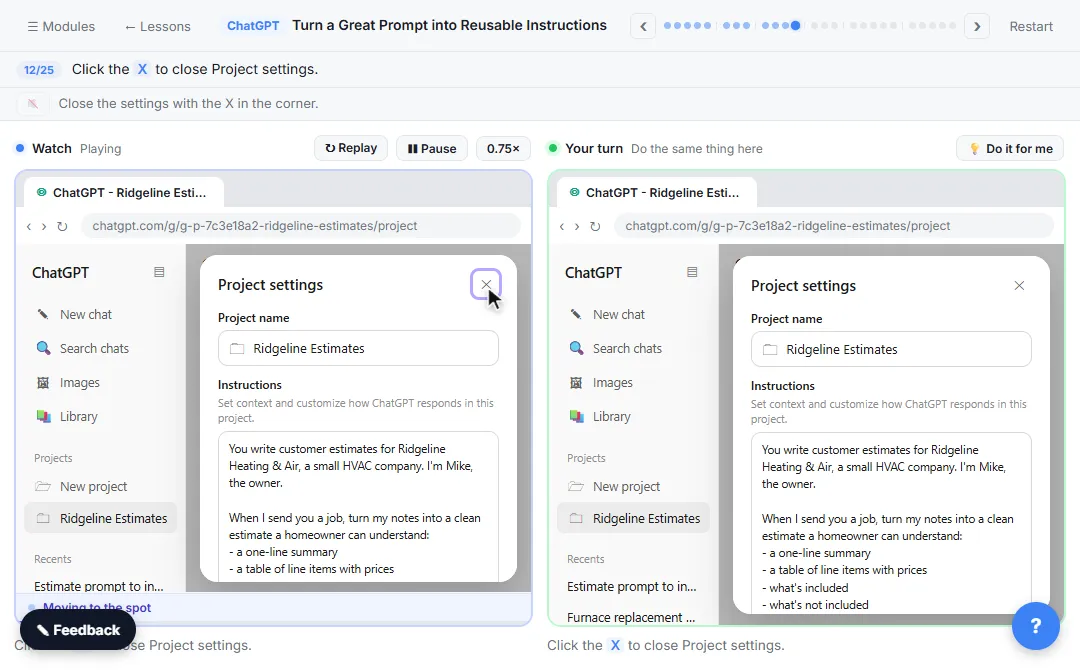
- Paste the instructions. Paste in the instructions to paste what you copied into the Instructions box.
These rules now apply to every chat in this project, and they take priority over your general custom instructions.
You write customer estimates for Ridgeline Heating & Air, a small HVAC company. I'm Mike, the owner.

When I send you a job, turn my notes into a clean estimate a homeowner can understand:
- a one-line summary
- a table of line items with prices
- what's included
- what's not included
- the total

Rules:
- Don't invent prices. Use only the numbers I give you.
- If a line item needs a price I didn't give, write PRICE NEEDED instead of guessing.
- Haul-away of the old equipment is always free. List it as Included.
- End every estimate with: This estimate is good for 30 days.
- Save the settings. Click Save at the bottom. Closing with the X throws your instructions away.
If you close it with the X, your instructions are thrown away.
4. Test it
- Send a one-line request. Type a short request in the New chat in Ridgeline Estimates box (or Paste in the request): Estimate for Dave Kim, 9 Oak St: replace his 3-ton AC condenser, 1-day install.
Now test it the way Mike will really use it: one quick line from the truck. Customer, address, the job.
- Send it. Click the send arrow.
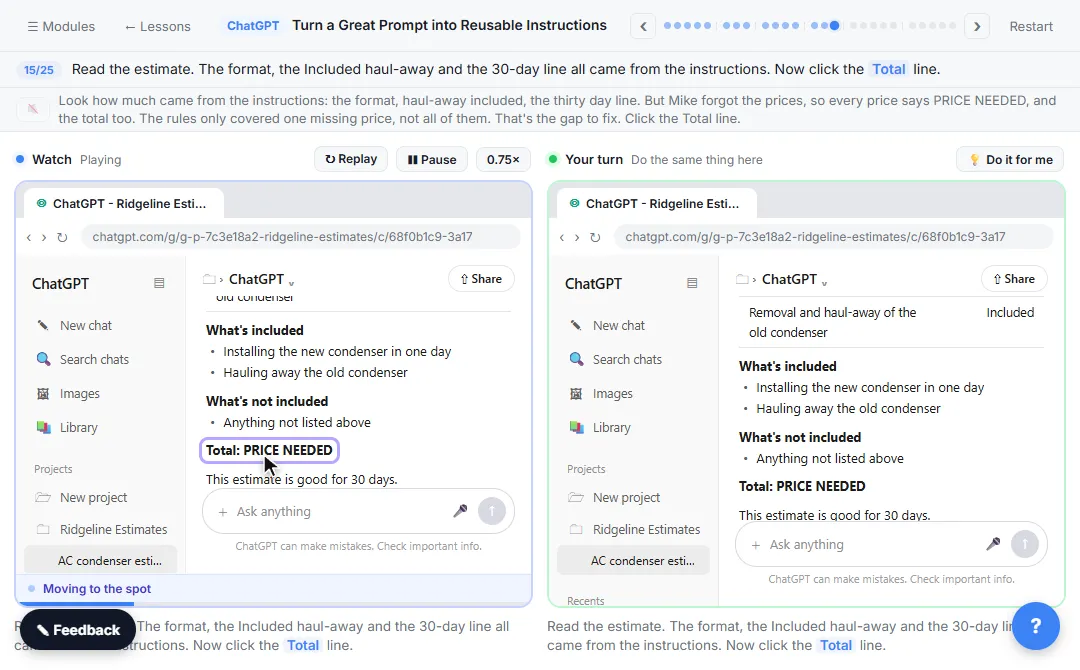
- Find the gap. Read the estimate. The format, the Included haul-away and the 30-day line all came from the instructions. Now click the Total line.
Look how much came from the instructions: the format, the free removal of the old unit, and the thirty day line. But Mike forgot the prices, so every price says PRICE NEEDED, and the total too. The rules only covered one missing price, not all of them. That's the gap to fix.
5. Fix the gap
- Back to the project. In the sidebar, click Ridgeline Estimates.
Good instructions cover the day you forget a blank. Go back to the project: click Ridgeline Estimates in the sidebar.
- Open the project menu. Click the ⋯ button next to Share.
- Project settings. Click Project settings.
- Add one rule. Paste in the rule to add one line at the end of the rules: if the prices, name or address are missing, ask first.
Add one rule at the end: if the prices, the customer's name or the address are missing, ask first, and don't write the estimate until you have them.
- If I don't give you prices, or the customer's name or address is missing, ask me for them first. Don't write the estimate until you have them.
- Save the settings. Click Save at the bottom.
6. Test it again
- Send the same request. Type the same request in the New chat in Ridgeline Estimates box (or Paste in the request).
Now send the exact same one-liner in a new chat, so the new rule is the only thing that changed.
- Send it. Click the send arrow.
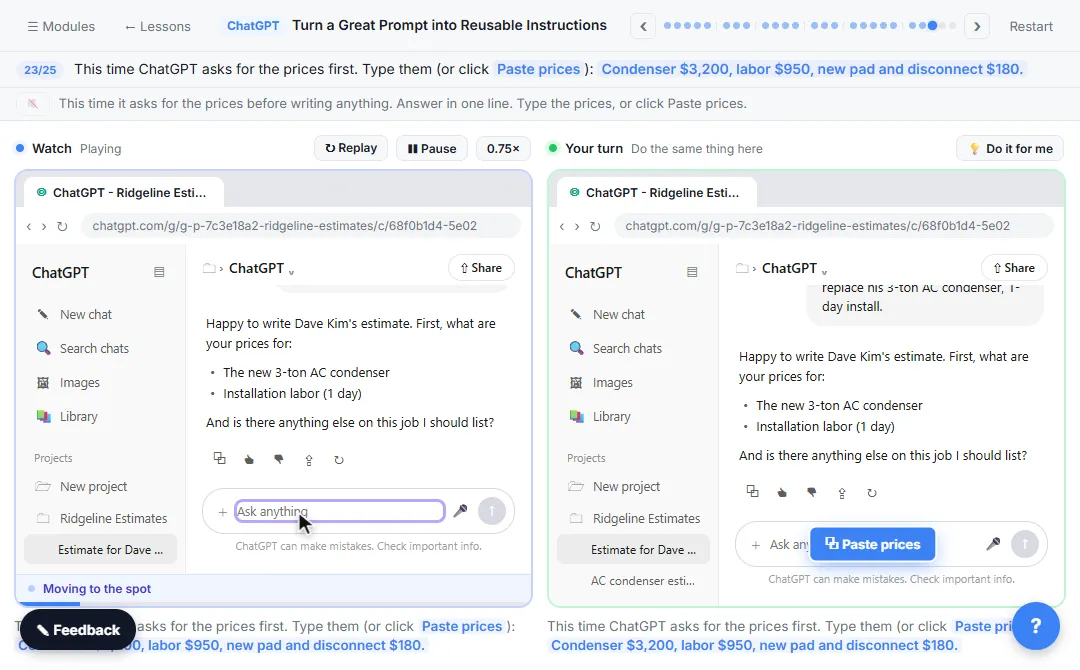
- Send the prices. This time ChatGPT asks for the prices first. Type them (or Paste in the prices): Condenser $3,200, labor $950, new pad and disconnect $180.
This time it asks for the prices before writing anything. Answer in one line.
- Send it. Click the send arrow.
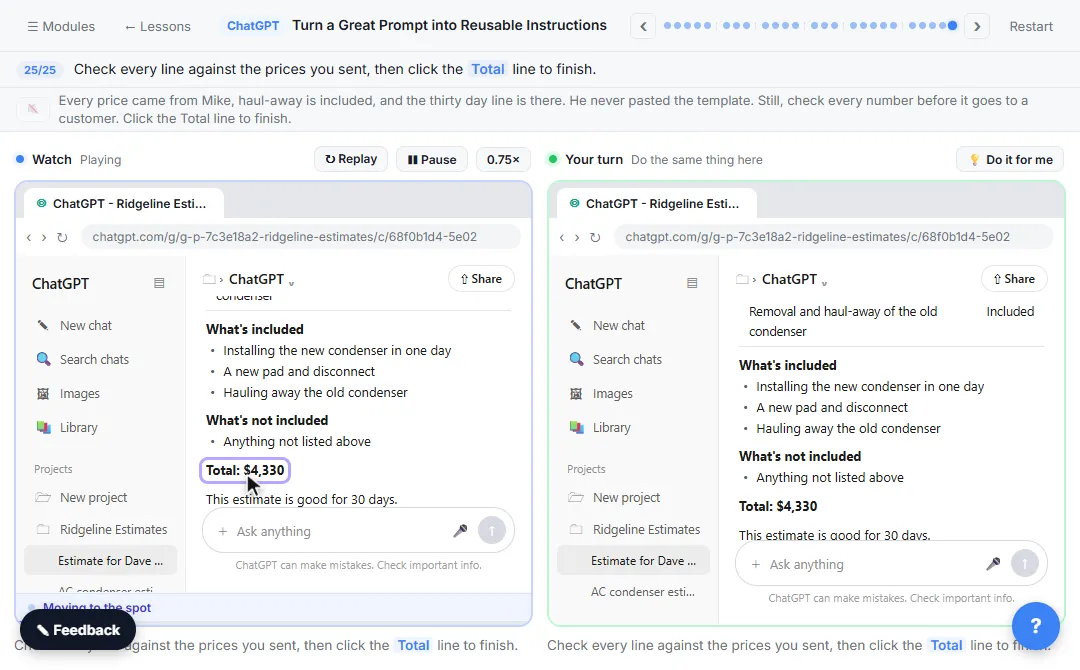
- Check the estimate. Check every line against the prices you sent, then click the Total line to finish.
Every price came from Mike, haul-away is included, and the thirty day line is there. He never pasted the template. Still, check every number before it goes to a customer.
Screenshots
Frequently asked questions
- What is the difference between a prompt and instructions in ChatGPT?
- A prompt is a message you send in one chat. Instructions are saved and applied automatically: custom instructions to every chat, and project instructions to every chat inside one project. Turning a reusable prompt into instructions means you only send the details that change.
- Where do I add project instructions in ChatGPT?
- Open the project, click the ⋯ button next to Share, choose Project settings, and type or paste into the Instructions box.
- Do project instructions override my custom instructions?
- Yes. According to OpenAI's help center, project instructions apply only within that project and override your global custom instructions.
- Should I still build a custom GPT?
- For new work, probably not. OpenAI is retiring custom GPTs and moving them to plugins, and personal accounts can no longer create new GPTs. A Project with instructions covers most reusable-prompt needs.
- Is this course really free?
- Yes. Stepthrough is completely free, and the practice copy needs no accounts. To do it for real you need a ChatGPT account; projects are available on the Free plan too.
More in Prompt Writing
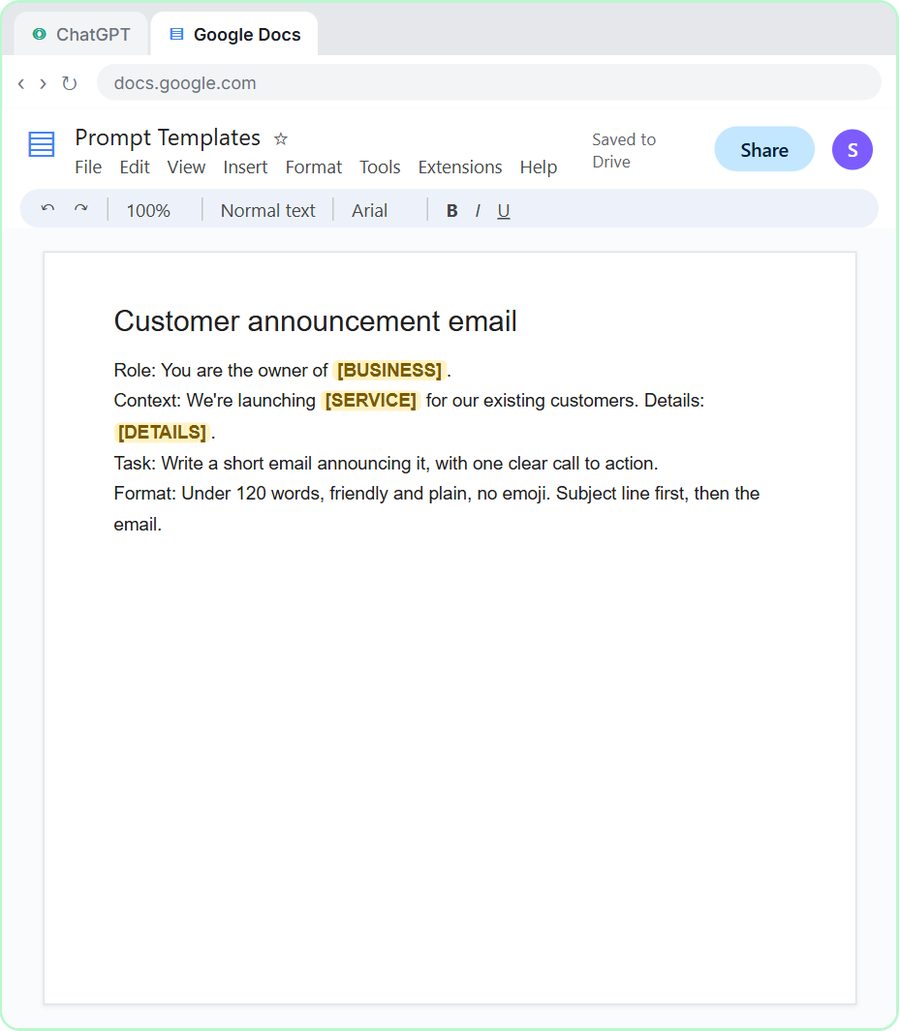 Prompt Writing 101: Role, Context, Task, Format
Ask ChatGPT for the same customer email twice, once vaguely and once with a four-part prompt, and see exactly why structure gets a better answer.
Free · Live ~8 min
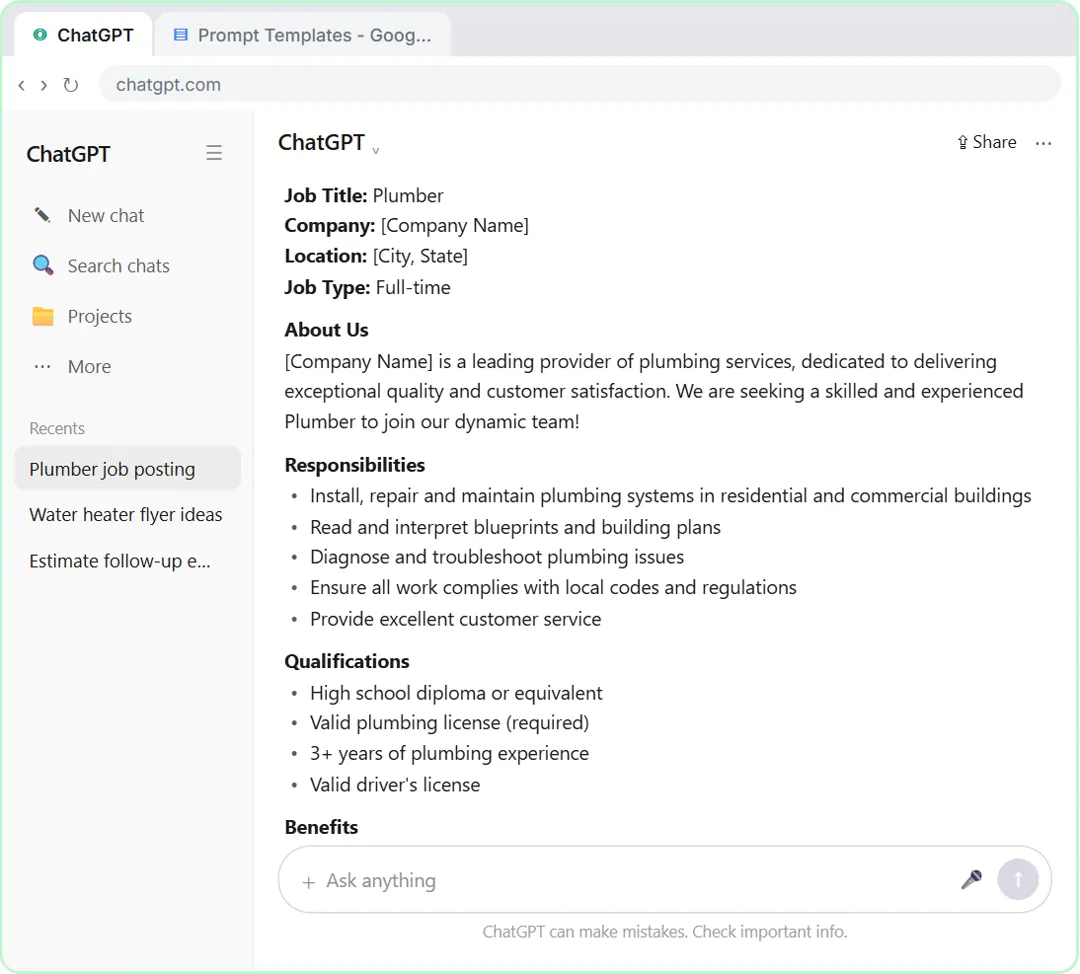 Make ChatGPT Ask You Questions First: The Interview Prompt
Ask for a job posting the quick way, then with the interview prompt: ChatGPT asks what it needs, one question at a time, and writes a posting you can actually use.
Free · Live ~6 min
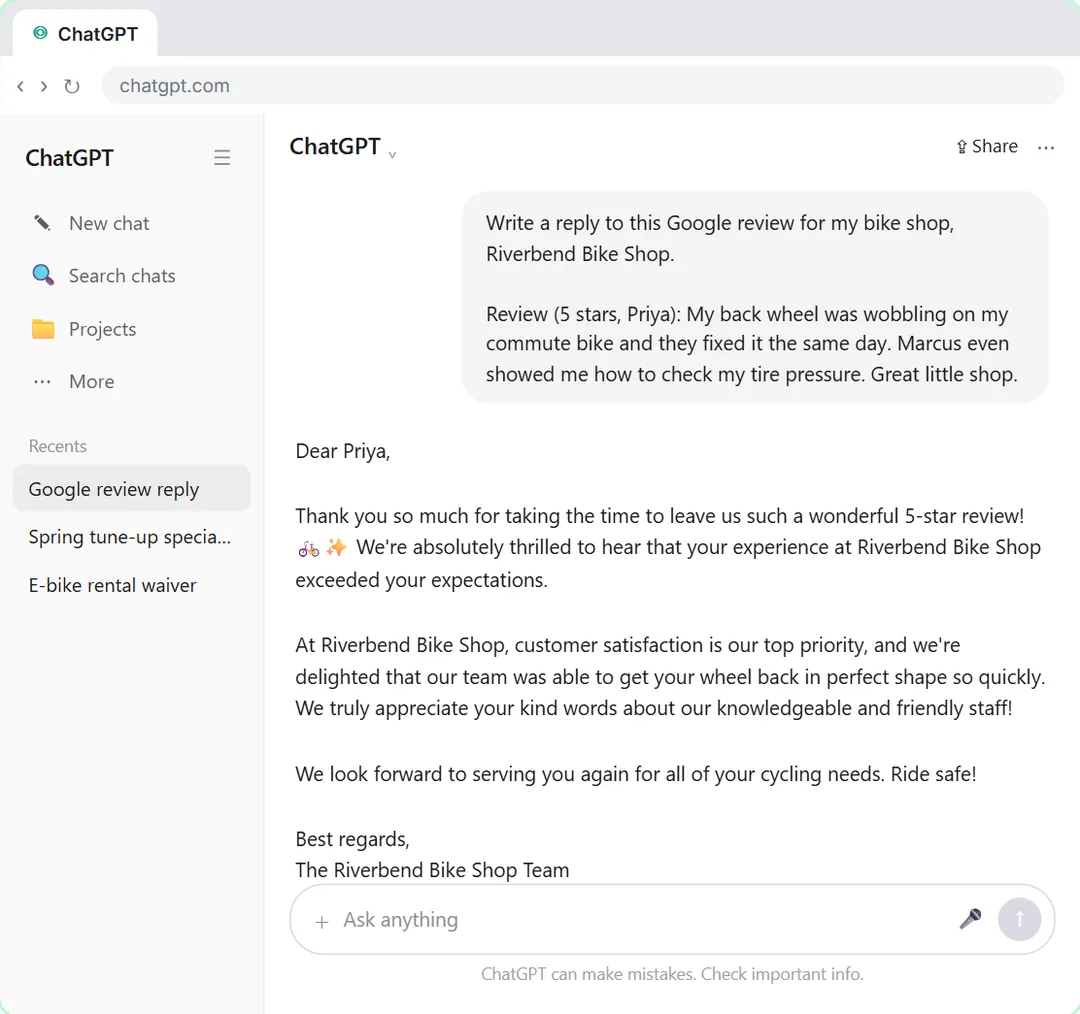 Give Examples: Few-Shot Prompts That Copy Your Style
Paste three of your real past replies into ChatGPT and get new Google review replies that sound like you, not like a template.
Free · Live ~6 min
 Break Big Jobs into Steps: Prompt Chaining for a Marketing Plan
Ask ChatGPT for a whole marketing plan in one prompt, then build a better one in four small steps: customers, offers, a calendar table and the posts.
Free · Live ~7 min
All 6 modules in Prompt Writing
More ChatGPT tutorials
 Get Your Business Recommended by ChatGPT
Ask ChatGPT who it recommends in your town, see which pages it trusts, then use it to write an FAQ page and Business Profile copy that answer real customer questions.
Free · Live ~10 min
 Summarize a Meeting Transcript with ChatGPT
Paste a long meeting transcript into ChatGPT and get the decisions, an action items table with owners and due dates, and a follow-up email ready to send.
Free · Live ~9 min
 Reply Faster: Turn a Messy Customer Email Thread into a Clear, Friendly Reply
Turn a messy customer email thread into a clear, friendly reply: give ChatGPT the thread and your facts, check every promise, fix the tone, and send it from Gmail.
Free · Live ~9 min
 ChatGPT Projects: Keep Your Brand Voice, Files and Instructions in One Place
Set up a ChatGPT Project with your brand voice instructions, your price list and your style guide, so every new chat already knows your business.
Free · Live ~9 min
 Analyze a Spreadsheet with ChatGPT: Upload a CSV, Get a Chart and Three Takeaways
Upload a CSV of sales to ChatGPT, have it check the data first, ask your questions, get a chart you can download, and finish with the three takeaways that matter.
Free · Live ~10 min
 ChatGPT Work: Have ChatGPT Do a Multi-Step Task
Switch ChatGPT to Work, hand it a real job (compare three suppliers into a spreadsheet), approve the sites it opens, skip a login, answer its question, check the file…
Free · Live ~8 min
Terms in this lesson
Plain-English definitions, each with an example from a free lesson.