Updated . Built from screenshots in tawk.to's own Help Center, credited under each image, not tested in a live tawk.to account. How we check this lesson
A small office closes at 5, but its website keeps getting questions: fees, hours, which software you use, how to send documents. Nobody answers until morning, and some of those people book someone else. tawk.to is free live chat for websites, and its AI Assist add-on can answer routine questions from your own material. In this free business-case lesson you create a property, add the chat widget to your site, make it look like yours, switch on AI Assist and build an AI agent from your website, answer a chat yourself, and decide what visitors see after hours. Every tawk.to screen in the lesson is a screenshot from tawk.to's own Help Center, credited and linked to its article. This is my own lesson, not an official tawk.to course.
At a glance
| Question | Answer |
|---|---|
| What you build | A business case for any small office whose website gets questions after closing: put tawk.to's free chat widget on your site, let AI Assist answer the routine questions from your own material, and decide what visitors see when nobody is there. |
| Tools | tawk.to |
| Time | About 14 minutes, 45 steps in 9 parts |
| Level | Beginner, no coding needed |
| Cost | Free |
| Ways to learn it | Practice it step by step |
The 9 parts, in short
- Questions that come in after hours: The questions you miss, What a missed question costs, Meet tawk.to.
- Create a property: Open the property list, Click Create Property, Name the property, Click Next, and 2 more steps.
- Add the chat widget to your site: Open Administration, Click Chat Widget, Copy the widget code, On WordPress, add the plugin, and 2 more steps.
- Make the widget look like yours: Open Widget Appearance, Pick the shape and position, Save.
- Turn on AI Assist: Open Add-ons, Click Get Started, Switch AI Assist on.
- Build your AI agent: Open Automations, Add your first agent, Tell it about your business, Choose what the agent does, and 7 more steps.
- Answer a chat yourself: Open a new chat, Join the chat, Answer from your phone.
- Set what happens after hours: Open your status, Choose Away, Find the Widget Scheduler, Pick your hours, and know the trade-off, and 4 more steps.
- What is free and what costs money: What is free, What to check before you rely on it.
Part of: AI Apps Worth Knowing (step 15 of 49)
The business case: questions that arrive after 5
A bookkeeping office answers its phone from 9 to 5, but its website is open all night. People look for an accountant in the evening and on weekends, and they have quick questions: what do you charge, which software do you use, how do I send you my documents, are you taking new clients. If nobody answers, some of them book the next firm they find.
Here is the arithmetic, with example numbers you should replace with your own. Say about 12 website questions a week arrive after hours, and only 2 people a year book someone else because nobody answered. At about $150 a month in fees each, that is about $3,600 a year of work. Most of those questions are the same few, so they can be answered well without you.
A live chat box gives those visitors a place to ask. tawk.to's AI Assist can answer the routine questions from your own website, FAQs and business facts, and anything else waits for a person, with the whole conversation saved.
About the screens in this lesson
Every tawk.to screen in the practice is a screenshot that tawk.to publishes in its Help Center at help.tawk.to. Under each one is a credit, "Screenshot: tawk.to Help Center", linking to the article it comes from. I could not get the tawk.to dashboard to load in my browser, so this lesson follows tawk.to's docs instead of my own account. Your screens may look a little different, and some screenshots show tawk.to's demo businesses rather than a bookkeeping office.
Step 1: create a property and find the widget code
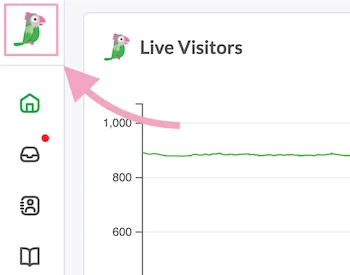
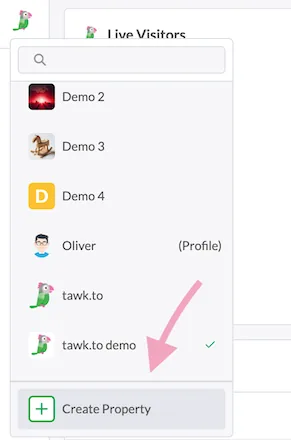
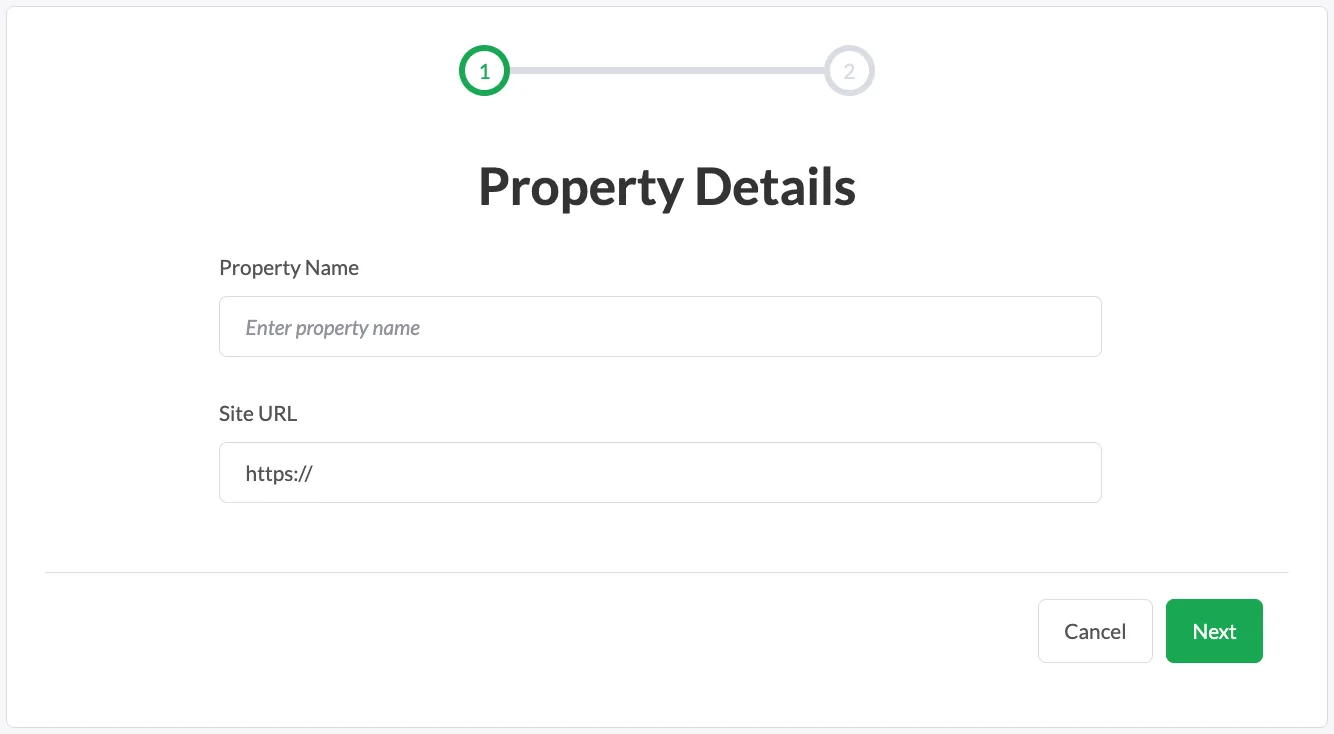
In tawk.to, each website is a property, with its own chat widget, chat page, knowledge base and reports. The Help Center says you can add unlimited properties for free. Click the property image, then Create Property, enter a Property Name and your Site URL, and click Next.
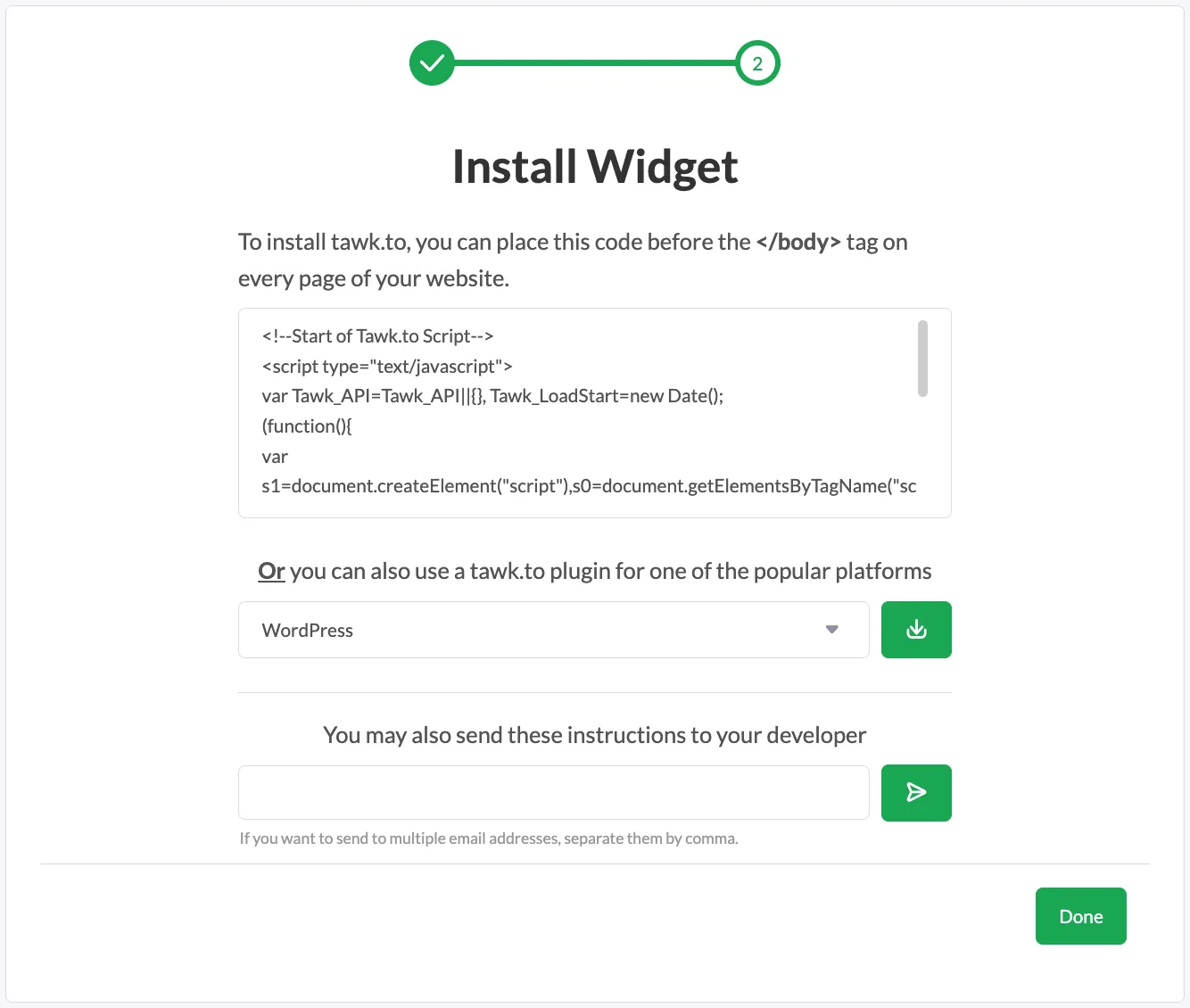
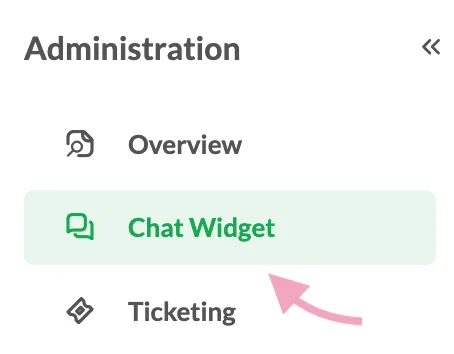
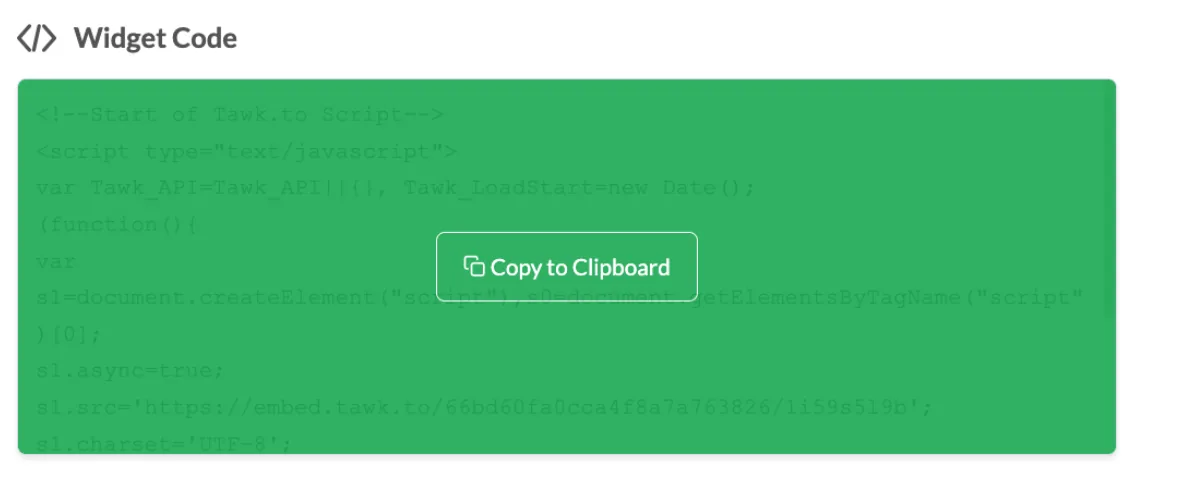
The Install Widget screen shows your widget code, a short script that goes before the closing body tag on every page of your site. You can also pick a plugin for a platform such as WordPress, or email the instructions to your web developer. To find the code later, go to Administration, then Chat Widget, and copy the Widget Code.
Step 2: add the widget to your website
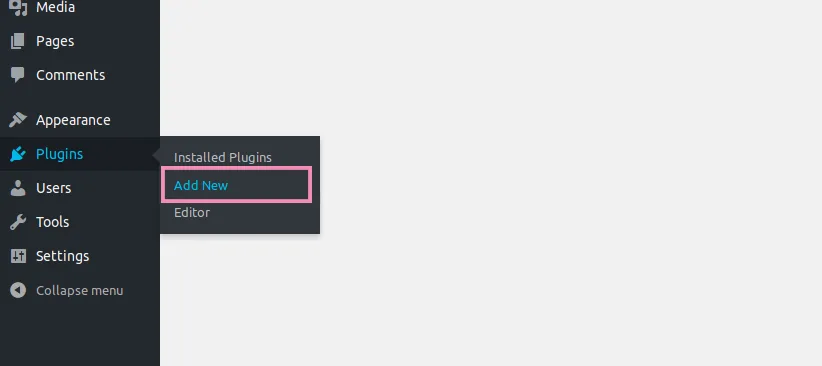
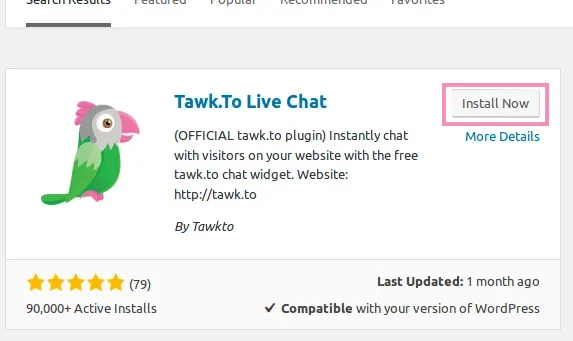
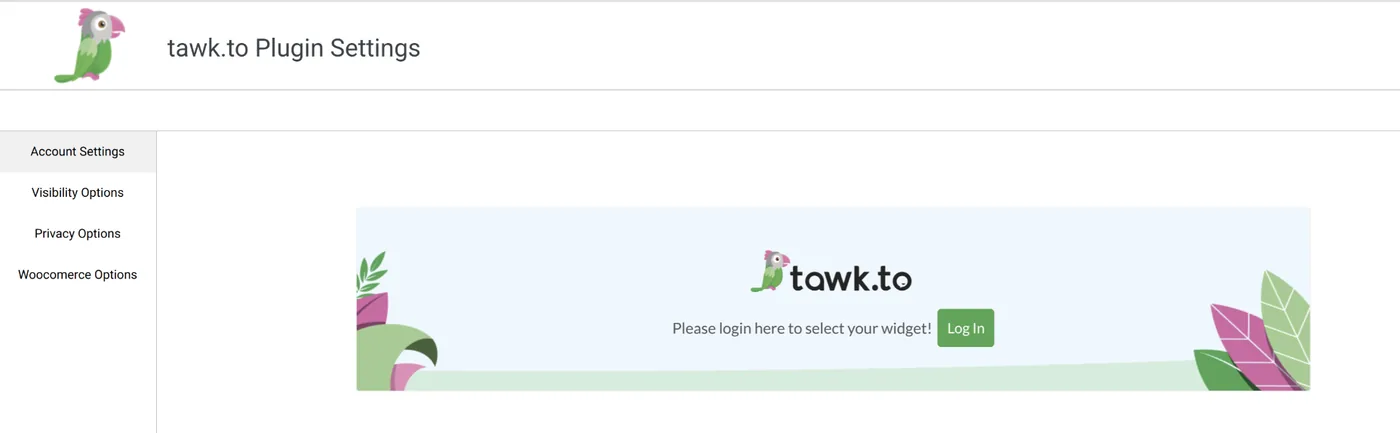
If you edit your site's HTML, paste the code just before the closing body tag, then save and publish. If your site runs on WordPress, go to Plugins, then Add New, search for Tawk.To Live Chat, click Install Now and Activate. In the plugin's settings, log in with your tawk.to account, pick the property and widget, and click Use Selected Widget. The widget then shows on every page.
Step 3: make the widget look like yours
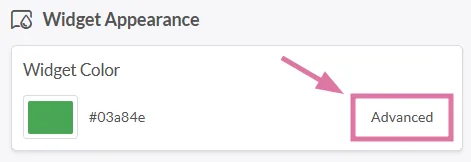
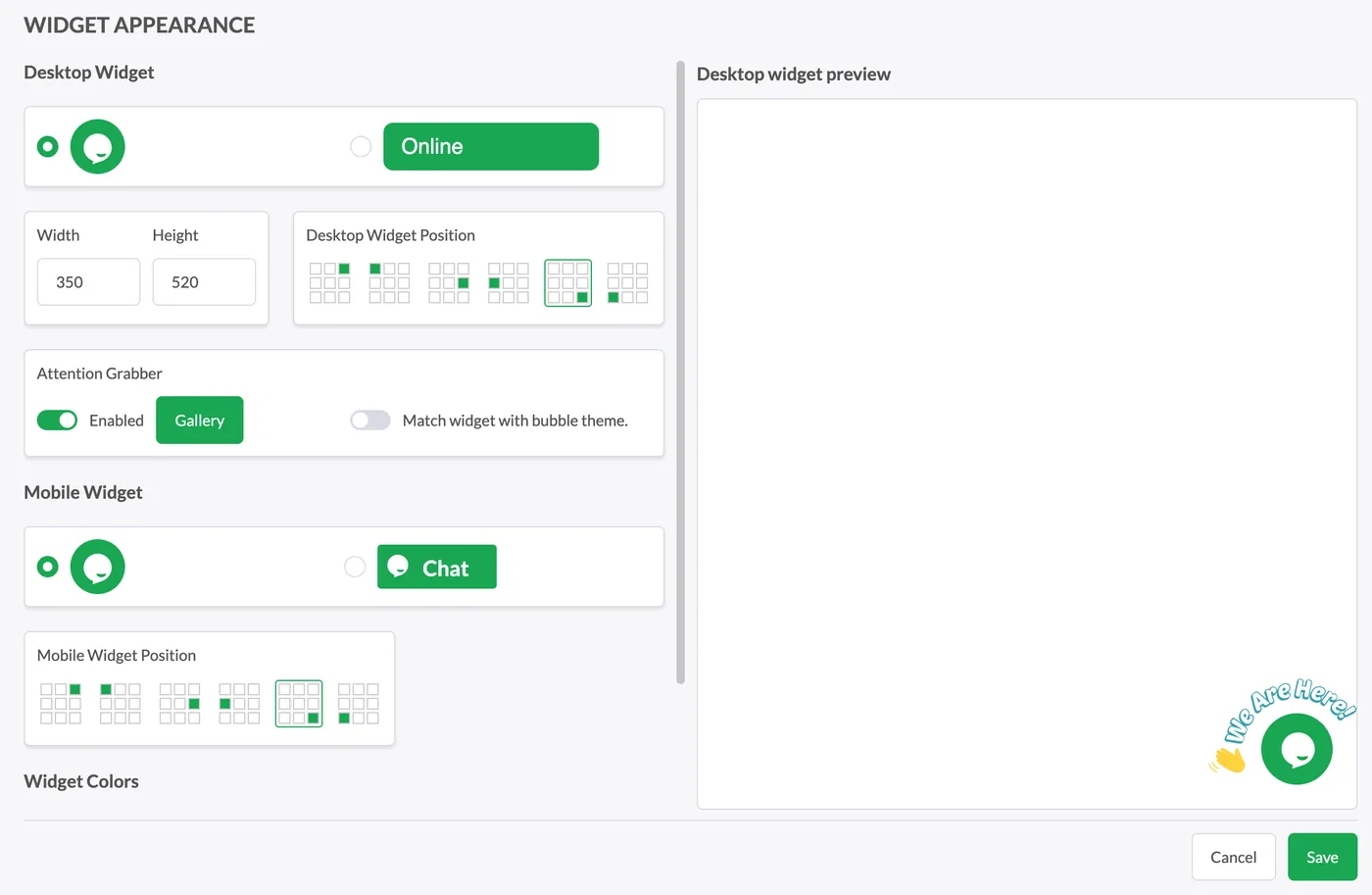
On the Chat Widget page, find Widget Appearance and click Advanced. You can set the shape, size, colors and position for desktop and mobile, with a live preview. Click Save, and the widget on your site updates by itself, with no code changes.
Step 4: switch on AI Assist and build an AI agent
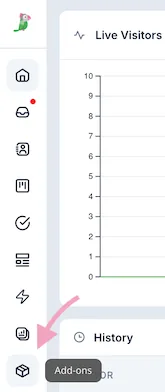
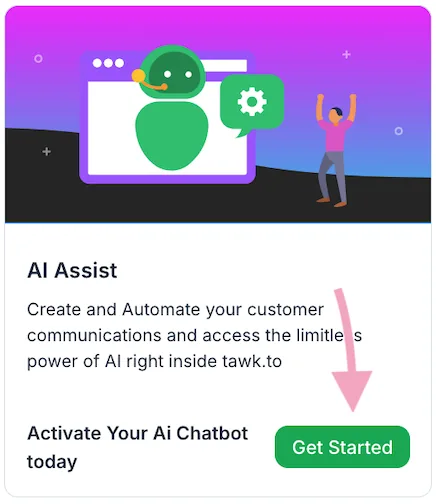
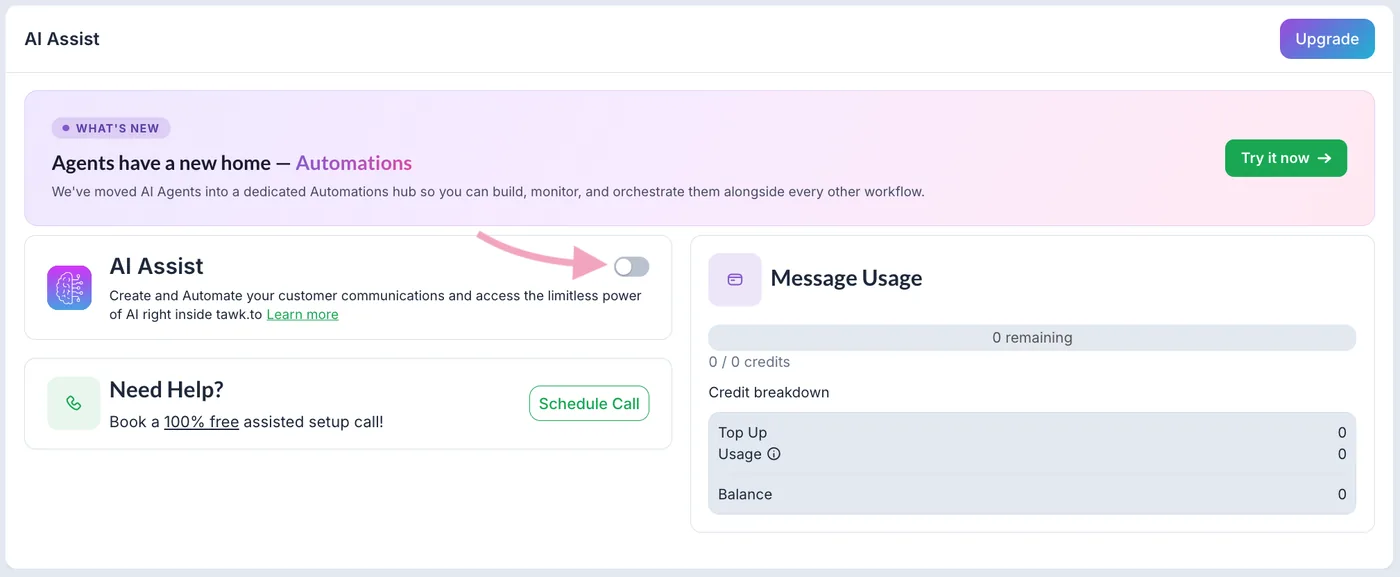
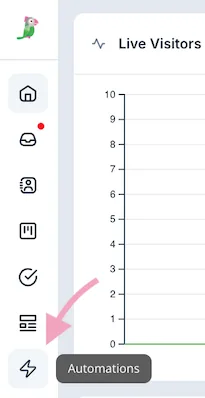
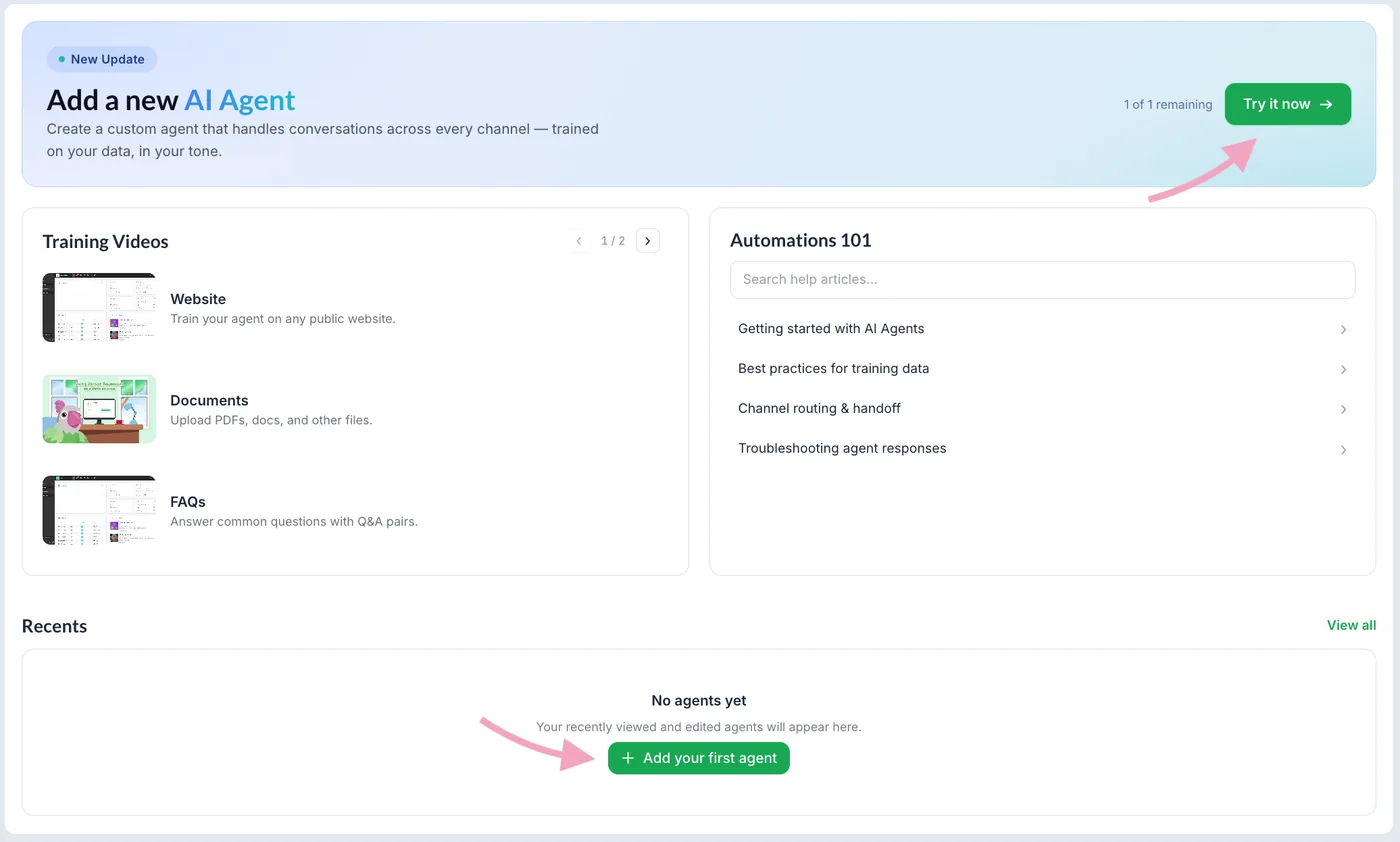
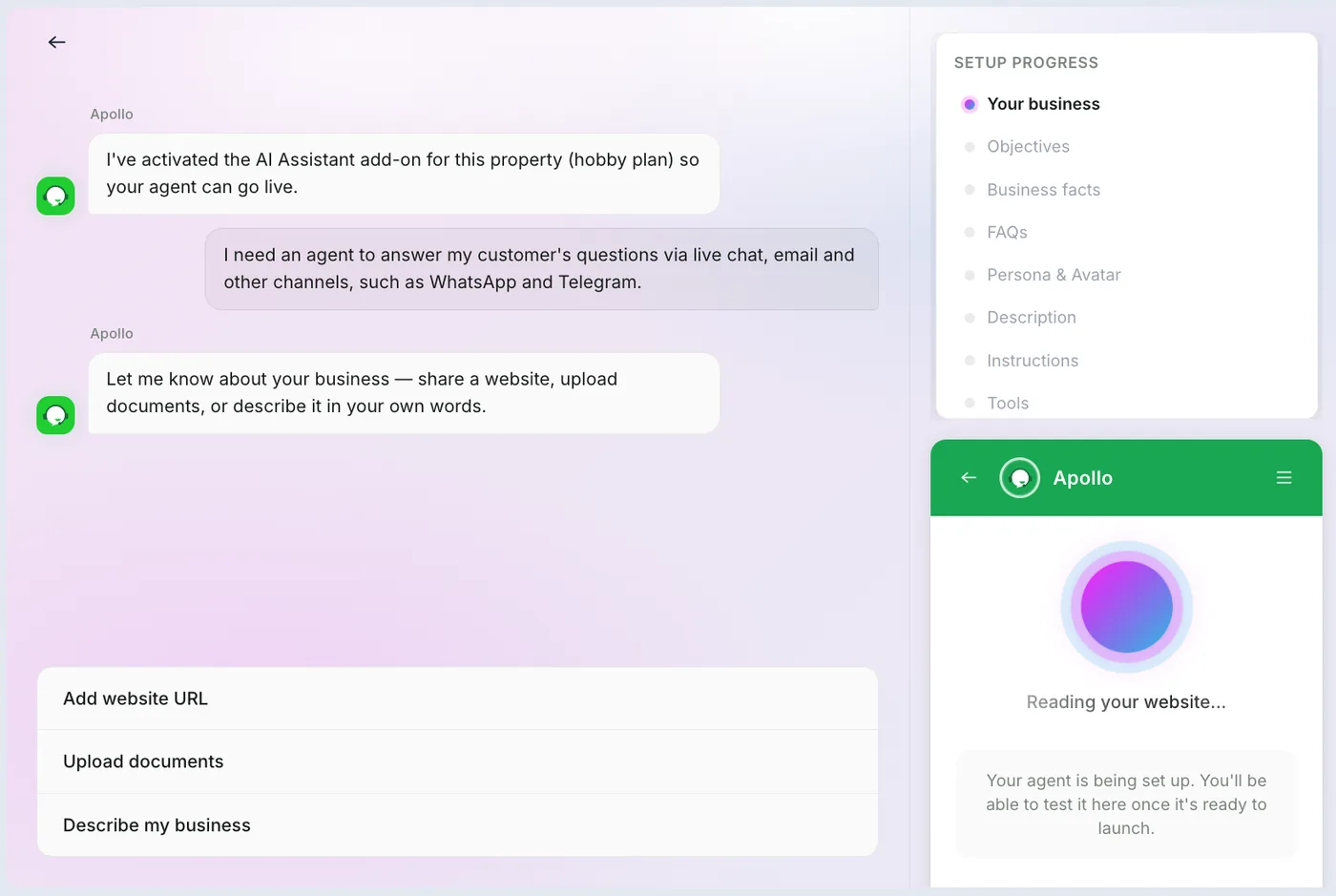
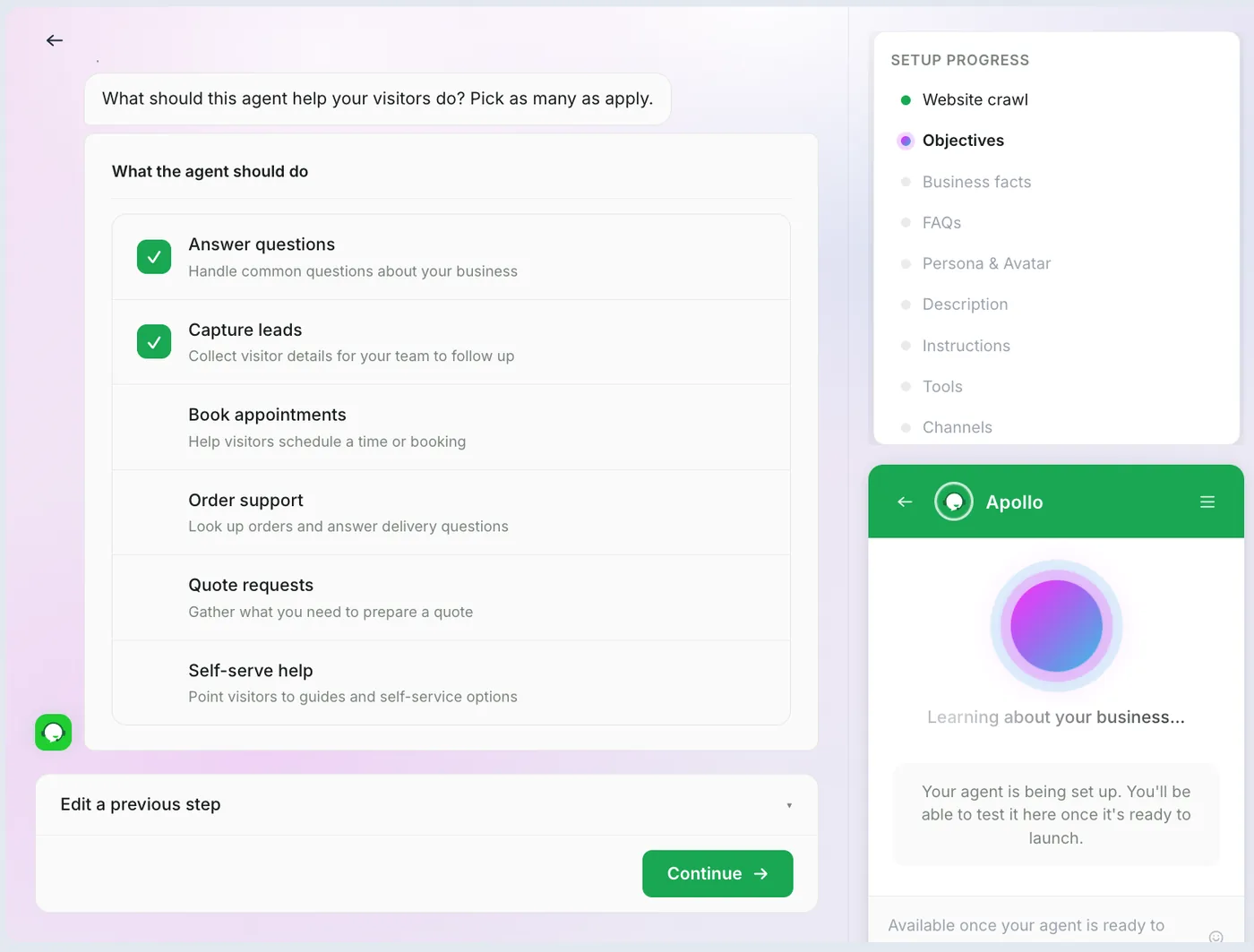
Click Add-ons, then Get Started under AI Assist, and switch AI Assist on. Then click Automations and add your first agent. A setup wizard asks about your business: add your website URL, upload documents or describe it. Choose what the agent does, such as Answer questions, and what happens when it can't help.
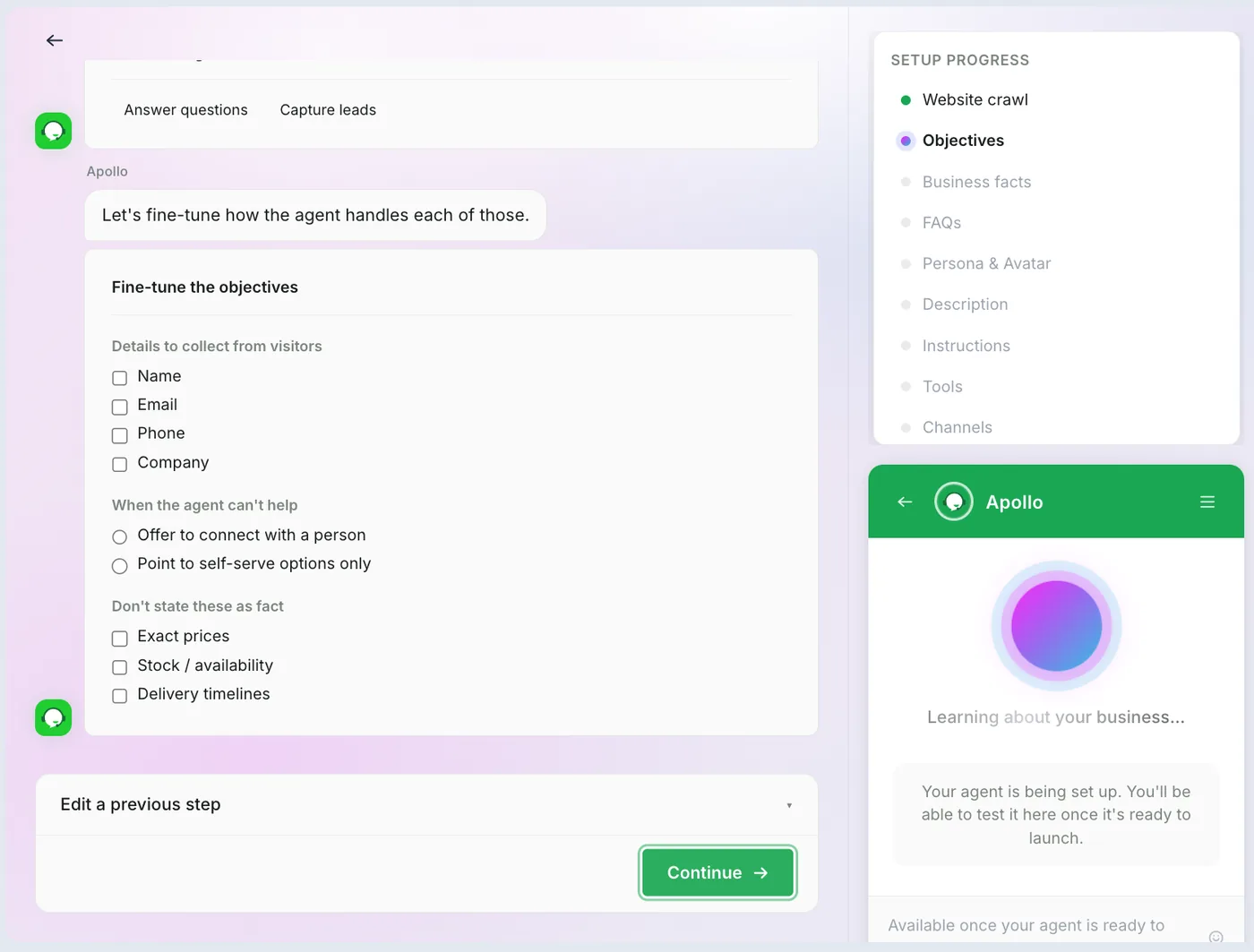
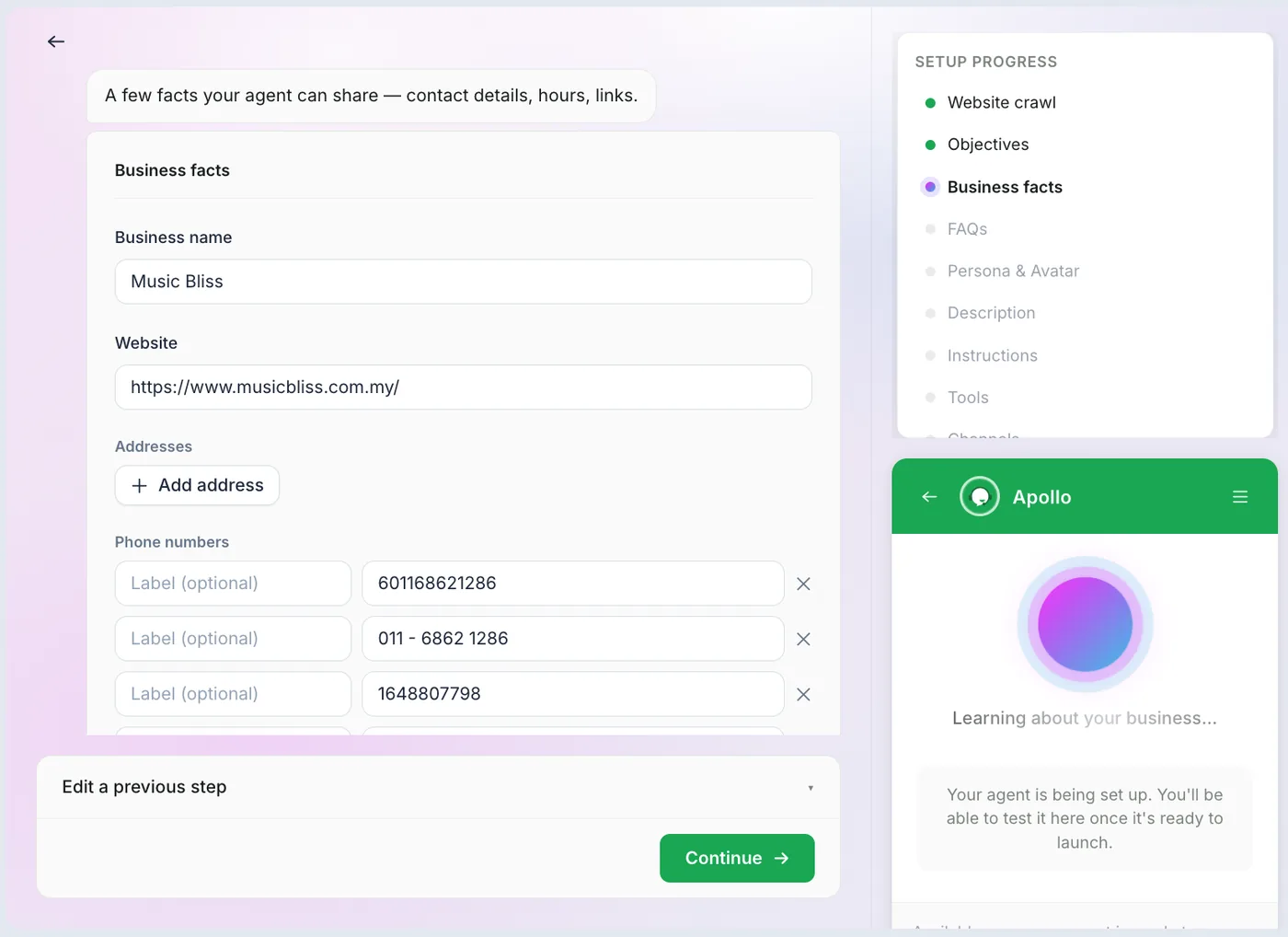
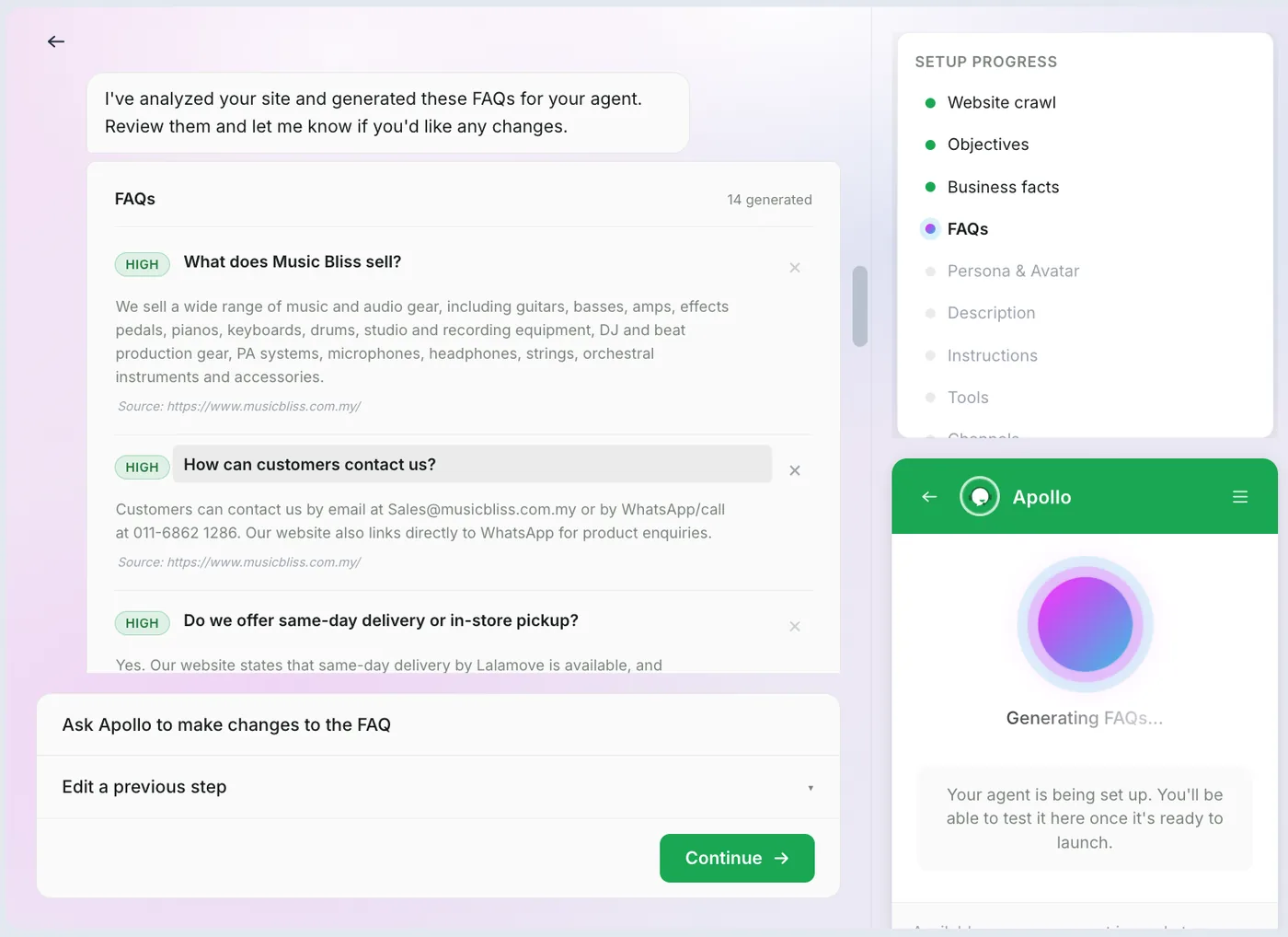
You can tell the agent not to state some things as fact, such as exact prices. Add your business facts, including your phone number and opening hours, and review the FAQs the wizard writes from your site. Read every one, because the agent answers from them. Then test the agent in the preview chat. The Help Center says testing does not use your message credits.
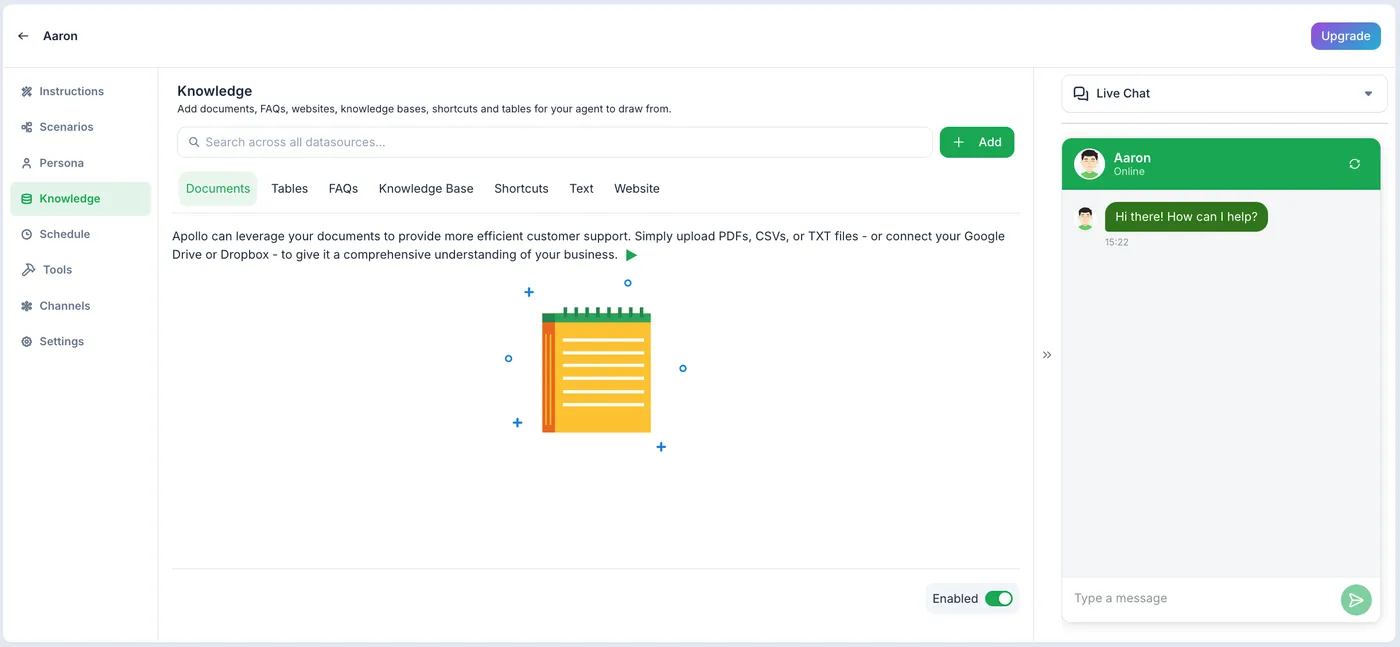
Later, the agent's Knowledge page takes more sources: documents, tables, FAQs, Knowledge Base articles, shortcuts, text and websites. An FAQ question can be up to 255 characters and its answer up to 1,000.
Step 5: answer a chat yourself
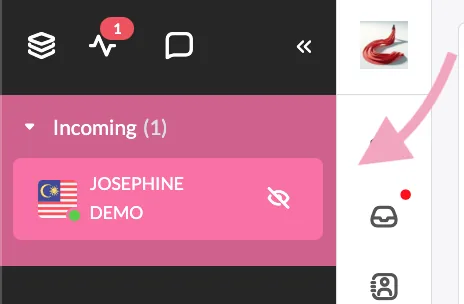
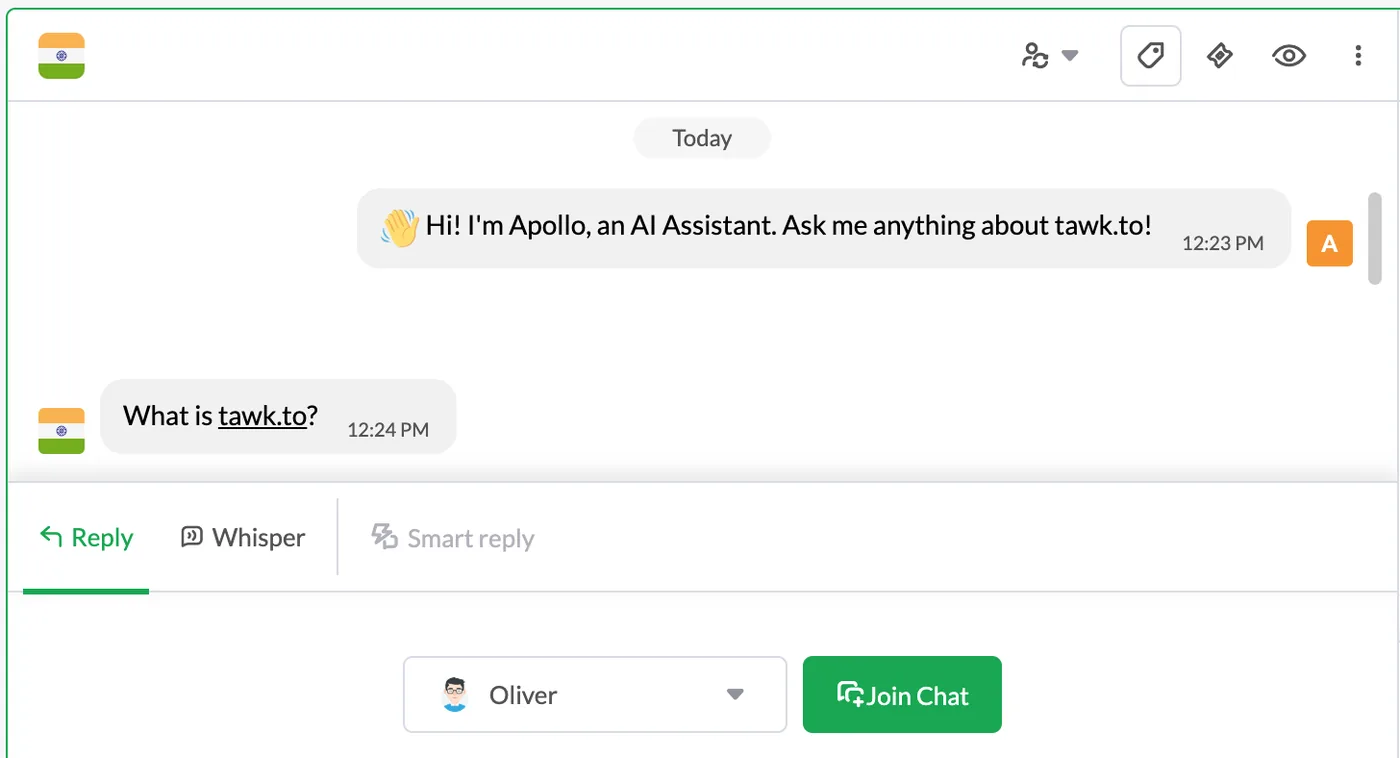
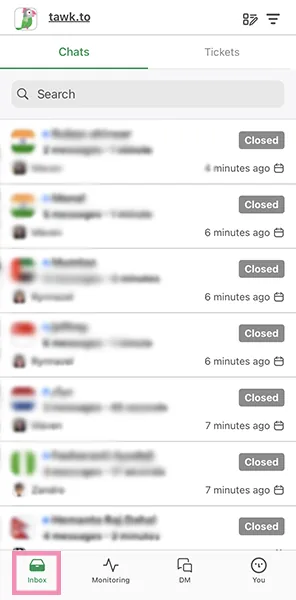
New chats show as Incoming in the left bar of the dashboard, in pink until someone answers. Open the chat and click Join Chat. If AI Assist is handling the chat, the Help Center says it leaves by itself when you take over. You can also answer from the tawk.to phone apps; in the iOS app, Inbox is at the bottom left.
Step 6: choose what visitors see after hours
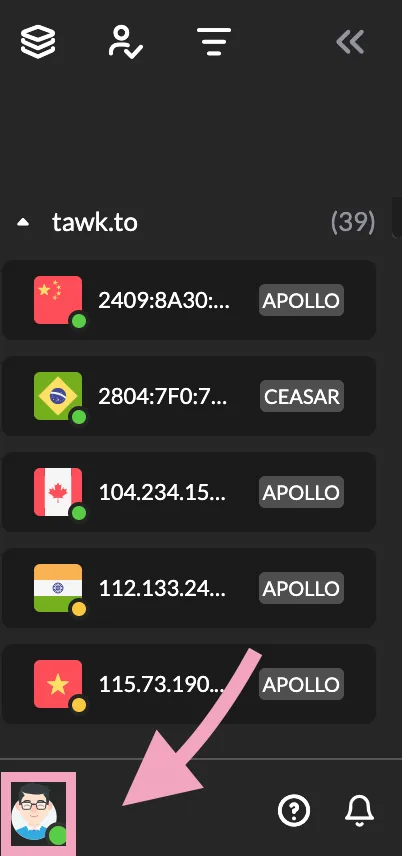
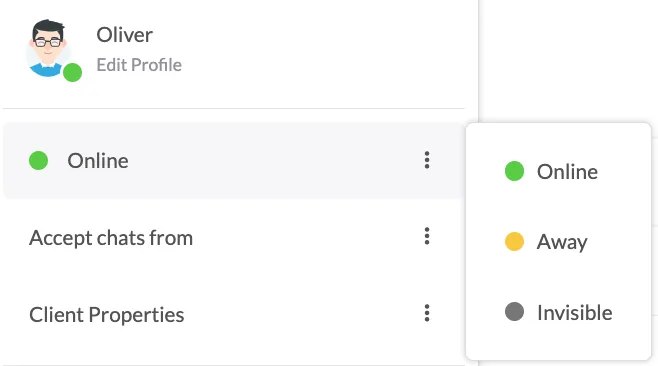
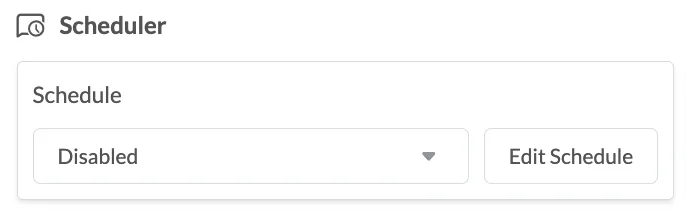
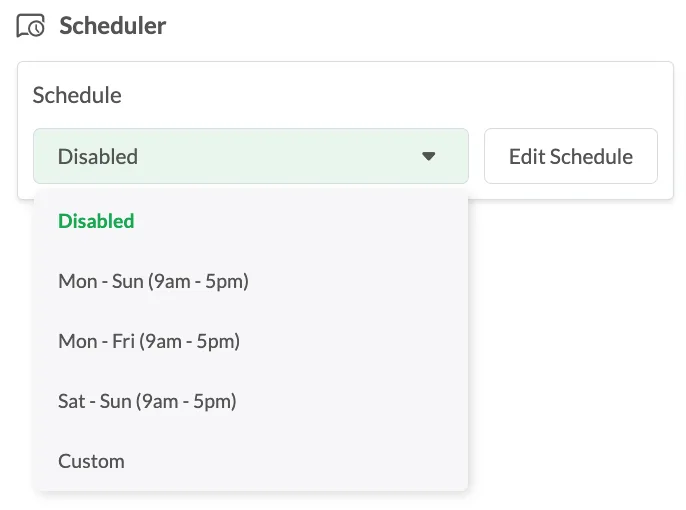
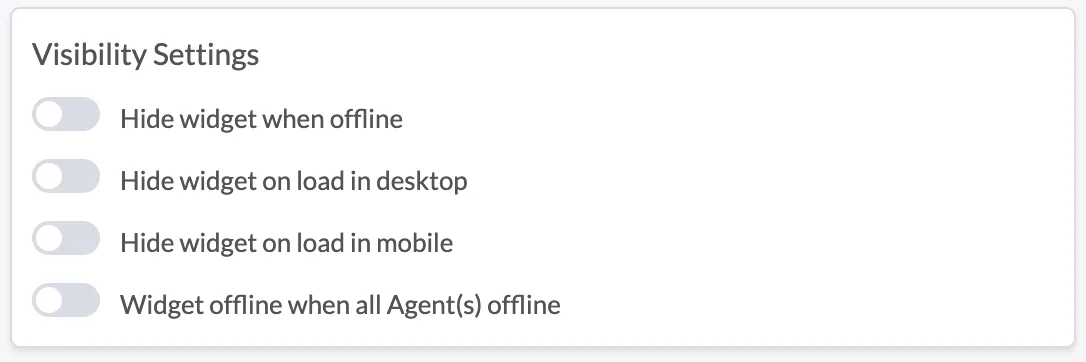
Set your status from your profile image: Online, Away or Invisible. The Widget Scheduler, under Administration and Chat Widget, sets your online hours, with presets such as Mon - Fri (9am - 5pm) or a custom schedule. In Visibility Settings, Widget offline when all Agent(s) offline is off by default, so turn it on if you do not want the widget to look online when nobody is there.
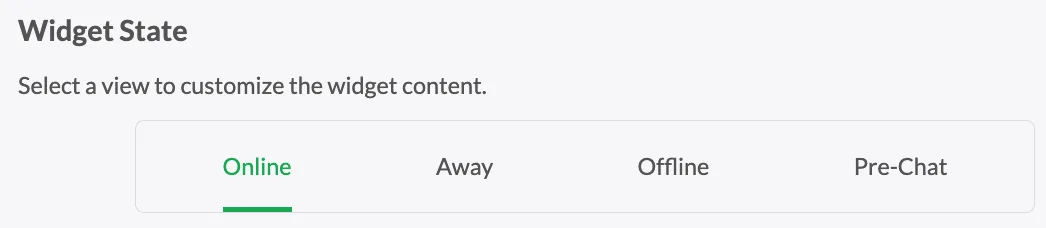
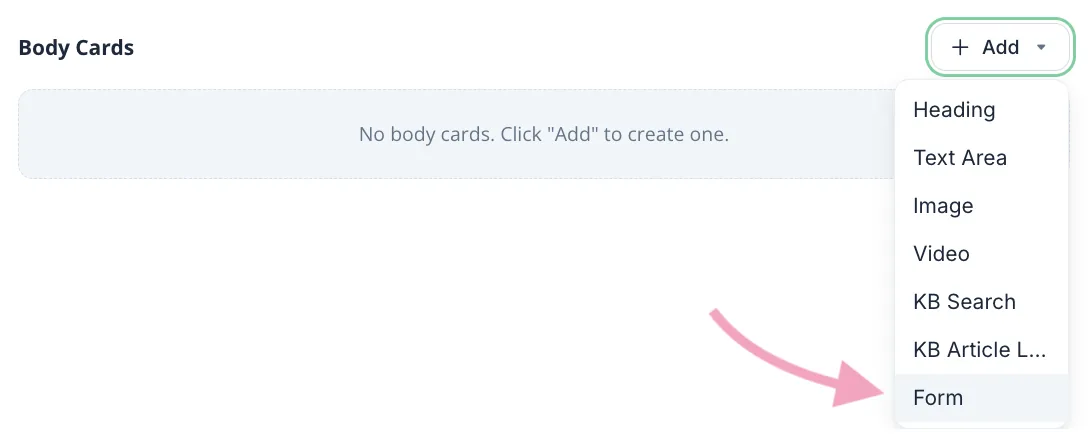
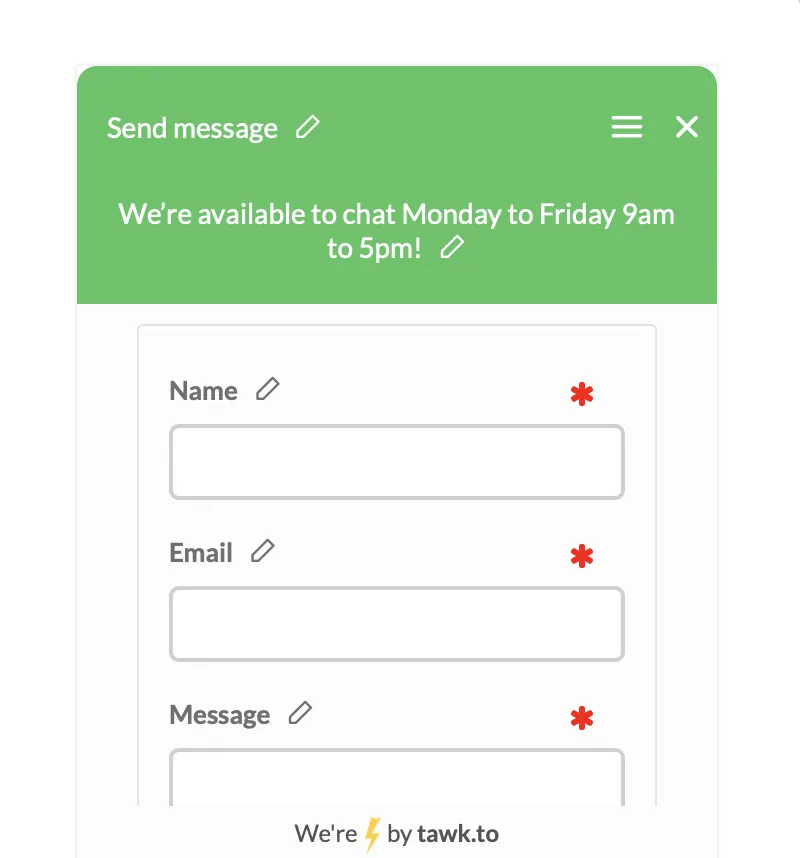
When the widget is offline, visitors see the Offline form, which you edit under Widget Content: Widget State, Offline, then add a Form card with fields such as Name and Email. Write your hours above it, and answer those messages first thing in the morning.
The after-hours trade-off to get right
This is the judgement call the lesson is built around. tawk.to's Help Center says the Widget Scheduler takes priority over both your status and AI Assist: during scheduled offline hours, the widget stays offline even if AI Assist is on. Outside those hours, with AI Assist on and able to answer, the widget may stay online even when every person is offline.
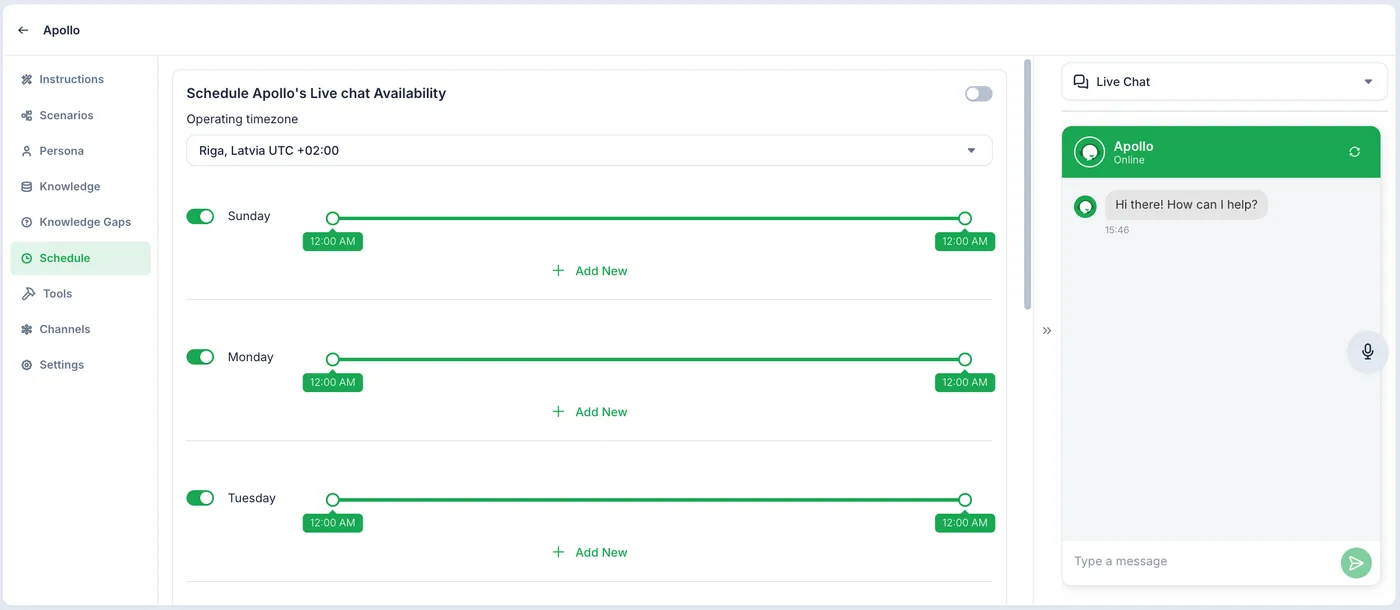
So pick one plan for after hours. If you want the AI to answer at night, do not schedule the widget offline at night. If you would rather collect a message and answer it yourself, schedule your hours and set up the Offline form. Either is better than a chat box that looks online while nobody answers. The AI agent's own Schedule page, which sets when the agent answers, is on paid plans only.
What is free and what costs money
- Free: the tawk.to live chat software, as its pricing page describes it, with the small "Powered by tawk.to" badge.
- Paid: removing the badge is $29 a month.
- Free, with a limit: AI Assist has a forever-free plan for sites with limited chat volume. The pages I read do not publish that limit.
- Paid: AI Assist Growth is $29 a month ($290 a year) with 1,000 message credits, Business is $99 a month and Enterprise is $399 a month. Extra credits are $30 per 1,000. The default Auto model uses 3 credits per reply.
- Paid plans only: the AI agent's Schedule page and escalation settings. The plan list puts escalations to human agents in Growth.
- Optional services: hired chat agents are $1 an hour.
Mistakes to avoid
- Letting the AI answer from FAQs nobody read. Check every answer the wizard writes, and fix it when your fees or hours change.
- Letting the AI quote exact fees. Mark exact prices as something it should not state as fact.
- A widget that looks online when nobody is there. Choose the AI plan or the offline plan for after hours.
- Asking visitors for card numbers, tax IDs or other sensitive details in the chat.
- Treating this lesson's numbers as yours. Count your own after-hours questions first.
Links
- tawk.to: the free live chat tool this lesson teaches.
- tawk.to pricing: the live chat software is free with the tawk.to badge; removing the badge is $29 a month; AI Assist has a forever-free plan for sites with limited chat volume and paid plans from $29 a month (read 18 October 2026).
- tawk.to Help Center: Getting started with AI Assist: tawk.to's own guide to switching on AI Assist and building an AI agent, where most of the screenshots come from.
- tawk.to Help Center: How to manage billing for AI Assist: the AI Assist plans, message credits and prices.
Try it yourself, free
Reading the steps is a start. Doing them is how it sticks. The interactive module walks you through every click in a practice copy of tawk.to, checks each step, and never touches your real accounts.
Start “tawk.to: Answer Website Questions After Hours”Step by step: tawk.to: Answer Website Questions After Hours
All 45 steps of the interactive module, in order. In the module you watch each one, then do it yourself in a practice copy that checks your work.
1. Questions that come in after hours
- The questions you miss. Say Harbor Lane Bookkeeping is a 4-person bookkeeping office. The phones stop at 5, but the website does not: about 12 website questions a week arrive after 5 pm or on weekends. Most of the questions are the same few: fees, hours, which software we use and how to send documents. Click the questions.
A small bookkeeping office closes at five. The website does not. About twelve questions a week come in when nobody is there.
- What a missed question costs. If even 2 of those people book someone else, at about $150 a month each, that is about $3,600 a year of work. These are example numbers, made up, so use your own. Click the cost.
If even two of those people book someone else, that is real money. These are example numbers, so use your own.
- Meet tawk.to. tawk.to is free live chat for your website. You put a chat box on your site, answer from a dashboard or the phone app, and can add AI Assist, an AI agent that answers routine questions from your own material. Every tawk.to screen in this lesson is a screenshot from tawk.to's own Help Center, with a link to the article under it. Click the tawk.to card.
tawk. to puts a free chat box on your website. Every tawk. to screen you see here comes from tawk. to's own help center.
2. Create a property
- Open the property list. In tawk.to, each website is a property, with its own chat widget, chat page, knowledge base and reports. The Help Center says you can add as many as you like, free. To add one, click the property image at the top of the dashboard.
Each website is a property in tawk. to.
- Click Create Property. A list of your properties opens. Click Create Property at the bottom of the list.
- Name the property. Under Property Details, the Property Name is just for you. Type Harbor Lane Bookkeeping. You would also put your website address in Site URL.
Give the property a name. We typed Harbor Lane Bookkeeping. Then add your website address.
- Click Next. With the name and the Site URL filled in, click Next.
- Find your widget code. Install Widget shows your widget code: a short script that goes before the </body> tag on every page of your website. Below it you can pick a plugin for a platform such as WordPress, or email the instructions to your web developer. Click the code.
This is your widget code. It goes on every page of your site. You can also pick a plugin, or send it to your web developer.
- Click Done. You can come back for the code at any time, so click Done. tawk.to opens the new property's settings.
You can find the code again later.
3. Add the chat widget to your site
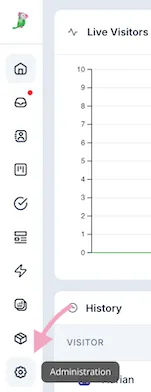
- Open Administration. To get the code again, make sure the right property is selected, then click Administration, the gear at the bottom of the left bar.
To find the code again, click Administration, the gear at the bottom left.
- Click Chat Widget. Click Chat Widget in the menu.
- Copy the widget code. Under Widget Code, click Copy to Clipboard. If you edit your site's HTML yourself, paste it just before the closing </body> tag, then save and publish the page. Each property has its own code, so check the property name before you copy.
Copy the widget code.
- On WordPress, add the plugin. Many small business sites run on WordPress. tawk.to has its own plugin there. In your WordPress admin, go to Plugins, then click Add New.
If your site is on WordPress, there is a tawk. to plugin. In WordPress, go to Plugins, then Add New.
- Install Tawk.To Live Chat. Search for Tawk.To Live Chat. The result says it is the official tawk.to plugin, by Tawkto. Click Install Now, then click Activate.
Search for Tawk dot to Live Chat, click Install Now, then Activate.
- Connect your tawk.to account. Open the plugin's Settings (also under Settings, then tawk.to). Click Log In, sign in with your tawk.to account, pick the property and widget, and click Use Selected Widget. The chat widget then shows on every page of your WordPress site.
In the plugin settings, log in, pick your property and widget, and click Use Selected Widget.
4. Make the widget look like yours
- Open Widget Appearance. Back in tawk.to, on the same Chat Widget page, scroll to Widget Appearance and click Advanced.
On the Chat Widget page, find Widget Appearance and click Advanced.
- Pick the shape and position. Here you choose the widget's shape, size and colors for desktop and mobile, and where it sits on the page. Bottom right is the default. The preview on the right shows your changes. Click Desktop Widget Position.
Pick the shape, size, colors and position. The preview on the right shows how it looks.
- Save. Click Save. The Help Center says the widget updates on your site by itself, with no code changes.
The widget on your site updates by itself.
5. Turn on AI Assist
- Open Add-ons. Now the after-hours part. AI Assist is tawk.to's AI add-on: it can answer chats when your team is offline, from material you give it. Click Add-ons in the left bar.
Now the after hours part. AI Assist is tawk. to's A I add on.
- Click Get Started. On the AI Assist card, click Get Started.
- Switch AI Assist on. Switch the AI Assist toggle on. On the right, Message Usage shows the credits your AI replies use. tawk.to's pricing page says AI Assist has a forever-free plan for sites with limited chat volume, and paid plans from $29 a month. Click the toggle.
Switch AI Assist on. There is a free plan for sites with limited chat volume, and paid plans from twenty nine dollars a month.
6. Build your AI agent
- Open Automations. Your AI agent lives under Automations. Click it in the left bar.
Your AI agent lives under Automations.
- Add your first agent. Click Try it now or + Add your first agent. A setup wizard starts and asks you questions in a chat.
A setup wizard starts.
- Tell it about your business. The wizard asks about your business. You can Add website URL, Upload documents or Describe my business. Notice the first message in this screenshot: it activated AI Assist on the hobby plan. A bookkeeping office already explains its services on its website, so click Add website URL.
Tell it about your business. You can add your website, upload documents, or describe it. We picked the website.
- Choose what the agent does. Pick what the agent should help visitors do, such as Answer questions, Capture leads and Book appointments. For after-hours questions, click Answer questions. Then you would click Continue.
Pick what the agent should do. For after hours questions, choose Answer questions.
- Decide what happens when it cannot help. Under When the agent can't help, pick Offer to connect with a person or Point to self-serve options only. Click Offer to connect with a person. One thing to check: tawk.to's AI Assist plan list puts escalations to human agents in the paid Growth plan, so test this on the free plan.
We picked: offer to connect with a person. Check how that works on your plan.
- Keep it from quoting prices. Under Don't state these as fact, you can tick Exact prices, Stock / availability and Delivery timelines. Bookkeeping fees depend on the client, so click Exact prices.
Tell it not to state exact prices as fact. Fees depend on the client.
- Add your business facts. Business facts are what the agent can share: business name, website, addresses, phone numbers, emails and opening hours. Fill in your real details, then click Continue.
Add your business facts, like your phone number and opening hours.
- Check the FAQs it wrote. The wizard reads your site and writes FAQs, each with the source page. Read every one: the agent will answer from them. Edit anything wrong, then continue. The wizard then sets up a name, avatar, description, instructions, tools and channels. Click the first FAQ.
It writes FAQs from your website. Read every one, because the agent answers from them.
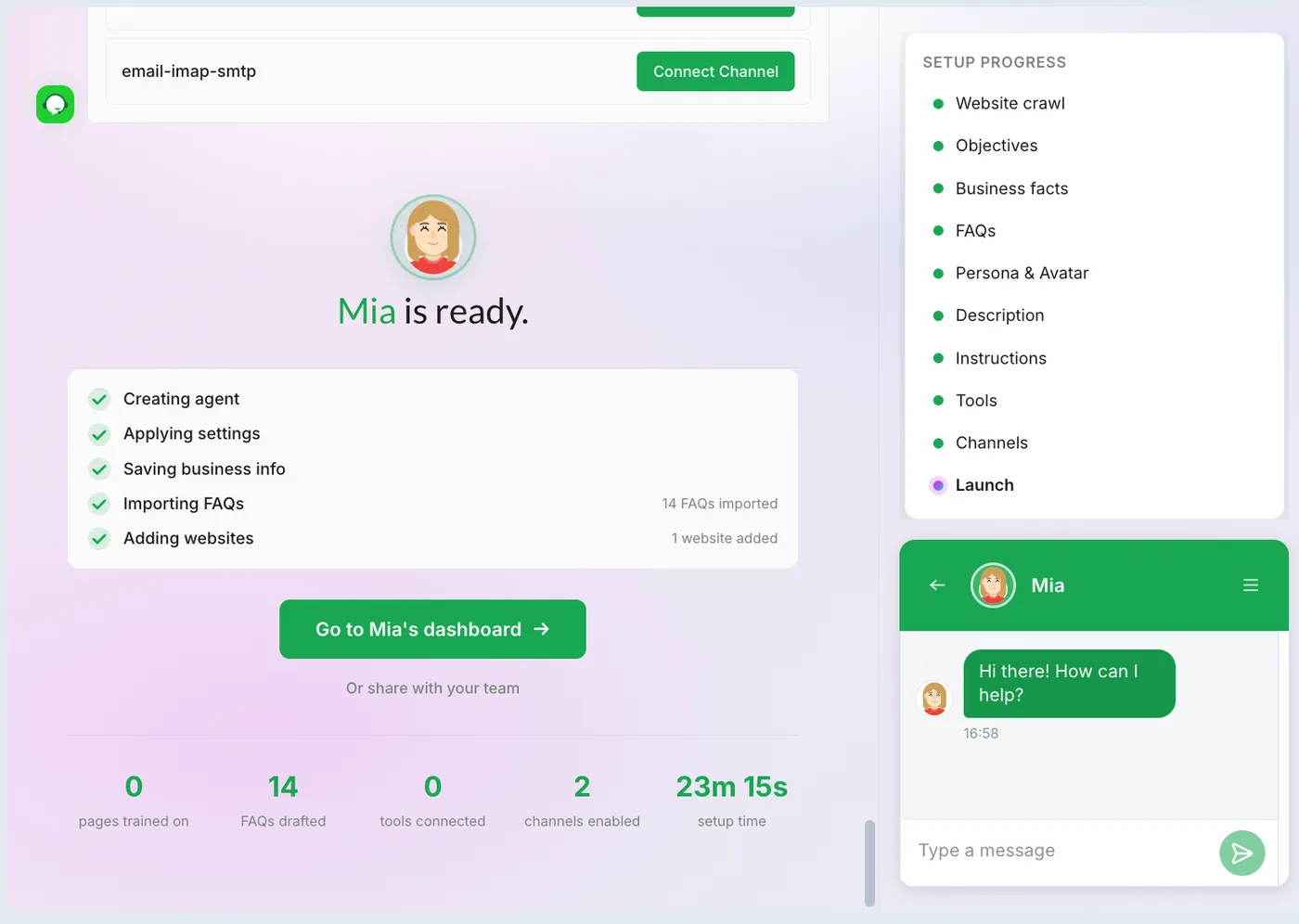
- Test the agent. The agent is ready. Use the test chat in the lower right to ask what your clients ask, like your fees or your hours. The Help Center says testing does not use your message credits. Click Type a message.
Now test it. Ask what your clients ask. The help center says testing does not use your credits.
- Add more answers later. Open the agent and go to Knowledge to add more: Documents, Tables, FAQs, Knowledge Base, Shortcuts, Text and Website. An FAQ question can be up to 255 characters and an answer up to 1,000. Click FAQs.
In Knowledge, add more FAQs, documents, or your website. Keep them up to date.
- Know what Schedule needs. The agent's Schedule page lets you choose when it answers, for example only after hours. The Help Center marks this paid plans only. Click Schedule.
The agent's Schedule page sets when it answers. The help center says that is for paid plans only.
7. Answer a chat yourself
- Open a new chat. In the morning, or any time you are online, new chats show as Incoming in the left bar. Pink means a new chat nobody has answered yet. Click the chat.
New chats show as Incoming. Pink means nobody has answered yet.
- Join the chat. You can read what the visitor and the AI said. Click Join Chat to reply. If AI Assist is handling the chat, the Help Center says it leaves by itself when you take over.
If the A I is in the chat, it leaves when you take over.
- Answer from your phone. tawk.to also has phone apps. In the iOS app, tap Inbox at the bottom left to see your chats and tickets. Click Inbox.
You can also answer from the tawk. to phone app.
8. Set what happens after hours
- Open your status. When you leave for the day, set your status. Click your profile image at the bottom left of the dashboard.
When you leave for the day, click your profile image at the bottom left.
- Choose Away. Pick Online, Away or Invisible. Away tells visitors you may not answer right away. Invisible sets the widget offline for you, but the widget can stay online if a teammate is online, or if AI Assist is on and able to answer. Click Away.
Pick Away, so visitors know you may not answer right away.
- Find the Widget Scheduler. To match your business hours without remembering to change your status, use the Widget Scheduler: Administration, Chat Widget, Scheduler. It is Disabled by default. Click the Schedule dropdown.
The Widget Scheduler matches your business hours.
- Pick your hours, and know the trade-off. Pick a preset like Mon - Fri (9am - 5pm), or Custom to set your own days, hours and timezone. Important: during scheduled offline hours the widget stays offline even if AI Assist is on. If you want the AI to answer after hours, leave the scheduler off and let AI Assist keep the widget online. Click Mon - Fri (9am - 5pm).
Pick your hours. But note: when the scheduler says offline, the widget stays offline, even with A I Assist on.
- Go offline when nobody is there. In Visibility Settings on the Chat Widget page, Widget offline when all Agent(s) offline is off by default, so the widget can look online when nobody is there. Turn it on to go offline when no person is available. With AI Assist on and able to answer, the widget may stay online. Click the setting.
Turn on Widget offline when all agents offline, so the widget does not look online when nobody is there.
- Edit the Offline view. When the widget is offline, visitors see an Offline form so they can leave a message. In Widget Content (Chat Widget, then Edit Content), under Widget State, click Offline.
When the widget is offline, visitors see a form. In Widget Content, click Offline.
- Add the form. Under Body Cards, click + Add and choose Form. It starts with fields like Name and Email. Click Form.
Add a Form card. It starts with name and email.
- Tell visitors when you are back. This is the kind of message the Help Center shows: We're available to chat Monday to Friday 9am to 5pm! above Name, Email and Message. Write your own hours here, and answer these messages first thing in the morning. Click the message.
Tell visitors when you are back, and collect their name, email and question. Answer them first thing in the morning.
9. What is free and what costs money
- What is free. Read the free and paid list. Click What is free and what costs money.
Here is what is free, and what costs money.
- What to check before you rely on it. Click Before you rely on it.
Before you rely on it, test the agent with your real questions, and read its answers for the first few weeks.
Screenshots
Frequently asked questions
- Is tawk.to really free?
- The live chat software is free, according to tawk.to's pricing page, as long as you keep the small "Powered by tawk.to" badge. Removing it is $29 a month. AI Assist has a forever-free plan for sites with limited chat volume and paid plans from $29 a month. Prices were read on 18 October 2026, so check the page before you rely on them.
- Can tawk.to's AI answer questions when I am closed?
- Yes, that is what AI Assist is for. It answers from your website, FAQs, documents and business facts. Keep in mind that during scheduled offline hours in the Widget Scheduler the widget stays offline even with AI Assist on, and the agent's own Schedule page is on paid plans only.
- How do I add tawk.to to a WordPress site?
- Install the Tawk.To Live Chat plugin from Plugins, Add New, activate it, then in its settings log in with your tawk.to account, pick your property and widget, and click Use Selected Widget. Or paste the widget code before the closing body tag yourself.
- Why do the screens look different from my dashboard?
- The screens in this lesson are screenshots from tawk.to's own Help Center, and some show tawk.to's demo businesses. tawk.to updates its dashboard, so your screens may look a little different. Follow the button names.
- Is this an official tawk.to course?
- No. This is my own lesson. tawk.to is a separate, third-party product, and the screenshots are tawk.to's, credited and linked to the Help Center article each one comes from.
Terms in this lesson
Plain-English definitions, each with an example from a free lesson.