Everything about Copilot below comes from Microsoft's own help pages, listed at the end. Features and licensing change, so confirm them on the current pages before you rely on them.
What does Copilot in Teams need before it works?
Copilot needs a transcript to work from. Microsoft's page says Copilot works only from the meeting transcript, so transcription or recording has to be turned on. If it is off when you select Copilot, you are asked to turn it on. When too little has been said, Copilot tells you it needs more information before it responds.
Two more limits are on Microsoft's page. Copilot is not available if the meeting was created by someone outside your organization, though it still works when external people are only invited. And anyone added to an existing one-on-one call cannot use Copilot.
How do I use Copilot during a Teams meeting?
Select Copilot in the meeting controls. It opens in a panel on the right side of the meeting window. You can pick a suggested prompt under More prompts or type your own. Microsoft's example prompts include unresolved questions, team members' opinions on a topic and a pros-and-cons table.
Copilot also offers help on its own. If you join at least five minutes late to a recorded or transcribed meeting, it offers a summary of the meeting so far. When the meeting is ten minutes from ending, it offers notes and action items.
Everyone is told. In meetings and VoIP calls, all participants see a notification that the call is being transcribed. In PSTN calls, all participants hear an announcement that it is being recorded.
How do I get a recap after a Teams meeting?
Select the meeting in your Teams Calendar and open the Recap tab in the meeting details. Microsoft's page names the tab but does not describe everything in it, so look at what your own tenant shows.
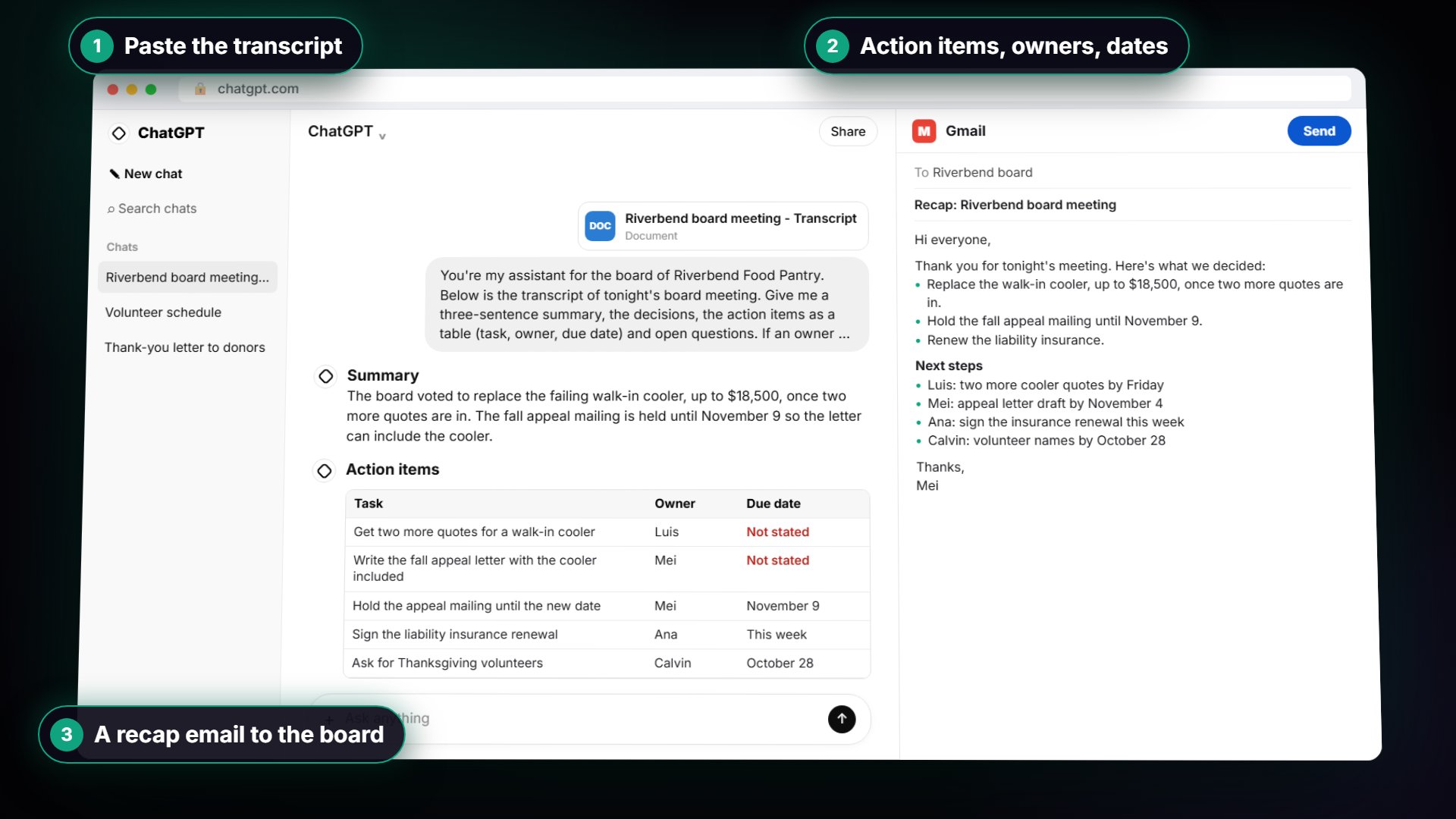
Copilot can format answers as a table, written as a markdown table you can copy and share. That suits an action items list with task, owner and due date, so ask for those columns by name.
What is a Copilot audio recap?
An audio recap is an AI-generated spoken summary of up to 8 meetings that have transcripts. It needs a Microsoft 365 license and a Microsoft Copilot license. Microsoft says transcripts are kept for 120 days unless the organizer deletes them sooner, and you cannot make recaps of older meetings. A generated audio recap is available to you for 60 days, then it expires and is deleted automatically.
You start one in Teams from the Meet app's Audio recaps tab, or from a meeting chat's Recap tab or a meeting's details page in Calendar. Microsoft's page states the summary "is generated by AI and should be checked for accuracy."
How should I check a Copilot recap before I share it?
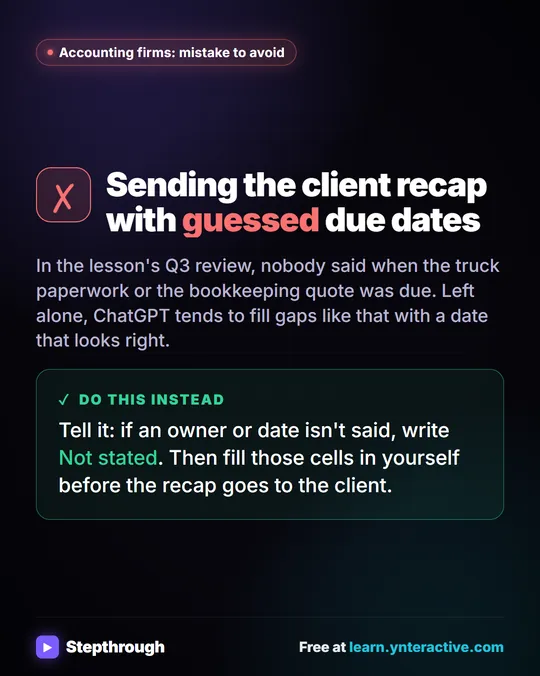
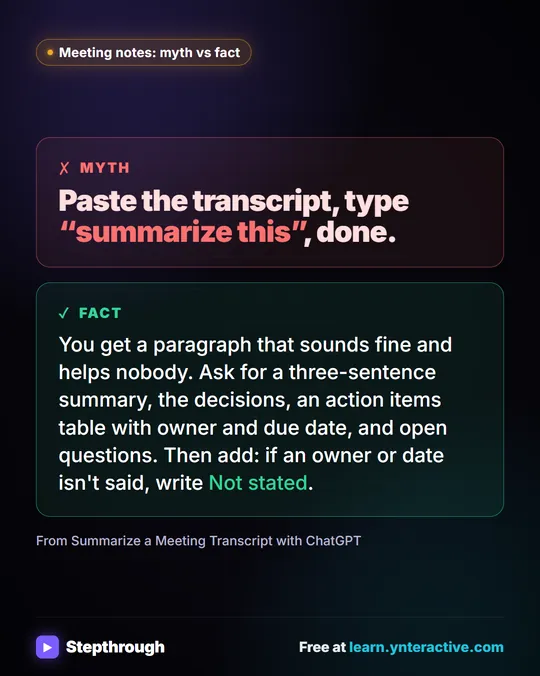
Treat it as a draft. Compare each action item with what was said, and fill in any missing owner or due date yourself. If your request told Copilot to write "Not stated" instead of guessing, the gaps are easy to find. Ask Copilot to update the table once you add them, then read the follow-up email before sending it from your own account.
If you do not have a Copilot license, the same checking routine applies to a Teams transcript pasted into any approved assistant. See Turn a Teams Transcript into Action Items for that route.
Which assistant should my team use for meetings?
Use the assistant your company pays for and allows. The free Choose the AI Assistant Your Team Should Use lesson tests ChatGPT, Claude, Gemini and Copilot on the same task, and Use AI at Work Without Leaking Client Data covers what never goes in. For other tools, see Claude: Summarize a Meeting Transcript and Turn a Meeting Transcript into Action Items.
Where can I practice and find templates?
Practice the checking routine on Summarize a Meeting Transcript or Summarize a Client Meeting. If you need formal minutes rather than a recap, use the AI meeting minutes template. The glossary entry for meeting transcript explains the record Copilot reads from.
Where do these facts come from?
All Copilot facts above are from Microsoft support pages, read on October 16, 2026:
Key takeaways
- Copilot in Teams works from the meeting transcript, so transcription or recording must be on.
- Microsoft's pages say you need a Microsoft 365 license and a Microsoft Copilot license.
- Open Copilot from the meeting controls during a meeting, or the Recap tab in the meeting details afterward.
- Audio recaps cover up to 8 meetings with transcripts, which Microsoft keeps for 120 days.
- Microsoft says AI summaries should be checked for accuracy, so check owners, dates and numbers before sharing.
Frequently asked questions
- Does Copilot in Teams need the meeting to be recorded?
It needs transcription or recording to be on. Microsoft's page says Copilot works only from the transcript and asks you to turn it on if it is off.
- Where do I find the Copilot recap after a meeting?
Select the meeting in your Teams Calendar and open the Recap tab in its details.
- Can Copilot list action items?
Yes. Microsoft's page lists action items, perspectives by topic and unresolved questions among what Copilot can produce.
- Is a Copilot summary always accurate?
No. Microsoft's audio recap page says the summary is generated by AI and should be checked for accuracy.