This guide covers the request, the two ways to give Claude the transcript, what Claude's help center says about file limits, and what to check before you send a recap.
What request should I send Claude with a meeting transcript?
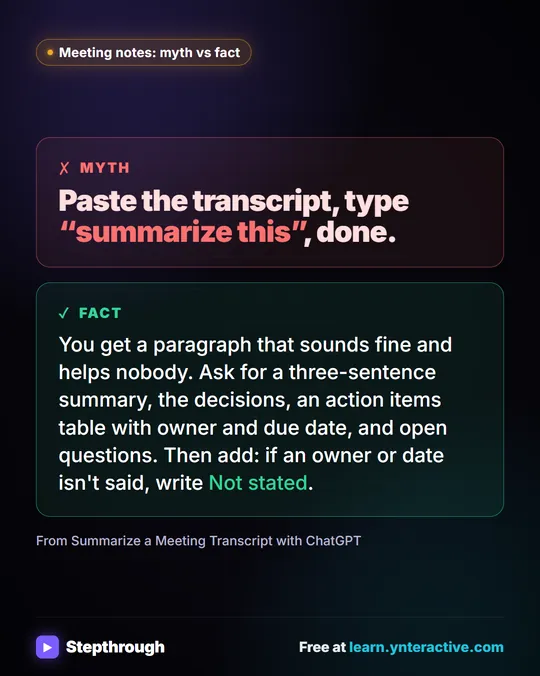
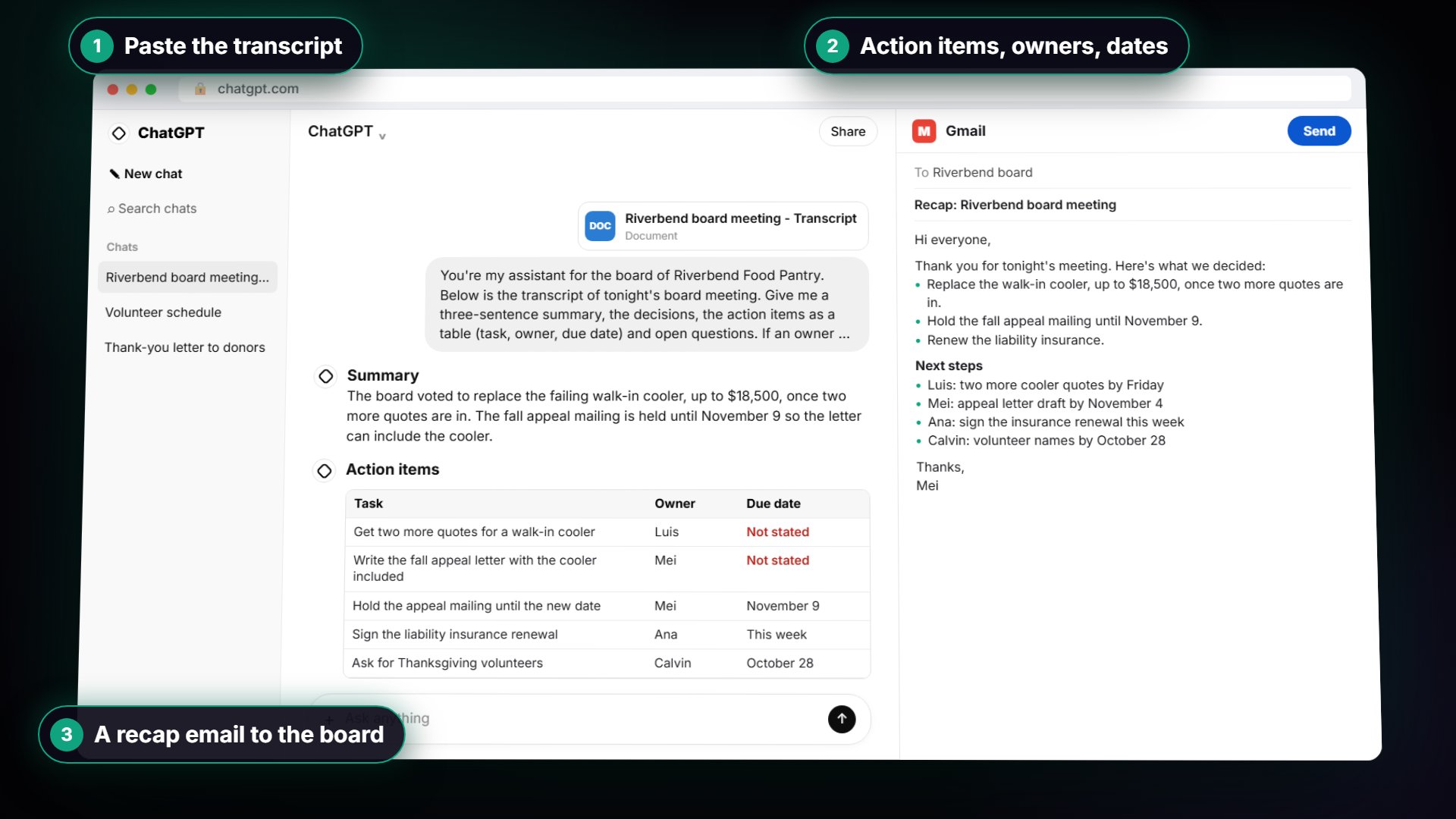
Ask for four named things and add the "Not stated" rule. A vague "summarize this" returns a friendly paragraph that retells the meeting. A request with sections returns something people can act on. Copy this and paste the transcript under it:
You're my assistant for our team. Below is the transcript of today's meeting. Give me:
1. A three-sentence summary
2. The decisions we made
3. The action items as a table: task, owner, due date
4. Open questions
Only use what's in the transcript. If an owner or date isn't said, write "Not stated".
This is the same request used in the ChatGPT version, where it is explained line by line. The wording is not tied to one tool, so it works in Claude too. We have not tested Claude's output for this guide, so read the result against your transcript instead of assuming it is right.
How do I give Claude the transcript: upload or paste?
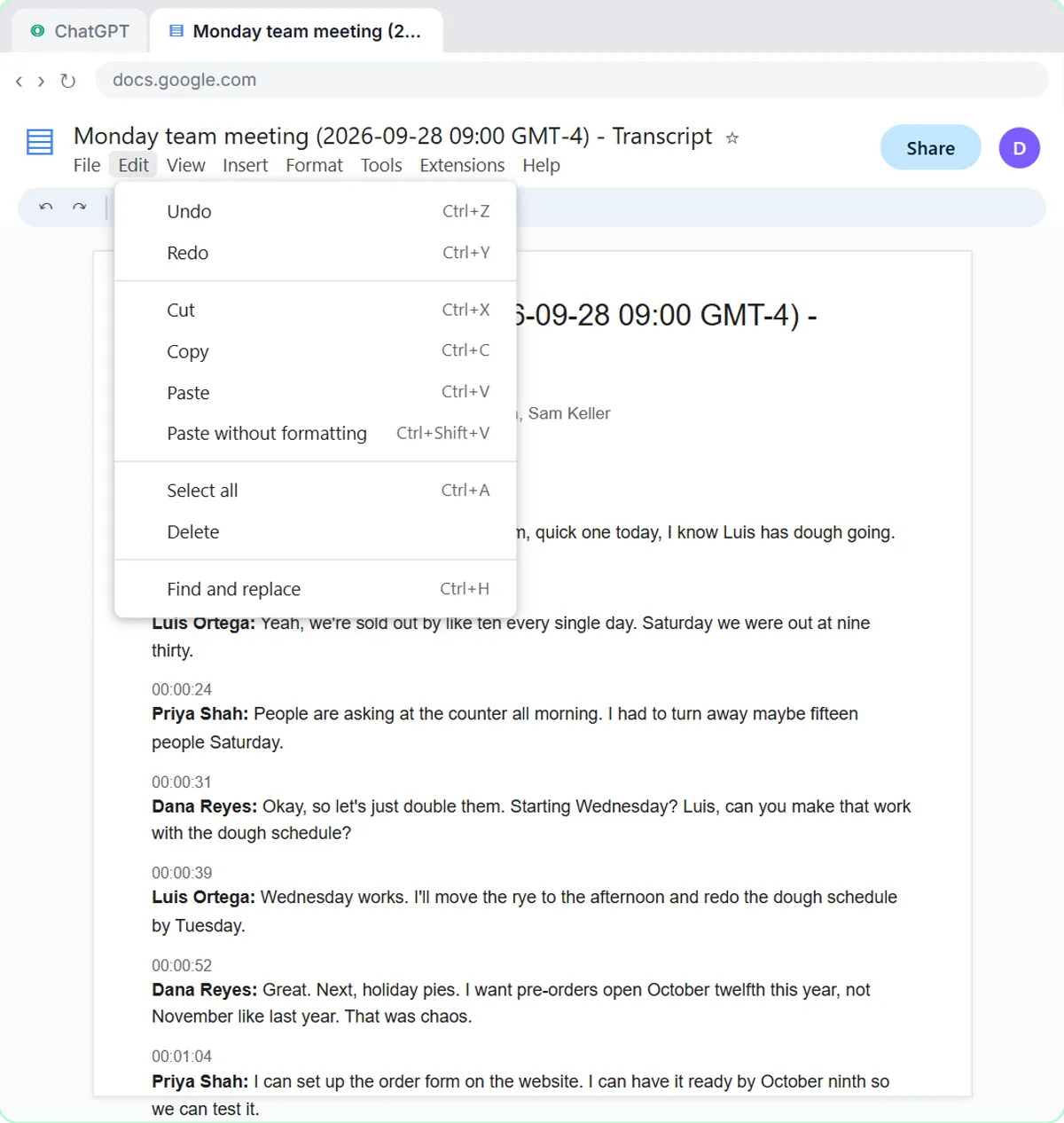
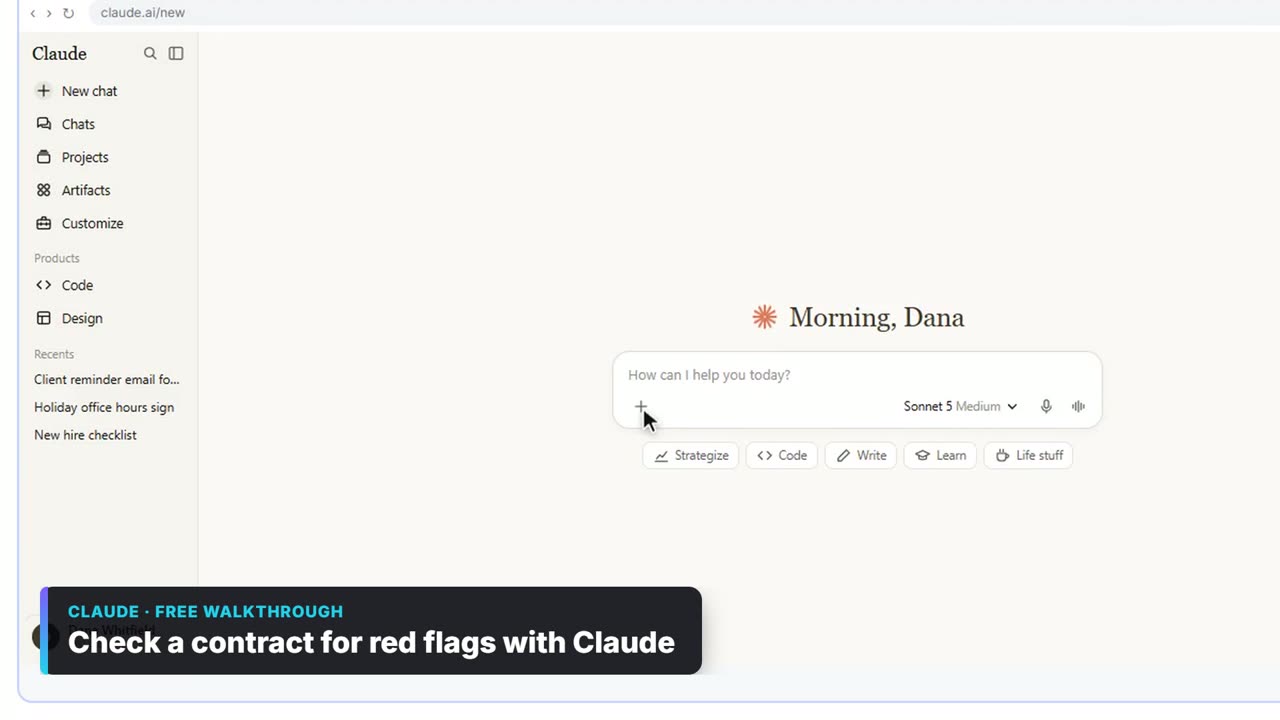
Either works. Pasting is quick when the transcript is already open as a Google Doc. Uploading is easier when someone sent you a file. According to Claude's help center, you attach a file with the + button in the chat box, or drag and drop it into the window. The help article names the menu item Add files or photos; the Check a contract for red flags with Claude lesson shows it as Upload or add files, so menu wording can differ.
Claude's help center lists these document types: PDF, DOCX, CSV, TXT, HTML, ODT, RTF, EPUB, JSON and XLSX. It does not list .vtt, the caption format some meeting tools export. If your transcript is a .vtt file, open it, copy the text and paste it, or save the text as a TXT or DOCX file first. For non-PDF files, Claude extracts the text only.
If you paste, remember that plain Enter sends the message. Press Shift+Enter for a new line, then paste.
What are Claude's upload limits?
The help center gives these limits for chat uploads: up to 500MB per file and up to 20 files per chat. Files added to a project have a 30MB per-file cap, and the total content of project files must fit the context window. A one-hour meeting transcript is far below these limits. A very long one may still need to be split, for example one file per meeting.
How do I check the summary before I send it?
Read the action items table first, then compare names, dates and amounts with the transcript. Anything that says "Not stated" is Claude following your rule instead of guessing. Fill it in with one short message, such as "The library quote is due Wednesday, and Luis will call about the oven today," and ask Claude to update the table.
Then ask for the follow-up in the same chat: "Write a short, friendly recap email to the team with the decisions and action items, under 150 words." Claude still has the whole meeting, so you do not paste anything again. Read the email before you send it from your own account.
Client meetings need more care. Check your company's rules on AI tools before you paste, use a plan your company has approved, and leave out account numbers and anything private. The contract lesson points to the model-training setting under Settings then Privacy in Claude.
How can I reuse this in a Claude project?
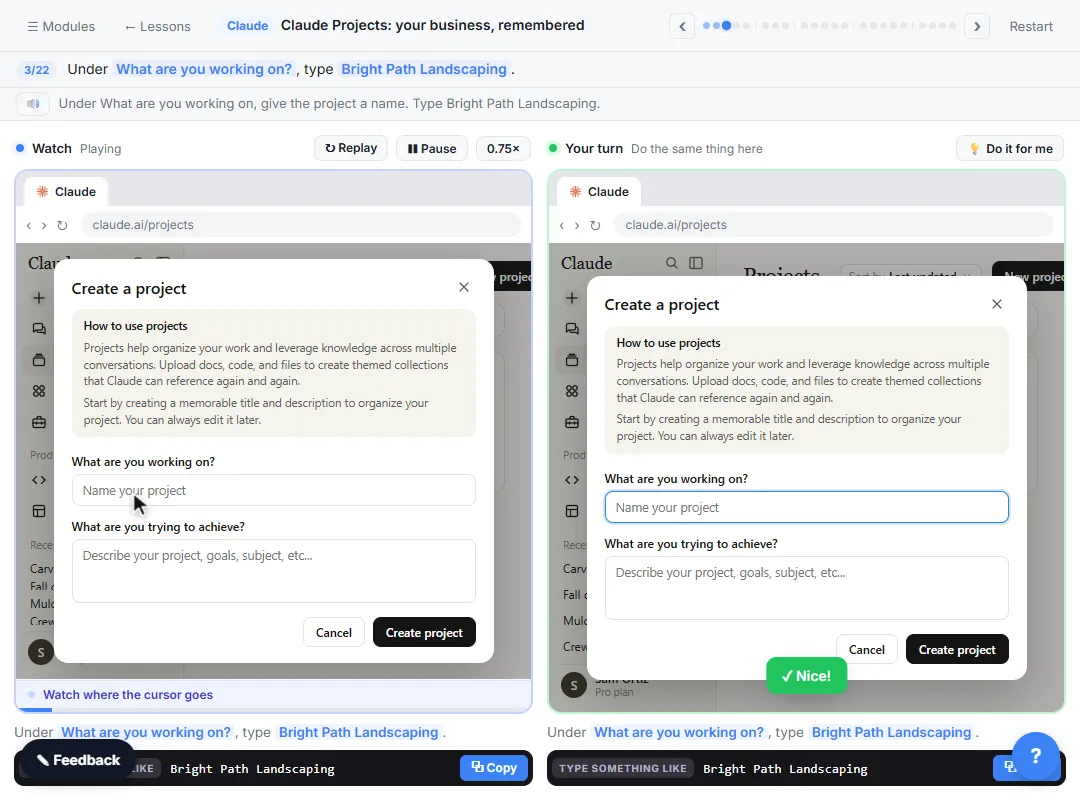
Save the request as project instructions so you do not paste it every time. In Claude Projects: your business, remembered, you create a project, write instructions for tone and policies, and add files as project knowledge. A "Meeting recaps" project can hold the request above, so each new chat only needs the transcript.
Which free meeting lessons can I practice with?
Start with Summarize a Meeting Transcript, then try the version closest to your work:
- Summarize a Client Meeting for an accounting firm's client review.
- Turn a Board Meeting into Minutes and Next Steps for a nonprofit board.
- Run a Weekly Ops Review Where Every Task Has an Owner for vendor and operations meetings.
- Turn Every Policy Review into Clear Next Steps for an insurance agency.
More on this topic: the Teams side is in Microsoft Copilot in Teams: Meeting Recap, a fill-in format is in the AI meeting minutes template, and the glossary explains the meeting transcript itself.
Key takeaways
- Send Claude a named request: summary, decisions, an action items table with owner and due date, and open questions.
- Add "Only use what's in the transcript" and "Not stated" so Claude does not guess owners or dates.
- Claude's help center lists TXT, DOCX and PDF among supported files, and does not list .vtt, so paste caption text.
- Chat uploads allow up to 20 files and 500MB per file, per Claude's help center.
- Check every owner, date and number against the transcript before a recap leaves your hands.
Frequently asked questions
- Can Claude summarize a meeting transcript?
Yes. Attach the transcript or paste it, and ask for a summary, decisions, action items and open questions. Check the result against the transcript.
- Can Claude read a .vtt transcript file?
Claude's help center does not list .vtt among supported file types. Copy the text and paste it, or save it as a TXT or DOCX file and upload that.
- How long a transcript can Claude handle?
The help center gives file size and count limits for uploads, but long text also has to fit the model's context window. If a transcript is very long, split it by meeting or by topic.
- Should I use ChatGPT or Claude for meeting summaries?
Use the one your company approves. The request in this guide works in either. The four assistants lesson shows how to test them on your own task.