Claude First Chat: Pick a Model, Attach a File, Prompt in 5 Steps
A visual guide to your first chat with Claude: check the model picker, attach an email with +, write a four-part prompt, follow up, then pin the chat.
Slide 1 of 7 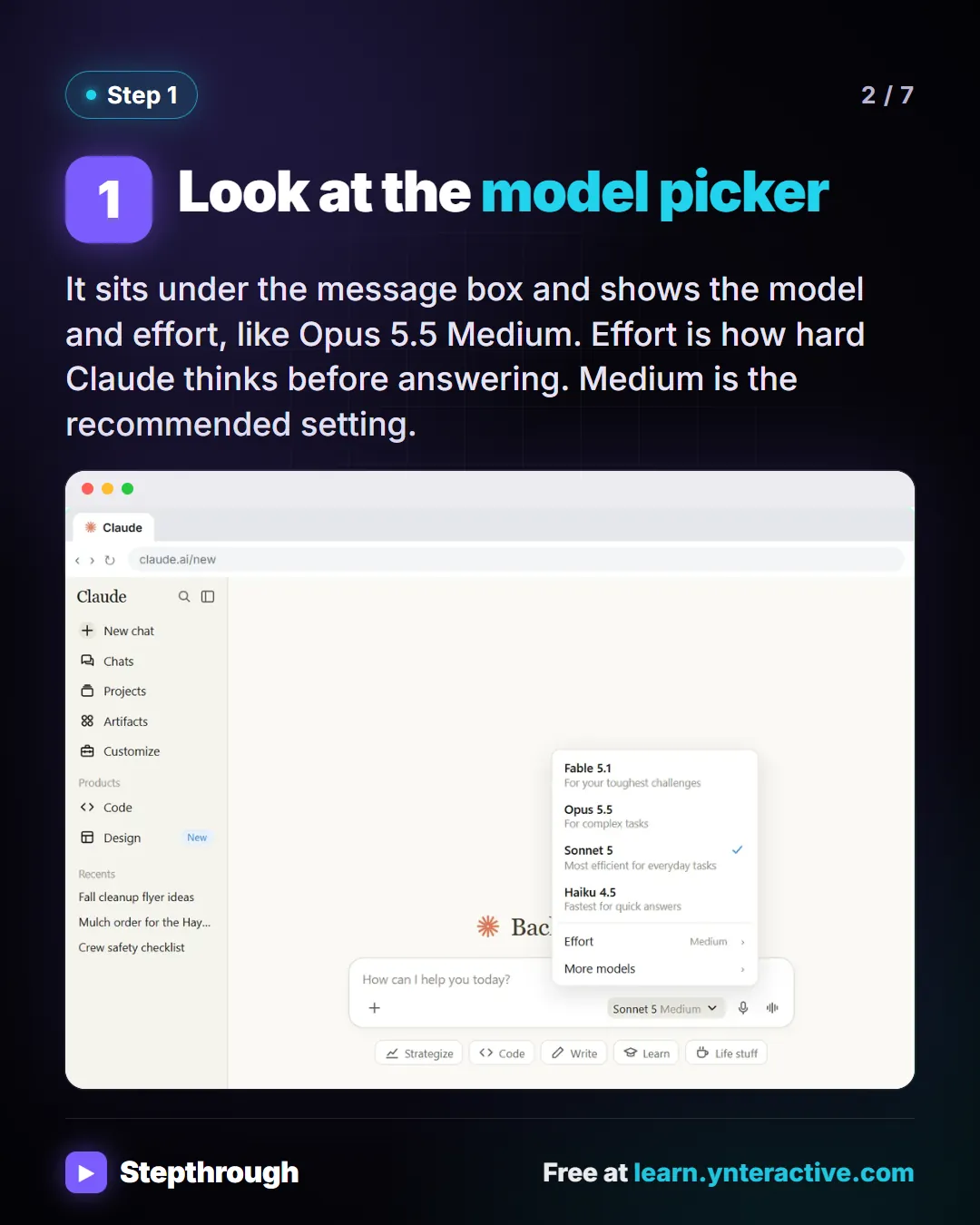
Slide 2 of 7 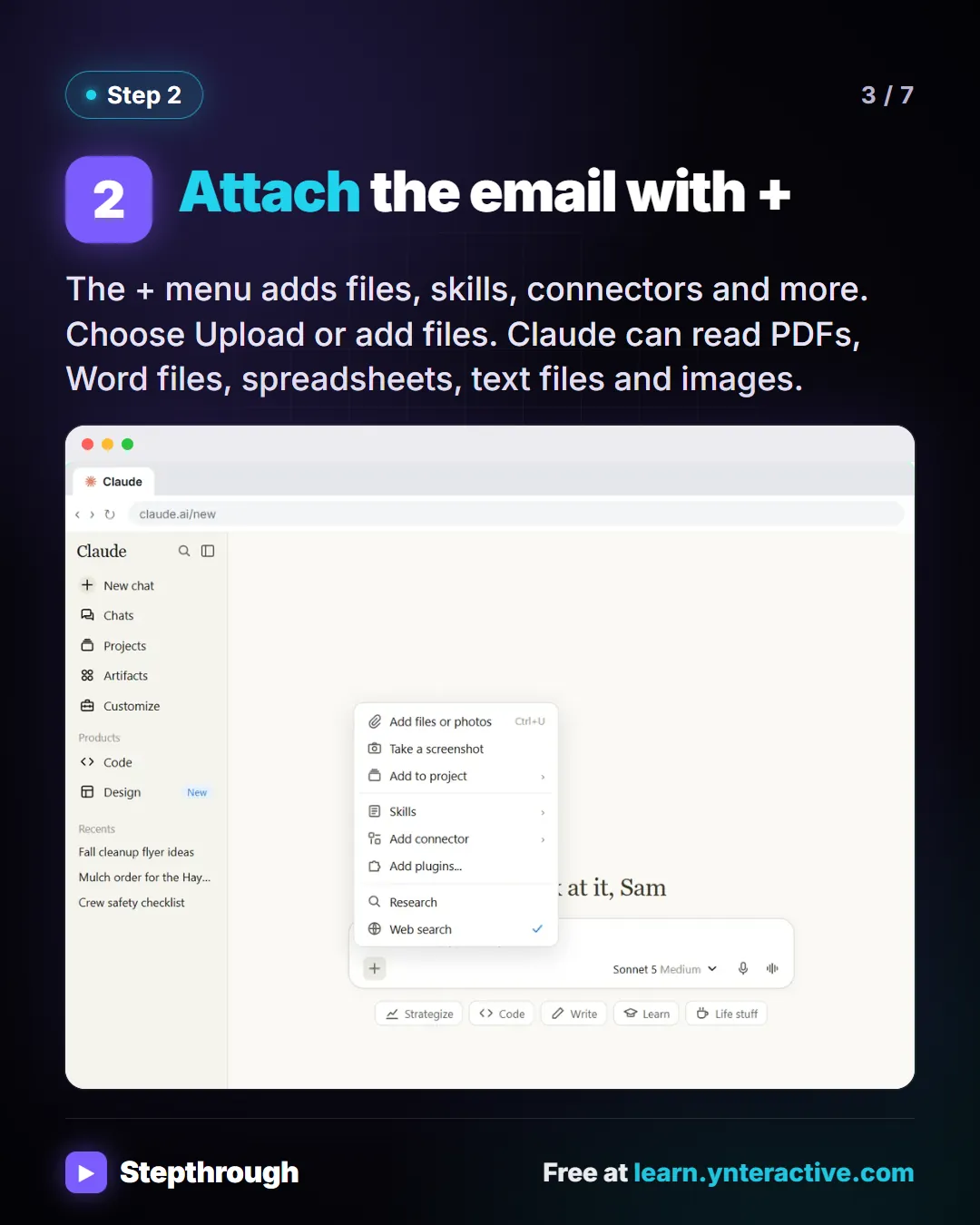
Slide 3 of 7 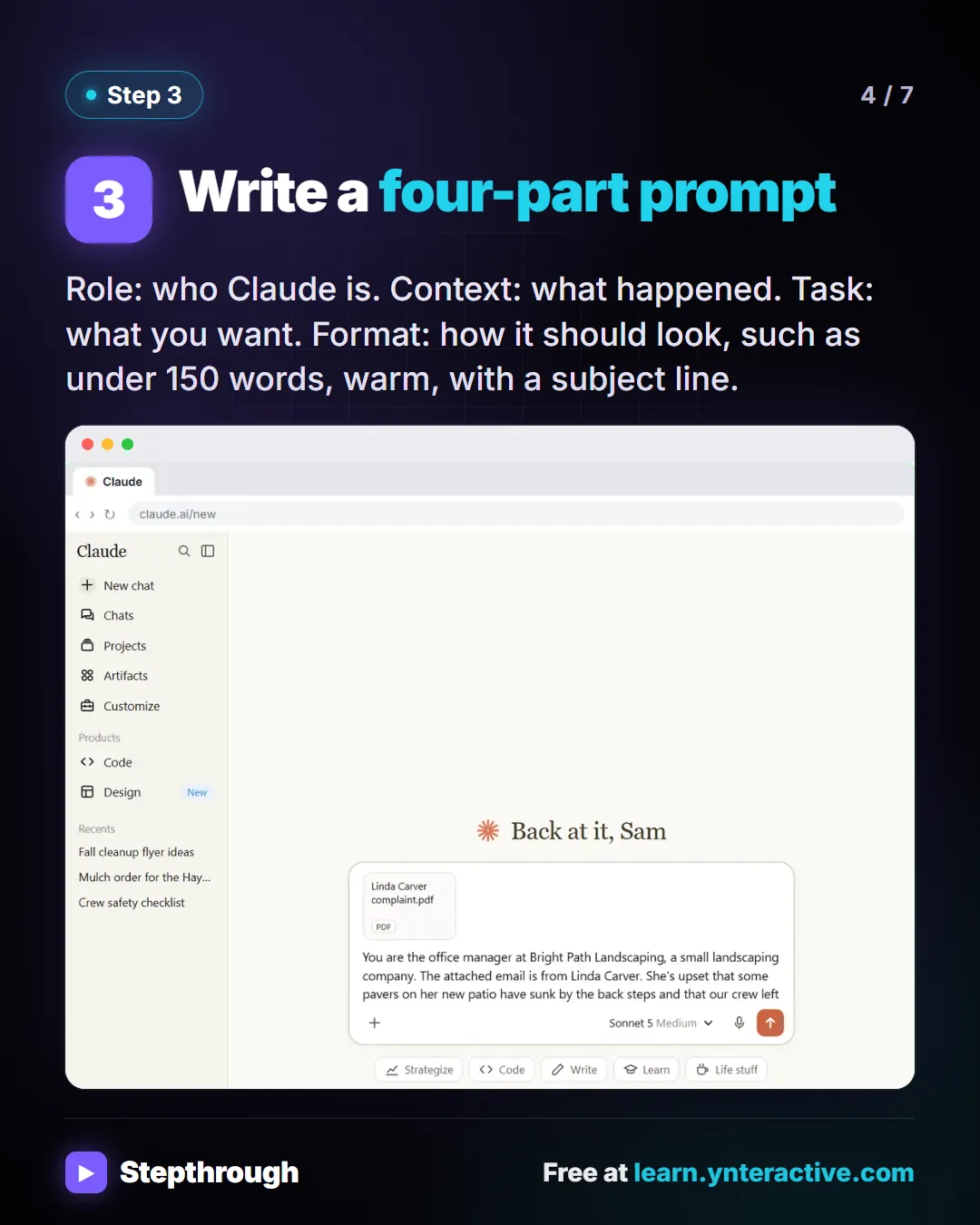
Slide 4 of 7 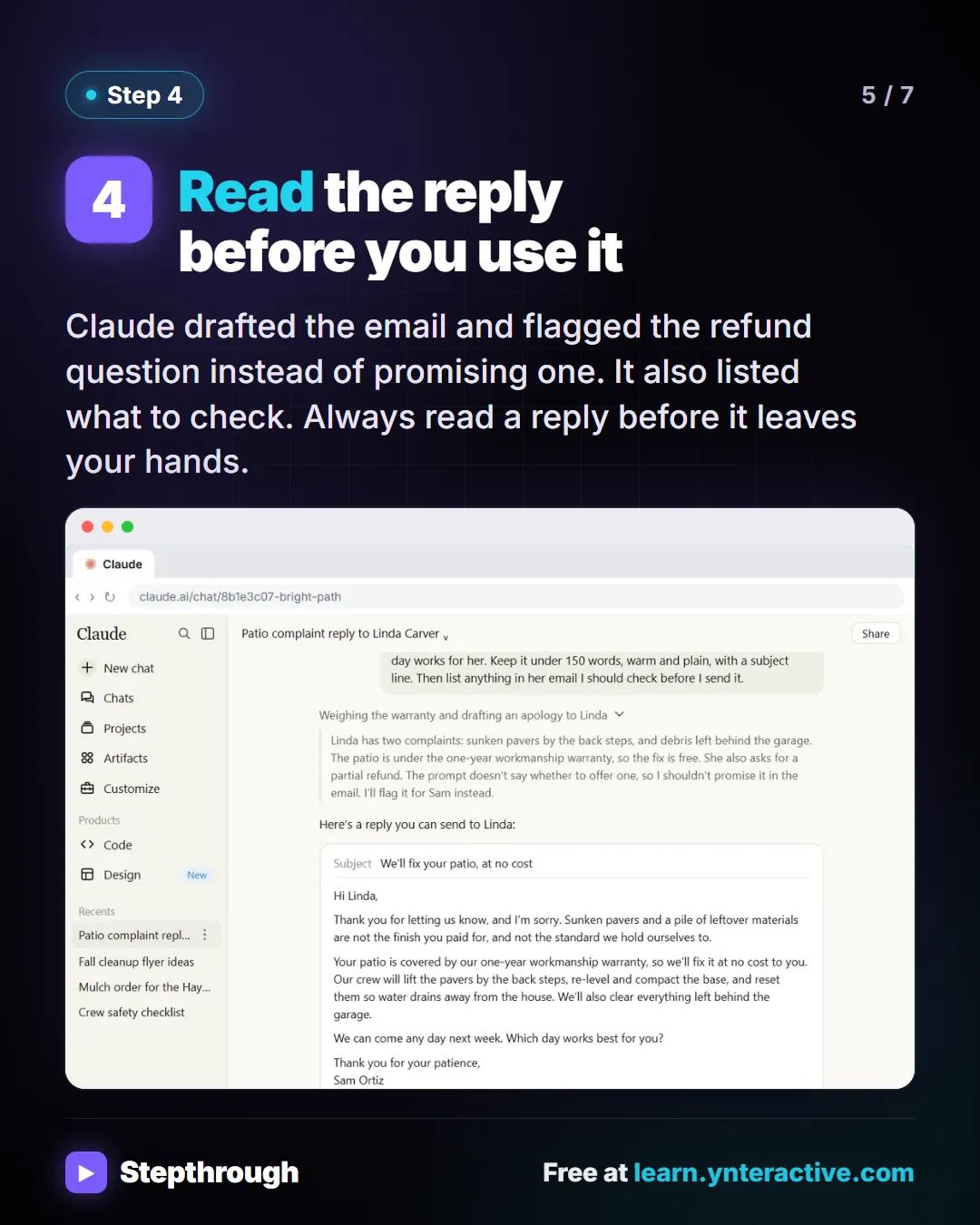
Slide 5 of 7 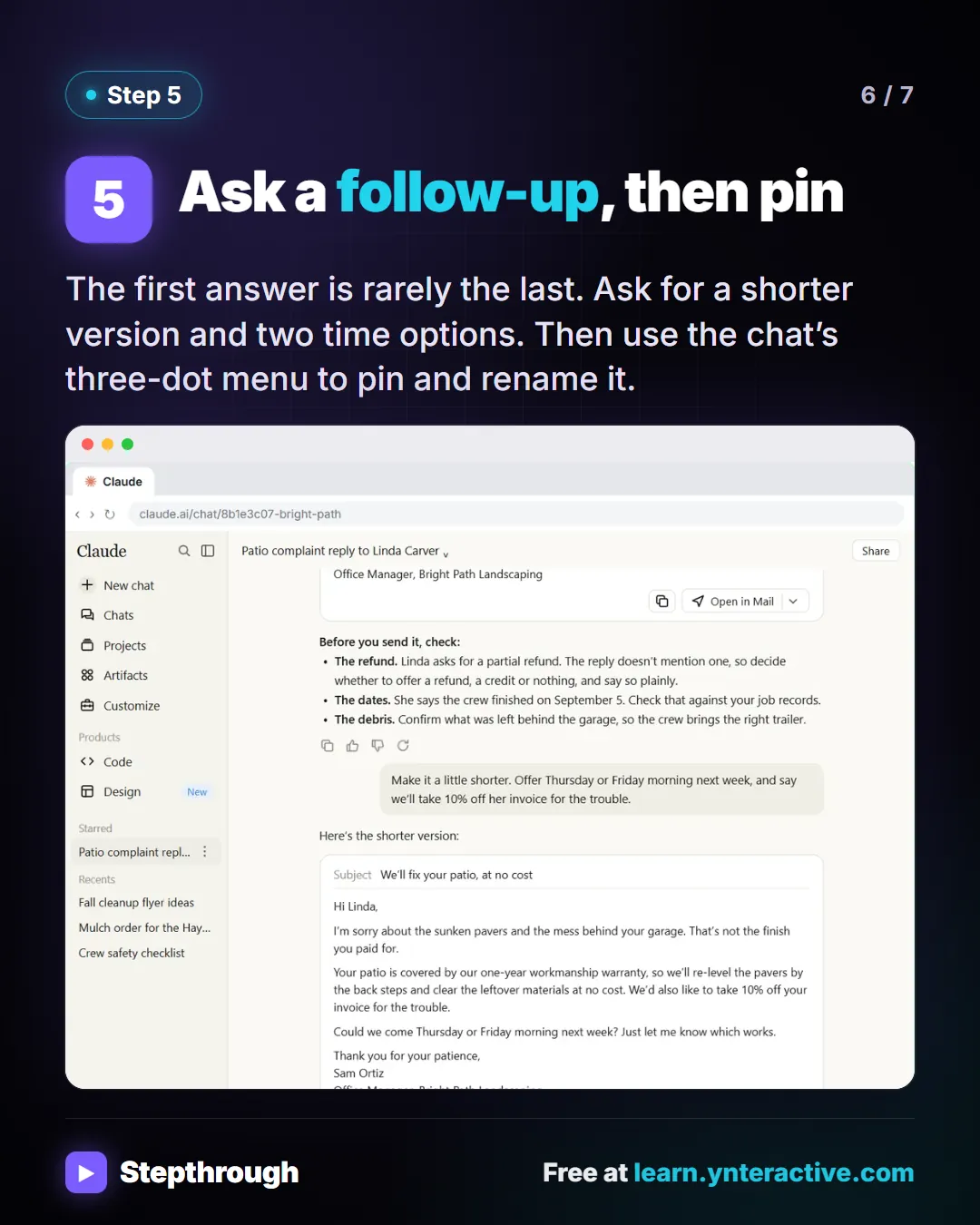
Slide 6 of 7 
Slide 7 of 7
The guide in text
Reply to an unhappy customer’s email at a made-up company’s office. Model, file, prompt, follow-up, pin. 5 steps.
Step by step
Look at the model picker
It sits under the message box and shows the model and effort, like Opus 5.5 Medium. Effort is how hard Claude thinks before answering. Medium is the recommended setting.
Attach the email with +
The + menu adds files, skills, connectors and more. Choose Upload or add files. Claude can read PDFs, Word files, spreadsheets, text files and images.
Write a four-part prompt
Role: who Claude is. Context: what happened. Task: what you want. Format: how it should look, such as under 150 words, warm, with a subject line.
Read the reply before you use it
Claude drafted the email and flagged the refund question instead of promising one. It also listed what to check. Always read a reply before it leaves your hands.
Ask a follow-up, then pin
The first answer is rarely the last. Ask for a shorter version and two time options. Then use the chat’s three-dot menu to pin and rename it.
Businesses and people in the examples are made up (Bright Path Landscaping is a made-up business). The steps, screens and wording come from the free lesson and the Stepthrough glossary and prompt library.
Do it yourself, free
Your First Chat with Claude: Models, Files and a Great First Prompt. Pick a model, attach a customer's complaint email with the + menu, write a four-part prompt, read Claude's reply, ask a follow-up, then pin and rename the chat. You do every step yourself in a practice copy of Claude, it checks your work as you go, and “Do it for me” finishes any step you get stuck on. Free, and nothing touches your real accounts.
Start the free lessonRelated terms
Plain-English definitions, each with an example from a free lesson.
Related prompts
- Complaint reply four-part prompt: A four-part prompt for your first AI chat: a role, the context, the task and the format, to reply to an unhappy customer and…
From the blog
 How to Check AI Output Before You Use It: 7 Checks
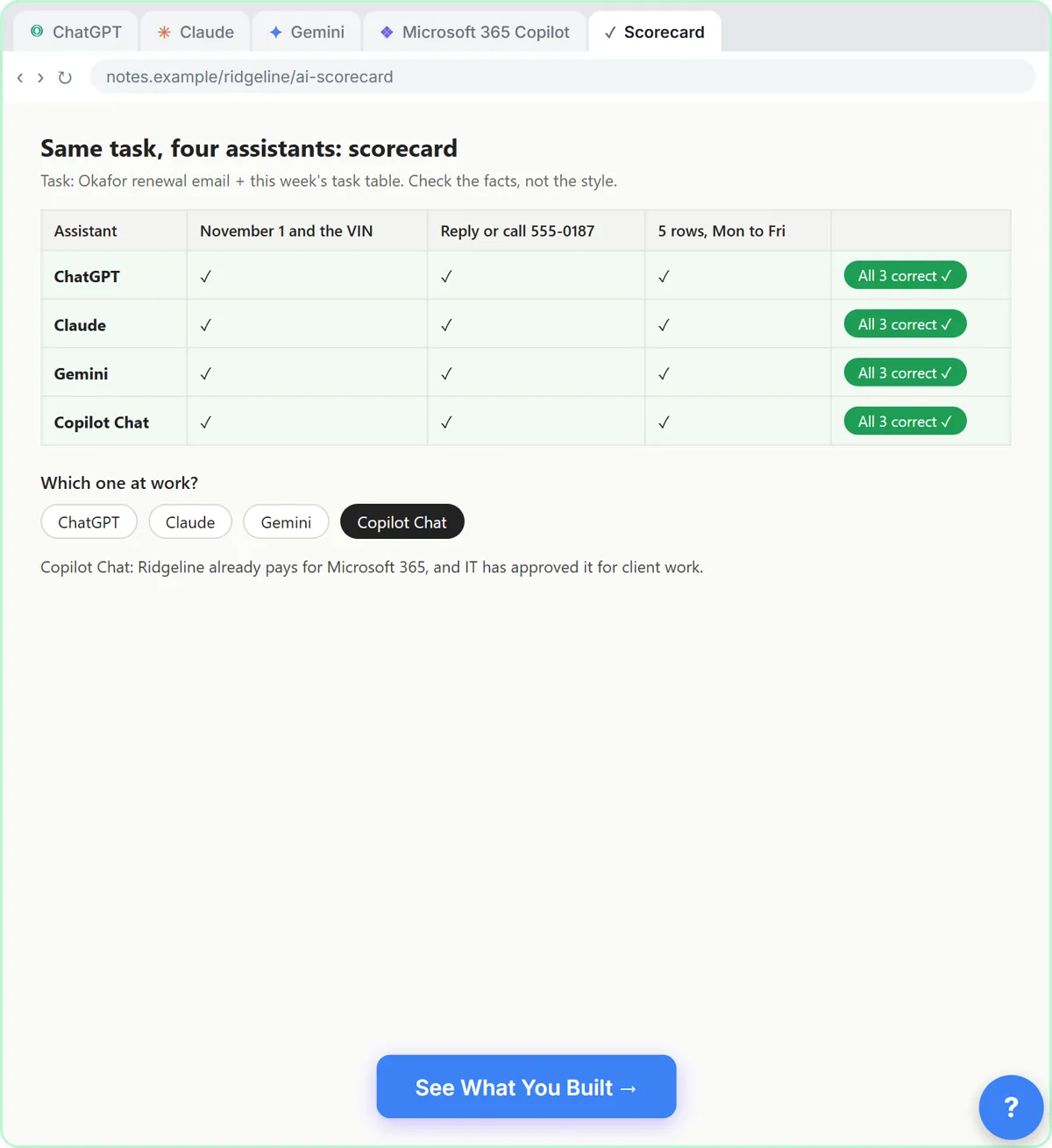
Seven checks for AI output at work, each from a free lesson: totals, promises, rules, extras, numbers, green checks and the final read before you send.
Oct 11, 2026 5 min read
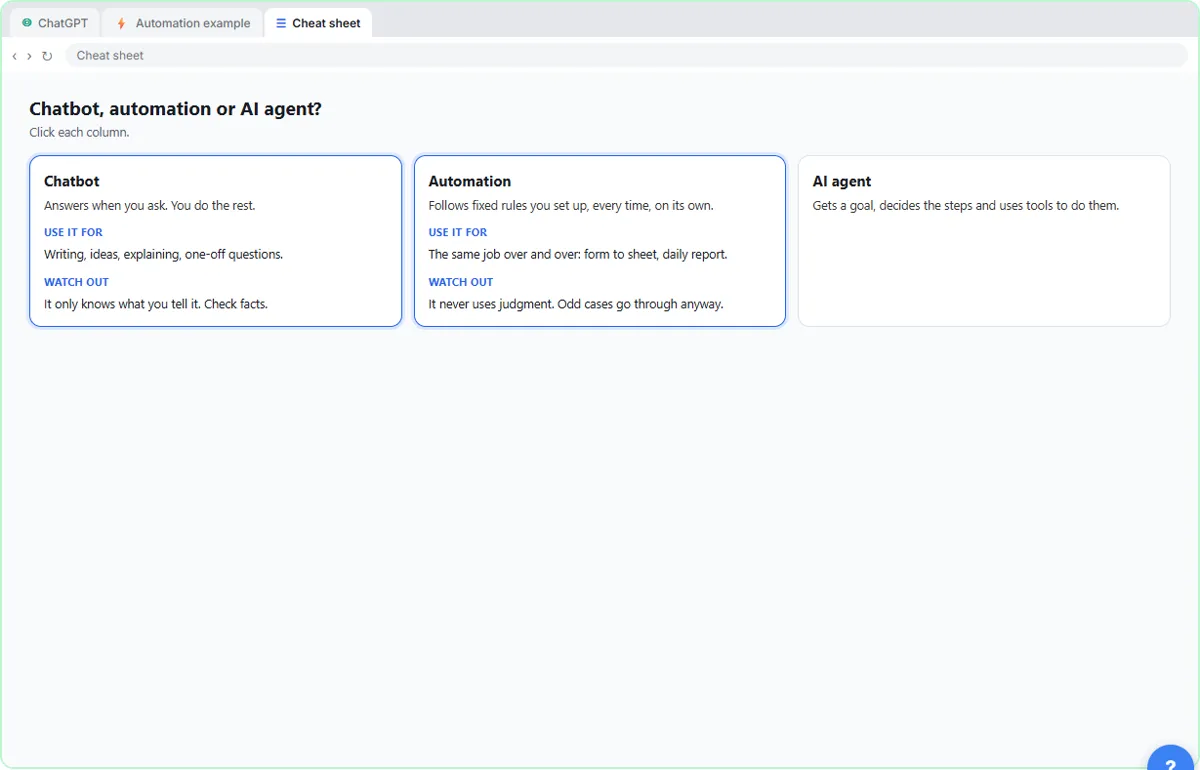 How to Pick the Right AI Tool for Office Work
Pick an AI tool by the job: an assistant for drafts, Jotform for intake, Gamma for decks, Flova or DomoAI for video, n8n for rules. With a lesson for each.
Oct 11, 2026 5 min read
More visual guides
 DomoAI Image to Video: Product Photo to Short Clip in 5 Steps
A visual guide to DomoAI Image to Video: upload a product photo, set 9:16, write a motion prompt, compare two versions and download the better one.
Step-by-step guide 8 slides
 Flova: Plan a Promo Video Before You Spend a Credit
A visual guide to Flova’s AI video agent: paste your exact script, get the storyboard and credit estimate first, then make and fix one reference image.
Step-by-step guide 8 slides
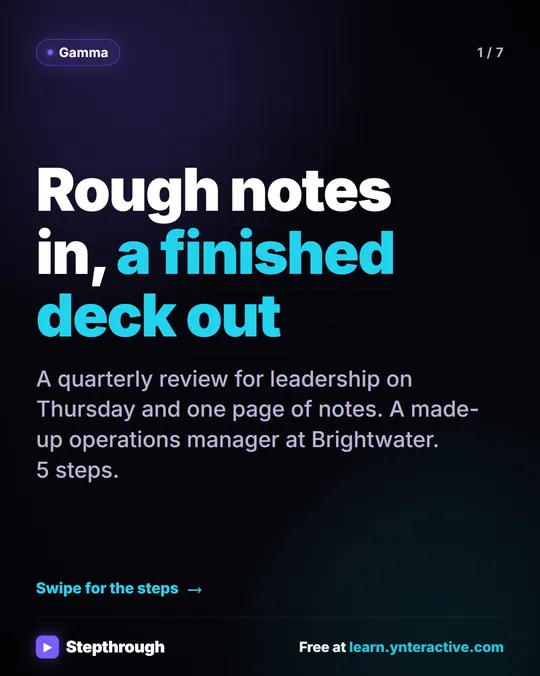 Gamma: Turn Rough Meeting Notes into a Deck in 5 Steps
A visual guide to Gamma: paste rough notes, let it condense them into a deck, change a slide by chatting with Agent, then export to PowerPoint and PDF.
Step-by-step guide 7 slides