DomoAI Image to Video: Product Photo to Short Clip in 5 Steps
A visual guide to DomoAI Image to Video: upload a product photo, set 9:16, write a motion prompt, compare two versions and download the better one.
Slide 1 of 8 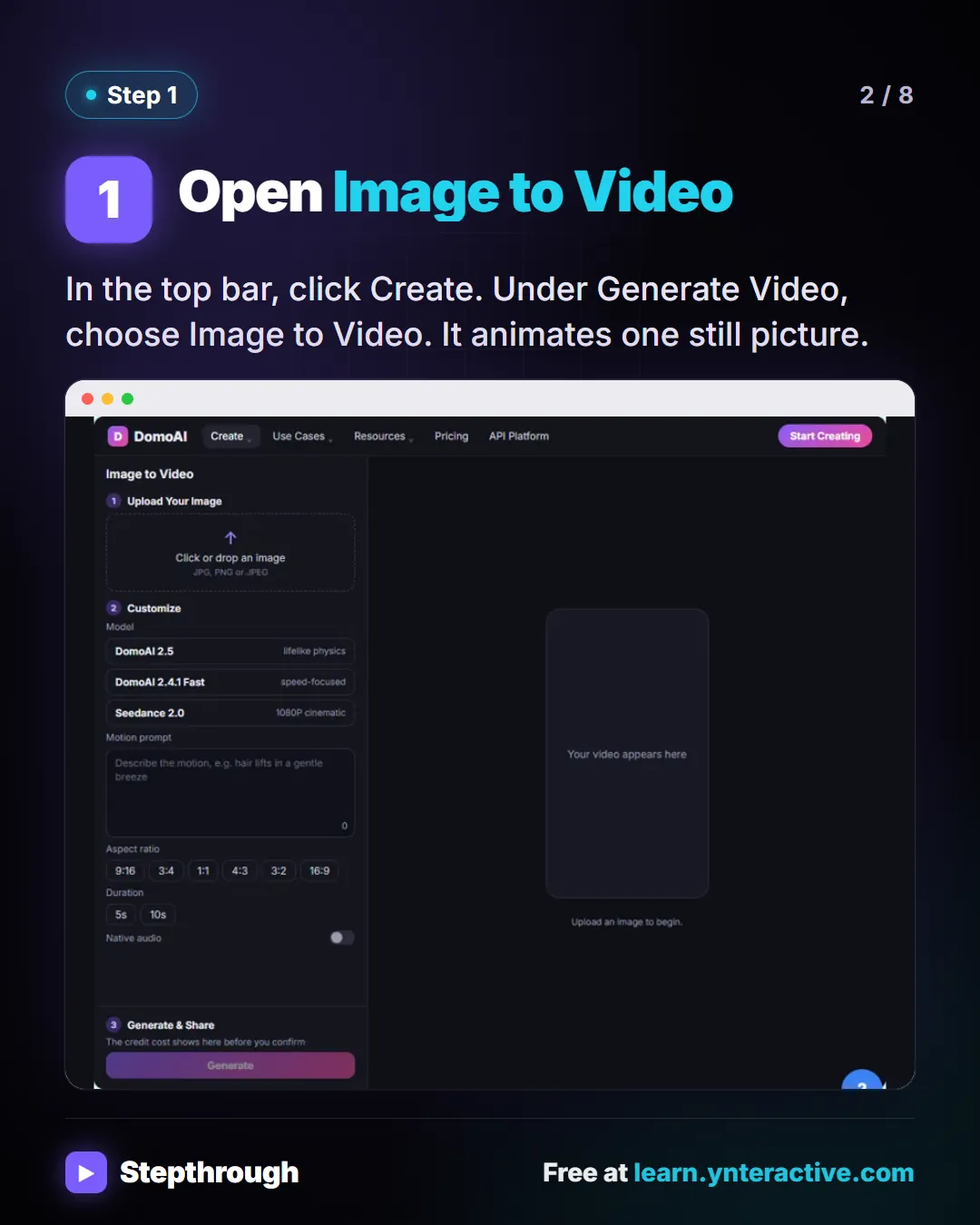
Slide 2 of 8 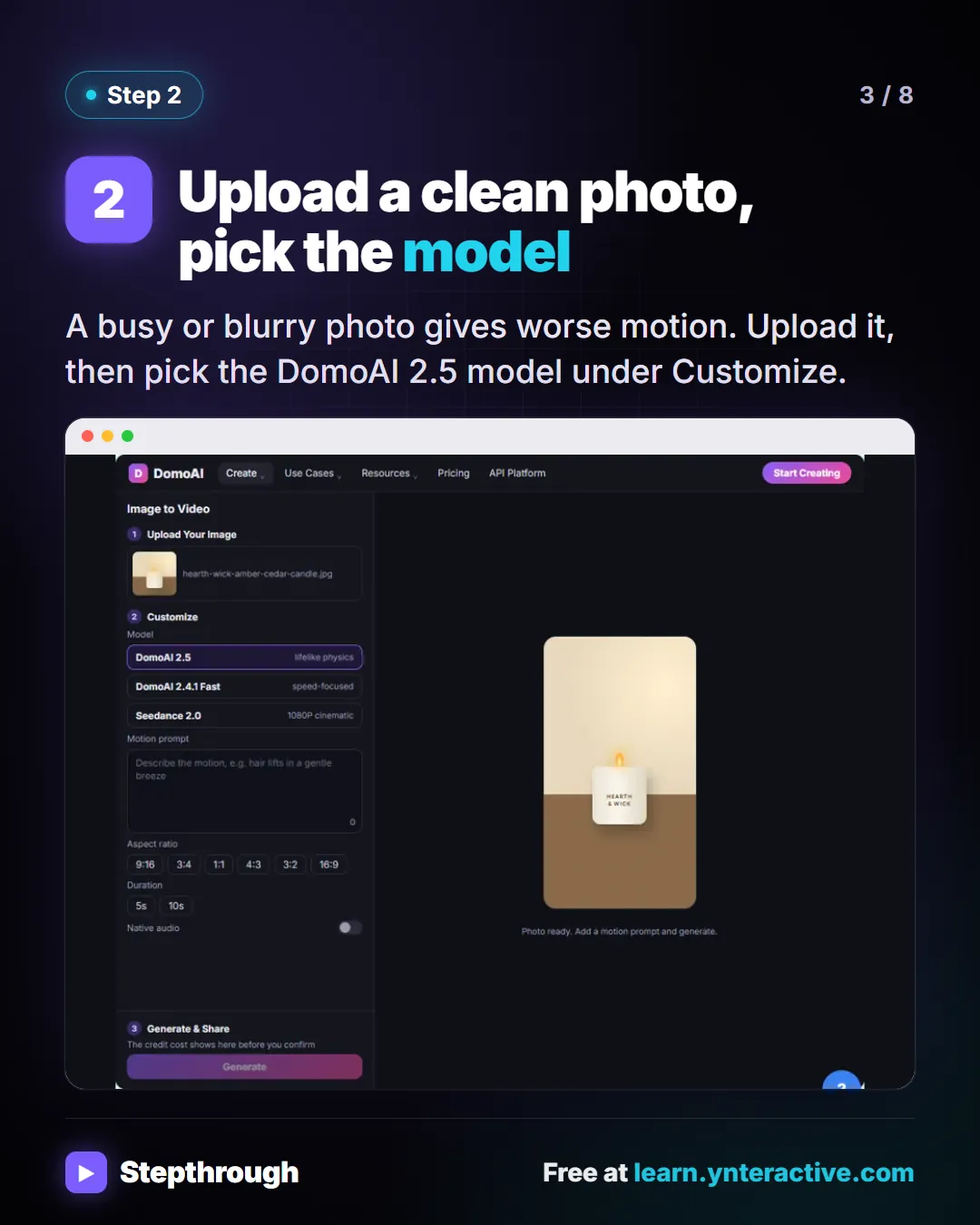
Slide 3 of 8 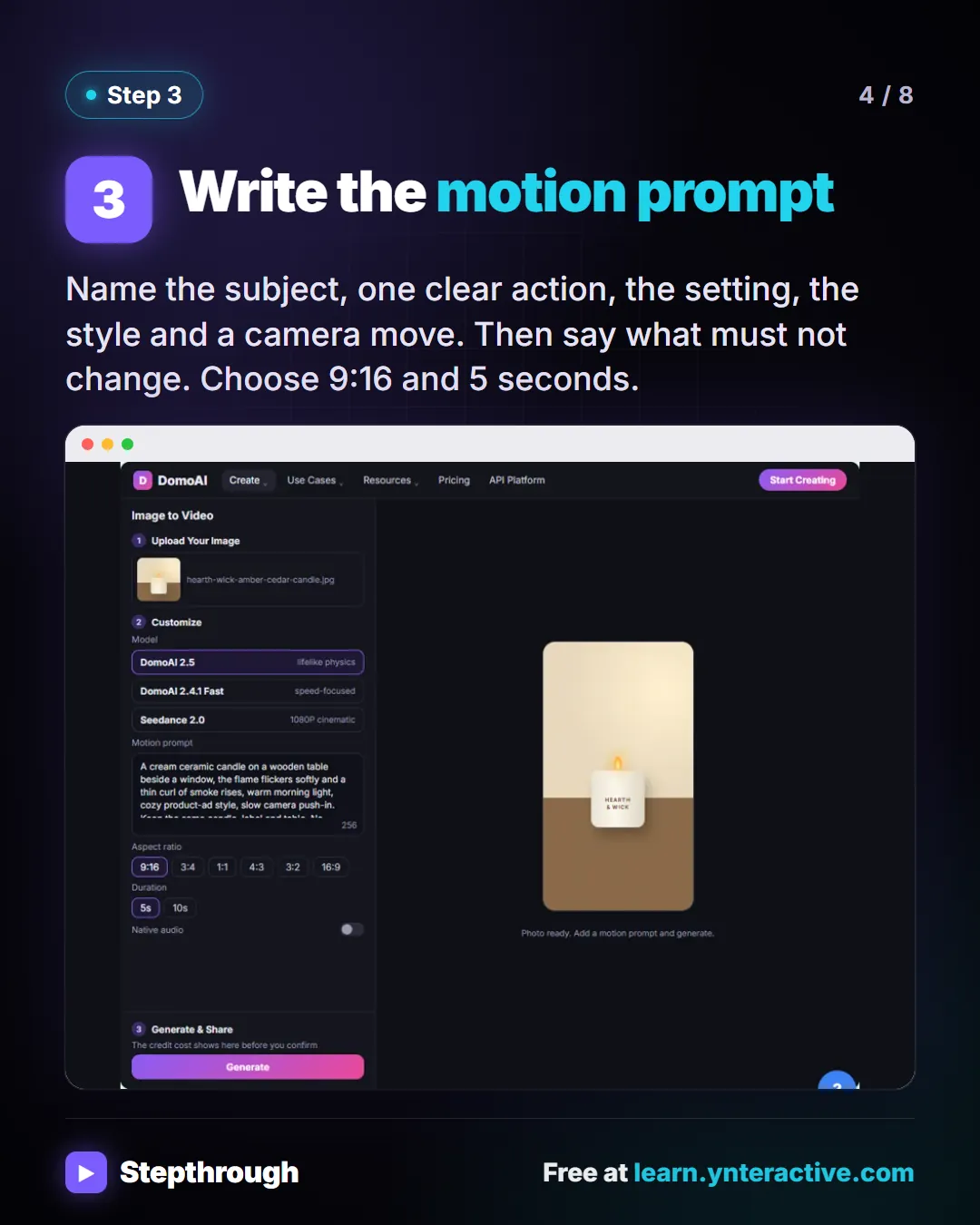
Slide 4 of 8 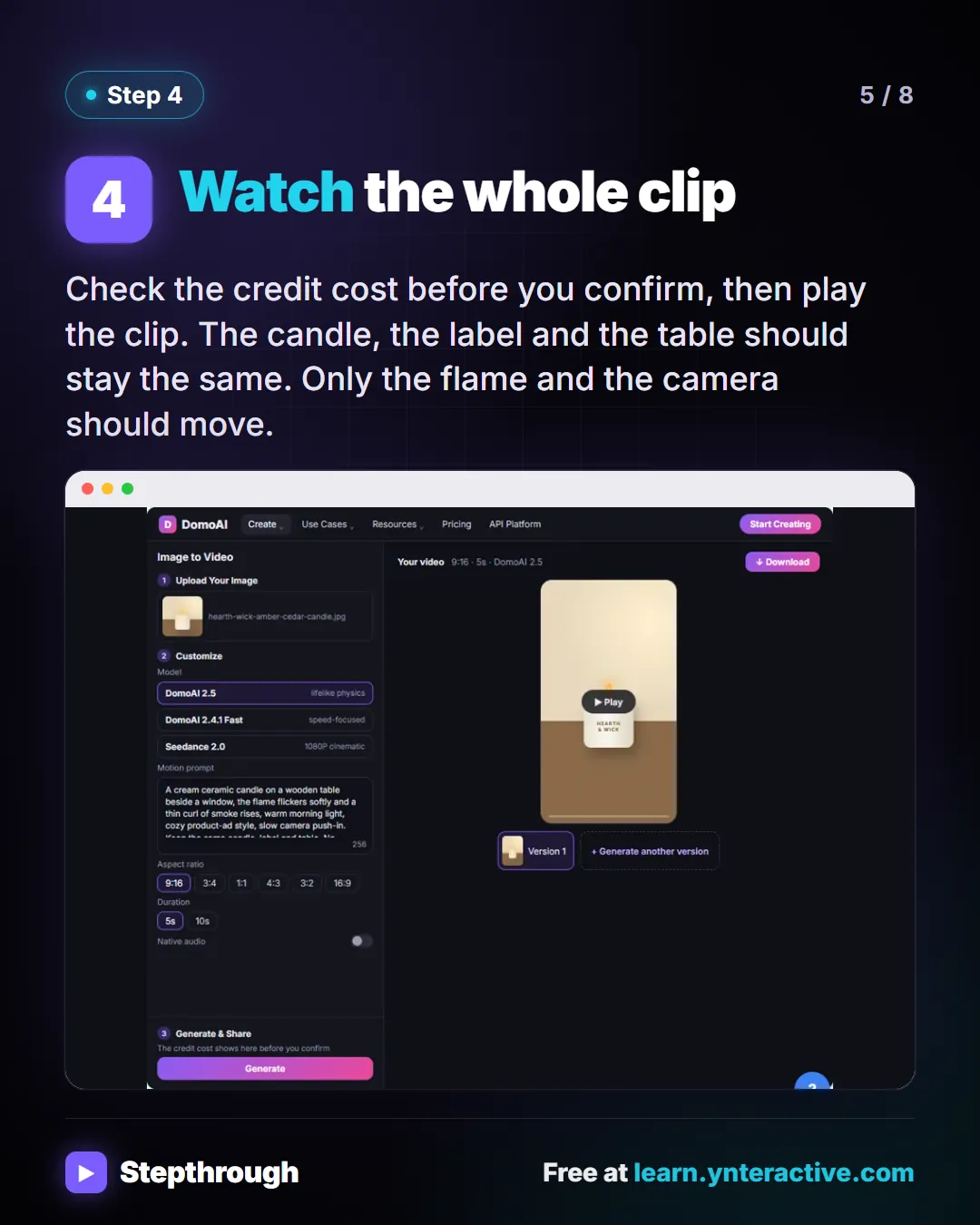
Slide 5 of 8 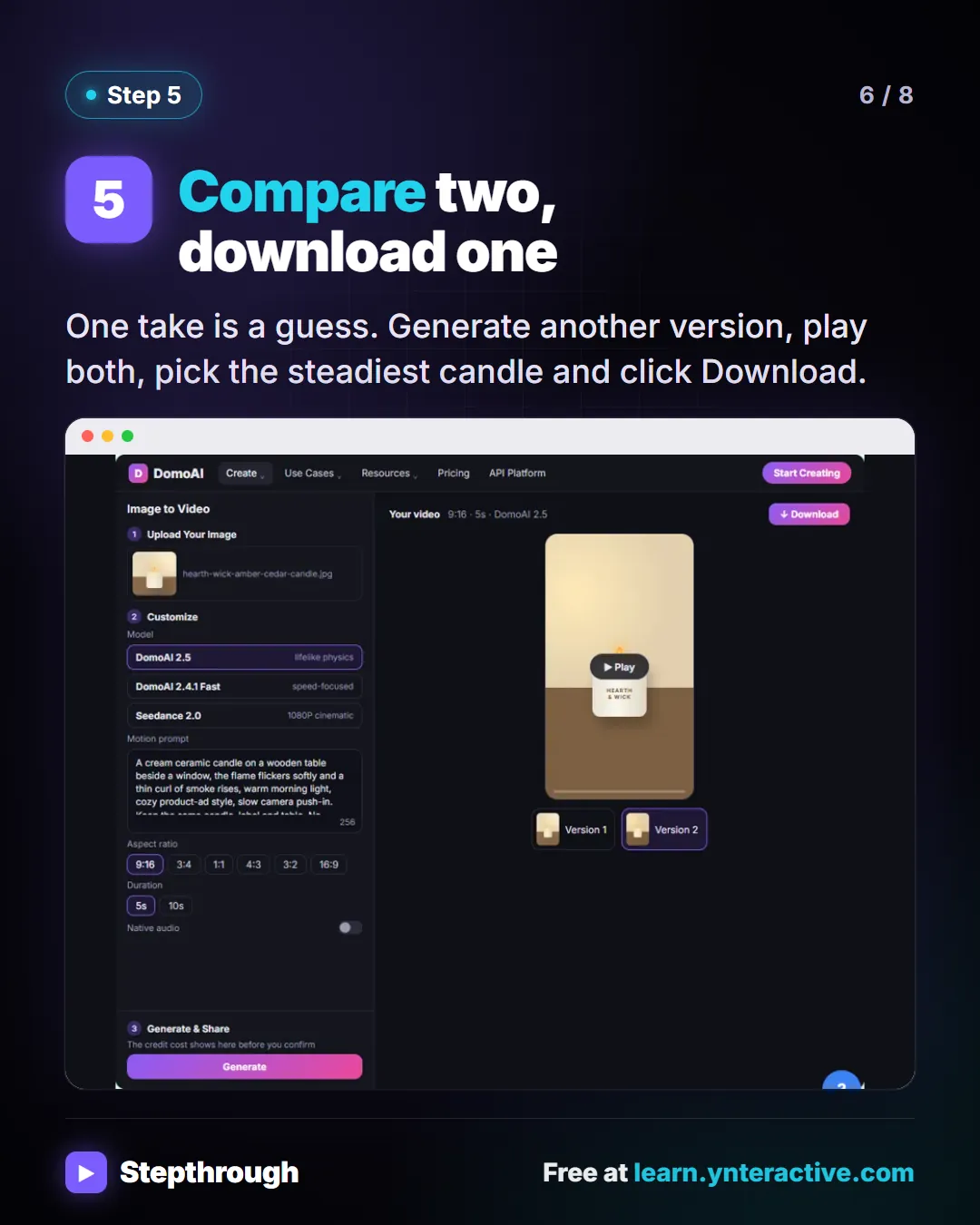
Slide 6 of 8 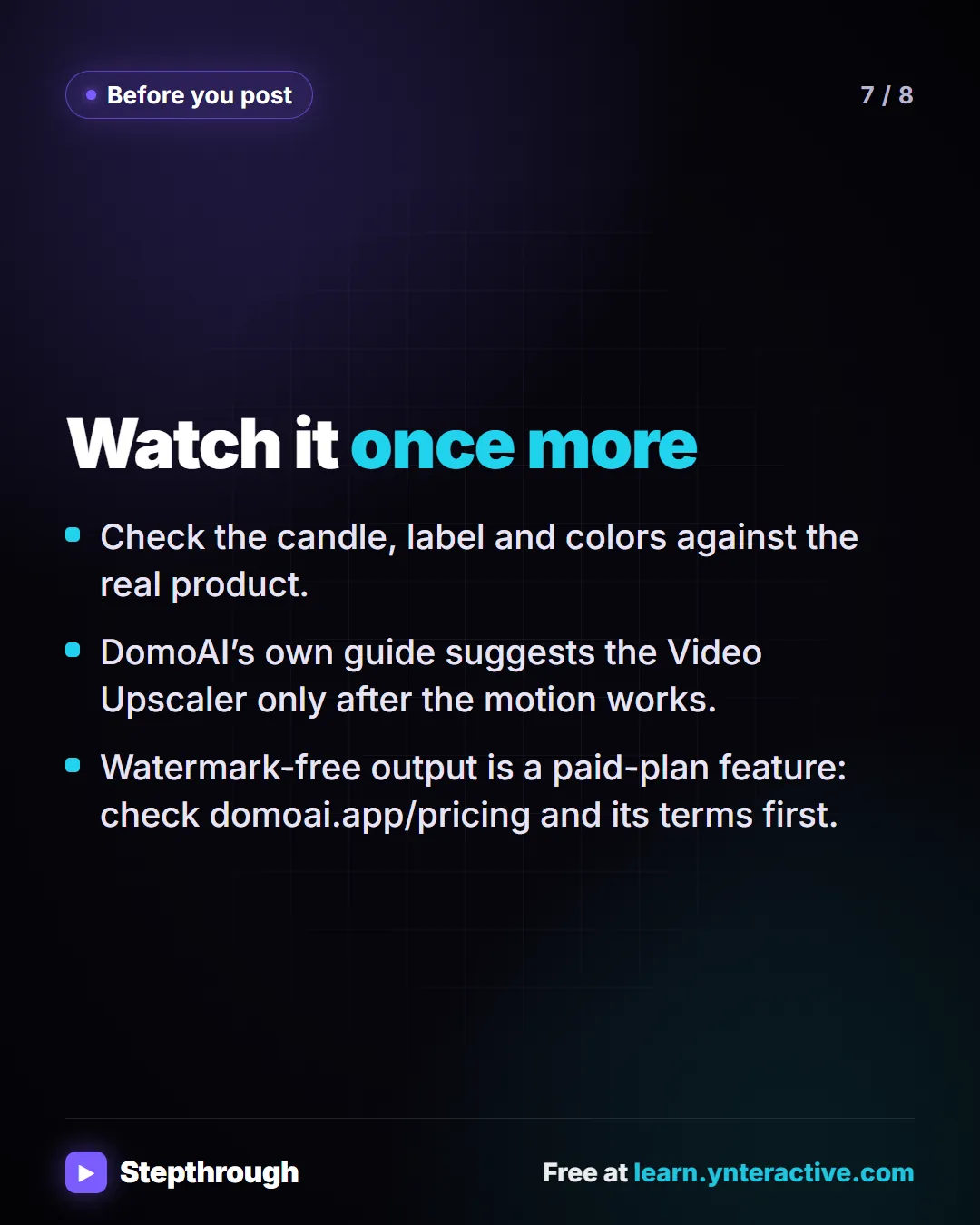
Slide 7 of 8 
Slide 8 of 8
The guide in text
A candle brand’s marketing lead makes a clip for Instagram and TikTok with no video shoot. 5 steps.
Step by step
Open Image to Video
In the top bar, click Create. Under Generate Video, choose Image to Video. It animates one still picture.
Upload a clean photo, pick the model
A busy or blurry photo gives worse motion. Upload it, then pick the DomoAI 2.5 model under Customize.
Write the motion prompt
Name the subject, one clear action, the setting, the style and a camera move. Then say what must not change. Choose 9:16 and 5 seconds.
Watch the whole clip
Check the credit cost before you confirm, then play the clip. The candle, the label and the table should stay the same. Only the flame and the camera should move.
Compare two, download one
One take is a guess. Generate another version, play both, pick the steadiest candle and click Download.
Watch it once more
- Check the candle, label and colors against the real product.
- DomoAI’s own guide suggests the Video Upscaler only after the motion works.
- Watermark-free output is a paid-plan feature: check domoai.app/pricing and its terms first.
Businesses and people in the examples are made up (Hearth & Wick Candle Co. is a made-up business). The steps, screens and wording come from the free lesson and the Stepthrough glossary and prompt library.
Do it yourself, free
DomoAI: Turn a Product Photo into a Short Video for Social. Open Image to Video in DomoAI, upload one product photo, pick a model and a vertical size, write a motion prompt that keeps the product the same, compare two versions and download the better one. You do every step yourself in a practice copy of DomoAI, it checks your work as you go, and “Do it for me” finishes any step you get stuck on. Free, and nothing touches your real accounts.
Start the free lessonRelated terms
Plain-English definitions, each with an example from a free lesson.
Related prompts
- Product photo motion prompt: Write the motion prompt for an image-to-video tool: one clear action, the setting, style and camera move, and what must stay…
More visual guides
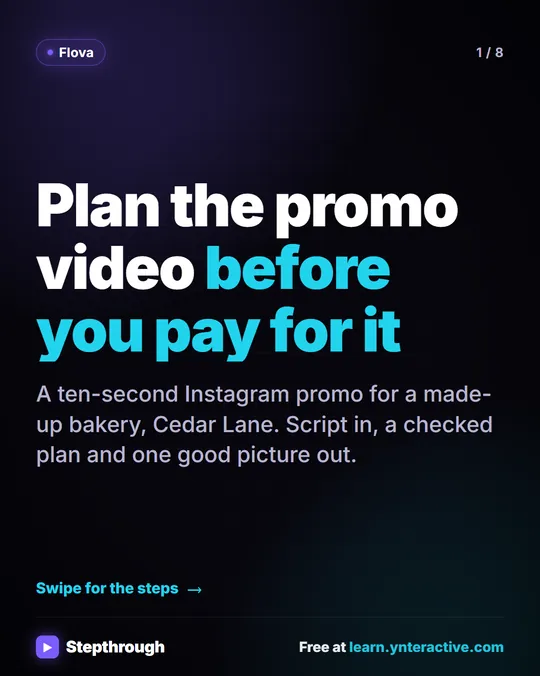 Flova: Plan a Promo Video Before You Spend a Credit
A visual guide to Flova’s AI video agent: paste your exact script, get the storyboard and credit estimate first, then make and fix one reference image.
Step-by-step guide 8 slides
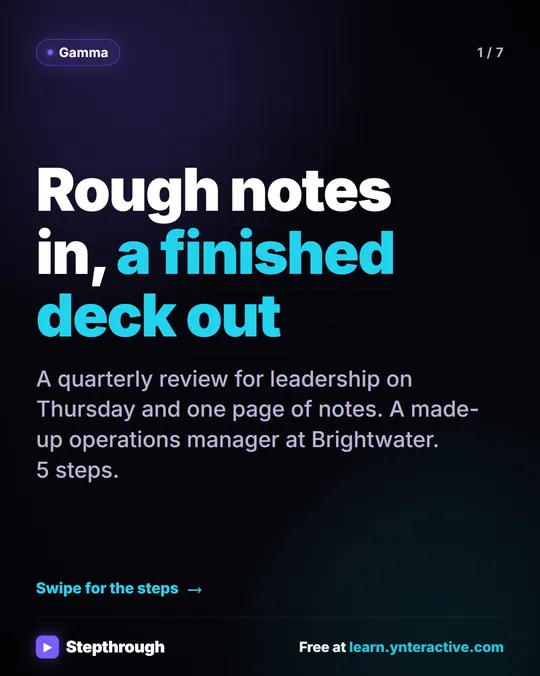 Gamma: Turn Rough Meeting Notes into a Deck in 5 Steps
A visual guide to Gamma: paste rough notes, let it condense them into a deck, change a slide by chatting with Agent, then export to PowerPoint and PDF.
Step-by-step guide 7 slides
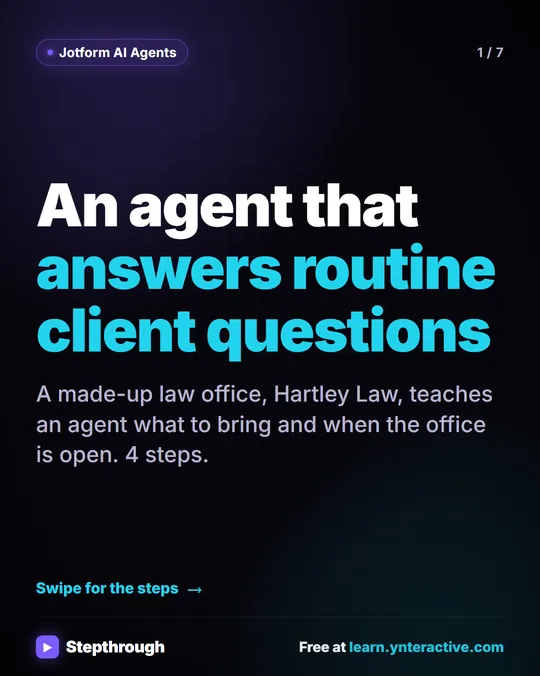 Jotform AI Agent: Answer Client Questions in 4 Steps
A visual guide to a Jotform AI Agent that answers routine client questions: create it, teach it one answer, test it in Test Mode and copy the embed code.
Step-by-step guide 7 slides