Updated . Built against the tool’s current screens and checked step by step. How we check this lesson
Upload a client call to Fellow, fix who said what, keep only the action items that are yours, and get a follow-up email drafted from the call. Then check it against the transcript before you send it.
At a glance
| Question | Answer |
|---|---|
| What you build | Upload a client call to Fellow, fix who said what, keep only the action items that are yours, and get a follow-up email drafted from the call. Then check it against the transcript before you send it. |
| Tools | Fellow |
| Time | About 9 minutes, 16 steps in 5 parts |
| Level | Beginner, no coding needed |
| Cost | Free |
| Ways to learn it | Practice it step by step |
The 5 parts, in short
- Give Fellow the meeting: Upload the call recording, Name it, and pick the language, Let it transcribe, Open the recap.
- Fix who said what: Read the summary, then label the speakers, Say who is who.
- Keep the action items that are yours: Accept only what you will do, Check the decision, Notice what is missing.
- Draft the follow-up email: Ask for the follow-up email, Send it, Open the draft.
- Check it before it goes out: Check it line by line, Find the date nobody said, The transcript is the record, Copy it and send it yourself.
Start here first: AI Receipt Extractor: Receipts to Google Sheets with n8n (module 1 of Business Automations)
In the course: Part 9 · n8n Automation Toolkit (Module 128 of the full course)
Part of: AI for Operations Teams (step 18 of 42). Next up: Answer Employee Policy Questions Instantly Using Airia
Part of: AI Apps Worth Knowing (step 127 of 157). Next up: SocialBu: Turn One Blog Post into a Month of LinkedIn Posts
What you'll build
You are Dana, account manager at Brightpath IT, a made-up IT provider for small offices. You just finished a quarterly check-in with Marcus Lee, office manager at Kessler & Moore, a 22-person law firm: a laptop refresh, a multi-factor rollout and a new hire. You promised a follow-up email today. In this lesson you upload the call recording to Fellow, read its recap, label the speakers, accept only the action items you own, ask Fellow for the follow-up email, and check it against the transcript. Fellow got the numbers right. It also missed one promise, dropped your company name and invented one deadline, so the checking is part of the job.
You uploaded a client call, got a recap with the laptop quote, the dates and the decision right, labeled the speakers, accepted only the two action items you own and noticed the one promise the list missed. Then Fellow drafted the follow-up email in about 20 seconds, and you caught its two slips: a missing company name and a deadline the client never agreed to. For live meetings, Fellow says it can join with a bot or record without one from its desktop app. Before you connect your calendar, open Settings, Note Taker, and set Fellow will join and take AI meeting notes for to Meetings I manually select, so it never joins a client call you did not choose, and ask clients before you record.
- Tools: Fellow
- Time: about 9 minutes, 16 steps in 5 chapters
- Level: beginner, no coding needed
- Price: free
Practice first, then build it for real
Practice copy built from real Fellow screens (fellow.app), captured 12 November 2026 on a new account. Nothing here touches a Fellow account. The call is a made-up recording we wrote and uploaded; Brightpath IT, Kessler & Moore and everyone in it are made up. The recap, action items and email are what Fellow produced, and yours will be worded differently. To build it for real you need your own Fellow account, and some services charge once you use them for real work, so check each tool's current pricing.
Try it yourself, free
Reading the steps is a start. Doing them is how it sticks. The interactive module walks you through every click in a practice copy of Fellow, checks each step, and never touches your real accounts.
Start “Fellow: Turn a Client Meeting into Notes, Action Items and a Follow-Up Email”Step by step: Fellow: Turn a Client Meeting into Notes, Action Items and a Follow-Up Email
All 16 steps of the interactive module, in order. In the module you watch each one, then do it yourself in a practice copy that checks your work.
1. Give Fellow the meeting
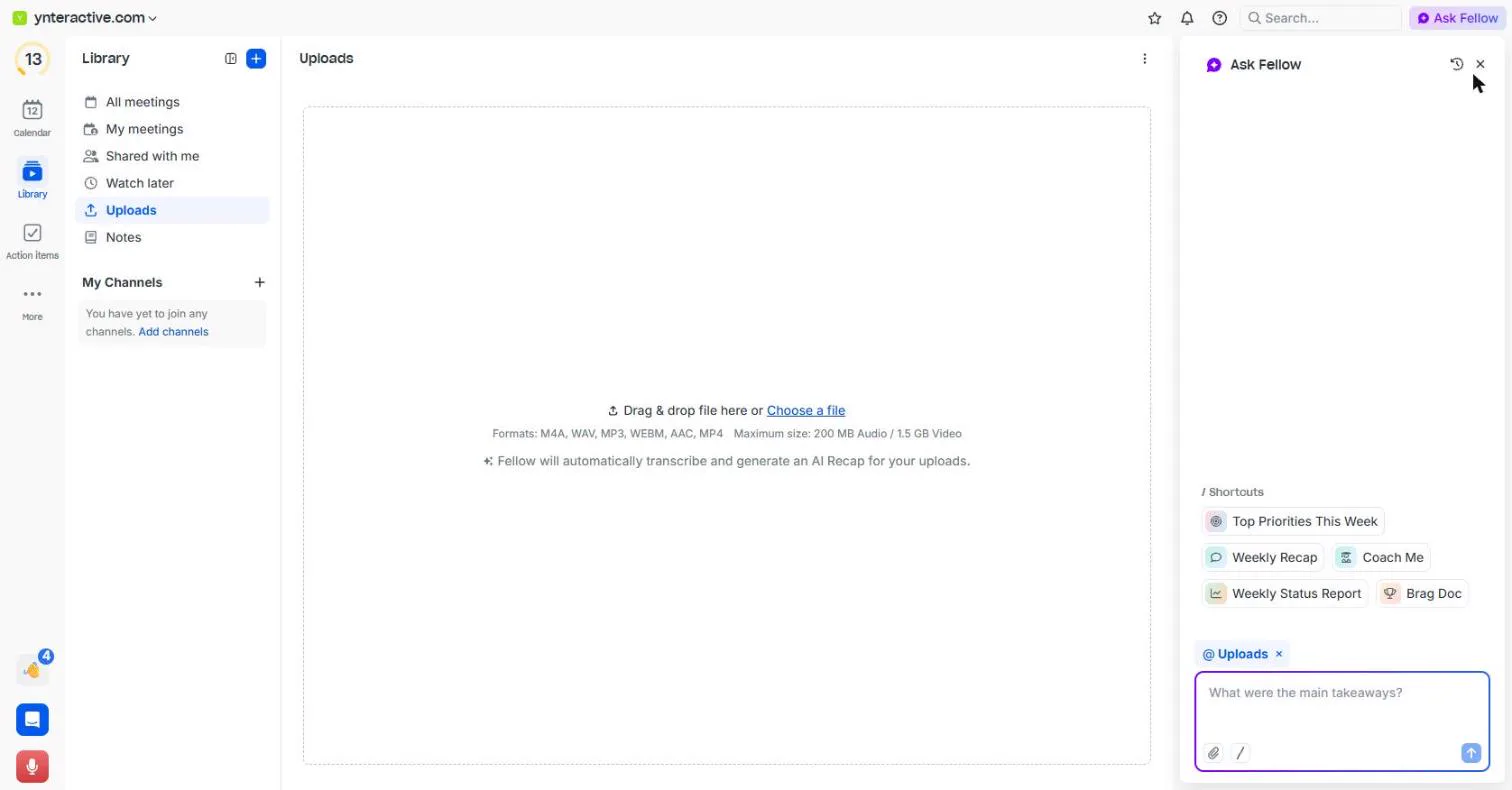
- Upload the call recording. You are Dana, account manager at Brightpath IT, a made-up IT provider for small offices. You just finished a quarterly check-in with Marcus Lee, office manager at Kessler & Moore, a 22-person law firm. You promised him a follow-up email today. In Fellow, open Library, then Uploads, and click Choose a file. Fellow takes M4A, WAV, MP3, WEBM, AAC and MP4. Our recording was a 1 minute 52 second MP3.
You are Dana, account manager at a small I T provider. You just had a check-in with a client, and promised a follow-up email today. In Fellow, open Library, then Uploads, and click Choose a file.
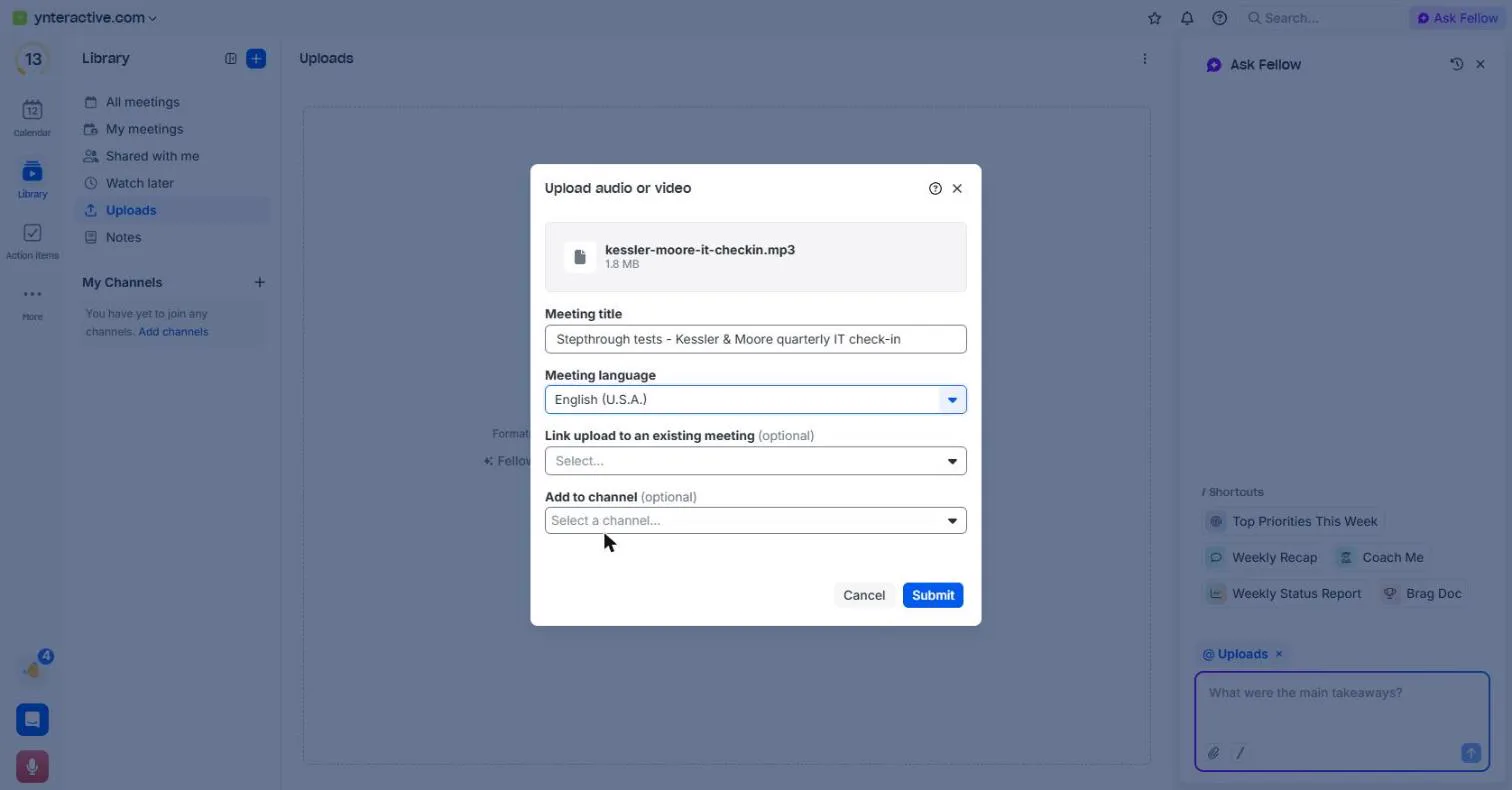
- Name it, and pick the language. Give the meeting a title you will find later, and pick the Meeting language. We chose English (U.S.A.). You can also link it to a meeting on your calendar or add it to a channel; we left both empty. Click Submit.
Give it a title you will find later, and pick the meeting language.
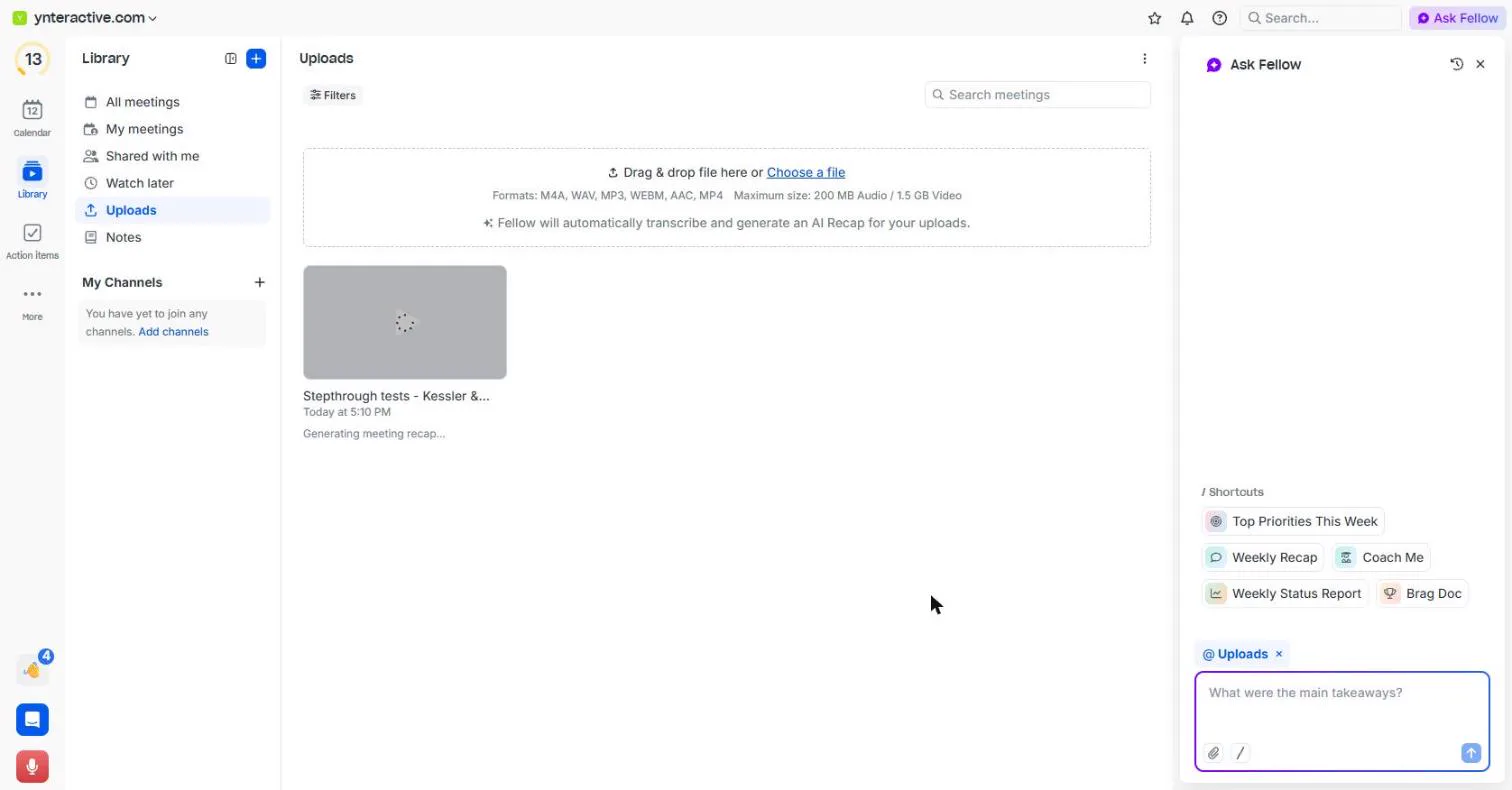
- Let it transcribe. The card says Generating meeting recap... Fellow transcribes the call and writes an AI recap. Ours was ready in about two minutes. Click the line.
Fellow transcribes the call and writes a recap. Ours was ready in about two minutes.
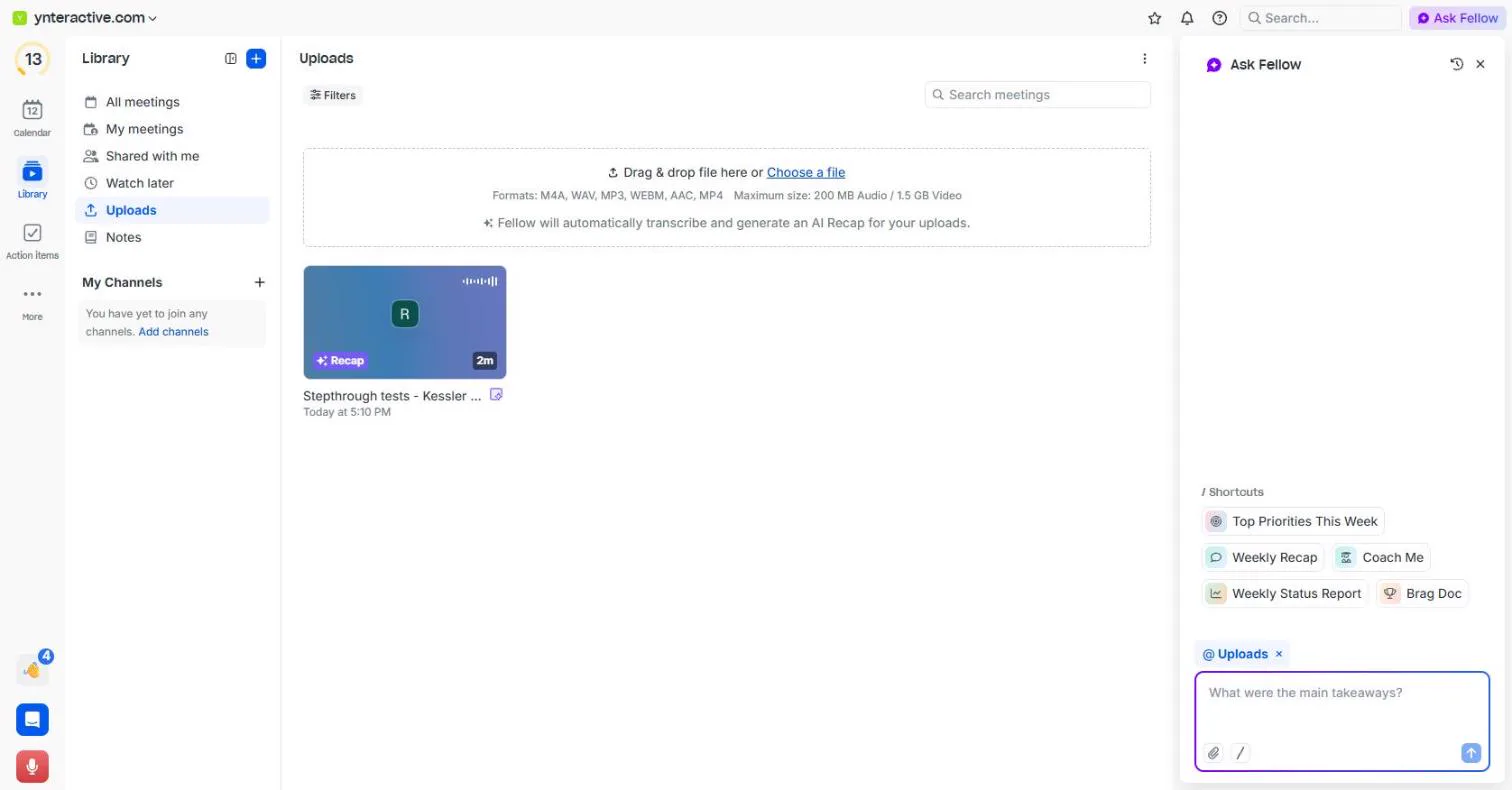
- Open the recap. The card now shows Recap and 2m. Click it.
The card now shows Recap.
2. Fix who said what
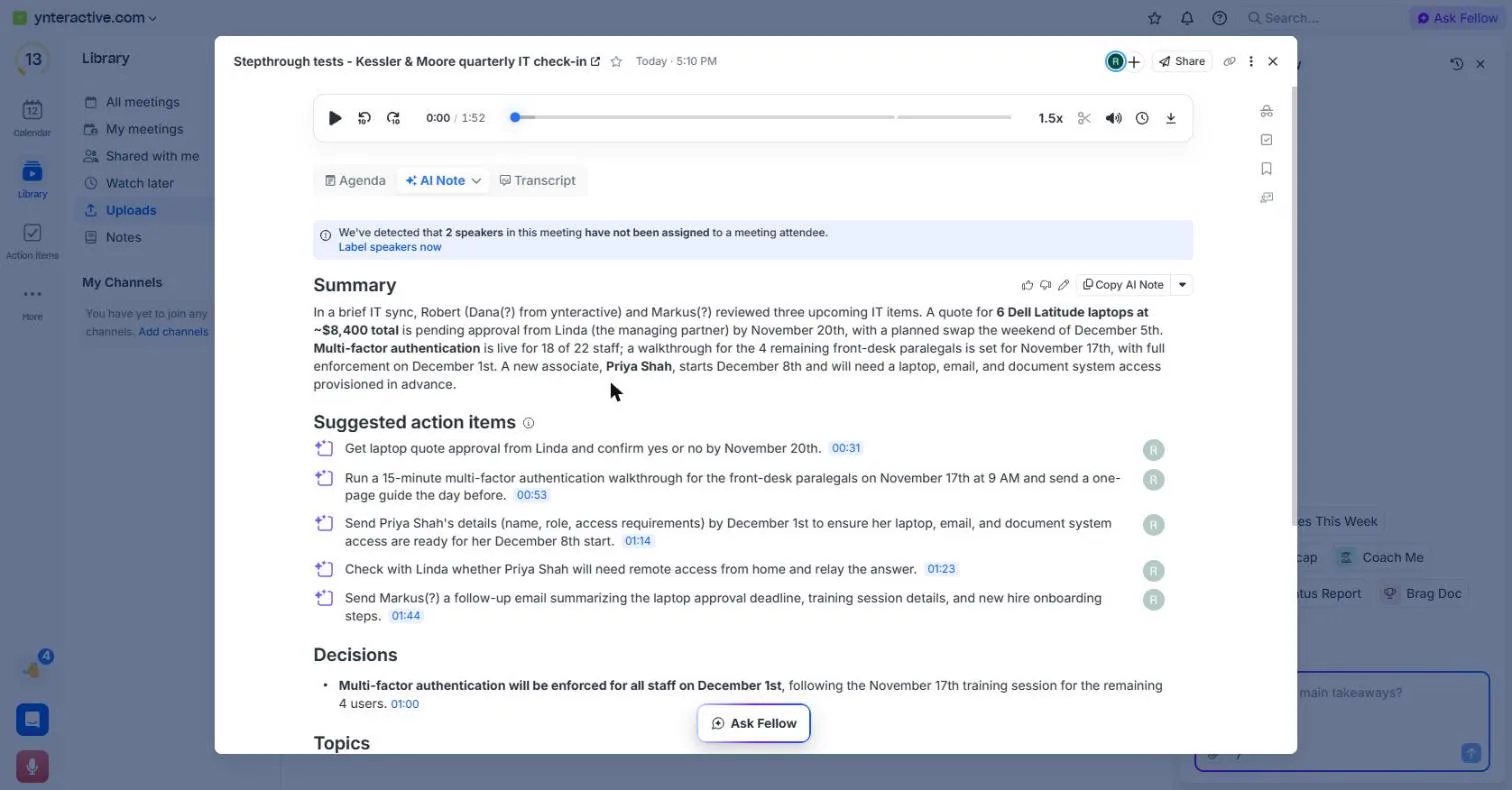
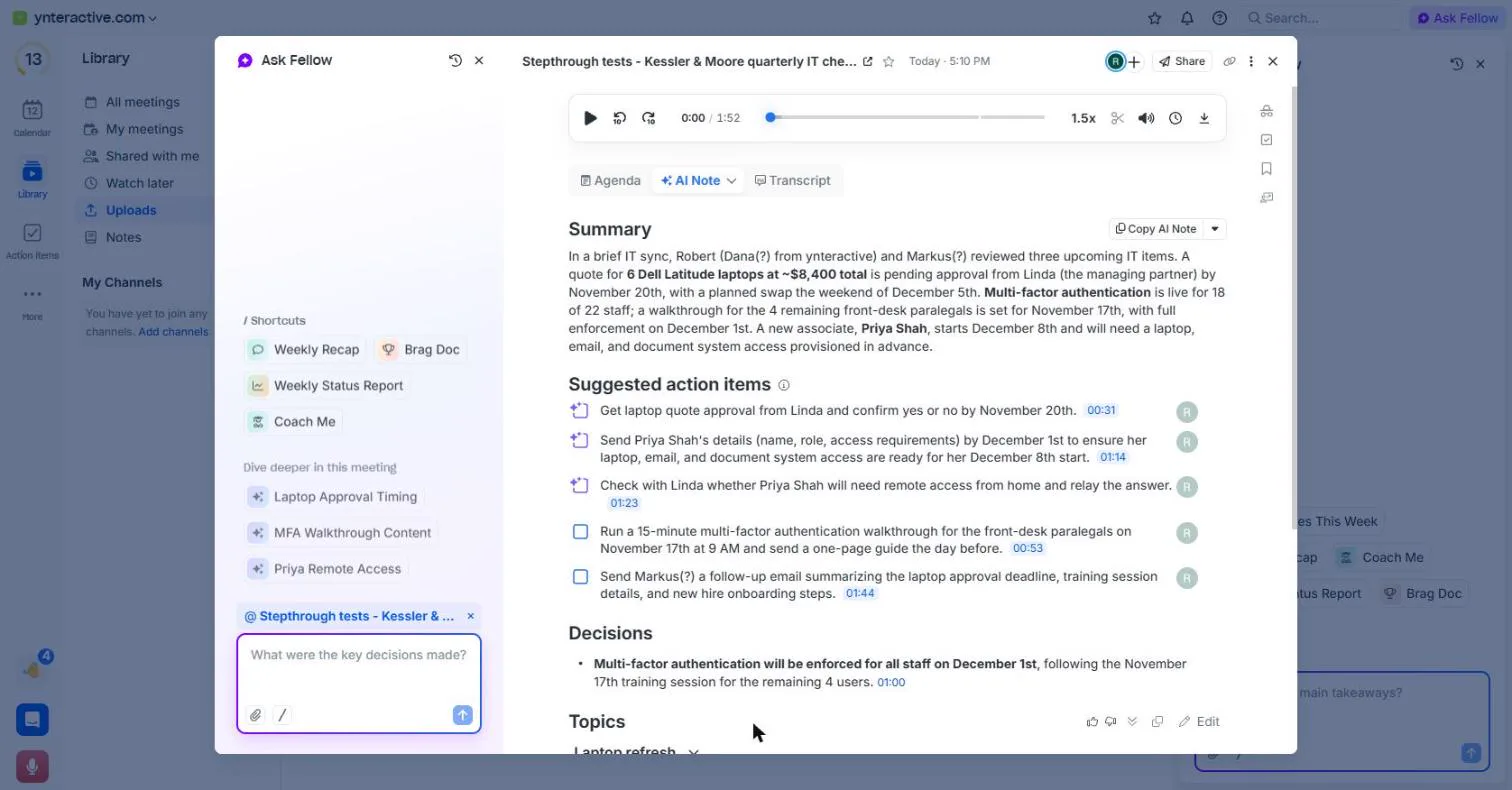
- Read the summary, then label the speakers. The Summary gets the facts right: 6 Dell Latitude laptops at about $8,400, approval from Linda by November 20th, multi-factor for the last 4 paralegals, and the new associate on December 8th. But look at the names: "Robert (Dana(?) from ynteractive) and Markus(?)". An uploaded file has no attendee list, so Fellow guessed. Click Label speakers now.
The summary gets the facts right. But an uploaded file has no attendee list, so Fellow guessed the names.
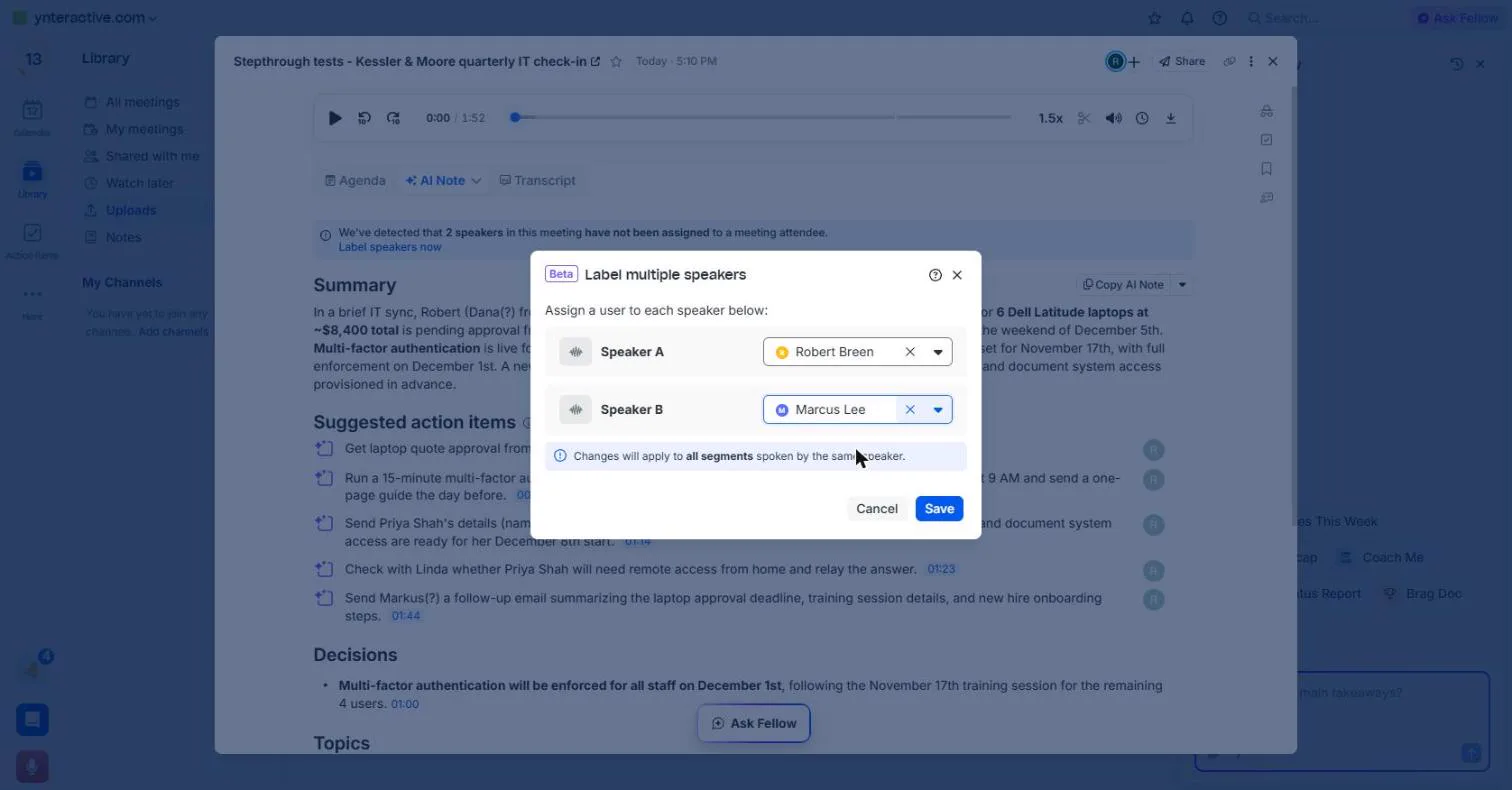
- Say who is who. Fellow found Speaker A and Speaker B. Speaker A is you: pick your own name from the list. For the client, type Marcus Lee and click Add "Marcus Lee" as speaker. Then click Save. Fellow confirms "Successfully relabeled 2 speaker labels", and the transcript now shows the right names. The summary paragraph keeps its first guess, so fix names there by hand if you share it.
Speaker A is you, so pick your own name. For the client, type his name, and add him as a speaker.
3. Keep the action items that are yours
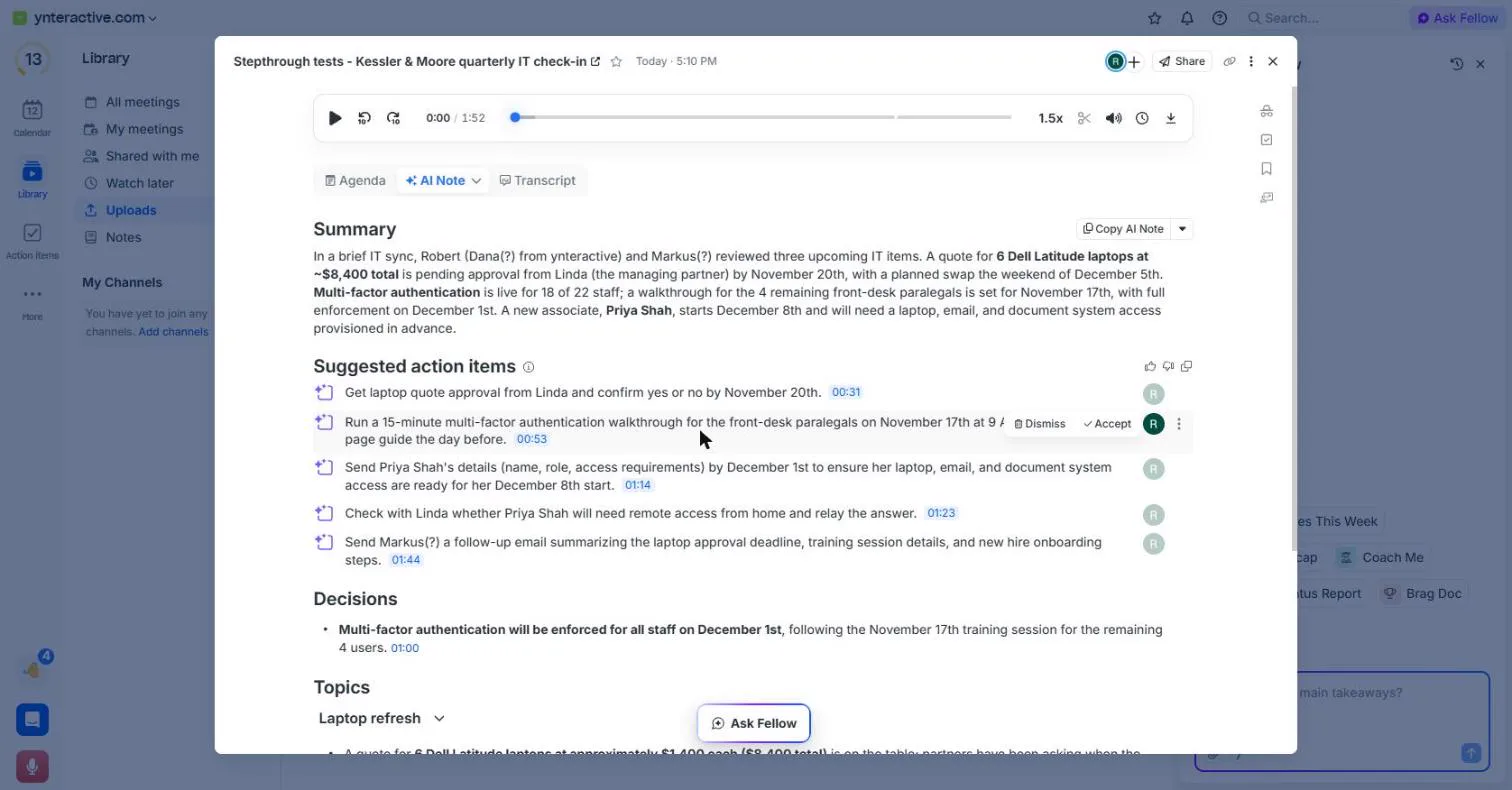
- Accept only what you will do. Fellow lists five Suggested action items, each with a time stamp you can click to hear that moment. They are suggestions until you accept them, and all five were given to you. Three are really Marcus's: the laptop approval, Priya's details, and the remote-access question. Point at the walkthrough item and click Accept. We accepted Send Marcus a follow-up email the same way.
Fellow suggests five action items, all given to you. Three are really the client's. Accept only the two you will do: the training session, and the follow-up email.
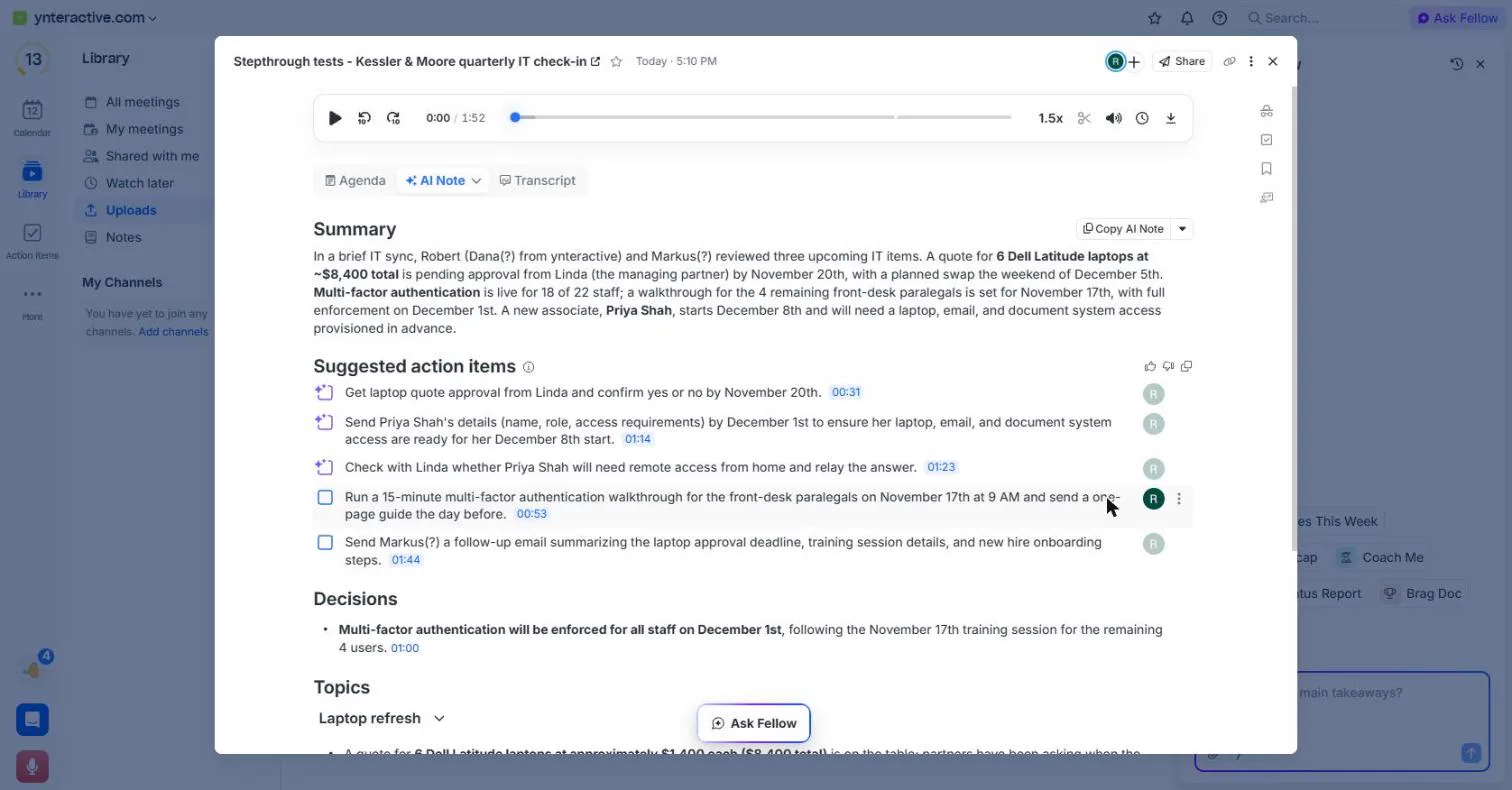
- Check the decision. Your two items moved down the list and now have checkboxes, so you can tick them off when they are done. The other three stay as suggestions you can Dismiss. Under Decisions, Fellow logged one: multi-factor for all staff on December 1st. That is right. Click it.
Your two items now have checkboxes. Under Decisions, it logged one. Multi-factor for everyone on December first. That is right.
- Notice what is missing. One thing from the call is not an action item: you said you would keep an eye on the failed backup and tell Marcus if it happens again. AI lists catch most promises, not all. You will put it in the email. Click Ask Fellow at the bottom.
One promise from the call is missing. You said you would watch the failed backup. You will put it in the email.
4. Draft the follow-up email
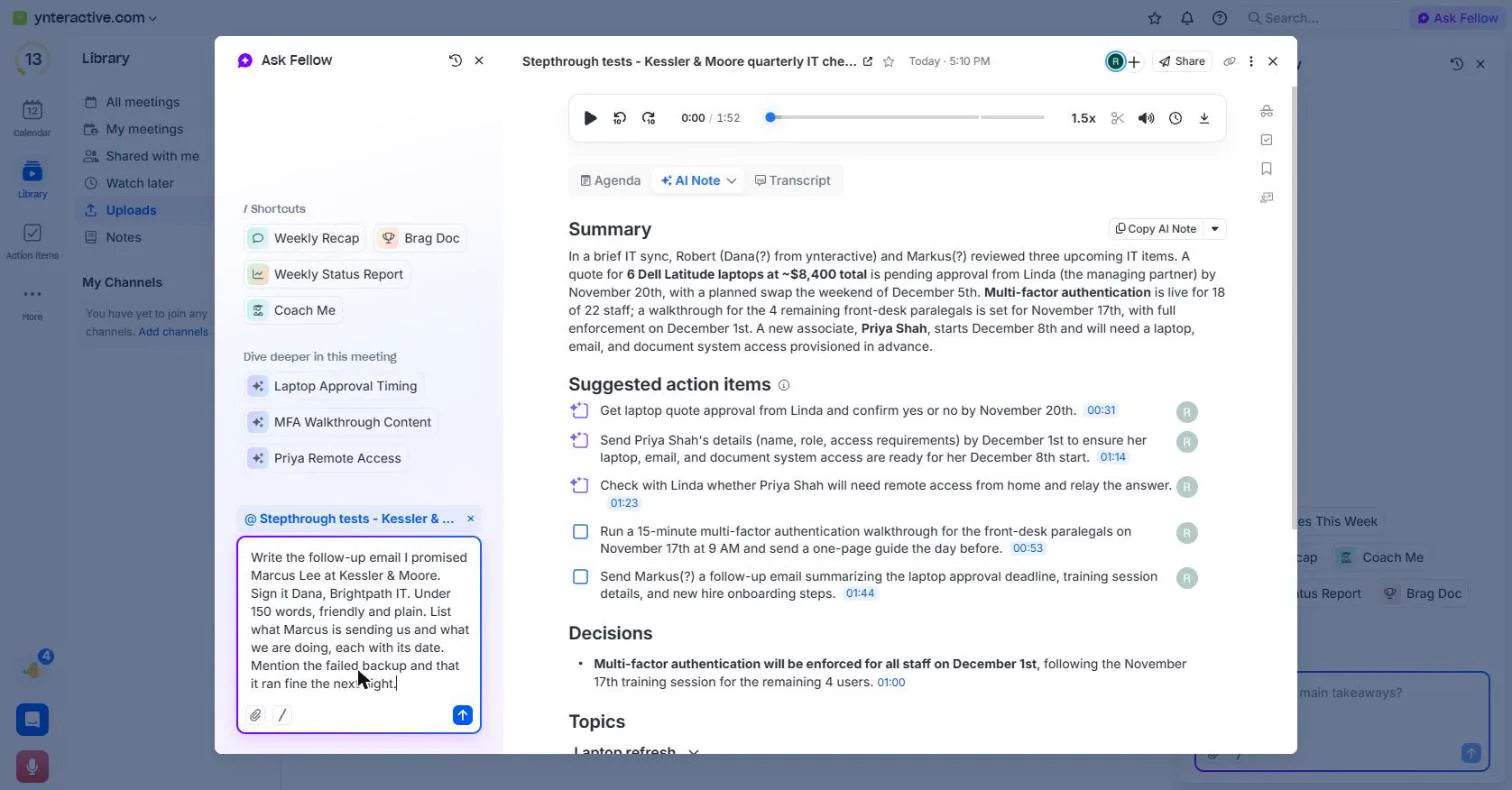
- Ask for the follow-up email. Ask Fellow opens with this meeting attached, so it answers from the call. Say who it is to, how to sign it, how long, and what must be in it, including the backup note it missed. Type: Write the follow-up email I promised Marcus Lee at Kessler & Moore. Sign it Dana, Brightpath IT. Under 150 words, friendly and plain. List what Marcus is sending us and what we are doing, each with its date. Mention the failed backup and that it ran fine the next night.
Ask Fellow opens with this meeting attached. Say who the email is to, how to sign it, how long, and what must be in it.
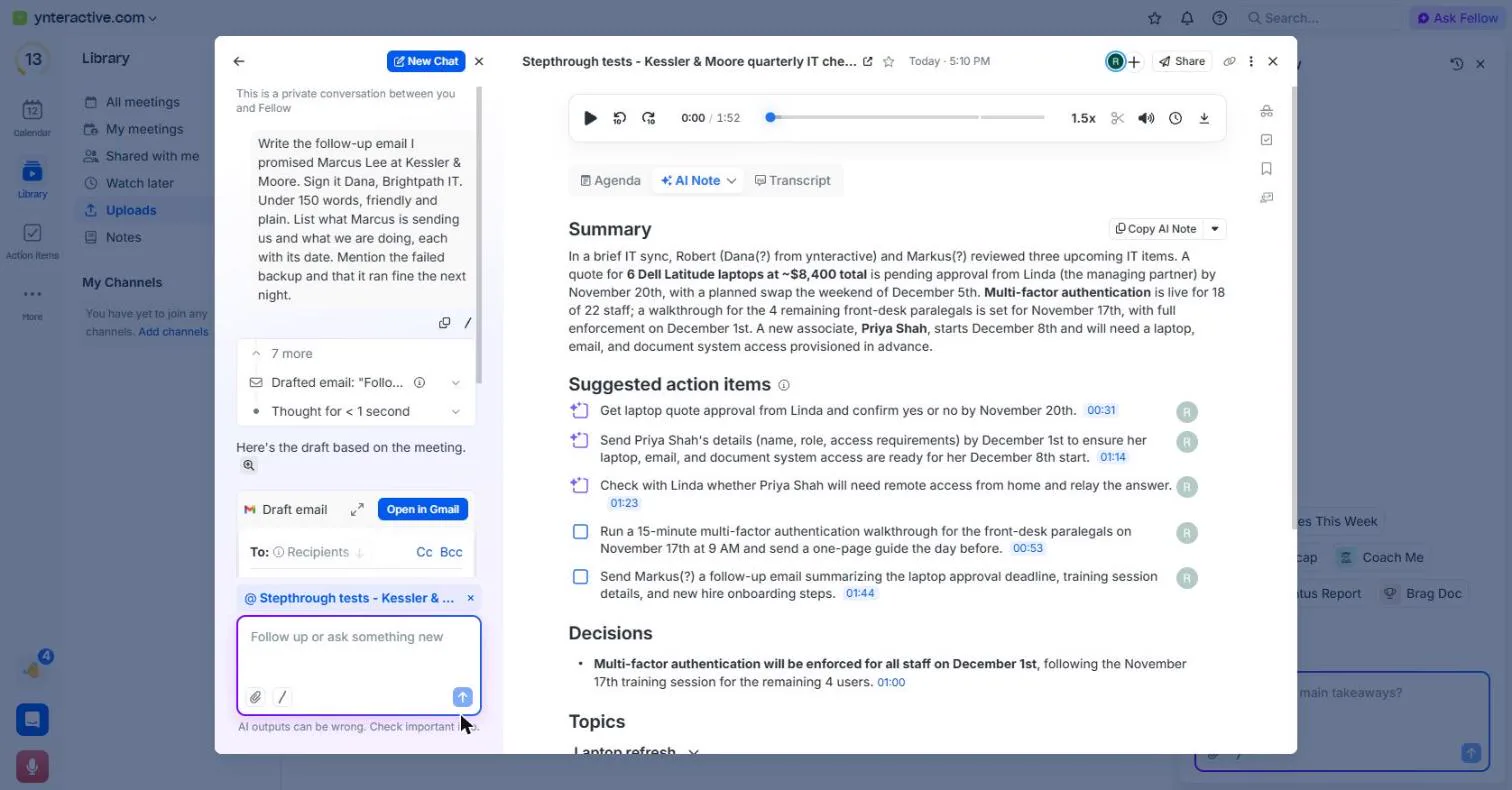
- Send it. Click the arrow. Fellow shows its steps, then a Draft email card. Ours took about 20 seconds.
Ours took about twenty seconds.
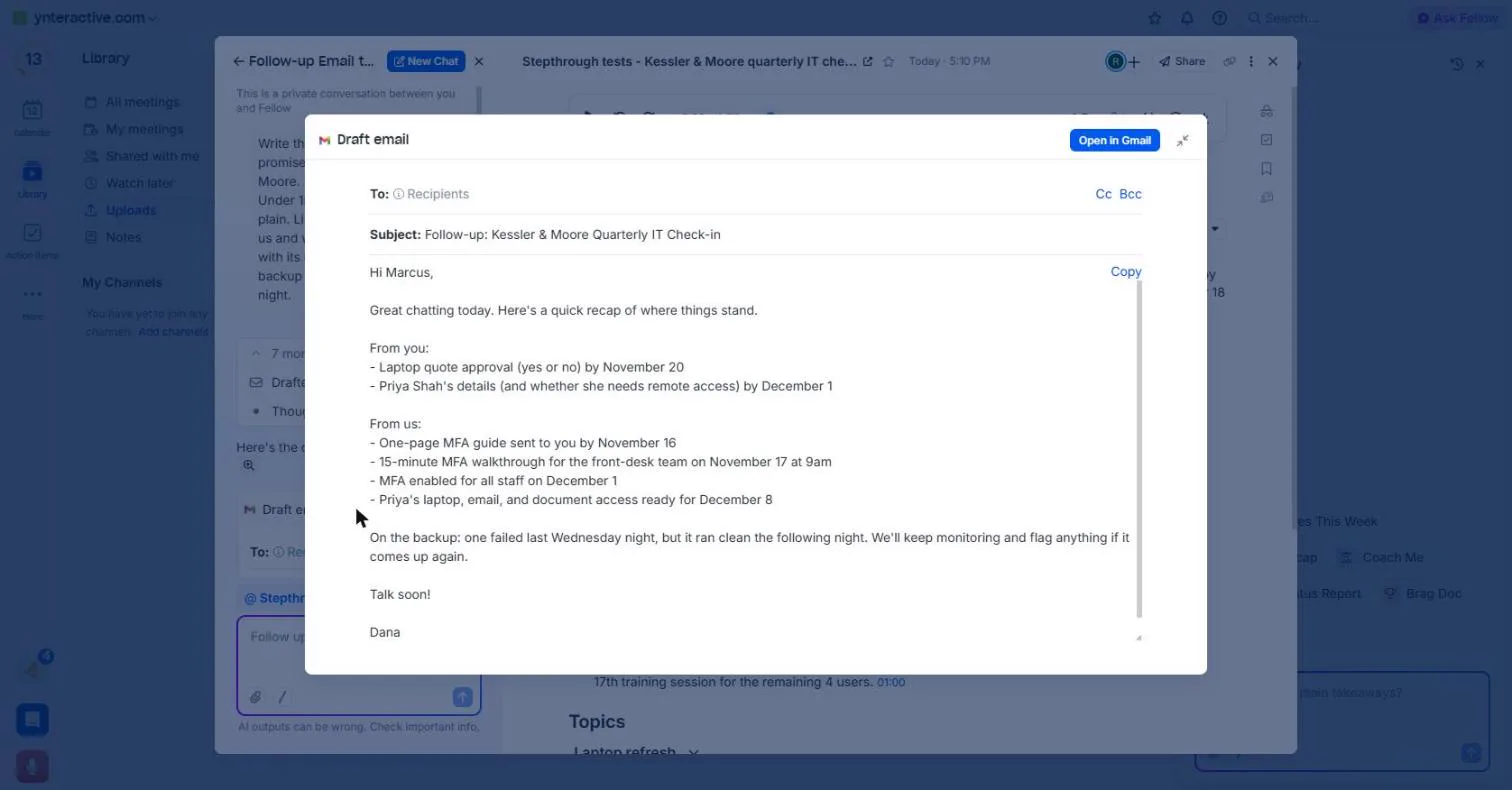
- Open the draft. The card has To, Subject and an Open in Gmail button. Don't open it in Gmail yet. Click the expand icon to read the whole email first.
Don't open it in Gmail yet.
5. Check it before it goes out
- Check it line by line. A good draft: From you lists Marcus's two items, From us lists yours with dates, and the backup is there. The guide date, November 16, is right too: you said "the day before" the 17th. Now the slips. You asked it to sign Dana, Brightpath IT, and it signed only Dana. Click the signature.
A good draft. It even worked out the guide date from the day before. But you asked it to sign with your company name, and it signed only Dana.
- Find the date nobody said. Read "Priya Shah's details (and whether she needs remote access) by December 1". In the call, Marcus said he would check about remote access and let you know. He gave no date. The email puts a deadline in his mouth. Click the line, then check the transcript.
One line gives the remote access question a deadline of December first. In the call, Marcus gave no date. Check the transcript.
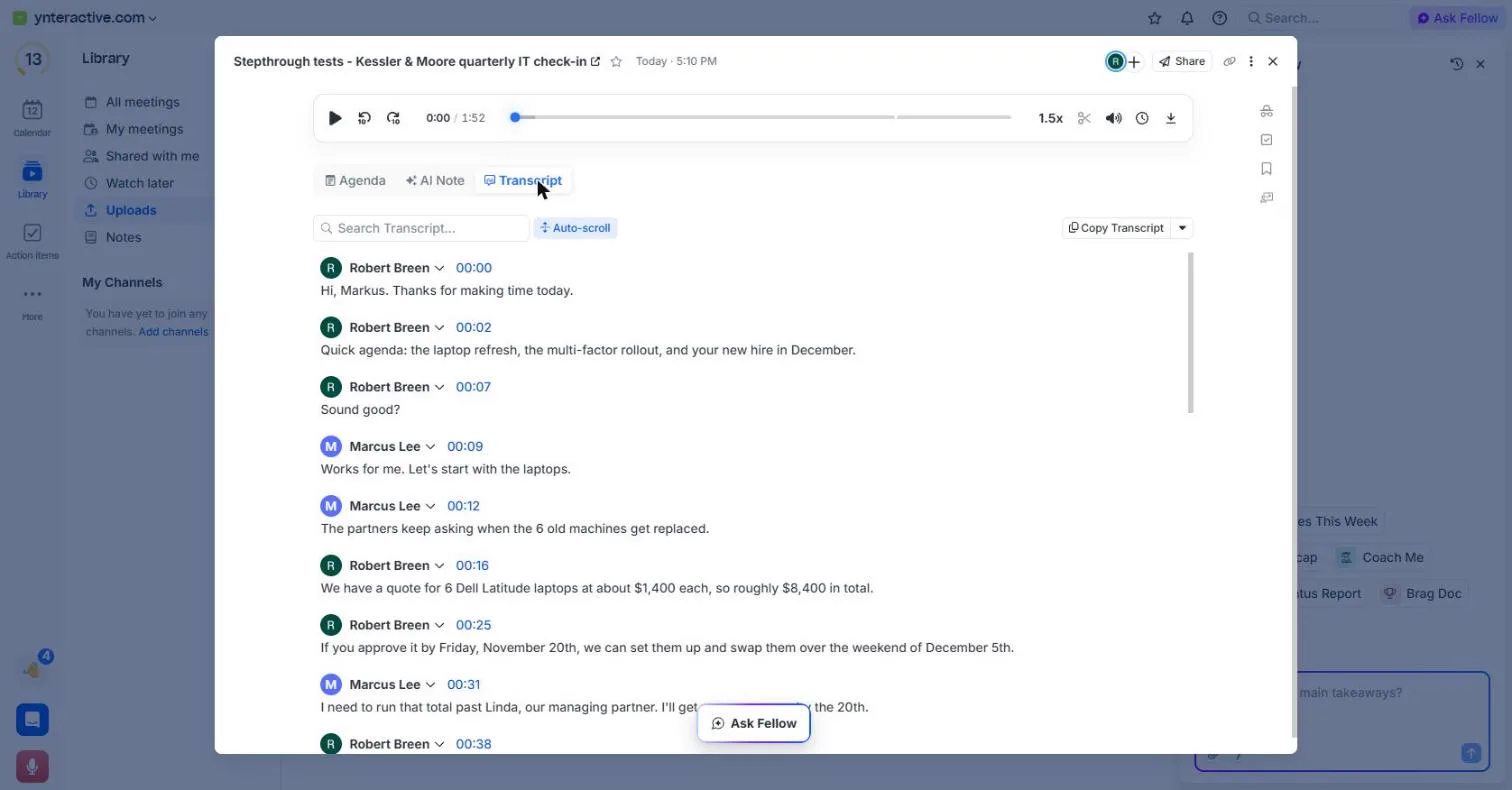
- The transcript is the record. The Transcript tab has every line with its speaker and time. Your fix: give the remote-access answer no date, or ask for it by December 1 as a request. One more thing: the name label says Marcus, but the text says "Hi, Markus." Names are easy to mishear, so Fellow's Note Taker settings have Custom vocabulary. Add client names there. Click the line.
The transcript has every line, with who said it and when. Notice the client's name is spelled two ways. In Fellow's settings, add client names to the custom vocabulary.
- Copy it and send it yourself. Back in the draft, click Copy, paste it into your email, make the two fixes, add Marcus's address and send it. Open in Gmail puts it in a Gmail draft if your Gmail is connected. Either way, you send it, not Fellow.
Screenshots
More in Business Automations
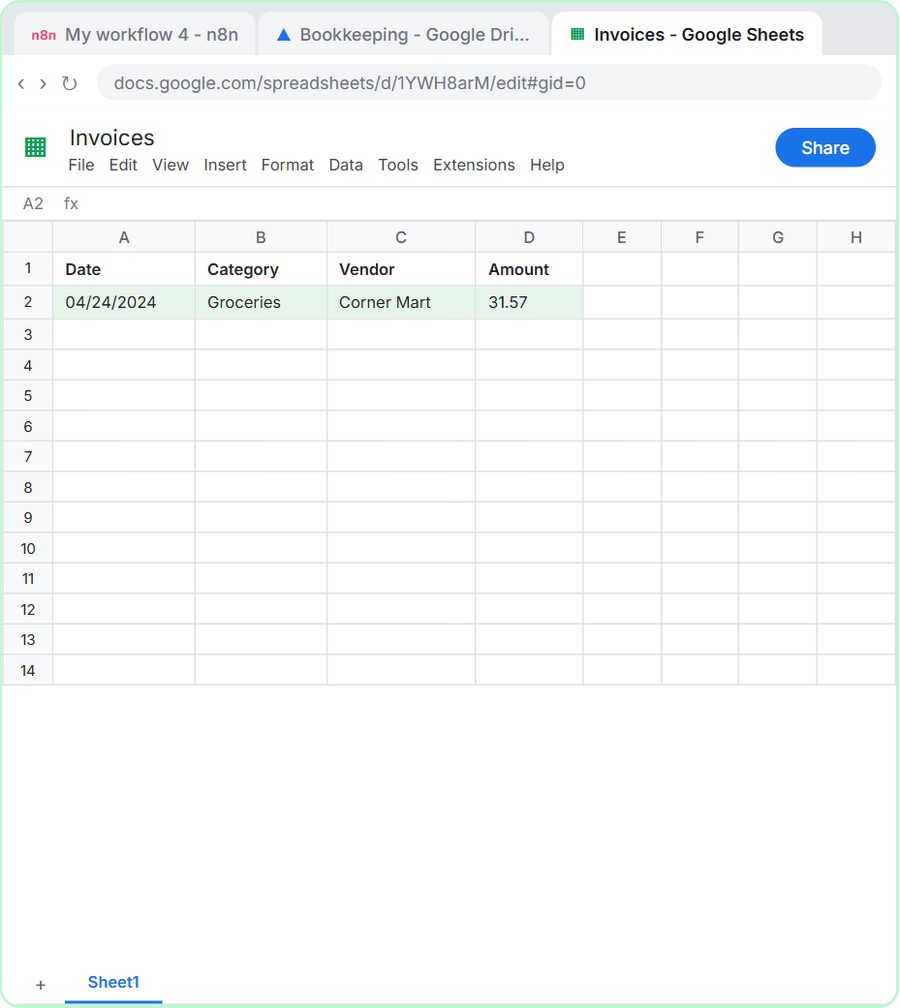 AI Receipt Extractor: Receipts to Google Sheets with n8n
Drop a photo of a receipt into an n8n chat. An AI agent reads it, pulls out the date, vendor and amount, picks a category, and adds a row to Google Sheets.
Free · Live ~12 min Intermediate
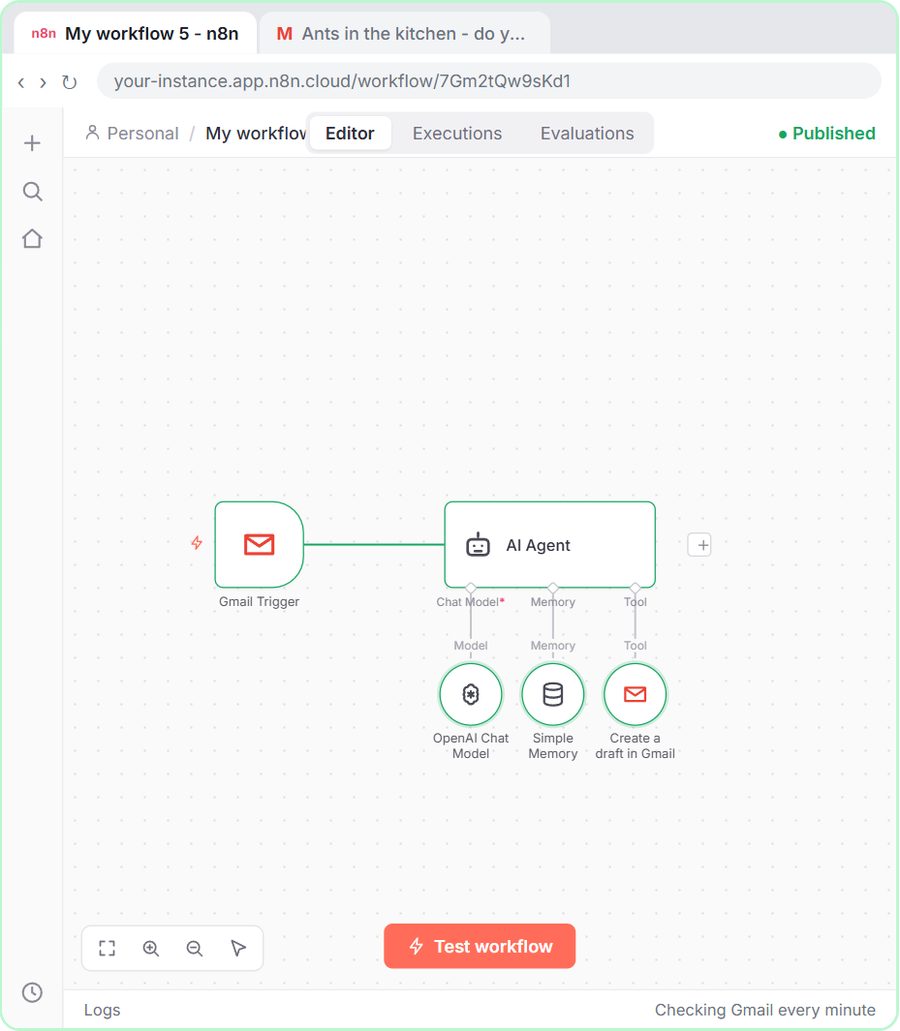 n8n AI Email Responder: Draft Gmail Replies Automatically
Build an n8n agent that watches your Gmail, reads each new customer email, and writes a reply as a draft in the same thread, ready for you to check and send.
Free · Live ~12 min Intermediate
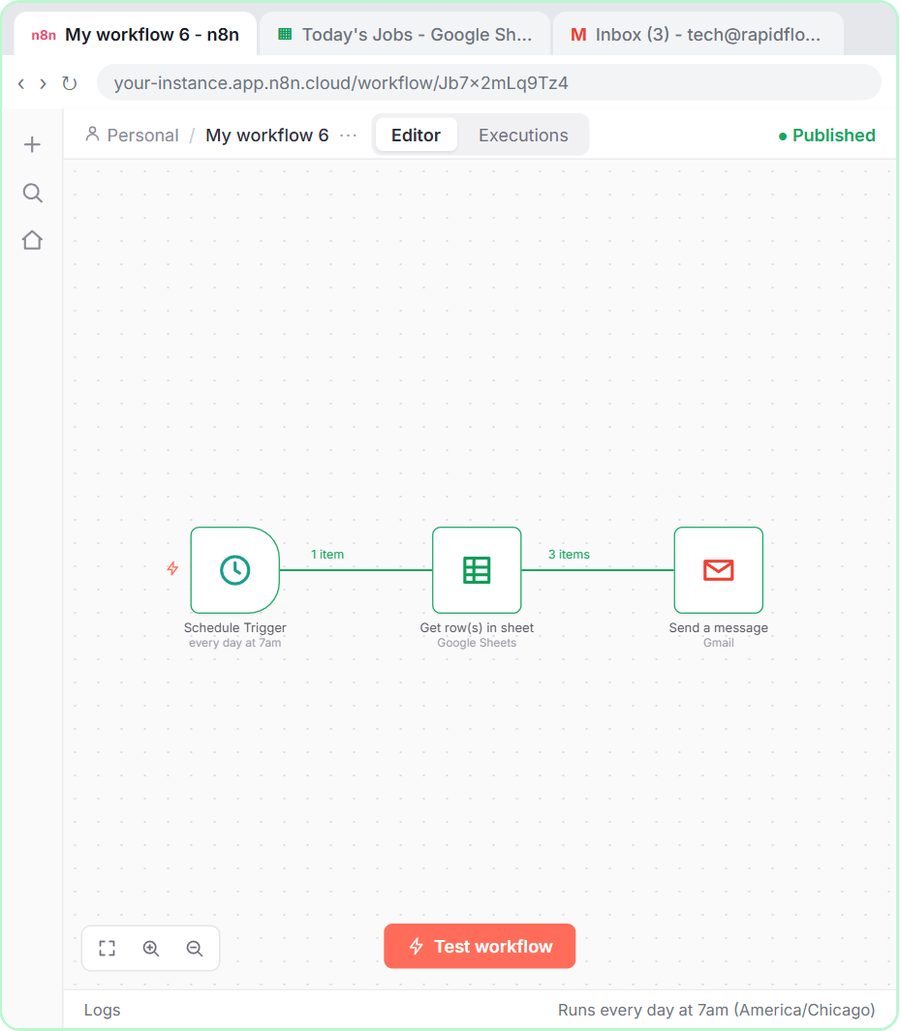 Daily Job Alerts: Email Each Tech Their Jobs from Google Sheets with n8n
Every morning at 7, n8n reads a plumbing company's jobs sheet, skips anything not assigned yet, and emails each job to the tech it's assigned to — customer, address…
Free · Live ~10 min Intermediate
 Gmail AI Triage: Auto-Label Every Email and Draft Replies
Build an n8n workflow that reads each new email, sorts it as a lead, a client or an invoice with a Text Classifier, adds the matching Gmail label, and drafts a reply to…
Free · Live ~18 min Advanced
 A Support Agent That Answers from Your Own Docs
Turn an n8n chat agent into a support agent that answers only from your policies in a Google Doc, refuses what it should, and hands off to a person by email.
Free · Live ~13 min Advanced
 Chatbase: Answer Customer FAQs with an AI Agent
A business case for a small firm that answers the same customer questions every week: build a Chatbase AI agent on your FAQ in the real app, make it say when it does…
Free · Live ~15 min Beginner
All 47 modules in Business Automations
Terms in this lesson
Plain-English definitions, each with an example from a free lesson.