Updated . Built against the tool’s current screens and checked step by step. How we check this lesson
Split one blog post into four weekly LinkedIn posts with SocialBu's AI post writer, catch the two drafts that got the voice wrong, and put the month on a recurring queue so nobody has to remember to post.
At a glance
| Question | Answer |
|---|---|
| What you build | Split one blog post into four weekly LinkedIn posts with SocialBu's AI post writer, catch the two drafts that got the voice wrong, and put the month on a recurring queue so nobody has to remember to post. |
| Tools | SocialBu |
| Time | About 8 minutes, 16 steps in 4 parts |
| Level | Beginner, no coding needed |
| Cost | Free |
| Ways to learn it | Practice it step by step |
The 4 parts, in short
- Open the LinkedIn post writer: Start from the AI tools, Pick the post generators, Switch to LinkedIn.
- Write week 1 from the blog post: Describe week 1 from the blog post, Set the goal, Generate it, Read week 1.
- Write weeks 2 to 4, and fix what it gets wrong: It needs a connected account, Week 2, and an odd sentence, Try Refine, Shorter, still odd, and 2 more steps.
- Put the month on a recurring queue: Go to Publish, Open Queues, Set up the queue once your account is connected.
Start here first: AI Receipt Extractor: Receipts to Google Sheets with n8n (module 1 of Business Automations)
In the course: Part 9 · n8n Automation Toolkit (Module 129 of the full course)
Part of: AI for Marketing Teams (step 39 of 51). Next up: BulkPublish: Plan a Month of LinkedIn and Google Business Posts in One Sitting
Part of: AI Apps Worth Knowing (step 128 of 157). Next up: BulkPublish: Plan a Month of LinkedIn and Google Business Posts in One Sitting
What you'll build
You do marketing for Northgate Insurance Partners, a made-up independent agency for small businesses. Last month's blog post, Five questions to ask before you renew your business insurance, took hours to write and got one LinkedIn share. In this lesson you open SocialBu's LinkedIn post generator, turn the first question into a post, then write weeks 2 to 4 the same way. Two of the four drafts got the voice wrong, so you learn the one line that fixes it. Then you see where the recurring queue lives and how to set it up once your LinkedIn page is connected. Nothing is connected or posted.
You turned one blog post into four weekly LinkedIn posts with SocialBu's AI writer, for 5 of the 60 generations on the page. You caught a sentence that made the agency sound uninsured, saw that Refine trims words but does not fix meaning, and fixed the voice for good with one line in the brief: we is the agency, you is the owner. To finish for real, connect your LinkedIn page, create a queue with a weekly time, and save each post to it from the composer. SocialBu's plan page lists queues on Growth and Agency, so check the current plans first.
- Tools: SocialBu
- Time: about 8 minutes, 16 steps in 4 chapters
- Level: beginner, no coding needed
- Price: free
Practice first, then build it for real
Practice copy built from real SocialBu screens (socialbu.com), captured 12 November 2026 on a Free account with no social accounts connected. Nothing here touches a SocialBu account, and nothing was posted. Northgate Insurance Partners is made up; the four posts are what SocialBu wrote, and yours will differ. The queue setup follows SocialBu's help center. To build it for real you need your own SocialBu account, and some services charge once you use them for real work, so check each tool's current pricing.
Try it yourself, free
Reading the steps is a start. Doing them is how it sticks. The interactive module walks you through every click in a practice copy of SocialBu, checks each step, and never touches your real accounts.
Start “SocialBu: Turn One Blog Post into a Month of LinkedIn Posts”Step by step: SocialBu: Turn One Blog Post into a Month of LinkedIn Posts
All 16 steps of the interactive module, in order. In the module you watch each one, then do it yourself in a practice copy that checks your work.
1. Open the LinkedIn post writer
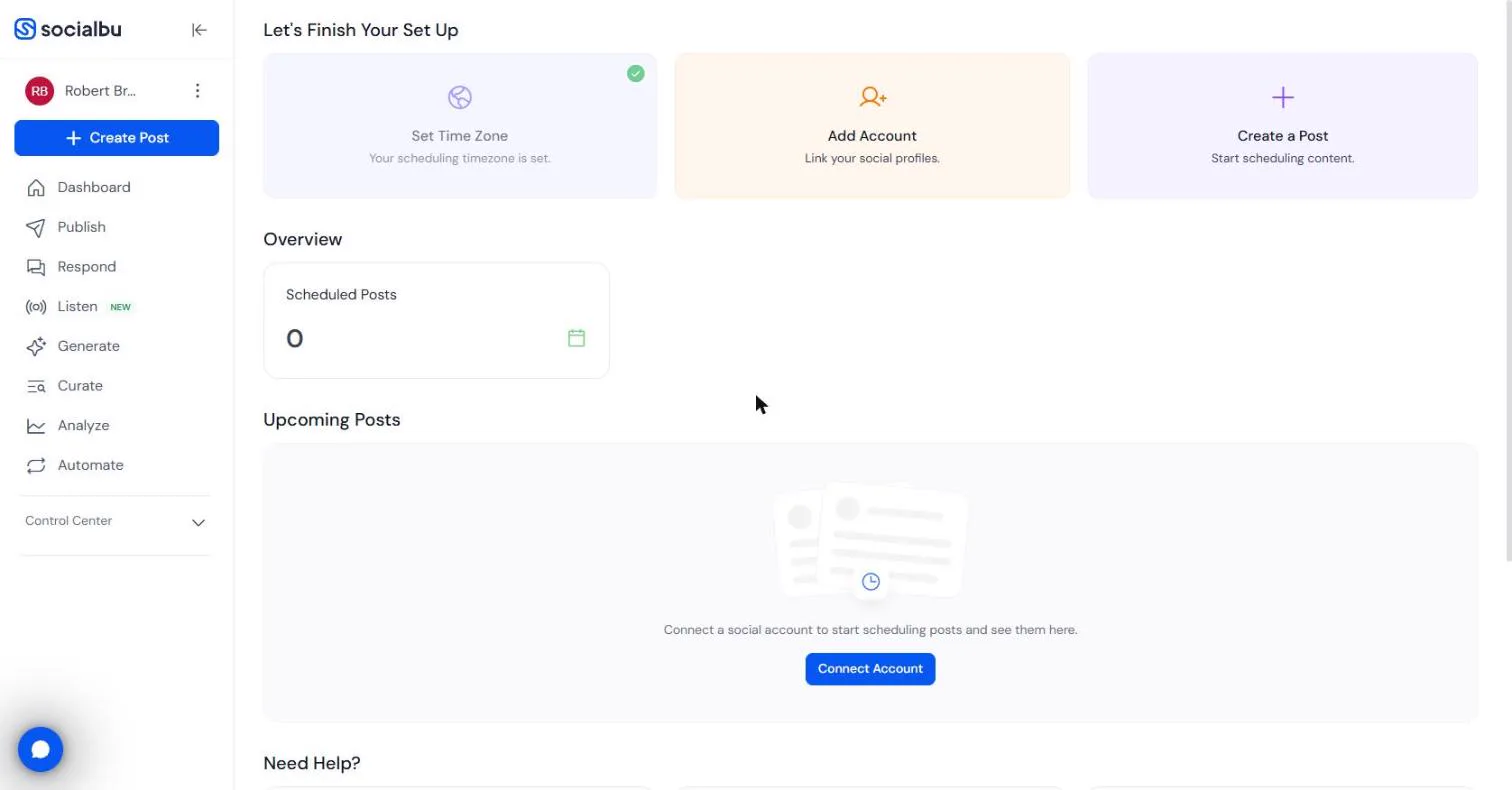
- Start from the AI tools. You do marketing for Northgate Insurance Partners, a made-up independent agency for small businesses. Last month you wrote a good blog post, "Five questions to ask before you renew your business insurance", and it got one LinkedIn share. The plan: one post a week for a month, one question each, all from that blog post. This is your SocialBu dashboard, with no social accounts connected yet. In the left menu, click Generate.
You do marketing for a small insurance agency. One good blog post got one LinkedIn share. Turn it into a month of weekly posts. In SocialBu, click Generate in the left menu.
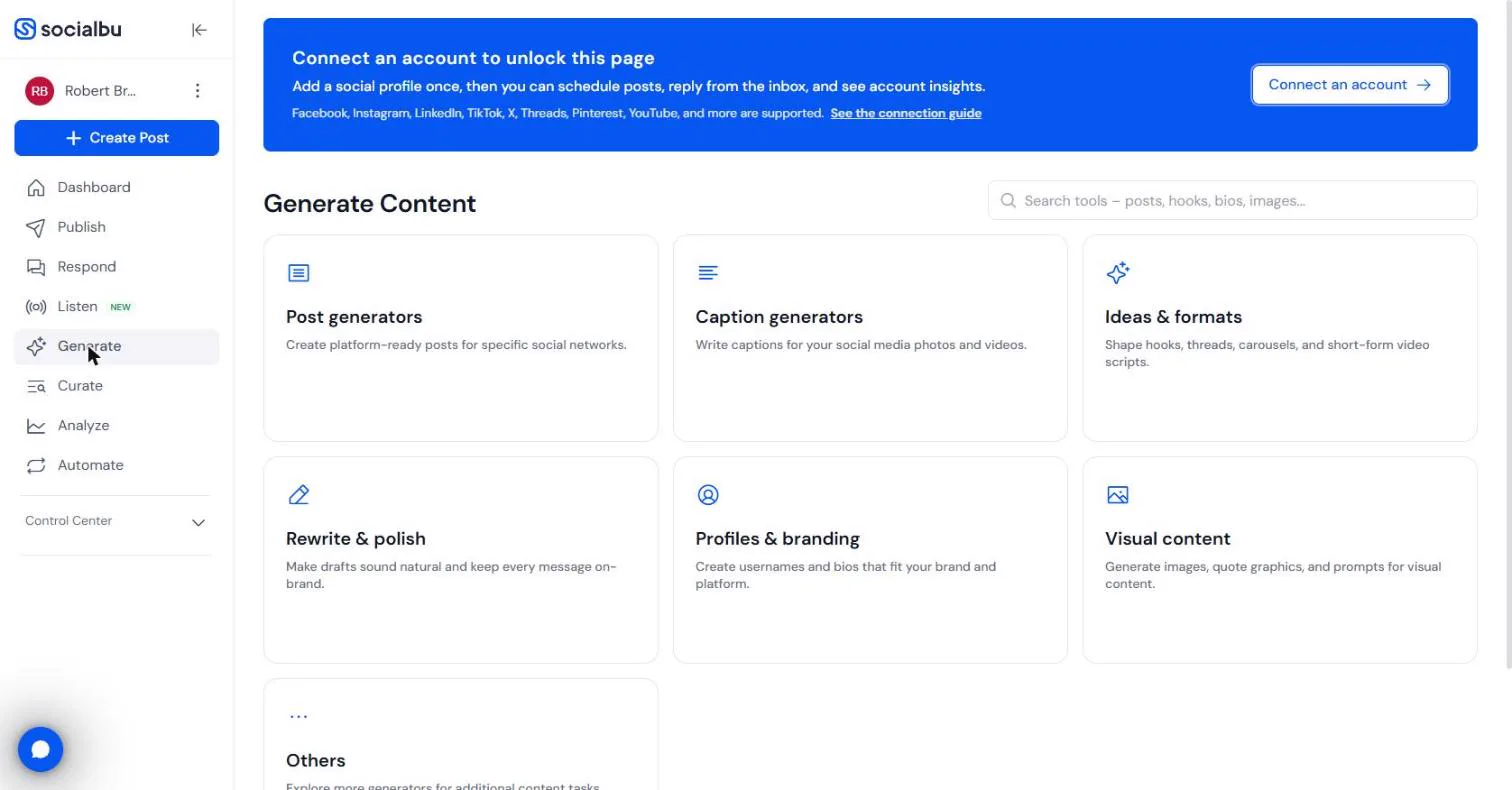
- Pick the post generators. SocialBu's AI tools are grouped here: post generators, captions, hooks and threads, rewrites, bios and images. Click Post generators.
The AI tools are grouped here.
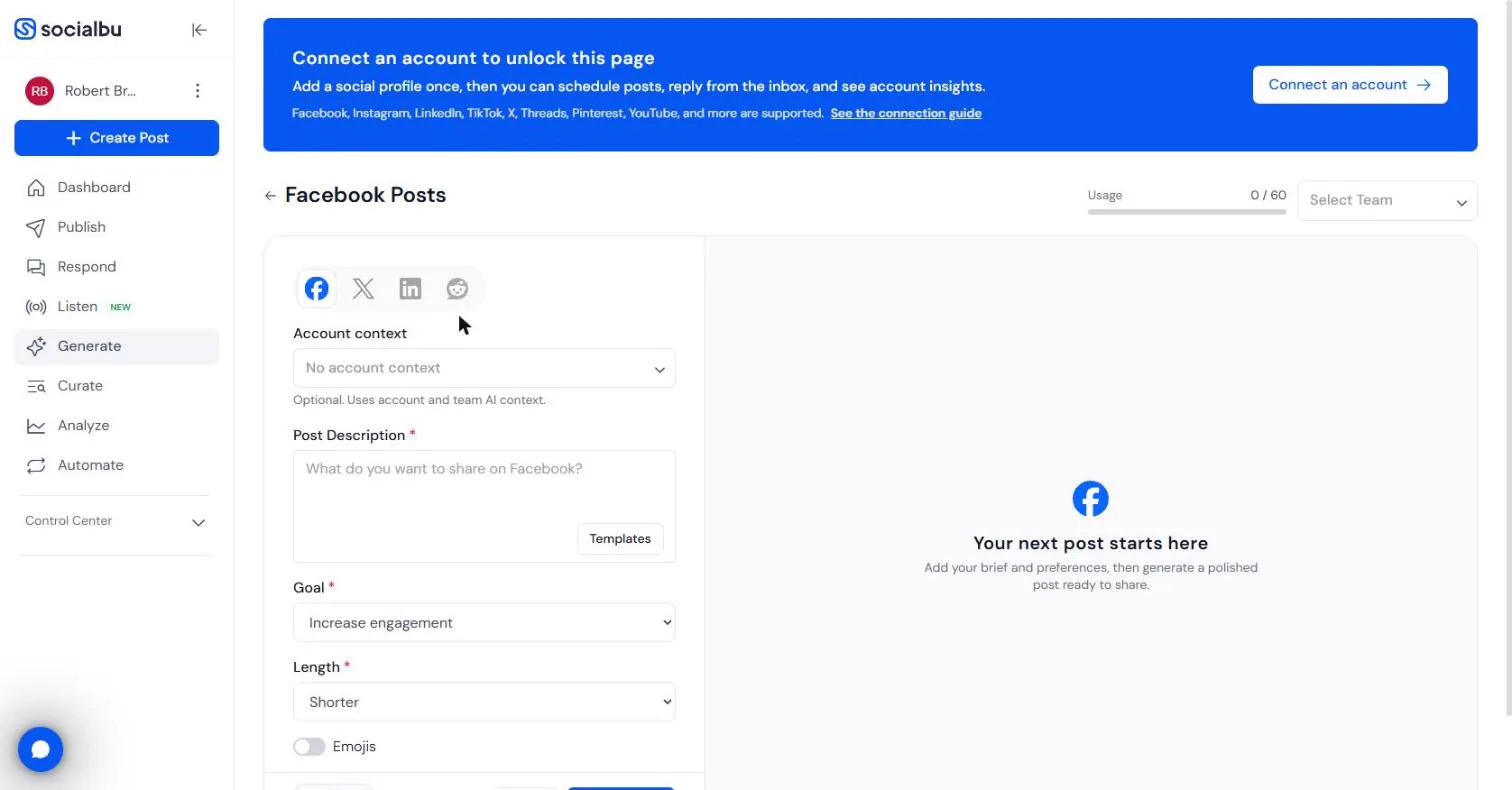
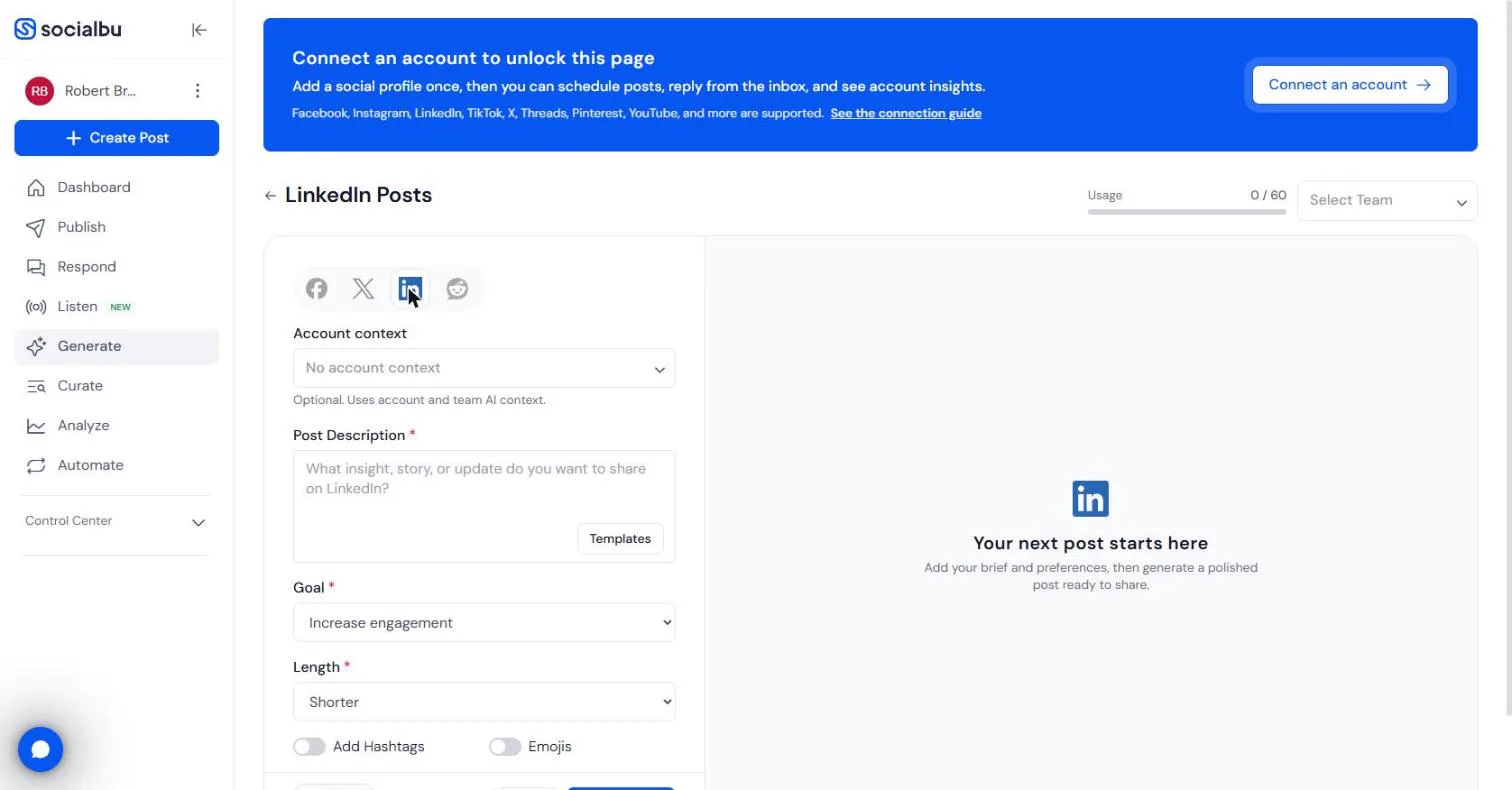
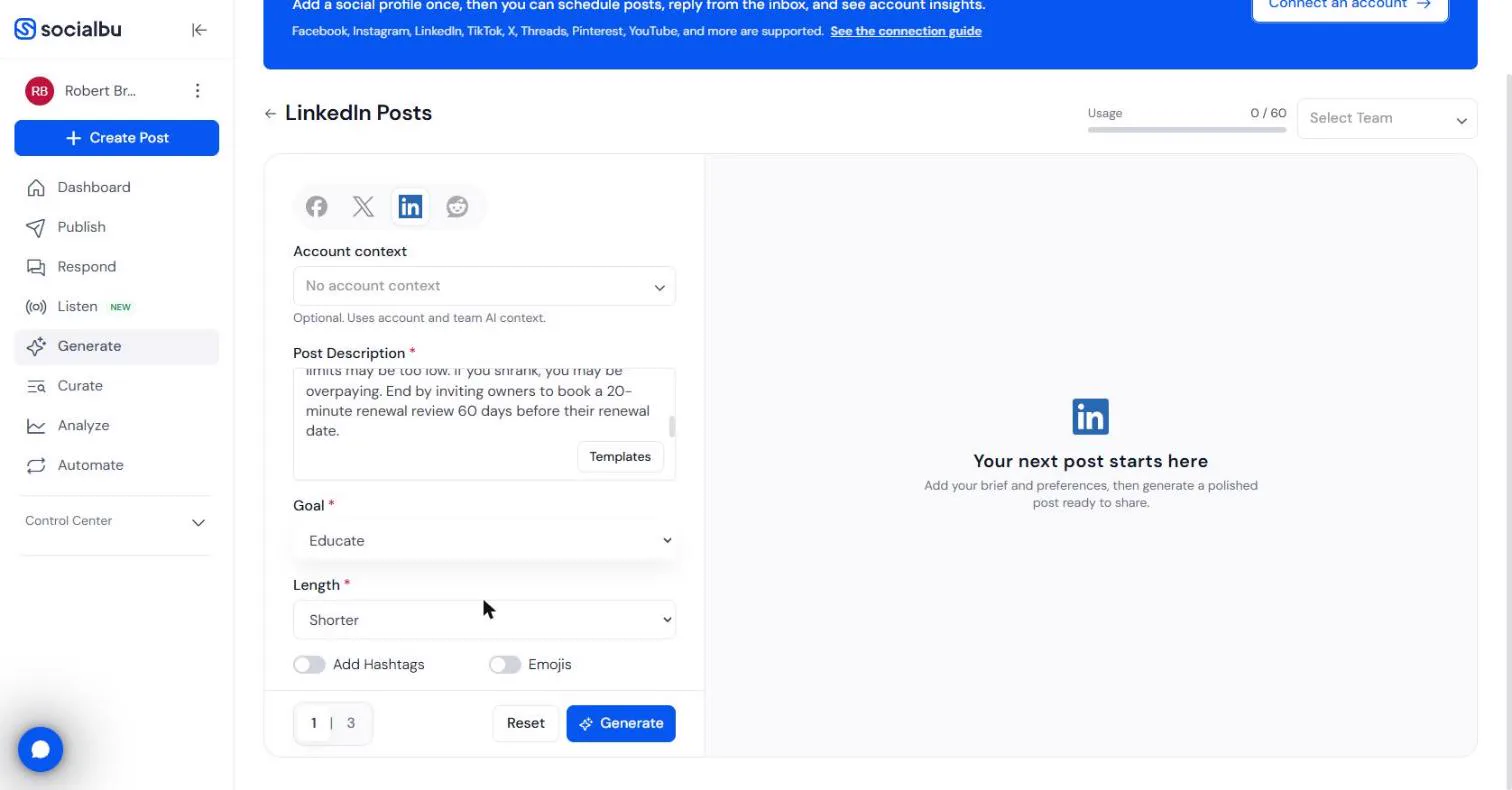
- Switch to LinkedIn. It opens on Facebook Posts. The icons at the top switch networks: Facebook, X, LinkedIn and Reddit. Note the Usage counter: 0 / 60 generations. Click the LinkedIn icon.
It opens on Facebook. Note the usage counter, sixty generations.
2. Write week 1 from the blog post
- Describe week 1 from the blog post. In Post Description, give it the source, the one point for this week, and the call to action. Say which post of the series it is, so you can tell them apart later. Type: Post 1 of 4 from our blog post "Five questions to ask before you renew your business insurance" (Northgate Insurance Partners, an independent agency for small businesses). This post covers question 1: has your revenue or headcount changed? Most general liability and workers' comp premiums are based on payroll and sales. If you grew, your limits may be too low. If you shrank, you may be overpaying. End by inviting owners to book a 20-minute renewal review 60 days before their renewal date.
In Post Description, give it the blog post, the one point for this week, and the call to action.
- Set the goal. Set Goal to Educate. The other choices are Promote a product or service, Increase engagement, Start a discussion, Announce something, Build authority and Drive website traffic. Leave Length on Shorter, and Add Hashtags and Emojis off. Click the Goal box.
Set Goal to Educate. Leave length on Shorter, and hashtags and emojis off.
- Generate it. At the bottom, 1 | 3 sets how many versions you get. Keep 1. Click Generate.
Keep one version.
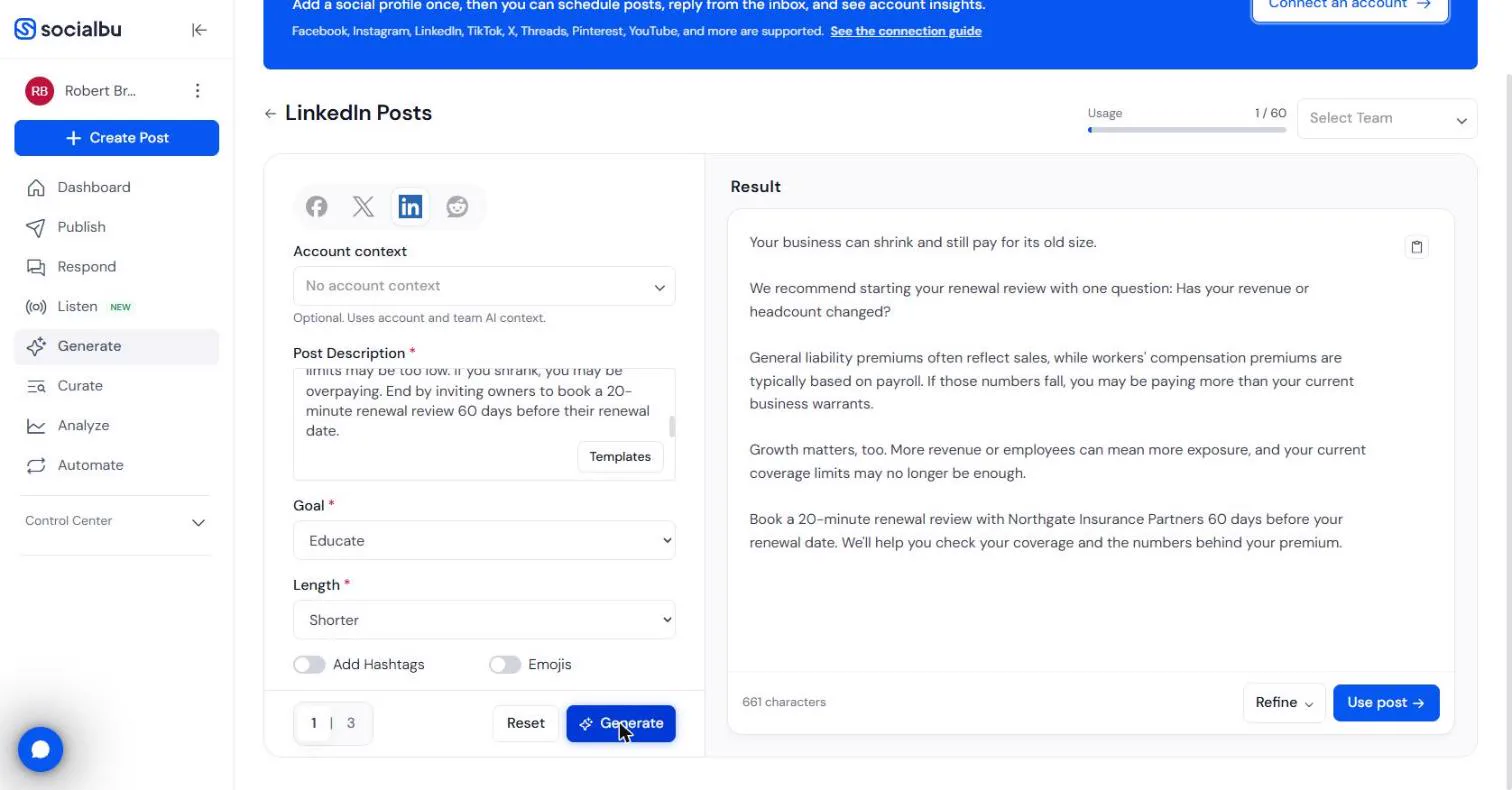
- Read week 1. Under Result: a hook, the payroll and sales point, the "grew or shrank" point, and the call to book a 20-minute review. 661 characters, and Usage is now 1 / 60. This one is ready. Click Use post.
A good first post, about six hundred characters. Usage is now one of sixty.
3. Write weeks 2 to 4, and fix what it gets wrong
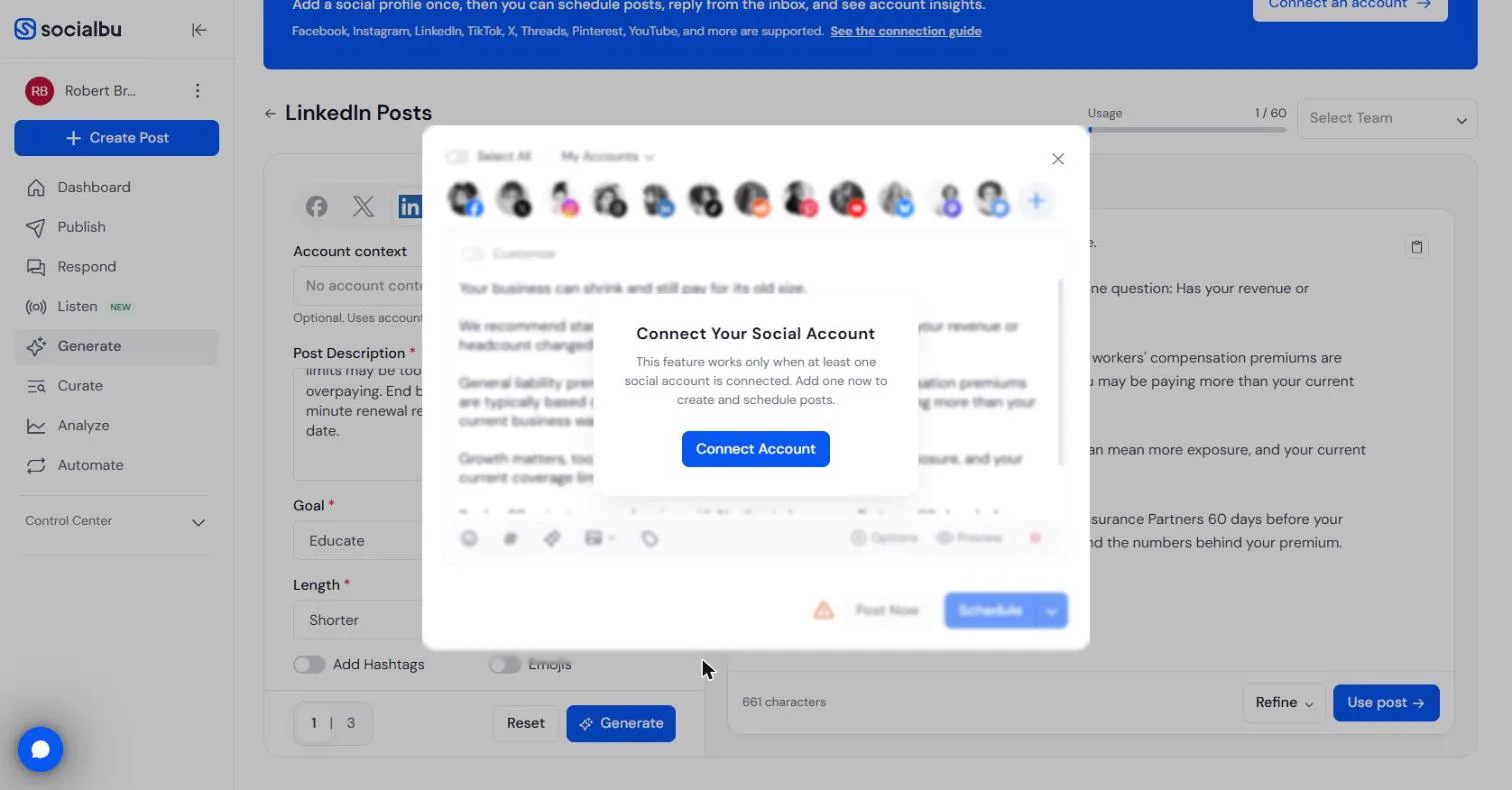
- It needs a connected account. The composer opens with your post loaded, then shows Connect Your Social Account: scheduling works only once at least one account is connected. We did not connect one. In your own account, connect your LinkedIn page here. For now, click the X, and keep writing the month.
Scheduling needs a connected account. We did not connect one. Close it, and keep writing the month.
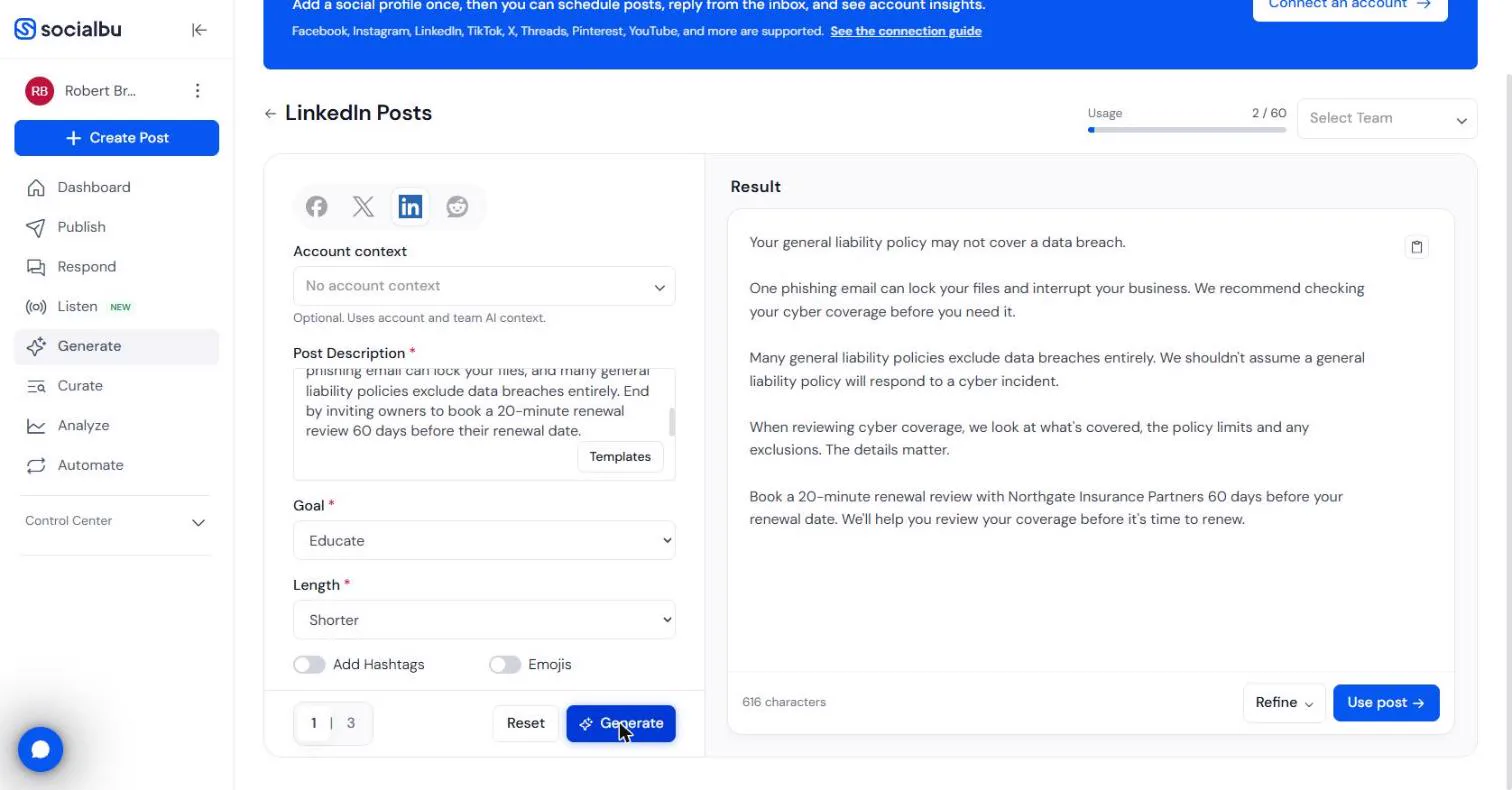
- Week 2, and an odd sentence. We changed the description to question 2, cyber coverage, and clicked Generate again. Read it like your boss would. "We shouldn't assume a general liability policy will respond..." Who is "we"? The agency, talking about its own policy. Click the sentence.
For week two we changed the description to cyber coverage, and generated again. Read it. One sentence sounds like the agency is talking about its own policy.
- Try Refine. Click Refine. It offers Regenerate, Make it shorter and Make more engaging. We chose Make it shorter.
It offers Regenerate, Make it shorter, and Make more engaging. We chose Make it shorter.
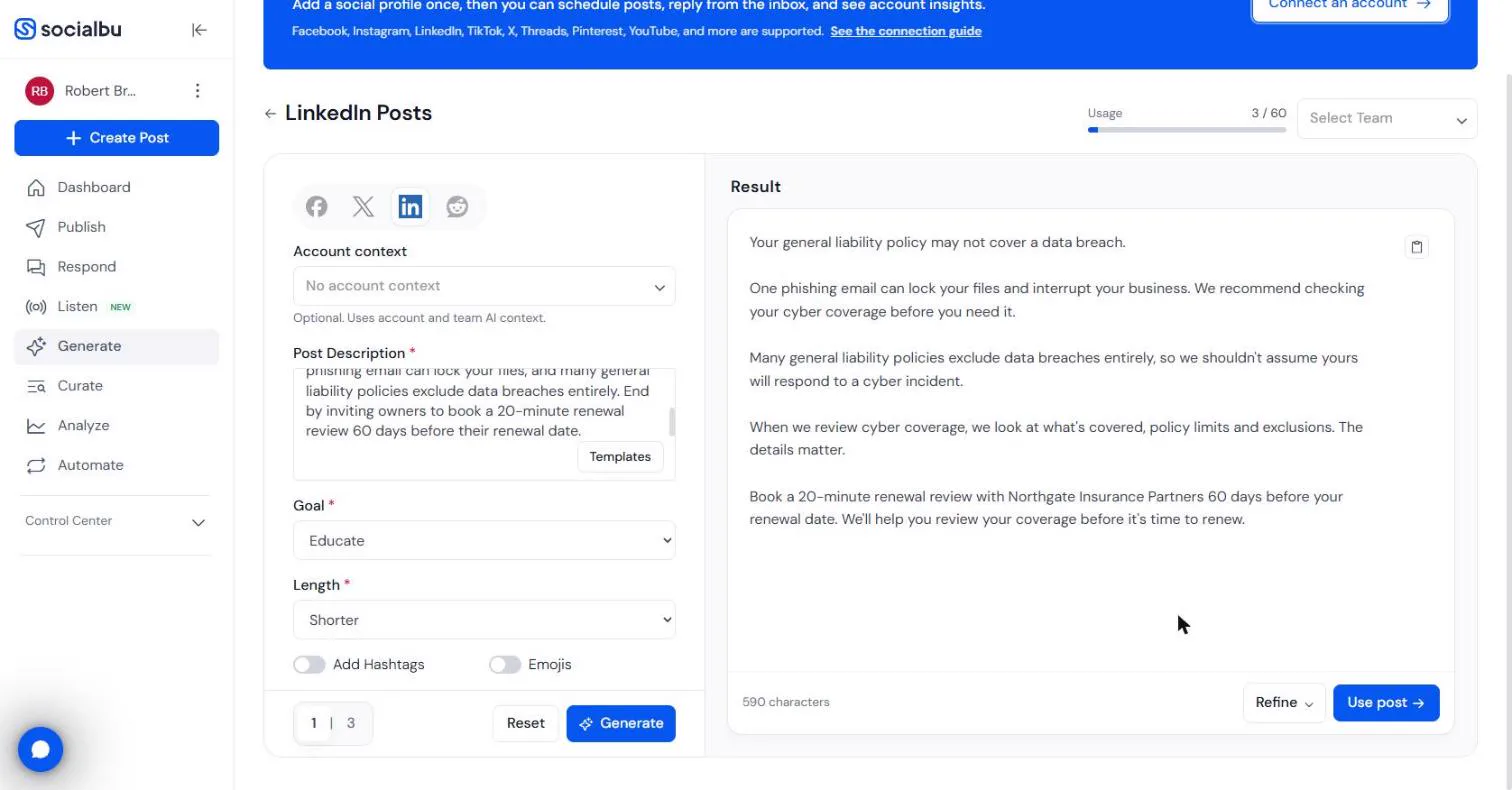
- Shorter, still odd. 616 characters became 590, and Usage went to 3 / 60: a refine costs a generation too. The odd line is still there, reworded: "so we shouldn't assume yours will respond". Refine trims; it does not fix meaning. Copy the post and fix that one sentence yourself. Click it.
Refine made it shorter, and used another generation. The odd sentence is still there. Edit it yourself.
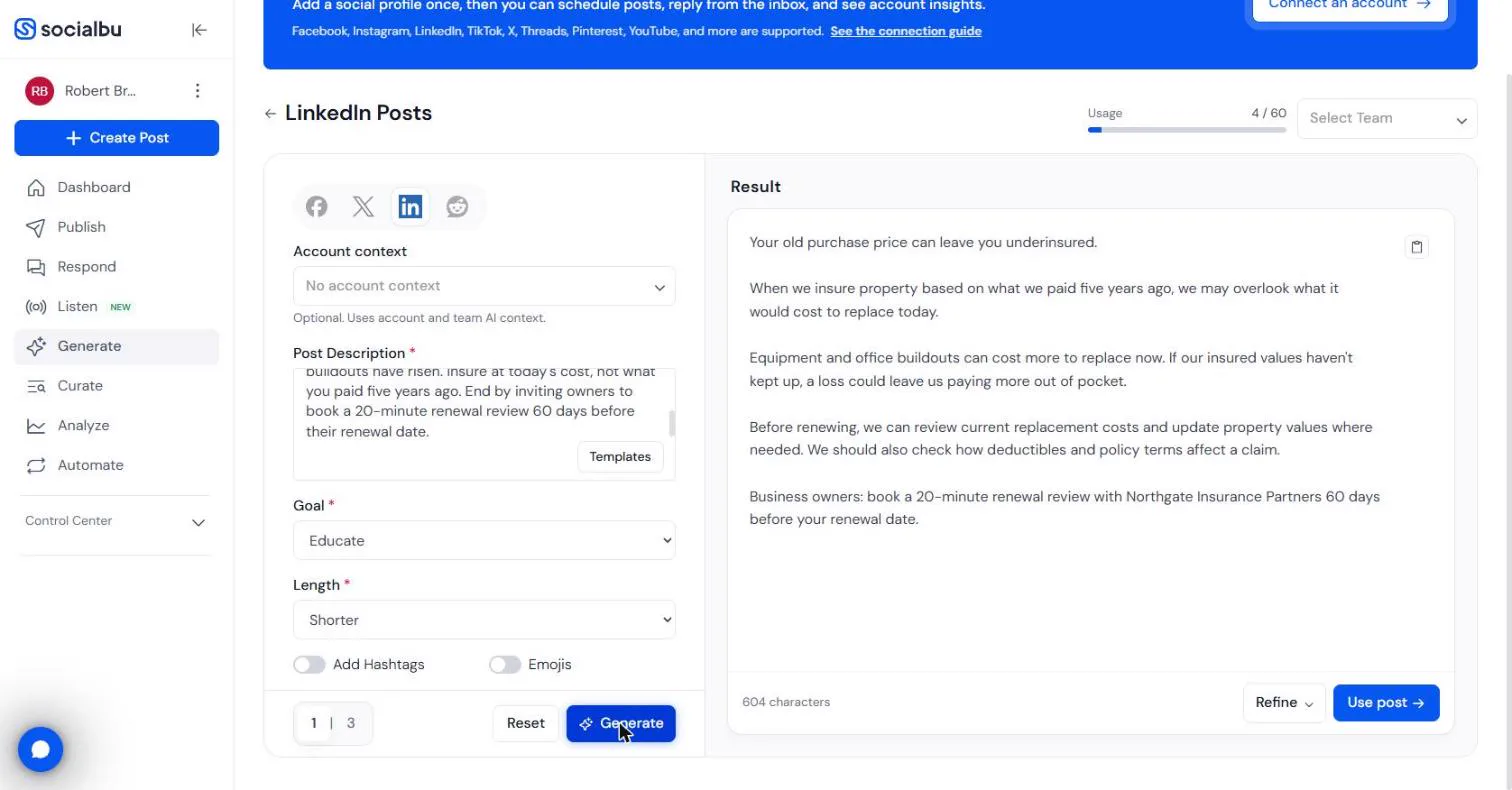
- Week 3 has the voice backwards. Week 3, property values. Read the second paragraph: "When we insure property based on what we paid five years ago... a loss could leave us paying more out of pocket." It writes as if the agency were the business owner. The brief never said who "we" is. Click the line.
Week three writes as if the agency were the business owner. The brief never said who we is.
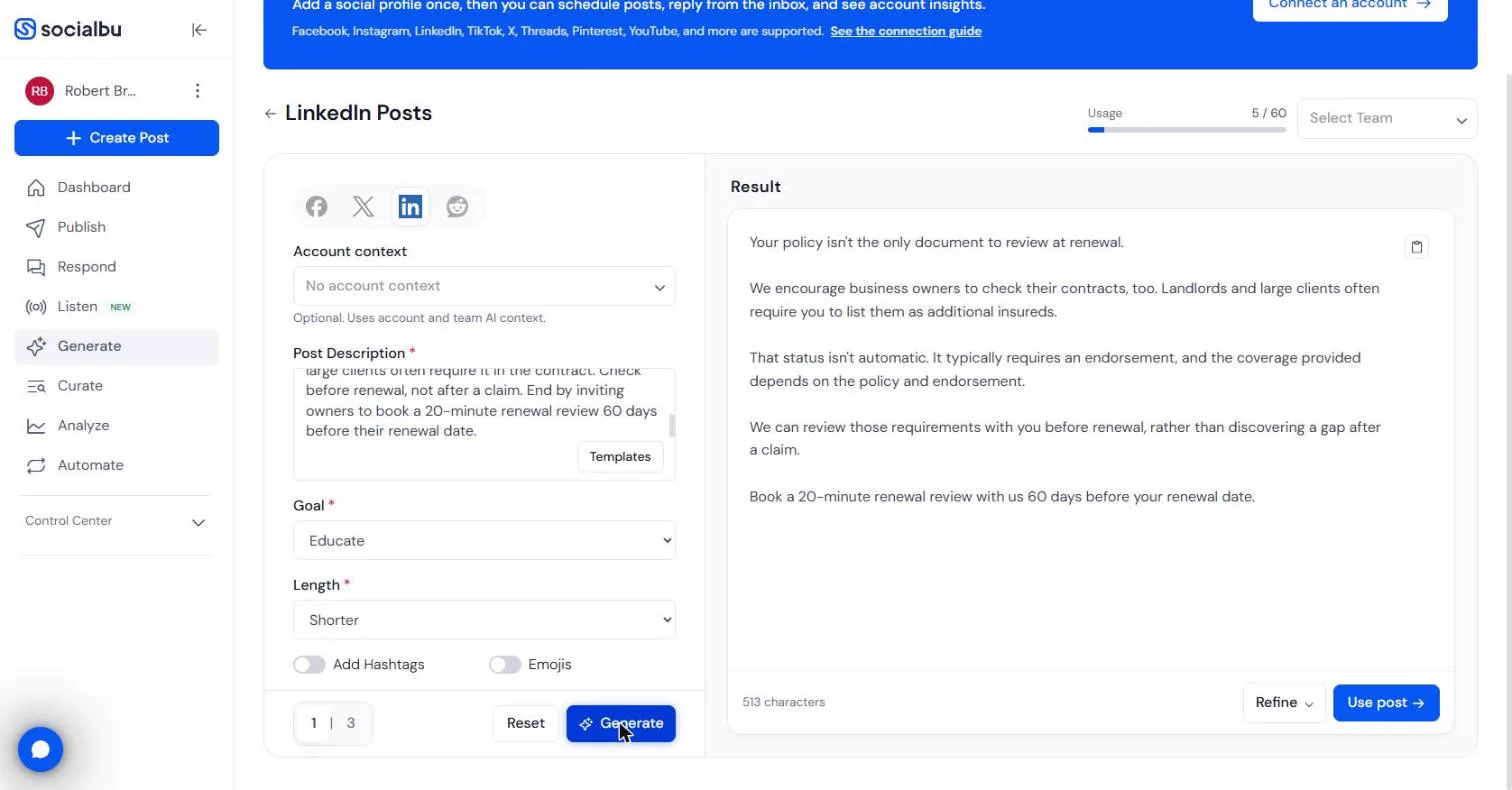
- Week 4: one line fixes it. For week 4, additional insured, we added one sentence to the brief: Write as the agency talking to business owners: "we" is Northgate, "you" is the owner. Now it reads right: "require you to list them", "We can review those requirements with you". Add that line to every brief. Click the copy icon to copy the post.
For week four we added one line to the brief. We is the agency, you is the owner. Now it reads right. Copy the post.
4. Put the month on a recurring queue
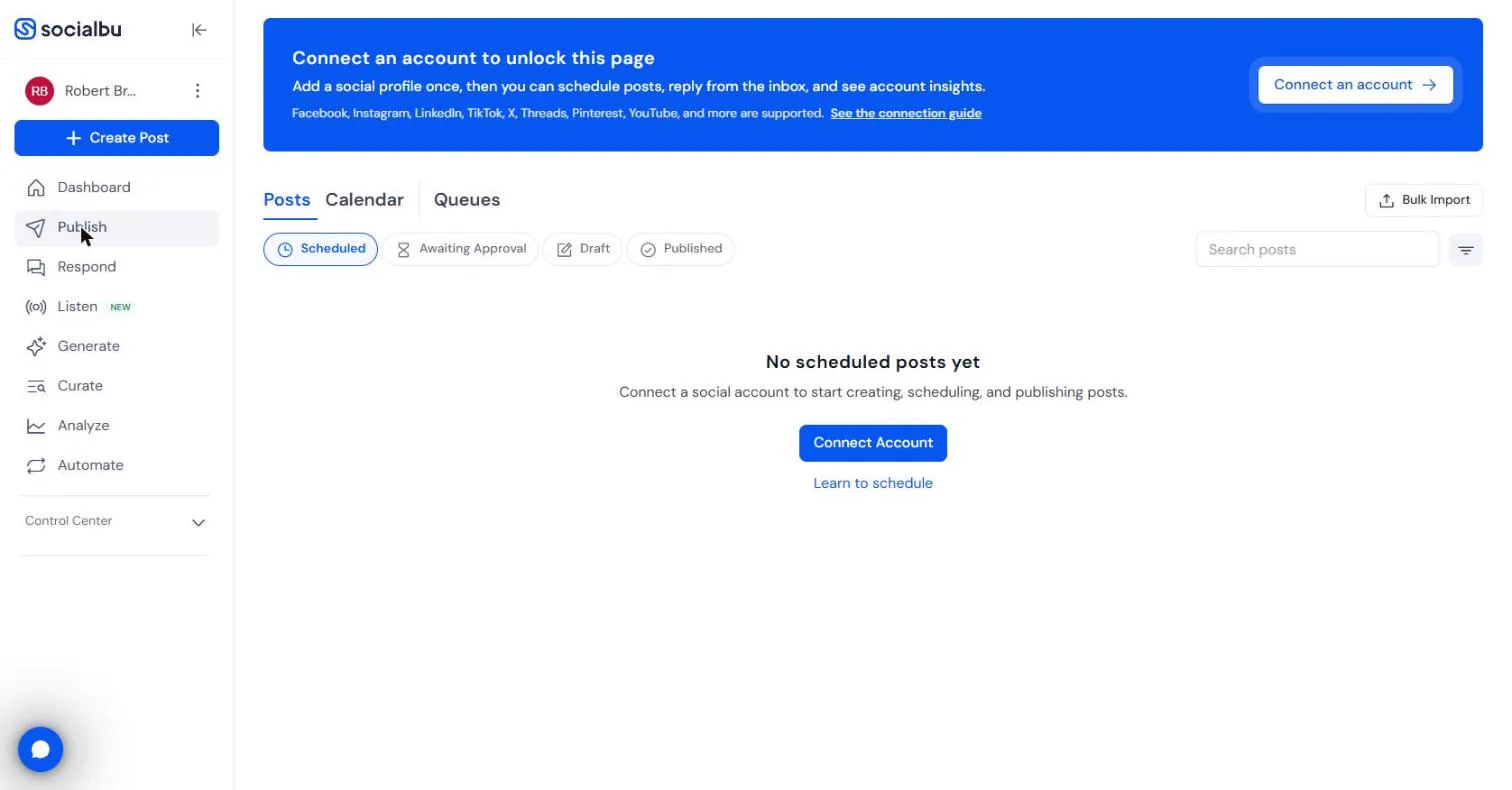
- Go to Publish. You now have four posts, one per week, from one blog post, for 5 of 60 generations. Fix the two lines, and keep all four in a document. Then click Publish in the left menu.
You have four posts from one blog post. Fix the two lines, and keep them together.
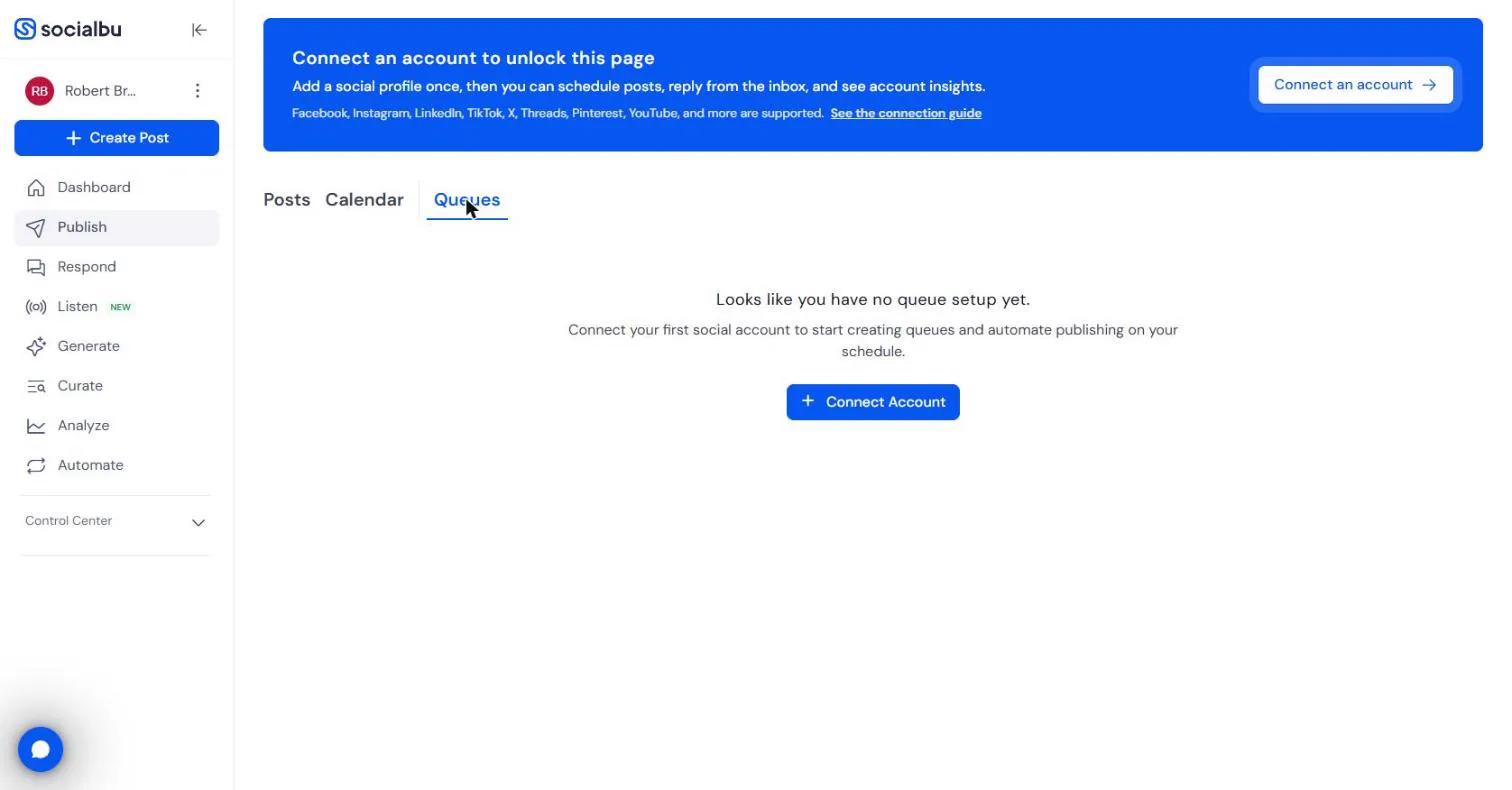
- Open Queues. Publish has Posts, Calendar and Queues. A queue is a list of posts that publishes on a schedule you set, and can keep cycling. Click Queues.
A queue is a list of posts that publishes on your schedule, and can keep cycling.
- Set up the queue once your account is connected. Without a connected account it says "Looks like you have no queue setup yet." SocialBu's help center gives the steps once you connect LinkedIn: click New Queue, name it (say "Renewal questions"), pick your LinkedIn account, add a weekly schedule (Tuesday, 9:00 AM), leave publish count blank so it keeps cycling or set 1 to post each one once, and save. Then, for each post, open the composer, click the arrow next to Schedule, choose Save to Queue, and pick the queue. SocialBu's plan page lists queues on Growth and Agency plans.
Once your account is connected, click New Queue, pick LinkedIn, add a weekly time, and save. Then save each post to the queue from the composer. Queues are on the paid plans.
Screenshots
More in Business Automations
 AI Receipt Extractor: Receipts to Google Sheets with n8n
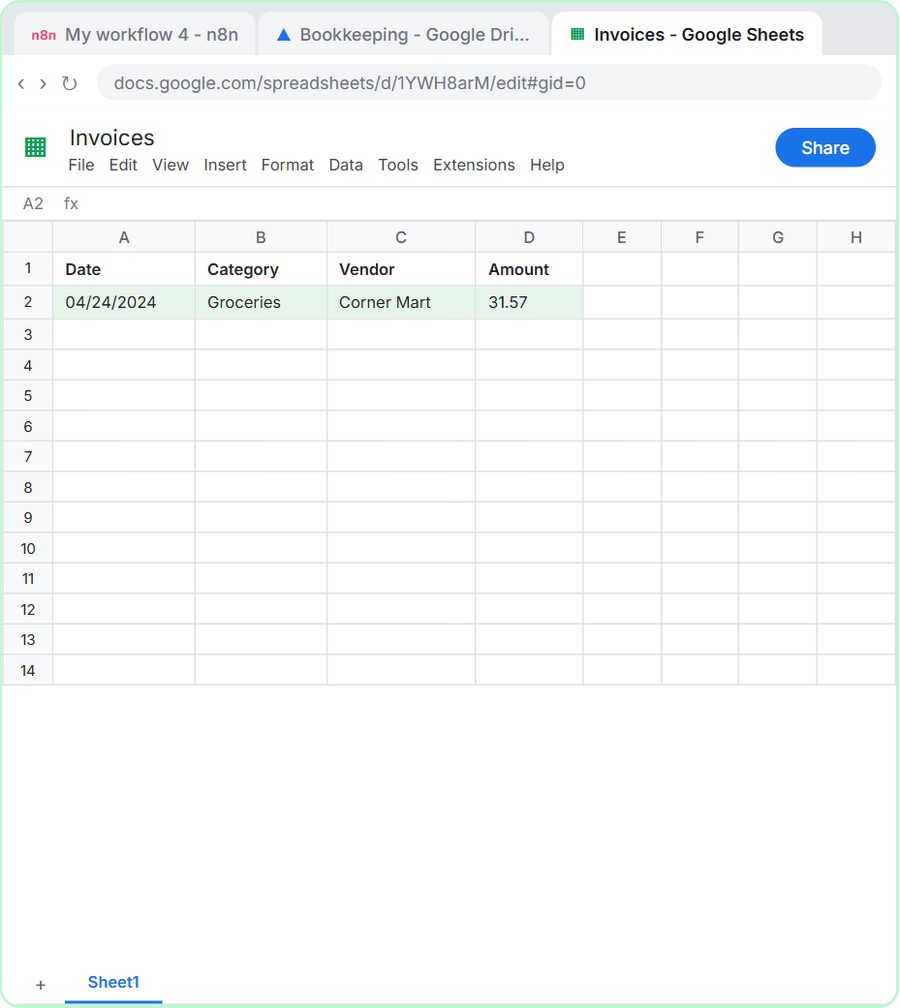
Drop a photo of a receipt into an n8n chat. An AI agent reads it, pulls out the date, vendor and amount, picks a category, and adds a row to Google Sheets.
Free · Live ~12 min Intermediate
 n8n AI Email Responder: Draft Gmail Replies Automatically
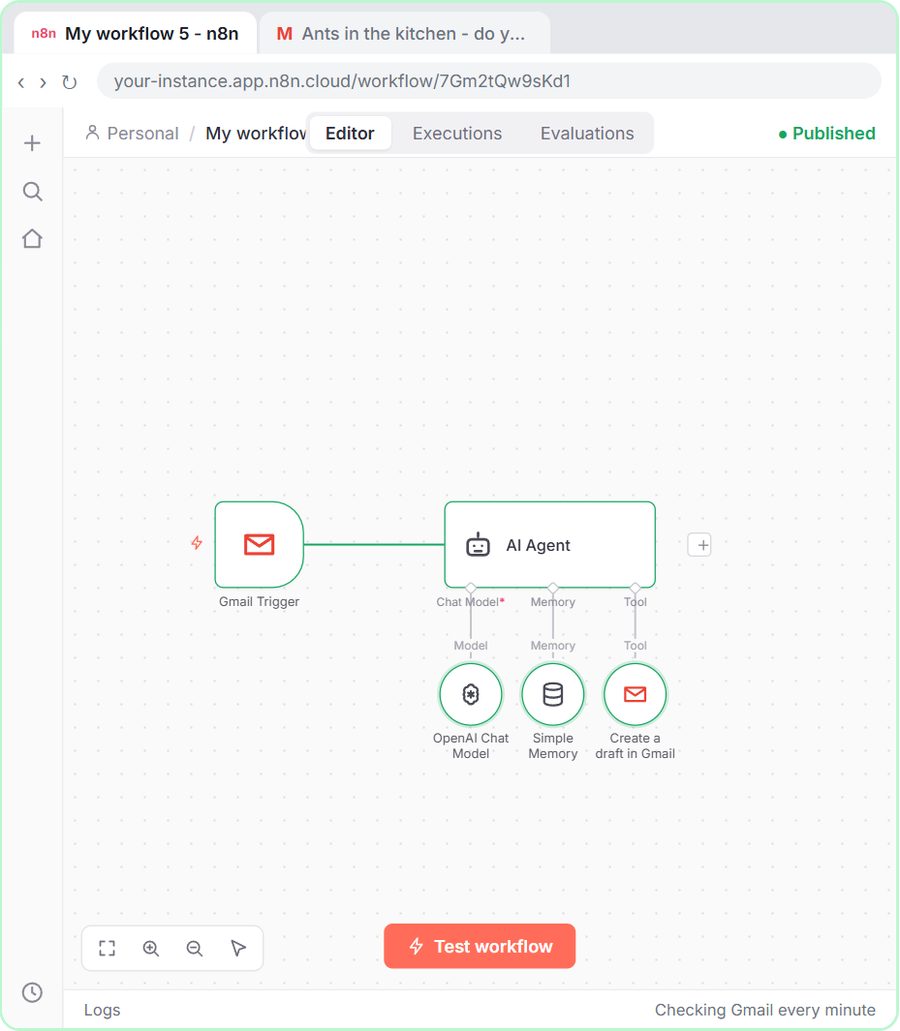
Build an n8n agent that watches your Gmail, reads each new customer email, and writes a reply as a draft in the same thread, ready for you to check and send.
Free · Live ~12 min Intermediate
 Daily Job Alerts: Email Each Tech Their Jobs from Google Sheets with n8n
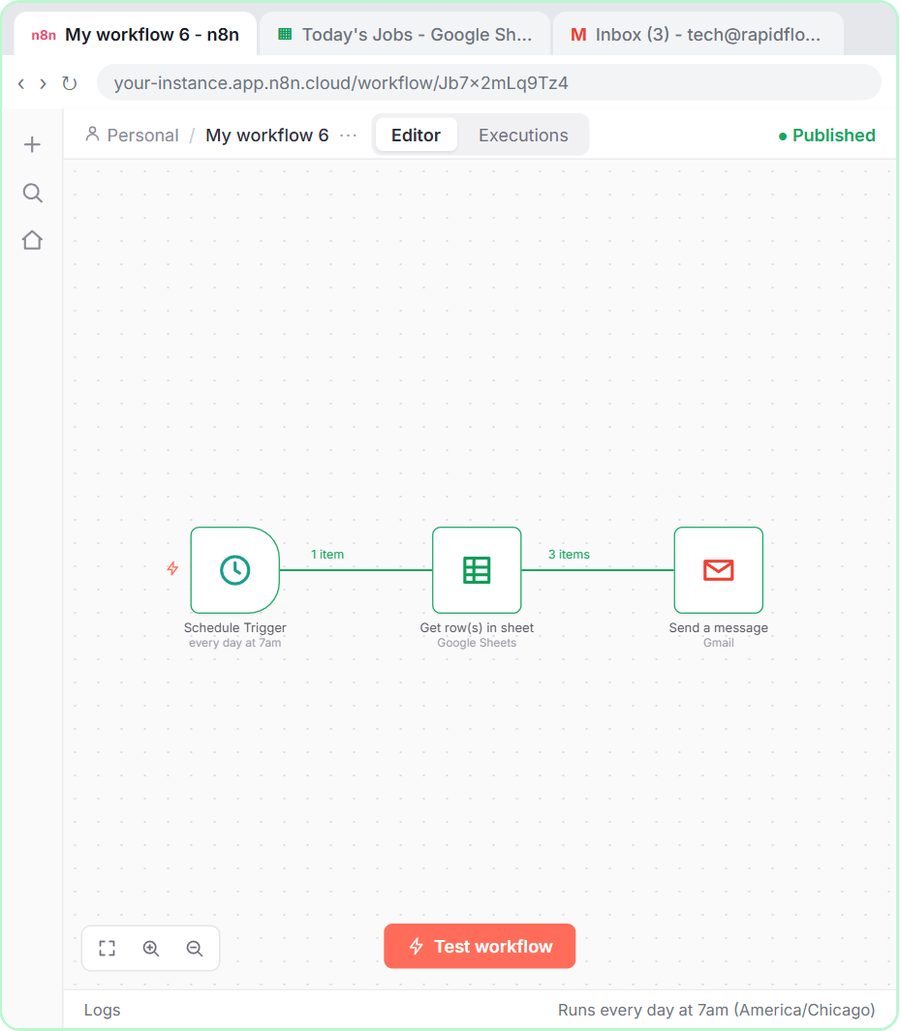
Every morning at 7, n8n reads a plumbing company's jobs sheet, skips anything not assigned yet, and emails each job to the tech it's assigned to — customer, address…
Free · Live ~10 min Intermediate
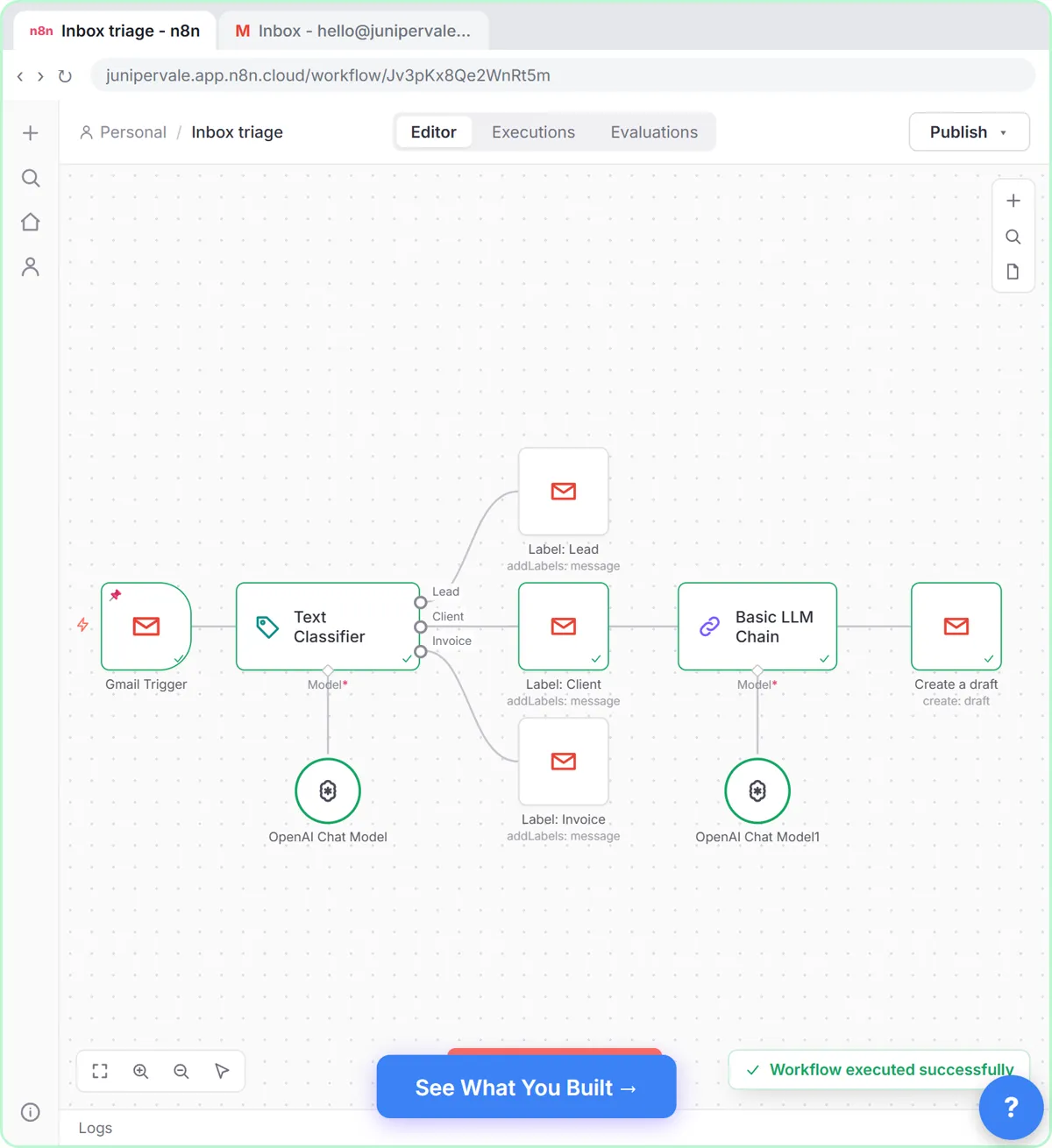 Gmail AI Triage: Auto-Label Every Email and Draft Replies
Build an n8n workflow that reads each new email, sorts it as a lead, a client or an invoice with a Text Classifier, adds the matching Gmail label, and drafts a reply to…
Free · Live ~18 min Advanced
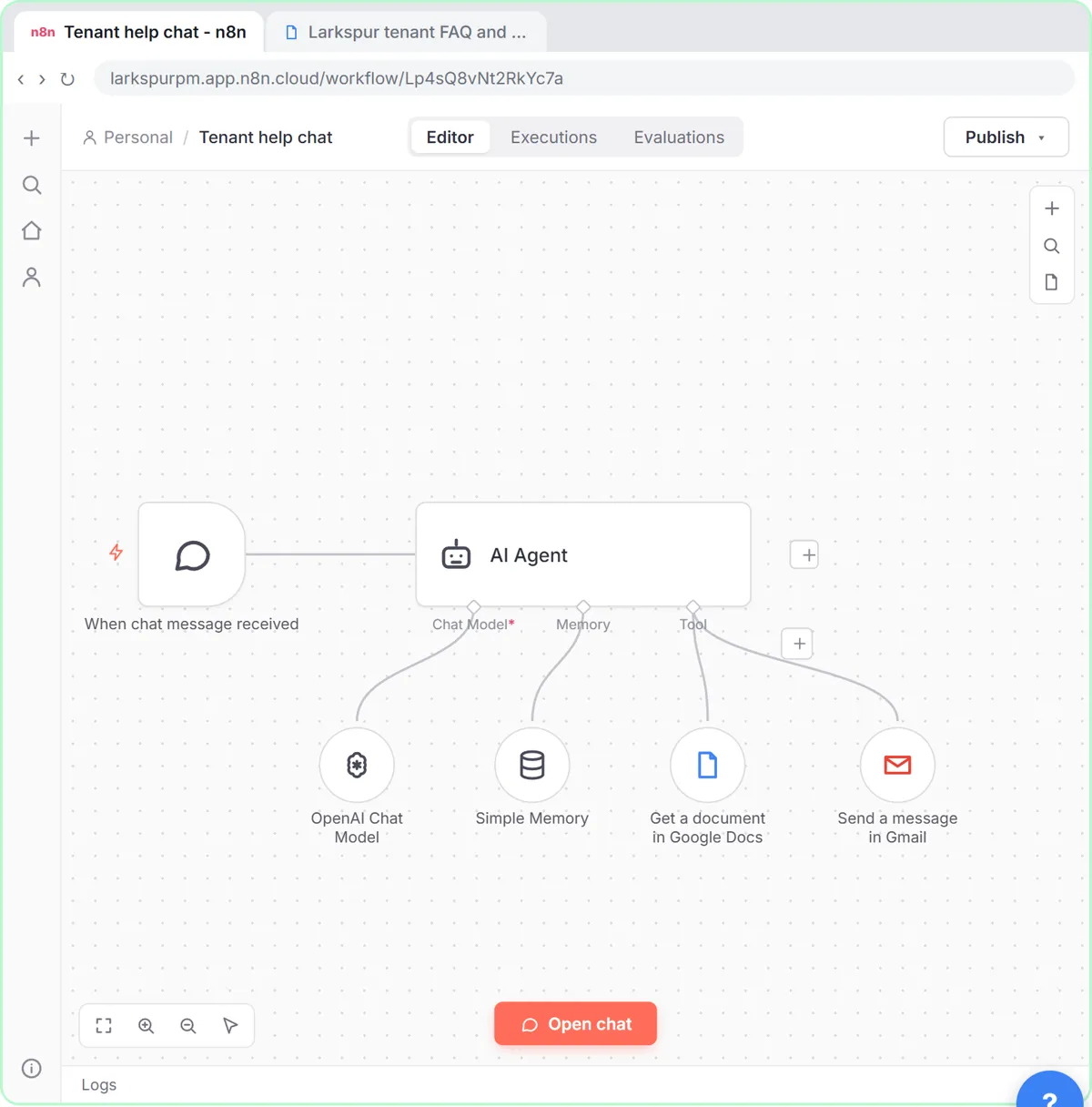 A Support Agent That Answers from Your Own Docs
Turn an n8n chat agent into a support agent that answers only from your policies in a Google Doc, refuses what it should, and hands off to a person by email.
Free · Live ~13 min Advanced
 Chatbase: Answer Customer FAQs with an AI Agent
A business case for a small firm that answers the same customer questions every week: build a Chatbase AI agent on your FAQ in the real app, make it say when it does…
Free · Live ~15 min Beginner
All 47 modules in Business Automations
Terms in this lesson
Plain-English definitions, each with an example from a free lesson.