Updated . Built against the tool’s current screens and checked step by step. How we check this lesson
Recruiters lose hours to scheduling emails and pasting Meet links. Build one Yoya link that asks your screening questions, books the call on Google Meet and hands you a brief before every screen.
At a glance
| Question | Answer |
|---|---|
| What you build | Recruiters lose hours to scheduling emails and pasting Meet links. Build one Yoya link that asks your screening questions, books the call on Google Meet and hands you a brief before every screen. |
| Tools | Yoya |
| Time | About 10 minutes, 38 steps in 4 parts |
| Level | Beginner, no coding needed |
| Cost | Free |
| Ways to learn it | Practice it step by step |
The 4 parts, in short
- Make the link: Start a new booking link, Start blank, Name the meeting, Shorten the link, and 3 more steps.
- Meet, host and questions: Open Basics, Set the host name, Check what candidates see, Let candidates in without waiting, and 10 more steps.
- Book as the candidate: Say why you are booking, Send it, Answer the screening question, Send it, and 8 more steps.
- What the recruiter gets: The candidate’s confirmation, The calendar invitation, Read the screening brief, Spot the mistake, then open the transcript, and 1 more step.
Start here first: AI Receipt Extractor: Receipts to Google Sheets with n8n (module 1 of Business Automations)
In the course: Part 9 · n8n Automation Toolkit (Module 130 of the full course)
Part of: AI Apps Worth Knowing (step 112 of 157). Next up: Mixdesk: An AI Agent That Collects Inquiry Details Before You Follow Up
What you'll build
Maya is a made-up talent coordinator at Northgate Software, hiring a Customer Success Manager. Every screen costs her three or four emails to find a time, a Google Meet link pasted by hand, and five minutes on the call asking about experience, notice period and salary. In this lesson you build one Yoya link on Google Meet that asks those questions in a chat, then book a screen as the candidate: you see the Meet link, the calendar invitation and the screening brief Maya gets. Every screen is a real Yoya screen; the people and the company are made up.
You made a booking link on Google Meet, wrote screening questions with guardrails, asked for a LinkedIn profile, booked a screen as the candidate and read the brief. What it saves: the scheduling emails, the hand-pasted Meet links and the first five minutes of every screen. The brief got the job title wrong, so read the transcript before any hiring decision. For a consultant’s intro calls, see the first Yoya lesson. Plans change; check yoya.ai/pricing for what yours includes.
- Tools: Yoya
- Time: about 10 minutes, 38 steps in 4 chapters
- Level: beginner, no coding needed
- Price: free
Practice first, then build it for real
Practice copy built from real Yoya screens (yoya.ai), captured 13 November 2026 with Google Calendar connected. Nothing here touches a Yoya account. The recruiter, the candidate and the company are made up; the questions, suggested times, Google Meet link, calendar invitation and brief are what Yoya and Google Calendar produced. To build it for real you need your own Yoya account, and some services charge once you use them for real work, so check each tool's current pricing.
Try it yourself, free
Reading the steps is a start. Doing them is how it sticks. The interactive module walks you through every click in a practice copy of Yoya, checks each step, and never touches your real accounts.
Start “Yoya: Candidate Screens That Book Themselves on Google Meet”
November 2026 spotlight
Yoya
An AI booking assistant: guests explain what they need before they pick a time, and you get a meeting brief with who, why and the agenda before every call.
Step by step: Yoya: Candidate Screens That Book Themselves on Google Meet
All 38 steps of the interactive module, in order. In the module you watch each one, then do it yourself in a practice copy that checks your work.
1. Make the link
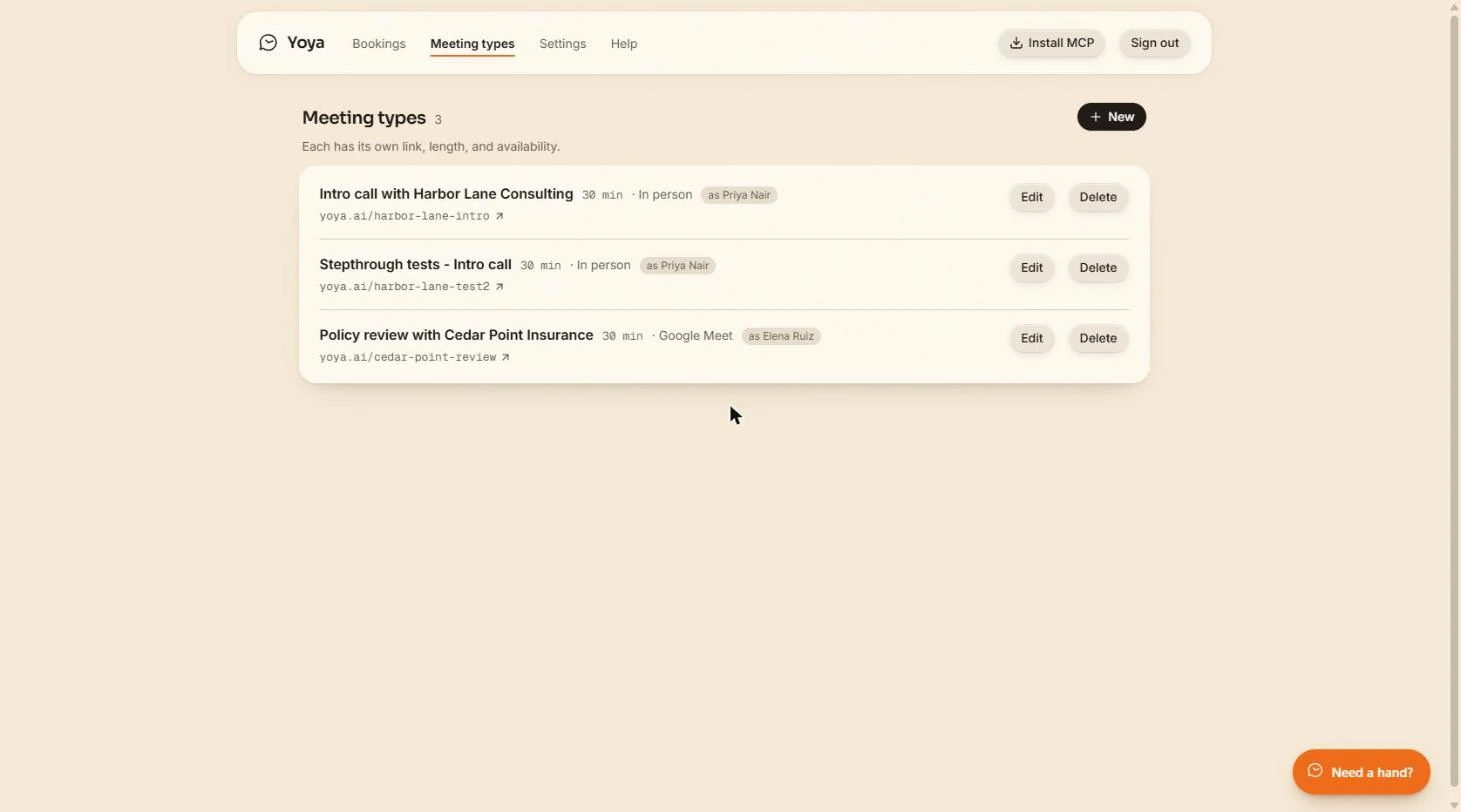
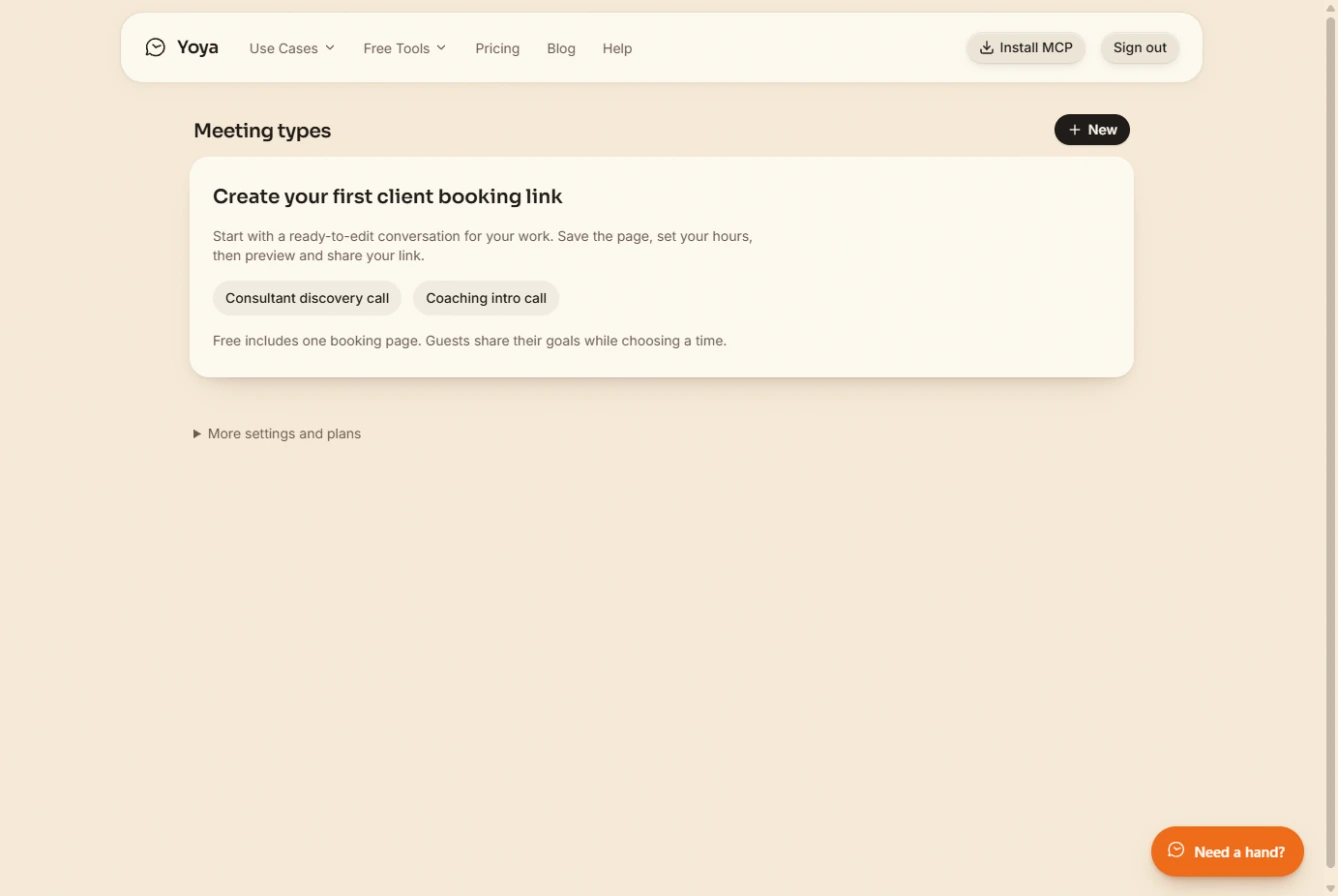
- Start a new booking link. You are Maya Okafor, a made-up talent coordinator at Northgate Software. Every candidate screen costs you an email thread to find a time and a Meet link pasted by hand. Open yoya.ai/dashboard, go to Meeting types and click New.
You are a talent coordinator. Each candidate screen costs you an email thread and a Meet link pasted by hand. In Meeting types, click New.
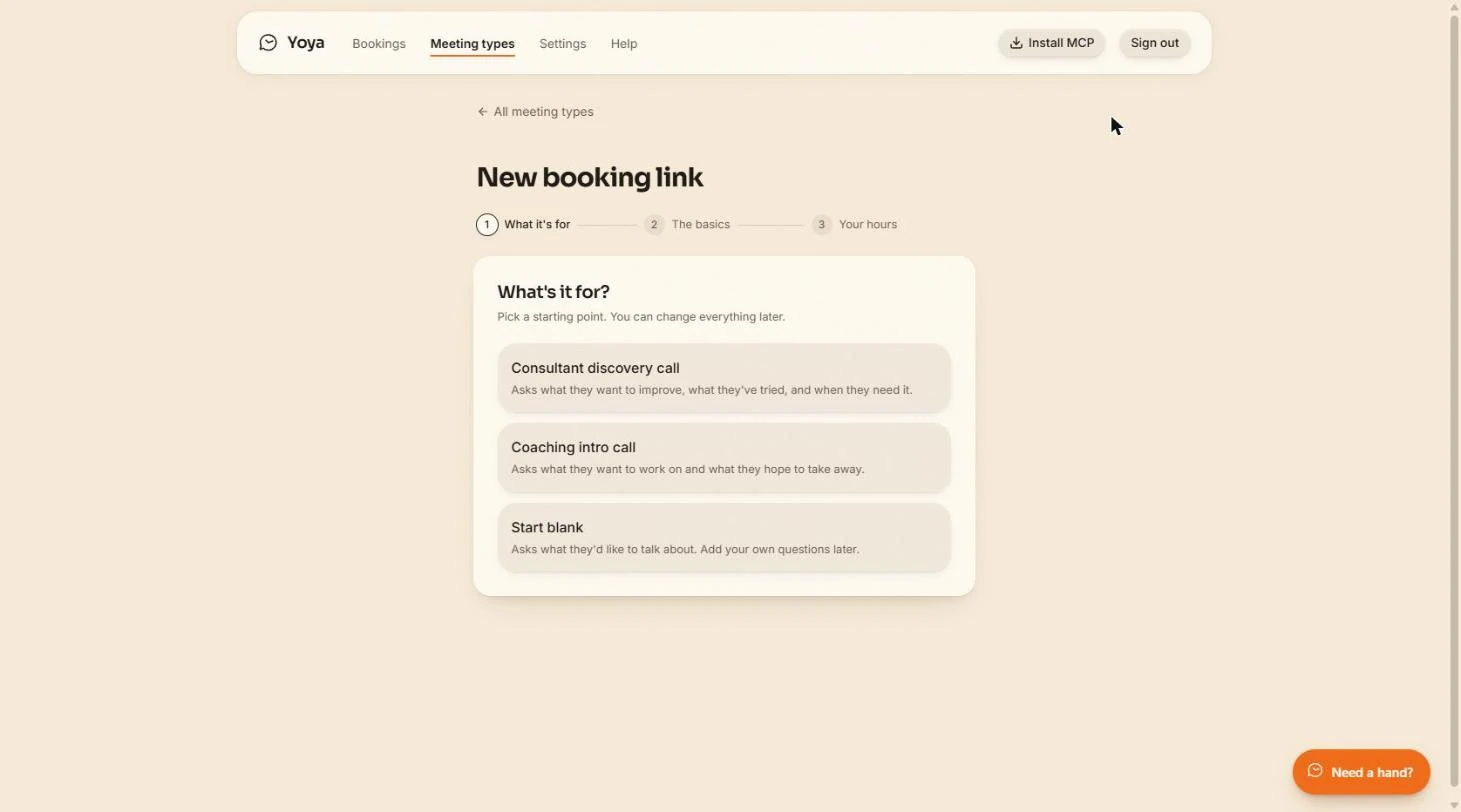
- Start blank. There is no recruiting template, so click Start blank. You write your own screening questions in a minute.
There is no recruiting template, so click Start blank. You write your own questions in a minute.
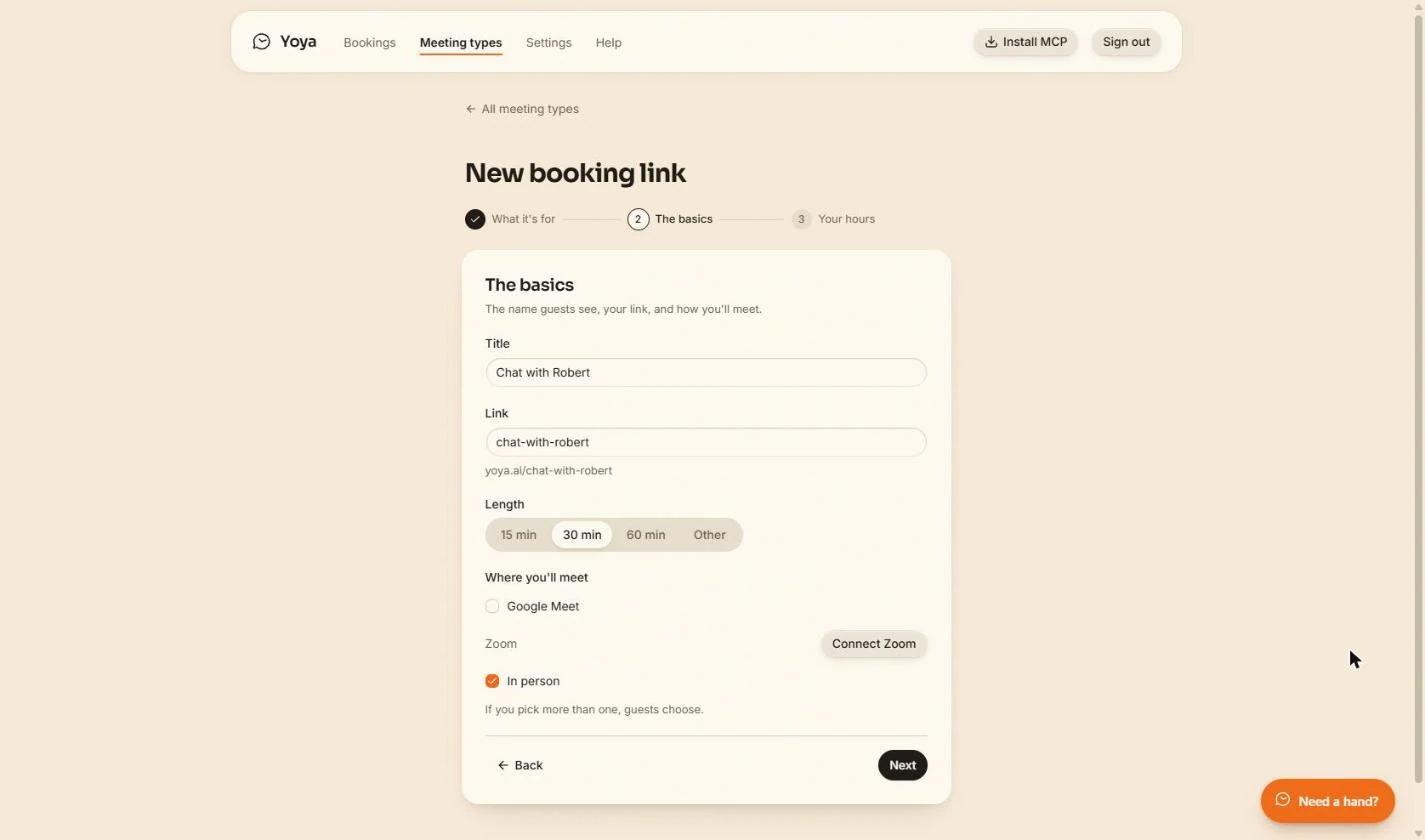
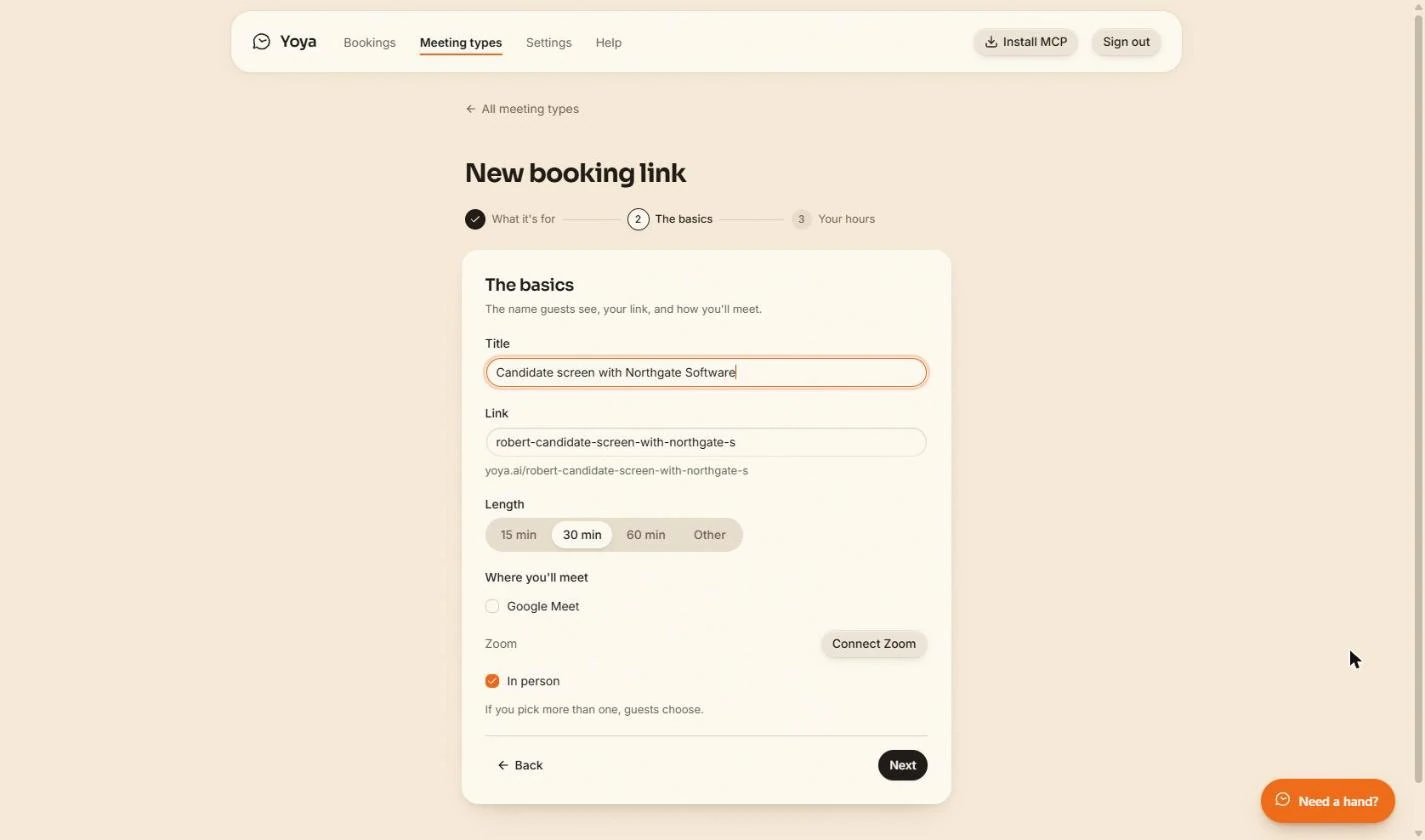
- Name the meeting. The Title is what candidates see at the top of the page and in the calendar invitation. Replace Chat with Robert (it starts with your account name).
The title is what candidates see on the page and in the calendar invite.
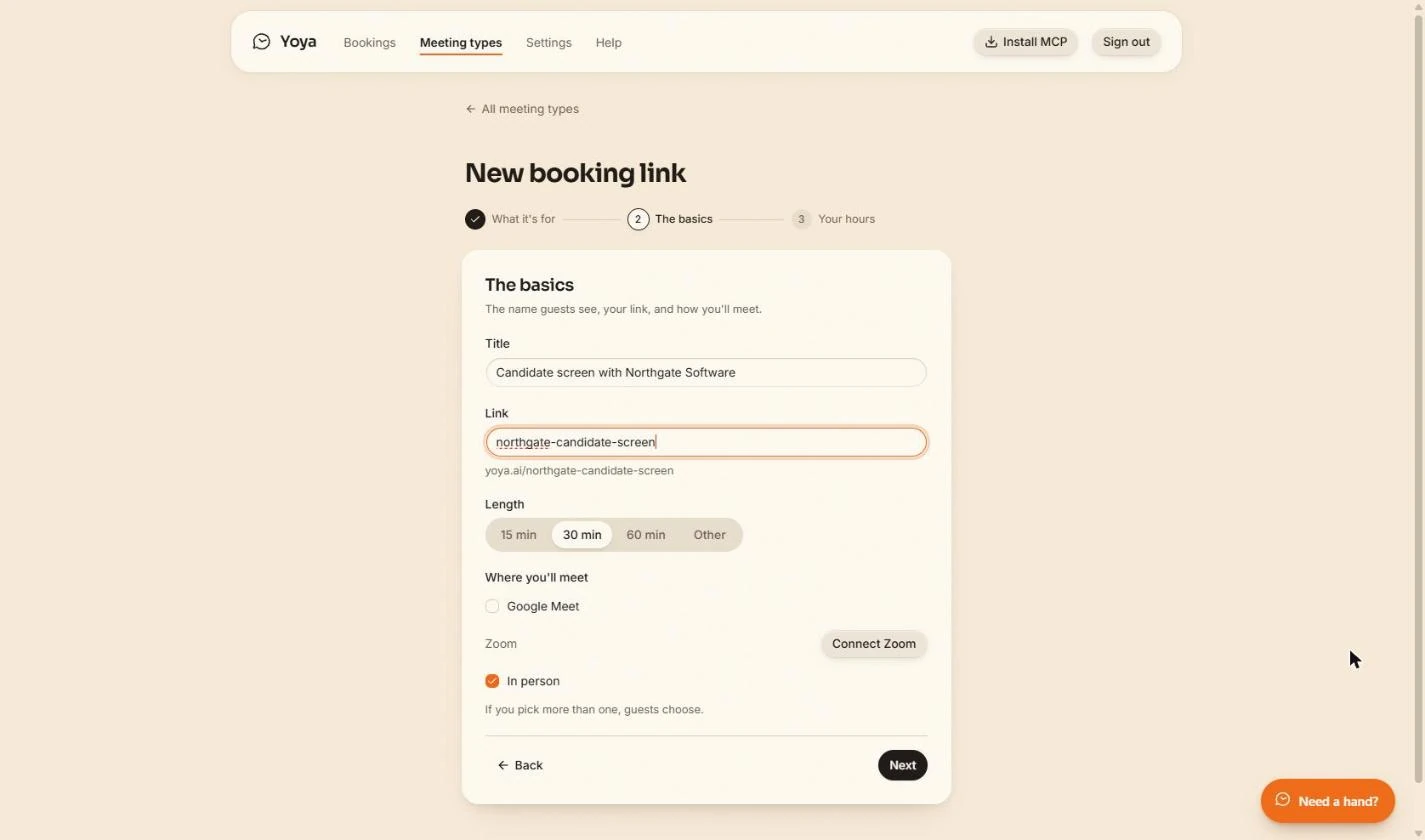
- Shorten the link. Yoya built a Link from the title, with your name in front. Replace it with a short one you can paste into every candidate email.
Yoya built a long link from the title. Make it short enough to paste into every candidate email.
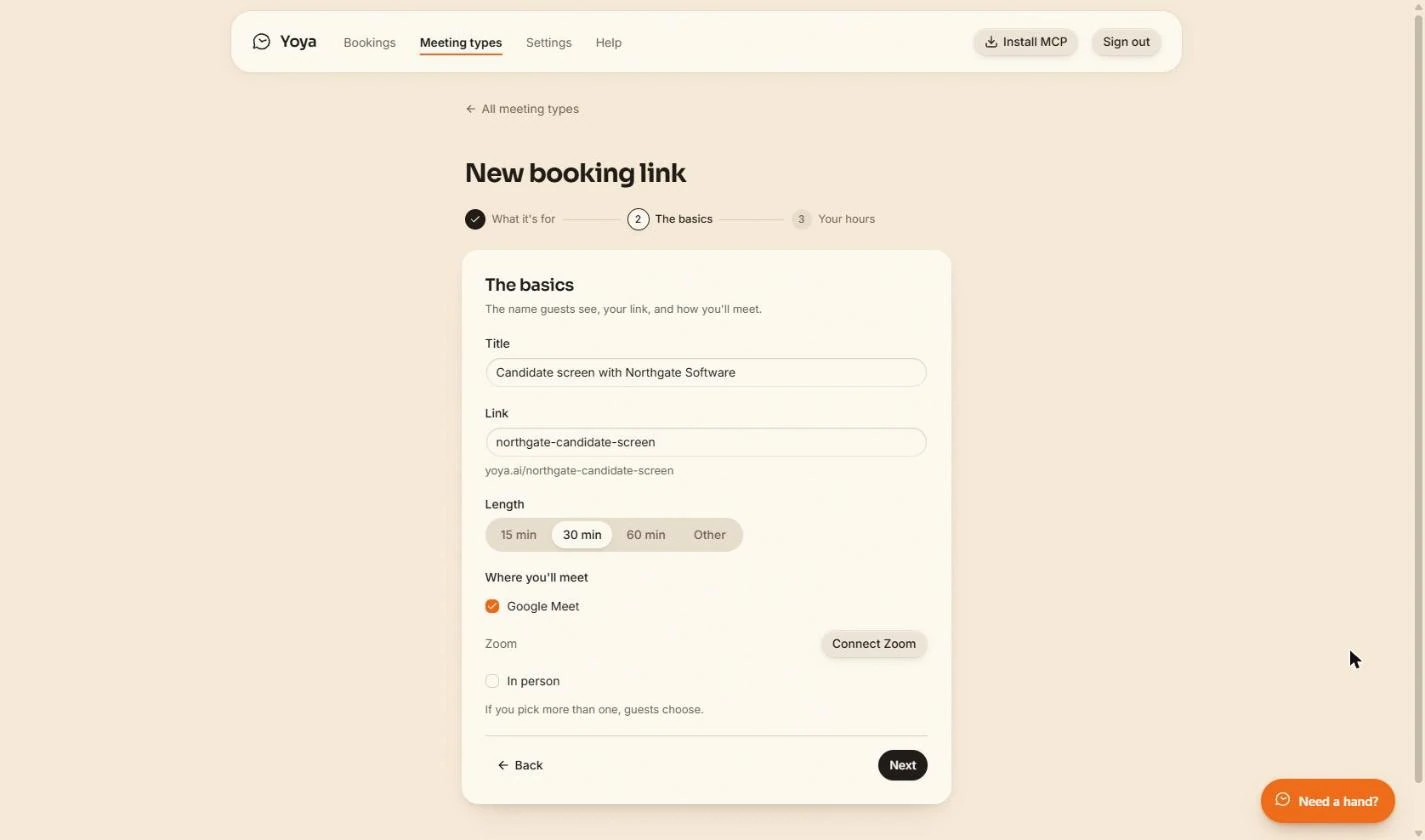
- Meet on Google Meet. Under Where you’ll meet, tick Google Meet and untick In person. Google Meet only works when Google Calendar is connected (Settings › Connections); ours already was. With only one option ticked, candidates are not asked to choose.
Tick Google Meet and untick In person. Meet needs Google Calendar connected under Settings. Ours already was.
- Next. Leave Length at 30 min and click Next.
Leave it at thirty minutes and click Next.
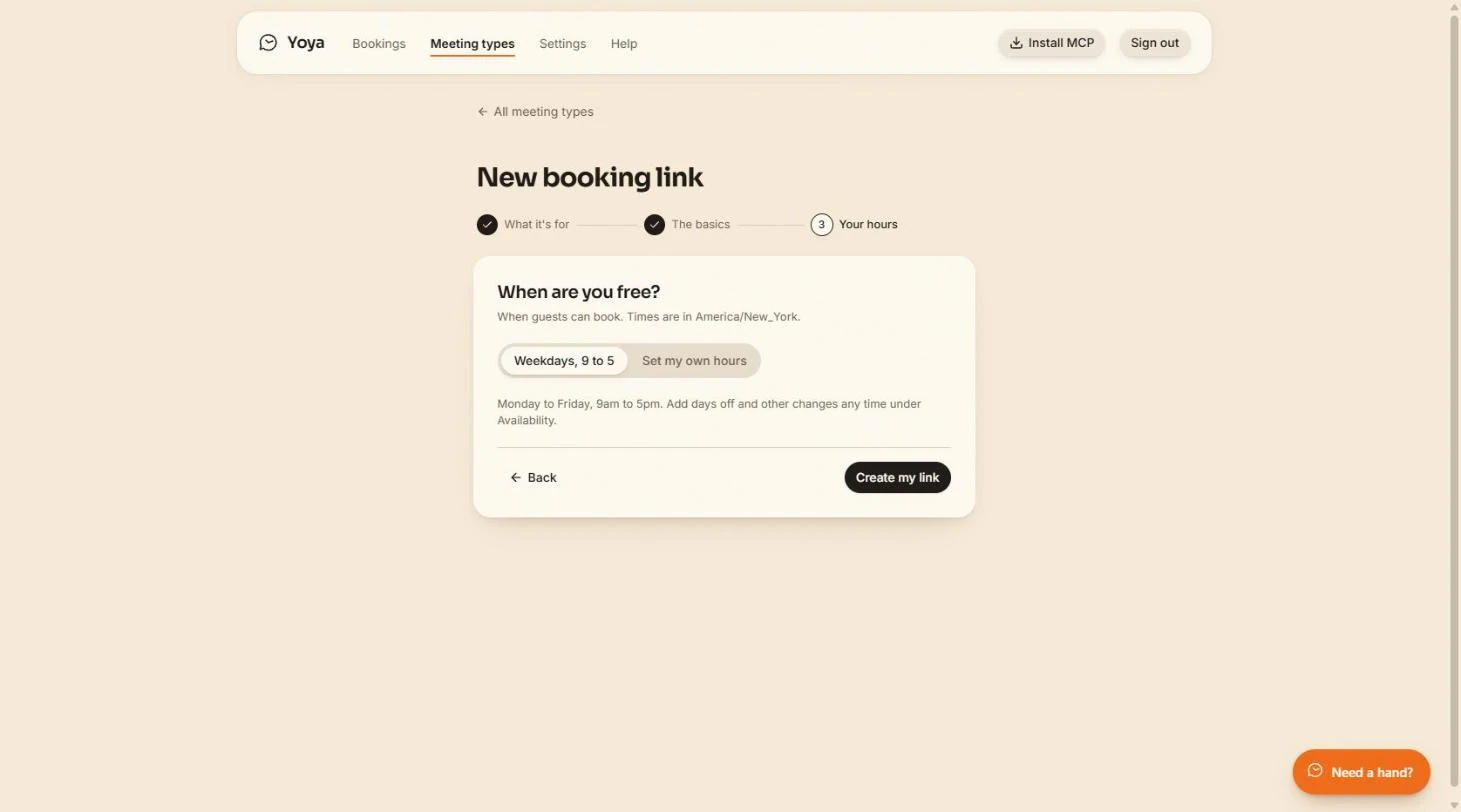
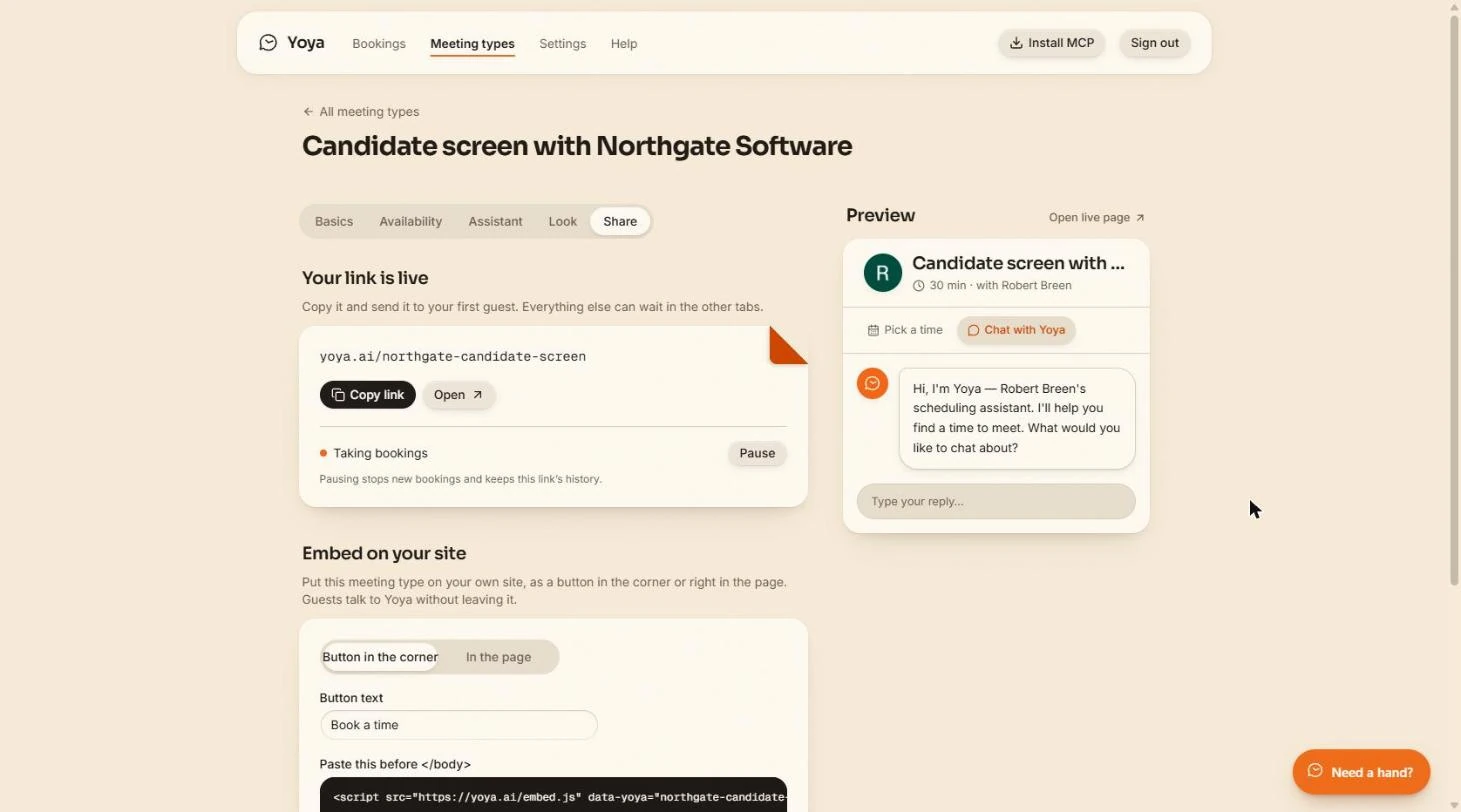
- Create the link. Weekdays, 9 to 5 is picked, in your time zone. Because Google Calendar is connected, Yoya also hides any time you are already busy. Click Create my link.
Weekdays nine to five. Yoya also hides times you are already busy in Google Calendar.
2. Meet, host and questions
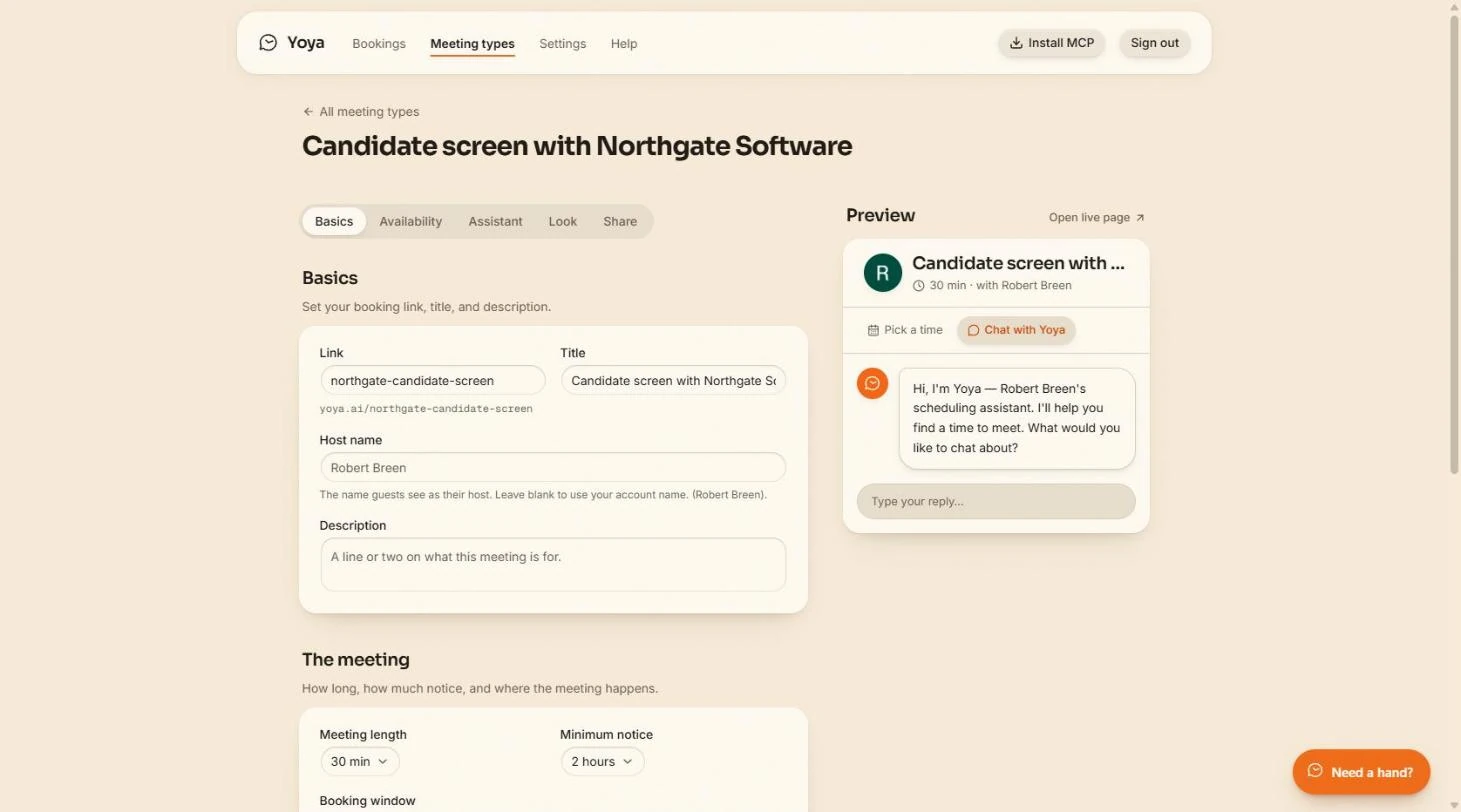
- Open Basics. Your link is live, but the preview says with Robert Breen, the account name. Click the Basics tab to fix that.
The link is live, but it shows the account name.
- Set the host name. Host name is who candidates think they are meeting. Custom host names are a Business plan feature; on other plans leave it blank and Yoya uses your account name.
The host name is who candidates meet. It needs the Business plan. Otherwise Yoya uses your account name.
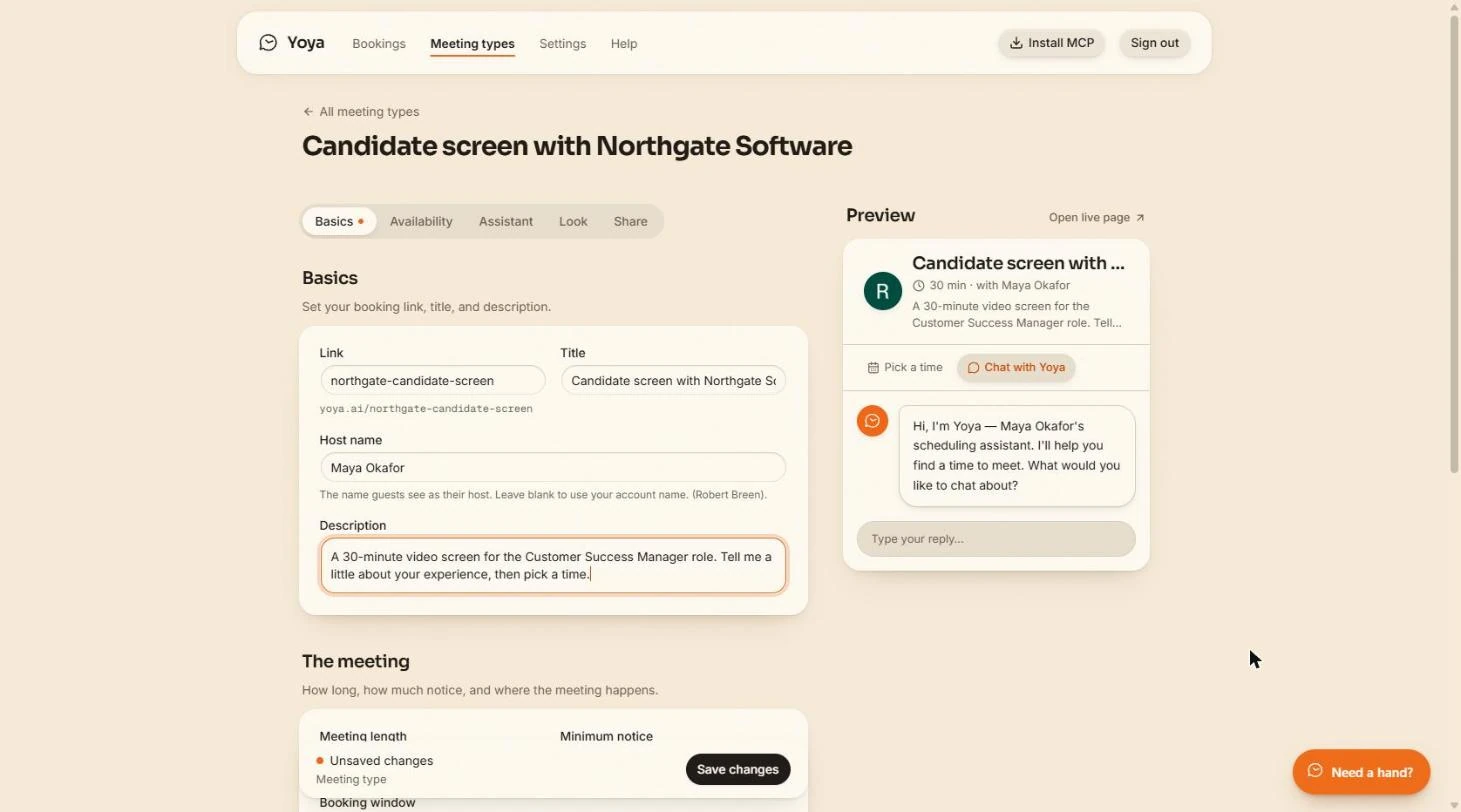
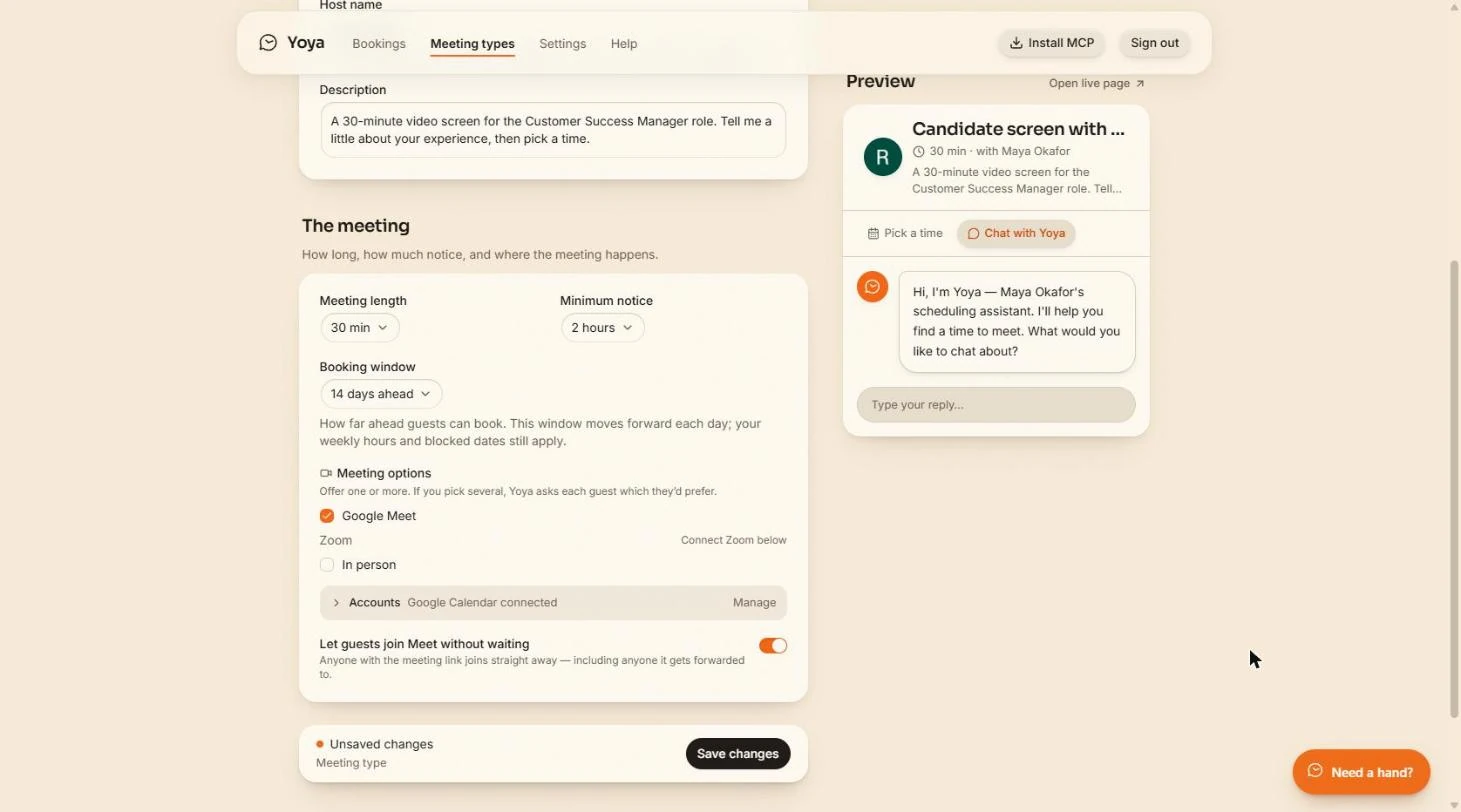
- Check what candidates see. We also added a one-line Description of the role and the call. The Preview on the right updates as you type: with Maya Okafor and the description. Now scroll down to The meeting.
We also added a one-line description. The preview updates as you type.
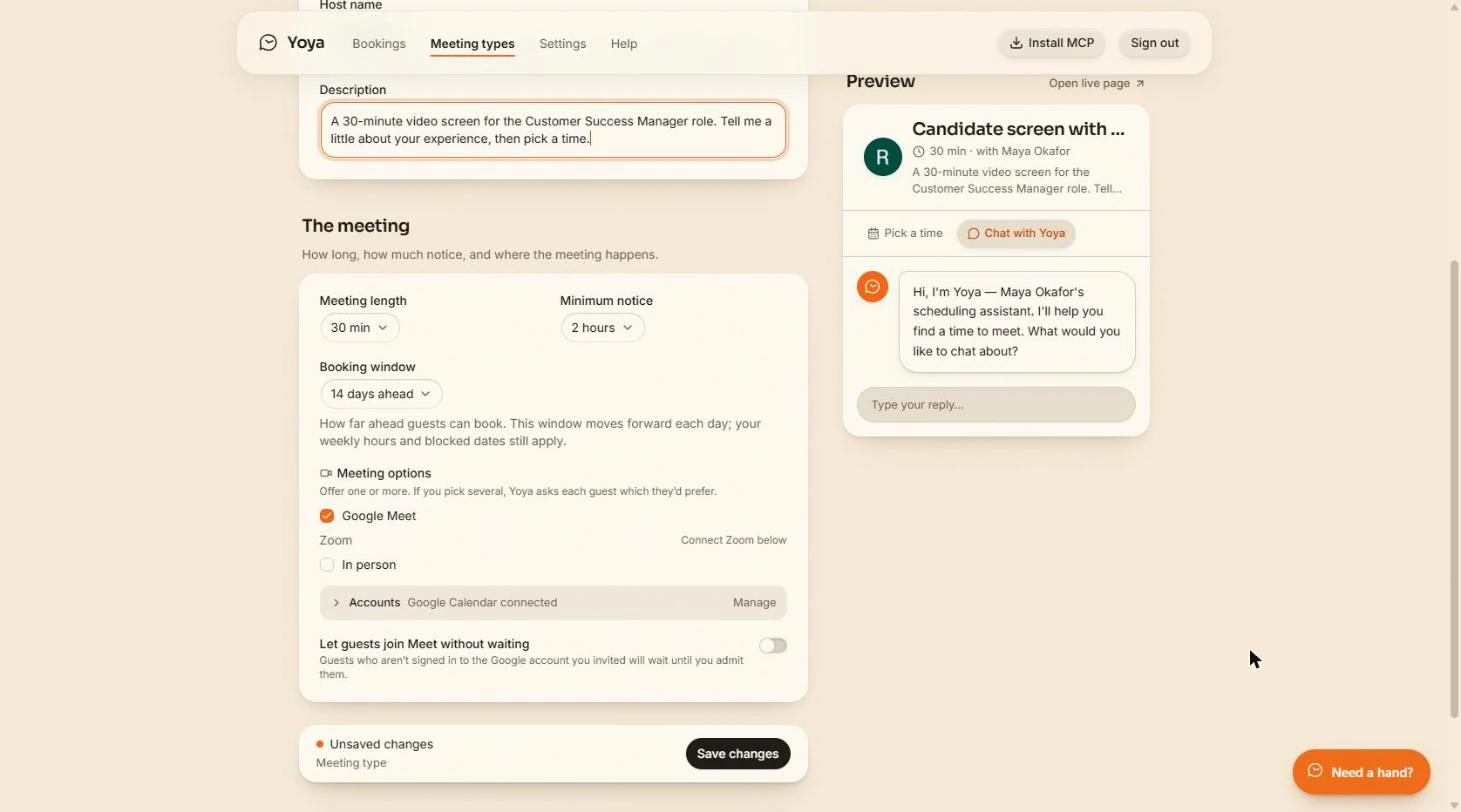
- Let candidates in without waiting. Google Meet is ticked, with Google Calendar connected. Candidates are not signed in to your company Google account, so by default they wait for you to admit them. Turn on Let guests join Meet without waiting. Yoya warns that anyone with the link joins straight away, so keep the link to the candidate.
Candidates are not in your Google account, so they would wait to be let in. Turn on join without waiting. Anyone with the link can then join.
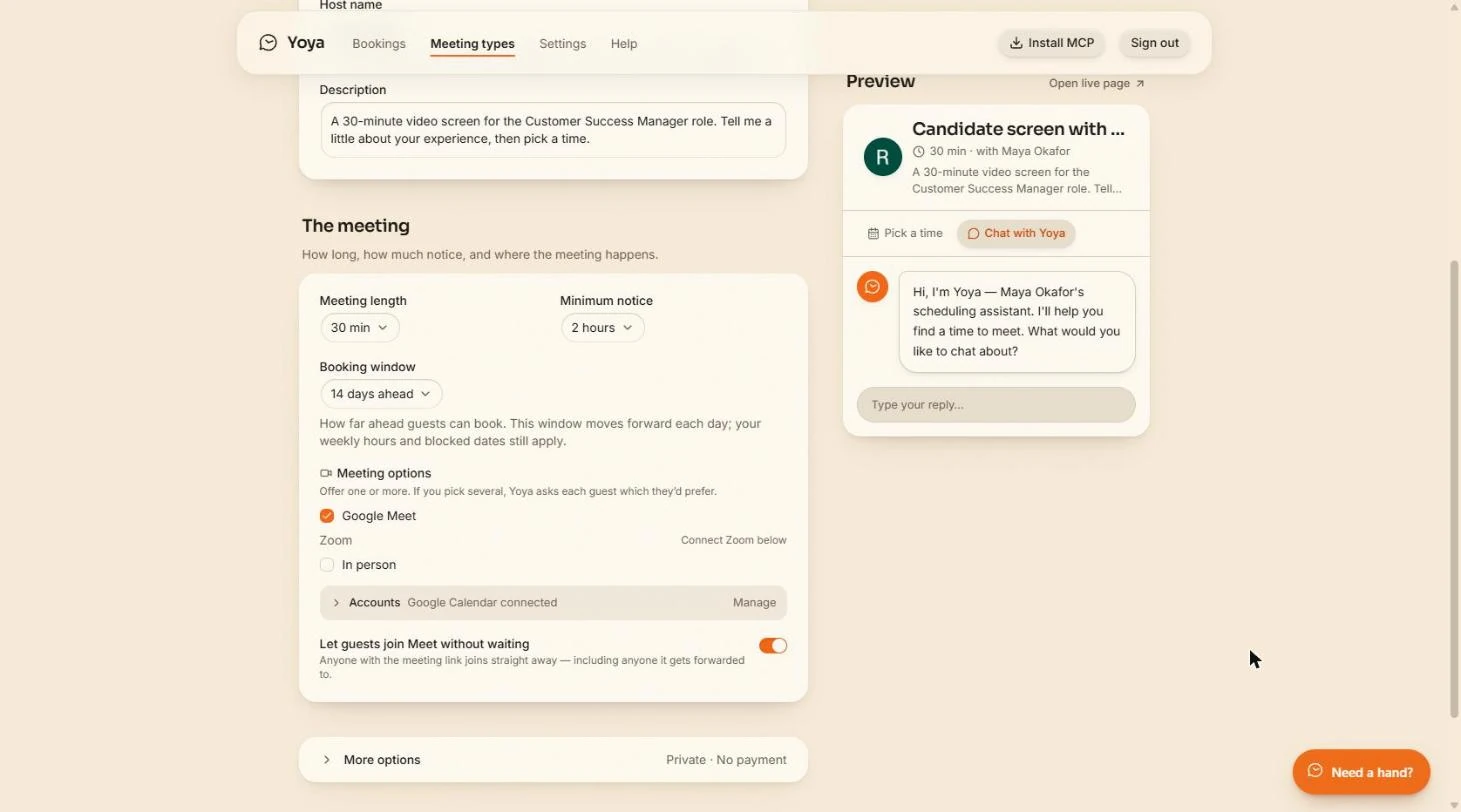
- Save. Click Save changes.
- Go back up. Saved: the bar now says More options. Scroll back to the top of the page.
Saved.
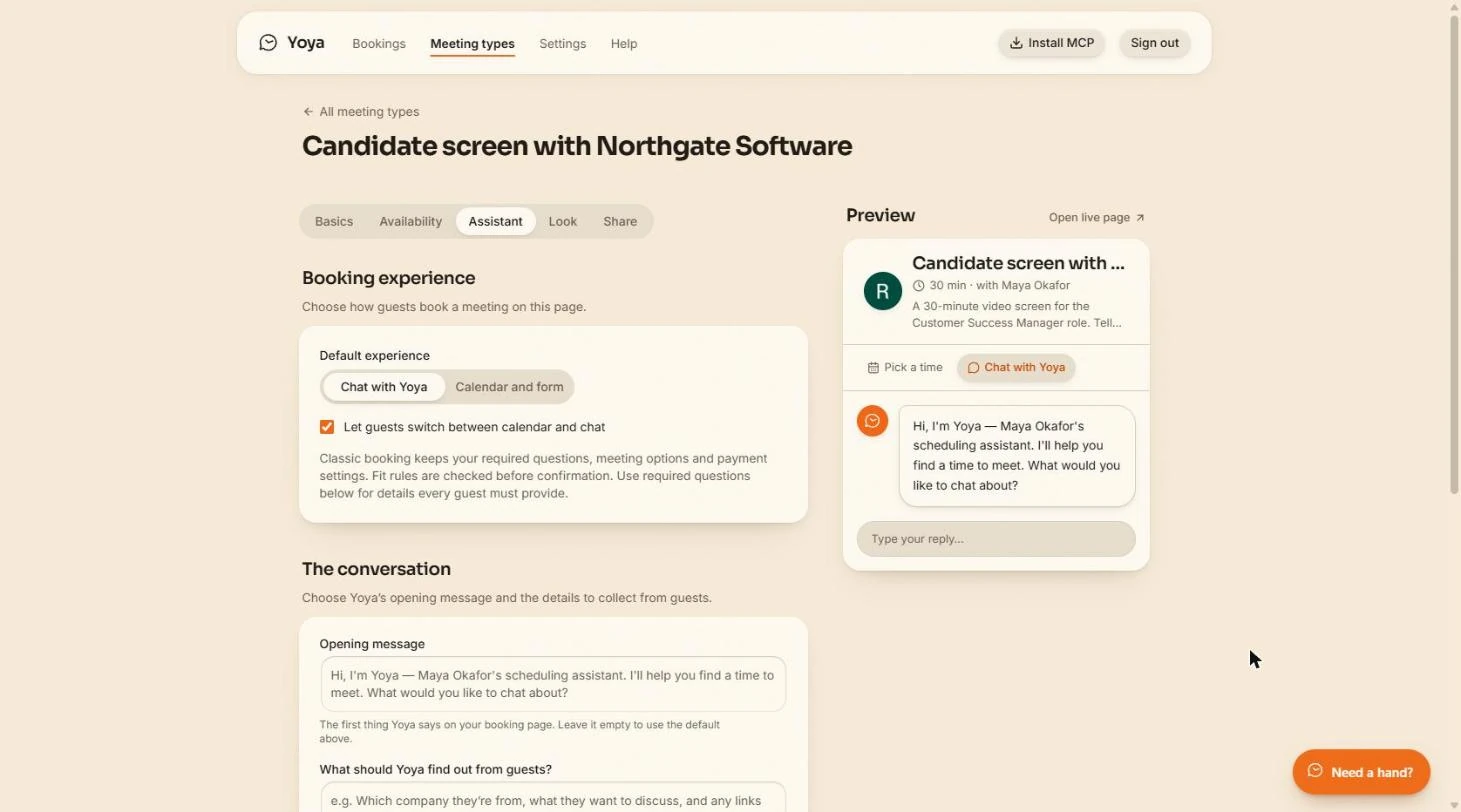
- Open The conversation. Click the Assistant tab. Chat with Yoya is the default experience: candidates answer in a chat instead of a form. Scroll down to The conversation.
In the Assistant tab, candidates book in a chat.
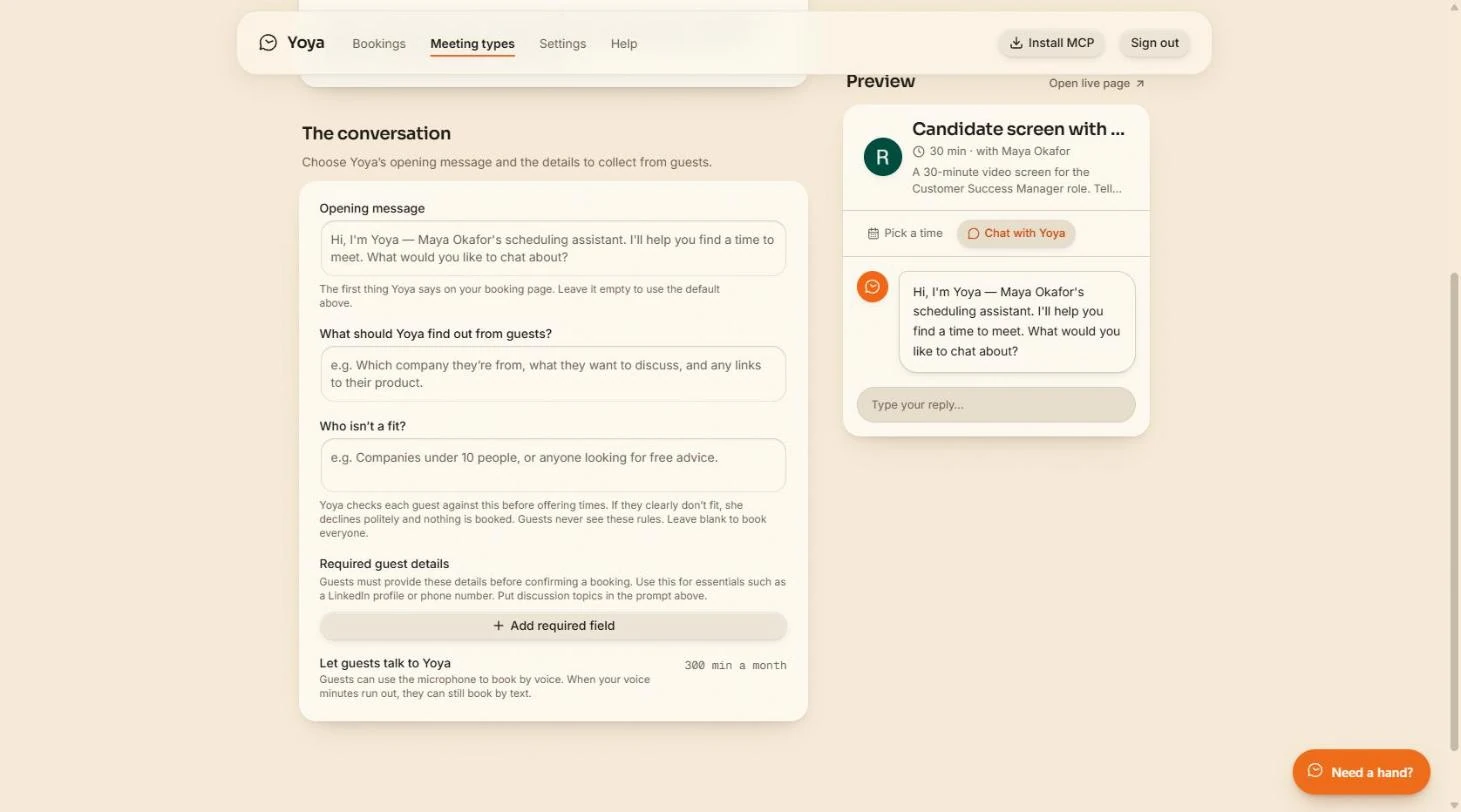
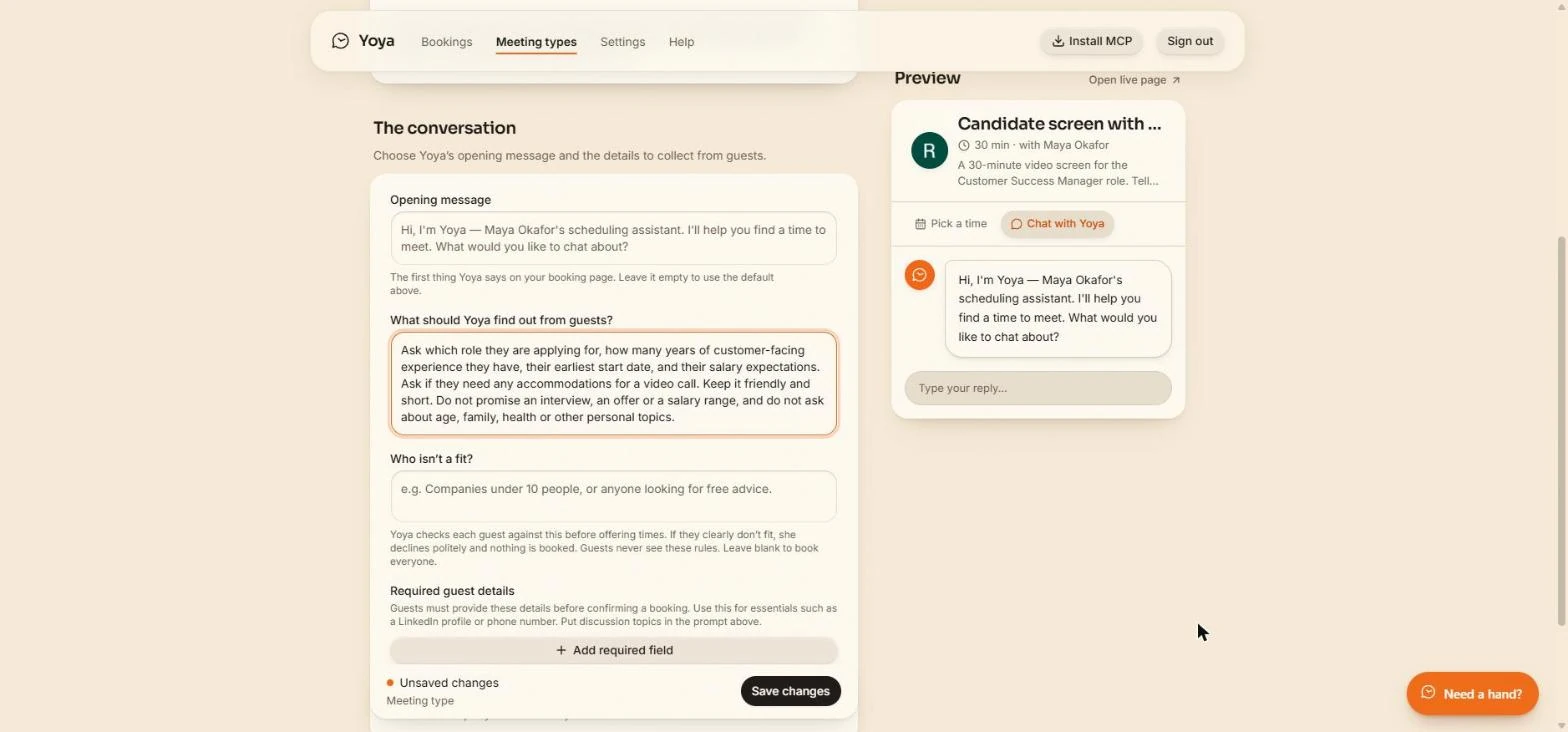
- Write your screening questions. What should Yoya find out from guests? is your phone-screen checklist. The last two sentences matter most: Yoya talks to candidates in your company’s name, so it must not promise anything or ask questions you are not allowed to ask.
This box is your screening checklist. The last lines stop it promising an offer or asking personal questions.
Ask which role they are applying for, how many years of customer-facing experience they have, their earliest start date, and their salary expectations. Ask if they need any accommodations for a video call. Keep it friendly and short. Do not promise an interview, an offer or a salary range, and do not ask about age, family, health or other personal topics.
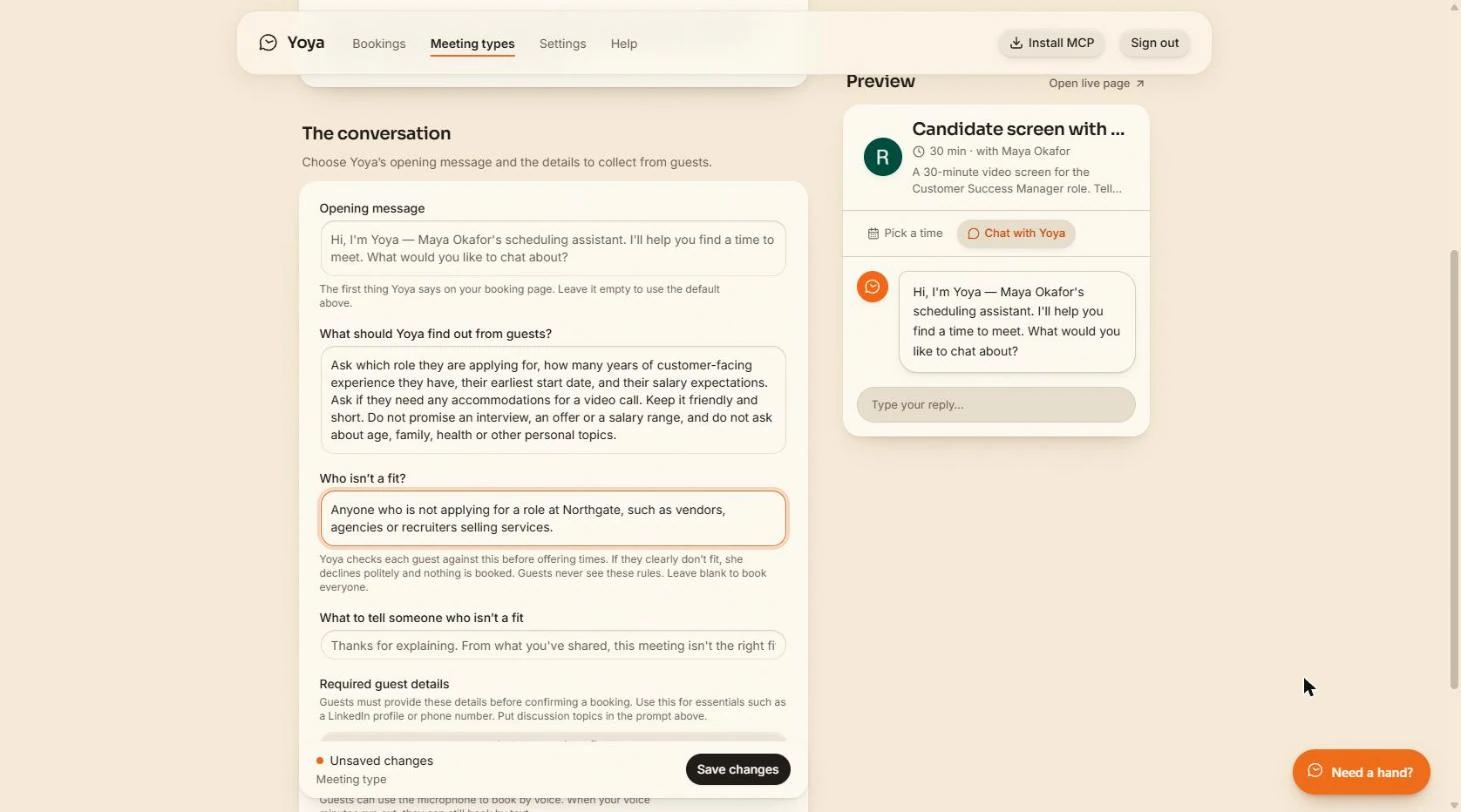
- Say who is not a fit. Who isn’t a fit? is checked before any times are offered. If someone clearly does not fit, Yoya declines politely and nothing is booked. Use it for vendors and agencies, not to screen out candidates.
Yoya checks this before it offers times. Use it for vendors and agencies, not to screen out candidates.
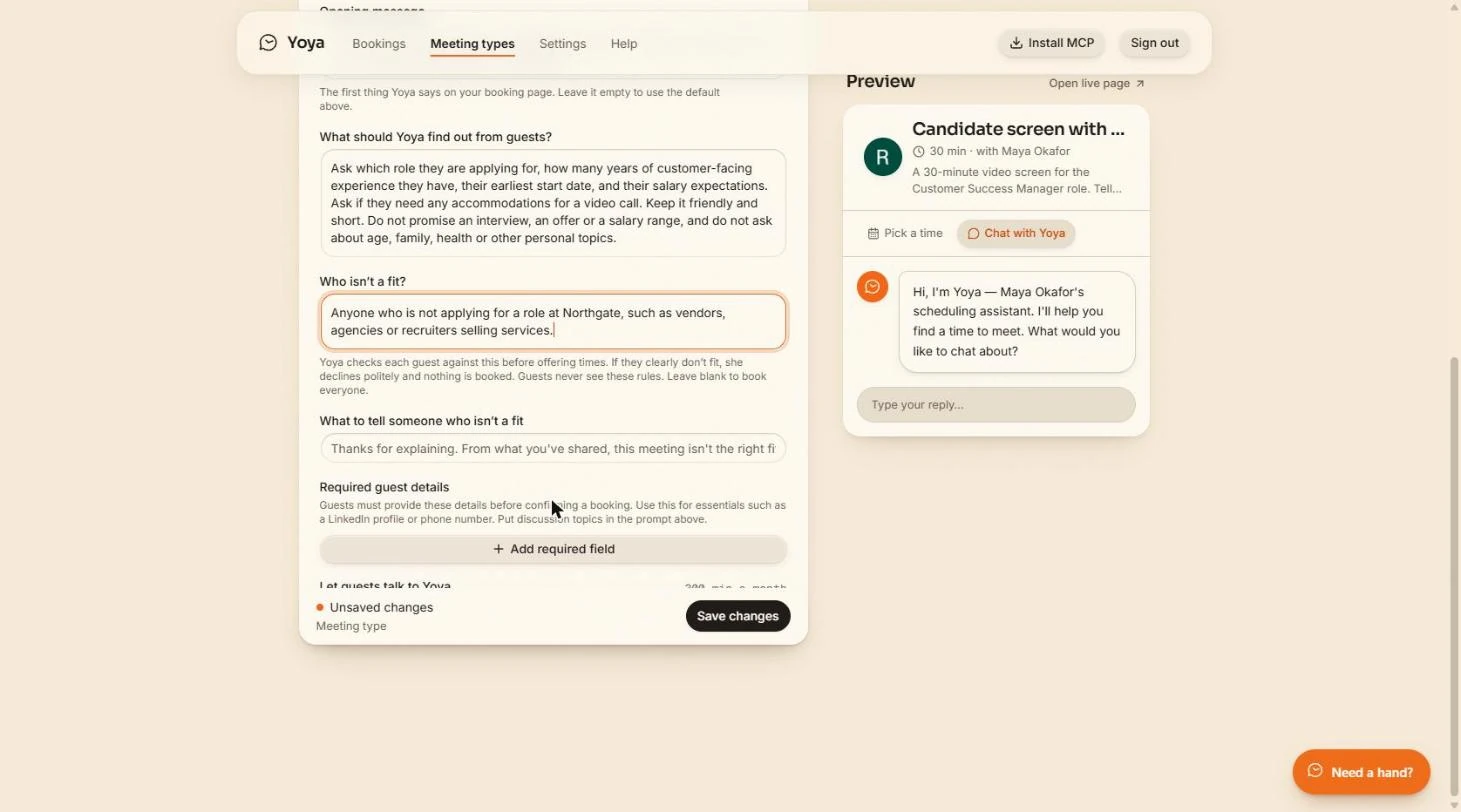
- Go to Required guest details. A new box, What to tell someone who isn’t a fit, appears with a polite default. Below it, scroll to Required guest details.
A polite decline message appears.
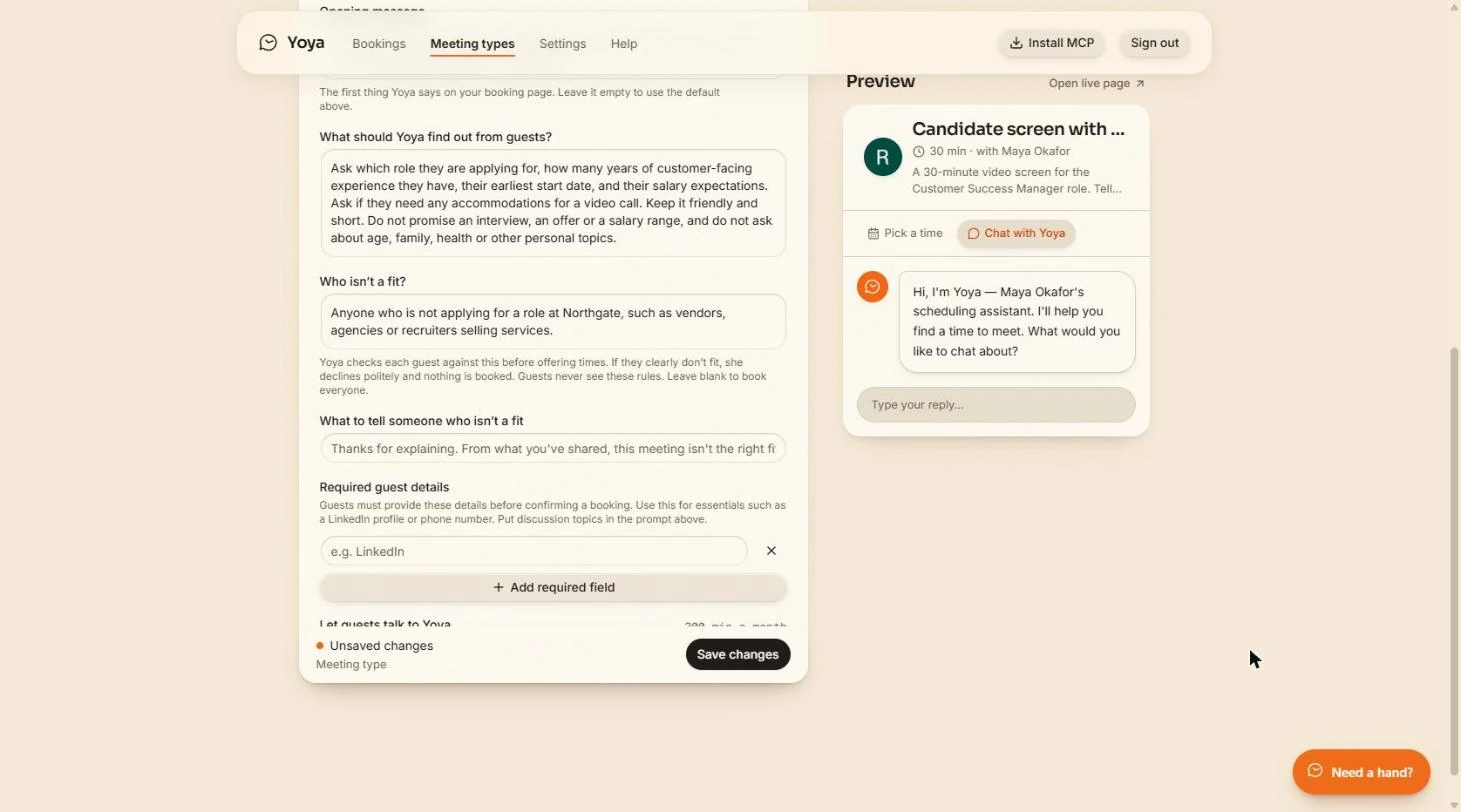
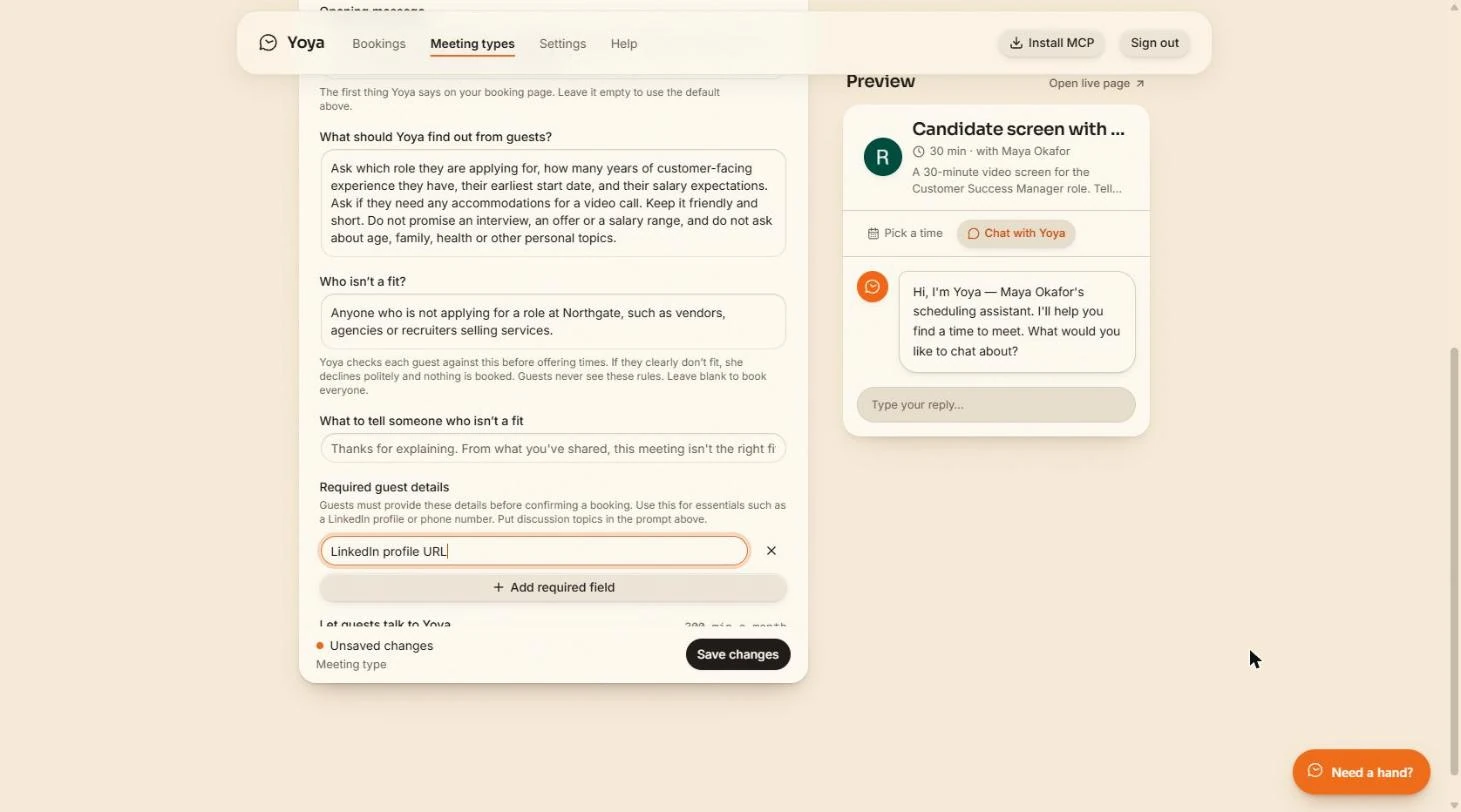
- Add a required field. Required details are facts a guest must give before confirming, not chat topics. Click Add required field.
Required details are facts a guest must give before booking.
- Ask for the LinkedIn profile. Name the field. It shows as a box on the booking card, and the answer lands in your brief.
Name the field. The answer lands in your brief.
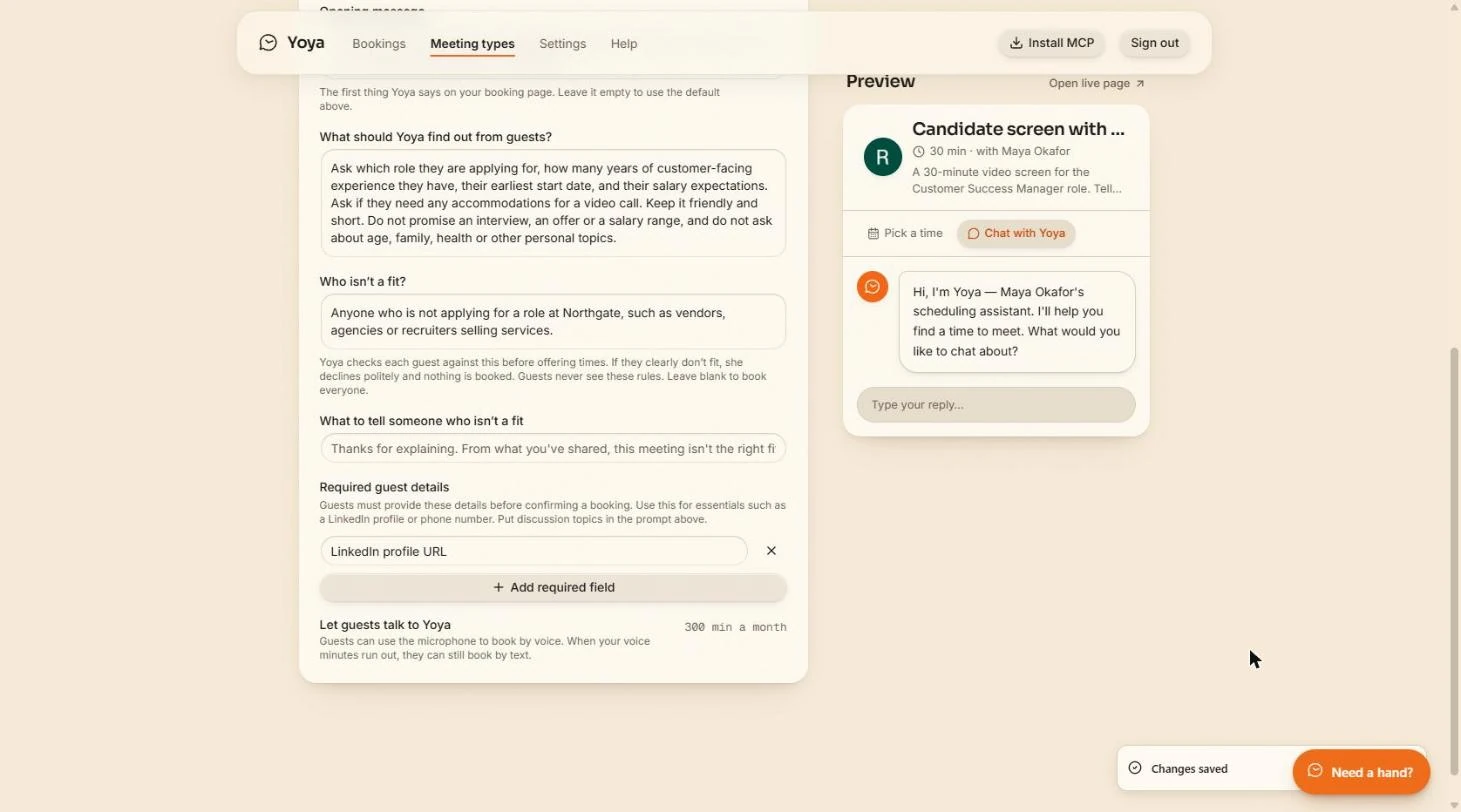
- Save. Click Save changes.
- Open the live page. Changes saved. Click Open live page to see the link the way a candidate does.
Changes saved.
3. Book as the candidate
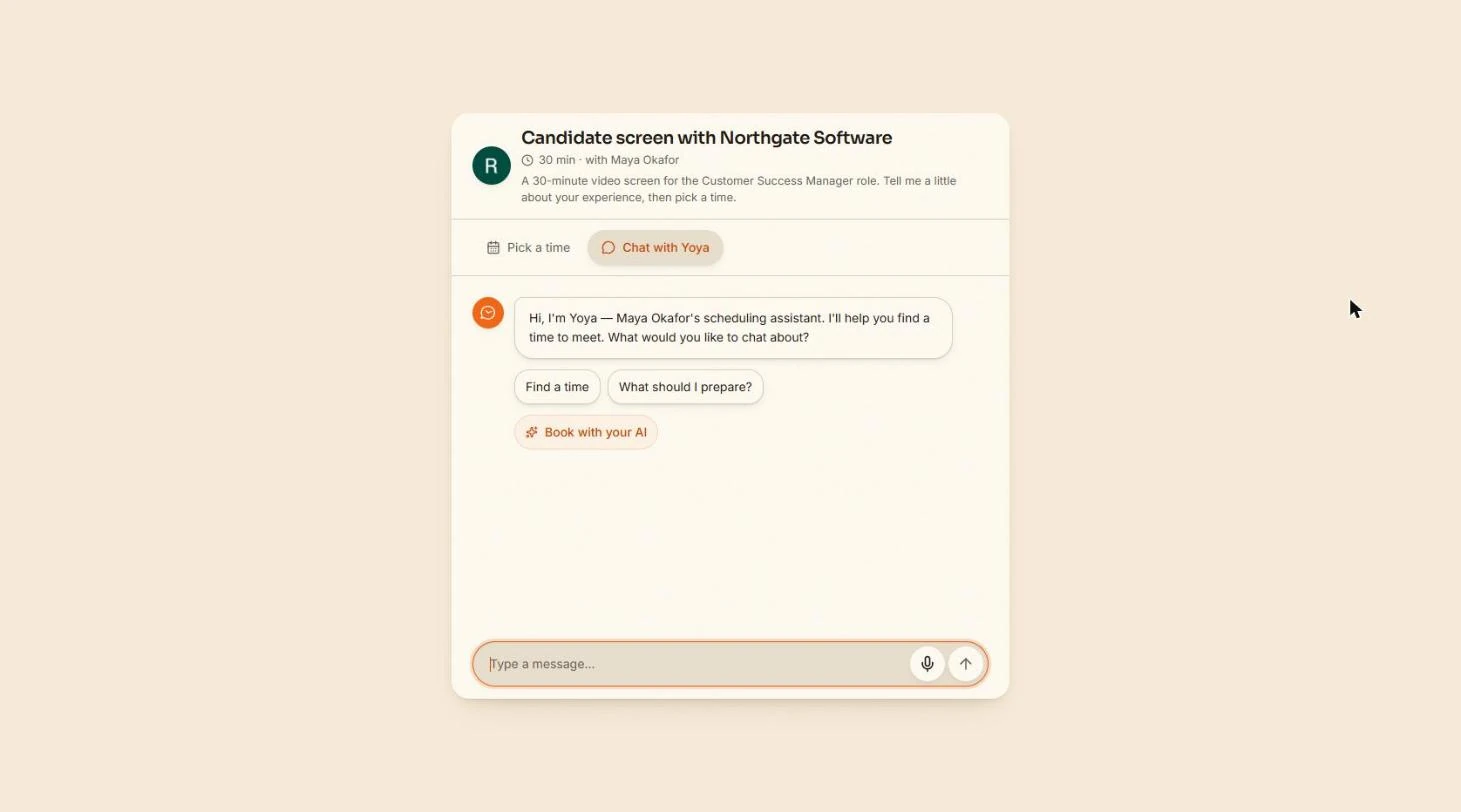
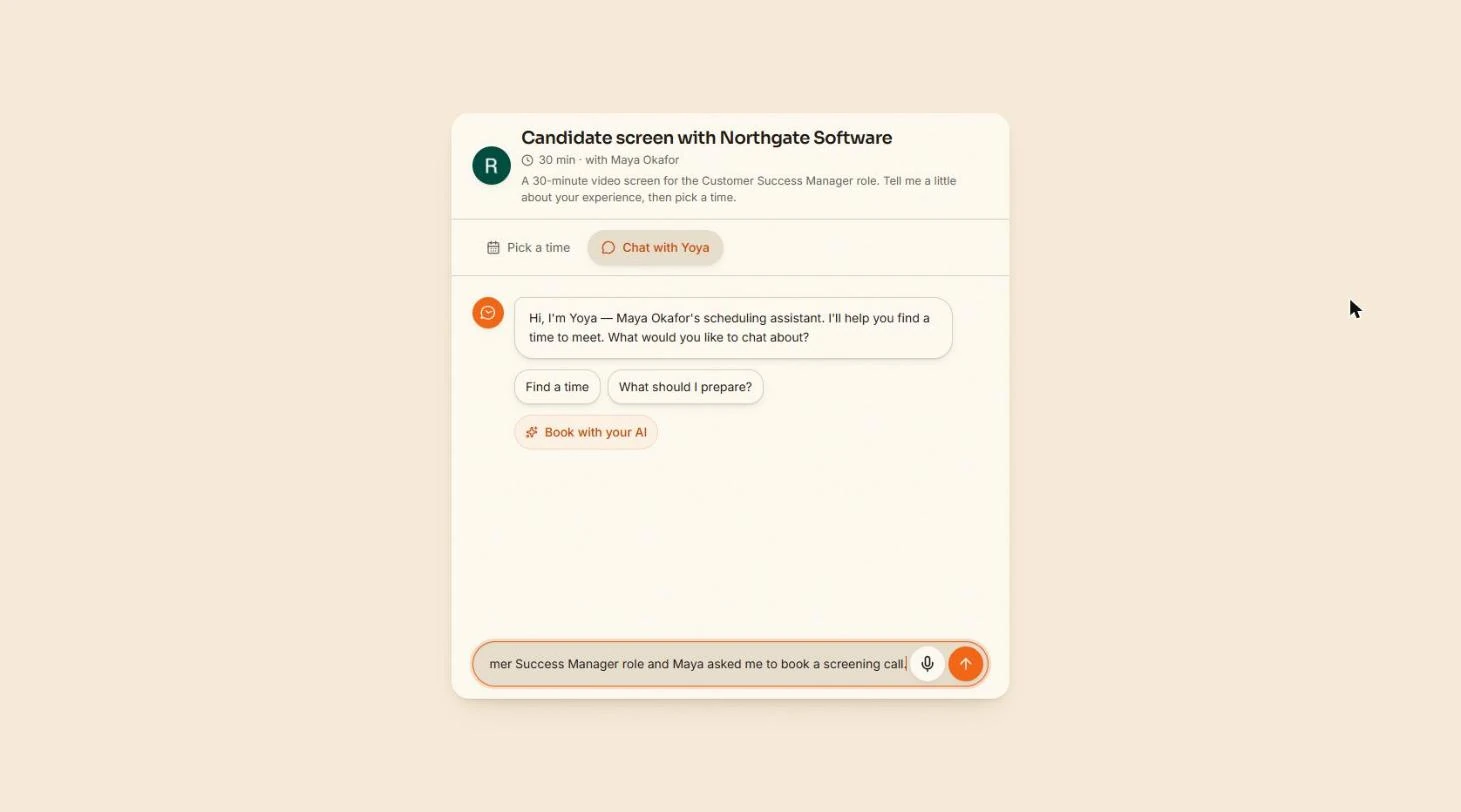
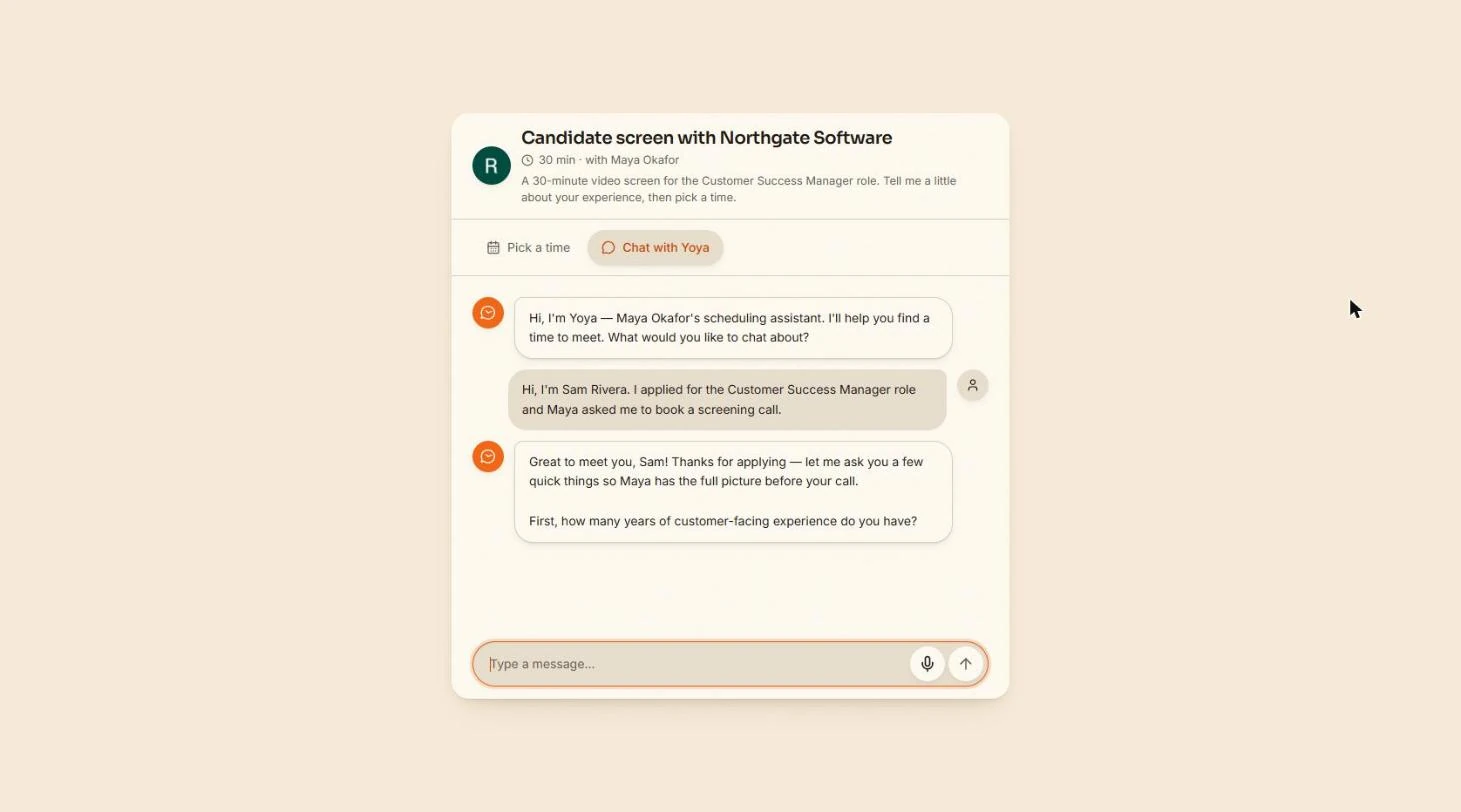
- Say why you are booking. Now you are the candidate, Sam Rivera (made up). There is no form, just a chat. Say who you are and why you are here.
Now you are the candidate. There is no form, just a chat. Say who you are.
- Send it. Click the arrow to send.
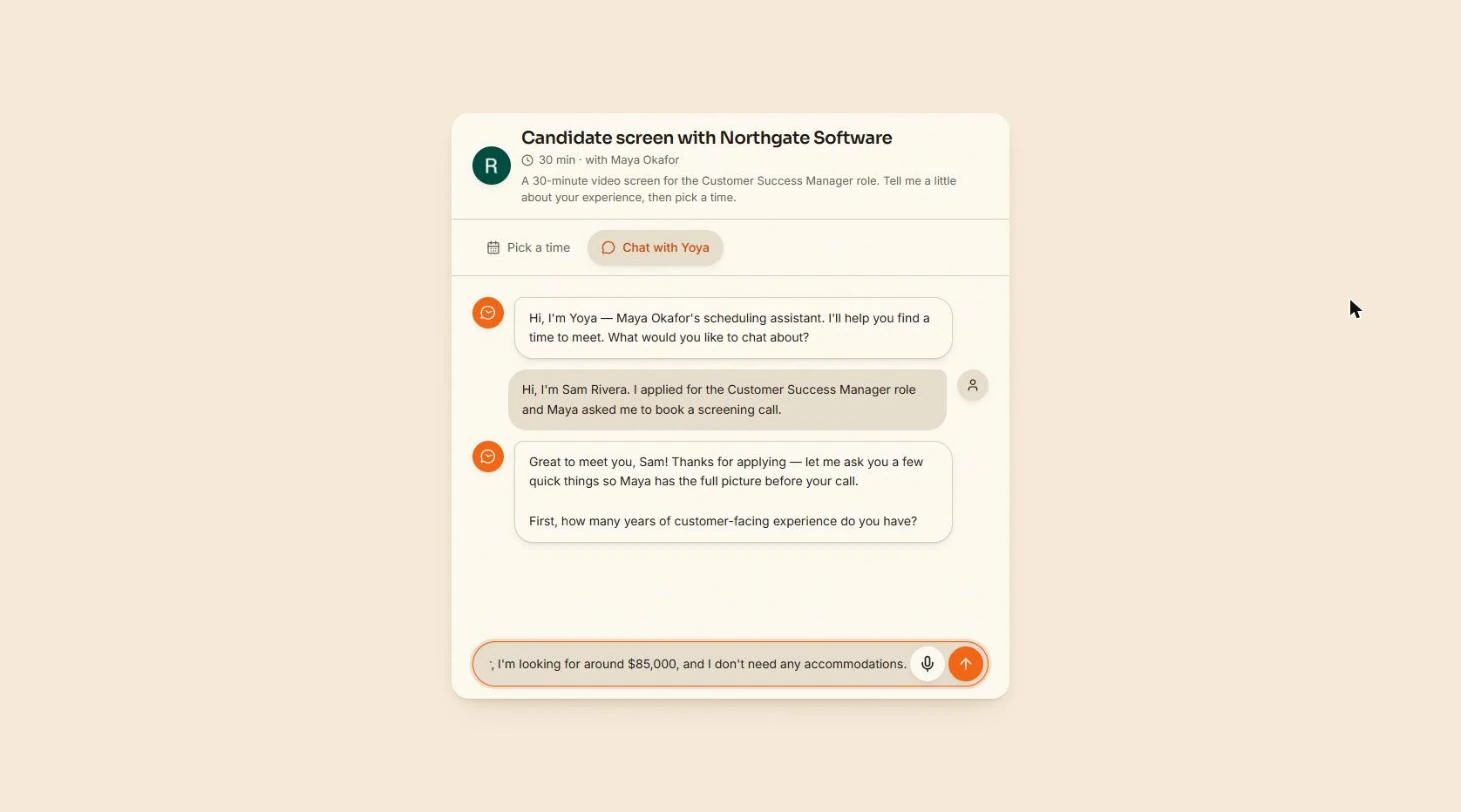
- Answer the screening question. Yoya asked about customer-facing experience, from Maya’s list. Answer everything at once and send with Enter. It only asks what it still needs, so your run may ask in a different order.
It asks from Maya’s list. Answer everything at once. Your run may ask in a different order.
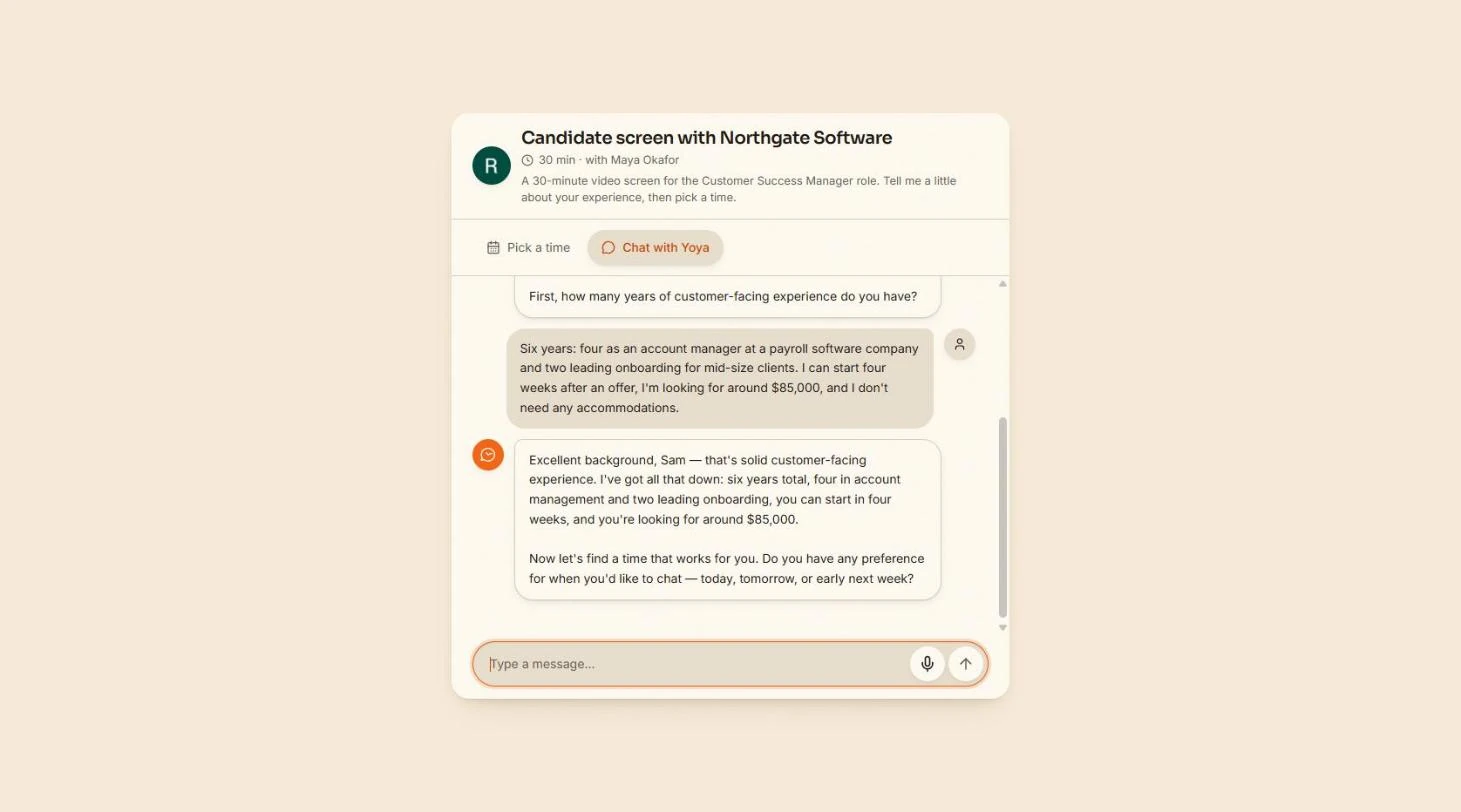
Six years: four as an account manager at a payroll software company and two leading onboarding for mid-size clients. I can start four weeks after an offer, I'm looking for around $85,000, and I don't need any accommodations.
- Send it. Send it.
- Say when suits you. Yoya repeats the answers back, then asks about timing. Say what works and send with Enter.
It repeats your answers, then asks about timing. Say what works.
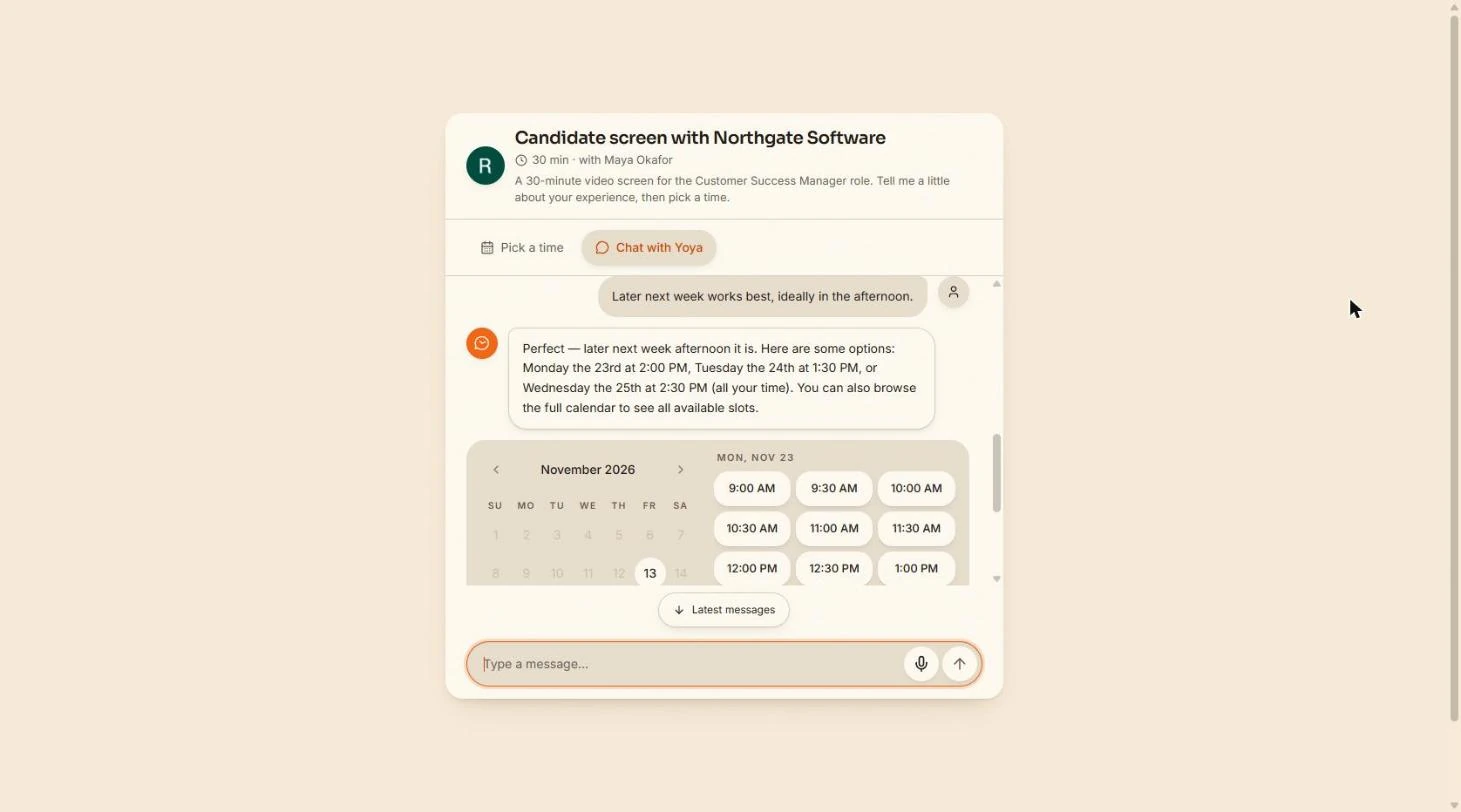
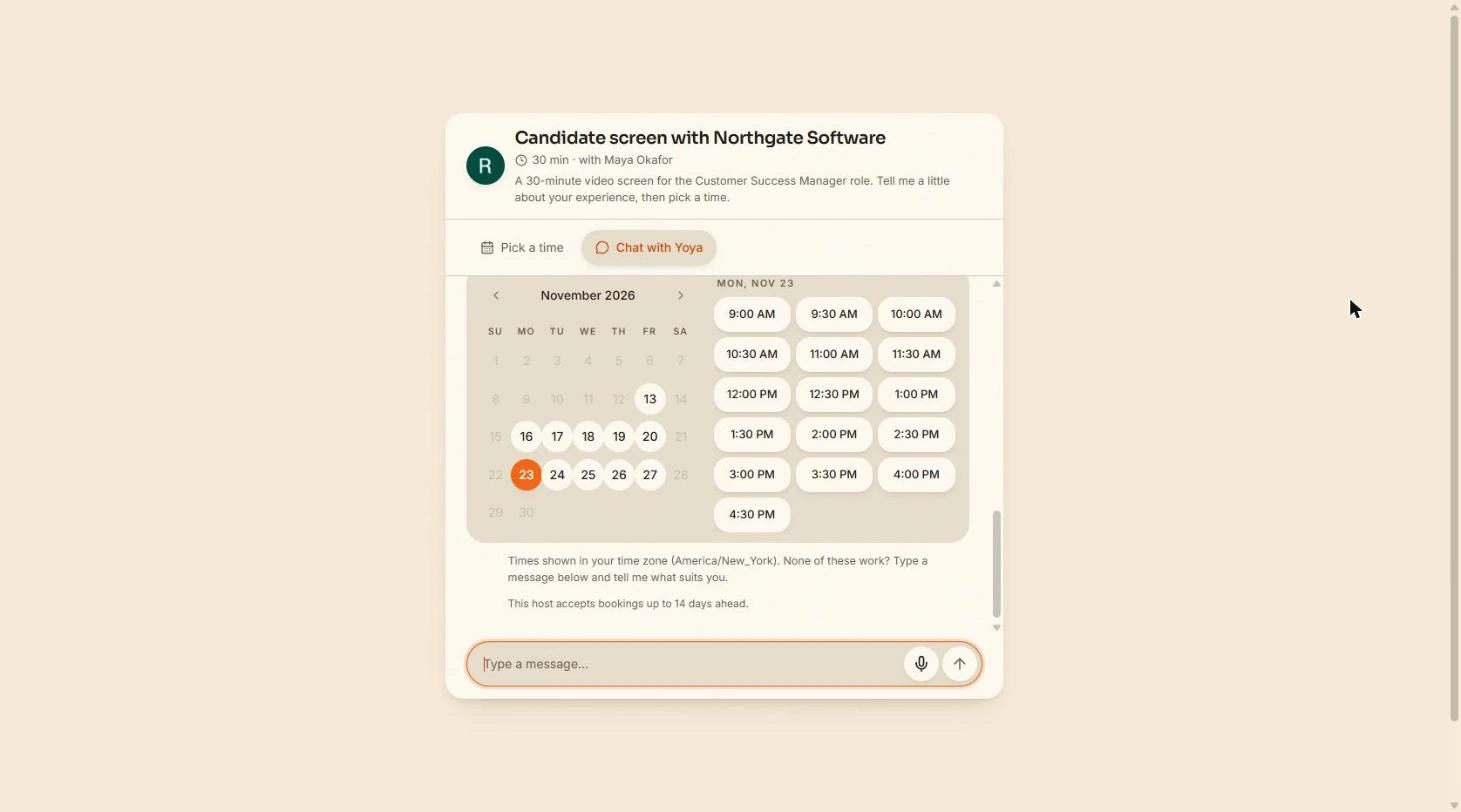
- See the calendar. Yoya suggests three times and opens a calendar in the chat. Ours read later next week as Monday to Wednesday, so check its suggestions rather than taking them on trust. Click Latest messages to scroll down.
It suggests three times. Ours read later next week loosely, so check them.
- Pick a day. Only days inside the 14-day booking window can be clicked. Pick Friday, November 27, or any open day on yours.
Only days inside the booking window can be clicked. Pick a day.
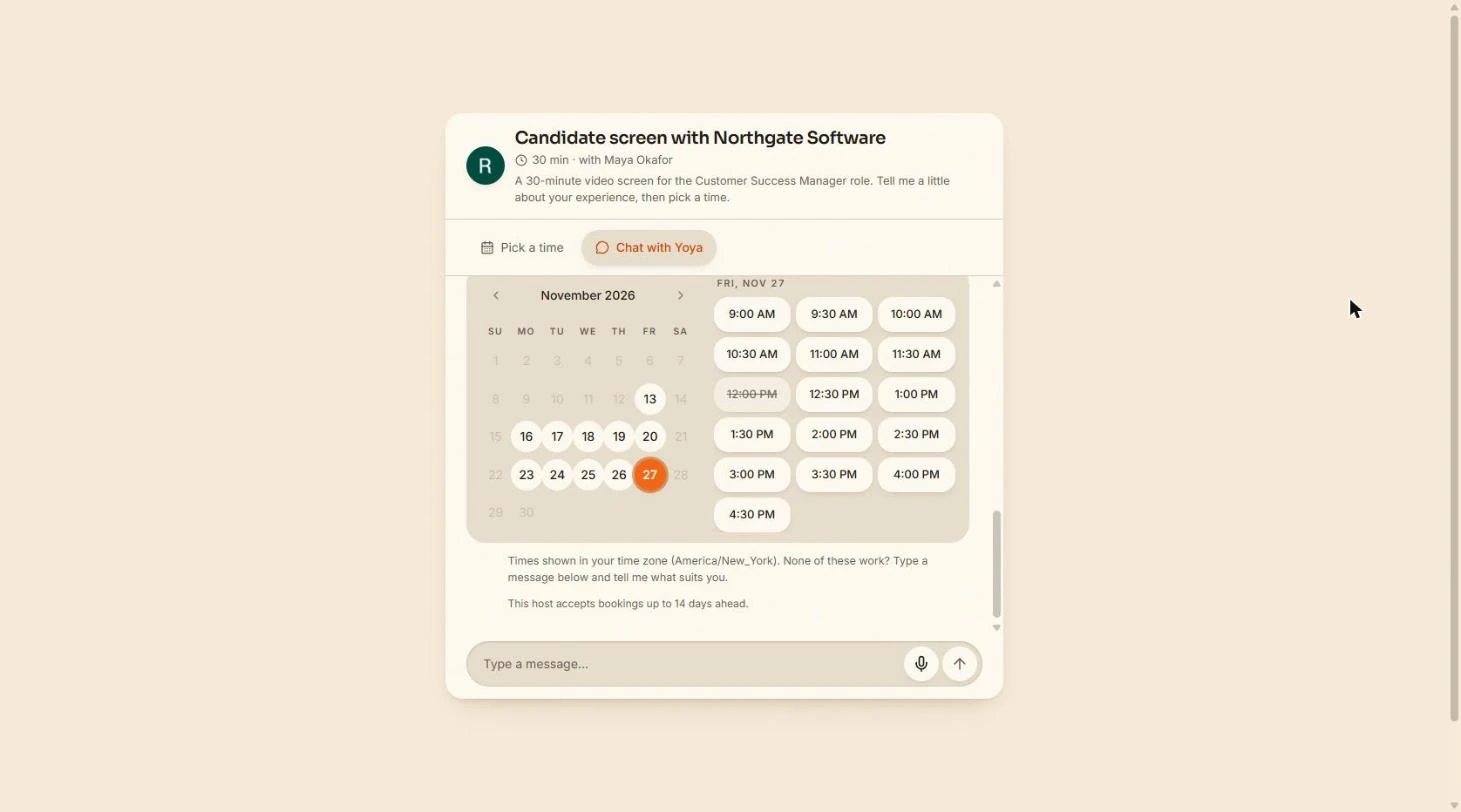
- Pick a time. Look at 12:00 PM: it is crossed out. That is a real meeting on the connected Google Calendar, so Yoya will not offer it. Click 4:30 PM.
Twelve o’clock is crossed out: a real meeting on the connected calendar.
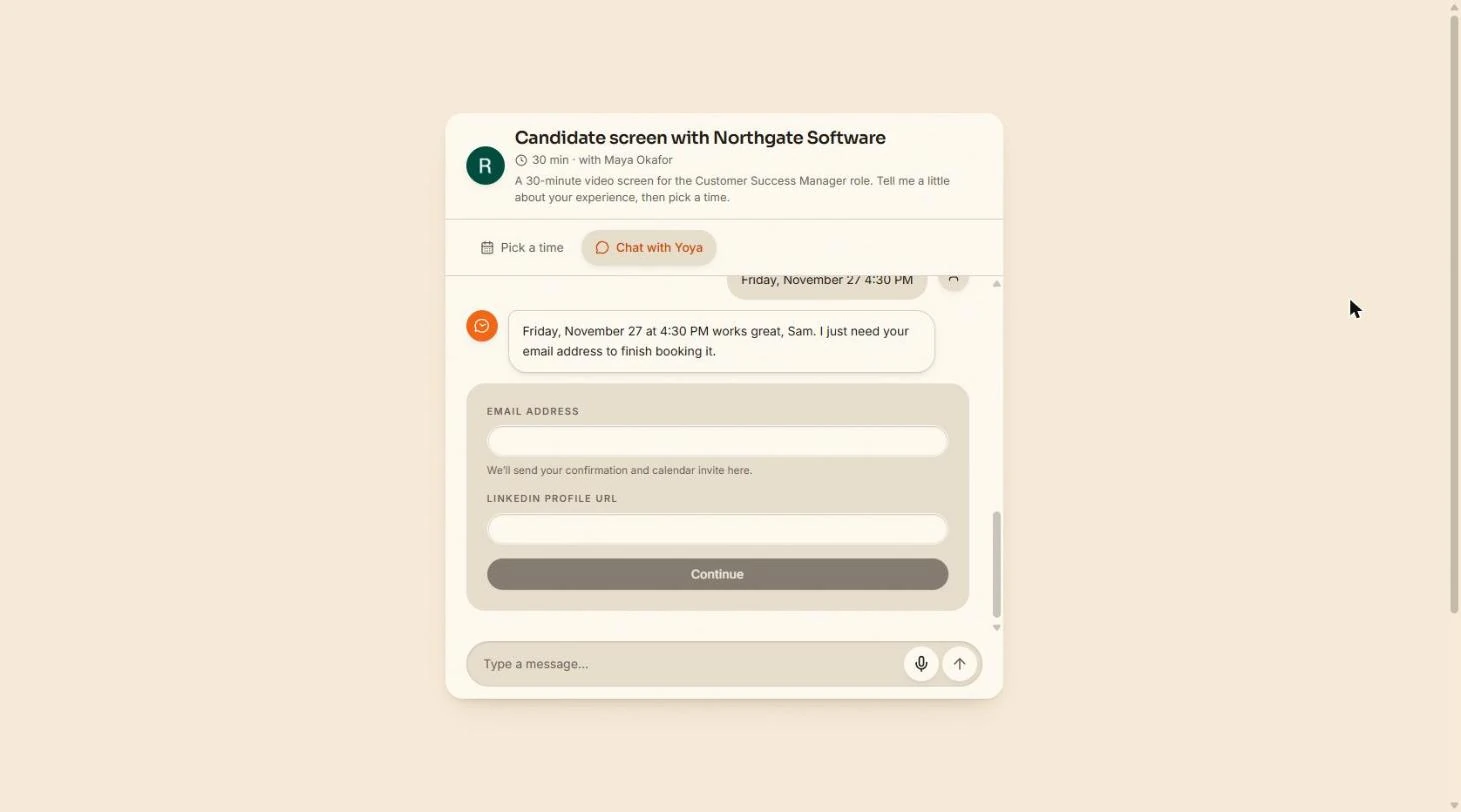
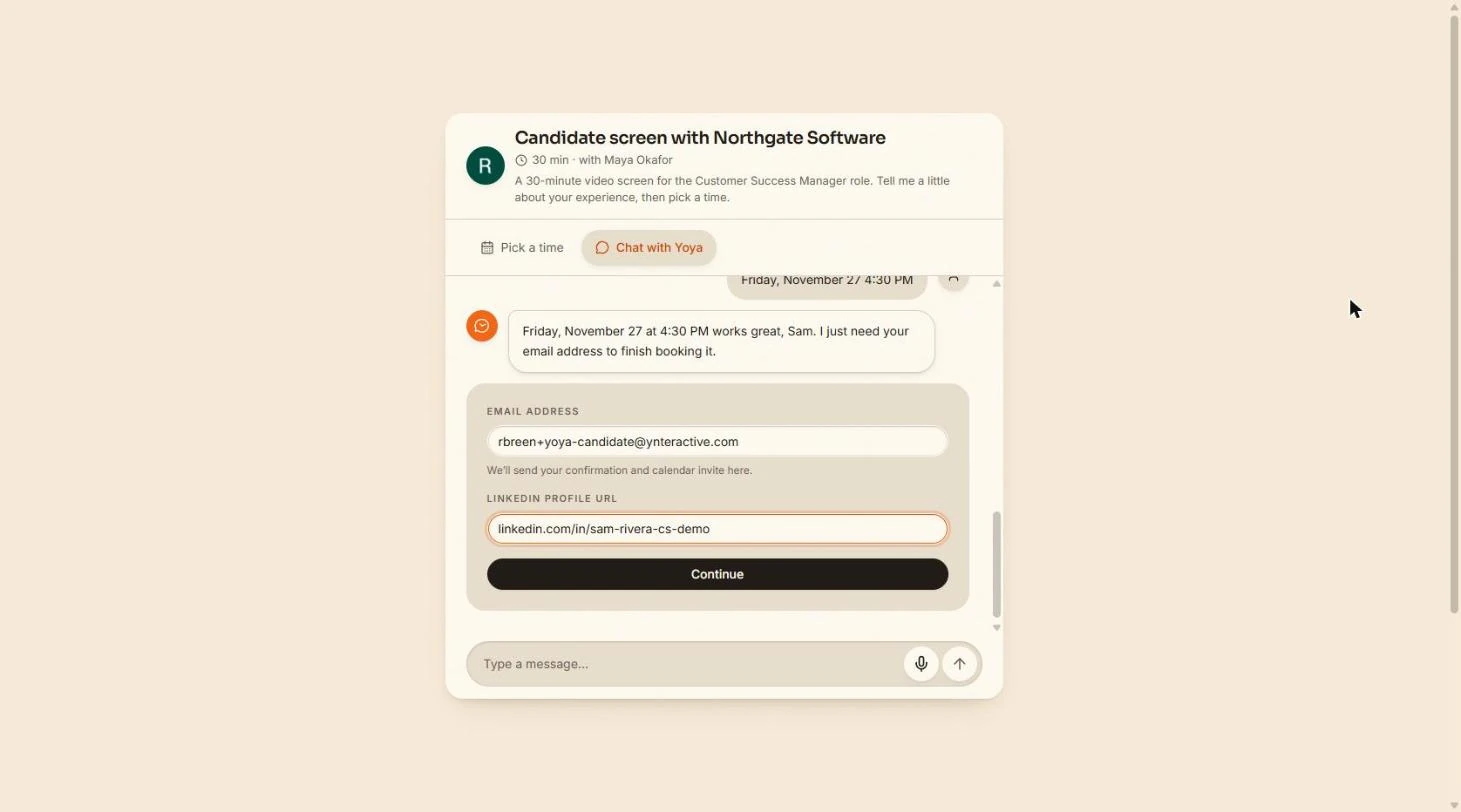
- Give your details. Enter an email you can open; Yoya sends the confirmation and the calendar invitation there. We used a plus address on our own inbox. Then fill LinkedIn profile URL, the required field you added; ours is made up. Continue stays grey until both are filled.
Enter an email you can open, then the LinkedIn profile you asked for. Continue stays grey until both are filled.
- Continue. Click Continue.
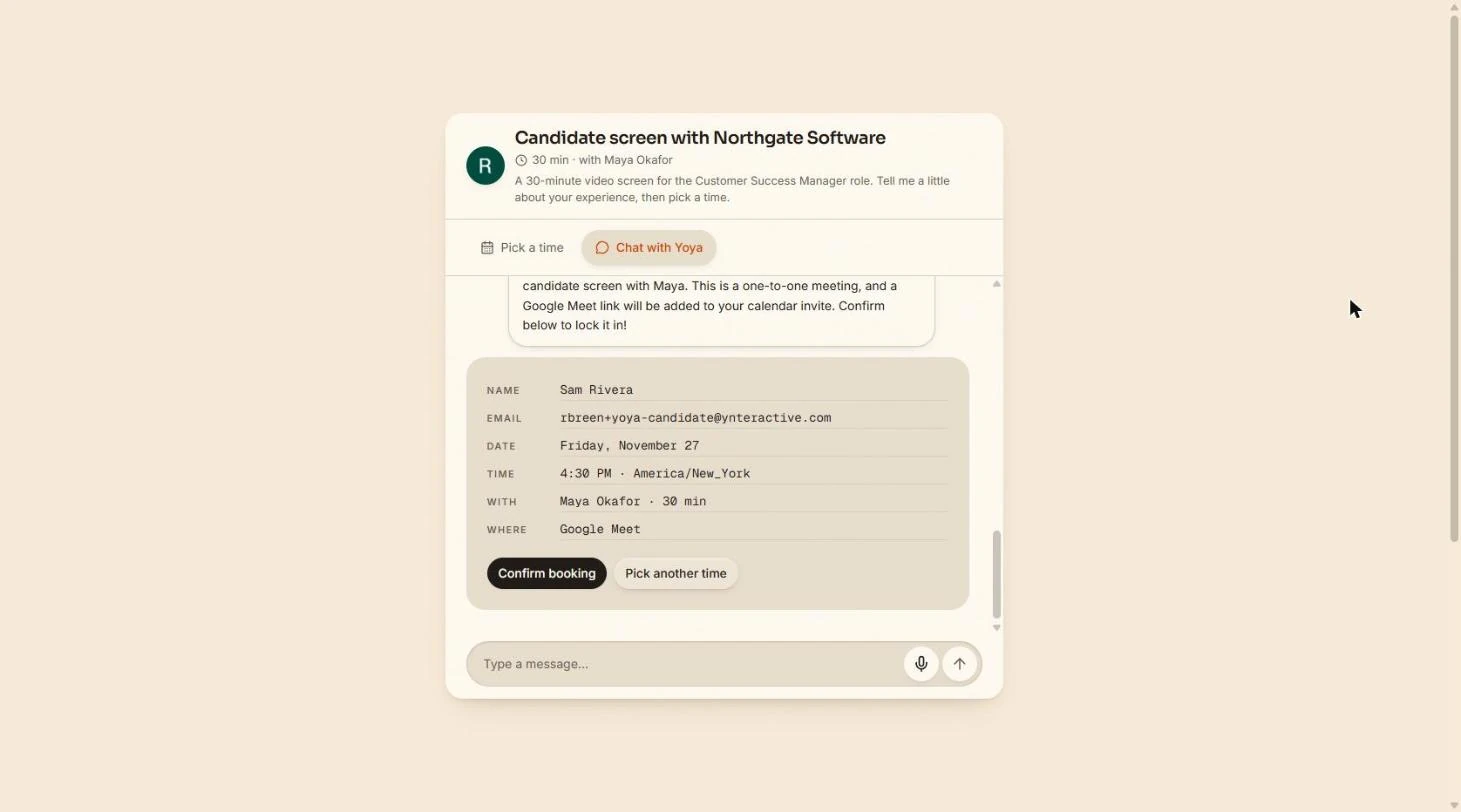
- Confirm the booking. Check the card: the time in your time zone, and Where: Google Meet. Yoya says the Meet link will be added to the calendar invitation. Nothing is booked until you click Confirm booking.
Where says Google Meet. Nothing is booked until you click Confirm booking.
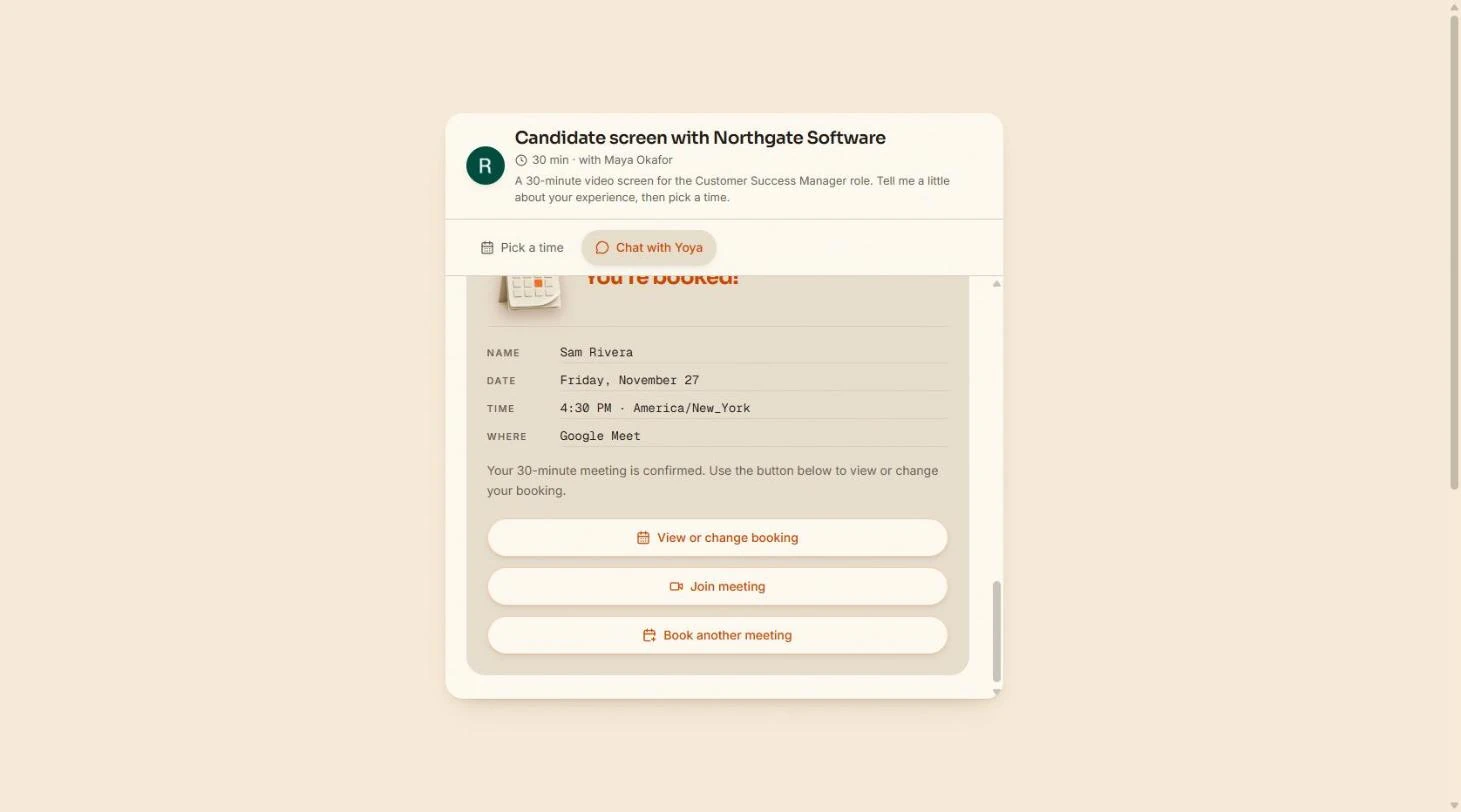
- The Meet link is ready. You're booked! The card has Join meeting, a real Google Meet link made for this booking, plus View or change booking for the candidate. Click Join meeting to see where the link went.
You are booked. Join meeting is a real Google Meet link made for this booking.
4. What the recruiter gets
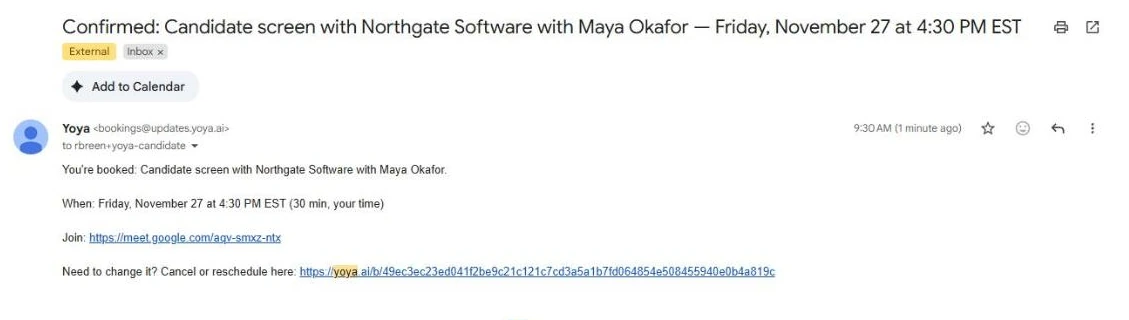
- The candidate’s confirmation. The candidate gets Confirmed from Yoya with the time, Join: and the Meet link, and a link to cancel or reschedule. No one pasted a Meet link by hand. Click the email.
The candidate gets the time, the Meet link and a change link. Nobody pasted a Meet link by hand.
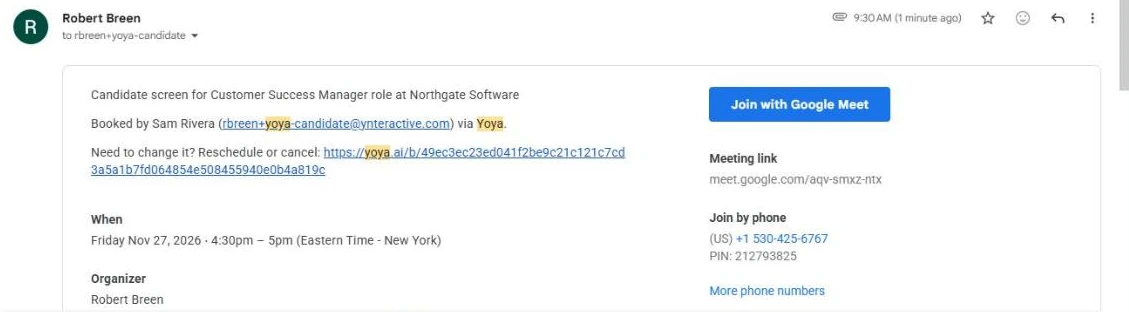
- The calendar invitation. Google Calendar also sent an Invitation from the connected account, with Join with Google Meet, dial-in numbers and the candidate as a guest. The event is on the recruiter’s calendar too. Click Join with Google Meet.
Google Calendar also sends a real invitation with Join with Google Meet, and the event is on your calendar.
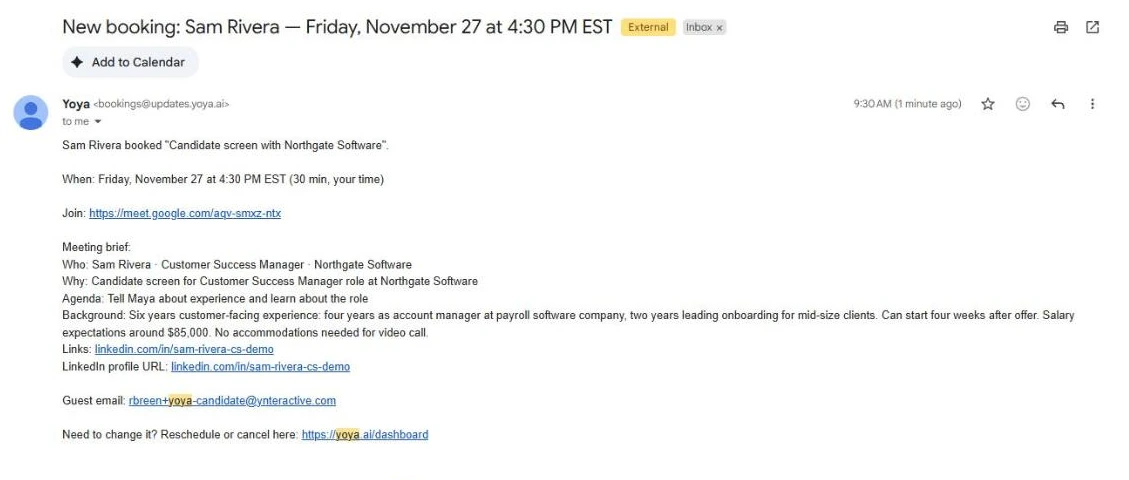
- Read the screening brief. Maya gets New booking with the Meet link and a Meeting brief: Who, Why, Agenda and Background: six years, four weeks’ notice, about $85,000, no accommodations, plus the LinkedIn link. That is a phone-screen summary before she says hello. Click the brief.
This is the payoff: a screening brief with experience, notice, salary and LinkedIn, before the call.
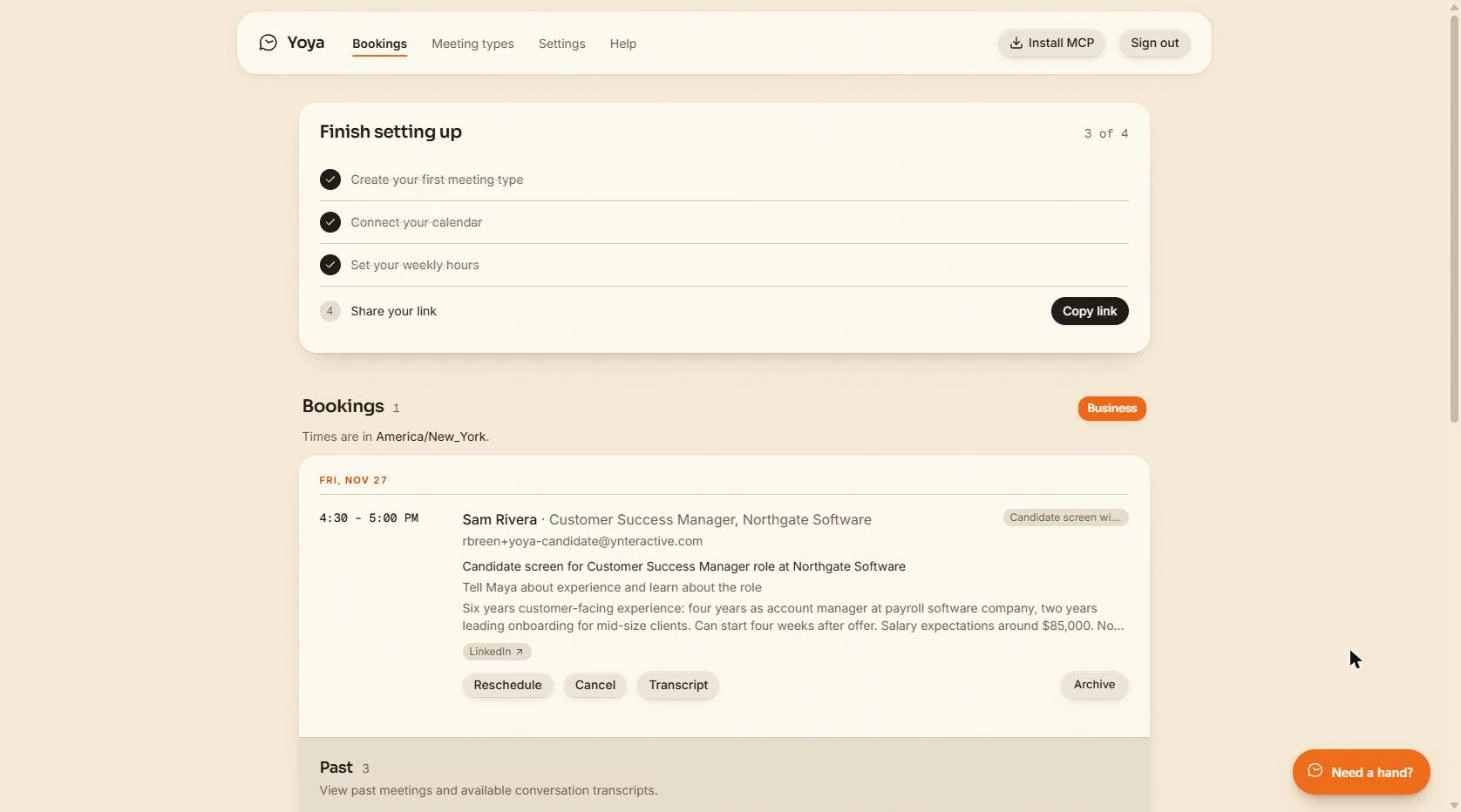
- Spot the mistake, then open the transcript. The same brief is on the dashboard under Bookings, with Reschedule and Cancel. Look at the first line: Sam Rivera · Customer Success Manager, Northgate Software. Sam does not work at Northgate; that is the job he applied for. A brief is written by AI. Click Transcript.
Look at the first line. It says Sam works at Northgate. He doesn’t; that is the job he applied for.
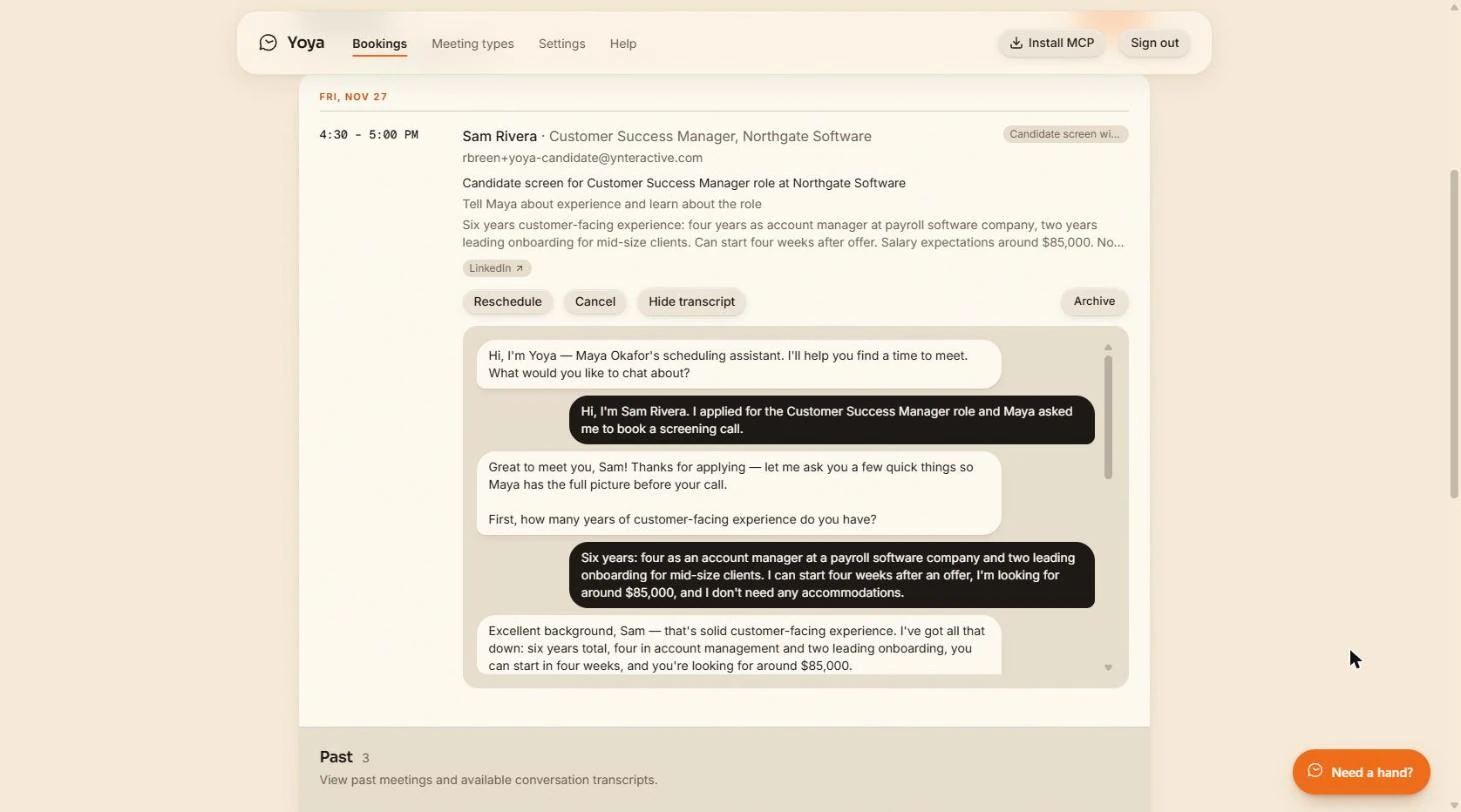
- Check the brief against the chat. The whole chat is here. The facts that matter (six years, four weeks, $85,000, no accommodations) match what Sam said. Only the job title line was wrong. Before a hiring decision, read the transcript, not just the brief.
The numbers match the chat. Only the job title was wrong. Before a hiring decision, read the transcript.
Screenshots
More in Business Automations
 AI Receipt Extractor: Receipts to Google Sheets with n8n
Drop a photo of a receipt into an n8n chat. An AI agent reads it, pulls out the date, vendor and amount, picks a category, and adds a row to Google Sheets.
Free · Live ~12 min Intermediate
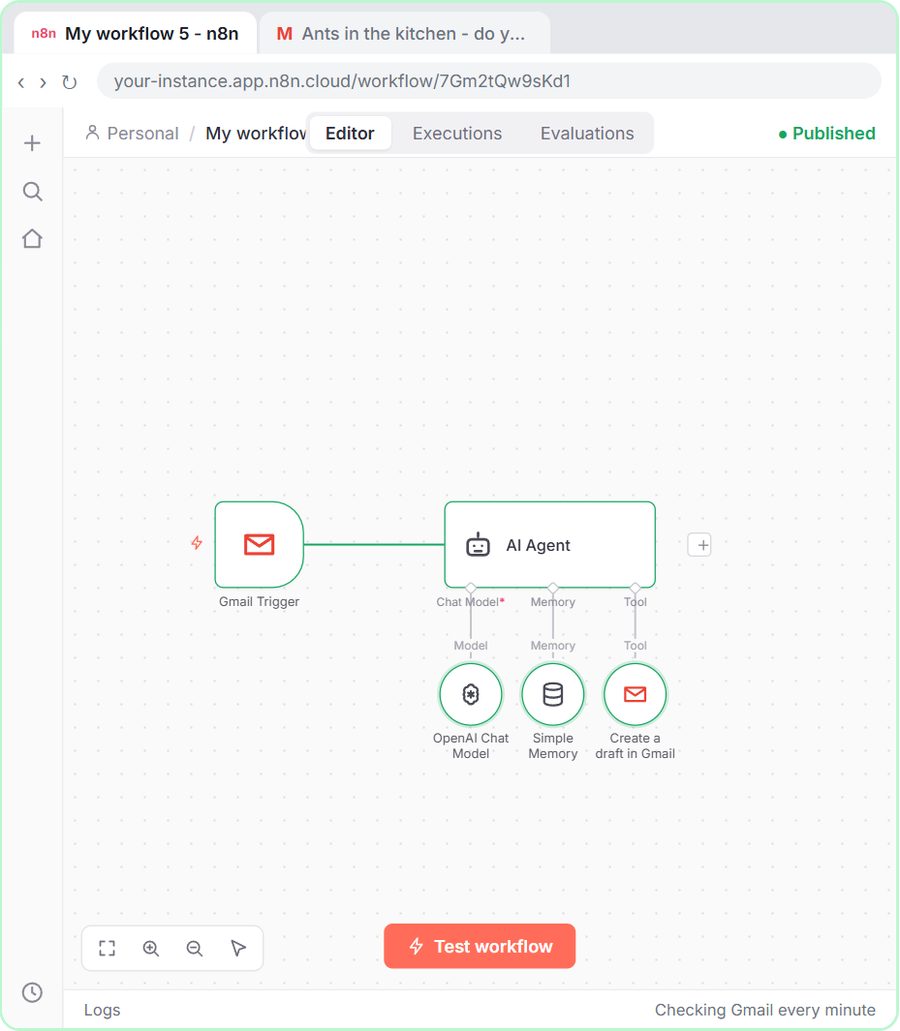 n8n AI Email Responder: Draft Gmail Replies Automatically
Build an n8n agent that watches your Gmail, reads each new customer email, and writes a reply as a draft in the same thread, ready for you to check and send.
Free · Live ~12 min Intermediate
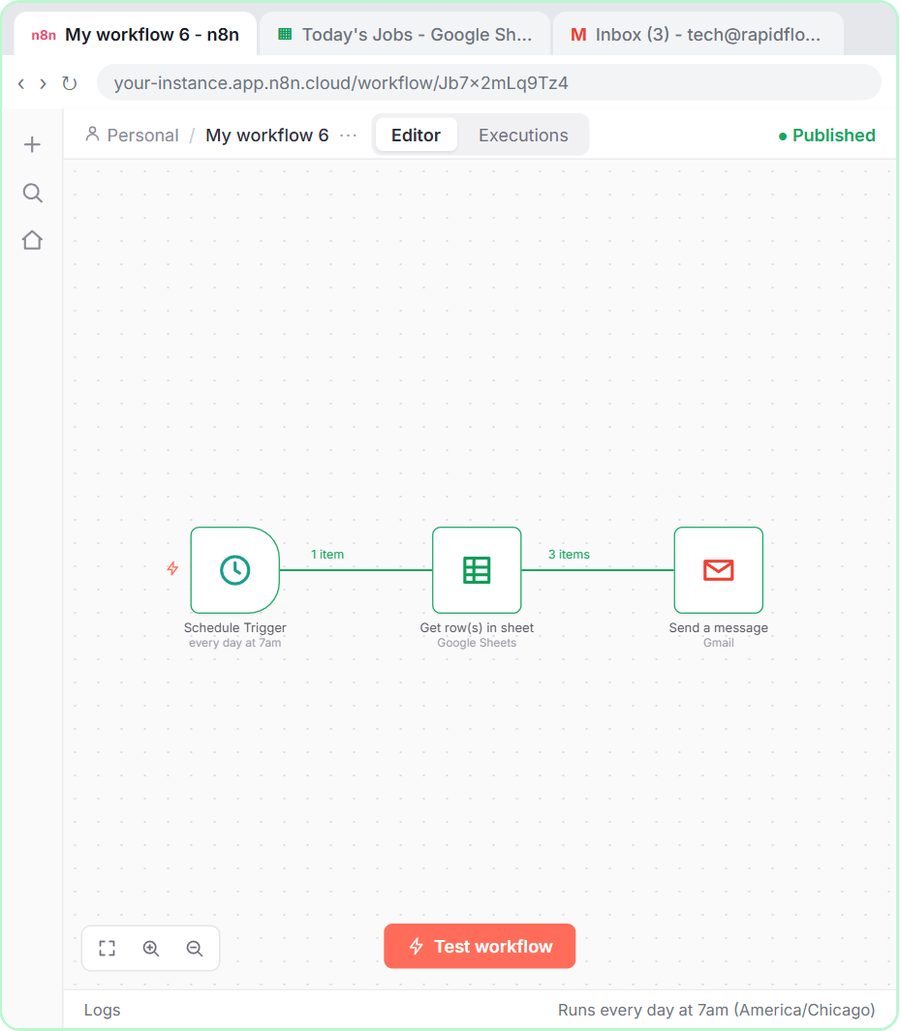 Daily Job Alerts: Email Each Tech Their Jobs from Google Sheets with n8n
Every morning at 7, n8n reads a plumbing company's jobs sheet, skips anything not assigned yet, and emails each job to the tech it's assigned to — customer, address…
Free · Live ~10 min Intermediate
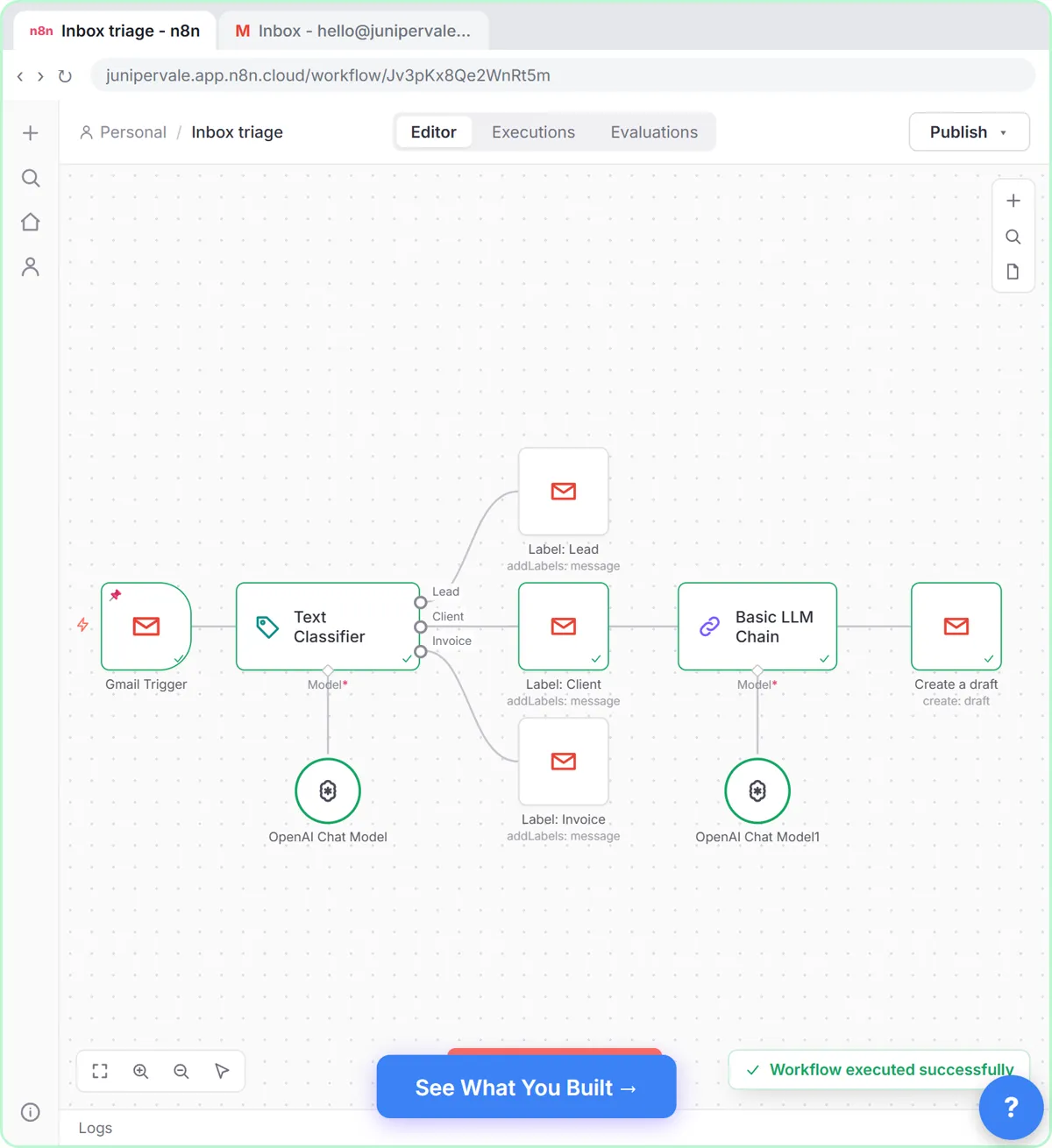 Gmail AI Triage: Auto-Label Every Email and Draft Replies
Build an n8n workflow that reads each new email, sorts it as a lead, a client or an invoice with a Text Classifier, adds the matching Gmail label, and drafts a reply to…
Free · Live ~18 min Advanced
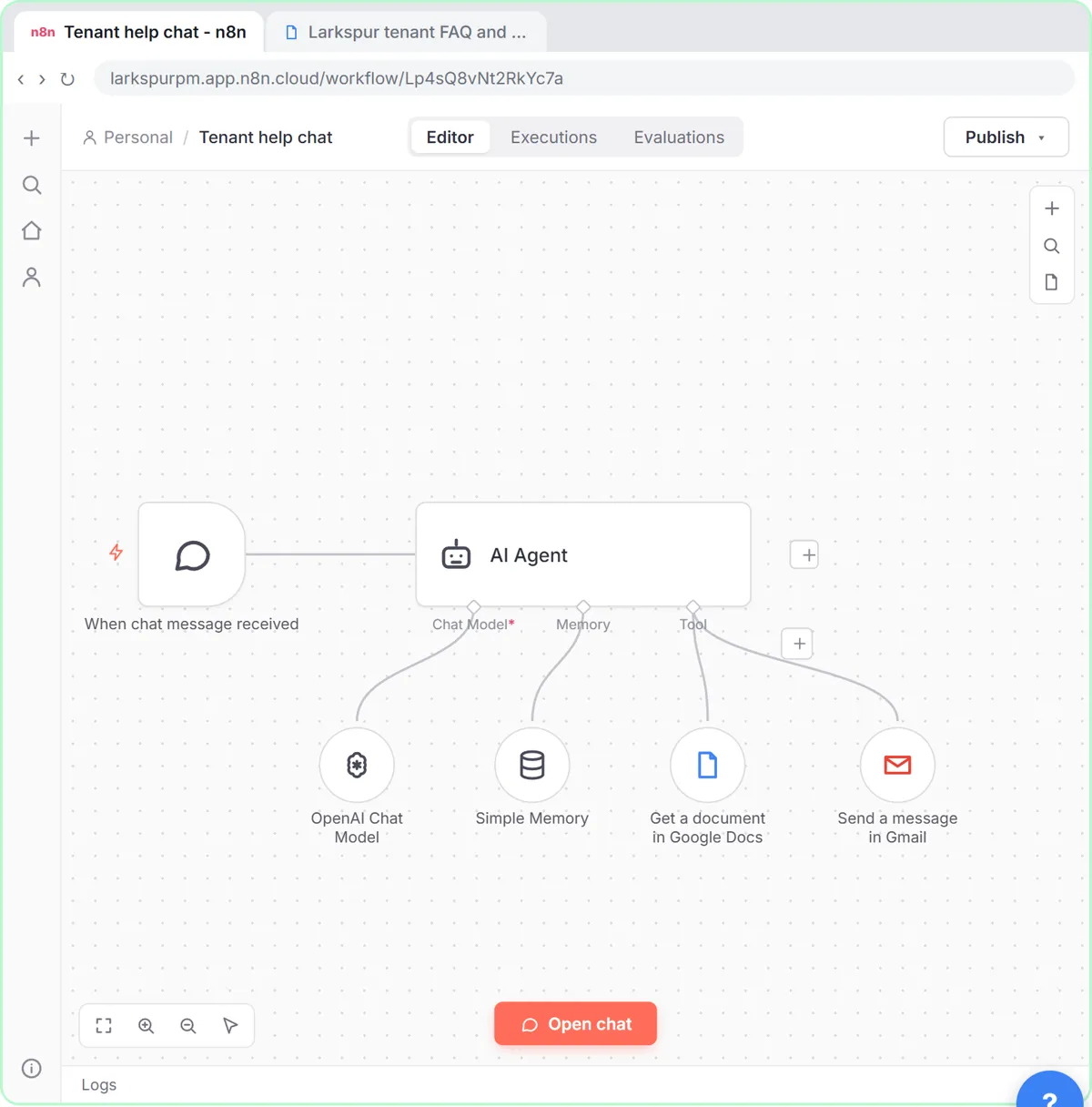 A Support Agent That Answers from Your Own Docs
Turn an n8n chat agent into a support agent that answers only from your policies in a Google Doc, refuses what it should, and hands off to a person by email.
Free · Live ~13 min Advanced
 Chatbase: Answer Customer FAQs with an AI Agent
A business case for a small firm that answers the same customer questions every week: build a Chatbase AI agent on your FAQ in the real app, make it say when it does…
Free · Live ~15 min Beginner
All 47 modules in Business Automations
More Yoya tutorials
Terms in this lesson
Plain-English definitions, each with an example from a free lesson.