Updated . Built against the tool’s current screens and checked step by step. How we check this lesson
Consultants take intro calls knowing nothing but a name on the calendar. Build a Yoya booking page that asks each client what they need while they pick a time, then read the brief it hands you before the call.
At a glance
| Question | Answer |
|---|---|
| What you build | Consultants take intro calls knowing nothing but a name on the calendar. Build a Yoya booking page that asks each client what they need while they pick a time, then read the brief it hands you before the call. |
| Tools | Yoya |
| Time | About 8 minutes, 25 steps in 4 parts |
| Level | Beginner, no coding needed |
| Cost | Free |
| Ways to learn it | Practice it step by step |
The 4 parts, in short
- Build the booking page: Start from the consultant template, Pick your link, Name the meeting, Set the host name, and 4 more steps.
- Set your hours: Start with weekdays, Save the hours, Open the page as a guest.
- Book a call as a guest: Explain why you want to meet, Send it, Answer the follow-up, Say when suits you, and 6 more steps.
- Read what the host gets: Check the guest email, Read the meeting brief, Open the transcript, Check the brief against the chat.
Start here first: AI Receipt Extractor: Receipts to Google Sheets with n8n (module 1 of Business Automations)
In the course: Part 9 · n8n Automation Toolkit (Module 104 of the full course)
Part of: AI Apps Worth Knowing (step 100 of 104). Next up: Mixdesk: An AI Agent That Collects Inquiry Details Before You Follow Up
What you'll build
Priya runs a made-up operations consultancy, Harbor Lane Consulting. Her booking link gives her a name and a time, so the first ten minutes of every intro call go to finding out what the client wants, and some calls turn out not to be a fit. In this lesson you build her booking page in Yoya, tell it what to ask, and then book a call as a guest: explain the problem in a chat, pick a time and confirm. Then you see what Priya gets: a meeting brief by email and on her dashboard, with who, why and the agenda. Every screen is a real Yoya screen; the people and the firms are made up.
You built a booking page, told Yoya what to ask, booked a call as a guest, and read the brief it wrote: who is coming, why, and what to cover. What it saves: the first ten minutes of each intro call, and the calls that were never a fit. Before you share a real link, connect Google Calendar from the Google Meet option so Yoya can see when you are busy, and read the brief against the chat transcript. Plans change; check yoya.ai/pricing for what yours includes.
- Tools: Yoya
- Time: about 8 minutes, 25 steps in 4 chapters
- Level: beginner, no coding needed
- Price: free
Practice first, then build it for real
Practice copy built from real Yoya screens (yoya.ai), captured 30 October 2026. Nothing here touches a Yoya account. The consultant, the guest and the firms are made up; the questions, confirmation and meeting brief are what Yoya produced. Google Calendar was not connected in this run, so Yoya could not check for busy times. To build it for real you need your own Yoya account, and some services charge once you use them for real work, so check each tool's current pricing.
Try it yourself, free
Reading the steps is a start. Doing them is how it sticks. The interactive module walks you through every click in a practice copy of Yoya, checks each step, and never touches your real accounts.
Start “Yoya: A Booking Link That Sends You a Brief Before the Call”Step by step: Yoya: A Booking Link That Sends You a Brief Before the Call
All 25 steps of the interactive module, in order. In the module you watch each one, then do it yourself in a practice copy that checks your work.
1. Build the booking page
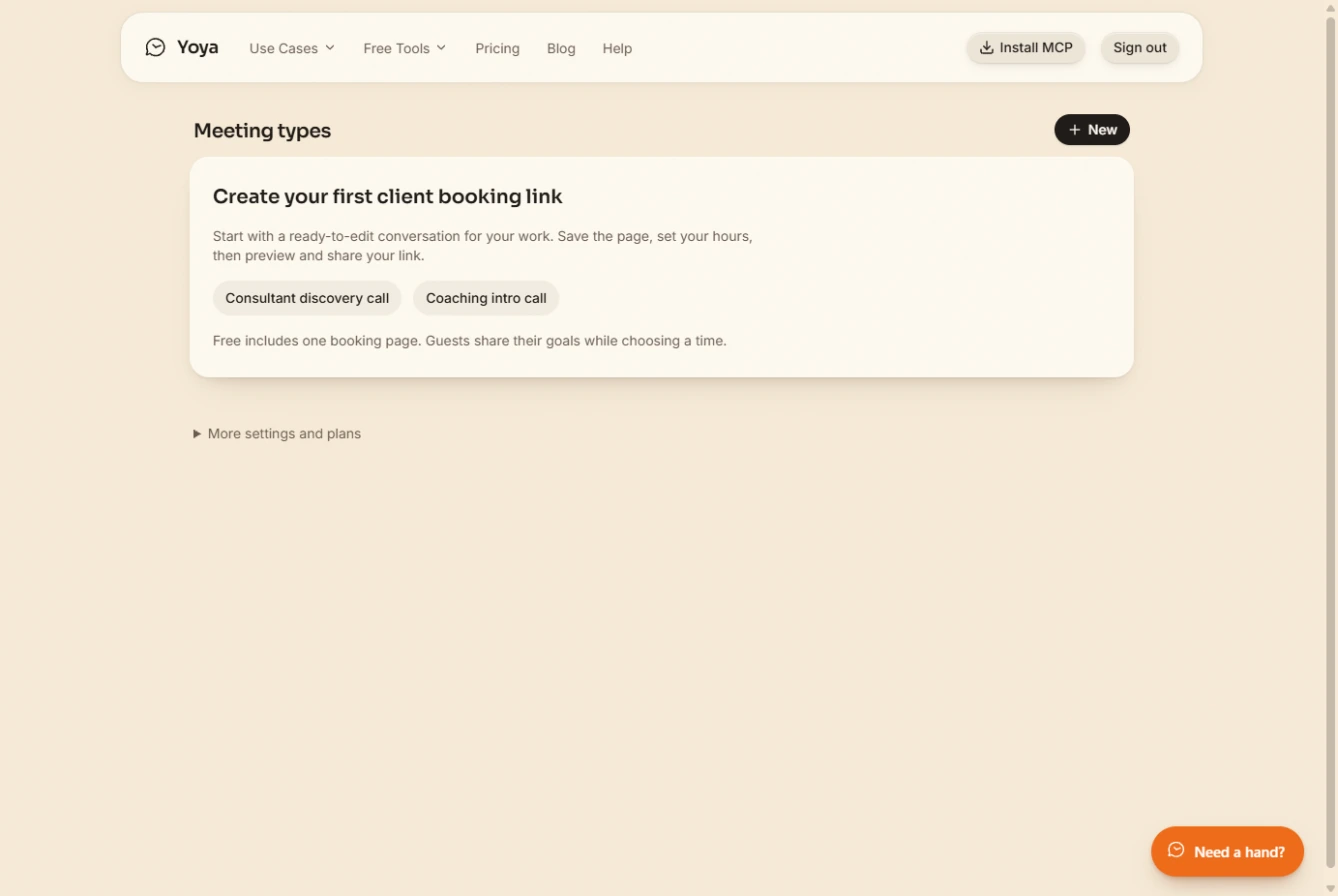
- Start from the consultant template. You are Priya Nair, a made-up operations consultant. Your intro calls start with ten minutes of finding out what the client wants. Open yoya.ai/dashboard and click Consultant discovery call, a ready-to-edit starting point.
You start every intro call knowing nothing but a name. In your Yoya dashboard, click Consultant discovery call.
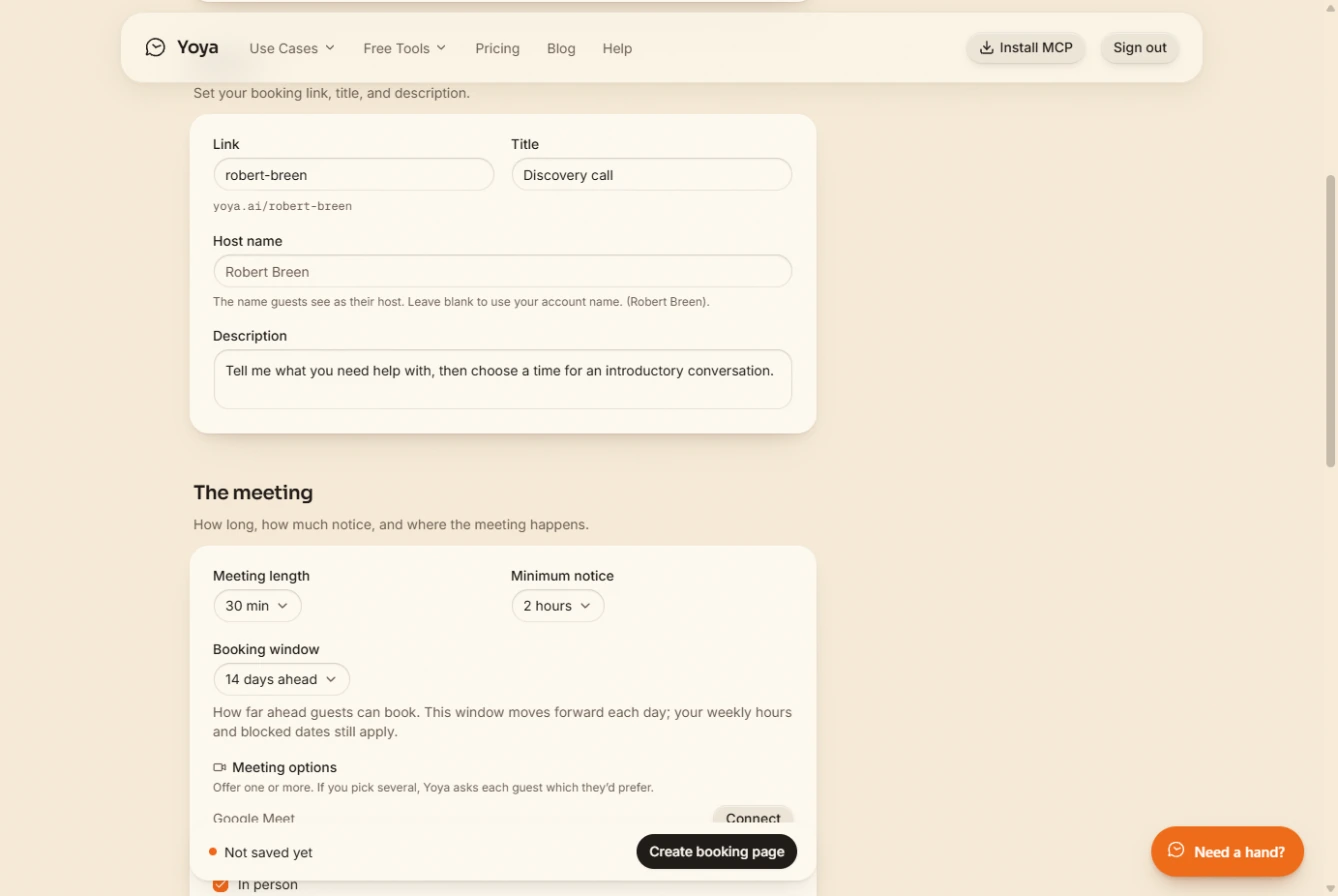
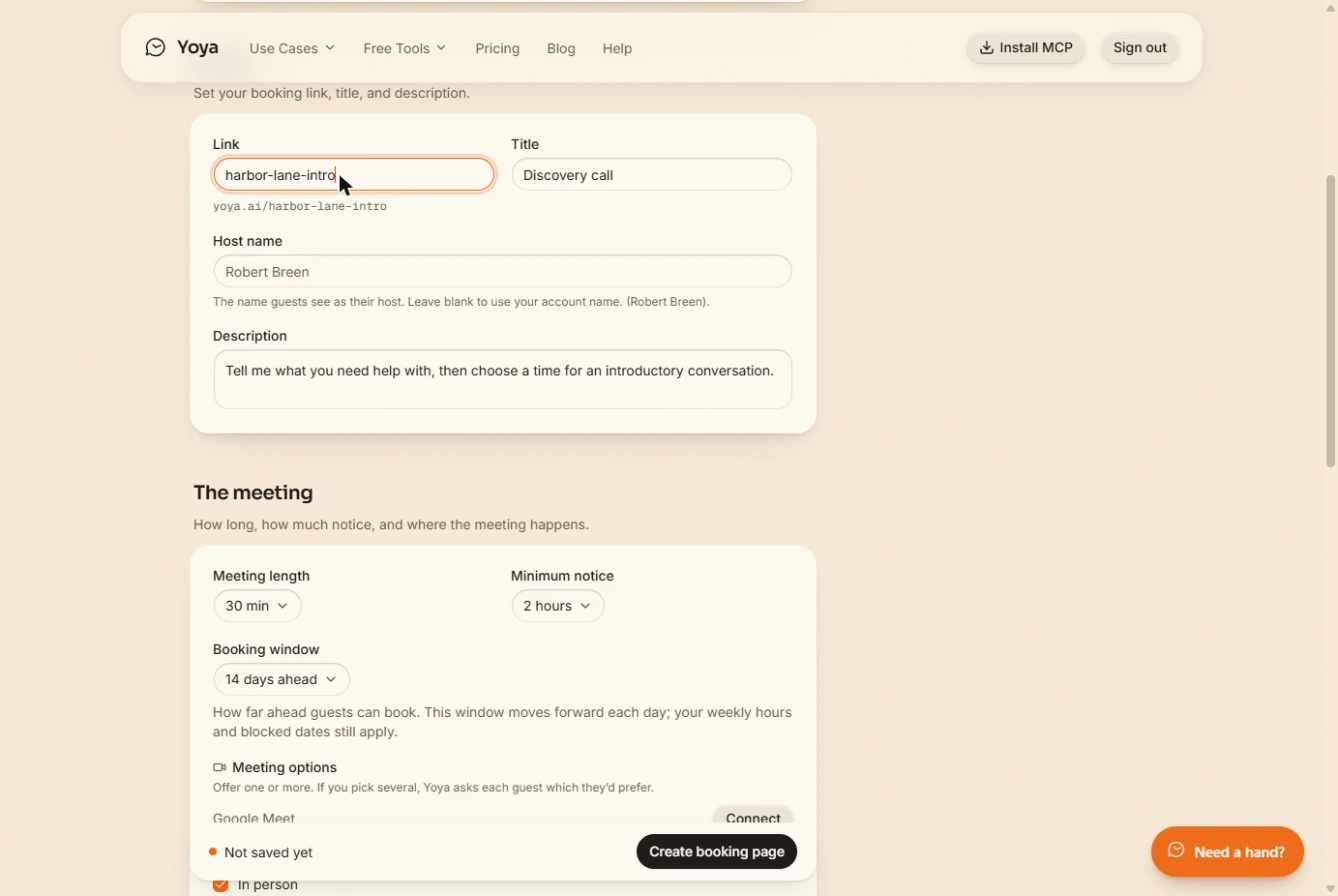
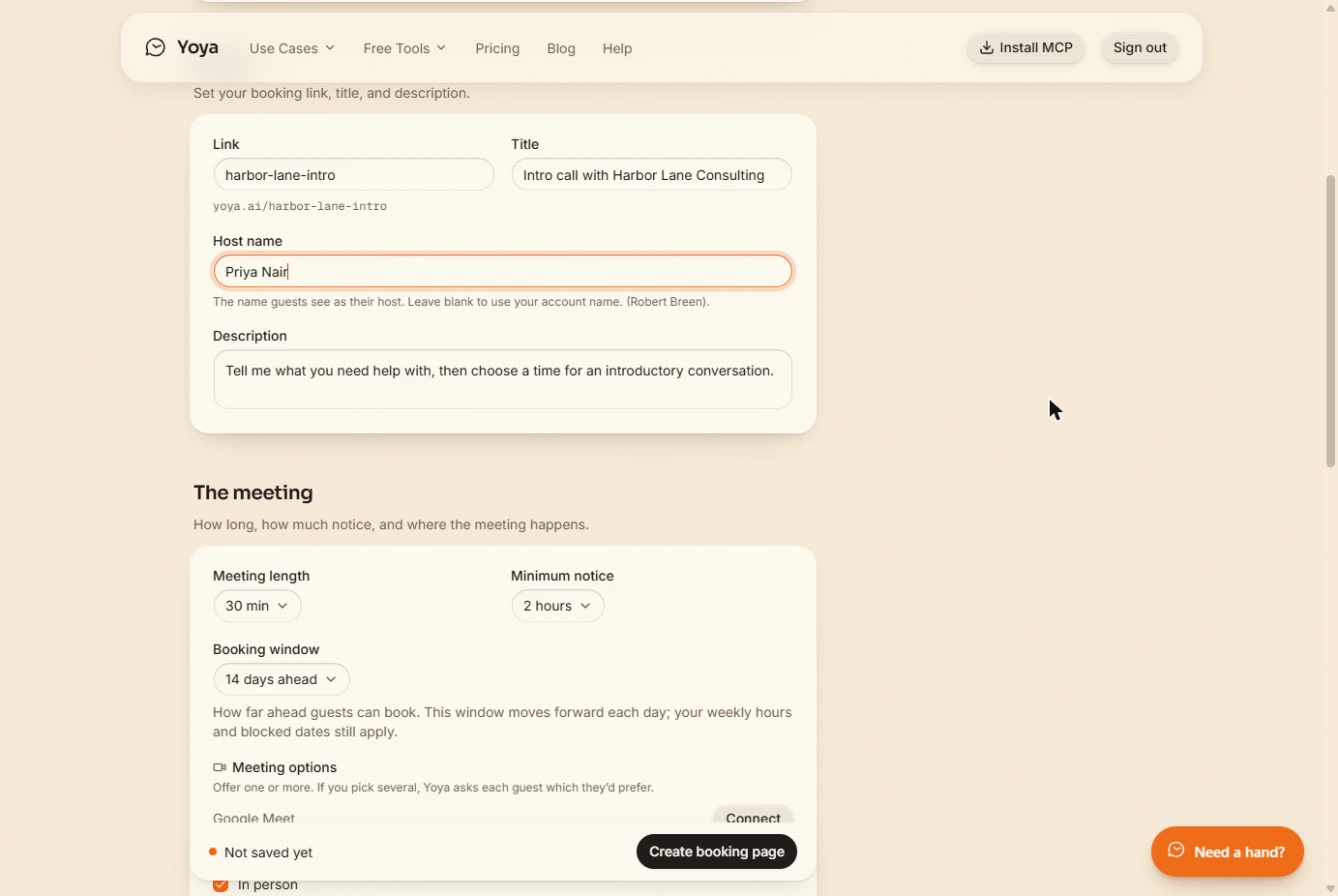
- Pick your link. Scroll down to Basics. The Link starts as your own name. Replace it with one you would put in your email signature.
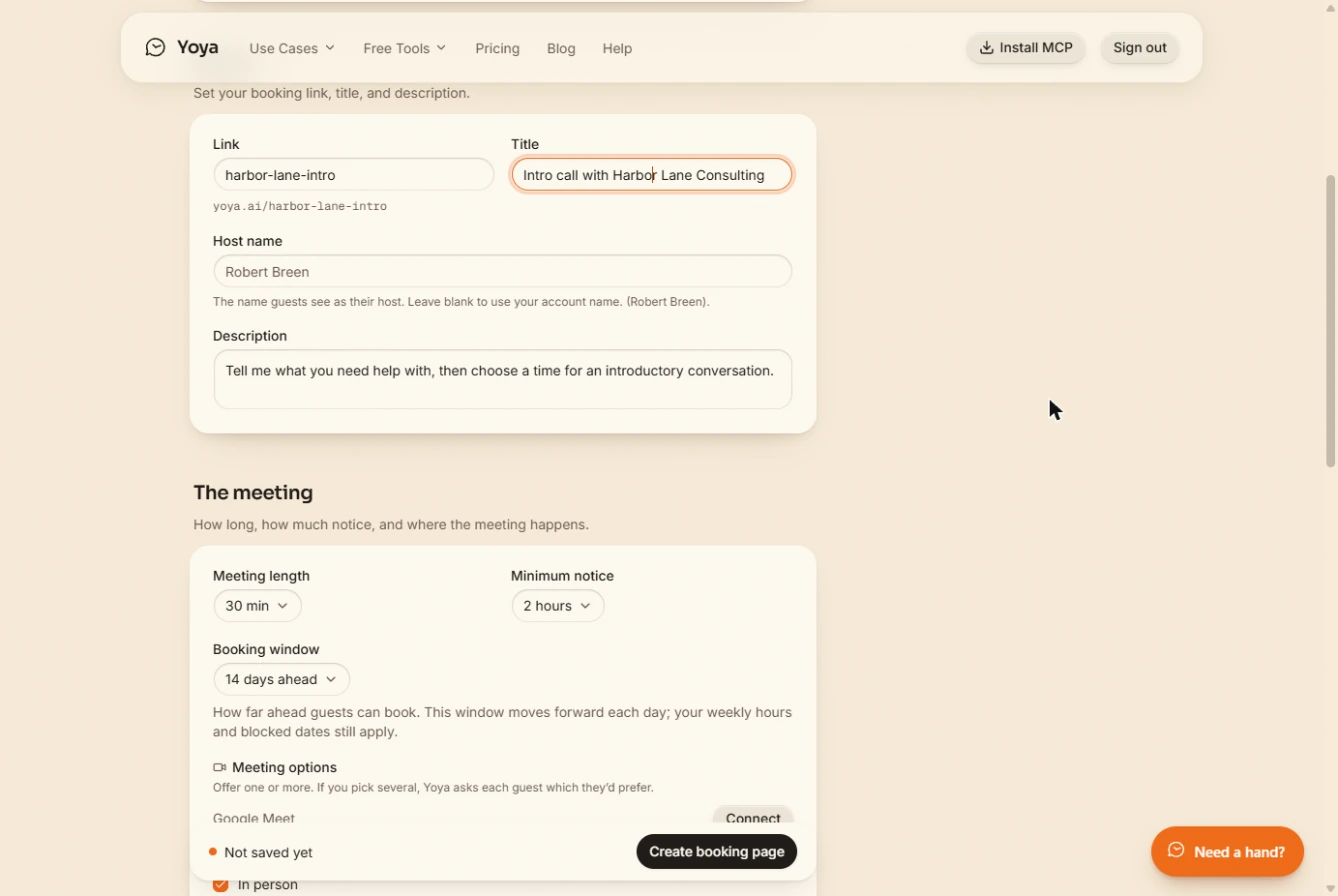
- Name the meeting. The Title is what guests see at the top of the page.
- Set the host name. Host name is the name guests see. Custom host names are a Business plan feature; on other plans Yoya uses your account name, so skip this box there.
The host name is who guests will meet. It needs the Business plan. Otherwise Yoya uses your account name.
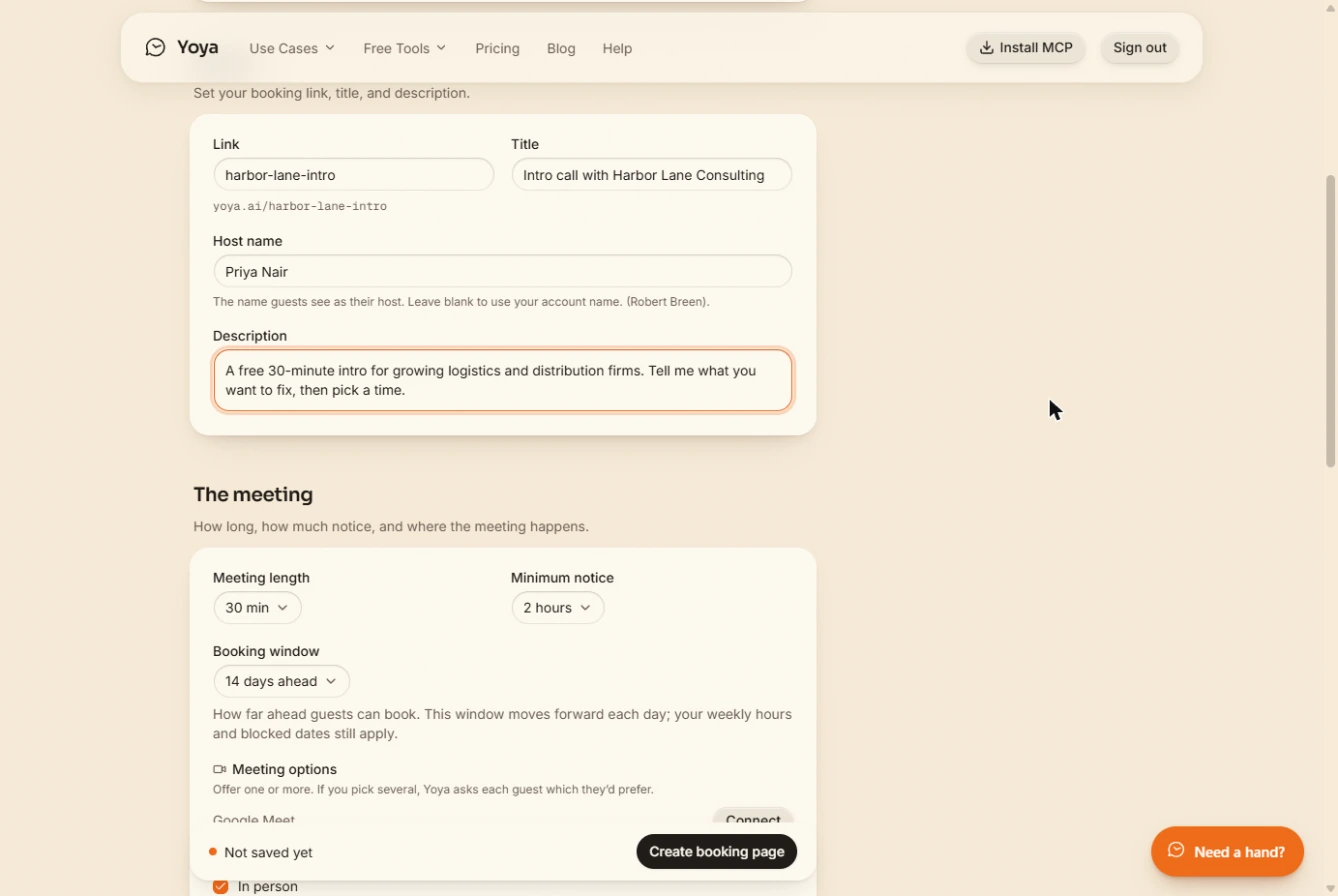
- Say what the call is for. Replace the Description with one line on who the call is for. It also screens out people you do not work with.
Say who the call is for. It screens out people you do not work with.
- Check how you will meet. Under Meeting options, In person is on, and Google Meet and Zoom say Connect. Connecting Google Meet also grants calendar access, which lets Yoya see when you are busy. Do that on your real page. We skip it here, so Yoya cannot check a calendar in this run. Click Meeting options to continue.
In person is on. Connecting Google Meet also lets Yoya see when you are busy. Do that for your real page. We skip it here.
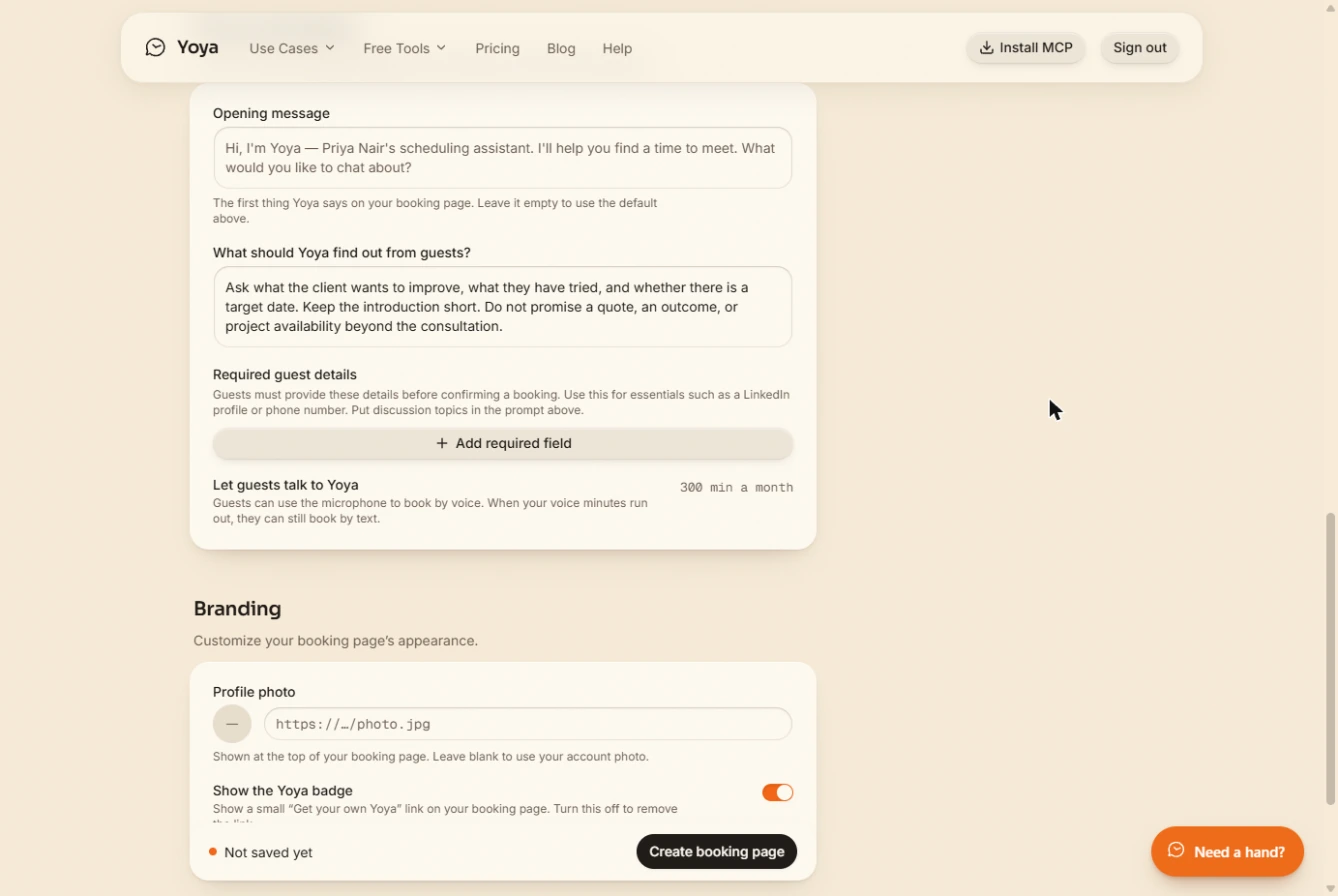
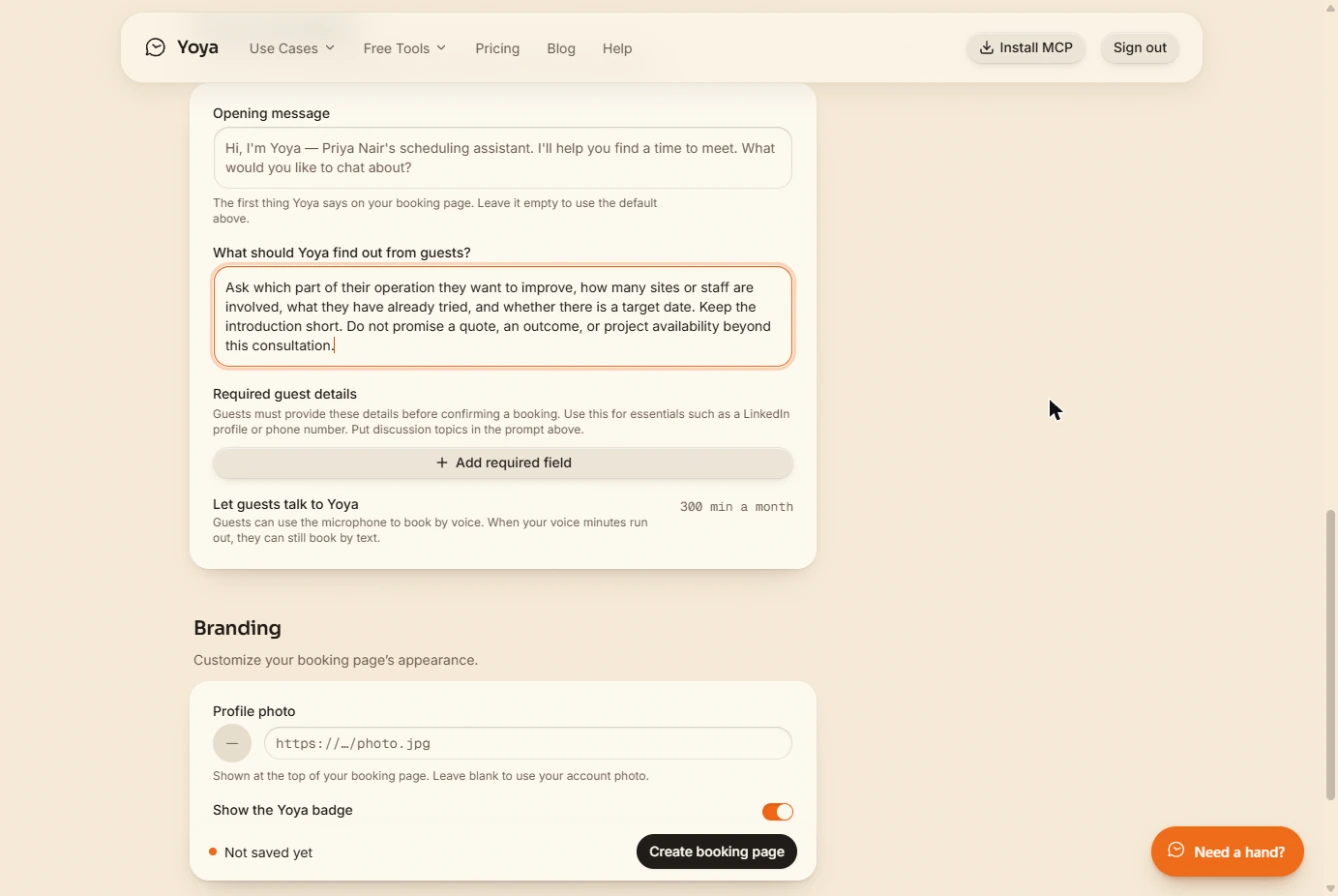
- Tell Yoya what to ask. Further down, What should Yoya find out from guests? is the important box. These are your intake questions. The last line keeps the assistant from promising a quote or an outcome on your behalf.
This is the box that matters. These are your intake questions, plus a rule not to promise anything for you.
Ask which part of their operation they want to improve, how many sites or staff are involved, what they have already tried, and whether there is a target date. Keep the introduction short. Do not promise a quote, an outcome, or project availability beyond this consultation.
- Create the page. Click Create booking page.
2. Set your hours
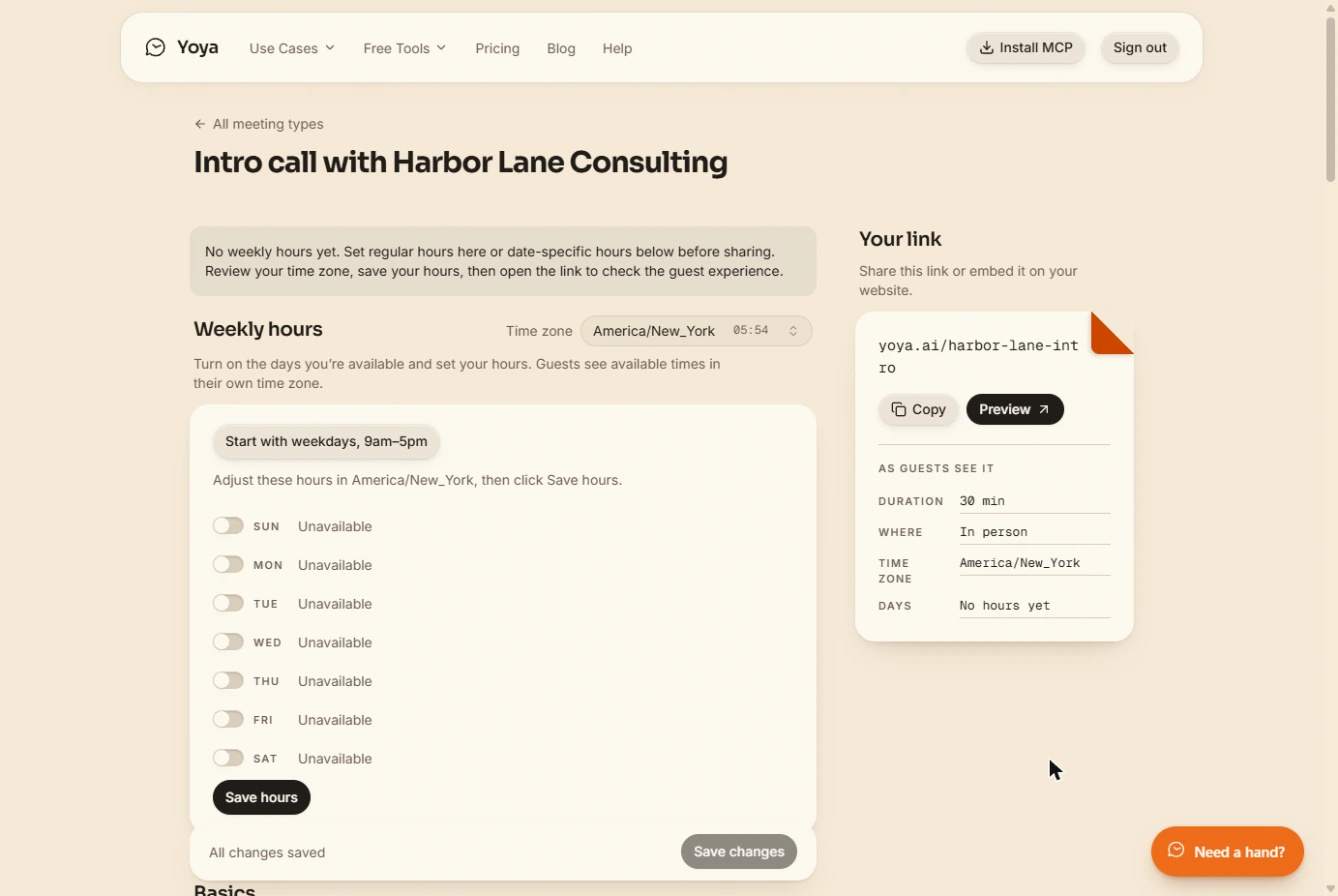
- Start with weekdays. The page exists, but it has no hours yet, so nobody can book. Check the Time zone, then click Start with weekdays, 9am–5pm.
The page has no hours yet. Check the time zone, then click Start with weekdays.
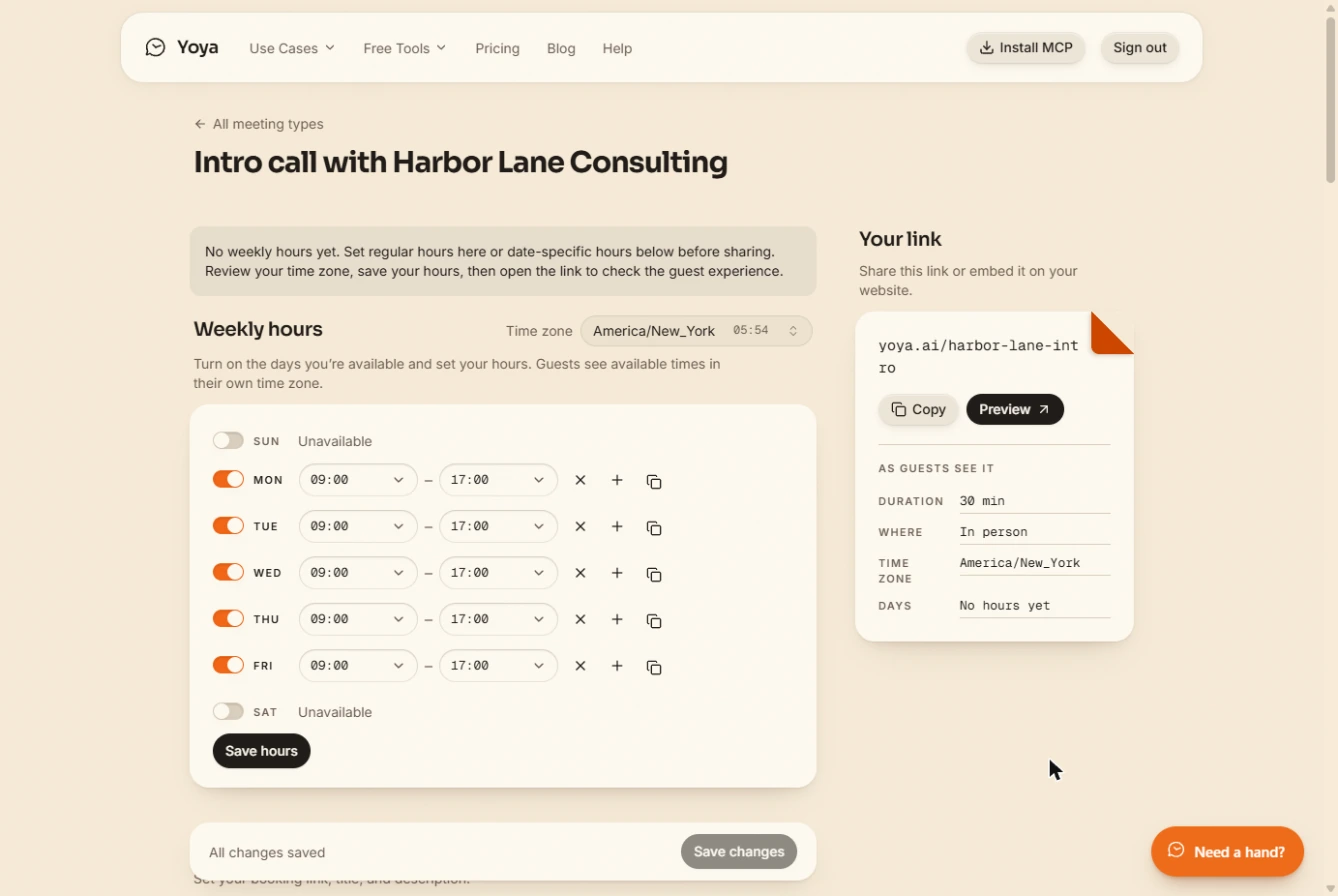
- Save the hours. Monday to Friday are on, 09:00 to 17:00. Change any day you like, then click Save hours.
Change any day you like, then click Save hours.
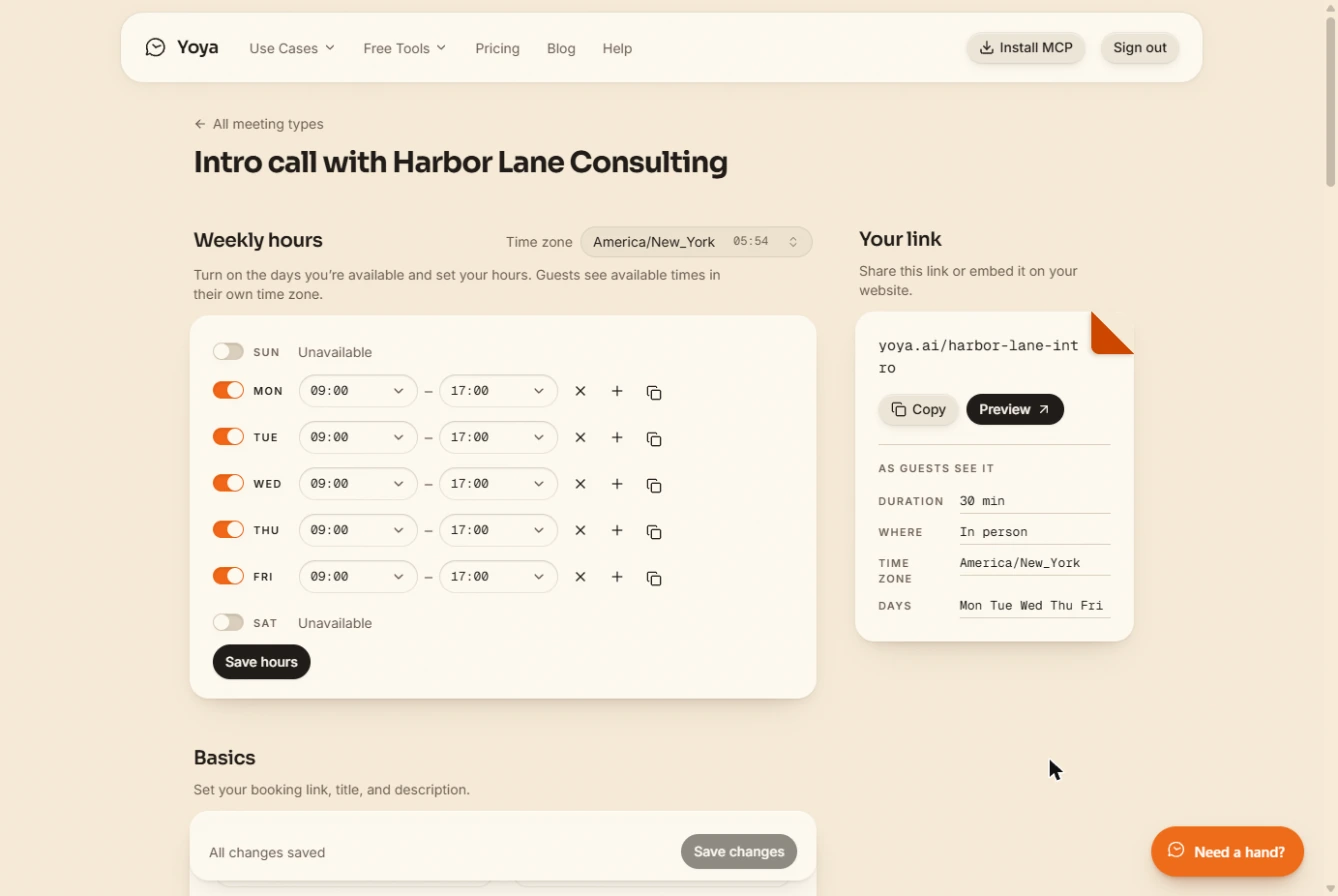
- Open the page as a guest. The card on the right shows what guests see: 30 min, in person, Monday to Friday. Click Preview to open your page the way a client would.
The card shows what guests will see.
3. Book a call as a guest
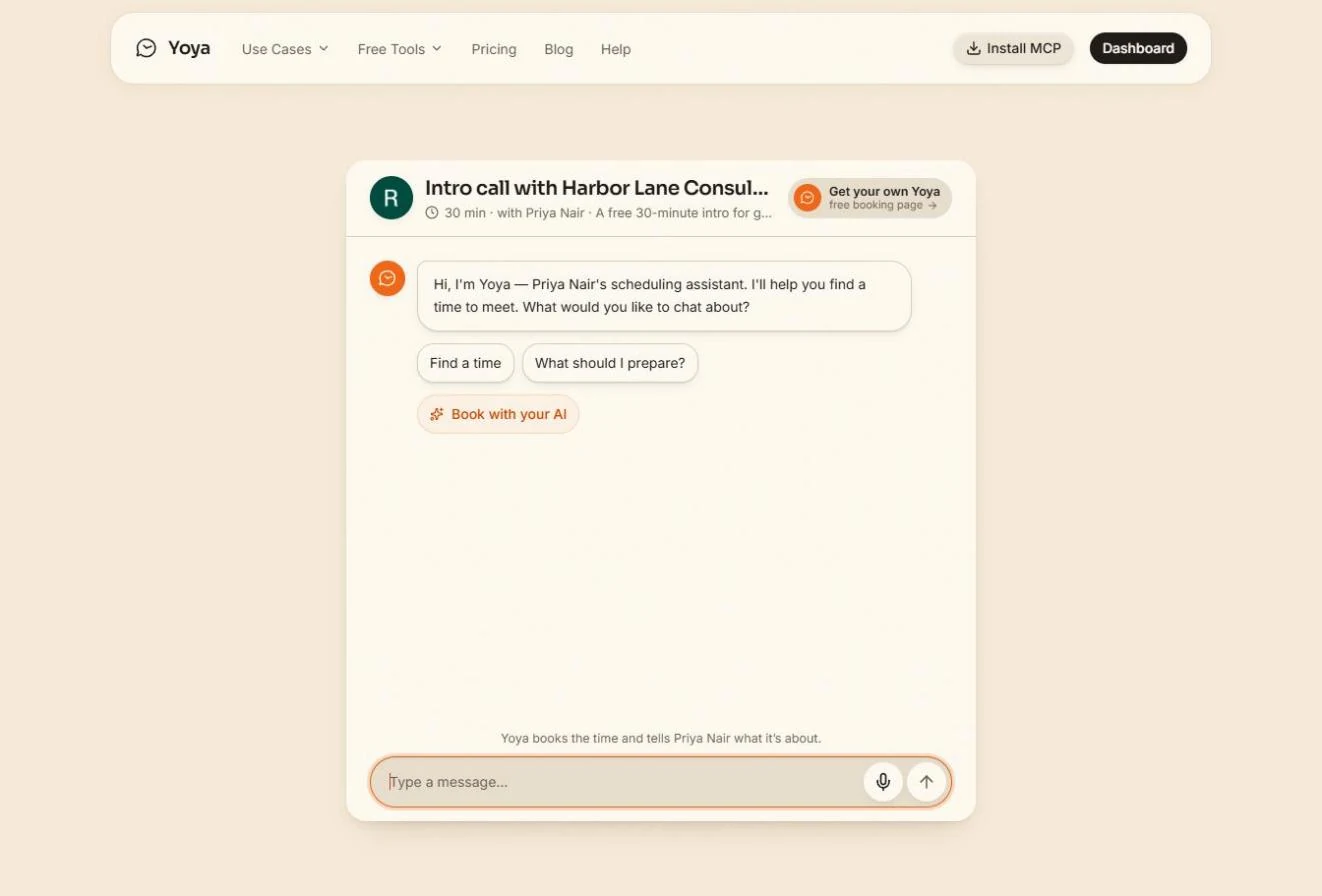
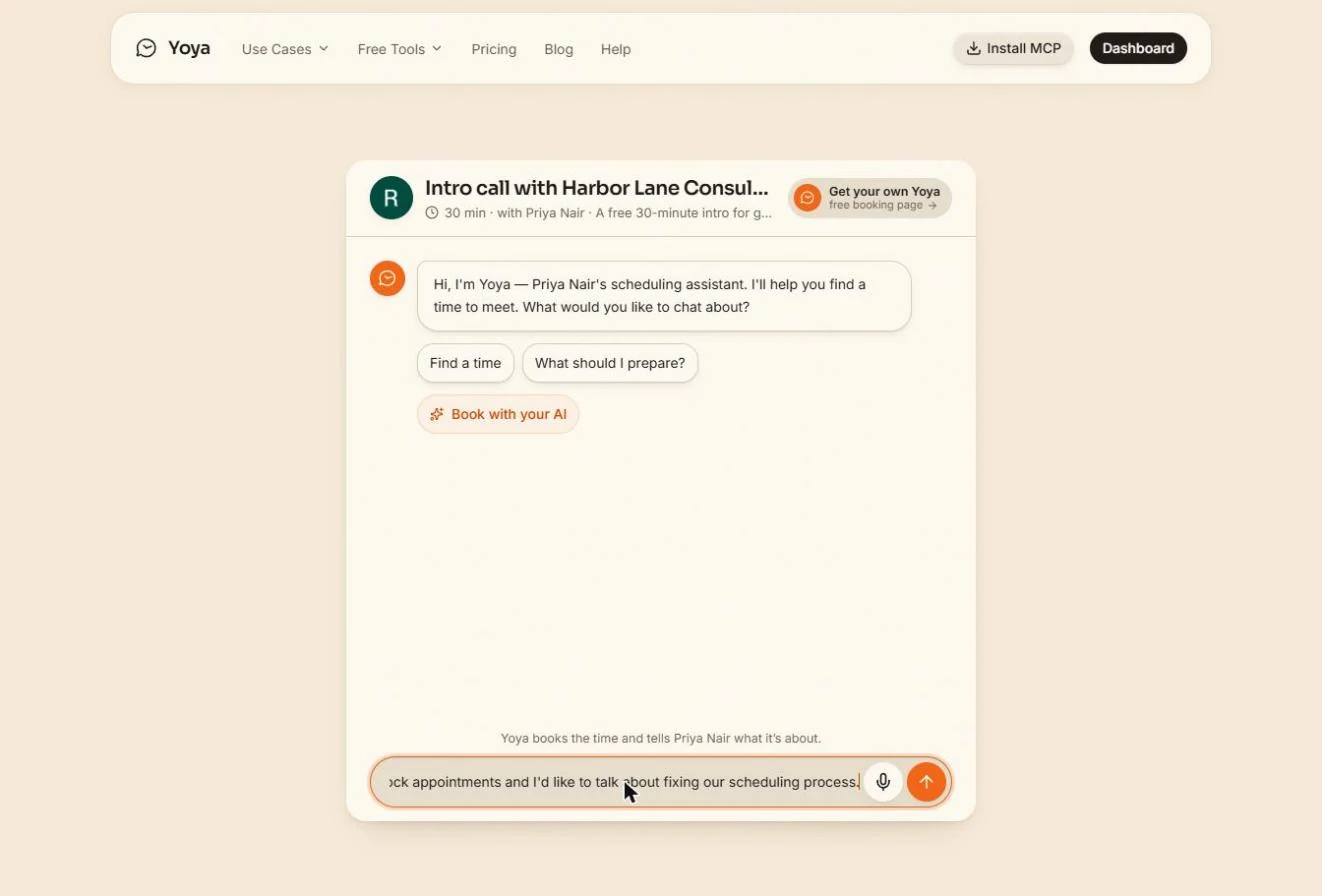
- Explain why you want to meet. Now you are the guest, Dan, a made-up COO. There is no form, just a chat. Say who you are and what is going wrong.
Now you are the guest. There is no form, just a chat. Say who you are and what is going wrong.
Hi, I'm Dan Whitaker, COO at Tri-County Freight. Our two warehouses keep missing dock appointments and I'd like to talk about fixing our scheduling process.
- Send it. Click the arrow to send.
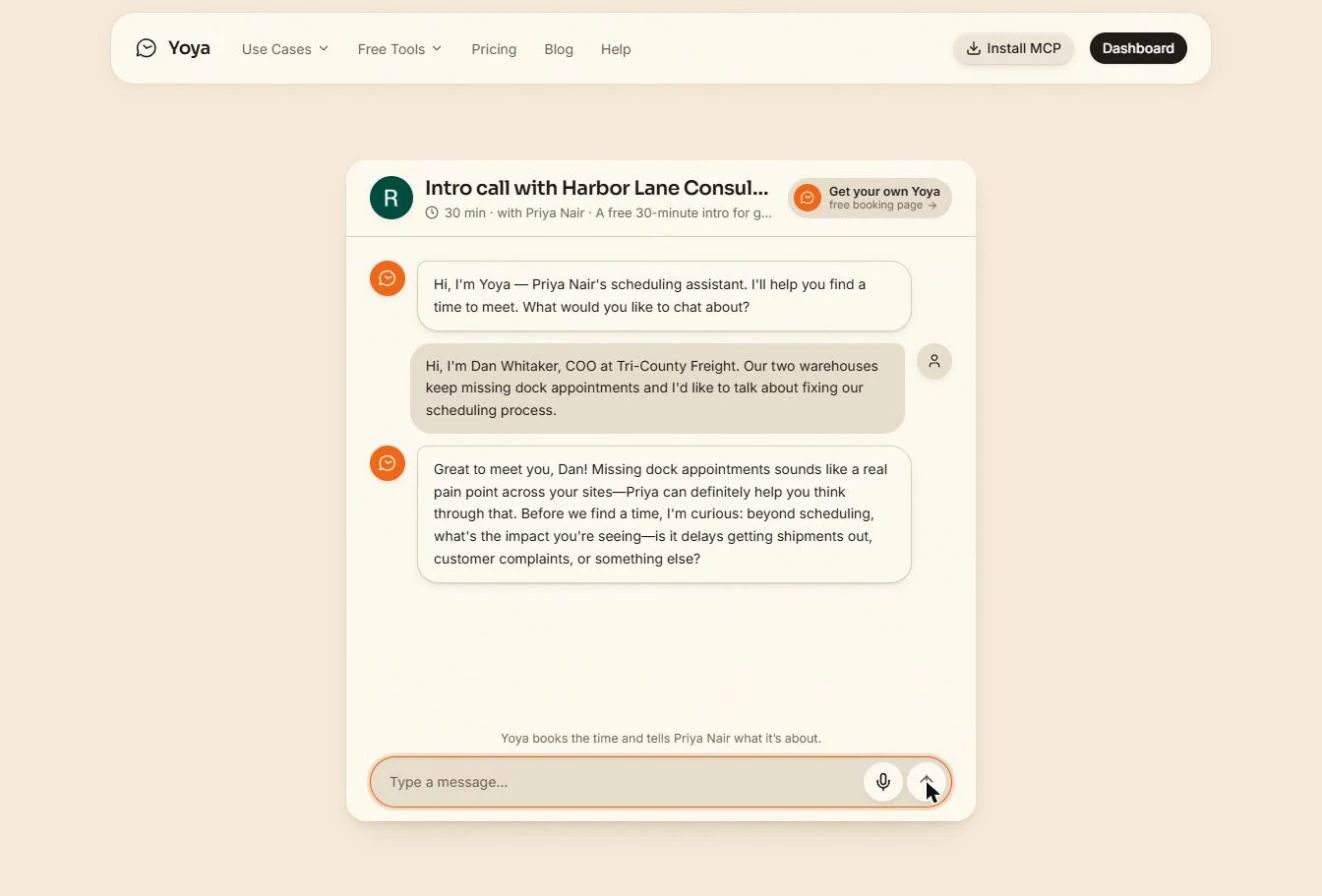
- Answer the follow-up. Yoya follows up on what you said, guided by the questions Priya gave it. Answer, and send with Enter. It asks only what it still needs, so the wording can differ in your run.
It follows up, guided by Priya's questions. Answer, and press Enter. The wording can differ in your run.
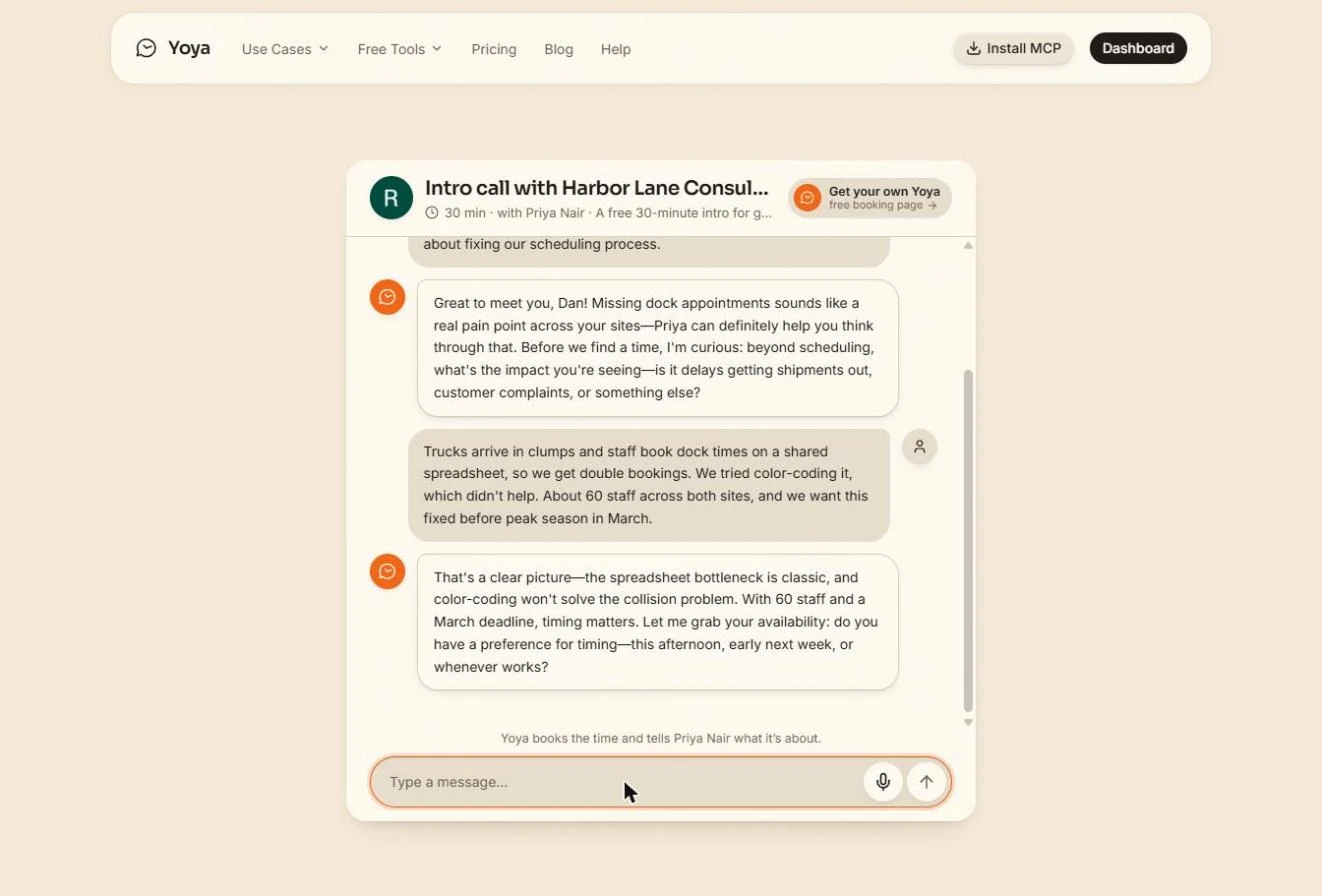
Trucks arrive in clumps and staff book dock times on a shared spreadsheet, so we get double bookings. We tried color-coding it, which didn't help. About 60 staff across both sites, and we want this fixed before peak season in March.
- Say when suits you. Ours asked what timing suits before it showed the calendar. Say what works, and send with Enter. Your run may go straight to the calendar.
Ours asked what timing suits you. Say so, and a calendar appears in the chat.
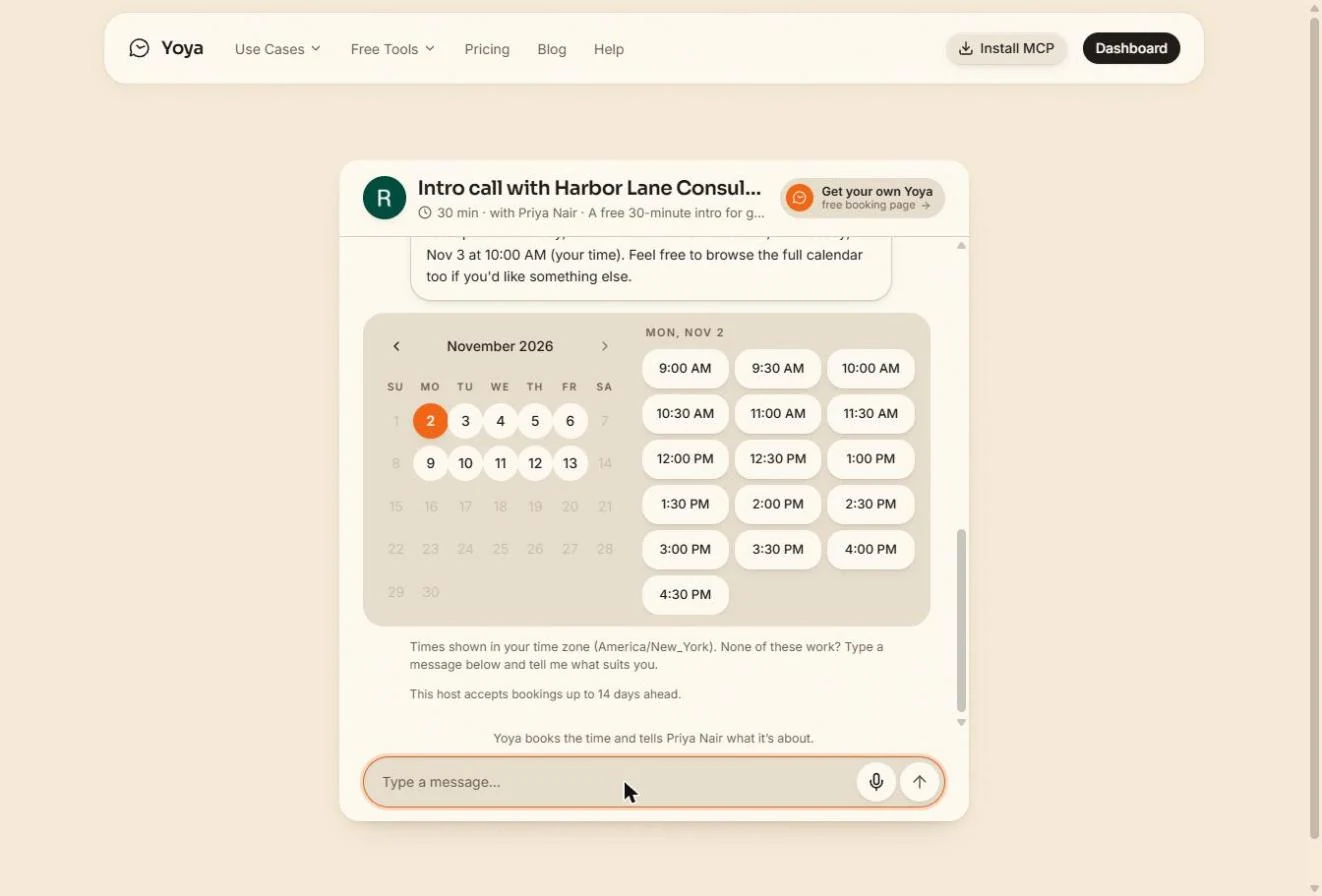
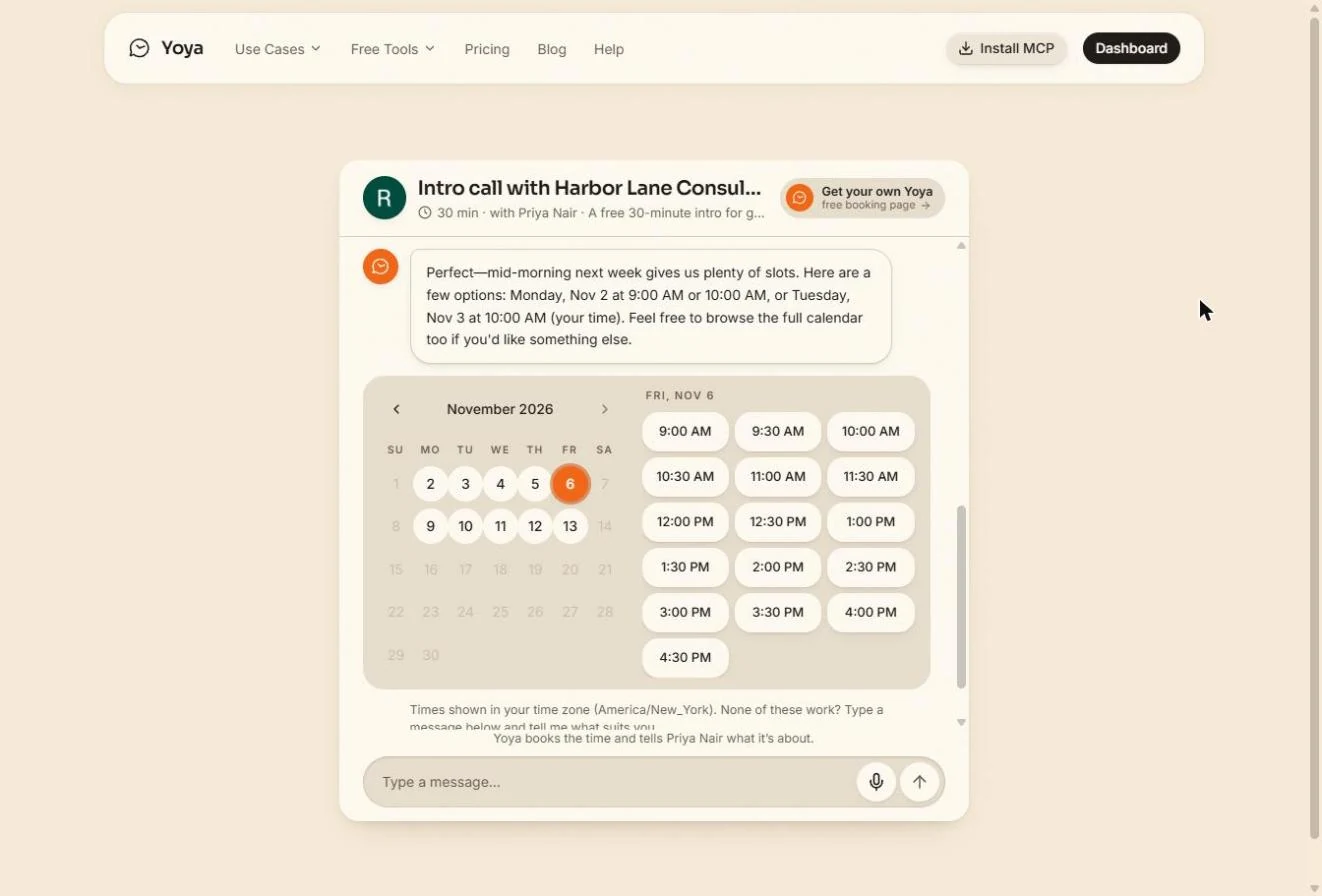
- Pick a day. Yoya suggests a few times and shows a calendar in the chat. Times show in the guest's time zone, and only Priya's hours are offered. Only the days inside the 14-day booking window can be clicked. When we moved to October, the time list cleared and said Pick a day. Pick Friday, November 6, or any open day on yours.
Only days in the booking window can be clicked. Pick a day.
- Pick a time. Click 10:00 AM. A time that is already booked shows crossed out.
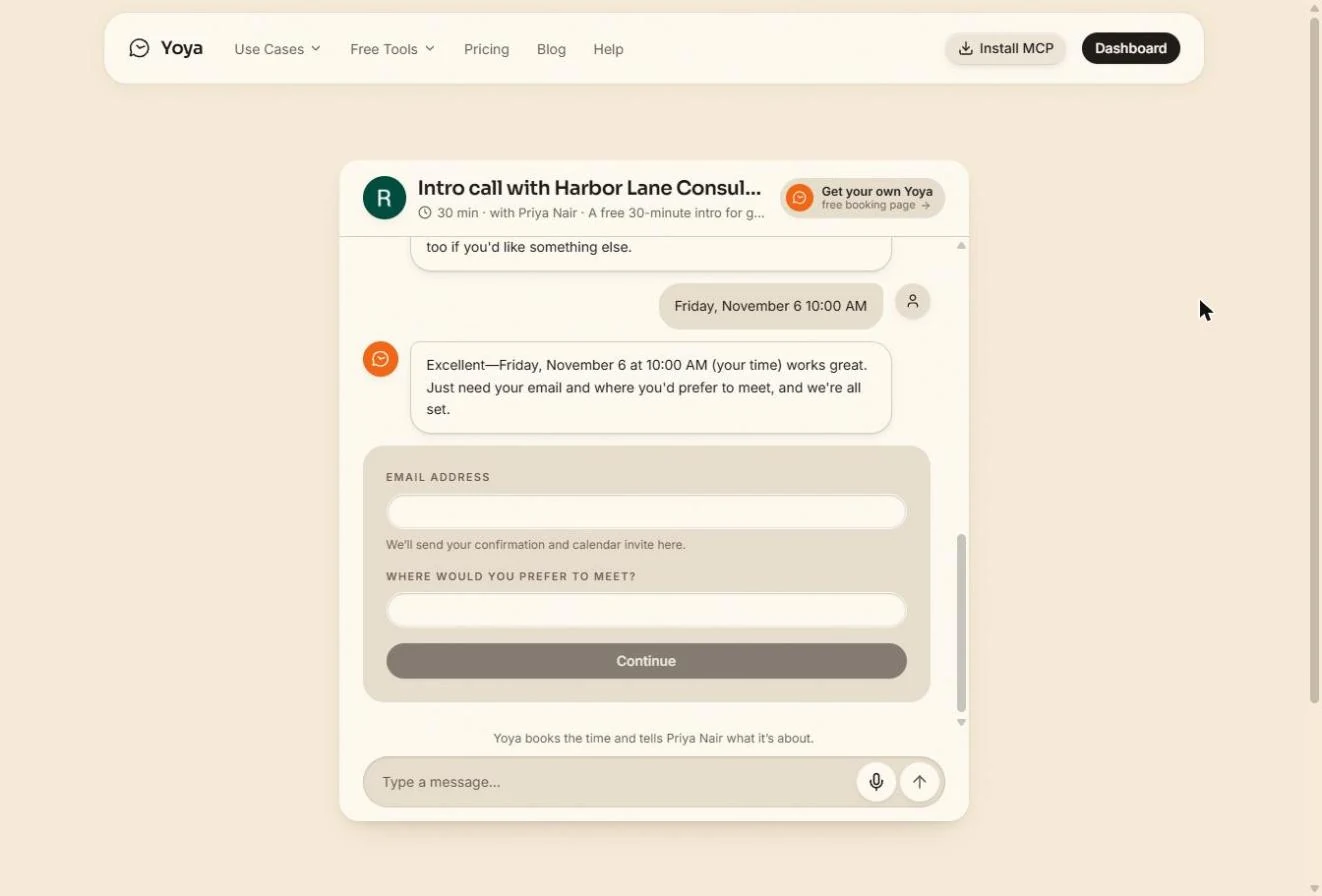
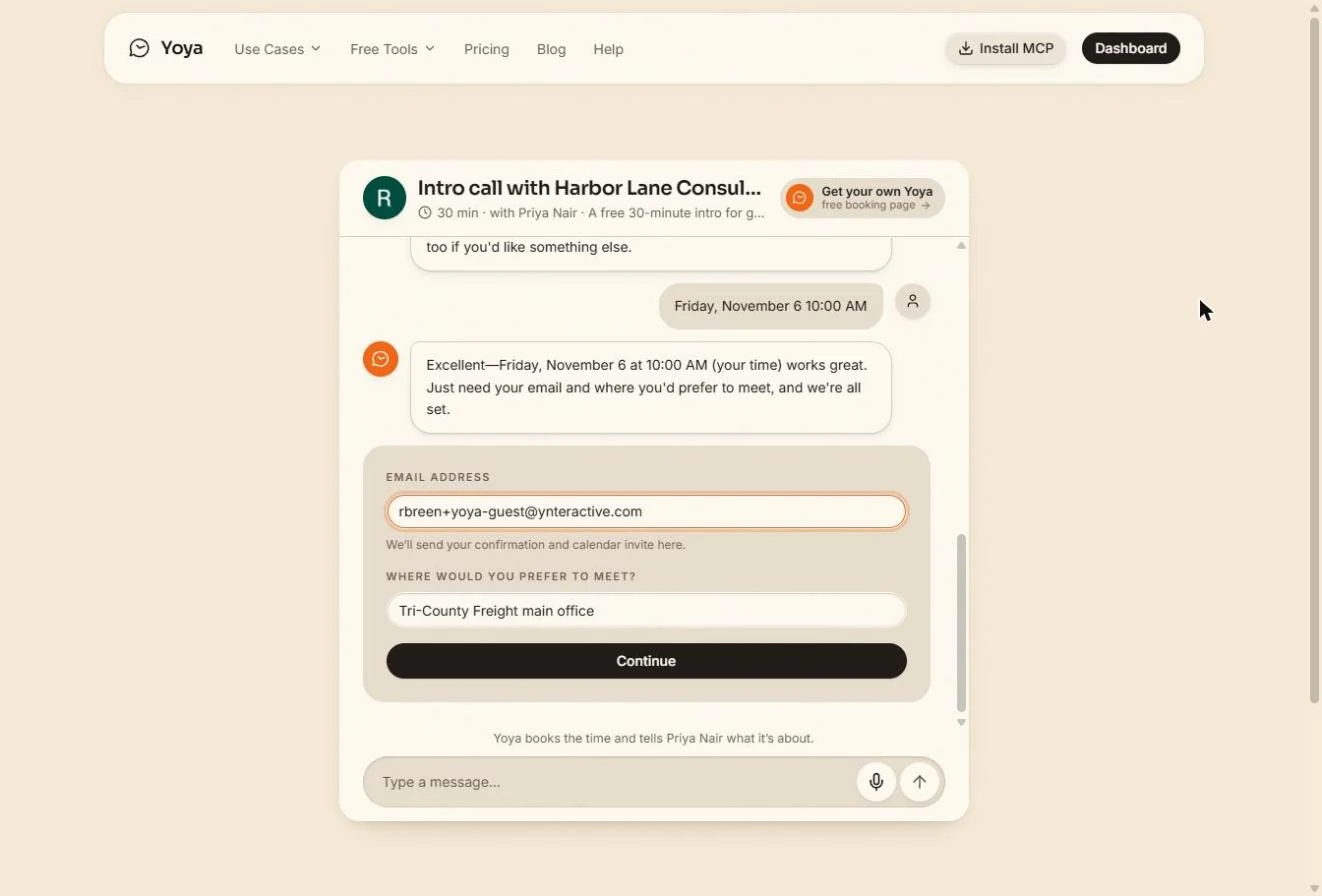
- Give your details. Enter the guest email. Use a real inbox you can open, or you will not see the emails. We used a plus address on our own inbox. With a reserved test address such as name@example.com, Continue stays greyed out. In-person meetings also ask Where would you prefer to meet?; ours says Tri-County Freight main office. Keep the rest made up, never a real client's details.
Enter an email you can open, and where to meet. A test address like example dot com will not go through.
- Continue. Click Continue.
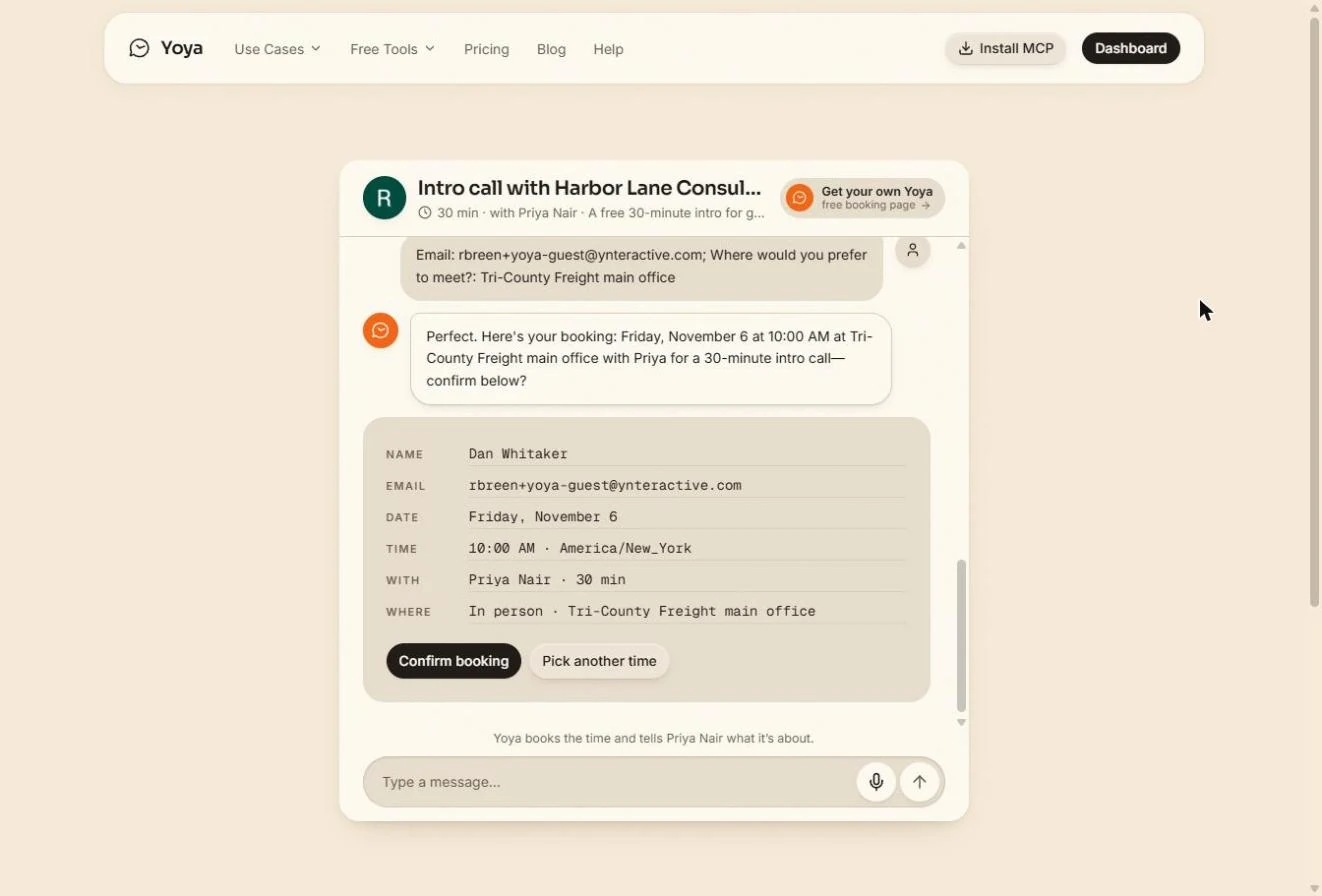
- Confirm the booking. Check the details: the time, and Where with the place you typed. Nothing is booked until you click Confirm booking.
Check the details. Nothing is booked until you click Confirm booking.
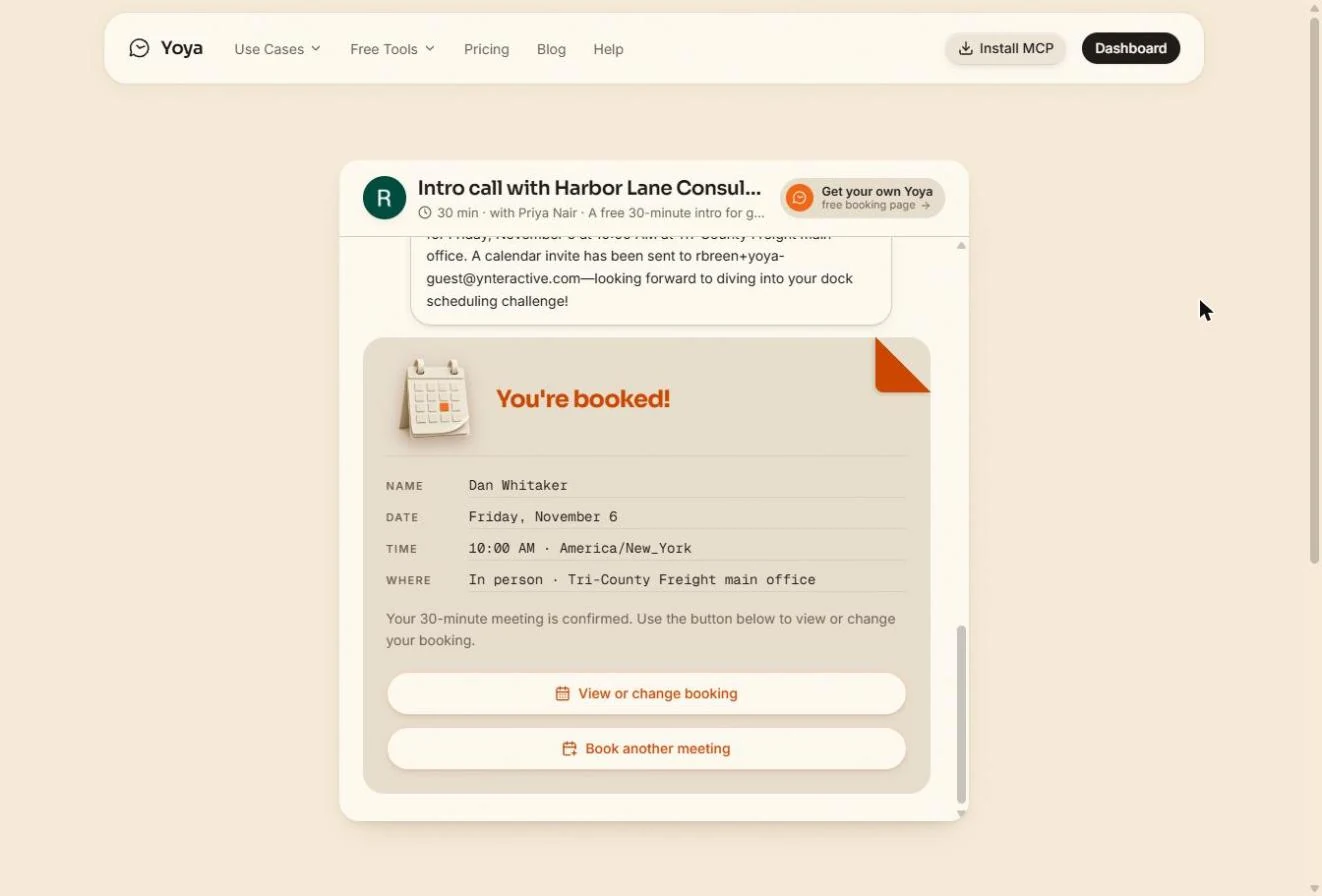
- You are booked. You're booked! The card says the meeting is confirmed and shows the time and the place you typed, with View or change booking for the guest. Click the details to see the guest's email.
You are booked. Next, the email the guest gets.
4. Read what the host gets
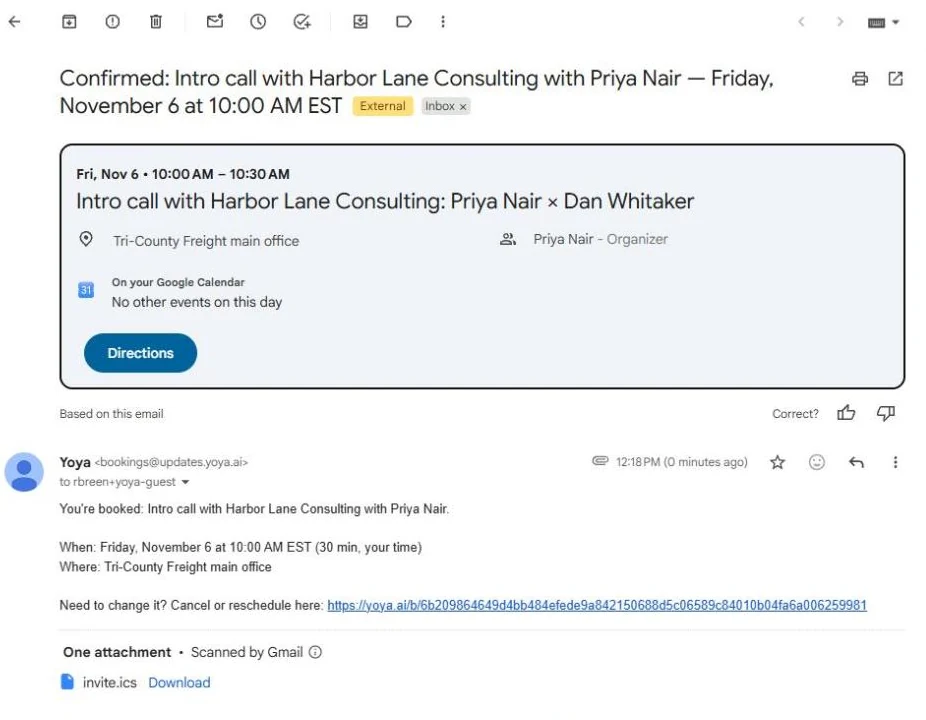
- Check the guest email. A Confirmed email with the time, the place, a link to cancel or reschedule, and invite.ics, the calendar invitation as a file. Our Gmail also showed the event at the top; what your inbox shows there can vary. Now go to the host's side. Click the email.
The guest gets the time, the place, a change link and a calendar file. Now the host's side.
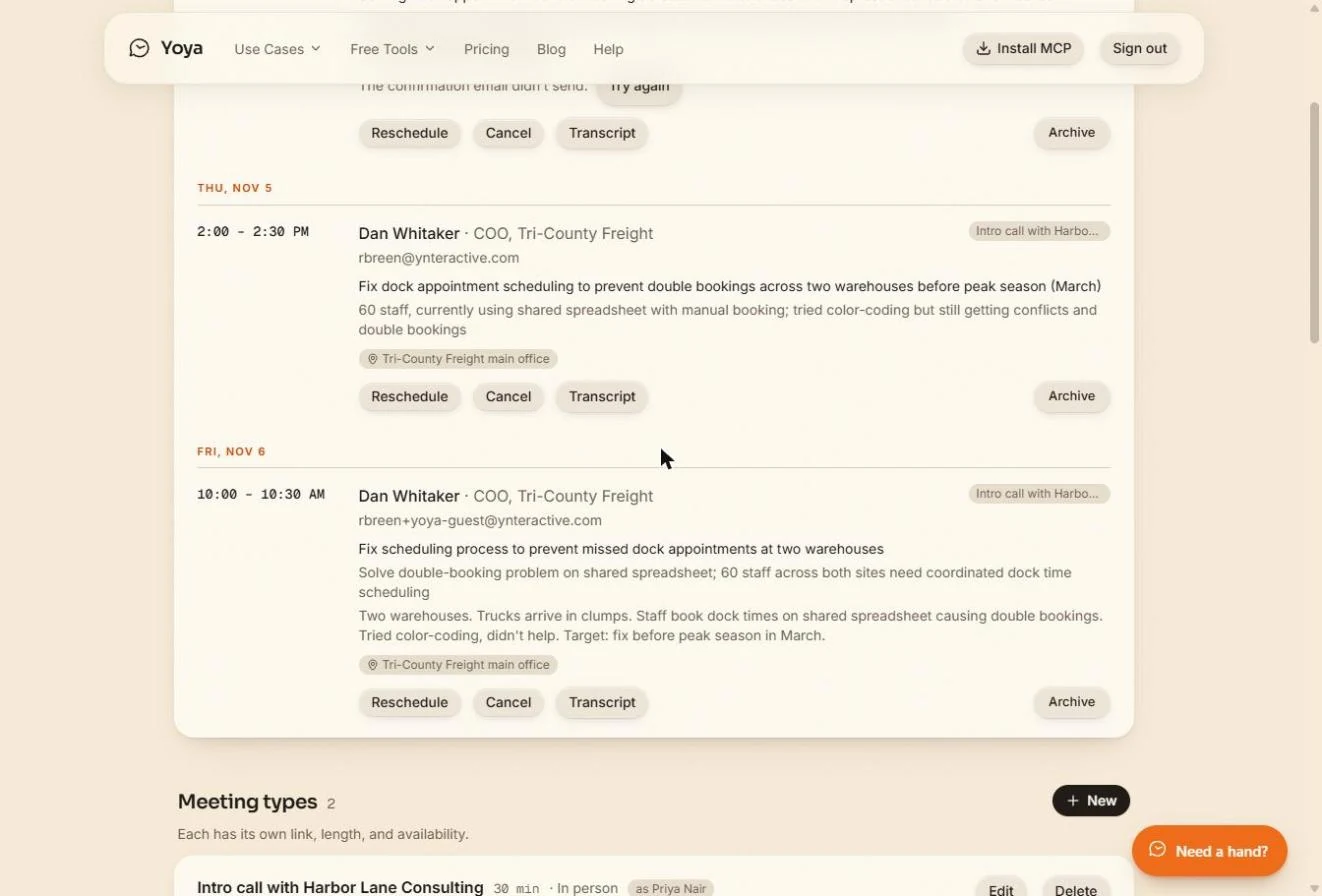
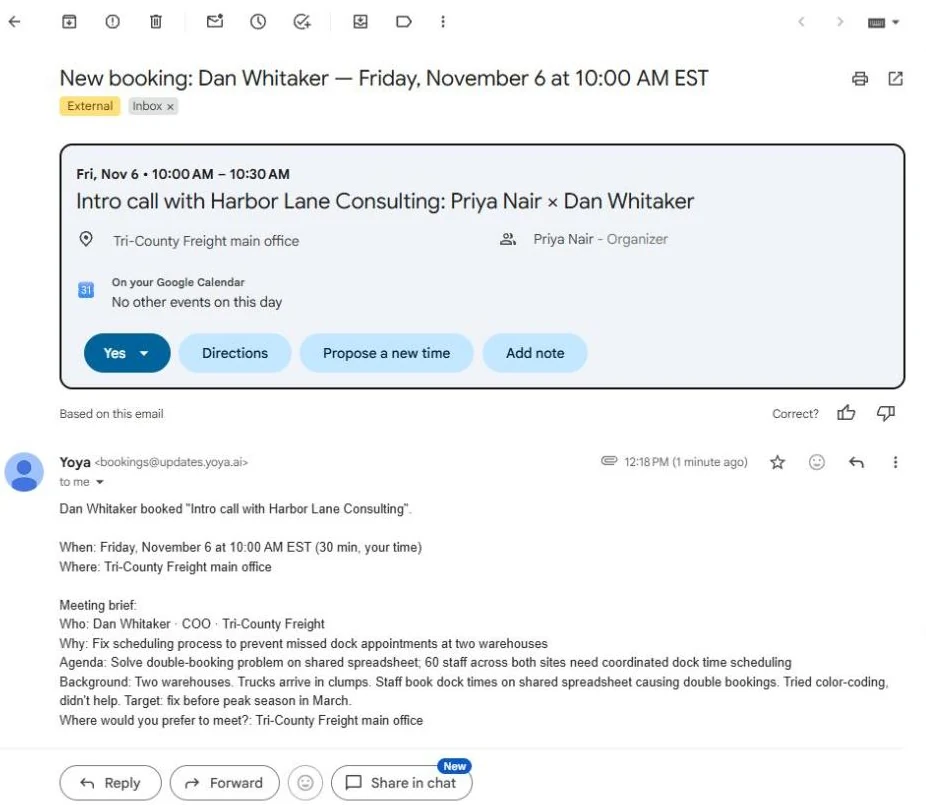
- Read the meeting brief. Priya gets New booking with a Meeting brief: Who, Why, Agenda, Background and where to meet. She knows the problem before she says hello. Click the brief.
This is the payoff. The host gets a brief: who, why and the agenda, before saying hello.
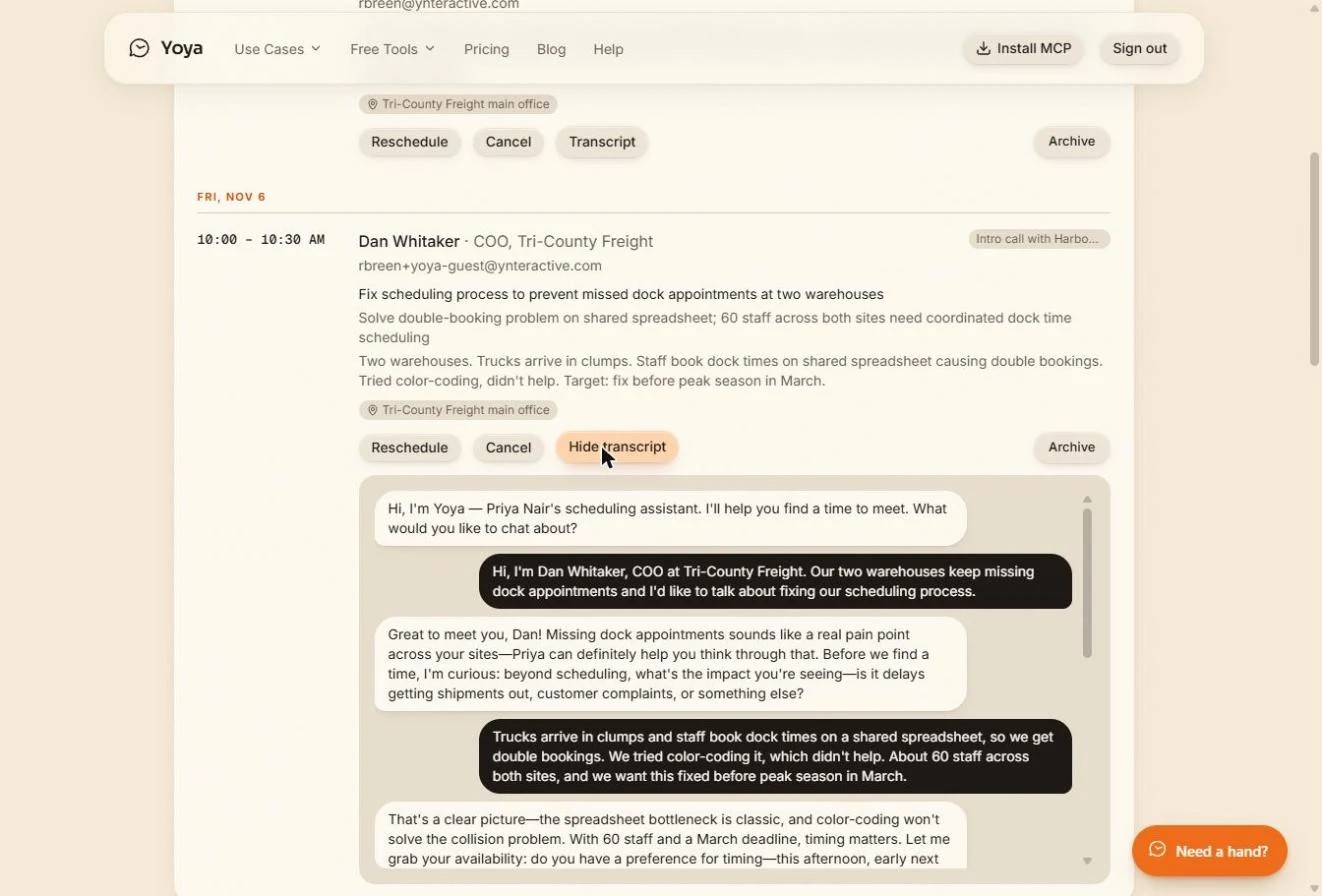
- Open the transcript. The same brief is on your dashboard under Bookings, with Reschedule and Cancel. Ours also lists earlier test bookings. A brief is a summary, so check it against what the guest said. Click Transcript.
The brief is on your dashboard too. It is a summary, so check it.
- Check the brief against the chat. The full chat. In this run the brief matched it: the double bookings, the spreadsheet, the 60 staff, the failed color-coding and March all made it in. It is still written by AI, so read the transcript before a call that matters.
In this run the brief matched the chat, even the sixty staff and the color coding. It is still written by AI, so read the chat before a call that matters.
Screenshots
More in Business Automations
 AI Receipt Extractor: Receipts to Google Sheets with n8n
Drop a photo of a receipt into an n8n chat. An AI agent reads it, pulls out the date, vendor and amount, picks a category, and adds a row to Google Sheets.
Free · Live ~12 min Intermediate
 n8n AI Email Responder: Draft Gmail Replies Automatically
Build an n8n agent that watches your Gmail, reads each new customer email, and writes a reply as a draft in the same thread, ready for you to check and send.
Free · Live ~12 min Intermediate
 Daily Job Alerts: Email Each Tech Their Jobs from Google Sheets with n8n
Every morning at 7, n8n reads a plumbing company's jobs sheet, skips anything not assigned yet, and emails each job to the tech it's assigned to — customer, address…
Free · Live ~10 min Intermediate
 Gmail AI Triage: Auto-Label Every Email and Draft Replies
Build an n8n workflow that reads each new email, sorts it as a lead, a client or an invoice with a Text Classifier, adds the matching Gmail label, and drafts a reply to…
Free · Live ~18 min Advanced
 A Support Agent That Answers from Your Own Docs
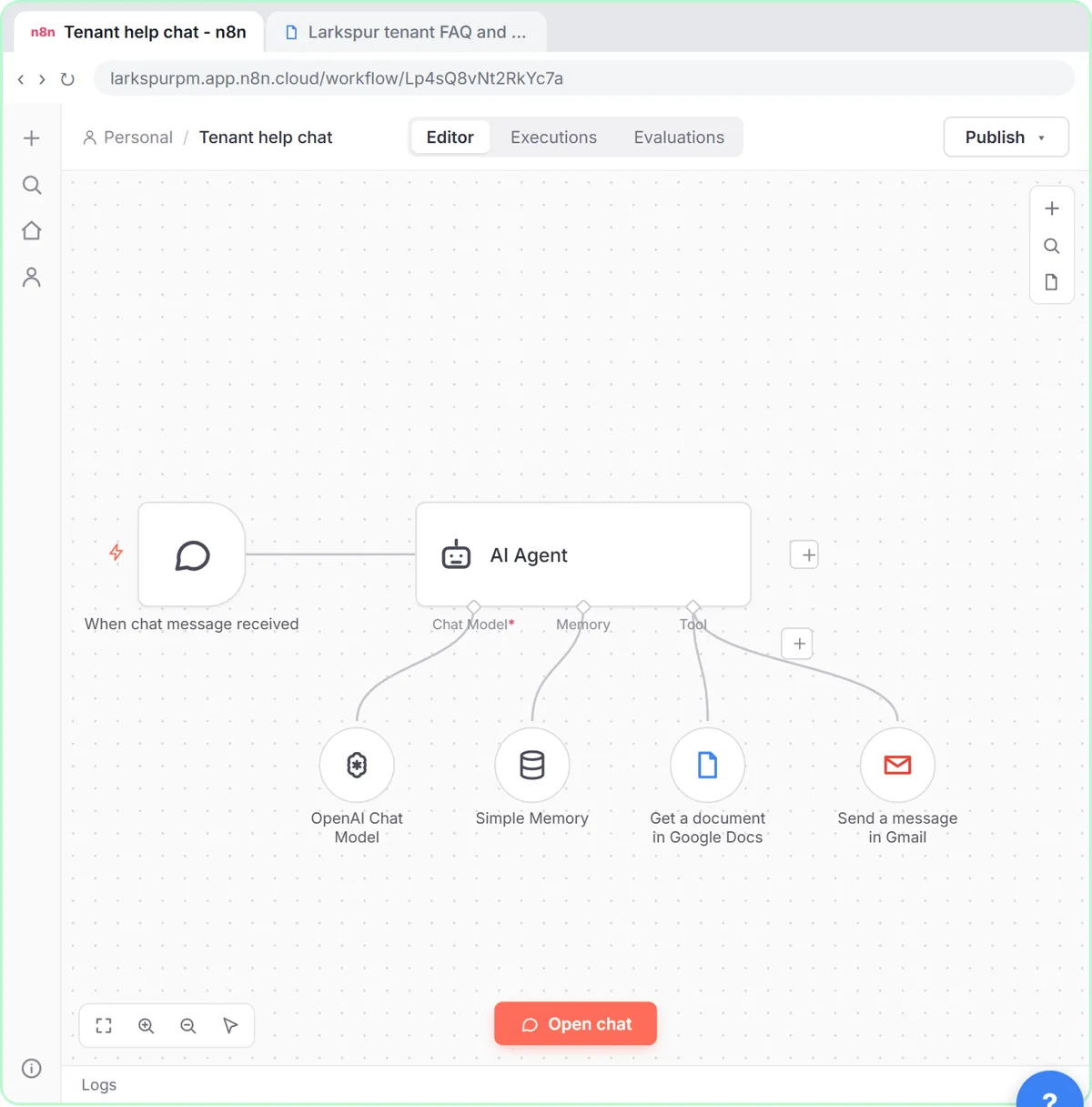
Turn an n8n chat agent into a support agent that answers only from your policies in a Google Doc, refuses what it should, and hands off to a person by email.
Free · Live ~13 min Advanced
 Chatbase: Answer Customer FAQs with an AI Agent
A business case for a small firm that answers the same customer questions every week: build a Chatbase AI agent on your FAQ in the real app, make it say when it does…
Free · Live ~15 min Beginner
All 19 modules in Business Automations
Terms in this lesson
Plain-English definitions, each with an example from a free lesson.