Updated . Built against the tool’s current screens and checked step by step. How we check this lesson
Sales reps give the same first-call pitch over and over. Upload your deck to SlideSpoken, give it the audience and your talk track, let the AI Presenter deliver it, then check the session report and transcript.
At a glance
| Question | Answer |
|---|---|
| What you build | Sales reps give the same first-call pitch over and over. Upload your deck to SlideSpoken, give it the audience and your talk track, let the AI Presenter deliver it, then check the session report and transcript. |
| Tools | SlideSpoken |
| Time | About 8 minutes, 21 steps in 3 parts |
| Level | Beginner, no coding needed |
| Cost | Free |
| Ways to learn it | Practice it step by step |
The 3 parts, in short
- Upload the sales deck: Upload your deck, Close the tip, Choose the PDF, Rename the deck, and 5 more steps.
- Let the AI present it: Open the deck, Start AI Presentation, Pick In-Person Mode, Turn Live Q&A off, and 4 more steps.
- Review the presentation report: Read the session report, Scroll the report, Open the transcript, Check the claims.
Start here first: AI Receipt Extractor: Receipts to Google Sheets with n8n (module 1 of Business Automations)
In the course: Part 9 · n8n Automation Toolkit (Module 103 of the full course)
Part of: AI Apps Worth Knowing (step 99 of 104). Next up: Yoya: A Booking Link That Sends You a Brief Before the Call
Part of: AI Presentations & Client Decks (step 11 of 11)
What you'll build
Maya sells dock-scheduling software for a made-up company, DockSight, and has three first-call demos this week with the same 5-slide deck. In this lesson you upload the deck to SlideSpoken, tell it who is in the room and how to pitch, start an In-Person presentation, watch the AI Presenter deliver every slide with a live transcript, and then read the session report: time per slide, what it said, and tips for the next run. Every screen is a real SlideSpoken screen; the company, the prospect and the numbers are made up.
You uploaded a sales deck, told the AI Presenter who was in the room and to use only the numbers on the slides, let it deliver all 5 slides with a live transcript, and read the report: time on each slide, the full transcript and tips for next time. What it saves: delivering the same first-call pitch yourself every time, and guessing which slides ran long. Next, turn on Live Q&A so it answers questions from the room, or try Agent Mode for Zoom, Meet or Teams. Plans and credits change; check slidespoken.com for what yours includes.
- Tools: SlideSpoken
- Time: about 8 minutes, 21 steps in 3 chapters
- Level: beginner, no coding needed
- Price: free
Practice first, then build it for real
Practice copy built from real SlideSpoken screens (app.slidespoken.com), captured 29 October 2026. Nothing here touches a SlideSpoken account. The seller, the prospect and the deck are made up; the narration, transcript and report are what SlideSpoken produced. Live Q&A was off in this run. To build it for real you need your own SlideSpoken account, and some services charge once you use them for real work, so check each tool's current pricing.
Try it yourself, free
Reading the steps is a start. Doing them is how it sticks. The interactive module walks you through every click in a practice copy of SlideSpoken, checks each step, and never touches your real accounts.
Start “SlideSpoken: Let an AI Presenter Deliver Your Sales Deck”Step by step: SlideSpoken: Let an AI Presenter Deliver Your Sales Deck
All 21 steps of the interactive module, in order. In the module you watch each one, then do it yourself in a practice copy that checks your work.
1. Upload the sales deck
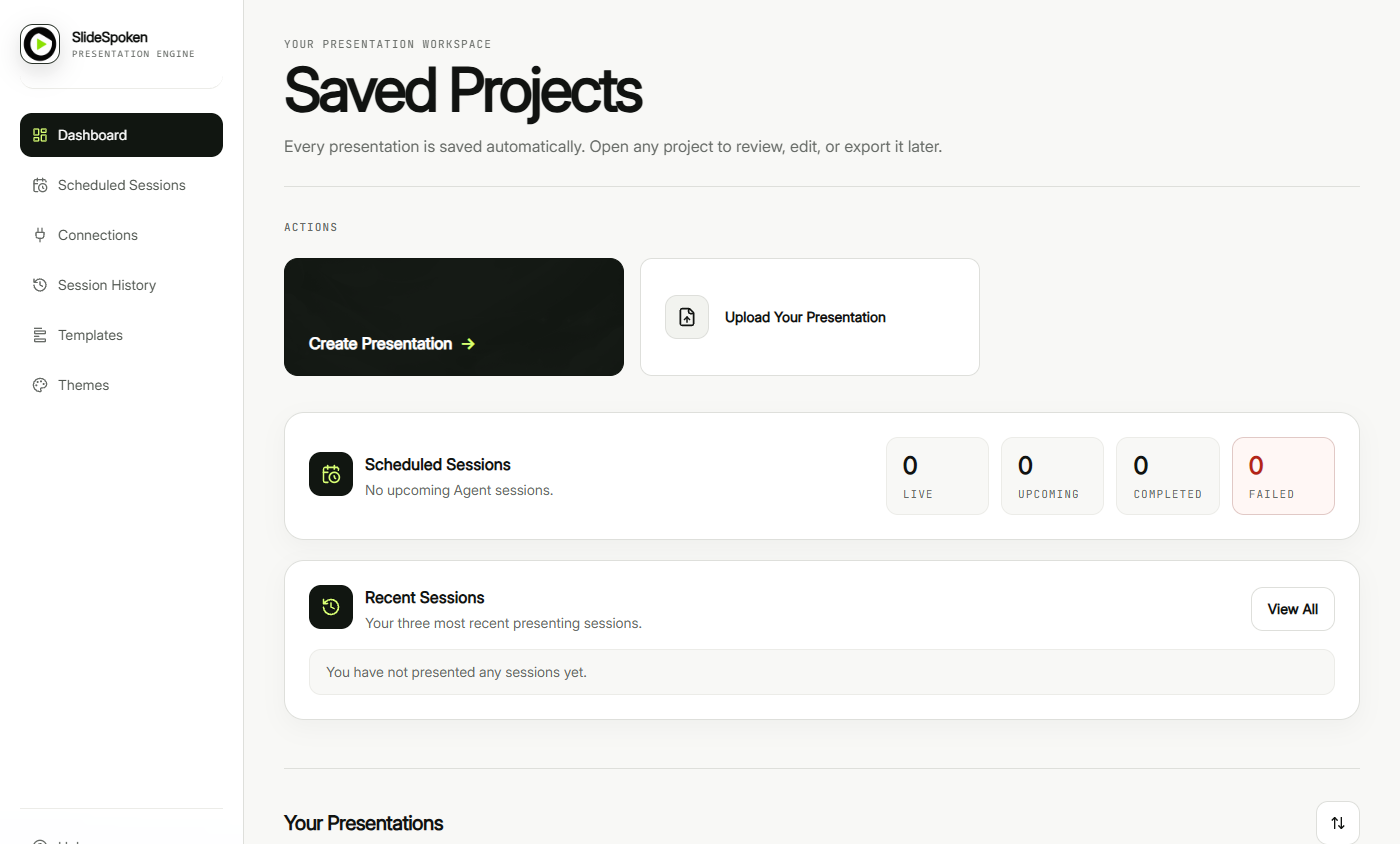
- Upload your deck. You are Maya Chen, an account executive at DockSight, a made-up dock-scheduling software company. You have the same 5-slide pitch to give to every prospect, and three demos booked this week. Open app.slidespoken.com and click Upload Your Presentation.
You give the same pitch deck to every prospect. Let an AI presenter deliver it. In SlideSpoken, click Upload Your Presentation.
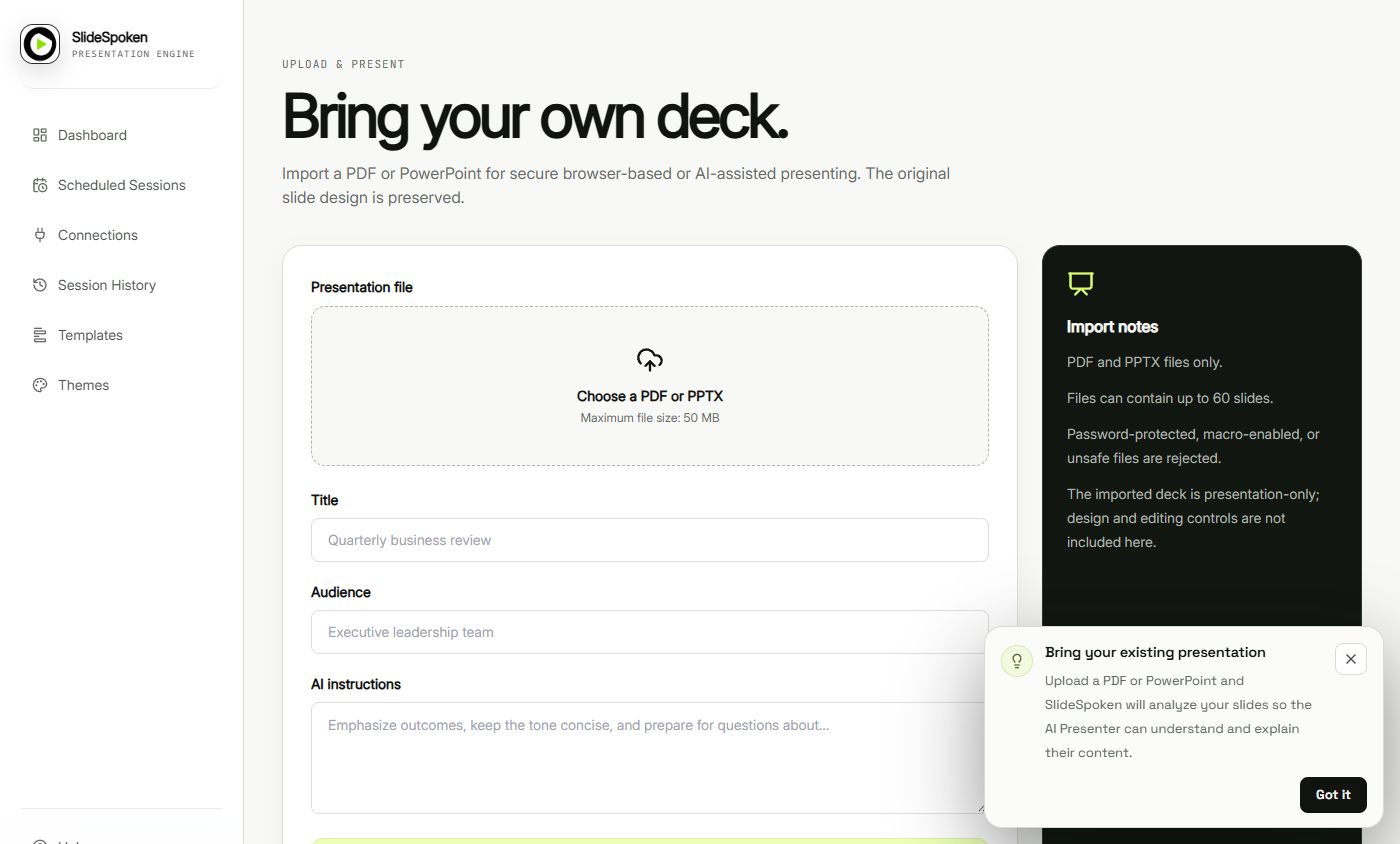
- Close the tip. A tip explains that SlideSpoken reads your slides so the AI Presenter can explain them. Click Got it.
A tip explains what happens to your slides.
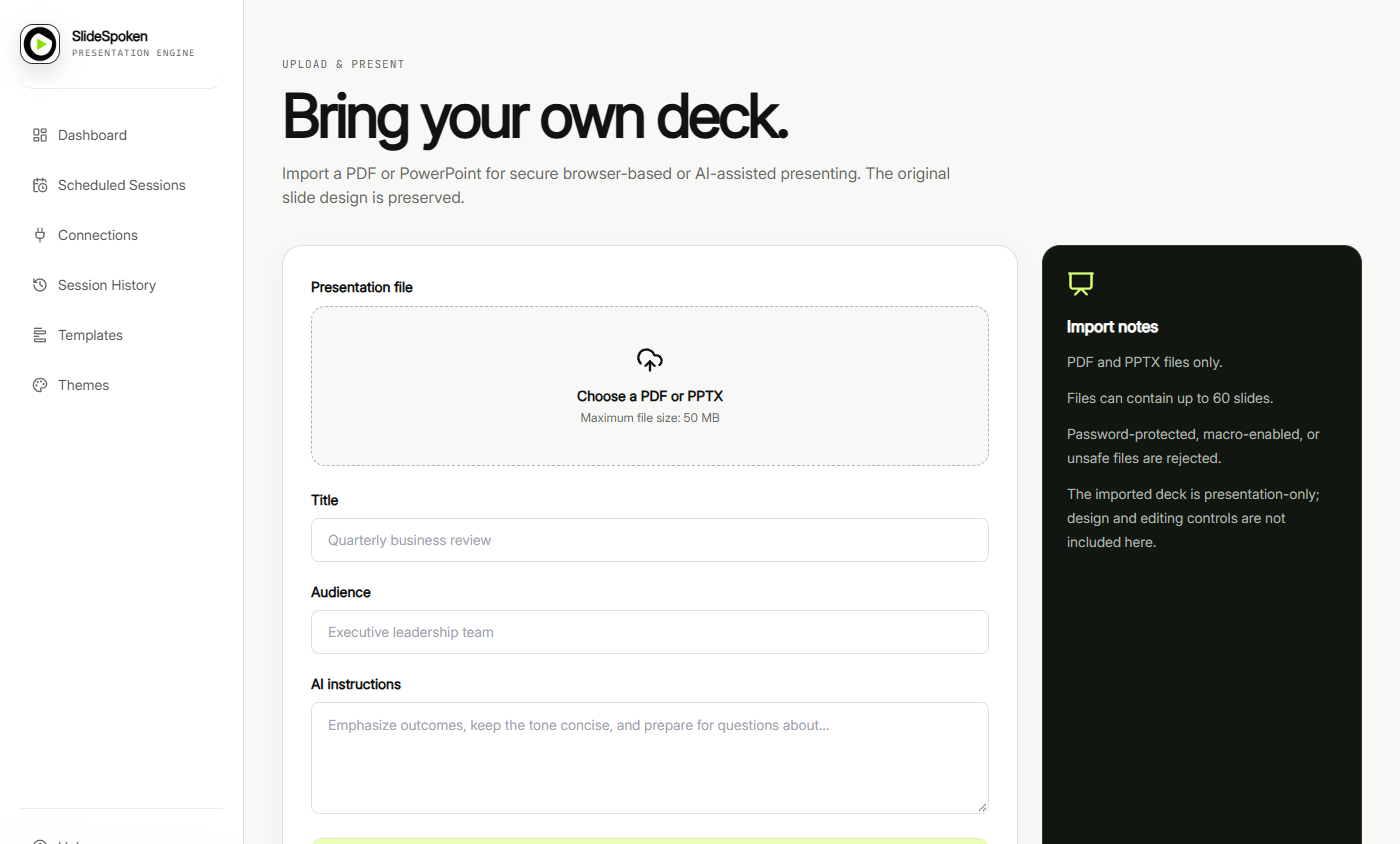
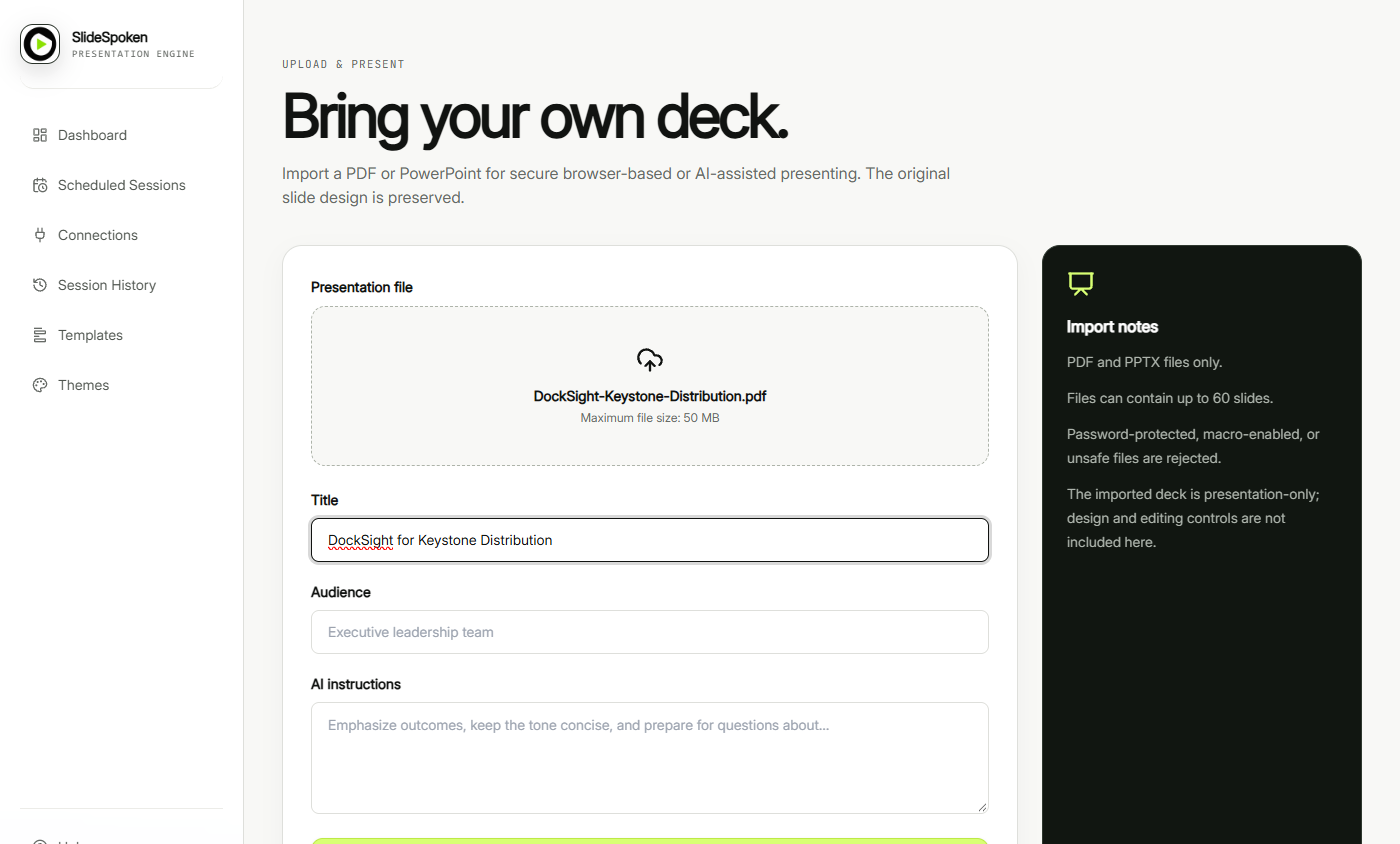
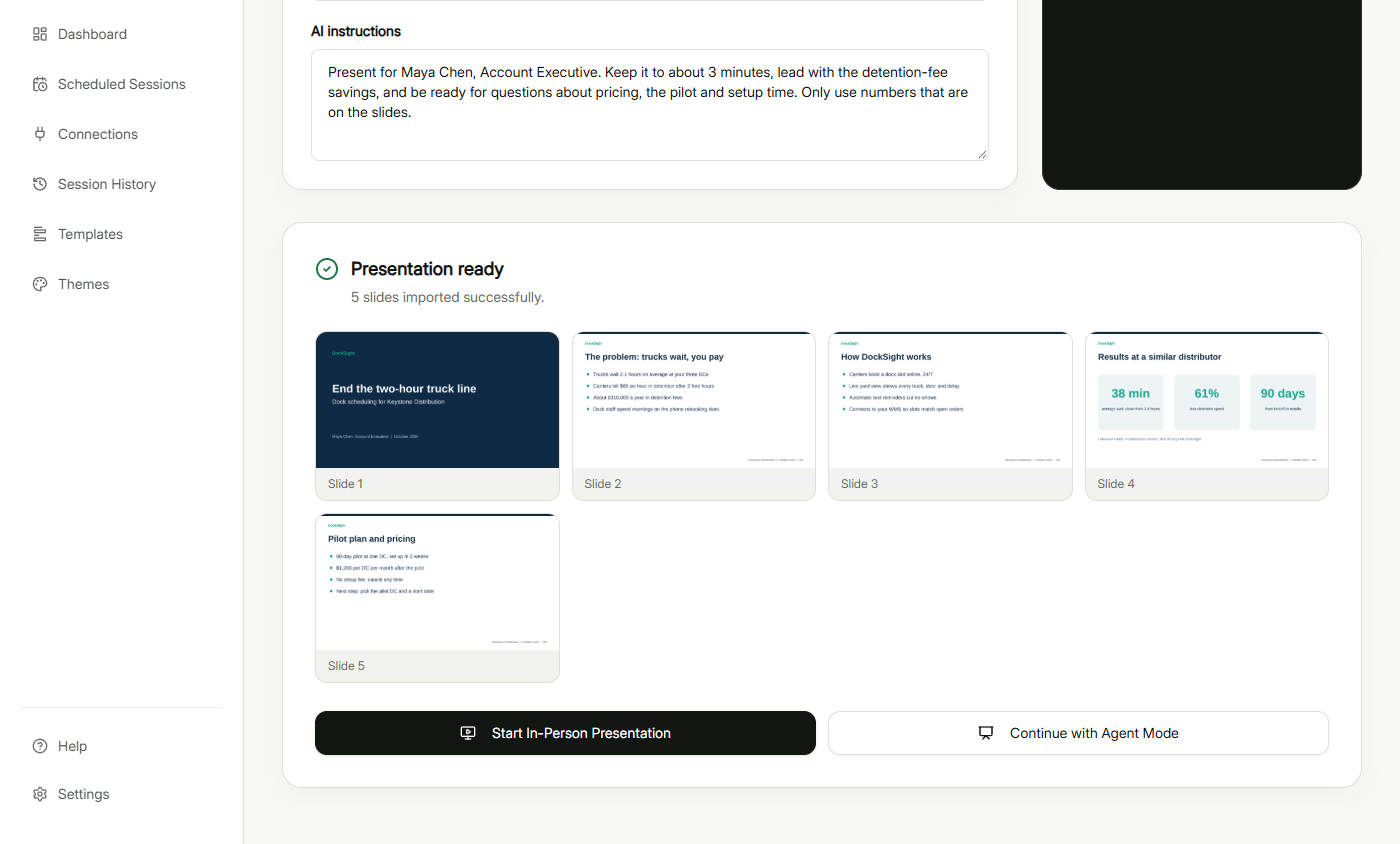
- Choose the PDF. Click Choose a PDF or PPTX and pick your deck. Ours is DockSight-Keystone-Distribution.pdf: the problem (trucks wait 2.1 hours, about $310,000 a year in detention fees), how it works, results at a similar distributor, and the pilot price. You can download the same PDF from this lesson.
Ours is a five-slide pitch for a made-up distributor. You can download it from this lesson.
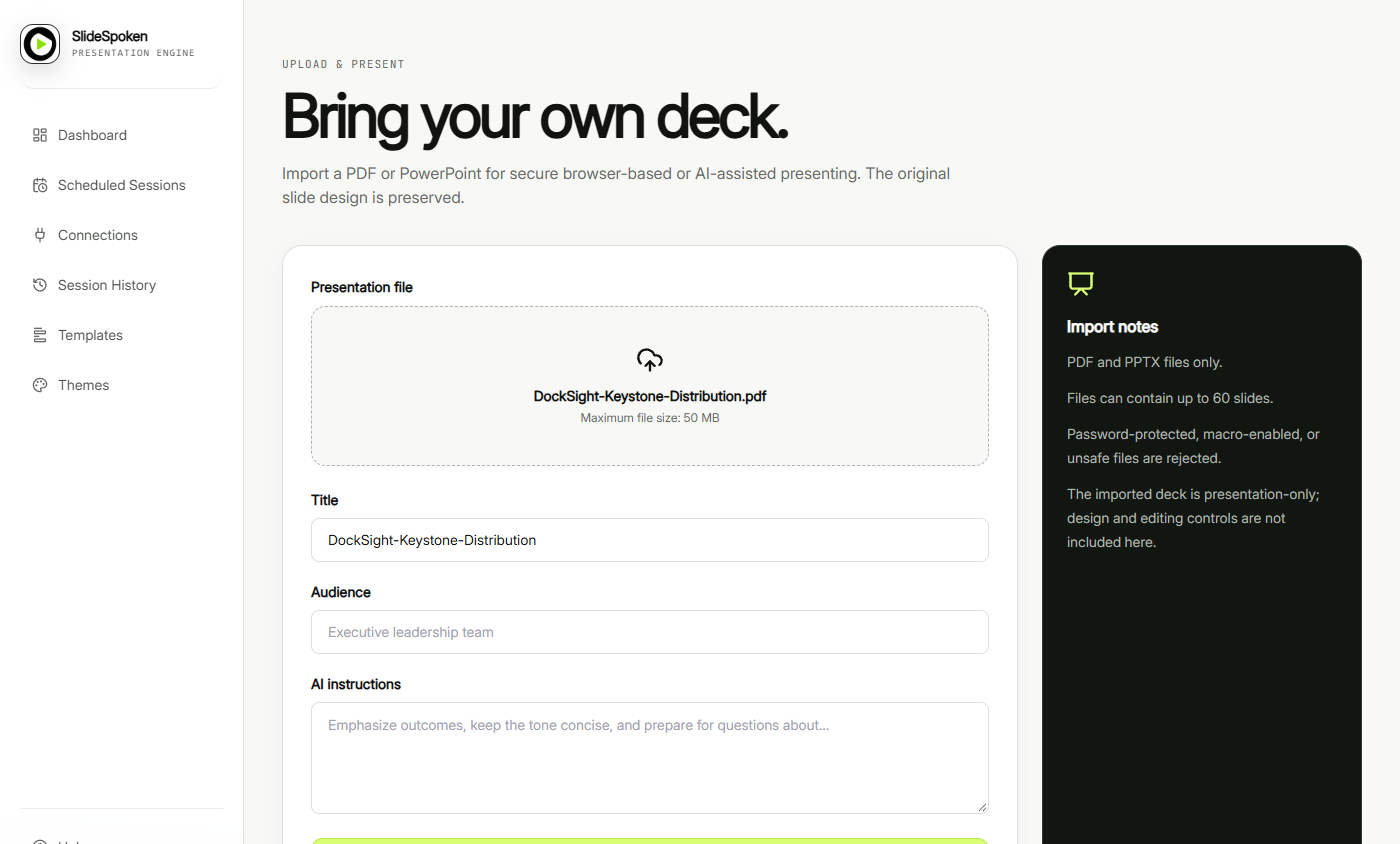
- Rename the deck. The Title fills in from the file name. Replace it with something you would say out loud, because the presenter uses it.
The title comes from the file name. Replace it with something readable.
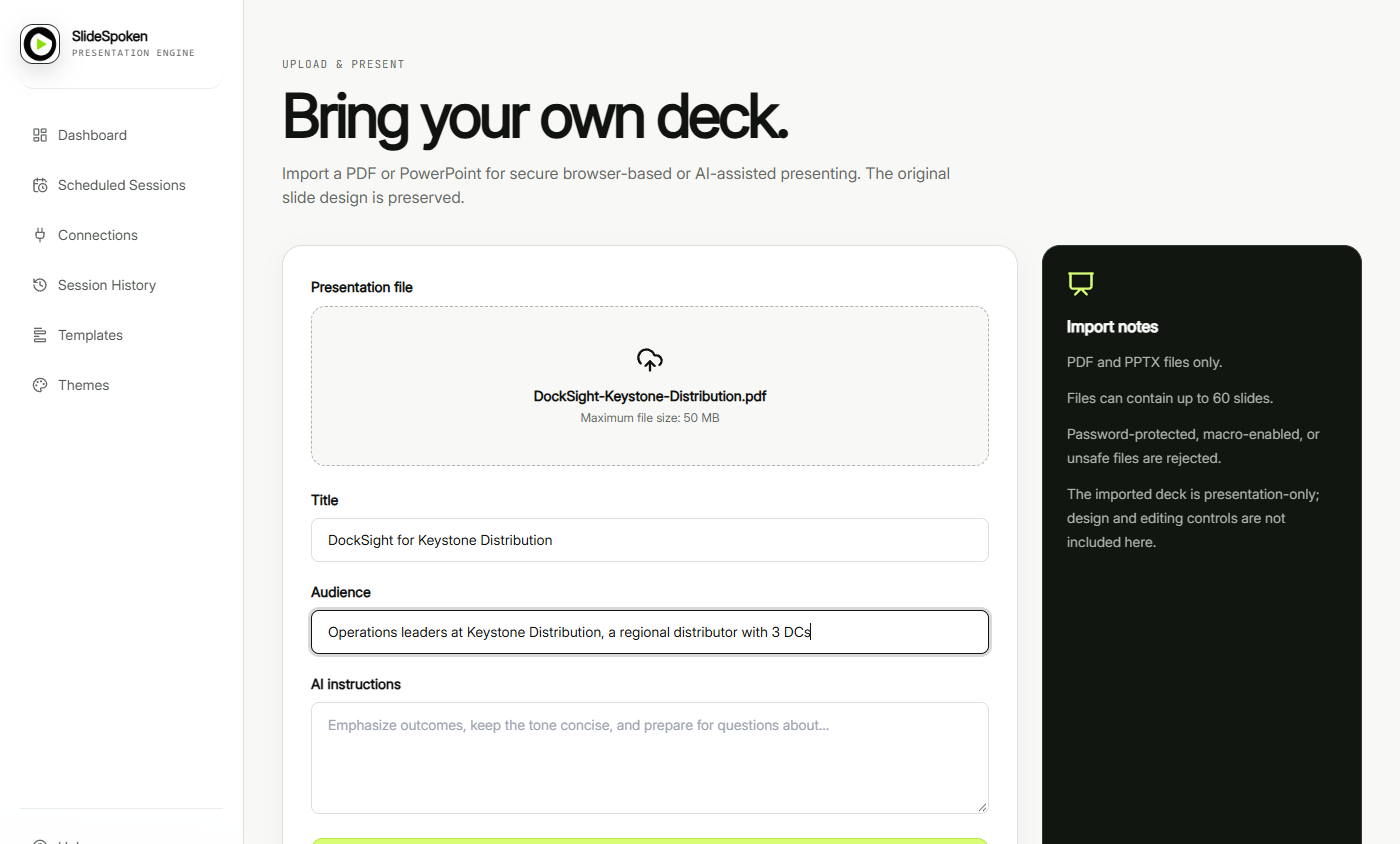
- Say who is in the room. The Audience tells the AI who it is talking to, so it explains the deck in their terms.
Tell it who is in the room, so it pitches to them.
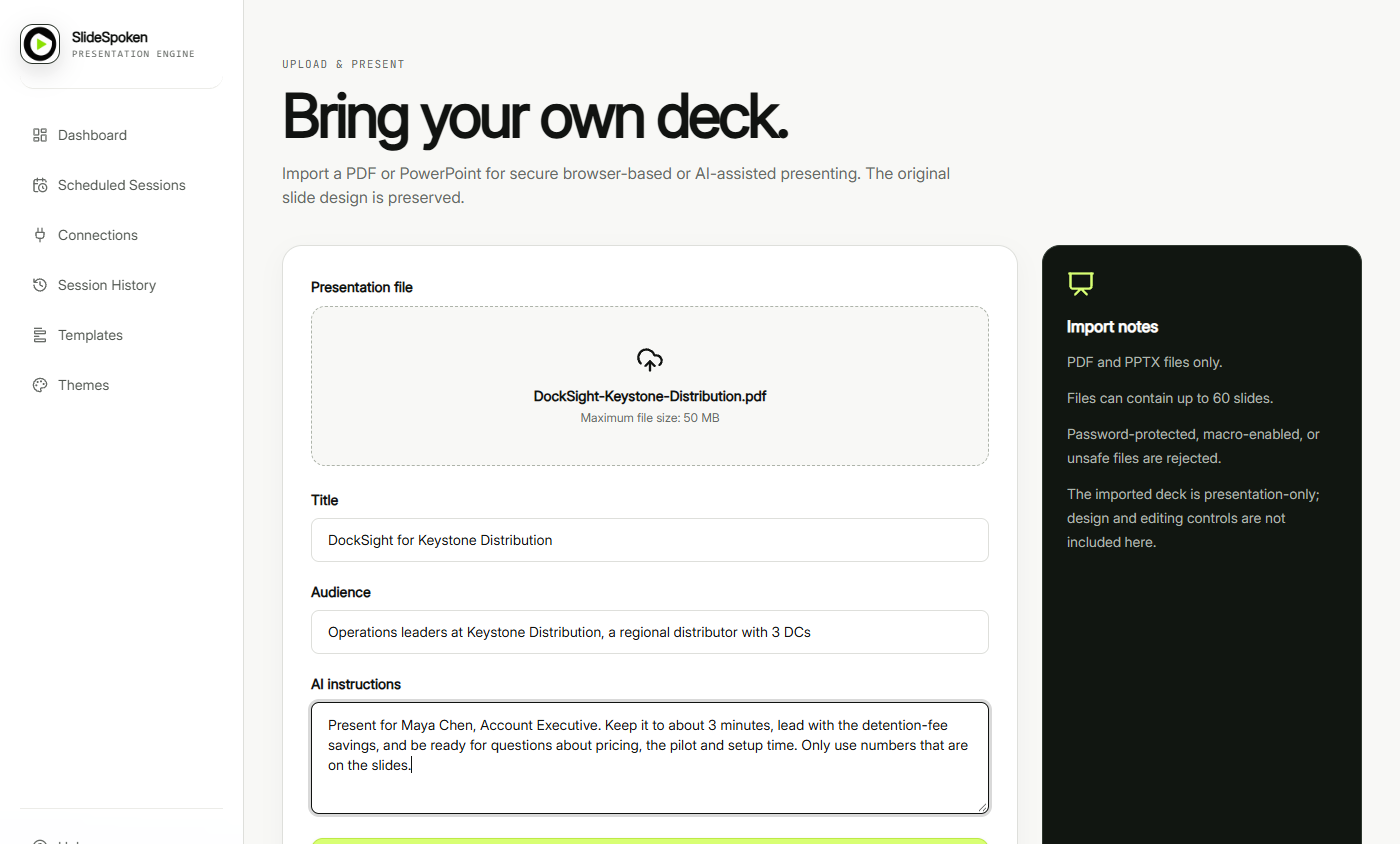
- Give it your talk track. The AI instructions are your coaching notes: who it is presenting for, how long, what to lead with, and one guardrail. Only use numbers that are on the slides keeps it from inventing figures.
These are your coaching notes: length, what to lead with, and a rule to only use numbers on the slides.
Present for Maya Chen, Account Executive. Keep it to about 3 minutes, lead with the detention-fee savings, and be ready for questions about pricing, the pilot and setup time. Only use numbers that are on the slides.
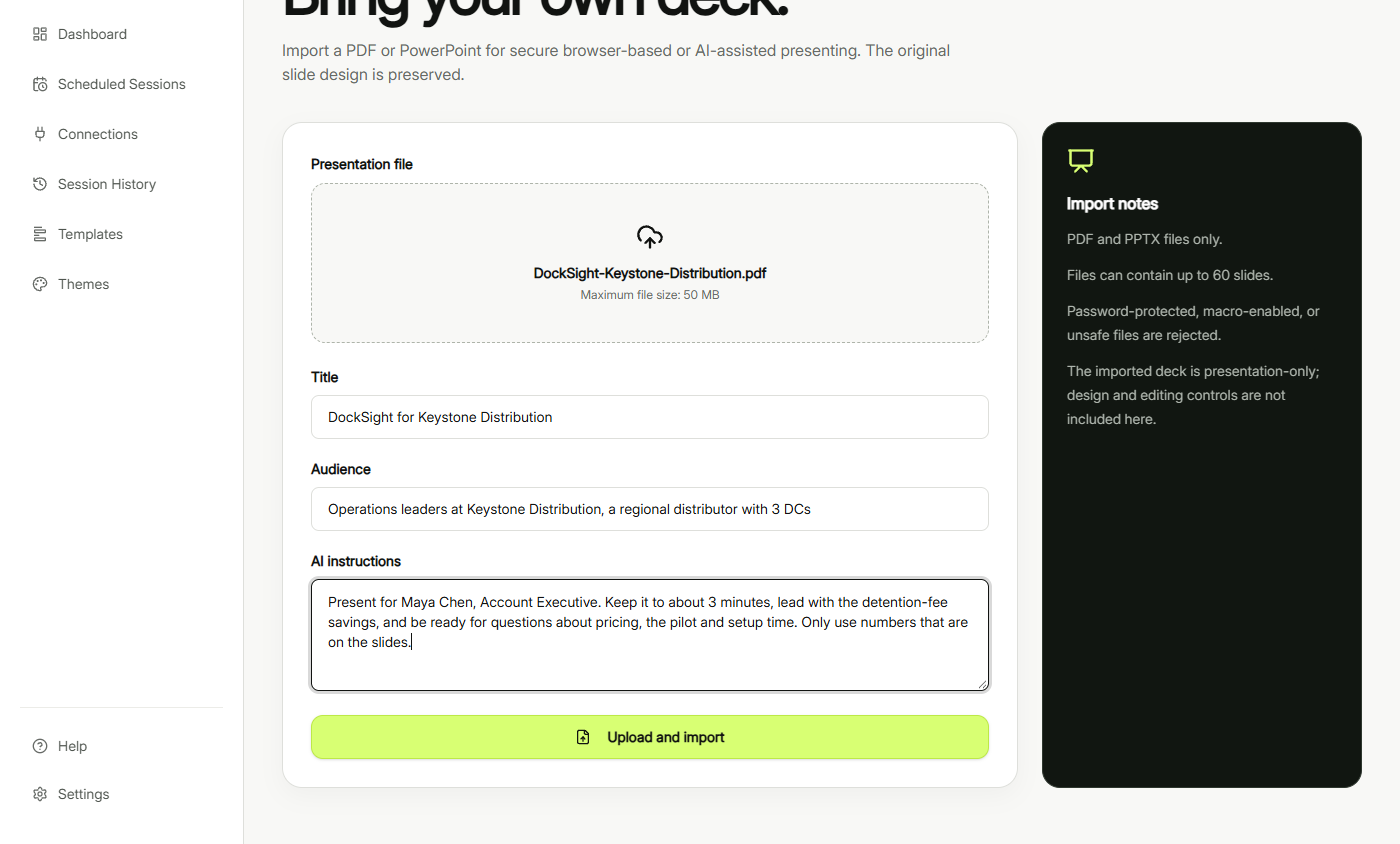
- Scroll to the button. Scroll down to the bottom of the form.
- Upload and import. Click Upload and import. SlideSpoken validates the file and imports each slide. Our 5 slides took about 20 seconds.
It takes about twenty seconds.
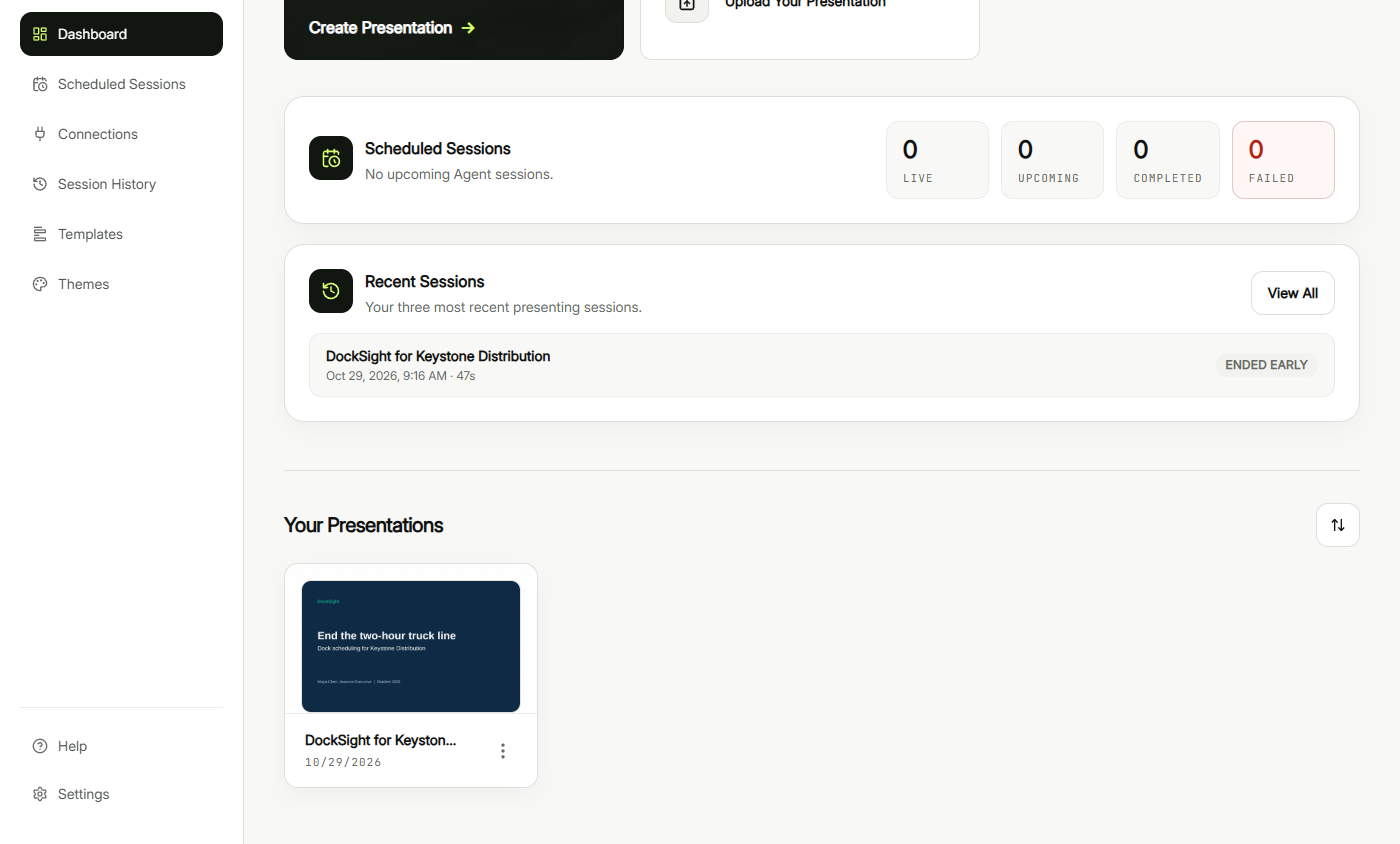
- Back to the dashboard. Presentation ready: 5 slides imported successfully, with the original design kept. The buttons here start a manual slideshow or a meeting bot, so go back and open the deck instead. Click Dashboard.
The deck is ready, with your design kept. Go back to the Dashboard to open it.
2. Let the AI present it
- Open the deck. The deck is under Your Presentations. (The session listed above it is our first, interrupted test.) Click the deck.
Your deck is under Your Presentations.
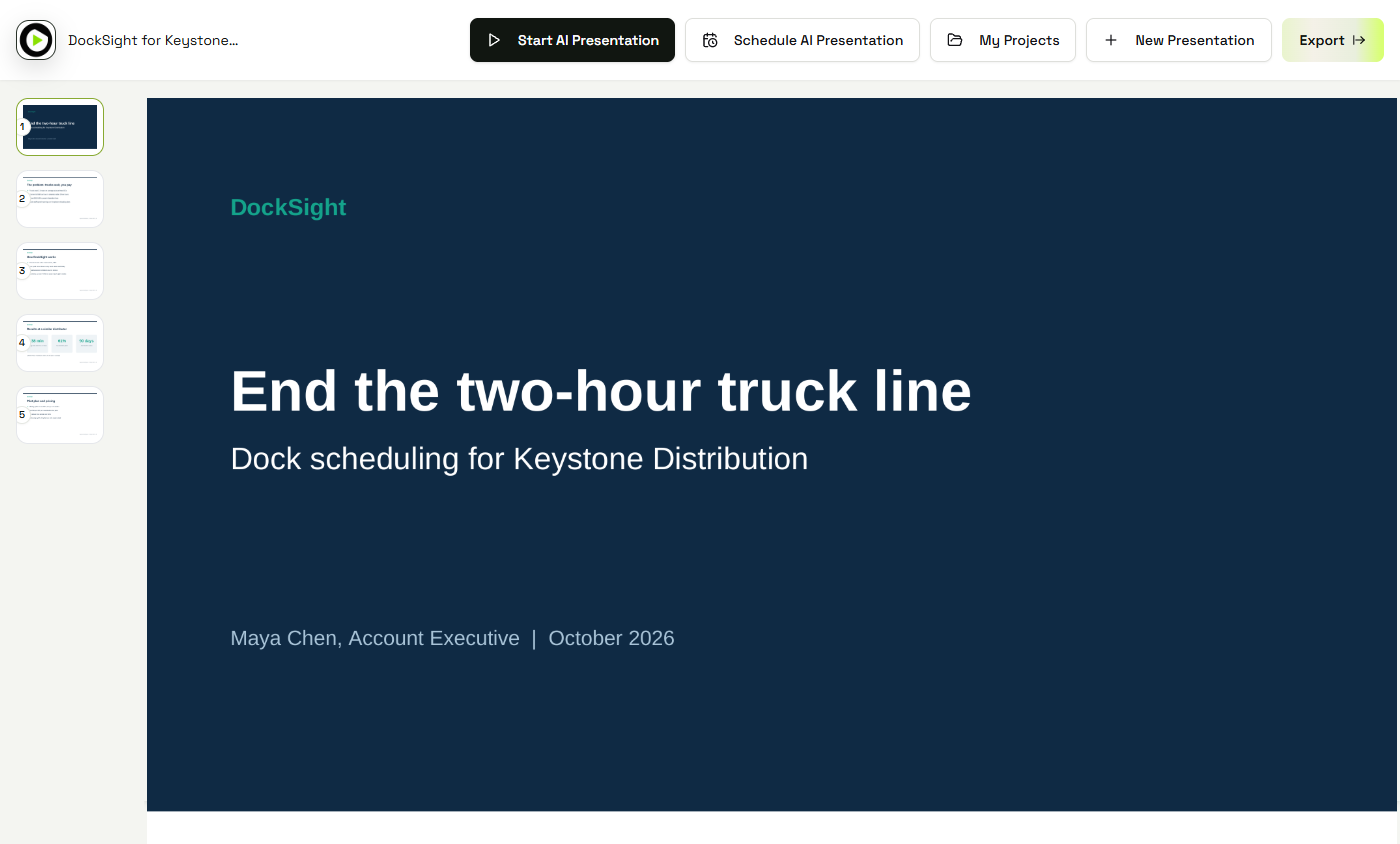
- Start AI Presentation. The editor shows all 5 slides. Click Start AI Presentation.
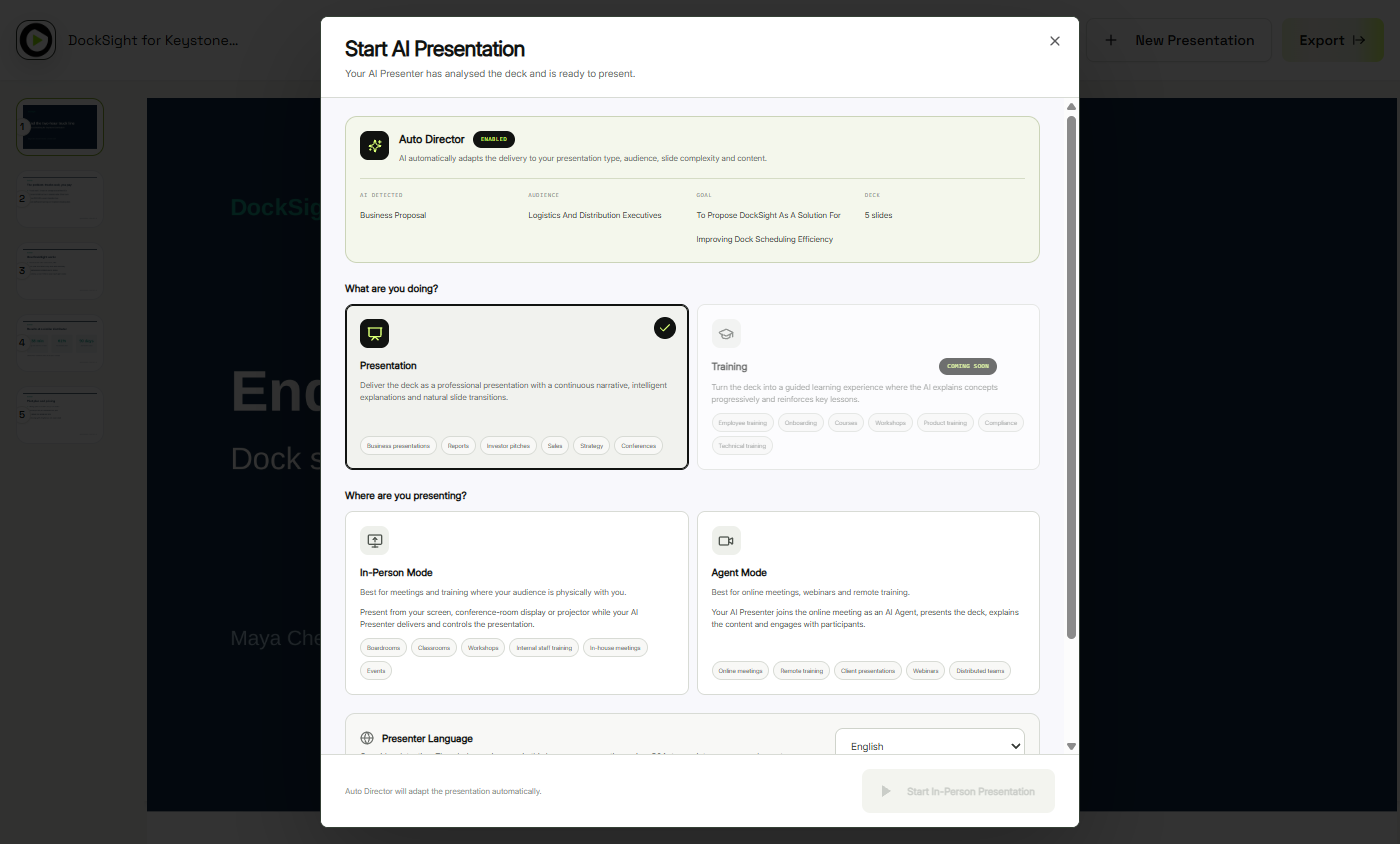
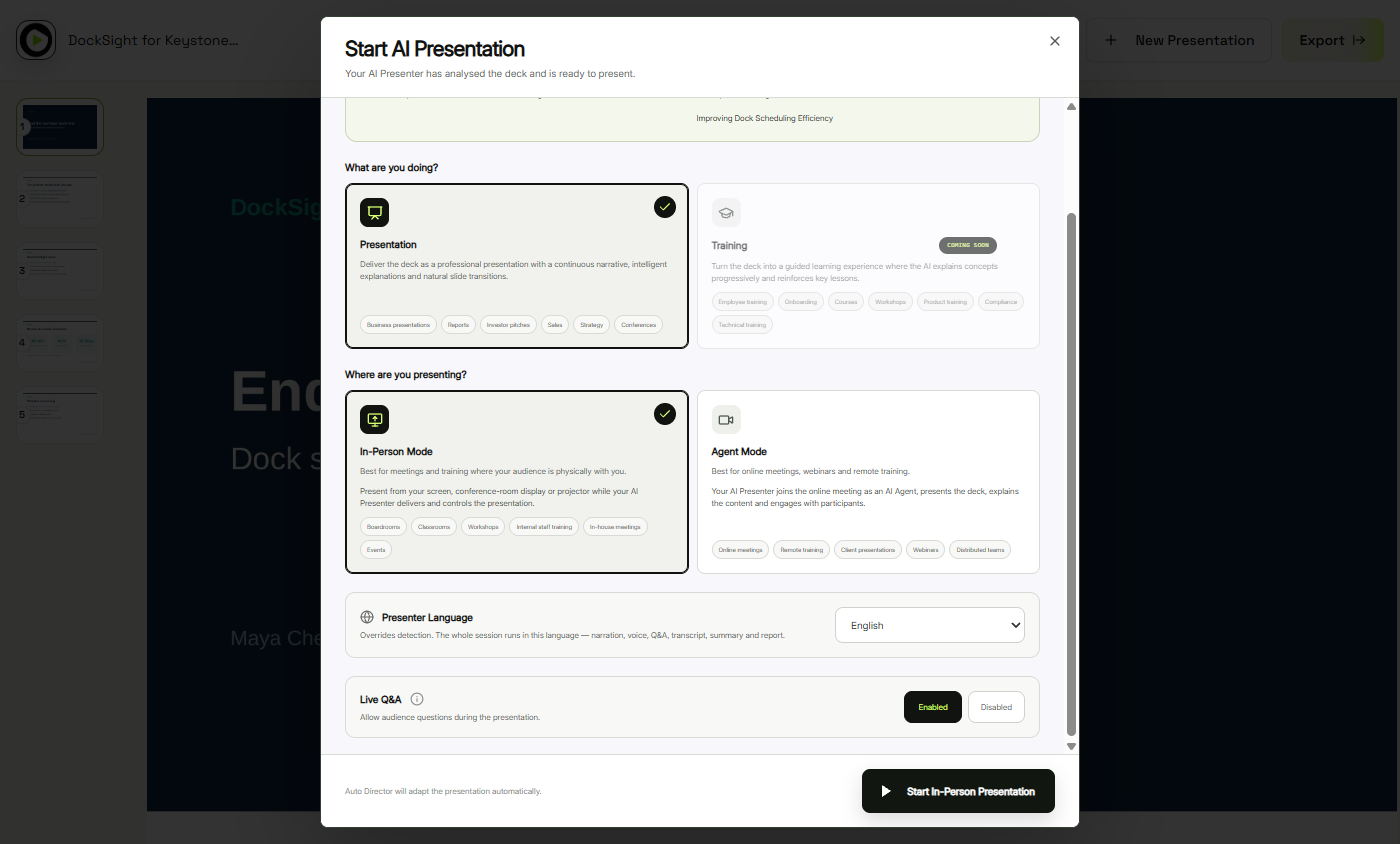
- Pick In-Person Mode. The Auto Director has already read the deck: Business Proposal, for Logistics and Distribution Executives. Keep Presentation selected and click In-Person Mode, for a screen or projector in the room. (Agent Mode joins Zoom, Meet or Teams instead.)
It already worked out the deck type and audience.
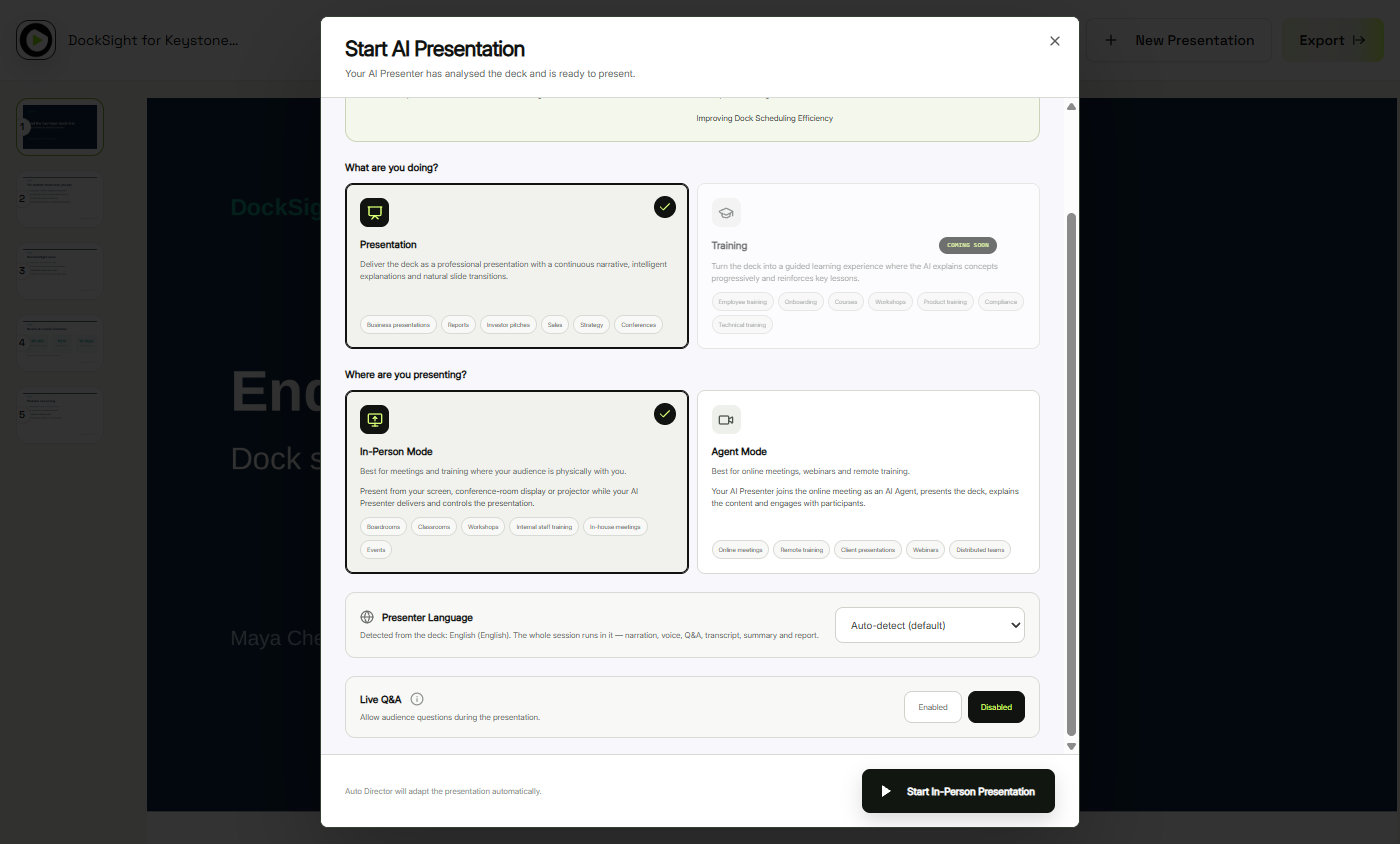
- Turn Live Q&A off. Live Q&A lets the presenter hear and answer questions from the room. For a first run, click Disabled so it just delivers the deck.
Live Q and A answers questions from the room. For a first run, turn it off.
- Start the presentation. Click Start In-Person Presentation.
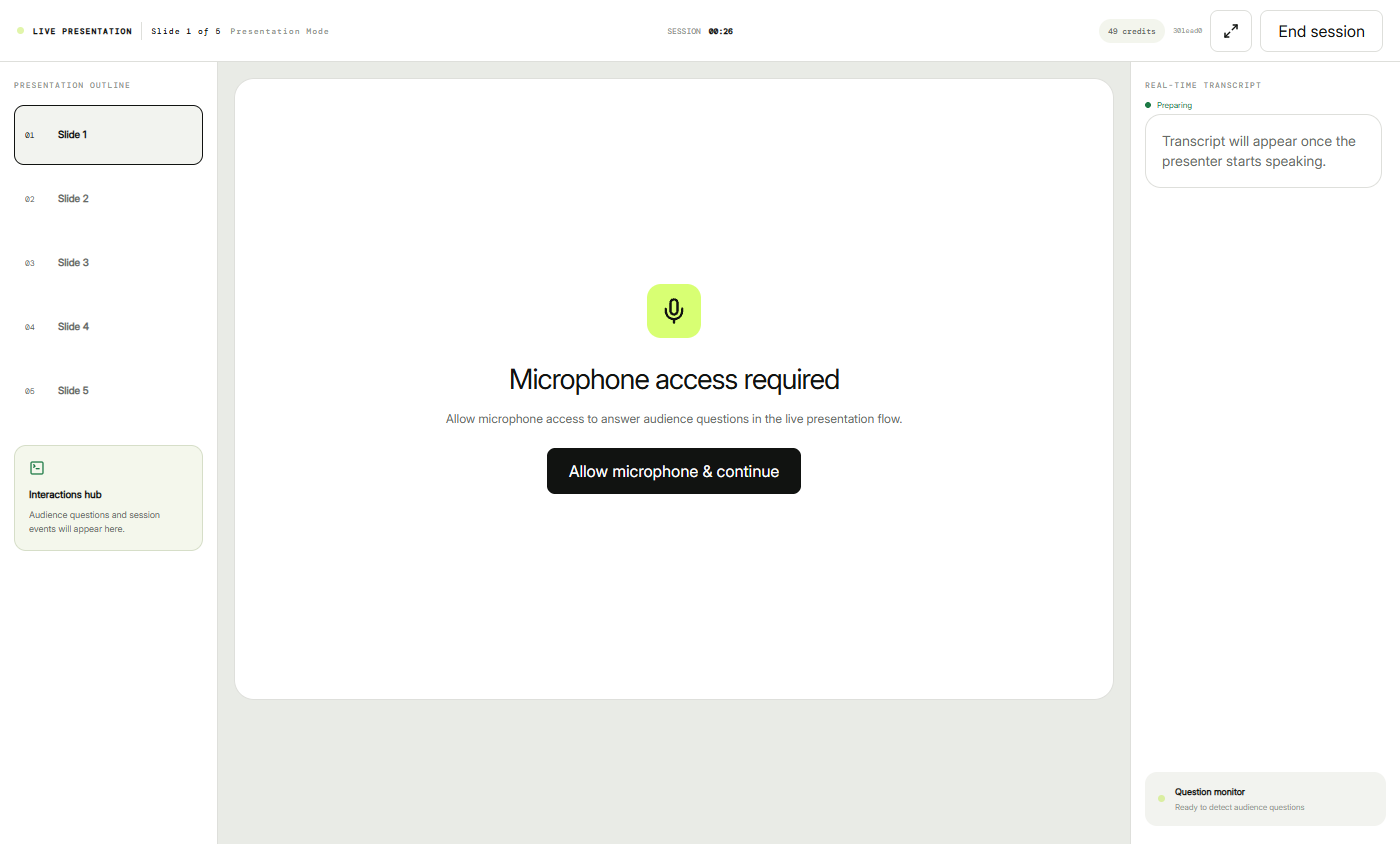
- Allow the microphone. SlideSpoken asks for the microphone even with Q&A off. Click Allow microphone & continue, then Allow in your browser’s pop-up. Don’t wait too long here: in our run, a 5-minute wait meant slides 2 to 5 did not load on screen, although the narration and report still worked.
It asks for the microphone, even with Q and A off. Allow it in your browser.
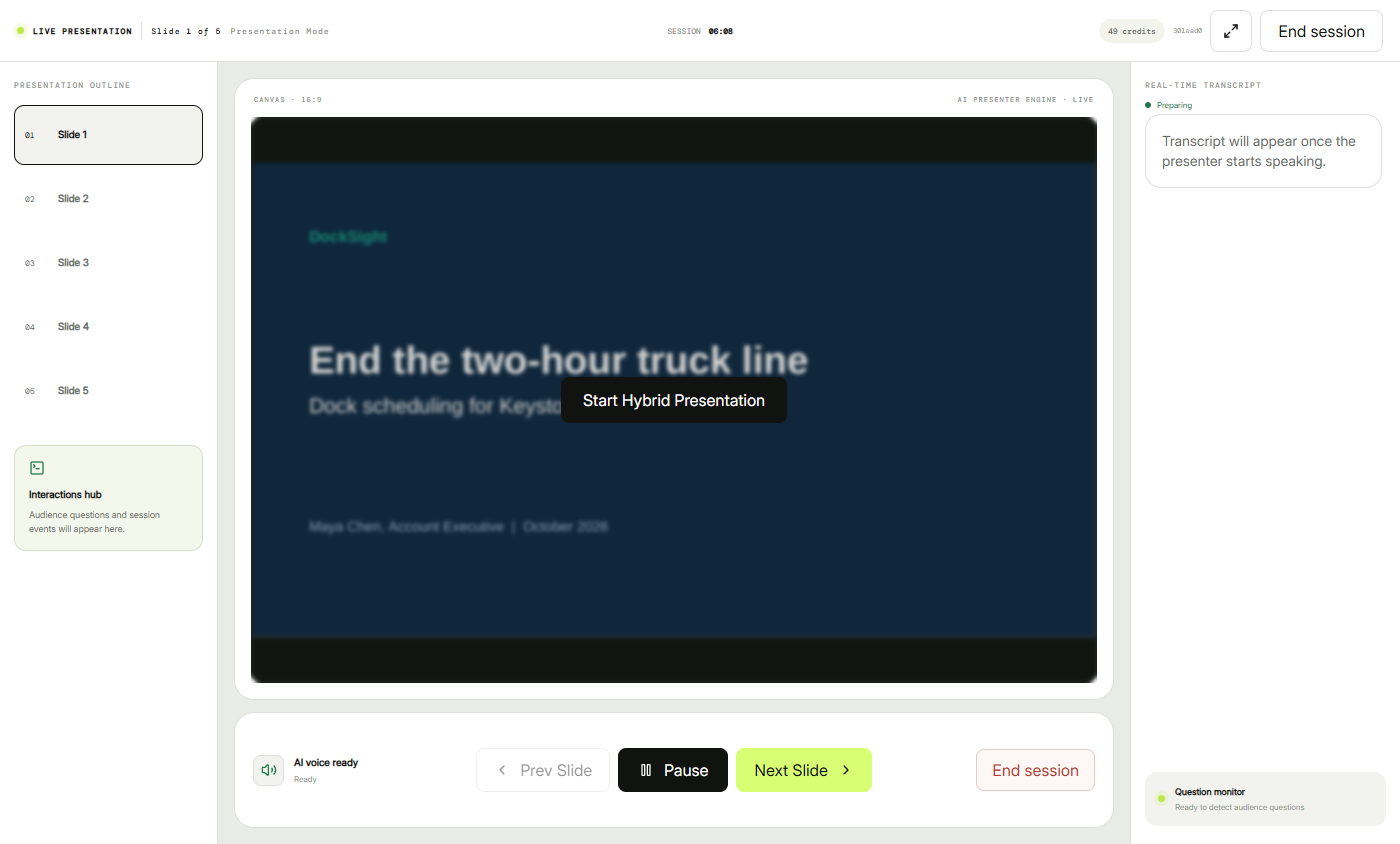
- Start the AI presenter. The status says AI voice ready. Click Start Hybrid Presentation, and turn your speakers up for the room.
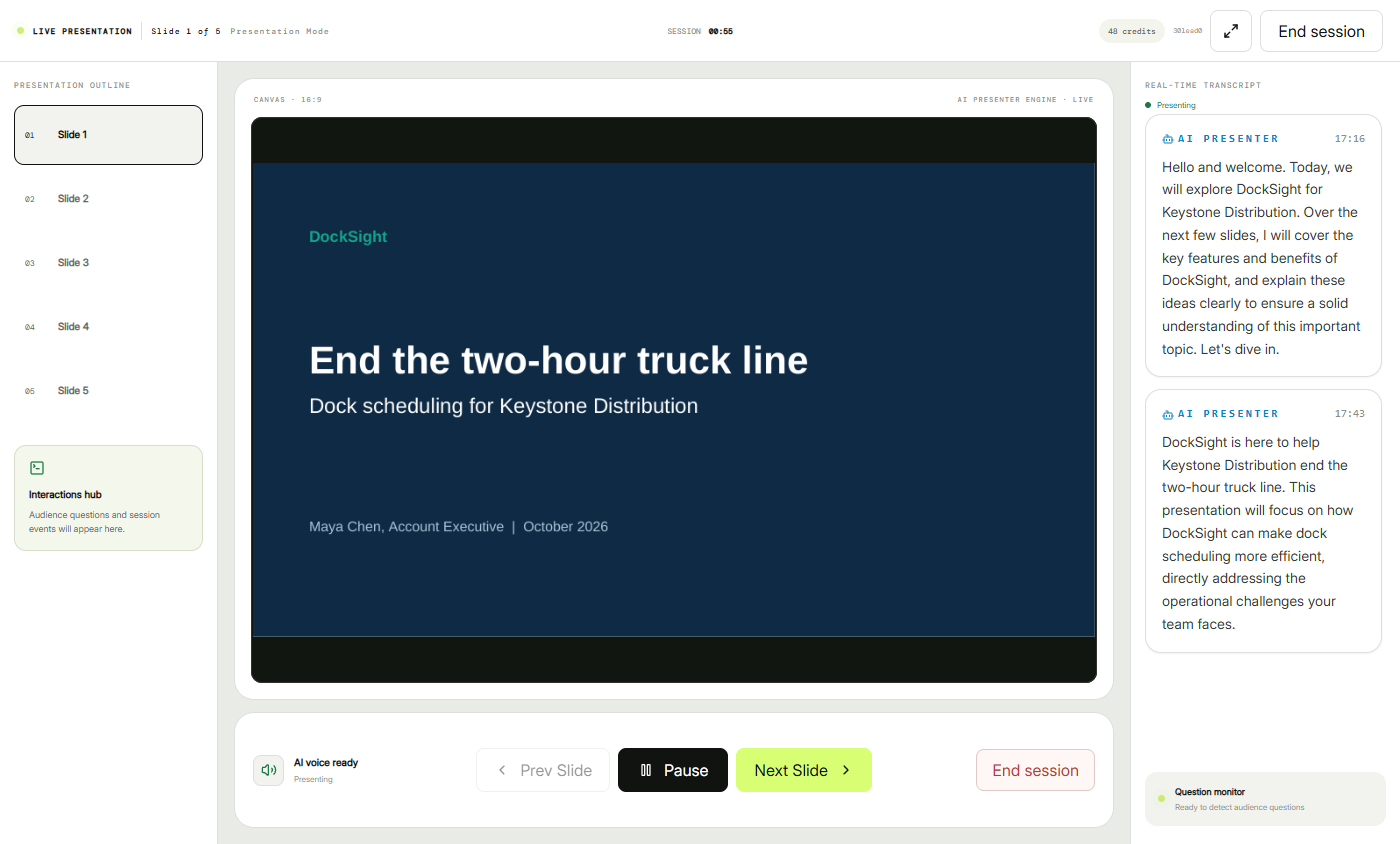
- Watch it present. The AI Presenter speaks each slide and moves on by itself. The Real-time transcript shows what it says: it opens with the two-hour truck line, then the detention fees. You can still use Pause, Prev Slide and Next Slide. Our 5 slides took about 3 minutes and 3 credits.
It speaks each slide and moves on by itself. The transcript shows what it said. You can still pause or skip.
3. Review the presentation report
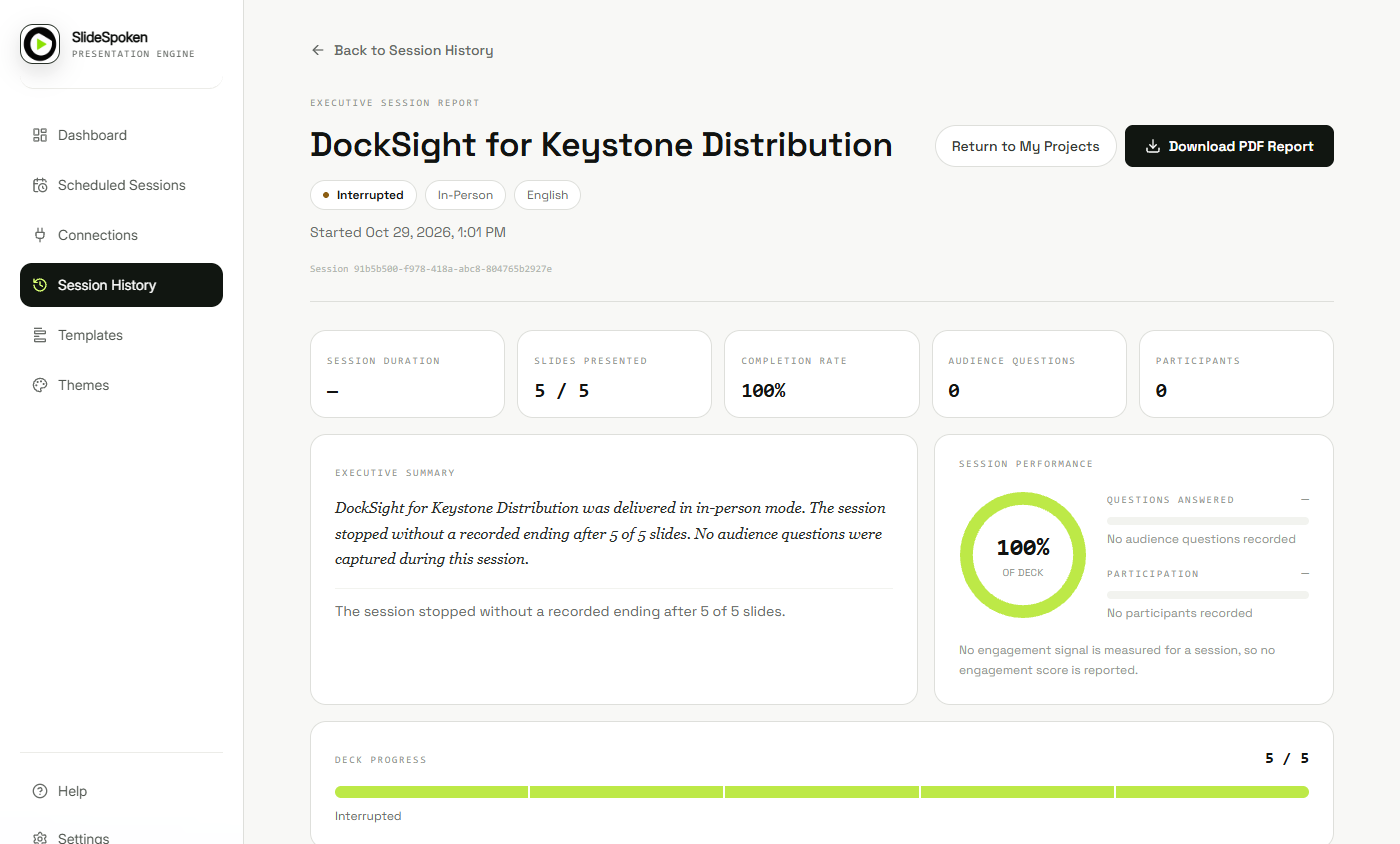
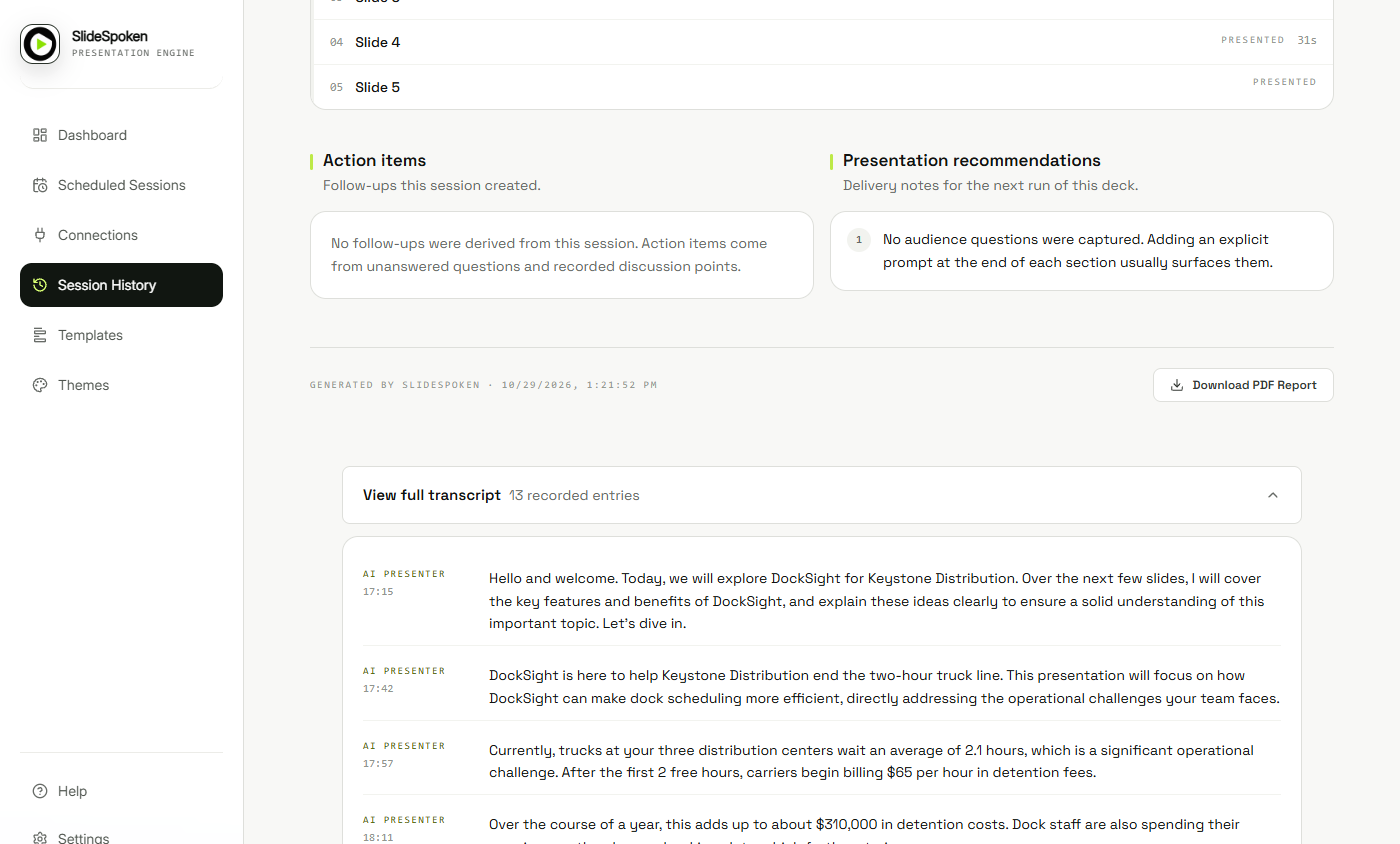
- Read the session report. When the last slide ends you land on the Executive Session Report: 5 / 5 slides, 100% completion, 0 questions. Ours says Interrupted because the session closed without a recorded ending; it still delivered every slide.
The report shows every slide was delivered. It says interrupted because the session closed without a formal ending.
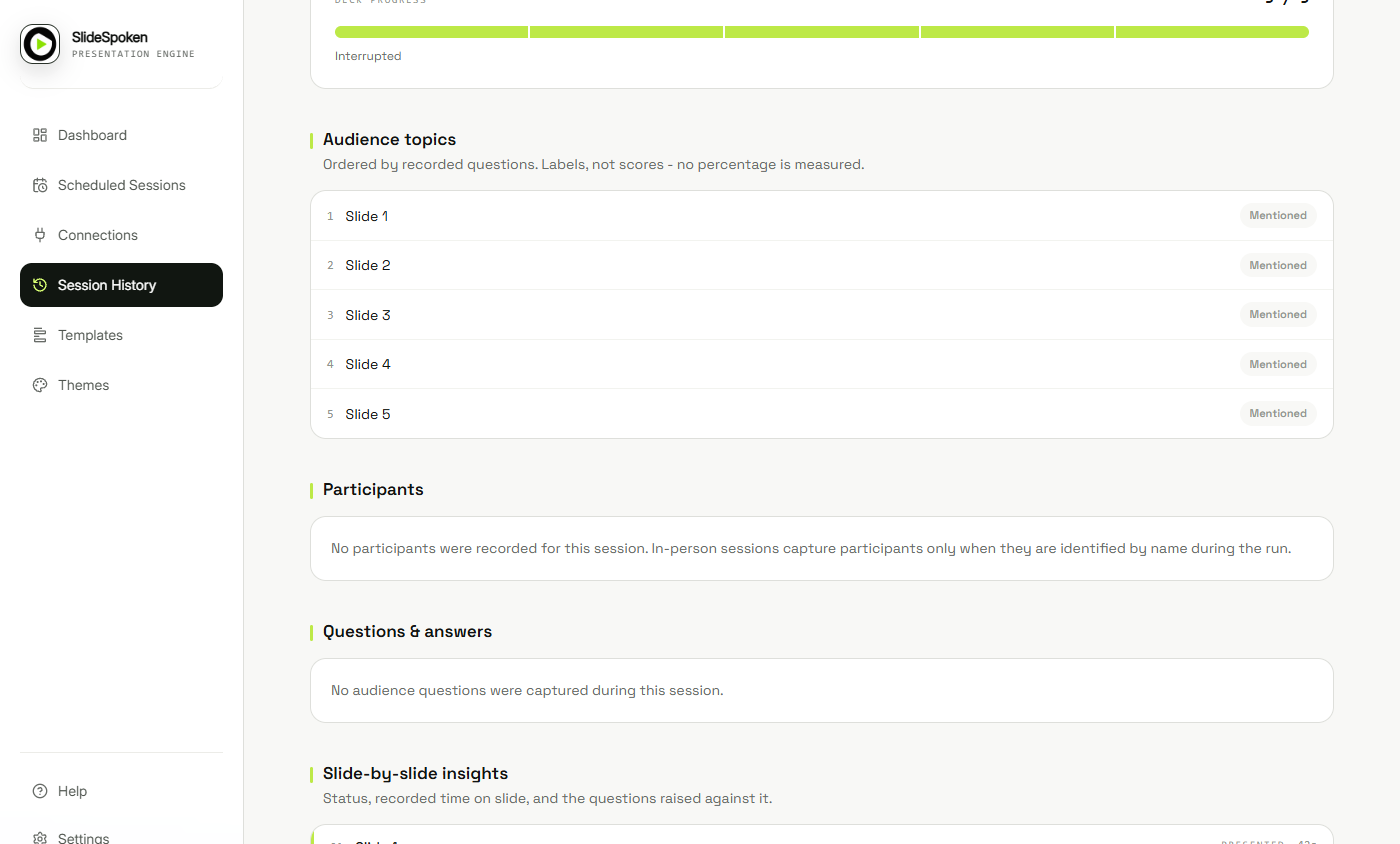
- Scroll the report. Below: Audience topics, Participants and Questions & answers. With Q&A off these stay empty; turn it on for a real demo and the questions land here. Scroll down.
With Q and A off, the questions section is empty. Turn it on for real demos.
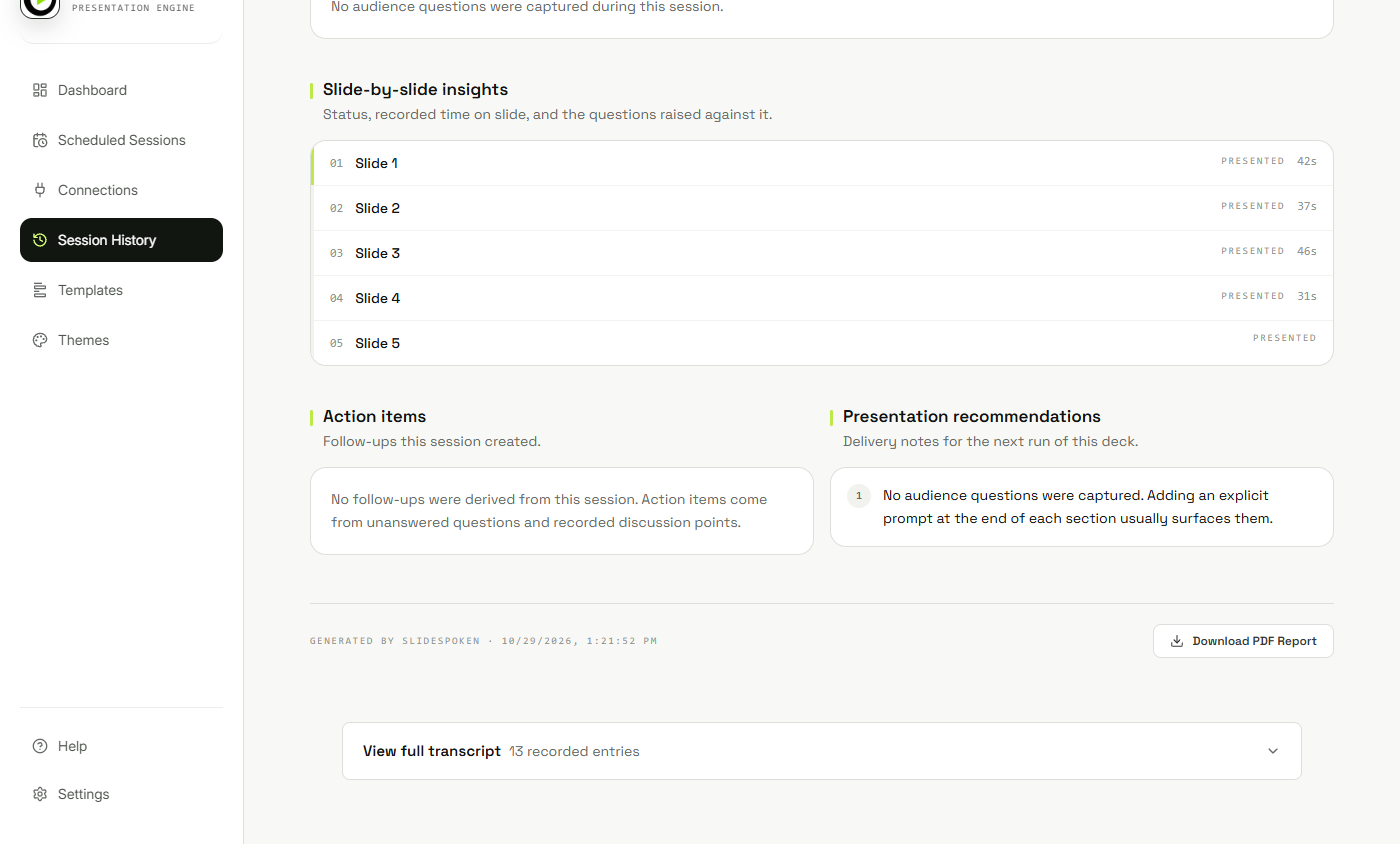
- Open the transcript. Slide-by-slide insights show the time on each slide (42, 37, 46 and 31 seconds), and Presentation recommendations suggest adding a question prompt after each section. Click View full transcript.
You get the time spent on each slide, and tips for next time.
- Check the claims. All 13 recorded lines, with times. Read them against the slides: the numbers it quoted ($65 an hour, 2.1 hours, $310,000, $1,200 per DC) all come from the deck. Download the PDF report to keep with the opportunity in your CRM.
Read the transcript against your slides. The numbers it quoted all come from the deck. Keep the report with the deal.
Screenshots
More in Business Automations
 AI Receipt Extractor: Receipts to Google Sheets with n8n
Drop a photo of a receipt into an n8n chat. An AI agent reads it, pulls out the date, vendor and amount, picks a category, and adds a row to Google Sheets.
Free · Live ~12 min Intermediate
 n8n AI Email Responder: Draft Gmail Replies Automatically
Build an n8n agent that watches your Gmail, reads each new customer email, and writes a reply as a draft in the same thread, ready for you to check and send.
Free · Live ~12 min Intermediate
 Daily Job Alerts: Email Each Tech Their Jobs from Google Sheets with n8n
Every morning at 7, n8n reads a plumbing company's jobs sheet, skips anything not assigned yet, and emails each job to the tech it's assigned to — customer, address…
Free · Live ~10 min Intermediate
 Gmail AI Triage: Auto-Label Every Email and Draft Replies
Build an n8n workflow that reads each new email, sorts it as a lead, a client or an invoice with a Text Classifier, adds the matching Gmail label, and drafts a reply to…
Free · Live ~18 min Advanced
 A Support Agent That Answers from Your Own Docs
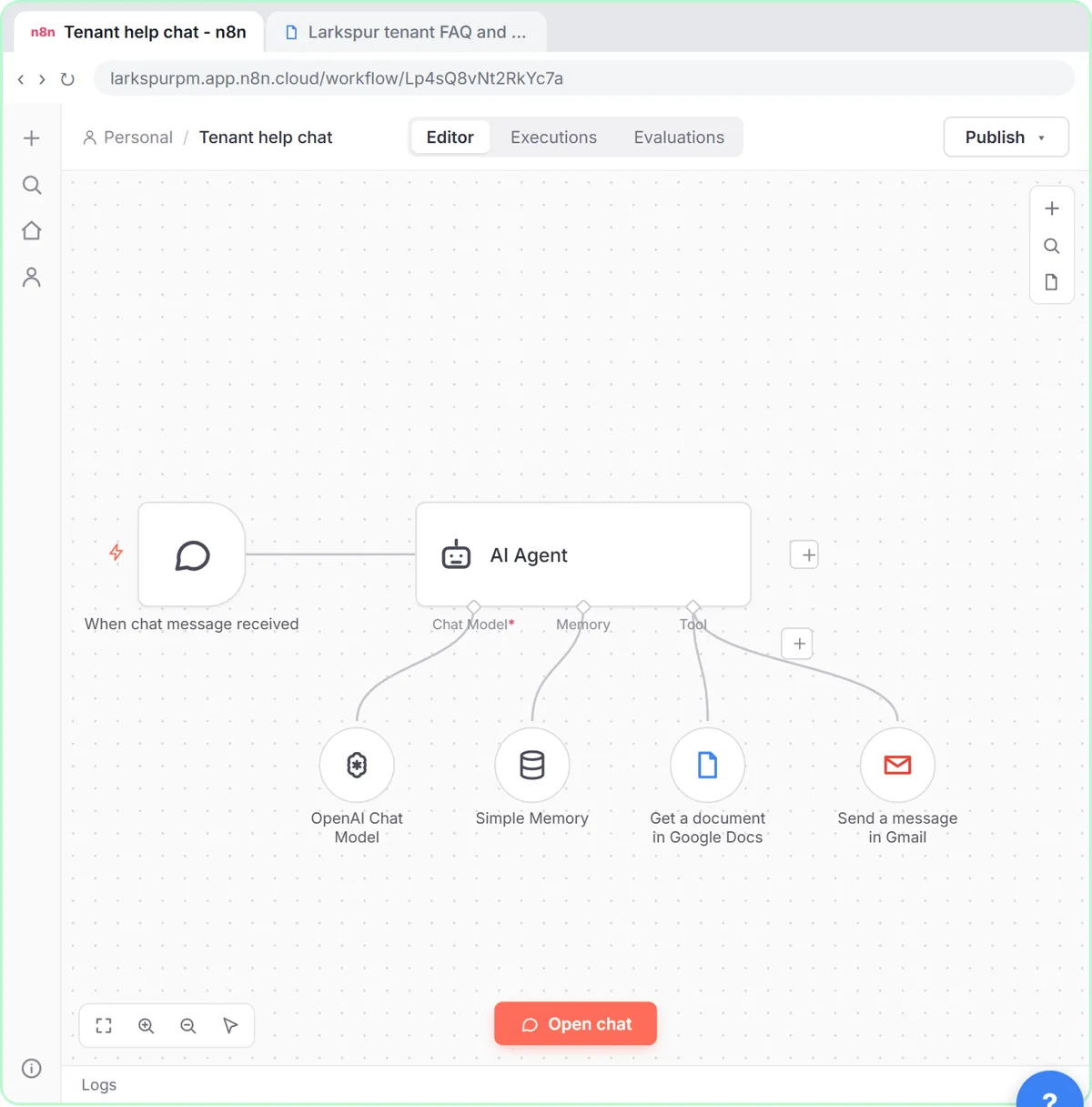
Turn an n8n chat agent into a support agent that answers only from your policies in a Google Doc, refuses what it should, and hands off to a person by email.
Free · Live ~13 min Advanced
 Chatbase: Answer Customer FAQs with an AI Agent
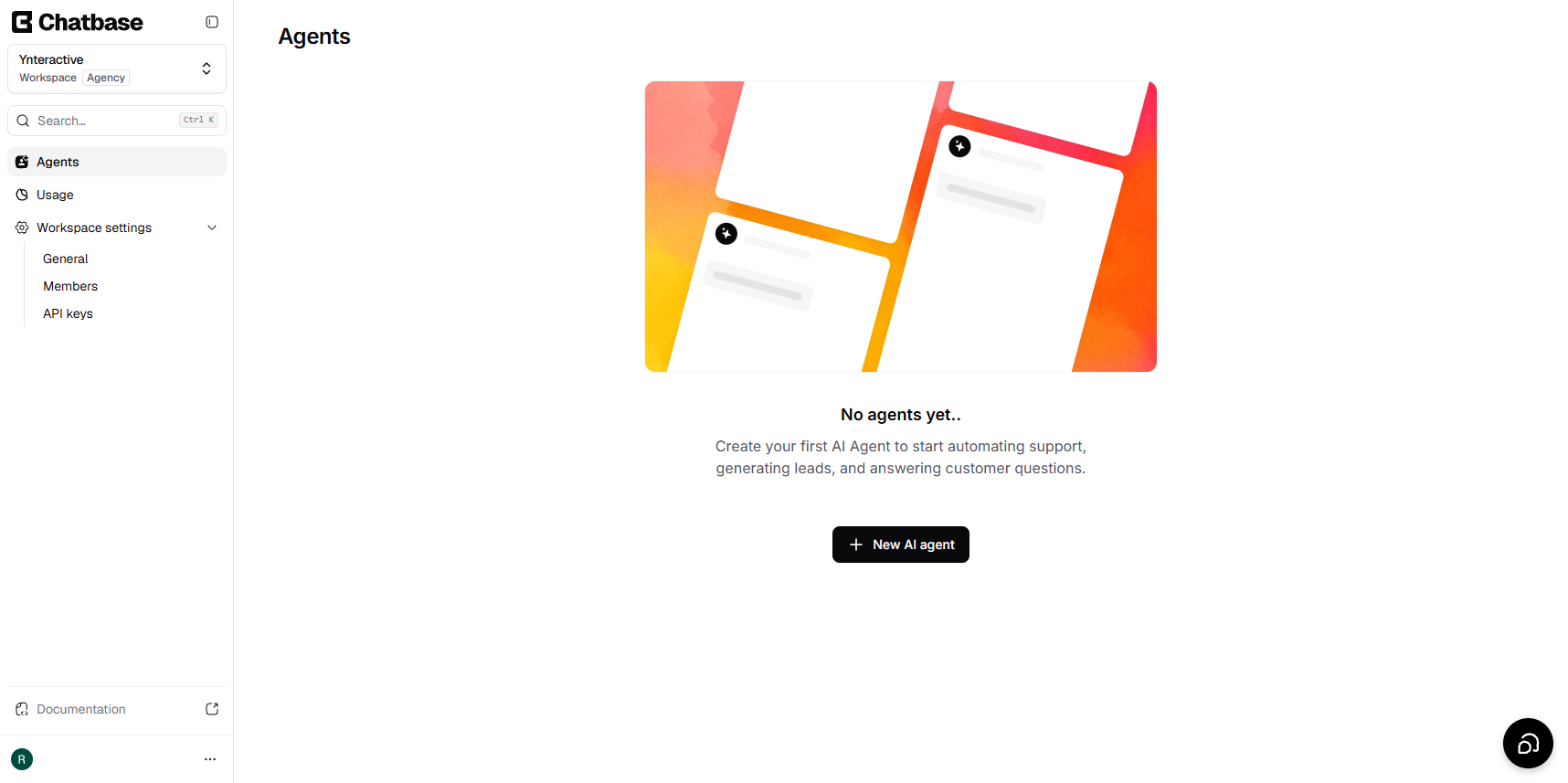
A business case for a small firm that answers the same customer questions every week: build a Chatbase AI agent on your FAQ in the real app, make it say when it does…
Free · Live ~15 min Beginner
All 19 modules in Business Automations
Terms in this lesson
Plain-English definitions, each with an example from a free lesson.