Why this matters
Sales reps give the same first-call pitch again and again: the problem, how the product works, proof from a similar customer, and the price. Delivering it live every time takes attention away from listening to the buyer, and nobody knows afterwards which slide ran long.
SlideSpoken turns the deck you already have into a spoken presentation. You tell it who is in the room and how to pitch, it presents every slide with a live transcript, and it writes a session report you can keep with the deal.
Practice
Do every step yourself in a practice copy of the real tool. It checks your work, and “Do it for me” finishes any step you get stuck on.
What you’ll build
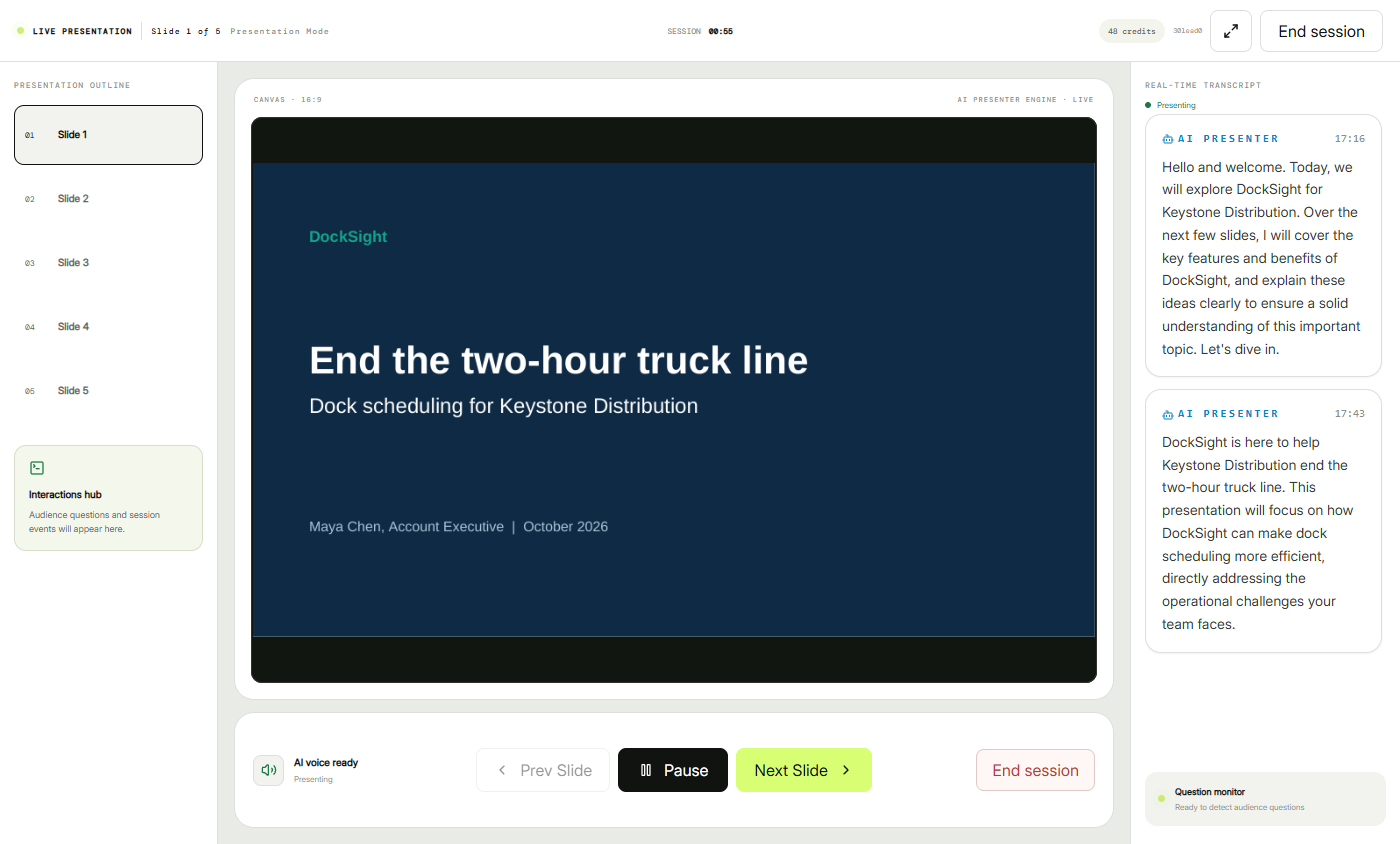
You are Maya, an account executive at a made-up dock-scheduling software company, pitching a regional distributor. You upload her 5-slide PDF, set the audience and a talk track that says to use only the numbers on the slides, and start an In-Person presentation with Live Q&A off.
The AI Presenter delivers all 5 slides in about 3 minutes, then you read the Executive Session Report: slides presented, time on each slide, recommendations and the full transcript. The screens are real screenshots from my own SlideSpoken account, captured October 2026.
What you need
- Nothing to start the practiceThe lesson is a practice copy. The company, the prospect and the deck are made up.
- A SlideSpoken account, to do it for realSlideSpoken runs on credits; our 5-slide run used about 3. Plans change; check the site for what yours includes.
- A PDF or PowerPoint deckUp to 60 slides and 50 MB. Use the sample deck below to try it.
- Microphone permission and speakersThe live screen asks for the microphone even with Live Q&A off.
Concepts
Audience and instructions steer the pitch
The Audience field tells the presenter who it is talking to, and the AI instructions work like coaching notes: length, what to lead with, and guardrails.
In sales, one guardrail matters most: only use the numbers on the slides. Then check the transcript to confirm it did.
In-Person, Agent Mode and Live Q&A
In-Person Mode presents from your screen or a room display. Agent Mode joins Zoom, Google Meet or Microsoft Teams as a participant instead.
Live Q&A lets the presenter hear and answer audience questions. Leave it off for a first run, then turn it on for real demos so the questions show up in the report.
Do it for real
Now repeat it in your own account. Tick each step as you go.
Downloads
- Sample sales deck: DockSight for Keystone Distribution (PDF)The made-up 5-slide pitch from the lesson: the problem, how it works, results and the pilot price.
Quick check
3 questions to check you’ve got it.
1. Where do you tell the AI Presenter to use only the numbers on your slides?
- In the AI instructions when you upload the deck
- In the Audience field
- Nowhere, it decides for itself
Show the answer
In the AI instructions when you upload the deck. The AI instructions are your coaching notes and guardrails.
2. You want it to present on a Zoom call instead of a screen in the room. Which mode?
- Agent Mode
- In-Person Mode
- Training
Show the answer
Agent Mode. Agent Mode joins the online meeting as a participant.
3. The report shows 0 audience questions. Why, in this lesson?
- Live Q&A was turned off
- Nobody liked the deck
- The upload failed
Show the answer
Live Q&A was turned off. With Live Q&A off, it does not listen for questions.