Why this matters
Many sales managers copy the team pipeline into the weekly report by hand. It eats an hour or more every Monday, the numbers are out of date by Tuesday, and a deal at the wrong stage can reach the owner.
Coefficient is an add-on for Google Sheets that pulls data from other systems into a sheet and refreshes it on a schedule. In our test it imported a sheet of 12 made-up deals in a few clicks and kept it on a daily 9:00 AM refresh.
Practice
Do every step yourself in a practice copy of the real tool. It checks your work, and “Do it for me” finishes any step you get stuck on.
What you’ll build
You help Carla Mendez, who manages a four-person sales team at Keystone Advisory Group, a made-up company. She copies the pipeline into the Weekly Sales Report every Monday, and last week a deal reached the owner at the wrong stage.
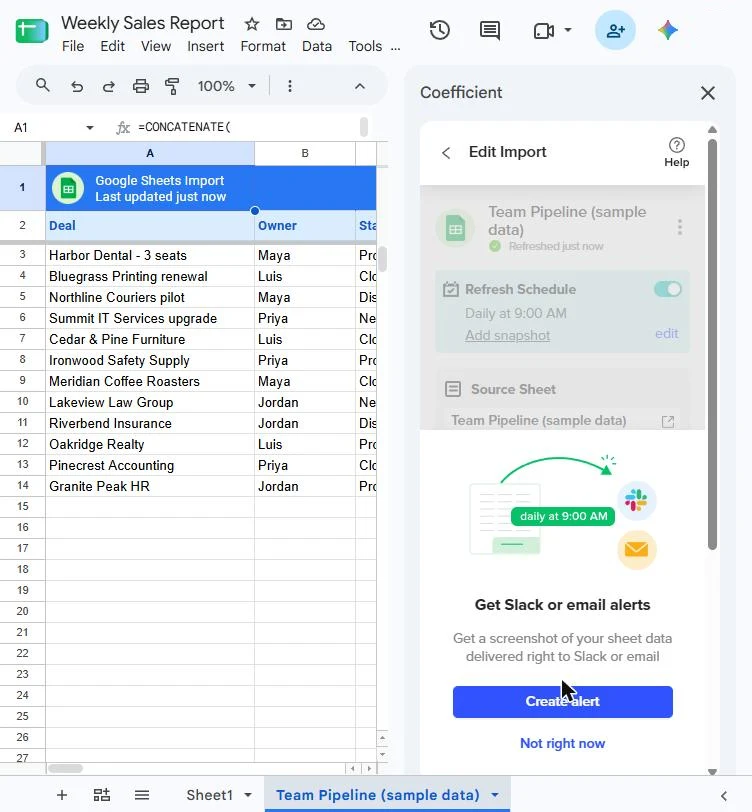
You launch Coefficient from Extensions, answer the first-time questions, choose Import, Files and Google Sheets, check Tab, Range and Header, keep all six columns, import, and turn on a daily refresh. You then look at the optional alerts screen. The screens are real Coefficient screenshots, captured October 2026.
What you need
- Nothing to start the practiceThe lesson is a practice copy built from real screenshots. Keystone Advisory Group and every deal are made up.
- Google Sheets and the Coefficient add-on, to do it for realInstall Coefficient from the Google Workspace Marketplace. Plans are at coefficient.io/pricing, read 16 October 2026: Free is $0 a month with manual refresh, Starter is $49 a month billed annually ($59 month to month) and adds daily auto data refresh, Pro is $99 per user a month billed annually ($119 month to month) and adds hourly refresh, and there is a 30-day free trial of Pro.
- A source sheet or systemThis lesson imports from another Google Sheet. Coefficient also lists sources such as Salesforce and HubSpot, which we did not test.
- Made-up data firstPractise on a copy before you point it at a real CRM or a client list.
Concepts
Import once, refresh on a schedule
In Coefficient you choose Import, then where the data lives. For another Google Sheet the path is Files, then Google Sheets. You pick the source, check Tab, Range and Header, and choose the columns. The data lands in a new tab with a header that reads Last updated just now.
Coefficient then asks whether to auto-refresh: Hourly, Daily or Weekly, at a time you choose. We picked Daily at 9:00 AM. The pricing page lists manual refresh for the Free plan and daily auto data refresh from Starter.
Choose only the columns the report needs
Coefficient lists every column it finds, such as 6 of 6 Columns, all ticked. Untick what the report does not need, and use the optional Filters to limit which rows come in. A smaller import is easier to read and easier to check.
Alerts are a next step, not part of the test
After the import Coefficient offers Slack or email alerts, which lead to an Agentic Alerts screen. We looked at that screen and stopped, so we cannot say how an alert behaves. Try it on made-up data before you rely on it.
Do it for real
Now repeat it in your own account. Tick each step as you go.
Quick check
3 questions to check you’ve got it.
1. Where in Google Sheets do you start Coefficient?
- Extensions, then Coefficient, then Launch
- Data, then Pivot table
- File, then Import
Show the answer
Extensions, then Coefficient, then Launch. Coefficient is an add-on, so it is launched from the Extensions menu.
2. Your report must update itself every morning. What do you check first?
- That the imported tab has a header row
- Which Coefficient plan includes automatic refresh
- Which column is first
Show the answer
Which Coefficient plan includes automatic refresh. The pricing page lists manual refresh for the Free plan and daily auto data refresh from Starter, so check the plan before you plan around it.
3. The report needs only four of the six columns. What do you do?
- Import all six and hide four later
- Untick the extra columns before you click Import
- Delete the columns in the source sheet
Show the answer
Untick the extra columns before you click Import. The columns checklist lets you choose what comes in, so the source sheet stays untouched.
You reached the end of AI Apps Worth Knowing
You pulled live data into a sheet and set it to refresh. Review the apps you have met in this course and pick one to try on your own work.
Pick your next course →