Updated . Built against the tool’s current screens and checked step by step. How we check this lesson
On a cross-language supplier call, the part you didn't fully understand is usually the part that matters: the date, the quantity, the reason for a delay. OLVA is a third-party AI meeting assistant that runs on your computer instead of joining the call as a bot, and it can translate the live transcript. In this free lesson you click through real OLVA screens as a project manager on a weekly packaging call with a plant in Monterrey: you turn on Translate the live transcript, follow the call in the side-by-side view, then find the Spanish lines in the saved transcript by their language tag and turn them into a confirm-back email.
Stepthrough partner. OLVA links to our OLVA lesson from its site. No payment or free plan was involved.
At a glance
| Question | Answer |
|---|---|
| What you build | Turn on OLVA's live transcript translation before a call with a supplier who switches to Spanish, follow both languages side by side, then find the Spanish lines in the saved transcript and confirm dates in writing. Every screen is the real OLVA app. |
| Tools | OLVA |
| Time | About 5 minutes, 10 steps in 3 parts |
| Level | Intermediate |
| Cost | Free |
| Ways to learn it | Practice it step by step |
The 3 parts, in short
- Turn on live translation before the call: Open Settings, Turn on Translate the live transcript, Go back.
- Run the supplier call: Start OLVA, Start Olva, Switch to the side-by-side view, Read the Spanish, then end the call, and 1 more step.
- Confirm what was agreed, in writing: Open the transcript, Copy the transcript for a confirm-back email.
Part of: AI for Operations Teams (step 40 of 40)
Part of: AI Apps Worth Knowing (step 135 of 140)
Part of: AI for Meetings (step 19 of 19)
Part of: Turn Talk Into Work: Voice and Meetings AI (step 9 of 9)
The business problem: the important part was in Spanish
Weekly status calls with an overseas or nearshore supplier often switch languages for the details. You follow the gist, nod at the date, and only find out weeks later that December 15 was a deadline for your forecast, not a ship date. A misread date or quantity turns into rush freight, a slipped launch or an order the plant never planned for.
An interpreter is hard to justify for a weekly call, and asking someone to repeat every number slows it down. The habit that works is simple: follow along in your language during the call, say the key numbers back, and confirm them in writing afterwards. This lesson uses OLVA's live transcript translation for the first part and the saved transcript for the last.
What you will do: one supplier call, start to finish
You are Dana Whitfield, a project manager at Brightwater Home Goods, a made-up housewares brand, on the weekly packaging call with Marisol Garza, plant manager at Envases del Norte, a made-up packaging plant in Monterrey. Everyone in the example is made up.
Before the call you open Settings and turn on Translate the live transcript. During the call you switch to the side-by-side view and read a Spanish line about safety stock and a forecast deadline. After the call you open Transcript & Notes, where every line is tagged EN or ES, and copy the transcript for a confirm-back email. Every screen is the real OLVA app from our own test call. We had translation off in that test, so the lesson says where it can't show the translated text.
Who this is for
Project managers, buyers, operations and supply chain staff who run calls with suppliers, plants or partners who are more comfortable in another language. You do not need any AI experience. The lesson is built from screenshots of the real OLVA app, so nothing listens to a real call and you do not need an OLVA account to take it.
Step 1: turn on translation before the call
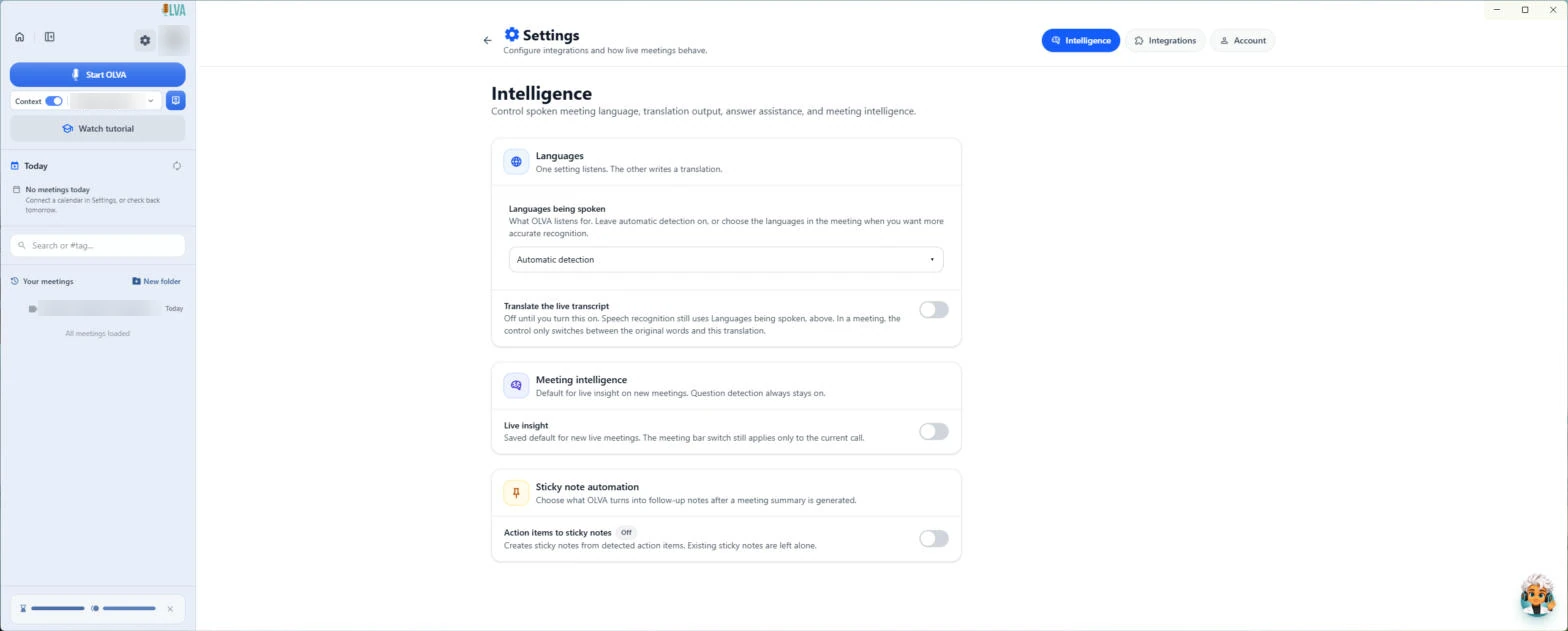
In OLVA, click the Settings gear and stay on Intelligence. Under Languages, one setting listens and the other writes a translation. Languages being spoken can stay on Automatic detection, or you can pick the languages in the meeting for more accurate recognition. Translate the live transcript is off until you turn it on; then you choose your output language.
This is a setting, so you do it once, not on every call.
Step 2: follow both languages during the call
Tell everyone you are taking AI notes with a translation before you click Start OLVA. Some places require consent to record or transcribe. OLVA listens through your computer and opens beside the call, so it does not appear as a participant.
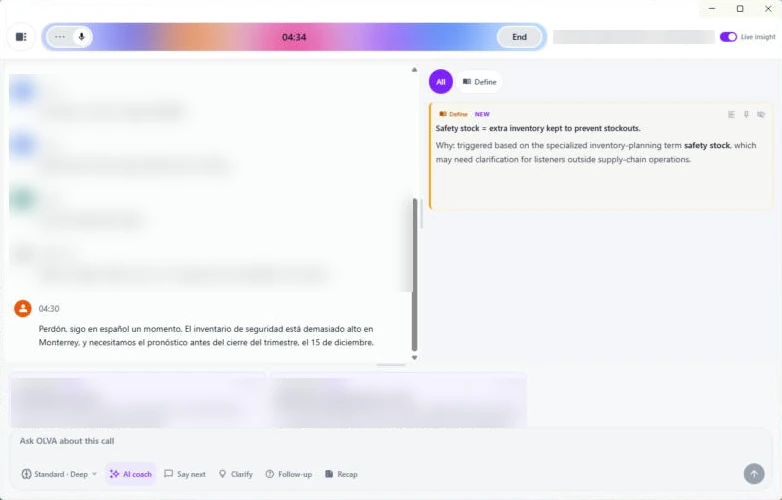
With translation on, OLVA puts a control with the transcript that switches between the original words, the translation, or both. The side-by-side view gives the transcript more room. In our test call a Define card also explained safety stock, the same term the supplier had just used in Spanish. Before you hang up, say the key date and numbers back in your language and ask the supplier to confirm.
Step 3: confirm what was agreed, in writing
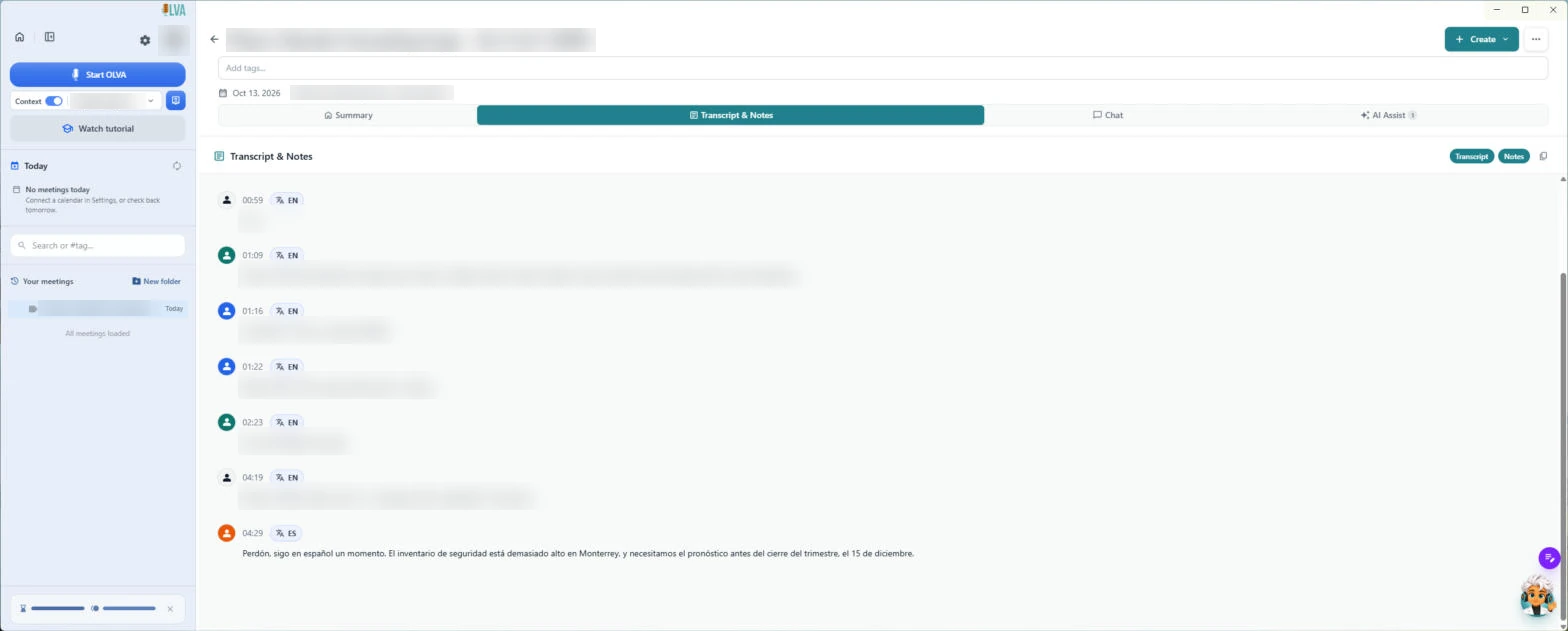
Click End and confirm Stop Meeting. The meeting opens on Summary. Open Transcript & Notes: every line carries its language tag, EN or ES, so the Spanish parts are easy to find, and OLVA says the original/translation switch works in saved transcripts too.
Copy the transcript and send the supplier a short confirm-back email with the dates and quantities. Their written yes, not the translation, is what goes into your project plan.
What this saves you
- Following a supplier's details in your own language while they speak in theirs.
- Dates and quantities caught on the call, not discovered weeks later.
- A transcript tagged by language, so you can find what was said in Spanish in seconds.
- A confirm-back email that starts from the record, not from memory.
Mistakes to avoid
- Planning on a translated number without confirming it. Machine translation is weakest on numbers, names and jargon.
- Turning translation on mid-call for the first time. Set it up before the call.
- Skipping consent. Tell everyone you are taking AI notes, and follow the law and your company's rules.
- Putting confidential supplier pricing into an outside app without checking your company's rules first.
Links
- OLVA (olva.ai): the meeting assistant this lesson teaches. It is a separate product with its own account and plans.
- OLVA: Translation switch: OLVA's own note on switching between the original, the translation or both, live and in saved transcripts.
- OLVA how-to guides: OLVA's short lessons, including live translation.
Try it yourself, free
Reading the steps is a start. Doing them is how it sticks. The interactive module walks you through every click in a practice copy of OLVA, checks each step, and never touches your real accounts.
Start “OLVA: Follow a Spanish-Speaking Supplier Call with Live Translation”
November 2026 spotlight
OLVA
A private AI assistant that sits beside you during live client calls with notes, prompts and answers, built for consultants, advisors and accountants.
Step by step: OLVA: Follow a Spanish-Speaking Supplier Call with Live Translation
All 10 steps of the interactive module, in order. In the module you watch each one, then do it yourself in a practice copy that checks your work.
1. Turn on live translation before the call
- Open Settings. Your weekly packaging call with Envases del Norte starts in ten minutes, and Marisol, their plant manager, often switches to Spanish for the details. Set up translation first: click the Settings gear at the top of OLVA's sidebar.
When a supplier switches to Spanish for the details, you nod along and hope you caught the date. Set up translation before the call.
- Turn on Translate the live transcript. Settings opens on Intelligence. Under Languages, one setting listens and the other writes a translation. Languages being spoken can stay on Automatic detection, or pick English and Spanish for more accurate recognition. Now click the Translate the live transcript switch and choose English as your output language. It's off until you turn it on. We didn't change this setting in our test, so the switch shows off here and we can't show the output-language choice.
One setting listens, the other translates. Leave the spoken languages on automatic, or pick English and Spanish. Then switch on Translate the live transcript, and choose English as the output.
- Go back. Click the back arrow next to Settings.
2. Run the supplier call
- Start OLVA. The call is starting in Teams. Tell Marisol you're taking AI notes with a translation (some places require consent to transcribe), then click Start OLVA.
Tell the supplier you're taking AI notes, with a translation. Some places need their consent.
- Start Olva. The first time, OLVA says Language detection is automatic. Change language setting takes you back to the spoken languages you just saw. Click Start Olva.
The first time, OLVA tells you it detects the language for you.
- Switch to the side-by-side view. The live window opens beside the call. With translation on, OLVA puts a control with the transcript that switches between the original words, the translation, or both. We didn't capture it, because translation was off in our test. For a two-language call, give the transcript more room: click the layout button left of the controls.
The live window opens beside the call. With translation on, a control by the transcript switches between the original, the translation, or both. Give the transcript more room.
- Read the Spanish, then end the call. Marisol switches to Spanish. This is a real Spanish line from our test call, shown in the original because translation was off. In English (our translation, not OLVA's): "Sorry, I'll keep going in Spanish for a moment. The safety stock is too high in Monterrey, and we need the forecast before the quarter closes, on December 15." With translation on, you'd read the English beside the original as she speaks. And notice the Define card on the right (Live insight was on in our test): safety stock is the "inventario de seguridad" she just mentioned. Before you hang up, say the date and the numbers back in English and ask her to confirm. A translation helps you follow; the supplier's confirmation is what you plan on. Then click End.
Marisol switches to Spanish. With translation on, you read the English beside her words as she speaks. Before you hang up, say the date back and ask her to confirm.
- Stop the meeting. Click Stop Meeting.
3. Confirm what was agreed, in writing
- Open the transcript. The meeting opens on Summary while OLVA writes it up. To check exactly what was said, click the Transcript & Notes tab.
The meeting opens on Summary. To check exactly what was said, click Transcript and Notes.
- Copy the transcript for a confirm-back email. Every line is tagged with its language, EN or ES, so the Spanish parts are easy to find. OLVA says the original/translation switch works in saved transcripts too. Read the Spanish lines, then click the copy button and paste the dates and quantities into a short confirm-back email to Marisol. Her written yes, not the translation, is what goes in your project plan.
Every line is tagged E N or E S, so the Spanish parts are easy to find. Her written yes goes in the plan, not the translation.
Screenshots
Frequently asked questions
- How does the interactive lesson work?
- Each step is shown to you first (Watch). Then you do it yourself on the same real OLVA screen, which checks that you clicked the right button (Your turn). If you get stuck, press Do it for me. The screens are screenshots from our own test call, so nothing listens to a call and no OLVA account is touched.
- Does the lesson show OLVA's translated text?
- No. We had translation off in our test call, so the lesson shows the original Spanish line, the Translate the live transcript setting (off) and the saved transcript with its EN and ES tags. It says so on each of those steps.
- Is OLVA part of Stepthrough?
- No. OLVA is a separate, third-party product from olva.ai. This lesson is free. To use OLVA for real you need the OLVA desktop app for Windows or Mac and your own OLVA account; check olva.ai for current plans.
- Does OLVA join the meeting as a bot?
- No. OLVA listens through your own computer and opens beside the meeting, so it does not appear as a participant. That is why telling everyone is up to you.
- Can I rely on the translation for dates and quantities?
- Use it to follow the call, then confirm. Say the key numbers back before you hang up and get the supplier's confirmation in writing before anything goes into your plan.
More OLVA tutorials
 OLVA: Answer Every Question on a Sales Discovery Call
Give OLVA your product playbook once. On a discovery call it answers product questions privately and tells you what you still need to ask, then drafts the follow-up…
Free · Live ~8 min Intermediate
 OLVA: Listen in Interviews and Debrief Against the Scorecard
Load the role's scorecard and the resume into OLVA. In the interview it suggests follow-up questions privately and tells you what you haven't covered, then helps you…
Free · Live ~8 min Intermediate
 OLVA: A Private AI Assistant on Your Client Calls
Give OLVA your client notes, get private answers and fact checks during a Zoom call, then turn the meeting into minutes, a follow-up email and a PowerPoint deck.
Free · Live ~9 min Intermediate
◷OLVA: Run Client Planning Meetings Without Losing a Single Follow-upLoad the client's agenda and open items into OLVA. In the meeting it suggests follow-up questions privately and tells you which agenda items you haven't covered, then…
Free · Live ~8 min Intermediate
Terms in this lesson
Plain-English definitions, each with an example from a free lesson.