A connector lets Claude look things up in an app you already use. In the lesson, you connect all three Google apps from Customize > Connectors, then ask one chat to find a price sheet, summarize a customer's email thread and check your week. That's useful because it's real access to your files and inbox, which is also why the mistakes below matter.
Mistake 1: Why does the Google account you pick matter?
Claude can reach whatever that account can open. Fix: connect the work account the job needs, and nothing broader.
The lesson says it plainly: Claude only reaches what your Google account can open, and it only looks when a request needs it. If your personal account and your work account are both signed in, pick on purpose. If one account can open every shared drive in the company, that's what the connector can reach too. The least privilege glossary page explains the principle: give a tool only the access its job needs.
Mistake 2: Why read the Google sign-in screen?
It's the one place that lists exactly what Claude is asking for. Fix: read it, then click Continue only if it matches what you expect.
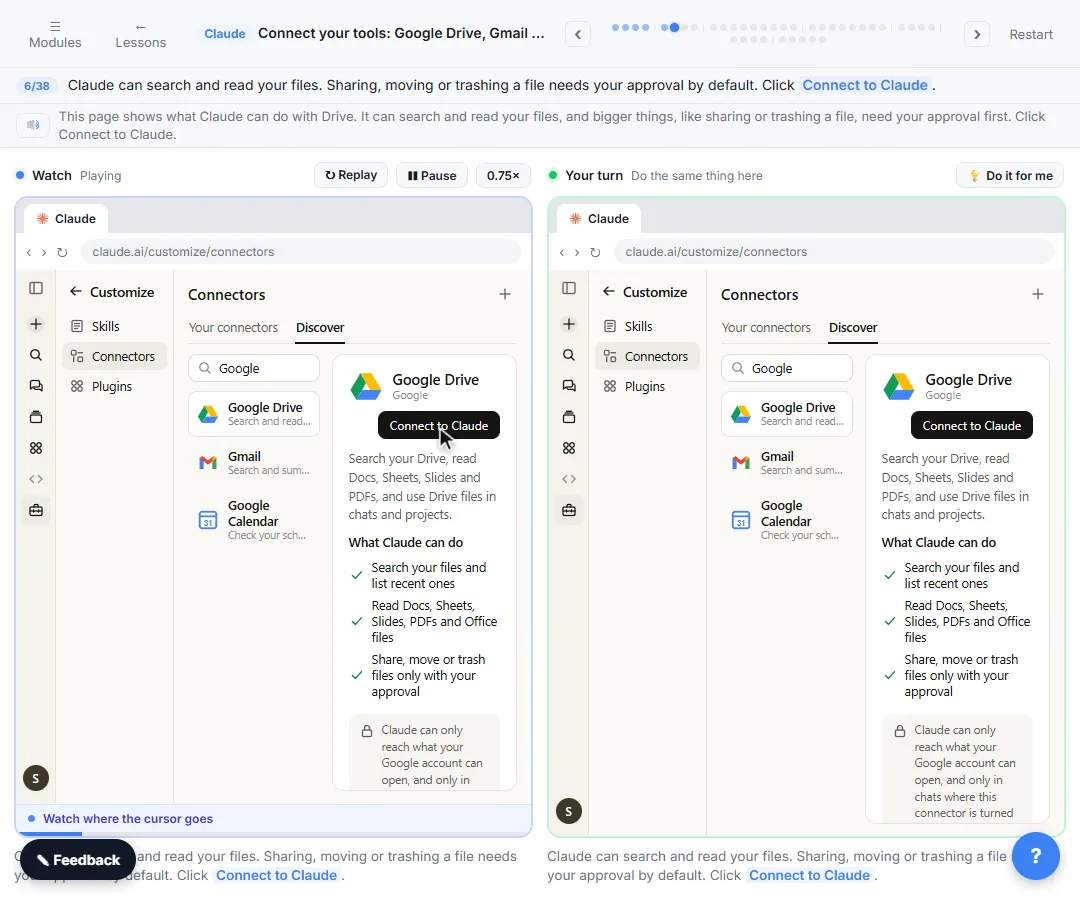
Before that screen, each connector's page in Claude also says what it can do. For Google Drive: Claude can search and read your files, and sharing, moving or trashing a file needs your approval by default. For Gmail: search your email and draft replies, and it asks before it sends, replies or forwards. For Calendar: check your schedule and find open time, and creating or changing events asks first. If what you see doesn't match the job, stop there. The OAuth glossary page explains this kind of sign-in.
Mistake 3: Why not click Always allow on everything?
Because then nothing asks you first. Fix: use Allow once for anything new, and save Always allow for low-risk reads you'll use often.
In the lesson, Claude asks before it uses Search files and Search email, and you click Allow once each time. Only for calendar reads do you choose Always allow: reading your schedule is low-risk and you'll ask a lot. Anything that sends, shares or changes something should keep asking. The agent permissions glossary page covers why.
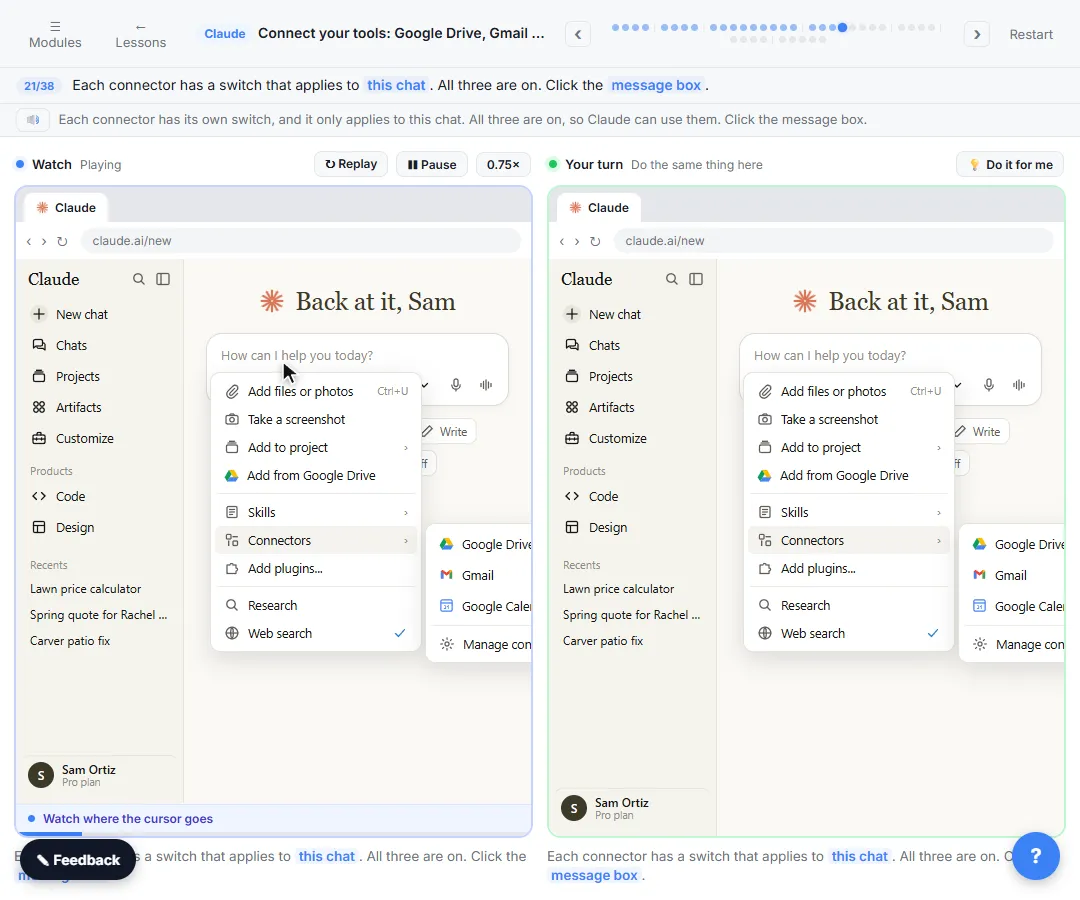
Mistake 4: Why didn't Claude use my connector?
Usually because its switch is off in that chat. Fix: in a new chat, open the + menu, then Connectors, and check the switches.
Each connector has its own switch, and it only applies to the current chat. That cuts both ways: it's why Claude didn't search your Drive, and it's also how you keep a chat about something unrelated from touching your inbox. Note the difference in that menu: Upload or add files attaches one file yourself, while Connectors lets Claude look things up.
Mistake 5: Why check what Claude actually did?
Because an answer from your files can still come from the wrong file. Fix: click the Used Google Drive line above the answer.
Each line under it is one tool call. In the lesson it's a search, then reading that one file, and the answer links back to the price sheet. If the answer quotes a price, open the file and check it's the current version. The same goes for email summaries: in the lesson Claude reads four emails in Dana's thread and lists what she's waiting on. Skim the thread before you act on the summary.
Try it free, step by step
Connect Claude to Google Drive, Gmail and Google Calendar. Connect Google Drive, Gmail and Google Calendar to Claude, then find your price sheet, summarize a customer's email thread and check your week, approving each tool as Claude asks. You do every step yourself in a practice copy of Claude, it checks your work as you go, and “Do it for me” finishes any step you get stuck on. Free, and nothing touches your real accounts.
Start the free lessonMistake 6: Why not let Claude send the reply it drafted?
Because a draft is a suggestion and a sent email is a promise. Fix: read every draft yourself, and keep send on approval.
After the Gmail summary, Claude offers to draft a reply, and it won't send without your approval. That default is the human check. Leave it on. For anything with prices, dates or commitments, the person whose name is on the email reads it first. The human in the loop glossary page explains the idea.
Mistake 7: Why revisit your connector permissions?
Because the choices you made on day one stick. Fix: check Tool permissions now and then, and disconnect what you no longer use.
Under Customize > Connectors, open a connector to see Tool permissions. Each tool can be Always allow, Needs approval or Blocked. The lesson ends by setting List events back to Needs approval, and shows Disconnect at the top, which signs Claude out of Google.
How do you avoid these mistakes as a team?
Write a short connector policy before people connect their own accounts:
- Which apps may be connected, and with which accounts.
- Which tools may be set to Always allow (low-risk reads only).
- Send, share, move, trash and calendar changes stay on Needs approval.
- Every AI-drafted email is read by its sender before it goes out.
- Check permissions quarterly; disconnect what nobody uses.
The lesson notes that on Team and Enterprise plans an Owner turns connectors on for the organization first, which is the natural place to set these rules. For a written policy, see the free Roll Out a Team AI Policy lesson. Connectors are module 10 of the free Claude Jump Start course and module 13 of Safe AI Agents. Your company's IT and security rules come first.
Key takeaways
- Claude reaches what the connected Google account can open, so connect the right account and no broader.
- Read the sign-in screen: it lists exactly what Claude is asking for.
- Use Allow once for new tools and save Always allow for low-risk reads.
- Connector switches are per chat; check them in the + menu.
- Review Tool permissions regularly, and Disconnect what you don't use.
Frequently asked questions
- Can Claude send email from my Gmail without asking?
By default, the lesson says Claude asks before it sends, replies or forwards anything. Keep that tool on Needs approval.
- How do I remove Claude's access to my Google account?
Go to Customize > Connectors, open the connector and click Disconnect.
- What is the difference between Allow once and Always allow?
Allow once lets one tool call through. Always allow stops Claude asking for that tool. You can change either later under Tool permissions.
- Who turns on connectors on a Claude Team plan?
The lesson says an Owner turns them on for the organization first.
- Is Bright Path Landscaping real?
No. Bright Path Landscaping and Dana Whitfield are made up for the lesson.