A Claude skill is a folder with a SKILL.md file inside: a name, a description of when to use it, and your instructions. Claude reads the descriptions and opens a skill only when a request matches. That's what makes skills useful, and it's also why small mistakes in a skill show up in every file Claude makes with it.
Mistake 1: Why does Claude describe the file instead of making it?
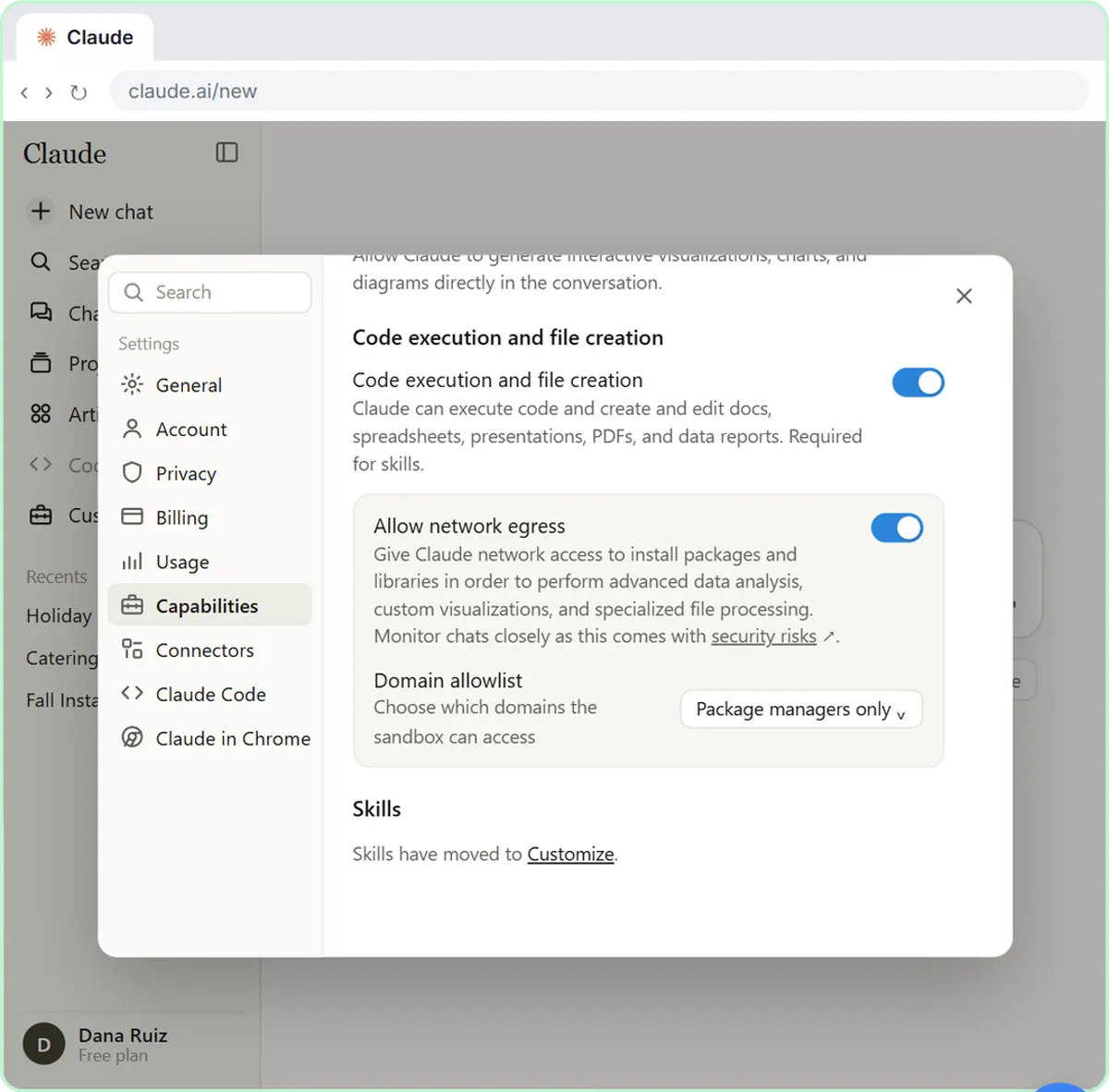
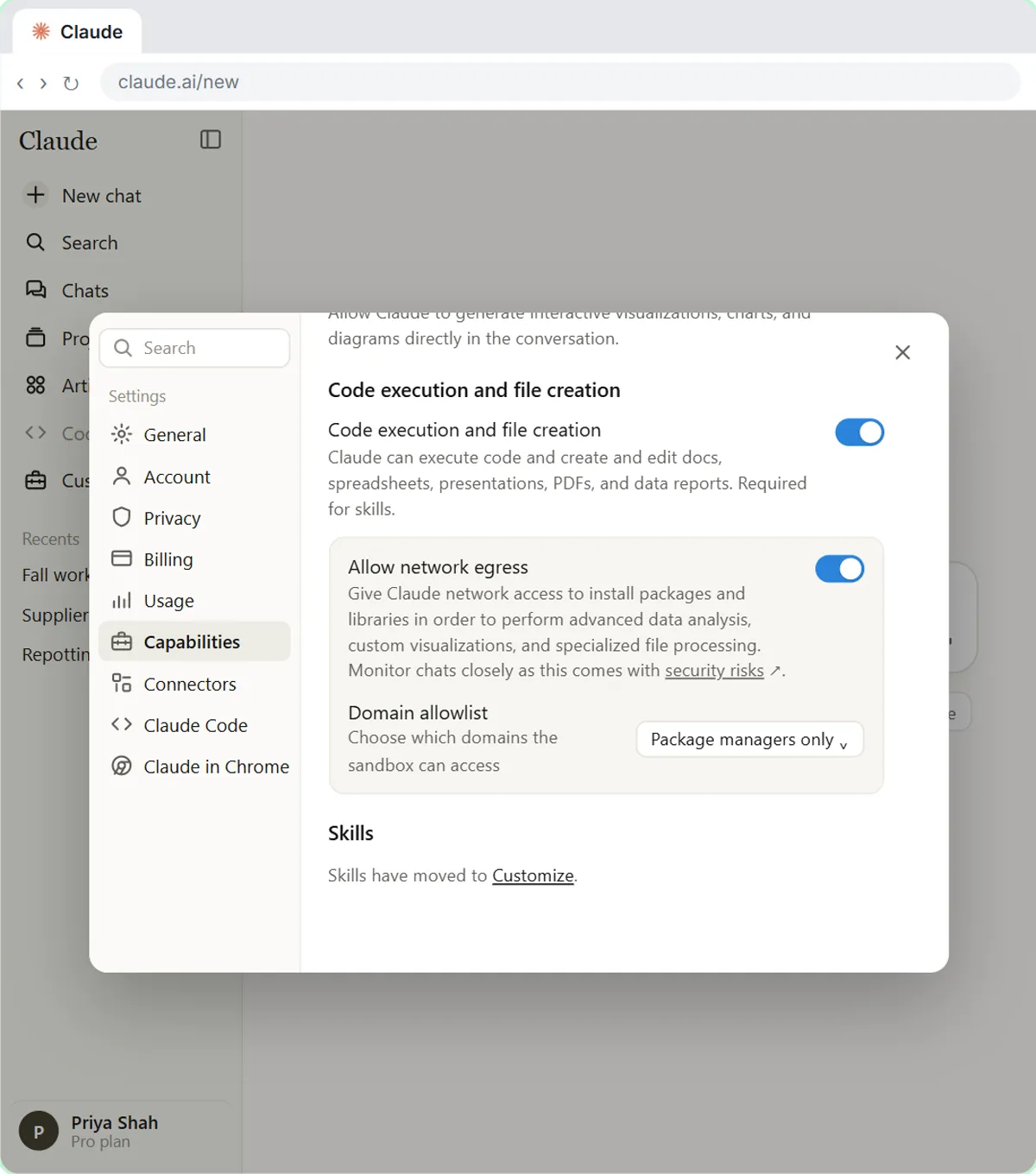
Usually because Code execution and file creation is off. Fix: open your account menu, Settings, Capabilities, and turn it on.
In What are Claude Skills?, the switch's description ends with "Required for skills." The same switch powers Anthropic's built-in Excel, Word, PowerPoint and PDF skills. Without it, Claude can only tell you what the file would contain. On some accounts it's called Cloud code execution and file creation. On Team and Enterprise plans, an Owner may need to allow skills first. The code execution glossary page explains what the setting does.
Mistake 2: Why doesn't Claude pick my skill by itself?
Most often, the description says what the skill is, but not when to use it. Fix: rewrite the description so it names the requests and inputs that should start it.
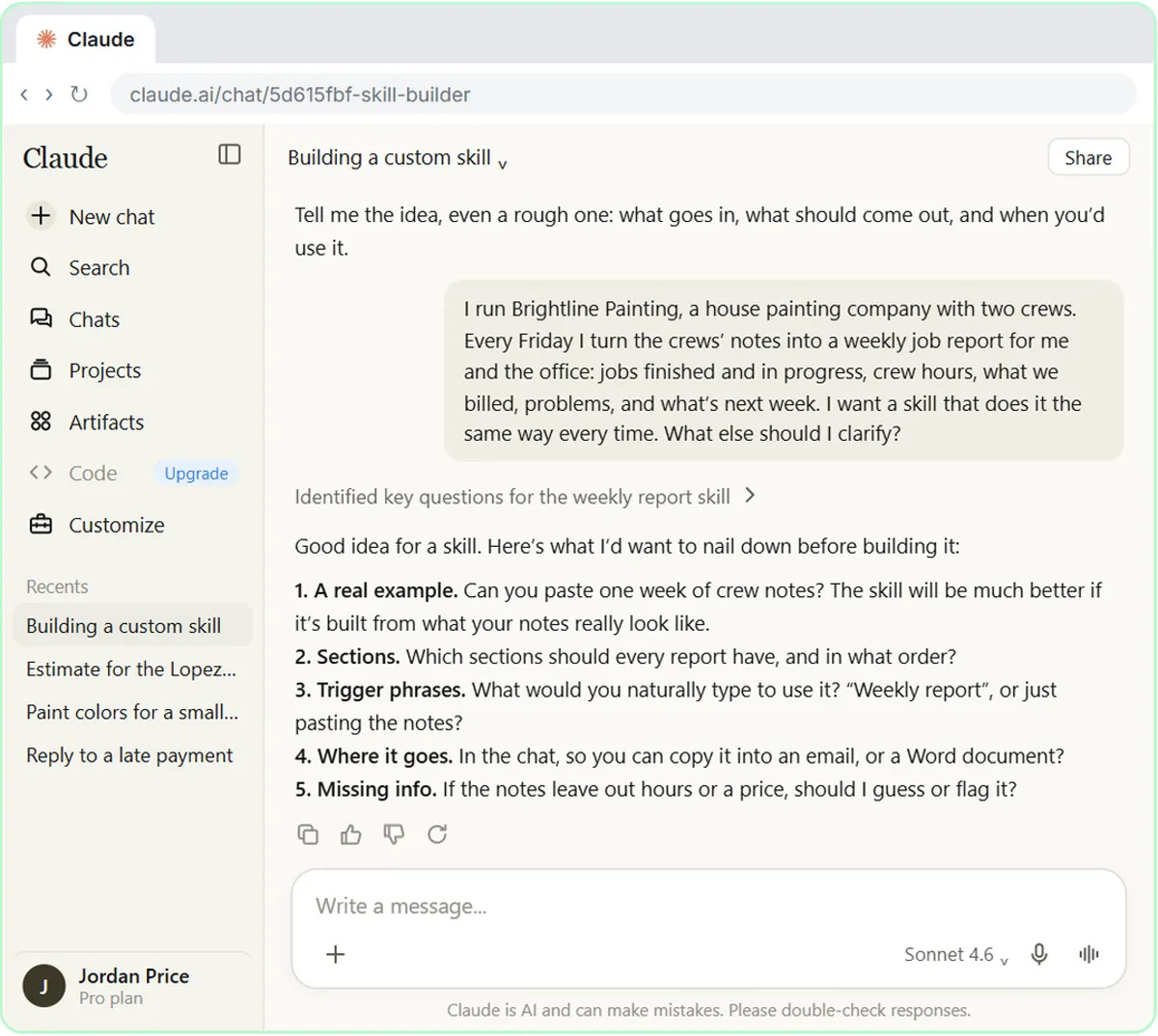
Claude keeps only skill names and descriptions in mind, so the description is the trigger. The brand skill's description ends "Use for anything a customer will see." The weekly report skill in Use case: build your own skill with the skill creator says to use it "whenever a week of crew notes or job logs is pasted, or a weekly report or job recap is asked for." Both stay under the 200-character limit the help center gives. Too narrow, and the skill never kicks in. Too broad, and it shows up in the wrong chats. If Claude still skips it, type a slash in the message box and pick your skill by name.
Mistake 3: Why isn't a list of brand colors enough?
Because Claude doesn't know where each color goes. Fix: give every color a job.
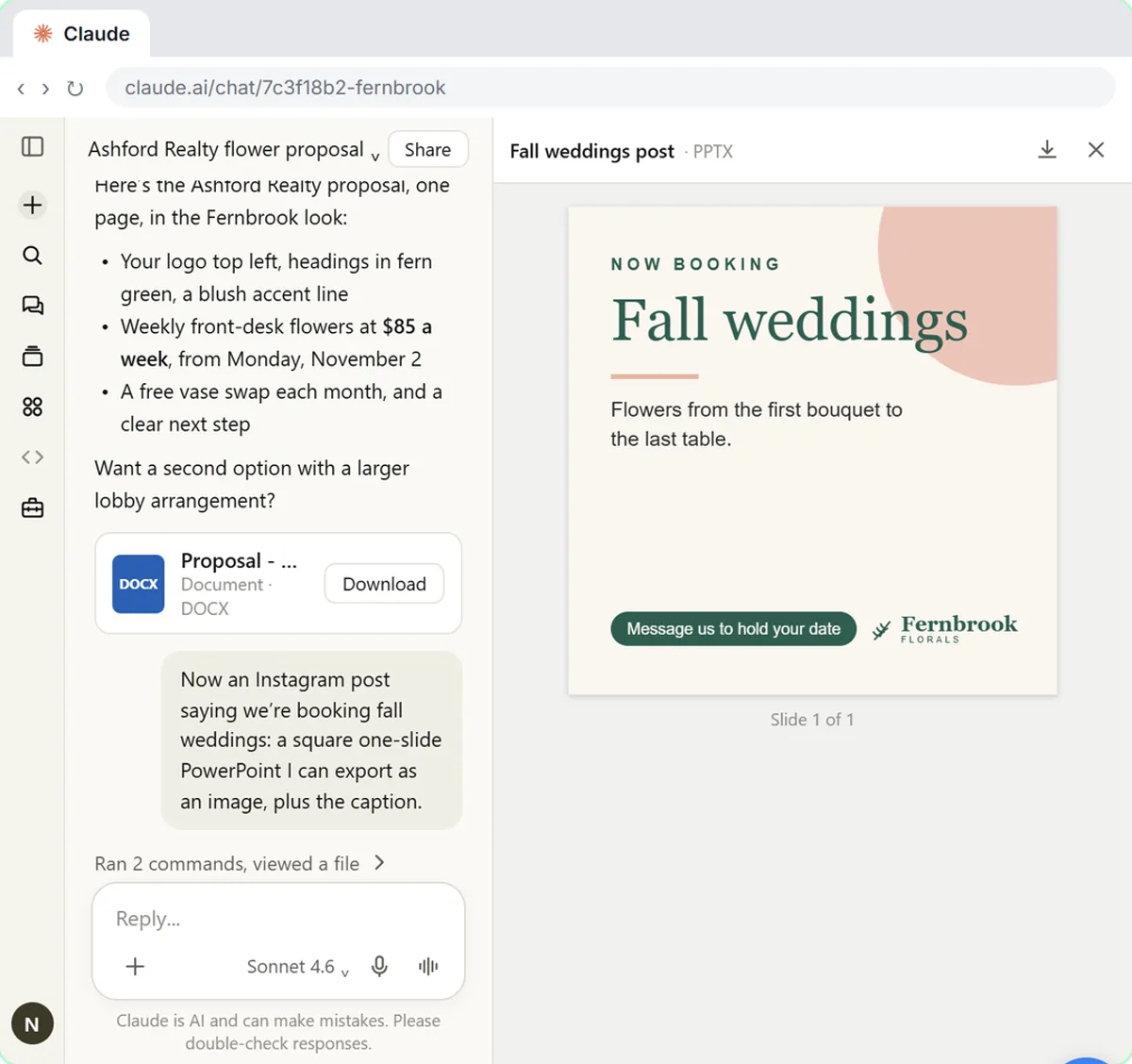
The Fernbrook Florals skill doesn't just list four hex codes. It says fern green #2F5D50 is for headings, the logo and key shapes, blush #E8B4A6 is for accent lines and highlights, cream #FAF6EF is for page and slide backgrounds, and charcoal #2B2B2B is for body text. Fonts get the same treatment: Playfair Display for headings and Lato for body text, each with a fallback (Georgia and Arial). The brand kit glossary page covers what a full kit usually holds.
Mistake 4: Why does the logo land in the wrong place?
Because the skill never said where it goes, or the logo file never made it into the skill. Fix: attach the logo while you build the skill, write a placement rule for each kind of file, and check the skill's files.
In the lesson, you attach fernbrook-logo.png with the + button and Upload or add files before you describe the brand. The skill then says: documents, top left of the first page; slides and social posts, bottom right corner; never stretch it or recolor it. After saving, open the Contents tab: you should see SKILL.md and the logo in assets. If the logo isn't there, ask Claude in the builder chat to add it.
Mistake 5: Why not just turn on Anthropic's brand example?
Because it's Anthropic's brand, not yours. Fix: read it as a pattern, then build your own.
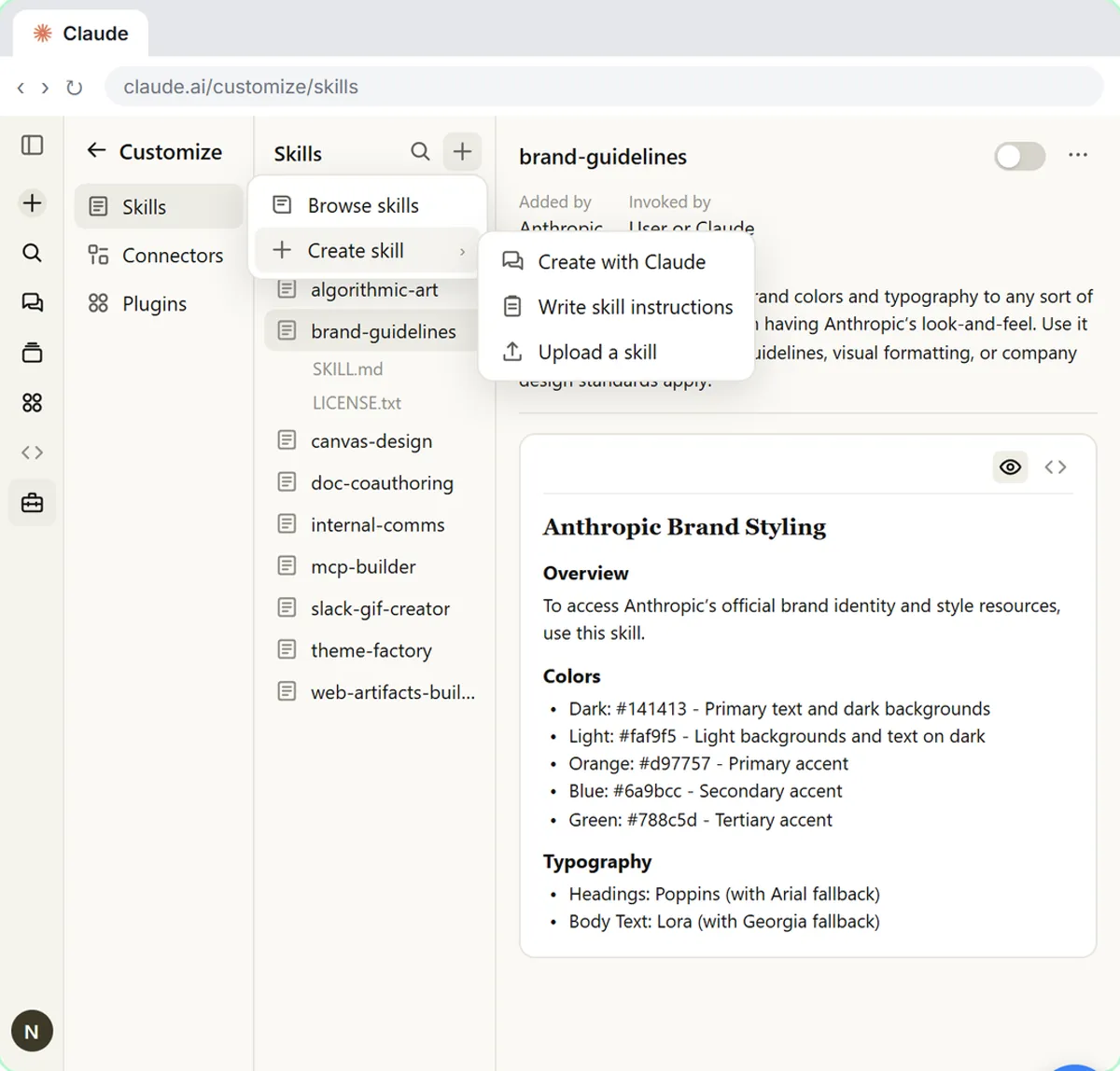
The lesson opens brand-guidelines in Discover and tells you not to click Add. Its Contents tab is useful to read: exact color codes, one font for headings and one for body text. That's the shape your own skill should have. Turning it on would put another company's colors on your proposals. Build yours with + Add, then Create with Claude, and describe your colors, fonts, logo and voice.
Mistake 6: Why test a skill before you save it?
Because a skill repeats its mistakes every time. Fix: test the draft on a real example and check it like anyone's work before you click Save skill.
In the skill creator lesson, Claude runs the draft on one real week of crew notes. You check that the crew hours add up to 47, that $2,400 billed is right, and that the next job, which the notes never mention, is marked [CHECK] instead of guessed. For a brand skill, read the SKILL.md card and make sure every color, font and rule matches your brand. Then ask for one real document and look at it. The prompt testing glossary page has more on testing with real inputs.
Try it free, step by step
Make Every Claude Document On-Brand with a Brand Guidelines Skill. Build a brand skill for a small flower shop by chatting with Claude: colors, fonts, logo placement and voice. Then ask for a proposal and a social post and watch both come out on brand. You do every step yourself in a practice copy of Claude, it checks your work as you go, and “Do it for me” finishes any step you get stuck on. Free, and nothing touches your real accounts.
Start the free lessonMistake 7: Why stop fixing each document by hand?
Because the next one will need the same fix. Fix: update the skill in the chat where you built it.
When the weekly report comes out without crew hours on each job, the lesson doesn't edit the report. It goes back to the builder chat under Recents, asks "Update the skill so..." in plain words, opens the new card and clicks Update. Your saved skill doesn't change until you click it, and an Undo link follows. For a brand skill, the lesson's advice is the same: to change a rule later, ask Claude to update the skill. One change fixes every future file.
Mistake 8: Why check a skill before you upload it?
Because a skill can do more than add instructions. Fix: upload only skills you wrote or got from someone you trust, and look inside after.
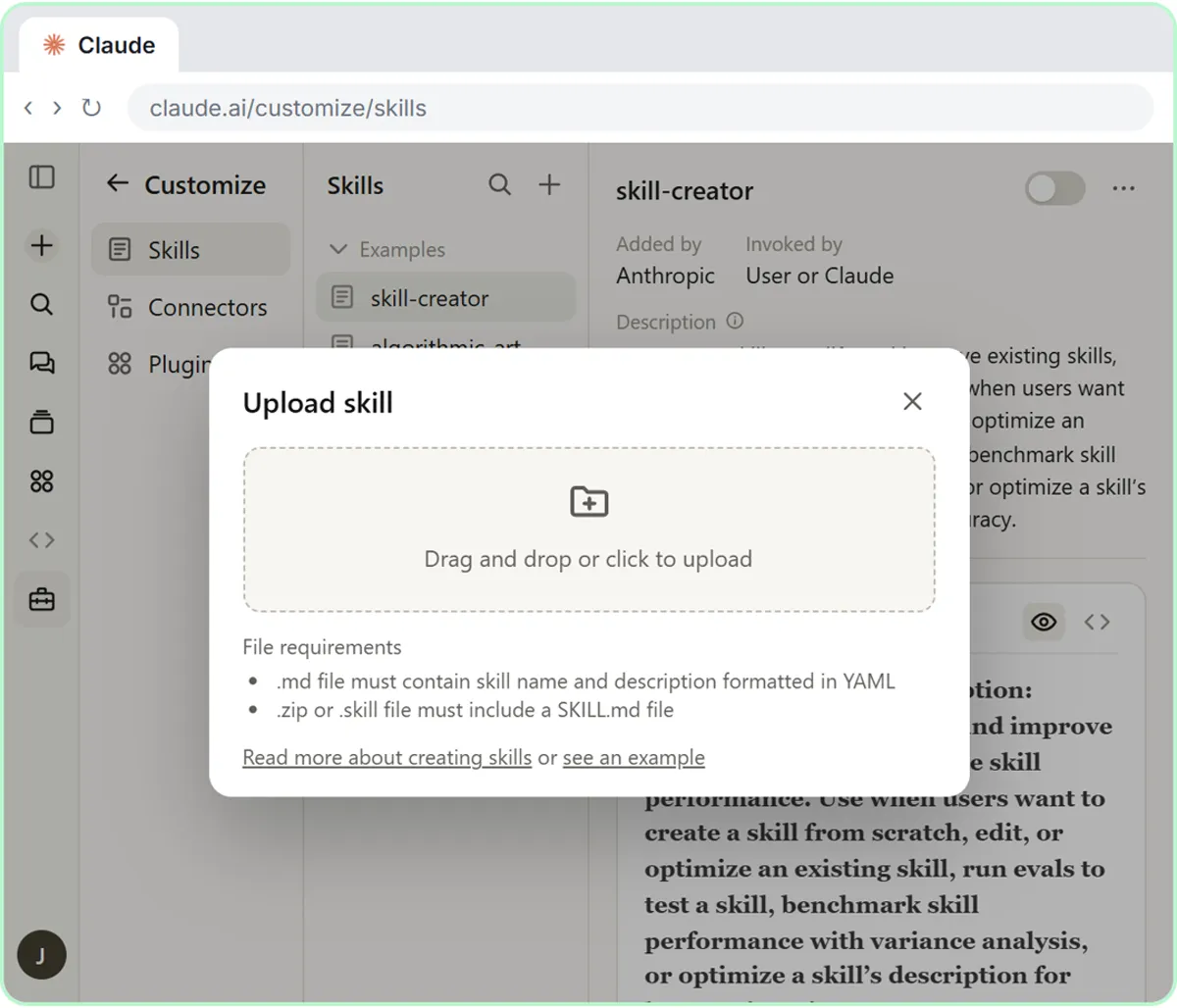
In Install a custom skill, the upload page asks for a .zip or .skill file that includes a SKILL.md, shows the name and description under Preview, and runs a Security scan when you upload. The quote-writer skill's page then says it only adds instructions for Claude. Click the </> button to read the raw SKILL.md, and check the Contents tab for every file it brings. You can switch a skill off from its page at any time without deleting it.
How do you avoid these mistakes as a team?
Agree on a few house rules before people start building skills:
- One skill per job: a brand skill, a quote skill and a report skill, not one skill that does everything.
- Every description says when to use the skill, in under 200 characters.
- Brand skills give each color, font and logo position a job, and include the logo file.
- Every new skill is tested on a real example, and someone checks the totals before it's saved.
- Changes go through the builder chat and Update, not hand edits to the output.
- Only skills from trusted sources get uploaded. Your company's IT rules come first.
The install lesson notes that colleagues can't see skills you upload unless you share them, and sharing is on Team and Enterprise plans. That makes one person the natural owner of each shared skill. The brand skill is module 4 of the free Claude Skills course. For ready-made prompts to plan, test and fix a skill, see Claude Skill Creator Prompts.
Key takeaways
- Turn on Code execution and file creation first, or Claude can only describe files.
- The description is the trigger: say when to use the skill, not just what it is.
- In a brand skill, give every color, font and logo position a job, and attach the logo.
- Test a draft on a real example and check it before you save.
- Fix the skill, not the output: ask in the builder chat and click Update.
Frequently asked questions
- How do I know if Claude used my skill?
Open Claude's work details above the reply and look for Loaded skill with your skill's name. In the brand lesson, it lists fernbrook-brand and the built-in docx skill.
- Can I change a brand skill after I save it?
Yes. Ask Claude to update the skill, then click Update on the new version. The lesson says changing a rule later is just a request.
- Do I need to say "use my brand skill" in every request?
No. In the lesson, a plain request for a proposal that names the shop comes back on brand. If Claude ever skips it, type a slash and pick the skill.
- Is Fernbrook Florals real?
No. Fernbrook Florals, Nora Bell and Ashford Realty are made up for the lesson, as are the other businesses in the Claude Skills lessons.