What is the Filter node in n8n?
Updated · By Robert Breen
The Filter node in n8n keeps only the items that meet a condition and drops the rest, so later steps only see the records you want. You set a value, a test like is not empty or is equal to, and, if the test needs one, a value to compare against.
Why it matters for a small business
Real data is messy. A jobs sheet has a job nobody's assigned yet, an inbox mixes newsletters with customer questions, a lead list has test entries. Without a filter, every one of those reaches the step that sends emails or writes rows. A Filter is the cheap, boring safeguard that stops the wrong records before they cost you anything.
It also keeps workflows simple. Instead of building checks into every later step, you remove what doesn't belong once, near the start. And because n8n shows how many items went in and how many came out, it's one of the easiest steps to verify.
In a real lesson: Daily Job Alerts: Email Each Tech Their Jobs from Google Sheets with n8n
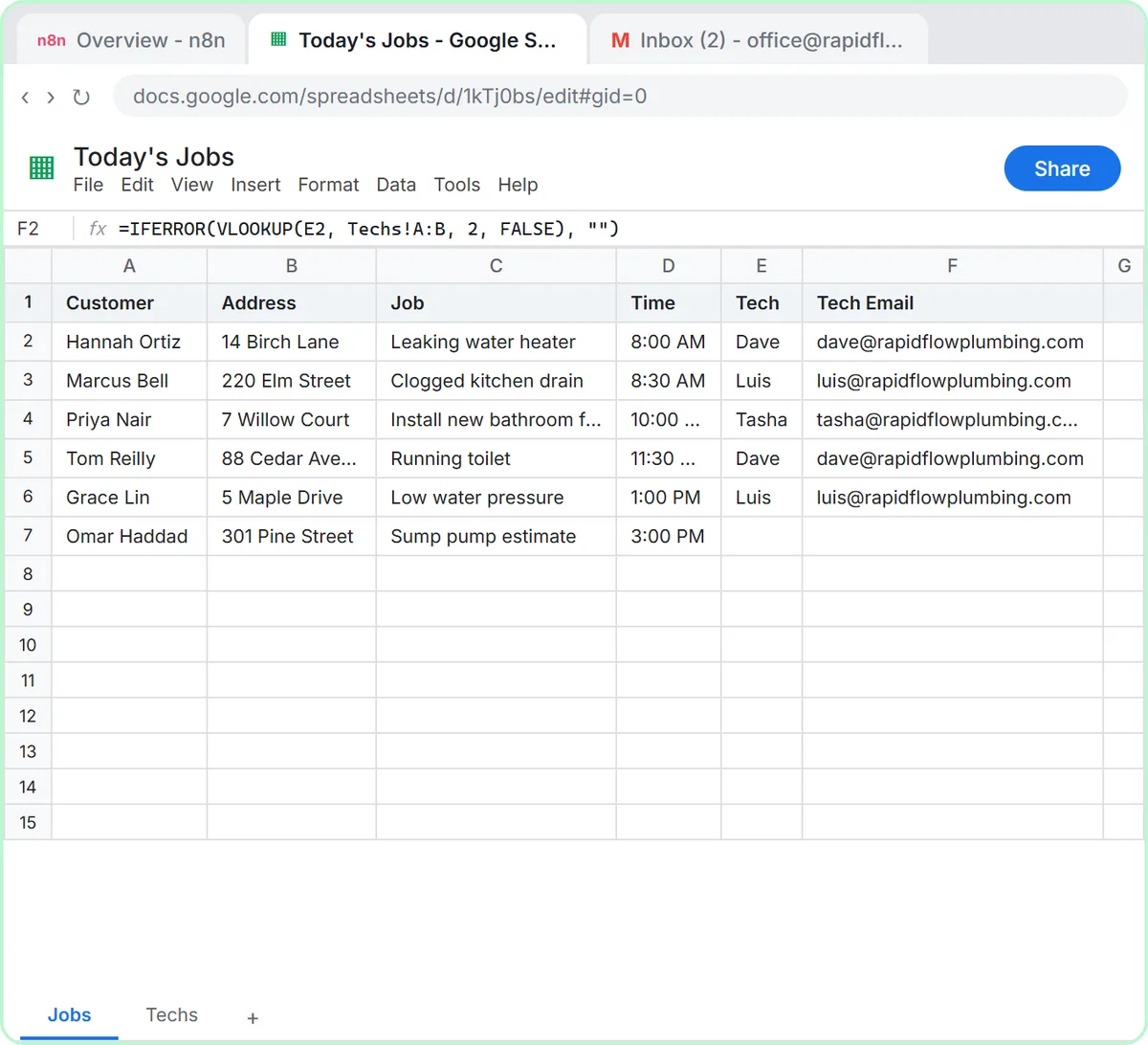
In the Daily Job Alerts lesson, Rapid Flow Plumbing, the made-up plumbing company in the lesson, has six jobs in its sheet, and the last one, a sump pump estimate, has no tech. If it reached Gmail, there'd be nobody to send it to. So between Google Sheets and Gmail you add a Filter.
The condition has three parts. In value1 you paste {{ $json.Tech }}, and the preview underneath shows Dave for the first row. You open the operator dropdown, which says is equal to, and under String choose is not empty. With nothing to compare against, the second box disappears. In plain words: keep the job if the tech isn't blank.
Click Test step and the result is right there: six items in, five out, with the sump pump job discarded. If the office assigns that job later, the Filter lets it through on the next morning's run with no change to the workflow.
Try this lesson free or read the step-by-step guide.
Common confusions
Filter vs IF
A Filter has one output and quietly drops whatever fails. An IF node has two outputs, true and false, so you can do something with the failures instead of discarding them.
Filter node vs filtering while reading
Some app nodes can filter as they read, such as asking Google Sheets only for matching rows, which helps with big sheets. A Filter node works on data from any source and shows before and after counts.
Tips
- Filter as early as you can, before any step that sends, writes or costs money.
- Zero items out usually means the field name or the test is wrong. Check the preview under value1.
- Watch data types. A number stored as text may need a String test rather than a Number test.
Related terms
Where you use it: free lessons
Prompt templates that use it
Frequently asked questions
- What happens to items the Filter removes?
- They stop there, and nothing later in the workflow sees them. If you need to act on them, such as alerting someone about an unassigned job, use an IF node instead.
- Can a Filter check more than one condition?
- Yes. You can add several conditions and choose whether all of them must be true or any one is enough.