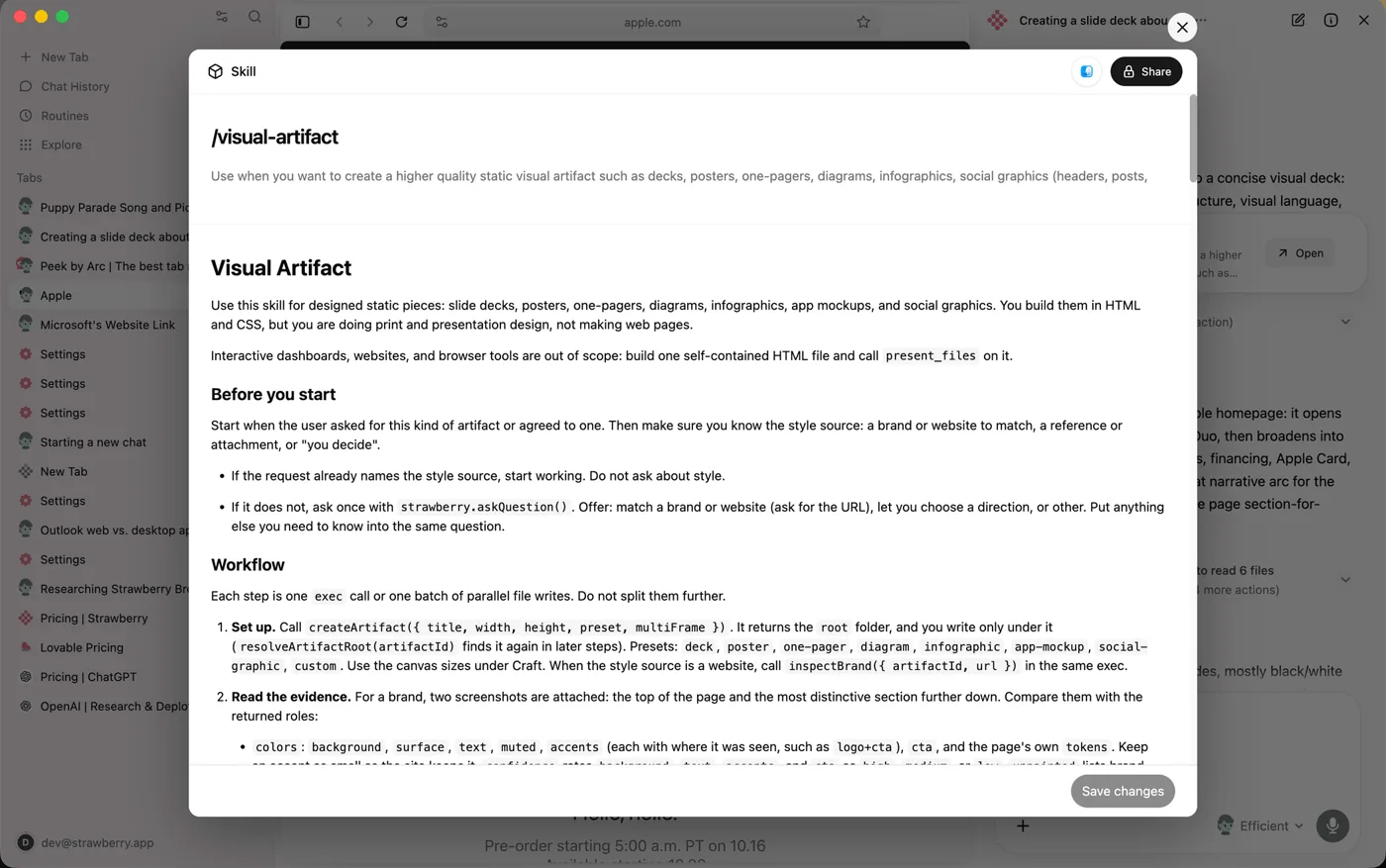
The example is made up. Dana Whitfield runs sales at Northpoint Payroll Partners, a 9-person firm that sells outsourced payroll to architecture and engineering firms. The lesson was built from Strawberry's docs and website, read on 21 October 2026, without an install. Strawberry 1.0 launches on 26 October 2026, so labels can differ by version.
What are the most common Strawberry lead research mistakes?
| # | Mistake | Fix |
|---|---|---|
| 1 | Send messages left on Always allow | Set it to Ask every time before you start |
| 2 | Connecting every app "just in case" | Connect only the apps the task needs |
| 3 | A prompt with no decision or source rules | Say the decision, the sources and the columns |
| 4 | Accepting guesses | Ask for "not found" instead, with an evidence URL and confidence |
| 5 | Asking for 100 rows first | Ask for 10, check them, then scale |
| 6 | Skipping the work trace | Open it and check a few rows against their sources |
| 7 | Approving an email card unread | Check the facts, the recipient and the account, and edit the card |
| 8 | A skill without the approval rule | Read the skill and keep "Never send" in it |
Why set permissions before the research?
1. Sends on Always allow. In the lesson, Send messages is on Always allow, left over from a teammate's test. A companion works with your logins, so that setting means it could send email as you. Type strawberry://settings/integrations in the address bar, open Gmail and click Ask every time on that row. Each listed action can be Ask every time, Always allow or Disable action. These agent permissions are the guardrail that matters most.
2. Too many connections. Connect only the apps the task needs, here Gmail and Google Sheets. Built-in app connections are shared across your Strawberry profiles, so check which account a task will use before it touches client data. Strawberry's docs suggest starting read-only: let it read and draft, and keep sends, record changes, deletions and anything that spends money on Ask every time.
Why does the research come back with wrong facts?
3. A vague prompt. Strawberry's research guide says to start with the decision the research supports. The lesson's prompt says Dana is deciding which firms to contact this month, asks for 10 Ohio architecture and engineering firms with 20 to 80 staff that are hiring an office manager or HR person, uses official websites first and LinkedIn for company context, and lists the table columns.
4. Allowing guesses. The prompt says "Do not guess: if data is missing, write 'not found'." In the result, one firm's staff size is not found because it has no About page and LinkedIn shows only a range. A visible gap is better than a confident wrong number in an email.
5. Scaling too early. Ask for the first 10 and wait. Check them before you ask for 100.
6. Skipping the trace. The work trace shows each search, page and app action. In the lesson, it shows official sites first and one local blog post, which the companion marked low confidence. Check a few rows against their evidence URLs. And remove firms that are already clients: in the lesson, Calder Row Design is dropped before the 9 rows go into the Q4 outbound - A&E firms sheet.
Try it free, step by step
Strawberry: Research Leads into a Sheet and Approve Every Email. Use the Strawberry AI browser to research 10 target firms with sources, save them to a Google Sheet and draft first emails, with a person approving every send. You do every step yourself in a practice copy of Strawberry, it checks your work as you go, and “Do it for me” finishes any step you get stuck on. Free, and nothing touches your real accounts.
Start the free lessonWhat should I check before approving an email?
7. Approving unread. Because sends are on Ask every time, the email waits above the chat input as an approval request. Email cards are editable: recipient, subject and body. In the lesson, the Linden & Shore draft says a 40-person team, but the careers page says 24. A wrong fact in a first email loses the deal. Paste the fixed body, check the recipient and the subject, then click the check mark. A sent email cannot be taken back.
The draft prompt helps too: under 90 words, one fact from the evidence URL, a plain voice and no claims about price or savings. Then each email has one fact to check. This is human in the loop at the one step that can't be undone.
How do I make the workflow safe to repeat?
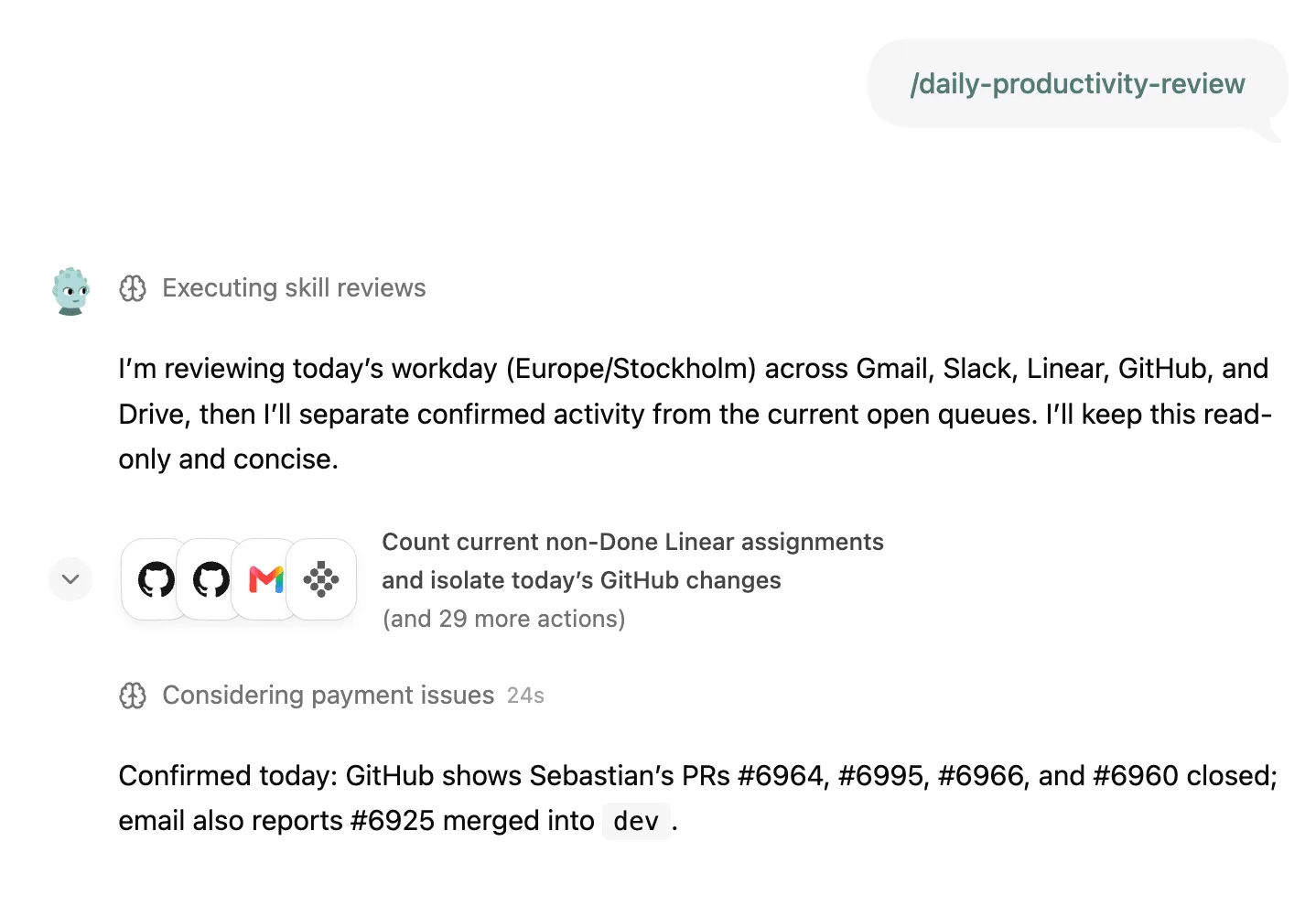
8. A skill that drops the rule. Ask the companion to create a skill from the chat, including the questions it asked, the sources it checked, the approval rules and the final output format. Then read it before you keep it. The lesson's skill, /ohio-firm-lead-research, ends with "Never send. Show each email for approval first." If that line is missing, add it. Run the skill next week on a fresh batch, and only turn it into a routine once you trust the output.
Key takeaways
- Set Send messages to Ask every time before any agent work.
- Give the decision, the sources and the columns, and accept "not found".
- Start with 10 rows and open the work trace.
- Fix facts on the approval card before you approve.
- Keep the approval rule in the saved skill.
Frequently asked questions
- Does the companion ask before sending if I tell it to?
Put it in the prompt, but don't rely on it. The setting on the app's page is what makes every send wait for you.
- What if a row has low confidence?
Check its evidence URL yourself, or leave it out. In the lesson, a fact from a local blog is marked low confidence.
- Can I edit the email on the approval card?
Yes. Email cards are editable: recipient, subject and body.
- How many emails should I approve at once?
The lesson approves one, after checking it. The other two drafts wait for Dana.
- Where can I read more answers?
See the Strawberry lead research FAQ, the lead enrichment entry or the lesson guide.