Lovable + n8n: a web form with an AI backend, step by step
A free one-page cheat sheet: a Lovable form posts to an n8n webhook, and an AI Agent logs it in Google Sheets and replies by Gmail.
Lovable + n8n: a web form with an AI backend, step by step
Lovable builds the form, n8n does the thinking and the actions. The only link between them is one webhook URL, kept in a Lovable secret.
The form in Lovable
- Start with a prompt, paste the form prompt, click Build.
- Fields Name, Email, Question and Feedback, sent as JSON with the keys name, email, question and feedback.
- The prompt says: don't hard-code any webhook URL. Use the
N8N_WEBHOOK_URLsecret.
The backend in n8n
- Add first step…, On webhook call. Set Respond to Using 'Respond to Webhook' Node.
- Add AI Agent. Set Source to Define below and paste a prompt template that reads the body, like
{{ $json.body.name }}. - + Add Option, System Message, paste the message below.
- Chat Model: OpenAI Chat Model, model gpt-5-mini.
- Tool: Google Sheets Tool on a Leads sheet with the same four columns, each set with ✦. Then add Gmail Tool.
- After the AI Agent, add Respond to Webhook. Nothing to configure.
The system message
You are a helpful assistant.

Use the google sheets tool to add the lead to the google sheet.

Use the gmail tool to reply to the form submitter.
The lesson's whole system message. Add your services and hours so replies sound like you.
Go live: test URL vs production URL
- Publish first
- Click Publish. The production URL only works once the workflow is published.
- Copy the right URL
- Open Webhook, click the Production URL tab, click the URL to copy. The test URL only works during testing.
- Store it
- In Lovable, click More, add the secret
N8N_WEBHOOK_URL, paste, Save. - Test it
- Preview, Fill with test data, Send Message, then check the Leads sheet.
Remember: Publish first, copy the Production URL second, and keep it in a Lovable secret, never in the page.
Practice it free: Lovable + n8n: Build a Web App with an AI Backend at learn.ynteractive.com/modules/lovable-n8n. This sheet: learn.ynteractive.com/content/cheat-sheets/lovable-n8n-form-flow. Businesses in the lesson examples are made up. By Robert Breen, October 1, 2026.
Practice it in the free lesson
Lovable + n8n: Build a Web App with an AI Backend. Build a contact form in Lovable and connect it to an n8n workflow — webhook trigger, AI Agent, Google Sheets, Gmail, and a Respond node that ties it all together. You do every step yourself in a practice copy of Lovable and n8n, it checks your work as you go, and “Do it for me” finishes any step you get stuck on. Free, and nothing touches your real accounts.
Start the free lessonLessons on this sheet
 Lovable + n8n: Build a Web App with an AI Backend
Build a contact form in Lovable and connect it to an n8n workflow — webhook trigger, AI Agent, Google Sheets, Gmail, and a Respond node that ties it all together.
Free · Live ~15 min
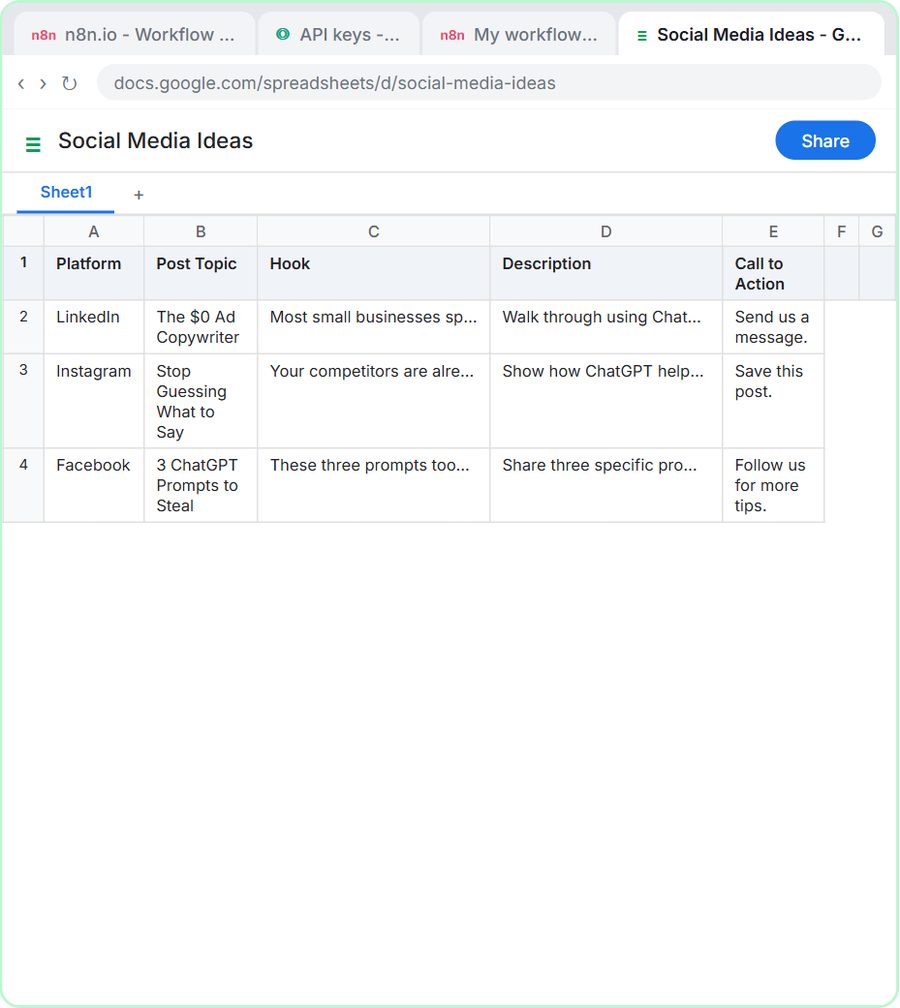 n8n AI Agent Tutorial: Save Social Media Ideas to Google Sheets
Build an AI agent for BrightPath Marketing that generates social media post ideas and saves them to Google Sheets — chat trigger, AI Agent, system prompt, model…
Free · Live ~12 min
Related terms
Plain-English definitions, each with an example from a free lesson.
Related prompts
- Lovable web form prompt: Write a Lovable prompt for a web form that posts to n8n: fields, validation, button states, a thank-you message, and a webhook…
- AI agent system message prompt: Draft the system message for an n8n AI Agent: who it is, what it knows, its rules and how it writes, including a rule never to…
- Email subject lines prompt: Get ten honest subject lines for a finished email, each with preview text and a character count, grouped by approach so you can…
- Social post ideas prompt: A four-part ChatGPT prompt for social post ideas built on your services and real customer questions: platform, hook and call to…
More cheat sheets
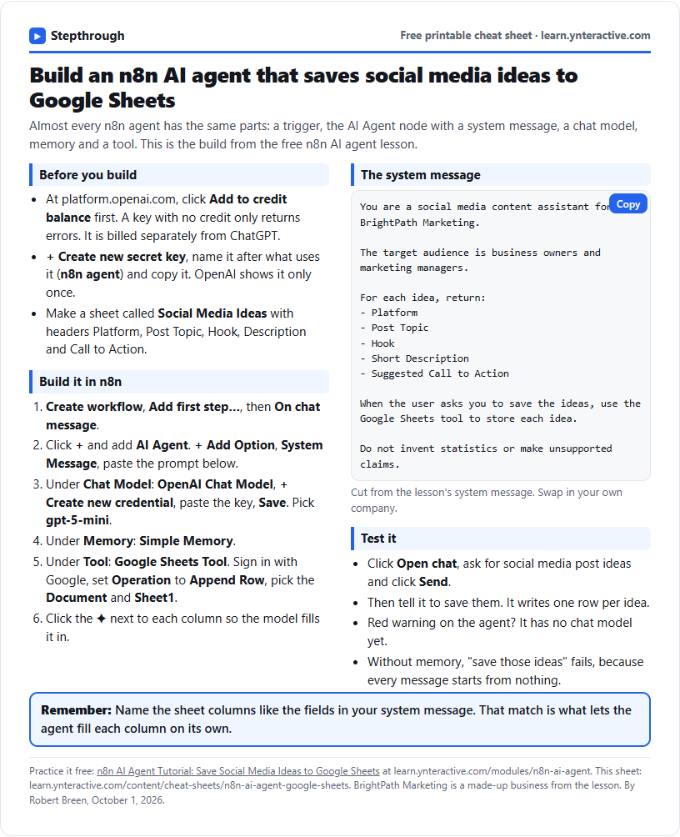 n8n AI Agent to Google Sheets Cheat Sheet
A free one-page cheat sheet for an n8n AI agent: chat trigger, AI Agent, system message, OpenAI model, Simple Memory and a Google Sheets tool.
Lesson cheat sheet Free PDF
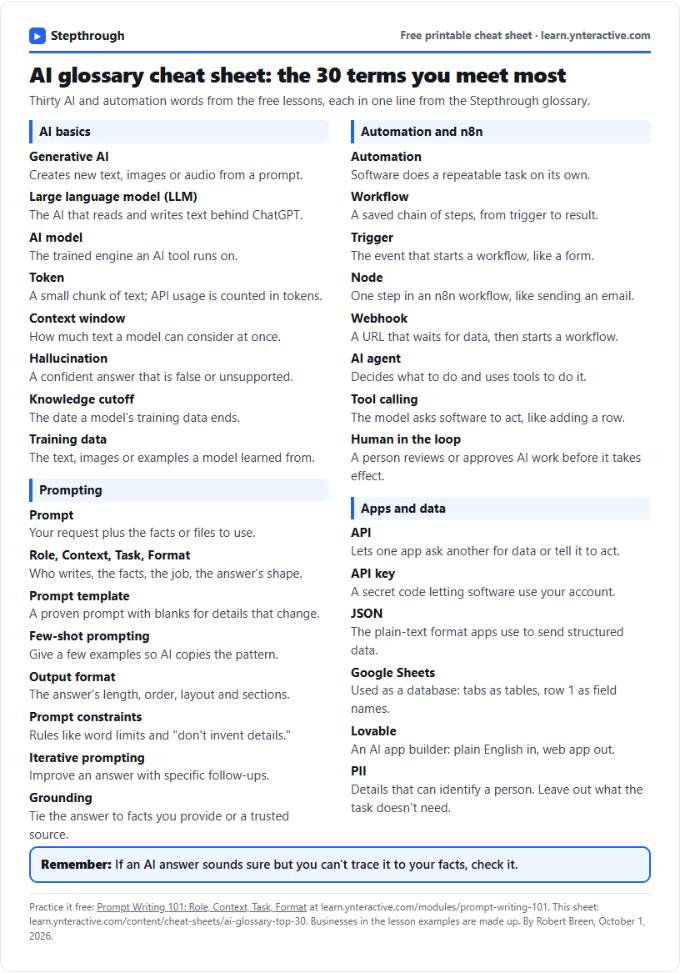 AI Glossary Cheat Sheet: 30 Terms in Plain English
A free one-page cheat sheet of 30 AI and automation terms in plain English: models, prompts, n8n workflows, apps and data.
Topic cheat sheet Free PDF
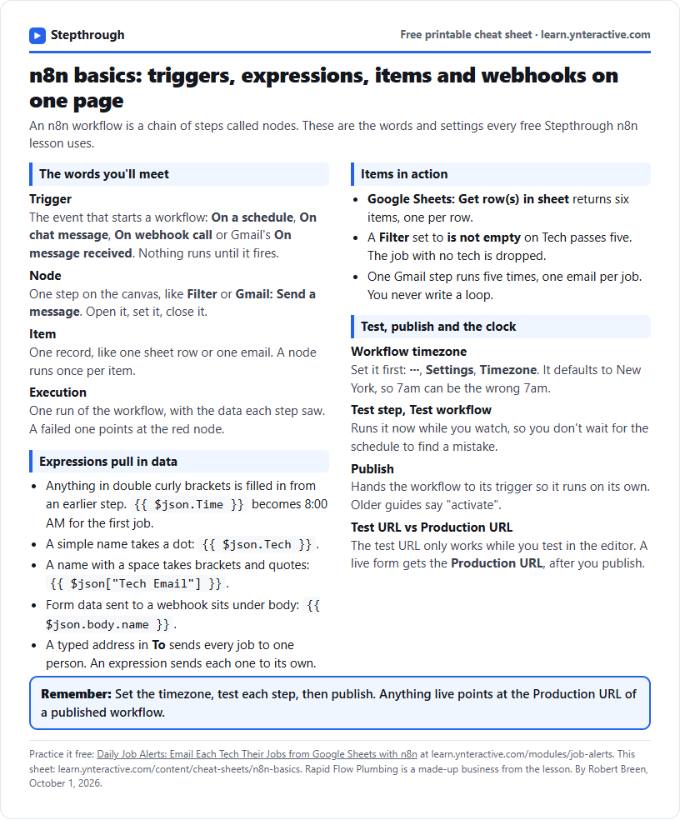 n8n Basics Cheat Sheet: Triggers, Items, Webhooks
A free one-page cheat sheet of n8n basics: triggers, expressions, items, executions, the workflow timezone and webhook test vs production URLs.
Tool cheat sheet Free PDF