5 Steps to an n8n AI Agent That Saves to Google Sheets
A visual guide: build an n8n AI agent that writes social media ideas and saves each one as a Google Sheets row, in 5 steps from the free lesson.
Slide 1 of 7 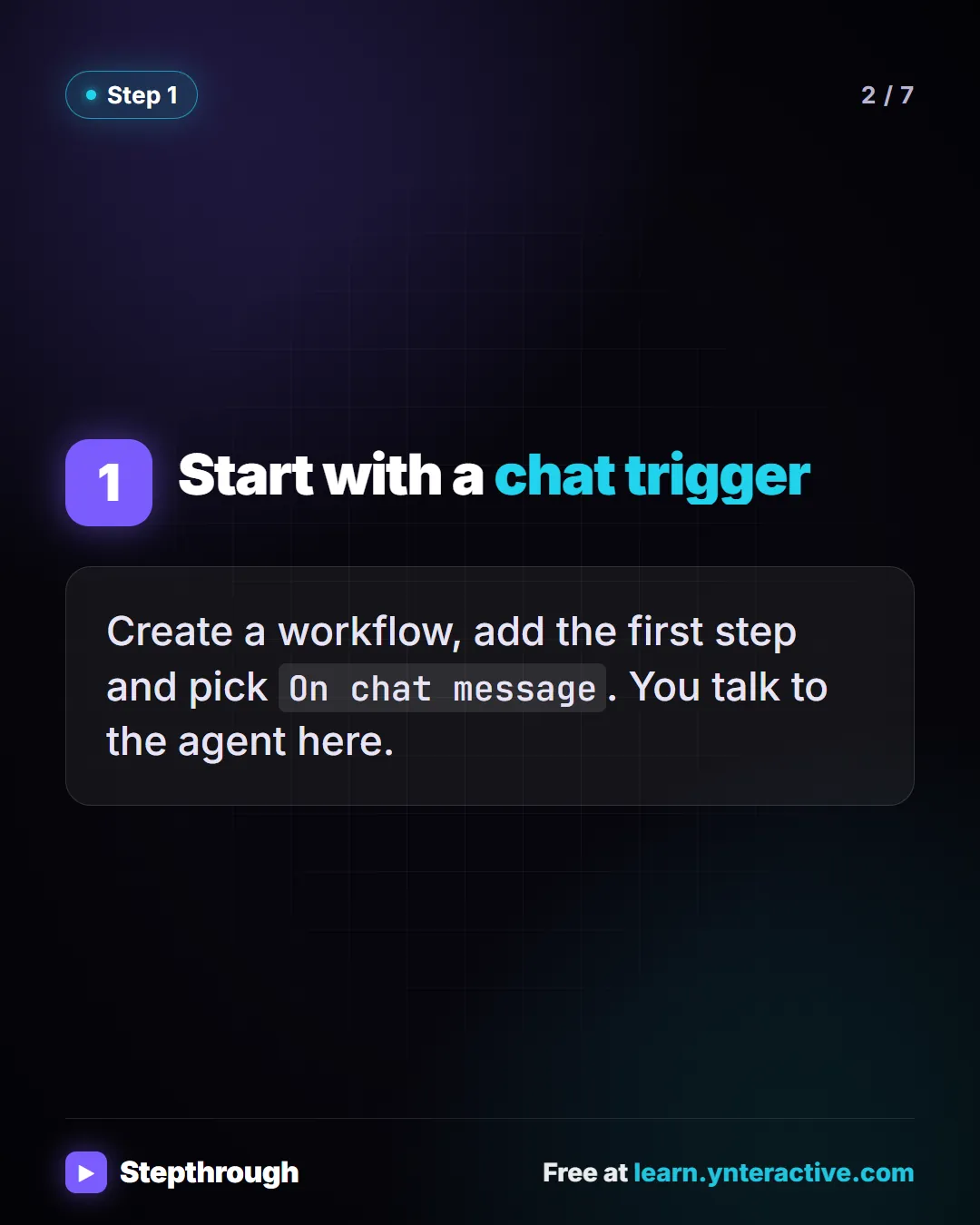
Slide 2 of 7 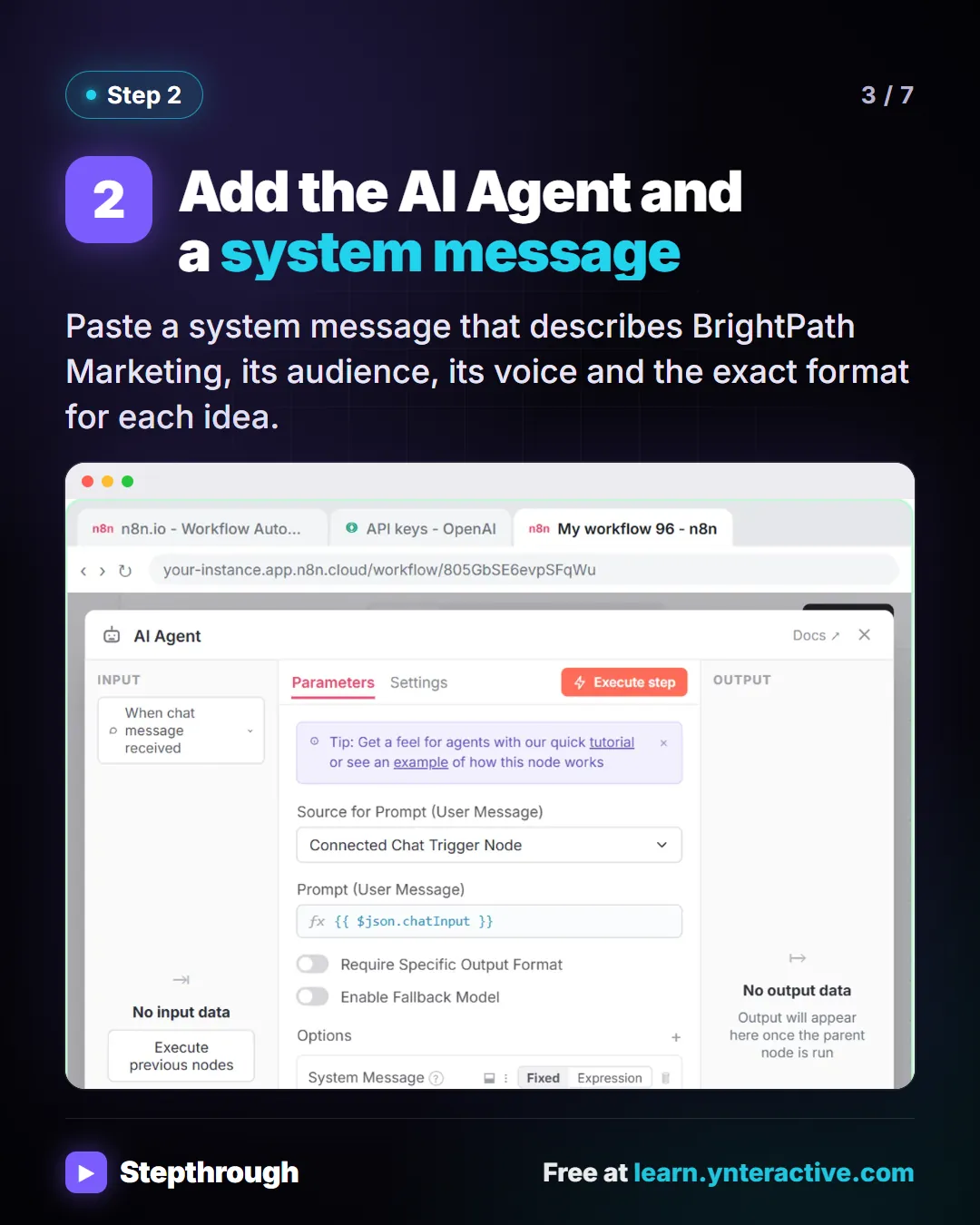
Slide 3 of 7 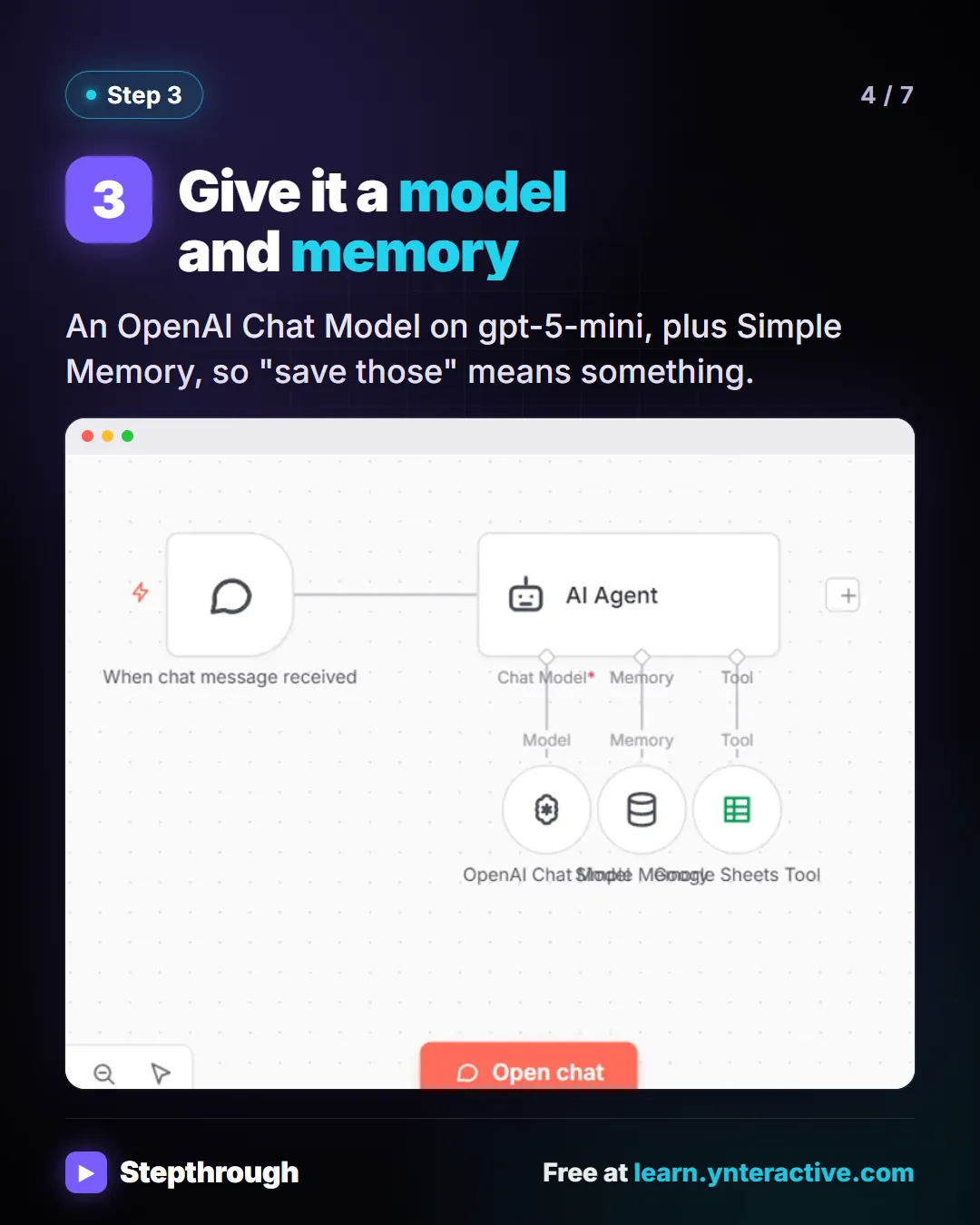
Slide 4 of 7 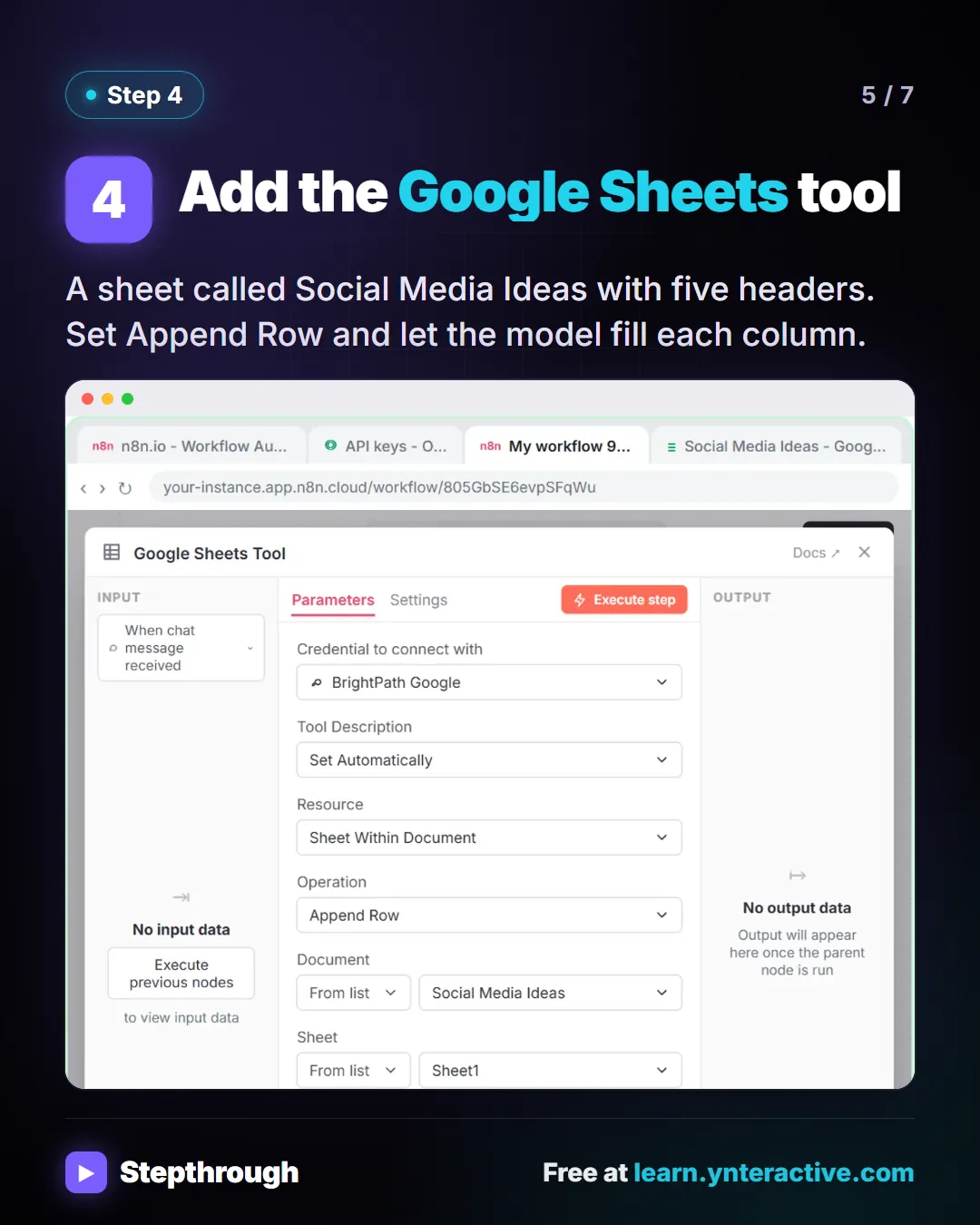
Slide 5 of 7 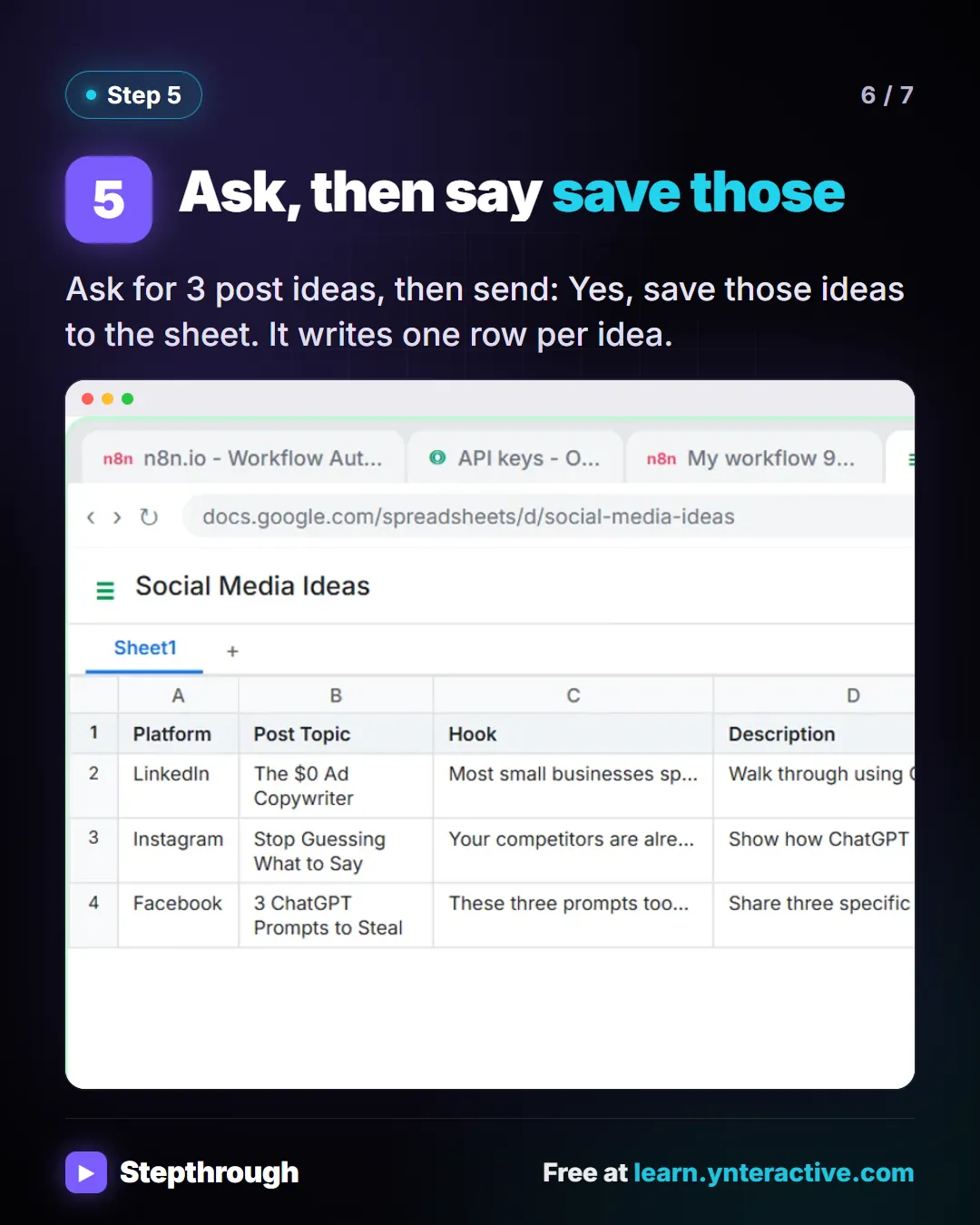
Slide 6 of 7 
Slide 7 of 7
The guide in text
Ask for social media ideas, say "save those", and they land in Google Sheets. BrightPath Marketing is a made-up agency.
Step by step
Start with a chat trigger
Create a workflow, add the first step and pick
On chat message. You talk to the agent here.Add the AI Agent and a system message
Paste a system message that describes BrightPath Marketing, its audience, its voice and the exact format for each idea.
Give it a model and memory
An OpenAI Chat Model on gpt-5-mini, plus Simple Memory, so "save those" means something.
Add the Google Sheets tool
A sheet called Social Media Ideas with five headers. Set Append Row and let the model fill each column.
Ask, then say save those
Ask for 3 post ideas, then send: Yes, save those ideas to the sheet. It writes one row per idea.
Businesses and people in the examples are made up (BrightPath Marketing is a made-up business). The steps, screens and wording come from the free lesson and the Stepthrough glossary and prompt library.
Do it yourself, free
n8n AI Agent Tutorial: Save Social Media Ideas to Google Sheets. Build an AI agent for BrightPath Marketing that generates social media post ideas and saves them to Google Sheets — chat trigger, AI Agent, system prompt, model, memory, and the Sheets tool. You do every step yourself in a practice copy of n8n, it checks your work as you go, and “Do it for me” finishes any step you get stuck on. Free, and nothing touches your real accounts.
Start the free lessonRelated terms
Plain-English definitions, each with an example from a free lesson.
Related prompts
- Email subject lines prompt: Get ten honest subject lines for a finished email, each with preview text and a character count, grouped by approach so you can…
- Social post ideas prompt: A four-part ChatGPT prompt for social post ideas built on your services and real customer questions: platform, hook and call to…
- Client monthly report prompt: Turn your agency's monthly numbers and work log into a client report: what changed, what you did, what's next. Every number…
- Decline a request politely prompt: A ChatGPT prompt for saying no to a customer clearly and kindly: the no up front, one honest reason, a real alternative, and no…
From the blog
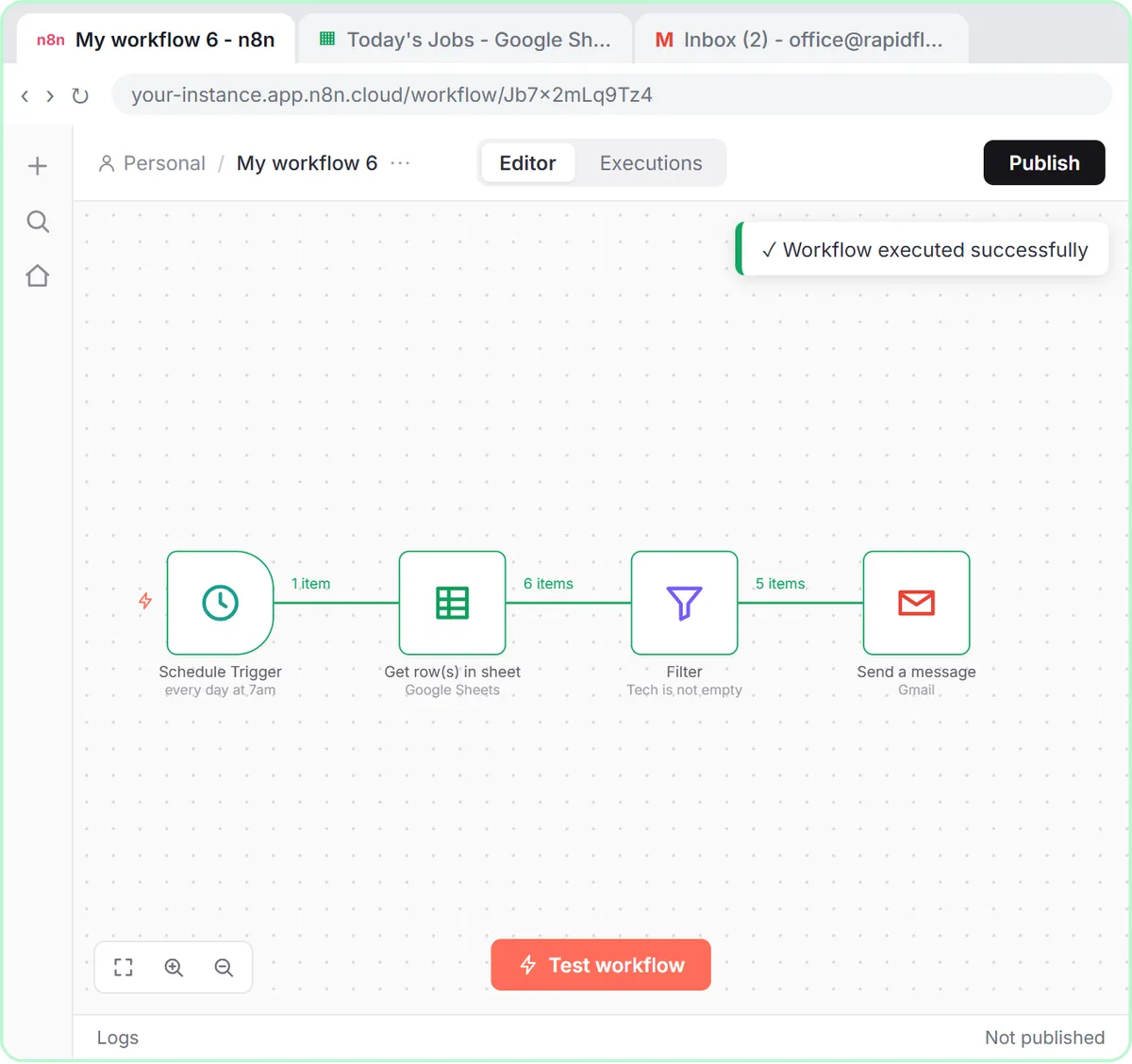 n8n Triggers Explained: Which One Starts Your Workflow?
n8n triggers explained: schedule, Gmail, chat, webhook and form triggers, how to test each one, and how the trigger changes your AI Agent's prompt.
Oct 1, 2026 7 min read
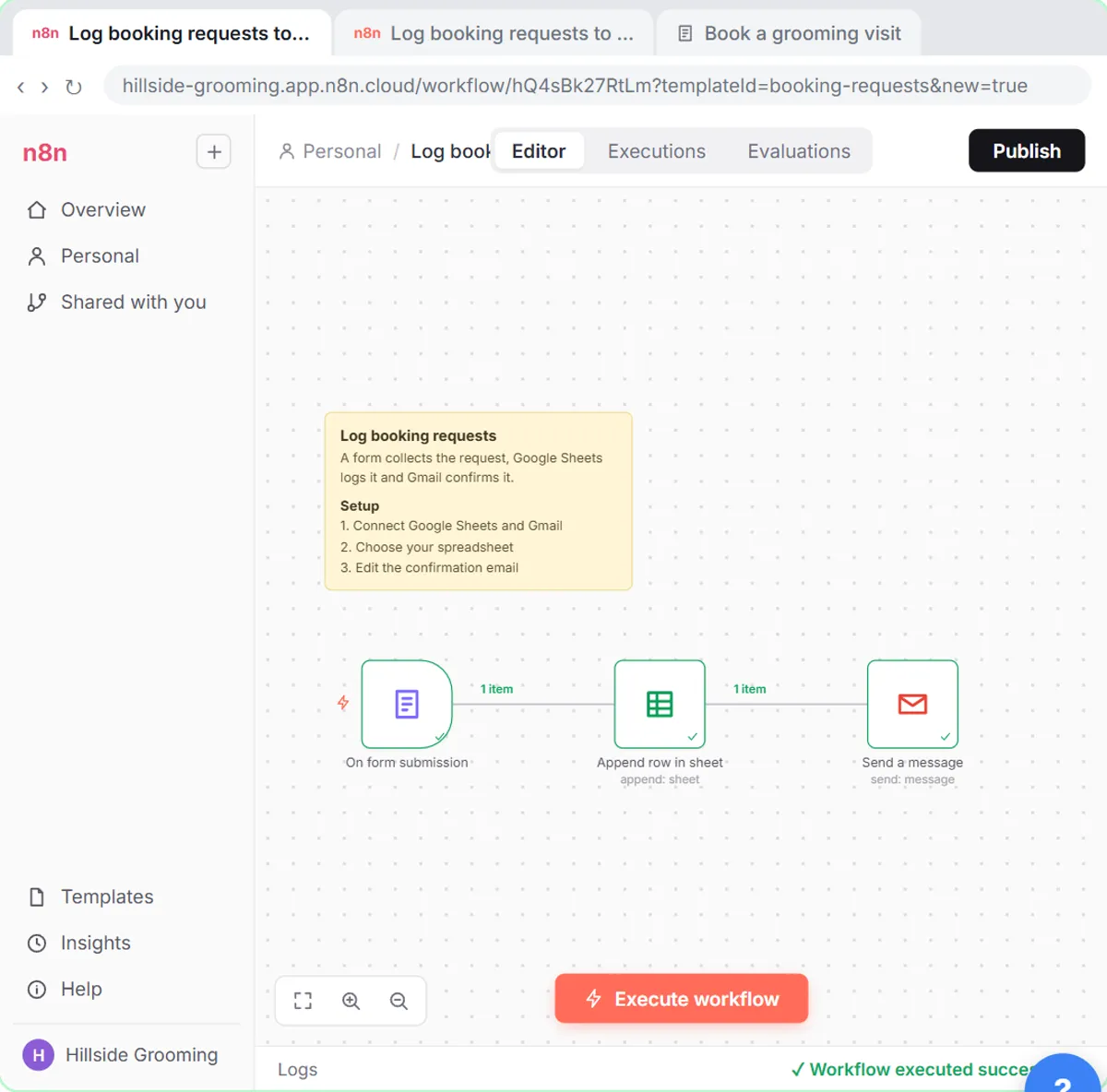 What Is n8n? A Plain-English Guide for Business Owners
What is n8n? A plain-English guide to workflows, nodes, triggers and credentials, with three real small-business examples and what n8n costs.
Oct 1, 2026 6 min read
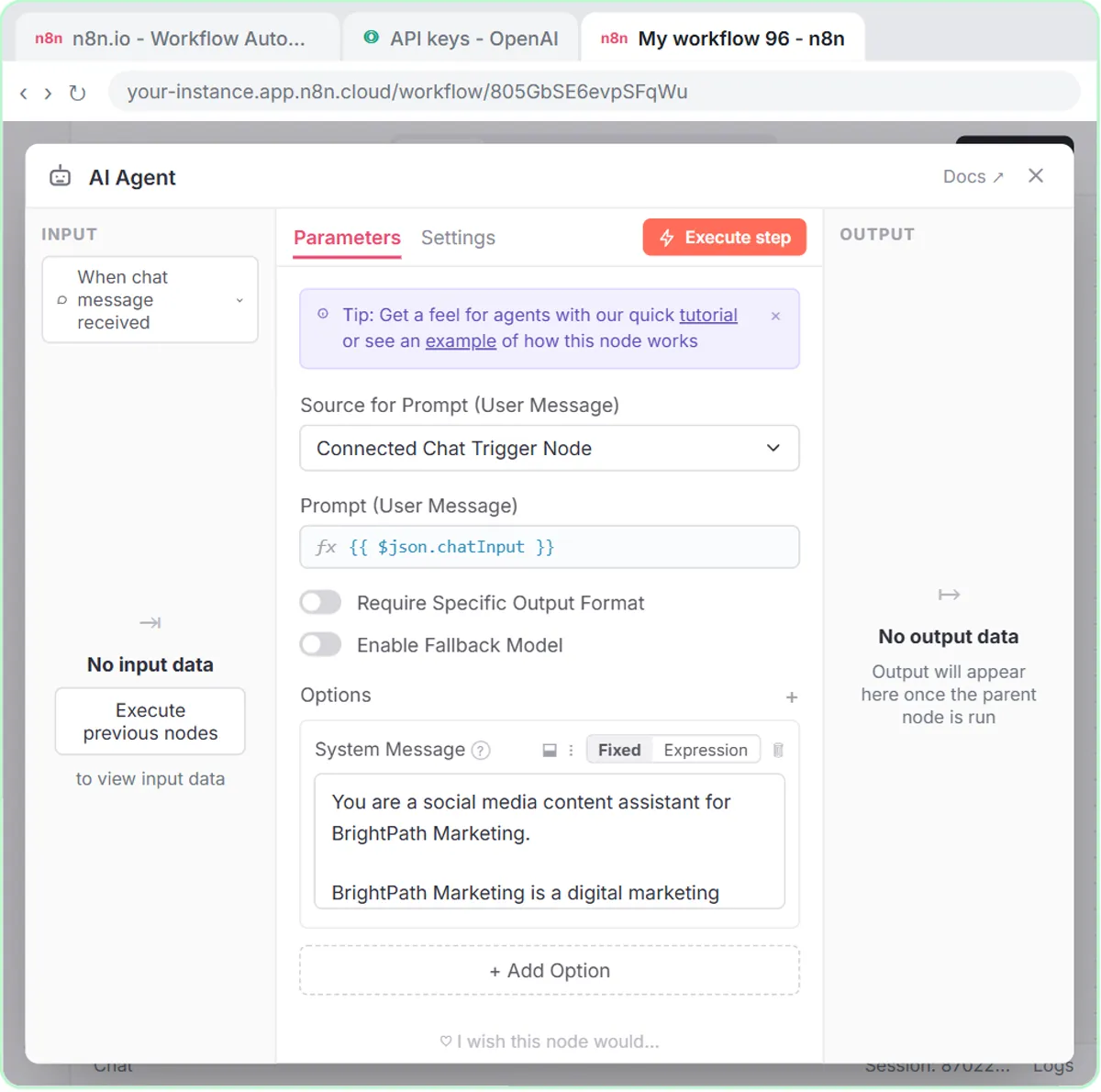 n8n AI Agent Tutorial: Build Your First Agent
An n8n AI agent tutorial for beginners: chat trigger, AI Agent, OpenAI model, memory and a Google Sheets tool, built step by step and tested.
Oct 1, 2026 7 min read
More visual guides
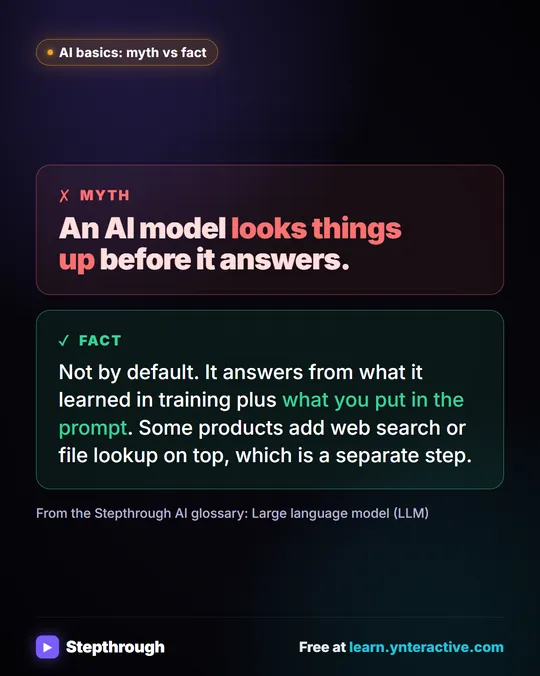 Myth: An AI Model Looks Things Up Before It Answers
Myth vs fact: by default a large language model answers from its training plus your prompt. Web search or file lookup is a separate step.
Myth vs fact One graphic
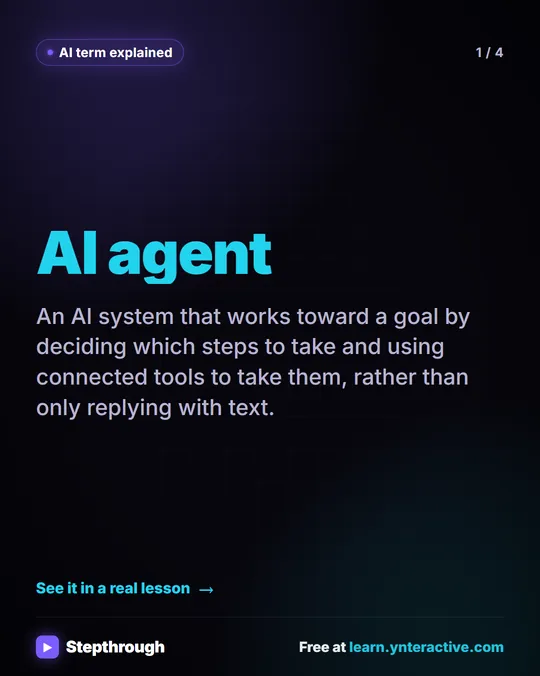 What Is an AI Agent? A Visual Guide
A visual guide to AI agents: AI that decides which steps to take and uses tools to take them, shown in a real n8n lesson, with tips to keep it safe.
AI term explained 4 slides
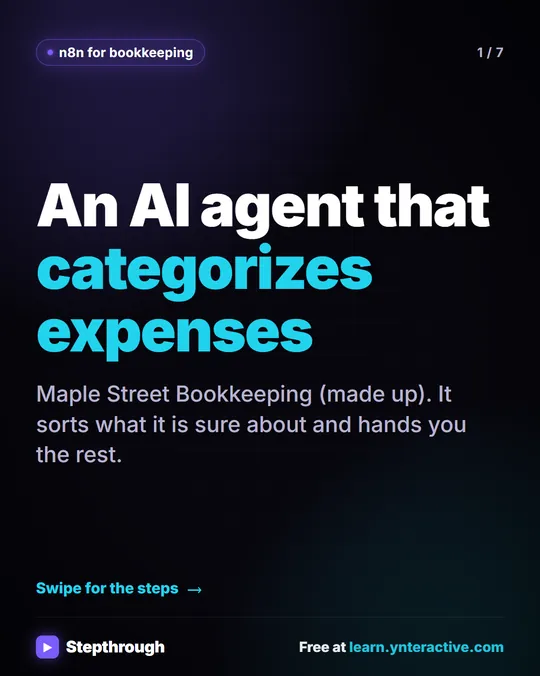 5 Steps to an AI Agent That Categorizes Business Expenses
A visual guide: an n8n agent sorts expenses into a fixed list of categories, flags unclear ones as Needs Review and saves them to Google Sheets.
Step-by-step guide 7 slides