Each item has a one-line fix and a link to the deeper explanation.
What are the most common n8n beginner mistakes?
Ten mistakes cover most first-workflow trouble:
| # | Mistake | Fix |
|---|---|---|
| 1 | Schedule left on New York time | Set Timezone in the workflow's Settings |
| 2 | Append Row where you meant Get row(s), or the reverse | Get reads rows; Append adds a row |
| 3 | One typed email address in To | Use an expression such as {{ $json["Tech Email"] }} |
| 4 | Gmail Tool left on send | Set Resource to Draft |
| 5 | Drafts with no Thread ID or To Email | Add both under Add option |
| 6 | Source for Prompt left on chat | Choose Define below for email or webhook input |
| 7 | $json.name for webhook data | Use $json.body.name |
| 8 | Test URL in a live form | Publish, then use the Production URL |
| 9 | Publishing without a test, or never publishing | Test with your own data, then click Publish |
| 10 | An OpenAI key with no credit, or one pasted where others can see it | Add credit first and keep the key in n8n's credential only |
What mistakes do beginners make with schedules and sheets?
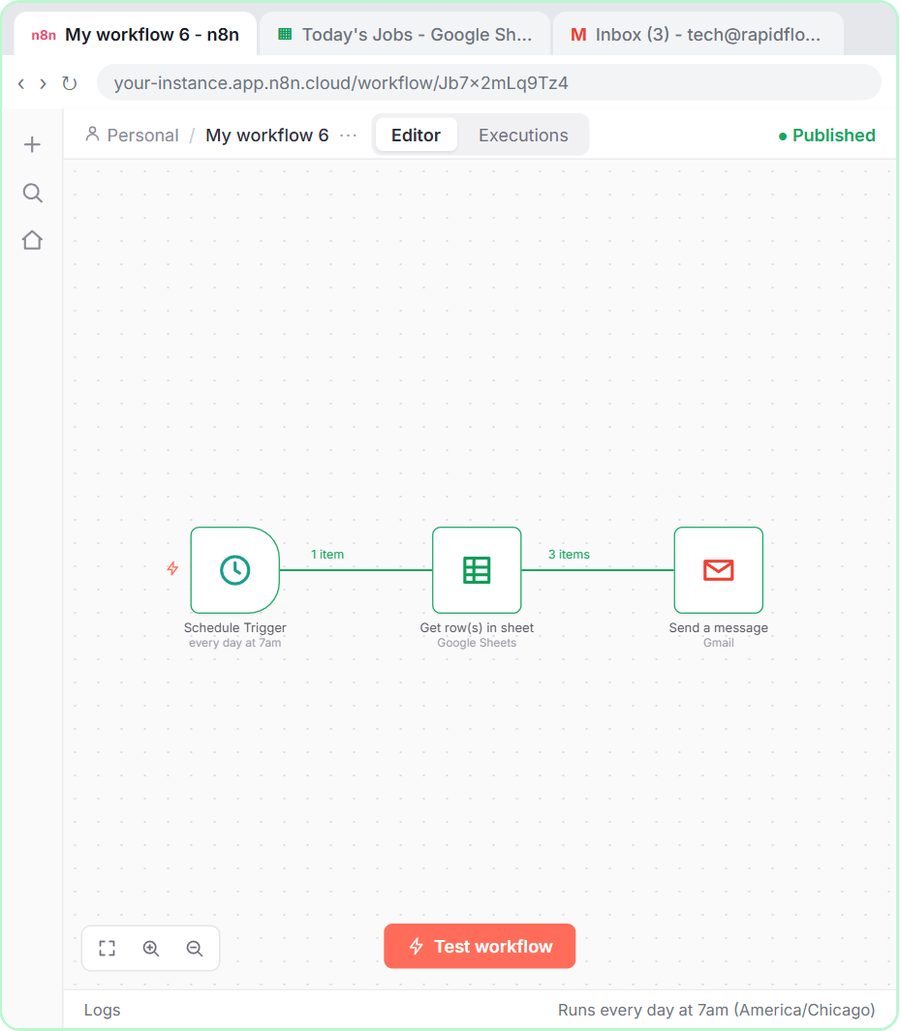
Mistakes 1 and 2 come from defaults: the schedule's timezone and the Google Sheets operation.
1. Forgetting the timezone. A schedule runs on the workflow's timezone, and it defaults to New York. The job alerts lesson calls it the "one setting that trips everyone up." Click the ··· next to the workflow name, then Settings, Timezone, and pick yours. While you're there, check Trigger at Hour: the Schedule Trigger fires at midnight until you change it.
2. Mixing up Append and Get rows. Get row(s) in sheet reads rows; Append Row adds a new one at the bottom. The job alerts workflow reads, so it uses Get. The agent lessons write, so their Google Sheets Tool, which opens set to read, gets changed to Append Row. Pick the wrong one and the step does the opposite of what you meant.
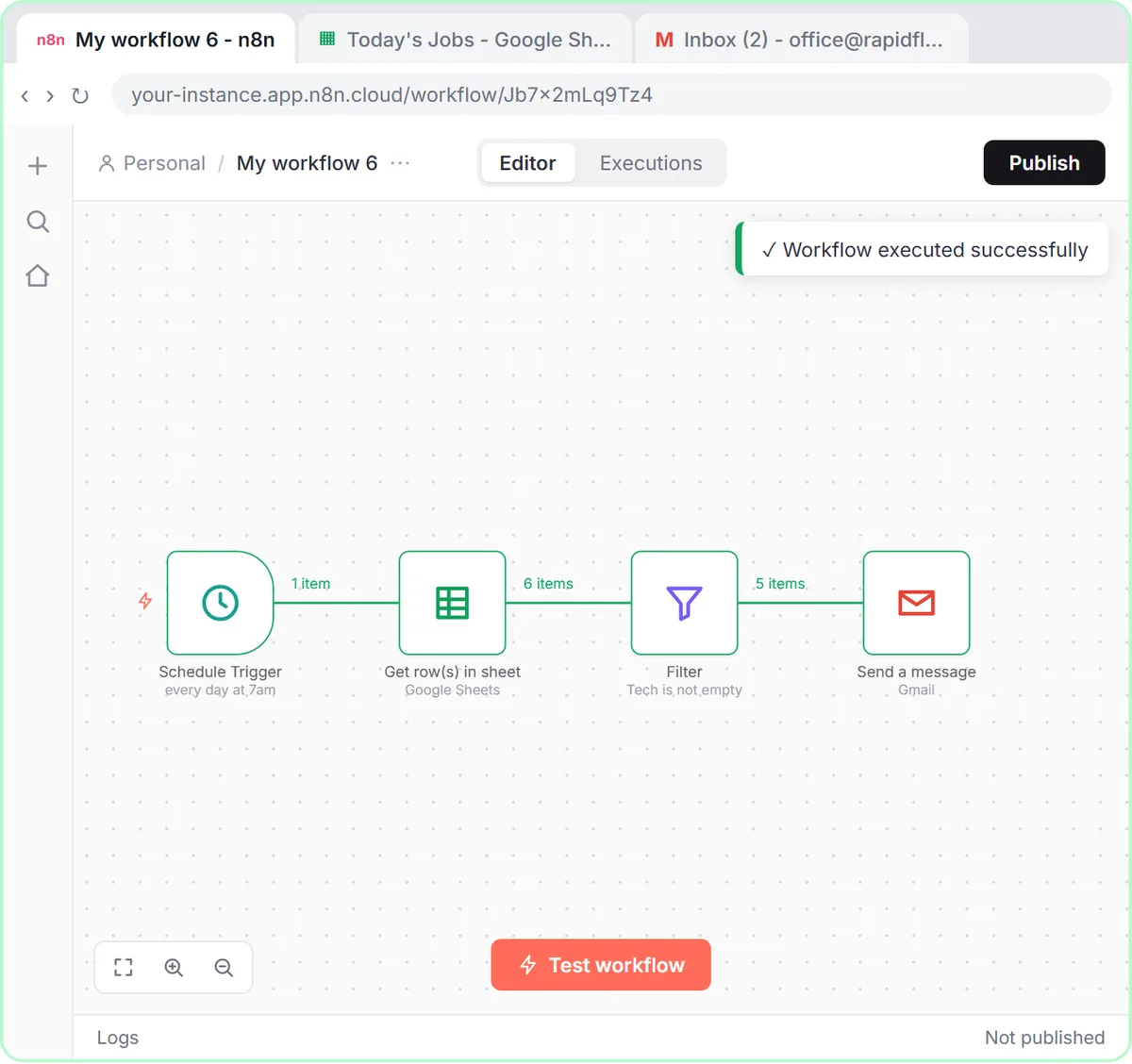
Email Each Tech Their Jobs Every Morning with n8n shows both settings in context.
What mistakes do beginners make with Gmail steps?
Mistakes 3 to 5 decide who gets an email and whether it goes out at all.
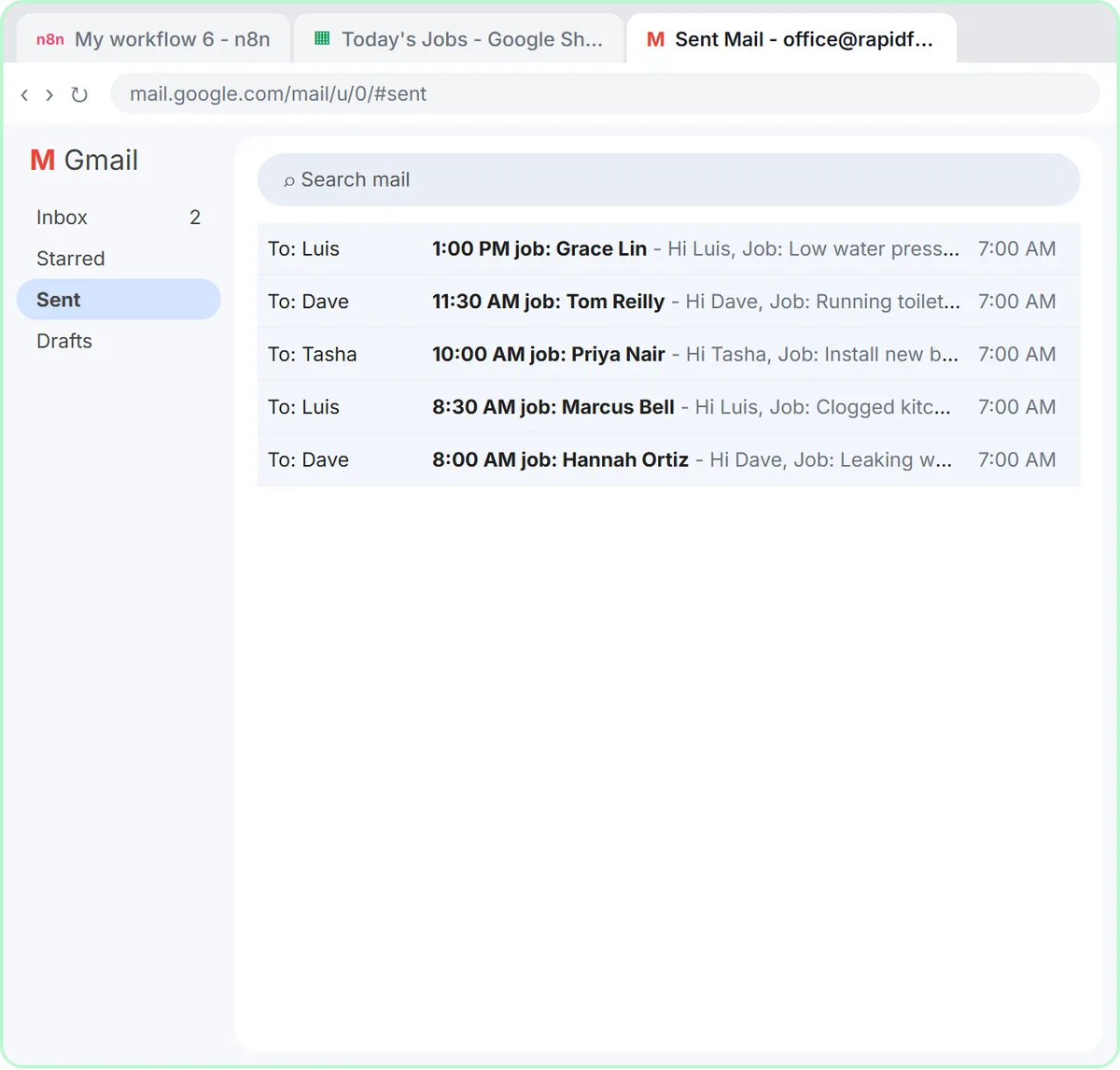
3. One hard-coded To address. Type one address in To and every email goes to that person. In the job alerts lesson, To is {{ $json["Tech Email"] }}, so each job goes to its own tech. The brackets and quotes are needed because the column name has a space.
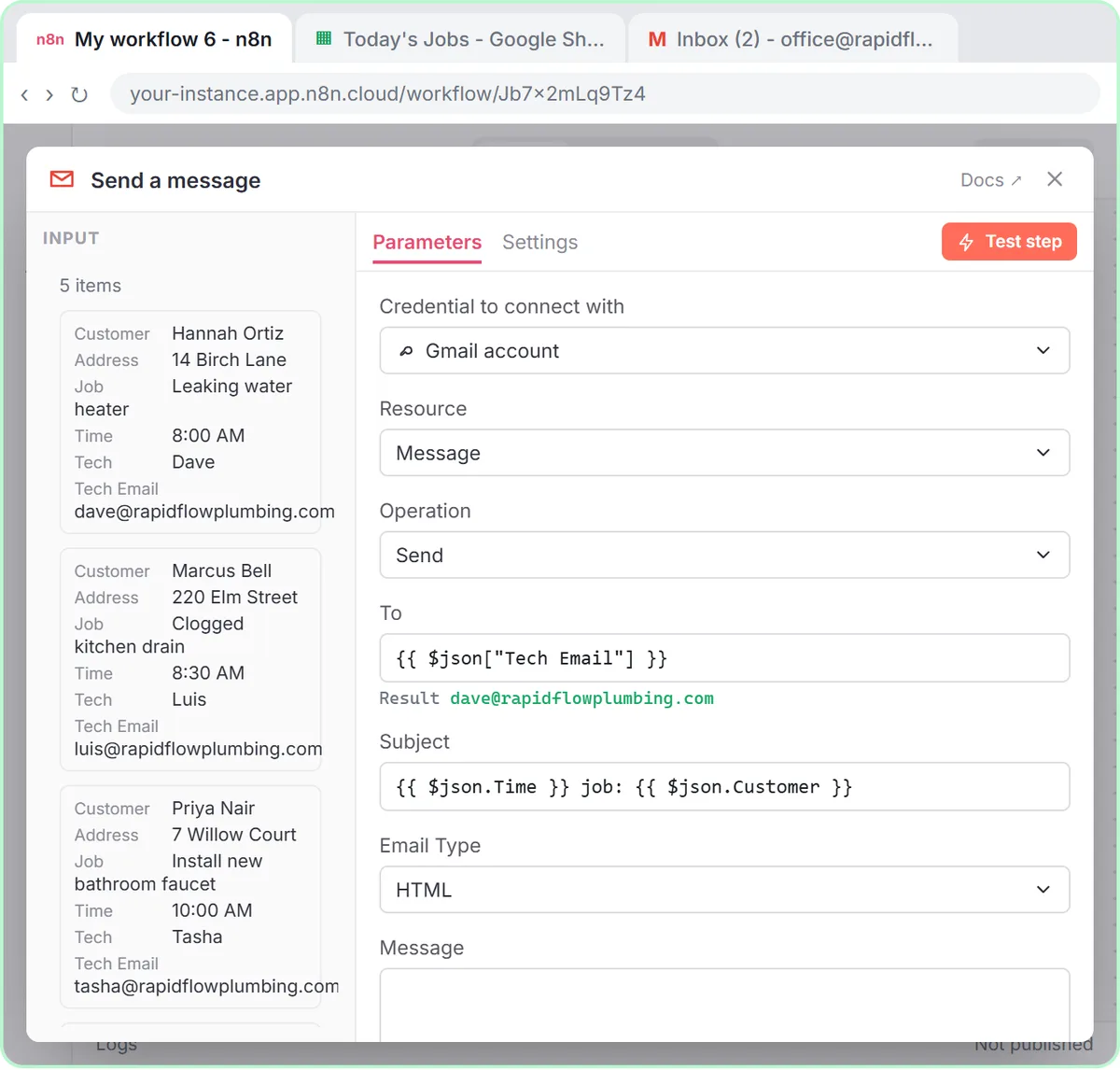
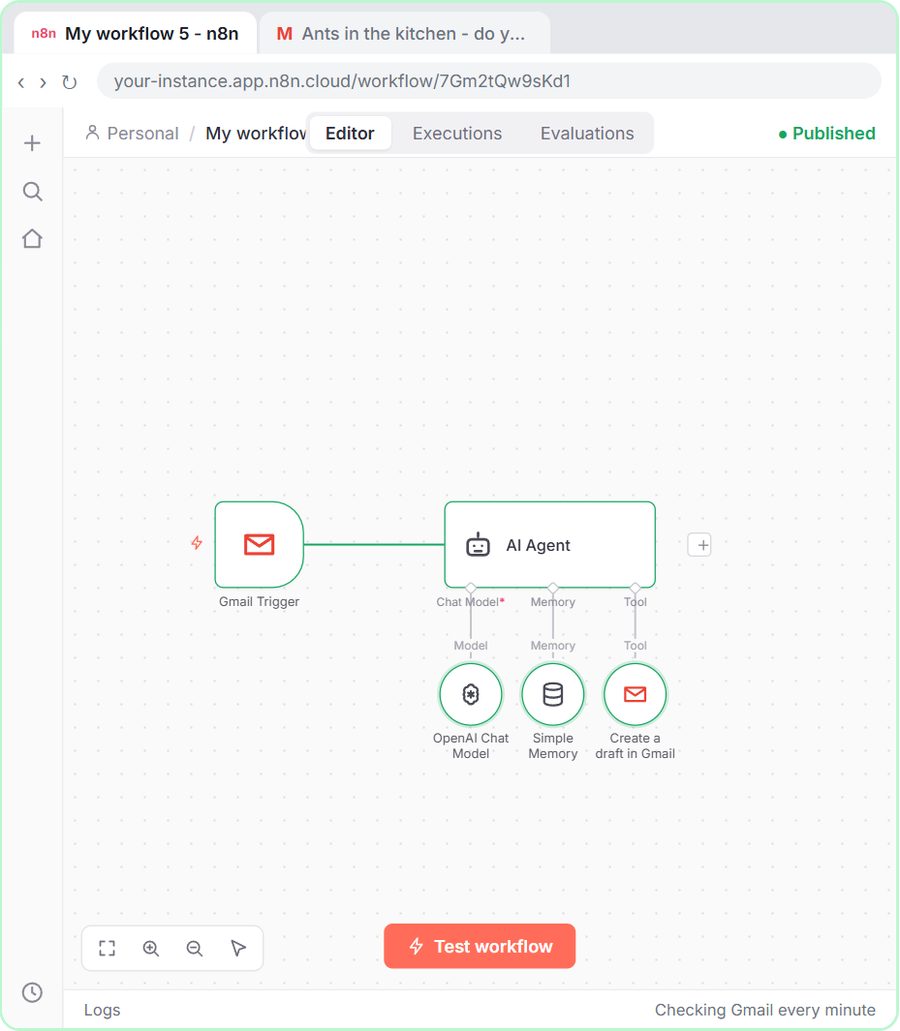
4. Leaving the Gmail Tool on send. In the AI Email Responder lesson, the Gmail Tool opens set to Message and send. The lesson warns, "We do not want an agent sending emails on its own," and changes Resource to Draft, so the operation becomes Create.
5. Drafts with no thread or recipient. Without Thread ID set to {{ $json.threadId }}, the draft lands as a brand new email instead of a reply. Without To Email set to {{ $json.From }}, you can't just hit send. Add both under Add option. AI Email Replies Without Auto-Sending covers the full setup.
Try it free, step by step
How to Make an n8n Workflow That Emails Each Tech Their Jobs from Sheets. Every morning at 7, n8n reads a plumbing company's jobs sheet, skips anything not assigned yet, and emails each job to the tech it's assigned to — customer, address, time and what's wrong. No AI… You do every step yourself in a practice copy of n8n, it checks your work as you go, and “Do it for me” finishes any step you get stuck on. Free, and nothing touches your real accounts.
Start the free lessonWhat mistakes do beginners make with AI agents?
Mistakes 6 and 7 are about where the agent's input comes from.
6. Leaving Source for Prompt on chat. By default the AI Agent expects a chat message. The email responder lesson calls this "the part people miss": when the input is an email or a form, open Source for Prompt (just Source in some lessons), choose Define below, and write a prompt with expressions such as {{ $json.Subject }}.
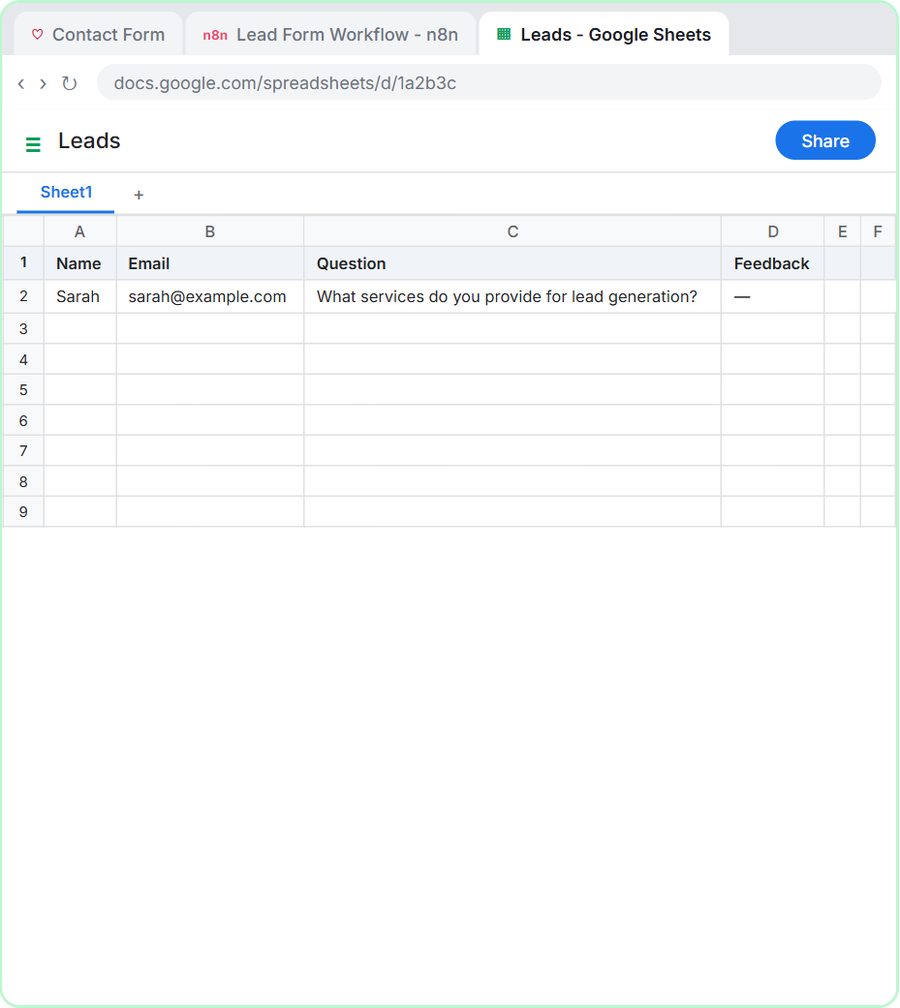
7. Reading webhook fields at the wrong level. Form data arrives inside the request body, so the Build a Web App with an AI Backend lesson's prompt template uses {{ $json.body.name }}, not {{ $json.name }}. The second one looks one level too high and finds nothing. Keys must match the form exactly, capitals included.
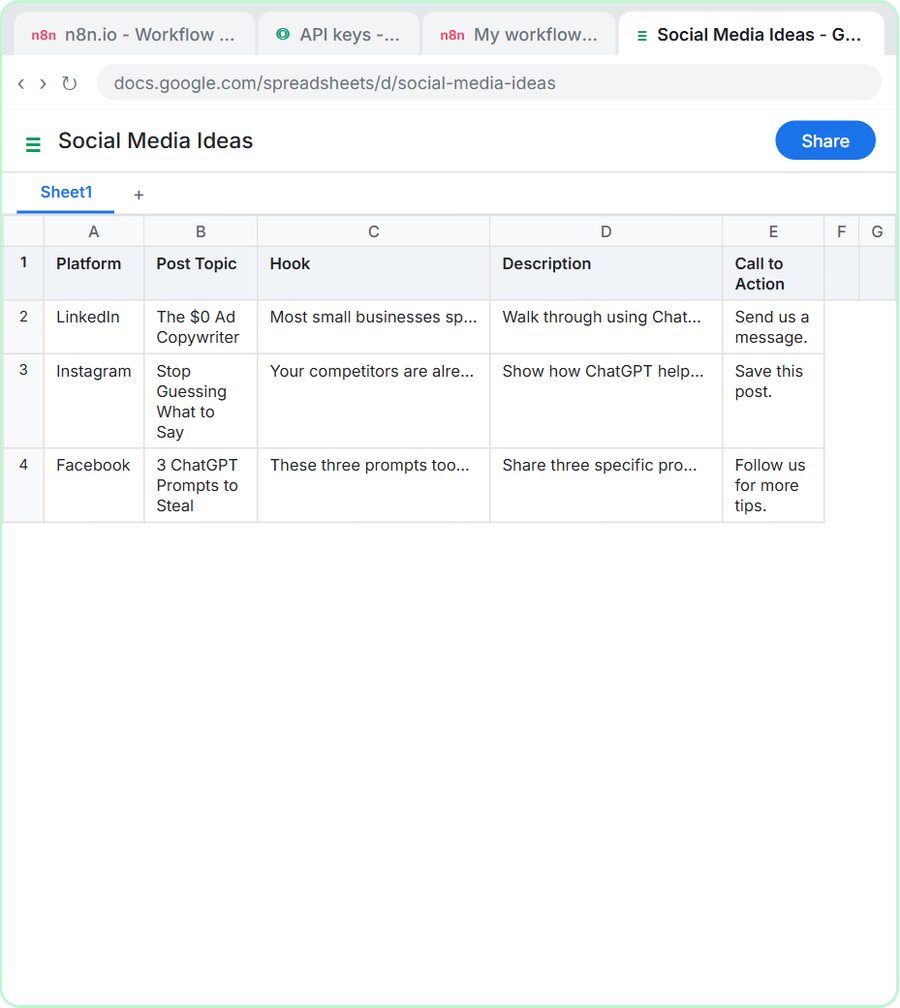
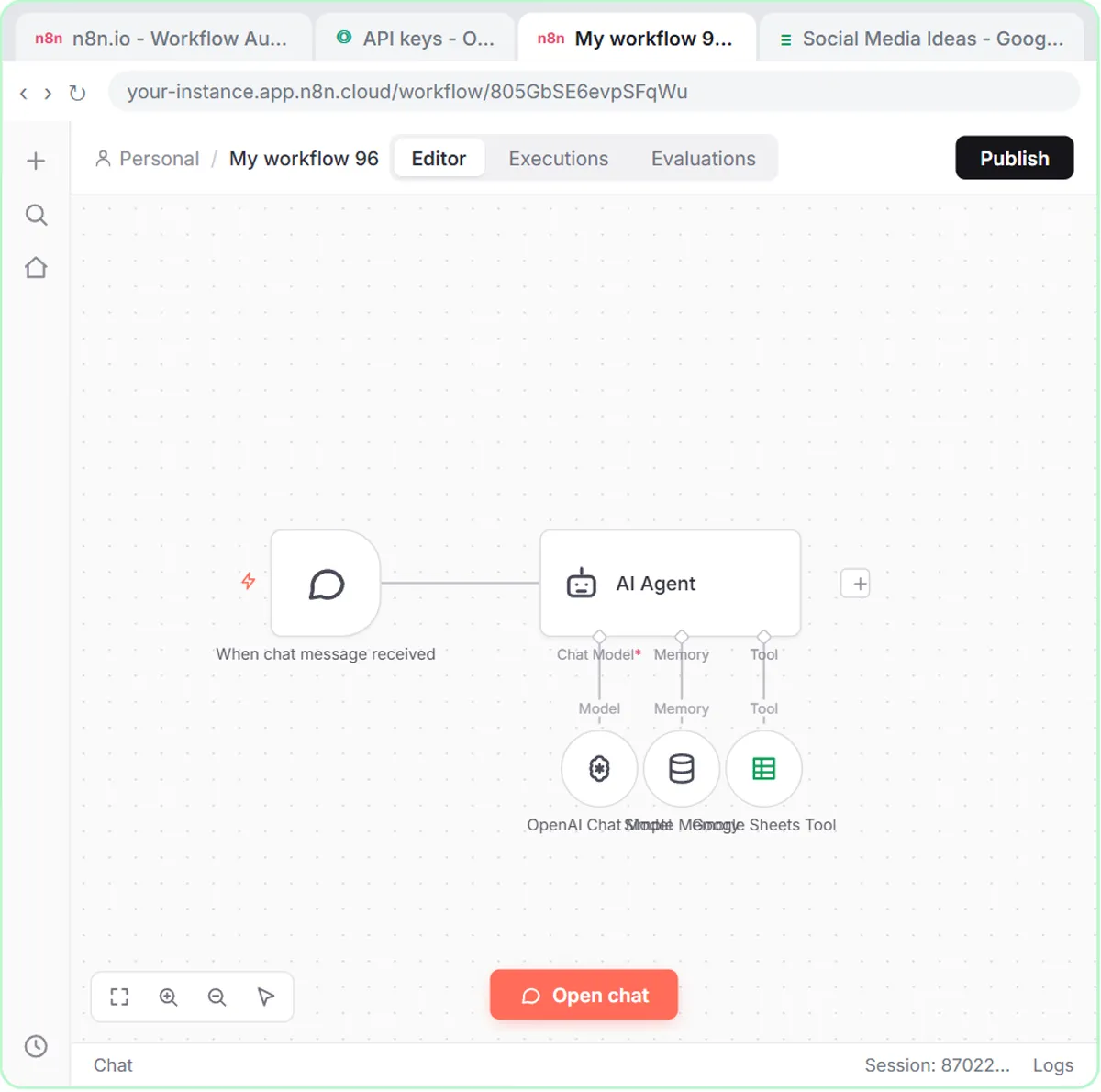
Two more agent slips show up in the AI Social Media Idea Agent lesson: an agent with no Chat Model (the red triangle) and an agent with no memory, which can't act on "Yes, save those ideas to the sheet" because it doesn't remember the ideas.
What mistakes do beginners make when going live?
Mistakes 8 and 9 are about the step from testing to real use.
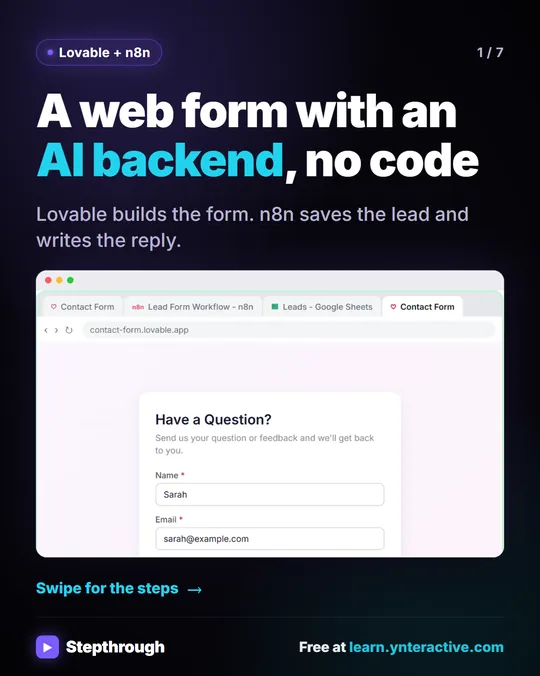
8. A Test URL in a live form. The webhook's Test URL only works during testing. Publish the workflow, open the Webhook node, click the Production URL tab and copy that URL into the form. In the Lovable lesson, it goes into a secret named N8N_WEBHOOK_URL. n8n Webhook Test URL vs Production URL explains the difference.
9. Publishing without a test, or never publishing. Test first with your own data: Test step on a single node, Execute workflow for the whole thing, and a test email or form sent to your own address. Then click Publish. Until you do, the workflow only runs when you press execute.
What mistakes do beginners make with OpenAI keys?
Mistake 10 has two halves: no credit, and a key left in the open.
10a. A key with no credit. The OpenAI API is pay-as-you-go and billed separately from ChatGPT plans. The lessons say to add credit at platform.openai.com, under Billing, before creating the key, because "a key with no credit behind it just errors." They suggest $10 to start.
10b. A key pasted where others can see it. The key can spend your money. The lessons' advice: never paste it into a chat, a repo or a screen recording, and save it once as an n8n credential that every workflow can reuse. If it leaks, revoke it and make a new one. OpenAI API vs ChatGPT Plus covers keys and billing.
On cost: the lessons are free and run in practice copies, so you can make every one of these mistakes safely. A real build needs n8n (n8n Cloud is paid after a free trial, or self-host it). The n8n Jump Start path puts the lessons in order.
If your team wants to skip these mistakes together, n8n training for teams covers the basics live, and you can hire an n8n developer for the builds you need now.
Key takeaways
- n8n schedules default to New York time and midnight, so set the workflow's Timezone and the Trigger at Hour.
- Get row(s) in sheet reads rows and Append Row adds them, and mixing them up is a common beginner mistake.
- An expression such as
{{ $json["Tech Email"] }}in To sends each row to its own person instead of one typed address. - An AI Agent that reads emails or forms needs Source for Prompt set to Define below, and webhook fields are read from
$json.body. - A live form needs the Production URL of a published workflow, and an OpenAI key needs credit before the agent can work.
Frequently asked questions
- What is the most common n8n beginner mistake?
Forgetting to publish. Execute workflow only runs it once while you test; Publish makes it run on its own.
- Why do all my n8n emails go to the same person?
There's a typed address in To. Replace it with an expression that points at the email column, such as
{{ $json["Tech Email"] }}.- Why does my n8n agent ignore my email or form data?
Its Source for Prompt is probably still set to the chat message. Choose Define below and write a prompt with expressions for the fields.
- Can I practice n8n without risking real emails?
Yes. The Stepthrough lessons run in a practice copy, so nothing is sent, published or billed.