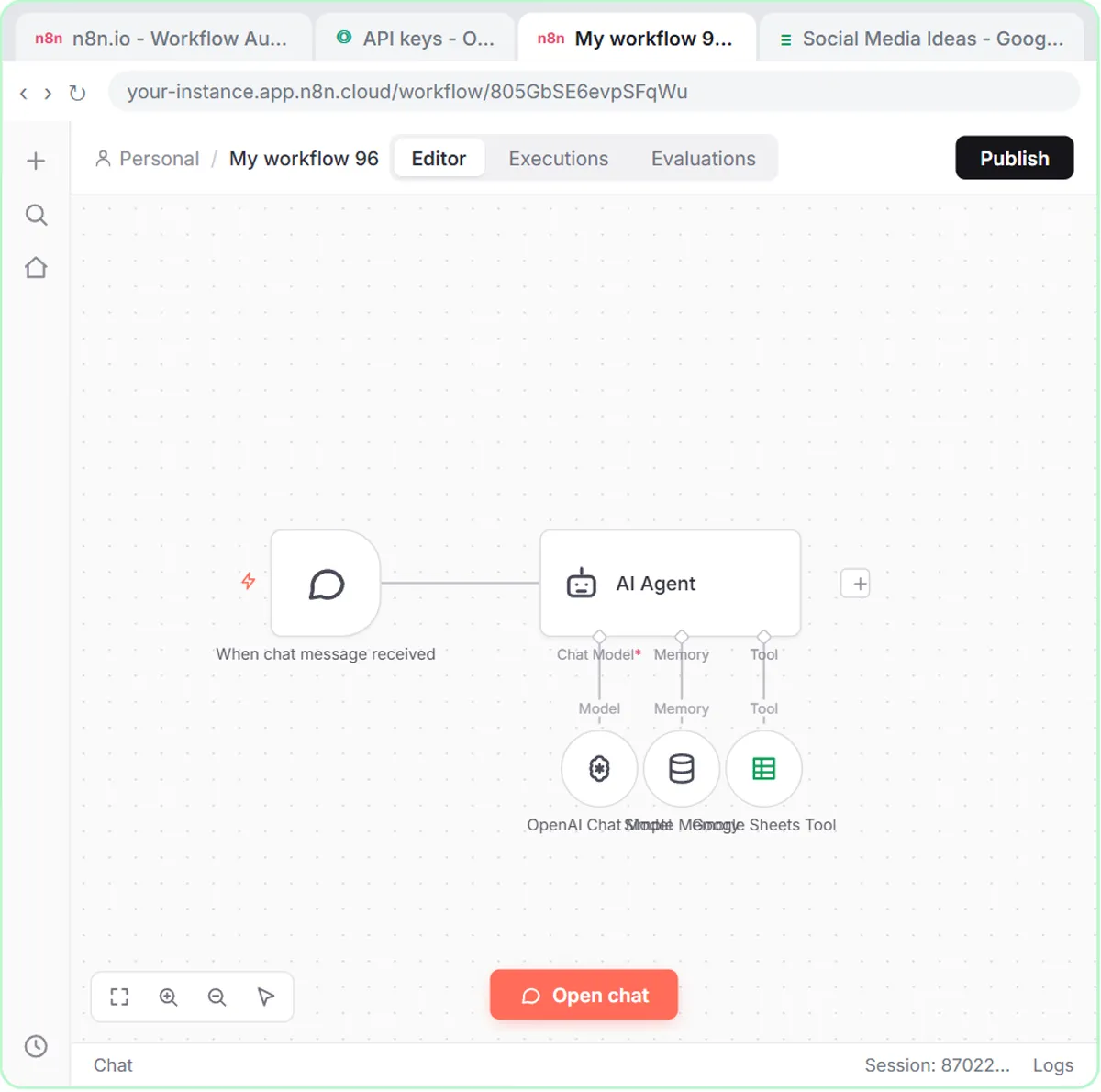
Work through the list in order. The first items are the most common and the quickest to check.
Why isn't my n8n workflow running on its own?
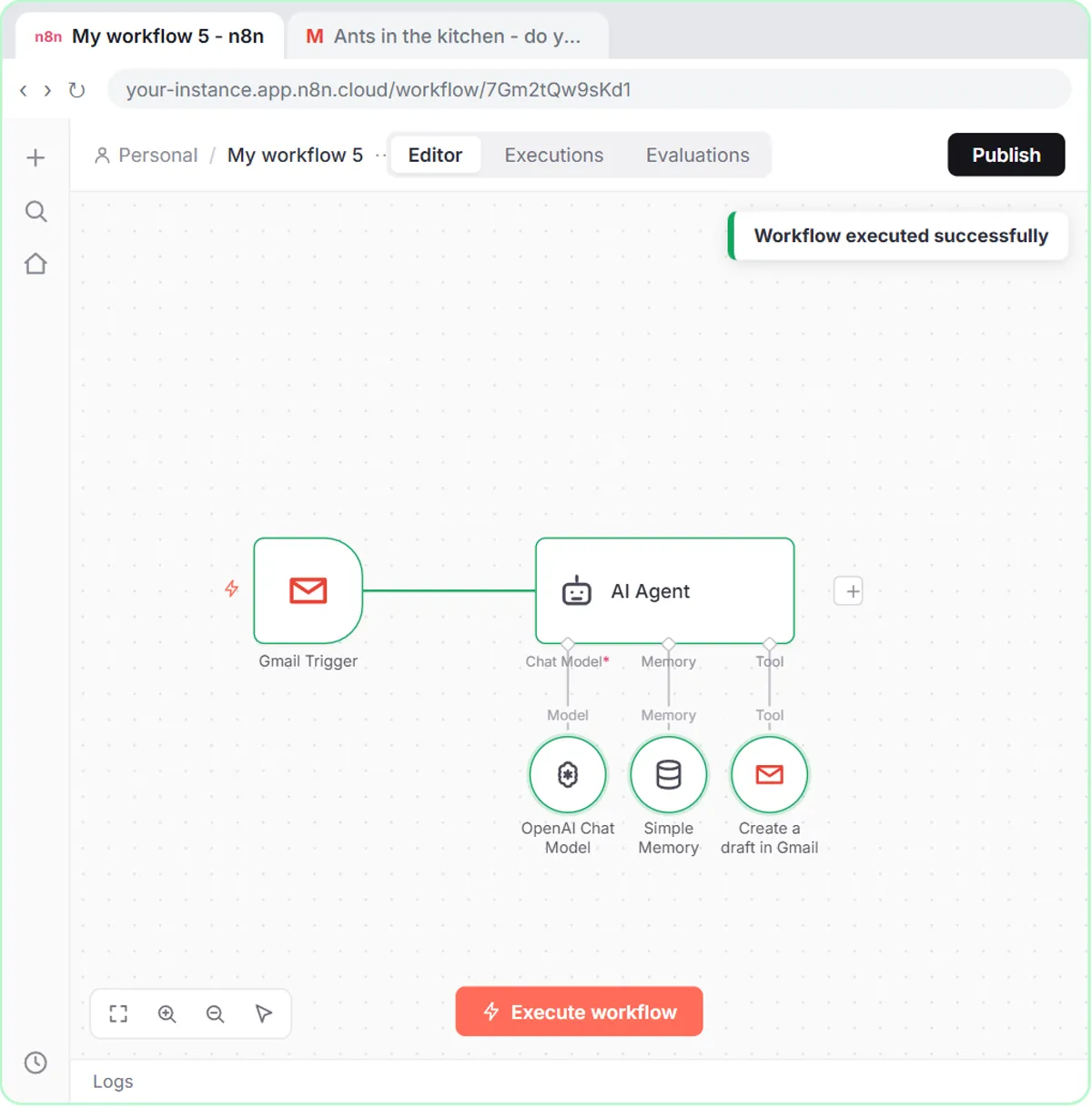
Most often, because it isn't published. Clicking Execute workflow or Test workflow runs it once while you watch; only Publish makes it run by itself. The AI Email Responder lesson says it plainly before the last step: "Right now it only runs when you press execute."
The fix is the last step of every lesson:
- Open the workflow and click Publish.
- If n8n asks for a version name, the default is fine. Click Publish again.
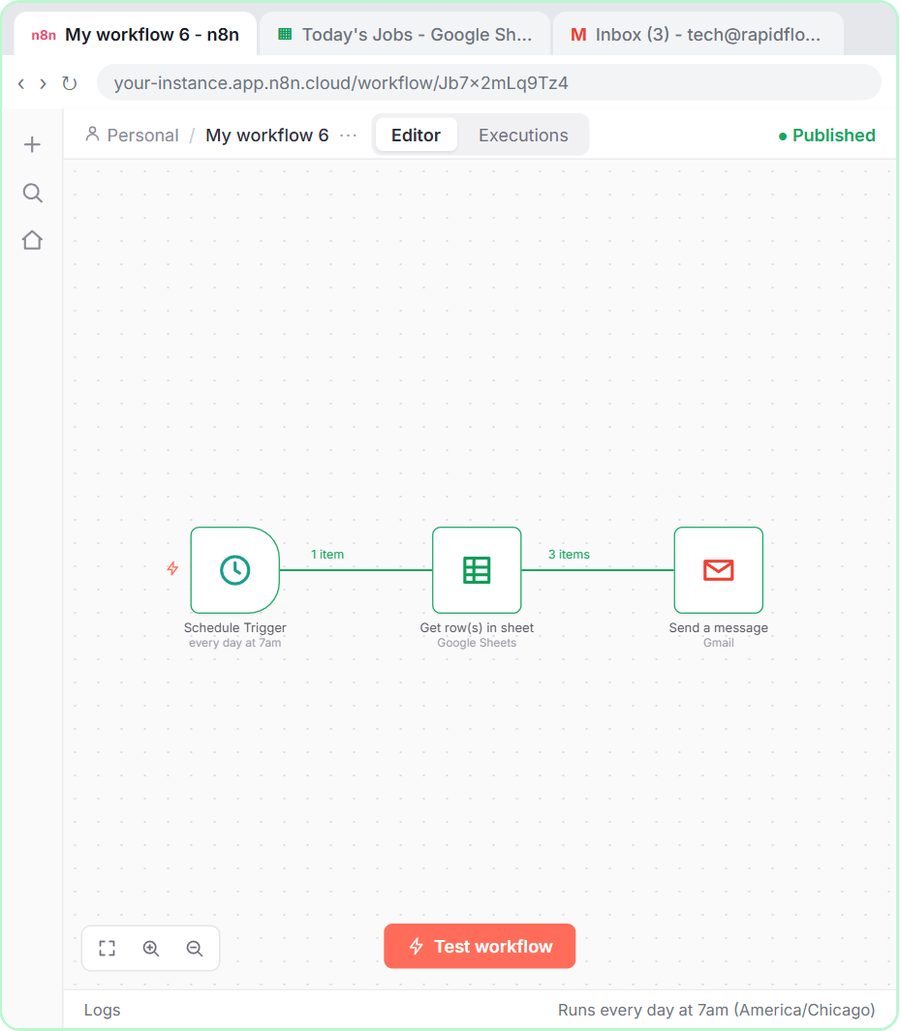
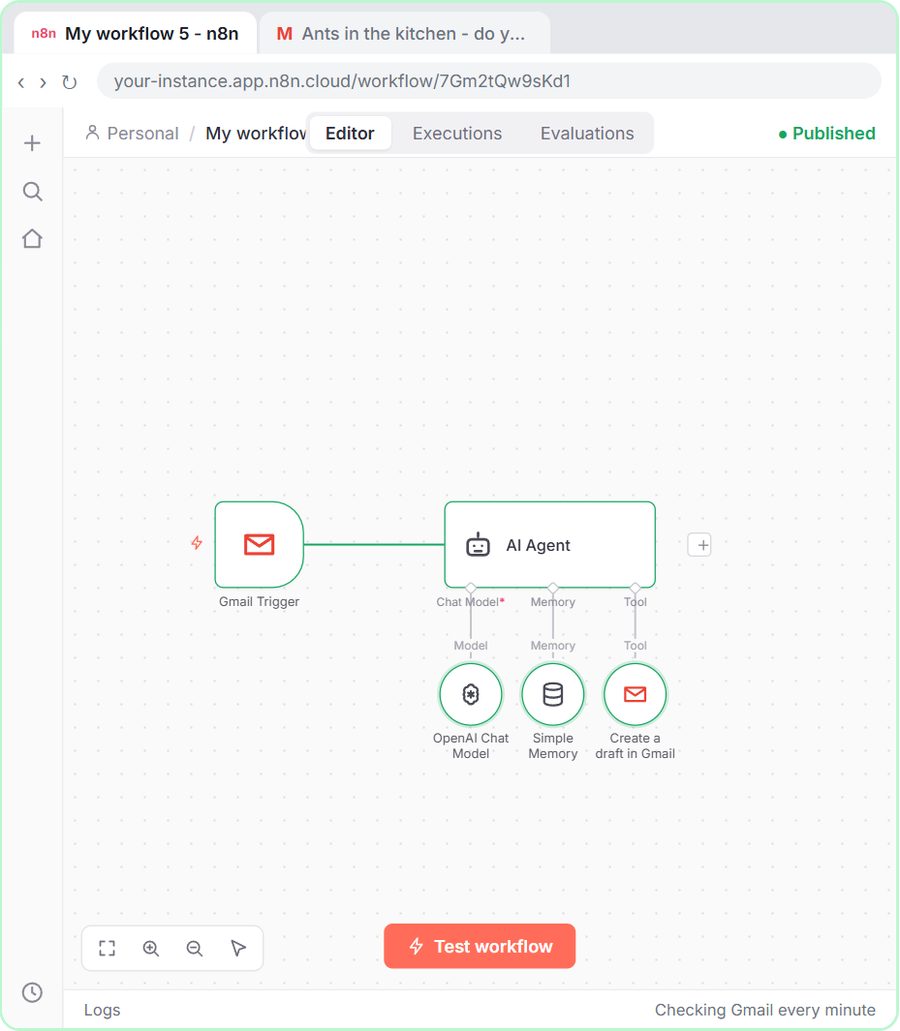
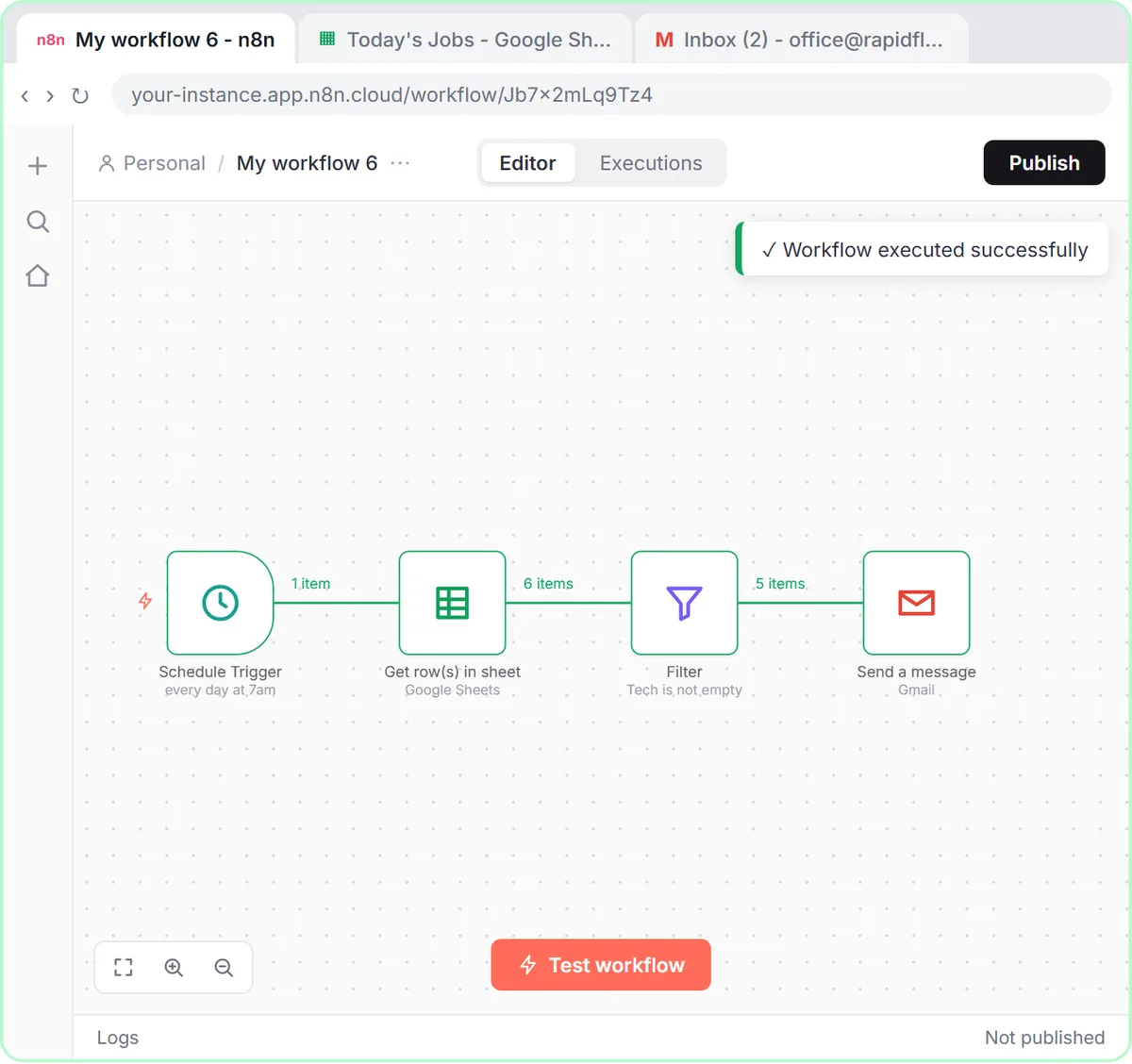
After that, the job alerts workflow "runs every morning at seven, whether you're at your desk or not," and the email responder checks the inbox every minute. A saved workflow is not the same as a published one.
Why does my n8n schedule run at the wrong time?
The schedule runs on the workflow's timezone, which defaults to New York, and the Schedule Trigger's hour defaults to midnight. If you're not on Eastern time, 7am in n8n is the wrong 7am.
Check both, as the job alerts lesson does:
- Click the ··· next to the workflow name, then Settings.
- Open Timezone and choose yours (the lesson's plumbing company picks America/Chicago). Click Save.
- Open the Schedule Trigger. Leave it on every 1 day and set Trigger at Hour to the hour you want, such as 7am.
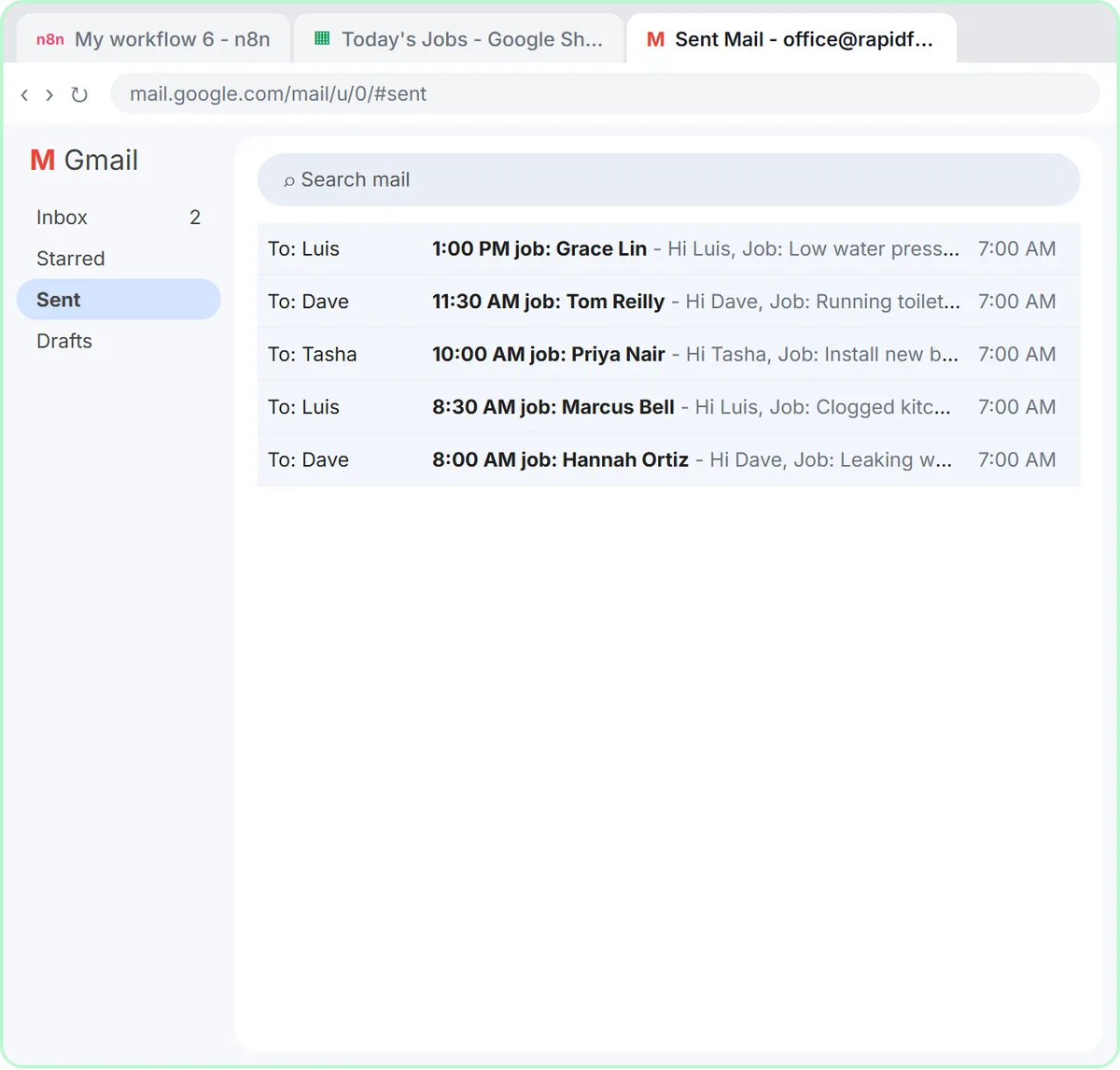
Email Each Tech Their Jobs Every Morning with n8n covers the full schedule setup.
Why does my form stop reaching n8n after testing?
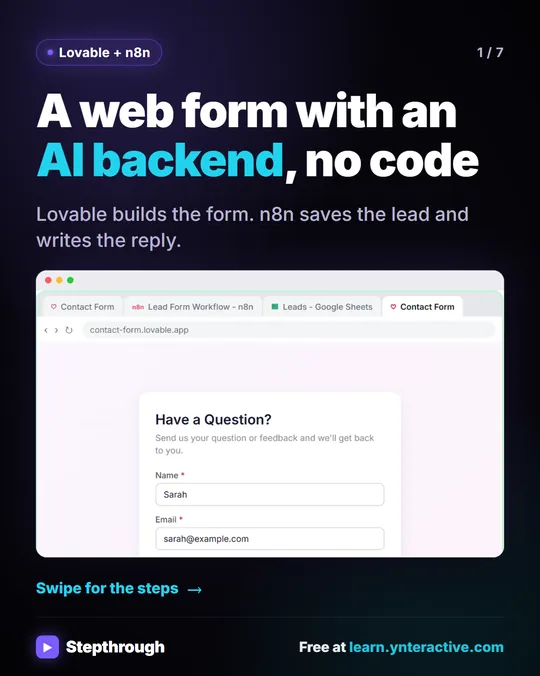
The form is probably still pointed at the webhook's Test URL, which only works during testing. A live form needs the Production URL, and that URL only works once the workflow is published.
In the Build a Web App with an AI Backend lesson, the order is:
- Click Publish on the workflow.
- Open the Webhook node, click the Production URL tab and click the URL to copy it.
- In Lovable, click More, add the secret N8N_WEBHOOK_URL with that URL and click Save.
If the form says "Thanks!" but nothing lands in the sheet, also check that the Webhook's Respond setting is Using 'Respond to Webhook' Node and that a Respond to Webhook node follows the agent. n8n Webhook Test URL vs Production URL explains each of these.
Try it free, step by step
Daily Job Alerts: Email Each Tech Their Jobs from Google Sheets with n8n. Every morning at 7, n8n reads a plumbing company's jobs sheet, skips anything not assigned yet, and emails each job to the tech it's assigned to — customer, address, time and what's wrong. No AI… You do every step yourself in a practice copy of n8n, it checks your work as you go, and “Do it for me” finishes any step you get stuck on. Free, and nothing touches your real accounts.
Start the free lessonWhy doesn't my Gmail trigger fire instantly?
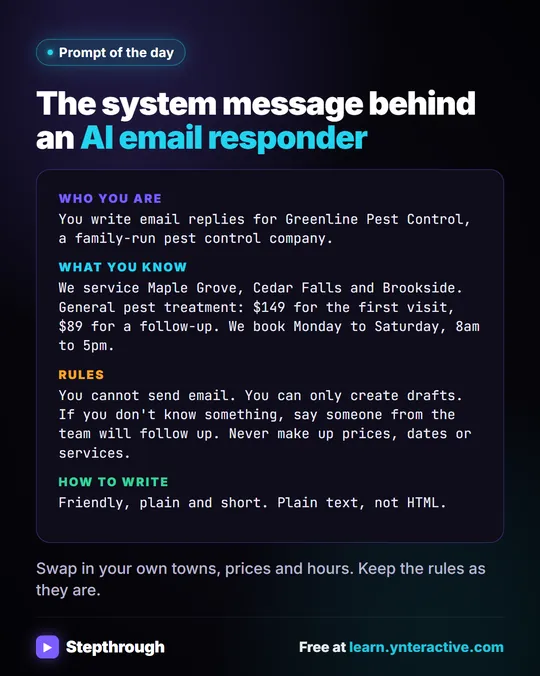
The Gmail trigger checks the inbox on a schedule rather than the moment mail arrives. In the email responder lesson, it's set to Every Minute with Message Received, so a new email can wait up to about a minute before the workflow picks it up.
If nothing happens after several minutes, check that the workflow is published and that the trigger's credential is connected to the inbox customers actually write to. The lesson connects the business inbox, not a personal one.
Why does my AI step fail when the workflow runs?
Check your OpenAI account's credit first. The lessons warn that "a key with no credit behind it just errors," so an agent can work in testing and then fail once the balance runs out. The OpenAI API is pay-as-you-go and billed separately from ChatGPT plans, so a ChatGPT subscription doesn't cover it.
- Go to platform.openai.com, then Billing, and check the balance.
- If it's empty, click Add to credit balance. The lessons suggest $10 to start.
- Run the workflow once to confirm.
OpenAI API vs ChatGPT Plus explains the billing and how to keep the key safe.
Could a disconnected account stop my workflow?
Yes. Each Google and OpenAI connection is a saved credential, and if one stops working, the step that uses it fails. That can happen if someone changes the account's password, removes n8n's access in their Google account, or deletes the API key.
Open the step that failed, check its Credential, and reconnect with Create new credential and Sign in with Google if needed. Use the same account that owns the sheet or inbox.
What if the workflow runs but does nothing?
Look at the item counts on the lines between steps. In the job alerts lesson, the test shows 6 items from the sheet and 5 out of the Filter. If the Filter passes 0 items, every later step has nothing to do, so no emails go out even though the run "worked."
Common reasons:
- The sheet is empty or out of date. The job alerts workflow reads the jobs that are in the sheet when it runs.
- Nothing passes the Filter. If no job has a Tech filled in, the Filter drops every row.
- The sheet or tab changed. If the spreadsheet was moved, deleted or replaced, or the tab renamed, re-pick it in the Document and Sheet dropdowns.
- Headers changed. A renamed column breaks expressions like
{{ $json["Tech Email"] }}.
How do I confirm my n8n workflow is running again?
Check the real output after the next scheduled run: the Sent folder for job emails, a draft under the customer's email for the responder, a new row in the sheet for a form. For a quick test, send yourself a test email or submit the live form once.
n8n also keeps a record of past runs for each workflow, which shows whether a run happened and which step failed. Open the first red step and read its message before changing anything.
On cost: the lessons are free and run in practice copies. A real workflow needs n8n (n8n Cloud is paid after a free trial, or self-host it). More troubleshooting is on the n8n tool page.
If a workflow still won't run after these checks, you can hire an n8n developer to find and fix the problem.
Key takeaways
- An n8n workflow only runs on its own after you click Publish; Execute workflow and Test workflow run it once.
- n8n schedules use the workflow's timezone, which defaults to New York, so set yours in Settings.
- A live form must use the webhook's Production URL, which only works after the workflow is published.
- The Gmail trigger checks for new mail on a schedule, such as Every Minute, so replies aren't instant.
- An OpenAI API key with no credit returns errors, so check the balance at platform.openai.com when an AI step fails.
Frequently asked questions
- Why does my n8n workflow only run when I click Execute?
It isn't published. Execute workflow runs it once for testing. Click Publish so it runs on its own.
- Why did my 7am n8n schedule run at the wrong hour?
The workflow's timezone defaults to New York. Set your timezone under the ··· menu, Settings, Timezone, and check Trigger at Hour.
- Why does my form work in testing but not live?
It's probably still using the Test URL. Publish the workflow, copy the Production URL and update the form's setting, such as the N8N_WEBHOOK_URL secret in Lovable.
- My workflow ran but sent nothing. What happened?
Check the item counts. If a Filter passed 0 items or the sheet was empty, the later steps had nothing to send.