No tool can promise that a connection is risk-free, and this post doesn't either. What it does is explain what you're agreeing to, what actually decides what n8n does with your mail, and the settings the lessons use to keep a person in control.
What happens when you connect Gmail to n8n?
You give n8n permission to use your Gmail account through Google's own sign-in, and n8n saves that permission as a credential. You never type your Google password into n8n.
In every Stepthrough lesson that uses Gmail, the steps are the same:
- In the Gmail node, open the Credential dropdown.
- Click Create new credential.
- Leave it on managed OAuth and click Sign in with Google.
- Pick the Google account.
- Review what Google lists, then click Continue.
On n8n Cloud, the managed option means you don't need any Google developer setup. Once connected, n8n keeps the credential, and you can pick it again in other workflows without signing in twice.
Why does Google's permission screen ask for so much?
Google lists everything the Gmail connection could be used for, not what your workflow will do. The list is broad because one Gmail credential has to work for many kinds of workflows.
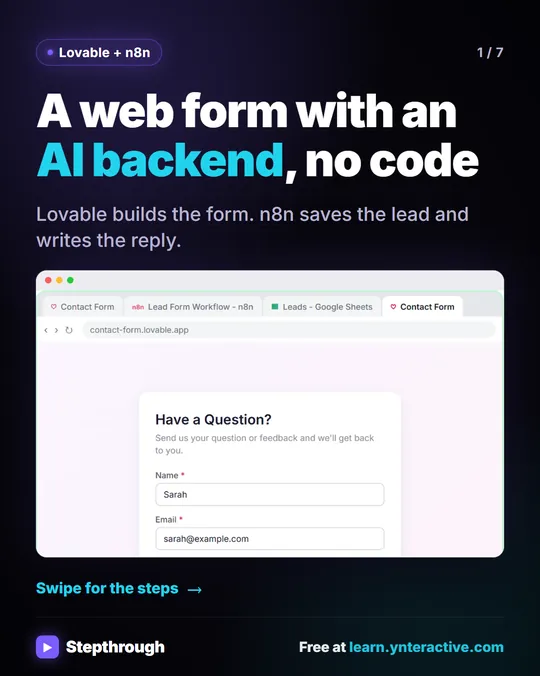
In the Build a Web App with an AI Backend lesson, the Gmail screen has six boxes, starting with "Read, compose, send, and permanently delete all your email from Gmail" and including "Manage drafts and send emails." That reads like a lot, and it is a lot of access.
The email responder lesson puts it plainly: the list sounds big, but what actually happens is decided by the nodes you add. A workflow with one Gmail draft step can only write drafts. A workflow with a Send step can send. So the real safety decisions happen in n8n, in the nodes, not on Google's screen.
That also means the person who can edit your n8n workflows can change what they do. Keep your n8n login to the people who need it.
Which Gmail account should you connect to n8n?
Connect the business inbox the workflow is actually for, not your personal account. The lessons pick the account on purpose every time.
- The email responder connects the inbox customers write to:
office@greenlinepest.comfor the made-up Greenline Pest Control. - The job alerts workflow connects the account the emails should come from: the office account for the made-up Rapid Flow Plumbing.
- The template lesson picks the Google account the business uses.
A shared office inbox keeps the workflow tied to the business. When someone leaves, the automation doesn't leave with their personal mailbox, and customers see the same address they always do.
How do you stop n8n from sending email on its own?
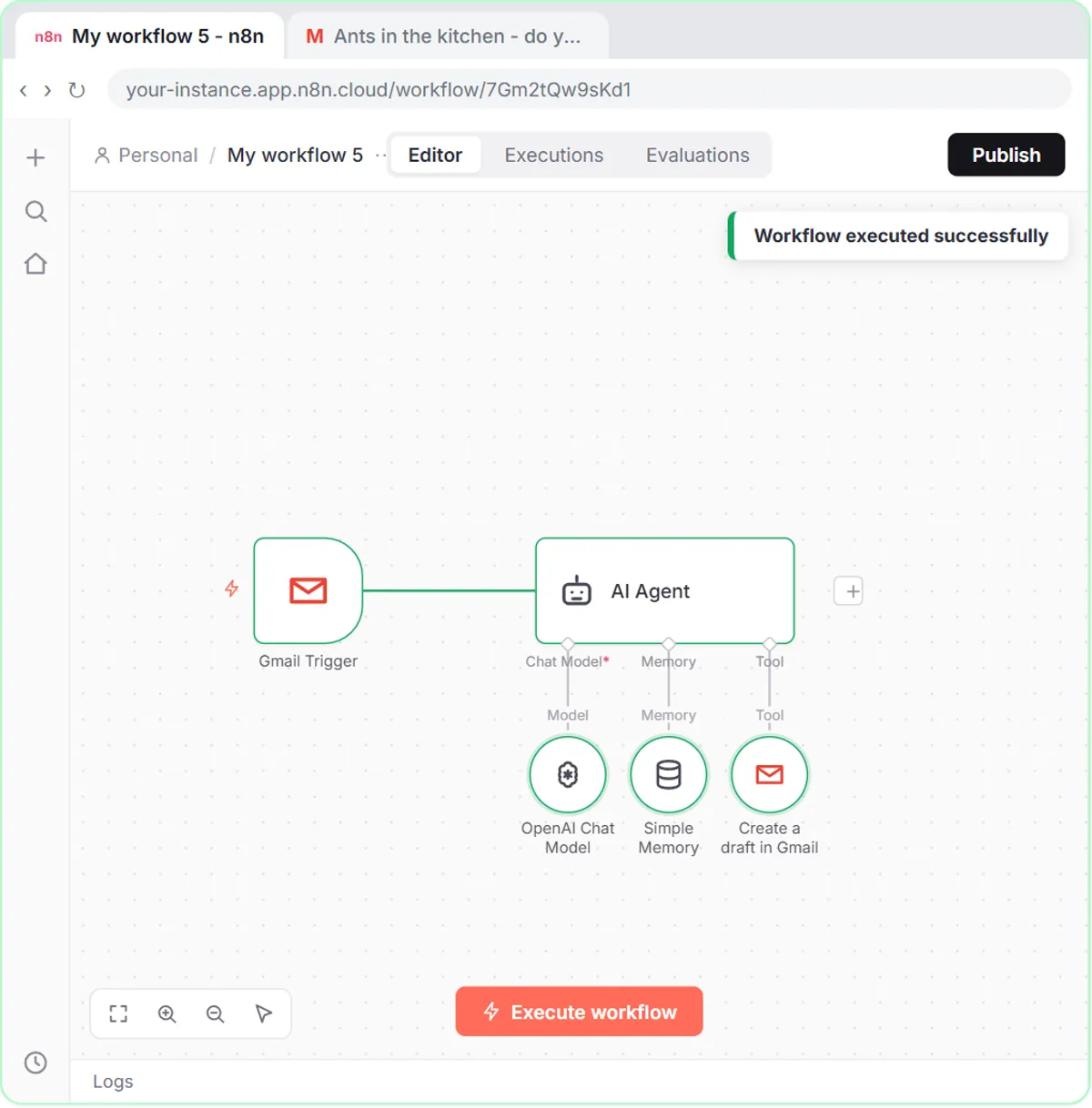
Set the Gmail tool to Draft, so the AI writes replies but a person sends them. The email responder lesson does exactly that.
When you add the Gmail Tool under the AI Agent, its Resource says Message and the operation is Send. The lesson changes it:
- Open the Resource dropdown.
- Choose Draft. The operation switches to Create.
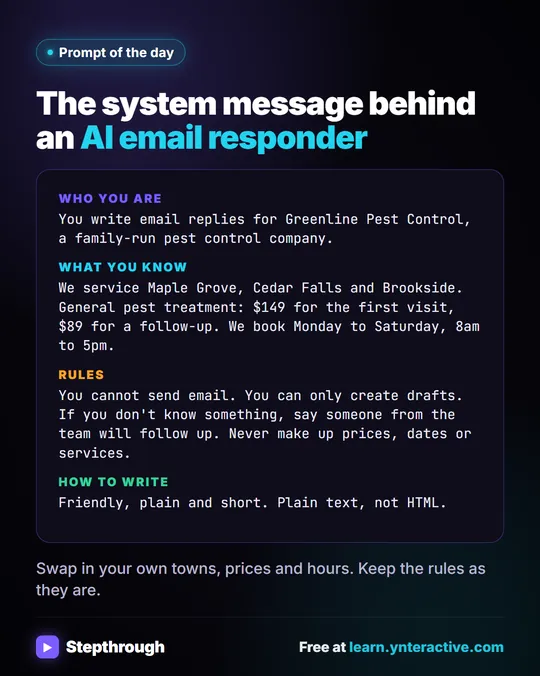
In the lesson's words, the worst the agent can do is write a draft you never send. The system message adds a second guard: "You cannot send email. You can only create drafts." The full build is in AI Email Replies Without Auto-Sending.
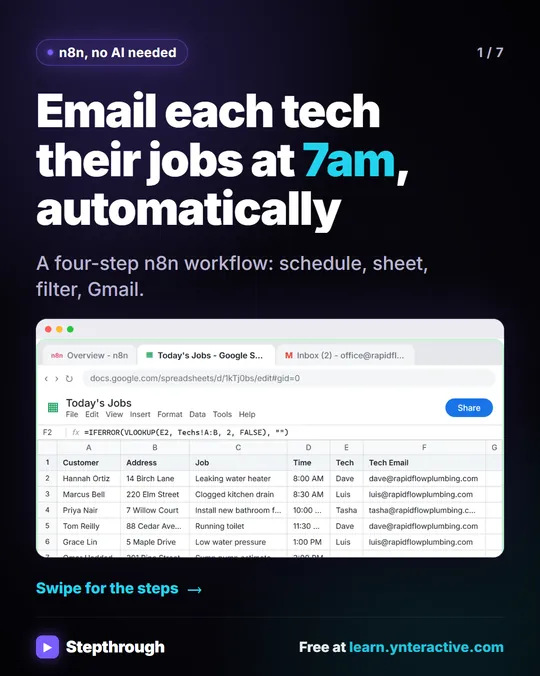
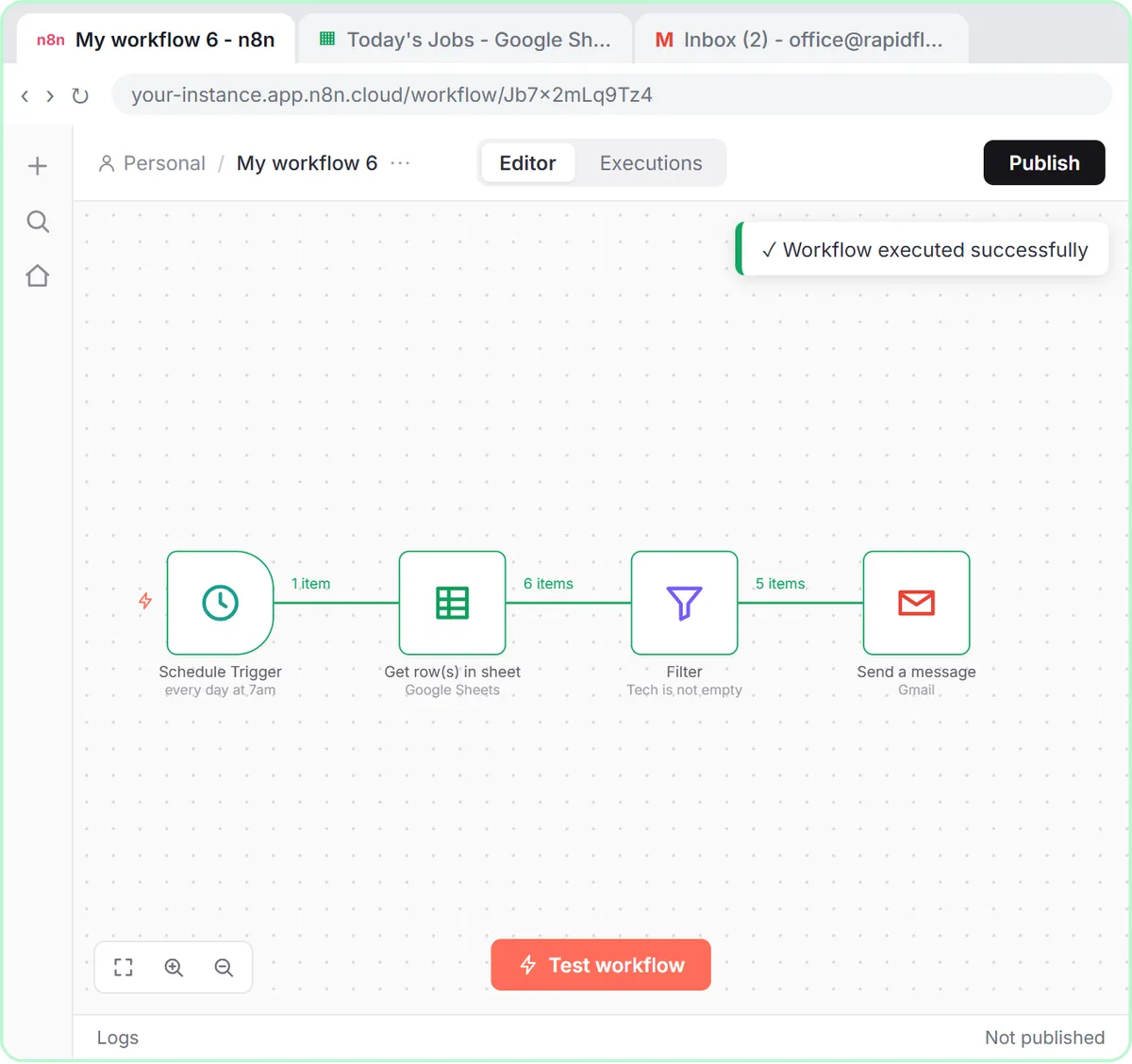
Sending isn't always wrong. The job alerts workflow uses Gmail: Send a message with no AI at all, because every email is built from fixed fields in the sheet and goes to the business's own techs. The safe rule: send automatically only when the content is predictable and the recipients are people you know.
Try it free, step by step
n8n AI Email Responder: Draft Gmail Replies Automatically. Build an n8n agent that watches your Gmail, reads each new customer email, and writes a reply as a draft in the same thread, ready for you to check and send. You do every step yourself in a practice copy of n8n, it checks your work as you go, and “Do it for me” finishes any step you get stuck on. Free, and nothing touches your real accounts.
Start the free lessonWhat does the email responder actually read?
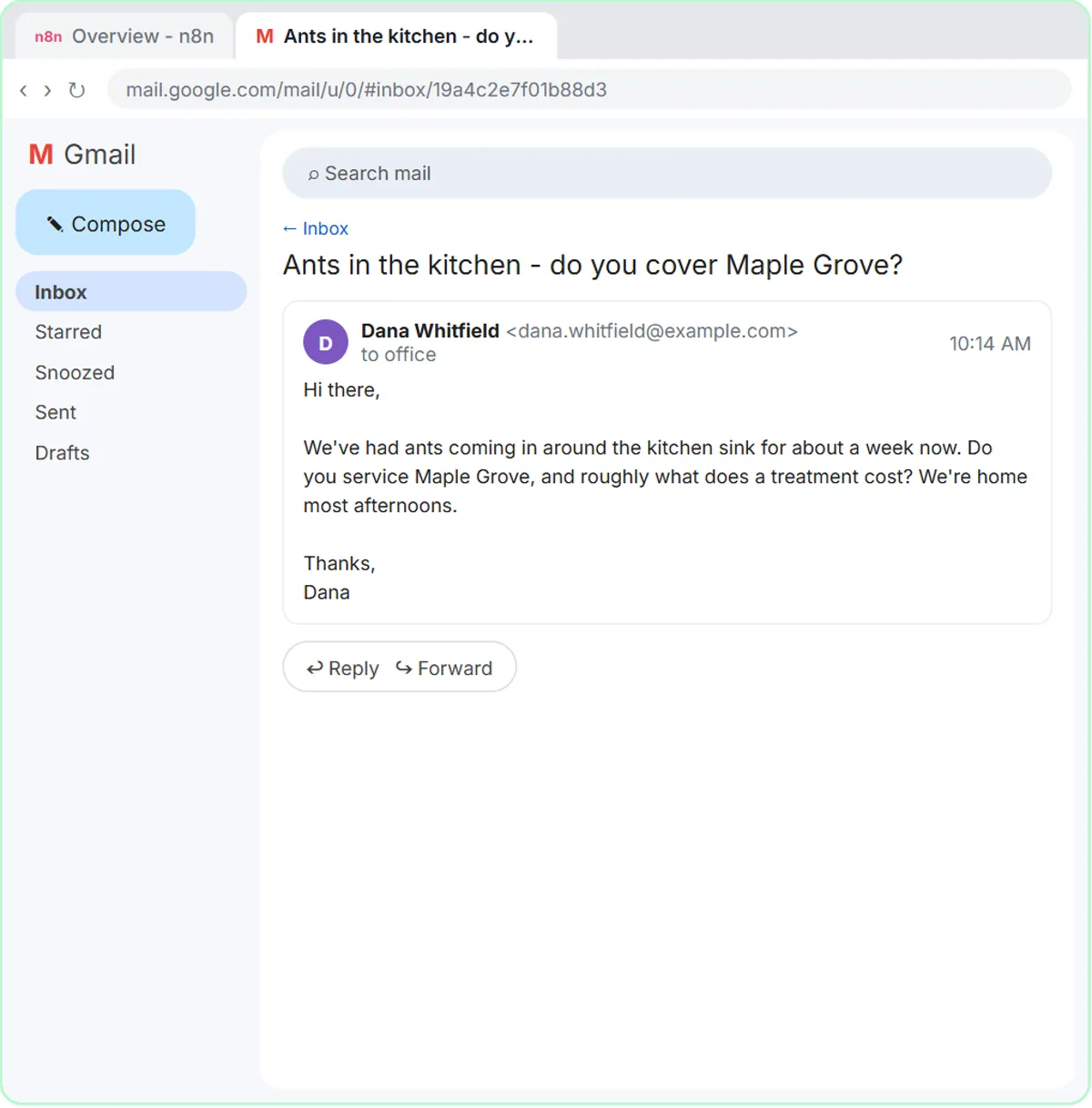
The Gmail trigger checks the inbox Every Minute and fires on Message Received, so every new email that arrives becomes data in the workflow. When you click Fetch Test Event, you see it: From, Subject, a snippet of the message and a threadId.
The AI Agent's prompt then passes the sender, subject and message to the OpenAI model so it can write the draft. That is worth knowing before you switch it on:
- Customer emails go to the AI model. Follow your company's policy on sending customer messages to an AI service, and check the provider's data terms.
- Some inboxes shouldn't be connected. If an inbox gets health details, account numbers or legal matters, think twice, or don't connect it.
- The agent only knows what you tell it. Prices, areas and hours live in the system message, so it isn't guessing from other emails.
How do you test a Gmail workflow safely?
Test with emails to and from your own address before real customers are involved. Nothing has to go out to anyone else while you build.
- Use your own address in test forms. The n8n template lesson says to use your own email for the test booking, so you get the confirmation yourself.
- Check the result where it lands. In the email responder, open Gmail and read the draft. In job alerts, open Sent and read one of the emails.
- Publish last. A workflow only runs on its own after you click Publish. Until then, it runs only when you test it.
How do you remove n8n's access to Gmail?
You can remove the connection from your Google Account's security settings, where Google lists the third-party apps that have access, and you can delete the credential in n8n. Do both when a workflow is retired.
Before you remove anything, turn off or delete the workflows that use the credential, or they will start failing. Google may change where these settings live, so check Google's help pages for the current steps.
All three lessons are free and run in practice copies: no Google account is connected and no email is read or sent. A real build needs n8n (n8n Cloud is paid after a free trial, or self-host it), and the AI lessons need an OpenAI API key, which is pay-as-you-go and billed separately from ChatGPT plans. More builds are on the n8n tool page.
Key takeaways
- Connecting Gmail to n8n uses Google's own sign-in, so you never type your Google password into n8n.
- Google's permission screen lists everything the connection could do; the nodes in your workflow decide what it actually does.
- Connect the business inbox the workflow is for, such as the office account, not a personal mailbox.
- Setting the Gmail tool's Resource to Draft means the AI writes replies but a person sends them.
- Test with your own address, publish last, and remove access in your Google Account when a workflow is retired.
Frequently asked questions
- Does n8n get my Google password?
No. You sign in with Google on Google's own screen, and n8n stores the resulting connection as a credential.
- Can n8n read all my email?
The Gmail permissions are broad enough to allow it. What your workflow reads is decided by its nodes; the email responder's trigger reads each new message that arrives in the connected inbox.
- Can the AI send emails without my approval?
Not if the Gmail tool is set to Draft. The email responder lesson uses Draft, and its system message also says it can only create drafts.
- Do I need separate Gmail and Google Sheets connections?
Yes. In the lessons, Gmail and Google Sheets each get their own credential, even when they use the same Google account.
- Is this security advice for my company?
No. This post explains how the lessons set things up. Follow your company's IT and data policies, and ask your IT provider if you're unsure.