Quick answer
The n8n Filter node keeps only the items that pass your conditions and drops the rest; conditions joined by AND must all be true. The Edit Fields (Set) node then builds a clean item from the fields you choose. Together they turn a long list into a short to-do list, with no code.
Last updated · Last checked
Updated . Built against the tool’s current screens and checked step by step. How we check this lesson
Most office lists are mostly noise: forty rows, and only six need anything done today. In this free n8n Filter node tutorial you build the step that finds them, for a made-up property management office. A Filter keeps only active leases that end in 60 days or less, you check the Discarded pile to see what it dropped and why, and Edit Fields (Set) turns each lease that is left into a short reminder line. The workflow carries its own sample data, so you can repeat it in your own n8n with no accounts to connect.
At a glance
| Question | Answer |
|---|---|
| What you build | Use the n8n Filter node to keep only the items that pass your rules, then Edit Fields (Set) to keep three clean fields: a lease list becomes a renewal to-do list. |
| Tools | n8n |
| Time | About 7 minutes, 26 steps in 5 parts |
| Level | Beginner, no coding needed |
| Cost | Free |
| Ways to learn it | Practice it step by step |
The 5 parts, in short
- Look at the list: Open the lease list, Read the six leases.
- Keep only what matters: Add a step, Search for Filter, Pick Filter, Drag in days_left, and 7 more steps.
- Check what was dropped: See what was dropped, Check the reasons.
- Clean up the fields: Add a step, Search for Edit, Pick Edit Fields, Drag in tenant, and 6 more steps.
- Run it all: Run the whole workflow.
Start here first: n8n: What Is n8n? Build Your First Workflow (module 1 of n8n Automation Toolkit)
In the course: Part 9 · n8n Automation Toolkit (Module 101 of the full course)
Part of: n8n Jump Start (step 5 of 26). Next up: How to Connect n8n to Google Sheets: Read, Add and Update Rows with AI
Part of: n8n Intermediate: Real Business Workflows (step 3 of 20). Next up: n8n: Call Any API with the HTTP Request Node
The n8n workflow
The four-node workflow from this lesson, with the six sample leases inside it and setup notes on the canvas. It needs no credentials: import it and click Execute workflow.
Download the n8n workflow (JSON)
The six sample leases
The made-up lease list the workflow starts from. The Filter keeps the three marked Kept: active, and 60 days or less to go.
| tenant | unit | status | days_left | rent | Result |
|---|---|---|---|---|---|
| Dana Whitfield | 2B | Active | 21 | 1850 | Kept |
| Marcus Oyelaran | 4A | Active | 143 | 2100 | Discarded: more than 60 days |
| Priya Raman | 1C | Active | 48 | 1620 | Kept |
| Tom Becker | 3D | Notice given | 30 | 1975 | Discarded: not Active |
| Elena Soto | 5A | Active | 59 | 2240 | Kept |
| Grace Lindqvist | 2D | Active | 212 | 1790 | Discarded: more than 60 days |
What you will build
A four-node workflow for Harborview Property Management: a manual trigger, a Sample leases node holding six leases, a Filter and an Edit Fields node. Six items go in. Three come out, each with a tenant, a unit and one line such as "Lease for unit 2B ends in 21 days. Send Dana Whitfield the renewal offer."
In a real office the sample node would be a Google Sheets or Airtable node, and an email or Slack step would follow. The middle two nodes stay exactly as you build them here.
How the Filter node decides
Each condition has three parts: a value from the item, a comparison, and what to compare it with. Drag days_left from the INPUT panel onto the first box and n8n writes the expression for you and offers number comparisons, because the field is a number. Choose is less than or equal to and type 60.
Add condition gives you a second row. The two are joined by AND, so an item must pass both: 60 days or less, and a status equal to Active. Switch AND to OR when passing either one is enough. Convert types where required lets n8n compare a number stored as text, which is common in data that came from a spreadsheet.
Always look at the Discarded pile
After Execute step, the Filter's output has two piles: the items it kept and the items it discarded. Open the discarded ones before you trust the filter. Here Tom Becker has only 30 days left, yet he is dropped, correctly, because he has already given notice. A filter that silently drops the wrong rows is worse than no filter, and this is the one-click check that catches it.
Edit Fields (Set): what stays and what goes
Edit Fields builds a new item from the fields you set. Dragging a field from INPUT adds it under the same name. Add Field makes one of your own, and its value can mix plain words with expressions in double curly braces. Anything you do not set is left out, which is why status and rent are gone from the result. Turn on Include Other Input Fields when you want to add a field and keep everything else.
The node used to be called Set, and you will still see that name in older tutorials and in template JSON.
Filter or If?
Filter drops what fails. If keeps both sides and sends them down two paths. To build an If, and a Switch with a fallback for more routes, see n8n If and Switch Nodes: Route Items by Rules. Use Filter when the rest of the workflow only cares about the matches, and If or Switch when the other rows need steps of their own. To see how items and expressions work underneath, take items, JSON and expressions. When a rule gets too awkward for conditions, a few lines in the Code node will do it.
Links
- n8n (affiliate link): the workflow tool this lesson teaches. n8n Cloud has a free trial.
- n8n docs: Filter node: every comparison and option.
- n8n docs: Edit Fields (Set) node: Manual Mapping, JSON mode and Include Other Input Fields.
Disclosure: links marked "affiliate link" are partner links. If you sign up through one, Stepthrough may earn a commission at no extra cost to you. The lesson is free either way and does not depend on it.
Try it yourself, free
Reading the steps is a start. Doing them is how it sticks. The interactive module walks you through every click in a practice copy of n8n, checks each step, and never touches your real accounts.
Start “n8n: Keep Only the Rows That Matter with Filter and Edit Fields”Step by step: n8n: Keep Only the Rows That Matter with Filter and Edit Fields
All 26 steps of the interactive module, in order. In the module you watch each one, then do it yourself in a practice copy that checks your work.
1. Look at the list
- Open the lease list. Every week someone at Harborview Property Management scrolls the whole lease list to find the ones ending soon. You will make n8n do it. Click Sample leases.
Every week, someone at Harborview Property Management scrolls the whole lease list, to find the ones ending soon. Miss one, and a unit sits empty for a month. You'll make n8n do the scrolling.
- Read the six leases. Six items, one per lease: tenant, unit, status, days_left and rent. Only some need a renewal offer. Close the node.
Six items, one for each lease. Tenant, unit, status, days left and rent. Only some of them need a renewal offer. Close the node.
2. Keep only what matters
- Add a step. Click the + after Sample leases.
- Search for Filter. Type Filter.
- Pick Filter. Click Filter: *Keep only items matching a condition*.
It keeps only the items that match a condition.
- Drag in days_left. Drag days_left from the INPUT onto the first box under Conditions (here, click it).
Here, click it.
- Open the comparison. Because days_left is a number, n8n picked a number comparison: is equal to. Open it.
Days left is a number, so n8n picked a number comparison. Is equal to.
- Less than or equal to. Choose is less than or equal to.
- Sixty days. Type 60 in the last box.
- Add a condition. A tenant who already gave notice does not need an offer. Click Add condition.
A tenant who already gave notice, doesn't need an offer.
- Drag in status. The two rows are joined by AND: both must be true. Drag status onto the new first box (here, click it).
The two rows are joined by and. Both must be true. Here, click it.
- Active only. It says is equal to, which is right. Type Active.
It says, is equal to. That's right.
- Run it. Click Execute step.
3. Check what was dropped
- See what was dropped. Kept has 3 items: Dana, Priya and Elena. Do not trust a filter until you have seen the other pile. Click Discarded.
Kept has three items. Dana, Priya and Elena. But don't trust a filter, until you've seen the other pile.
- Check the reasons. Three dropped, each for a reason you can see: Marcus has 143 days, Grace has 212, and Tom has only 30 but his status is Notice given. Close the node.
Three dropped, each for a reason you can see. Marcus has a hundred and forty three days. Grace has two hundred and twelve. And Tom has thirty, but he's given notice. Close the node.
4. Clean up the fields
- Add a step. Click the + after Filter.
- Search for Edit. Type Edit.
- Pick Edit Fields. Click Edit Fields (Set).
- Drag in tenant. Drag tenant onto Drag input fields here (here, click it). n8n names the field and fills the value.
Here, click it. n8n names the field, and fills in the value.
- Drag in unit. Do the same with unit.
- Add a field. Now a field of your own. Click Add Field.
Now a field of your own.
- Name it. Type reminder.
Name it reminder.
- Write the reminder. Paste the sentence. The parts in curly braces are filled in for each lease.
The parts in curly braces are filled in, for each lease.
- Run it. Click Execute step.
- Close the node. Three items, three fields each. status and rent are gone because Include Other Input Fields is off. Close the node.
Three items, with three fields each. Status and rent are gone, because Include Other Input Fields is off. Close the node.
5. Run it all
- Run the whole workflow. Click Execute workflow to run every step from the start.
Frequently asked questions
- What is the difference between the Filter node and the If node in n8n?
- Filter keeps the items that pass and drops the rest. If has two outputs, true and false, and sends every item down one of them. Use Filter to shorten a list and If to treat two groups differently.
- Why does my n8n Filter return no items?
- Usually a type problem: the field is text such as "60" and the comparison is a number one, or the capital letters do not match. Turn on Convert types where required, check the spelling against the INPUT panel, and look at the discarded items to see the values n8n compared.
- Is Edit Fields the same as the Set node?
- Yes. n8n renamed the Set node to Edit Fields (Set). It does the same job: add, change or keep fields on each item.
- How do I keep all the other fields in Edit Fields?
- Turn on Include Other Input Fields. The fields you set are added or changed and everything else passes through.
- Is this lesson really free?
- Yes. Stepthrough is free, and the practice copy needs no account. To build it for real you need n8n: n8n Cloud has a free trial, and self-hosted n8n is free. This workflow uses no paid apps and no API keys.
More in n8n Automation Toolkit
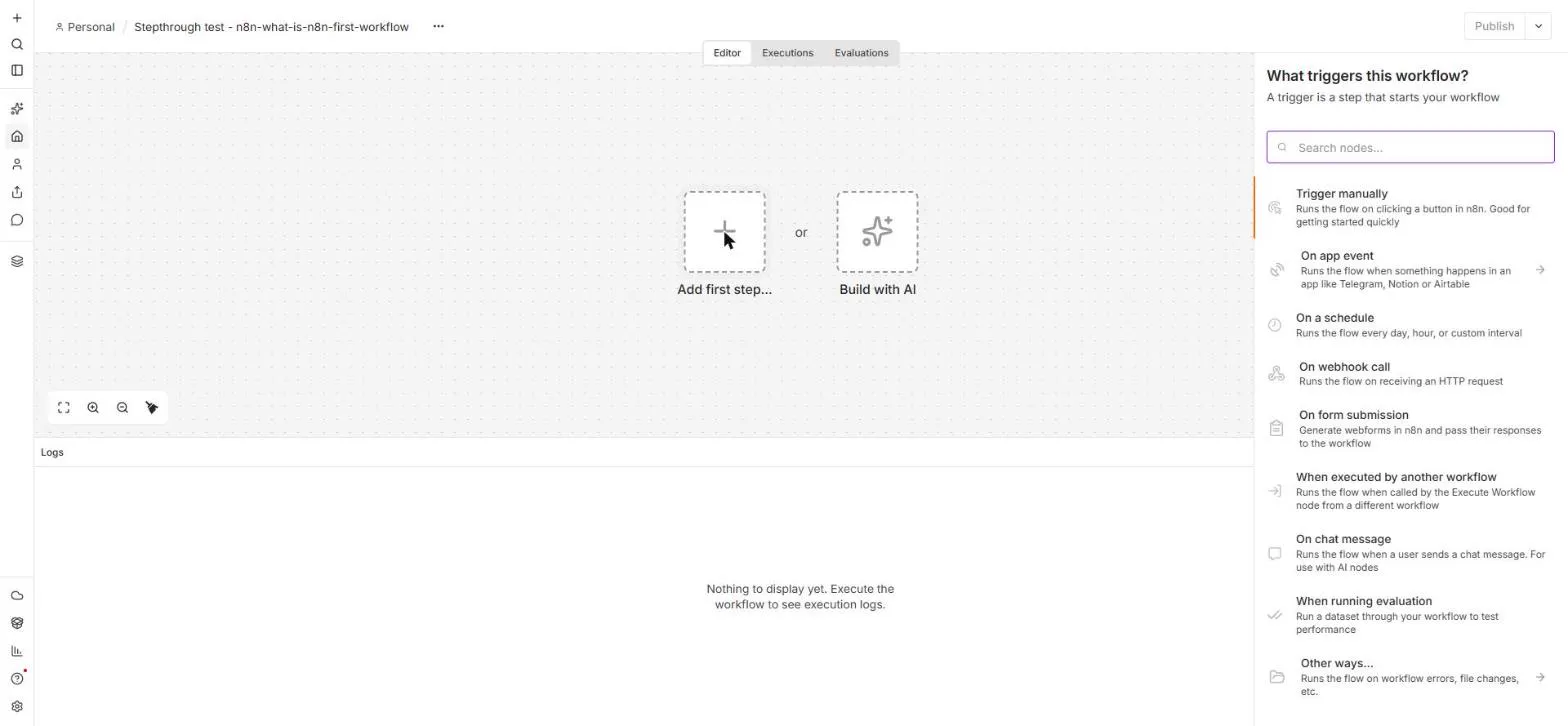 n8n: What Is n8n? Build Your First Workflow
What n8n is and how it thinks, then your first workflow: a client inquiry form that catches every request and writes a one-line summary. No code, no accounts to connect.
Free · Live ~8 min Beginner
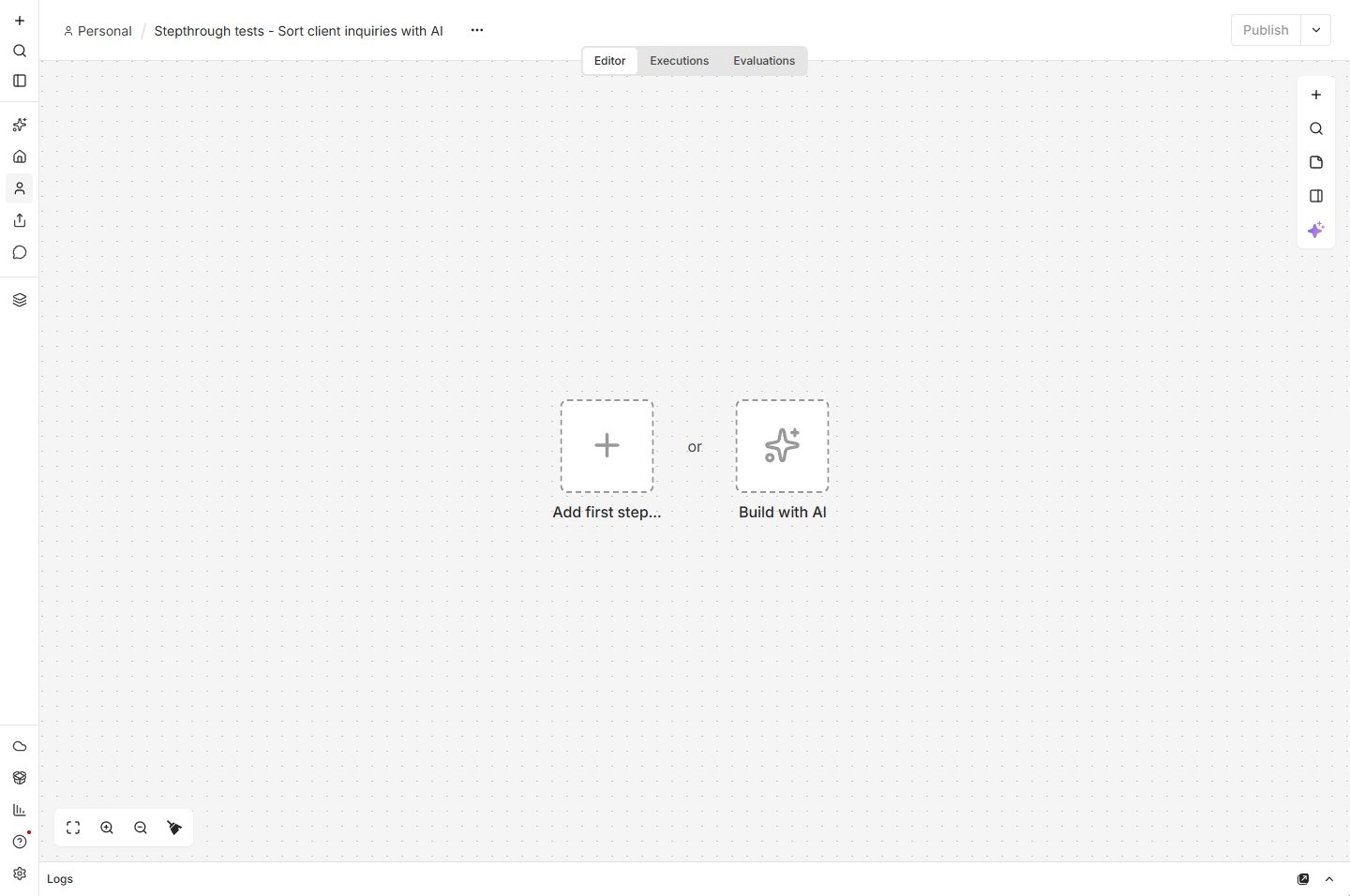 How to Do n8n Automation for Beginners: Sort Inquiries and Draft Replies with AI
AI workflow automation for beginners: a form catches each client inquiry, an AI step sorts it and drafts the reply, and an If rule flags the urgent ones. Real n8n, free…
Free · Live ~12 min Beginner
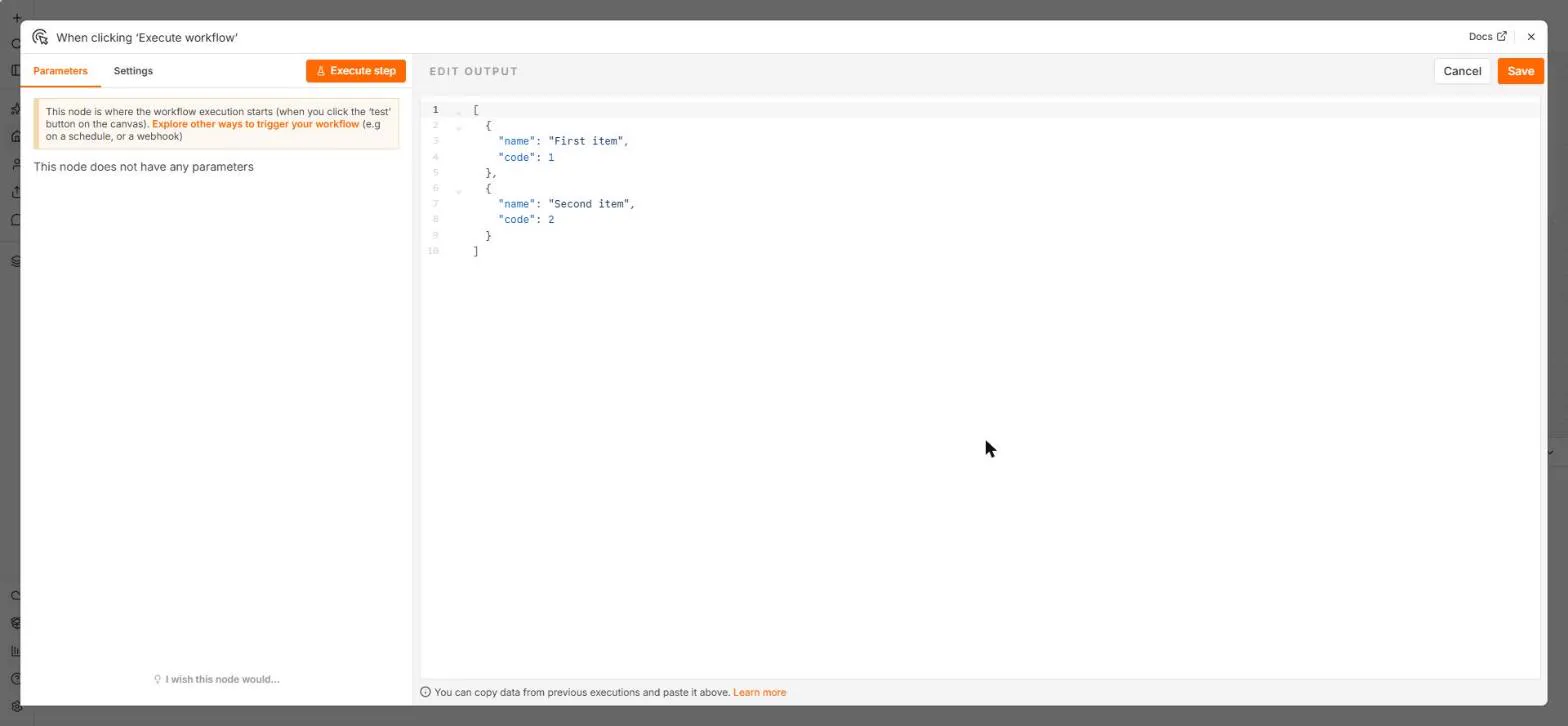 n8n: Items, JSON and Expressions, Explained by Doing
See how n8n holds data: pin five fake invoices, read them as items, Table and JSON, then write one reminder per invoice and a late fee with drag-and-drop expressions.
Free · Live ~9 min Beginner
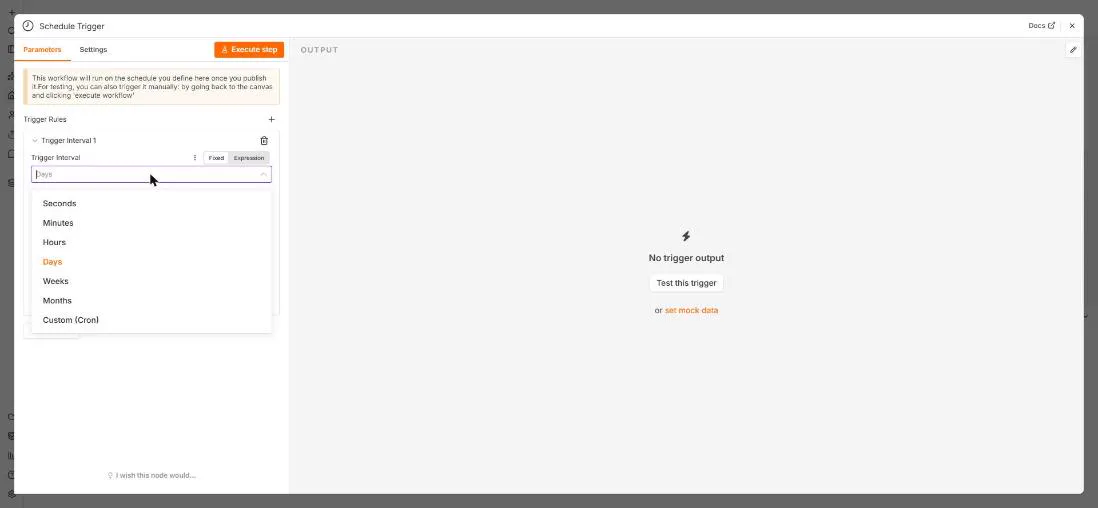 n8n: Run a Workflow on a Schedule (Every Monday at 8am)
Use the n8n Schedule Trigger to run a workflow by itself: every Monday at 8am, a timesheet reminder. Set the interval, test it now, and check the time zone.
Free · Live ~6 min Beginner
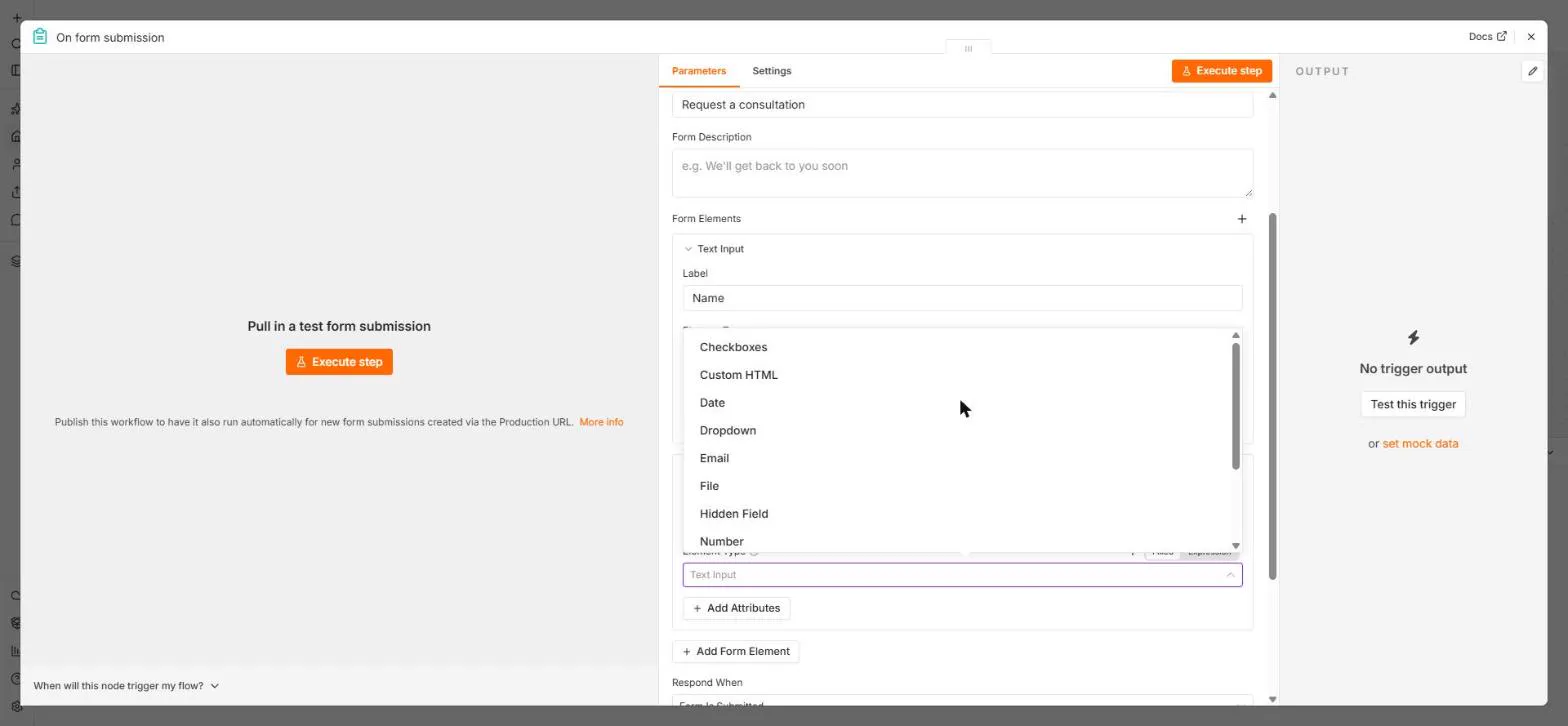 n8n: Send Form Answers Straight to Google Sheets
Build a consultation request form in n8n (required fields, email, dropdown), test it, and add every answer as a new row in Google Sheets. No webhook, no form tool to…
Free · Live ~10 min Beginner
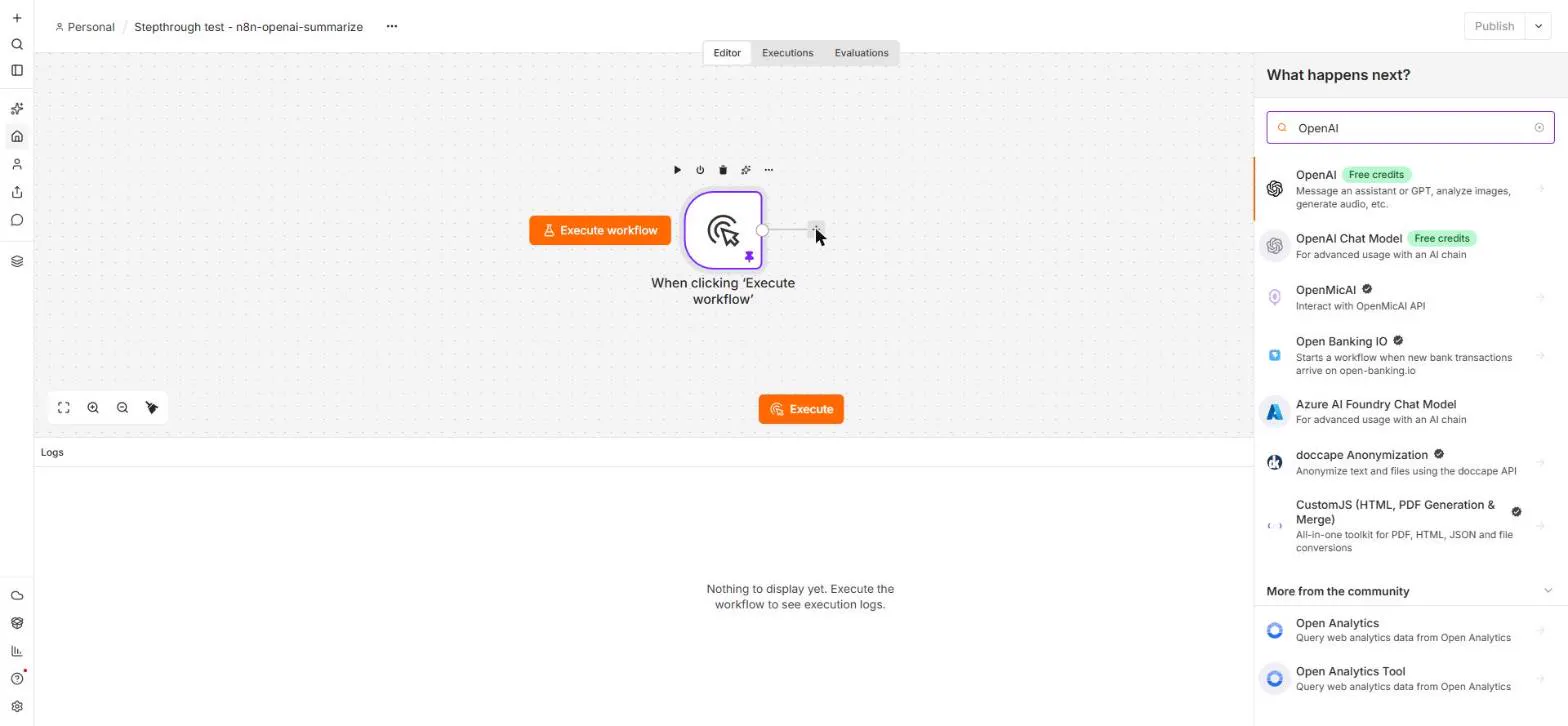 n8n: Summarize Customer Emails with OpenAI
Your first AI step in n8n: send each customer email to OpenAI with one prompt and get a one-line summary plus the next step. No agent needed, about a cent of API use.
Free · Live ~9 min Beginner
All 28 modules in n8n Automation Toolkit
More n8n tutorials
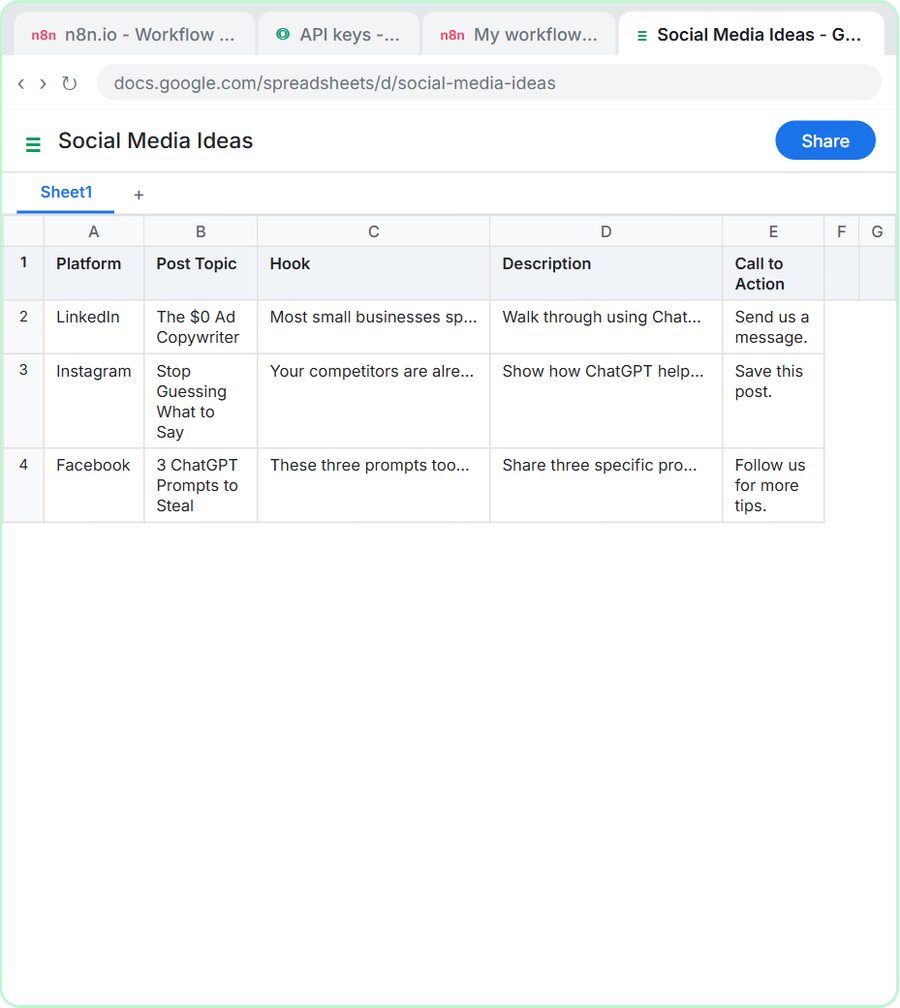 How to Create an AI Agent in n8n That Saves Ideas to Google Sheets
Build an AI agent for BrightPath Marketing that generates social media post ideas and saves them to Google Sheets — chat trigger, AI Agent, system prompt, model…
Free · Live ~12 min Intermediate
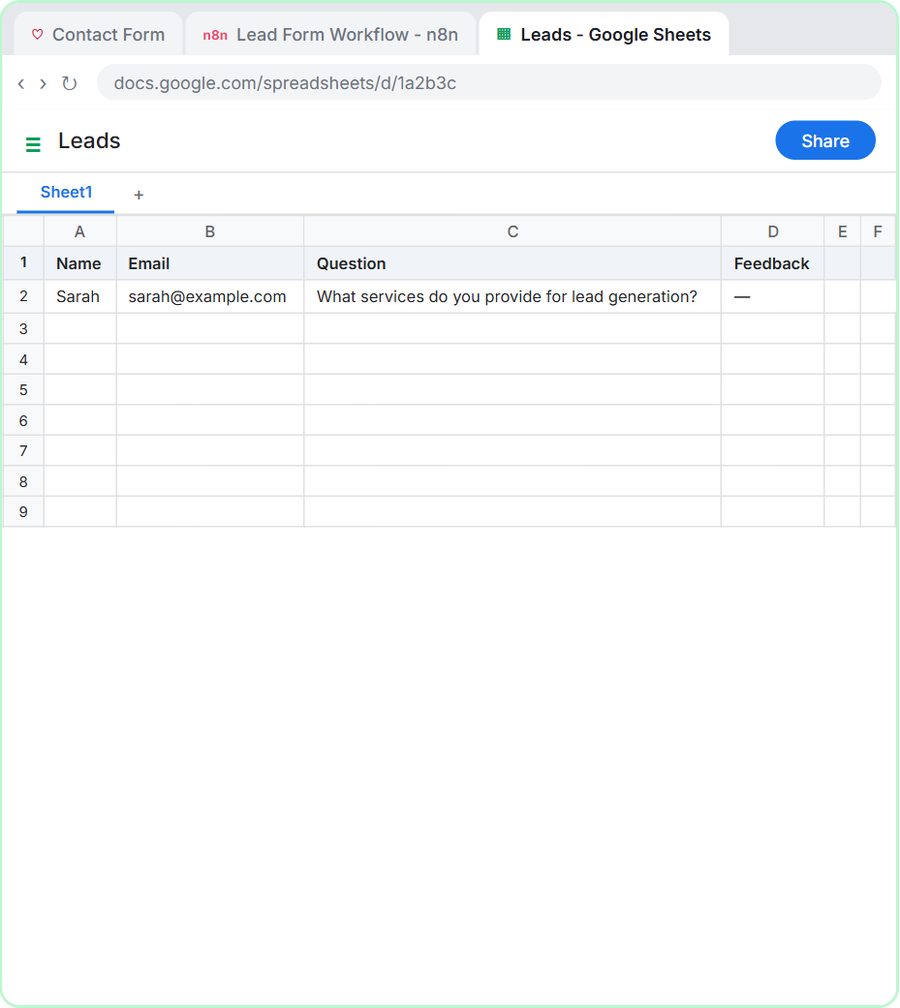 How to Build in Lovable: A Web App with an n8n AI Backend
Build a contact form in Lovable and connect it to an n8n workflow — webhook trigger, AI Agent, Google Sheets, Gmail, and a Respond node that ties it all together.
Free · Live ~15 min Advanced
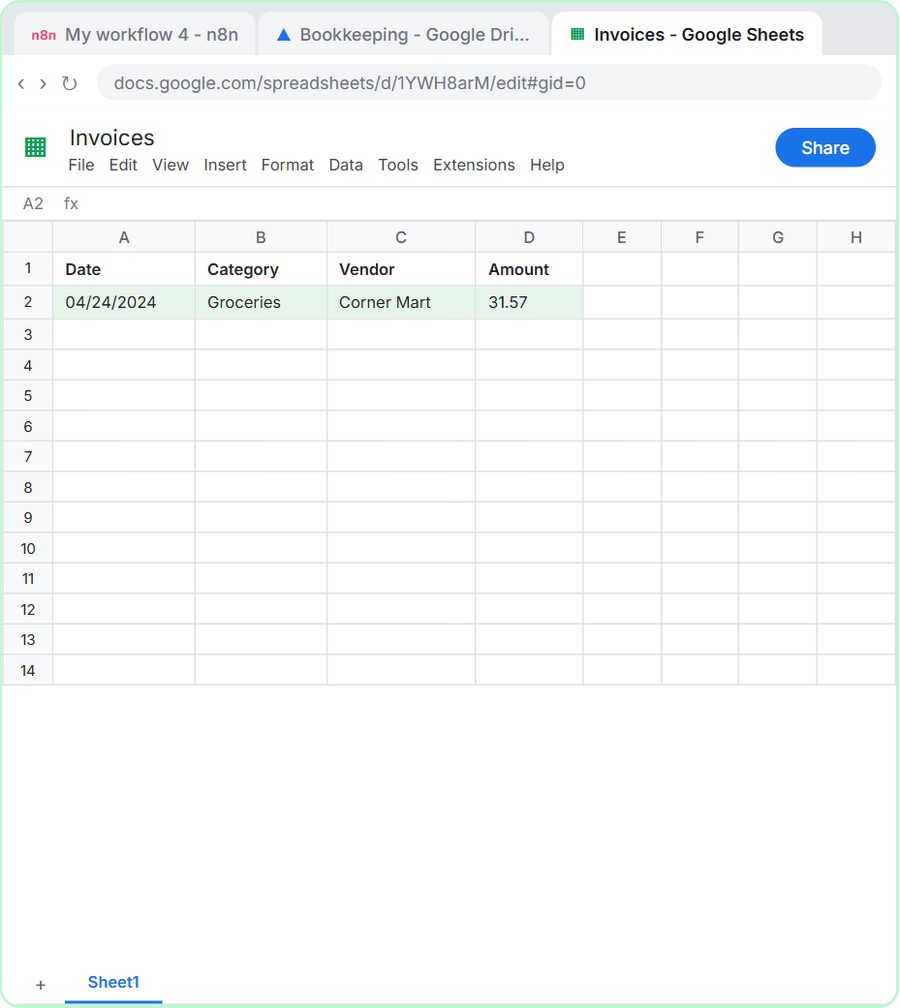 How to Do OCR in n8n: Read Receipt Photos into Google Sheets with AI
Drop a photo of a receipt into an n8n chat. An AI agent reads it, pulls out the date, vendor and amount, picks a category, and adds a row to Google Sheets.
Free · Live ~12 min Intermediate
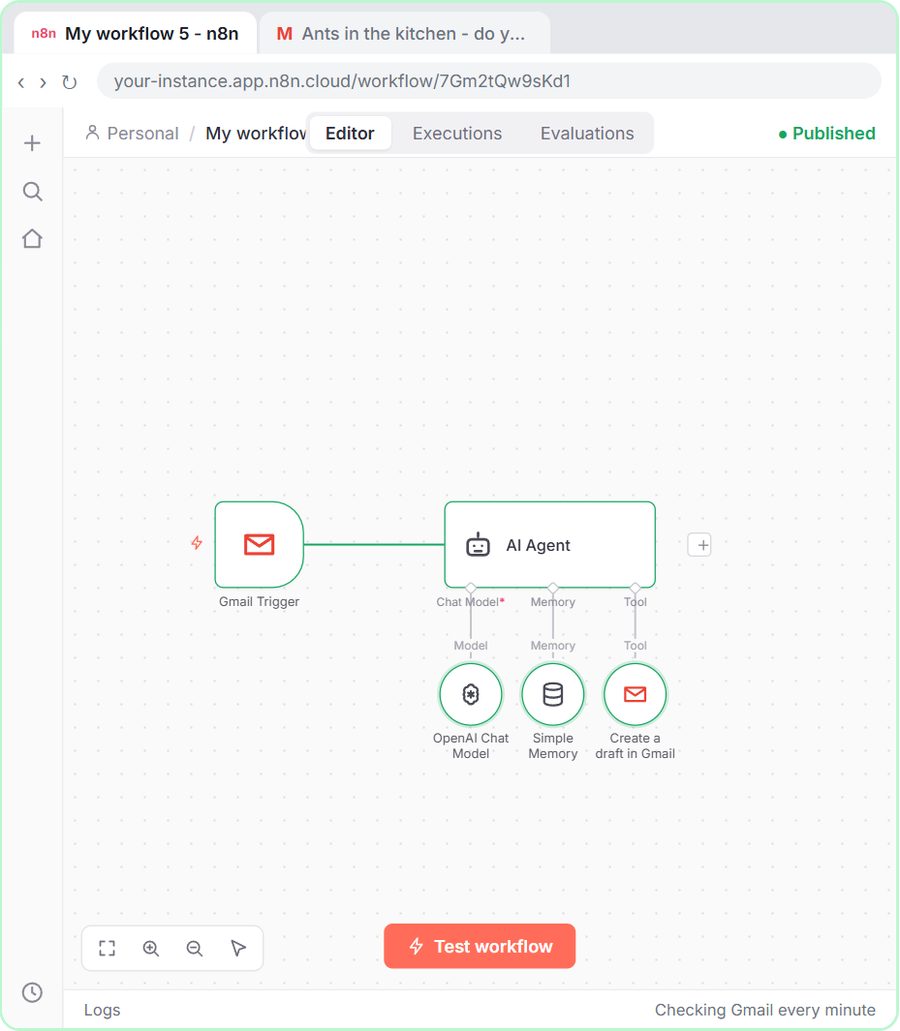 n8n AI Email Responder: Draft Gmail Replies Automatically
Build an n8n agent that watches your Gmail, reads each new customer email, and writes a reply as a draft in the same thread, ready for you to check and send.
Free · Live ~12 min Intermediate
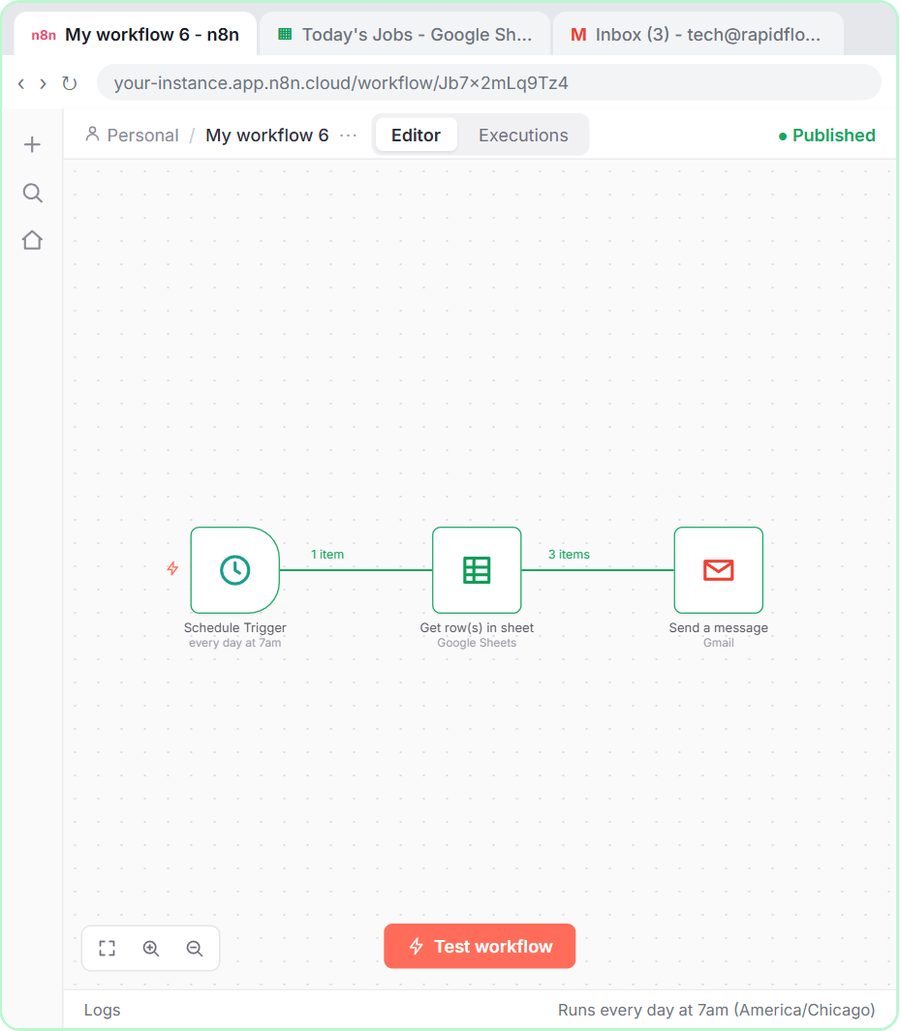 How to Make an n8n Workflow That Emails Each Tech Their Jobs from Sheets
Every morning at 7, n8n reads a plumbing company's jobs sheet, skips anything not assigned yet, and emails each job to the tech it's assigned to — customer, address…
Free · Live ~10 min Intermediate
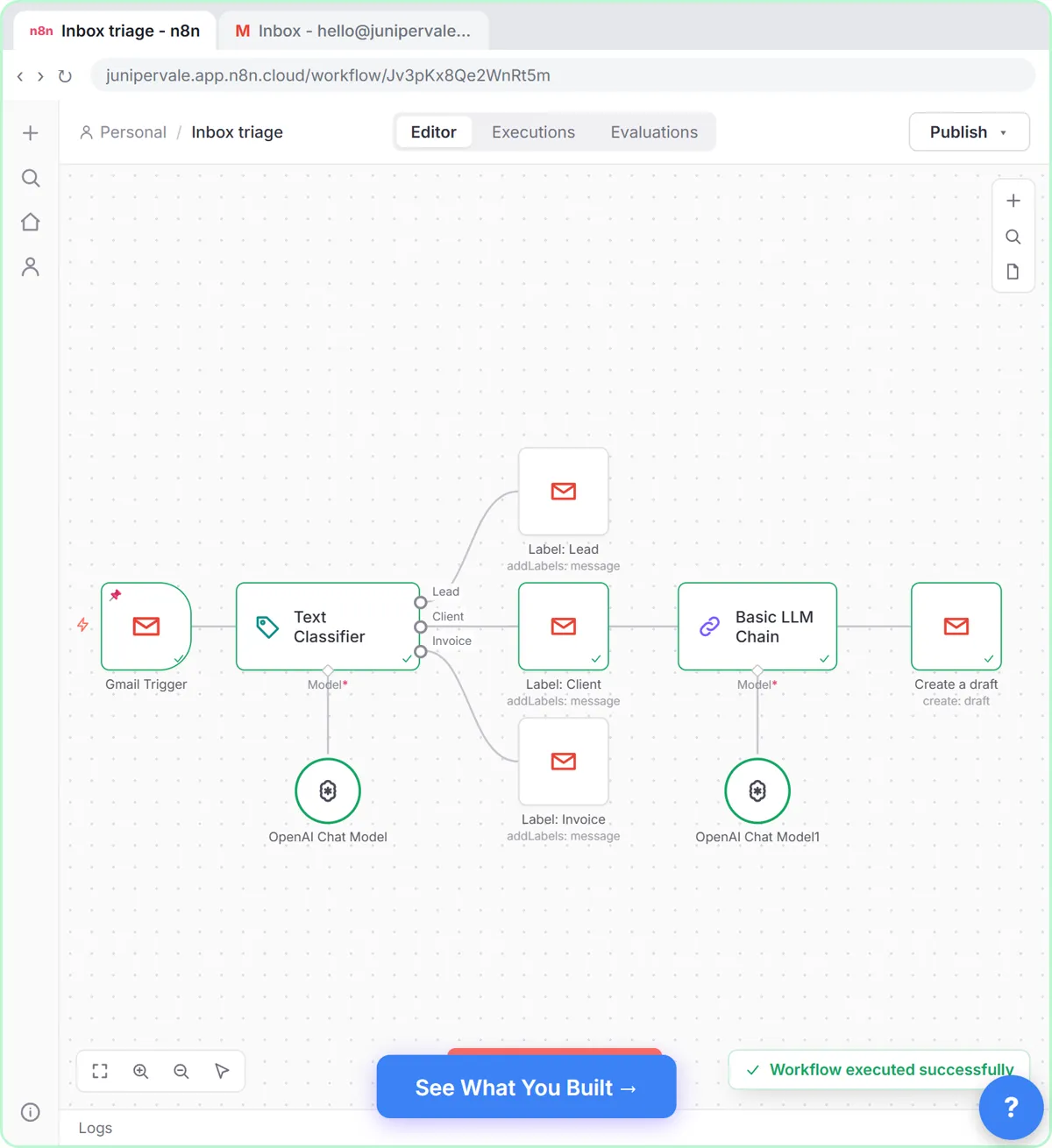 Gmail AI Triage: Auto-Label Every Email and Draft Replies
Build an n8n workflow that reads each new email, sorts it as a lead, a client or an invoice with a Text Classifier, adds the matching Gmail label, and drafts a reply to…
Free · Live ~18 min Advanced
Terms in this lesson
Plain-English definitions, each with an example from a free lesson.