What is the Schedule Trigger in n8n?
Updated · By Robert Breen
The Schedule Trigger is the n8n node that starts a workflow at set times, like every day at 7 a.m. or every 15 minutes, instead of waiting for an event. It follows the workflow's timezone and only fires on its own once the workflow is published.
Why it matters for a small business
Plenty of office work isn't caused by an event; it's caused by the clock. Morning job lists, weekly reports, end-of-day reminders, a Monday check for overdue invoices. A schedule makes those happen whether or not anyone remembers, including on the days the person who usually does them is out.
Schedules have two traps. The first is timezone: the schedule follows the workflow's timezone setting, so a business outside the default zone gets its 7 a.m. message at the wrong 7 a.m. The second is that a schedule doesn't know what's new. It processes whatever it finds each time, so the data it reads must be kept current, or yesterday's work goes out again.
In a real lesson: Daily Job Alerts: Email Each Tech Their Jobs from Google Sheets with n8n
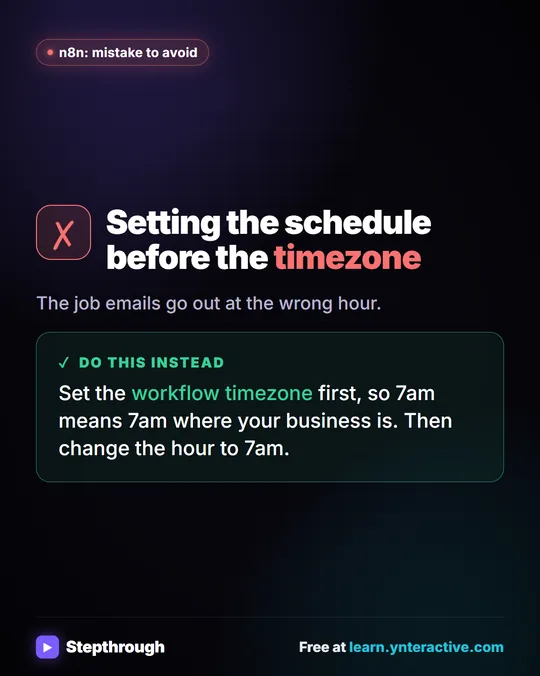
The Daily Job Alerts lesson deals with the timezone before anything else. For Rapid Flow Plumbing, the made-up plumbing company in the lesson, you click Create workflow, then the ··· next to the workflow name, Settings, and change Timezone from the New York default to America/Chicago, because Rapid Flow is on Central time. Then Save.
Only then do you add the trigger: Add first step, On a schedule. It's already set to run every 1 day, but it fires at midnight, and nobody reads job emails at midnight. You open Trigger at Hour and choose 7am, which now means 7 a.m. Central.
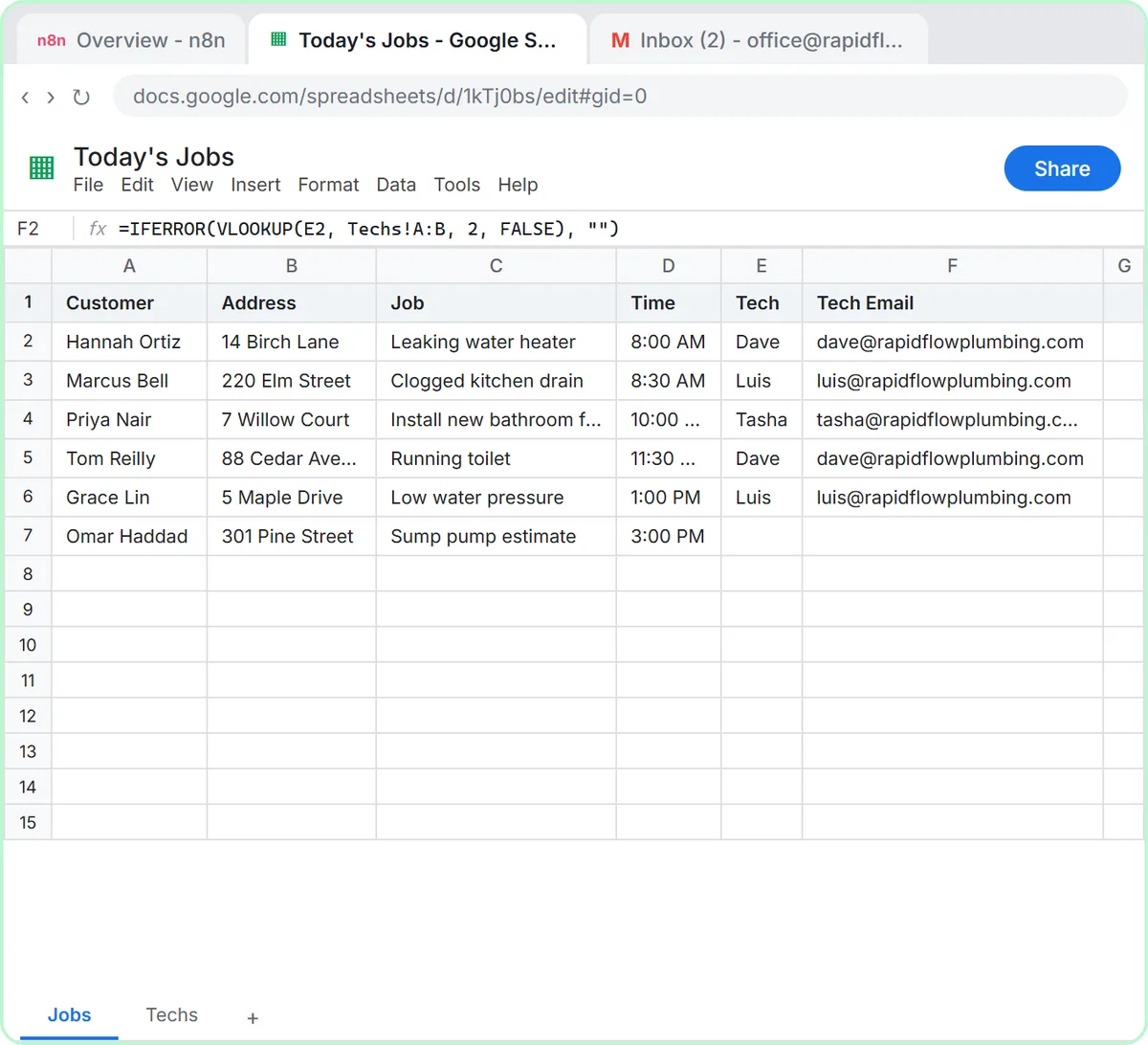
The rest of the workflow reads the Today's Jobs sheet, drops unassigned jobs and emails each tech. When you click Publish, the schedule takes over. The lesson's closing warning is the second trap in action: it sends every assigned row, every day, so the office keeps that sheet to today's jobs only.
Try this lesson free or read the step-by-step guide.
Common confusions
Schedule Trigger vs polling trigger
Both run on a timer. A polling trigger, like Gmail's Every Minute check, only continues when it finds something new. A Schedule Trigger always runs the workflow at the set time, new data or not.
Simple intervals vs cron
Most schedules fit the built-in fields: every so many minutes, hours, days or weeks, at a chosen hour. For unusual patterns, like every 15 minutes but only during business hours, the Schedule Trigger also accepts a cron expression.
Tips
- Set the workflow timezone first, then the hour.
- Don't wait for the scheduled time to find out if it works. Use the test buttons in the editor.
- Make sure the sheet or list the workflow reads only holds what should go out on this run.
Related terms
Where you use it: free lessons
Prompt templates that use it
Visual guide
Schedule Trigger in a few slides, with the same guide written out as text.
Frequently asked questions
- Why does my n8n schedule fire an hour or more off?
- It's following the workflow's timezone, which may still be the default. Open the ··· menu beside the workflow name, choose Settings, pick your own timezone and save.
- Does the Schedule Trigger run when my computer is off?
- On n8n Cloud, yes: once published, the workflow runs on n8n's servers. On self-hosted n8n, it runs as long as the server running n8n is up.