What is field mapping?
Updated · By Robert Breen
Field mapping is telling an automation which piece of incoming data goes into which field of the destination, such as putting a receipt's total in the Amount column or a row's Tech Email in an email's To box.
Why it matters for a small business
Every automation that moves data between apps has to answer "what goes where?". Get the mapping wrong and the workflow still runs, just badly: phone numbers in the email column, every job sent to the same tech, a blank name in a welcome email. Those errors are quiet, which is what makes them expensive.
n8n gives you three ways to map. You can type a fixed value, point at a field with an expression, or, in an AI agent's tool, let the model decide what goes in each field. Knowing which one a step uses is half of debugging any workflow.
In a real lesson: AI Receipt Extractor: Receipts to Google Sheets with n8n
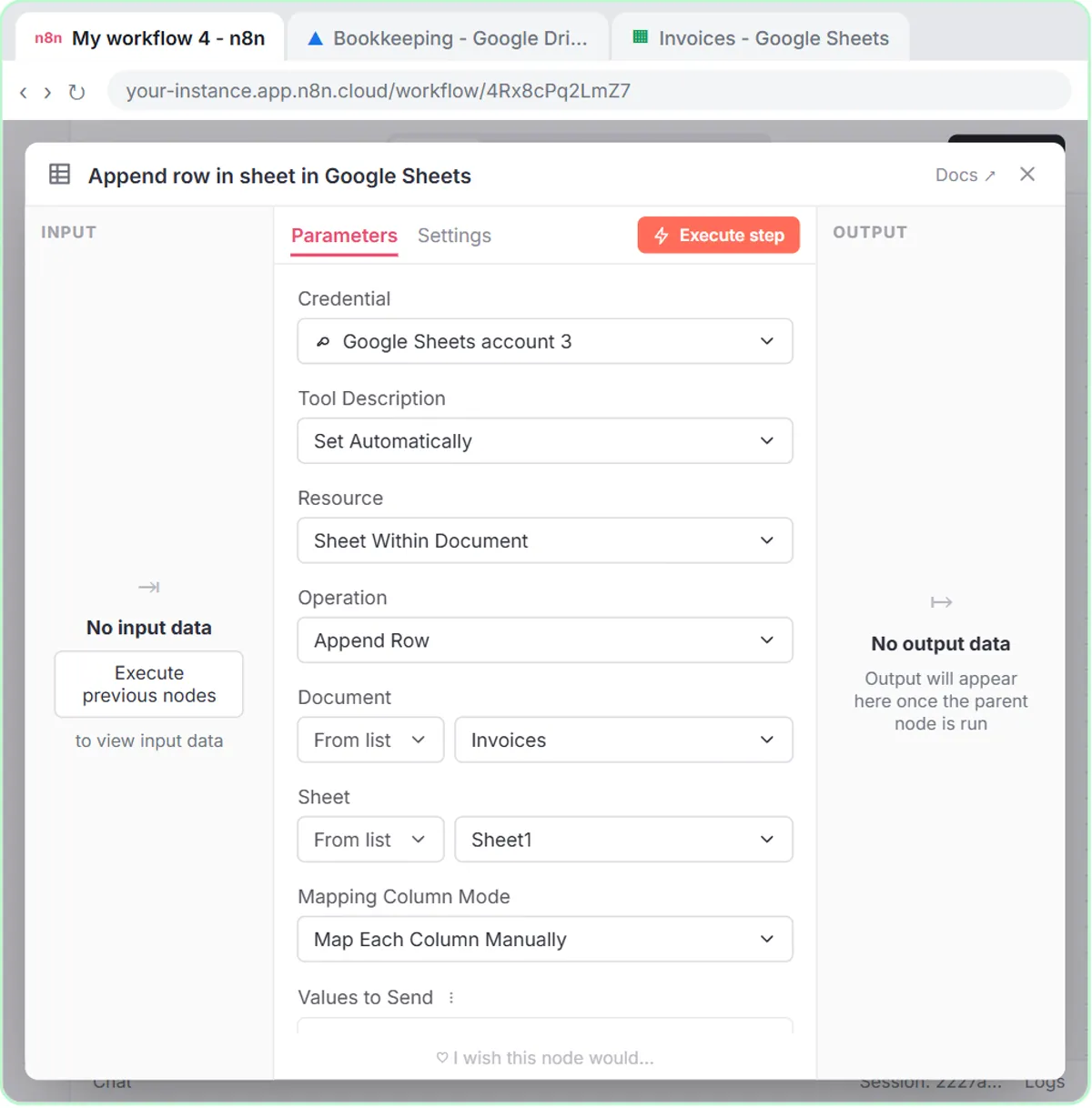
In the AI Receipt Extractor lesson, the mapping is left to the model. You create a sheet called Invoices with Date, Category, Vendor and Amount in row 1, then point the Google Sheets Tool at Invoices and Sheet1. n8n reads that header row and lists the four columns.
Next to each column you click the ✦ button, and each one changes to "defined automatically by the model". The voice-over points out what that buys you: the System Message never says where each value goes, because the column names do that job. When you send the Corner Mart photo, the agent puts the date, Groceries, Corner Mart and $31.57 in the right columns.
The Daily Job Alerts workflow maps by hand instead. In the Gmail step's To field you paste {{ $json["Tech Email"] }}, so each job goes to its own tech rather than to one typed address.
Try this lesson free or read the step-by-step guide.
Common confusions
Model-defined vs expression mapping
With ✦, the model chooses each value, which suits messy inputs like photos or free text. With an expression, the value is copied exactly from a known field. Use expressions whenever the data already has a clean field; they never guess.
Field mapping vs data extraction
Data extraction pulls values out of unstructured content, like the total printed on a receipt. Mapping decides where those values land. The receipt agent does both in one step.
Tips
- Name columns plainly. "Amount" maps better than "Amt (USD) incl."
- Field names with spaces need square brackets and quotes in expressions, like
$json["Tech Email"]. - After a test run, read the destination itself, not just the green checks.
Related terms
Where you use it: free lessons
- AI Receipt Extractor: Receipts to Google Sheets with n8n (n8n, 12 min)
- Daily Job Alerts: Email Each Tech Their Jobs from Google Sheets with n8n (n8n, 10 min)
- Find and Use n8n Templates (n8n, 9 min)
Prompt templates that use it
Visual guide
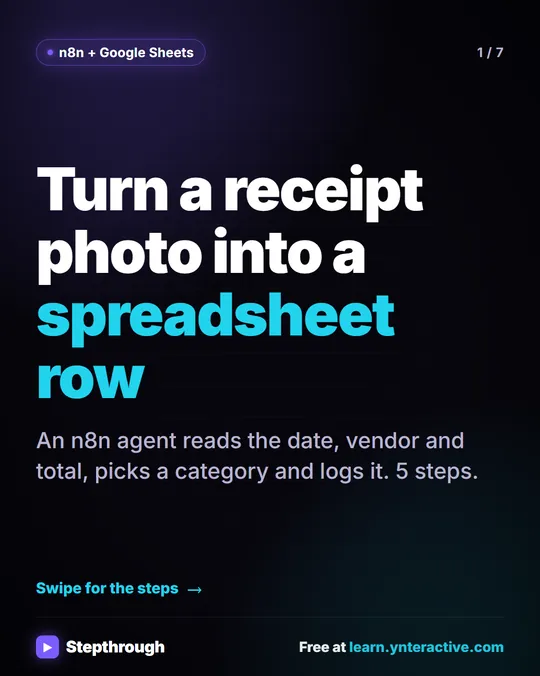
Field mapping in a few slides, with the same guide written out as text.
Frequently asked questions
- Why did my data land in the wrong Google Sheets column?
- Check the header row the node reads and what each column is mapped to. If the model fills the columns, make the header names clearer or describe them in the System Message.
- Do I have to map every column?
- No. Unmapped columns are left empty, so map the ones you need and leave the rest for people to fill in.
- What does the ✦ button do in an n8n tool?
- It lets the AI model decide the value for that field when the agent calls the tool, based on the conversation and the field name.