Updated . Built against the tool’s current screens and checked step by step. How we check this lesson
A customer thread has gone sideways: the wrong date, a change request, and a question nobody answered. In this free lesson you copy that thread into ChatGPT together with the facts you can actually promise, get a first draft, have ChatGPT check every promise against those facts, fix the one line that overpromises, and send a warm, accurate reply from Gmail.
At a glance
| Question | Answer |
|---|---|
| What you build | Turn a messy customer email thread into a clear, friendly reply: give ChatGPT the thread and your facts, check every promise, fix the tone, and send it from Gmail. |
| Tools | ChatGPT |
| Time | About 9 minutes, 20 steps in 6 parts |
| Level | Beginner, no coding needed |
| Cost | Free |
| Ways to learn it | Practice it step by step, watch the video, read the guide with screenshots |
The 6 parts, in short
- Copy the thread: Open the thread, Expand all messages, Copy the thread, Switch to ChatGPT.
- Give ChatGPT the context: Click the message box, Paste the thread, Add the facts, Say what a good reply looks like.
- Get the first draft: Send it.
- Check every promise: Read the draft, then click the message box, Ask ChatGPT to check its promises, Send the check.
- Fix it and warm it up: Read the table, then click the message box, Ask for specific changes, Send the fix.
- Send it from Gmail: Copy the reply, Go back to Gmail, Click Reply, Paste the reply, and 1 more step.
Start here first: Summarize a Meeting Transcript with ChatGPT (module 1 of ChatGPT for Everyday Work)
In the course: Part 3 · ChatGPT for Everyday Work (Module 16 of the full course)
Part of: AI at Work: Start Here (step 11 of 20). Next up: How AI Transcription Works: Speech-to-Text, Speaker Diarization and Themes
Part of: ChatGPT Jump Start (step 3 of 15). Next up: Clear Client Data Out of ChatGPT Before It Becomes a Problem: Delete Chats, Clear Memory and Use Temporary Chat
Part of: Email on Autopilot (step 1 of 17). Next up: Gemini in Gmail: Summarize a Thread and Draft the Reply
How to reply Faster: Turn a Messy Customer Email Thread into a Clear, Friendly Reply: step-by-step guide with screenshots
About the screenshots. They come from Stepthrough’s simulated practice environment (a practice copy of ChatGPT), not the live tool, so no real account appears. The buttons and labels match the real screens the lesson was built against. Practice it yourself free at learn.ynteractive.com.
- Tools: ChatGPT
- Time: about 9 minutes, 20 steps in 6 parts
- Level: beginner, no coding needed
Part 1: Copy the thread
Step 1: Open the thread
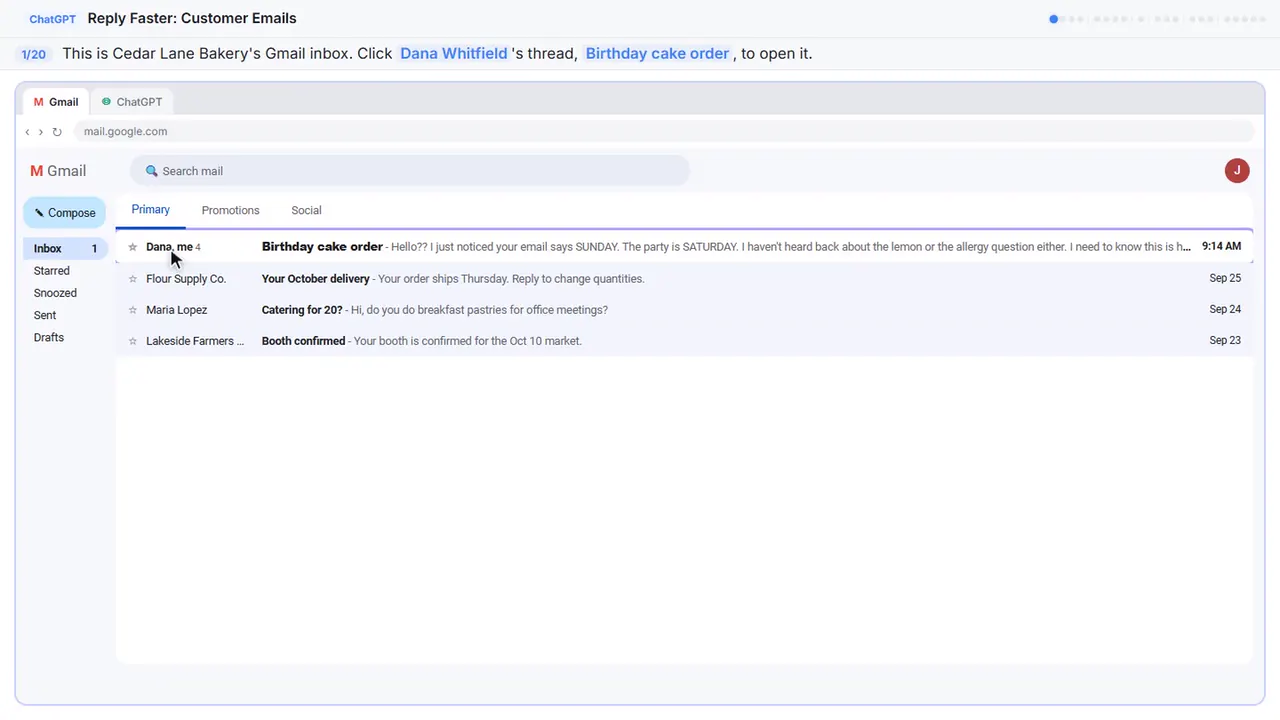
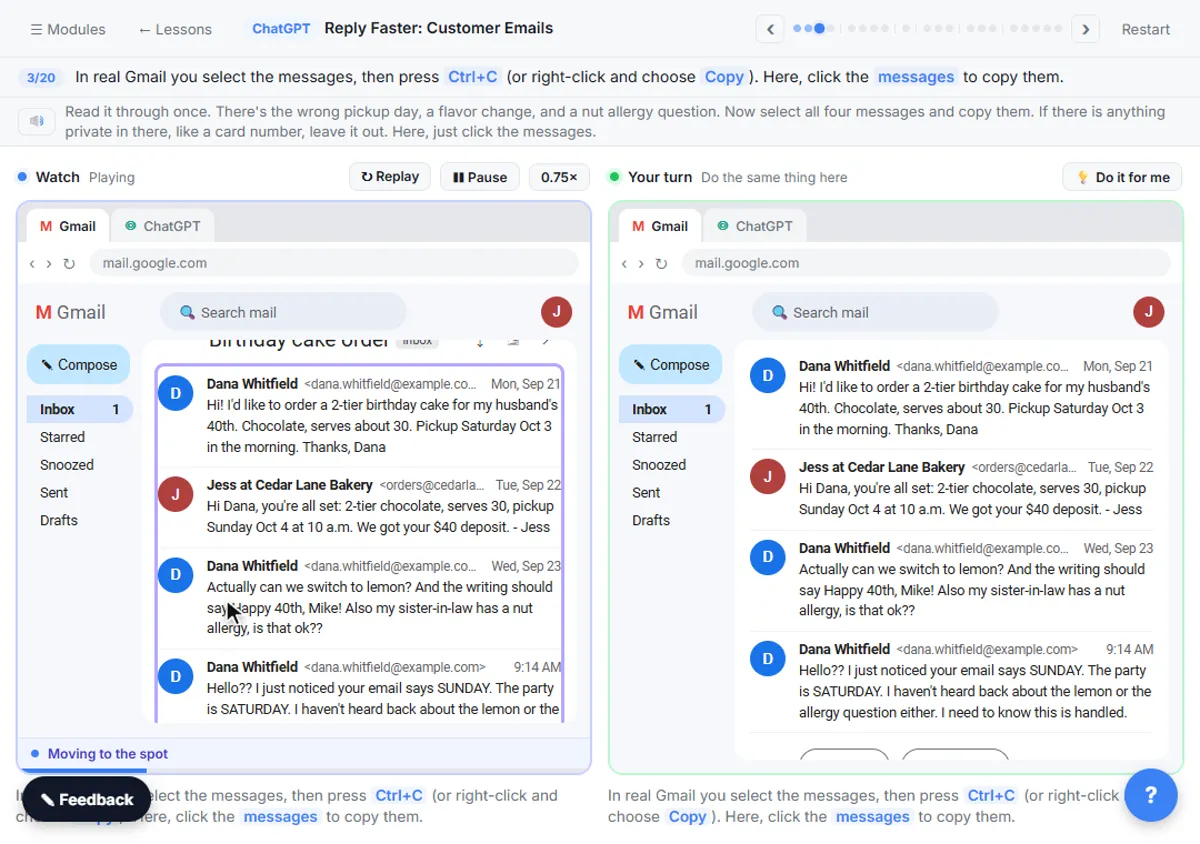
This is Gmail. Folders on the left, emails in the middle, newest on top. It's the inbox for Cedar Lane Bakery, a small neighborhood shop. Dana's email thread has four messages, a date mix-up, and two unanswered questions.
Step 2: Expand all messages
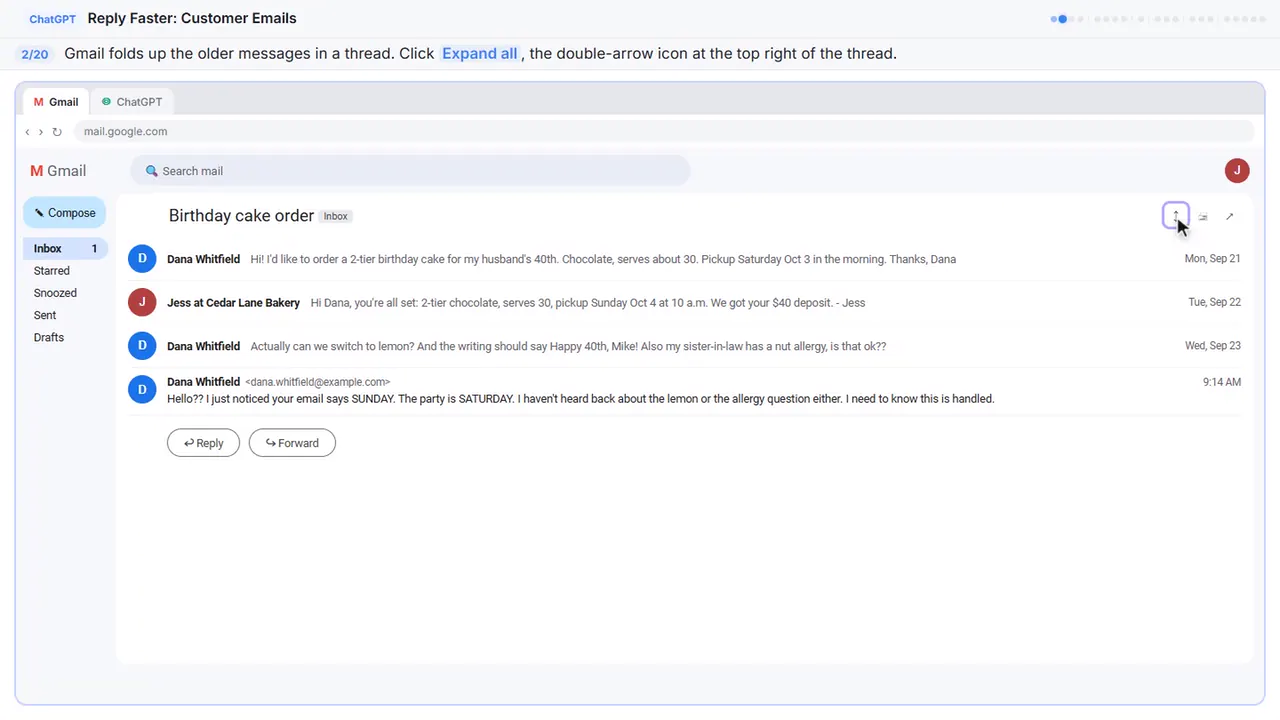
Gmail folds up the older messages, so only the newest one is open. You want the whole story, so click Expand all, the double-arrow icon at the top right.
Step 3: Copy the thread
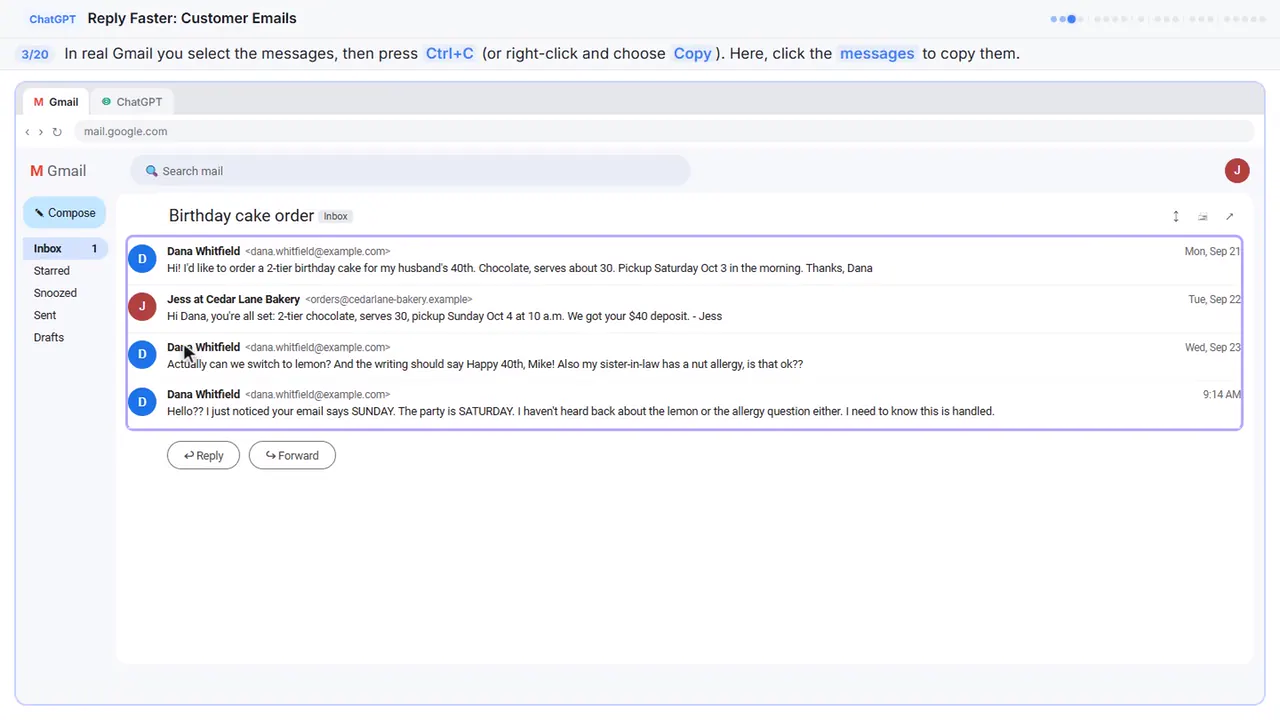
Read it through once. There's the wrong pickup day, a flavor change, and a nut allergy question. If there is anything private in there, like a card number, leave it out. Here, just click the messages.
Step 4: Switch to ChatGPT
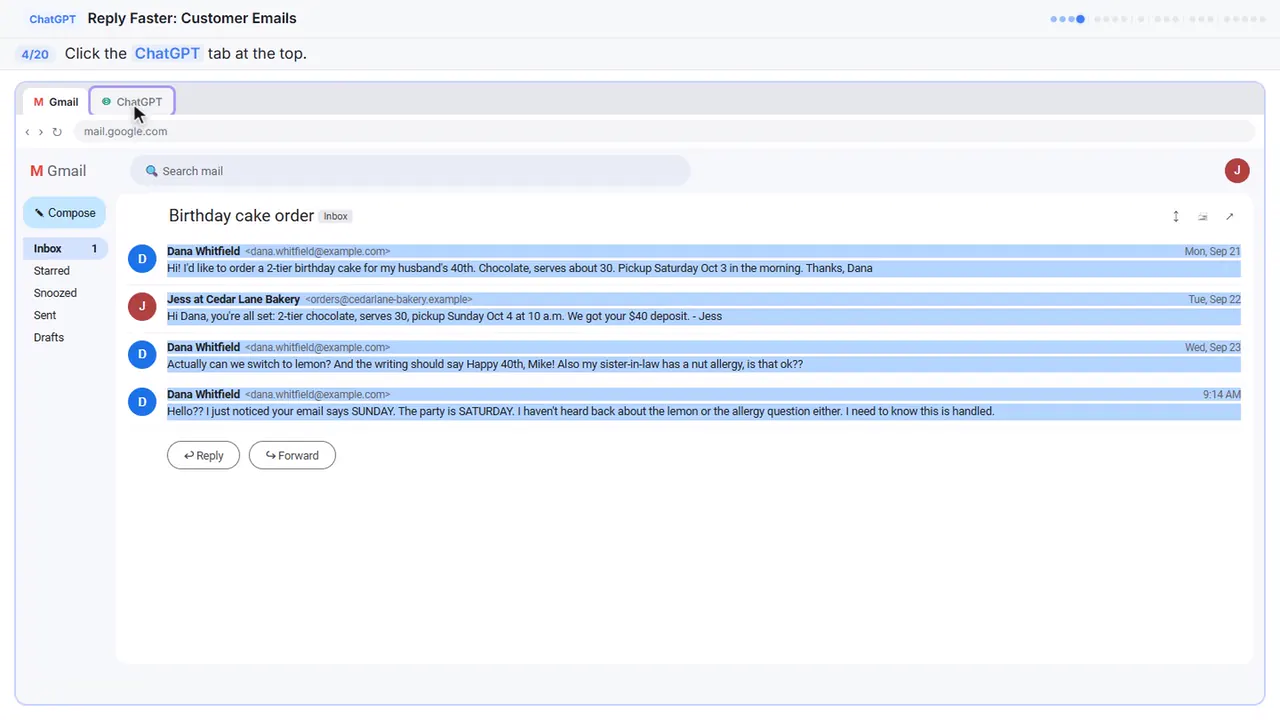
Now switch over to ChatGPT.
Part 2: Give ChatGPT the context
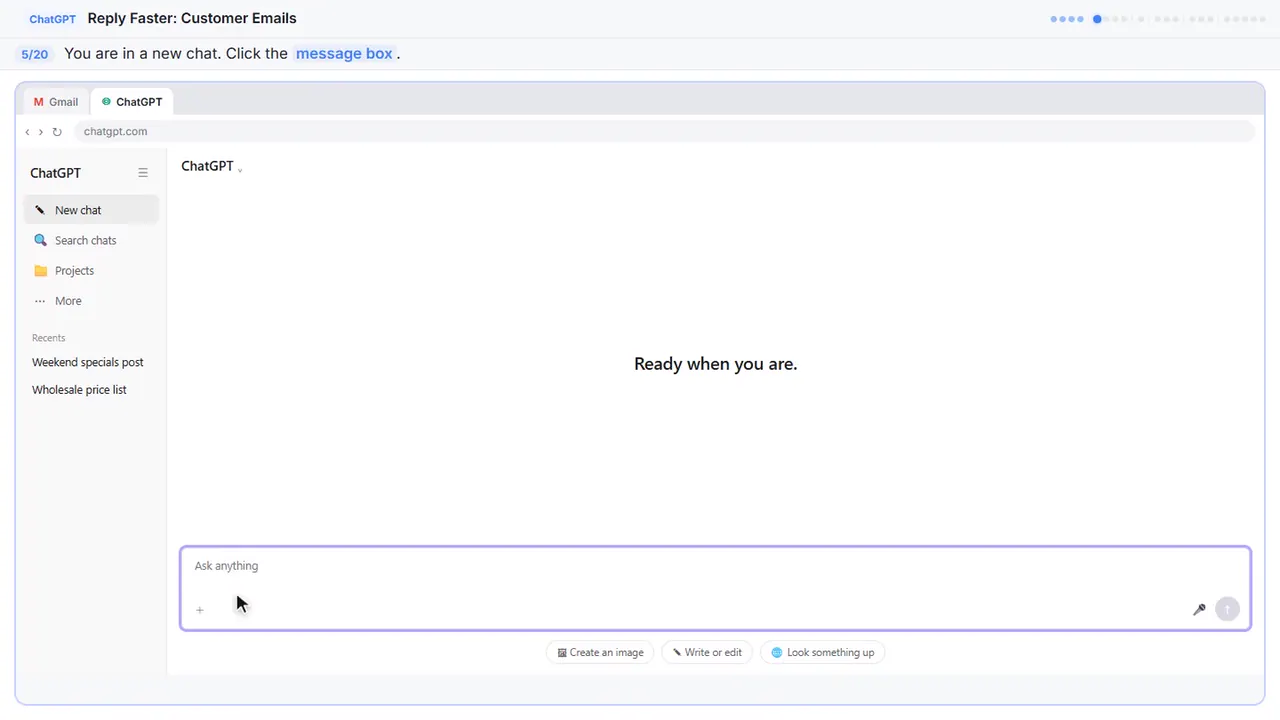
Step 5: Click the message box
You're in a fresh chat. You'll give ChatGPT three things in one message: the thread, the facts, and what a good reply looks like.
Step 6: Paste the thread
First, the thread. One line tells ChatGPT what it's looking at, then the emails, oldest first.
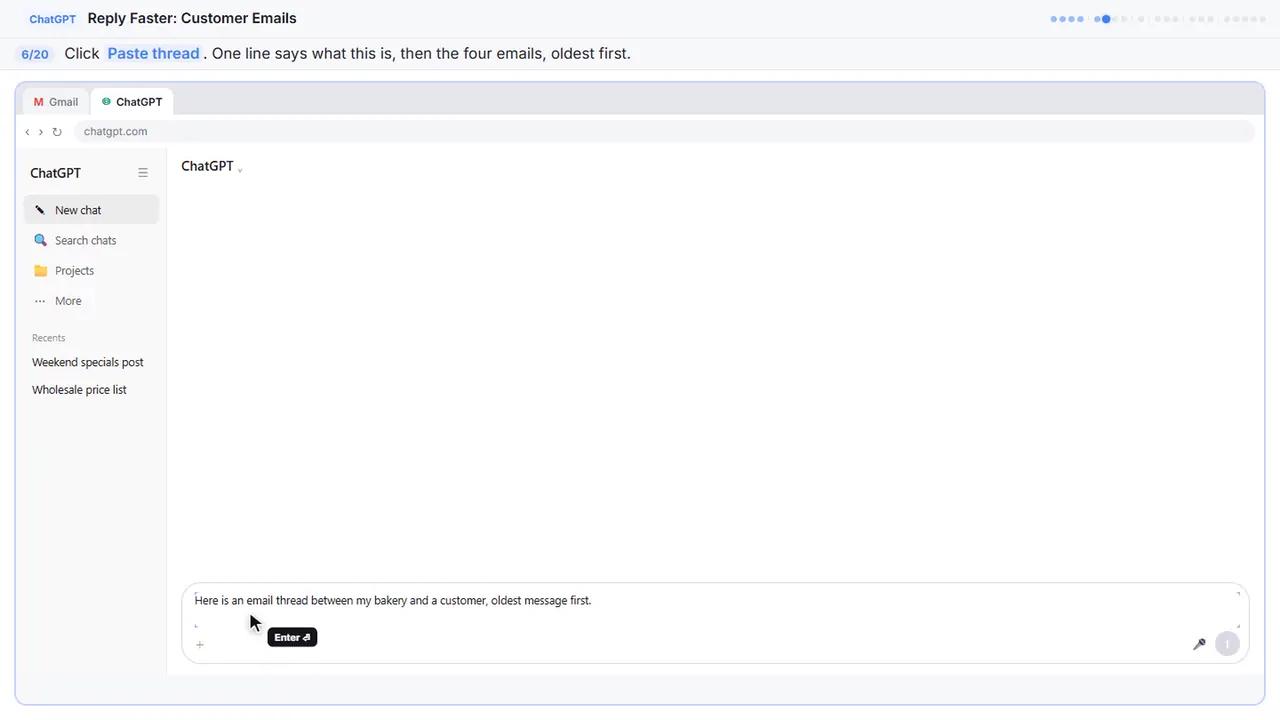
Here is an email thread between my bakery and a customer, oldest message first.

Dana Whitfield (Mon, Sep 21): Hi! I'd like to order a 2-tier birthday cake for my husband's 40th. Chocolate, serves about 30. Pickup Saturday Oct 3 in the morning. Thanks, Dana

Jess at Cedar Lane Bakery (Tue, Sep 22): Hi Dana, you're all set: 2-tier chocolate, serves 30, pickup Sunday Oct 4 at 10 a.m. We got your $40 deposit. - Jess

Dana Whitfield (Wed, Sep 23): Actually can we switch to lemon? And the writing should say Happy 40th, Mike! Also my sister-in-law has a nut allergy, is that ok??

Dana Whitfield (9:14 AM): Hello?? I just noticed your email says SUNDAY. The party is SATURDAY. I haven't heard back about the lemon or the allergy question either. I need to know this is handled.
Step 7: Add the facts
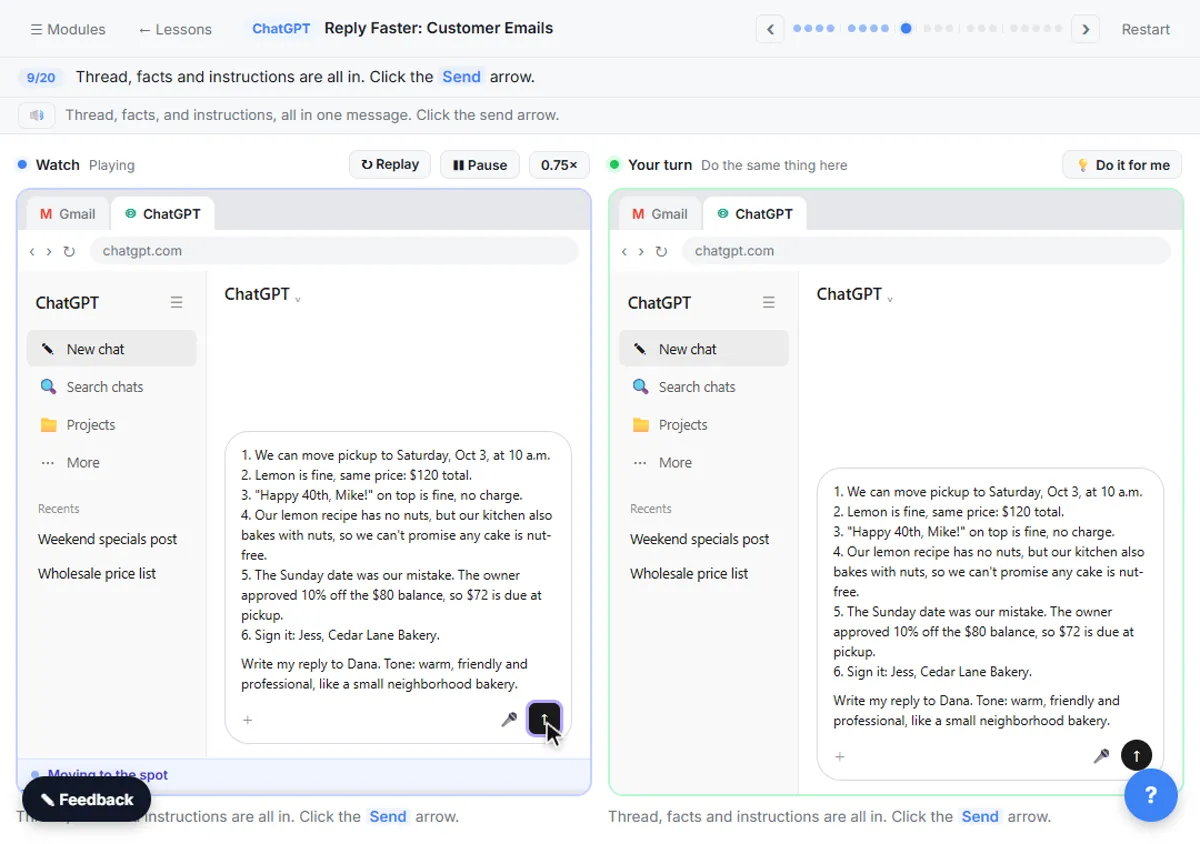
Next, the facts. ChatGPT can't know your schedule, your prices, or what your kitchen can promise, so spell them out. Number them, so you can check them later.
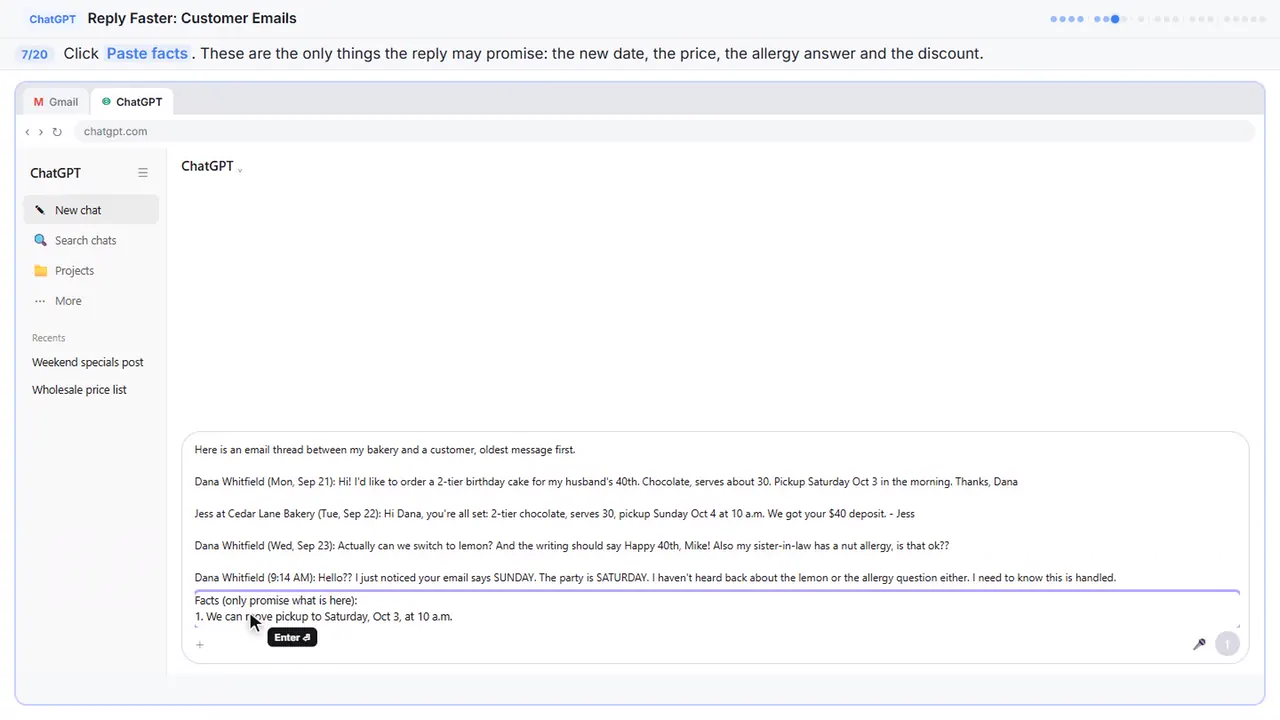
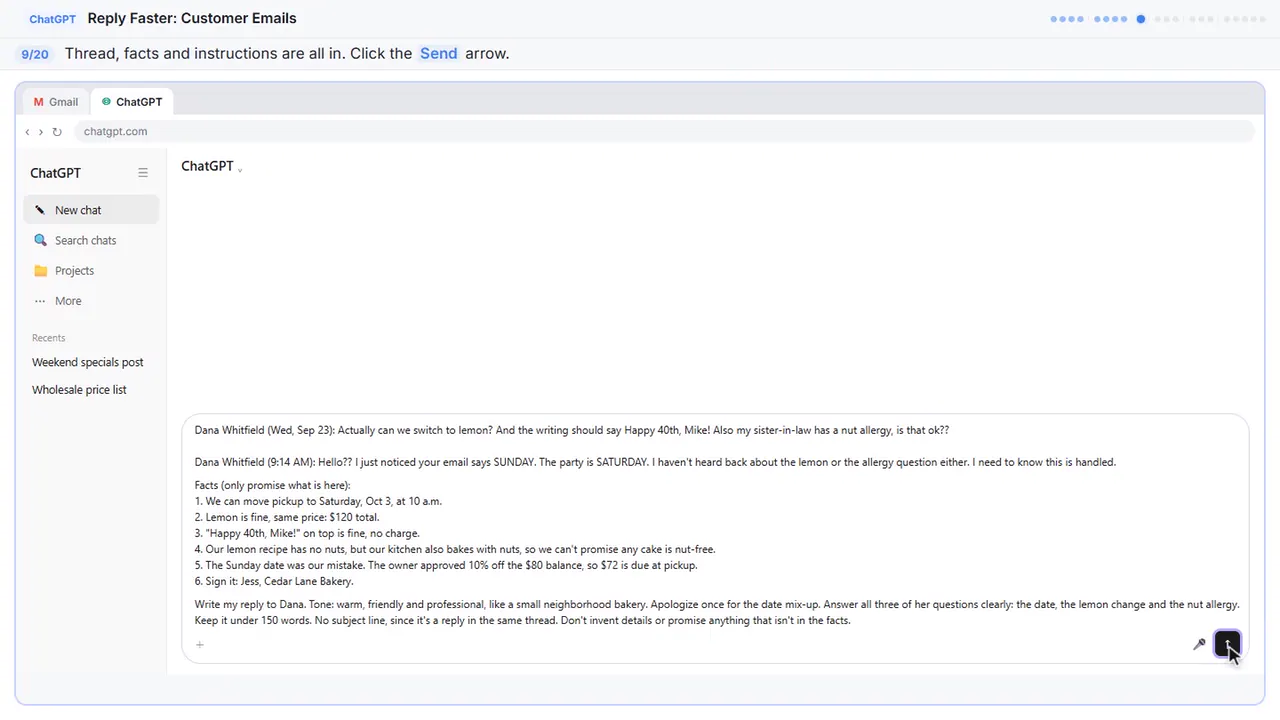
Facts (only promise what is here):
1. We can move pickup to Saturday, Oct 3, at 10 a.m.
2. Lemon is fine, same price: $120 total.
3. "Happy 40th, Mike!" on top is fine, no charge.
4. Our lemon recipe has no nuts, but our kitchen also bakes with nuts, so we can't promise any cake is nut-free.
5. The Sunday date was our mistake. The owner approved 10% off the $80 balance, so $72 is due at pickup.
6. Sign it: Jess, Cedar Lane Bakery.
Step 8: Say what a good reply looks like
Last, tell it what a good reply looks like: the tone, the three questions to answer, and a word limit. And one rule that matters most: don't invent details or promise anything that isn't in the facts.
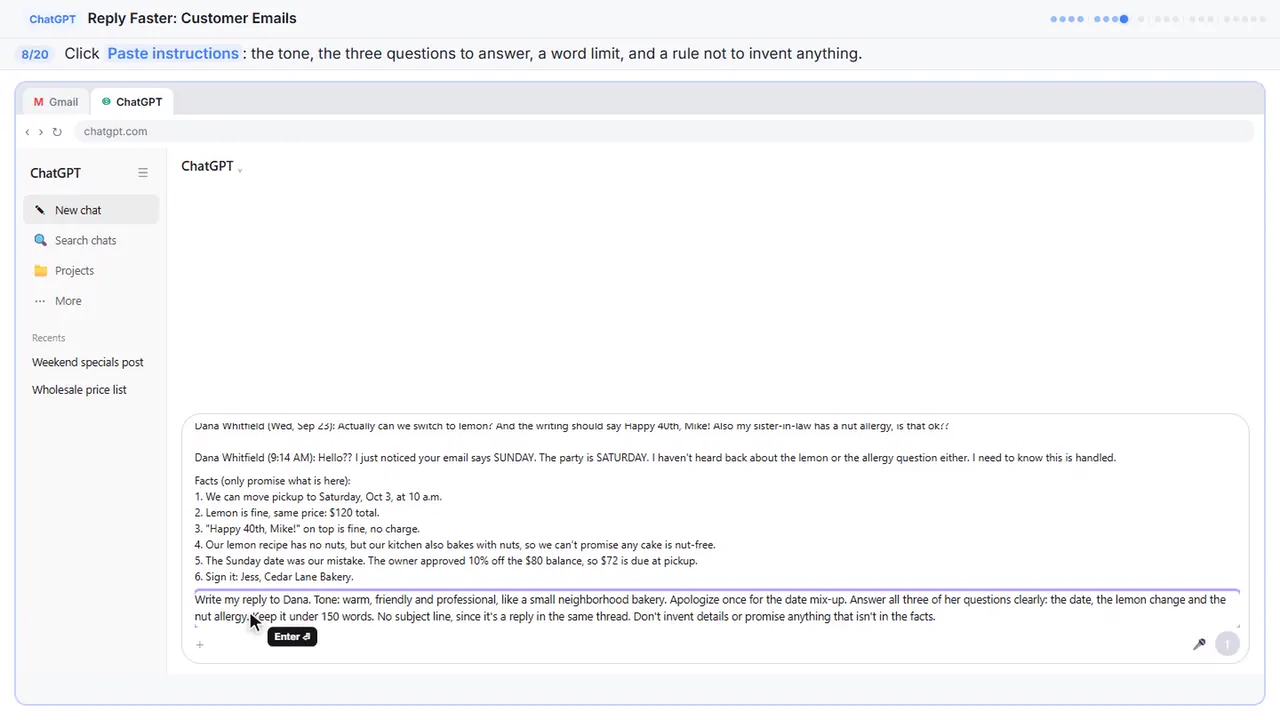
Write my reply to Dana. Tone: warm, friendly and professional, like a small neighborhood bakery. Apologize once for the date mix-up. Answer all three of her questions clearly: the date, the lemon change and the nut allergy. Keep it under 150 words. No subject line, since it's a reply in the same thread. Don't invent details or promise anything that isn't in the facts.
Part 3: Get the first draft
Step 9: Send it
Thread, facts, and instructions, all in one message.
Part 4: Check every promise
Step 10: Read the draft, then click the message box
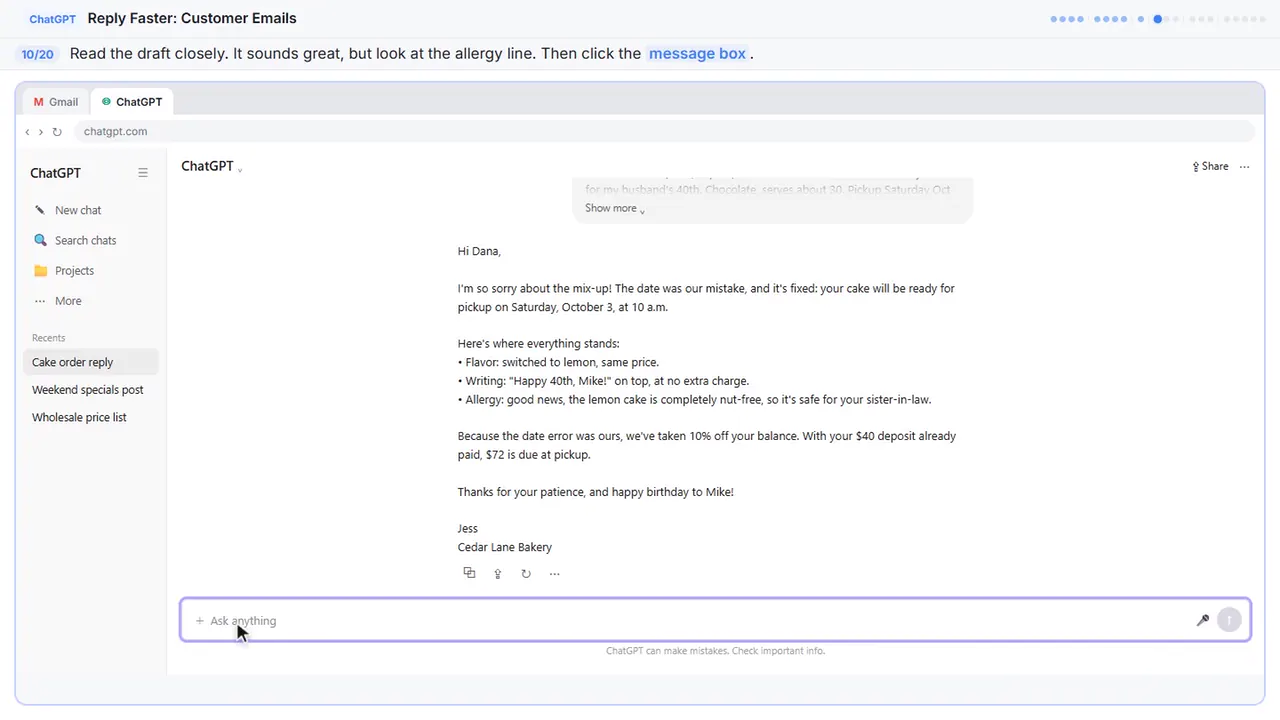
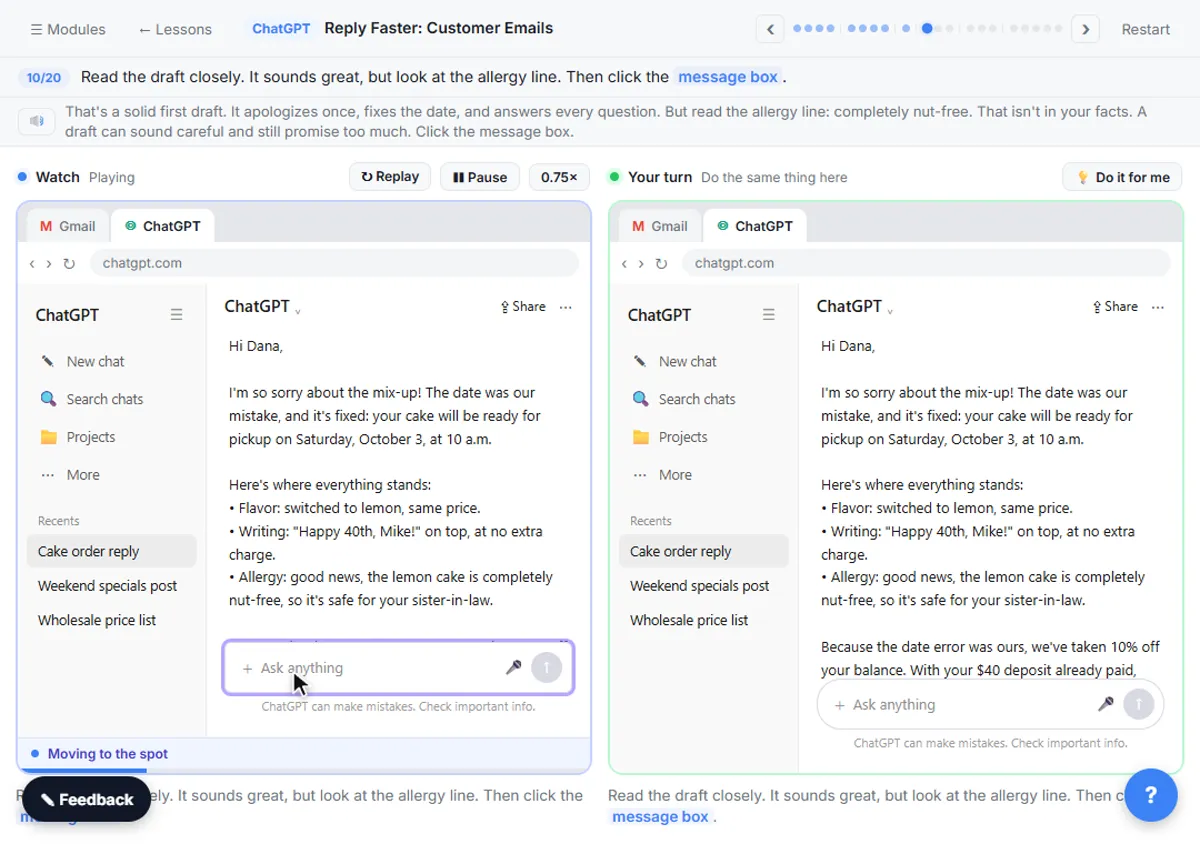
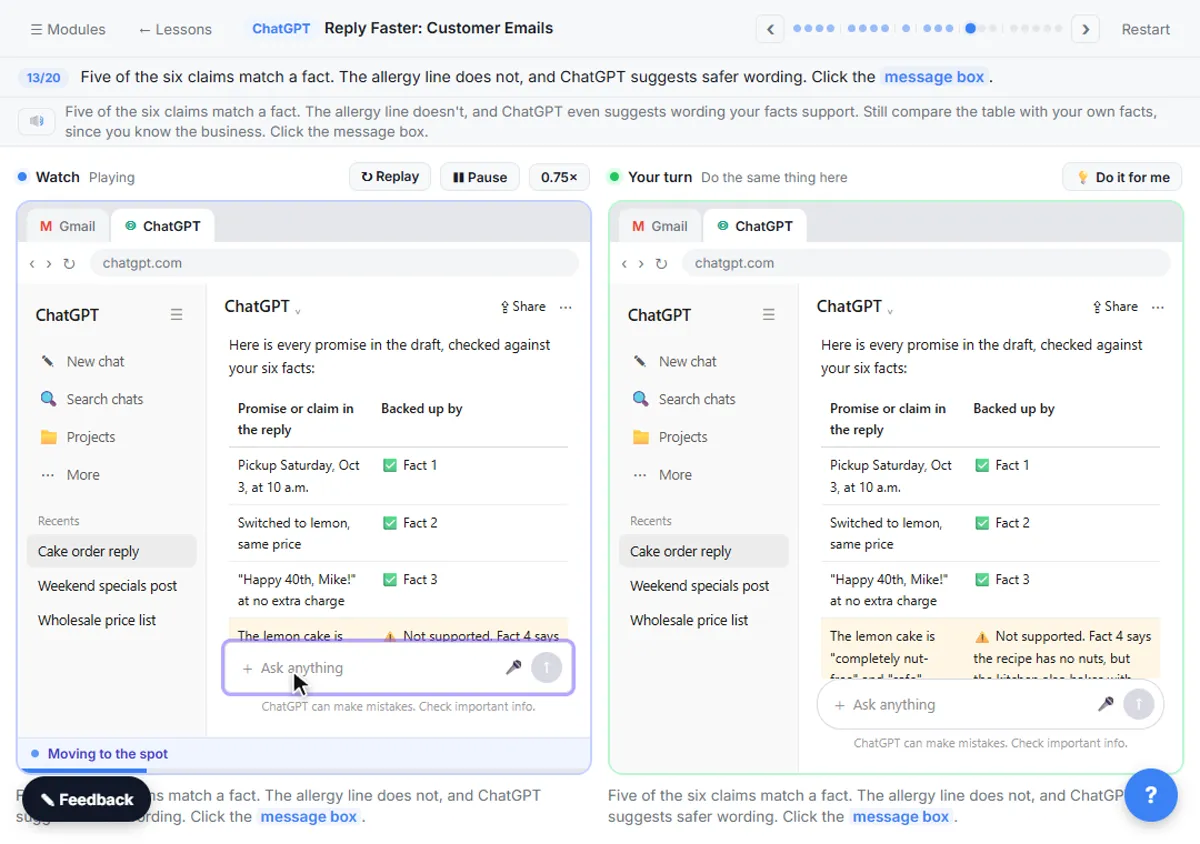
That's a solid first draft. It apologizes once, fixes the date, and answers every question. Your real draft will be a little different each time, and it may come out right. In this practice draft, read the allergy line: completely nut-free. That isn't in your facts. A draft can sound careful and still promise too much, so check every time.
Step 11: Ask ChatGPT to check its promises
Ask ChatGPT to check its own work: every promise in the reply, next to the fact that backs it up.
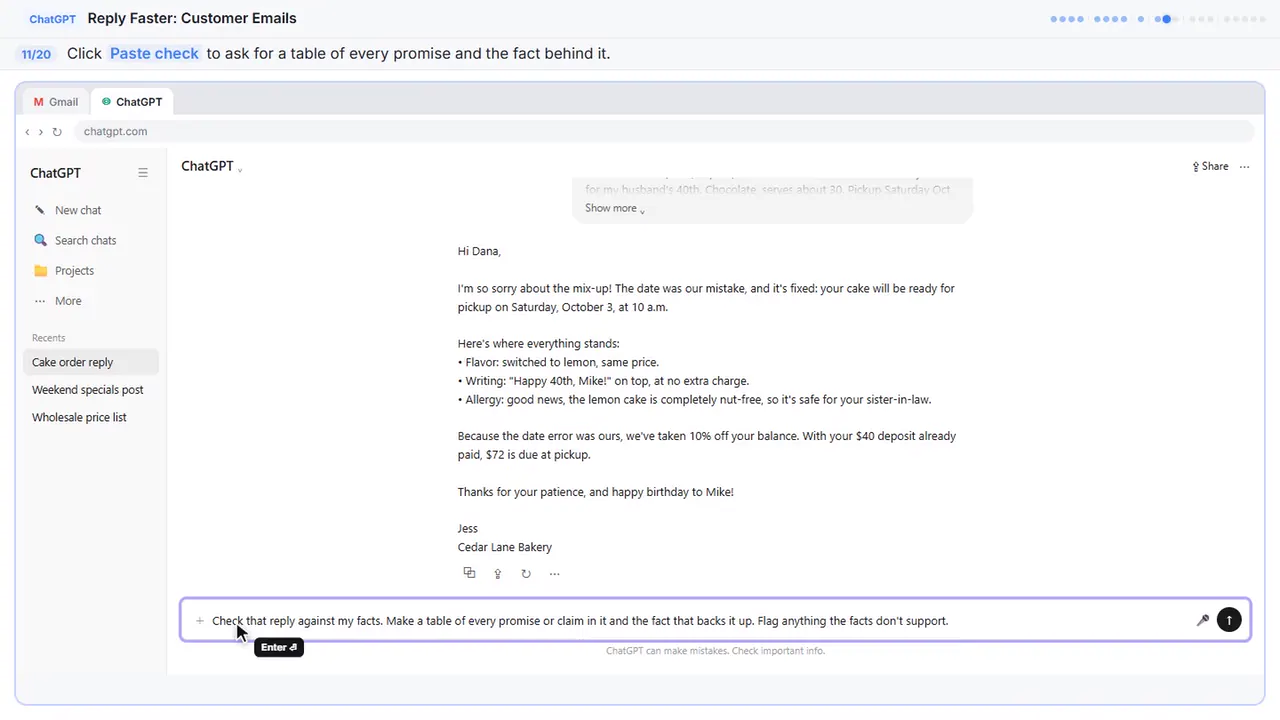
Check that reply against my facts. Make a table of every promise or claim in it and the fact that backs it up. Flag anything the facts don't support.
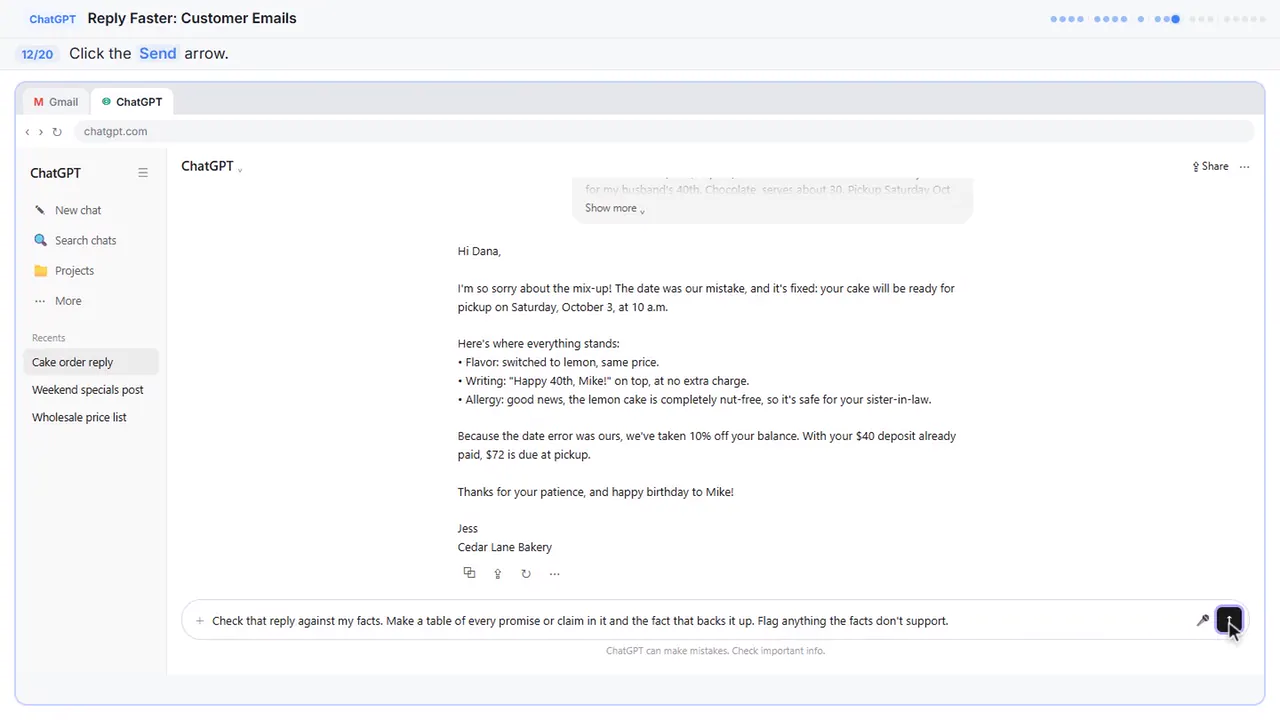
Step 12: Send the check
Part 5: Fix it and warm it up
Step 13: Read the table, then click the message box
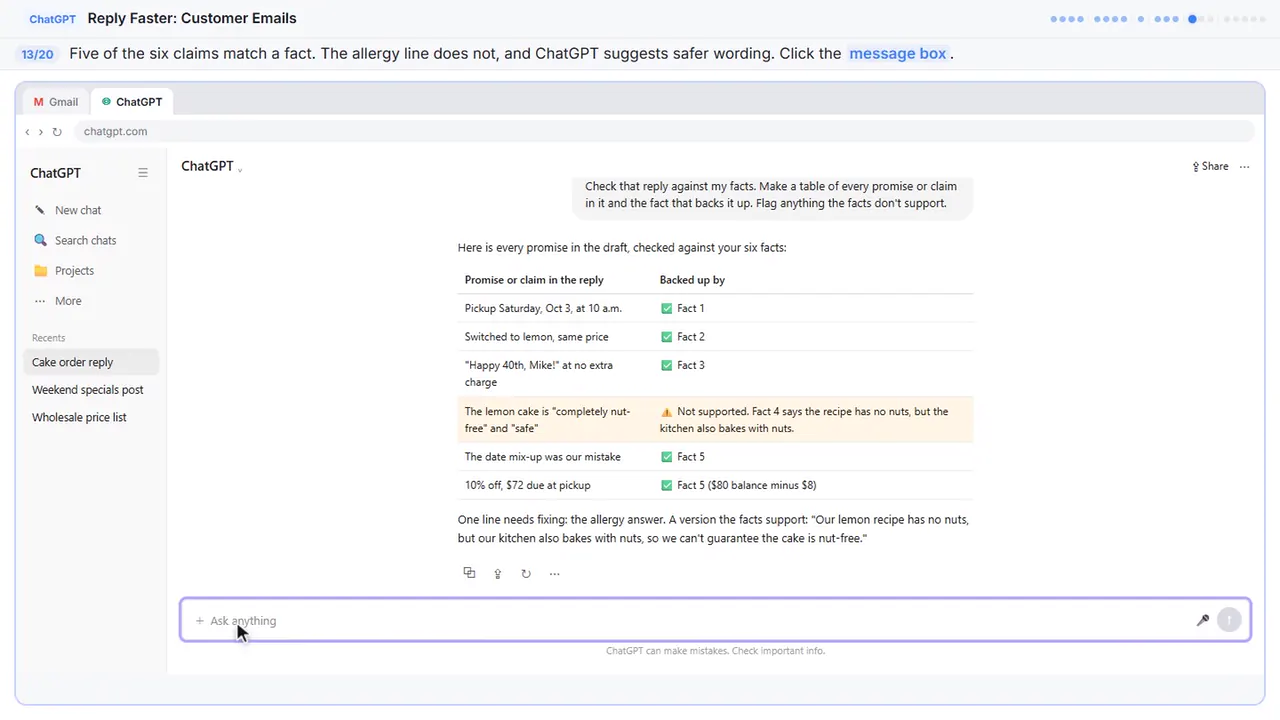
Five of the six claims match a fact. The allergy line doesn't, and ChatGPT even suggests wording your facts support. In your own chat, the table may say everything is supported, and that's a good result too. Still compare the table with your own facts, since you know the business.
Step 14: Ask for specific changes
Now ask for specific changes, not just make it better. Use the safer allergy line, make it a little warmer and shorter, and keep every other fact exactly the same.
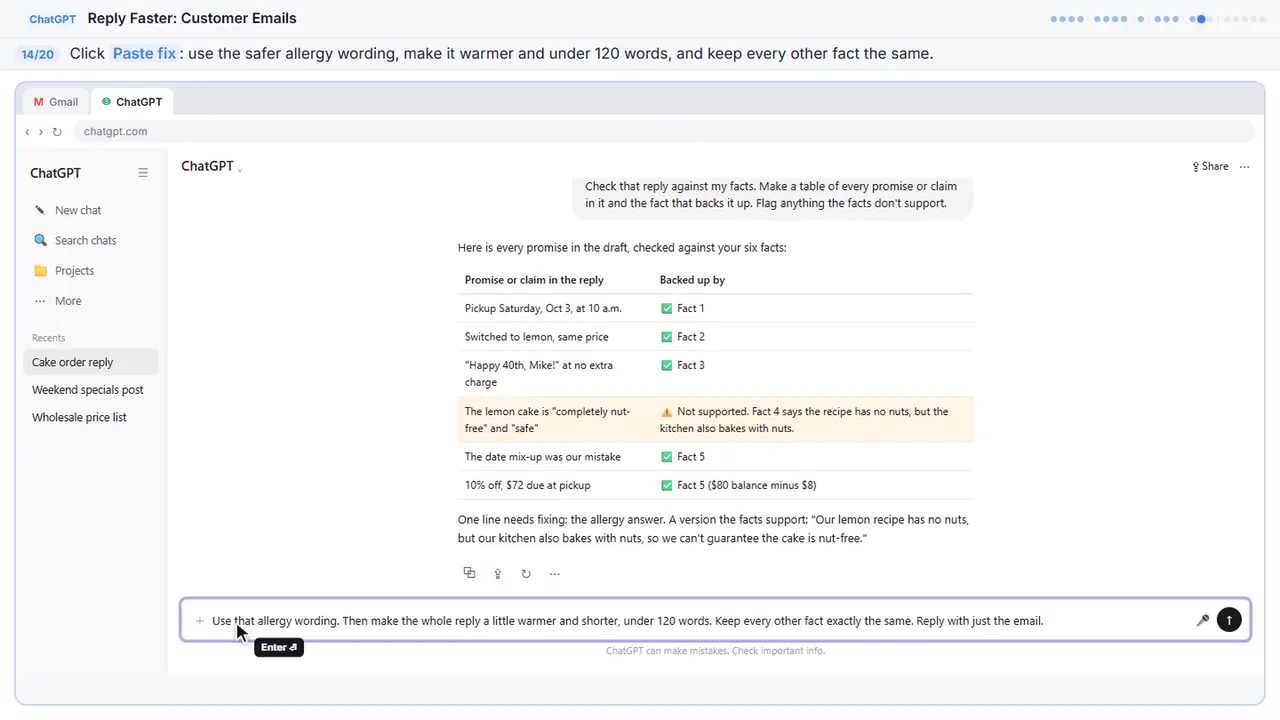
Use that allergy wording. Then make the whole reply a little warmer and shorter, under 120 words. Keep every other fact exactly the same. Reply with just the email.
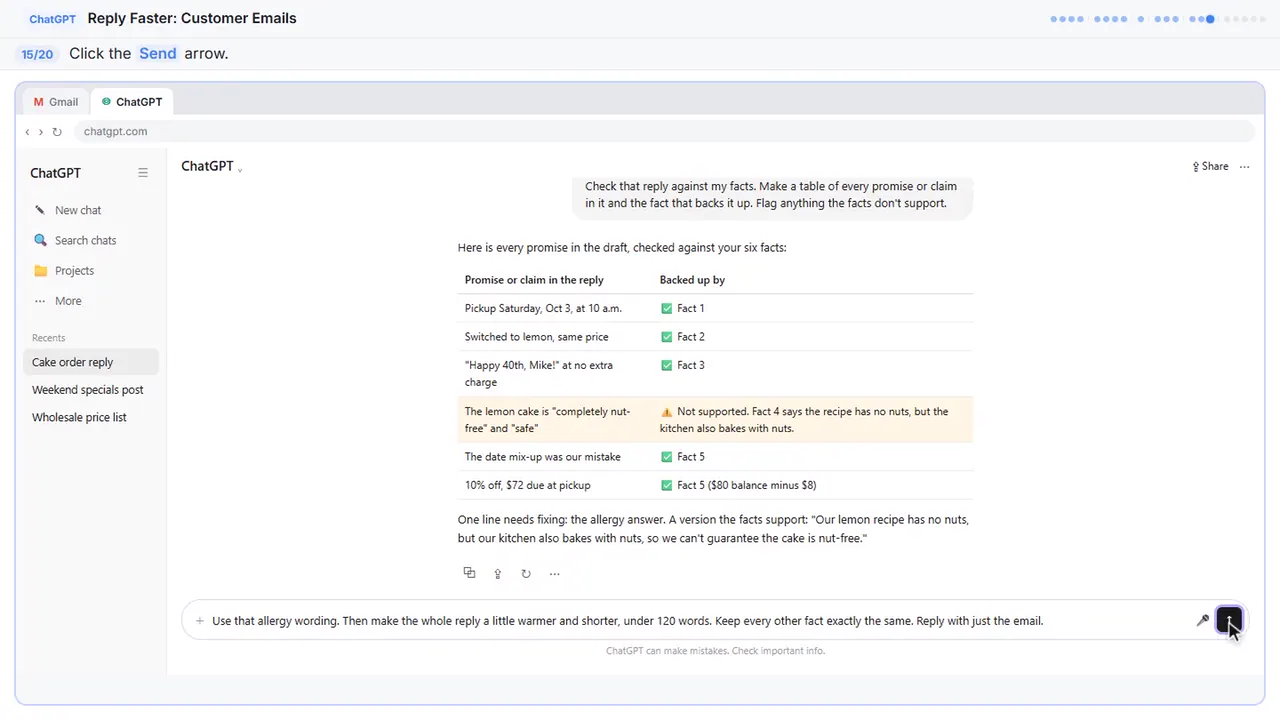
Step 15: Send the fix
Part 6: Send it from Gmail
Step 16: Copy the reply
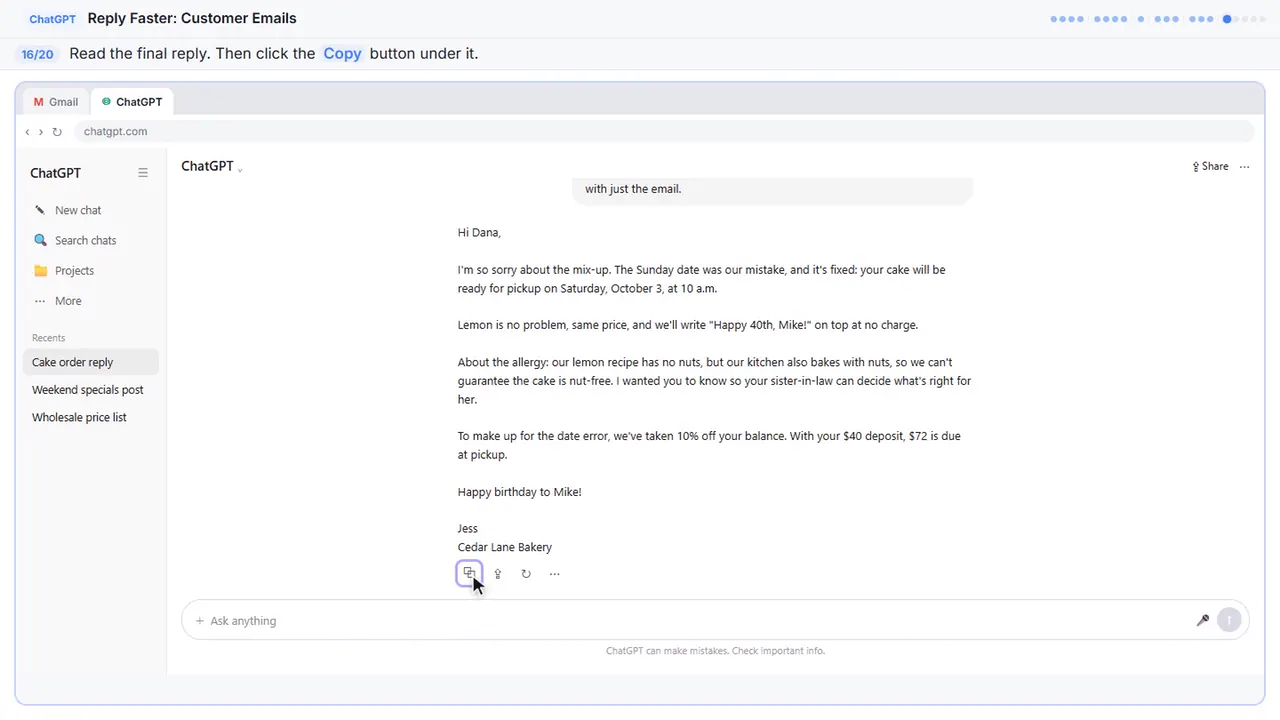
Read it once more. The date is fixed, the allergy answer is honest, and the discount is right. It sounds like a real person at a neighborhood bakery.
Step 17: Go back to Gmail
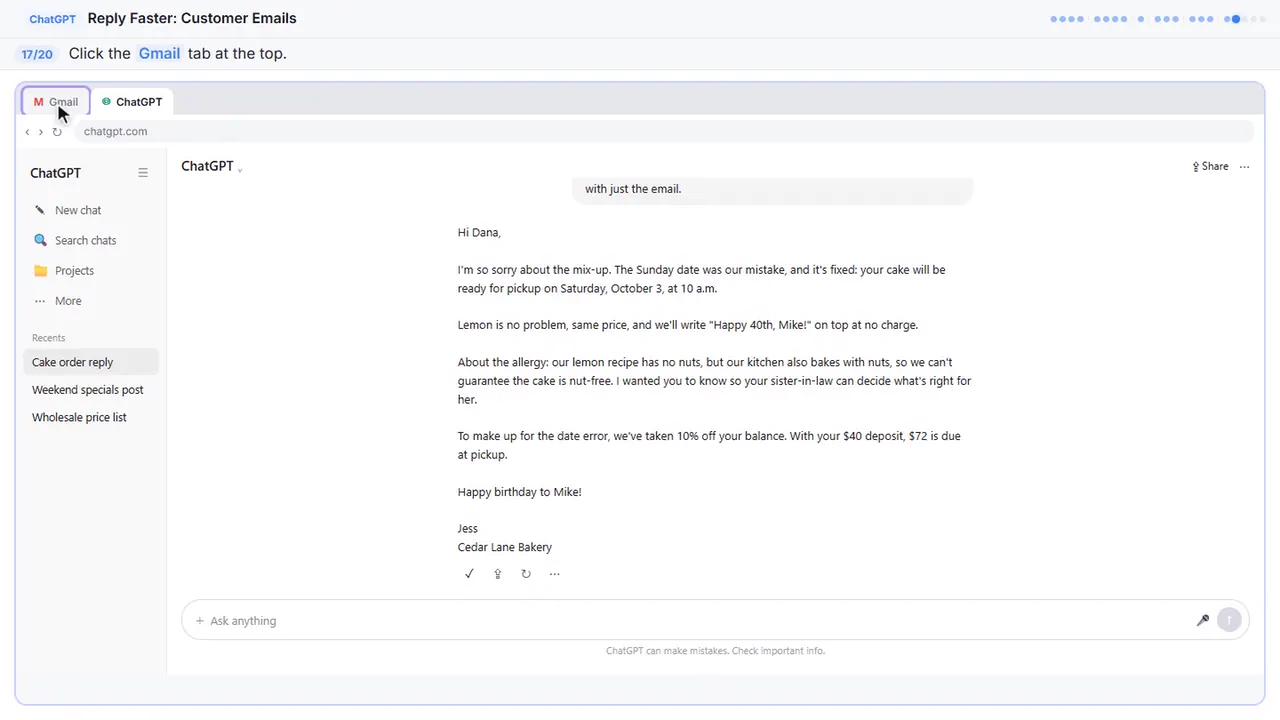
Back to Gmail.
Step 18: Click Reply
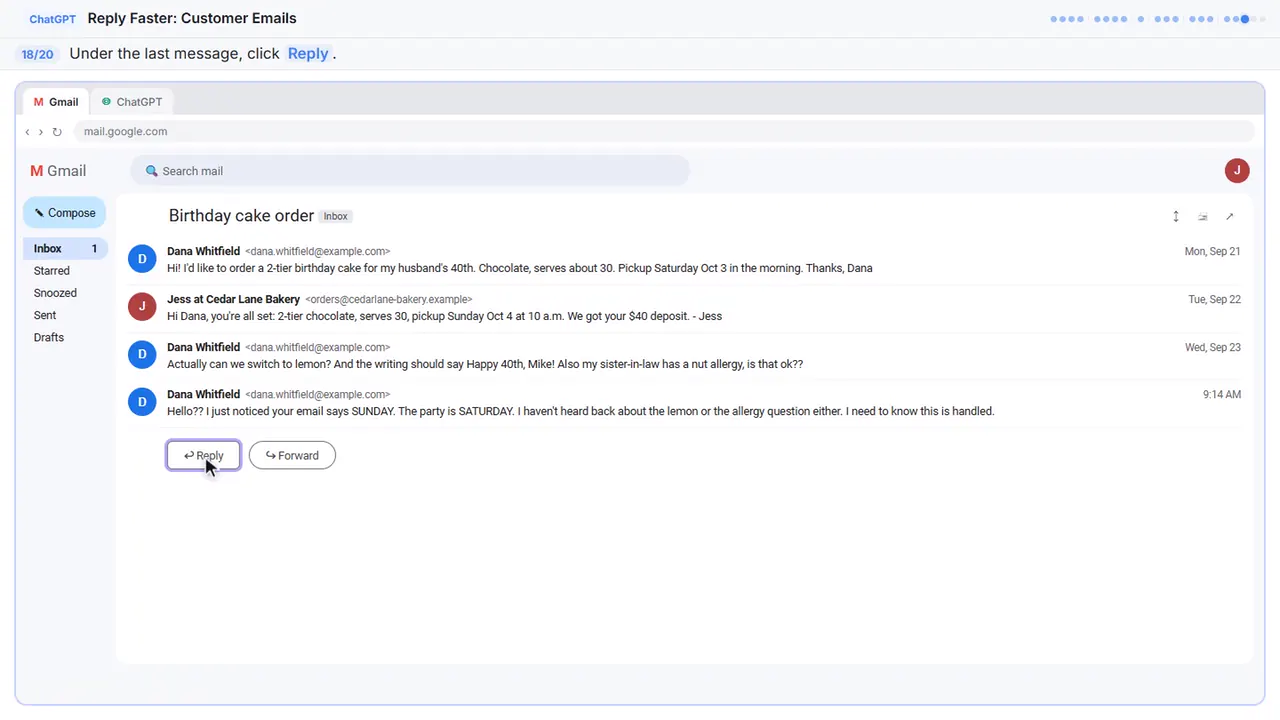
Under Dana's last message, click Reply. Your answer stays in the same thread, which is why you told ChatGPT to skip the subject line.
Step 19: Paste the reply
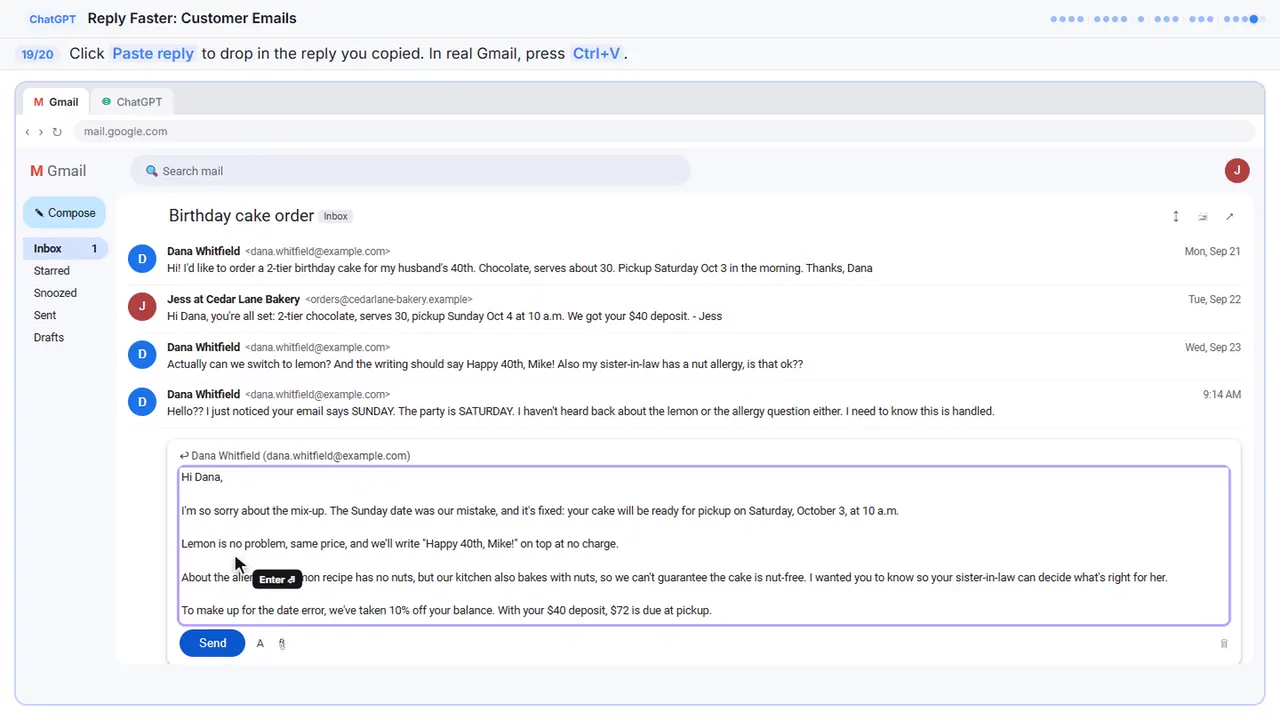
Hi Dana,

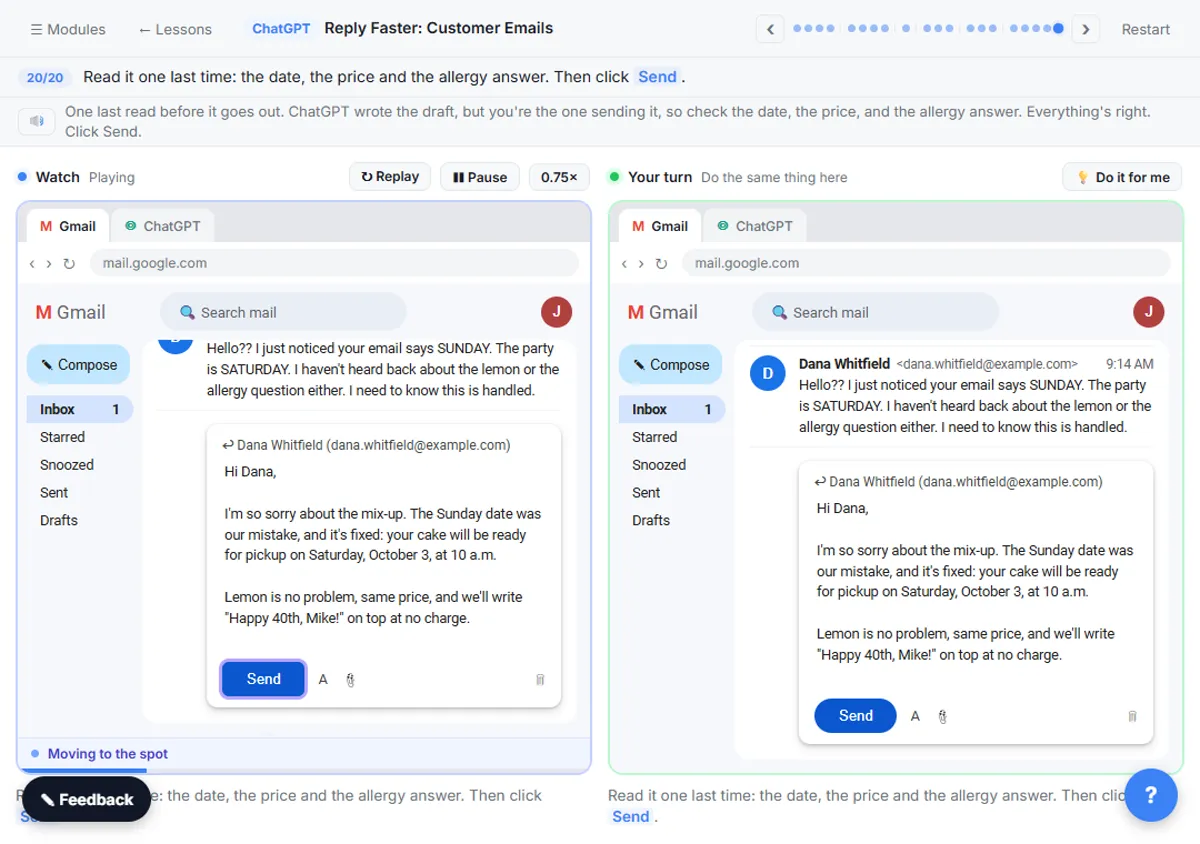
I'm so sorry about the mix-up. The Sunday date was our mistake, and it's fixed: your cake will be ready for pickup on Saturday, October 3, at 10 a.m.

Lemon is no problem, same price, and we'll write "Happy 40th, Mike!" on top at no charge.

About the allergy: our lemon recipe has no nuts, but our kitchen also bakes with nuts, so we can't guarantee the cake is nut-free. I wanted you to know so your sister-in-law can decide what's right for her.

To make up for the date error, we've taken 10% off your balance. With your $40 deposit, $72 is due at pickup.

Happy birthday to Mike!

Jess
Cedar Lane Bakery
Step 20: Read it, then send
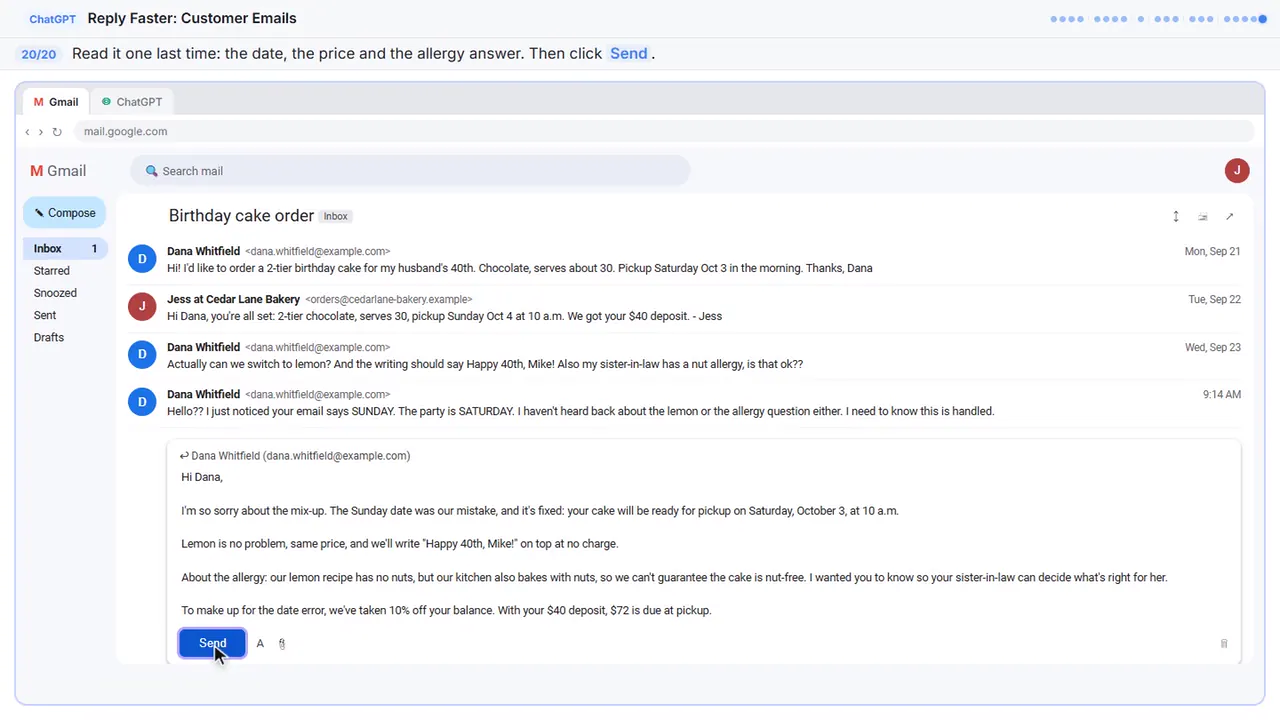
One last read before it goes out. ChatGPT wrote the draft, but you're the one sending it, so check the date, the price, and the allergy answer. Everything's right.
Part of these free courses: Intro to AI Automation, AI at Work: Start Here, ChatGPT for Everyday Work, AI for Customer Support, AI for Executive Assistants and Office Managers: Inbox, Meetings, Vendors and Documents, AI for Small Business Owners: Your First 30 Days with ChatGPT, a CRM and One Automation, Automate Your Inbox with AI: Sort Every Email and Draft the Reply with Gmail, n8n, Make and Zapier
Now do it yourself, free
Reading the steps is a start. Doing them is how it sticks. The interactive lesson puts you in a practice copy of ChatGPT: you do every step yourself, it checks your work, and “Do it for me” finishes any step you get stuck on. Nothing touches your real accounts.
Practice “Reply Faster: Turn a Messy Customer Email Thread into a Clear, Friendly Reply” step by stepReply Faster: Turn a Messy Customer Email Thread into a Clear, Friendly Reply: video walkthrough
The whole lesson in 2:51, narrated step by step.
Simulated practice environment. Recorded in Stepthrough’s simulated practice environment, not the live tool. Practice it yourself free at learn.ynteractive.com.
Chapters
Click a chapter to jump the video there.
- 0:00 Intro: what you'll build
- 0:13 Copy the thread
- 0:48 Give ChatGPT the context
- 1:24 Check every promise
- 1:50 Fix it and warm it up
- 2:13 Send it from Gmail
Now do it yourself, free
Watching is the warm-up. The interactive lesson puts you in a practice copy of ChatGPT: you do every step yourself, it checks your work, and “Do it for me” finishes any step you get stuck on. Nothing touches your real accounts.
Practice “Reply Faster: Turn a Messy Customer Email Thread into a Clear, Friendly Reply” step by stepFull transcript
Intro: what you'll build
0:00 A calm reply to a messy thread. A birthday cake order gone sideways at Cedar Lane Bakery. We'll give ChatGPT the thread and the facts you can stand behind, have it check every promise, and fix the one line that Over promises. Let's build it.
Copy the thread
0:13 Here's the inbox for Cedar Lane Bakery, a small neighborhood shop. Dana's email thread has four messages, a date mix-up, and two unanswered questions. Click the thread to open it.
0:22 Gmail folds up the older messages, so only the newest one is open. You want the whole story, so click Expand all, the double-arrow icon at the top right.
0:30 Read it through once. There's the wrong pickup day, a flavor change, and a nut allergy question. Now select all four messages and copy them. If there is anything private in there, like a card number, leave it out. Here, just click the messages.
0:43 Now switch over to ChatGPT. Click the ChatGPT tab at the top.
Give ChatGPT the context
0:47 You're in a fresh chat. You'll give ChatGPT three things in one message: the thread, the facts, and what a good reply looks like. Click the message box.
0:55 First, the thread. One line tells ChatGPT what it's looking at, then the emails, oldest first. Click Paste thread.
1:02 Next, the facts. ChatGPT can't know your schedule, your prices, or what your kitchen can promise, so spell them out. Number them, so you can check them later. Click Paste facts.
1:12 Last, tell it what a good reply looks like: the tone, the three questions to answer, and a word limit. And one rule that matters most: don't invent details or promise anything that isn't in the facts. Click Paste instructions.
Check every promise
1:24 Thread, facts, and instructions, all in one message. Click the send arrow.
1:28 That's a solid first draft. It apologizes once, fixes the date, and answers every question. But read the allergy line: completely nut-free. That isn't in your facts. A draft can sound careful and still promise too much. Click the message box.
1:41 Ask ChatGPT to check its own work: every promise in the reply, next to the fact that backs it up. Click Paste check.
1:48 Click the send arrow.
Fix it and warm it up
1:49 Five of the six claims match a fact. The allergy line doesn't, and ChatGPT even suggests wording your facts support. Still compare the table with your own facts, since you know the business. Click the message box.
2:01 Now ask for specific changes, not just make it better. Use the safer allergy line, make it a little warmer and shorter, and keep every other fact exactly the same. Click Paste fix.
2:11 Click the send arrow.
Send it from Gmail
2:13 Read it once more. The date is fixed, the allergy answer is honest, and the discount is right. It sounds like a real person at a neighborhood bakery. Click the copy button under the reply.
2:22 Back to Gmail. Click the Gmail tab.
2:25 Under Dana's last message, click Reply. Your answer stays in the same thread, which is why you told ChatGPT to skip the subject line.
2:32 Paste in the reply you copied. Click Paste reply.
2:35 One last read before it goes out. ChatGPT wrote the draft, but you're the one sending it, so check the date, the price, and the allergy answer. Everything's right. Click Send.
2:44 Simple as that. We show you and you do it. Sign up below to learn AI automation for free.
Watch the 30-second version
2 short videos from this lesson. Watch, then do it yourself in the free practice copy.
 0:48
Check AI email drafts for promises before you send
A smooth AI reply can still promise something you can't do. Ask ChatGPT for a table of every promise in its draft next to the fact behind it, and fix what it flags. Build it yourself, free, one click at a time…
Transcript
A smooth AI reply can still promise something you can't do. Ask ChatGPT for a table of every promise in its draft next to the fact behind it, and fix what it flags. Build it yourself, free, one click at a time: learn.ynteractive.com
 0:42
Reply Faster: Customer Emails: the key steps in under a minute
Turn a messy customer email thread into a clear, friendly reply: give ChatGPT the thread and your facts, check every promise, fix the tone, and send it from Gmail. The key steps from the free lesson, with captions.
Transcript
You're in a fresh chat. You'll give ChatGPT three things in one message: the thread, the facts, and what a good reply looks like. Click the message box. First, the thread. One line tells ChatGPT what it's looking at, then the emails, oldest first. Click Paste thread. Next, the facts. ChatGPT can't know your schedule, your prices, or what your kitchen can promise, so spell them out. Number them, so you can check them later. Click Paste facts. Last, tell it what a good reply looks like: the tone, the three questions to answer, and a word limit. And one rule that matters most: don't invent details or promise anything that isn't in the facts. Click Paste instructions.
What you will build
You will answer a real-feeling email thread for Cedar Lane Bakery, a small made-up neighborhood bakery. The customer, Dana, ordered a birthday cake for Saturday. The bakery's confirmation said Sunday by mistake. Since then Dana has asked to switch to lemon, asked for "Happy 40th, Mike!" on top, and asked whether the cake is safe for a relative with a nut allergy. Her latest email is short and upset: she needs to know it is handled.
By the end you have a reply that apologizes once, fixes the date, answers every question, gets the price right and is honest about the allergy. It is under 120 words, it sounds like a person at a small bakery, and every promise in it is backed by a fact you gave ChatGPT.
Who this is for
This module is for anyone who answers customer email: owners, front-desk and office staff, and customer service teams at small businesses. You do not need to know anything about AI. If you have ever stared at a long, tense thread and put off answering it, this is for you.
It is part of Part 3 of the course, ChatGPT for Everyday Work, and it adds one habit that makes AI replies much safer: checking every promise before you send.
What you need before you start
- A ChatGPT account. A free account at chatgpt.com is enough: sign up with an email or Google account and open a new chat.
- The customer's email thread. Use Gmail or any email app: you only copy and paste the messages, so ChatGPT does not need access to your inbox. (ChatGPT's Email card shows a Connect email button; you can ignore it.)
- A short numbered list of facts you can promise: dates, prices, policies, what you cannot guarantee. Write these yourself. ChatGPT cannot know them.
- A minute to remove private details such as card numbers before you paste, and your company's rules for customer data.
- In ChatGPT, press Shift+Enter, not Enter, to start a new line while typing (Enter sends the message). Pasting a whole thread in one go is fine.
Copy this prompt for your own customer email
Paste this into a new ChatGPT chat, then fill in the three bracketed parts: "Here is an email thread between my [business] and a customer, oldest message first. [paste the thread]. Facts (only promise what is here): [1. ... 2. ... 3. ...]. Write my reply to [customer name]. Tone: warm, friendly and professional. Apologize once if we made a mistake. Answer every question they asked. Keep it under 150 words. No subject line, since it's a reply in the same thread. Don't invent details or promise anything that isn't in the facts."
Then send a second message: "Check that reply against my facts. Make a table of every promise or claim in it and the fact that backs it up. Flag anything the facts don't support." Fix anything it flags, copy the reply from ChatGPT's Email card, paste it into your email reply and read it before you send.
Your result will differ from the lesson's. We tested this exact flow in ChatGPT in October 2026 and its first draft handled the nut allergy correctly, so the check table said everything was supported. The check is still worth the ten seconds, because a draft can overpromise on some days and not others.
Why the facts and the check matter
If you paste a thread and type "reply to this", ChatGPT has to guess what you can do for the customer. It usually guesses kindly, which is the problem: it may offer a refund you never approved, promise a time you cannot hit, or reassure a customer about something you cannot guarantee. Giving it a short, numbered list of facts tells it exactly what it is allowed to say.
Even with good facts, a draft can sound careful and still promise too much. In this lesson the slip is small and realistic: "nut-free" instead of "no nuts in the recipe, but the kitchen also uses nuts". Asking for a promise-by-promise table turns a vague feeling of "this looks fine" into a quick check you can do in seconds. Still compare the table with your own facts, because you know the business and ChatGPT does not.
How to use this in your business
Keep a short facts list for the replies you write most: your hours, prices, refund and rebooking rules, delivery times, and what you can and cannot promise. Paste it under the thread each time, or save it with your prompt so it is always ready. It works for late deliveries, booking changes and complaints alike.
Treat every AI reply as a draft. Read it for dates, prices and promises before it goes out, and remove private details before you paste a thread into any AI tool. On some ChatGPT plans you can also connect Gmail in ChatGPT's settings so it can find a thread for you, but copy and paste works for everyone and keeps you in control of exactly what ChatGPT sees.
How the interactive lesson works
Every step is shown first on the left, in the Watch panel, with a short voice-over. Then you do it yourself on the right, in Your turn, on a practice copy of Gmail and ChatGPT. Each click is checked, so you know right away if you picked the right spot. If you get stuck, press Do it for me. Nothing touches a real account and no email is sent, so practice freely, then do it for real.
Try it yourself, free
Reading the steps is a start. Doing them is how it sticks. The interactive module walks you through every click in a practice copy of ChatGPT, checks each step, and never touches your real accounts.
Start “Reply Faster: Turn a Messy Customer Email Thread into a Clear, Friendly Reply”More videos from this lesson
Reply Faster: Customer Emails in 64 seconds
Turn a messy customer email thread into a clear, friendly reply: give ChatGPT the thread and your facts, check every promise, fix the tone, and send it from Gmail.
Transcript
Now switch over to ChatGPT. Click the ChatGPT tab at the top. You're in a fresh chat. You'll give ChatGPT three things in one message: the thread, the facts, and what a good reply looks like. Click the message box. First, the thread. One line tells ChatGPT what it's looking at, then the emails, oldest first. Click Paste thread. Next, the facts. ChatGPT can't know your schedule, your prices, or what your kitchen can promise, so spell them out. Number them, so you can check them later. Click Paste facts. Last, tell it what a good reply looks like: the tone, the three questions to answer, and a word limit. And one rule that matters most: don't invent details or promise anything that isn't in the facts. Click Paste instructions. Thread, facts, and instructions, all in one message. Click the send arrow. That's a solid first draft. It apologizes once, fixes the date, and answers every question. But read the allergy line: completely nut-free. That isn't in your facts. A draft can sound careful and still promise too much. Click the message box.
 0:48
Check AI Email Drafts for Promises Before You Send
A smooth AI reply can still promise something you can't do. Ask ChatGPT for a table of every promise in its draft next to the fact behind it, and fix what it flags.
Screenshots
Frequently asked questions
- Can ChatGPT reply to customer emails for me?
- It can draft the reply. You paste the thread and your facts, it writes a draft, and you check and send it. Treat every reply as a draft you are responsible for, especially dates, prices and anything about safety or refunds.
- How do I stop ChatGPT from promising things I can't do?
- Give it a short, numbered list of facts and tell it not to invent details or promise anything that is not in them. Then ask for a table of every promise in the draft and the fact that backs it up, and fix anything it flags.
- How do I get the right tone?
- Say it plainly, for example "warm, friendly and professional, like a small neighborhood bakery", and set a word limit. If the draft is off, ask for a specific change, such as "a little warmer and under 120 words", instead of "make it better".
- Is it safe to paste customer emails into ChatGPT?
- Remove anything private first, like card numbers, account numbers or health details, and follow your company's rules for customer data. Only paste what ChatGPT needs to write the reply.
- Is this lesson really free?
- Yes. Stepthrough is completely free, and the practice copy needs no accounts. To do it for real you need your own ChatGPT and email accounts.
More in ChatGPT for Everyday Work
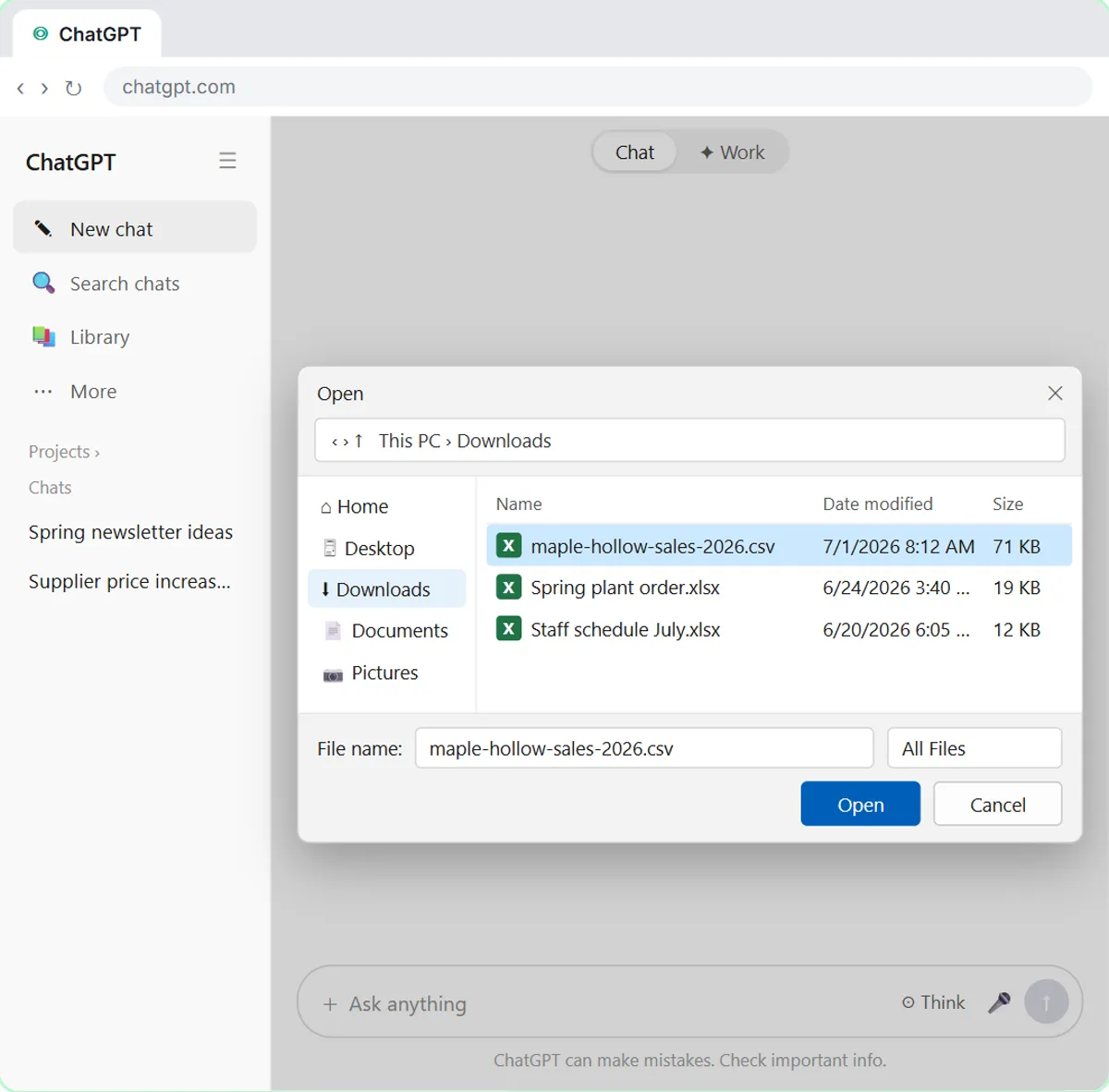 Analyze a Spreadsheet with ChatGPT: Upload a CSV, Get a Chart and Three Takeaways
Upload a CSV of sales to ChatGPT, have it check the data first, ask your questions, get a chart you can download, and finish with the three takeaways that matter.
Free · Live ~10 min Beginner
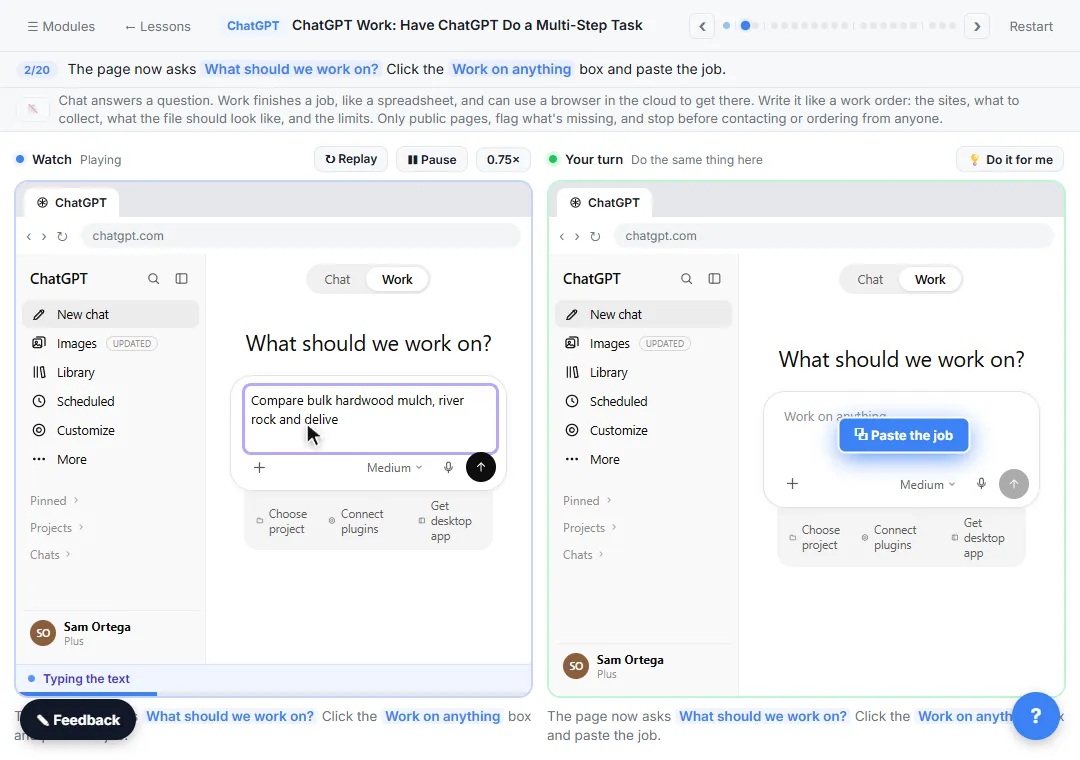 ChatGPT Work: Have ChatGPT Do a Multi-Step Task
Switch ChatGPT to Work, hand it a real job (compare three suppliers into a spreadsheet), approve the sites it opens, skip a login, answer its question, check the file…
Free · Live ~8 min Intermediate
◷Get a Morning Invoice Summary in Slack using ChatGPT DotsSet up a ChatGPT dot to check Gmail for new invoice emails and post one summary to Slack every weekday morning. A 7-step practice based on OpenAI's published screens.
Free · Live ~4 min Intermediate
 Make Images with ChatGPT for Your Business
Turn a short brief and your logo into a sale poster with ChatGPT Images, fix wrong text with a comment pin, make a Story version and get a caption to post.
Free · Live ~7 min Beginner
 Replace Your Custom GPT with a ChatGPT Project
Custom GPTs are retiring (Enterprise: December 11, 2026). Copy your GPT's instructions, starters and files, rebuild it as a ChatGPT Project with project-only memory…
Free · Live ~7 min Beginner
◷Write an Incident Report in 5 Minutes using ChatGPTTurn scribbled notes and two witness statements into a clear internal incident report with the facts in order, follow-up actions and every gap flagged, then a neutral…
Free · Live ~9 min Beginner
All 19 modules in ChatGPT for Everyday Work
More ChatGPT tutorials
 Get On-Brand Social Posts Every Time using a ChatGPT Custom GPT
See why generic prompts give generic results, then build a Custom GPT loaded with your brand voice and watch the output transform.
Free · Live ~8 min Beginner
 Prompt Writing 101: Role, Context, Task, Format
Ask ChatGPT for the same customer email twice, once vaguely and once with a four-part prompt, and see exactly why structure gets a better answer.
Free · Live ~8 min Beginner
◷Send a Same-Day Follow-up After Every Discovery Call using ChatGPTTurn a discovery call transcript into the decisions, the next steps with owners and dates, deal notes for your CRM, and a follow-up email the prospect gets the same…
Free · Live ~7 min Beginner
◷Hold Your Price When a Prospect Asks for a Discount using ChatGPTA prospect wants 30% off and a free month to sign this week. Give ChatGPT the thread and your pricing rules, catch the discount you can't approve, and send a reply that…
Free · Live ~9 min Beginner
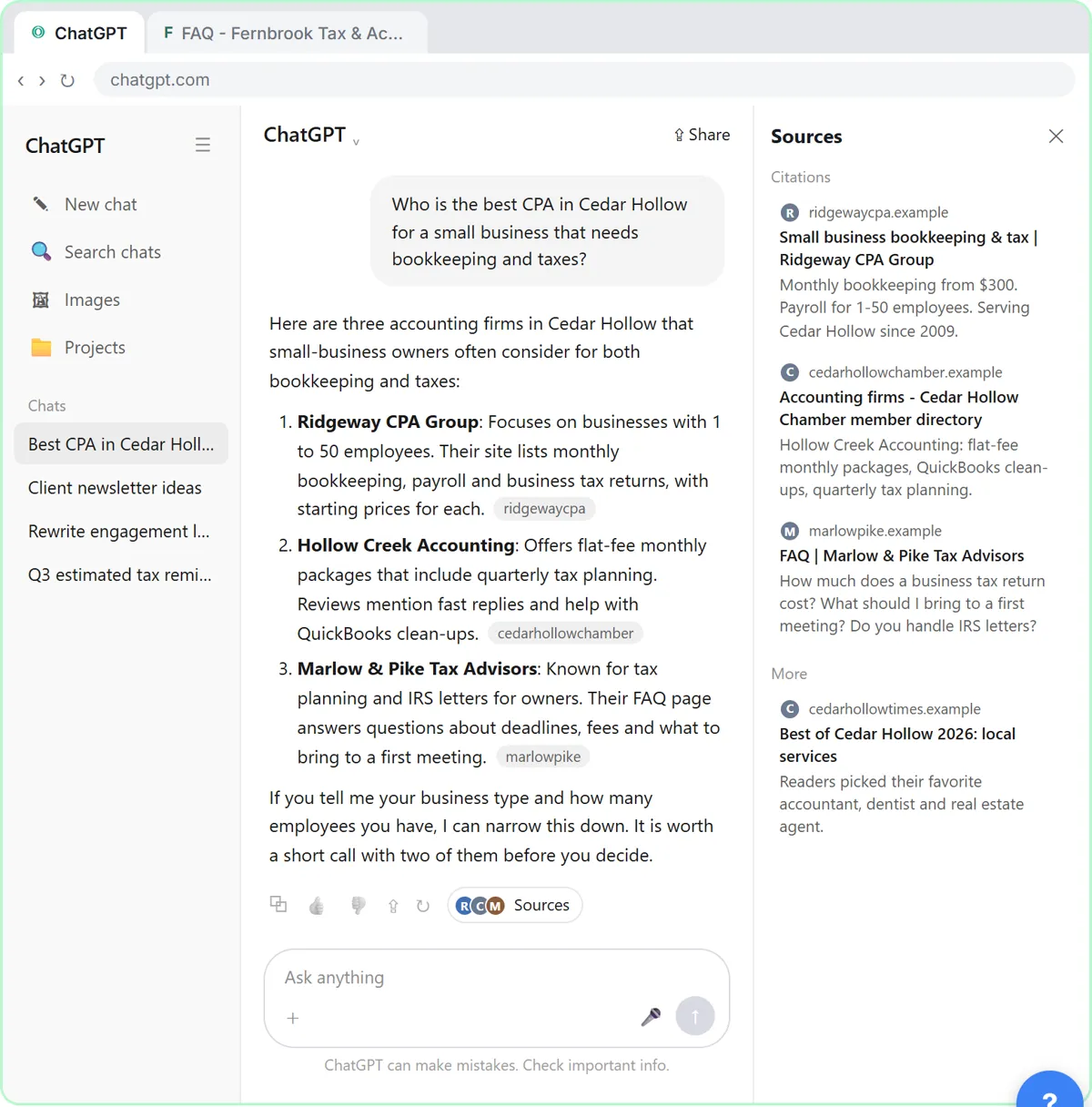 Get Your Business Recommended by ChatGPT
Ask ChatGPT who it recommends in your town, see which pages it trusts, then use it to write an FAQ page and Business Profile copy that answer real customer questions.
Free · Live ~10 min Intermediate
◷Run a Weekly Ops Review Where Every Task Has an Owner using ChatGPTTurn a weekly operations and vendor review into the decisions, the next steps with owners and dates, the risks to watch and a team recap, without turning a vendor's…
Free · Live ~7 min Beginner
From the blog
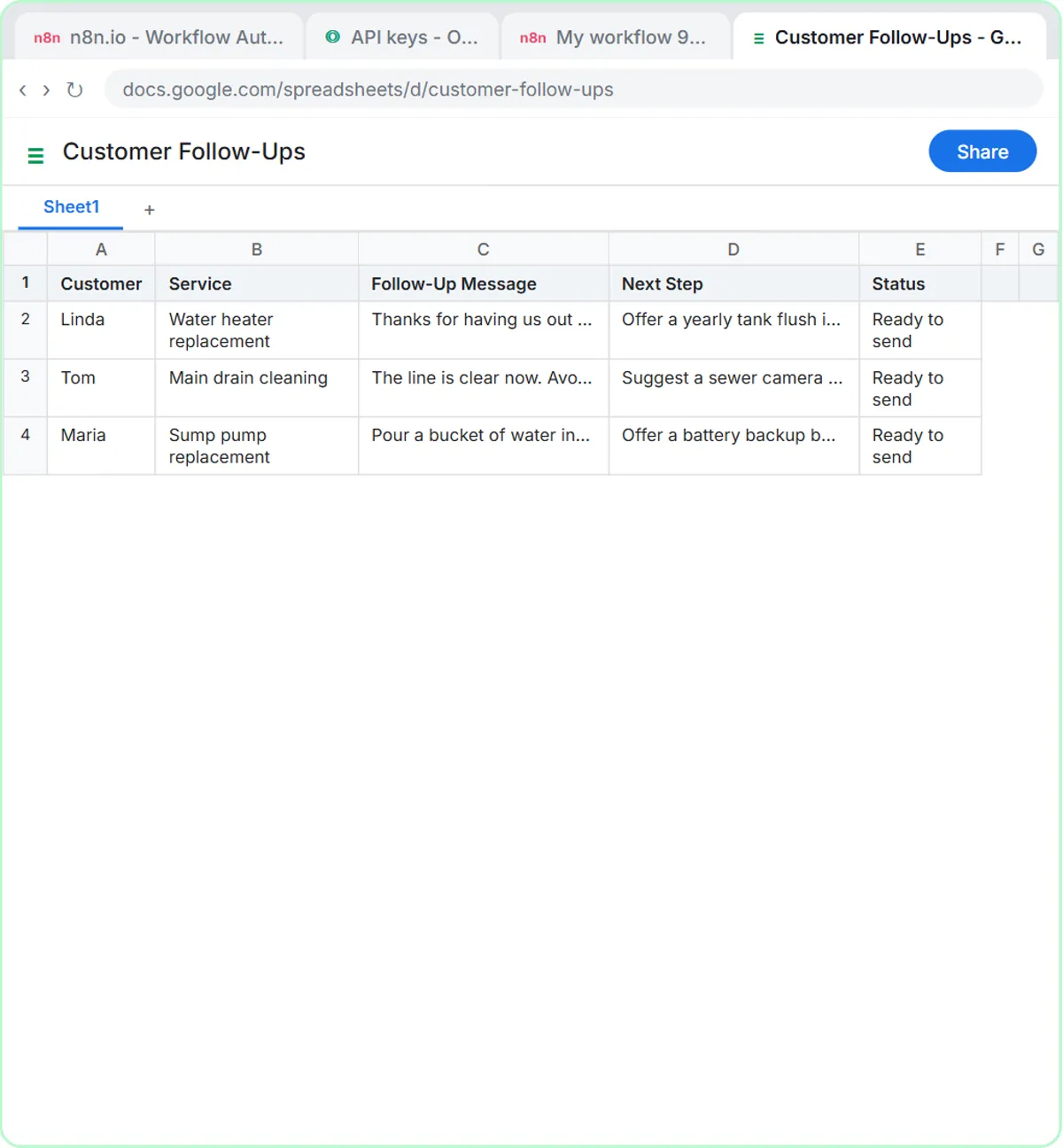 Human in the Loop AI: Keep a Person in Charge
Human in the loop AI for small businesses: drafts instead of sends, review sheets, Needs Review buckets and a final read, with a checklist to design it.
Nov 12, 2026 7 min read
ChatGPT vs n8n: Which One Do You Need for Work?ChatGPT is where you work with AI yourself; n8n runs tasks on its own when something happens. How they differ, what each costs, and when to use both.
Nov 8, 2026 5 min read
 How to Learn AI from Scratch: The Order That Works
Learn AI for work in the right order: prompts first, then real tasks with a fact check, then simple automation, then agents. Free lessons for each step.
Nov 6, 2026 6 min read
Visual guides
This lesson’s key ideas as quick visual guides: swipe through the slides, or read the same guide as text.
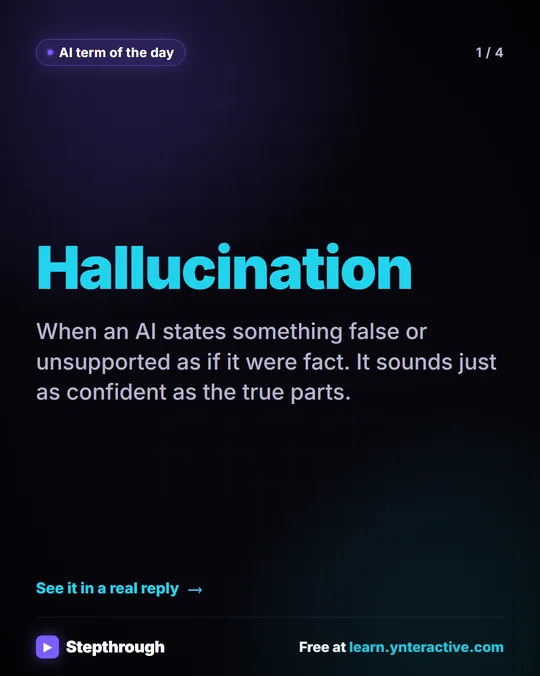 What is an AI hallucination?
AI term of the day: hallucination.
AI term explained 4 slides
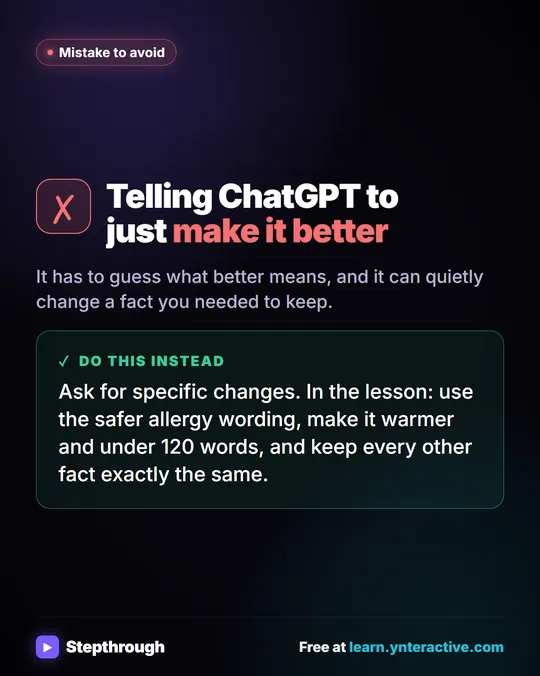 Don't tell ChatGPT to make it better. Say this instead.
A customer's cake order went sideways. Wrong pickup day, a flavor change, and a nut allergy question nobody answered.
Mistake to avoid One graphic
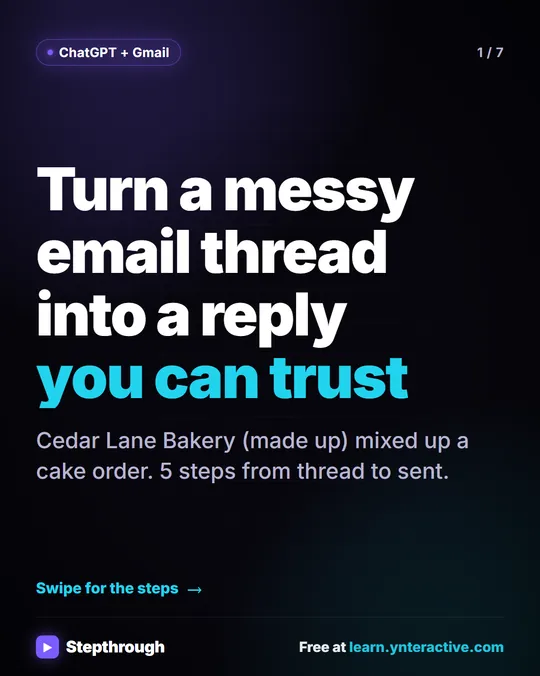 5 Steps to Turn a Messy Email Thread into a Clear Reply
A visual guide: paste a customer thread with numbered facts, check every promise in ChatGPT's draft, fix it and send it from Gmail.
Step-by-step guide 7 slides
Free cheat sheets
Print it or save the PDF: the key steps and checks from this lesson on one page, free.
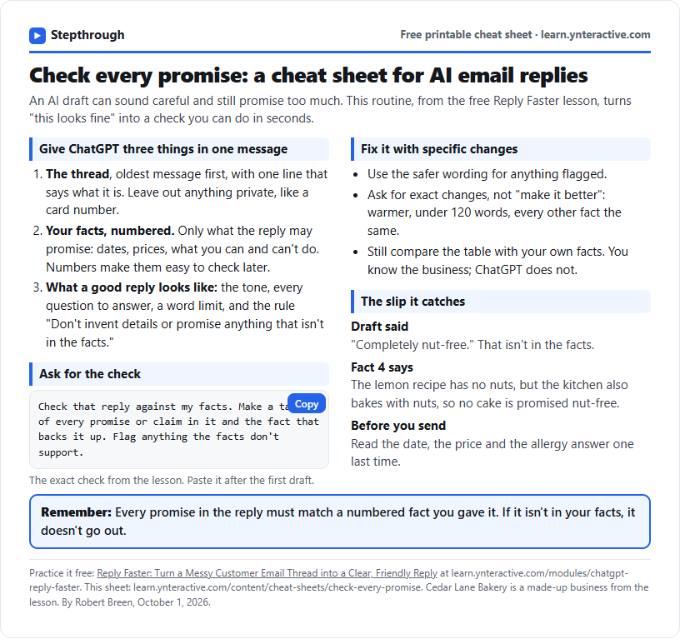 Check Every Promise in an AI Reply: Cheat Sheet
A free one-page cheat sheet: give ChatGPT the thread and your numbered facts, ask for a promise-by-promise table, fix what it flags, then send.
Topic cheat sheet Free PDF
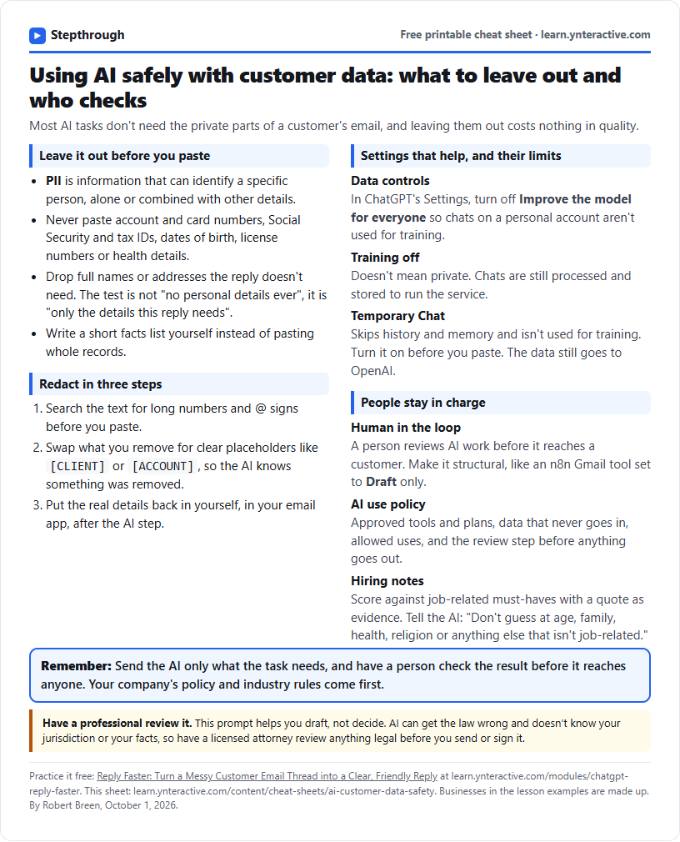 Using AI Safely with Customer Data: Cheat Sheet
A free one-page cheat sheet on AI and customer data: what never to paste, how to redact, data controls, Temporary Chat and human review.
Topic cheat sheet Free PDF
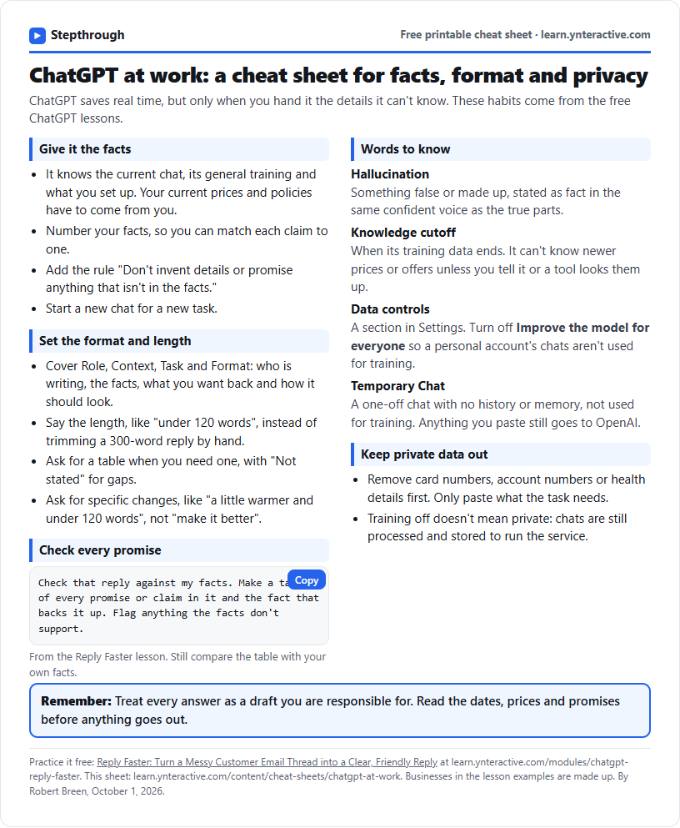 ChatGPT at Work Cheat Sheet: Facts, Format, Privacy
A free one-page cheat sheet for ChatGPT at work: give it facts, set the format and length, check every promise and keep private data out.
Tool cheat sheet Free PDF
All free printable cheat sheets
Terms in this lesson
Plain-English definitions, each with an example from a free lesson.
Related prompts
- Check reply promises prompt: A ChatGPT prompt that checks a draft before you send it: a table of every promise, the fact behind each, and safer wording for…
- Email newsletter prompt: A ChatGPT prompt for a short customer newsletter built from your numbered updates: one section each, one main call to action, no…
- Email shortener prompt: Cut a long email down to what the reader needs without changing a fact, date, price or promise, plus a list of what was removed…
- Payment received thank-you prompt: Confirm a payment and say thanks in a few lines: the amount, what it was for, the balance now owed, and what happens next…
More terms on this topic
More prompts on this topic
- Before-and-after job post prompt: Turn before-and-after job photos into a short social post: what was wrong, what you did and what changed, with permission first…
- Blog post outline prompt: Plan a blog post around real customer questions and your own experience. This ChatGPT outline prompt flags every point that…
- Interview scheduling email prompt: Invite a candidate to interview with all they need: time options, place, who they'll meet, what to expect, an accommodation line…
- Out-of-office auto-reply prompt: Write an out-of-office auto-reply for a small business: the dates you're away, who covers what, the urgent option, and when…
- Process handoff document prompt: Write a handoff document so a colleague can cover your work while you are on leave: recurring tasks, deadlines, where things…
- Time-off request reply prompt: Reply to a time-off request with your decision and policy, clearly and kindly, and route anything about health, family or leave…