Updated . Built against the tool’s current screens and checked step by step. How we check this lesson
Planning a campaign usually means a blank spreadsheet and an afternoon of "what do we send on Thursday?" In this free n8n tutorial you build an AI agent that takes one campaign theme and plans two weeks of emails and social posts, then saves every item to a Google Sheet your team can review.
At a glance
| Question | Answer |
|---|---|
| What you build | Build an AI agent for Harbor & Pine Coffee Roasters that turns one campaign theme into a two-week email and content calendar in Google Sheets — chat trigger, AI Agent, system prompt, model, memory, and the Sheets tool. |
| Tools | n8n |
| Time | About 12 minutes, 72 steps in 12 parts |
| Level | Intermediate |
| Cost | Free |
| Ways to learn it | Practice it step by step, watch the video |
The 12 parts, in short
- Get n8n: Go to n8n.io, Enter your email, Sign up.
- API key: Add credit first, Ten dollars is plenty, Now the key, Create a secret key, and 4 more steps.
- New workflow: Start a new workflow.
- Chat trigger: Add the first step, Trigger on a chat message, Back to the canvas.
- AI Agent: Add the next node, Open the AI nodes, Add the AI Agent.
- System prompt: Open the options, Add a system message, Write the system prompt, Back to the canvas.
- Chat model: Give the agent a brain, Pick OpenAI, Open the credentials, Create a new credential, and 5 more steps.
- Memory: Add memory, Simple Memory, Back to the canvas.
- Sheets tool: Add a tool, Search for Sheets, Add Google Sheets.
- Create the spreadsheet: Back to the canvas, Open Google Sheets, Name the spreadsheet, Type the first column header, and 6 more steps.
- Configure Sheets: Add a credential, Create a new credential, Sign in with Google, Choose your account, and 16 more steps.
- Test the agent: Open the chat, Give it a campaign, Send the message, Save to the sheet, and 1 more step.
Start here first: n8n AI Agent Tutorial: Save Social Media Ideas to Google Sheets. This Marketing version follows the same build with its own example business, Harbor & Pine Coffee Roasters.
Part of: AI for Marketing Teams (step 2 of 46). Next up: n8n + ProLevelMax: Weekly Review Themes From Trustpilot to Google Sheets
Build an n8n AI Agent That Plans Your Content Calendar: video walkthrough
The whole lesson in 8:03, narrated step by step.
Simulated practice environment. Recorded in Stepthrough’s simulated practice environment, not the live tool. Practice it yourself free at learn.ynteractive.com.

Chapters
Click a chapter to jump the video there.
- 0:00 Intro: what you'll build
- 0:12 Get n8n
- 0:46 API key
- 1:56 Chat trigger
- 2:28 AI Agent
- 2:45 System prompt
- 3:23 Chat model
- 4:12 Memory
- 4:29 Sheets tool
- 4:54 Create the spreadsheet
- 5:44 Configure Sheets
- 7:24 Test the agent
Now do it yourself, free
Watching is the warm-up. The interactive lesson puts you in a practice copy of n8n: you do every step yourself, it checks your work, and “Do it for me” finishes any step you get stuck on. Nothing touches your real accounts.
Practice “Build an n8n AI Agent That Plans Your Content Calendar” step by stepFull transcript
Intro: what you'll build
0:00 Now we automate. You'll build an AI agent in n8n for Harbor and Pine Coffee Roasters. It turns one campaign into a two-week content calendar and saves it to Google Sheets. Let's build it.
Get n8n
0:12 In the last lesson you built a Custom GPT that writes ad copy. That is great for one person. But what if the AI planned a whole campaign calendar and saved it to a spreadsheet your team can review? That is what we are building now. First, you need an n8n account. Click get started free.
0:29 Type an email address. This is just practice, so anything works — it won't actually send anything.
0:35 Now click continue. In the real n8n, it sends you a six digit code, then asks for a name, a password, and an account name. Go do that in your own browser later, then come back and we will build.
API key
0:45 Your agent needs a brain, and that means an API key from OpenAI. Go to platform dot openai dot com — that is the developer side, not ChatGPT, and it bills completely separately. Before you make a key, put some money on the account. A brand new key with a zero balance just returns errors. Click add to credit balance. If you would rather not spend anything yet, n8n gives every new account free credits. In your own n8n, you can pick gateway credits on the model step and skip the key.
1:03 Ten dollars goes a very long way. You are charged per request, not per month, and planning a calendar costs fractions of a cent. Click continue — in your own account it asks for a card at this point.
1:15 Balance sorted. Now go to API keys in the left menu.
1:18 Click create new secret key.
1:20 Name it after whatever is going to use it. Future you, staring at a list of forty keys, will thank you. I am calling this one n8n agent.
1:28 Default project, all permissions — that is fine for this. Create the key.
1:32 Now pay attention, because this is the only time you will ever see this key. Copy it and paste it into n8n, or into your password manager. If you lose it, you do not get it back — you delete it and make another.
1:44 Click done. One last warning — this key can spend your money. Never commit it to code, never paste it into a chat, and if it ever shows up on screen while you are recording, revoke it before you publish.
Chat trigger
1:56 Now you are inside n8n. This overview page lists every workflow you have. Top right, click create workflow, and you land on an empty canvas.
2:03 Every workflow needs a trigger — the thing that kicks it off. We want a chat trigger so you can give the agent a campaign theme. Click add first step.
2:11 A panel slides in with every way a workflow can start — manually, on a schedule, on a webhook. We want on chat message, so we can have a conversation with the agent.
2:19 n8n opens the node so you can configure it. There is nothing we need to change here, so close it with the X in the top right and get back to the canvas.
AI Agent
2:27 Now we decide what happens when a message comes in. Click the plus on the right edge of the trigger.
2:32 There it is — AI Agent. This is the piece that can plan and then carry out actions using whatever tools you give it. You give it a campaign theme, and it can plan the calendar and save it to a spreadsheet — all in one step.
System prompt
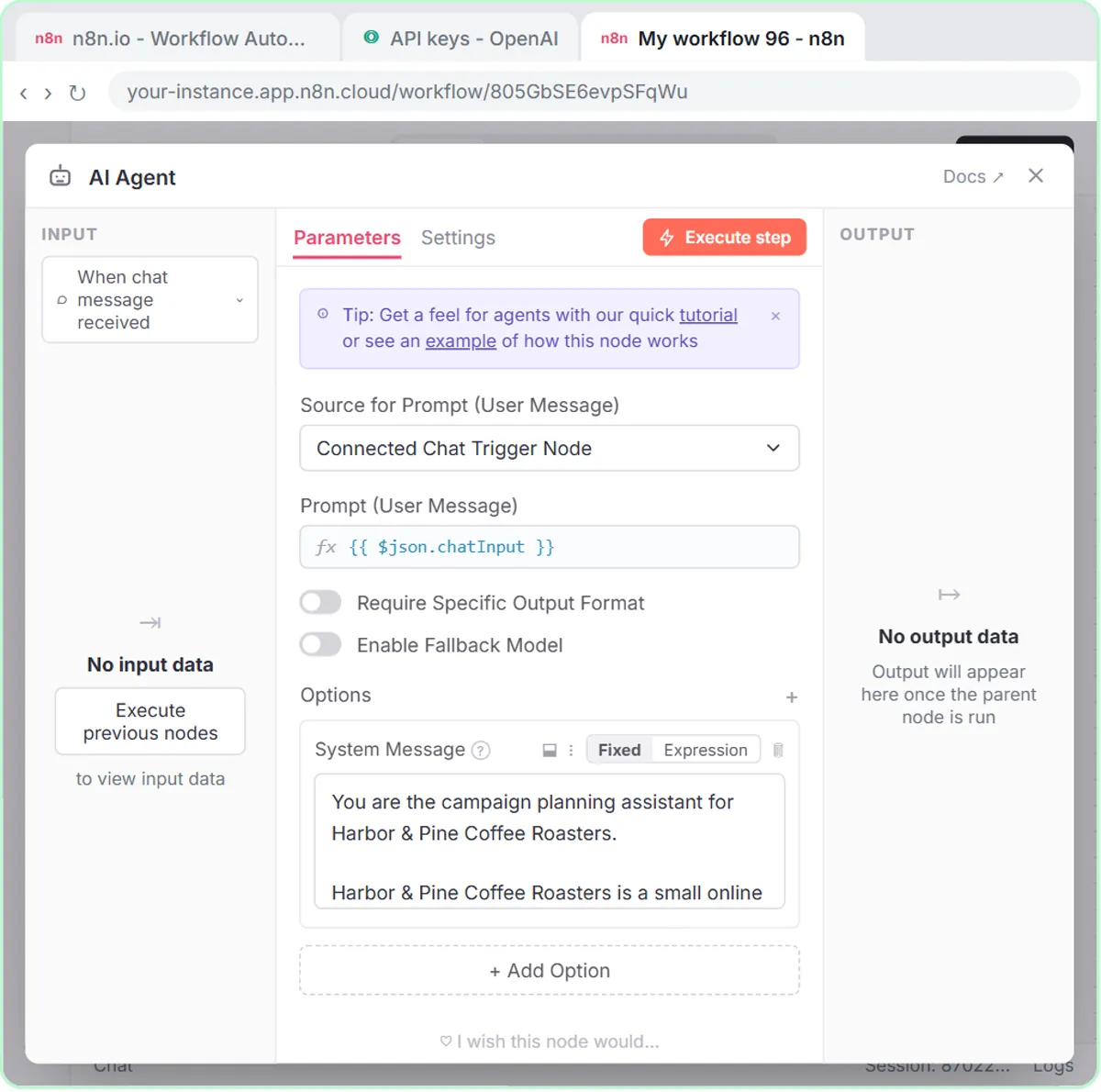
2:45 Right now this agent has no personality and no orders. It does not know it works for Harbor and Pine Coffee Roasters. Scroll down to options and click add option.
2:53 Pick system message. This is the standing instruction the agent reads before every request. It is where we tell it who Harbor and Pine is, how the copy should sound, and how to format the calendar.
3:03 Here is the actual prompt. It describes Harbor and Pine, sets the tone, limits emails to two a week, and tells the agent what to return: date, channel, topic, draft copy, and status. It also tells the agent to use the Google Sheets tool when you ask it to save. Click paste system prompt.
3:18 That gives the agent everything it needs to know about Harbor and Pine. Close the node.
Chat model
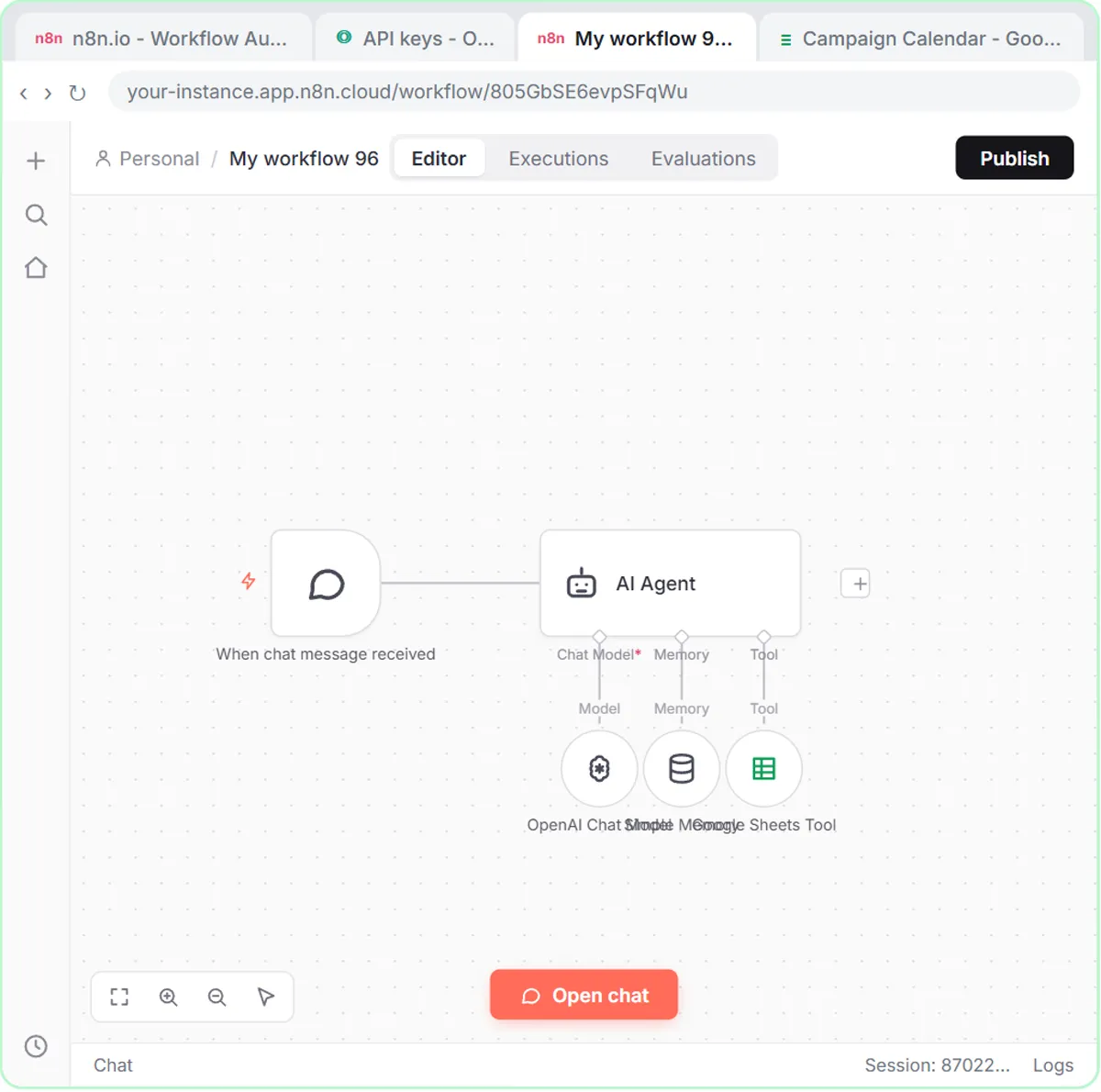
3:23 See that red triangle on the agent? It is complaining because it has no model. An agent can plan, but it cannot think without a language model underneath it. Click the plus under chat model.
3:33 OpenAI chat model. This is where that API key finally gets used.
3:37 And here is where that key you copied finally goes. Click the credential dropdown.
3:41 You want create new credential, right at the bottom. In your own n8n, if you skipped the key, you would pick gateway credits here instead.
3:44 Paste the key straight in. This is the one moment it matters that you copied it — remember, OpenAI never shows it to you again.
3:51 Hit save. n8n tests the connection straight away, and from now on this credential is available to every node in every workflow — you only do this once.
4:00 Now the model dropdown.
4:01 GPT five mini. Fast, cheap, and plenty for planning a content calendar. Do not reach for the expensive model until you have a reason.
4:09 That is the brain wired in. Close it up.
Memory
4:12 Next, memory. Without this, every message starts from nothing — you could not say save the calendar, because it would not remember which calendar you meant. Click the plus under memory.
4:22 Simple memory is fine here — it keeps the recent conversation inside n8n, no database, no extra credentials.
Sheets tool
4:28 And now the good part — tools. This is what separates an agent from a chatbot. A chatbot just talks. An agent does things. We are going to give it Google Sheets so it can save every calendar item into a spreadsheet your team can review. Click the plus under tool.
4:42 Google Sheets tool. Now the agent can write rows into a real spreadsheet, with columns matching what the system prompt tells it to return. When you say save the calendar, each item becomes a row.
Create the spreadsheet
4:54 Before we set this up, we need to actually create the spreadsheet. Close this node for now — we are going to hop over to Google Sheets and make one.
5:01 Switch to Google Sheets. You need to create the spreadsheet that this node will write to.
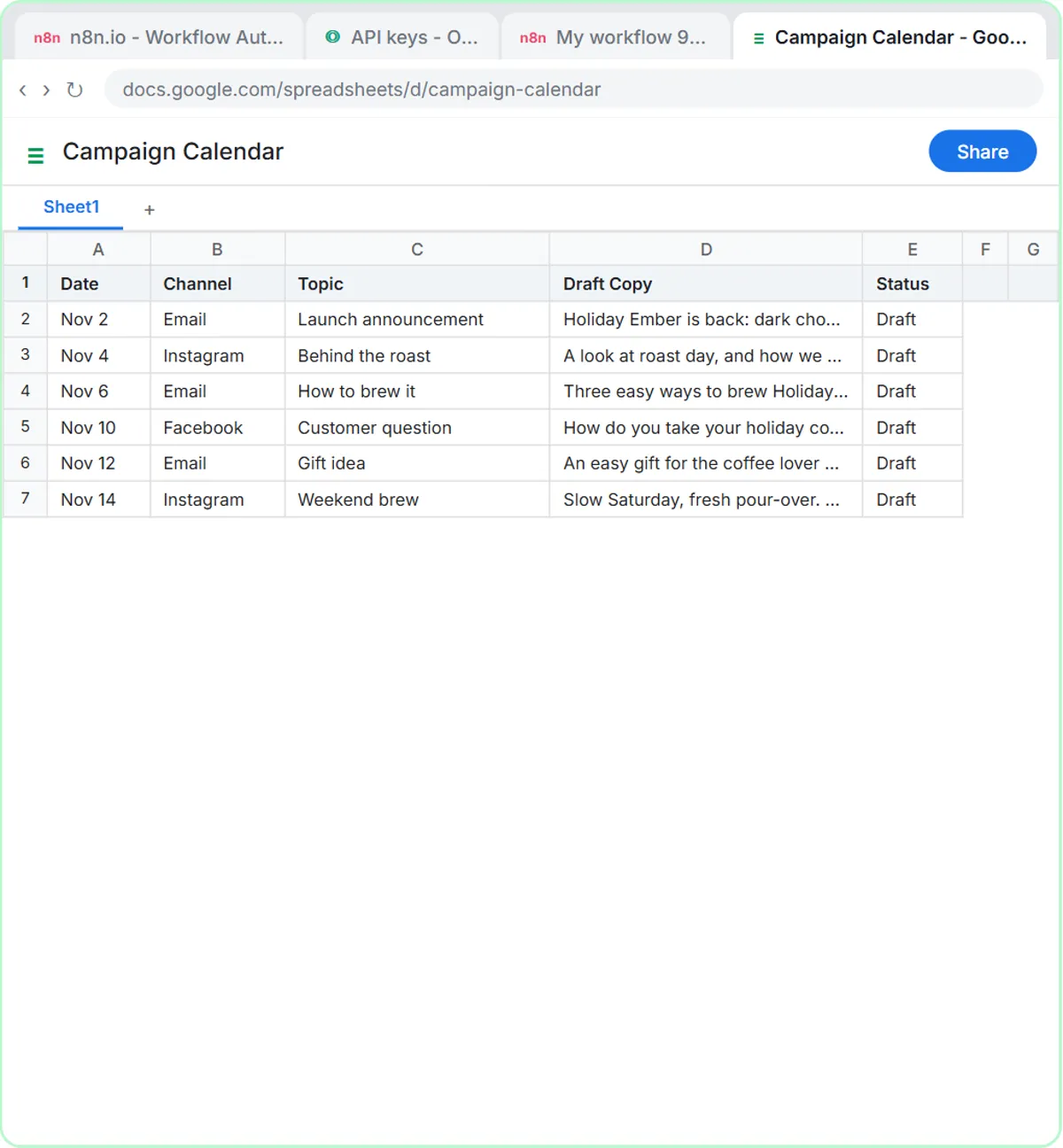
5:05 First, name it so you can find it later. Click the title up top — it says untitled spreadsheet — and type Campaign Calendar.
5:12 Now set up the column headers. These need to match what the system prompt tells the agent to generate. In A1, type Date.
5:20 B1 — Channel.
5:21 C1 — Topic.
5:23 Cell D1 — Draft Copy.
5:25 And E1 — Status. Five columns, matching exactly what the system prompt tells the agent to generate. Each calendar item becomes a row in this sheet.
5:34 The spreadsheet is ready. Switch back to n8n and connect the Google Sheets node to it.
5:38 Double click the Google Sheets node to open it back up. Now we can connect it to the spreadsheet we just made.
Configure Sheets
5:44 Now we need to connect this to a real Google account. Click the credential dropdown.
5:48 Create new credential — this one uses Google OAuth instead of an API key, so it is going to open a sign-in window.
5:56 Click sign in with Google. This opens the Google account chooser so you can pick which account to connect.
6:01 Pick the Google account you want n8n to use. This is the account that owns the spreadsheet.
6:06 Google is asking what n8n is allowed to do. Check the first box — this lets n8n read and write your spreadsheets.
6:13 Second box — n8n needs Drive access so it can find your spreadsheets by name.
6:18 Last one — this lets Google connect to n8n as an external service. Check it.
6:23 All three checked. Click continue and Google hands the credential back to n8n.
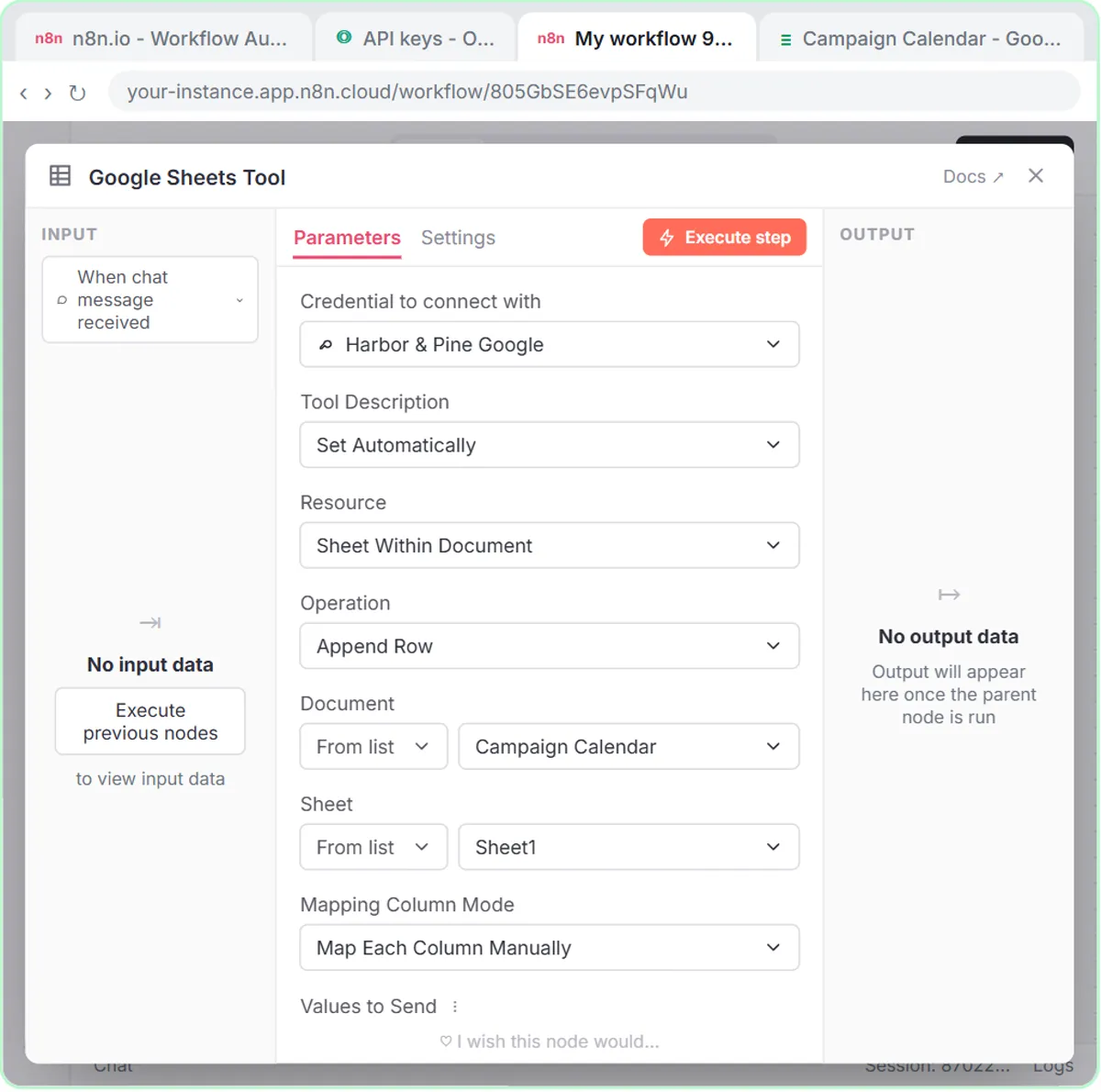
6:27 Now we tell the node what to do. By default it reads rows, but we want to add rows. Click the operation dropdown.
6:34 Append row. Every calendar item the agent plans gets added as a new row at the bottom of the sheet.
6:39 Now pick the spreadsheet. Click the document dropdown.
6:42 Campaign Calendar — the sheet we set up with columns for date, channel, topic, draft copy, and status.
6:48 Now pick which tab inside that spreadsheet. Click the sheet dropdown.
6:51 Sheet one — it is the only tab, so this is simple.
6:54 Now the columns. Each column has a purple button — click it and the AI agent figures out what data goes there. Click the purple button next to Date.
7:02 Channel. Same thing — click the purple button.
7:05 Topic.
7:06 Draft copy.
7:07 And status. Each one is now set to defined automatically by the model — the agent reads your column headers and figures out what goes where.
7:15 The sheets tool is fully wired up — credential, operation, spreadsheet, sheet, and column mapping. Close it and let us test this thing.
Test the agent
7:23 Everything is connected. Time to see if it works. Click open chat at the bottom of the canvas.
7:28 Give it one campaign theme. Paste this prompt and see what comes back.
7:32 Send it off. The agent reads your system prompt and plans two weeks of emails and posts in the exact format you asked for.
7:39 Six items over two weeks — three emails and three posts, each with its own angle and a draft line of copy. Now tell it to save them. This is where the Google Sheets tool kicks in.
7:49 Send it. The agent uses the Google Sheets tool to write each item as a row — date, channel, topic, draft copy, and status.
7:57 Simple as that. We show you and you do it. Sign up below to learn AI automation for free.
Watch the 30-second version
A short video from this lesson. Watch, then do it yourself in the free practice copy.
 0:39
AI Campaign Calendar Agent in n8n for marketers, step by step
For marketers: give an n8n AI agent one campaign theme and it plans two weeks of emails and posts, then saves each one to Google Sheets with the date, channel, topic and draft copy. Build it yourself, free, one click…
Transcript
For marketers: give an n8n AI agent one campaign theme and it plans two weeks of emails and posts, then saves each one to Google Sheets with the date, channel, topic and draft copy. Build it yourself, free, one click at a time: learn.ynteractive.com
What you will build
You will build a Campaign Calendar agent in n8n for Harbor & Pine Coffee Roasters, a small online coffee brand used as the example. n8n is a workflow tool that connects apps together. An AI agent in n8n is a model that can reason about your request and then use tools, and the tool here is Google Sheets.
In the test at the end you tell the agent: "Plan a two-week email and social calendar for our Holiday Ember Blend launch, starting Monday Nov 2. Our offer is free shipping over $35." It comes back with six items across two weeks: three emails and three Instagram or Facebook posts, each with a date, a channel, a topic and a line of draft copy. Then you say "save the calendar to the sheet" and the agent writes six rows into a spreadsheet called Campaign Calendar, each one marked Draft.
Who this is for
This is for marketers at small businesses who plan campaigns by hand: a store owner launching a seasonal product, a marketing coordinator who owns both the newsletter and the social accounts, or a small agency team building calendars for clients. If your calendar lives in a spreadsheet already, this puts a planning assistant in front of it.
It is also a good first n8n project. You meet every core piece of an agent (trigger, system prompt, model, memory and a tool) on a real marketing job.
Why it works
The system prompt does the planning thinking you would otherwise do in your head. It tells the agent who the brand is, who it is talking to, how often it can email, and that every item needs its own angle, like the launch, how the coffee is made, how to brew it, gifting and a customer question. That is why the plan does not repeat the same "buy now" message six times.
The five columns in the sheet match the five fields in the prompt exactly, so the agent always knows where each piece goes. Memory lets you review the plan first and save second. And every row is saved as Draft, so nothing goes out until a person reads it.
How to use this in your business
Rewrite the system prompt for your brand: what you sell, who buys it, how often you email, which channels you actually post on, and which offers are real. Keep the five columns, or rename them to match the calendar your team already uses.
Then run it at the start of every campaign. Give it the theme, the dates and the offer, and you have a first draft calendar in a minute. Your team edits the draft copy in the sheet, changes Status to Approved or Scheduled, and you move on to writing the full emails and posts.
What you need
- For the practice copy here: nothing. No accounts are touched.
- For the real build: an n8n account, an OpenAI account with a little credit, and a Google account for Sheets.
Try it yourself, free
Reading the steps is a start. Doing them is how it sticks. The interactive module walks you through every click in a practice copy of n8n, checks each step, and never touches your real accounts.
Start “Build an n8n AI Agent That Plans Your Content Calendar”Step by step: Build an n8n AI Agent That Plans Your Content Calendar
All 72 steps of the interactive module, in order. In the module you watch each one, then do it yourself in a practice copy that checks your work.
1. Get n8n
- Go to n8n.io. Start at n8n.io. Click Get started free.
In the last lesson you built a Custom GPT that writes ad copy. That is great for one person. But what if the AI planned a whole campaign calendar and saved it to a spreadsheet your team can review? That is what we are building now. First, you need an n8n account.
- Enter your email. Type any email address — this is practice, so a fake one is fine.
This is just practice, so anything works — it won't actually send anything.
- Sign up. Click Continue. n8n emails you a code, then asks for a name and password — do that part on your own and come back here.
In the real n8n, it sends you a six digit code, then asks for a name, a password, and an account name. Go do that in your own browser later, then come back and we will build.
2. API key
- Add credit first. Practice only: no card, no charge. Your agent needs a model to think with, and in the real world that is an OpenAI key with a little credit behind it. This is platform.openai.com → Billing. Click Add to credit balance. (Rather not spend anything later? New n8n accounts include free credits: pick Gateway credits on the model step instead of a key.)
Your agent needs a brain, and that means an API key from OpenAI. Go to platform dot openai dot com — that is the developer side, not ChatGPT, and it bills completely separately. Before you make a key, put some money on the account. A brand new key with a zero balance just returns errors. If you would rather not spend anything yet, n8n gives every new account free credits. In your own n8n, you can pick gateway credits on the model step and skip the key.
- Ten dollars is plenty. Ten dollars goes a long way — you pay per request, not per month. Click Continue. In your own account you add a card here.
Ten dollars goes a very long way. You are charged per request, not per month, and planning a calendar costs fractions of a cent.
- Now the key. Balance sorted. Click API Keys in the left menu.
Balance sorted. Now go to API keys in the left menu.
- Create a secret key. Click + Create new secret key.
- Name the key. Name it after what will use it. Type n8n agent.
Name it after whatever is going to use it. Future you, staring at a list of forty keys, will thank you. I am calling this one n8n agent.
- Create it. Leave Project and Permissions alone and click Create secret key.
Default project, all permissions — that is fine for this. Create the key.
- Copy it now. This is the only time OpenAI shows you the key. Click Copy, then paste it somewhere safe.
Now pay attention, because this is the only time you will ever see this key. Copy it and paste it into n8n, or into your password manager. If you lose it, you do not get it back — you delete it and make another.
- Back to n8n. Click Done. Treat that key like a password — never paste it into a chat, a repo, or a screen recording.
One last warning — this key can spend your money. Never commit it to code, never paste it into a chat, and if it ever shows up on screen while you are recording, revoke it before you publish.
3. New workflow
- Start a new workflow. This is your n8n home. Click Create workflow in the top right.
Now you are inside n8n. This overview page lists every workflow you have. Top right, click create workflow, and you land on an empty canvas.
4. Chat trigger
- Add the first step. Every workflow starts with a trigger. Click Add first step…
Every workflow needs a trigger — the thing that kicks it off. We want a chat trigger so you can give the agent a campaign theme.
- Trigger on a chat message. The trigger panel opened on the right. Pick On chat message near the bottom.
A panel slides in with every way a workflow can start — manually, on a schedule, on a webhook. We want on chat message, so we can have a conversation with the agent.
- Back to the canvas. n8n opens the node so you can configure it. Nothing to change here — click the × in the top right.
n8n opens the node so you can configure it. There is nothing we need to change here, so close it with the X in the top right and get back to the canvas.
5. AI Agent
- Add the next node. Click the + on the right edge of the trigger node.
Now we decide what happens when a message comes in.
- Open the AI nodes. The What happens next? panel opens with categories. Click AI at the top.
A panel opens and asks what happens next. The agent lives under AI, right at the top.
- Add the AI Agent. In AI Nodes, click AI Agent — it makes a plan and carries it out using the tools you give it.
There it is — AI Agent. This is the piece that can plan and then carry out actions using whatever tools you give it. You give it a campaign theme, and it can plan the calendar and save it to a spreadsheet — all in one step.
6. System prompt
- Open the options. The agent has no personality yet. Click + Add Option under Options.
Right now this agent has no personality and no orders. It does not know it works for Harbor and Pine Coffee Roasters.
- Add a system message. Choose System Message. This is the standing instruction the agent follows every time.
Pick system message. This is the standing instruction the agent reads before every request. It is where we tell it who Harbor and Pine is, how the copy should sound, and how to format the calendar.
- Write the system prompt. The box starts with You are a helpful assistant. Replace it with the standing instruction: it is long, so just Paste in the system prompt on the box.
Here is the actual prompt. It describes Harbor and Pine, sets the tone, limits emails to two a week, and tells the agent what to return: date, channel, topic, draft copy, and status. It also tells the agent to use the Google Sheets tool when you ask it to save.
You are the campaign planning assistant for Harbor & Pine Coffee Roasters.

Harbor & Pine Coffee Roasters is a small online coffee brand that roasts in small batches and sells whole-bean and ground coffee, gift boxes, and a monthly subscription.

The audience is home coffee drinkers and people buying coffee as a gift.

The tone should be warm, plain, and specific about flavor. Never pushy.

Your job is to turn one campaign theme into a two-week email and content calendar.

When planning a calendar:
- Mix email with Instagram and Facebook posts
- Send no more than 2 emails a week
- Give every item a different angle: launch, how it is made, how to brew it, gifting, customer questions
- Only mention offers the user gives you. Never invent a discount

For each calendar item, return:
- Date
- Channel
- Topic
- Draft Copy (one or two sentences)
- Status (always "Draft")

When the user asks you to save the calendar, use the Google Sheets tool to store each item.

Do not make health claims or invent reviews. Keep it practical and specific.
- Back to the canvas. That tells the agent who it works for and how to plan a calendar. Close the node with the ×.
That gives the agent everything it needs to know about Harbor and Pine. Close the node.
7. Chat model
- Give the agent a brain. The agent has a red warning: it has no model. Click the + under Chat Model.
See that red triangle on the agent? It is complaining because it has no model. An agent can plan, but it cannot think without a language model underneath it.
- Pick OpenAI. Click OpenAI Chat Model.
OpenAI chat model. This is where that API key finally gets used.
- Open the credentials. Here is where that key goes. Click the Credential dropdown.
And here is where that key you copied finally goes.
- Create a new credential. Click + Create new credential at the bottom of the list. (Free credits instead? Pick Gateway credits in your own n8n.)
You want create new credential, right at the bottom. In your own n8n, if you skipped the key, you would pick gateway credits here instead.
- Paste the key. Paste in the API key on the field to drop in the key you copied from OpenAI.
This is the one moment it matters that you copied it — remember, OpenAI never shows it to you again.
- Save the credential. Click Save. n8n tests the connection and stores the key for every future node.
n8n tests the connection straight away, and from now on this credential is available to every node in every workflow — you only do this once.
- Open the model list. A new credential leaves Model on Select a model.... Click the Model dropdown.
Now the model dropdown.
- Choose the model. Pick gpt-5-mini — fast and cheap, plenty for this. (The list is long: type gpt-5-mini in Search... to find it.)
GPT five mini. Fast, cheap, and plenty for planning a content calendar. Do not reach for the expensive model until you have a reason.
- Back to the canvas. The model is wired up. Close the node with the ×.
That is the brain wired in. Close it up.
8. Memory
- Add memory. Without memory the agent forgets each message. Click the + under Memory.
Next, memory. Without this, every message starts from nothing — you could not say save the calendar, because it would not remember which calendar you meant.
- Simple Memory. Pick Simple Memory. It keeps the recent conversation in n8n itself.
Simple memory is fine here — it keeps the recent conversation inside n8n, no database, no extra credentials.
- Back to the canvas. n8n opens Simple Memory so you can set it up. The defaults are fine (it keeps the last 5 messages). Close it with the ×.
n8n opens simple memory so you can set it up. The defaults are fine. It keeps the last five messages. Close it with the X.
9. Sheets tool
- Add a tool. Tools are how the agent acts on the world. Click the + under Tool.
And now the good part — tools. This is what separates an agent from a chatbot. A chatbot just talks. An agent does things. We are going to give it Google Sheets so it can save every calendar item into a spreadsheet your team can review.
- Search for Sheets. Google Sheets is not in Recommended Tools. In Search nodes..., type sheets.
Google Sheets is not in the recommended tools, so search for it.
- Add Google Sheets. Click Google Sheets Tool — read, update and write data to Google Sheets.
Google Sheets tool. Now the agent can write rows into a real spreadsheet, with columns matching what the system prompt tells it to return. When you say save the calendar, each item becomes a row.
10. Create the spreadsheet
- Back to the canvas. Before we configure this node, we need a spreadsheet for the agent to write to. Close the node — we will come back.
Before we set this up, we need to actually create the spreadsheet. Close this node for now — we are going to hop over to Google Sheets and make one.
- Open Google Sheets. Click the Google Sheets tab to create a new blank spreadsheet.
Switch to Google Sheets. You need to create the spreadsheet that this node will write to.
- Name the spreadsheet. Click the title and rename it to Campaign Calendar.
First, name it so you can find it later.
- Type the first column header. In cell A1, type Date.
Now set up the column headers. These need to match what the system prompt tells the agent to generate. In A1, type Date.
- Channel. In cell B1, type Channel.
B1 — Channel.
- Topic. In cell C1, type Topic.
C1 — Topic.
- Draft Copy. In cell D1, type Draft Copy.
Cell D1 — Draft Copy.
- Status. In cell E1, type Status. That is all five columns — matching the system prompt.
And E1 — Status. Five columns, matching exactly what the system prompt tells the agent to generate. Each calendar item becomes a row in this sheet.
- Back to n8n. The spreadsheet is ready. Click the n8n tab to go back and connect it.
The spreadsheet is ready. Switch back to n8n and connect the Google Sheets node to it.
- Open the Sheets node. Double-click the Google Sheets node (n8n named it Get row(s) in sheet in Google Sheets) to configure it.
Double click the Google Sheets node to open it back up. Now we can connect it to the spreadsheet we just made.
11. Configure Sheets
- Add a credential. The Sheets node needs a Google account. Click the Credential dropdown.
Now we need to connect this to a real Google account.
- Create a new credential. Click + Create new credential to sign in with Google.
Create new credential — this one uses Google OAuth instead of an API key, so it is going to open a sign-in window.
- Sign in with Google. Click Sign in with Google to connect your account.
This opens the Google account chooser so you can pick which account to connect.
- Choose your account. Click your Google account to continue.
Pick the Google account you want n8n to use. This is the account that owns the spreadsheet.
- Allow Sheets access. Google needs permission. Check See, edit, create, and delete all your Google Sheets spreadsheets.
Google is asking what n8n is allowed to do. Check the first box — this lets n8n read and write your spreadsheets.
- Allow Drive access. Check See, edit, create, and delete all of your Google Drive files.
Second box — n8n needs Drive access so it can find your spreadsheets by name.
- Allow external service. Check Connect to an external service.
Last one — this lets Google connect to n8n as an external service. Check it.
- Sign in. All three are checked. Click Continue to complete the Google sign-in.
All three checked.
- Pick the operation. Now tell n8n what to do with the sheet. Click the Operation dropdown.
Now we tell the node what to do. By default it reads rows, but we want to add rows.
- Append Row. Pick Append Row — the agent will add a new row for each calendar item.
Append row. Every calendar item the agent plans gets added as a new row at the bottom of the sheet.
- Choose the spreadsheet. Click the Document dropdown to pick which spreadsheet to write to.
Now pick the spreadsheet.
- Campaign Calendar. Click Campaign Calendar — the sheet we set up for Harbor & Pine.
Campaign Calendar — the sheet we set up with columns for date, channel, topic, draft copy, and status.
- Pick the sheet tab. Click the Sheet dropdown to choose which tab inside the spreadsheet.
Now pick which tab inside that spreadsheet.
- Sheet1. Click Sheet1.
Sheet one — it is the only tab, so this is simple.
- Map the Date column. Under Values to Send, click the ✦ button next to Date — the AI agent will fill this in automatically.
Now the columns. Each column has a purple button — click it and the AI agent figures out what data goes there.
- Map the Channel column. Click the ✦ button next to Channel.
Channel. Same thing — click the purple button.
- Map the Topic column. Click the ✦ button next to Topic.
Topic.
- Map the Draft Copy column. Click the ✦ button next to Draft Copy.
Draft copy.
- Map the Status column. Click the ✦ button next to Status.
And status. Each one is now set to defined automatically by the model — the agent reads your column headers and figures out what goes where.
- Back to the canvas. Google Sheets is fully configured. Close the node with the ×.
The sheets tool is fully wired up — credential, operation, spreadsheet, sheet, and column mapping. Close it and let us test this thing.
12. Test the agent
- Open the chat. Time to test. Click Open chat at the bottom of the canvas.
Everything is connected. Time to see if it works.
- Give it a campaign. Type a prompt — give the agent one campaign theme to plan.
Give it one campaign theme.
- Send the message. Click the send arrow to talk to the agent.
Send it off. The agent reads your system prompt and plans two weeks of emails and posts in the exact format you asked for.
- Save to the sheet. Now tell the agent to save the calendar to Google Sheets.
Six items over two weeks — three emails and three posts, each with its own angle and a draft line of copy. Now tell it to save them. This is where the Google Sheets tool kicks in.
- Send it. Click the send arrow — the agent will use the Google Sheets tool to write the rows.
Send it. The agent uses the Google Sheets tool to write each item as a row — date, channel, topic, draft copy, and status.
Screenshots
Frequently asked questions
- Is this course really free?
- Yes. Stepthrough is completely free, and the practice copy needs no accounts. To build it for real you need your own n8n, OpenAI and Google accounts, and some of those cost money once you use them for real work.
- Can n8n create a content calendar in Google Sheets automatically?
- Yes. In this lesson an AI Agent node with the Google Sheets tool appends one row per calendar item: date, channel, topic, draft copy and status. You ask for the plan in chat, then ask it to save.
- How much does the OpenAI part cost?
- You pay OpenAI per request, not per month. The lesson adds $10 of credit, and planning a calendar with gpt-5-mini costs a small fraction of that. Check OpenAI's current pricing for exact rates.
- Will the agent publish posts or send emails on its own?
- No. This agent only plans and saves drafts to a spreadsheet, each marked Draft. Sending and posting stay with you or your usual tools.
- Do I need to know how to code?
- No. Everything is done by clicking nodes and pasting a prompt. You watch each step first, then do it yourself in the practice copy, and "Do it for me" is there if you get stuck.
More in AI Automation for Marketing
All 25 modules in AI Automation for Marketing
More n8n tutorials
 Lovable + n8n: Build a Web App with an AI Backend
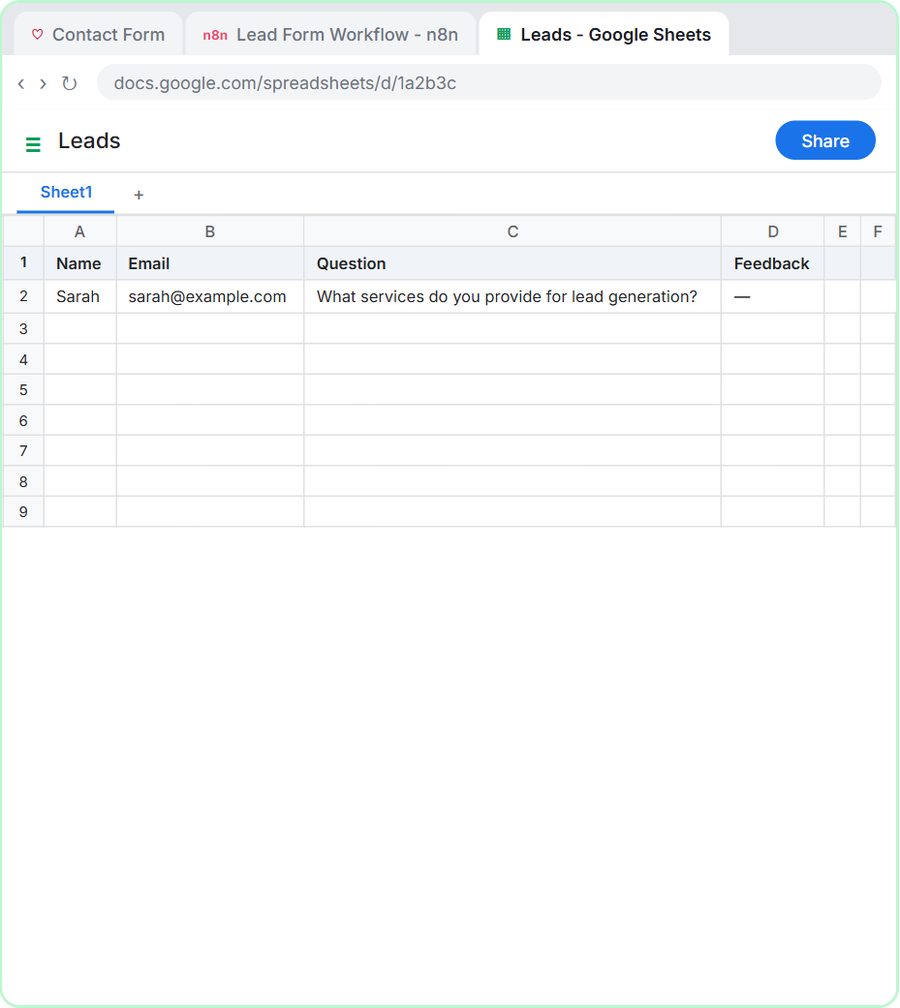
Build a contact form in Lovable and connect it to an n8n workflow — webhook trigger, AI Agent, Google Sheets, Gmail, and a Respond node that ties it all together.
Free · Live ~15 min Advanced
 AI Receipt Extractor: Receipts to Google Sheets with n8n
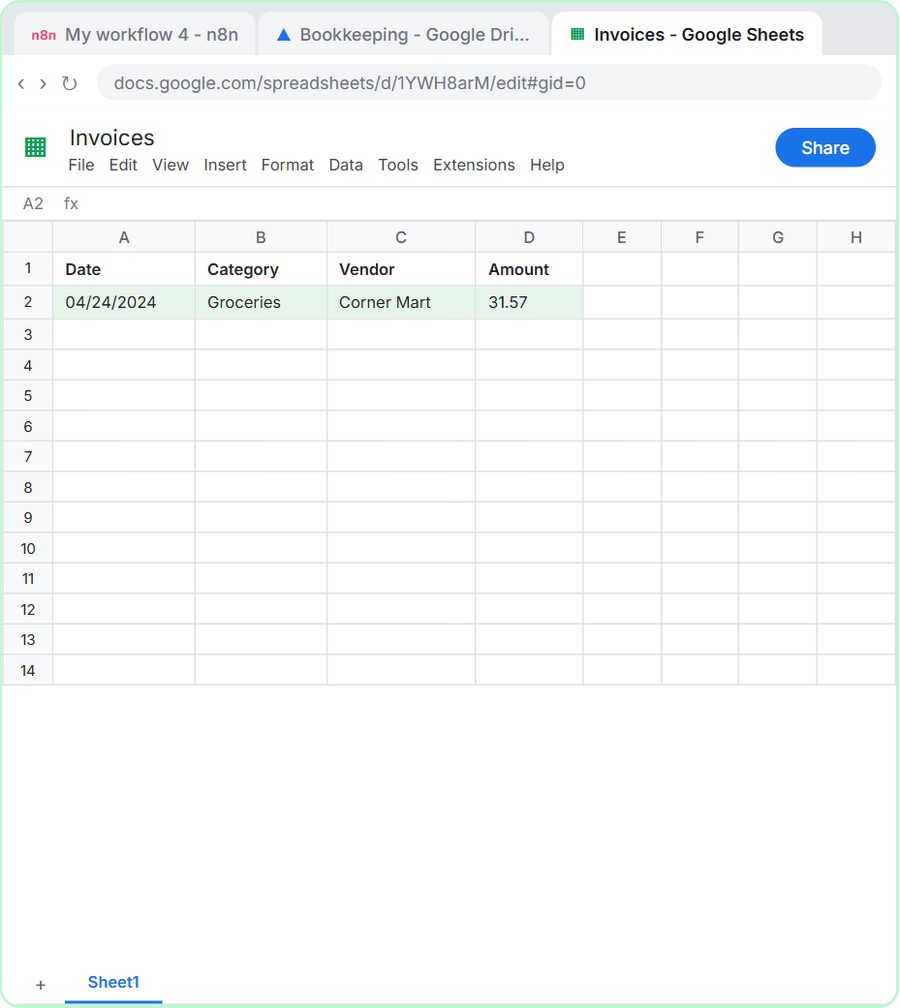
Drop a photo of a receipt into an n8n chat. An AI agent reads it, pulls out the date, vendor and amount, picks a category, and adds a row to Google Sheets.
Free · Live ~12 min Intermediate
 n8n AI Email Responder: Draft Gmail Replies Automatically
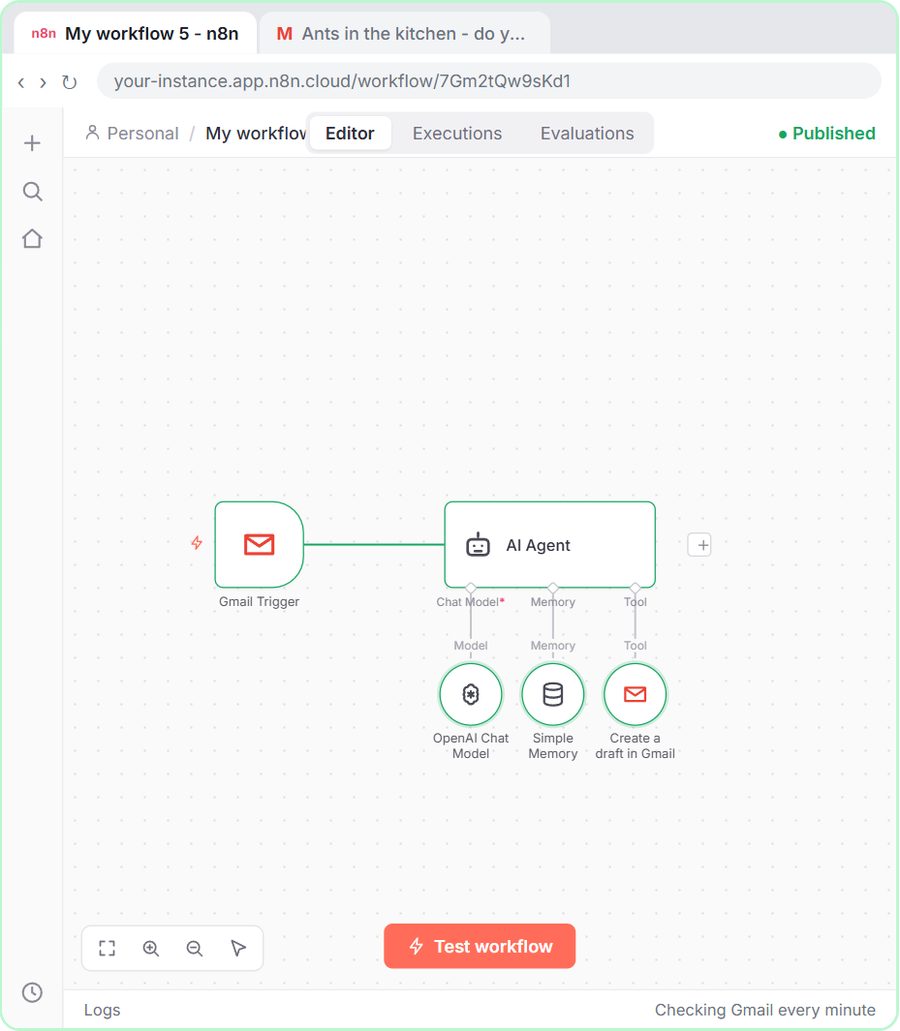
Build an n8n agent that watches your Gmail, reads each new customer email, and writes a reply as a draft in the same thread, ready for you to check and send.
Free · Live ~12 min Intermediate
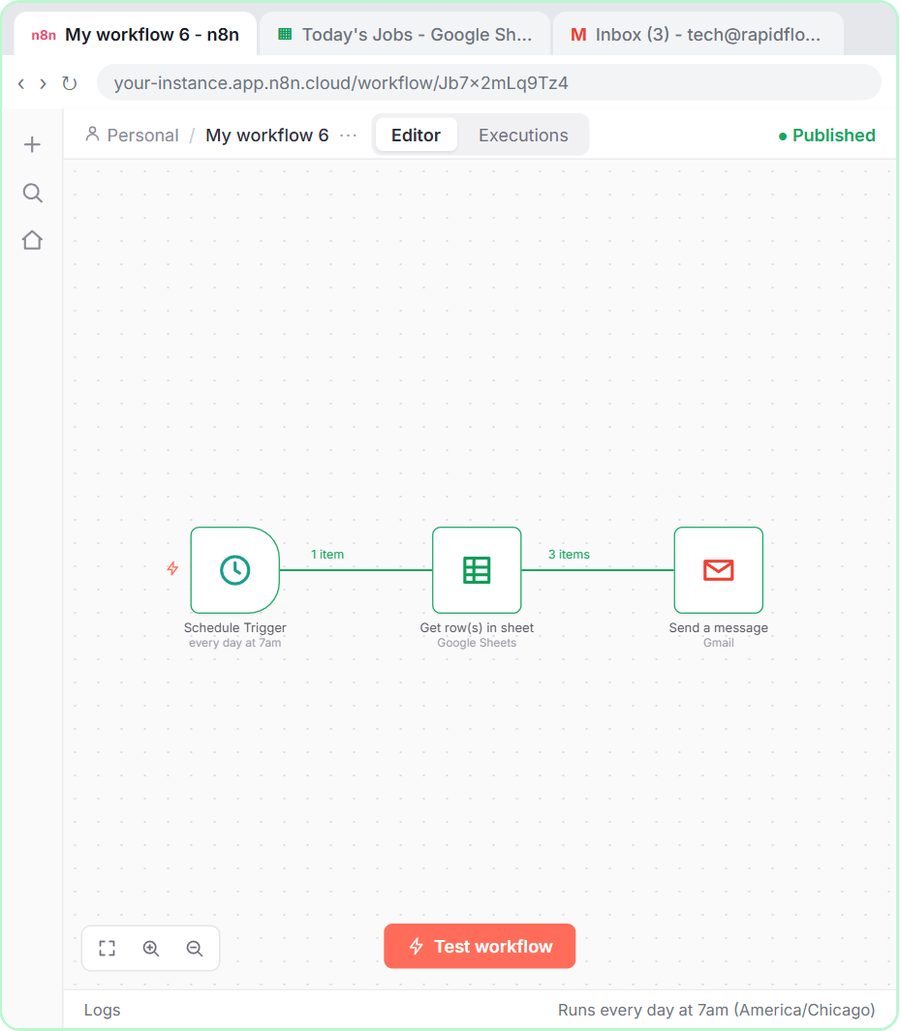 Daily Job Alerts: Email Each Tech Their Jobs from Google Sheets with n8n
Every morning at 7, n8n reads a plumbing company's jobs sheet, skips anything not assigned yet, and emails each job to the tech it's assigned to — customer, address…
Free · Live ~10 min Intermediate
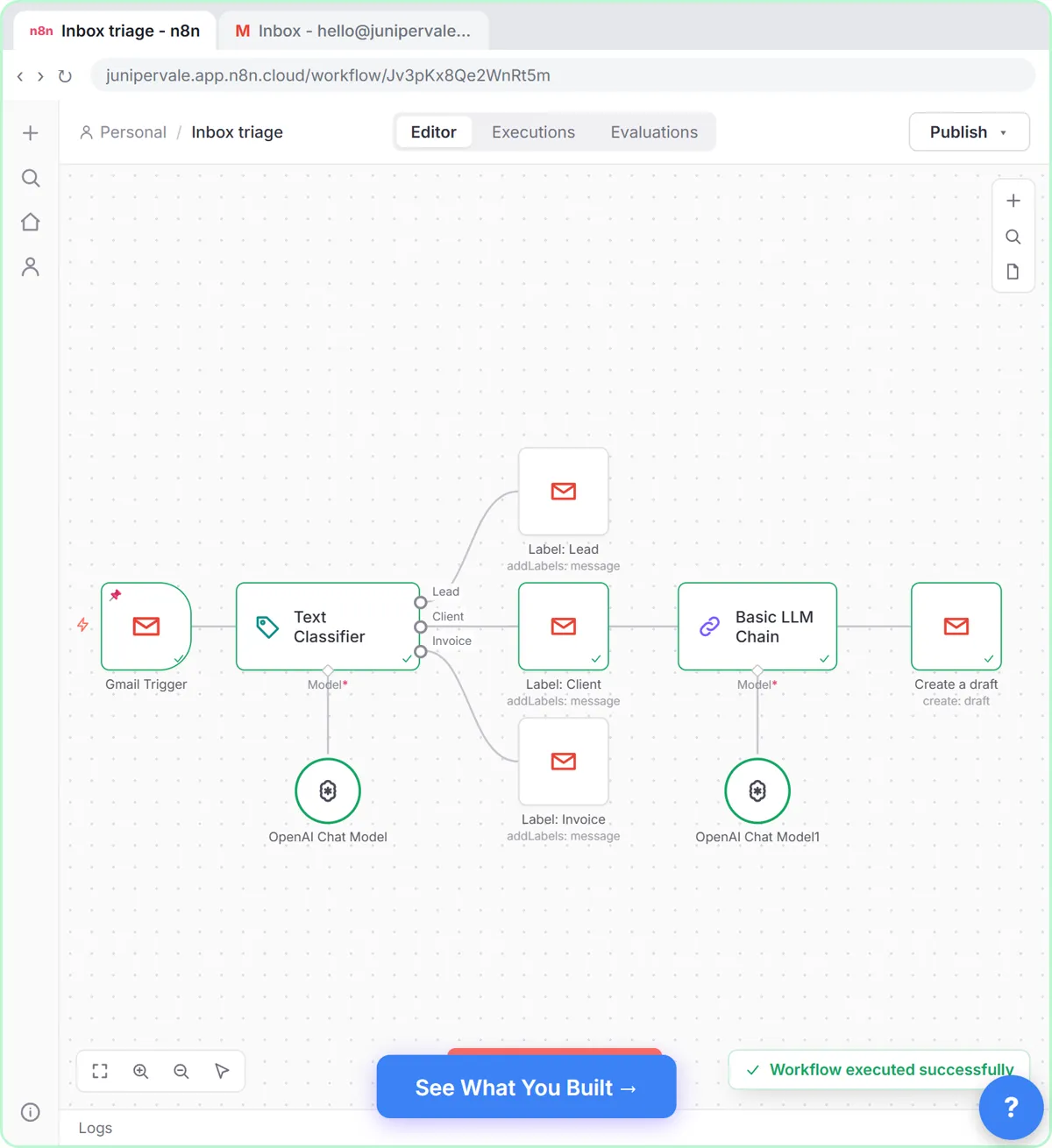 Gmail AI Triage: Auto-Label Every Email and Draft Replies
Build an n8n workflow that reads each new email, sorts it as a lead, a client or an invoice with a Text Classifier, adds the matching Gmail label, and drafts a reply to…
Free · Live ~18 min Advanced
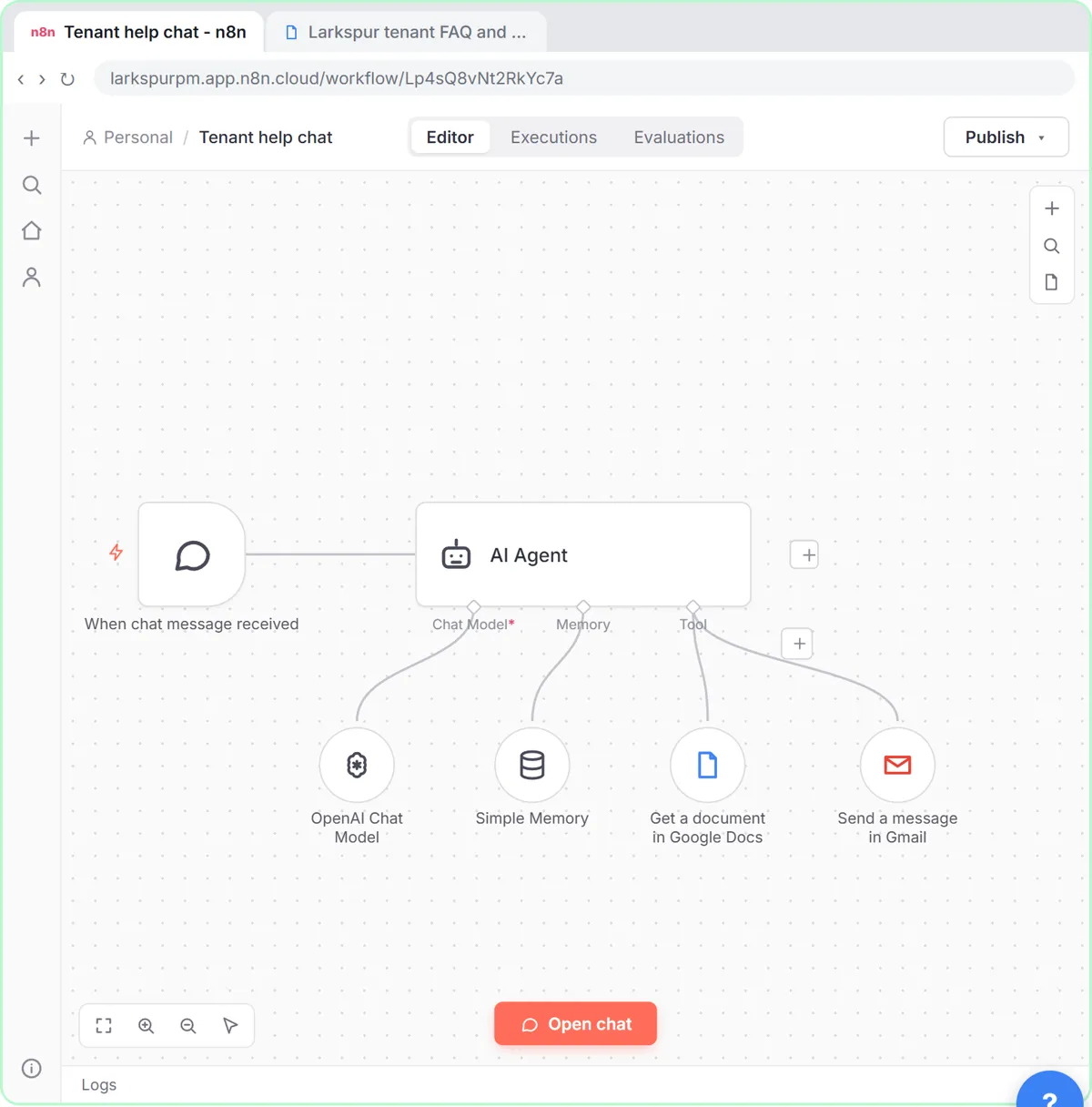 A Support Agent That Answers from Your Own Docs
Turn an n8n chat agent into a support agent that answers only from your policies in a Google Doc, refuses what it should, and hands off to a person by email.
Free · Live ~13 min Advanced
From the blog
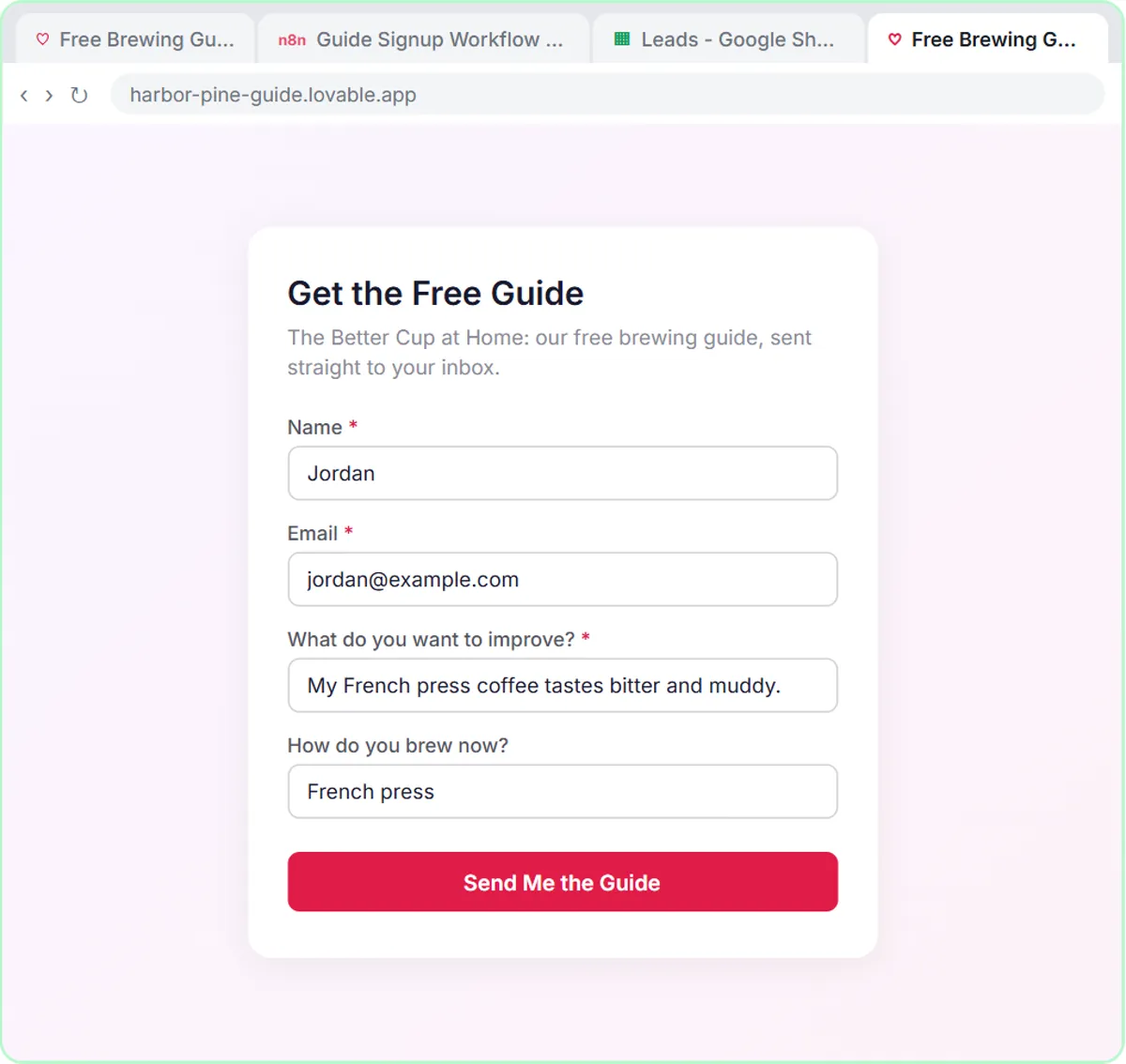 AI for Small Online Stores: Signups, Campaigns and Replies
AI for a small ecommerce business: a signup form that tags each subscriber, a two-week campaign calendar, calmer order-problem replies and receipts.
Nov 5, 2026 6 min read
 AI for Marketers: A Free Starting Path
AI for marketers at small businesses and agencies: four-part prompts for copy, a social ideas agent, a campaign calendar, and signup forms that tag leads.
Oct 18, 2026 7 min read
Plan a Campaign Content Calendar with an n8n AI AgentBuild an AI content calendar in n8n: one campaign theme becomes two weeks of emails and social posts in a Google Sheet your team reviews.
Oct 1, 2026 7 min read
Visual guides
This lesson’s key ideas as quick visual guides: swipe through the slides, or read the same guide as text.
 Build your first AI agent in n8n
ChatGPT answers. An agent does something with the answer.
Quote from a lesson One graphic
 5 Steps to an n8n AI Agent That Saves to Google Sheets
A visual guide: build an n8n AI agent that writes social media ideas and saves each one as a Google Sheets row, in 5 steps from the free lesson.
Step-by-step guide 7 slides
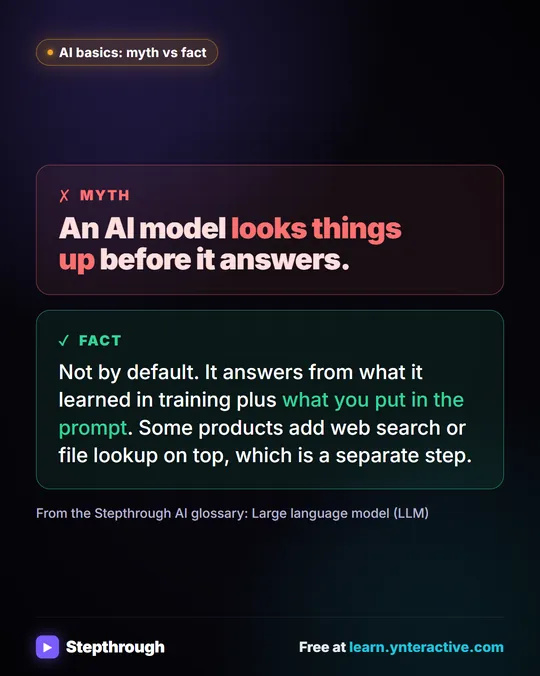 Myth: An AI Model Looks Things Up Before It Answers
Myth vs fact: by default a large language model answers from its training plus your prompt. Web search or file lookup is a separate step.
Myth vs fact One graphic
Free cheat sheets
Print it or save the PDF: the key steps and checks from this lesson on one page, free.
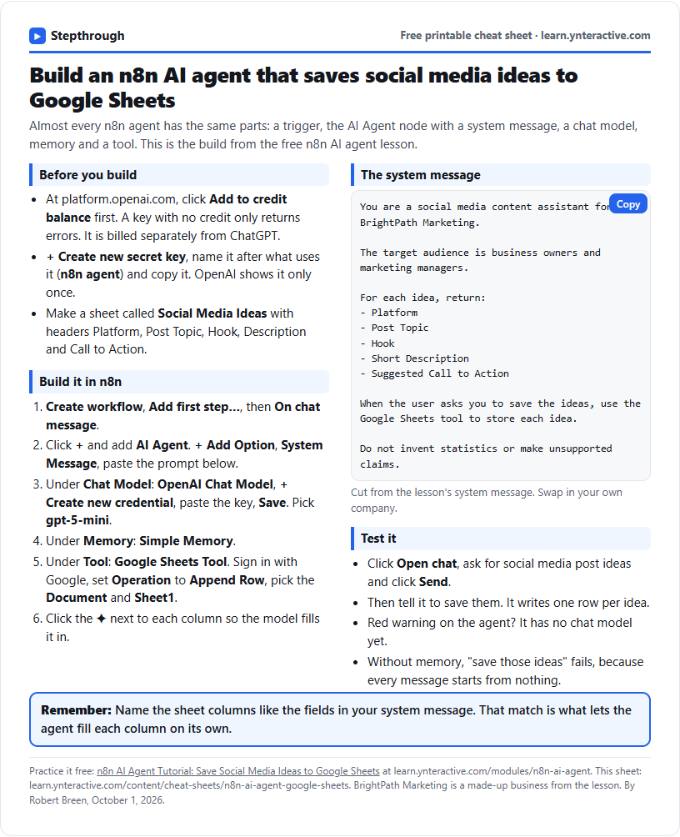 n8n AI Agent to Google Sheets Cheat Sheet
A free one-page cheat sheet for an n8n AI agent: chat trigger, AI Agent, system message, OpenAI model, Simple Memory and a Google Sheets tool.
Lesson cheat sheet Free PDF
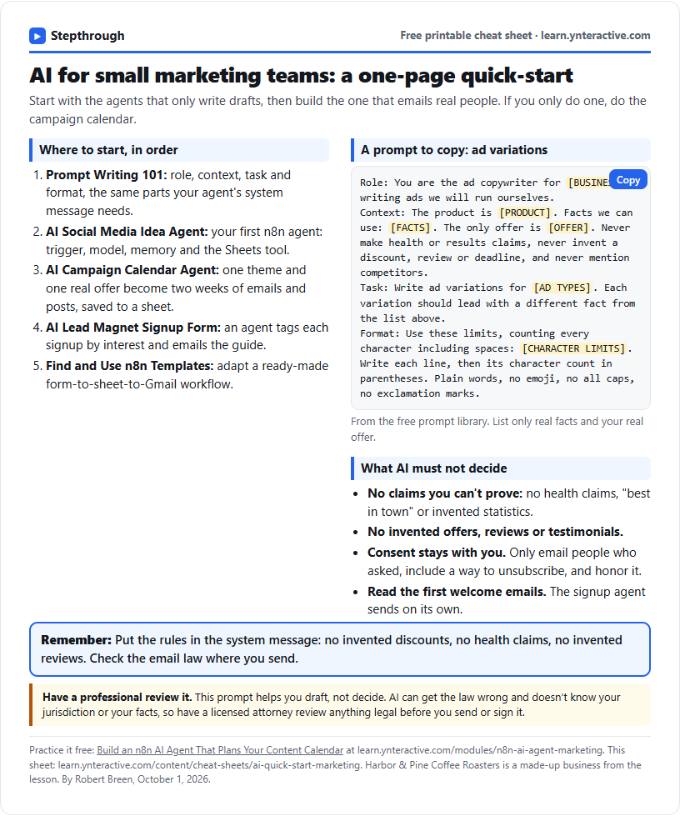 AI Quick-Start for Marketing Teams: Cheat Sheet
A free one-page cheat sheet for marketing teams: the free AI lessons in order, an ad copy prompt and the claims AI must never make.
Industry quick-start Free PDF
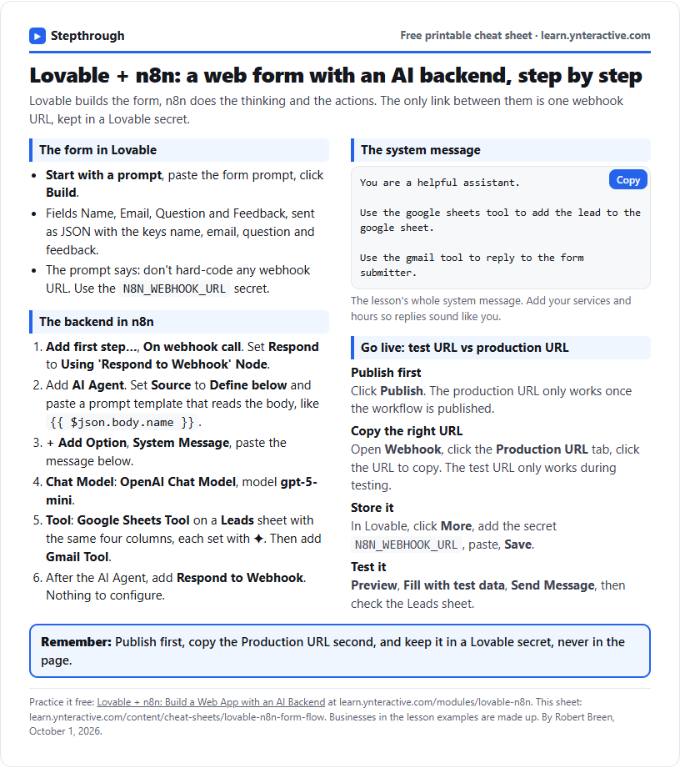 Lovable + n8n Form Flow Cheat Sheet
A free one-page cheat sheet: a Lovable form posts to an n8n webhook, and an AI Agent logs it in Google Sheets and replies by Gmail.
Lesson cheat sheet Free PDF
All free printable cheat sheets
Terms in this lesson
Plain-English definitions, each with an example from a free lesson.
Related prompts
- Campaign results summary prompt: Turn the numbers from a finished marketing campaign into a plain summary: what ran, what each piece did, what to repeat and what…
- Case study interview questions prompt: Plan a client interview that gets a case study's before, during and after story in their own words, with follow-up probes and…
- Content calendar prompt: A ChatGPT prompt that turns one campaign into a dated email and social calendar: one row per item, a cap on emails, and only the…
- Email subject lines prompt: Get ten honest subject lines for a finished email, each with preview text and a character count, grouped by approach so you can…
More terms on this topic
More prompts on this topic
- Lead nurture email sequence prompt: Plan a short nurture sequence for signups who aren't ready to buy: useful emails by segment, one approved offer at the end and…
- Press release draft prompt: Draft a press release from your confirmed facts: headline, lead paragraph, quote placeholder, details and boilerplate, with…
- Product description prompt: Write product page copy with a ChatGPT prompt that uses only your spec list: a short opening, scannable bullets, who it's for…
- Promotional text message prompt: Write a promotional text for customers who opted in: one offer, the real end date, who it's from and how to opt out, short…
- Visitor arrival instructions email prompt: Write a clear arrival email for a visitor: where to park, which door, who to ask for and what to bring, so the front desk isn't…