Updated . Built against the tool’s current screens and checked step by step. How we check this lesson
When an automation someone else built breaks, the error message is often the only clue. In this free, interactive lesson you attach a hotel's failed-run log to ChatGPT and ask what each error means, what most likely caused it and whether a change made things better or worse, with what ChatGPT is sure of and what it is guessing. Then you get fix steps that don't name buttons it can't be sure of, a safe test, a plan for the guests who got no reply, and a note to the team. The hotel and the log are made up.
At a glance
| Question | Answer |
|---|---|
| What you build | Attach the failed-run log, get each error message explained in plain words with what ChatGPT is sure of and what it is guessing, then get safe fix steps, a test that never emails a real guest, a plan for the missed inquiries and a note to the team. |
| Tools | ChatGPT |
| Time | About 9 minutes, 20 steps in 4 parts |
| Level | Beginner, no coding needed |
| Cost | Free |
| Ways to learn it | Practice it step by step |
The 4 parts, in short
- Start from the failed runs: Read the failed-run log, Turn on Temporary chat, Open the + menu, Add photos & files, and 2 more steps.
- Ask what is sure and what is a guess: Click the message box, Ask for a plain explanation, Send it.
- Understand the two errors: Read the first error, Read the second error, See whether Thursday helped, Read the open question.
- Get the fix, then check it: Click the message box, Ask for the fix and the note, Send it, Read the missing-email fix and the safe test, and 3 more steps.
Start here first: Summarize a Meeting Transcript with ChatGPT (module 1 of ChatGPT for Everyday Work)
In the course: Part 3 · ChatGPT for Everyday Work (Module 42 of the full course)
The business case: a silent failure costs real bookings
Small businesses often run on an automation a freelancer built and nobody on staff understands. It works for months, then someone renames a spreadsheet tab or makes a form field optional, and it quietly stops. The error in the run history reads like code.
Guessing at the fix can make it worse: replaying failed runs can send duplicate emails, and a "fix" that moves the error somewhere else looks like a new problem.
What changes: ChatGPT turns each error into plain words, separates what it is sure of from what it is guessing, and only then gives ordered fix steps, a safe test and a plan for the customers who were missed.
The example: a boutique hotel's group booking inquiries
The Alder House (made up), a 22-room boutique hotel, has an automation that adds each group booking inquiry to a Google Sheet, has an AI step write a reply, and sends it with Gmail. It ran 212 times. Last week the events manager renamed the tab "Inquiries" to "Inquiries 2026" and added an empty "Inquiries 2027", and marketing made the form's Email field optional. Four groups got no reply. Each group is worth $4,000 to $9,000.
Download the file and follow along: [failed-runs-this-week.txt](/content/files/chatgpt-fix-automation-error-message/failed-runs-this-week.txt).
Who this lesson is for
Front desk staff, office managers and owners who inherited an automation they did not build, and anyone who has to read a run history in n8n, Make or Zapier. This is the third of three lessons in [Plan and Fix Automations with ChatGPT](/courses/plan-and-fix-automations-with-chatgpt).
What ChatGPT produced in the real run
The first answer said "Unable to parse range: Inquiries!A:F" meant the automation looked for a tab it couldn't find, most likely because the tab was renamed, and "Invalid To header" meant Gmail had no good recipient, most likely because Tomas left the now-optional email field empty. For each it listed three things it was sure of and one it was guessing. It called Thursday's change "Improved, but not fully working" and showed a before and after table.
The second answer gave six steps: pause, check the Google Sheets step, add a missing-email check with two paths that both save the inquiry, test with a fictional guest and your own address, turn it back on, and follow up with the four guests without replaying the failed runs. It ended with a short note to the events manager and marketing.
ChatGPT accepted Thursday's choice of the "Inquiries 2027" tab without asking whether that is where new inquiries belong. The lesson has you check that with the events manager before turning it back on.
The failed-run log is made up. Its two error messages are the kind Google Sheets and Gmail send back, but nothing in this lesson was built or run in n8n, Make or Zapier.
What this saves you
- Bookings: four groups worth $4,000 to $9,000 each get a personal reply the same day.
- Time: a plain explanation in minutes instead of waiting for the freelancer who left.
- Repeat failures: a missing email no longer stops the inquiry from being saved, and the team checks before changing connected tabs or fields.
- What it does not replace: a test in your own tool, and asking the person who owns the spreadsheet which tab is right.
Gotchas
- Paste the exact error text and what changed recently. The cause is usually in the change, not the error.
- Ask what it is sure of and what it is guessing before asking for the fix.
- Ask it not to name buttons it can't be sure exist in your tool. Labels differ between n8n, Make and Zapier.
- Test with a made-up guest and your own email address, never a real customer.
- Don't replay failed runs blindly. You can create duplicate rows or send the same email twice.
- Check its assumptions. In the real run it took the new tab as correct without asking.
Next business case
Want errors to reach you before guests notice? Take n8n error handling. Building the next one yourself? Plan the automation before you build, write and test the AI step prompt, and learn triggers, actions and mapping.
Try it yourself, free
Reading the steps is a start. Doing them is how it sticks. The interactive module walks you through every click in a practice copy of ChatGPT, checks each step, and never touches your real accounts.
Start “ChatGPT: Read an Automation Error and Fix a Workflow You Didn't Build”Step by step: ChatGPT: Read an Automation Error and Fix a Workflow You Didn't Build
All 20 steps of the interactive module, in order. In the module you watch each one, then do it yourself in a practice copy that checks your work.
1. Start from the failed runs
- Read the failed-run log. A freelancer built this automation and left. It ran 212 times without a problem. This week four group inquiries got no reply, each worth $4,000 to $9,000. Read what changed and the two error messages, then click ✕.
A freelancer built this automation, then left. It ran two hundred and twelve times without a problem. This week, four group inquiries got no reply. Each one is worth four to nine thousand dollars. Read what changed, and the two error messages, then close the file.
- Turn on Temporary chat. The log has guest names and email addresses. Click the Temporary chat icon at the top right so it stays out of your history.
The log has guest names and email addresses.
- Open the + menu. Click the + next to the message box.
- Add photos & files. Click Add photos & files.
- Pick failed-runs-this-week.txt. Pick failed-runs-this-week.txt.
Pick the failed runs file.
- Open it. Click Open. ChatGPT reads the exact error messages and what changed, not a guess at your setup.
ChatGPT reads the exact error messages, and what changed, not a guess at your setup.
2. Ask what is sure and what is a guess
- Click the message box. The habit: don’t ask for the fix yet. First ask what each error means, what most likely caused it, and what it is sure of and what it is guessing. Click the message box.
Here's the habit. Don't ask for the fix yet. First ask what each error means, what most likely caused it, and what it's sure of, and what it's guessing.
- Ask for a plain explanation. Paste in the request. It says you are not technical and did not build it, asks about both errors and whether Thursday’s change helped, and says don’t give me the fix yet.
This says you're not technical, and you didn't build it. It asks about both errors, and whether Thursday's change helped. And it says, don't give me the fix yet.
I run the front desk at a small hotel. I did not build this automation and I'm not technical. The attached file has what it does, what changed last week and the failed runs. Explain in plain words what each of the two error messages means, what most likely caused each one, and whether Thursday's change made things better or worse. Don't give me the fix yet. Tell me what you are sure of and what you are guessing. Keep the whole answer under 350 words.
- Send it. Click Send (the arrow on the right).
3. Understand the two errors
- Read the first error. Unable to parse range means the automation looked for a tab it could not find. The tab was renamed on Monday. Notice the split: three things it is sure of, and one thing it is guessing. Click the explanation.
Unable to parse range means the automation looked for a tab it couldn't find. The tab was renamed on Monday. Notice the split. Three things it's sure of, and one thing it's guessing.
- Read the second error. Invalid To header means Gmail had no good address to send to. Marketing made the email field optional, and Tomas left it empty. It calls the cause extremely likely, not certain. Click the explanation.
Invalid To header means Gmail had no good address to send to. Marketing made the email field optional, and Tomas left it empty. It calls that extremely likely, not certain.
- See whether Thursday helped. Better, not fixed. The spreadsheet step now works and the AI wrote a reply. The run only failed later, at Gmail. Failing in a new place can mean progress. Click the table.
Better, not fixed. The spreadsheet step works now, and the AI wrote a reply. It only failed later, at Gmail. Failing in a new place can mean progress.
- Read the open question. The biggest unknown: nobody has seen a complete inquiry, with an email address, go all the way through yet. The fix has to test that. Click the bottom line.
The biggest unknown. Nobody has seen a complete inquiry, with an email address, go all the way through yet. The fix has to test that.
4. Get the fix, then check it
- Click the message box. Now ask for the fix. You don’t know the tool, so ask it not to name buttons it can’t be sure exist. Click the message box.
Now ask for the fix. You don't know the tool, so ask it not to name buttons it can't be sure exist.
- Ask for the fix and the note. Paste in the request. Numbered steps in order, how to stop a missing email breaking it, how to test without emailing a real guest, what to do today about the four groups, and a short note to the events manager and marketing.
This asks for numbered steps, in order. How to stop a missing email breaking it. How to test without emailing a real guest. What to do today about the four groups. And a short note to the events manager and marketing.
Now the fix. Give me numbered steps I can follow in the automation tool's editor, in the order to do them, without naming buttons you can't be sure exist in my tool. Include: how to stop a missing email from breaking it again, how to test safely without emailing a real guest, and what to do today about the four groups who got no reply. Then write the short note I should send to our events manager and marketing so this doesn't happen again. Keep the whole answer under 450 words.
- Send it. Click Send (the arrow on the right).
- Read the missing-email fix and the safe test. Add a check for a usable email, with two paths that both save the inquiry. Then test twice with a made-up guest and your own address: once with an email, once without. Never a real guest. Click the steps.
Add a check for a usable email, with two paths. Both paths save the inquiry. Then test twice, with a made up guest and your own address. Once with an email, once without. Never a real guest.
- Handle the four groups today. Three get a personal follow-up. Tomas left no email, so look for another way to reach him. And don’t replay the failed runs: that could send duplicate rows or emails. Click the table.
Three guests get a personal follow up. Tomas left no email, so look for another way to reach him. And don't just replay the failed runs. That could create duplicate rows or emails.
- Read the note to the team. Short and blame-free: what broke, what was fixed, and one ask. Check with the front desk before changing tab names, columns or form fields connected to automations. Click the note.
Short, and no blame. What broke, what was fixed, and one ask. Check with the front desk before changing tab names, columns or form fields connected to automations.
- Check the tab yourself. Step 2 says confirm the tab is Inquiries 2027. But ChatGPT just accepted Thursday’s choice. The events manager kept Inquiries 2026 and added an empty 2027 tab. Before you turn it back on, ask her which tab new inquiries should go to. Click the step.
Step two says confirm the tab is Inquiries twenty twenty seven. But ChatGPT just accepted Thursday's choice. The events manager kept the twenty twenty six tab, and added an empty one for twenty twenty seven. Before you turn it back on, ask her which tab new inquiries should go to. You read two errors in a workflow you didn't build, and fixed it, without guessing.
Frequently asked questions
- What does "Unable to parse range" mean?
- It is an error Google Sheets sends back when the automation asks for a tab or range it can't find, often because the tab was renamed. In this lesson the tab "Inquiries" had become "Inquiries 2026". Point the step at the right tab, and check with whoever owns the sheet which tab that is.
- What does "Invalid To header" mean in Gmail?
- Gmail could not send because the recipient address was missing or not valid. In the lesson the form's email field had been made optional and the guest left it empty. Add a check for a usable address before the Gmail step.
- Can ChatGPT fix my automation?
- It can explain the error, suggest the most likely cause and give you ordered fix steps, but you make the changes in your own tool. Attach the failed runs and what changed recently, and ask what it is sure of and what it is guessing.
- How do I fix an automation someone else built?
- Start with what changed just before it broke and the exact error text. Pause it, fix one step at a time, test with made-up data and your own email address, and only then turn it back on and watch the next few runs.
- How do I test an automation without emailing a real customer?
- Use a made-up customer and an email address you control, then check every step: the row in the sheet, the AI reply and who Gmail sent it to. Test the missing-email case too, so you know it is saved and someone is told.
More in ChatGPT for Everyday Work
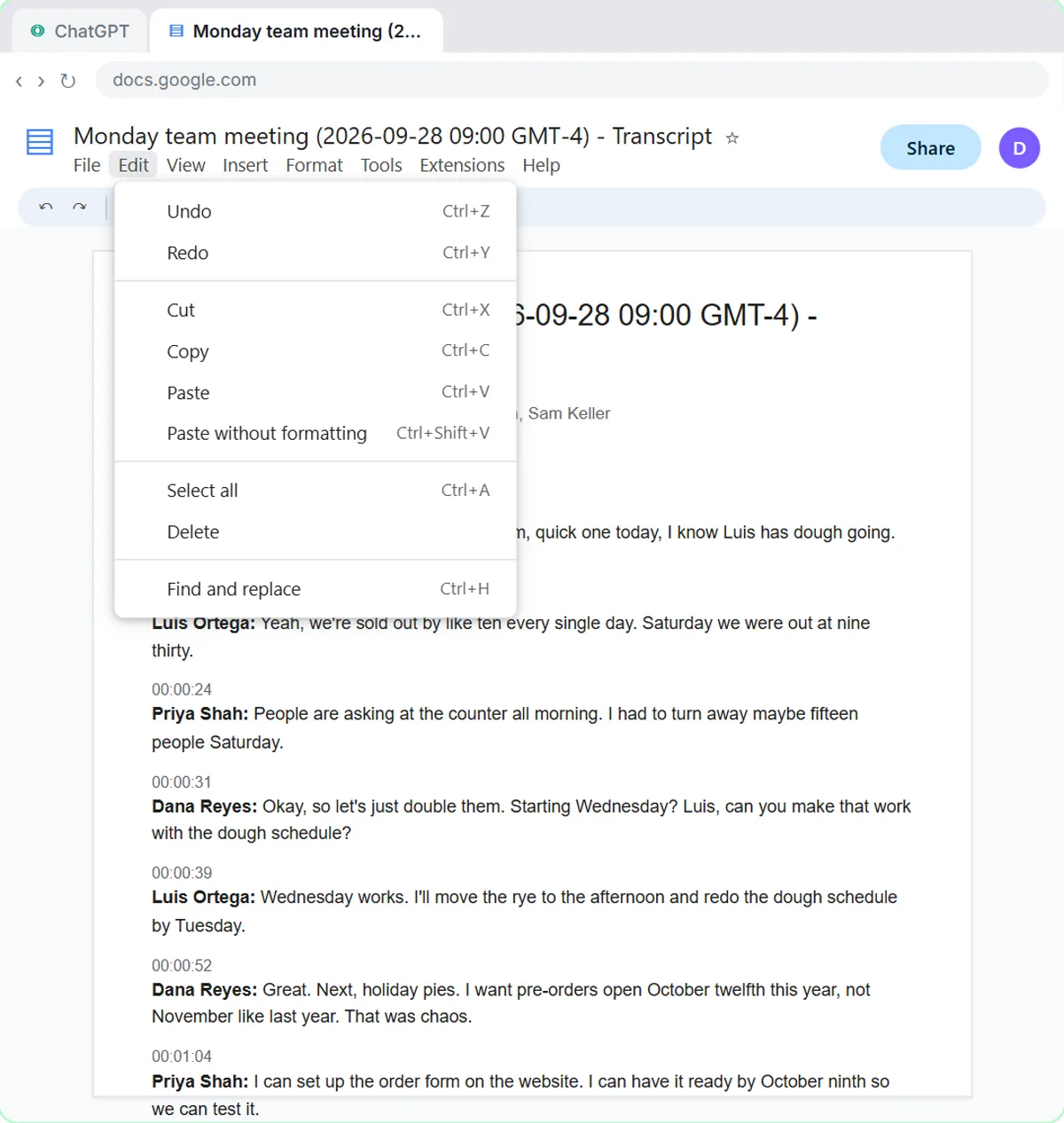 Summarize a Meeting Transcript with ChatGPT
Paste a long meeting transcript into ChatGPT and get the decisions, an action items table with owners and due dates, and a follow-up email ready to send.
Free · Live ~9 min Beginner
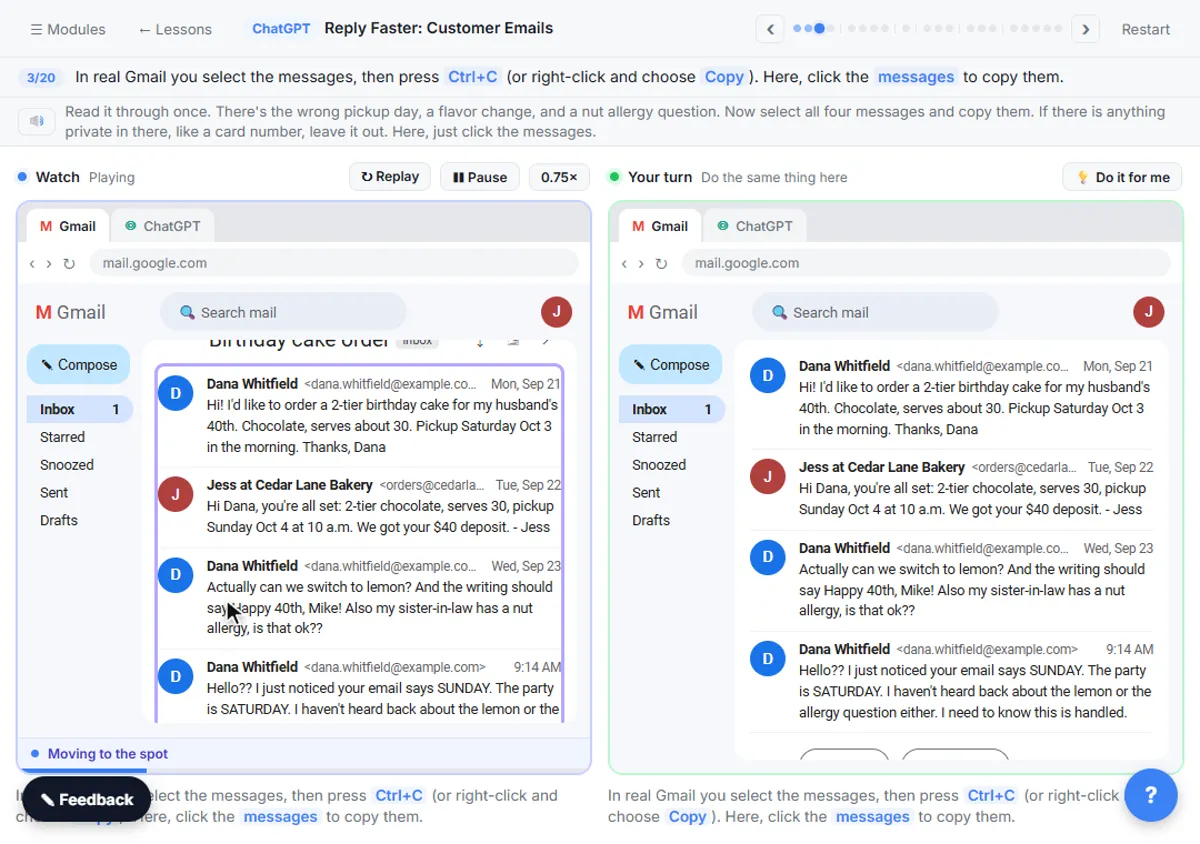 Reply Faster: Turn a Messy Customer Email Thread into a Clear, Friendly Reply
Turn a messy customer email thread into a clear, friendly reply: give ChatGPT the thread and your facts, check every promise, fix the tone, and send it from Gmail.
Free · Live ~9 min Beginner
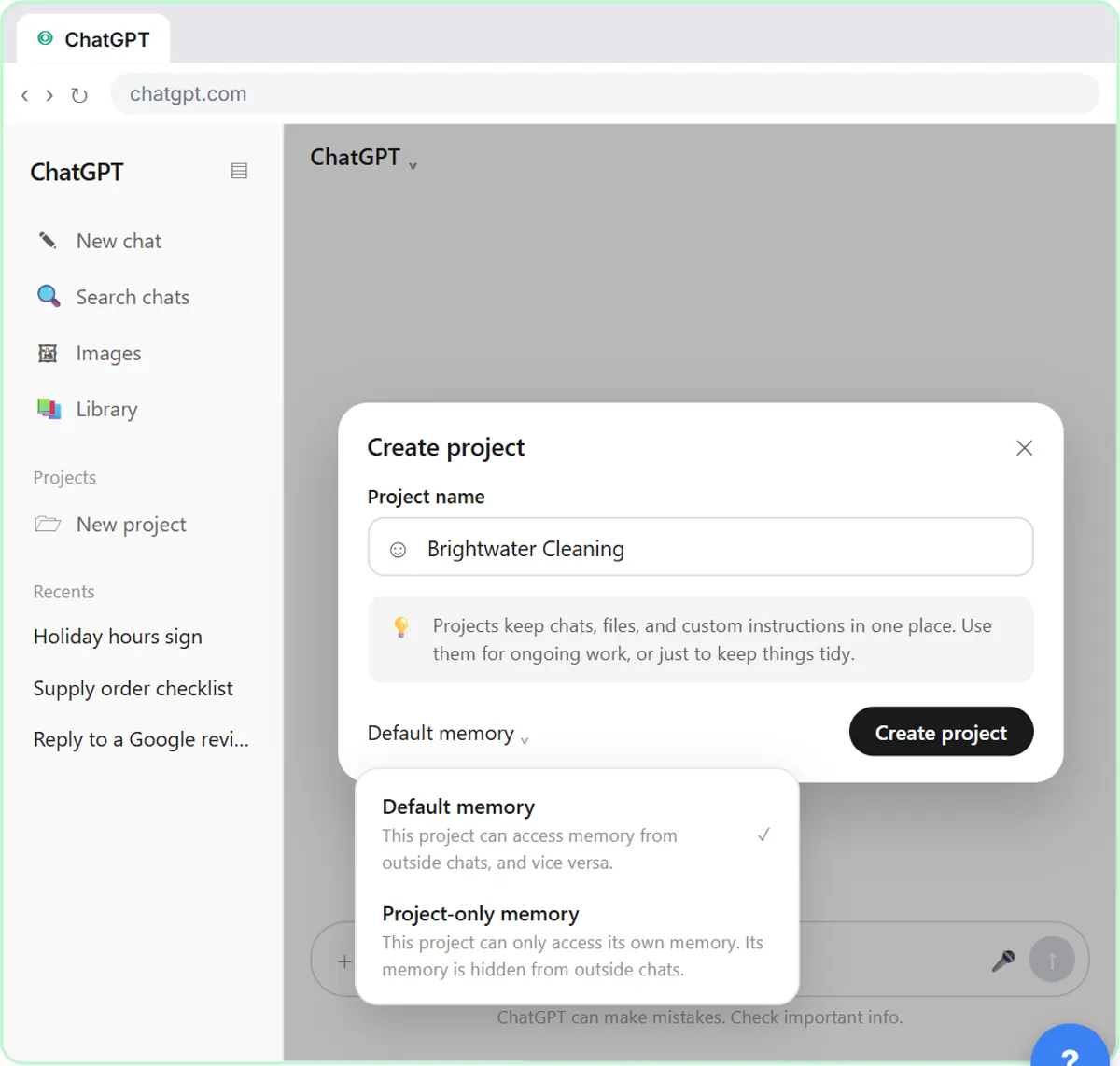 How to Create a Project in ChatGPT for Your Brand Voice and Files
Set up a ChatGPT Project with your brand voice instructions, your price list and your style guide, so every new chat already knows your business.
Free · Live ~9 min Beginner
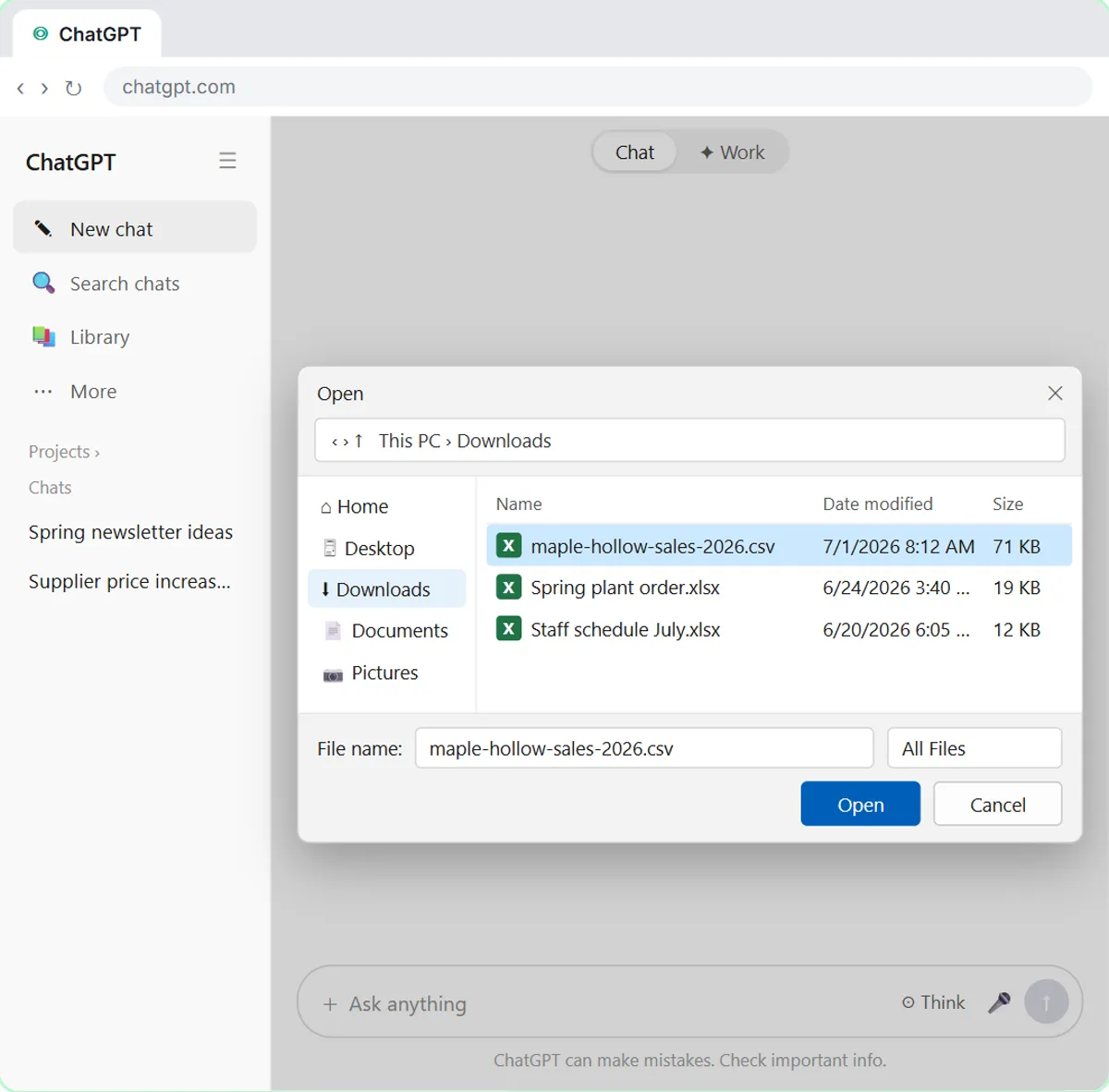 Analyze a Spreadsheet with ChatGPT: Upload a CSV, Get a Chart and Three Takeaways
Upload a CSV of sales to ChatGPT, have it check the data first, ask your questions, get a chart you can download, and finish with the three takeaways that matter.
Free · Live ~10 min Beginner
 ChatGPT Work: Have ChatGPT Do a Multi-Step Task
Switch ChatGPT to Work, hand it a real job (compare three suppliers into a spreadsheet), approve the sites it opens, skip a login, answer its question, check the file…
Free · Live ~8 min Intermediate
◷Get a Morning Invoice Summary in Slack using ChatGPT DotsSet up a ChatGPT dot to check Gmail for new invoice emails and post one summary to Slack every weekday morning. A 7-step practice based on OpenAI's published screens.
Free · Live ~4 min Intermediate
All 28 modules in ChatGPT for Everyday Work
More ChatGPT tutorials
 Get On-Brand Social Posts Every Time using a ChatGPT Custom GPT
See why generic prompts give generic results, then build a Custom GPT loaded with your brand voice and watch the output transform.
Free · Live ~8 min Beginner
 Prompt Writing 101: Role, Context, Task, Format
Ask ChatGPT for the same customer email twice, once vaguely and once with a four-part prompt, and see exactly why structure gets a better answer.
Free · Live ~8 min Beginner
◷Send a Same-Day Follow-up After Every Discovery Call using ChatGPTTurn a discovery call transcript into the decisions, the next steps with owners and dates, deal notes for your CRM, and a follow-up email the prospect gets the same…
Free · Live ~7 min Beginner
◷Hold Your Price When a Prospect Asks for a Discount using ChatGPTA prospect wants 30% off and a free month to sign this week. Give ChatGPT the thread and your pricing rules, catch the discount you can't approve, and send a reply that…
Free · Live ~9 min Beginner
 Get Your Business Recommended by ChatGPT
Ask ChatGPT who it recommends in your town, see which pages it trusts, then use it to write an FAQ page and Business Profile copy that answer real customer questions.
Free · Live ~10 min Intermediate
◷Run a Weekly Ops Review Where Every Task Has an Owner using ChatGPTTurn a weekly operations and vendor review into the decisions, the next steps with owners and dates, the risks to watch and a team recap, without turning a vendor's…
Free · Live ~7 min Beginner
Terms in this lesson
Plain-English definitions, each with an example from a free lesson.