Updated . Built against the tool’s current screens and checked step by step. How we check this lesson
A lead fills in your contact form at 9:12 on a Monday. If they hear back at 9:13, you are the firm that answered. If they hear back after lunch, they have already booked a call with someone else. In this free lesson you build a speed-to-lead workflow in n8n for a small bookkeeping firm: every website lead is scored by AI, gets a personal first reply from Gmail within seconds, and only the hot ones ping the team in Slack.
At a glance
| Question | Answer |
|---|---|
| What you build | Build an n8n workflow that scores every website lead with AI, emails a personal first reply within seconds, and pings Slack only when a lead is hot. |
| Tools | n8n |
| Time | About 15 minutes, 43 steps in 6 parts |
| Level | Advanced, no coding needed |
| Cost | Free |
| Ways to learn it | Practice it step by step, watch the video, read the guide with screenshots |
The 6 parts, in short
- Score the lead: Add the next step, Search for the extractor, Information Extractor, Tell it how to score, and 4 more steps.
- Add the AI model: Add a chat model, OpenAI Chat Model, Close the node.
- Reply in seconds: Add the reply, Search for Gmail, Gmail, Send a message, and 7 more steps.
- Only hot leads: Add a check, Search for If, If, Check the score, and 4 more steps.
- Ping the team: Add to the true branch, Search for Slack, Slack, Send a message, and 6 more steps.
- Test and go live: Test it, Publish, Publish it.
Start here first: Build an n8n AI Agent That Writes Deal Follow-Ups (module 1 of AI Automation for Sales)
Speed-to-Lead Agent: Answer Every Web Lead in 60 Seconds: step-by-step guide with screenshots
About the screenshots. They come from Stepthrough’s simulated practice environment (a practice copy of n8n), not the live tool, so no real account appears. The buttons and labels match the real screens the lesson was built against. Practice it yourself free at learn.ynteractive.com.
- Tools: n8n
- Time: about 15 minutes, 43 steps in 6 parts
- Level: beginner, no coding needed
Part 1: Score the lead
Step 1: Add the next step
You're Maya at Ledgerwell Bookkeeping. Leads come in through the website form, and the ones you answer first are the ones you win. This workflow already catches each form entry with a webhook, and one test lead is pinned to it.
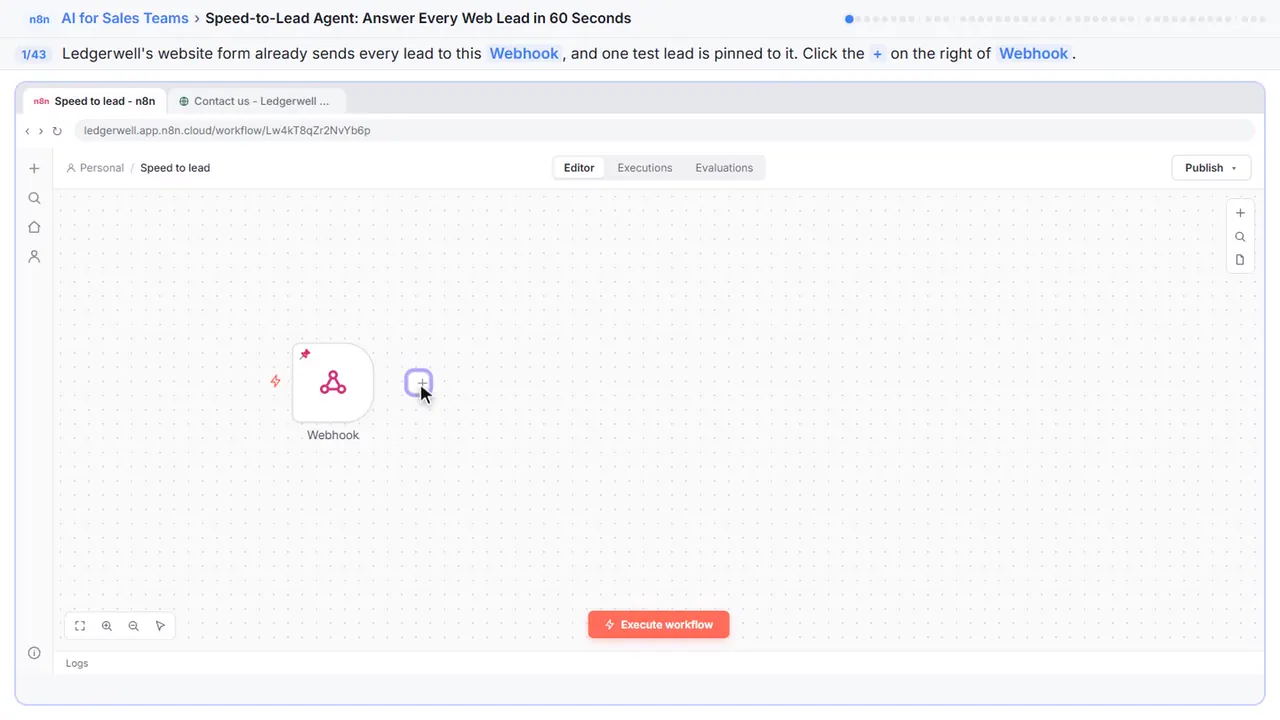
Step 2: Search for the extractor
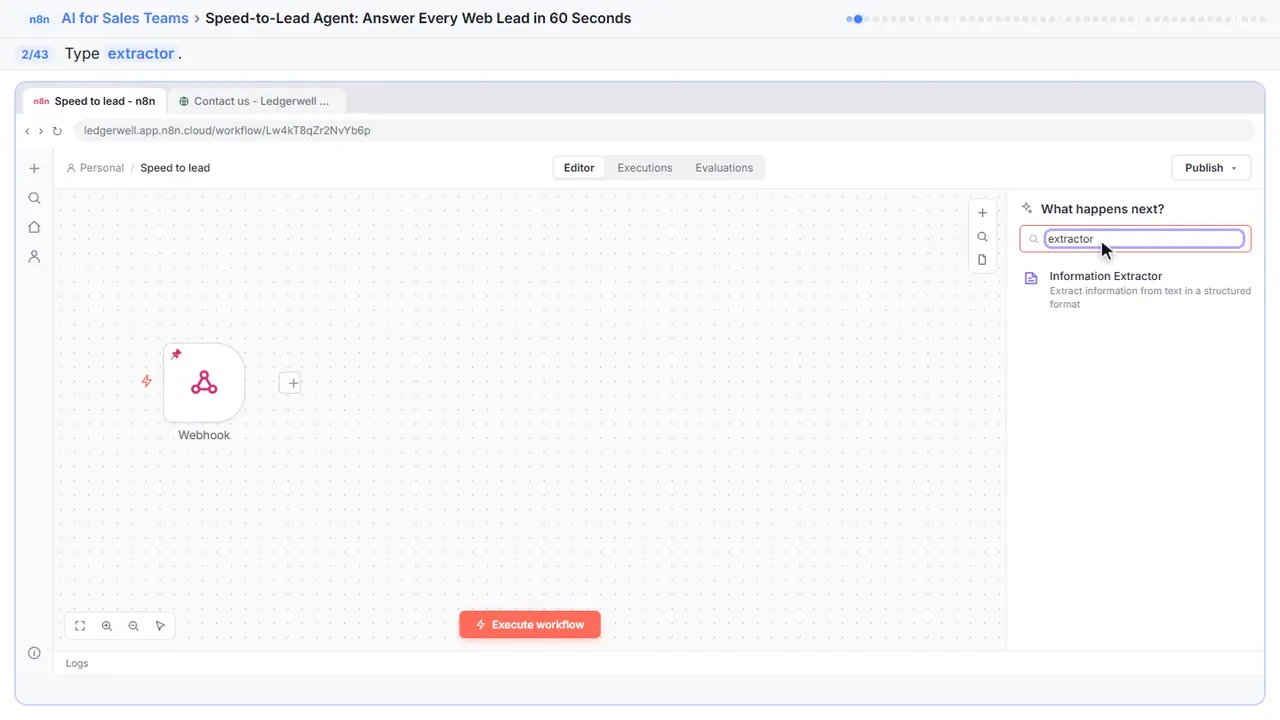
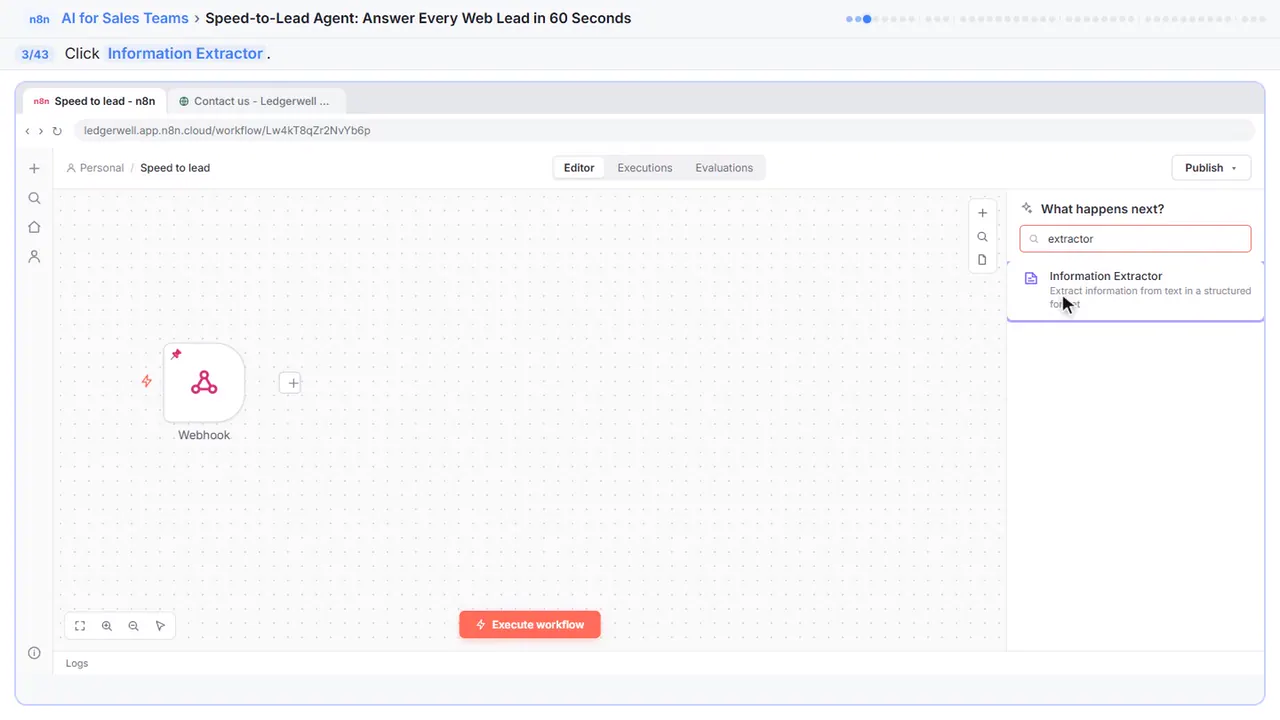
Step 3: Information Extractor
It reads text and hands back exactly the fields you ask for, every time.
Step 4: Tell it how to score
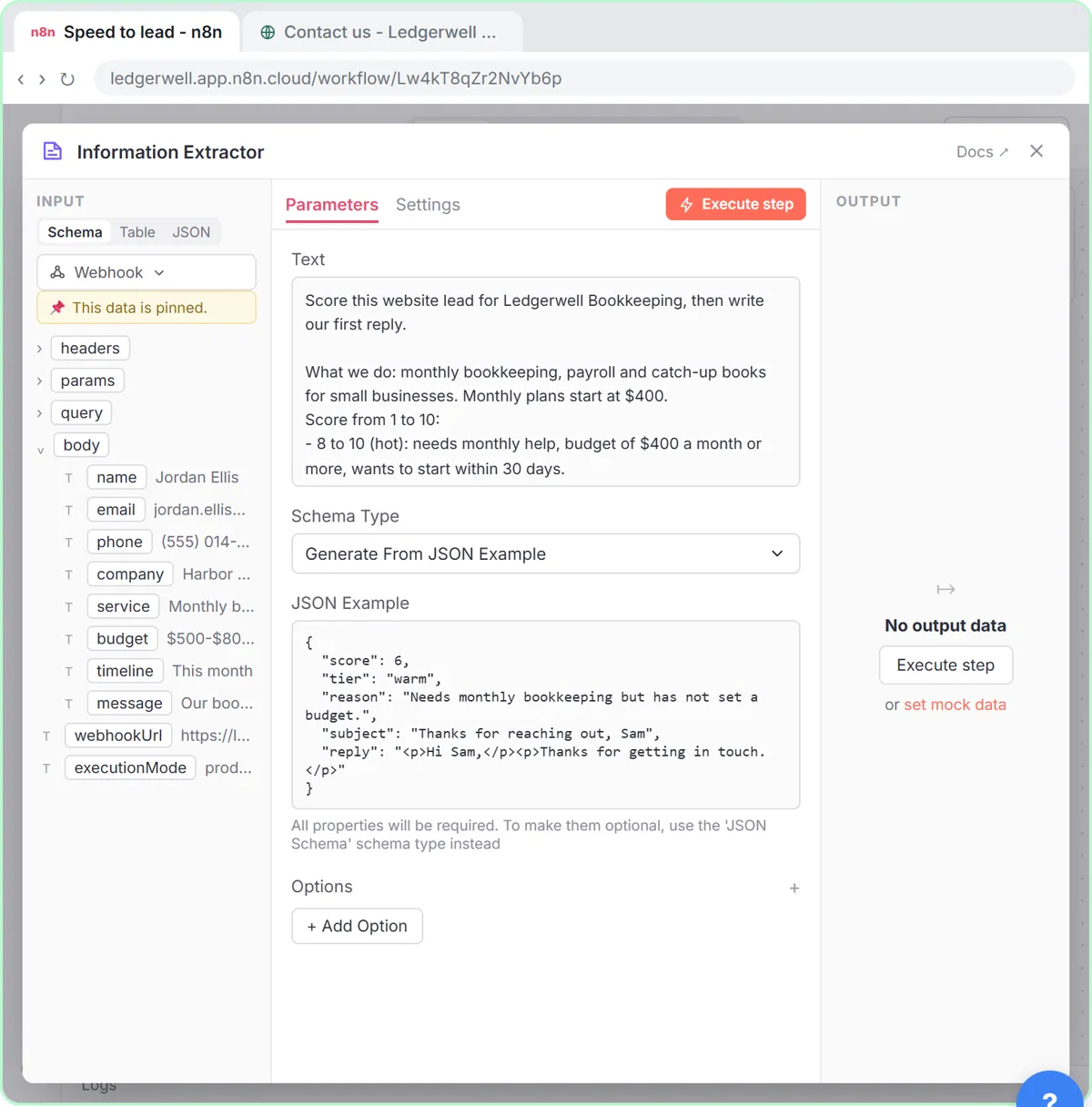
On the left you can see the lead. Everything from the form sits inside body. It says what a hot, warm and cold lead looks like for this firm, pulls in the lead's answers, and asks for a short first reply with a booking link. Notice it leaves out the email address and phone number. The AI doesn't need them, so don't send them.
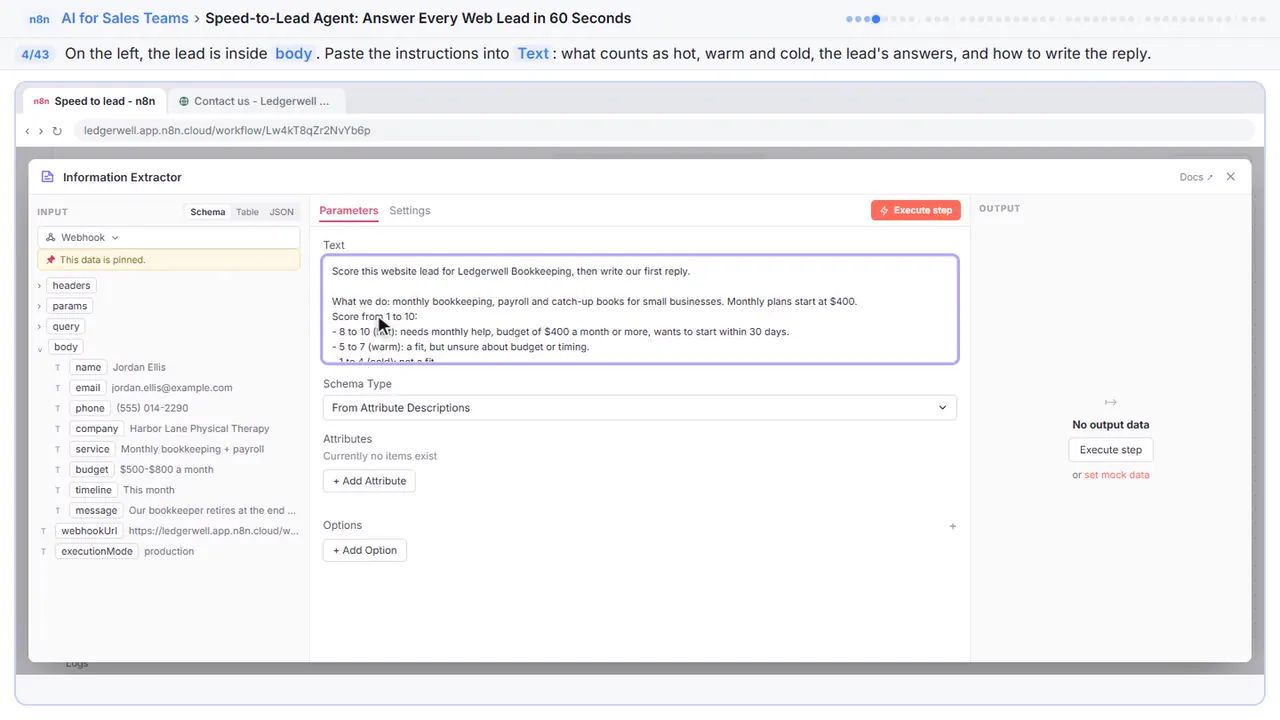
Score this website lead for Ledgerwell Bookkeeping, then write our first reply.

What we do: monthly bookkeeping, payroll and catch-up books for small businesses. Monthly plans start at $400.
Score from 1 to 10:
- 8 to 10 (hot): needs monthly help, budget of $400 a month or more, wants to start within 30 days.
- 5 to 7 (warm): a fit, but unsure about budget or timing.
- 1 to 4 (cold): not a fit.
Give the reason in one sentence.

The lead:
Service: {{ $json.body.service }}
Monthly budget: {{ $json.body.budget }}
Start: {{ $json.body.timeline }}
Company: {{ $json.body.company }}
Message: {{ $json.body.message }}

The reply goes to {{ $json.body.name }}: 3 or 4 short sentences as simple HTML paragraphs (<p>). Thank them, mention what they asked for, and invite them to book a 20-minute call at https://cal.example.com/ledgerwell. Never quote a price or promise anything else. Sign off as Maya, Ledgerwell Bookkeeping.
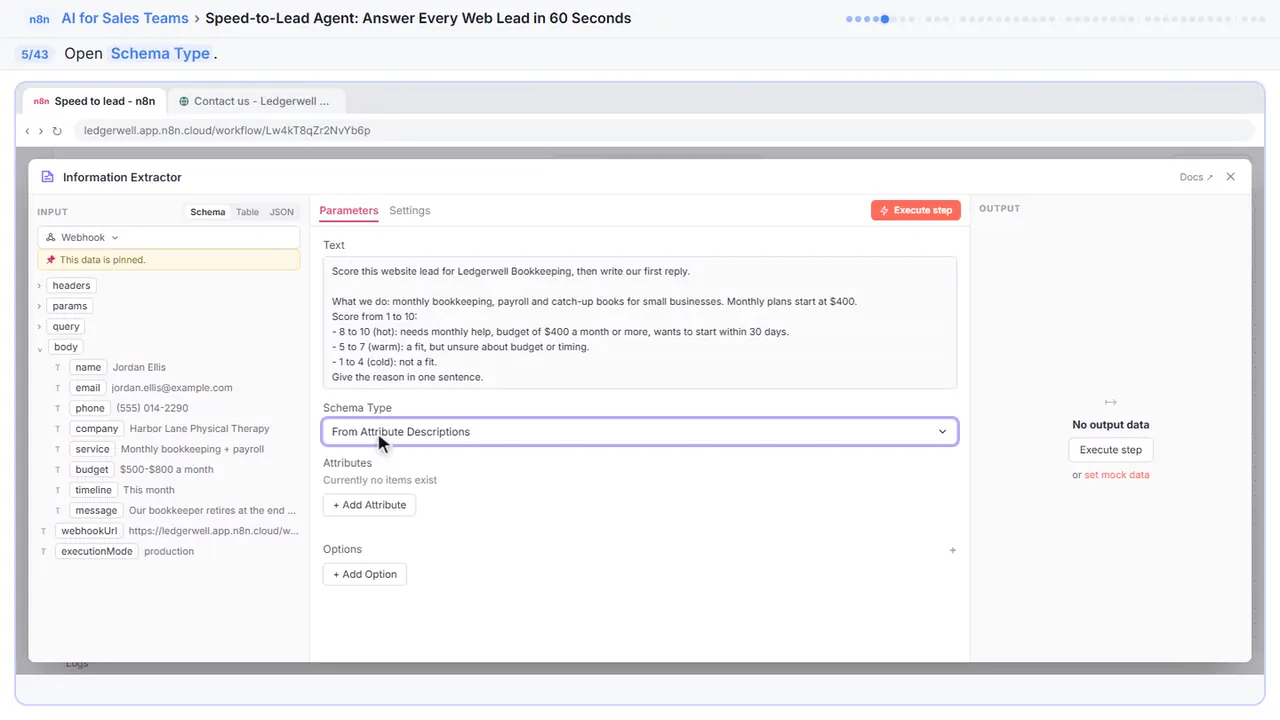
Step 5: Schema Type
Now tell it which fields to hand back.
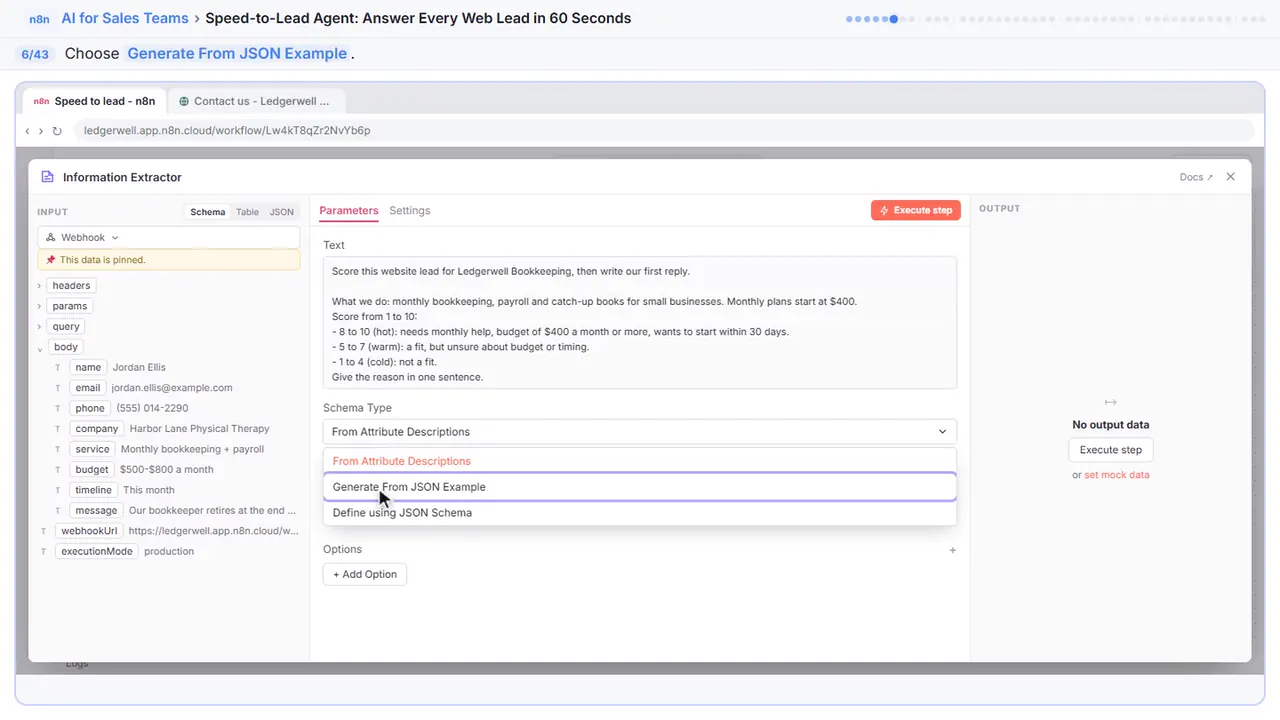
Step 6: Generate From JSON Example
You show it one example, and it copies the shape.
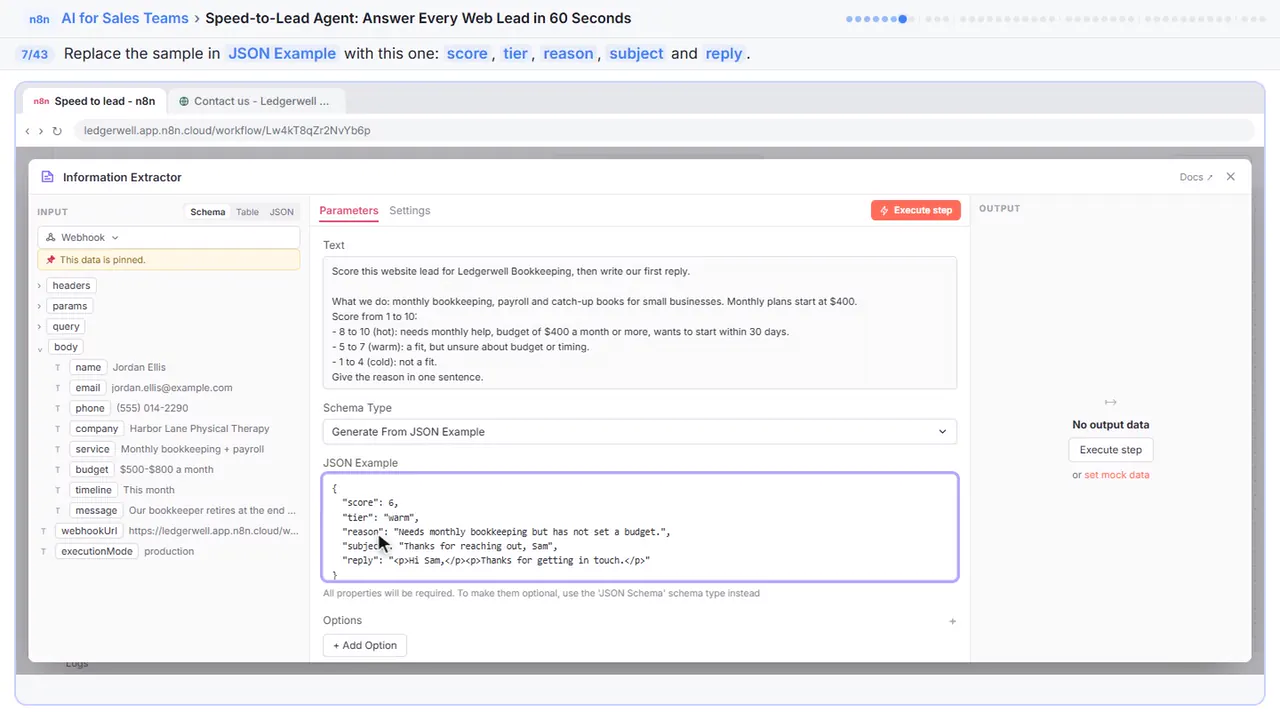
Step 7: Show it the fields
Replace the sample with this. Five fields: a score from one to ten, the tier, the reason, an email subject and the reply. The values are only examples. The shape is what counts.
{
  "score": 6,
  "tier": "warm",
  "reason": "Needs monthly bookkeeping but has not set a budget.",
  "subject": "Thanks for reaching out, Sam",
  "reply": "<p>Hi Sam,</p><p>Thanks for getting in touch.</p>"
}
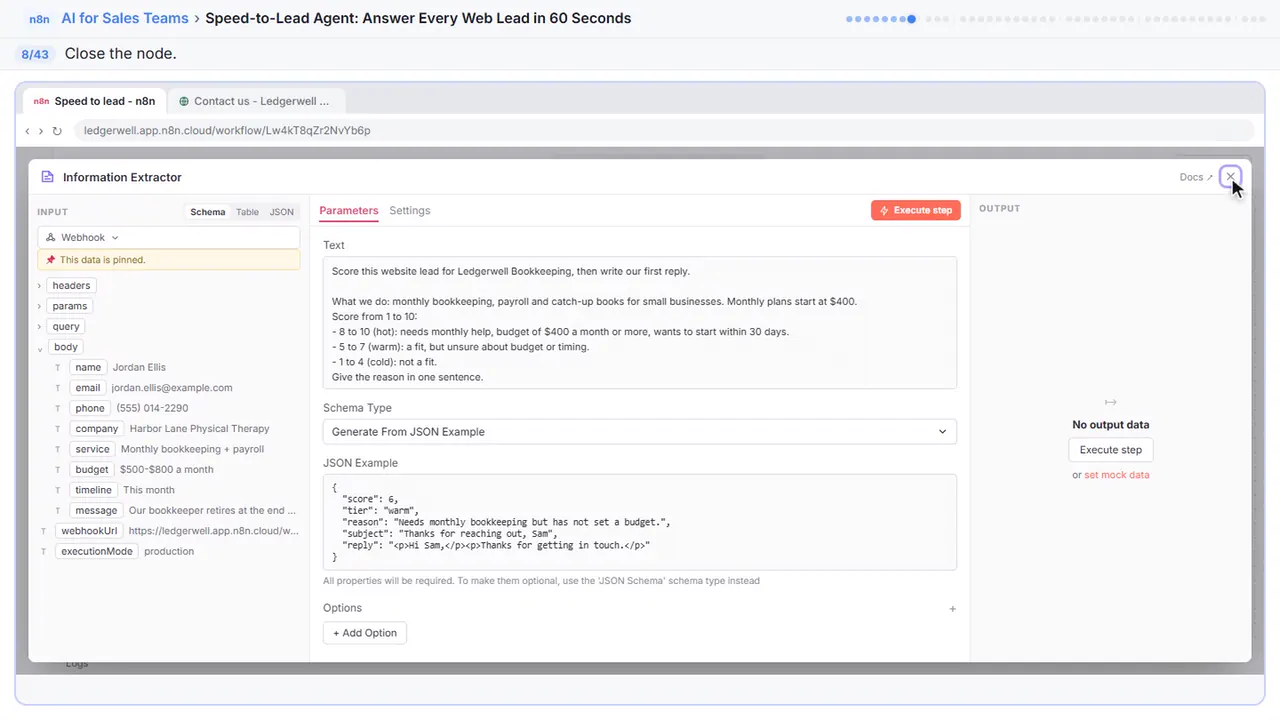
Step 8: Close the node
Close it.
Part 2: Add the AI model
Step 9: Add a chat model
The extractor still needs a brain.
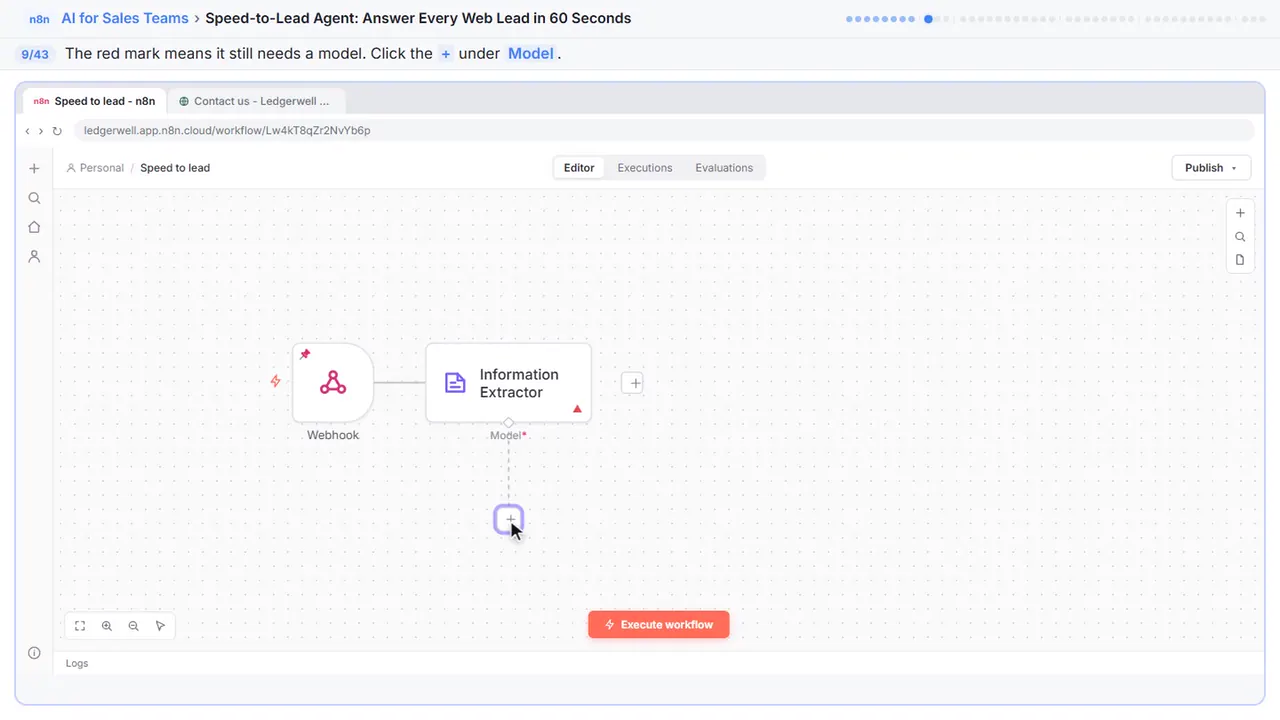
Step 10: OpenAI Chat Model
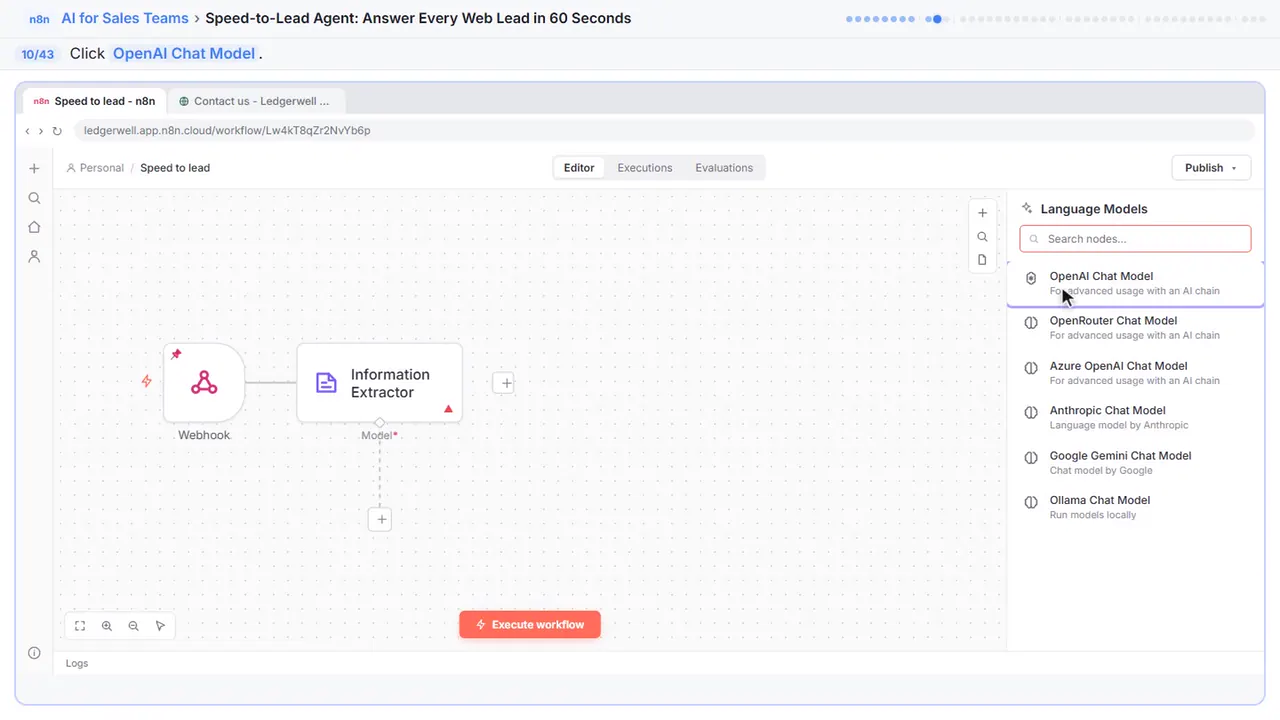
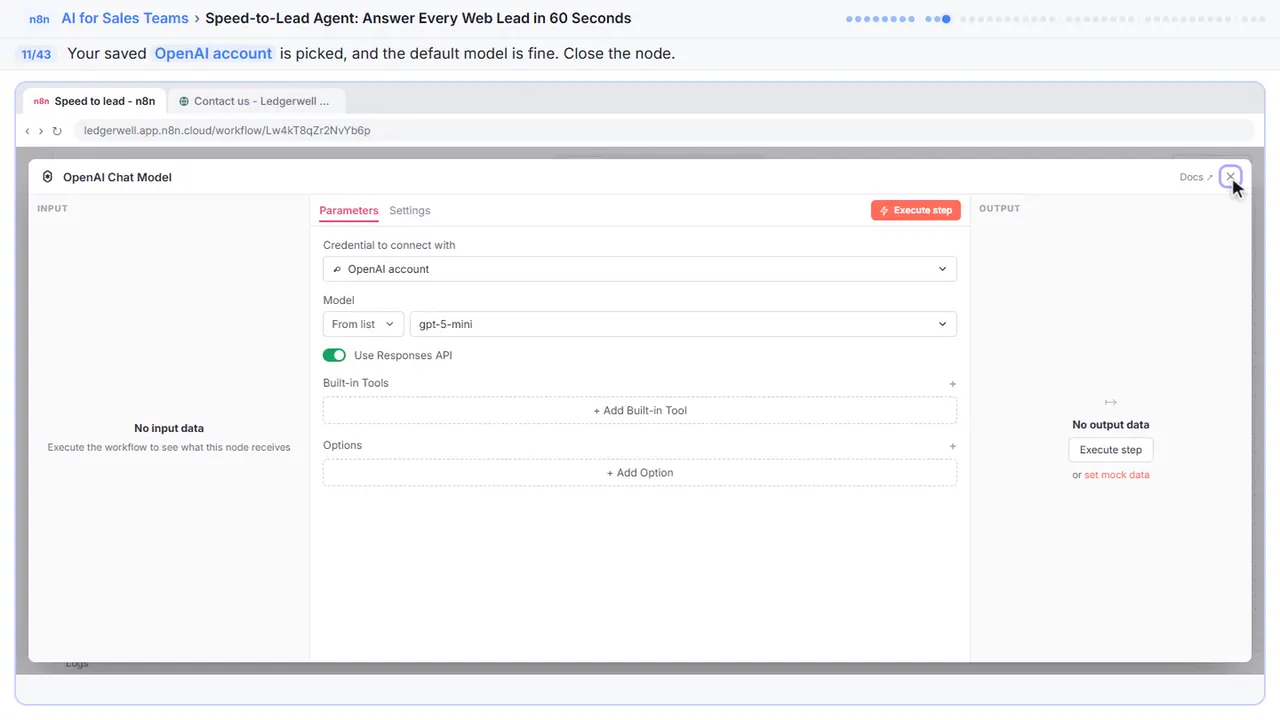
Step 11: Close the node
Your saved OpenAI key is already picked, and the default model is fine for scoring a lead. Each one costs a fraction of a cent. Close it.
Part 3: Reply in seconds
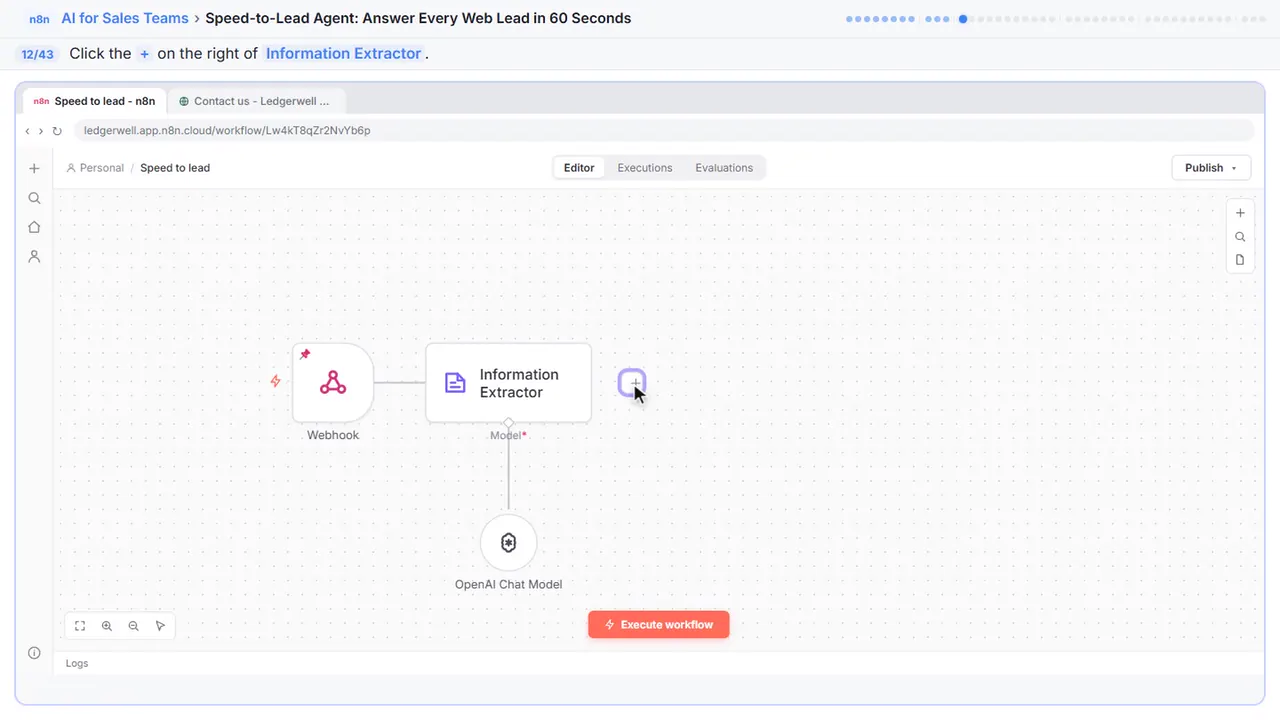
Step 12: Add the reply
Now the speed part: reply to the lead right away.
Step 13: Search for Gmail
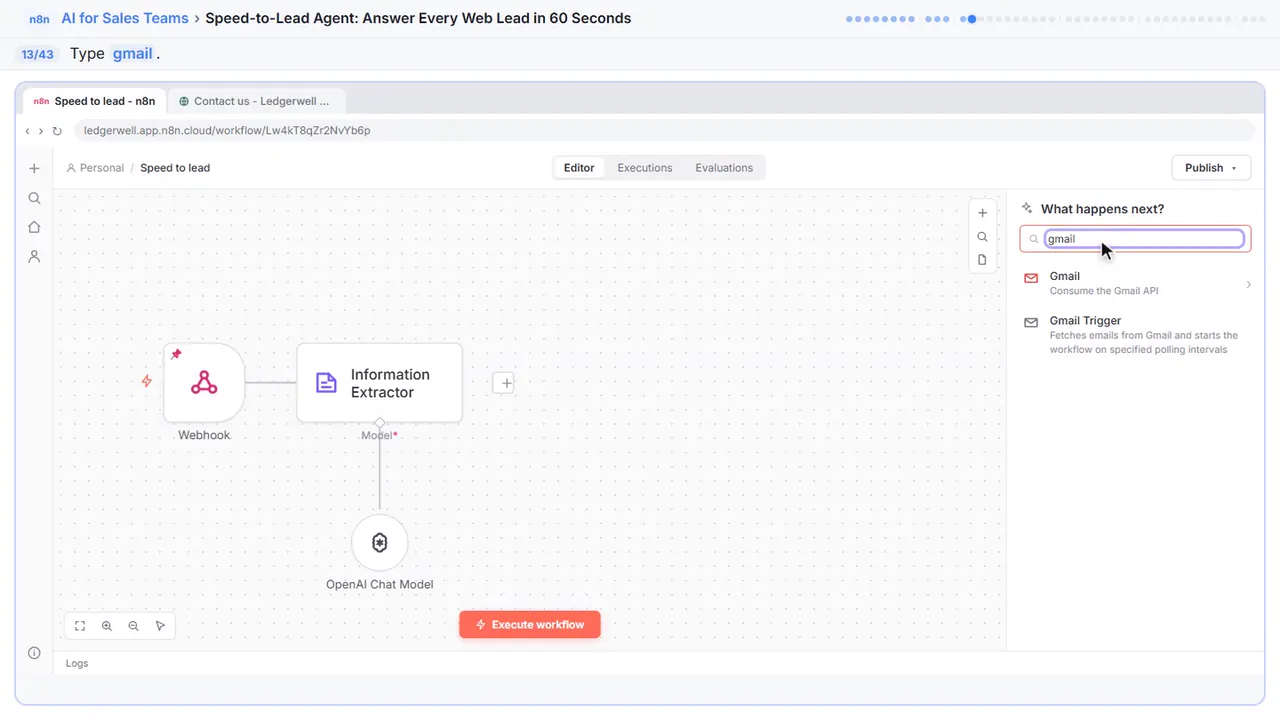
Step 14: Gmail
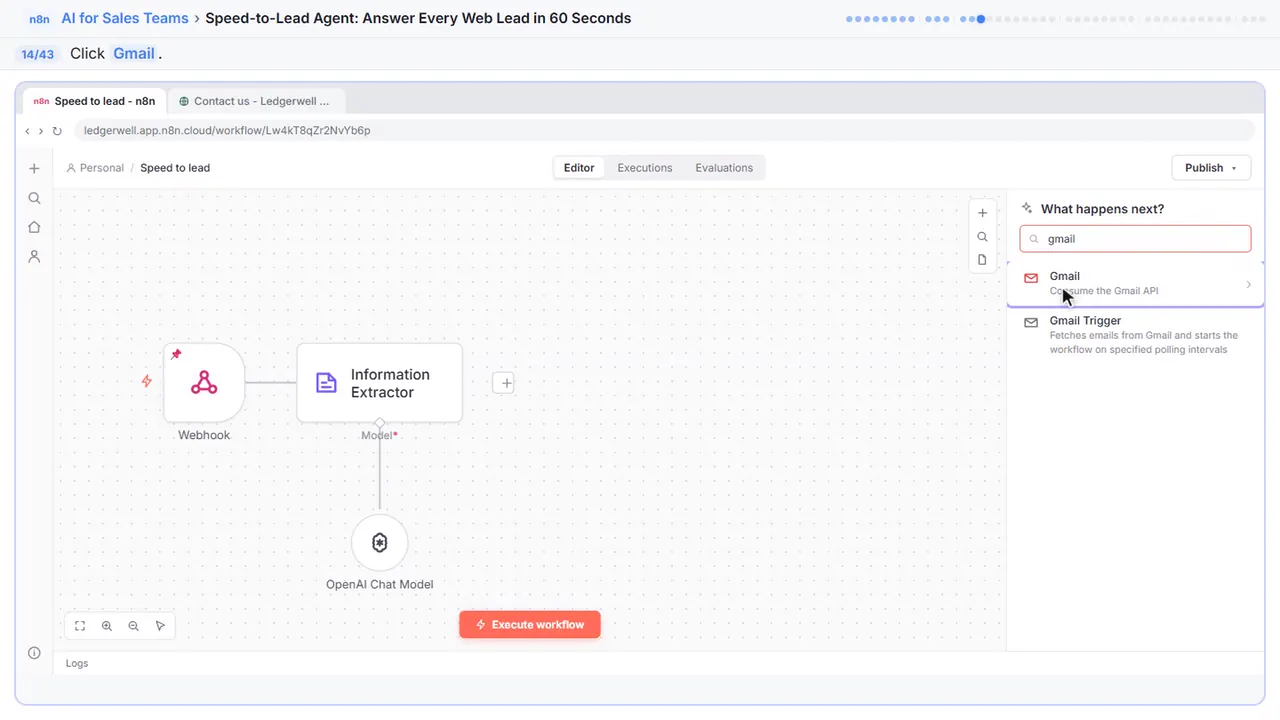
Step 15: Send a message
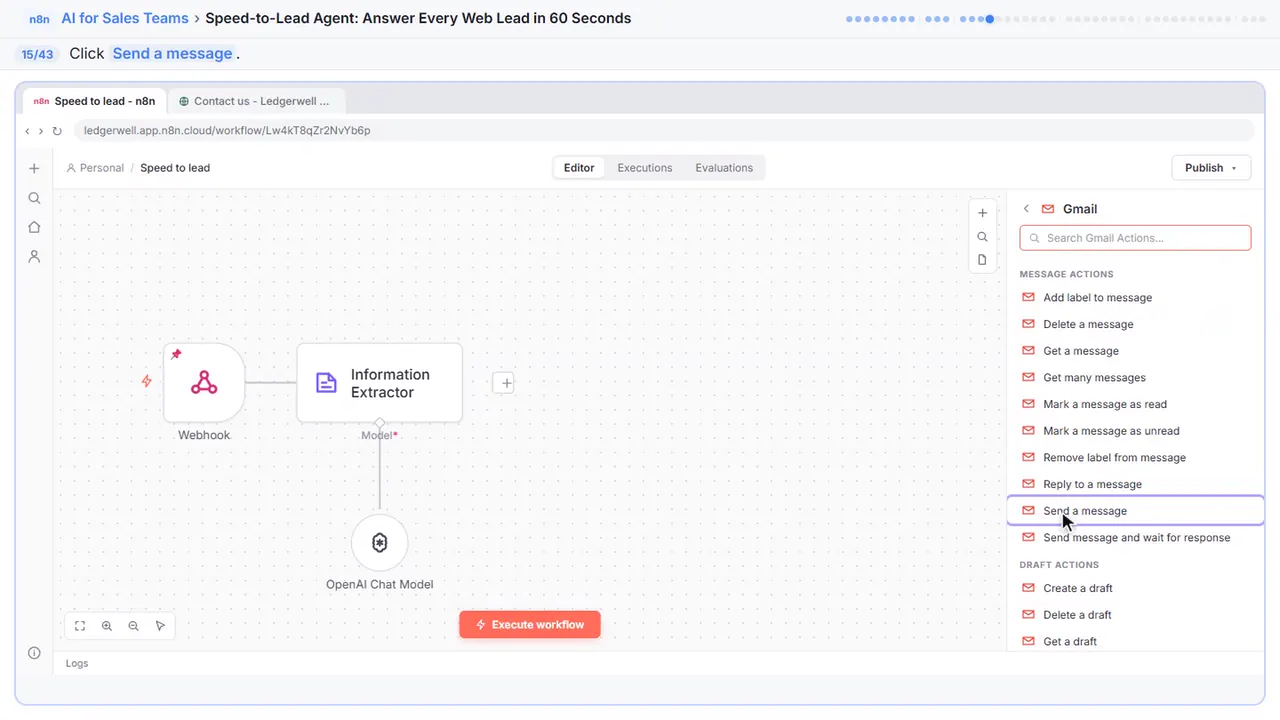
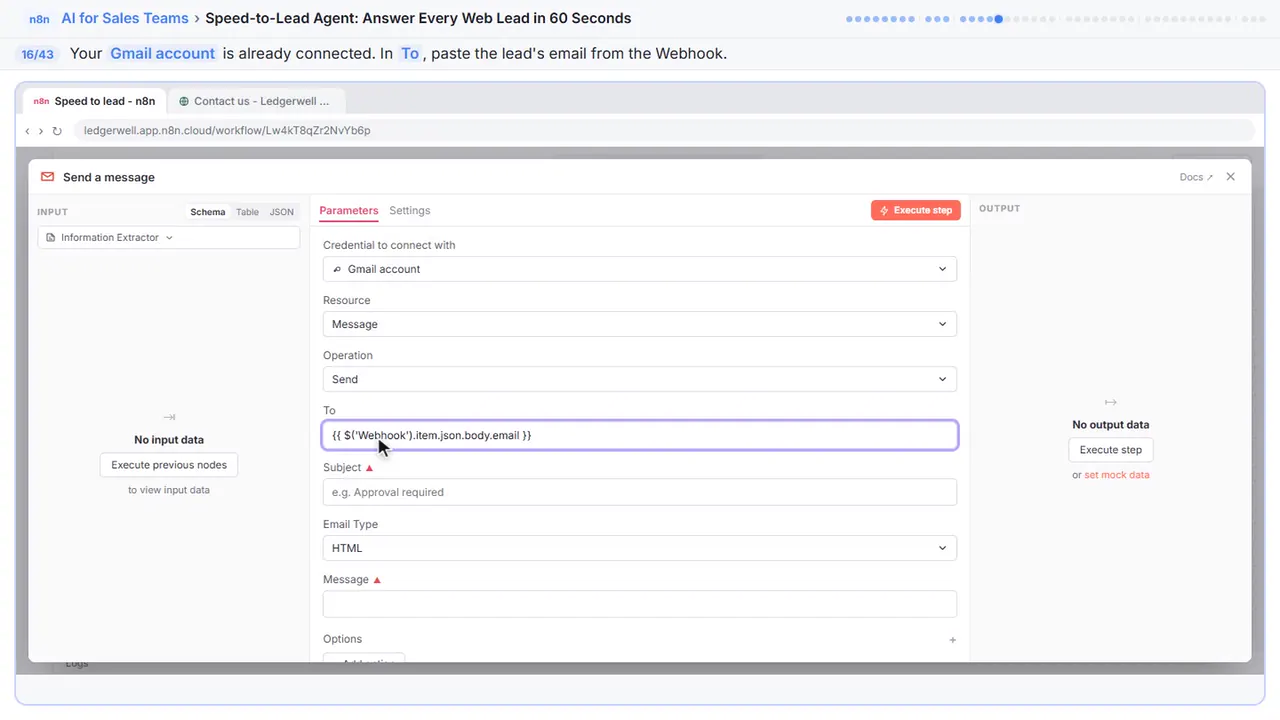
Step 16: Send it to the lead
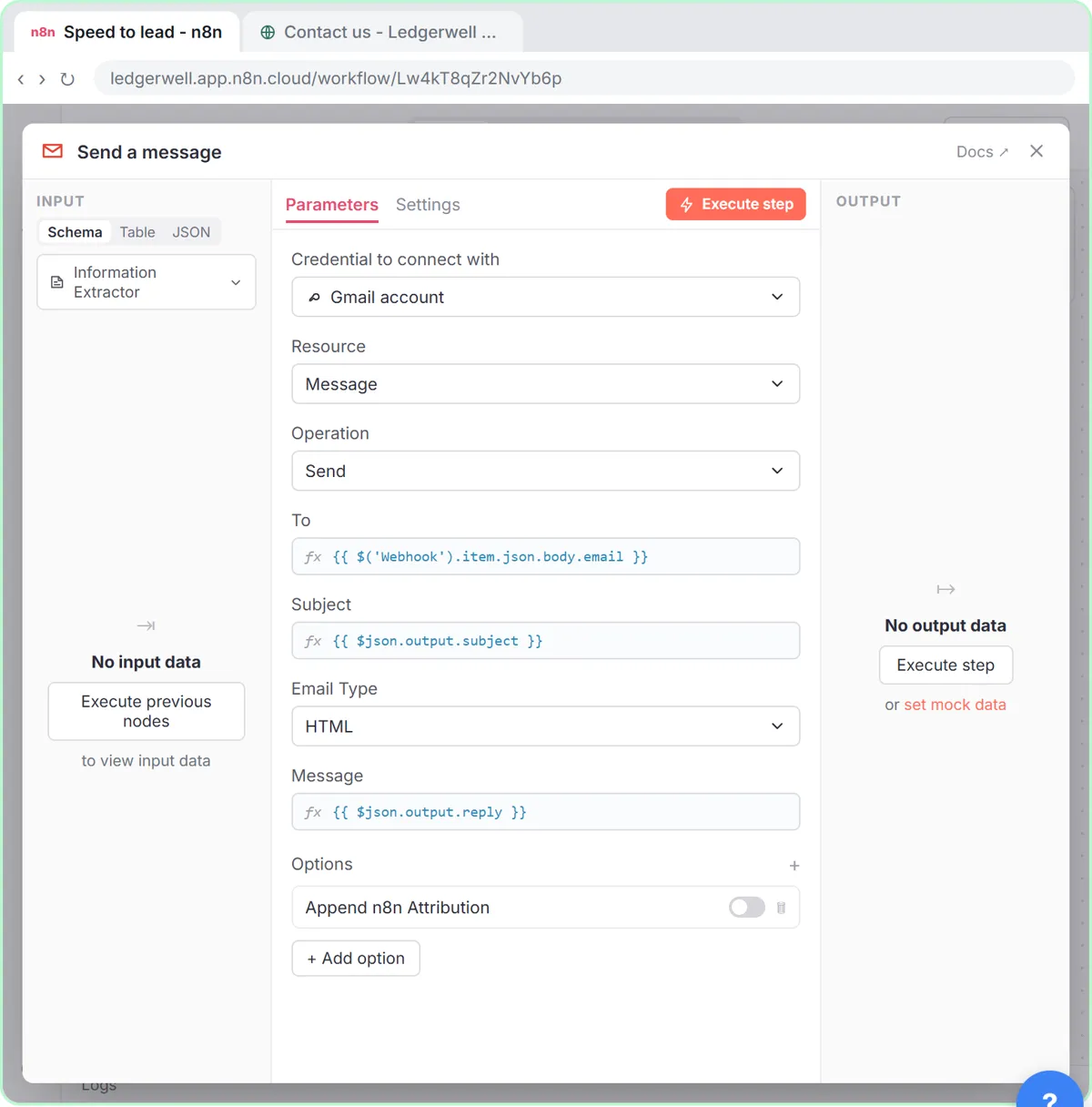
Your Gmail account is already connected. In To, paste this. It takes the email address from the Webhook, two steps back, so the reply goes to whoever filled in the form.
Step 17: Subject
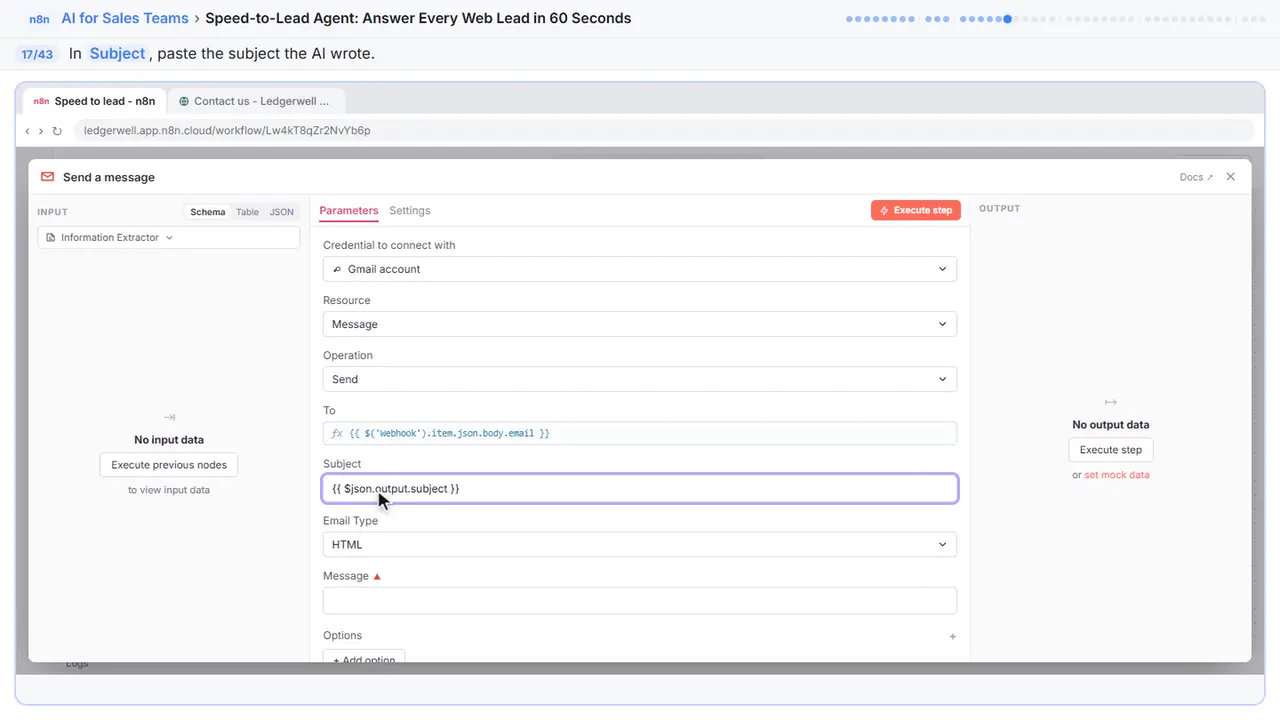
Step 18: Message
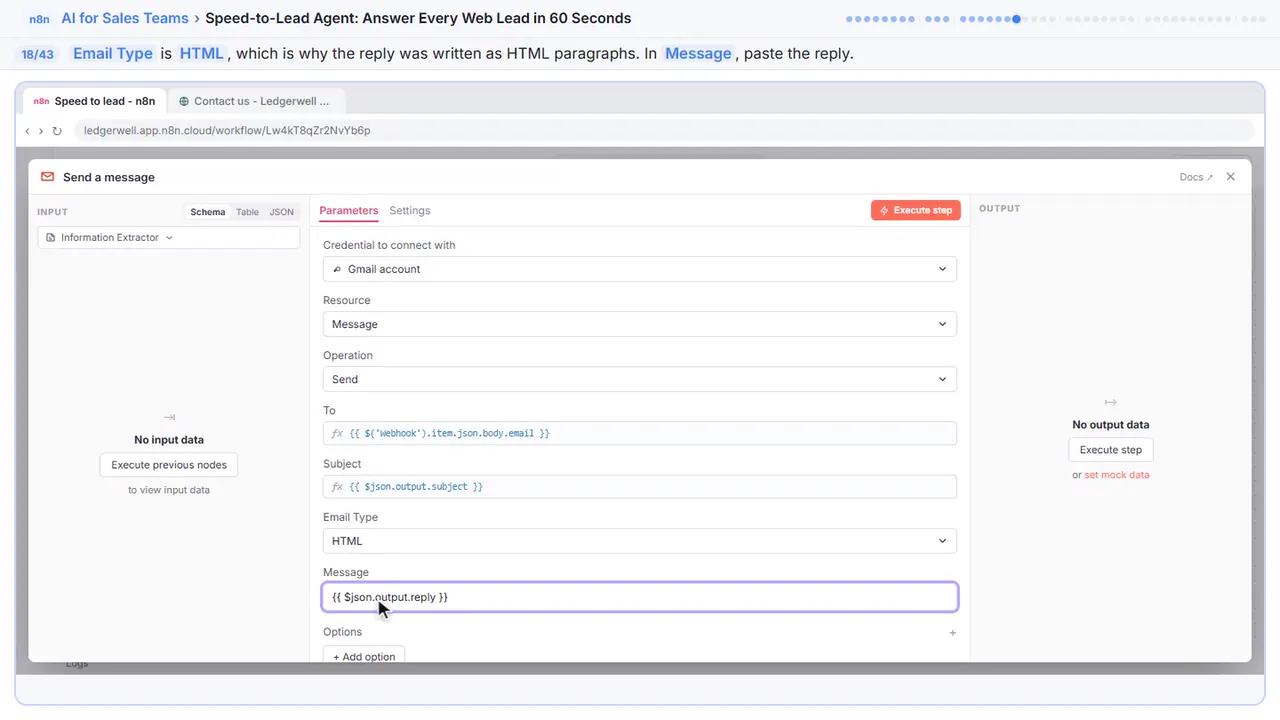
Email Type is HTML. That is why the instructions asked for the reply in HTML paragraphs, so the line breaks survive. In Message, paste the reply.
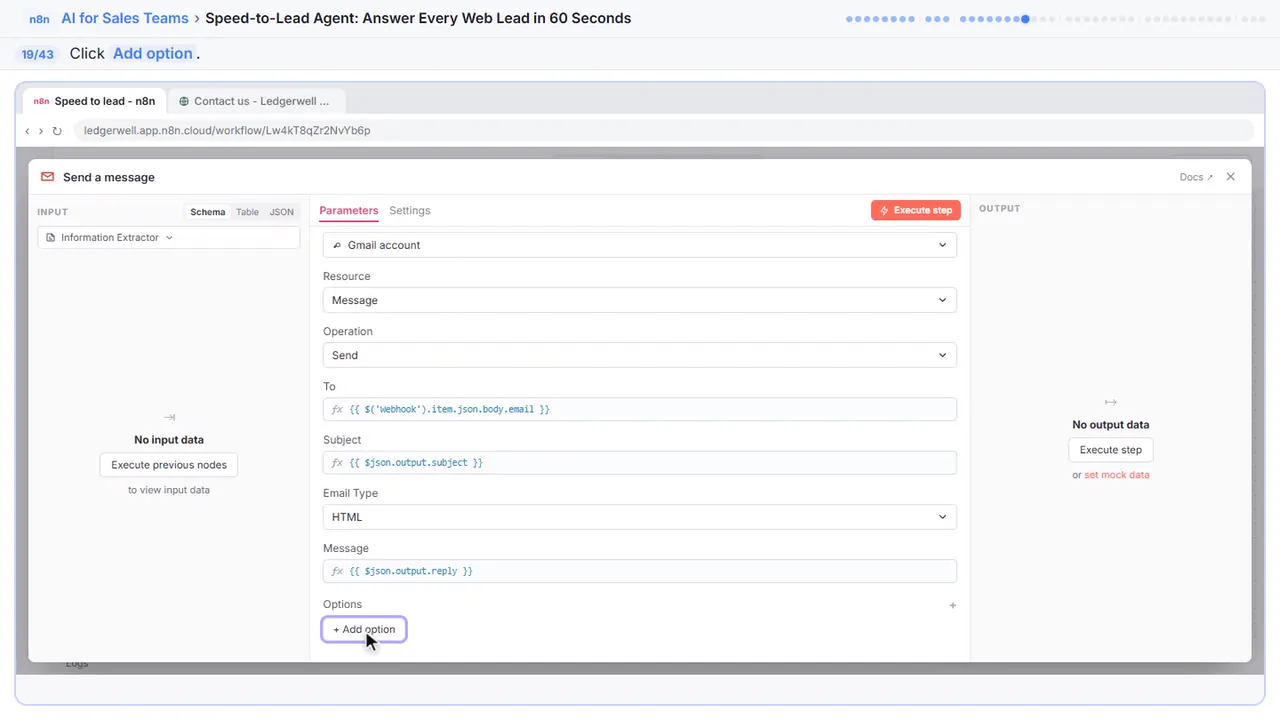
Step 19: Add option
One thing before a client sees this. By default n8n adds a line saying the email was sent automatically with n8n.
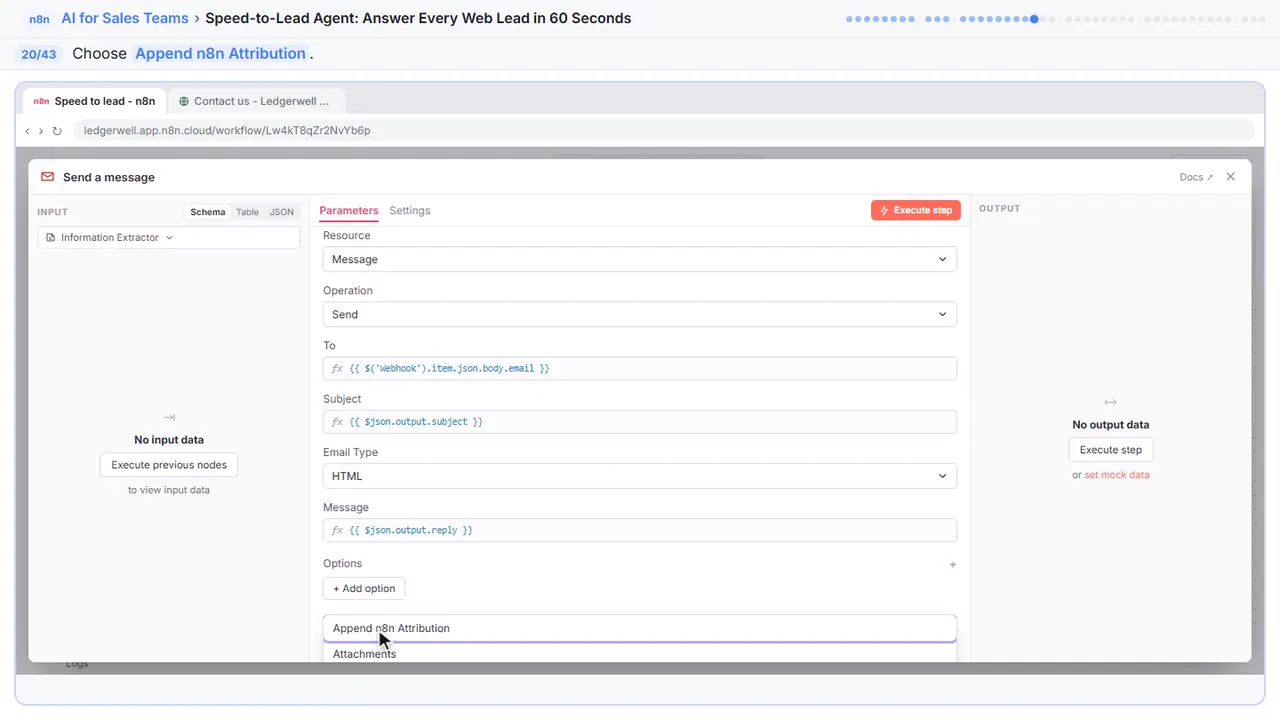
Step 20: Append n8n Attribution
Step 21: Turn it off
It's on. Turn it off, so the reply reads like it came from you.
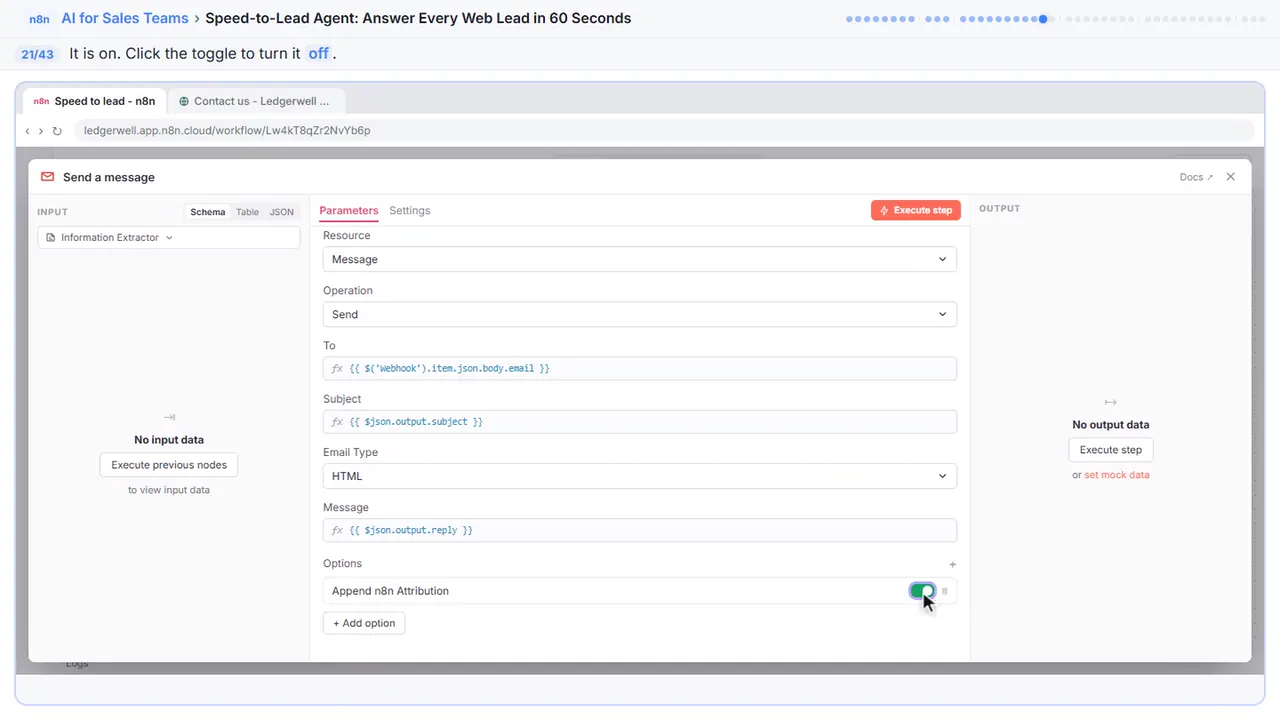
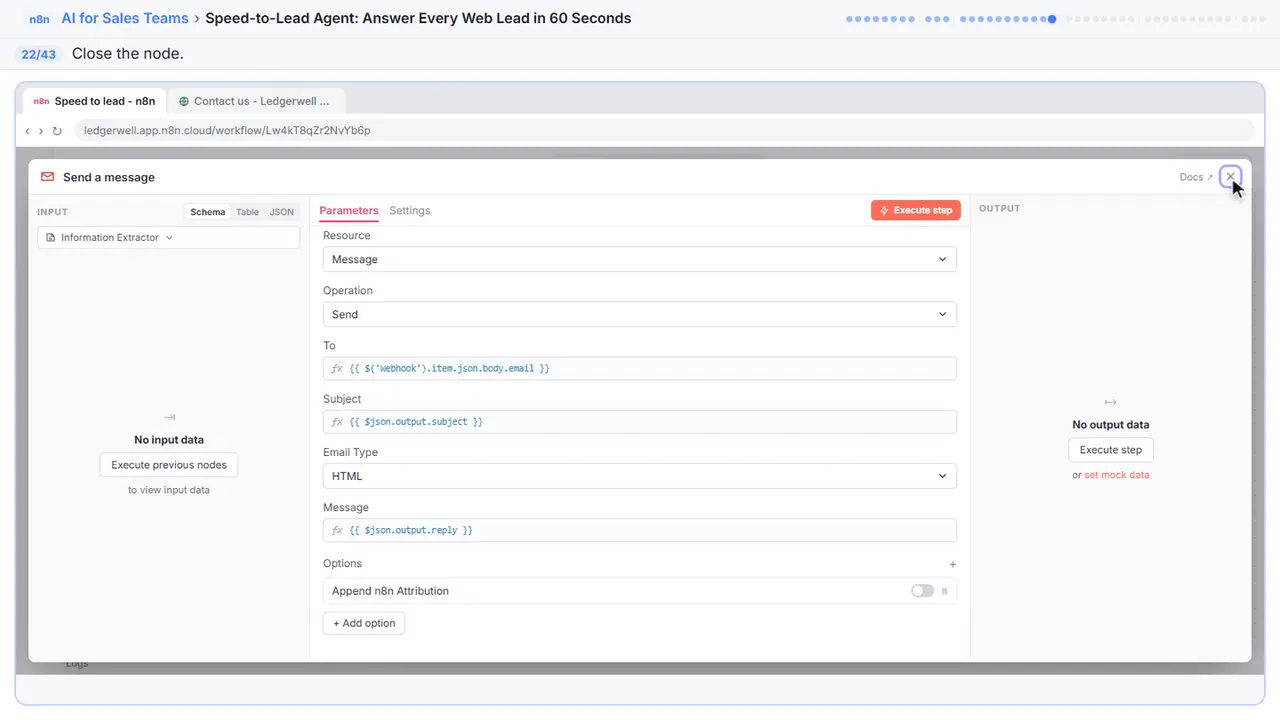
Step 22: Close the node
Close it.
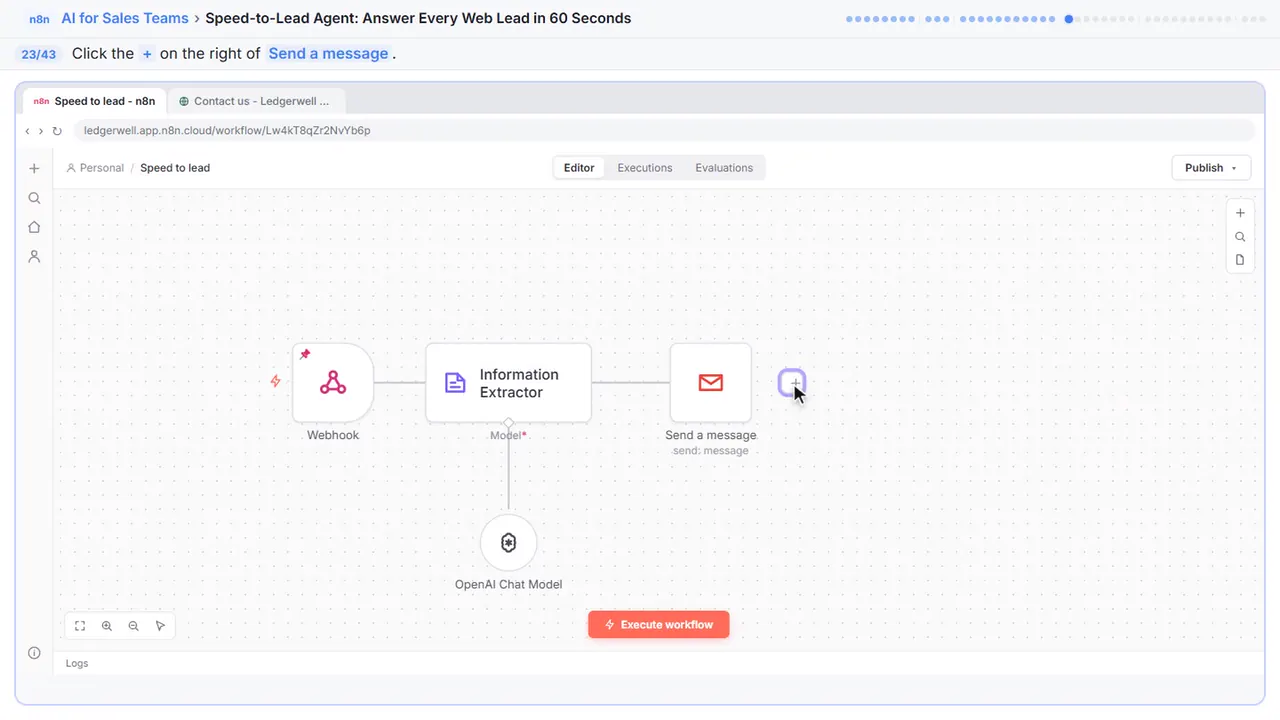
Part 4: Only hot leads
Step 23: Add a check
Every lead gets a reply. Only hot leads should interrupt you.
Step 24: Search for If
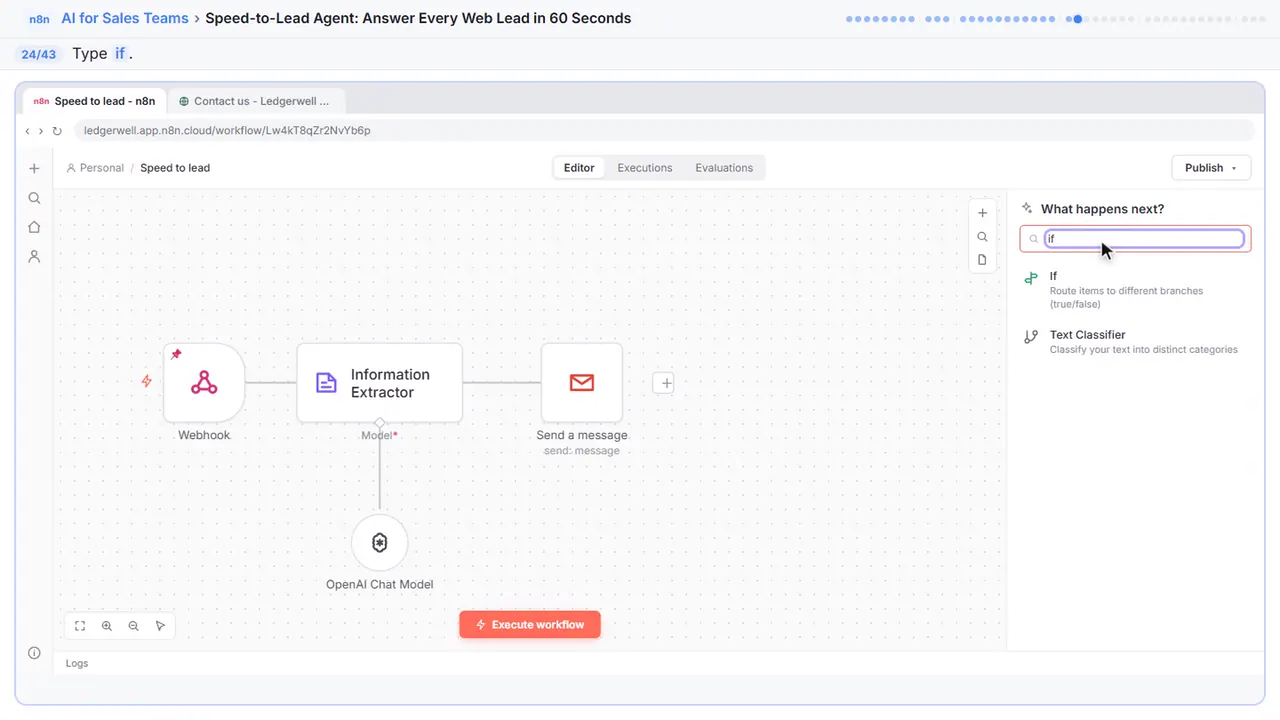
Step 25: If
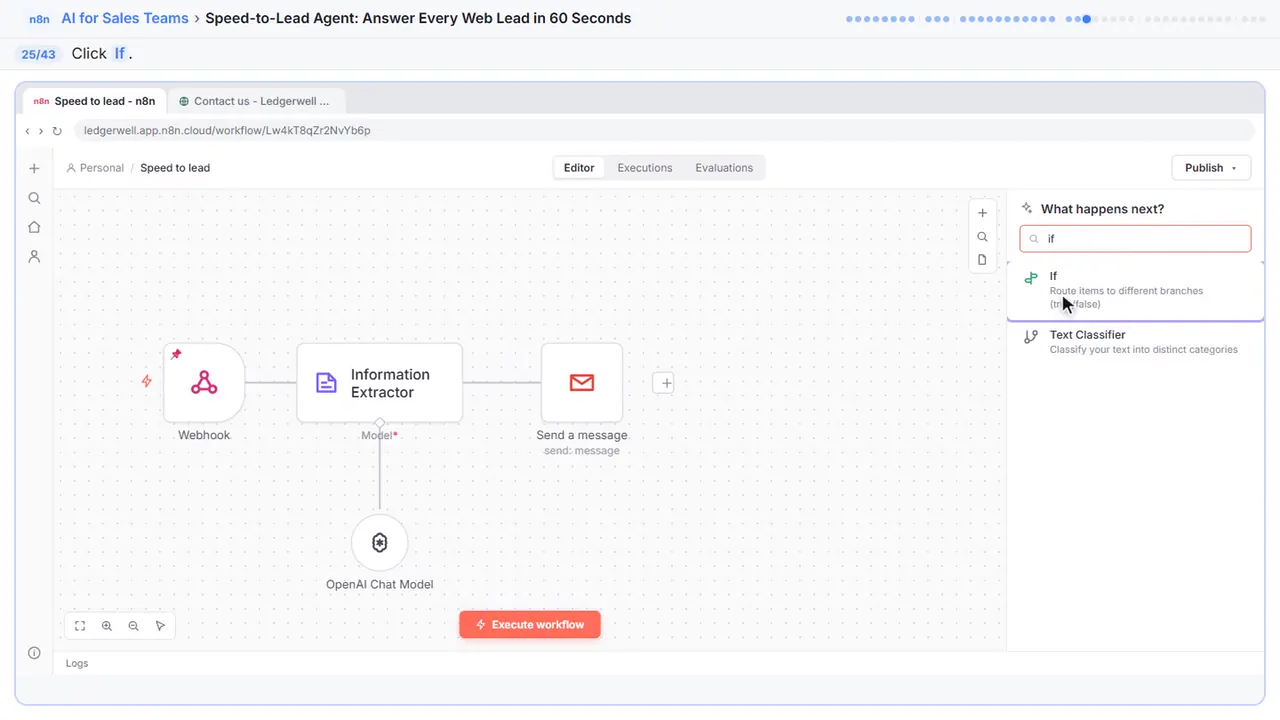
Step 26: Check the score
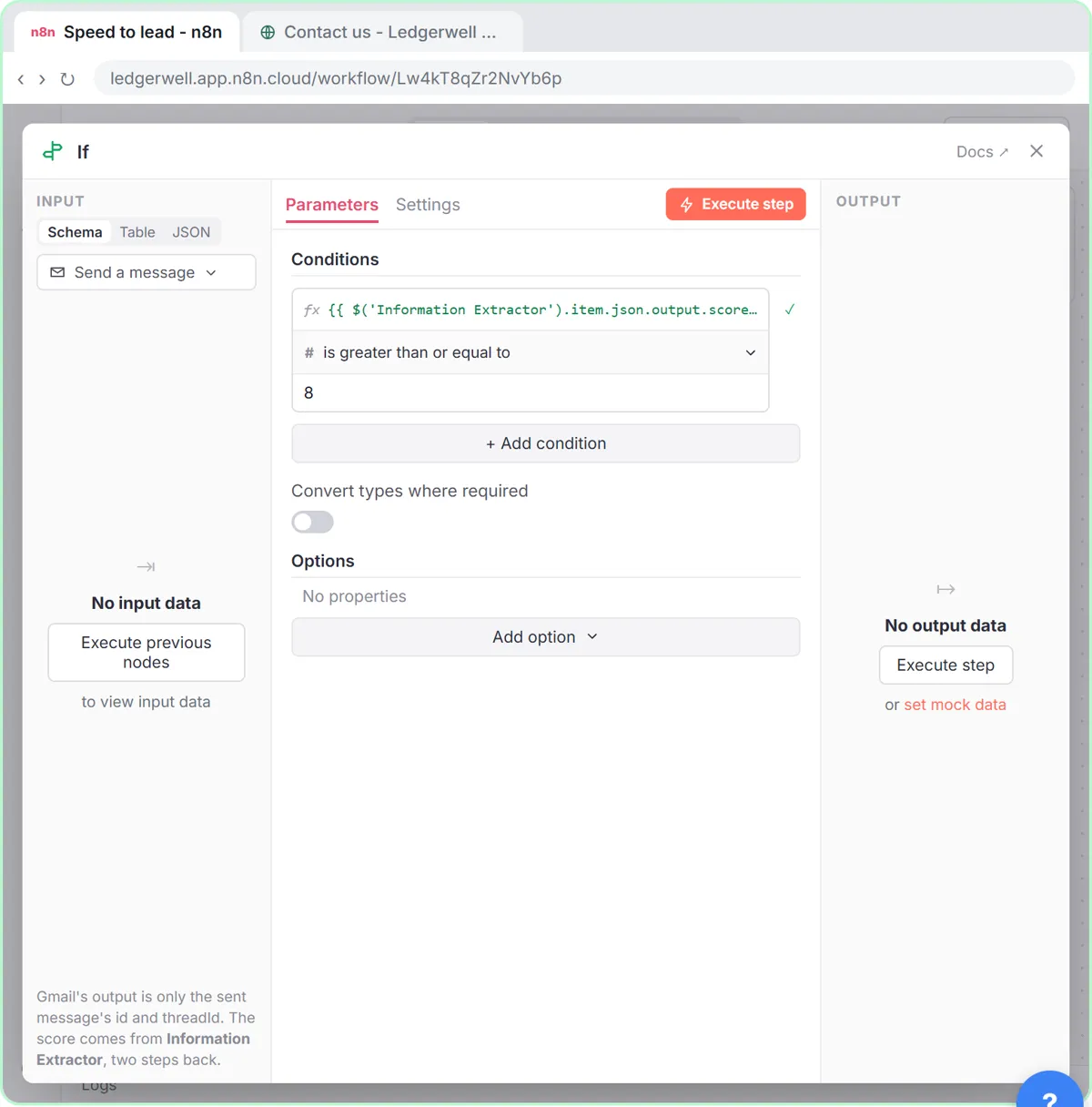
In the first box, paste this. It's the score from the extractor. The Gmail step's output doesn't have it, so the expression names the extractor node.
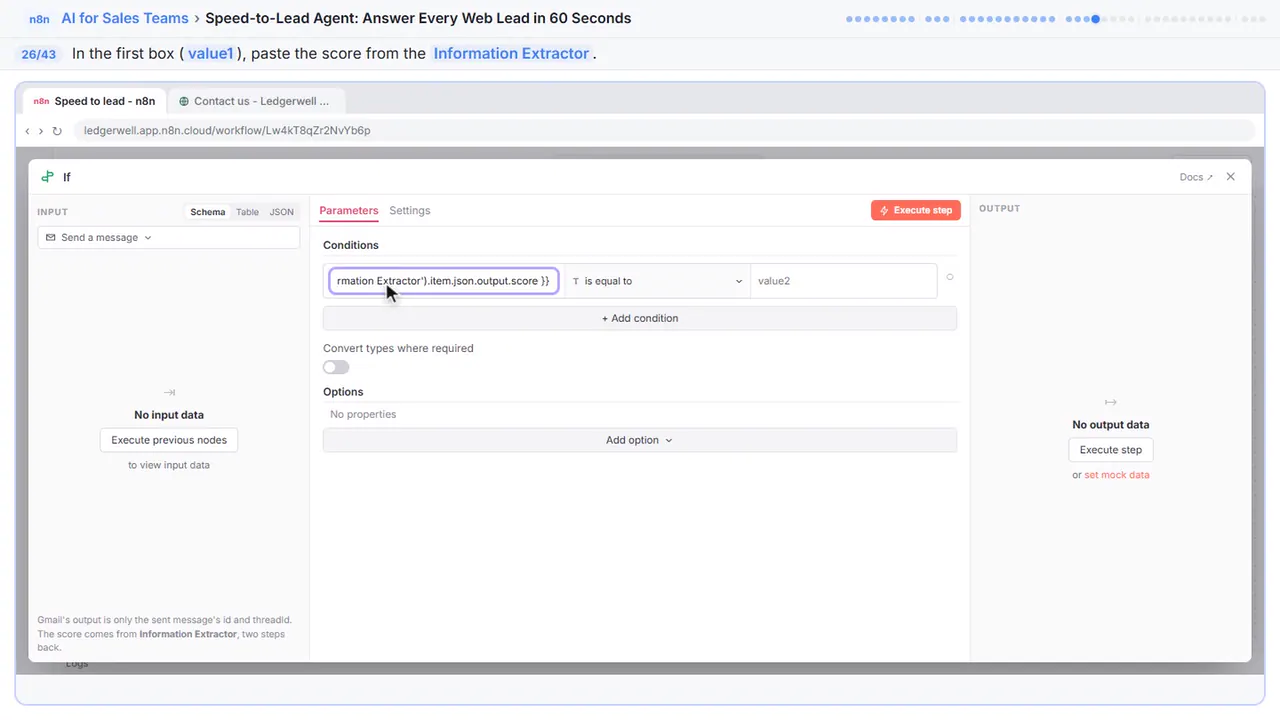
Step 27: Pick the comparison
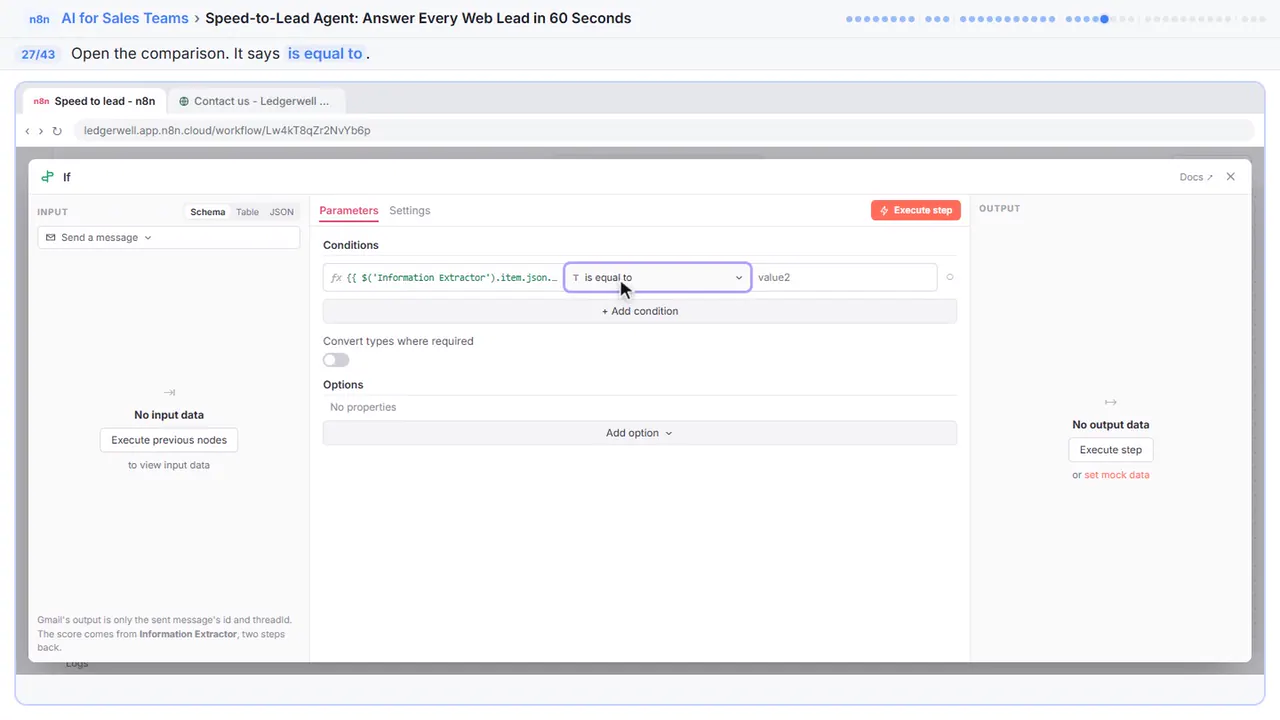
Step 28: is greater than or equal to
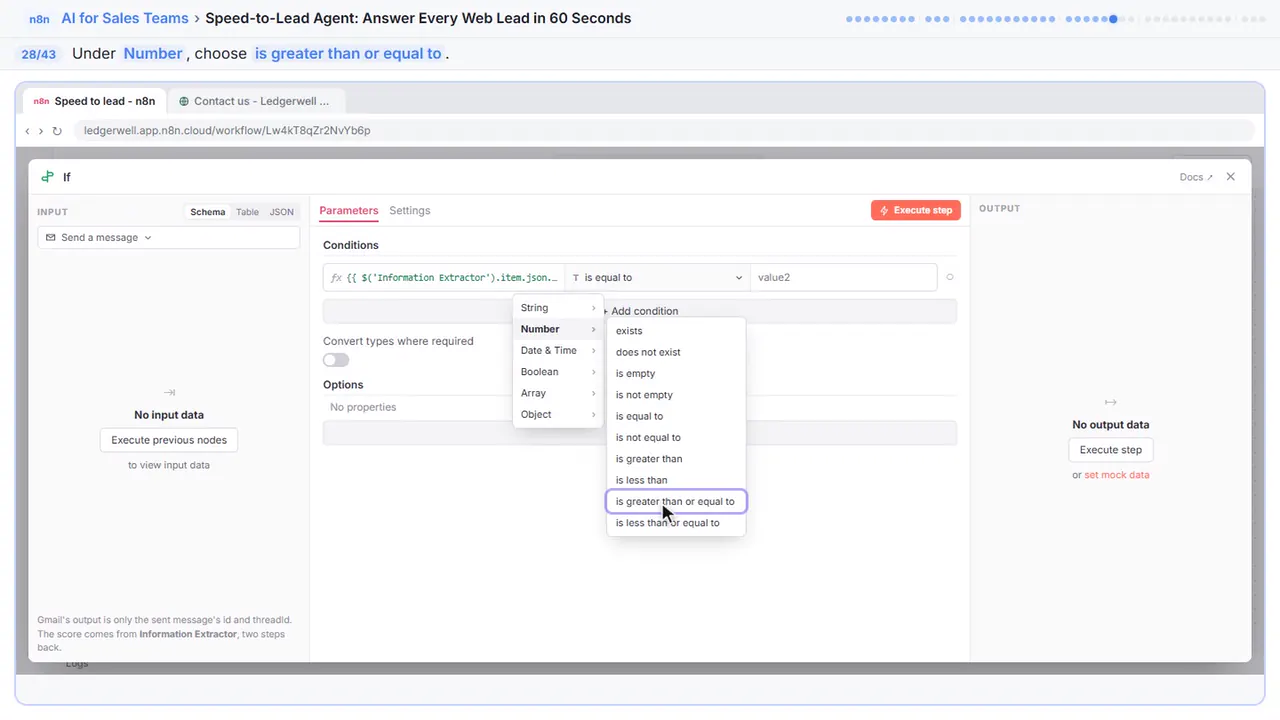
Step 29: Hot means 8 or more
Eight or more is hot, the way you defined it in the instructions.
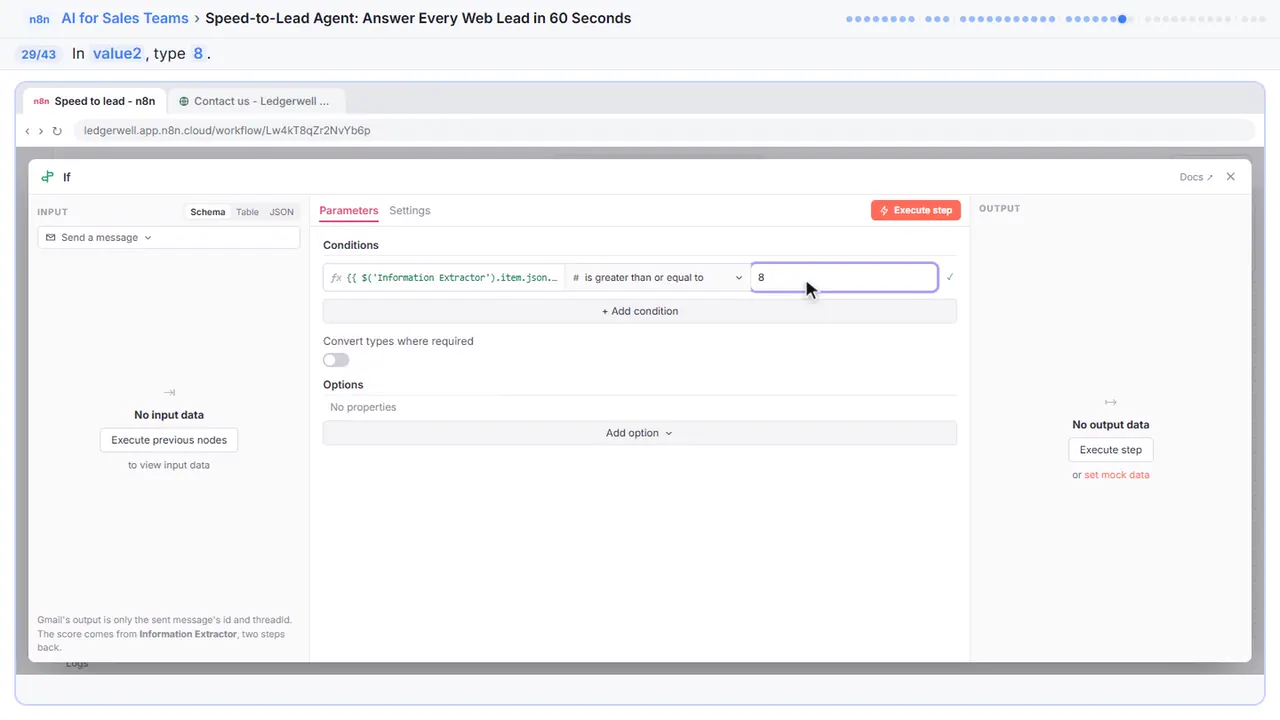
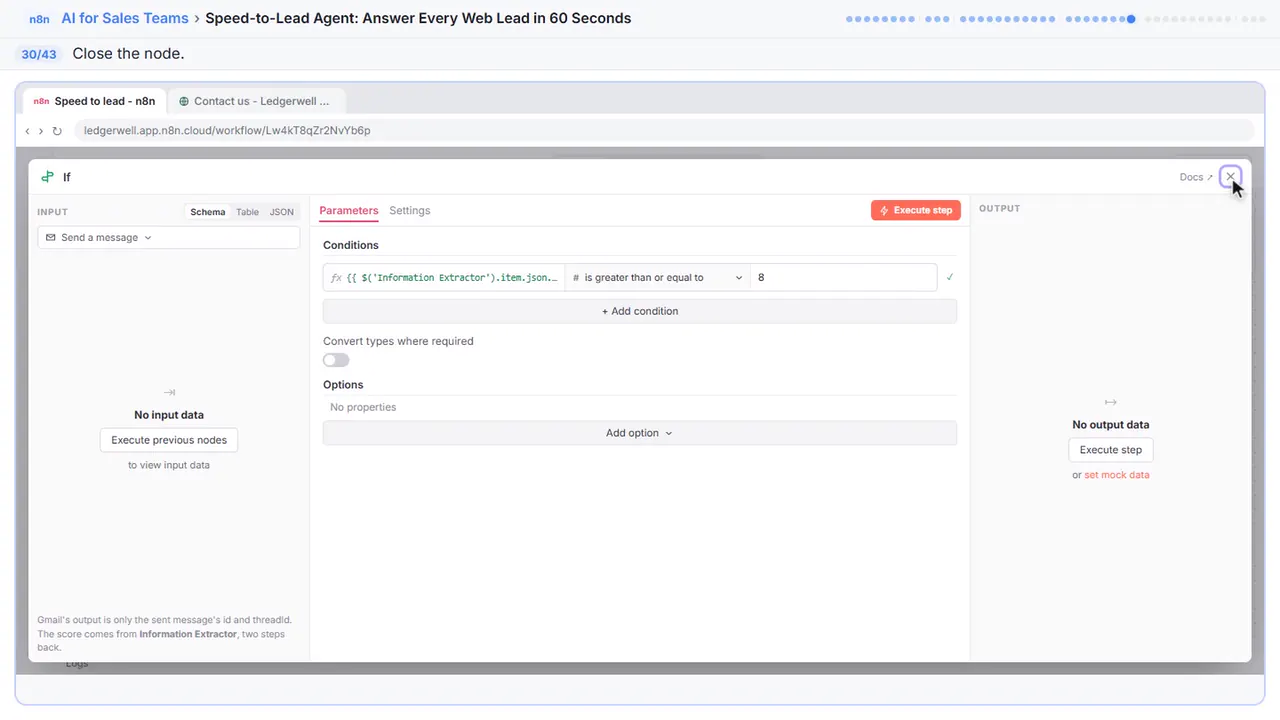
Step 30: Close the node
Close it.
Part 5: Ping the team
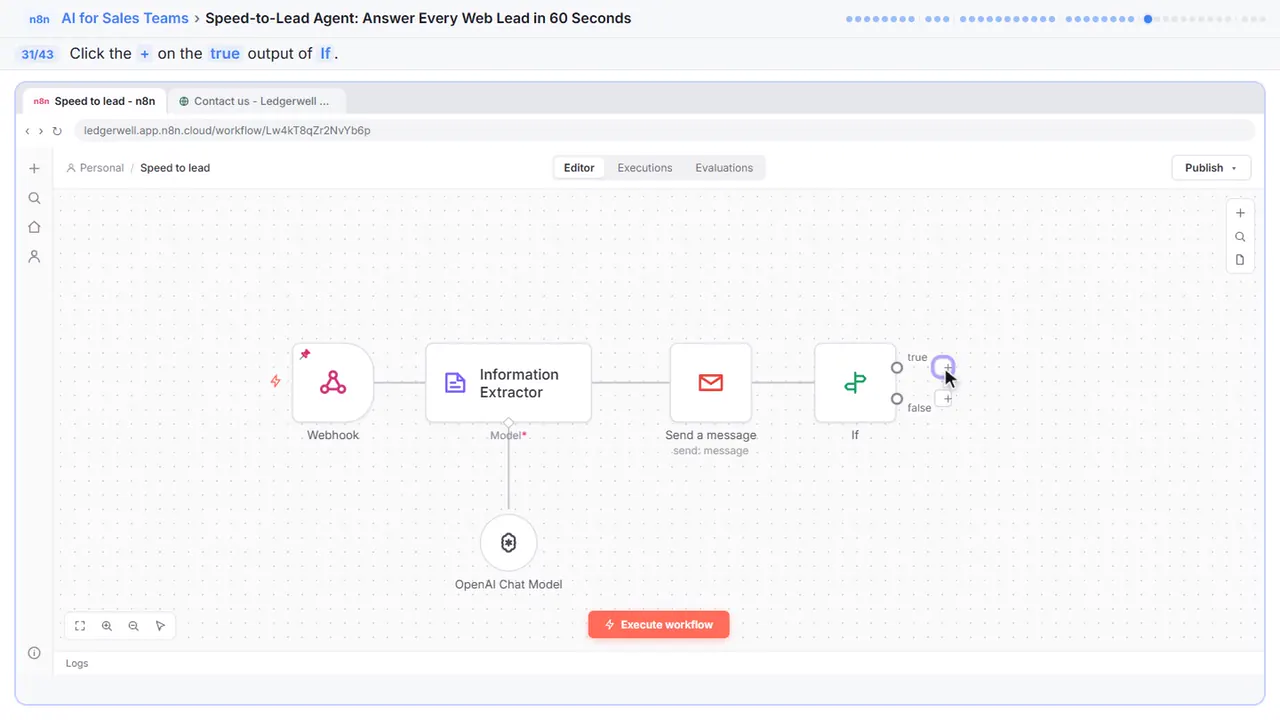
Step 31: Add to the true branch
Hot leads go out the true side. The false side gets nothing: those leads already have their reply.
Step 32: Search for Slack
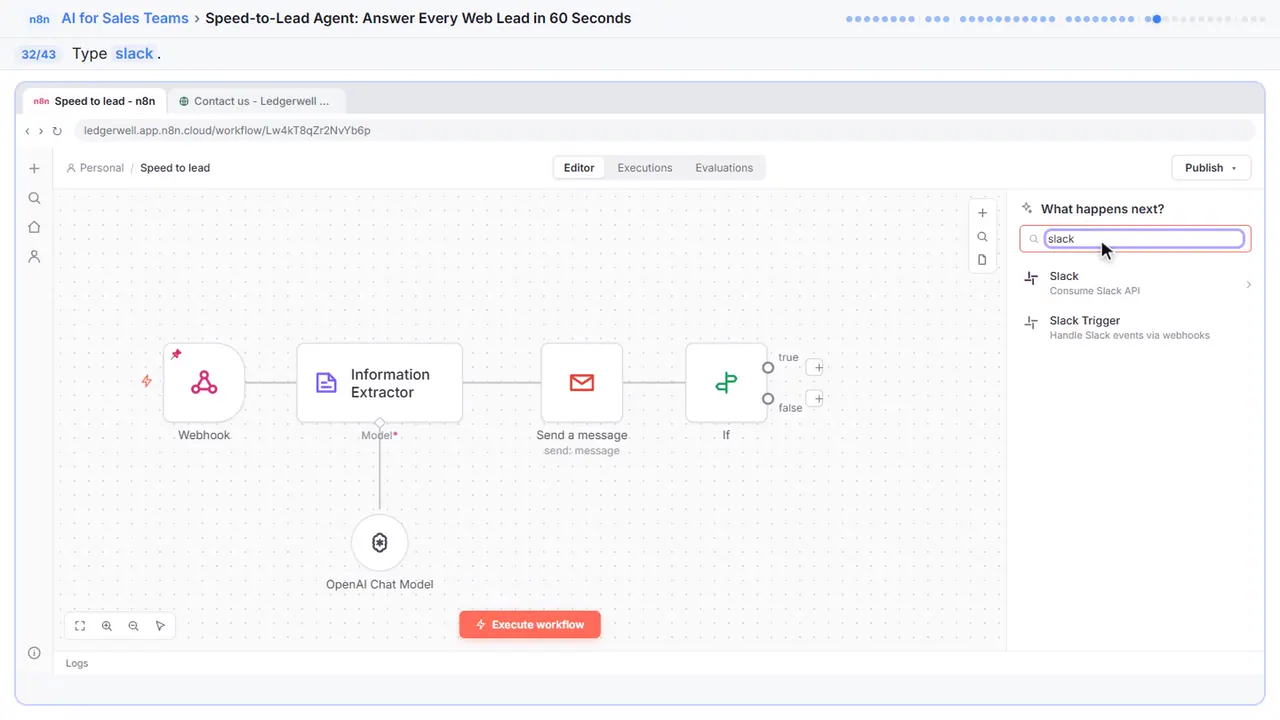
Step 33: Slack
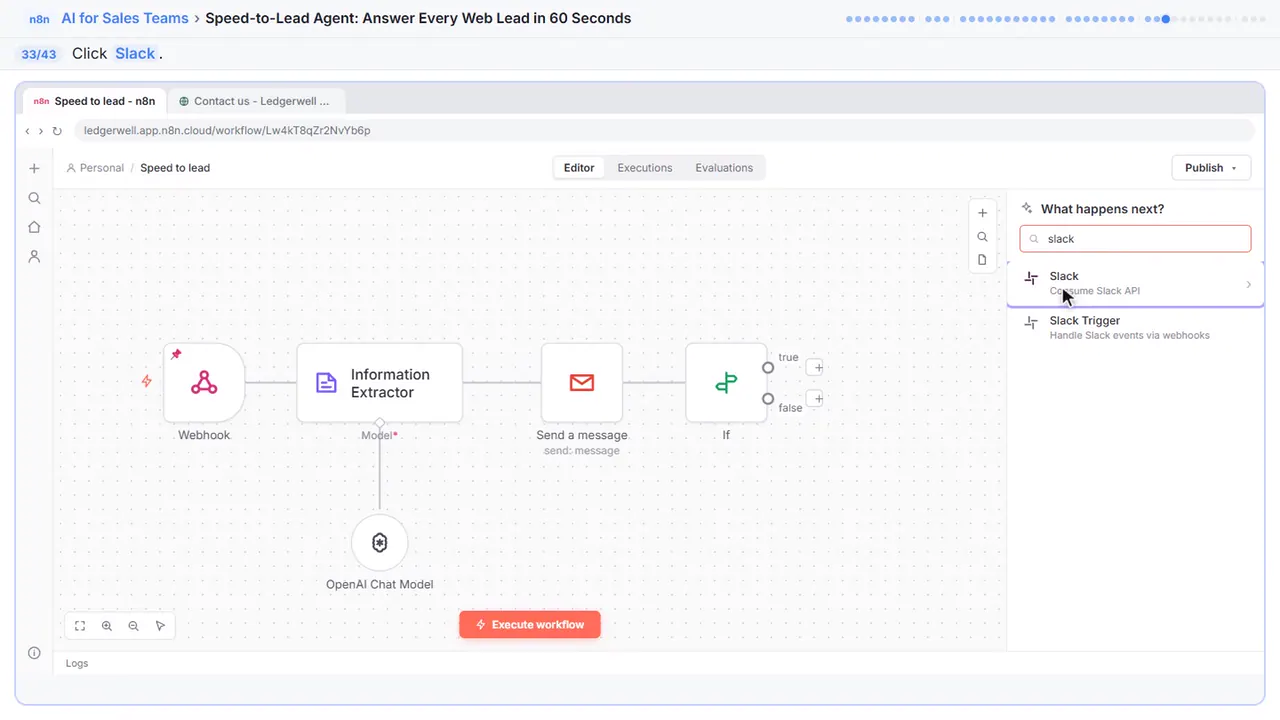
Step 34: Send a message
Under Message Actions, click Send a message.
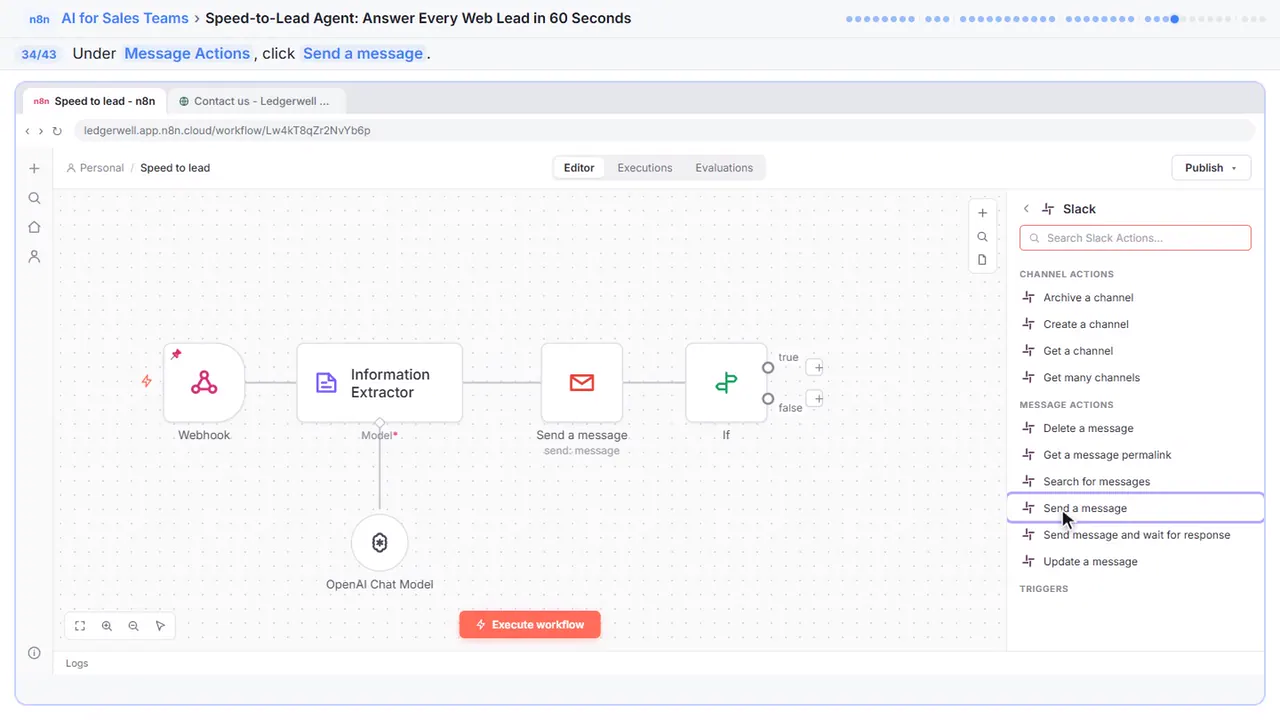
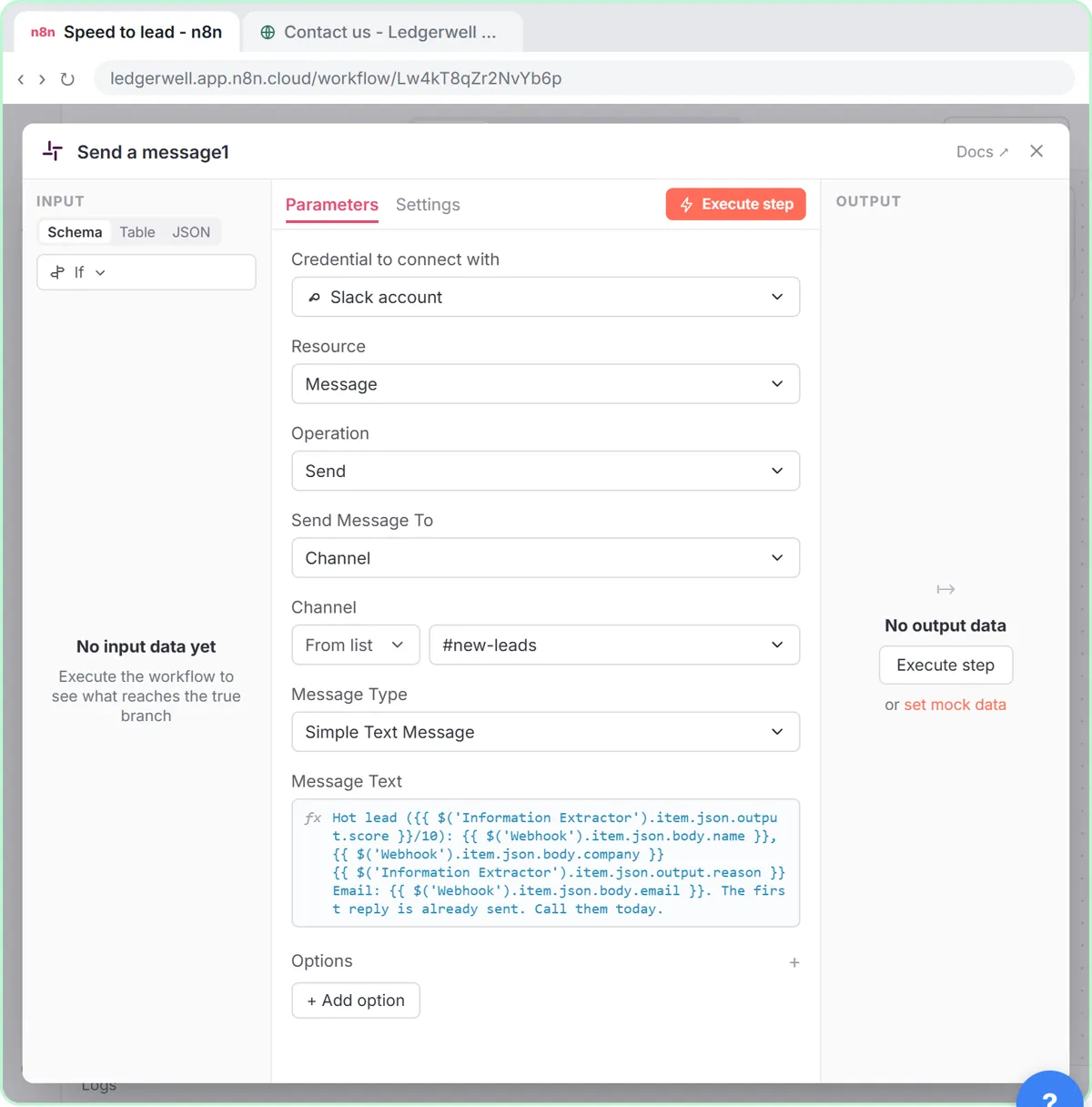
Step 35: Send Message To
Your Slack account is already connected.
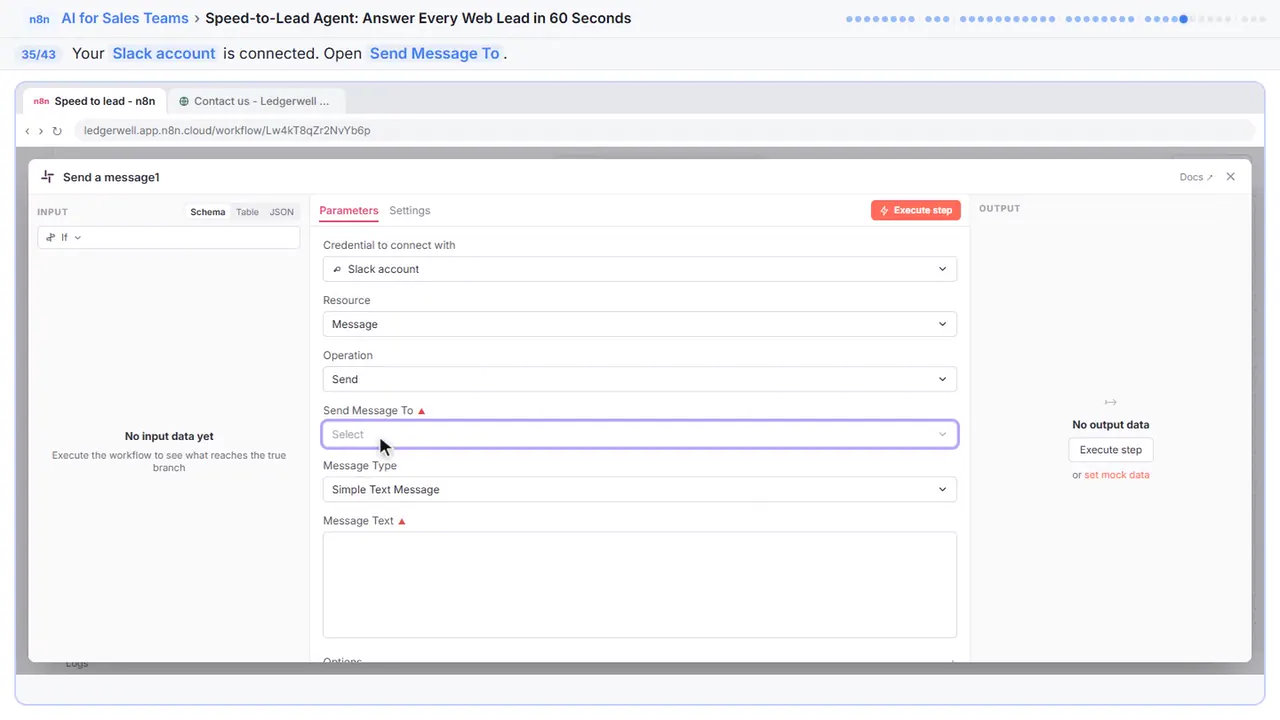
Step 36: Channel
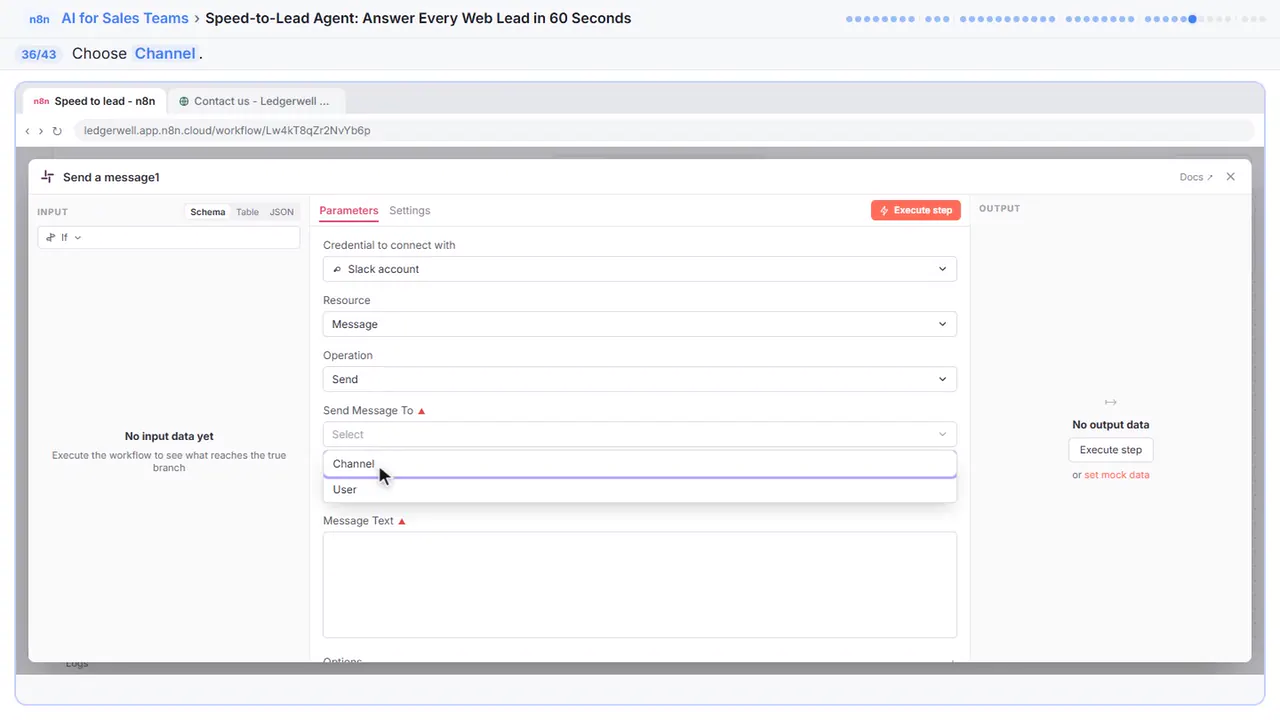
Step 37: Pick the channel
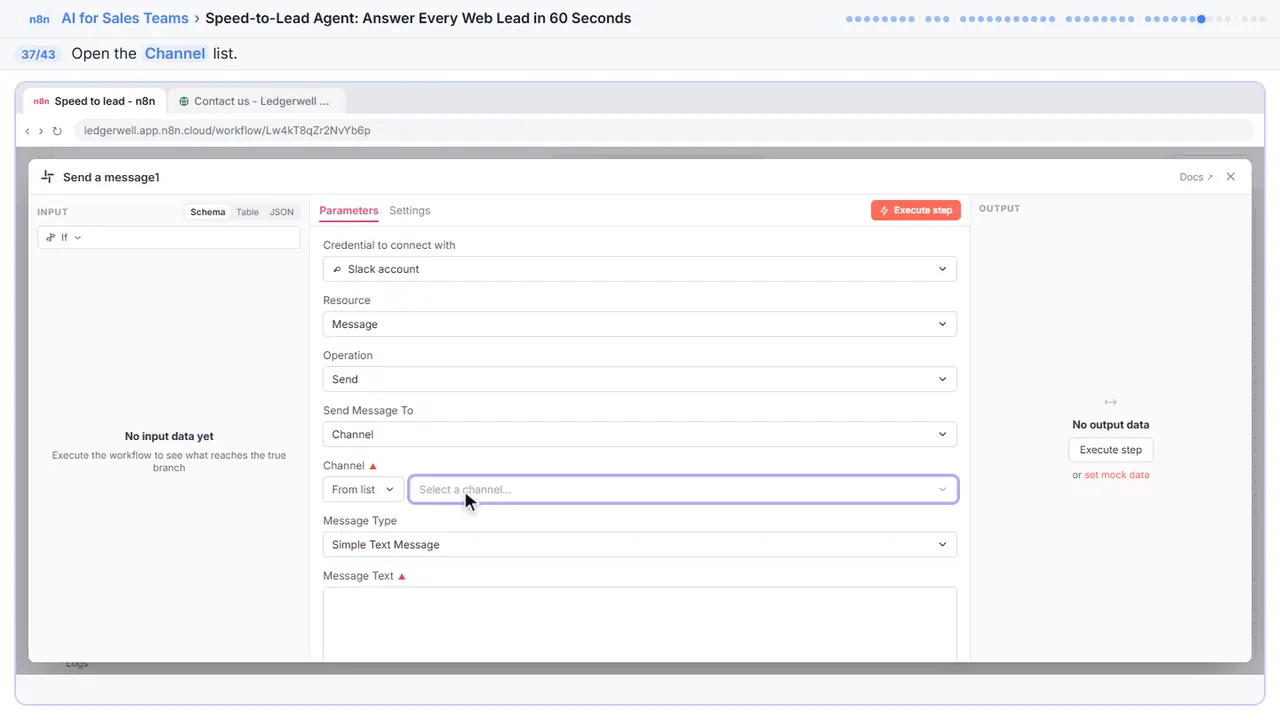
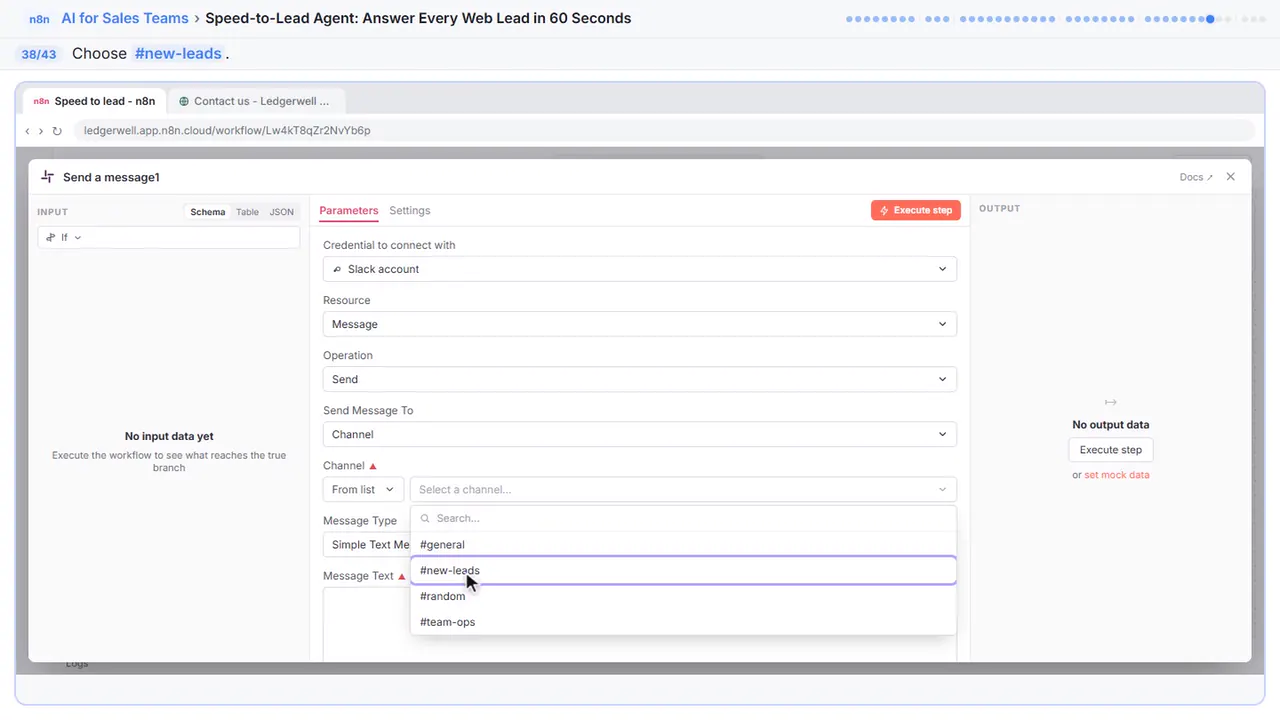
Step 38: #new-leads
Pick new leads. Add the Slack app to that channel first, or the message can't post there.
Step 39: Write the alert
The score, the name and company, the reason, and their email. It also says the first reply is already sent, so nobody sends a second one.
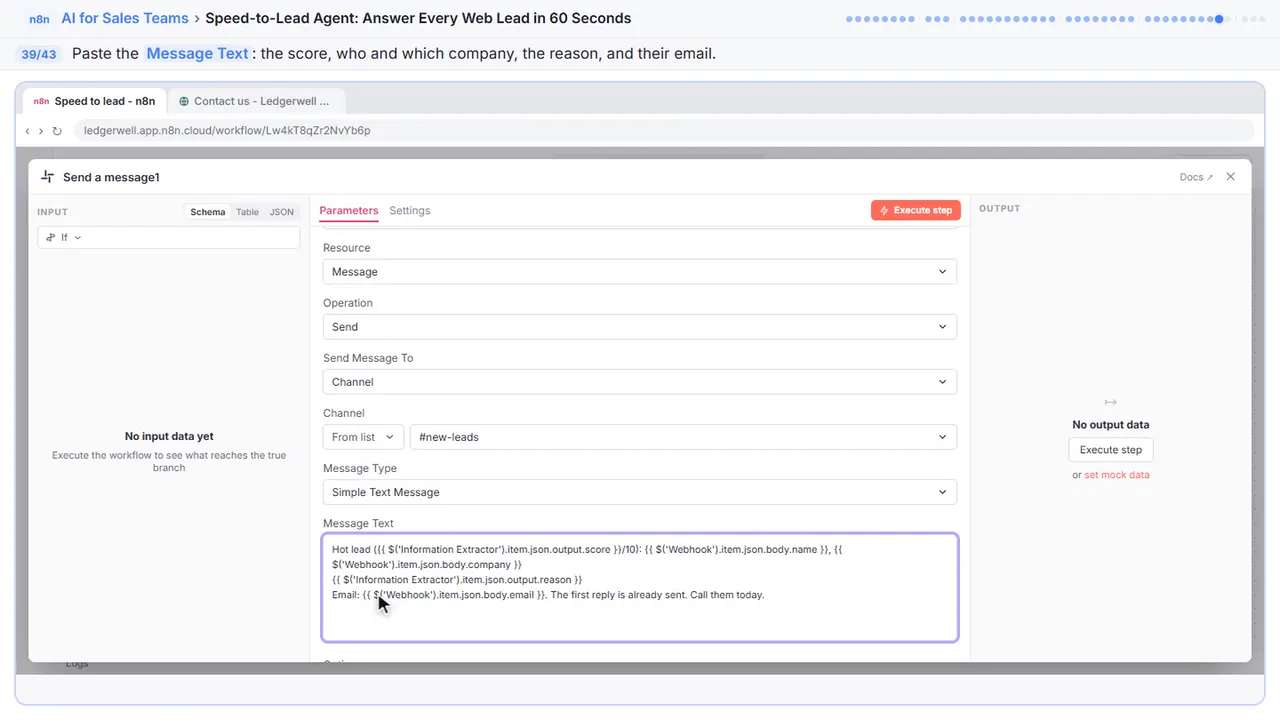
Hot lead ({{ $('Information Extractor').item.json.output.score }}/10): {{ $('Webhook').item.json.body.name }}, {{ $('Webhook').item.json.body.company }}
{{ $('Information Extractor').item.json.output.reason }}
Email: {{ $('Webhook').item.json.body.email }}. The first reply is already sent. Call them today.
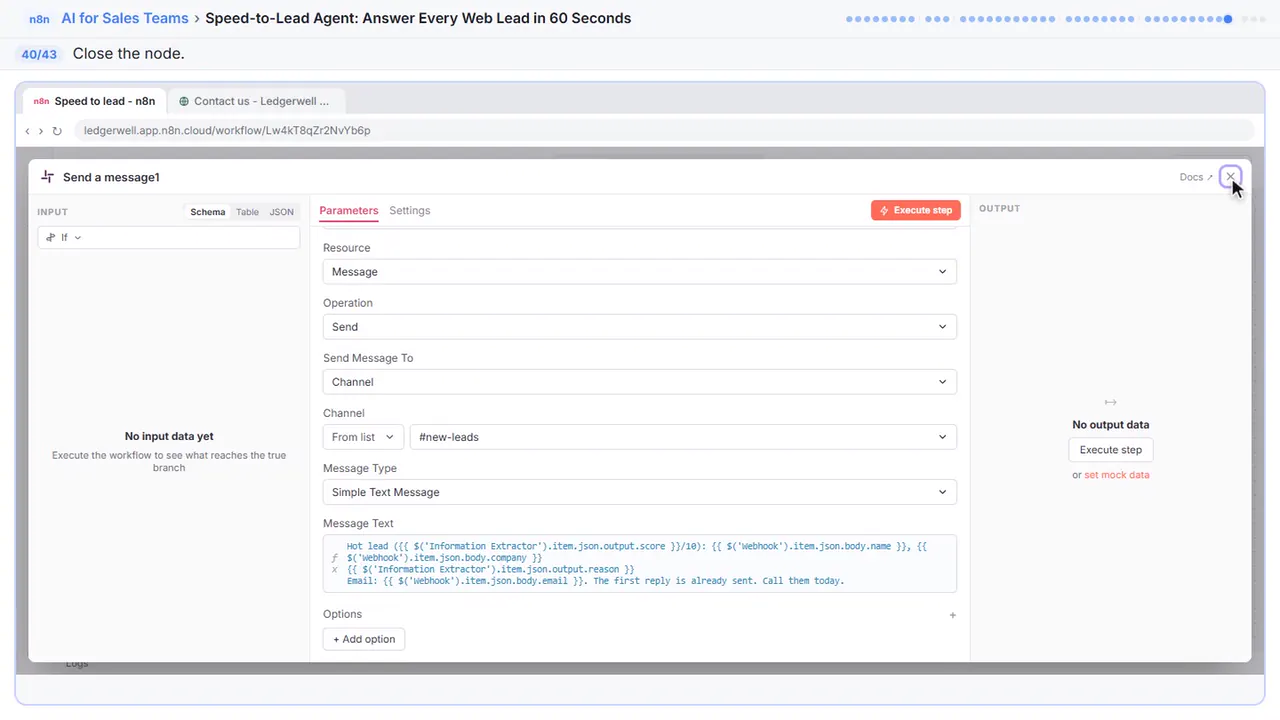
Step 40: Close the node
Close it.
Part 6: Test and go live
Step 41: Test it
Time to test. It runs on the pinned test lead, Jordan, who needs monthly books and payroll, has the budget, and wants to start this month.
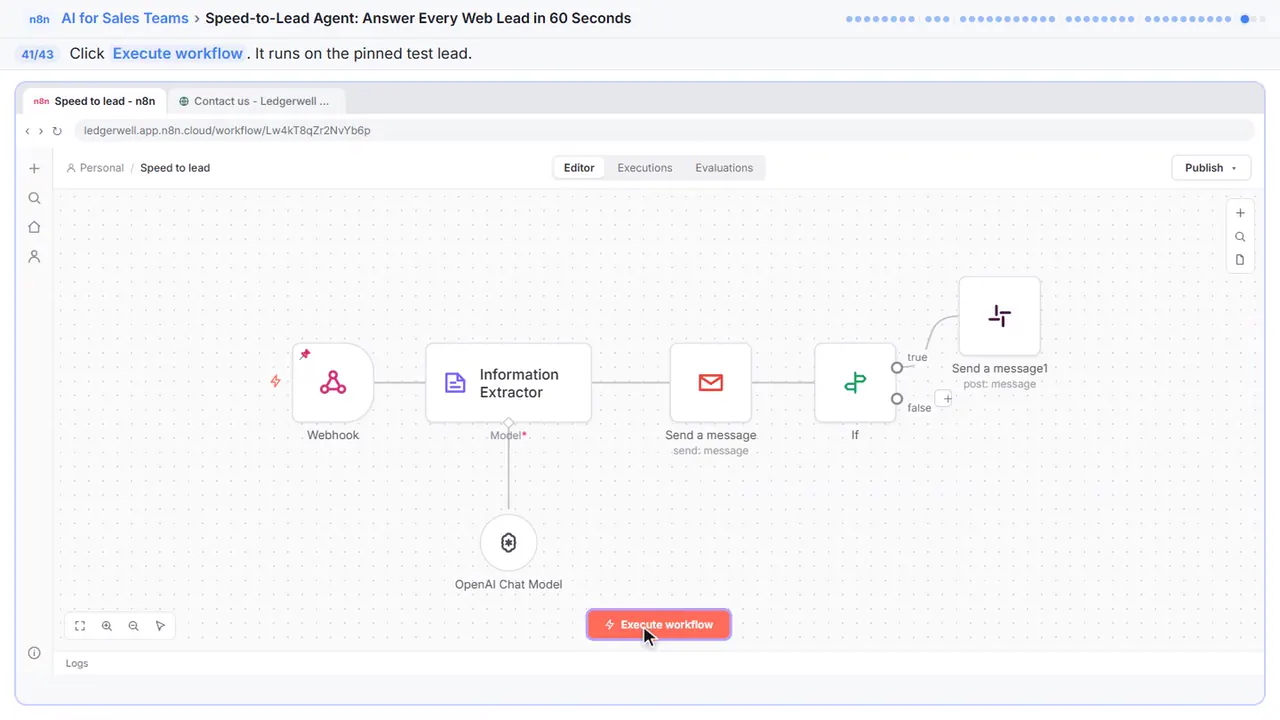
Step 42: Publish
Right now it only runs when you press the button.
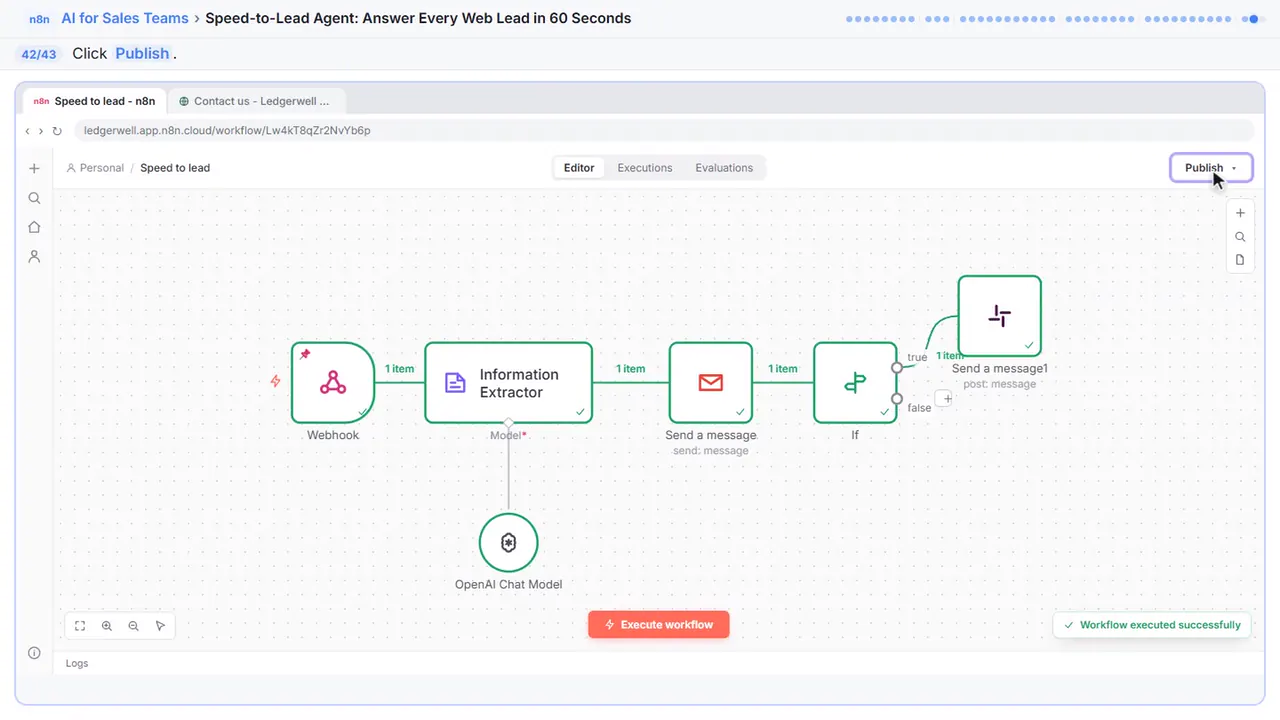
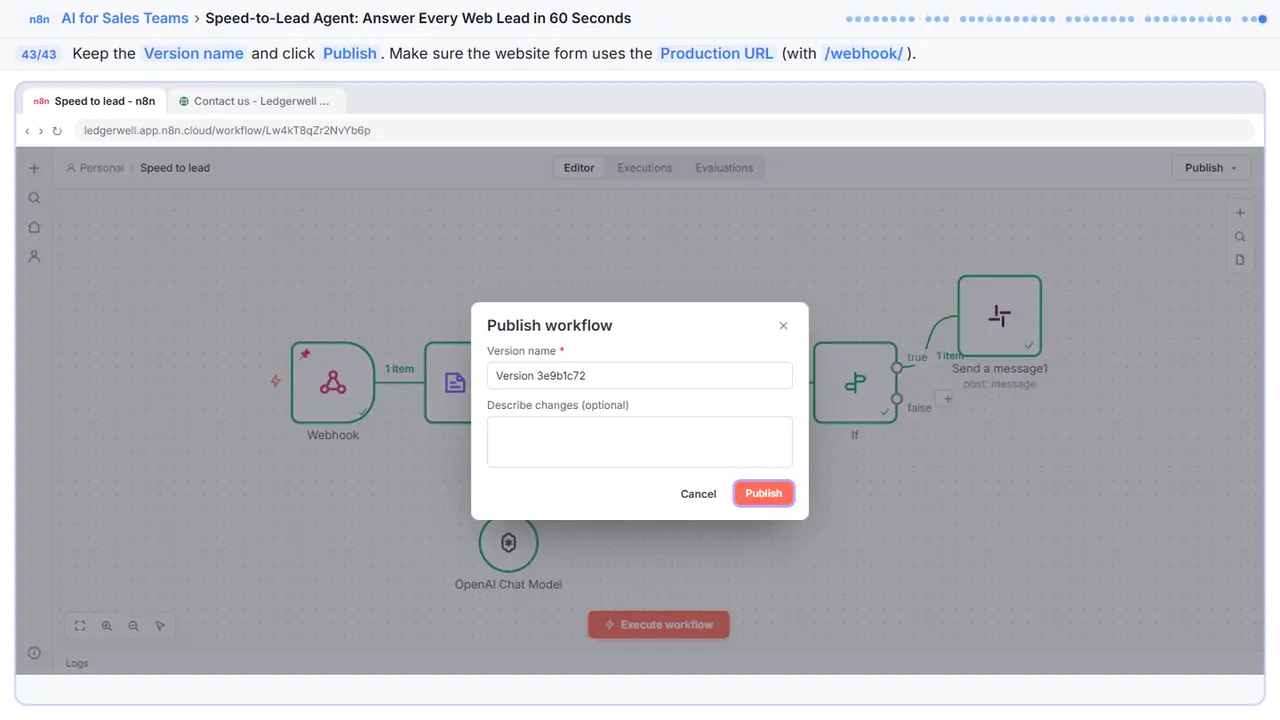
Step 43: Publish it
Keep the version name and click Publish. Then check that your website form sends to the Production URL. That's the one that says webhook, not webhook test. From now on every lead gets a reply in seconds, and you hear about the hot ones right away.
Now do it yourself, free
Reading the steps is a start. Doing them is how it sticks. The interactive lesson puts you in a practice copy of n8n: you do every step yourself, it checks your work, and “Do it for me” finishes any step you get stuck on. Nothing touches your real accounts.
Practice “Speed-to-Lead Agent: Answer Every Web Lead in 60 Seconds” step by stepSpeed-to-Lead Agent: Answer Every Web Lead in 60 Seconds: video walkthrough
The whole lesson in 3:28, narrated step by step.
Simulated practice environment. Recorded in Stepthrough’s simulated practice environment, not the live tool. Practice it yourself free at learn.ynteractive.com.
Chapters
Click a chapter to jump the video there.
- 0:00 Score the lead
- 0:58 Add the AI model
- 1:11 Reply in seconds
- 1:57 Only hot leads
- 2:23 Ping the team
- 2:56 Test and go live
Now do it yourself, free
Watching is the warm-up. The interactive lesson puts you in a practice copy of n8n: you do every step yourself, it checks your work, and “Do it for me” finishes any step you get stuck on. Nothing touches your real accounts.
Practice “Speed-to-Lead Agent: Answer Every Web Lead in 60 Seconds” step by stepFull transcript
Score the lead
0:00 You're Maya at Ledgerwell Bookkeeping. Leads come in through the website form, and the ones you answer first are the ones you win. This workflow already catches each form entry with a webhook, and one test lead is pinned to it. Click the plus on the right of the Webhook.
0:12 Type extractor.
0:14 Click Information Extractor. It reads text and hands back exactly the fields you ask for, every time.
0:20 On the left you can see the lead. Everything from the form sits inside body. Paste this into Text. It says what a hot, warm and cold lead looks like for this firm, pulls in the lead's answers, and asks for a short first reply with a booking link. Notice it leaves out the email address and phone number. The AI doesn't need them, so don't send them.
0:38 Now tell it which fields to hand back. Open Schema Type.
0:41 Choose Generate From JSON Example. You show it one example, and it copies the shape.
0:45 Replace the sample with this. Five fields: a score from one to ten, the tier, the reason, an email subject and the reply. The values are only examples. The shape is what counts.
0:56 Close it.
Add the AI model
0:57 The extractor still needs a brain. Click the plus under Model.
1:00 OpenAI Chat Model.
1:02 Your saved OpenAI key is already picked, and the default model is fine for scoring a lead. Each one costs a fraction of a cent. Close it.
Reply in seconds
1:11 Now the speed part: reply to the lead right away. Click the plus on the right of the extractor.
1:16 Type gmail.
1:17 Click Gmail.
1:18 Click Send a message.
1:20 Your Gmail account is already connected. In To, paste this. It takes the email address from the Webhook, two steps back, so the reply goes to whoever filled in the form.
1:29 In Subject, paste the subject the AI wrote.
1:32 Email Type is HTML. That is why the instructions asked for the reply in HTML paragraphs, so the line breaks survive. In Message, paste the reply.
1:41 One thing before a client sees this. By default n8n adds a line saying the email was sent automatically with n8n. Click Add option.
1:49 Choose Append n eight n Attribution.
1:52 It's on. Turn it off, so the reply reads like it came from you.
1:56 Close it.
Only hot leads
1:57 Every lead gets a reply. Only hot leads should interrupt you. Click the plus after Send a message.
2:02 Type if.
2:04 Click If.
2:05 In the first box, paste this. It's the score from the extractor. The Gmail step's output doesn't have it, so the expression names the extractor node.
2:13 Open the comparison in the middle.
2:15 Under Number, choose is greater than or equal to.
2:18 Type eight. Eight or more is hot, the way you defined it in the instructions.
2:22 Close it.
Ping the team
2:23 Hot leads go out the true side. Click the plus on true. The false side gets nothing: those leads already have their reply.
2:29 Type slack.
2:30 Click Slack.
2:31 Under Message Actions, click Send a message.
2:34 Your Slack account is already connected. Open Send Message To.
2:37 Choose Channel.
2:39 Open the channel list.
2:40 Pick new leads. Add the Slack app to that channel first, or the message can't post there.
2:45 Paste the message. The score, the name and company, the reason, and their email. It also says the first reply is already sent, so nobody sends a second one.
2:55 Close it.
Test and go live
2:56 Time to test. Click Execute workflow. It runs on the pinned test lead, Jordan, who needs monthly books and payroll, has the budget, and wants to start this month.
3:04 Right now it only runs when you press the button. Click Publish.
3:07 Keep the version name and click Publish. Then check that your website form sends to the Production URL. That's the one that says webhook, not webhook test. From now on every lead gets a reply in seconds, and you hear about the hot ones right away.
3:21 Simple as that. We show you and you do it. Sign up below to learn AI automation for free.
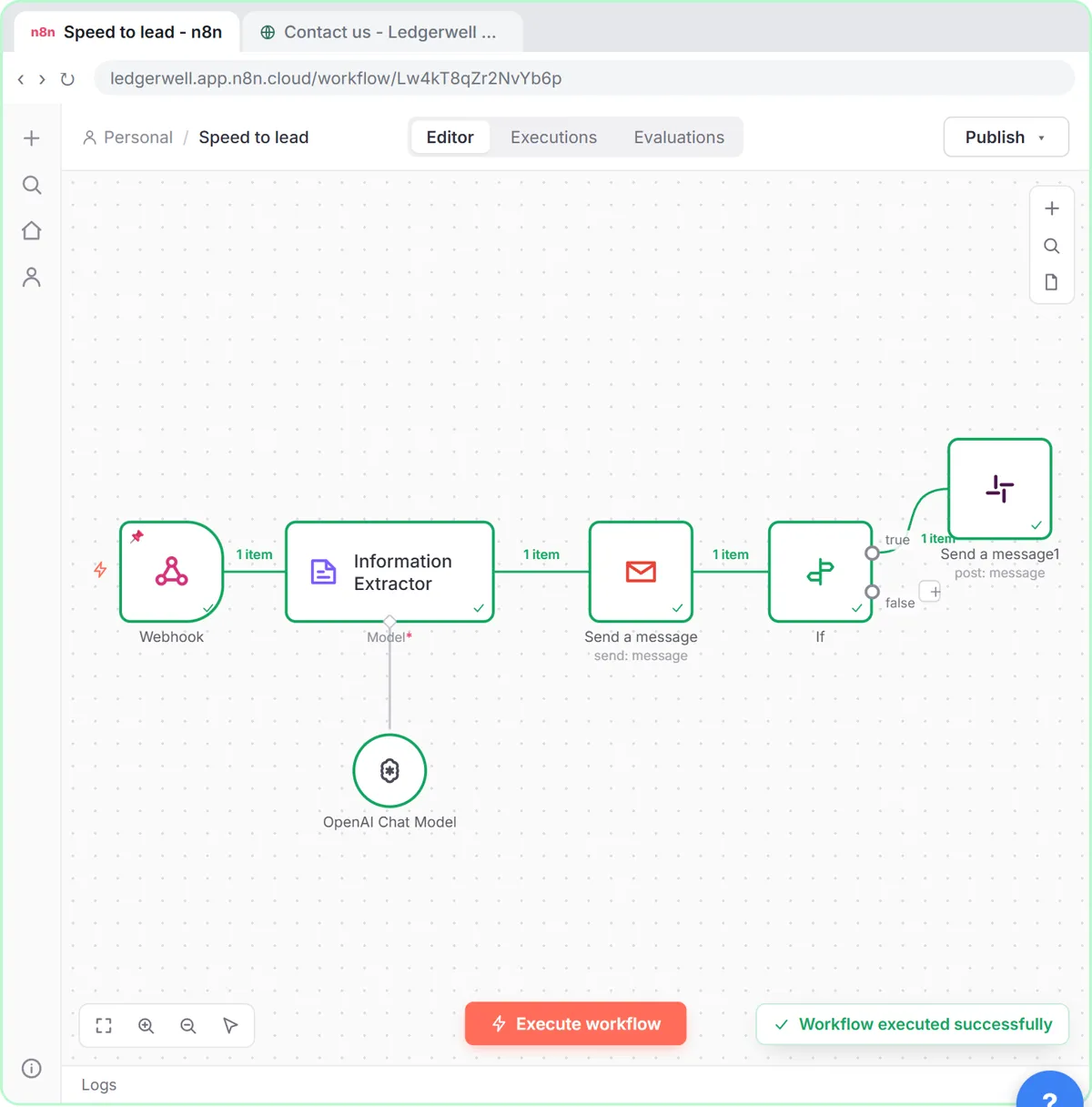
What you will build: a lead scorer and instant reply
You are Maya at Ledgerwell Bookkeeping, a made-up firm that does monthly bookkeeping, payroll and catch-up books for small businesses. Her website form already sends each new lead to an n8n Webhook, and one test lead is pinned to it: Jordan Ellis at Harbor Lane Physical Therapy, whose bookkeeper retires at the end of the month. Jordan needs monthly books and payroll for 9 employees, has a budget of $500 to $800 a month, and wants to start this month.
You add four steps after the Webhook. An Information Extractor scores the lead from 1 to 10, names the tier (hot, warm or cold), gives a one-sentence reason, and writes an email subject and a short first reply. A Gmail Send a message node sends that reply to the lead straight away. An If node checks whether the score is 8 or more. On its true branch, a Slack Send a message node posts the score, the reason and the lead's details to a #new-leads channel. Then you run it on Jordan's lead and publish it.
What you need for the real thing
- An n8n account. n8n Cloud Starter is about €20 a month with a free trial, or you can self-host the free Community Edition.
- An OpenAI API key with a little credit, saved as an OpenAI credential in n8n. Scoring one lead with a small model costs a fraction of a cent.
- Gmail and Slack connected in n8n, and the Slack app added to the channel you post to.
- A website form that can send each entry to a webhook URL (most form tools and site builders can).
How the lead score works
The instructions define hot, warm and cold in the firm's own terms. Hot (8 to 10) means the lead needs monthly help, can spend $400 a month or more, and wants to start within 30 days. Warm (5 to 7) is a fit that is unsure about budget or timing. Cold (1 to 4) is not a fit. Because the AI has to give a reason in one sentence, you can check every score at a glance, and when one looks wrong you change the definition instead of guessing why.
The Information Extractor returns the same five fields every time, under output. That is what makes the rest of the workflow reliable: Gmail always finds output.subject and output.reply, and the If node always finds a number in output.score.
Gotchas the lesson walks you through
- Form data sits inside body. A webhook receives headers, params, query and body; the form fields are in body, so the expressions read $json.body.name, not $json.name.
- Don't send what the AI doesn't need. The instructions pass the service, budget, timing, company and message, but not the email address or phone number.
- Email Type defaults to HTML, so line breaks in plain text disappear. The instructions ask for the reply as simple HTML paragraphs.
- Gmail adds a line saying the email was sent automatically with n8n unless you add the Append n8n Attribution option and turn it off.
- After the Gmail step, the incoming data is Gmail's own result (an id and a threadId). The If node therefore reads the score from the Information Extractor by name: $('Information Extractor').item.json.output.score.
- Two Send a message nodes in one workflow are named Send a message and Send a message1. That is normal.
- The Test URL only works while the editor is listening. After you publish, your form must post to the Production URL, the one with /webhook/ rather than /webhook-test/.
Keep it honest and safe
The reply never quotes a price or promises anything beyond a 20-minute call, because an automatic email that gets a detail wrong costs more trust than a slow one. Read the first ten replies it sends, and tighten the instructions if a sentence or a score looks off. Only use it on leads who asked to be contacted through your own form, and keep your privacy notice on that form.
Who this is for
Owners and office managers at small professional firms (bookkeeping, IT services, consulting, agencies, law and insurance offices), and sales reps who get inbound leads from a website. It is an advanced n8n module: it helps to have built a webhook and a first AI step before, but every click and every expression is given to you.
Try it yourself, free
Reading the steps is a start. Doing them is how it sticks. The interactive module walks you through every click in a practice copy of n8n, checks each step, and never touches your real accounts.
Start “Speed-to-Lead Agent: Answer Every Web Lead in 60 Seconds”Screenshots
Frequently asked questions
- How does the interactive lesson work?
- Each step is shown to you first on the left (Watch). Then you do it yourself in a practice copy on the right (Your turn), and every click is checked. If you get stuck, press Do it for me. It is a practice copy, so no real accounts are touched.
- Is this free?
- Stepthrough is completely free. To run the workflow for real you need your own n8n account (Cloud from about €20 a month, or self-hosted for free), an OpenAI API key with some credit, and Gmail and Slack accounts.
- Does it reply to every lead automatically?
- Yes. Every lead that reaches the webhook gets the AI-written first reply by Gmail within seconds. Only leads that score 8 or more also ping Slack. If you would rather approve replies first, swap Send a message for Create a draft in the Gmail node.
- Can I score leads differently?
- Yes. The score comes from the definitions in the Text field. Change what hot, warm and cold mean for your business, and change the If node's number if you want a different cut-off.
- Can I log the leads in Google Sheets or a CRM too?
- Yes. Add an Append row in sheet step (or your CRM's node) after the Information Extractor so every lead and its score is saved. The Webhooks and Forms module shows the Google Sheets step.
More in AI Automation for Sales
All 4 modules in AI Automation for Sales
More n8n tutorials
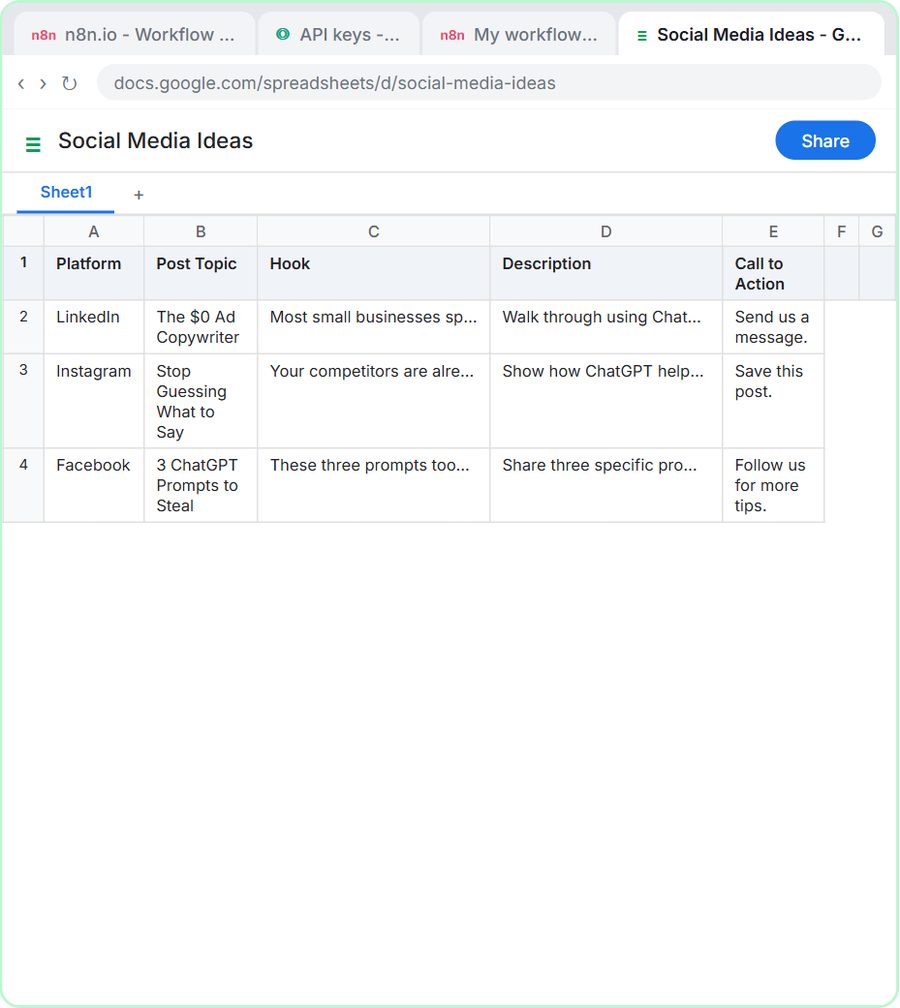 n8n AI Agent Tutorial: Save Social Media Ideas to Google Sheets
Build an AI agent for BrightPath Marketing that generates social media post ideas and saves them to Google Sheets — chat trigger, AI Agent, system prompt, model…
Free · Live ~12 min
 Lovable + n8n: Build a Web App with an AI Backend
Build a contact form in Lovable and connect it to an n8n workflow — webhook trigger, AI Agent, Google Sheets, Gmail, and a Respond node that ties it all together.
Free · Live ~15 min
 AI Receipt Extractor: Receipts to Google Sheets with n8n
Drop a photo of a receipt into an n8n chat. An AI agent reads it, pulls out the date, vendor and amount, picks a category, and adds a row to Google Sheets.
Free · Live ~12 min
 AI Email Responder: Draft Gmail Replies Automatically with n8n
Build an n8n agent that watches your Gmail, reads each new customer email, and writes a reply as a draft in the same thread, ready for you to check and send.
Free · Live ~12 min
 Daily Job Alerts: Email Each Tech Their Jobs from Google Sheets with n8n
Every morning at 7, n8n reads a plumbing company's jobs sheet, skips anything not assigned yet, and emails each job to the tech it's assigned to — customer, address…
Free · Live ~10 min
 Gmail AI Triage: Auto-Label Every Email and Draft Replies
Build an n8n workflow that reads each new email, sorts it as a lead, a client or an invoice with a Text Classifier, adds the matching Gmail label, and drafts a reply to…
Free · Live ~14 min
Terms in this lesson
Plain-English definitions, each with an example from a free lesson.