Updated . Built against the tool’s current screens and checked step by step. How we check this lesson
Coaches, consultants and small advisory firms who post on TikTok get their leads as direct messages: 'how much is a review?', 'can I book a call?'. Those messages get answered between client sessions, often a day later. Manychat replies to a TikTok message that contains a keyword in seconds. In this free lesson you use a practice copy, drawn from a real Manychat account with TikTok connected, to price what slow replies cost, then build the automation: a keyword trigger, a reply with your booking link, a question that collects the email, and an action that tags the lead and marks the chat Open for a person. It stays a draft that is switched off.
At a glance
| Question | Answer |
|---|---|
| What you build | Price what slow replies to TikTok direct messages cost a small coaching practice, then build a Manychat automation: anyone who messages "book" or "price" gets your offer and booking link in seconds, is asked for their email, and is tagged and flagged for a person to follow up. It stays a draft until you are ready. |
| Tools | Manychat |
| Time | About 16 minutes, 37 steps in 8 parts |
| Level | Beginner, no coding needed |
| Cost | Free |
| Ways to learn it | Practice it step by step |
The 8 parts, in short
- The cost of slow DM replies: Count the slow replies, Put a price on it, Meet Manychat.
- Start from the TikTok card: Click Inbox messages.
- Name it and set the keywords: Rename the automation, Give it a clear name, Change the first keyword, Change the second keyword, and 3 more steps.
- Write the reply: Open the Send Message step, Rewrite the first text, Rewrite the second text, Remove the template link, and 1 more step.
- Ask for the email: Add a Data Collection block, Write the question, Open the reply settings, Open Reply Type, and 4 more steps.
- Tag the lead for a person: Open the Actions step, Click + Action, Choose Add Tag, Type a new tag name, and 5 more steps.
- Leave it as a draft: Open Automation, Check it is still a draft.
- What this saves you: Read what this saves you, See the next business case.
Start here first: Turn Instagram Comments into Booked Consultations using Manychat (module 1 of AI Automation for Marketing)
Part of: AI Apps Worth Knowing (step 8 of 123)
The business case: what slow DM replies cost a small practice
Picture Priya, who runs Clearpath Career Coaching, a made-up two-person practice. She posts short resume tips on TikTok, and people send her direct messages: 'how much is a resume review?', 'can I book a call this week?'. In October 26 people asked, and 15 of them waited more than a day for a reply. She was coaching clients, not ignoring them.
Here is the arithmetic, with example numbers you should replace with your own. Say a coaching package is worth $900, and one in five of those people would have booked with a fast reply. Fifteen slow replies is then three bookings, about $2,700 of work a month, or $32,400 a year. The practice did not need more views on TikTok. It needed a fast first reply to the people who already asked.
Manychat gives that first reply. When someone sends your TikTok account a message with a keyword, it replies in seconds with your offer and booking link, asks for an email, and flags the chat so you follow up.
Who this is for, and what you need to start
Owners of small coaching, consulting, recruiting, design and advisory practices who get leads by TikTok direct message. You need a TikTok account connected to Manychat, which asks for TikTok permissions when you connect it. No technical background.
Manychat has a free plan. In the Free account we tested, the dashboard showed a free contacts limit of 25. Data Collection, Notify Assignees and the option to convert keywords to AI intentions showed an Upgrade tag. Data Collection could still be added, set up and saved in a draft, but we did not run it live, so check Manychat's pricing page before you rely on it.
TikTok triggers in Manychat: messages, links and QR codes
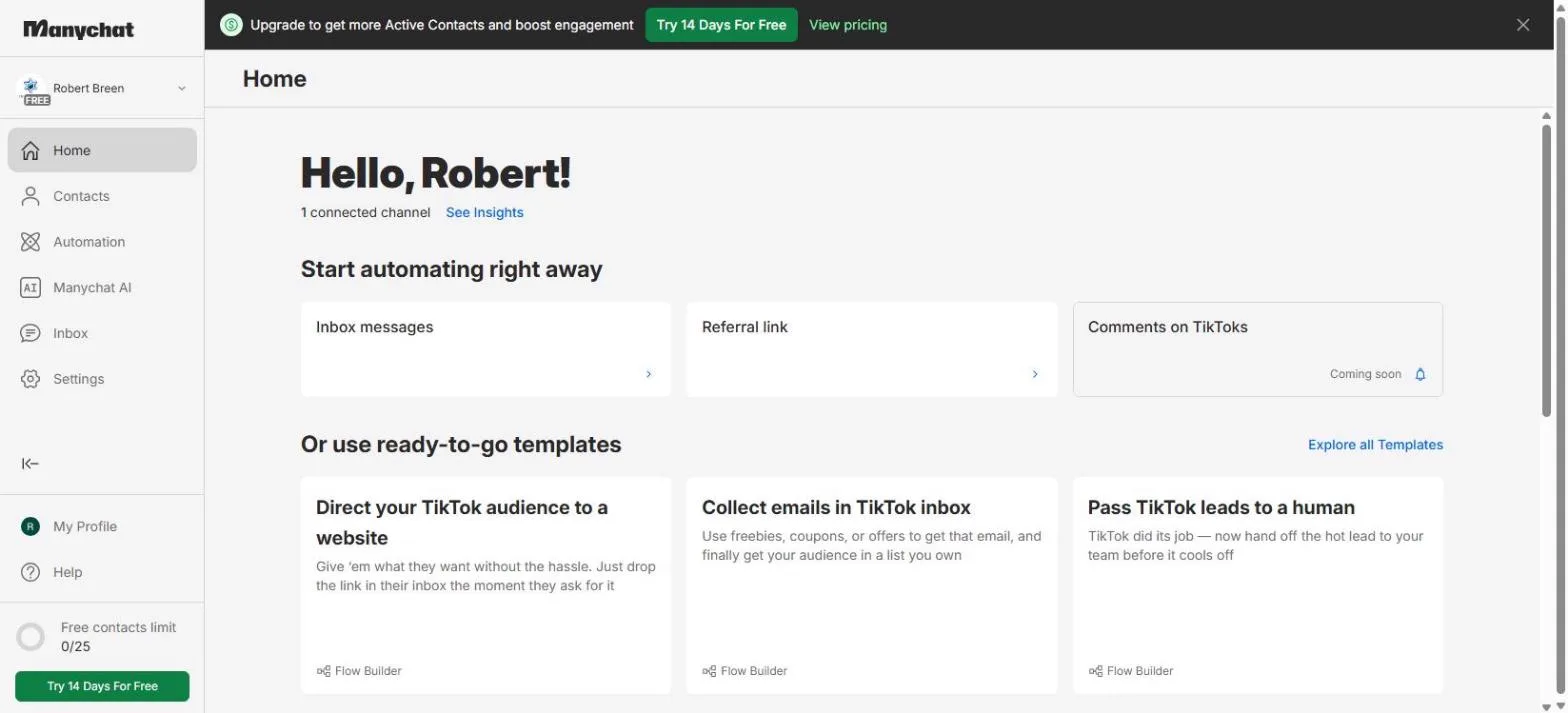
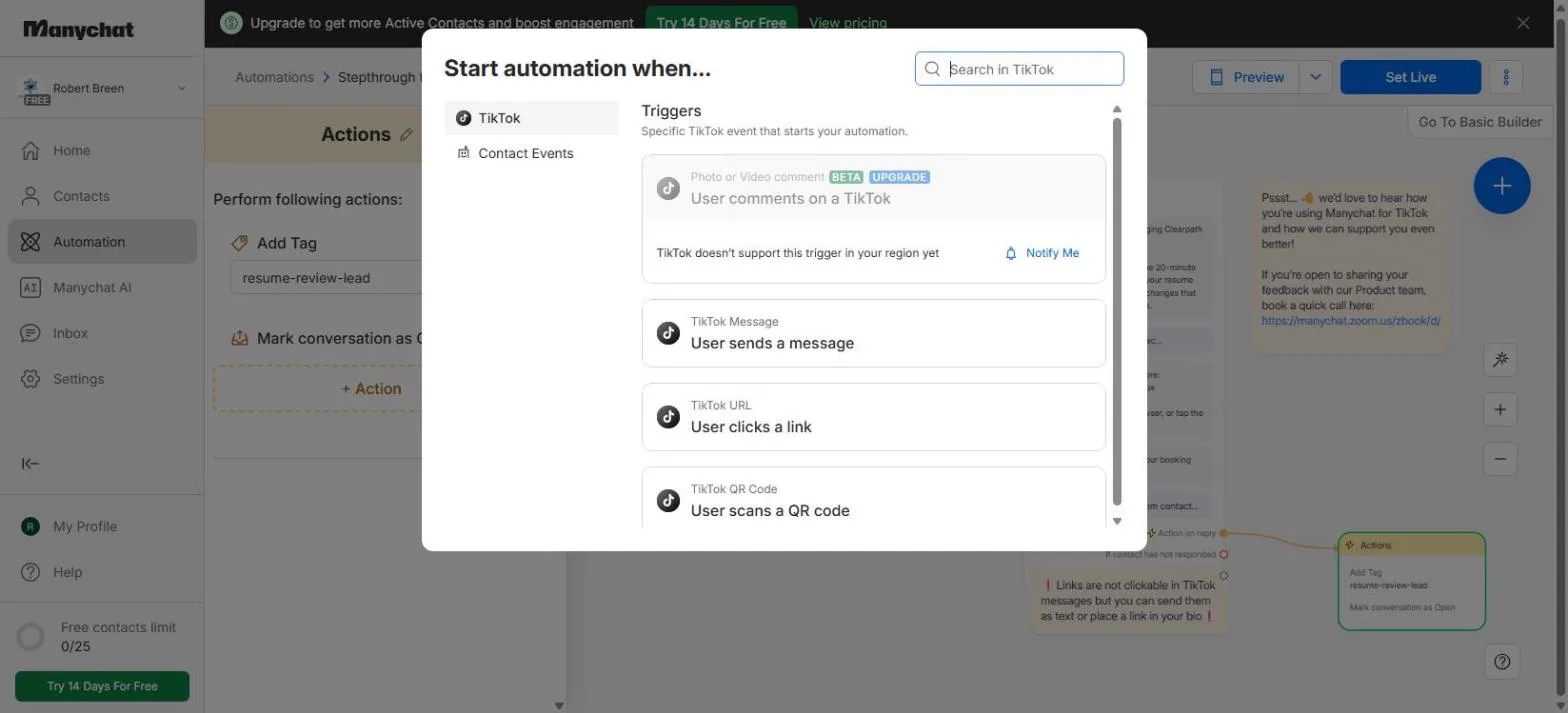
For TikTok, Manychat's trigger list showed four options: a comment on a TikTok, a message, a link click and a QR code scan. The comment trigger was greyed out with the note 'TikTok doesn't support this trigger in your region yet', and Home listed Comments on TikToks as Coming soon. So this lesson starts from a direct message.
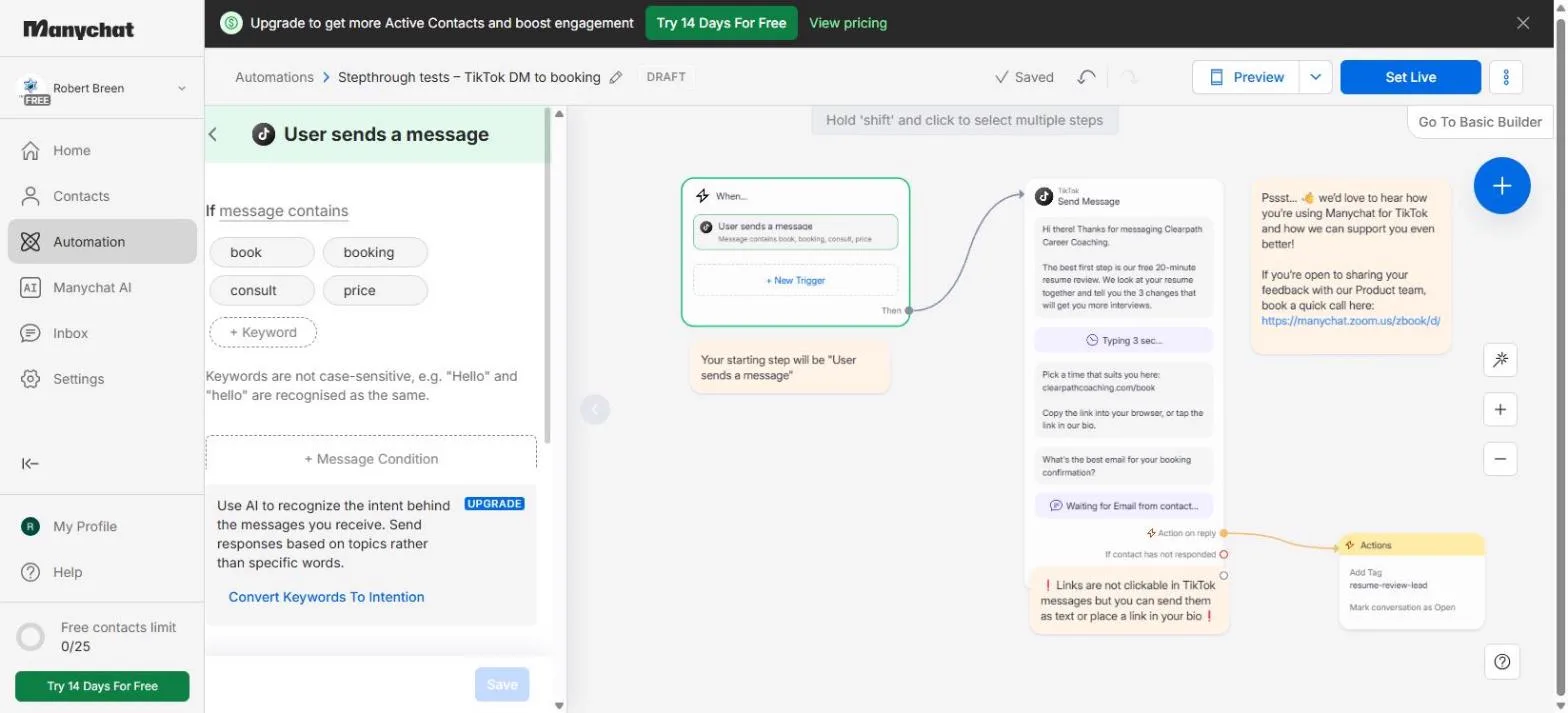
Keywords are not case-sensitive, so 'Price' and 'price' both start the automation. The trigger also has a Message Condition option, and an option to recognise intent with AI instead of exact words, which showed an Upgrade tag.
Links in TikTok messages are plain text
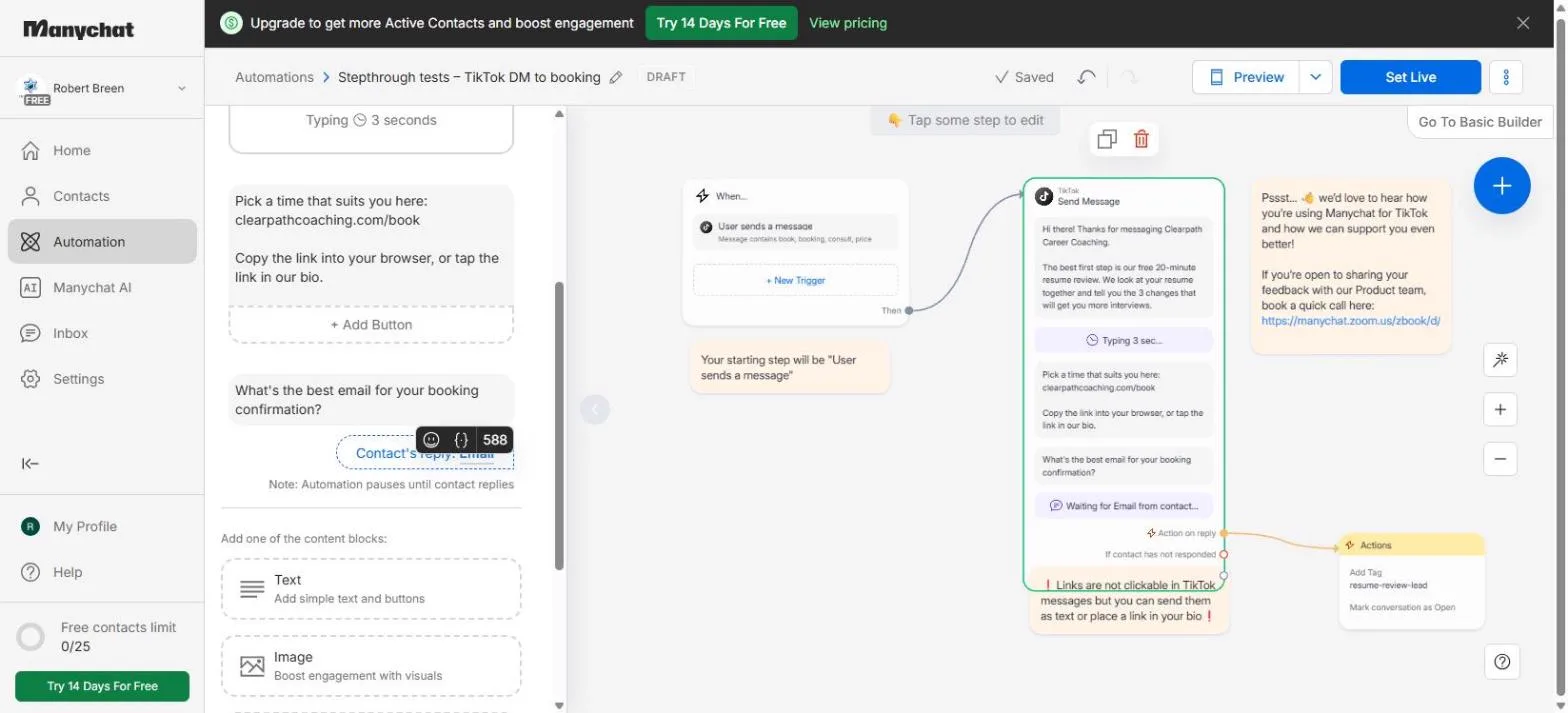
Manychat shows a note on the canvas: links are not clickable in TikTok messages, but you can send them as text or place a link in your bio. So the reply spells out the booking address, tells people to copy it into a browser, and points to the same link in the bio. A short, easy-to-type booking address helps.
Collecting the email, and handing the lead to a person
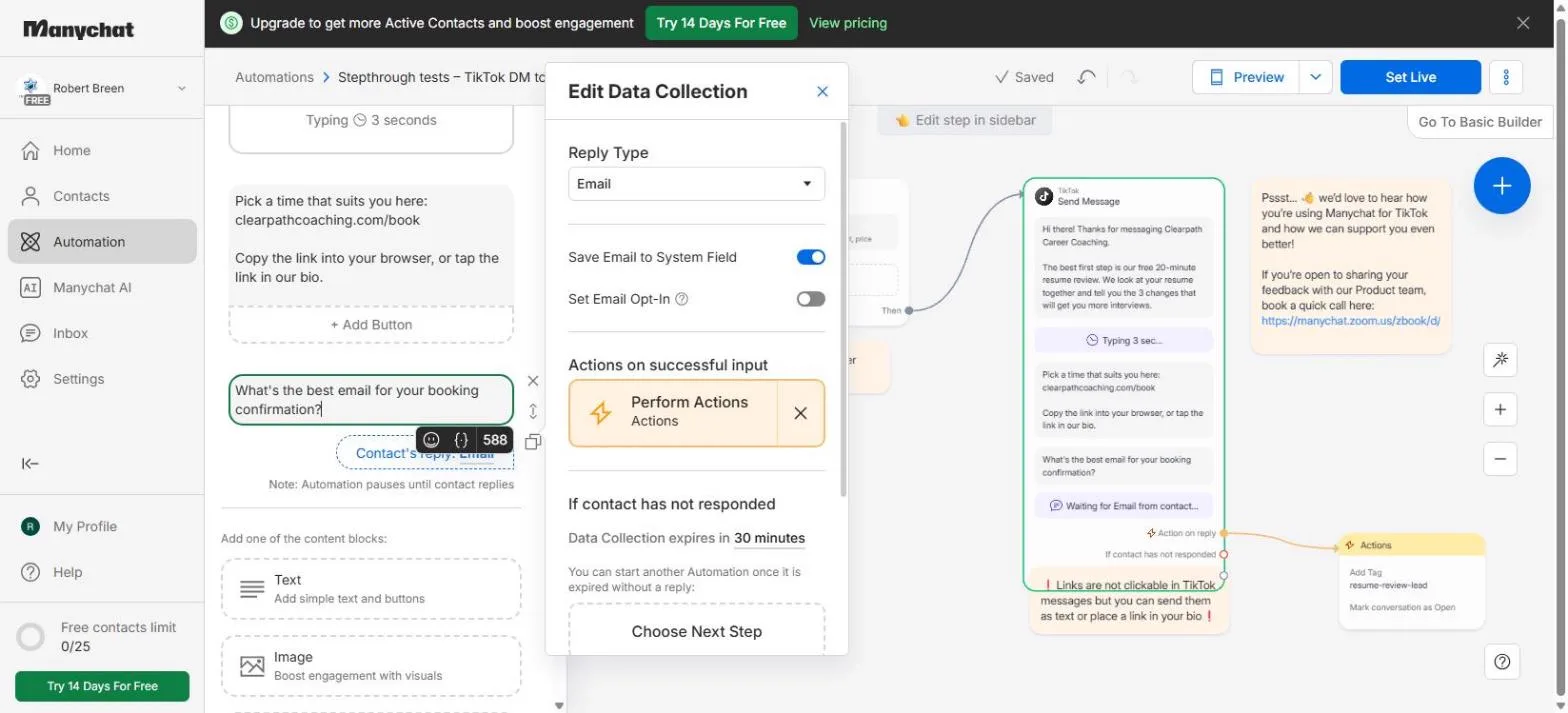
A Data Collection block asks one question and waits for the reply; ours expires after 30 minutes. Set to Email, Manychat saves the address to the contact's email field. Set Email Opt-In came on by default, and switching it on confirms you have consent to send marketing email. The question in this lesson only asks for a booking confirmation, so the lesson switches it off.
Perform Actions runs only after a valid email. The lesson adds a tag, so you can filter every lead later, and Mark conversation as Open, so each lead waits in Manychat's Inbox for a person. Notify Assignees, which would alert a team member, showed an Upgrade tag.
What this saves you
- Slow replies: every DM with a keyword gets the offer and the booking link in seconds. In the example, the slow replies were worth about $2,700 a month.
- Typing the same answer: the welcome, the link and the email question are written once.
- Lost leads: every valid email is tagged and its chat is marked Open, so a person follows up.
- Surprises: the automation stays a draft, switched off, until you test it and click Set Live.
- What it does not do: it does not book the call for you, it cannot make links clickable inside TikTok messages, and it does not answer questions outside your keywords.
What we checked in a real account
Every step in the lesson was done in a real Manychat Free account with TikTok connected, on 4 November 2026: the Inbox messages card, the keyword trigger, the Send Message step, deleting the template link, the Data Collection block set to Email, the Actions step with a new tag and Mark conversation as Open, and the DRAFT in My Automations. The automation was never set live, previewed on a phone or sent to anyone. The lesson stops there on purpose. Test it with your own TikTok account before you click Set Live.
Next business case: bring profile visitors into the chat
Once DMs get a reply, the next step is starting more of them. Manychat's TikTok triggers include a link click (the Referral link card on Home) and a QR code scan. Put the link in your bio or the QR code on a flyer, and the same booking reply starts without anyone typing a keyword. For Instagram, see the first Manychat lesson, which turns comments into booked consultations.
Links
- Manychat (affiliate link): the chat automation tool this lesson teaches. It has a free plan, and our test account showed a limit of 25 contacts. Check Manychat's pricing page for current limits.
- Manychat pricing: current plans. Data Collection showed an Upgrade tag on our Free account, so check which plan you need before you set it live.
- Manychat help centre: Manychat's own guides for TikTok setup, triggers, Data Collection and tags.
Disclosure: links marked "affiliate link" are partner links. If you sign up through one, Stepthrough may earn a commission at no extra cost to you. The lesson is free either way and does not depend on it.
Try it yourself, free
Reading the steps is a start. Doing them is how it sticks. The interactive module walks you through every click in a practice copy of Manychat, checks each step, and never touches your real accounts.
Start “Manychat: Turn TikTok DMs into Booked Calls”Step by step: Manychat: Turn TikTok DMs into Booked Calls
All 37 steps of the interactive module, in order. In the module you watch each one, then do it yourself in a practice copy that checks your work.
1. The cost of slow DM replies
- Count the slow replies. Priya Shah runs Clearpath Career Coaching, a two-person career coaching practice. She posts short resume tips on TikTok, and people message her: “how much is a resume review?”, “can I book a call?”. This month 26 people sent a DM like that. Click the row that shows 15 waited more than a day for a reply.
Priya runs a two person career coaching practice. She posts short resume tips on TikTok. People message her. How much is a resume review? Can I book a call? This month, twenty six people sent a message like that. Fifteen of them waited more than a day for a reply.
- Put a price on it. Say a coaching package is worth $900, and 1 in 5 of those people would have booked with a quick reply. Fifteen slow replies is about $2,700 a month of work, or $32,400 a year. These are example numbers, so swap in your own. Click the total.
Say a coaching package is worth nine hundred dollars. And one in five of those people would have booked, if someone had replied fast. Fifteen slow replies is about twenty seven hundred dollars of work, every month. These are example numbers, so use your own.
- Meet Manychat. Manychat is a chat automation tool for TikTok, Instagram, Messenger, WhatsApp and more. When someone sends your TikTok account a message with a keyword, it can reply in seconds, ask for their email and flag the chat for you. It has a free plan (our test account showed a limit of 25 contacts). Click the Manychat card.
Manychat answers your direct messages for you. Someone messages your TikTok account with a keyword, and Manychat replies in seconds. It can ask for their email, and flag the chat for you. It has a free plan.
2. Start from the TikTok card
- Click Inbox messages. This is Manychat’s Home screen with a TikTok account connected (“1 connected channel”). Under Start automating right away there are three cards. Comments on TikToks says Coming soon, and in our account the trigger list said TikTok does not support comment triggers in our region yet, so this lesson works from direct messages. Click Inbox messages.
This is the Manychat home screen, with a TikTok account connected. Under, start automating right away, there are three cards. Comments on TikToks says coming soon. So this lesson works from direct messages.
3. Name it and set the keywords
- Rename the automation. Manychat opened a ready-made automation called Auto-reply to TikTok messages, marked DRAFT. A draft never sends anything. It already has a trigger and a reply written for an online course, which you will change. Click the pencil next to the name.
Manychat opened a ready made automation, called auto reply to TikTok messages. It is marked draft. A draft never sends anything. It already has a trigger and a reply, written for an online course. You will change both.
- Give it a clear name. Type Resume review: booking DM and press Enter.
Resume review, colon, booking D M.
- Change the first keyword. The left panel shows the trigger, User sends a message: “If message contains” course, courses, training or class. Those are the template’s words. Click the first one, select its text and type book.
The left panel shows the trigger. User sends a message. If the message contains course, courses, training, or class. Those are the template words.
- Change the second keyword. Replace courses with booking.
Replace the second one with booking.
- Change the third keyword. Replace training with consult.
- Change the last keyword. Replace class with price. Keywords are not case-sensitive, so “Price” and “price” both count.
And replace class with price. Keywords are not case sensitive.
- Save the trigger. Click Save at the bottom of the panel. The trigger card on the canvas now reads “Message contains book, booking, consult, price”.
The trigger on the canvas now lists your four words.
4. Write the reply
- Open the Send Message step. On the canvas, the Send Message step (marked TikTok) holds the template’s reply: two texts with a Typing 3 sec pause between them, and a link. Click it.
On the canvas, the Send Message step holds the template reply. Two texts, with a short typing pause between them, and a link.
- Rewrite the first text. Click the first text, select all of it and type your welcome. Say who you are and offer one clear first step.
Hi there! Thanks for messaging Clearpath Career Coaching.
The best first step is our free 20-minute resume review. We look at your resume together and tell you the 3 changes that will get you more interviews.
Rewrite the first text. Say who you are, and offer one clear first step. Here, a free twenty minute resume review.
- Rewrite the second text. Now the text after the typing pause. Put your booking link in it as plain text, because links are not clickable in TikTok messages (Manychat says so in a note on the canvas). Use your own Calendly, Microsoft Bookings or contact page.
Pick a time that suits you here:
clearpathcoaching.com/book
Copy the link into your browser, or tap the link in our bio.
Now the second text. Put your booking link in it, as plain text. Links are not clickable in TikTok messages. Manychat says so, in a note on the canvas. So tell people to copy it, or to use the link in your bio.
- Remove the template link. The third text is the template’s https://manychat.com/ link. Click inside it, then click the × to its right.
The third text is the template link. You do not need it.
- Confirm Delete. Manychat asks “You are going to delete message. Proceed?”. This only removes the text from your draft. Click Delete.
Manychat asks if you want to delete the message. This only removes the text from your draft.
5. Ask for the email
- Add a Data Collection block. Below the texts, Manychat lists blocks you can add: Text, Image, Delay and Data Collection (“Collect emails, phones and more”). Data Collection carries an UPGRADE tag, but in our Free account it could still be added and set up in a draft. Click Data Collection.
Below the texts, Manychat lists blocks you can add. Text, image, delay, and data collection. Data collection has an upgrade tag. In our free account, it could still be added and set up in a draft.
- Write the question. Type the question the person will answer: What's the best email for your booking confirmation?
What is the best email for your booking confirmation?
- Open the reply settings. Under the question, a pill says Contact’s reply: Text, with the note “Automation pauses until contact replies”. Click the pill.
Under the question, a small pill says, contact reply, text. The automation waits here until the person replies.
- Open Reply Type. The Edit Data Collection panel opens. Click the Reply Type box, which says Text.
The edit data collection panel opens. It says text.
- Choose Email. Manychat can collect Text, Email, Phone, Number, First name, Last name, URL and more. Click Email. Manychat then checks that the reply looks like an email address.
Manychat can collect text, email, phone, a number, a name, a link, and more.
- Switch off Set Email Opt-In. Save Email to System Field stays on, so the address lands on the contact. Set Email Opt-In came on by default. Switching it on confirms you have consent to send marketing email. Your question only asks for a booking confirmation, so switch it off.
Save email to system field stays on. That puts the address on the contact. Set email opt in came on by default. Switching it on says you have permission to send them marketing email. Your question only asks for a booking confirmation. So switch it off.
- Click Perform Actions. Under Actions on successful input, click Perform Actions. An orange Actions step appears on the canvas, joined to “Action on reply”. It runs only after someone sends a valid email.
Under actions on successful input, click Perform Actions. An orange Actions step appears on the canvas. It only runs after someone sends a valid email.
- Close the panel. Click the × at the top of Edit Data Collection. Manychat saves as you go: the top bar says Saved.
Close the panel with the cross at the top. Manychat saves as you go. The top bar says saved.
6. Tag the lead for a person
- Open the Actions step. Click the orange Actions step on the canvas.
- Click + Action. The panel says “Perform following actions”. Click + Action.
The panel says, perform following actions.
- Choose Add Tag. Under Contact data: Add Tag, Remove Tag, Set User Field and more. Click Add Tag. A tag is a label, so you can find everyone who left an email for a review.
Under contact data, click Add Tag. A tag is a label. It lets you find everyone who left an email for a review.
- Type a new tag name. Click the tag box and type resume-review-lead. No tag with that name exists yet.
Resume review lead.
- Click + Tag. Manychat says “No Tag with such name is found” and offers + Tag. Click it.
Manychat says no tag with that name is found.
- Create the tag. The Create tag window shows the name and the folder Tags. Click Create.
- Add a second action. Now make sure a person follows up. Click + Action again.
Now make sure a person follows up.
- Open the Inbox actions. In the left column, click Inbox.
- Mark the conversation as Open. Inbox actions: Mark conversation as Open, Mark conversation as Closed, Assign conversation, and Notify Assignees (which has an UPGRADE tag). Click Mark conversation as Open, so every new lead sits as an open chat in Manychat’s Inbox for you to answer.
Inbox actions. Mark as open, mark as closed, assign, and notify assignees, which needs an upgrade. Every new lead now sits as an open chat in the Manychat inbox, for you to answer.
7. Leave it as a draft
- Open Automation. The automation is built. In the left menu, click Automation.
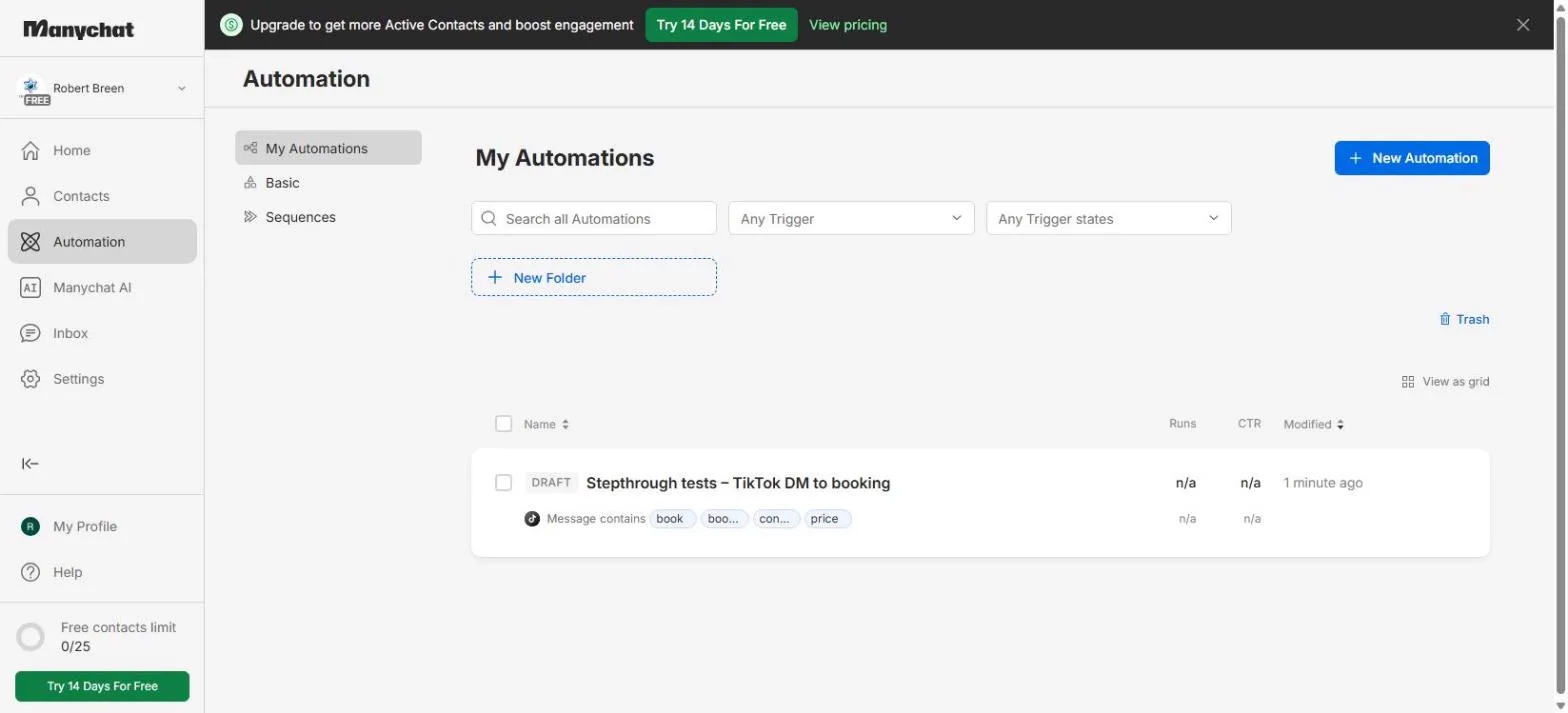
- Check it is still a draft. My Automations lists it as DRAFT, with the trigger “Message contains book, booking, consult, price”. A draft never replies to anyone. This lesson ends here, with the automation built and switched off: we did not set it live or test it on a phone. When you are ready, open it and click Set Live, and send your own TikTok account a test message first. Click the row.
My automations lists it as a draft. A draft never replies to anyone. This lesson ends here, with the automation built and switched off. When you are ready, open it and click Set Live. Send your own account a test message first.
8. What this saves you
- Read what this saves you. Priya’s notes. Click the What this saves you box.
Here are Priya’s notes.
- See the next business case. Click the Next business case box.
And the next business case.
Screenshots
Frequently asked questions
- Does Manychat work with TikTok?
- Yes. Manychat connects to a TikTok account and can reply to direct messages. In our account its TikTok triggers were a message, a link click and a QR code scan; the comment trigger showed 'not supported in your region yet'.
- How do I auto-reply to TikTok DMs with a keyword?
- In Manychat, open Home and click Inbox messages under Start automating right away. Change the trigger's keywords to the words your leads use, rewrite the Send Message step, and click Set Live only after testing with your own account.
- Can I send a clickable link in a TikTok DM with Manychat?
- No. Manychat notes that links are not clickable in TikTok messages. Send the link as text and put the same link in your TikTok bio.
- Can Manychat collect an email address from a TikTok DM?
- Manychat's Data Collection block can ask for an email and save it to the contact. On our Free account it showed an Upgrade tag but could be added and saved in a draft; we did not run it live, so check Manychat's pricing.
- Is Manychat free?
- Manychat has a free plan. Our Free test account showed a limit of 25 contacts, and some features, such as Data Collection and Notify Assignees, showed an Upgrade tag. Check manychat.com/pricing for current plans.
- Is this lesson free, and was it tested in the real Manychat app?
- The lesson is free and the practice copy needs no account. Every step was done in a real Manychat Free account with TikTok connected, and the automation was left as a draft that was never set live.
Terms in this lesson
Plain-English definitions, each with an example from a free lesson.