Updated . Built against the tool’s current screens and checked step by step. How we check this lesson
A billing sheet full of #N/A, #VALUE!, #DIV/0! and #REF! the week invoices go out. In this free, interactive lesson you attach a note describing an architecture firm's broken workbook to ChatGPT, ask what each error means and what caused it, and fix the cause instead of hiding it. Then you check the real subtotal by hand and get a safer lookup formula. The firm and its numbers are made up.
At a glance
| Question | Answer |
|---|---|
| What you build | Attach a note on a broken billing sheet, get each error explained with its real cause and fix, check the subtotal by hand, then get a safer lookup formula that shows "Add rate" instead of #N/A. |
| Tools | ChatGPT |
| Time | About 9 minutes, 19 steps in 4 parts |
| Level | Beginner, no coding needed |
| Cost | Free |
| Ways to learn it | Practice it step by step |
The 4 parts, in short
- Start from what is broken: Read the note on the workbook, Turn on Temporary chat, Open the + menu, Add photos & files, and 2 more steps.
- Ask for the cause, not a cover-up: Click the message box, Ask what each error means, Send it.
- Read the fixes: Read each cause and fix, Check the subtotal by hand, Notice what nobody asked for.
- Get the real total and a safer formula: Click the message box, Ask for the total and a safer formula, Send it, Check the arithmetic yourself, and 3 more steps.
Start here first: Summarize a Meeting Transcript with ChatGPT (module 1 of ChatGPT for Everyday Work)
In the course: Part 3 · ChatGPT for Everyday Work (Module 39 of the full course)
The business case: a total you can defend before invoices go out
Excel errors usually show up at the worst time: the day before invoices go out. The quick fix people find online is IFERROR, which hides the error and leaves a blank or a zero. The sheet looks clean, and the total is wrong.
A wrong invoice costs you twice: the money you under-bill, or the client's trust when you over-bill and have to reissue.
What changes: ChatGPT explains each error in plain words, names the cause in your sheet, and gives the right fix in the right order. It also tells you what it cannot total, instead of making a number up.
The example: an office manager at an architecture firm
The office manager at Ridgeway Architects (made up) has an October billing workbook with a Rates sheet, a Timesheet sheet and a Summary sheet. Five cells show errors: #N/A in D3 and D5, #VALUE! in E4, #DIV/0! in E10 and #REF! on the Summary sheet. A plain-text note describes every cell, formula and error.
Download the file and follow along: [billing-sheet-errors.txt](/content/files/chatgpt-fix-excel-formula-errors/billing-sheet-errors.txt).
Who this lesson is for
Office managers, bookkeepers and anyone who inherited a workbook someone else built and now has to make it work. It is the third module of the [ChatGPT for Excel](/courses/chatgpt-for-excel) course. For more on spreadsheets with AI, see [AI for Excel and Google Sheets](/courses/ai-for-excel-and-google-sheets).
What ChatGPT produced in the real run
The first answer explained all five errors in a table with the meaning, the cause and the fix: remove the trailing space in B3, change "7.5 hrs" to 7.5, add the missing RW-105 rate (with "Do not guess the rate"), decide what E10 should show, and point Summary!B2 at =Timesheet!E8. It said these are real problems, not errors to cover up with IFERROR. It also noticed, without being asked, that E10 is labeled "Share billed to RW-106" but its formula works out an average rate.
The second answer showed the arithmetic line by line: $1,072.50 + $1,120.00 + $1,387.50 + $750.00 = $4,330.00, with row 5 (RW-105) left out because its rate is unknown. We checked the sum by hand and it is right. It gave =IFNA(VLOOKUP(TRIM(B2),Rates!A:B,2,FALSE),"Add rate") with each part explained, and warned that E5 will still show #VALUE! until the rate is added, and that you should not type zero to make the total work.
What we did not test: the formulas were not pasted into a real Excel workbook for this lesson. Rebuild the two sheets from the note, paste the formulas, and check the results yourself. If you would rather have an AI hand back a finished workbook with the formulas already in it, see How to Use Claude with Excel: Turn a Messy Export into a Clean Workbook. To write a new formula from plain English instead of fixing one, see How to Use ChatGPT with Excel.
What this saves you
- Time: minutes instead of an afternoon searching error codes.
- Money: no invoice with a hidden zero where a missing rate should be.
- Next month: a lookup that doesn't break on a stray space and tells you when a rate is missing.
- What it does not replace: the real rate from whoever sets rates, and testing the formulas in your own workbook.
Gotchas
- Say "fix the cause, don't just hide the error". Otherwise the easy answer is IFERROR everywhere.
- Give the real cells and formulas. A note like the one in this lesson, or a screenshot, gets fixes for your sheet, not general advice.
- Ask which row it cannot total and why. A missing rate should stay visible until someone gives you the number.
- Example numbers are not answers. ChatGPT showed totals for a made-up $160 and $150 rate as illustrations only.
- Check the label against the formula. In this run, "Share billed" was really an average rate.
- Billing data is business data: use a Temporary Chat, or your company's approved AI tool.
Next business case
Need a new formula, not a fix? Write Excel formulas from plain English. Errors coming from a messy import? Clean up a messy spreadsheet export. Building a budget sheet from scratch? Try the Excel budget lesson.
Try it yourself, free
Reading the steps is a start. Doing them is how it sticks. The interactive module walks you through every click in a practice copy of ChatGPT, checks each step, and never touches your real accounts.
Start “ChatGPT: Fix #N/A, #VALUE!, #DIV/0! and #REF! Errors in Excel”Step by step: ChatGPT: Fix #N/A, #VALUE!, #DIV/0! and #REF! Errors in Excel
All 19 steps of the interactive module, in order. In the module you watch each one, then do it yourself in a practice copy that checks your work.
1. Start from what is broken
- Read the note on the workbook. The October billing sheet shows #N/A, #VALUE!, #DIV/0! and #REF!, and the invoices go out Friday. This note lists every cell, formula and error. Read it, then click ✕.
The October billing sheet is full of errors, and the invoices go out Friday. This note lists every cell, every formula, and every error. Read it, then close the file.
- Turn on Temporary chat. Billing rates are business data. Click the Temporary chat icon at the top right so this chat stays out of your history.
Billing rates are business data.
- Open the + menu. Click the + next to the message box.
- Add photos & files. Click Add photos & files.
- Pick billing-sheet-errors.txt. Pick billing-sheet-errors.txt.
Pick the billing note.
- Open it. Click Open. Real cells and real formulas get you real fixes.
Real cells and real formulas get you real fixes.
2. Ask for the cause, not a cover-up
- Click the message box. The habit: fix the cause, don’t hide the error. Wrapping everything in IFERROR makes the sheet look clean while the total is wrong. Click the message box.
Here's the habit. Fix the cause, don't hide the error. Wrapping everything in IFERROR makes the sheet look clean, while the total is still wrong.
- Ask what each error means. Paste in the request. It names all five errors and their cells, asks what each means, what caused it and the right fix, says don’t just hide the error, and asks for the order to fix them.
This names all five errors and their cells. It asks what each one means, what caused it, and the right fix. It says, don't just hide the error. And it asks what order to fix them in.
The attached note describes my billing workbook and the errors in it. I'm an office manager, not an Excel expert. For each error (#N/A in D3, #VALUE! in E4, #N/A in D5, #DIV/0! in E10, #REF! on the Summary sheet), tell me in plain words what it means, what caused it in this sheet, and the right fix. Fix the cause, don't just hide the error. Then tell me in what order to fix them.
- Send it. Click Send (the arrow on the right).
3. Read the fixes
- Read each cause and fix. Each error has a cause you can see in the note: a trailing space in B3, "7.5 hrs" typed as text in C4, and a deleted column behind the #REF!. For RW-105 it says: do not guess the rate. Click the table.
Each error has a cause you can see in the note. A trailing space in B three. Seven point five hours typed as text in C four. A deleted column behind the ref error. And for the new project, it says, do not guess the rate.
- Check the subtotal by hand. Four rows add up to $4,330.00, and RW-105 is Pending. Check one row: 6.5 hours × $165 = $1,072.50. Check the hours too: 27 without row 5, 31 with it. Its $160 rate is only an example, not a real rate. Click the total.
Four rows add up to four thousand three hundred thirty dollars. The new project is pending. Check one row. Six and a half hours at one sixty five is one thousand seventy two fifty. The hours add to twenty seven, or thirty one with the new project. The one sixty rate it mentions is only an example.
- Notice what nobody asked for. E10 is labeled Share billed to RW-106, but its formula works out an average rate, not a share. It caught the label and the formula disagreeing, and gave a share formula if that is what you meant. Ask whoever built the sheet which one they wanted. Click the note.
E ten is labeled share billed, but its formula works out an average rate, not a share. Nobody asked, but it caught the label and the formula disagreeing. Ask whoever built the sheet which one they meant.
4. Get the real total and a safer formula
- Click the message box. Now get the total you can defend, and a formula that won’t break the same way again. Click the message box.
Now get the total you can defend, and a formula that won't break the same way again.
- Ask for the total and a safer formula. Paste in the request. It asks for E8 line by line, which row it cannot total, and a safer D2 formula: trailing spaces never break it, and a missing code shows Add rate.
This asks for the total, line by line, and which row it can't total. Then a safer formula for D two. Trailing spaces never break it, and a missing code says Add rate.
Good. Now two things. 1) Once those are fixed, what should Total billed in E8 be? Show the arithmetic line by line so I can check it, and tell me which row you cannot total and why. 2) Give me a safer version of the D2 formula I can copy down so a trailing space never breaks it again and a missing project code shows "Add rate" instead of an error. Explain what each part does.
- Send it. Click Send (the arrow on the right).
- Check the arithmetic yourself. Add the four known amounts: $1,072.50 + $1,120 + $1,387.50 + $750 = $4,330.00. Row 5 can’t be totaled until someone gives you RW-105’s rate. Its $150 example is not a rate either: get the real one before Friday. Click the math.
Add the four known amounts yourself. Ten seventy two fifty, plus eleven twenty, plus thirteen eighty seven fifty, plus seven fifty. That's four thousand three hundred thirty. Row five can't be totaled until someone gives you the real rate. The one fifty it uses is only an example. Get the real rate before Friday.
- Read the safer formula. TRIM strips the stray space, so B3 finds its rate. IFNA shows Add rate only when the code is missing, and lets other errors still show. Click the formula.
TRIM strips the stray space, so B three finds its rate. IFNA shows Add rate only when the code is missing, and still lets other errors show.
- See why E5 still shows an error. E5 can’t multiply 4 by the words Add rate, so it shows #VALUE!. That is a warning, not a bug. Don’t type zero to make E8 work. Click the note.
E five can't multiply four by the words Add rate, so it shows an error. That's a warning, not a bug. Don't type a zero just to make the total work.
- Paste it and check it in Excel. Its advice: use the new D2 formula, keep column E, and fill every missing rate before invoicing. We did not paste these formulas into Excel for this lesson. Paste them into your own copy and check that D3 shows 140 and D5 shows Add rate. Click the recommendation.
Its advice. Use the new D two formula, keep column E, and fill every missing rate before you send invoices. We didn't paste these formulas into Excel for this lesson. You fixed the causes, and hid nothing.
Frequently asked questions
- Can ChatGPT fix Excel formula errors?
- Yes, if you give it the real cells and formulas. In this lesson it found the cause of all five errors, from a trailing space to a deleted column. Paste the fixes into your own workbook and check the results.
- What does #N/A mean in Excel?
- A lookup like VLOOKUP or XLOOKUP couldn't find the value it was looking for. In this lesson one cause was an extra space after a project code, and the other was a project missing from the rate list.
- Should I use IFERROR to get rid of errors?
- Only after you fix the cause. IFERROR hides every error, so a wrong total can look right. For lookups, IFNA is narrower: it handles a missing match and still lets other problems show.
- Why does Excel show #VALUE!?
- A formula is trying to do math with something that isn't a number. In this lesson the hours were typed as "7.5 hrs" instead of 7.5.
- How do I fix a #REF! error?
- #REF! means the formula points to a cell that was deleted. Point it at the right cell again; in this lesson that was =Timesheet!E8 after someone deleted a column.
- Why does Excel show #DIV/0!?
- The formula divides by zero or by an empty cell. Decide what the cell should show when there is nothing to divide, such as "No activity", rather than forcing a zero.
More in ChatGPT for Everyday Work
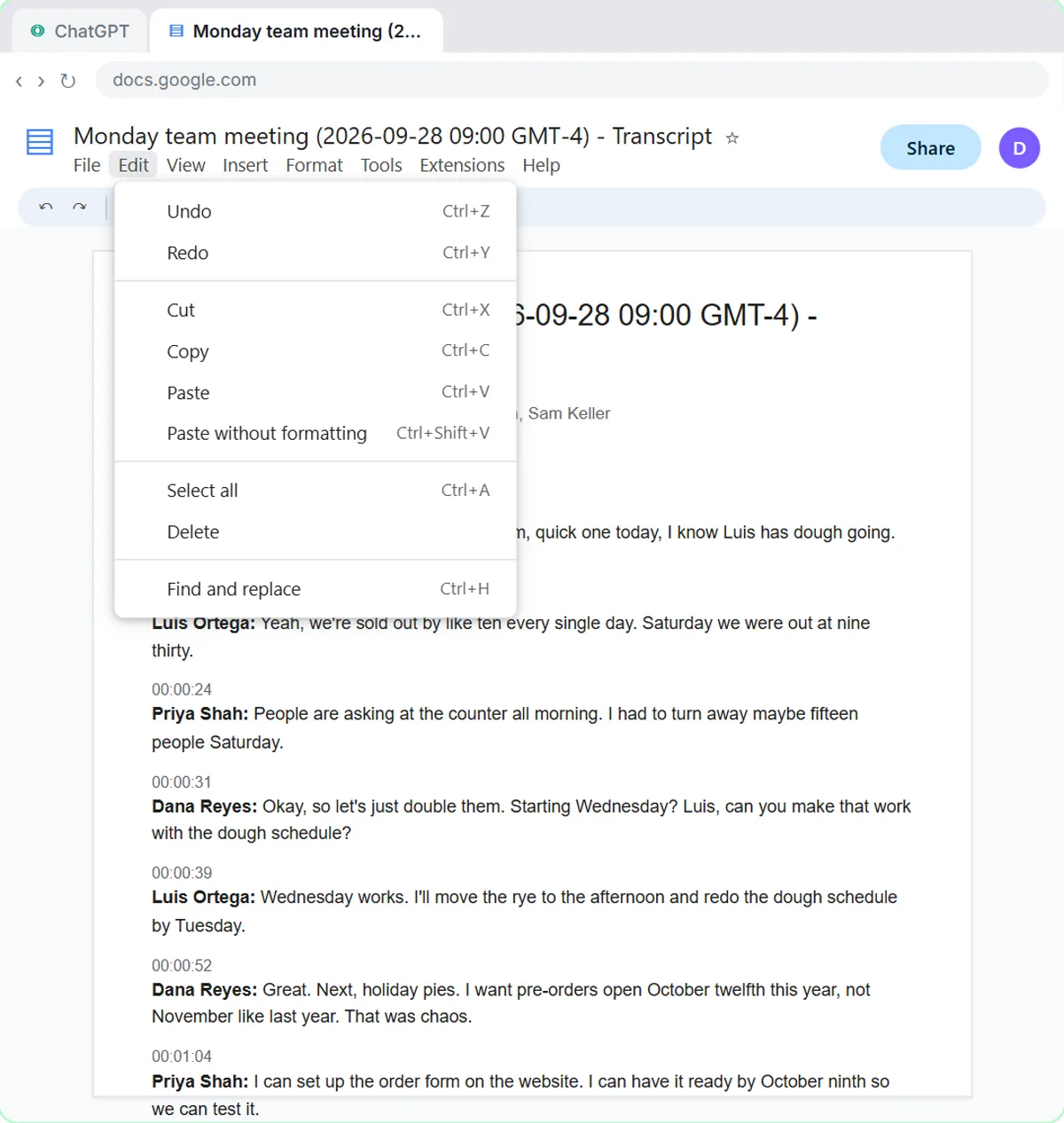 Summarize a Meeting Transcript with ChatGPT
Paste a long meeting transcript into ChatGPT and get the decisions, an action items table with owners and due dates, and a follow-up email ready to send.
Free · Live ~9 min Beginner
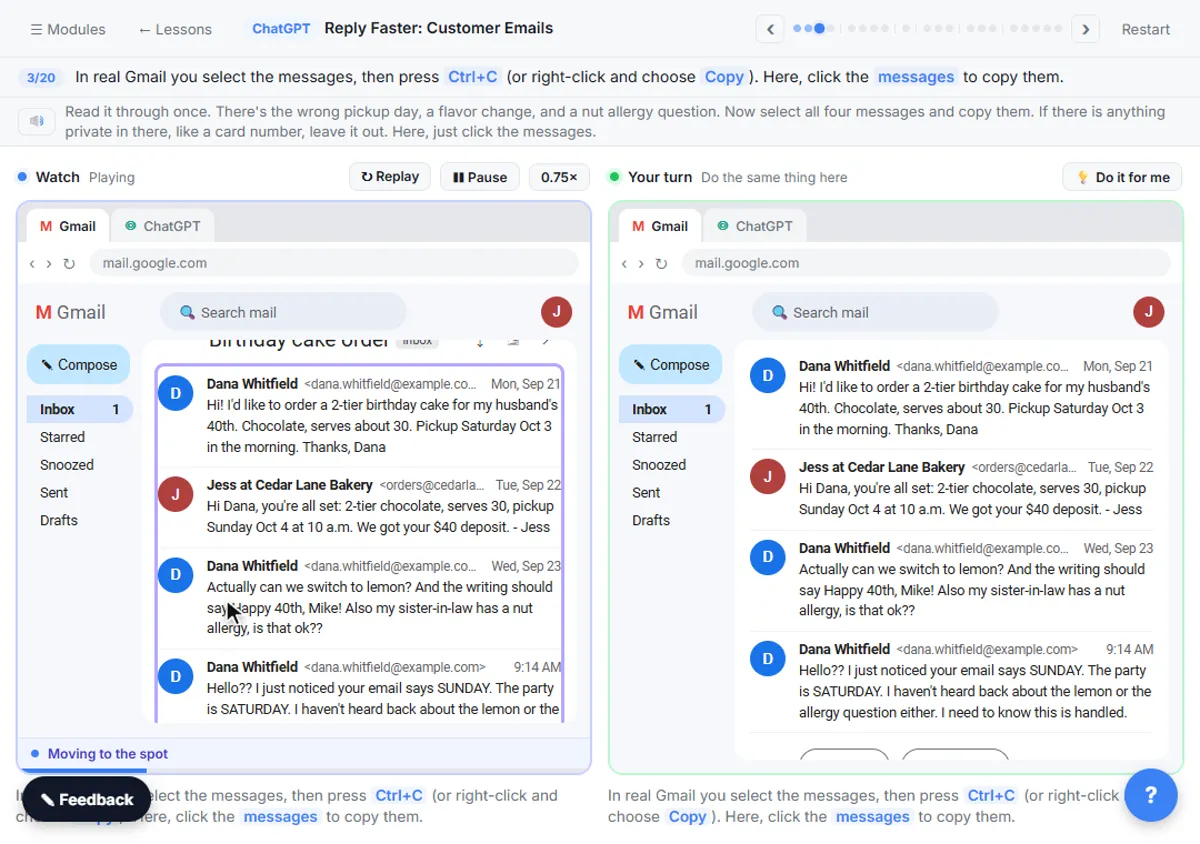 Reply Faster: Turn a Messy Customer Email Thread into a Clear, Friendly Reply
Turn a messy customer email thread into a clear, friendly reply: give ChatGPT the thread and your facts, check every promise, fix the tone, and send it from Gmail.
Free · Live ~9 min Beginner
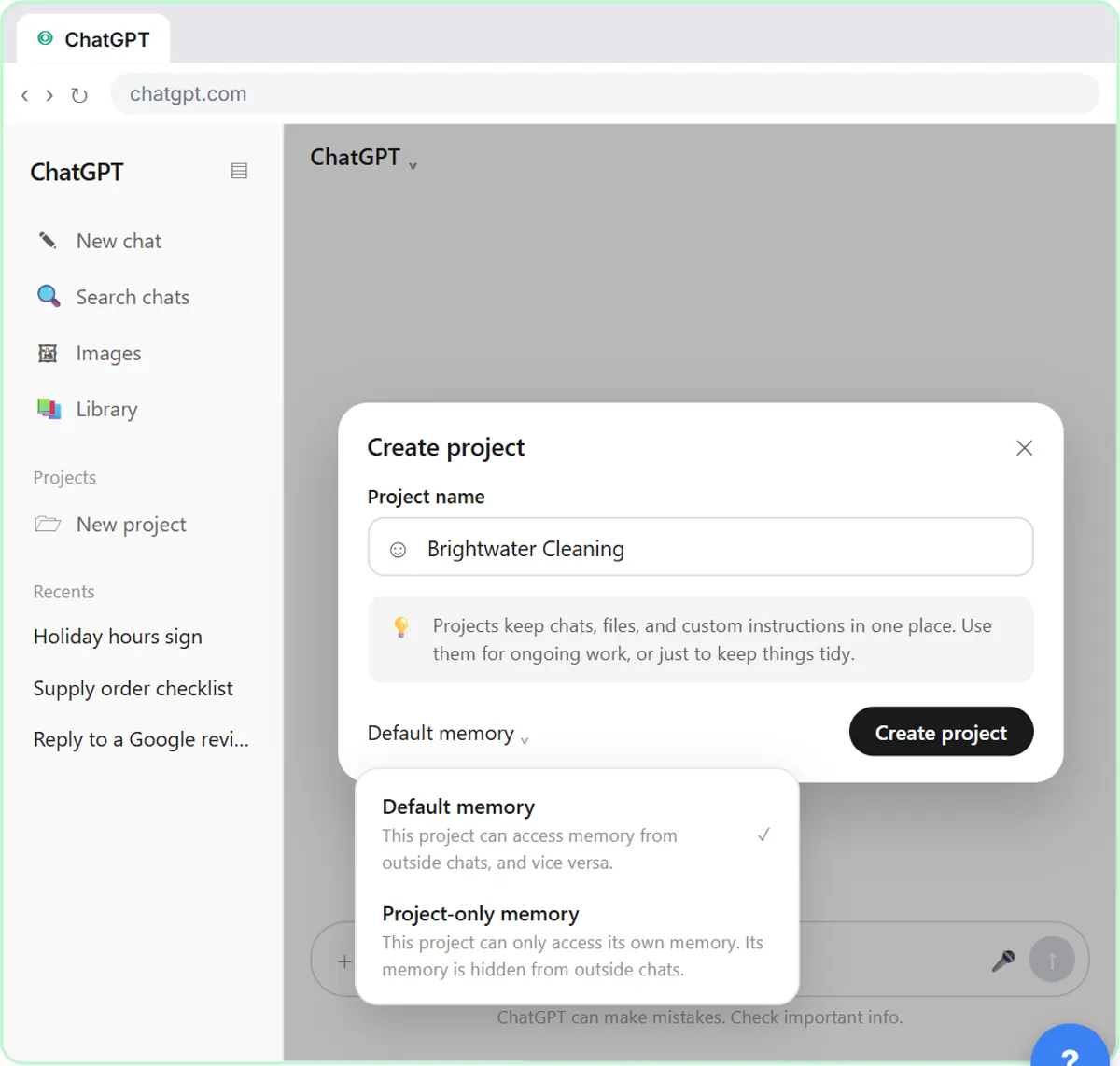 How to Create a Project in ChatGPT for Your Brand Voice and Files
Set up a ChatGPT Project with your brand voice instructions, your price list and your style guide, so every new chat already knows your business.
Free · Live ~9 min Beginner
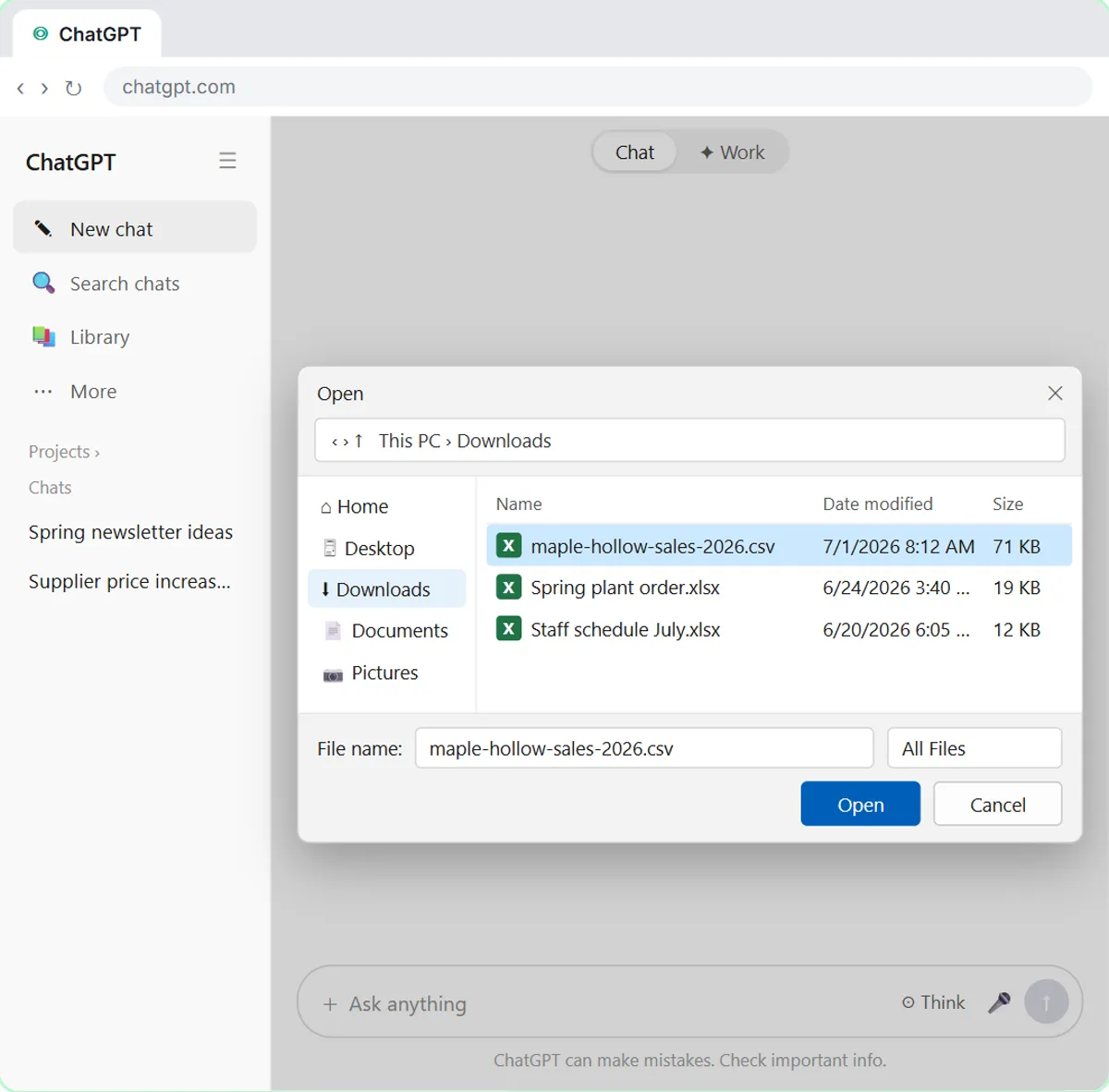 Analyze a Spreadsheet with ChatGPT: Upload a CSV, Get a Chart and Three Takeaways
Upload a CSV of sales to ChatGPT, have it check the data first, ask your questions, get a chart you can download, and finish with the three takeaways that matter.
Free · Live ~10 min Beginner
 ChatGPT Work: Have ChatGPT Do a Multi-Step Task
Switch ChatGPT to Work, hand it a real job (compare three suppliers into a spreadsheet), approve the sites it opens, skip a login, answer its question, check the file…
Free · Live ~8 min Intermediate
◷Get a Morning Invoice Summary in Slack using ChatGPT DotsSet up a ChatGPT dot to check Gmail for new invoice emails and post one summary to Slack every weekday morning. A 7-step practice based on OpenAI's published screens.
Free · Live ~4 min Intermediate
All 28 modules in ChatGPT for Everyday Work
More ChatGPT tutorials
 Get On-Brand Social Posts Every Time using a ChatGPT Custom GPT
See why generic prompts give generic results, then build a Custom GPT loaded with your brand voice and watch the output transform.
Free · Live ~8 min Beginner
 Prompt Writing 101: Role, Context, Task, Format
Ask ChatGPT for the same customer email twice, once vaguely and once with a four-part prompt, and see exactly why structure gets a better answer.
Free · Live ~8 min Beginner
◷Send a Same-Day Follow-up After Every Discovery Call using ChatGPTTurn a discovery call transcript into the decisions, the next steps with owners and dates, deal notes for your CRM, and a follow-up email the prospect gets the same…
Free · Live ~7 min Beginner
◷Hold Your Price When a Prospect Asks for a Discount using ChatGPTA prospect wants 30% off and a free month to sign this week. Give ChatGPT the thread and your pricing rules, catch the discount you can't approve, and send a reply that…
Free · Live ~9 min Beginner
 Get Your Business Recommended by ChatGPT
Ask ChatGPT who it recommends in your town, see which pages it trusts, then use it to write an FAQ page and Business Profile copy that answer real customer questions.
Free · Live ~10 min Intermediate
◷Run a Weekly Ops Review Where Every Task Has an Owner using ChatGPTTurn a weekly operations and vendor review into the decisions, the next steps with owners and dates, the risks to watch and a team recap, without turning a vendor's…
Free · Live ~7 min Beginner
Terms in this lesson
Plain-English definitions, each with an example from a free lesson.