Updated . Built against the tool’s current screens and checked step by step. How we check this lesson
Sign-up systems export names in all capitals, dates in four styles and payment columns that say Y, PAID or $75. In this free, interactive lesson you attach a messy workshop registrations export to ChatGPT, have it list every problem while changing nothing, then clean it with your own rules and a Needs review column, so nothing missing gets guessed. The college and the registrants are made up.
At a glance
| Question | Answer |
|---|---|
| What you build | Attach a messy sign-up export, have ChatGPT list every problem with Reg IDs while changing nothing, then clean it with your rules and a Needs review column instead of guesses. |
| Tools | ChatGPT |
| Time | About 9 minutes, 19 steps in 4 parts |
| Level | Beginner, no coding needed |
| Cost | Free |
| Ways to learn it | Practice it step by step |
The 4 parts, in short
- Start from the real export: Look at the export, Turn on Temporary chat, Open the + menu, Add photos & files, and 2 more steps.
- List the problems, change nothing: Click the message box, Ask for every problem, Send it.
- Read the problem list: Read the duplicates, Spot the date trap, Read the payment problems.
- Clean it with rules: Click the message box, Clean it with rules, Send it, Check which rows it removed, and 3 more steps.
Start here first: Summarize a Meeting Transcript with ChatGPT (module 1 of ChatGPT for Everyday Work)
In the course: Part 3 · ChatGPT for Everyday Work (Module 38 of the full course)
The business case: a mail merge and a headcount you can trust
A messy export causes two quiet problems. The mail merge sends the same person two emails, or greets them in all capitals. The headcount counts duplicates, so you book a bigger room or order too many lunches.
Cleaning it by hand takes an hour. Asking an AI to "just fix it" is faster but risky: it can guess a date that was written day-first, or mark a payment as Yes when the cell said $75.
What changes: you get the full problem list first, you set the rules, and anything that can't be fixed by a rule is flagged for a person instead of guessed.
The example: workshop sign-ups at a community college
The continuing-education office at Lakeshore Community College (made up) has 16 registrations for three workshops: Excel for Office Staff, Grant Writing Basics and QuickBooks First Steps. The export has extra spaces, mixed capitals, several phone formats, four date styles, a blank email, a broken one and a Paid column that says Yes, Y, PAID, $75 or nothing at all.
Download the file and follow along: [workshop-registrations-export.csv](/content/files/chatgpt-clean-messy-spreadsheet-export/workshop-registrations-export.csv).
Who this lesson is for
Office staff, coordinators and admins who get exports from sign-up forms, CRMs or booking systems and need them clean before a mail merge, a report or an import. It is the second module of the [ChatGPT for Excel](/courses/chatgpt-for-excel) course. For more on spreadsheets with AI, see [AI for Excel and Google Sheets](/courses/ai-for-excel-and-google-sheets).
What ChatGPT produced in the real run
The first answer listed eight kinds of problems with Reg IDs: three suspected duplicate pairs (which it said to treat as suspected until confirmed), a blank and a broken email, inconsistent names, one incomplete phone number, four date styles with 1015's 13/10/2026 called "clearly day-first", mixed or unclear Paid values (with $75 on 1006 and a blank on 1011), and the headcount impact: 16 raw registrations, 13 likely unique. It confirmed it changed nothing.
The second answer cleaned the file: 16 registrations became 13, rows 1004, 1010 and 1014 were removed as later duplicates, and four rows (1006, 1008, 1011, 1013) were flagged in Needs review with the field left blank. The headcount came back as 5, 4 and 4. We checked that headcount by hand and it is right. It also warned that example.com addresses can't be used for a real campaign.
What we did not check: the cleaned CSV it offered for download was not opened for this lesson, and the answer doesn't say what it did with 1015's date. Open the cleaned file in your own run and check row 1015 and the four flagged rows. To get a full Excel workbook with a Summary tab built from formulas and a chart, see How to Use Claude with Excel: Turn a Messy Export into a Clean Workbook.
What this saves you
- Time: a few minutes instead of an hour of manual cleanup.
- Embarrassment: no duplicate emails and no names in all capitals in the mail merge.
- Money: a headcount without duplicates, so you book the right room and order the right amount.
- What it does not replace: opening the cleaned file yourself, and calling or emailing the people whose rows are flagged.
Gotchas
- Ask for the problem list first and say "don't fix anything yet". You see what is wrong before anything changes.
- Name the jobs the file must do (a mail merge and a headcount). The problem list gets specific.
- Say "do not guess": missing or broken values stay blank, with the reason in a Needs review column.
- Dates like 13/10/2026 are day-first. Check those rows in the cleaned file, since a wrong month looks perfectly normal.
- Open the download before you use it. The chat answer is a summary; the file is what goes into the mail merge.
- Registrations are personal data: use a Temporary Chat, or your organization's approved AI tool.
Next business case
File clean, now you need totals? Write Excel formulas from plain English. Formulas showing errors? Fix #N/A, #VALUE!, #DIV/0! and #REF!. Want charts and answers from the whole file? Analyze a spreadsheet.
Try it yourself, free
Reading the steps is a start. Doing them is how it sticks. The interactive module walks you through every click in a practice copy of ChatGPT, checks each step, and never touches your real accounts.
Start “ChatGPT: Clean Up a Messy Spreadsheet Export Without Guessing”Step by step: ChatGPT: Clean Up a Messy Spreadsheet Export Without Guessing
All 19 steps of the interactive module, in order. In the module you watch each one, then do it yourself in a practice copy that checks your work.
1. Start from the real export
- Look at the export. Sixteen sign-ups for three workshops. Look closely: names in all capitals, mixed date styles, Y, PAID and $75 in the Paid column. The mail merge goes out tomorrow. Read it, then click ✕.
Sixteen sign-ups for three workshops. Look closely. Names in all capitals. Mixed date styles. Y, PAID, and seventy five dollars in the Paid column. The mail merge goes out tomorrow. Read it, then close the file.
- Turn on Temporary chat. This file has people’s names, emails and phone numbers. Click the Temporary chat icon at the top right so it stays out of your history.
This file has people's names, emails and phone numbers.
- Open the + menu. Click the + next to the message box.
- Add photos & files. Click Add photos & files.
- Pick workshop-registrations-export.csv. Pick workshop-registrations-export.csv.
Pick the registrations export.
- Open it. Click Open.
2. List the problems, change nothing
- Click the message box. The habit that keeps you safe: ask for the problem list first, and say change nothing. You decide the rules before anything gets fixed. Click the message box.
Here is the habit that keeps you safe. Ask for the problem list first, and say change nothing. You decide the rules before anything gets fixed.
- Ask for every problem. Paste in the request. It names the two jobs the file must do (a mail merge and a headcount per workshop), asks for the Reg IDs for each problem, and ends with don’t fix anything yet.
This names the two jobs the file must do. A mail merge, and a headcount per workshop. It asks for the Reg IDs for each problem, and ends with, don't fix anything yet.
This is an export of workshop registrations from our sign-up system (attached). Before you change anything, list every problem you see that would cause trouble if I used it for a mail merge and a headcount per workshop. Give the Reg IDs for each problem. Don't fix anything yet.
- Send it. Click Send (the arrow on the right).
3. Read the problem list
- Read the duplicates. Three people signed up twice for the same workshop. Note the careful words: suspected duplicates until confirmed. Find 1001 and 1004 in your file and see why. Click the table.
Three people signed up twice for the same workshop. Note the careful words. Suspected duplicates, until confirmed. Find ten oh one and ten oh four in your file, and see why.
- Spot the date trap. Four date styles. The dangerous one is 1015: 13/10/2026 puts the day first, unlike the rest. A tool that guesses could turn it into the wrong month. Click the dates.
Four different date styles. The dangerous one is ten fifteen. Thirteen, ten, twenty twenty six puts the day first, unlike the rest. A tool that guesses could turn it into the wrong month.
- Read the payment problems. A filter for Paid = Yes would miss people who paid. And two rows can’t be fixed by rules: 1006 says $75, and 1011 is blank. Nobody should guess those. Click the table.
A filter for paid equals yes would miss people who did pay. And two rows can't be fixed by rules. Ten oh six says seventy five dollars. Ten eleven is blank. Nobody should guess those.
4. Clean it with rules
- Click the message box. Now give the rules. The most important one: don’t guess. Anything missing or broken stays blank, with the reason in a Needs review column. Click the message box.
Now give the rules. The most important one is, don't guess. Anything missing or broken stays blank, with the reason in a Needs review column.
- Clean it with rules. Paste in the request. It sets a rule for names, emails, phones, dates and Paid, says keep the earliest row of a duplicate, adds the Needs review column, and asks for the file, a change log and the headcount.
This sets a rule for names, emails, phones, dates and payment. It says keep the earliest row of a duplicate. It adds the Needs review column. And it asks for the file, a change log, and the headcount.
Now clean it. Rules: names in normal capitals (keep O'Connor right), emails lowercase, phones as (614) 555-0142, dates as YYYY-MM-DD, Paid as Yes or No. Where two rows are the same person in the same workshop, keep the earliest row and list the one you removed. Do not guess anything that is missing or broken: leave it blank and put the reason in a new column called Needs review. Give me the cleaned file to download, a change log, and the headcount per workshop.
- Send it. Click Send (the arrow on the right).
- Check which rows it removed. Sixteen rows became 13. It removed 1004, 1010 and 1014 and kept the earlier row each time. Check one: 1001 is October 5 and 1004 is October 6, so 1001 stays. Click the table.
Sixteen rows became thirteen. It removed ten oh four, ten ten, and ten fourteen, and kept the earlier row each time. Check one. Ten oh one is October fifth. Ten oh four is October sixth. So ten oh one stays.
- Read the Needs review rows. Four rows flagged, nothing guessed: the blank email and $75 on 1006, the bad email on 1008, the blank Paid on 1011, and the short phone on 1013. These are calls or emails for a person to make. Click the table.
Four rows flagged, and nothing guessed. The blank email and seventy five dollars on ten oh six. The bad email on ten oh eight. The blank payment on ten eleven. And the short phone number on ten thirteen. A person has to follow up on these.
- Check the headcount by hand. Count it yourself in the original file. Excel for Office Staff has 7 rows, minus the two duplicates is 5. Grant Writing has 5, minus one is 4. QuickBooks has 4, no duplicates. Total 13. It says this is registrations, not attendance. Click the table.
Count it yourself in the original file. Excel for Office Staff has seven rows. Minus the two duplicates is five. Grant Writing has five, minus one is four. QuickBooks has four, with no duplicates. Thirteen in all. And it says this is sign-ups, not attendance.
- Open the file and check it yourself. We did not open the cleaned download for this lesson, and the answer doesn’t say what it did with 1015’s date. In your own run, open the cleaned file. Check that 1015 reads 2026-10-13, and that the four flagged rows are blank with a reason in Needs review. Then send the mail merge. Click the files.
We did not open the cleaned download for this lesson. And the answer doesn't say what it did with ten fifteen's date. In your own run, open the cleaned file. Check that ten fifteen says October thirteenth, and the four flagged rows are blank with a reason. You listed the problems first, cleaned with rules, and let nothing be guessed.
Frequently asked questions
- Can ChatGPT clean up a spreadsheet?
- Yes. Attach the CSV or Excel file, list your rules for each column, and ask for a cleaned file and a change log. Open the cleaned file and check a few rows before you use it.
- How do I stop ChatGPT from guessing missing data?
- Say it in the prompt: "Do not guess anything that is missing or broken: leave it blank and put the reason in a new column called Needs review." In this lesson it flagged four rows instead of filling them in.
- Can ChatGPT find duplicate rows?
- Yes. In this lesson it found three people who signed up twice for the same workshop, even with different capitals and extra spaces. Tell it which row to keep, such as the earliest, and ask it to list the rows it removed.
- How do I fix mixed date formats in a spreadsheet?
- Ask ChatGPT to list every date style first, then convert them all to one format like YYYY-MM-DD. Check any day-first dates such as 13/10/2026 yourself in the result.
- Is it safe to upload a contact list to ChatGPT?
- It contains personal data, so follow your organization's rules. Use a Temporary Chat or your company's approved AI tool, and upload only the columns you need.
More in ChatGPT for Everyday Work
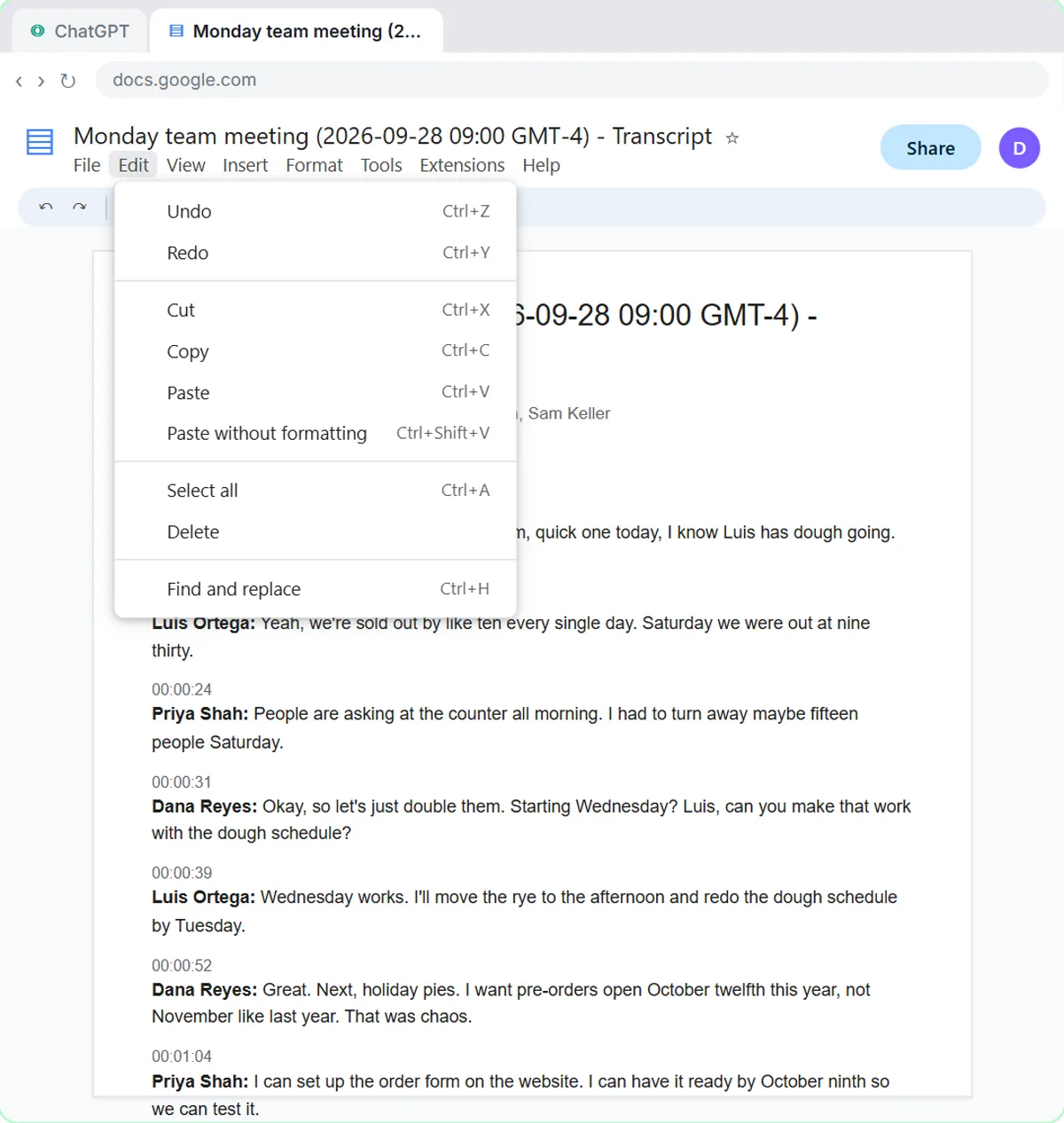 Summarize a Meeting Transcript with ChatGPT
Paste a long meeting transcript into ChatGPT and get the decisions, an action items table with owners and due dates, and a follow-up email ready to send.
Free · Live ~9 min Beginner
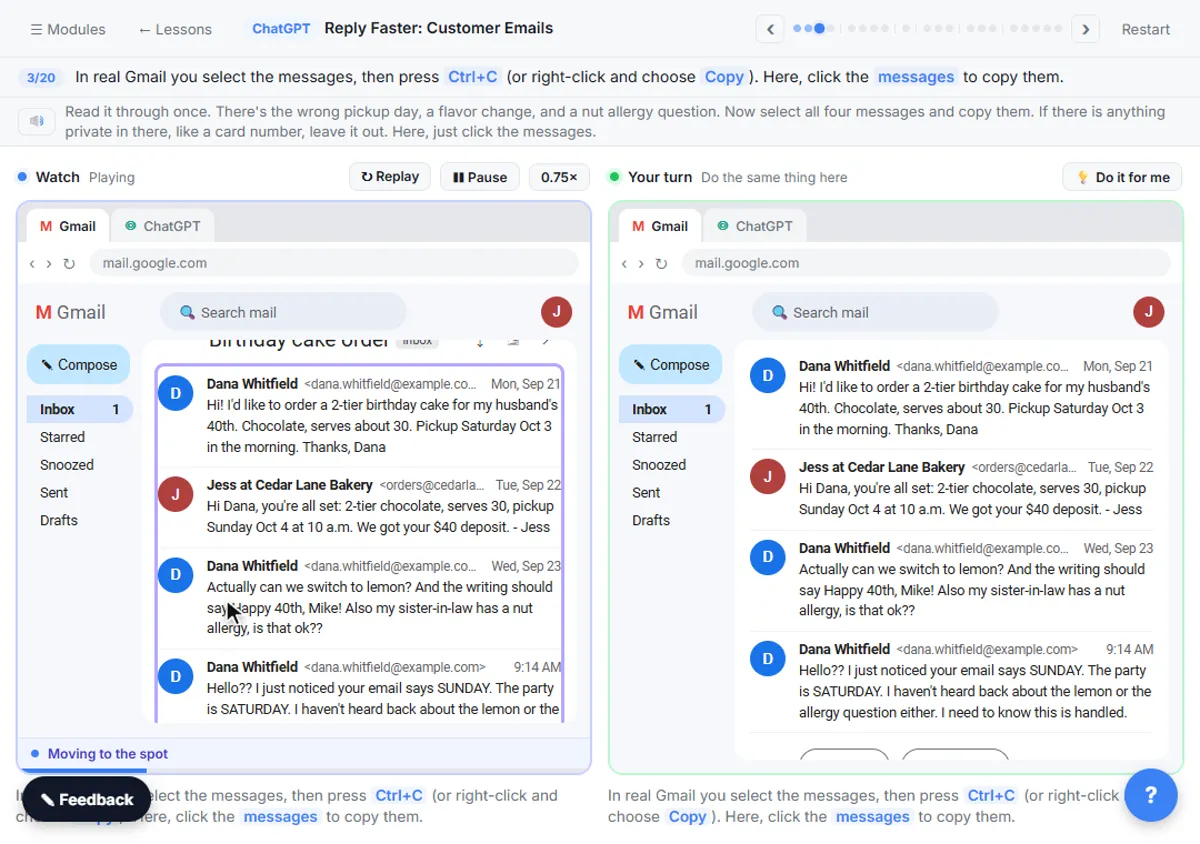 Reply Faster: Turn a Messy Customer Email Thread into a Clear, Friendly Reply
Turn a messy customer email thread into a clear, friendly reply: give ChatGPT the thread and your facts, check every promise, fix the tone, and send it from Gmail.
Free · Live ~9 min Beginner
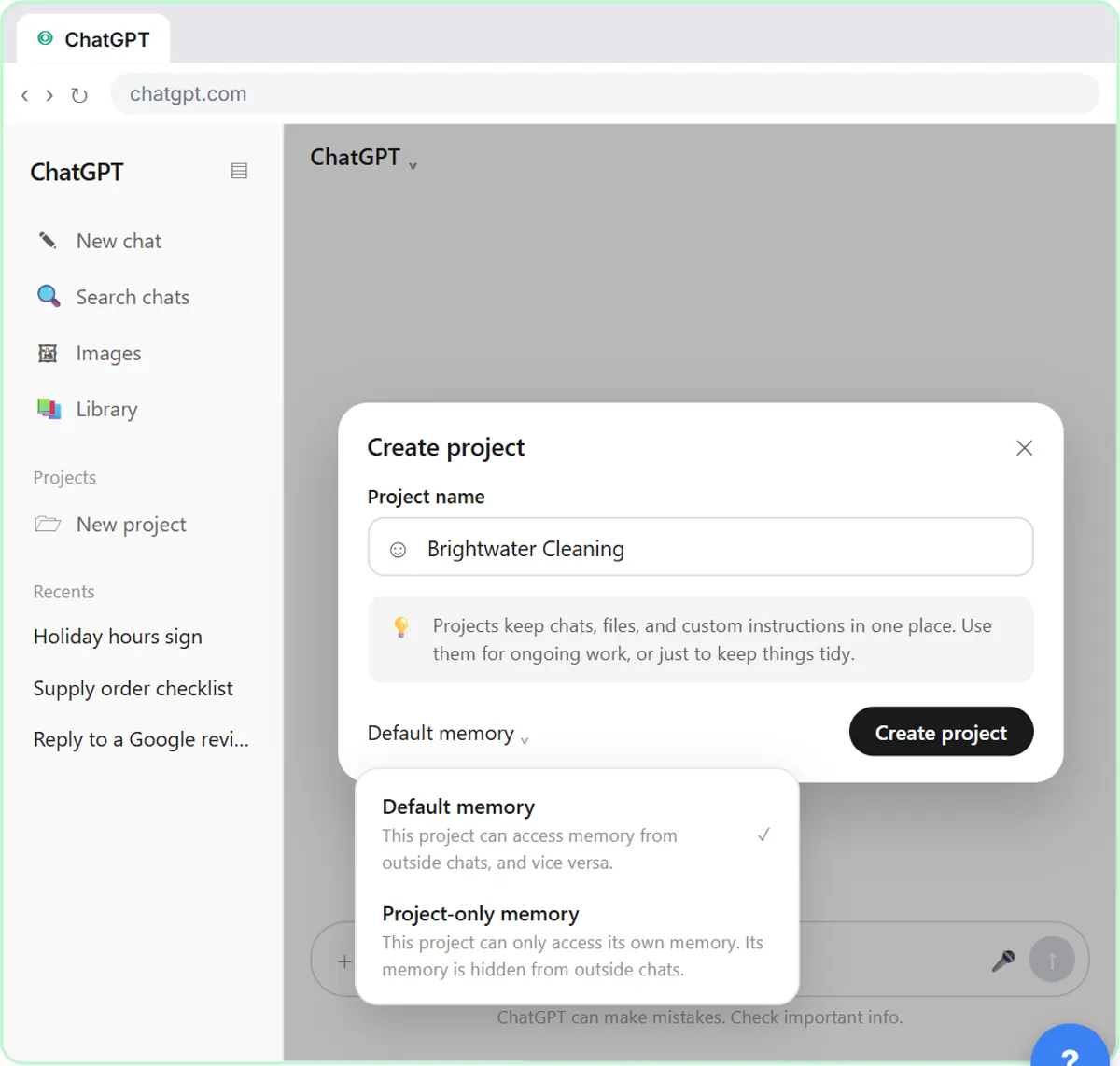 How to Create a Project in ChatGPT for Your Brand Voice and Files
Set up a ChatGPT Project with your brand voice instructions, your price list and your style guide, so every new chat already knows your business.
Free · Live ~9 min Beginner
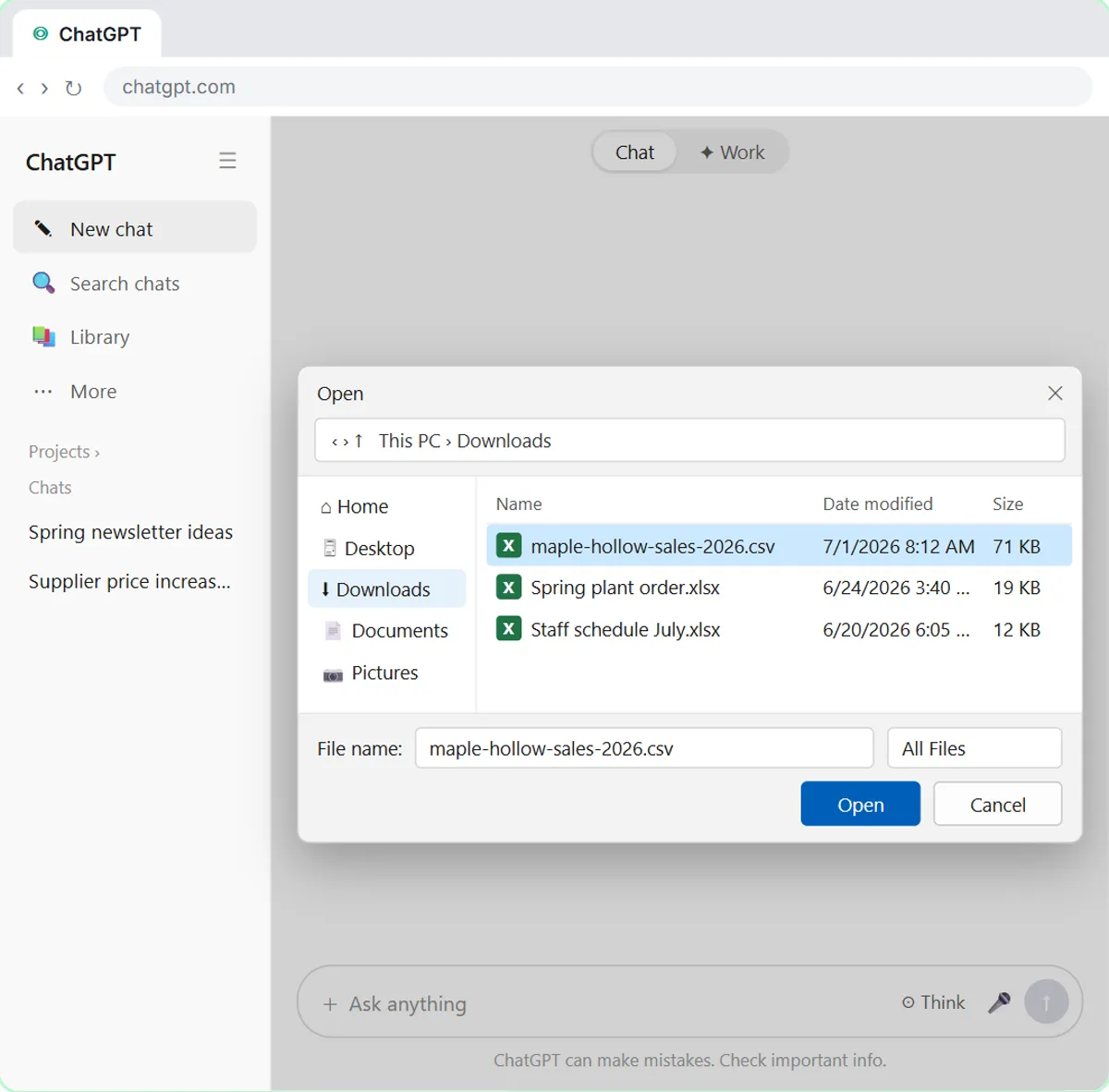 Analyze a Spreadsheet with ChatGPT: Upload a CSV, Get a Chart and Three Takeaways
Upload a CSV of sales to ChatGPT, have it check the data first, ask your questions, get a chart you can download, and finish with the three takeaways that matter.
Free · Live ~10 min Beginner
 ChatGPT Work: Have ChatGPT Do a Multi-Step Task
Switch ChatGPT to Work, hand it a real job (compare three suppliers into a spreadsheet), approve the sites it opens, skip a login, answer its question, check the file…
Free · Live ~8 min Intermediate
◷Get a Morning Invoice Summary in Slack using ChatGPT DotsSet up a ChatGPT dot to check Gmail for new invoice emails and post one summary to Slack every weekday morning. A 7-step practice based on OpenAI's published screens.
Free · Live ~4 min Intermediate
All 28 modules in ChatGPT for Everyday Work
More ChatGPT tutorials
 Get On-Brand Social Posts Every Time using a ChatGPT Custom GPT
See why generic prompts give generic results, then build a Custom GPT loaded with your brand voice and watch the output transform.
Free · Live ~8 min Beginner
 Prompt Writing 101: Role, Context, Task, Format
Ask ChatGPT for the same customer email twice, once vaguely and once with a four-part prompt, and see exactly why structure gets a better answer.
Free · Live ~8 min Beginner
◷Send a Same-Day Follow-up After Every Discovery Call using ChatGPTTurn a discovery call transcript into the decisions, the next steps with owners and dates, deal notes for your CRM, and a follow-up email the prospect gets the same…
Free · Live ~7 min Beginner
◷Hold Your Price When a Prospect Asks for a Discount using ChatGPTA prospect wants 30% off and a free month to sign this week. Give ChatGPT the thread and your pricing rules, catch the discount you can't approve, and send a reply that…
Free · Live ~9 min Beginner
 Get Your Business Recommended by ChatGPT
Ask ChatGPT who it recommends in your town, see which pages it trusts, then use it to write an FAQ page and Business Profile copy that answer real customer questions.
Free · Live ~10 min Intermediate
◷Run a Weekly Ops Review Where Every Task Has an Owner using ChatGPTTurn a weekly operations and vendor review into the decisions, the next steps with owners and dates, the risks to watch and a team recap, without turning a vendor's…
Free · Live ~7 min Beginner
Terms in this lesson
Plain-English definitions, each with an example from a free lesson.