Updated . Built against the tool’s current screens and checked step by step. How we check this lesson
The pay range is the first thing most candidates read in a job post, and more and more states and cities require one. Set it too low and the good applicants scroll past; set it too high and you pay for it every year. In this free, interactive lesson you use Claude Research to check what nearby employers publish for the same role, with a source for every range, and then do the part that matters most: open a source, catch a posting that closed last year, and turn the findings into talking points while the decision stays with you.
At a glance
| Question | Answer |
|---|---|
| What you build | Before you post a job, turn on Research and have Claude check the pay ranges, work setup and benefits that nearby employers publish for the same role, read the cited report, catch a closed posting, and get talking points for the pay conversation. |
| Tools | Claude |
| Time | About 8 minutes, 18 steps in 4 parts |
| Level | Beginner, no coding needed |
| Cost | Free |
| Ways to learn it | Practice it step by step, read the guide with screenshots |
The 4 parts, in short
- Turn on Research: Open the + menu, Choose Research, Click the message box, Ask for a pay range scan, and 1 more step.
- Watch it work: See what Claude is doing, Let it finish, Look at the sources.
- Read the cited report: Open the report, Check a citation, Open the source, Spot the date, and 1 more step.
- Ask a follow-up: Turn Research off, Click the reply box, Ask a follow-up, Send it, and 1 more step.
Start here first: Claude Research: Get a Cited Competitor Price Scan, Then Check It. This Recruiting & HR version follows the same build with its own example business, Fernhill Architecture.
Part of: AI for Recruiting & HR (step 15 of 19). Next up: DeepL: Translate a Client Document and Keep Its Formatting
How to set a Job Post Pay Range You Can Defend: a Cited Pay Scan with Claude Research: step-by-step guide with screenshots
About the screenshots. They come from Stepthrough’s simulated practice environment (a practice copy of Claude), not the live tool, so no real account appears. The buttons and labels match the real screens the lesson was built against. Practice it yourself free at learn.ynteractive.com.
- Tools: Claude
- Time: about 8 minutes, 18 steps in 4 parts
- Level: beginner, no coding needed
Part 1: Turn on Research
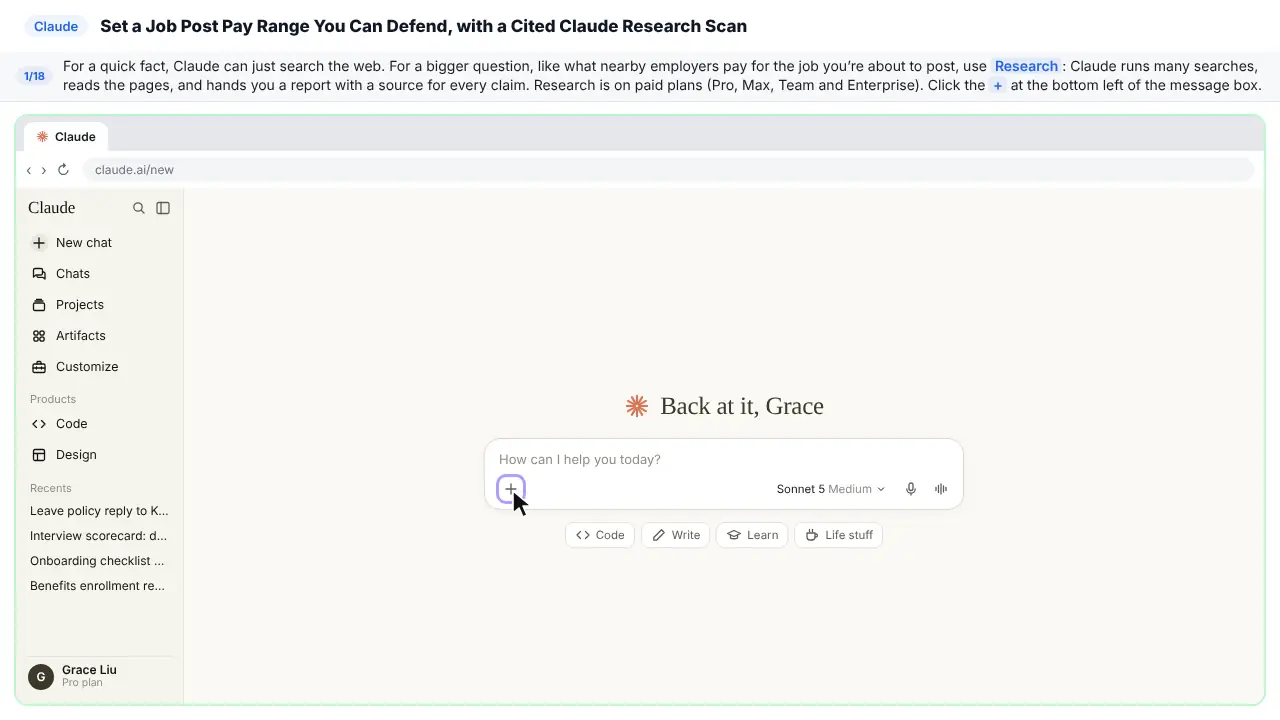
Step 1: Open the + menu
Fernhill Architecture is about to post a project coordinator job, and the partners want to know if the pay range is right. That's a job for Research. Claude runs many searches, reads the job posts, and gives you a report with a source for every claim. Research comes with paid plans.
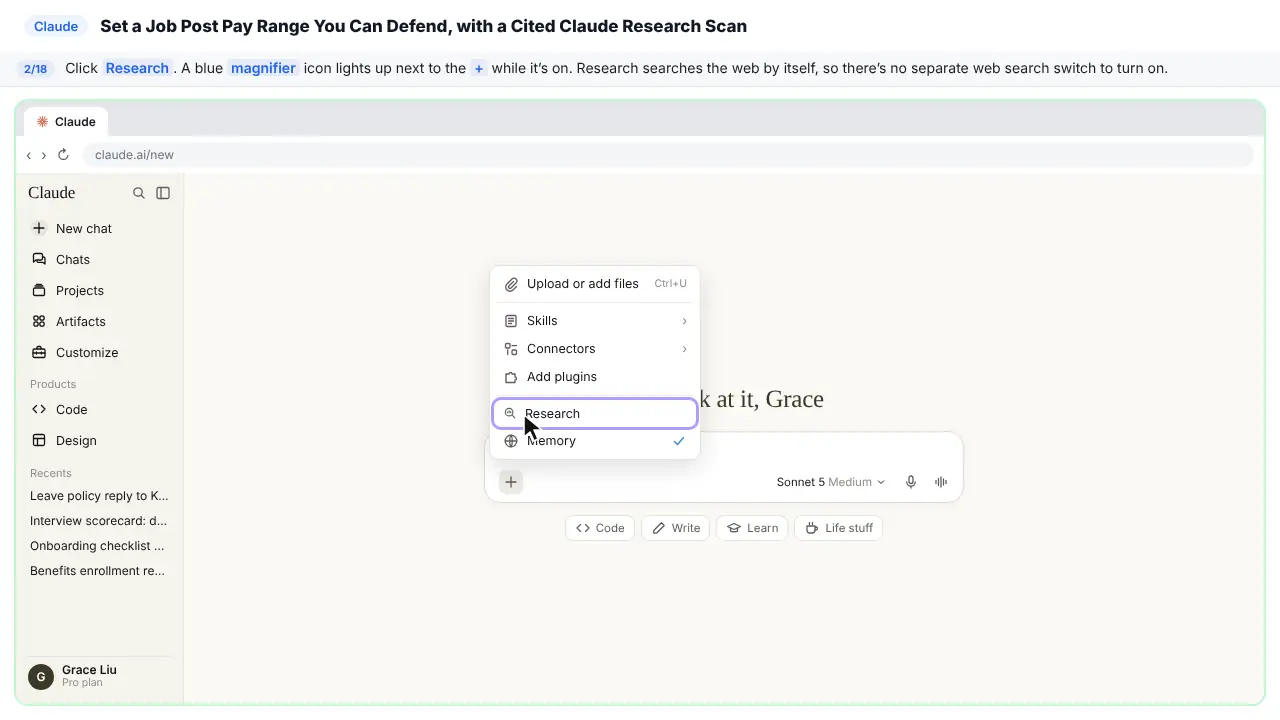
Step 2: Choose Research
A blue magnifier lights up next to the plus, so you know it's on. Research searches the web by itself, so there's nothing else to switch on.
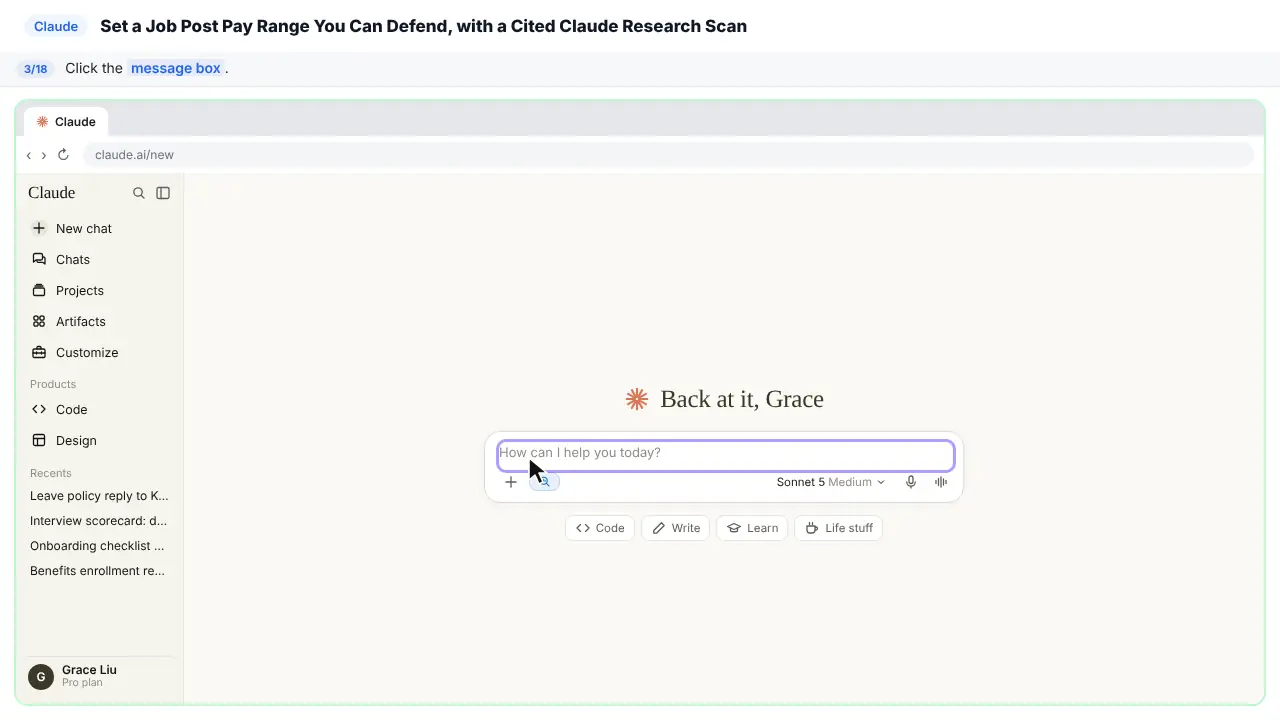
Step 3: Click the message box
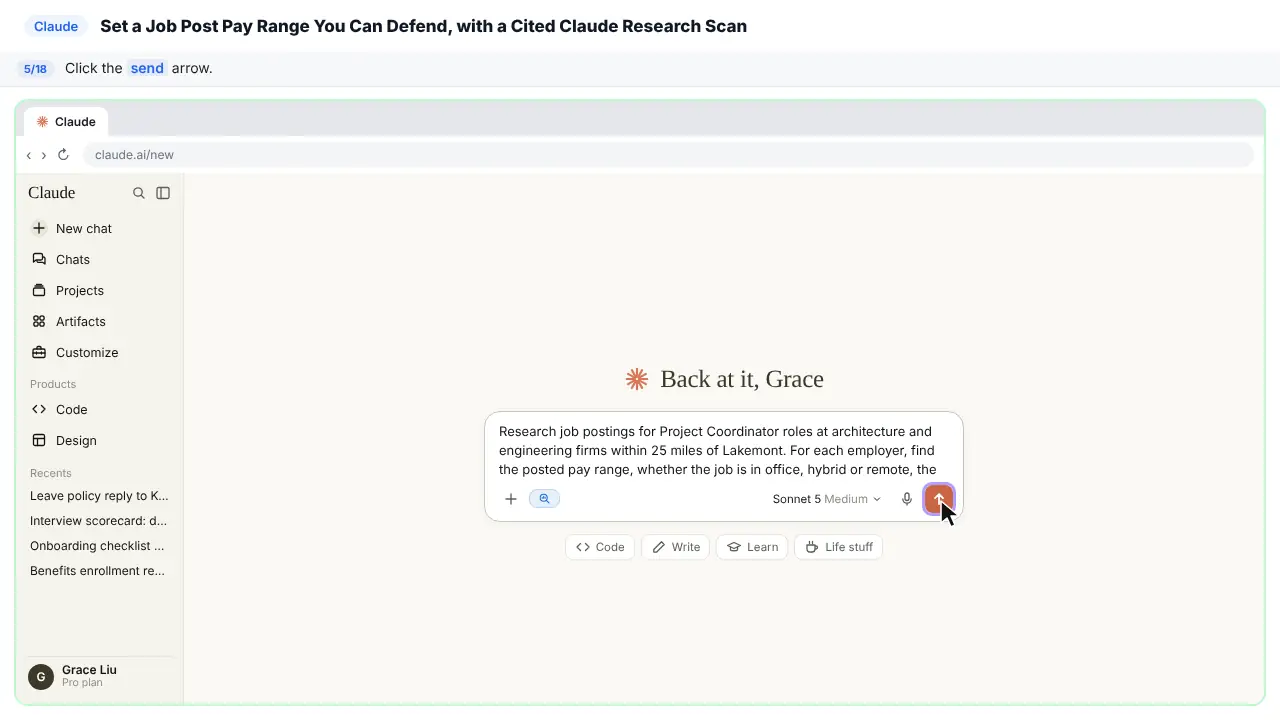
Step 4: Ask for a pay range scan
A good research request says where to look, what to find, how to lay it out, and what to compare it with. Here you ask for a source link for every range, and for a warning when a posting is old, comes from a recruiting agency, or is pay that employees reported themselves.
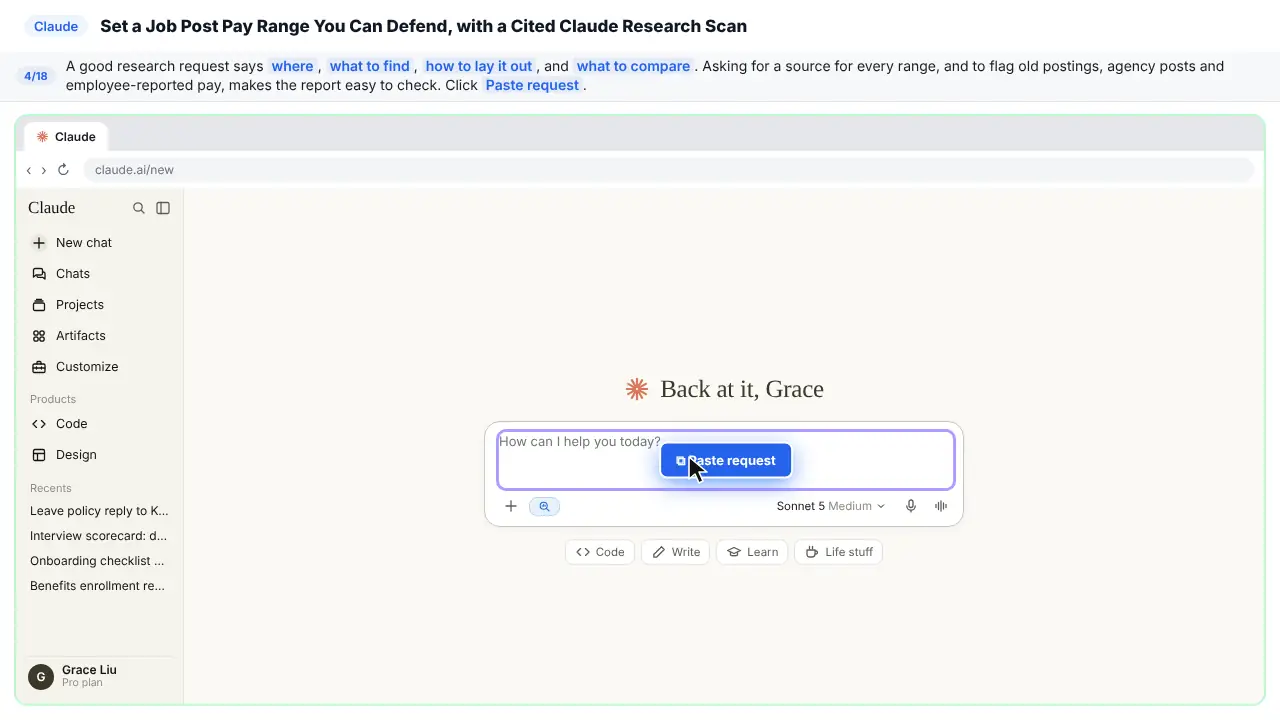
Research job postings for Project Coordinator roles at architecture and engineering firms within 25 miles of Lakemont. For each employer, find the posted pay range, whether the job is in office, hybrid or remote, the paid time off, and any benefit they lead with. Put it in a table with a source link for every fact, and say when something is missing, old, from a recruiting agency, or self-reported by employees instead of posted by the employer. Then compare them with our draft: $50,000 to $56,000, in office 5 days, 12 days PTO plus holidays, 8 weeks paid parental leave.
Step 5: Send it
Part 2: Watch it work
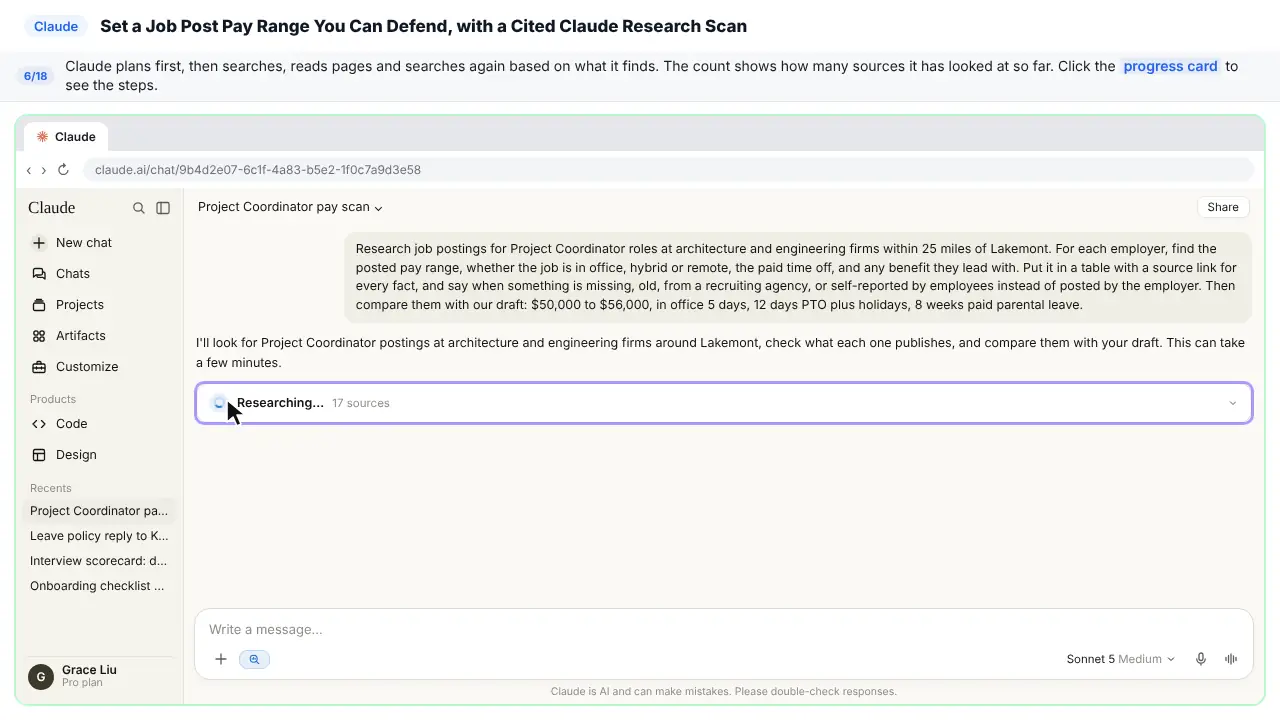
Step 6: See what Claude is doing
Claude plans its approach first, then searches, reads pages, and searches again based on what it finds. The number shows how many sources it has checked so far.
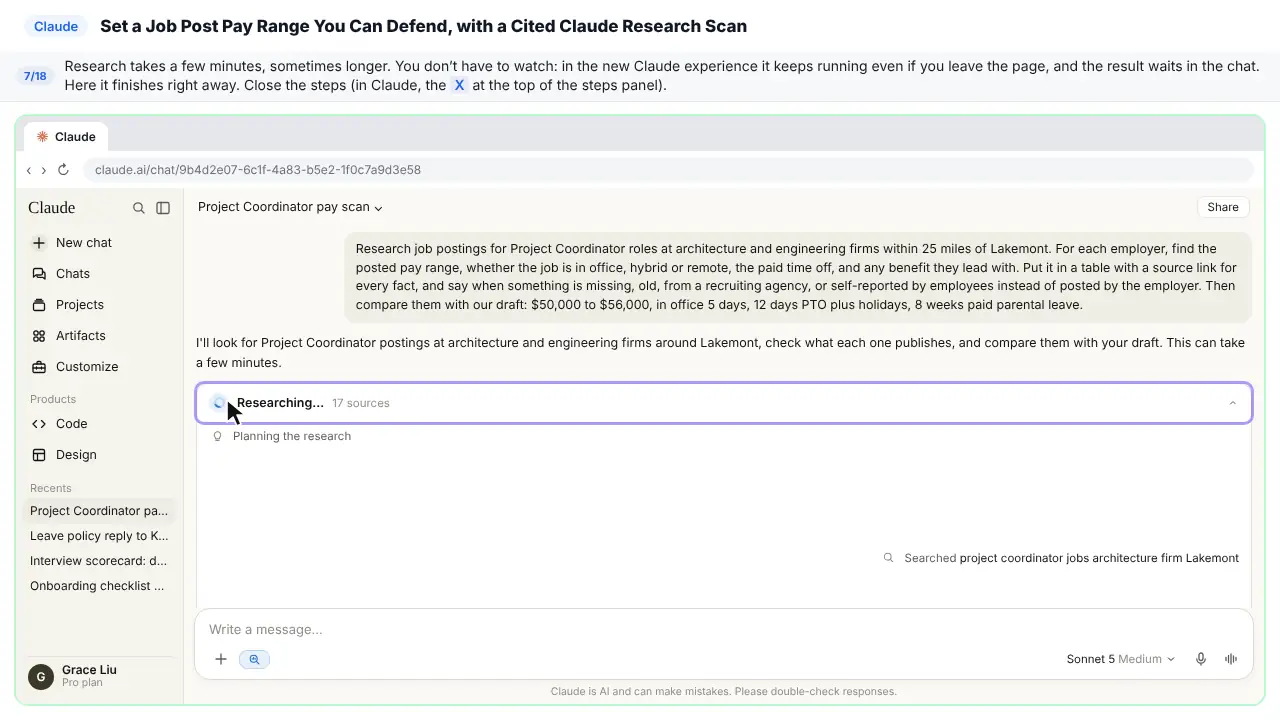
Step 7: Let it finish
Research takes a few minutes, sometimes more. You don't have to sit and watch. Go do something else, and come back when it's done. In this practice copy, it finishes right away.
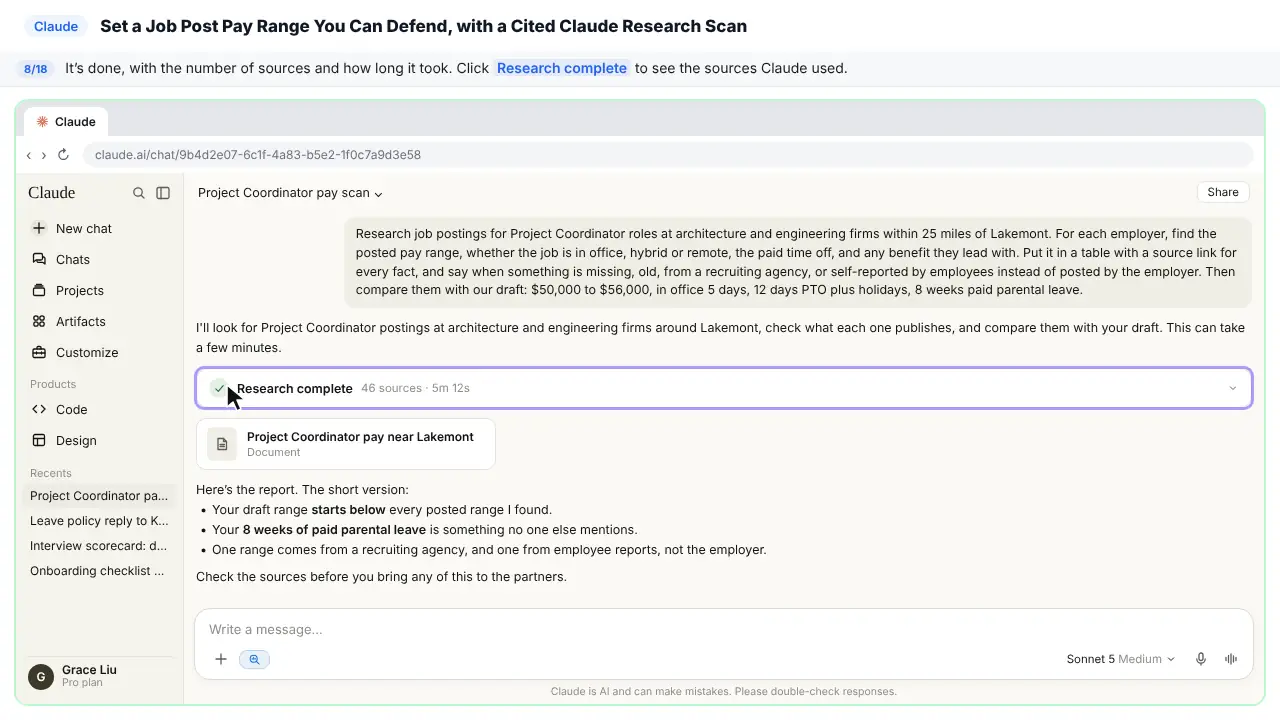
Step 8: Look at the sources
Research complete. You can see how many sources Claude used and how long it took.
Part 3: Read the cited report
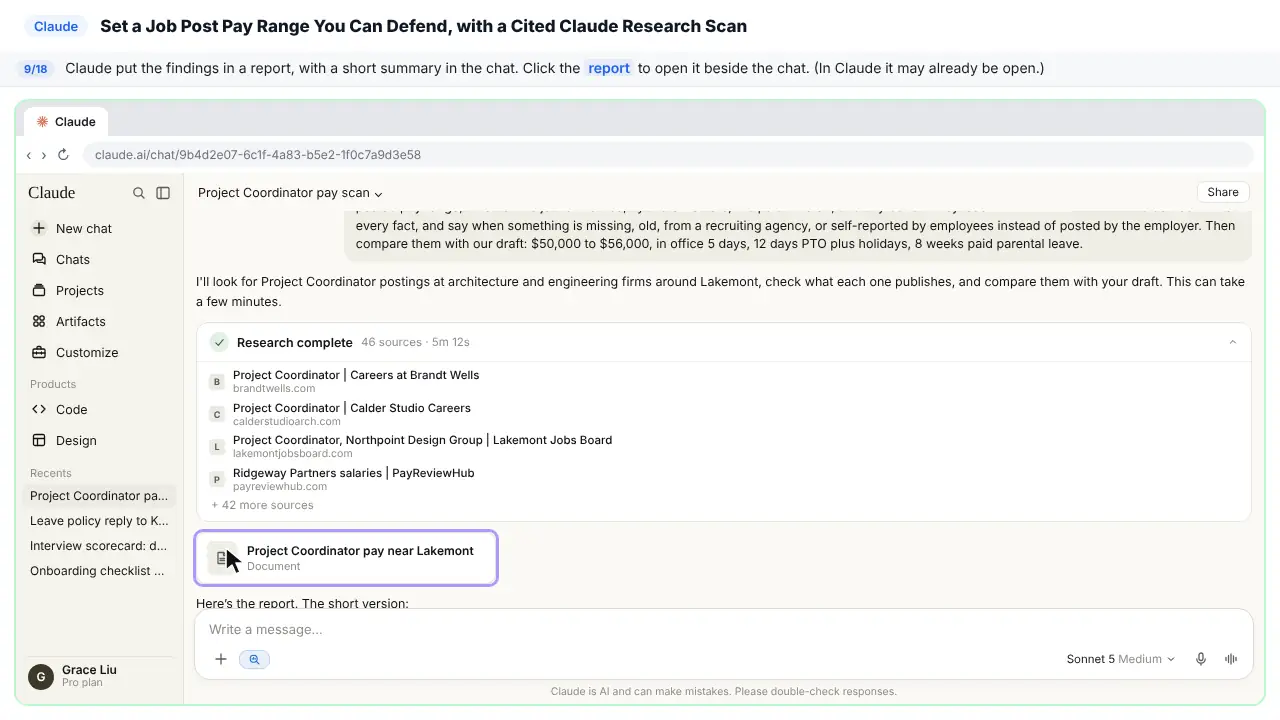
Step 9: Open the report
Claude wrote the findings up as a report, with a short summary in the chat.
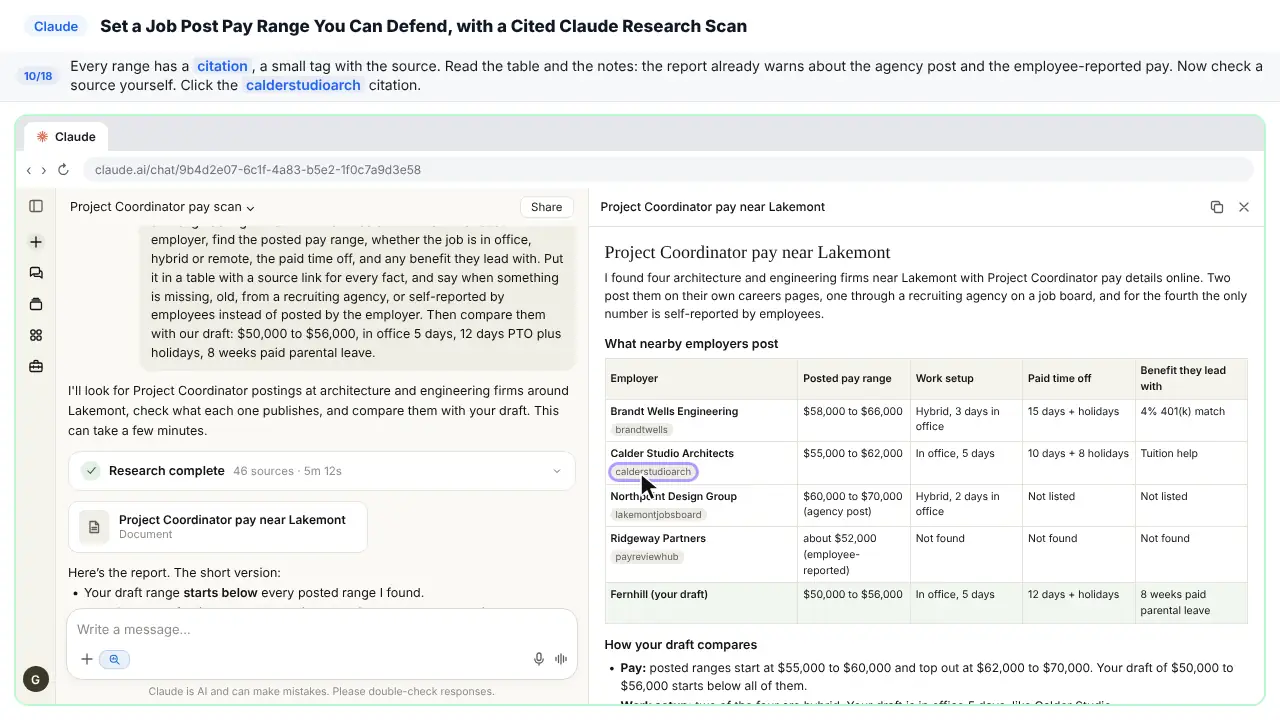
Step 10: Check a citation
Every range has a citation: a small tag that shows where it came from. Notice the report already warns that one range comes from a recruiting agency, and one from employee reports. Now check a source yourself.
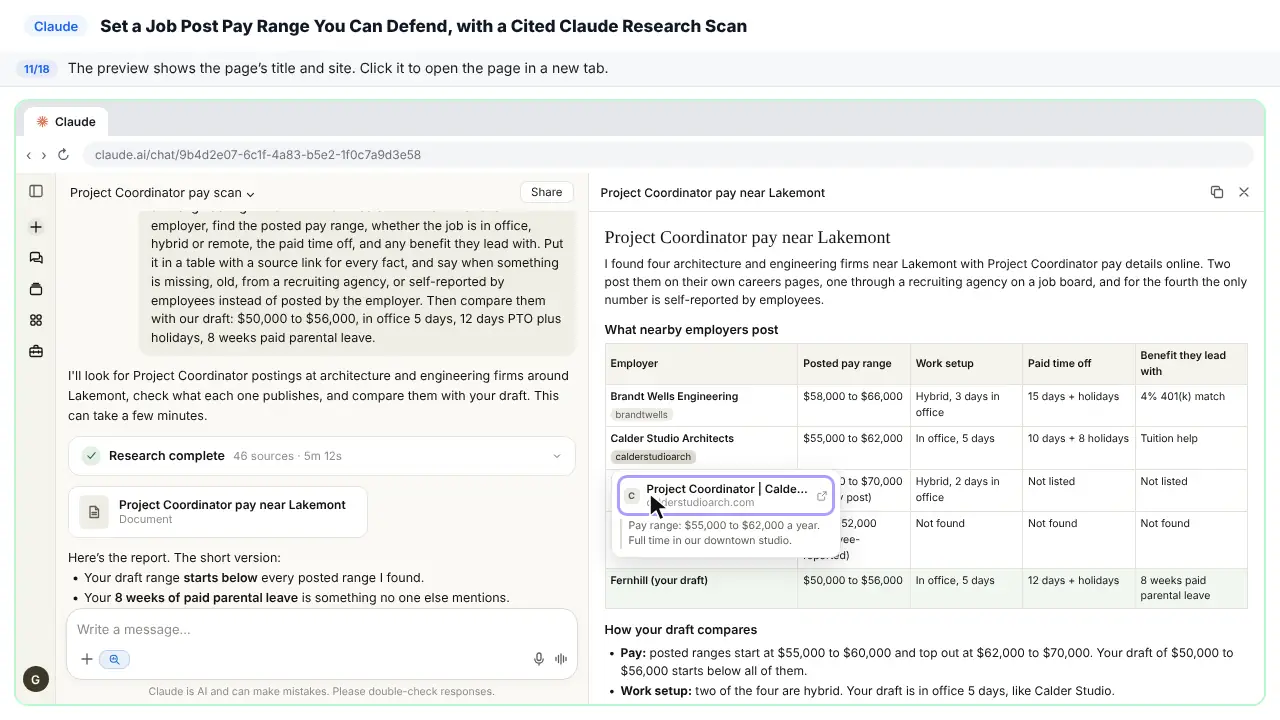
Step 11: Open the source
The preview shows the page title and the site it came from.
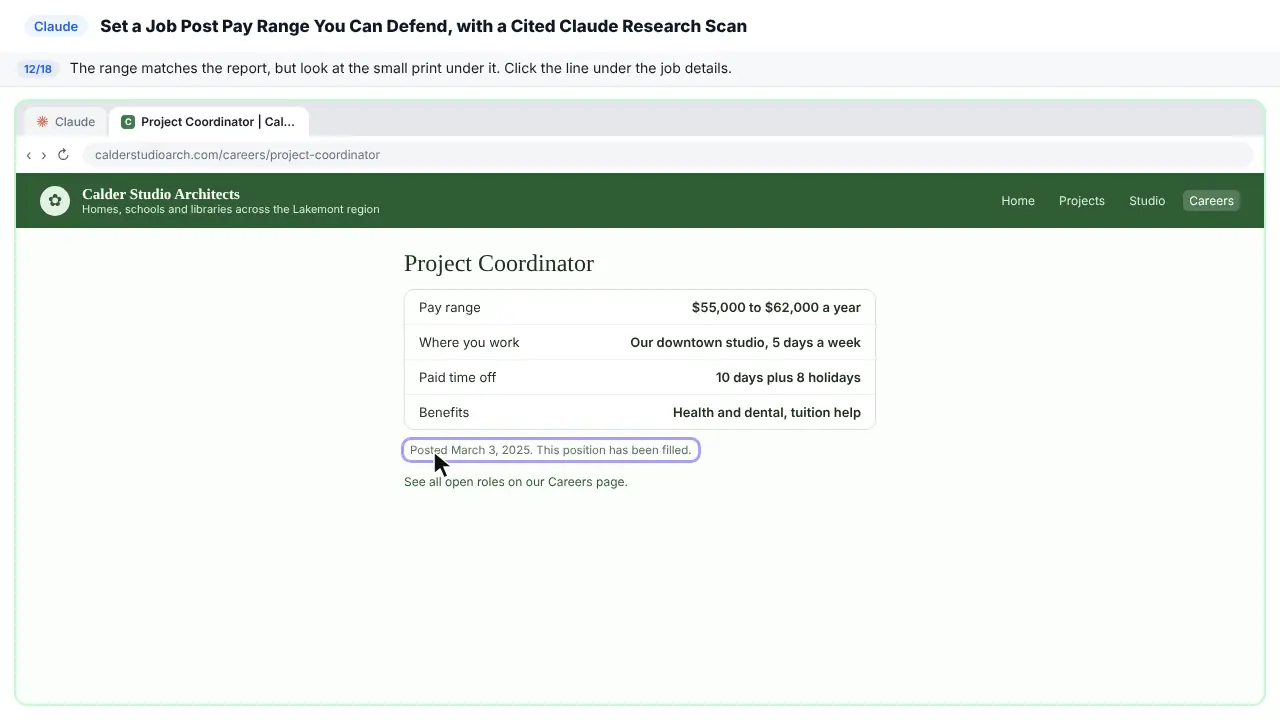
Step 12: Spot the date
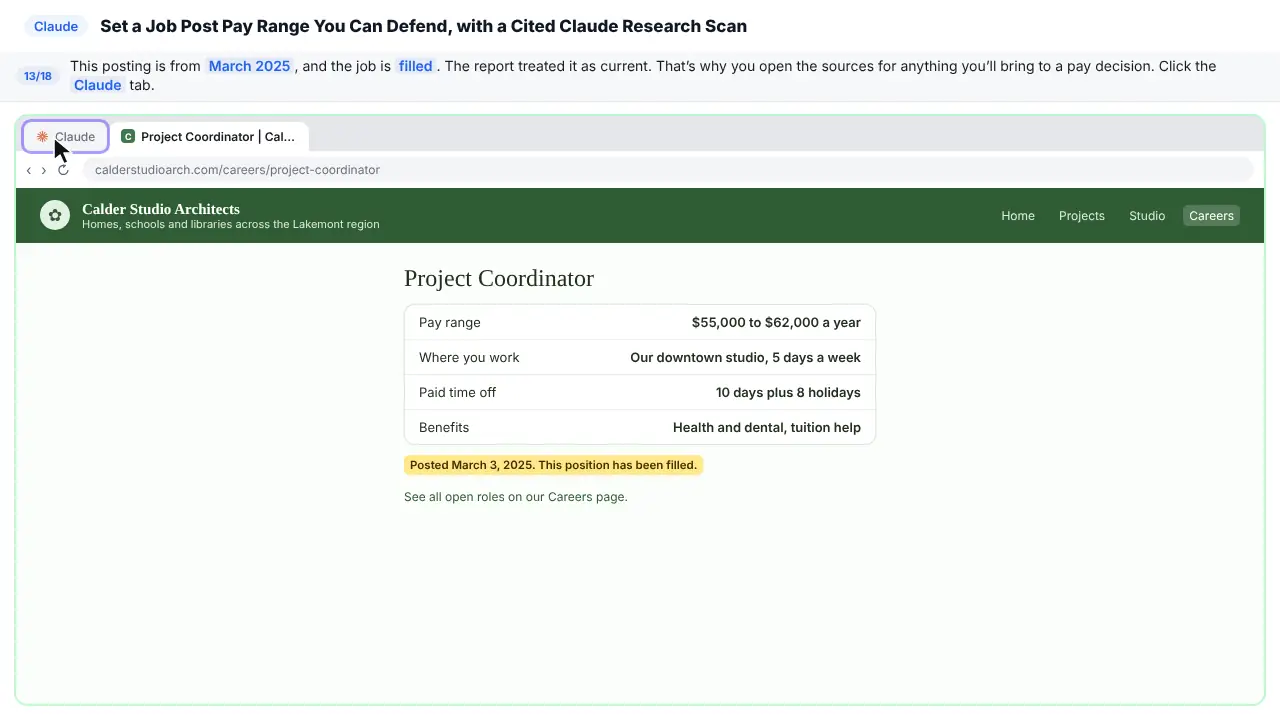
The range matches the report. But read the small print under the job details.
Step 13: Go back to Claude
This posting is from March 2025, and the job has been filled. The report treated it like a current opening. Claude read the range correctly, but missed the date. That's why you open the sources before anything goes into a pay decision.
Part 4: Ask a follow-up
Step 14: Turn Research off
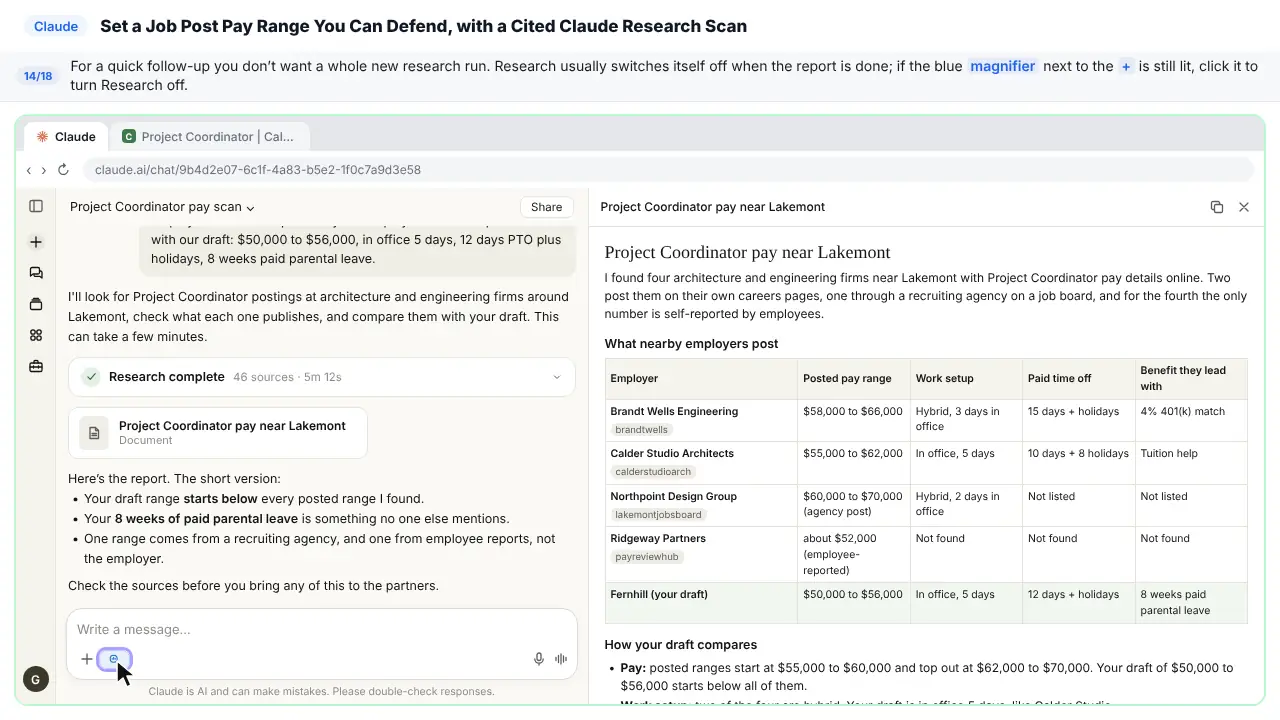
You just need a quick follow-up, not a whole new research run. Research usually switches itself off when the report is done. If the blue magnifier next to the plus is still lit, click it to turn Research off.
Step 15: Click the reply box
Step 16: Ask a follow-up
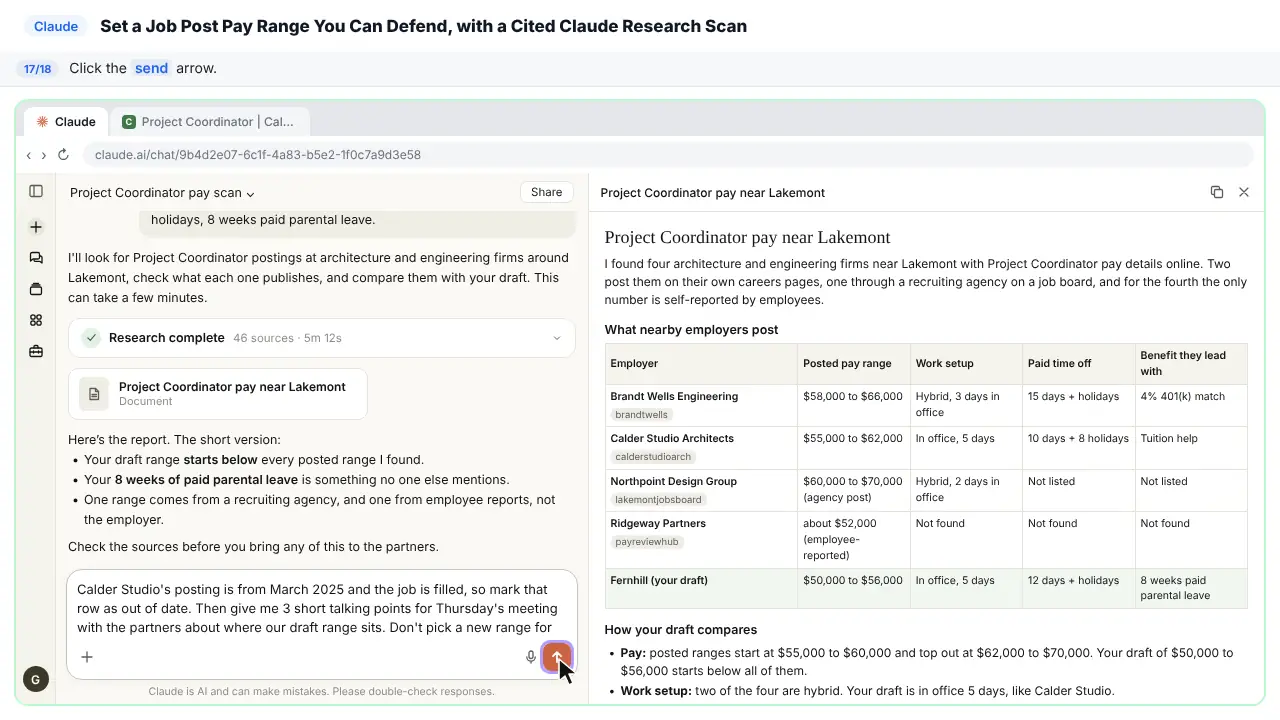
Tell Claude what you found, and ask for talking points for the meeting with the partners. Notice you tell it not to pick a new range. That decision stays with you.
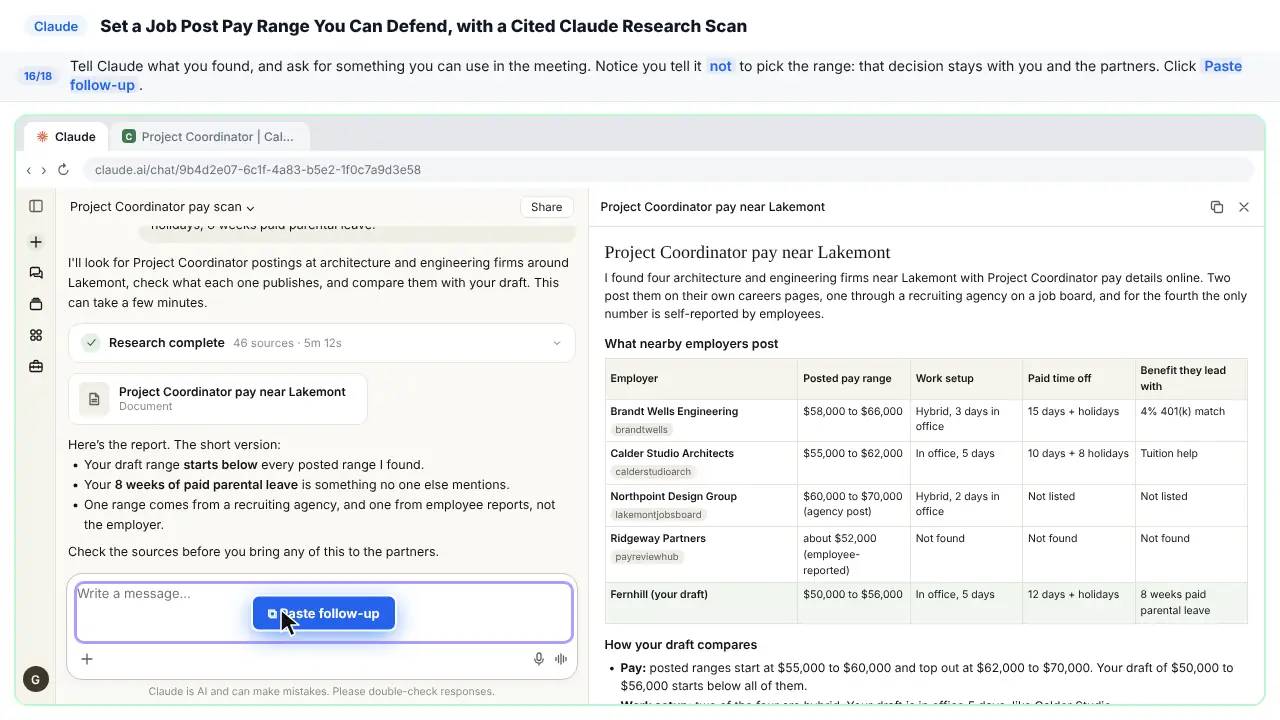
Calder Studio's posting is from March 2025 and the job is filled, so mark that row as out of date. Then give me 3 short talking points for Thursday's meeting with the partners about where our draft range sits. Don't pick a new range for us.
Step 17: Send it
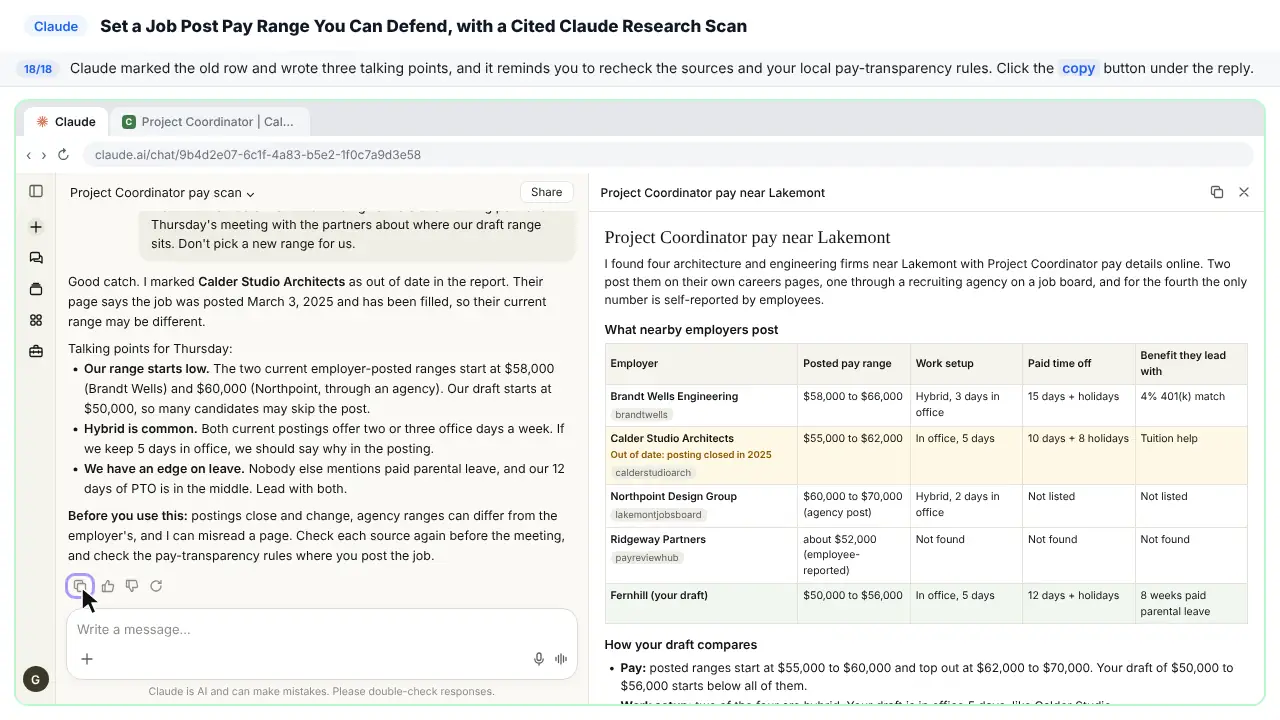
Step 18: Check, then copy
Claude marked the old row in the report and wrote three talking points for Thursday. It also reminds you to check the sources again, and the pay transparency rules where you'll post the job.
Part of these free courses: AI for Recruiting & HR
Now do it yourself, free
Reading the steps is a start. Doing them is how it sticks. The interactive lesson puts you in a practice copy of Claude: you do every step yourself, it checks your work, and “Do it for me” finishes any step you get stuck on. Nothing touches your real accounts.
Practice “Set a Job Post Pay Range You Can Defend: a Cited Pay Scan with Claude Research” step by stepThe example: a Project Coordinator posting at an architecture firm
Fernhill Architecture is a made-up firm, and Grace is its HR manager. The partners want to post a Project Coordinator job at $50,000 to $56,000, in office five days, with 12 days of PTO and eight weeks of paid parental leave. Grace asks Research for the posted pay range, work setup, PTO and lead benefit at architecture and engineering firms within 25 miles of Lakemont, a made-up city, with a source for every fact and a flag on anything old, agency-posted or employee-reported.
The report finds four employers: two with ranges on their own careers pages, one through a recruiting agency's post on a job board, and one where the only number comes from employee reports. Every current range starts above Fernhill's draft. When Grace opens Calder Studio's source, the small print says the posting is from March 2025 and the job is filled, which the report missed.
Who this lesson is for
HR managers, recruiters, office managers and owners at small companies who set pay ranges without a compensation team. No technical skills. Research is on paid Claude plans, but the practice copy here needs no account.
It is part of the AI for Recruiting & HR course, after the job post, scorecard and leave-policy modules.
Why you check the sources, every time
Job posts close, get reposted and change their ranges, and agencies sometimes post a different range from the employer. Claude can read a page correctly and still miss that the posting is a year old. That is why the lesson has you open a source before anything goes into a pay decision.
Asking up front for a flag on old, agency-posted and employee-reported numbers does most of the work. The report's gaps section already warns about two of the four rows; the third you catch yourself.
What Research is good for, and what it isn't
- Good: a fast, cited view of what competitors publish for the same role, where your draft sits, and what they lead with in their posts.
- Not a substitute for: your budget, internal pay equity, or local pay-transparency rules. Tell Claude not to pick a number; people decide the range.
- Never paste your current employees' salaries or anything confidential into a research request. Research reads public pages.
- Research is on Pro, Max, Team and Enterprise plans and uses your usage limits faster than a normal chat. On Team and Enterprise an Owner turns on web search in Organization settings > Capabilities.
Ways to use it after the lesson
- Rerun the same request before every new posting, since ranges move.
- Compare benefits and work setup for a role you are struggling to fill.
- Check what competitors say about flexibility and leave, to find the honest edge your post can lead with.
- Prepare talking points for a promotion or raise conversation, with cited market context.
Try it yourself, free
Reading the steps is a start. Doing them is how it sticks. The interactive module walks you through every click in a practice copy of Claude, checks each step, and never touches your real accounts.
Start “Set a Job Post Pay Range You Can Defend: a Cited Pay Scan with Claude Research”Frequently asked questions
- Can Claude Research find salary ranges for a job?
- It can find the ranges employers publish in their job posts and on their careers pages, and cite each one. Ask it to flag anything old, posted by a recruiting agency or self-reported by employees, and open the sources before you rely on a number.
- Should Claude decide my pay range?
- No. In the lesson the follow-up says "Don't pick a new range for us." The range depends on your budget, internal equity and local rules that a web scan can't see. Use Research to prepare the decision.
- What did the report miss in the lesson?
- One employer's posting was from March 2025 and the job was already filled, but the report treated it as a current competitor. Opening the citation showed the date in the small print.
- Which Claude plans include Research?
- Pro, Max, Team and Enterprise. On Team and Enterprise an Owner turns on web search in Organization settings > Capabilities. The practice copy in this lesson needs no account.
- Is this lesson free?
- Yes. Stepthrough is completely free and the practice copy needs no accounts.
More in AI Automation for Recruiting & HR
Translate a client's Word policy into Spanish with DeepL file translation, keep its headings and table, set a formal tone, then polish the English cover email with…
Free · Live ~5 min Beginner
 Score Every Candidate Fairly After the Interview using ChatGPT
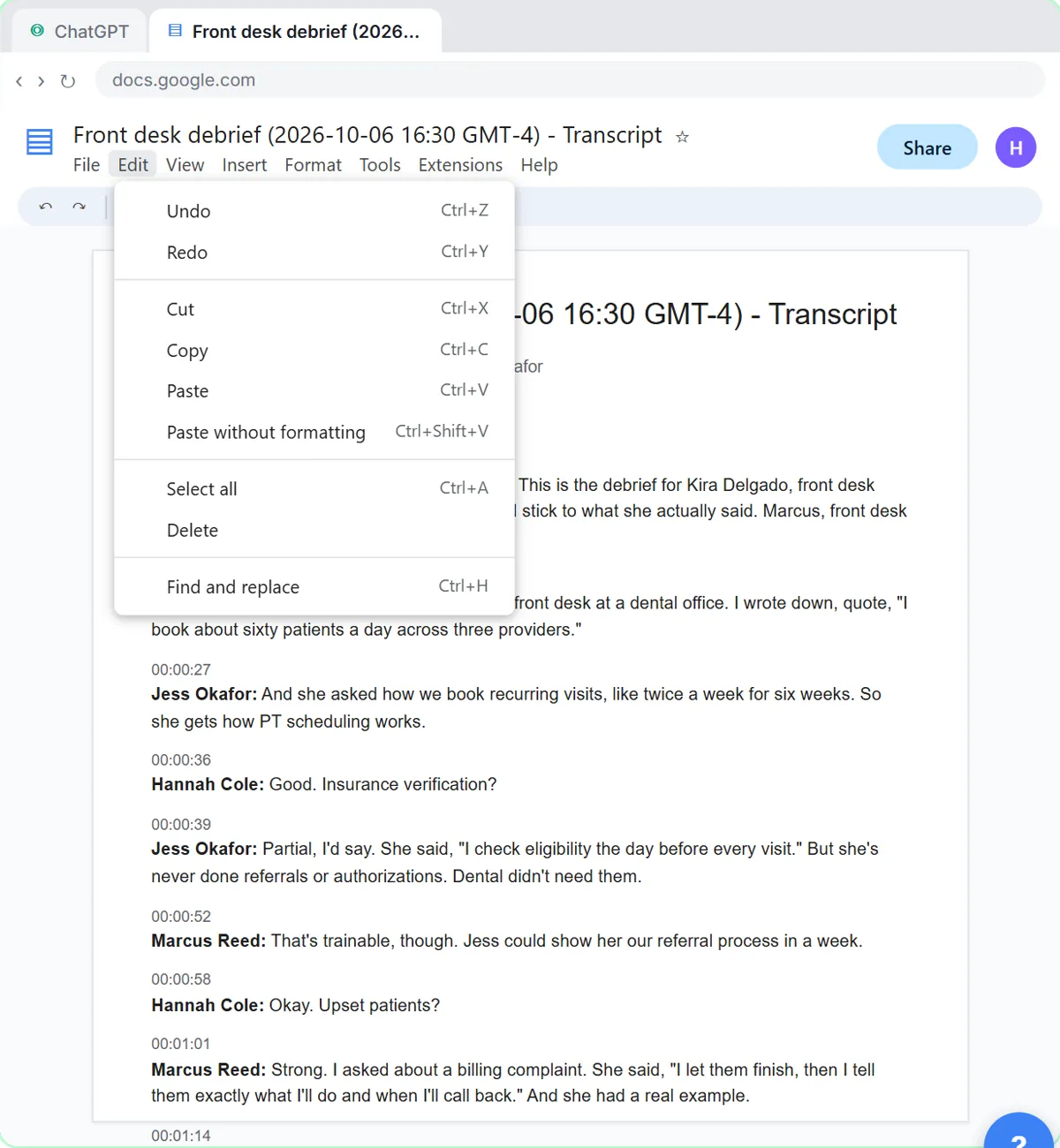
Turn the transcript of an interview panel's debrief into a scorecard against the role's must-haves, the decisions, action items with owners and dates, and a follow-up…
Free · Live ~7 min Beginner
 Write a Fair, Job-Related Job Posting with ChatGPT's Interview Prompt
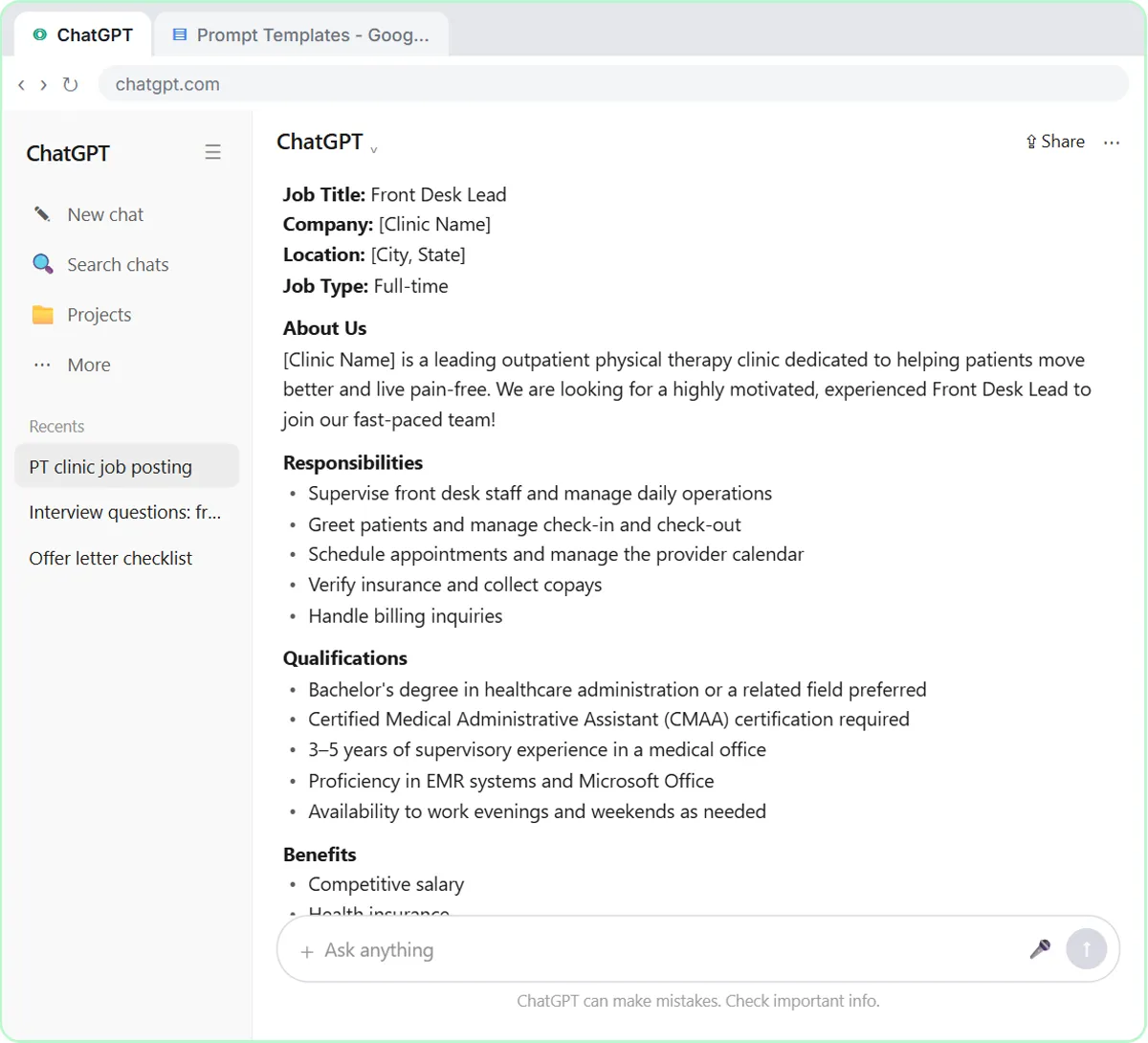
Ask ChatGPT for a front desk lead posting the quick way, then let it interview you: true must-haves only, a real pay range, the work described instead of a personality…
Free · Live ~7 min Beginner
 Collect Job Applications in Google Sheets with an n8n Form and a Careers-Page Webhook
Stop losing applicants between job boards and your careers page. An n8n form plus a careers-page webhook put every application in one Google Sheet.
Free · Live ~12 min Advanced
◷Keep Top Candidates Warm with Honest Status Replies using ChatGPTYour best candidate has another offer and wants to know if she got the job, if you'll match her pay and when she can start. Give ChatGPT the thread and the hiring…
Free · Live ~9 min Beginner
 An AI Resume Screener, with a Fairness Step (Recruiting & HR)
Have n8n read each applicant’s PDF resume, score it against the job’s must-haves with the evidence quoted, and rank it in Google Sheets, while a person makes every…
Free · Live ~14 min Advanced
All 10 modules in AI Automation for Recruiting & HR
More Claude tutorials
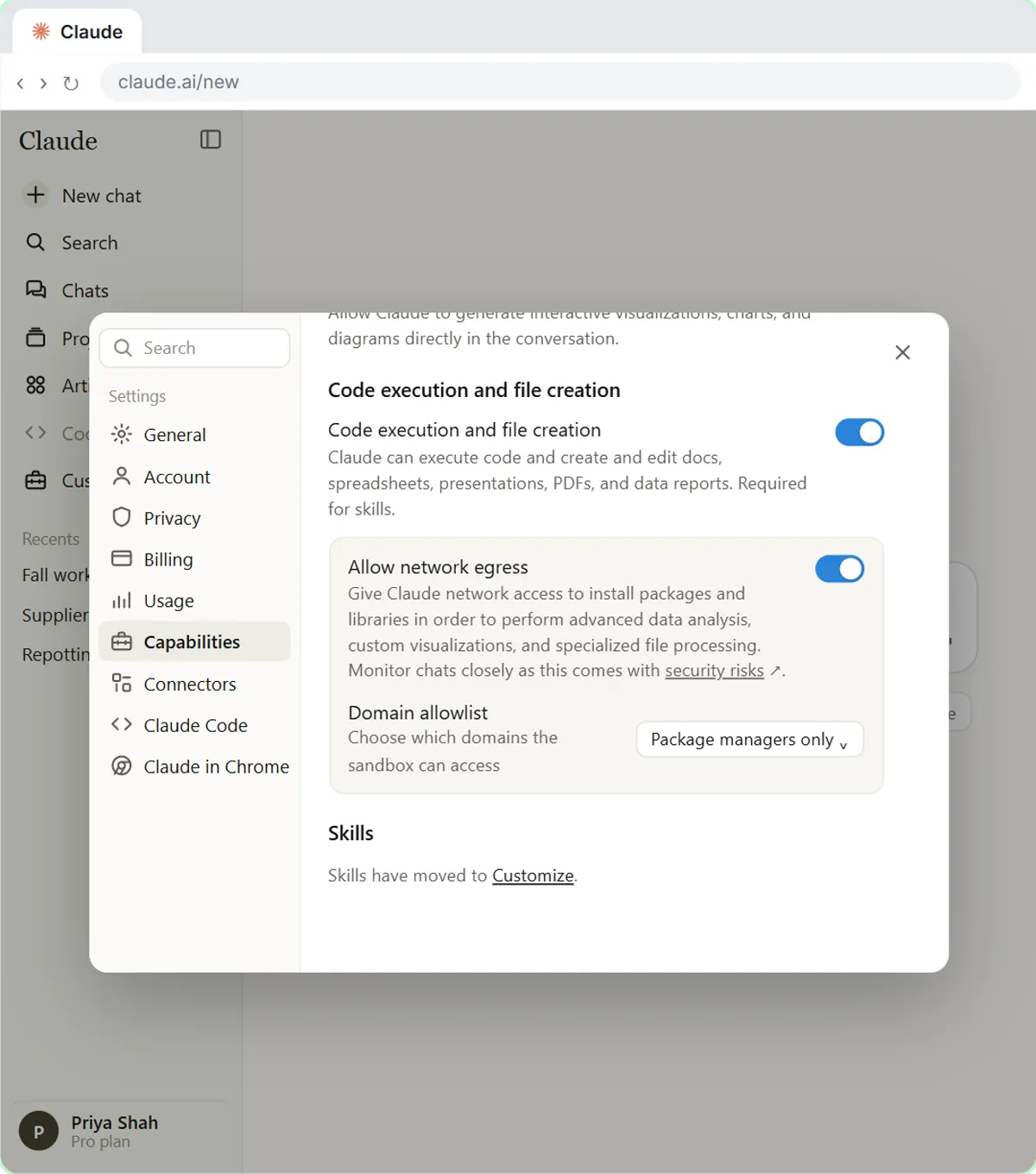
 What Are Claude Skills? Turn One On and Watch It Work
Learn what a Claude skill is, switch on the setting skills need, turn on an example skill in Customize, and watch Claude use its Excel and Word skills on its own.
Free · Live ~7 min Beginner
 How to Install a Custom Skill in Claude (Upload a Skill .zip)
Upload your own skill to Claude as a .zip, check that it’s switched on, see what’s inside its SKILL.md, and watch Claude use it to write a landscaping quote your way.
Free · Live ~6 min Beginner
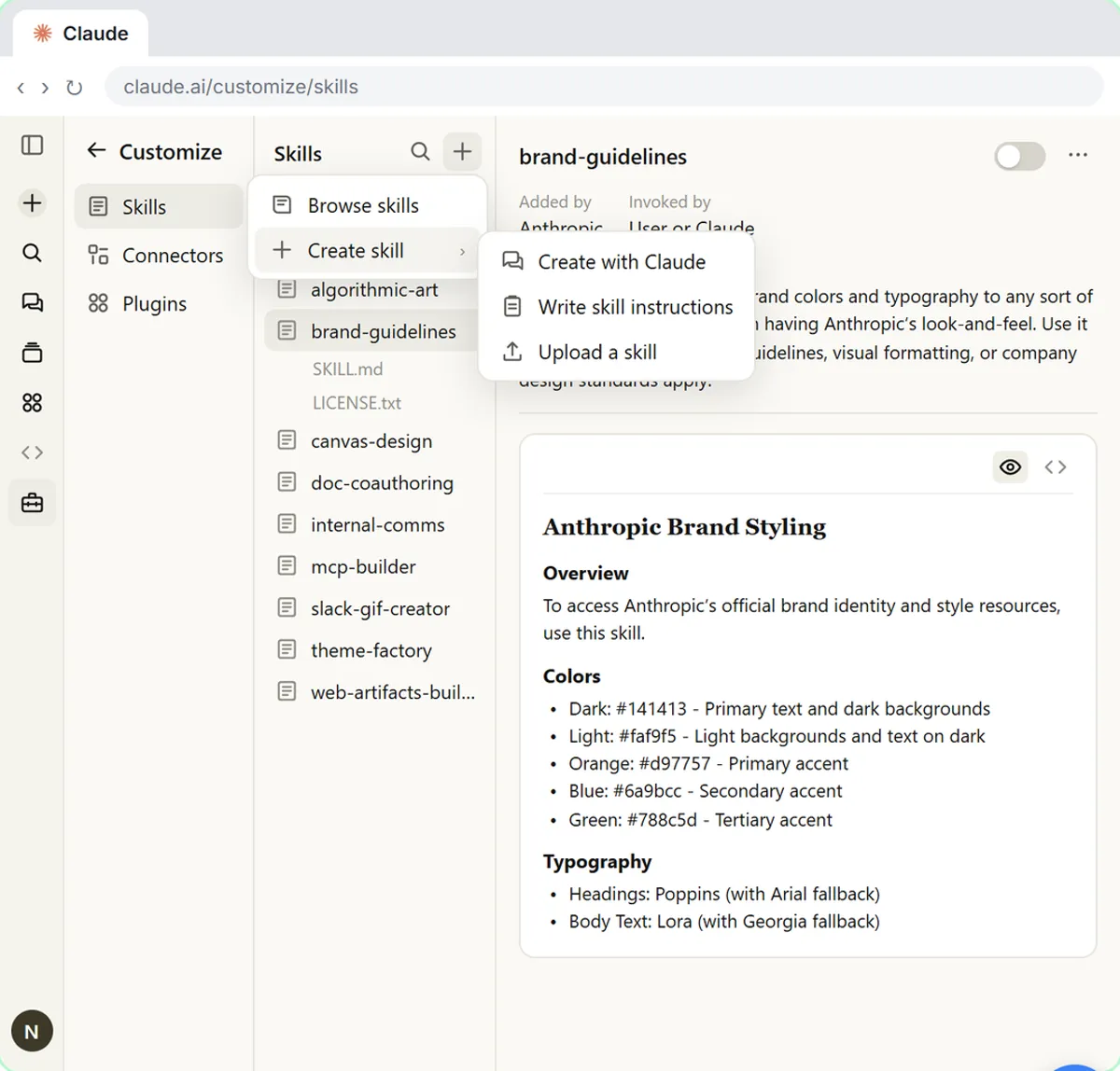 Make Every Claude Document On-Brand with a Brand Guidelines Skill
Build a brand skill for a small flower shop by chatting with Claude: colors, fonts, logo placement and voice. Then ask for a proposal and a social post and watch both…
Free · Live ~7 min Beginner
 Claude's Excel Skill: Turn a Messy Export into a Clean Workbook
Upload a messy sales export to Claude and get back a clean Excel workbook with a Data tab, a Summary tab built with formulas, and a chart, thanks to Claude's built-in…
Free · Live ~8 min Intermediate
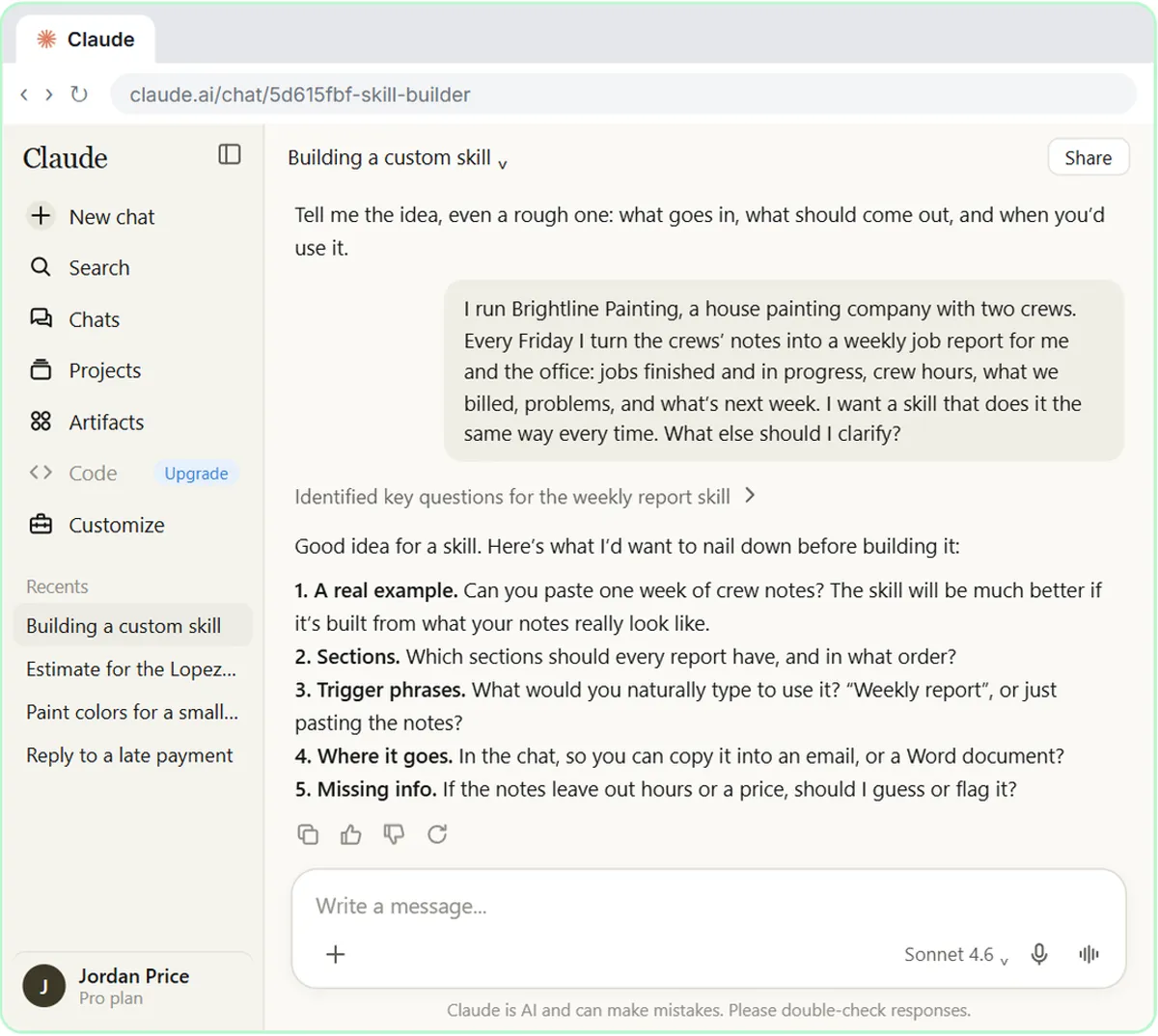 Build Your Own Claude Skill with the Skill Creator: A Weekly Report Template
Turn a report you make every week into a skill. Claude’s skill creator interviews you, drafts the skill, tests it and packages it. Then you use it on a real week…
Free · Live ~8 min Intermediate
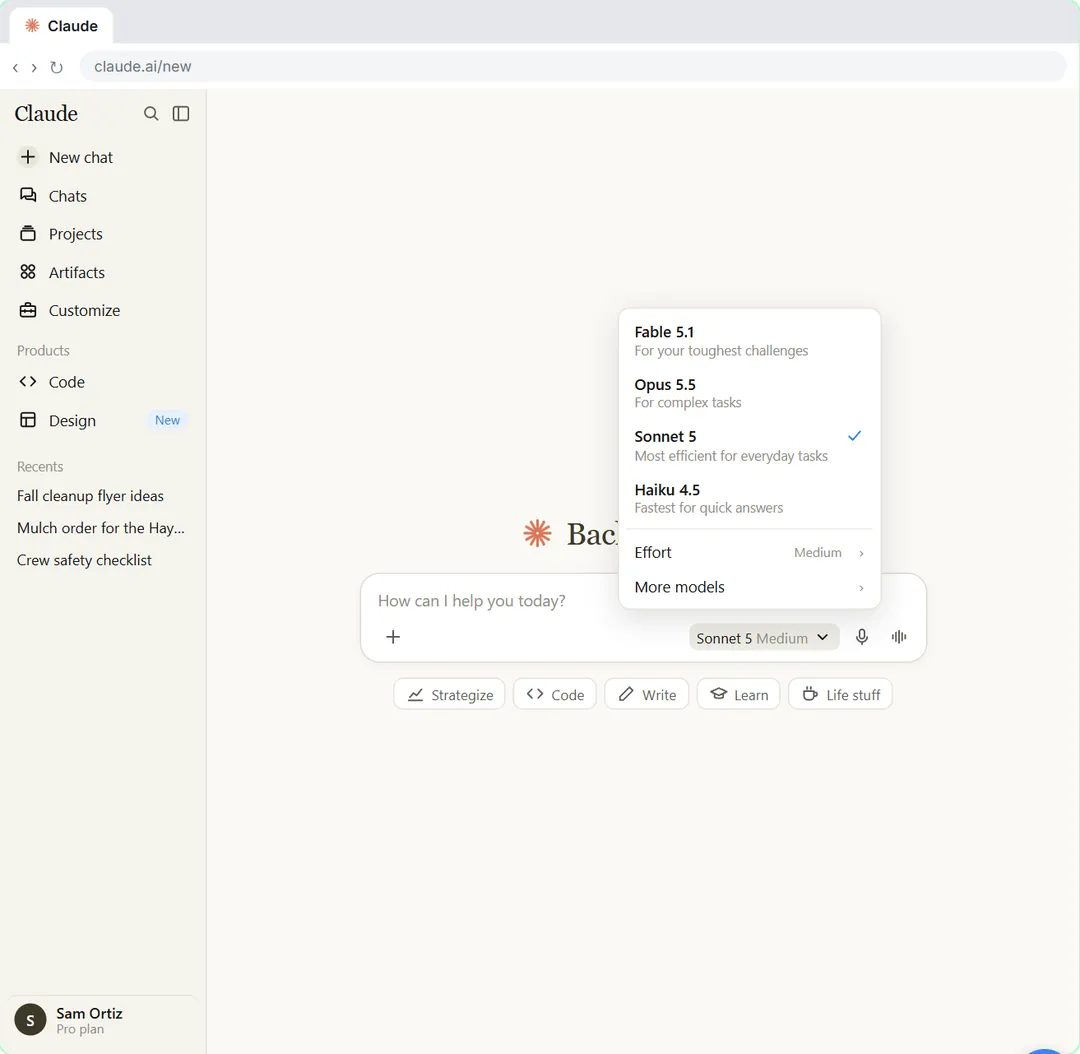 Your First Chat with Claude: Models, Files and a Great First Prompt
Pick a model, attach a customer's complaint email with the + menu, write a four-part prompt, read Claude's reply, ask a follow-up, then pin and rename the chat.
Free · Live ~7 min Beginner
From the blog
How do you check a job post pay range with Claude Research? Plain answers on the request, citations, old postings, plans and what Claude should not decide.
Oct 21, 2026 5 min read
✎Claude Research Pay Range Scan: 8 Mistakes to AvoidClaude Research pay range mistakes that lead to a bad job post: no source flags, unopened citations, old postings, agency numbers and letting Claude pick.
Oct 21, 2026 5 min read
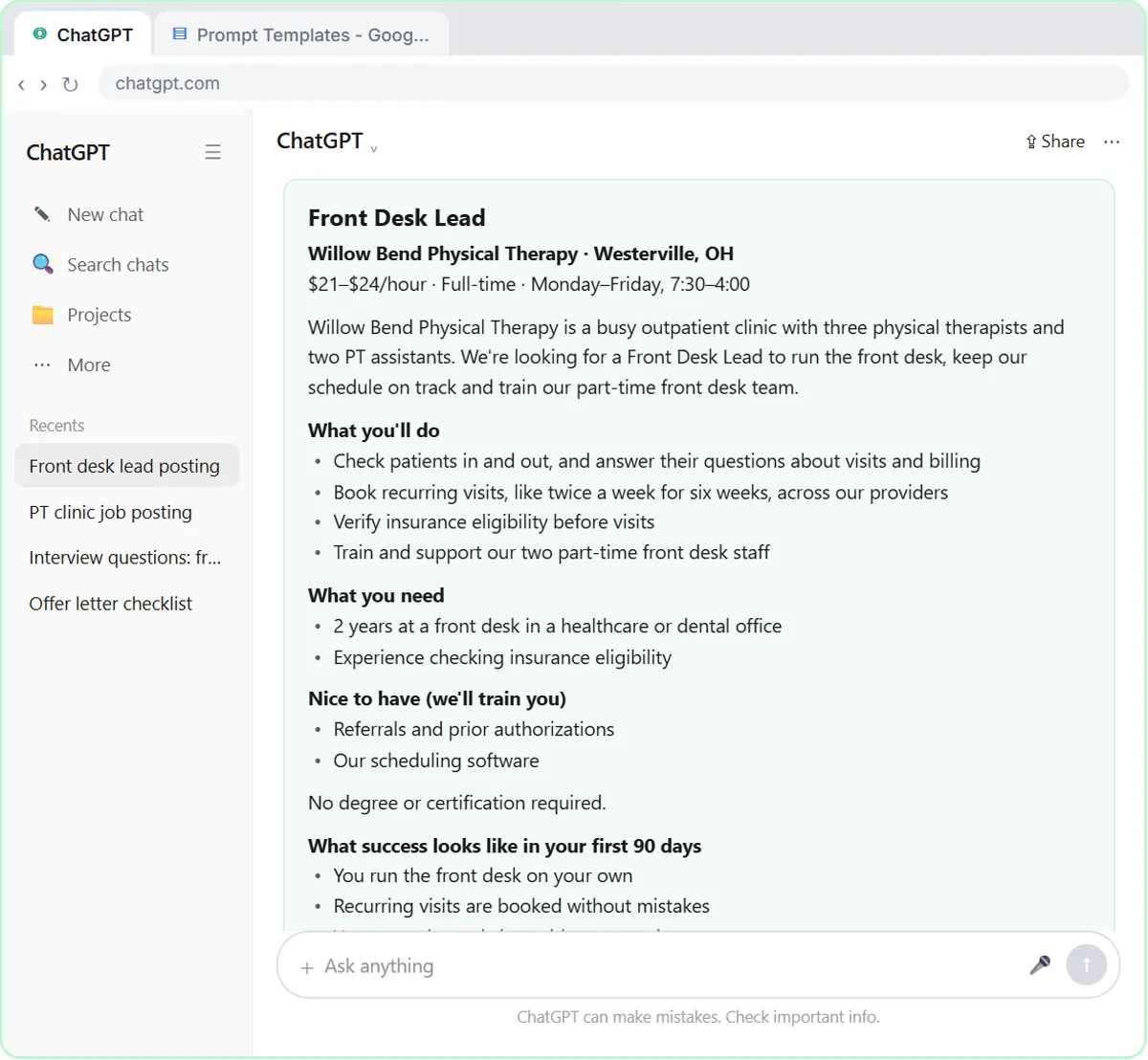 How to Use ChatGPT for Recruiting and Job Posts (2026)
How to use ChatGPT for recruiting: fair job posts, interview scorecards, honest candidate replies and pay research, step by step, and what to keep out.
Oct 20, 2026 8 min read
Free cheat sheet
Print it or save the PDF: the key steps and checks from this lesson on one page, free.
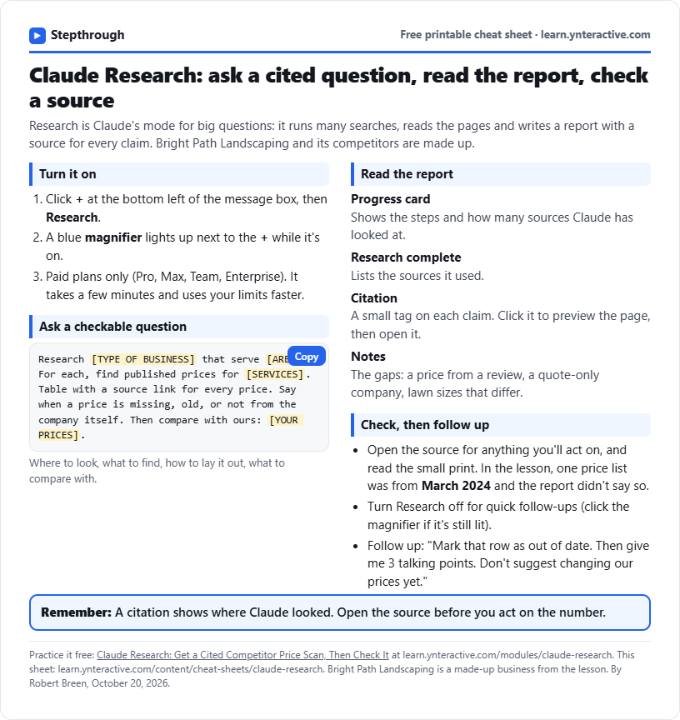
All free printable cheat sheets
Terms in this lesson
Plain-English definitions, each with an example from a free lesson.
Related prompts
- Cited competitor price scan prompt: A copy-ready Claude Research prompt that compares nearby competitors' published prices in a table, with a source for every…