Updated . Built against the tool’s current screens and checked step by step. How we check this lesson
When applications arrive in two places, a form you post on job boards and the application form on your own careers page, someone ends up checking both and applicants slip through. In this free, interactive lesson you build one n8n workflow that catches both: an n8n Form Trigger that n8n hosts for you, and a Webhook the careers page sends each application to. You test each with its Test URL, append every applicant to one Google Sheet, and publish so the Production URLs run on their own. You practice on a copy of n8n, so nothing goes online.
At a glance
| Question | Answer |
|---|---|
| What you build | Stop losing applicants between job boards and your careers page. An n8n form plus a careers-page webhook put every application in one Google Sheet. |
| Tools | n8n |
| Time | About 12 minutes, 51 steps in 6 parts |
| Level | Advanced |
| Cost | Free |
| Ways to learn it | Practice it step by step |
The 6 parts, in short
- Build the form: Add the first step, On form submission, Give it a title, Add a question, and 5 more steps.
- Test the form: Execute step, Fill in the test form, Add an email, Submit, and 2 more steps.
- Save to Google Sheets: Add the next step, Search for Google Sheets, Google Sheets, Append row in sheet, and 8 more steps.
- Add a webhook: Open the nodes panel, Add another trigger, On webhook call, HTTP Method, and 2 more steps.
- Test the webhook: Listen for test event, Copy the Test URL, Go to the website editor, Paste the Test URL, and 3 more steps.
- Save website entries too: Add the next step, Search for Google Sheets, Google Sheets, Append row in sheet, and 7 more steps.
Start here first: Webhooks and Forms in n8n: Capture Data from Anywhere. This Recruiting & HR version follows the same build with its own example business, Northstar Staffing Partners.
Part of: AI for Recruiting & HR (step 12 of 12)
Part of: Webhooks & Website Forms (step 6 of 7). Next up: Speed-to-Lead Agent: Answer Every Web Lead in 60 Seconds
The example: a staffing agency with two ways to apply
Northstar Staffing Partners is a made-up staffing agency. It shares an application form on job boards and social media, and its own website has a careers page with an application form built in its site editor. In the lesson, a practice applicant, Aisha Grant, fills in the n8n form, and the careers page sends a test application from Luis Moreno for an Accounts Payable Specialist opening. Both end up as rows in a Google Sheet called Northstar Applicants, with Name and Email columns.
Who this lesson is for
This is for recruiters, recruiting coordinators and HR teams at small companies and agencies who want one list of applicants without paying for another tool, and for anyone learning n8n forms and webhooks. It takes about twelve minutes and needs no account.
It is the fifth module in the AI Automation for Recruiting & HR block, and a recruiting version of the n8n Automation Toolkit module "Webhooks and forms in n8n", which uses the same steps for a landscaping company's quote requests.
What you do, step by step
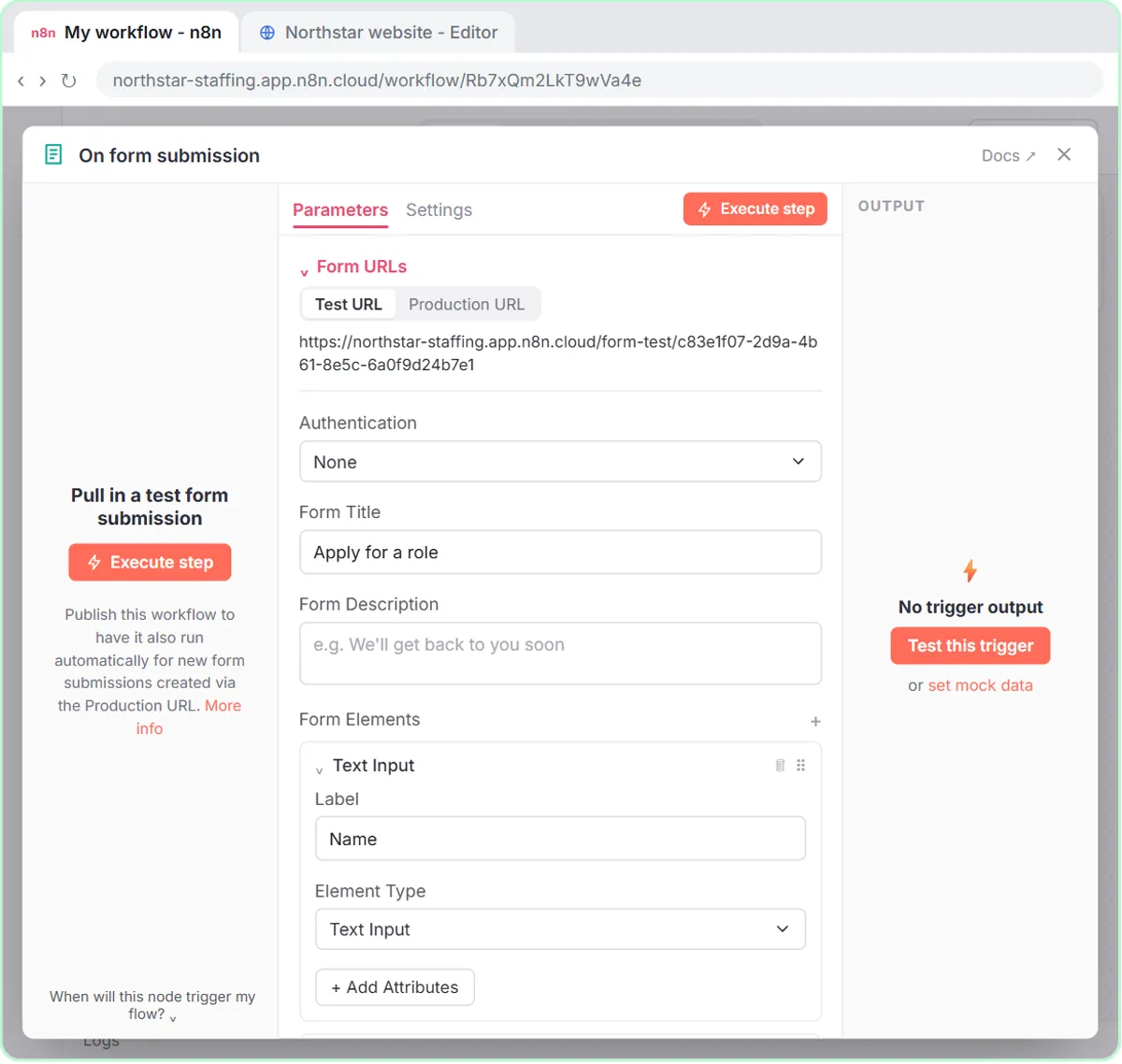
- In a new workflow, add the On form submission trigger. Give the form the title Apply for a role and two form elements: Name (Text Input) and Email (Element Type Email, so the form checks the address).
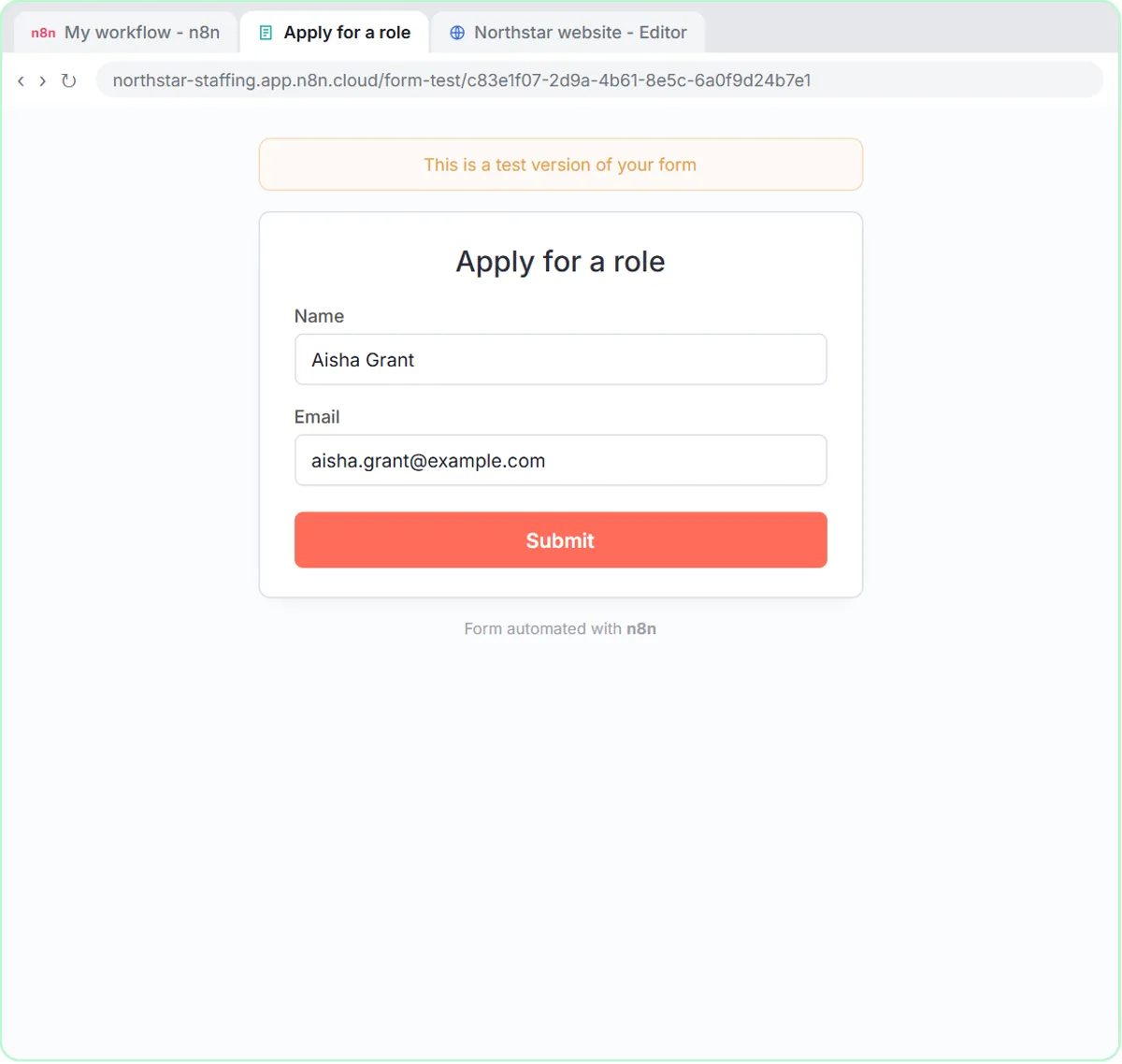
- Click Execute step: the test form opens on its Test URL. Fill it in like an applicant, submit, and check the output: Name, Email, submittedAt and formMode.
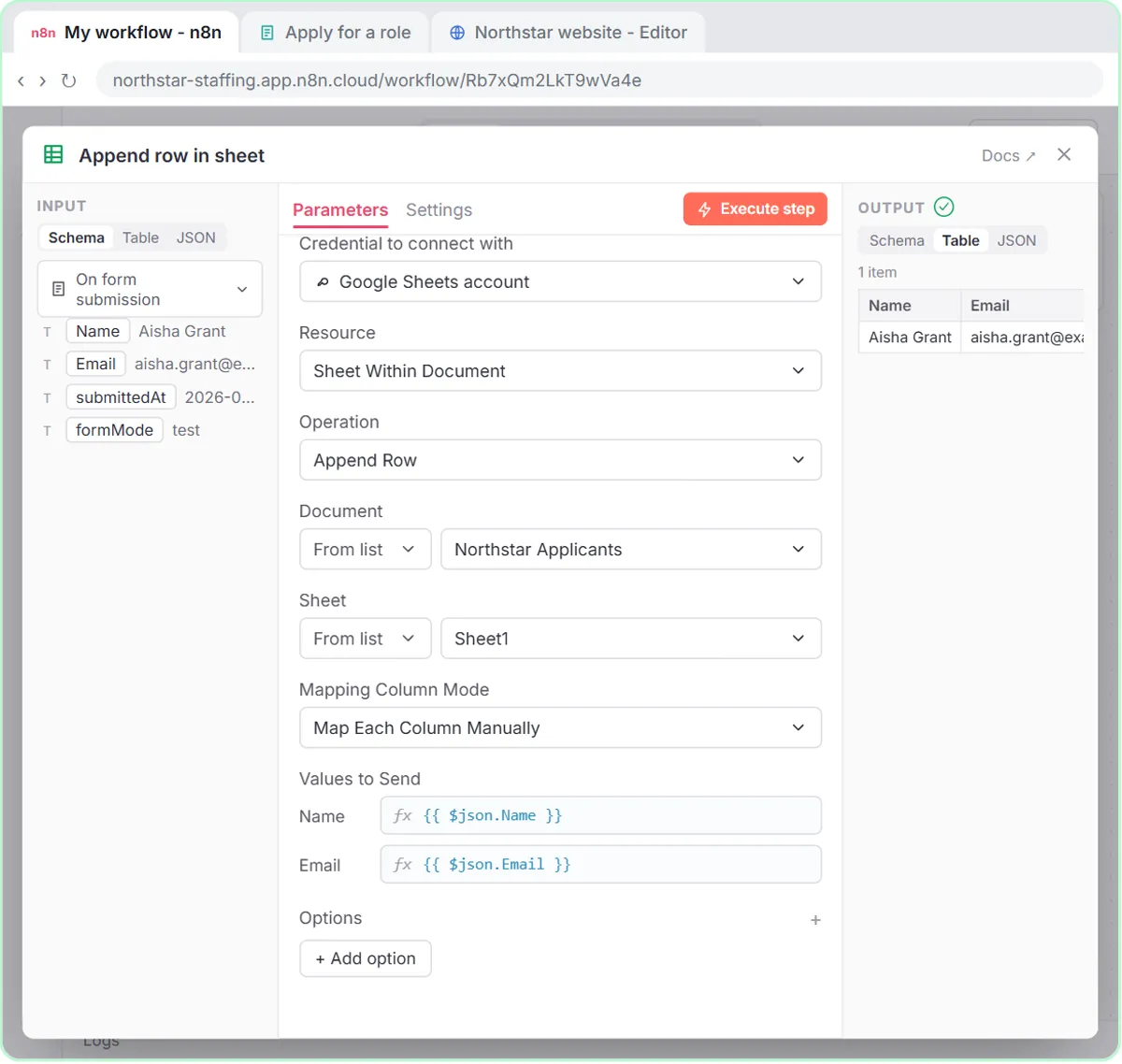
- Add Google Sheets with the Append row in sheet action, choose the Northstar Applicants document and Sheet1, and drag Name and Email from the input onto the matching columns. Execute the step to add the row.
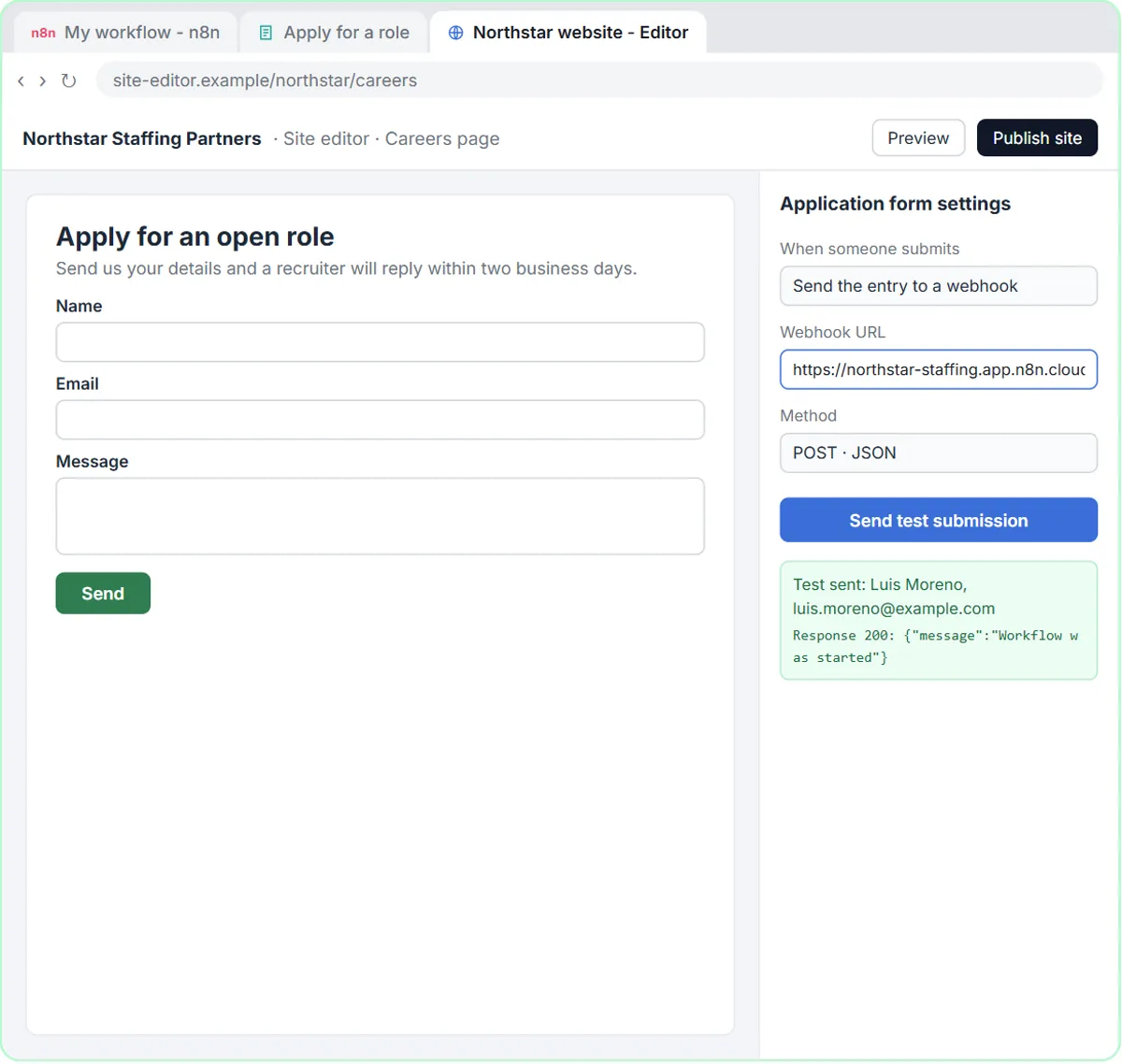
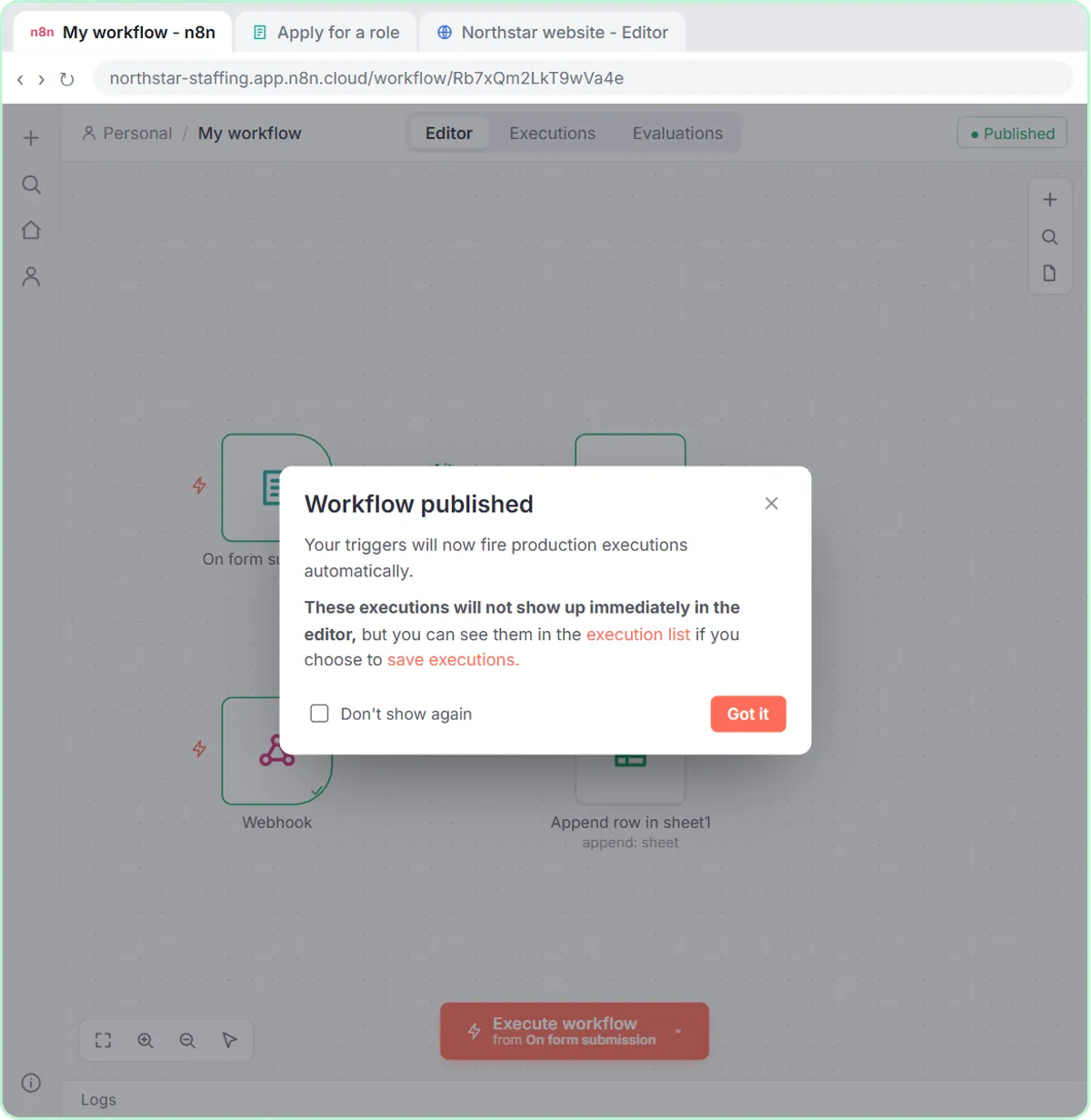
- Add another trigger, On webhook call. Set HTTP Method to POST and change the Path to job-application. Click Listen for test event, copy the Test URL, paste it into the careers page's form settings and send a test submission. The fields arrive inside body.
- Click the + on the right of the Webhook, add another Append row in sheet (it connects itself), pick the same sheet, and map body.name and body.email. Last, in your own n8n, click Publish to turn on the Production URLs.
Test URLs versus Production URLs
Both triggers have two addresses. The Test URL (form-test or webhook-test) only works while you are listening in the editor, and shows each entry right there. The Production URL (form or webhook) works around the clock once the workflow is published. After publishing, share the form's Production URL on job boards, and swap the careers page's webhook address to the Production URL. Forgetting that swap is the most common reason applications stop arriving.
Applicant data is personal data
Ask only for what the first screen needs. Don't collect things like date of birth, Social Security numbers or photos in an application form, share the sheet only with the recruiters who need it, and follow your company's data-retention policy for applicants and the privacy rules where you hire. A useful next step is an alert: add a Gmail or Slack node after the sheet step so a recruiter hears about each new applicant right away.
Try it yourself, free
Reading the steps is a start. Doing them is how it sticks. The interactive module walks you through every click in a practice copy of n8n, checks each step, and never touches your real accounts.
Start “Collect Job Applications in Google Sheets with an n8n Form and a Careers-Page Webhook”Step by step: Collect Job Applications in Google Sheets with an n8n Form and a Careers-Page Webhook
All 51 steps of the interactive module, in order. In the module you watch each one, then do it yourself in a practice copy that checks your work.
1. Build the form
- Add the first step. This is a new, empty workflow. Click Add first step…
Northstar Staffing Partners gets applications in two places: a form it shares on job boards, and the careers page on its own website. Let's send every applicant to one Google Sheet. In a new workflow, click Add first step.
- On form submission. In What triggers this workflow?, pick On form submission.
Pick On form submission. n8n builds and hosts the form for you, so you need no other form tool.
- Give it a title. The Form Title is required and shows as the heading of the form. Type Apply for a role.
The form needs a title. It becomes the heading applicants see.
- Add a question. Each question on the form is a form element. Click Add Form Element.
Now the questions. Every question is a form element.
- Label it. New elements start as a Text Input, which suits a name. In Label, type Name.
New elements start as a Text Input, which is right for a name. In Label, type Name.
- Add another. Add a second element for the email address: click Add Form Element again.
Add a second element, for the email address.
- Label it Email. In the new element's Label, type Email.
Label this one Email.
- Element Type. Open its Element Type drop-down.
- Choose Email. Choose Email.
The form will then check that people type a real email address before they can submit.
2. Test the form
- Execute step. At the top, Form URLs shows the Test URL and the Production URL. Test first: on the left, click Execute step.
At the top are two addresses. The Test URL is for trying things out. The Production URL is the one you share, once the workflow is published. On the left, click Execute step.
- Fill in the test form. The test form opened in a new tab. Fill it in like an applicant: type Aisha Grant as the name.
The test form opened in a new tab. Fill it in like an applicant would.
- Add an email. Type an email, for example [email protected].
And an email address.
- Submit. Click Submit.
- Back to n8n. The form says Form Submitted. Switch back to the n8n tab.
Form Submitted. Switch back to the n8n tab.
- Look at the output. The OUTPUT shows one item: Name, Email, submittedAt and formMode. Close the node with the ×.
There's the submission: the name, the email, and when it came in. Close this window.
3. Save to Google Sheets
- Add the next step. Click the + on the right of On form submission.
Now save each submission to a sheet.
- Search for Google Sheets. In Search nodes..., type sheets.
Search for sheets.
- Google Sheets. Click Google Sheets.
- Append row in sheet. Under Sheet Within Document Actions, click Append row in sheet.
It adds a new row for every submission.
- Choose the spreadsheet. If you connected Google Sheets before, Google Sheets account is already picked (if not, create the credential and sign in with Google). Open the Document list.
Your Google Sheets account is already picked, if you connected it before. If not, create it here and sign in with Google.
- Pick the sheet. Pick Northstar Applicants.
Pick Northstar Applicants. It has a Name column and an Email column.
- Choose the tab. Open the Sheet list.
- Sheet1. Choose Sheet1.
n8n reads its columns and lists them under Values to Send.
- Map the name. Drag Name from the INPUT on the left onto the Name field under Values to Send. (Here, click it.)
Now map the answers.
- Map the email. Drag Email onto the Email field.
- Test the step. Click Execute step.
n8n adds Aisha's details as a new row in the sheet.
- Close the node. The row went in. Close the node with the ×.
The row is in. The form is done. Close this window.
4. Add a webhook
- Open the nodes panel. Northstar's website has its own application form on the careers page. Click the + at the top right of the canvas.
Now the website. Northstar's careers page has its own application form, and it can send each application to n8n through a webhook.
- Add another trigger. A workflow can have more than one trigger. At the bottom, click Add another trigger.
- On webhook call. Choose On webhook call.
- HTTP Method. A webhook is a web address that waits for data. Open HTTP Method.
A webhook is a web address that waits for data to arrive. First, open HTTP Method.
- POST. Choose POST.
That's how website forms send their data. GET is mostly for asking for data.
- Path. The Path is the end of the address, and n8n started it with a random ID. Replace it with job-application.
The Path is the end of the address. n8n started it with a random ID. Replace it with job-application, so you can recognize it later.
5. Test the webhook
- Listen for test event. Under Webhook URLs, the Test URL has webhook-test in it; the Production URL just webhook. Click Listen for test event.
Look at the Webhook URLs. The Test URL has webhook-test in it. The Production URL just says webhook.
- Copy the Test URL. n8n is waiting for one POST request to the Test URL. Click the URL to copy it.
n8n is now waiting for one request to the Test URL.
- Go to the website editor. Switch to the Northstar website tab.
Switch to the tab with Northstar's website editor.
- Paste the Test URL. The application form can send each entry to a webhook. Paste the Test URL into Webhook URL.
This application form can send each entry to a webhook.
- Send a test. Click Send test submission.
The website posts a sample entry to n8n.
- Back to n8n. n8n answered Workflow was started. Switch back to the n8n tab.
The website got a reply: Workflow was started. Now go back to the n8n tab.
- Look at the request. The OUTPUT shows the request. The form fields are inside body: name, email and message. Close the node.
Here's the request. The website's fields are inside body: name, email and message. Close this window.
6. Save website entries too
- Add the next step. Website entries should land in the same sheet. Click the + on the right of Webhook.
Website entries should land in the same sheet.
- Search for Google Sheets. In Search nodes..., type sheets.
Search for sheets again.
- Google Sheets. Click Google Sheets.
- Append row in sheet. Click Append row in sheet. n8n names this one Append row in sheet1 and connects it to the Webhook.
n8n calls this one Append row in sheet 1, and it is already connected to the Webhook.
- Choose the spreadsheet. Open the Document list.
Same sheet as before.
- Pick the sheet. Pick Northstar Applicants.
- Choose the tab. Open the Sheet list.
- Sheet1. Choose Sheet1. Name and Email appear under Values to Send.
Name and Email appear under Values to Send.
- Map name. On the left, the website's fields are inside body. Drag name onto Name.
On the left, the website's data is inside body.
- Map email. Drag email onto Email.
- Close the node. Close the node with the ×.
Close this window.
Screenshots
Frequently asked questions
- Can n8n collect job applications without another form tool?
- Yes. The On form submission trigger builds and hosts the form for you. Share its Production URL once the workflow is published, and every submission runs the workflow.
- How do I send my careers page's form to n8n?
- Add an On webhook call trigger set to POST, copy its URL, and paste it into your website's form settings. Test with the Test URL first, then switch to the Production URL after publishing.
- Why are the webhook's fields inside body?
- A website sends the form's fields in the request body, so n8n shows them under body. Map body.name and body.email in the Google Sheets step.
- What should an application form ask?
- Only what a first screen needs, such as name, email and the role. Leave out date of birth, Social Security numbers and photos, and follow the privacy rules where you hire.
- Is this lesson free?
- Yes. Stepthrough is completely free and the practice copy needs no n8n or Google account. Building it for real needs an n8n account and a Google Sheet with Name and Email columns.
More in AI Automation for Recruiting & HR
 Score Every Candidate Fairly After the Interview using ChatGPT
Turn the transcript of an interview panel's debrief into a scorecard against the role's must-haves, the decisions, action items with owners and dates, and a follow-up…
Free · Live ~7 min Beginner
 An AI Resume Screener, with a Fairness Step (Recruiting & HR)
Have n8n read each applicant’s PDF resume, score it against the job’s must-haves with the evidence quoted, and rank it in Google Sheets, while a person makes every…
Free · Live ~14 min Advanced
All 5 modules in AI Automation for Recruiting & HR
More n8n tutorials
 n8n AI Agent Tutorial: Save Social Media Ideas to Google Sheets
Build an AI agent for BrightPath Marketing that generates social media post ideas and saves them to Google Sheets — chat trigger, AI Agent, system prompt, model…
Free · Live ~12 min Intermediate
 Lovable + n8n: Build a Web App with an AI Backend
Build a contact form in Lovable and connect it to an n8n workflow — webhook trigger, AI Agent, Google Sheets, Gmail, and a Respond node that ties it all together.
Free · Live ~15 min Advanced
 AI Receipt Extractor: Receipts to Google Sheets with n8n
Drop a photo of a receipt into an n8n chat. An AI agent reads it, pulls out the date, vendor and amount, picks a category, and adds a row to Google Sheets.
Free · Live ~12 min Intermediate
 n8n AI Email Responder: Draft Gmail Replies Automatically
Build an n8n agent that watches your Gmail, reads each new customer email, and writes a reply as a draft in the same thread, ready for you to check and send.
Free · Live ~12 min Intermediate
 Daily Job Alerts: Email Each Tech Their Jobs from Google Sheets with n8n
Every morning at 7, n8n reads a plumbing company's jobs sheet, skips anything not assigned yet, and emails each job to the tech it's assigned to — customer, address…
Free · Live ~10 min Intermediate
 Gmail AI Triage: Auto-Label Every Email and Draft Replies
Build an n8n workflow that reads each new email, sorts it as a lead, a client or an invoice with a Text Classifier, adds the matching Gmail label, and drafts a reply to…
Free · Live ~18 min Advanced
Terms in this lesson
Plain-English definitions, each with an example from a free lesson.