If you are searching for an n8n tutorial for beginners, this page explains the idea first, in plain words, then shows the build.
How do you use n8n?
You use n8n in four moves, and this tutorial repeats them for every node:
- Pick a trigger, the event that starts the workflow: a schedule, a new email, a form or a chat message.
- Add a node with the plus button and search for the app or step you need.
- Fill in its fields and click Execute step to see the real output before you move on.
- Test the whole chain with Execute workflow, then Publish it so it runs on its own.
You can use n8n in the cloud, where n8n hosts it for you, or install it on your own server. The n8n Cloud vs self-hosted comparison explains the difference. For learning, neither is needed, because the free lessons use a practice copy.
What is an n8n workflow?
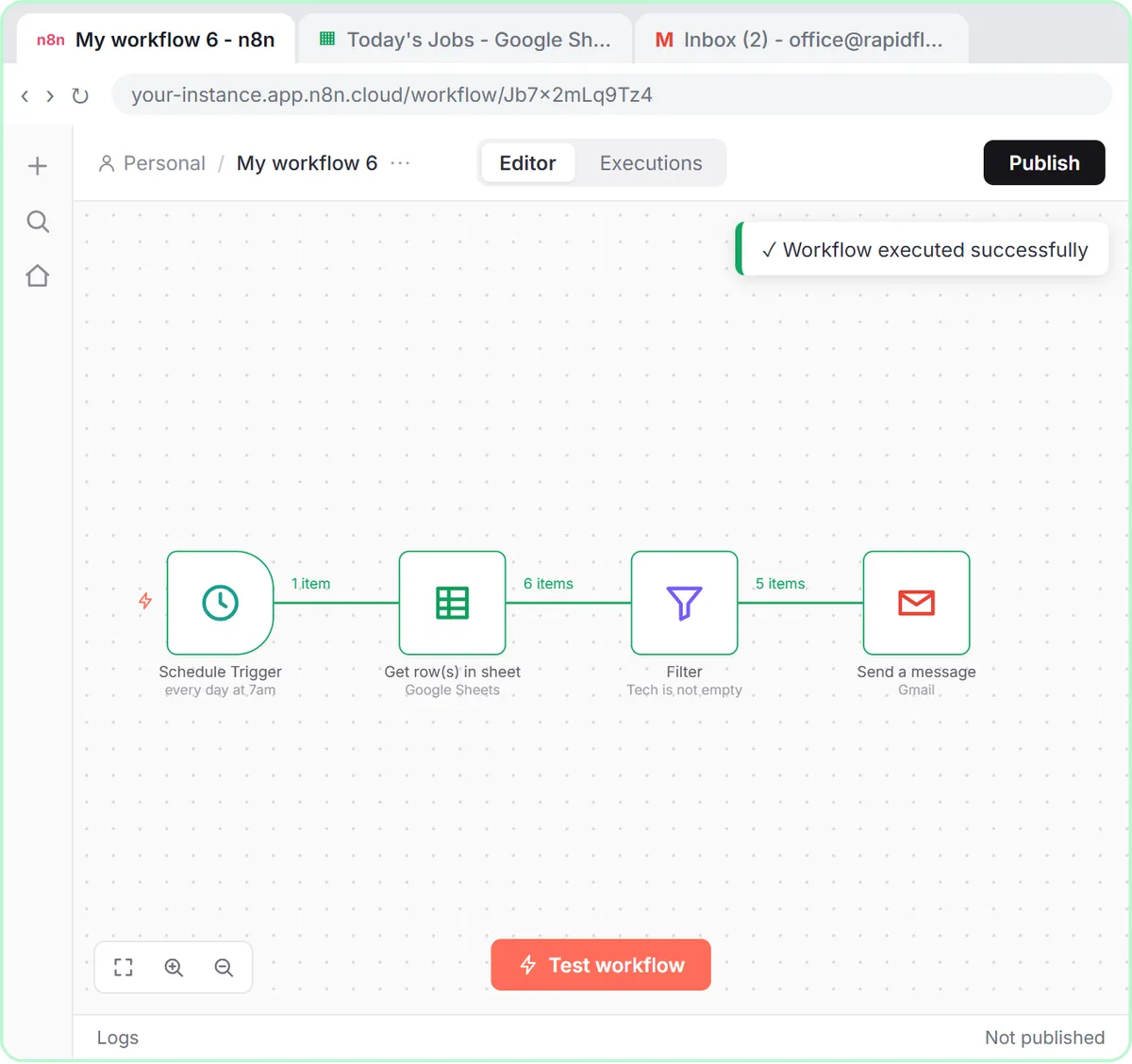
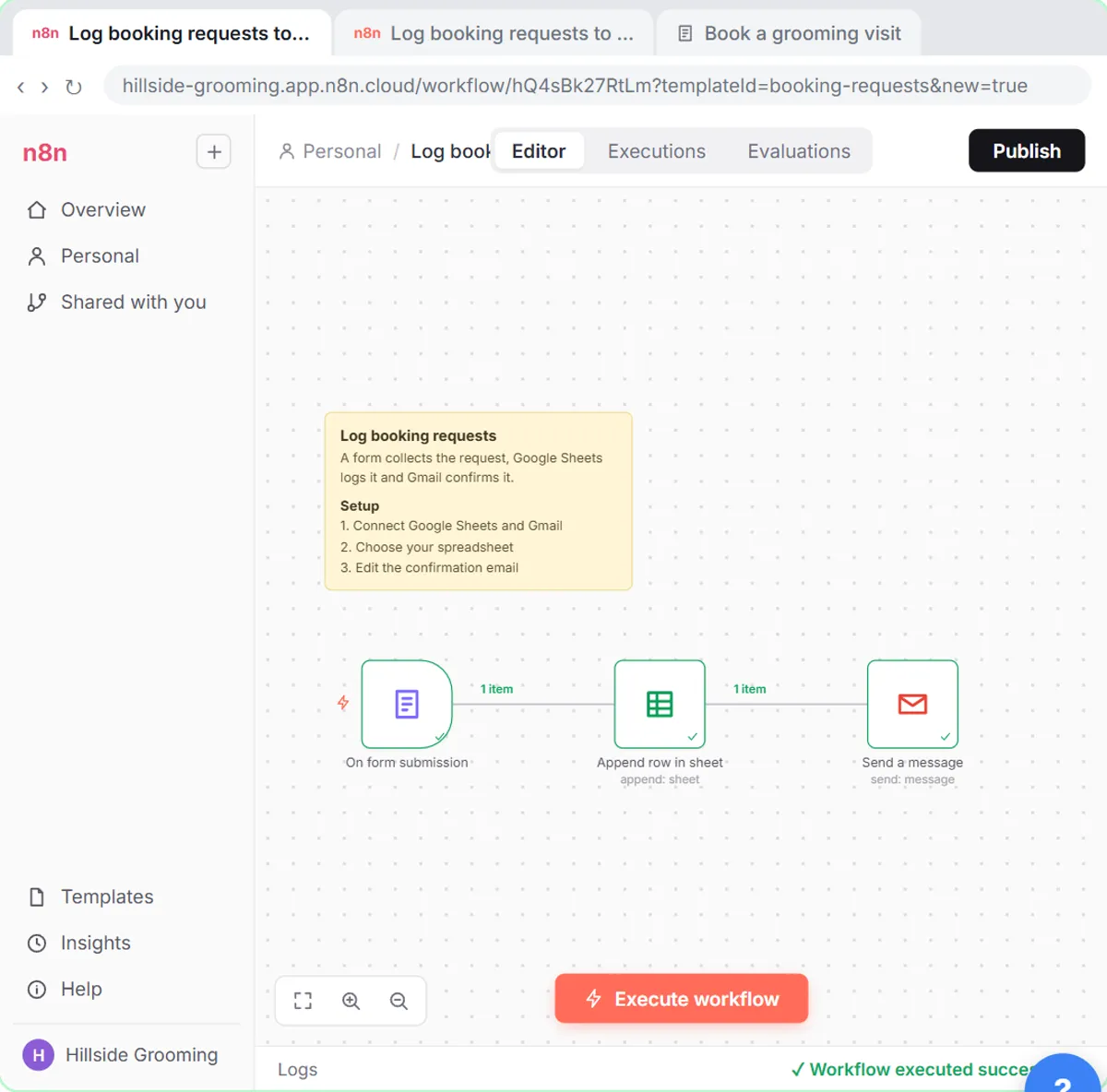
An n8n workflow is a chain of steps called nodes. The first node is a trigger, the event that starts everything. Each node after it does one job and passes its result to the next. You build the chain on a canvas by clicking the plus after a node and searching for the next one. No code is needed for the workflow below. If you want the vocabulary, the glossary pages for n8n, node and trigger are short.
What are we building?
The lesson follows Pine Ridge Lawn Care, a made-up business. Every evening someone spends about 20 minutes adding up the day's jobs from a Google Sheet. After this build, the total lands in the owner's inbox at 5pm on its own. The workflow is:
- Schedule Trigger, every day at 5pm.
- Google Sheets, get only today's rows.
- Summarize, add up the Amount column.
- Gmail, send the total to the owner.
Step 1: How do you start a workflow on a schedule?
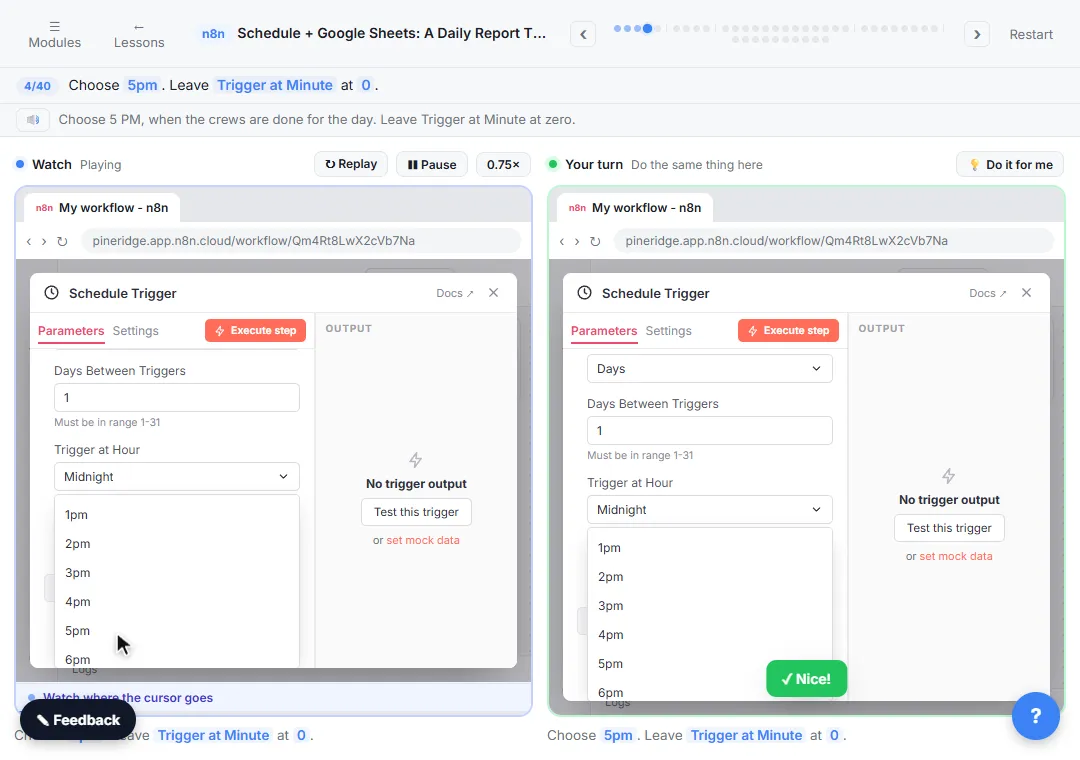
Click Add first step, then choose On a schedule. The defaults already say once a day: Trigger Interval is Days and Days Between Triggers is 1. Open Trigger at Hour, choose 5pm and leave the minute at 0.
One trap catches beginners. A schedule follows the workflow's time zone, and a new workflow starts on a default one. In the lesson the default is New York, which would send a Denver business its report at three in the afternoon. Open the three dots next to the workflow name, choose Settings, set Timezone to America/Denver and save. The time zone lesson note is worth five minutes before you publish anything.
Step 2: How do you read only today's rows from a Google Sheet?
Click the plus after the trigger, search for sheets, choose Google Sheets, then Get row(s) in sheet. Pick your document and the Jobs sheet. Without a filter, this node returns every row from every day, so add one: Column Date, and in Value paste:
{{ $today.toFormat('yyyy-MM-dd') }}
That is today's date written year-month-day, in the workflow's time zone, which matches how the sheet writes dates. The double curly braces tell n8n it is an expression, so the field switches to Expression by itself. If your dates are written another way, change the format to match.
Step 3: How do you add up the numbers?
Click the plus, search for summarize and choose Summarize. It works like a spreadsheet total across all the items. Under Fields to Summarize, change Aggregation from Count to Sum, and type Amount in Field. Click Execute step. In the lesson, the sheet step returns five rows and Summarize returns one item, a field called sum_Amount with the value 545.
Remember that field name. You use it in the email.
Step 4: How do you email the total?
Click the plus, search for gmail, then choose Send a message. Fill in the To address and a Subject. In Message, use:
Revenue from today's jobs: ${{ $json.sum_Amount }}
The part in curly braces pulls the total from Summarize, and n8n shows the real result under the field.
How do you test it, and how do you turn it on?
Do not wait until 5pm to find out. Click Execute workflow on the canvas and check your inbox. Then, in your own n8n, click Publish at the top right. A schedule only runs once the workflow is published. The lesson stops before Publish because that would start real daily runs. The Execute step, Execute workflow and Publish lesson explains the difference between the three.
To do the build for real you need an n8n account, a Google Sheet with a Date column written year-month-day and plain numbers in Amount, and Gmail and Google Sheets connected in n8n.
Try it free, step by step
Get Your Daily Revenue Total by Email, Automatically, using n8n. Stop spending 20 minutes every evening adding up the day by hand. In n8n, a Schedule Trigger runs at 5pm, Google Sheets pulls today's jobs, Summarize totals the revenue and Gmail emails it to you. You do every step yourself in a practice copy of n8n, it checks your work as you go, and “Do it for me” finishes any step you get stuck on. Free, and nothing touches your real accounts.
Start the free lessonWhat should you learn after your first workflow?
Once the four-node chain makes sense, the next step is starting from a ready-made workflow. The Find and Use n8n Templates lesson shows how to search the template gallery, import one and set up its credentials. After that you can add an AI step, which is where most beginners want to end up.
If your whole team is starting n8n together, there is also n8n training for teams, or you can hire an n8n developer to build the first workflows.
Key takeaways
- An n8n workflow is a chain of nodes that starts with a trigger.
- A schedule runs on the workflow's time zone, so set it before you publish.
- Filter the Google Sheets node to today's rows, then use Summarize with Sum to get one total.
- Test with Execute workflow first, then click Publish so the schedule actually runs.
Frequently asked questions
- Is n8n good for beginners?
Yes, if you start small. You don't need to code to build a first workflow: drag in a trigger, add one node at a time and test each step before adding the next. The free Daily Revenue Total lesson is an n8n beginner tutorial that builds a four-node workflow in a practice copy of n8n.
- How do I use n8n for the first time?
Start with one small job you do by hand every day, like adding up a sheet or forwarding an email. Build it as a trigger plus two or three nodes, test each node with Execute step, then publish. The Daily Revenue Total lesson walks through exactly that.
- What are the n8n basics?
Five ideas cover the n8n basics: a workflow is one automation on the canvas, a trigger is the first node that starts it, each node after it does one job, credentials connect n8n to your accounts, and Publish turns the workflow on so it runs by itself. Test each node with Execute step before you publish. What is n8n? explains each idea in plain English.
- What is the best n8n tutorial for beginners?
One where you click through a real build instead of only watching. The free Stepthrough n8n lessons check every click in a practice copy, starting with this daily report and then n8n templates. If you want rows to fill themselves next, read Automate Data Entry in Google Sheets with n8n.
- Is n8n free to learn?
The Stepthrough lessons are free and use practice copies, so you can learn the clicks without an account. To run workflows for real you need your own n8n account. Check n8n's current plans and pricing on its website.
- Do I need to know how to code?
Not for this workflow. The only things you type are a date expression and a field reference, and the lesson gives you both to paste.
- Why did my scheduled workflow not run?
The most common reasons are that it was never published, or that the time zone is not the one you expected. Check Publish first, then Settings, Timezone.