Updated . Built against the tool’s current screens and checked step by step. How we check this lesson
Time that isn't written down the same day is hard to bill. Lawyers jot a few words between calls, rebuild the week from memory on Friday, and the short calls and quick emails go missing first. In this free, interactive lesson you build an AI agent in n8n that turns a day of rough notes into one time entry per task in a Google Sheet: the matter, the hours exactly as you wrote them, a one-sentence description a client can read, and a check that tells billing what still needs you. It never invents or rounds your time.
At a glance
| Question | Answer |
|---|---|
| What you build | Build an AI agent in n8n for Calloway & Brandt LLP that turns a lawyer’s rough end-of-day notes into one time entry per task in Google Sheets, with the matter, the hours exactly as written, a client-ready description and a check for billing. Chat trigger, AI Agent, system prompt, model, memory and the Sheets tool. |
| Tools | n8n |
| Time | About 12 minutes, 72 steps in 12 parts |
| Level | Intermediate |
| Cost | Free |
| Ways to learn it | Practice it step by step, read the guide with screenshots |
The 12 parts, in short
- Get n8n: Go to n8n.io, Enter your email, Sign up.
- API key: Add credit first, Ten dollars is plenty, Now the key, Create a secret key, and 4 more steps.
- New workflow: Start a new workflow.
- Chat trigger: Add the first step, Trigger on a chat message, Back to the canvas.
- AI Agent: Add the next node, Open the AI nodes, Add the AI Agent.
- System prompt: Open the options, Add a system message, Write the system prompt, Back to the canvas.
- Chat model: Give the agent a brain, Pick OpenAI, Open the credentials, Create a new credential, and 5 more steps.
- Memory: Add memory, Simple Memory, Back to the canvas.
- Sheets tool: Add a tool, Search for Sheets, Add Google Sheets.
- Create the spreadsheet: Back to the canvas, Open Google Sheets, Name the spreadsheet, Type the first column header, and 6 more steps.
- Configure Sheets: Add a credential, Create a new credential, Sign in with Google, Choose your account, and 16 more steps.
- Test the agent: Open the chat, Paste today's notes, Send the message, Save to the sheet, and 1 more step.
Start here first: n8n AI Agent Tutorial: Save Social Media Ideas to Google Sheets. This Law Firms version follows the same build with its own example business, Calloway & Brandt LLP.
Part of: AI for Law Firms (step 15 of 15)
How to build an n8n AI Agent That Turns a Lawyer's Rough Notes into Time Entries: step-by-step guide with screenshots
About the screenshots. They come from Stepthrough’s simulated practice environment (a practice copy of n8n), not the live tool, so no real account appears. The buttons and labels match the real screens the lesson was built against. Practice it yourself free at learn.ynteractive.com.
- Tools: n8n
- Time: about 12 minutes, 72 steps in 12 parts
- Level: intermediate
Part 1: Get n8n
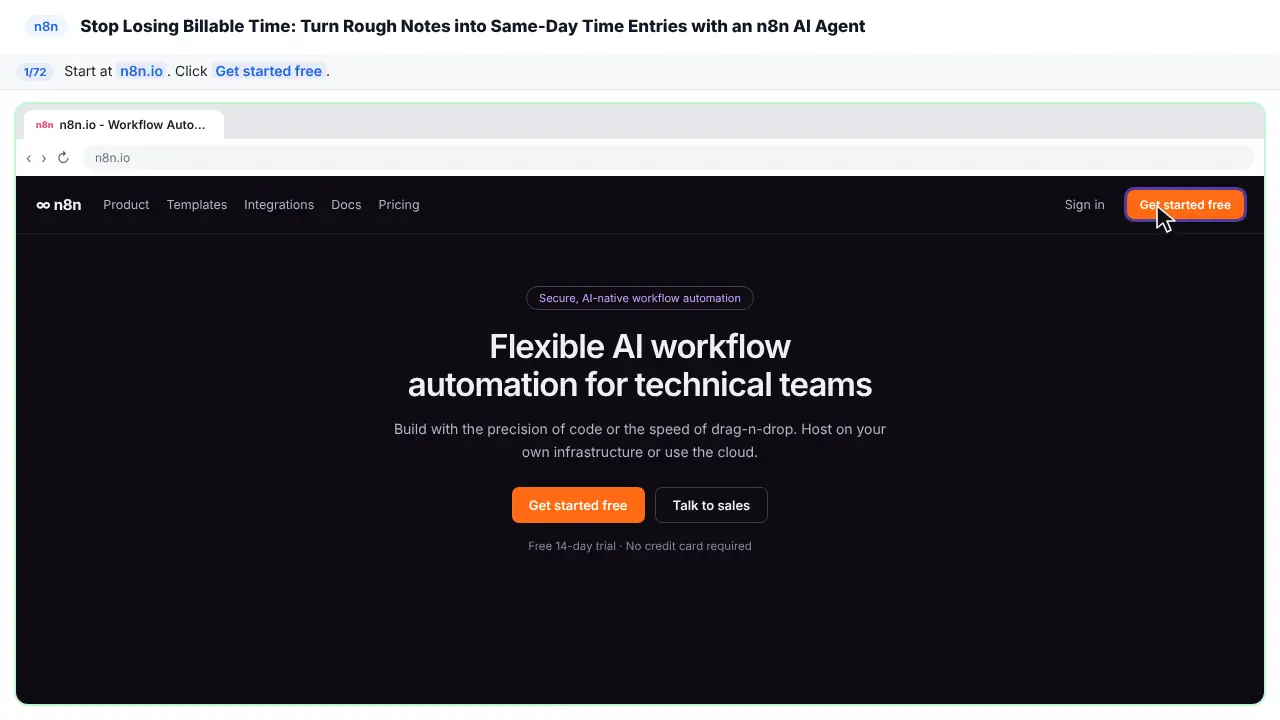
Step 1: Go to n8n.io
Time that isn't written down the same day is hard to bill. You jot a few words between calls, then rebuild the week from memory, and the short calls and quick emails go missing first. We are going to build an AI agent that turns your rough notes into time entries in a spreadsheet. First, you need an n8n account.
Step 2: Enter your email
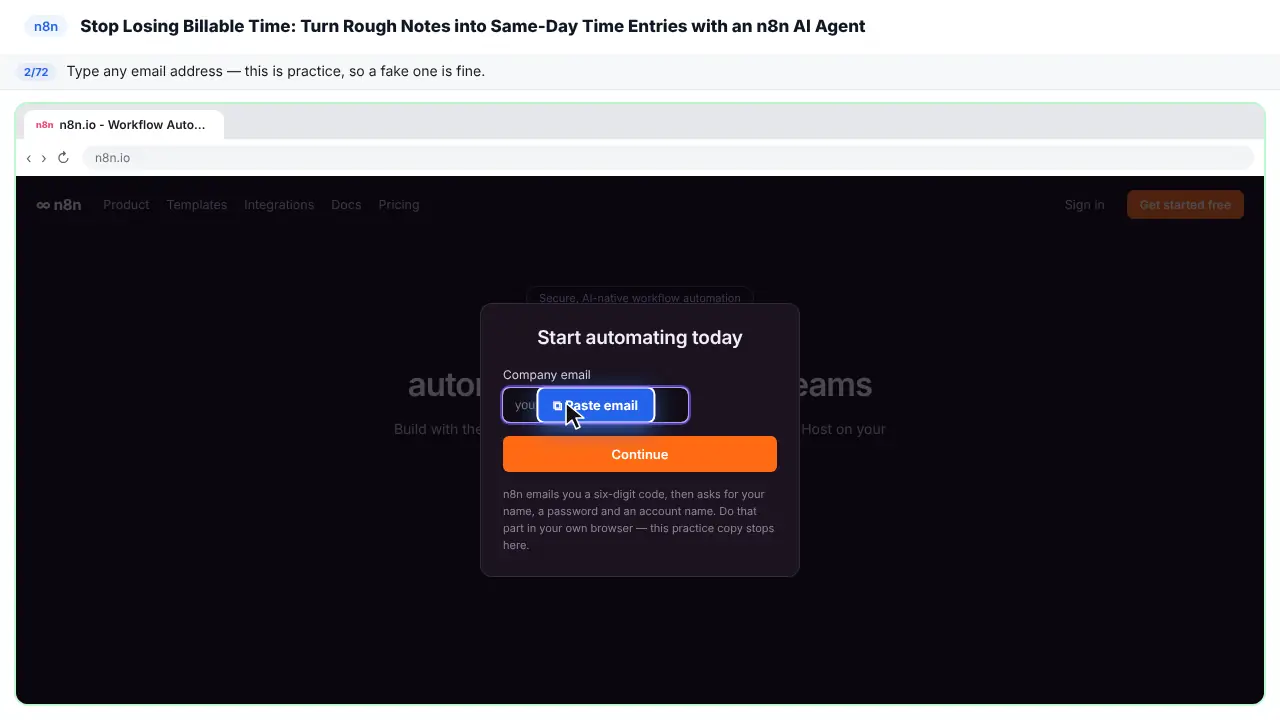
This is just practice, so anything works — it won't actually send anything.
Step 3: Sign up
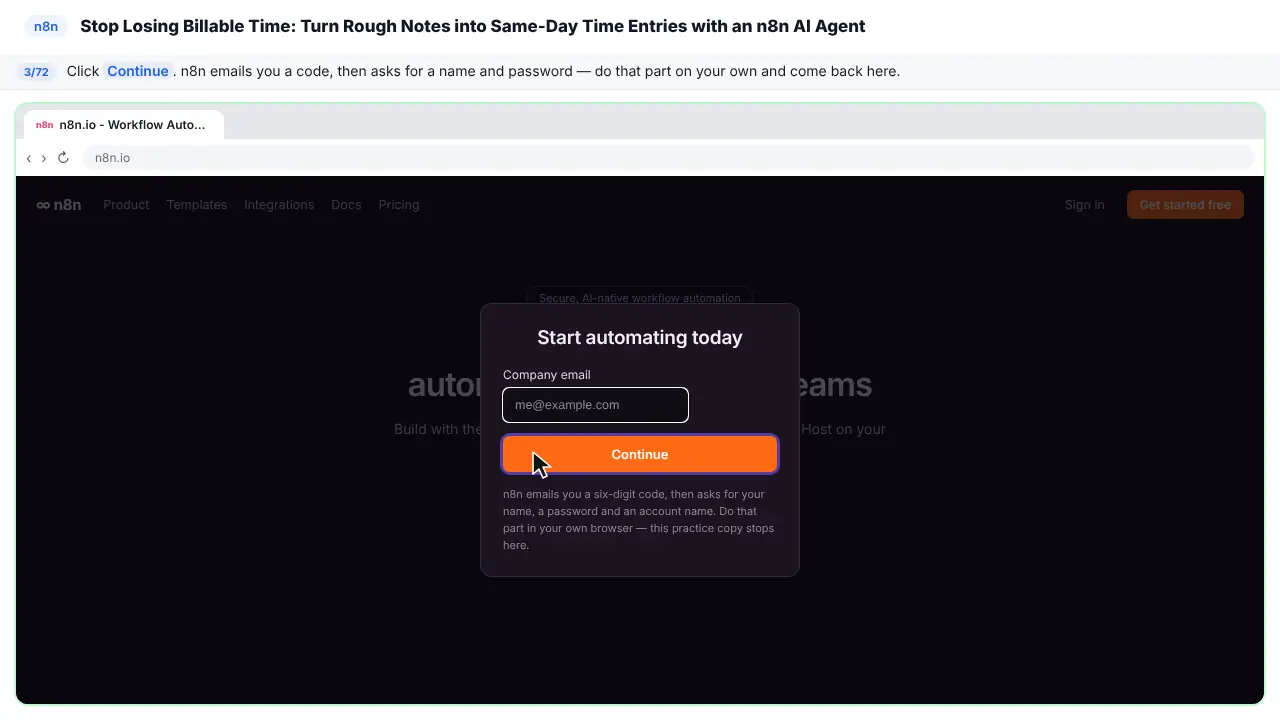
In the real n8n, it sends you a six digit code, then asks for a name, a password, and an account name. Go do that in your own browser later, then come back and we will build.
Part 2: API key
Step 4: Add credit first
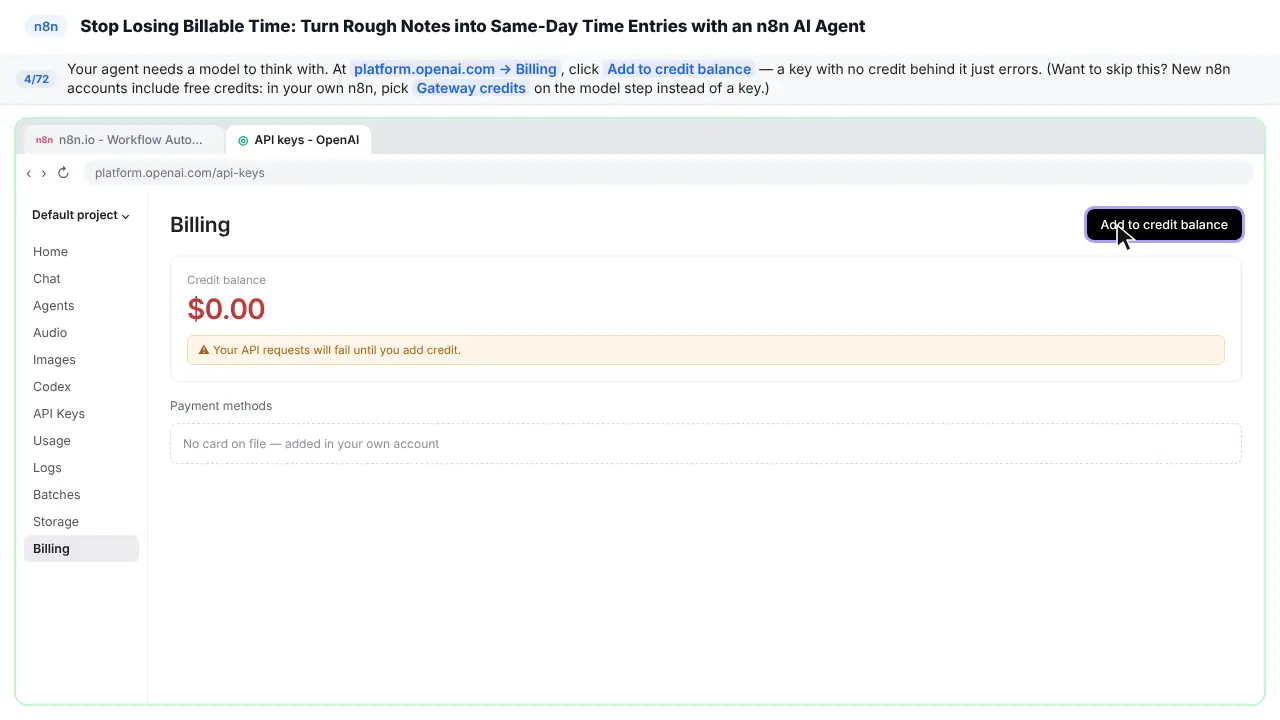
Your agent needs a brain, and that means an API key from OpenAI. Go to platform dot openai dot com — that is the developer side, not ChatGPT, and it bills completely separately. Before you make a key, put some money on the account. A brand new key with a zero balance just returns errors. If you would rather not spend anything yet, n8n gives every new account free credits. In your own n8n, you can pick gateway credits on the model step and skip the key.
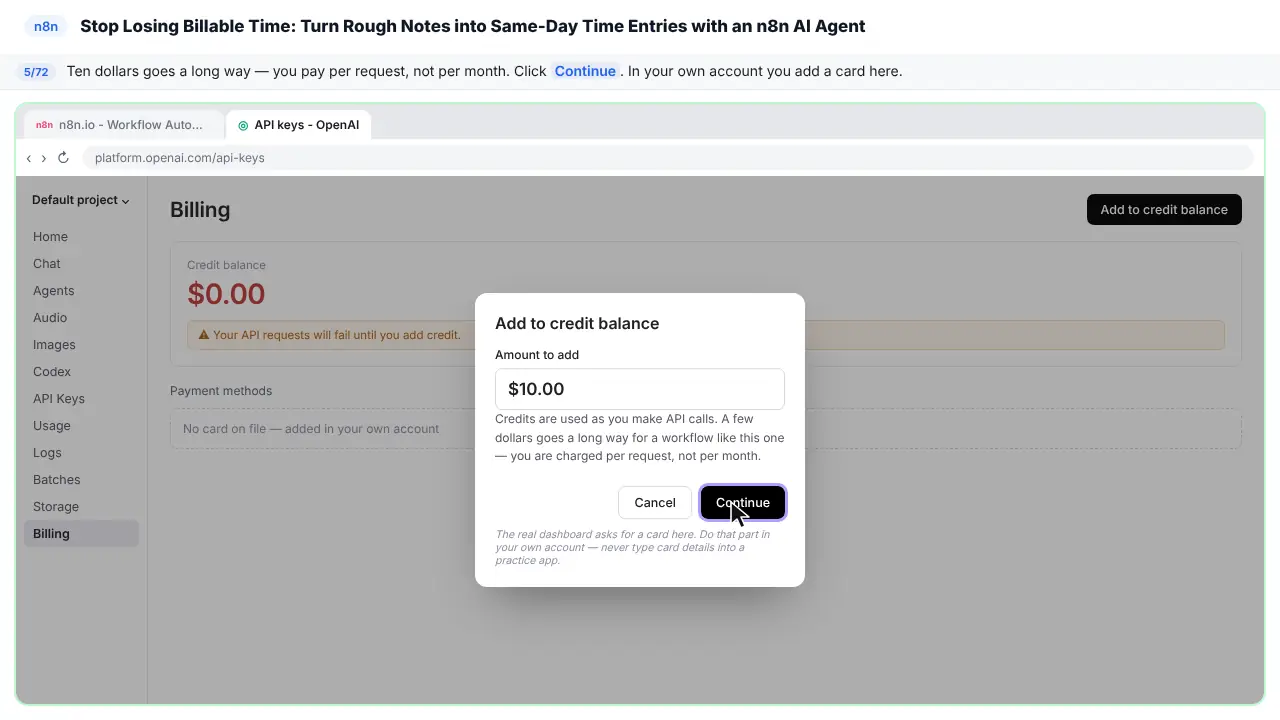
Step 5: Ten dollars is plenty
A little credit goes a very long way. You are charged per request, not per month, and writing a day of time entries costs fractions of a cent.
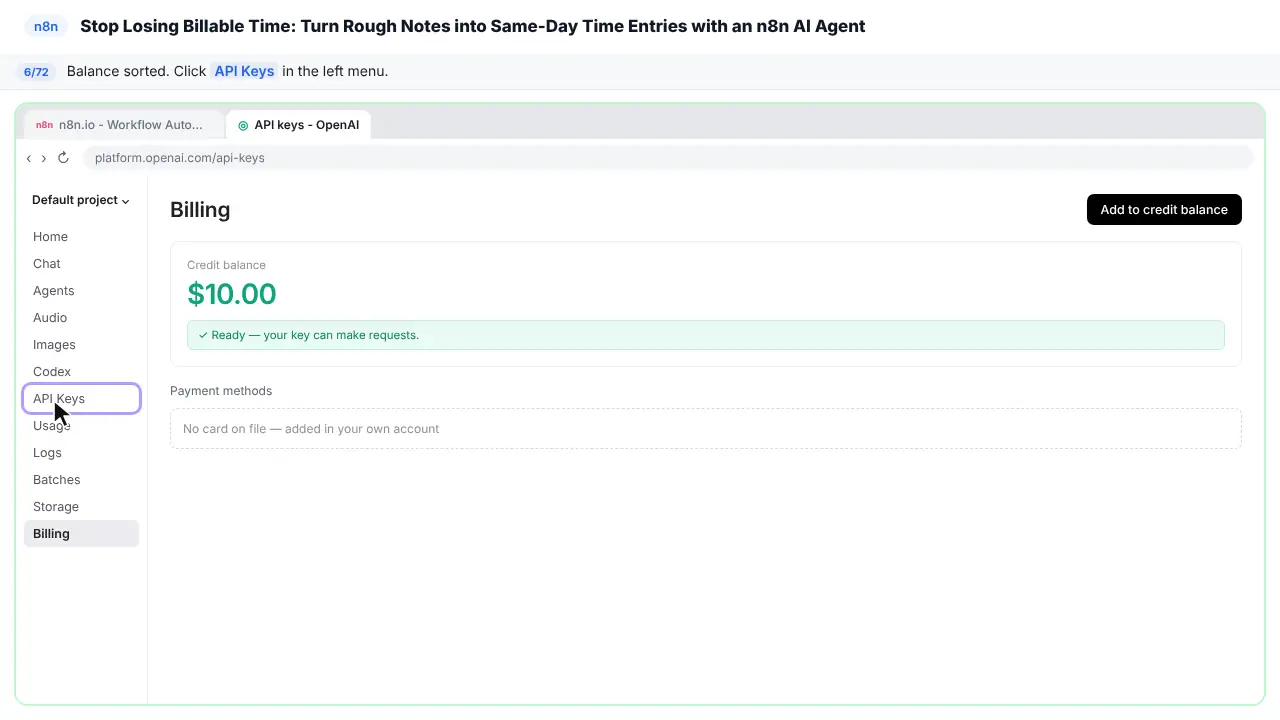
Step 6: Now the key
Balance sorted. Now go to API keys in the left menu.
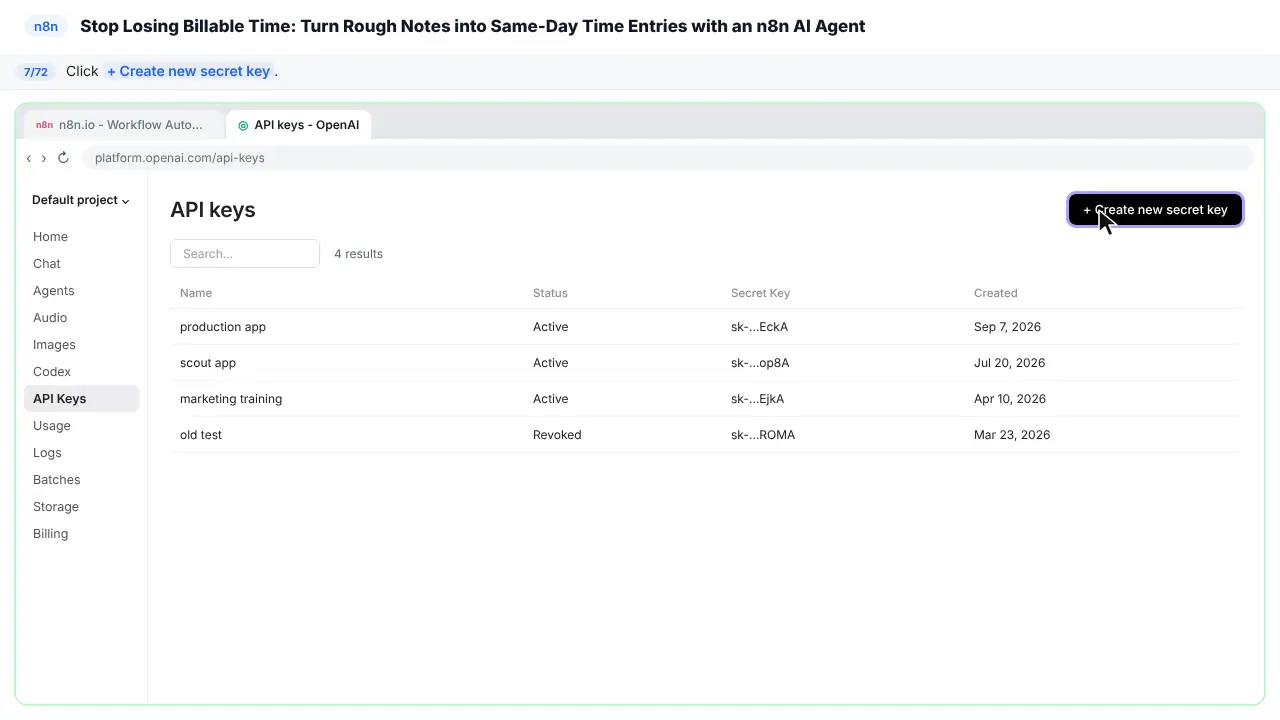
Step 7: Create a secret key
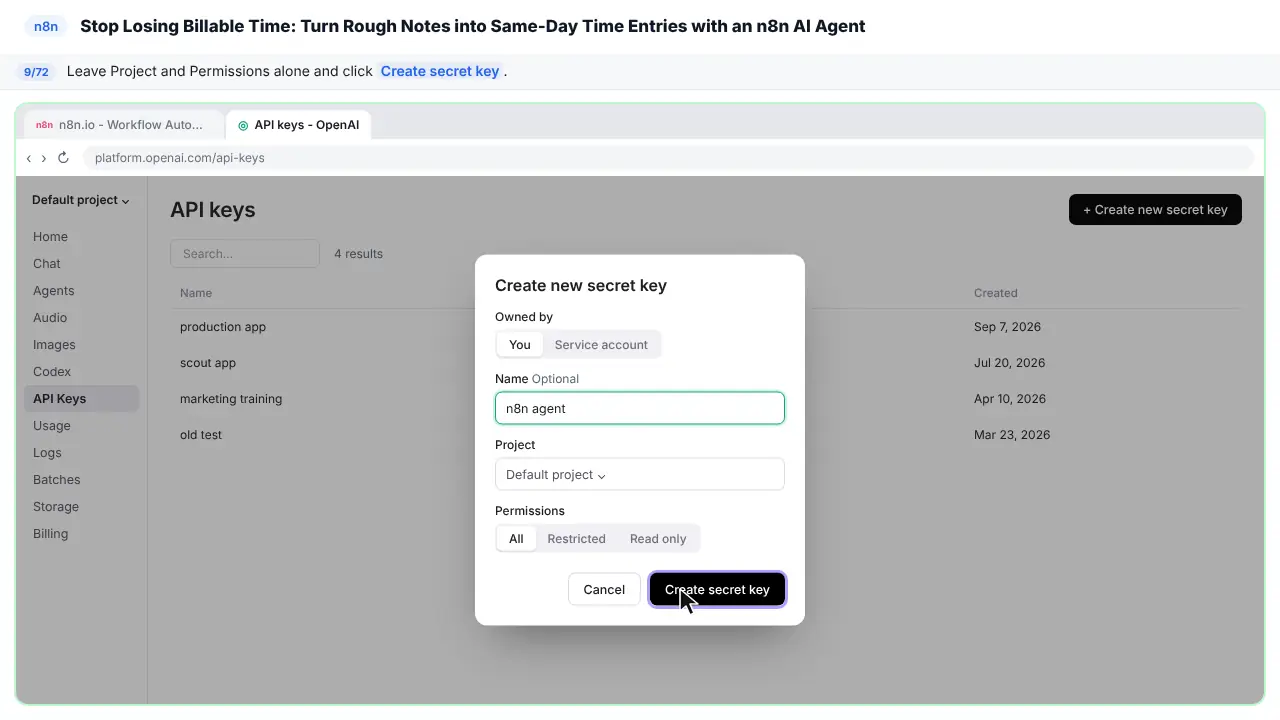
Step 8: Name the key
Name it after whatever is going to use it. Future you, staring at a list of forty keys, will thank you. I am calling this one n8n agent.
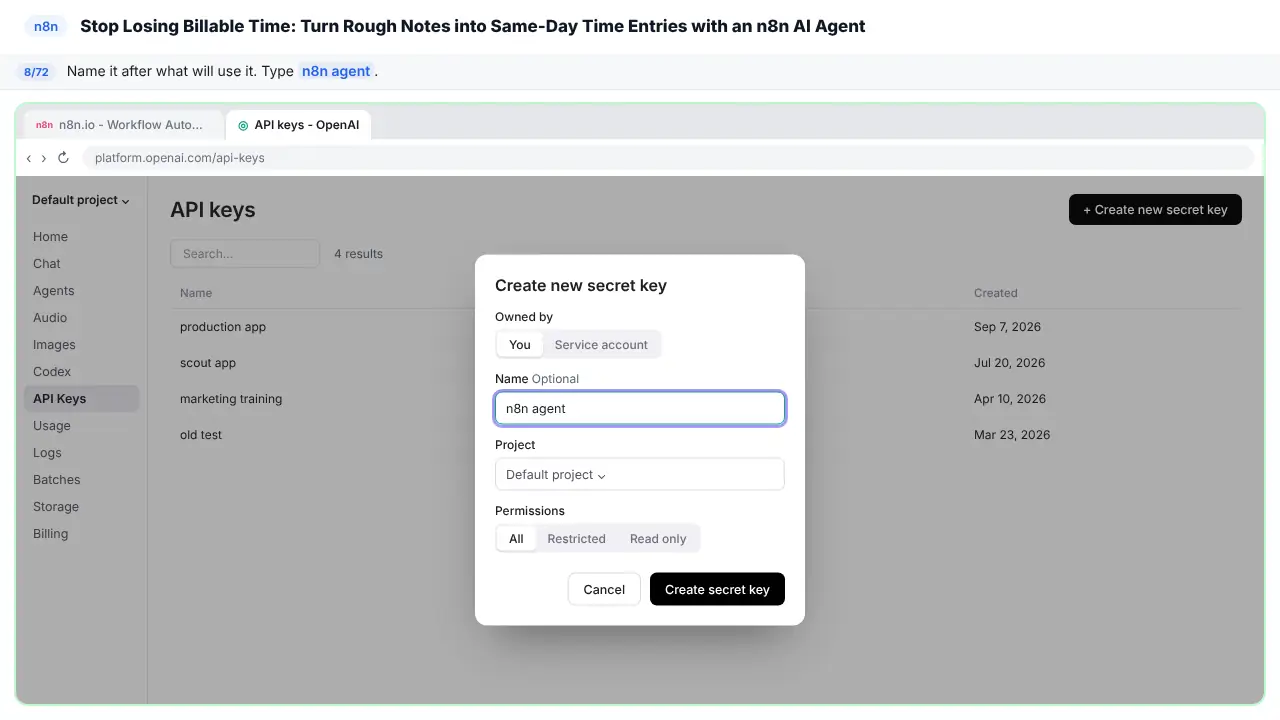
Step 9: Create it
Default project, all permissions — that is fine for this. Create the key.
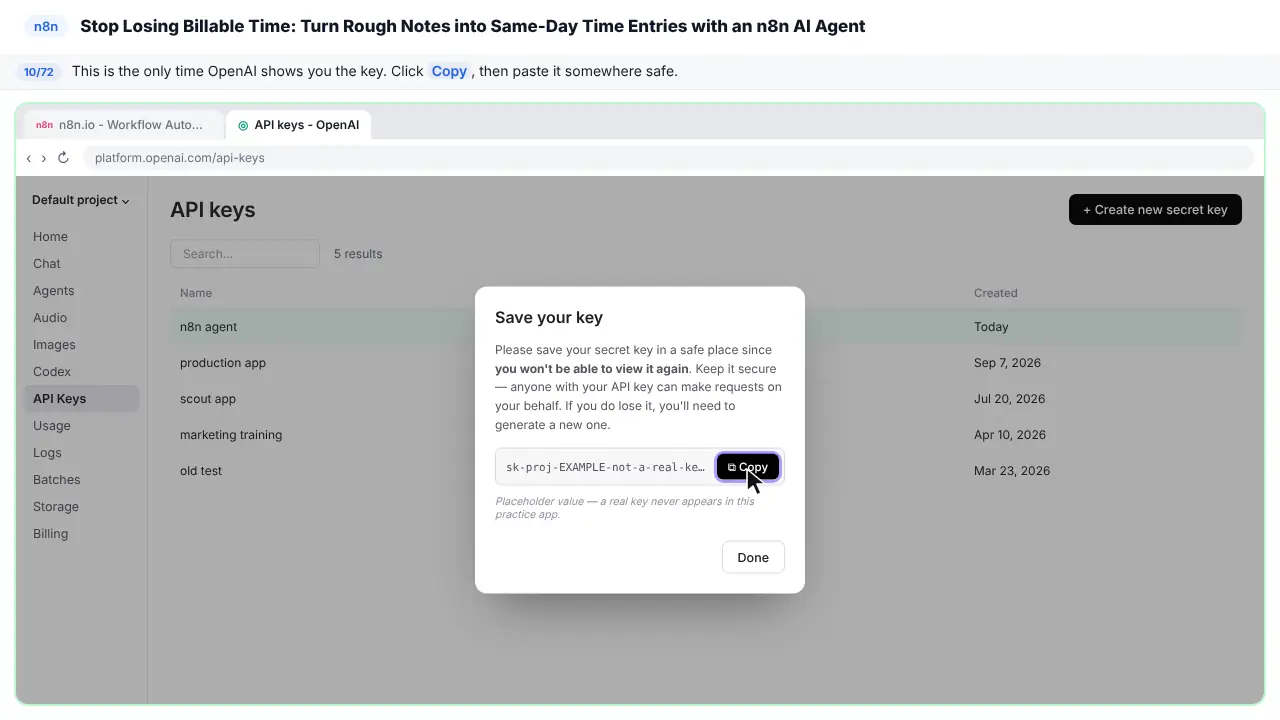
Step 10: Copy it now
Now pay attention, because this is the only time you will ever see this key. Copy it and paste it into n8n, or into your password manager. If you lose it, you do not get it back — you delete it and make another.
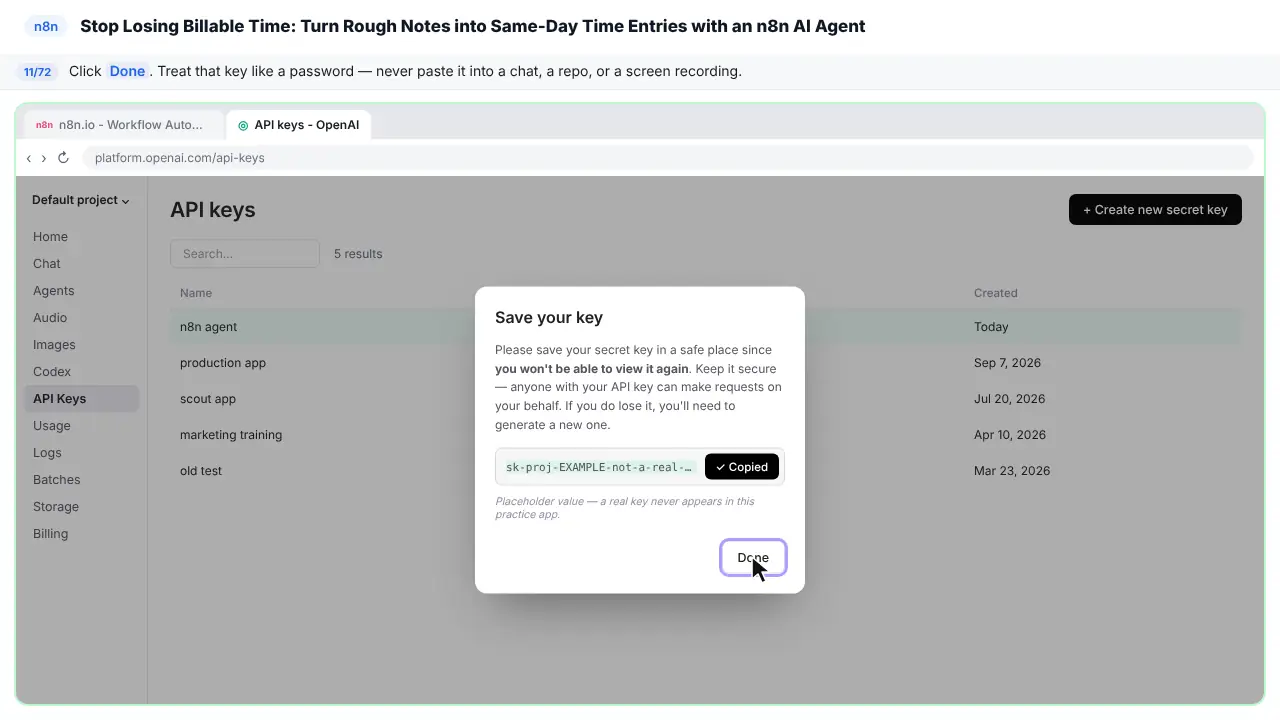
Step 11: Back to n8n
One last warning — this key can spend your money. Never commit it to code, never paste it into a chat, and if it ever shows up on screen while you are recording, revoke it before you publish.
Part 3: New workflow
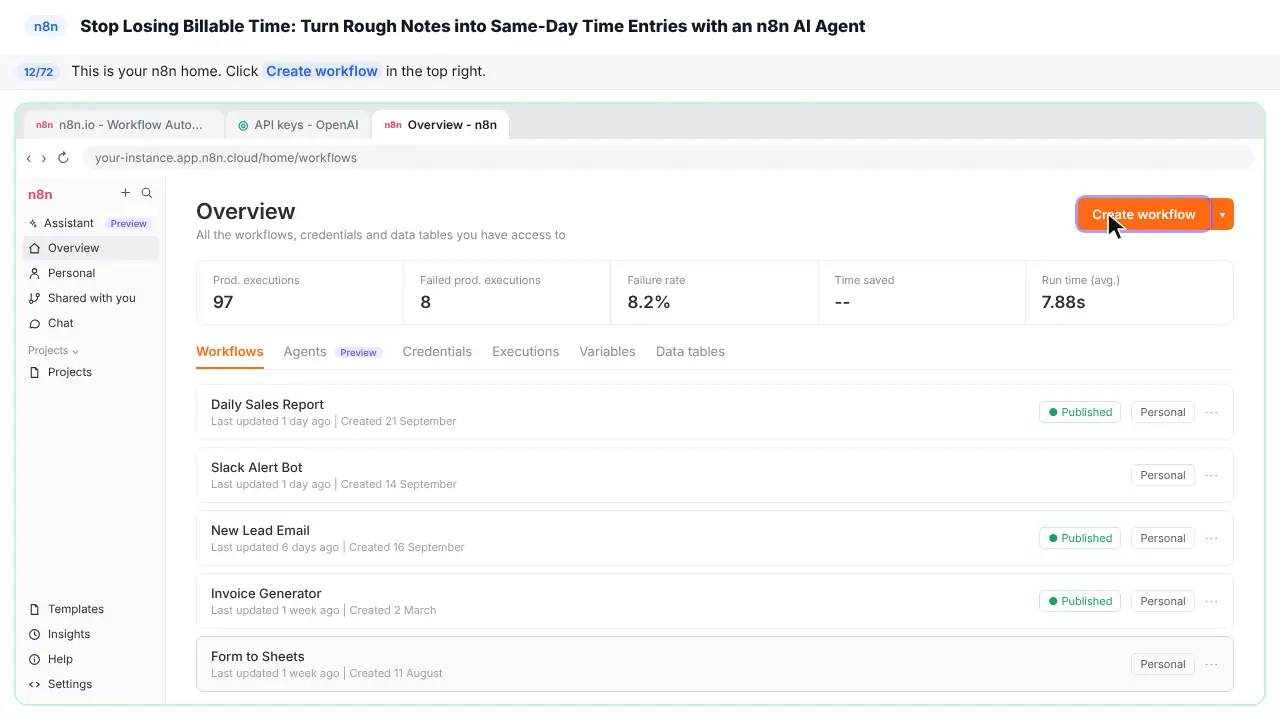
Step 12: Start a new workflow
Now you are inside n8n. This overview page lists every workflow you have. Top right, click create workflow, and you land on an empty canvas.
Part 4: Chat trigger
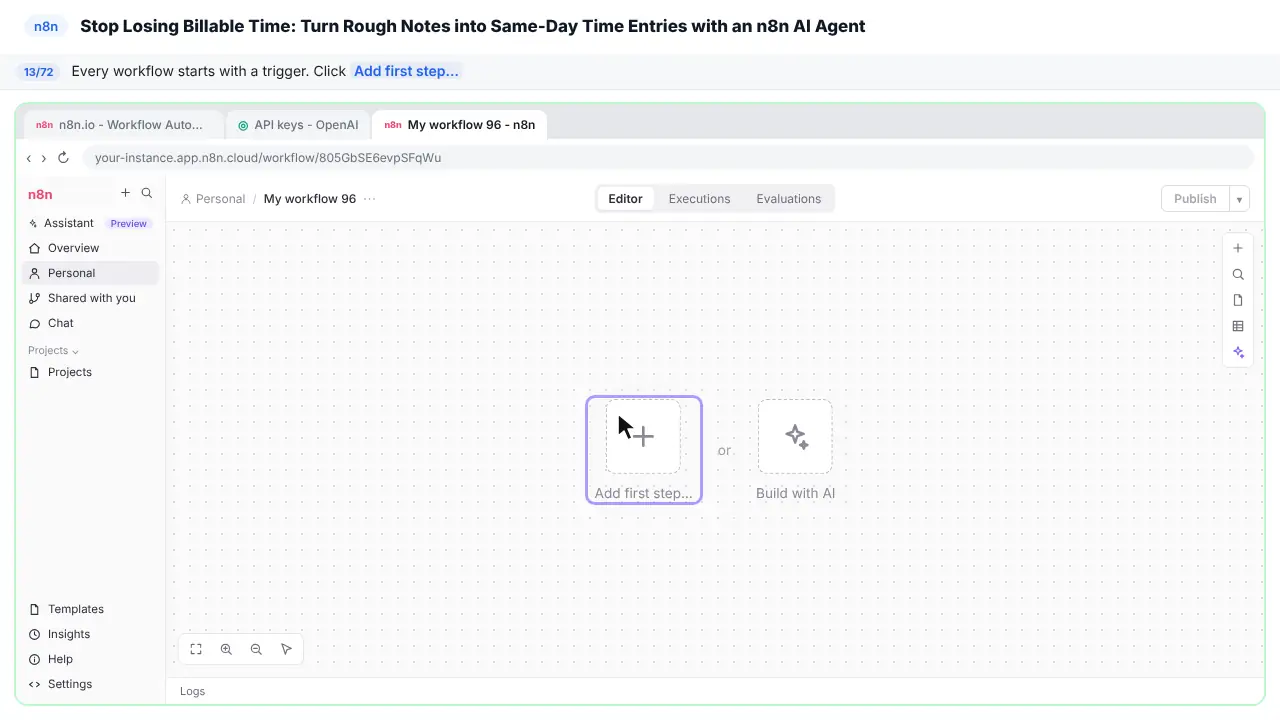
Step 13: Add the first step
Every workflow needs a trigger — the thing that kicks it off. We want a chat trigger so you can paste in the day's notes.
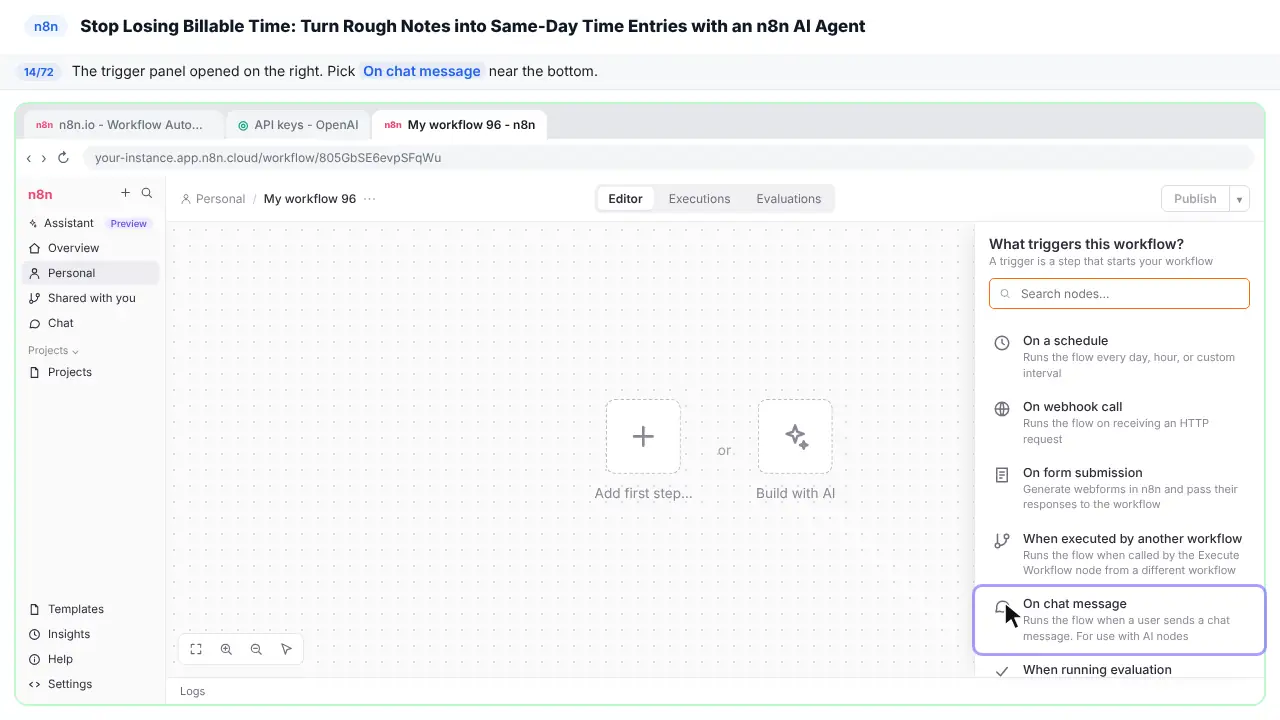
Step 14: Trigger on a chat message
A panel slides in with every way a workflow can start — manually, on a schedule, on a webhook. We want on chat message, so we can have a conversation with the agent.
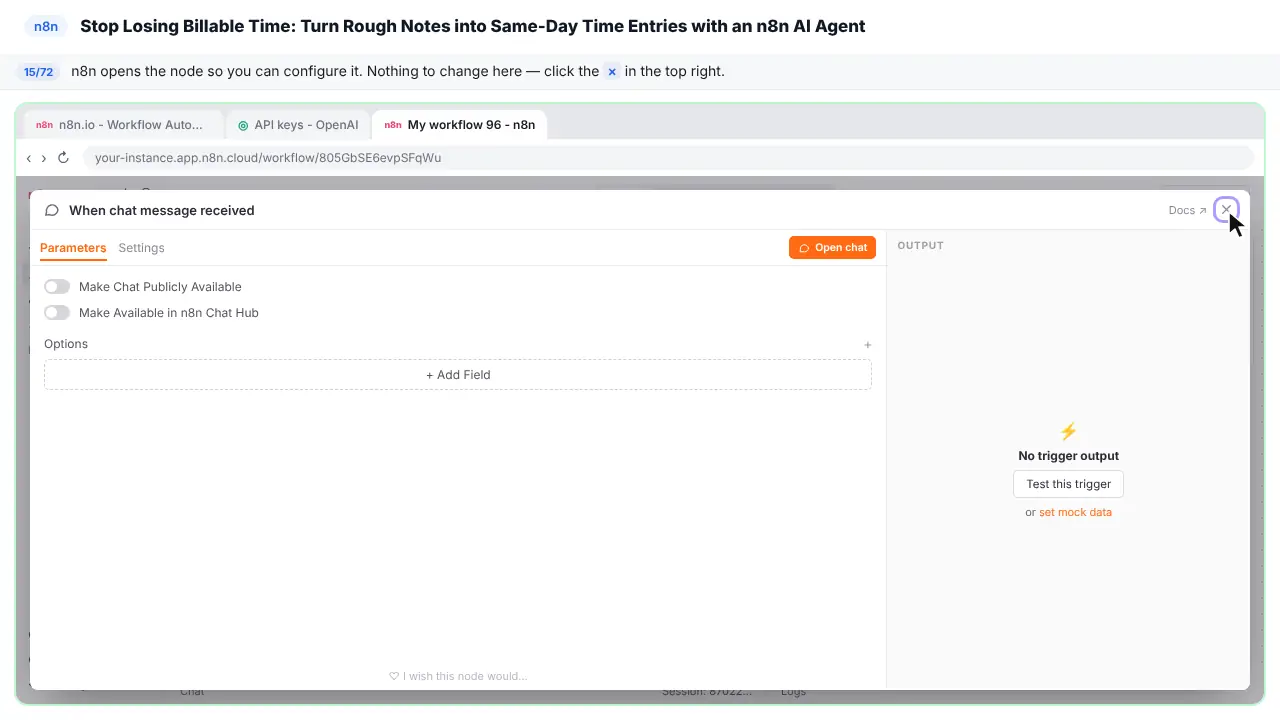
Step 15: Back to the canvas
n8n opens the node so you can configure it. There is nothing we need to change here, so close it with the X in the top right and get back to the canvas.
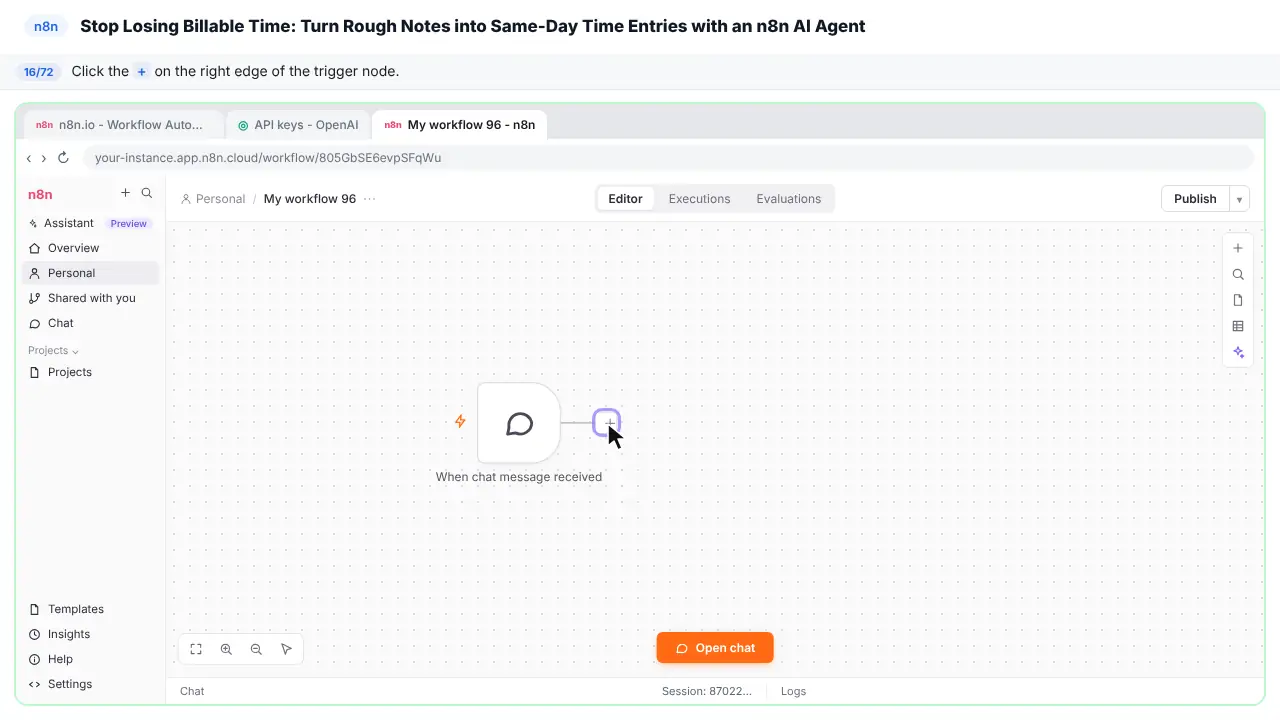
Part 5: AI Agent
Step 16: Add the next node
Now we decide what happens when a message comes in.
Step 17: Open the AI nodes
A panel opens and asks what happens next. The agent lives under AI, right at the top.
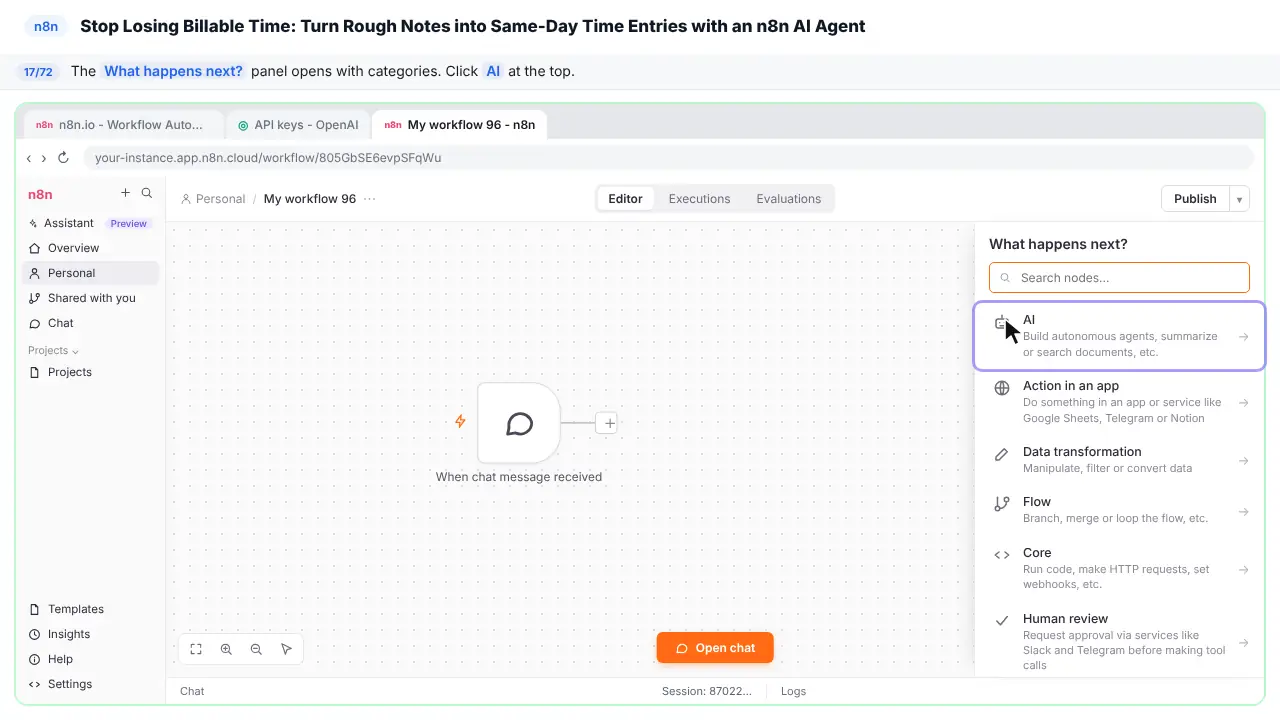
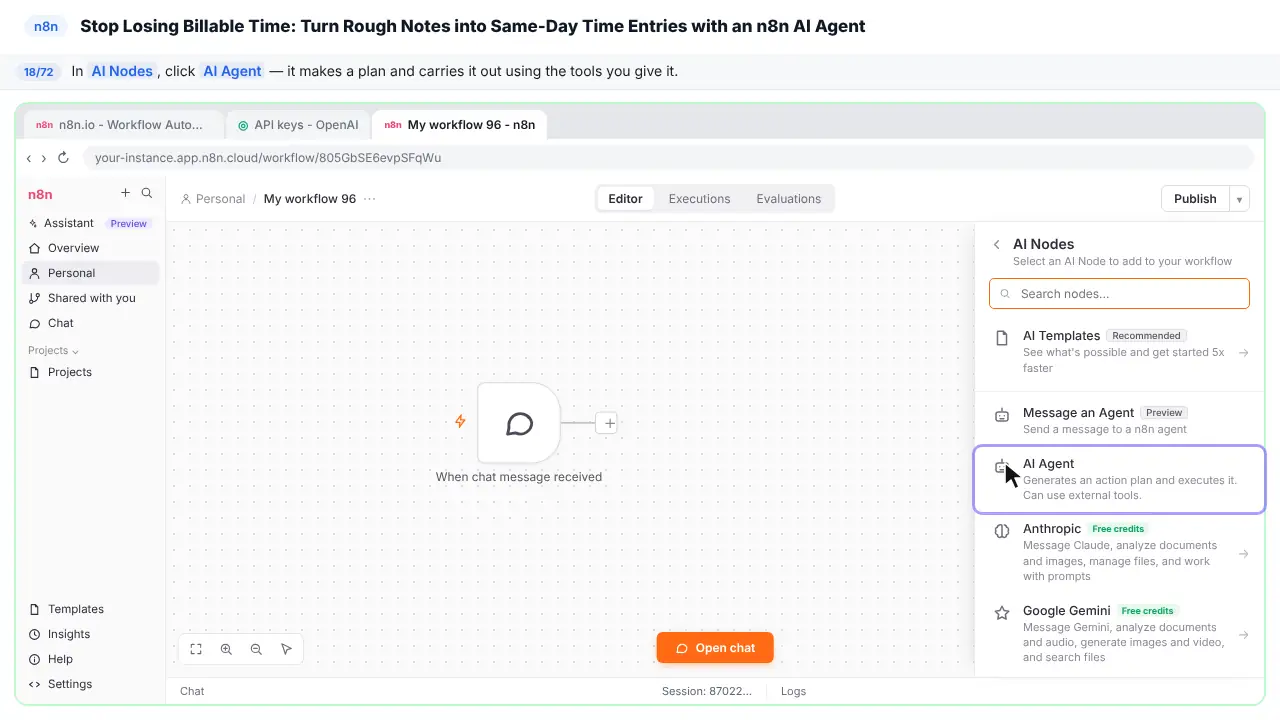
Step 18: Add the AI Agent
There it is — AI Agent. This is the piece that can plan and then carry out actions using whatever tools you give it. You give it your notes, and it can write each time entry and save it to a spreadsheet — all in one step.
Part 6: System prompt
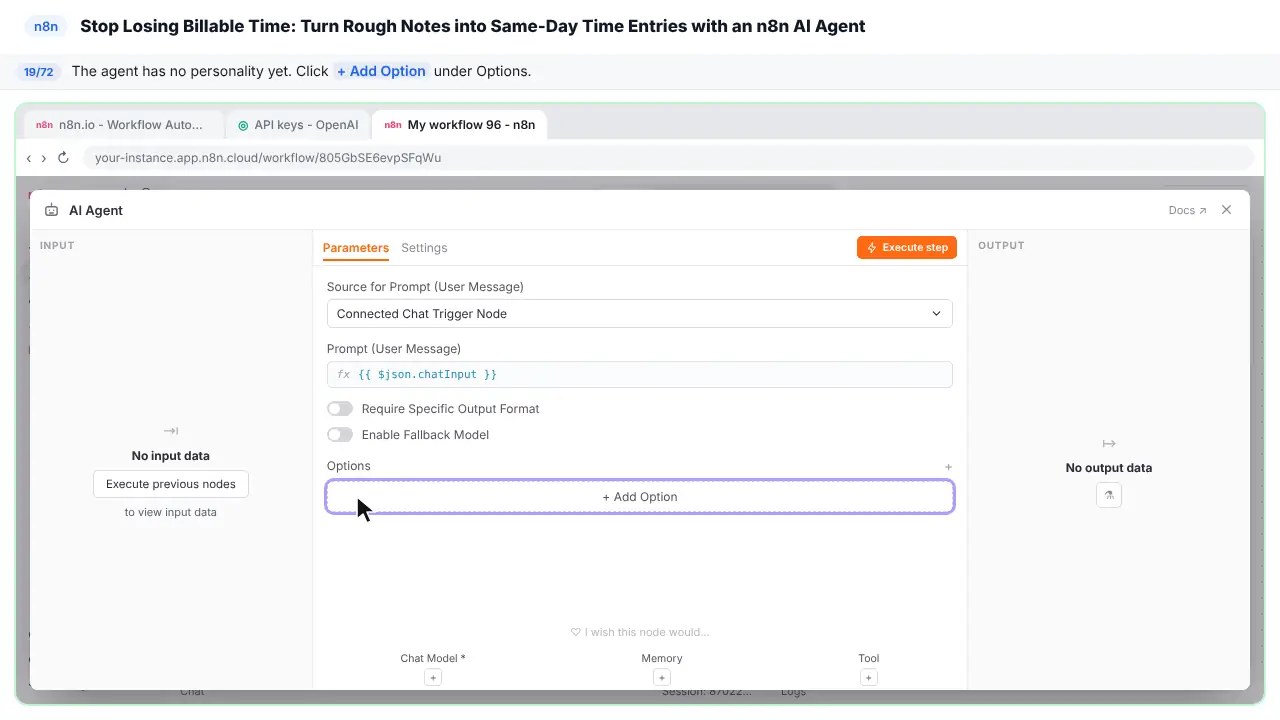
Step 19: Open the options
Right now this agent has no personality and no orders. It does not know it works for Calloway and Brandt, or what a good time entry looks like.
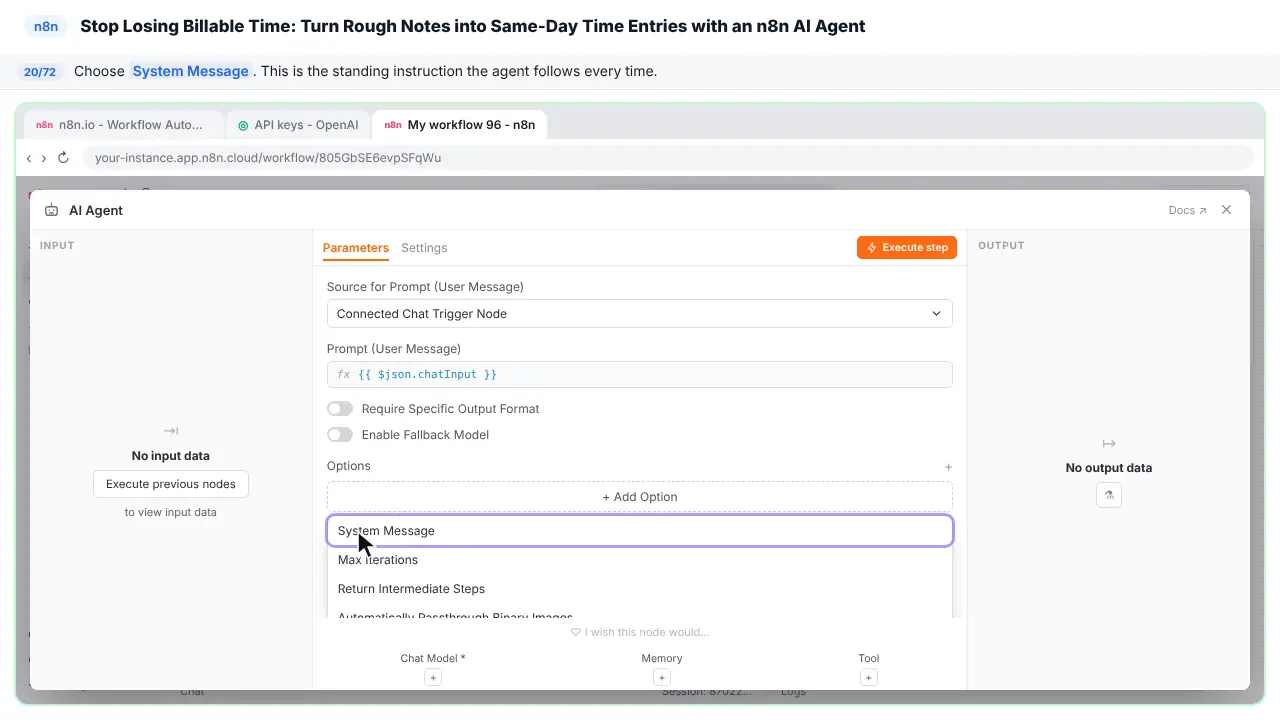
Step 20: Add a system message
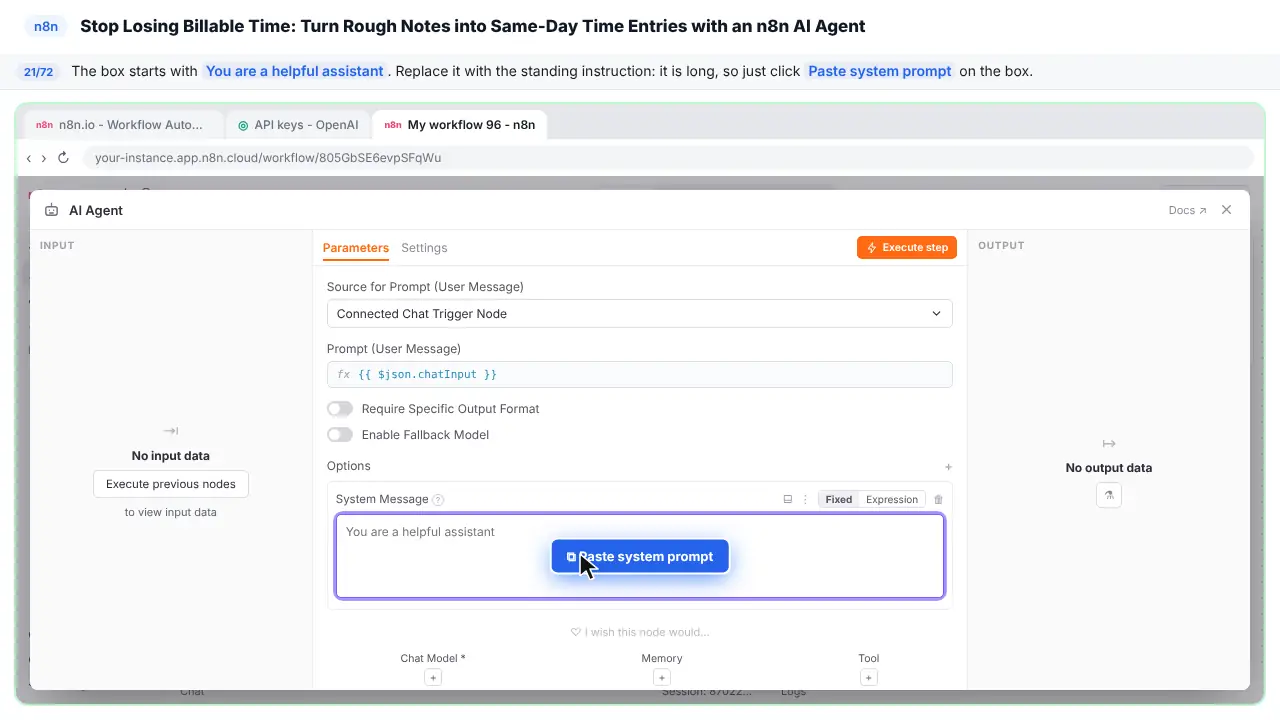
Pick system message. This is the standing instruction the agent reads before every request. It is where we tell it who the firm is, how to write a time entry, and what it must never do.
Step 21: Write the system prompt
Here is the actual prompt. It tells the agent what each entry needs: the date, the matter, the hours, a one-sentence description a client can read, and a check for billing. A task with no clear matter gets marked unclear. And the rule that matters most: never invent, estimate or round your hours. If you didn't write the time down, the entry says so.
You are the time entry assistant for Calloway & Brandt LLP.

Calloway & Brandt LLP is a small litigation and business law firm. Its lawyers record their time every day, and the billing team turns those entries into client invoices at the end of the month.

The audience is the lawyer who wrote the notes, who reads every entry before it goes to billing.

The tone should be plain, brief and factual, like a billing description a client can read.

Your job is to turn the lawyer's rough notes into one time entry per task.

For each task, return:
- Date
- Matter (the client or case name exactly as the notes give it)
- Hours (exactly as written in the notes, or "Hours not given")
- Description (one sentence, starting with a past-tense verb, like "Drafted..." or "Call with client re: ...")
- Check: "Ready", or one short sentence on what the lawyer must confirm before billing

If the matter is unclear or a task could belong to more than one matter, write "Unclear" in Matter and say why in Check.

When the user asks you to save the entries, use the Google Sheets tool to store each one.

Never invent, estimate or round hours. Never add facts, results or legal conclusions that are not in the notes. Never include Social Security numbers, account numbers or other personal identifiers.
Step 22: Back to the canvas
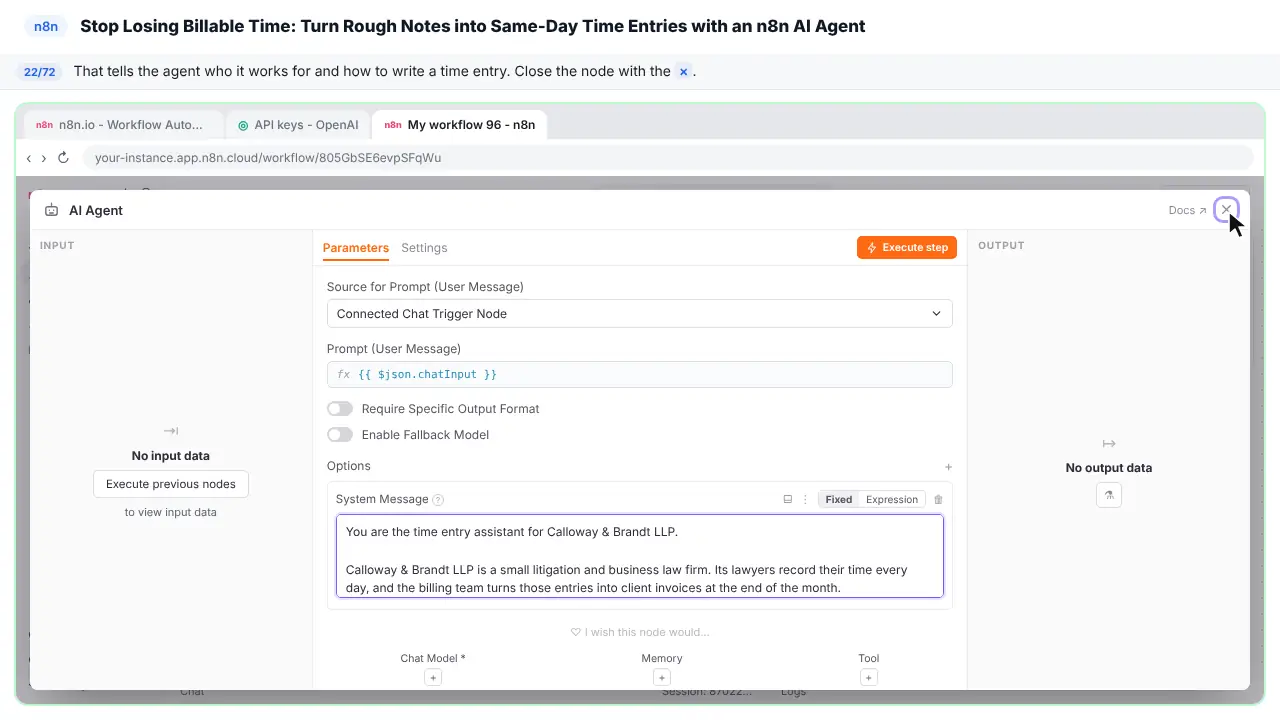
That gives the agent everything it needs to know about writing time entries for the firm. Close the node.
Part 7: Chat model
Step 23: Give the agent a brain
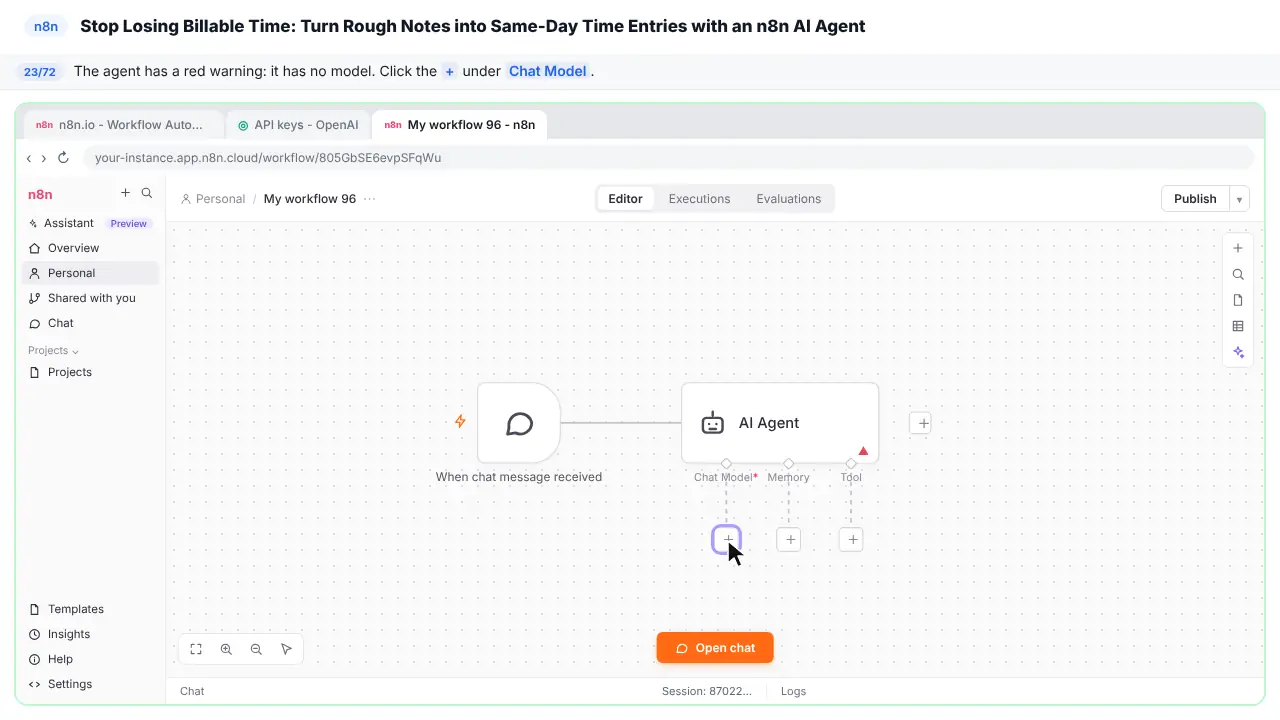
See that red triangle on the agent? It is complaining because it has no model. An agent can plan, but it cannot think without a language model underneath it.
Step 24: Pick OpenAI
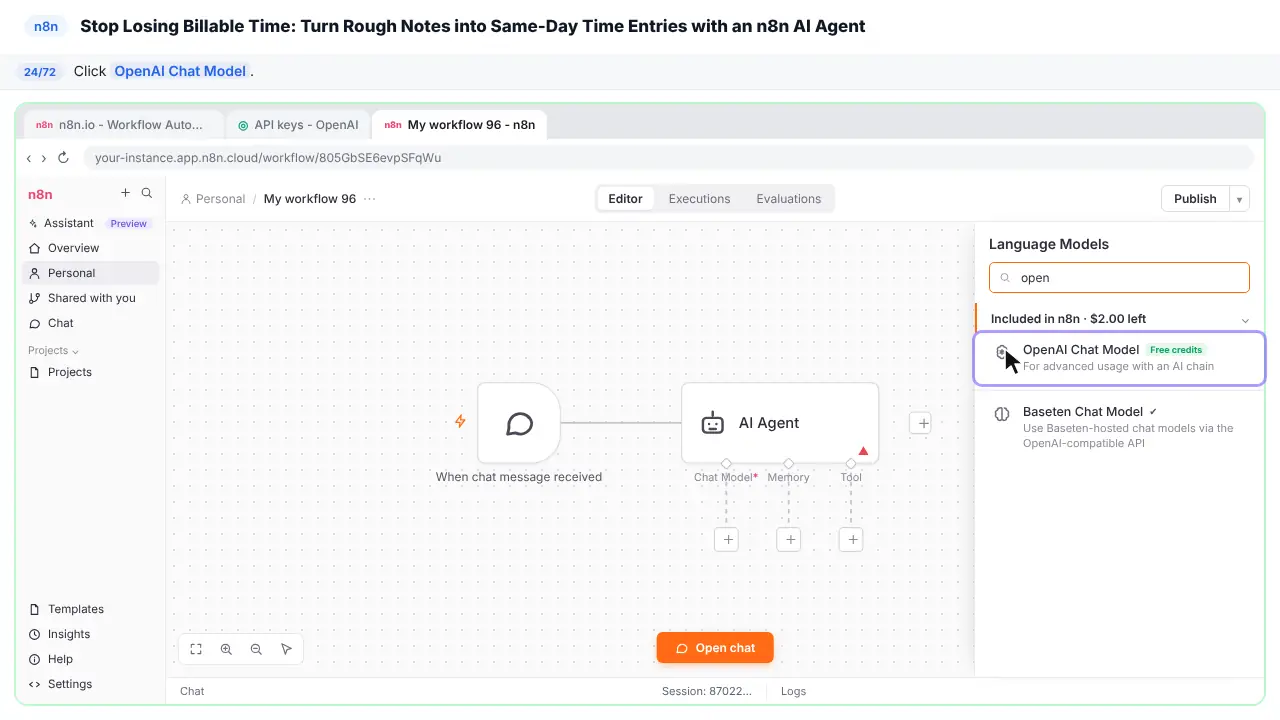
OpenAI chat model. This is where that API key finally gets used.
Step 25: Open the credentials
And here is where that key you copied finally goes.
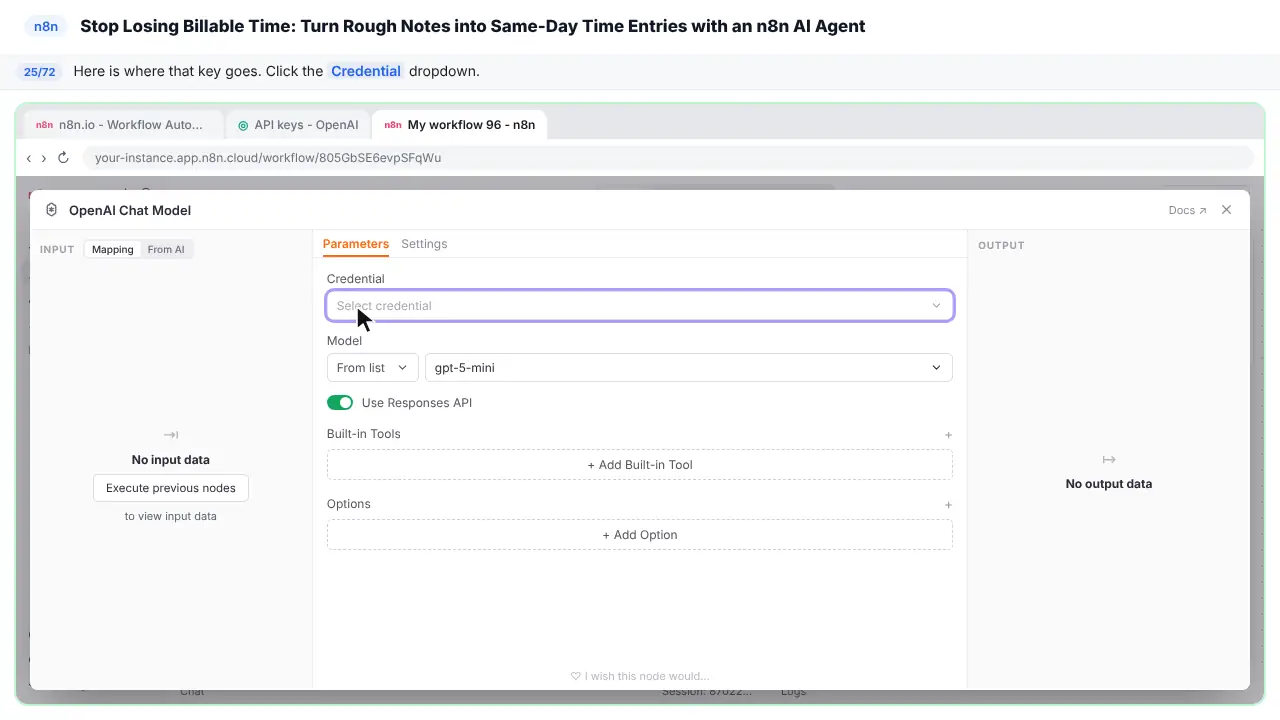
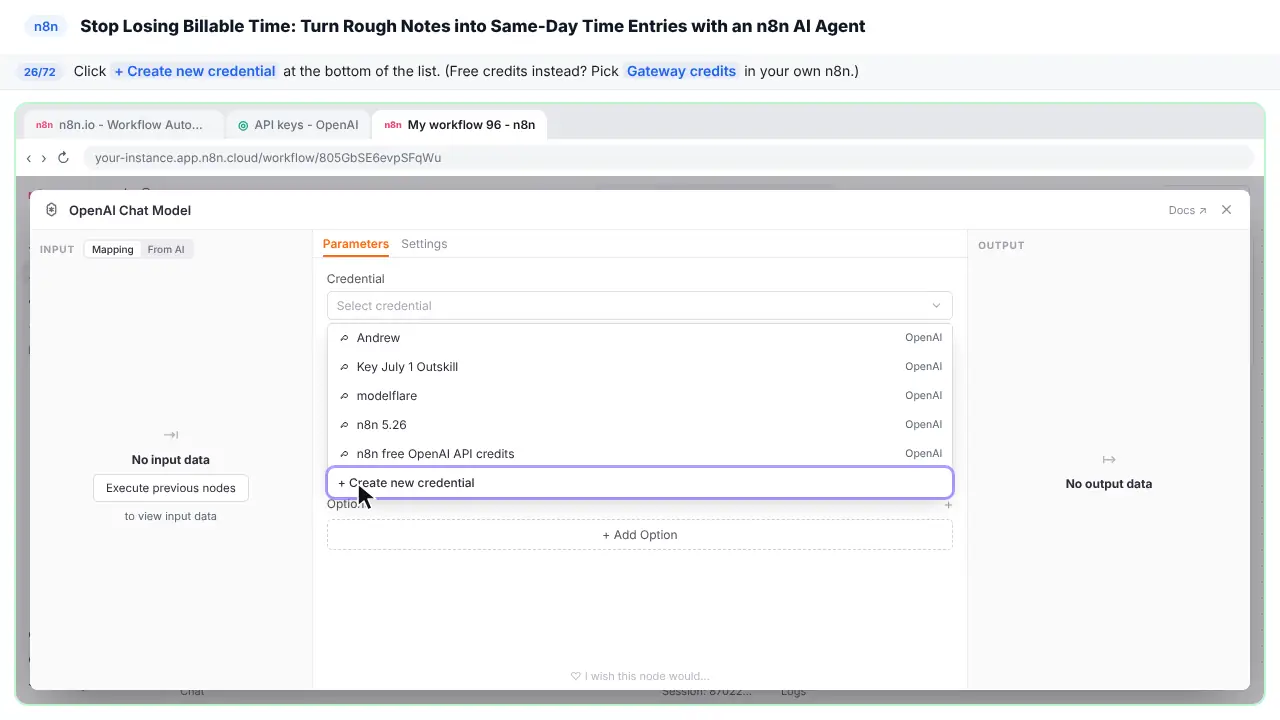
Step 26: Create a new credential
You want create new credential, right at the bottom. In your own n8n, if you skipped the key, you would pick gateway credits here instead.
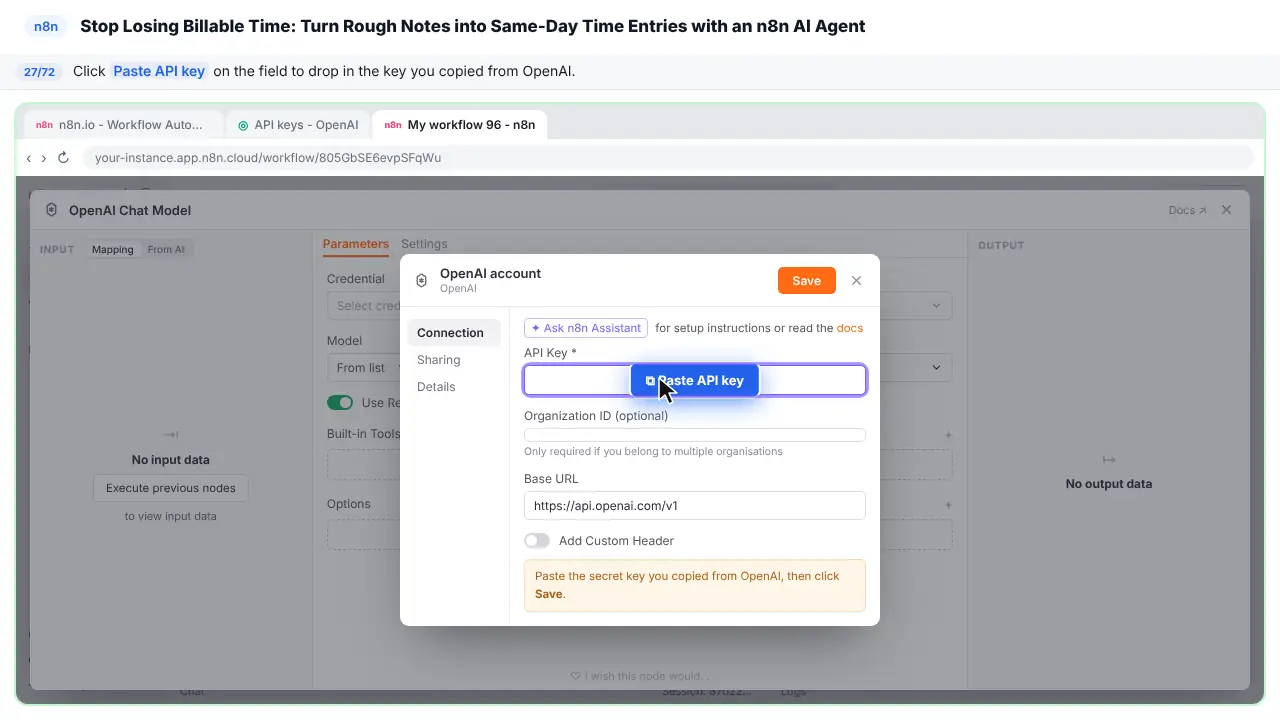
Step 27: Paste the key
This is the one moment it matters that you copied it — remember, OpenAI never shows it to you again.
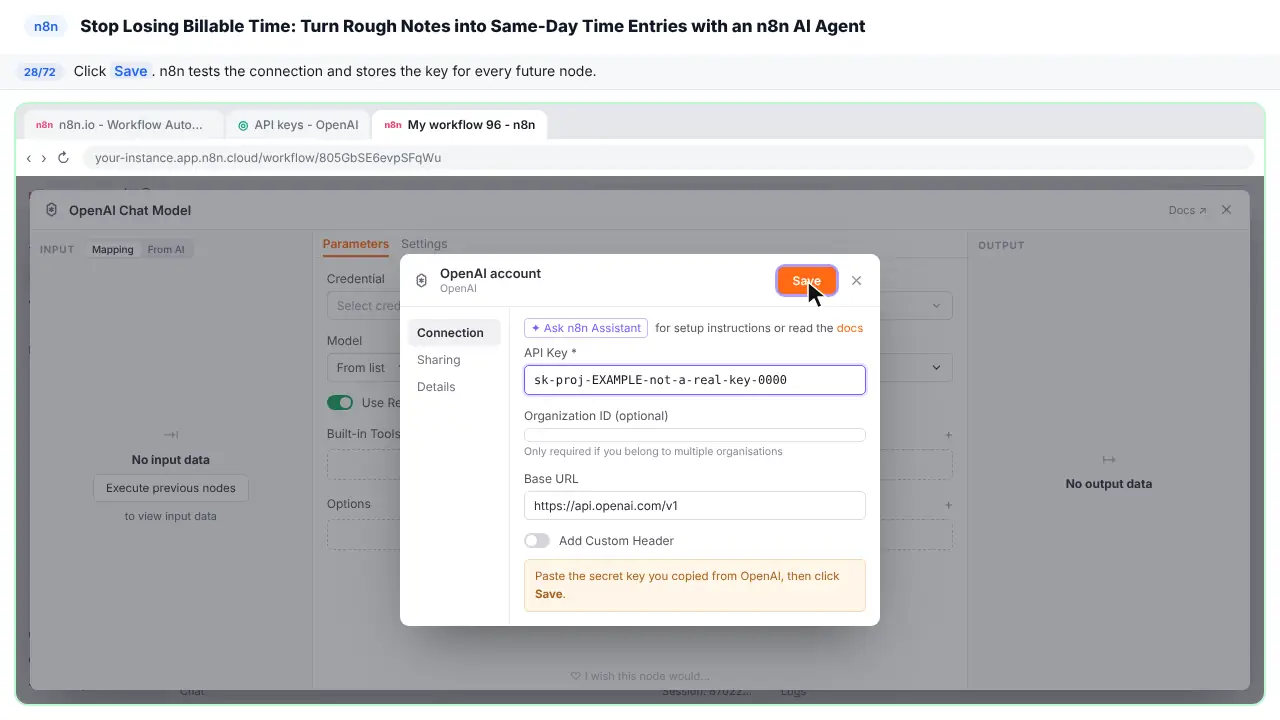
Step 28: Save the credential
n8n tests the connection straight away, and from now on this credential is available to every node in every workflow — you only do this once.
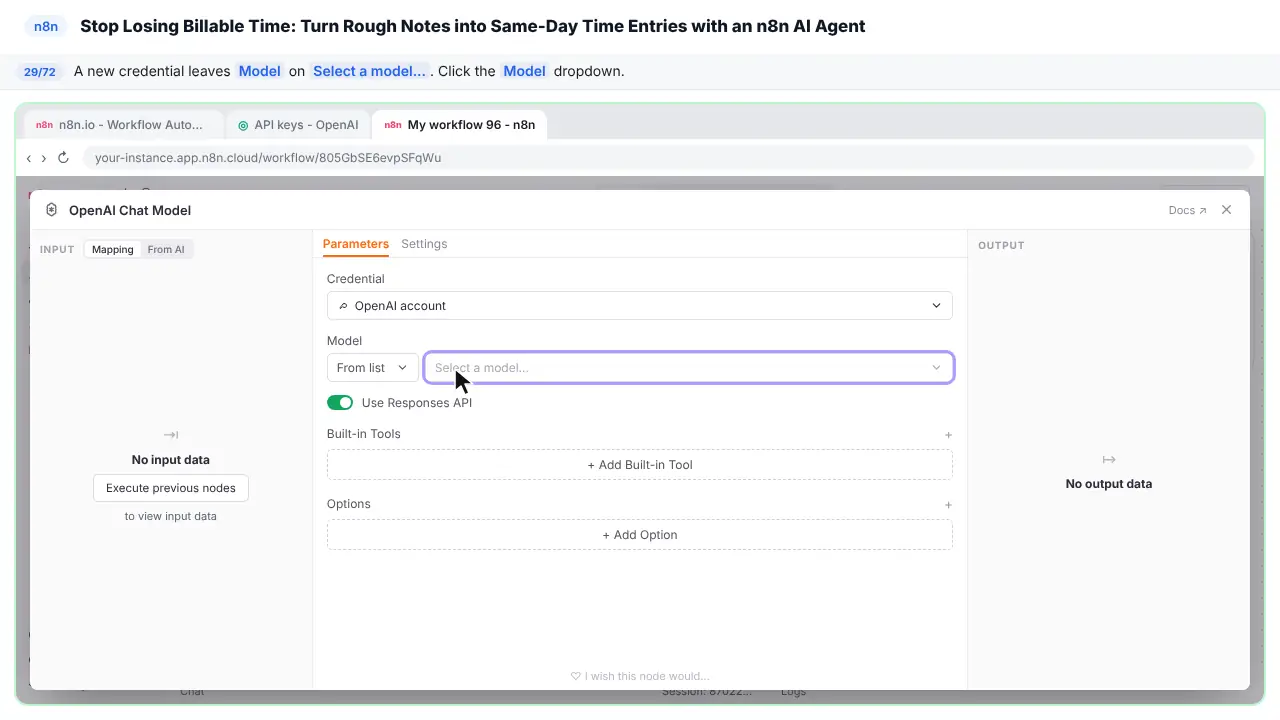
Step 29: Open the model list
Now the model dropdown.
Step 30: Choose the model
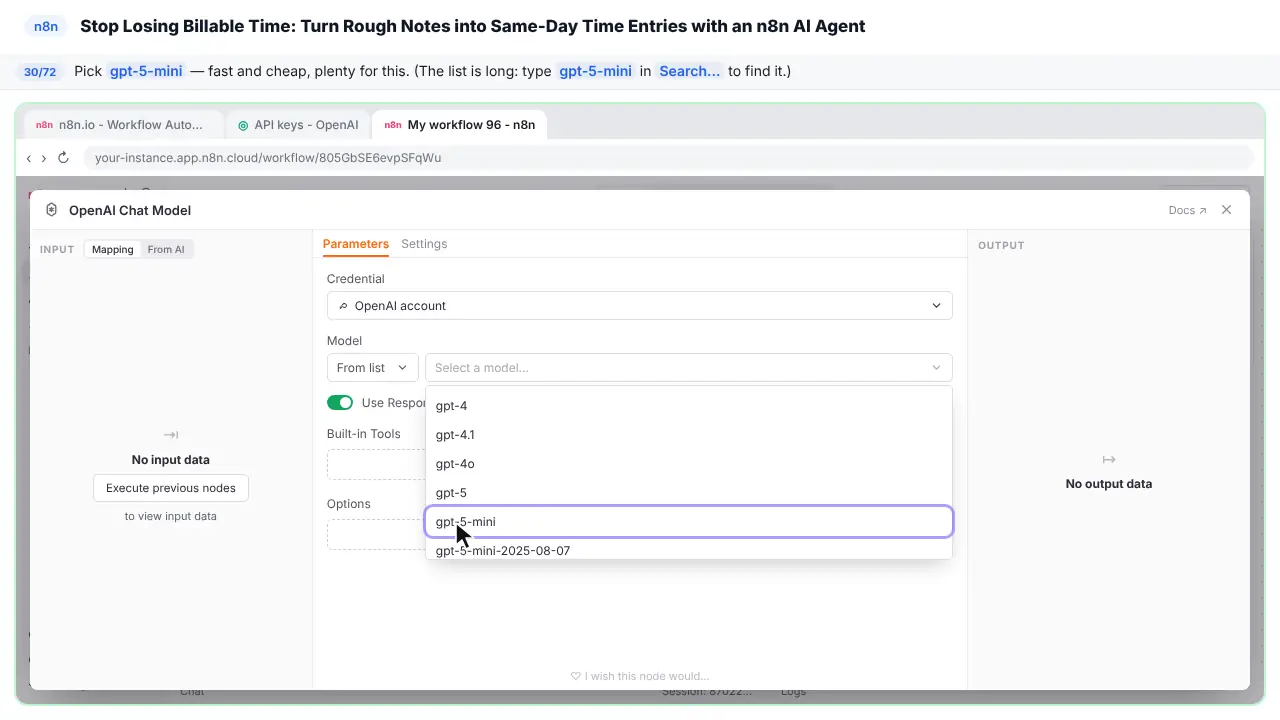
GPT five mini. Fast, cheap, and plenty for turning notes into time entries. Do not reach for the expensive model until you have a reason.
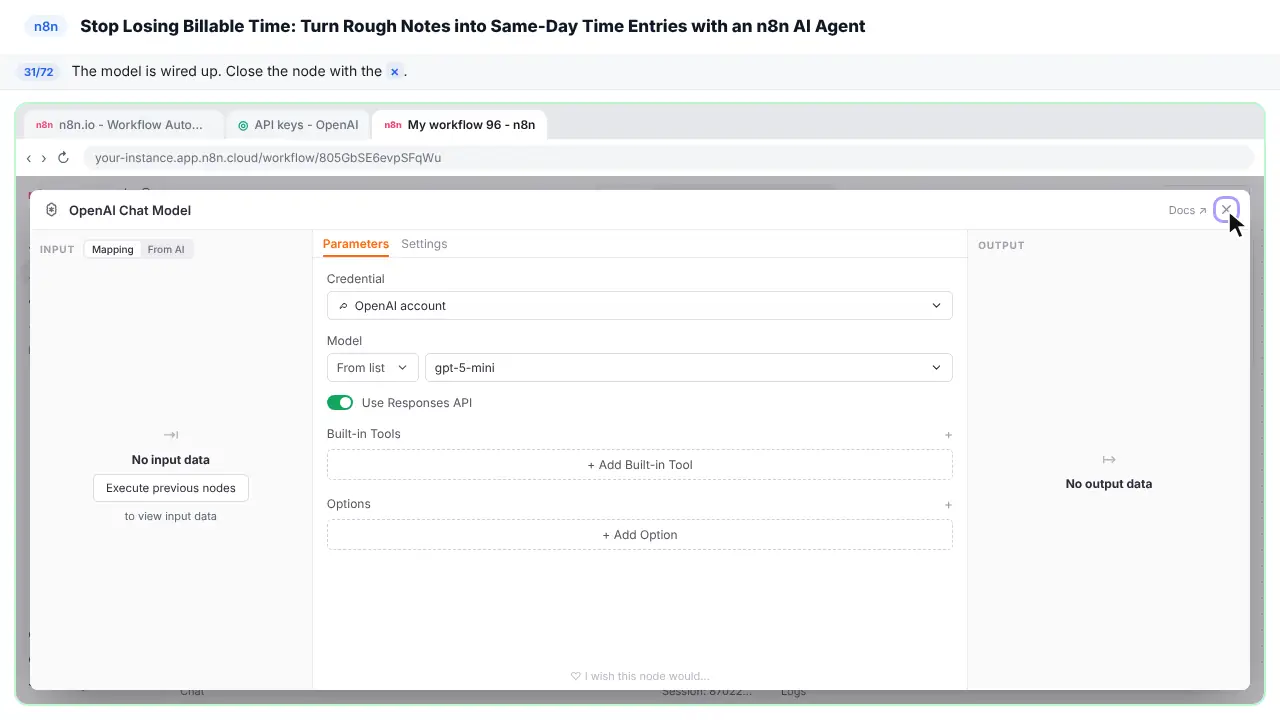
Step 31: Back to the canvas
That is the brain wired in. Close it up.
Part 8: Memory
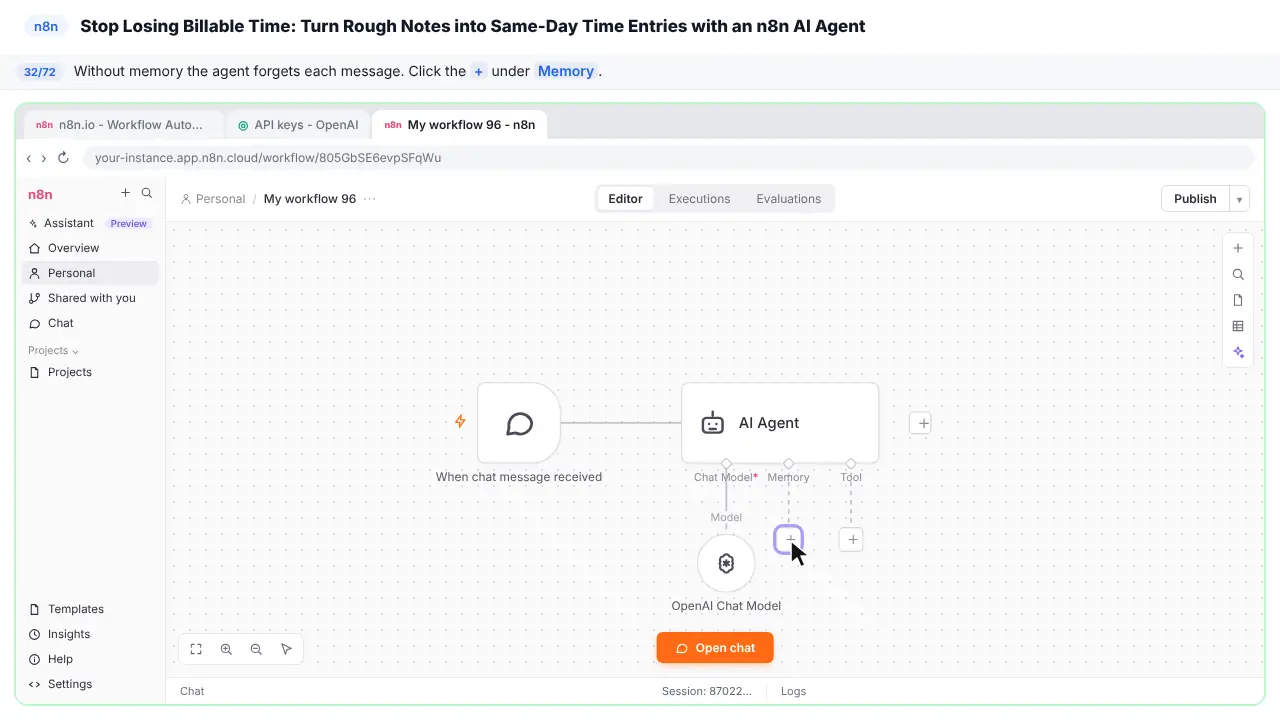
Step 32: Add memory
Next, memory. Without this, every message starts from nothing — you could not say save those, because it would not remember which entries you meant.
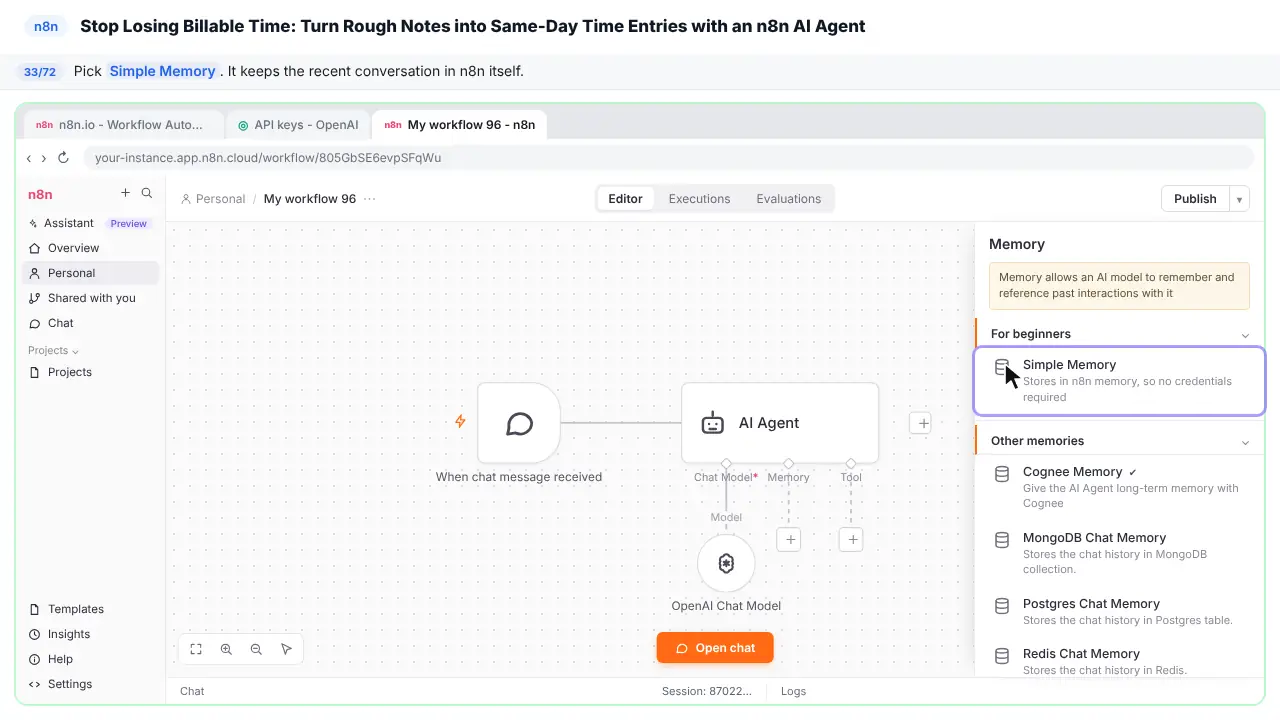
Step 33: Simple Memory
Simple memory is fine here — it keeps the recent conversation inside n8n, no database, no extra credentials.
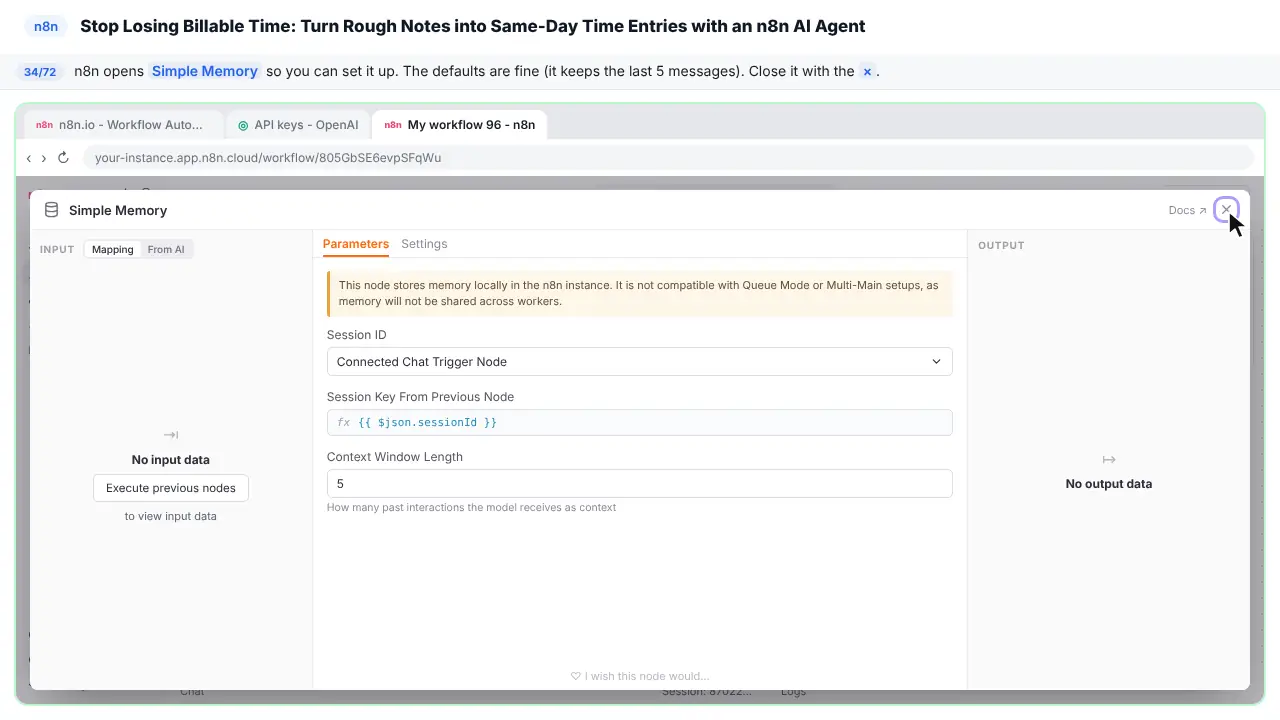
Step 34: Back to the canvas
n8n opens simple memory so you can set it up. The defaults are fine. It keeps the last five messages. Close it with the X.
Part 9: Sheets tool
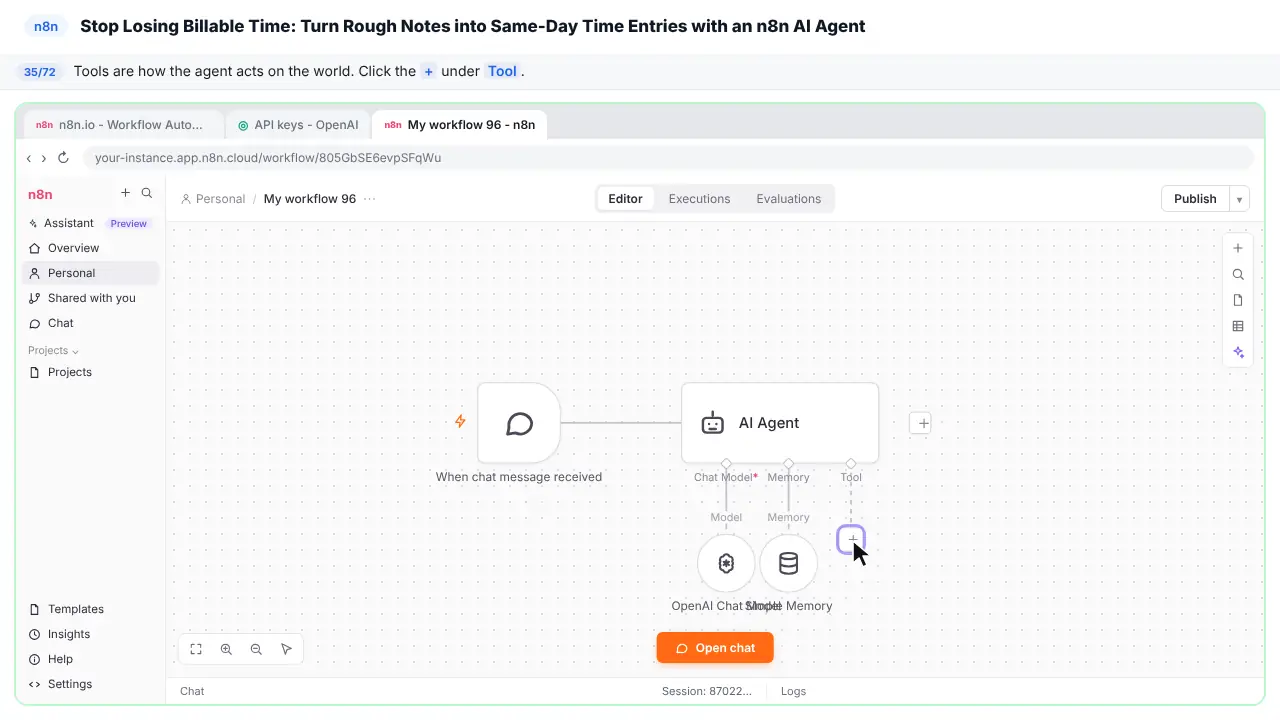
Step 35: Add a tool
And now the good part — tools. This is what separates an agent from a chatbot. A chatbot just talks. An agent does things. We are going to give it Google Sheets so it can save every entry into a time log your billing team can work from.
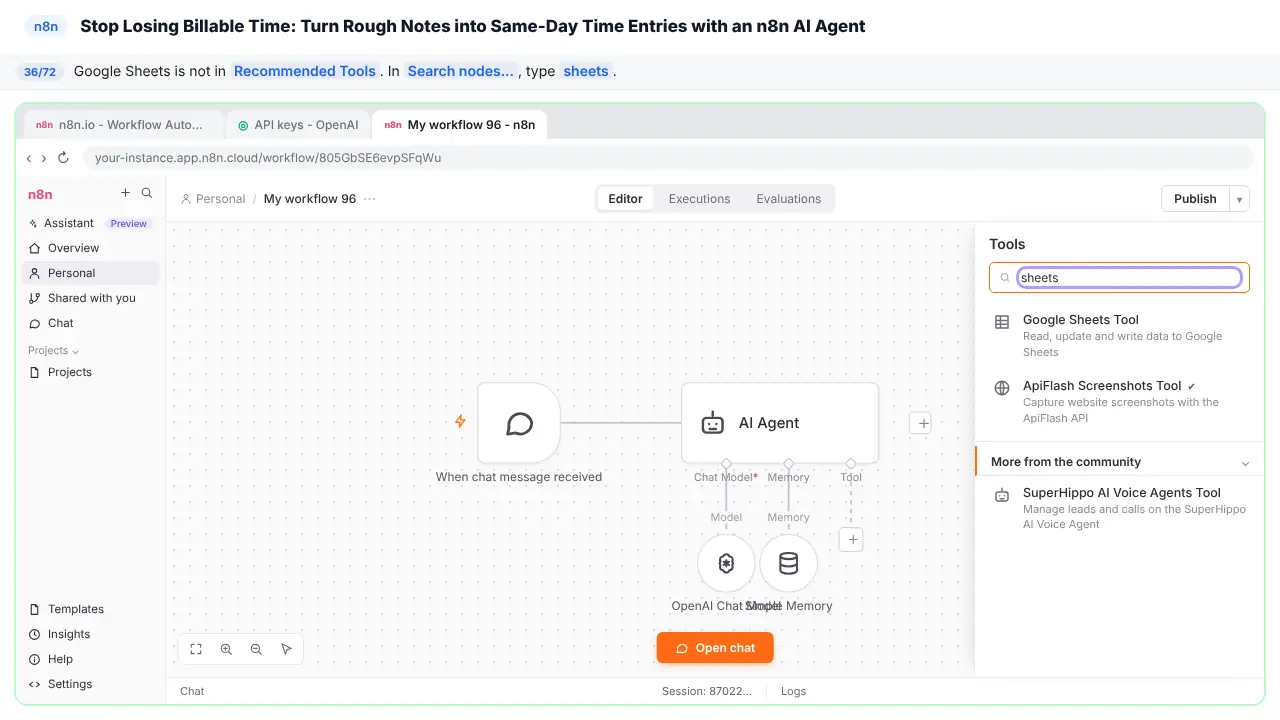
Step 36: Search for Sheets
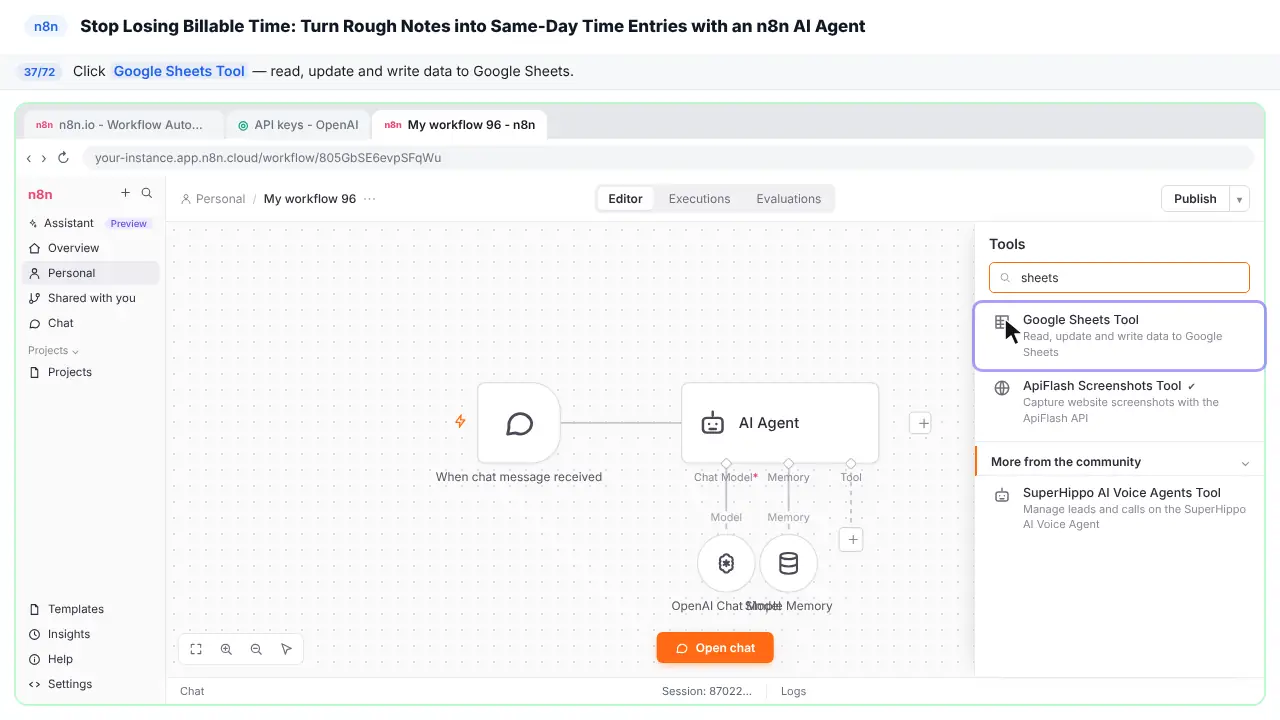
Google Sheets is not in the recommended tools, so search for it.
Step 37: Add Google Sheets
Google Sheets tool. Now the agent can write rows into a real spreadsheet, with columns matching what the system prompt tells it to return. When you say save those, each task becomes a row.
Part 10: Create the spreadsheet
Step 38: Back to the canvas
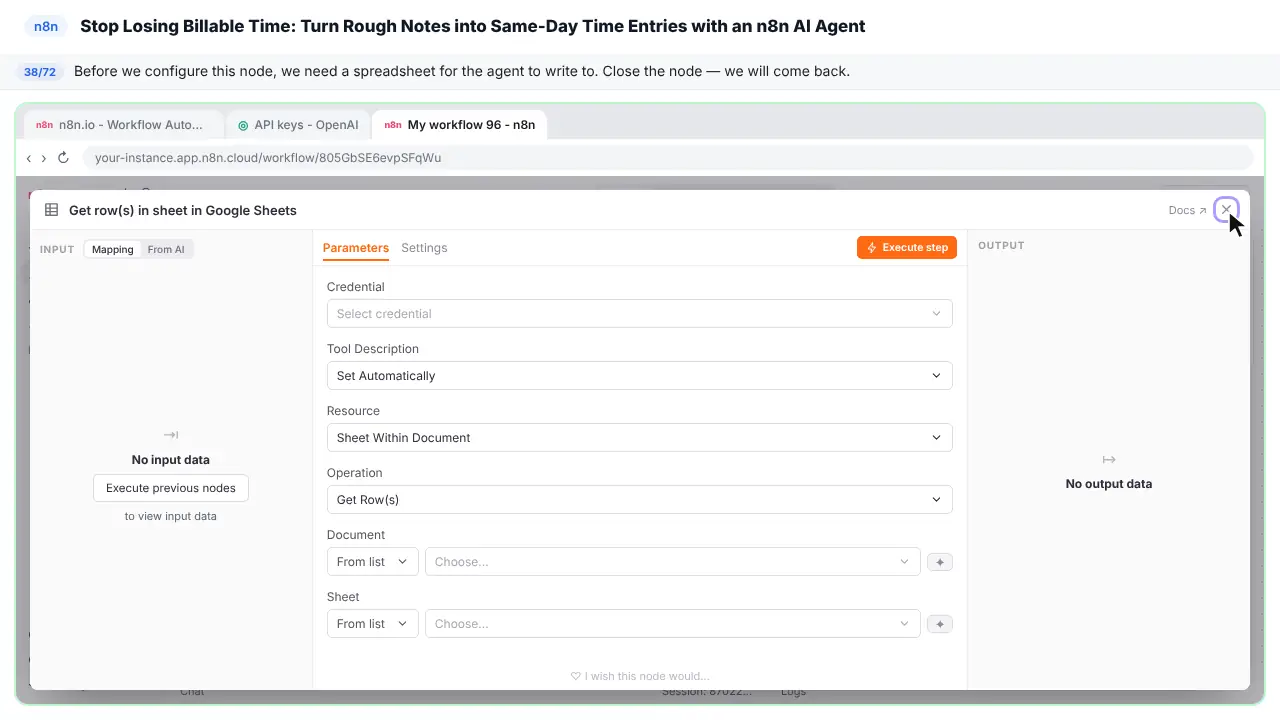
Before we set this up, we need to actually create the spreadsheet. Close this node for now — we are going to hop over to Google Sheets and make one.
Step 39: Open Google Sheets
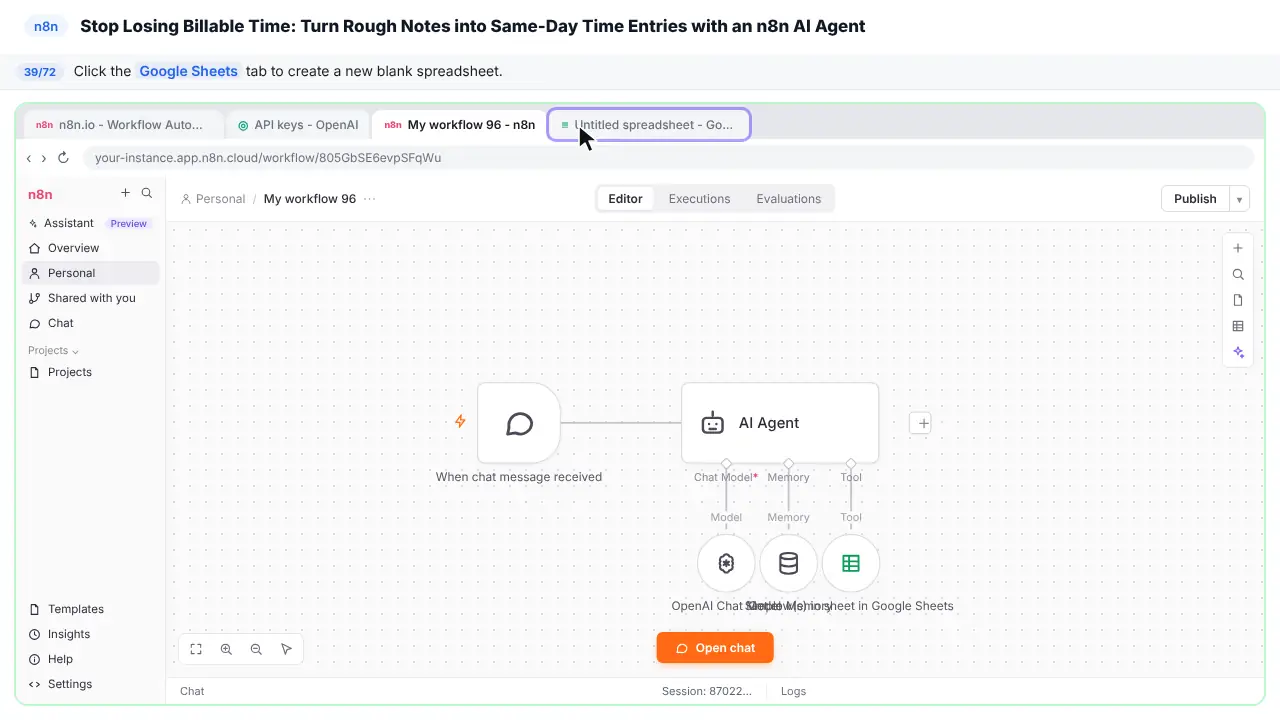
Switch to Google Sheets. You need to create the spreadsheet that this node will write to.
Step 40: Name the spreadsheet
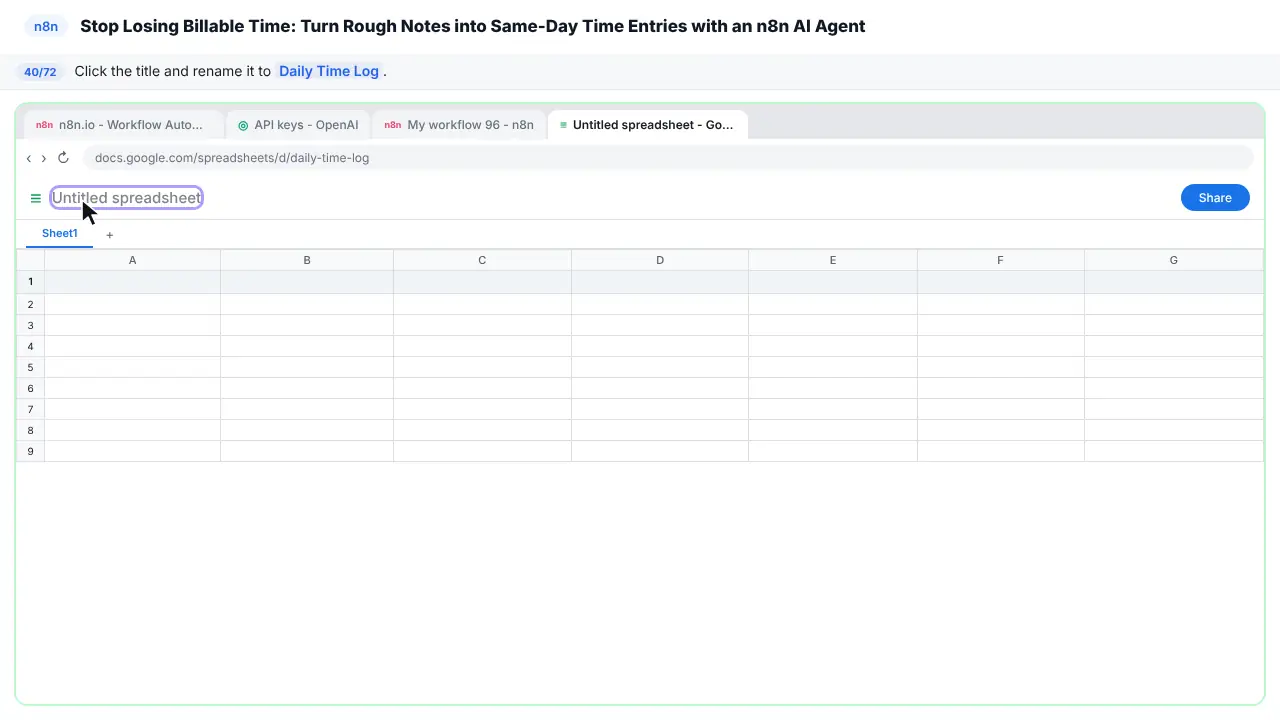
First, name it so you can find it later.
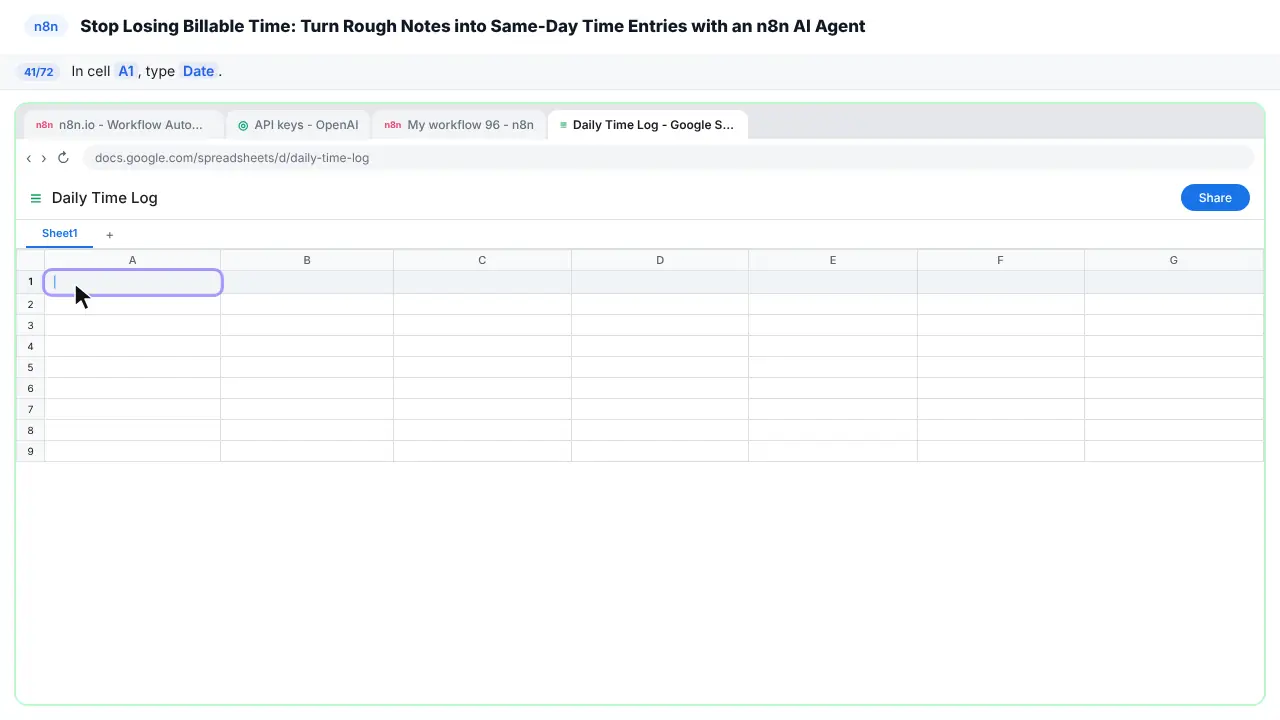
Step 41: Type the first column header
Now set up the column headers. These need to match what the system prompt tells the agent to return. In A1, type Date.
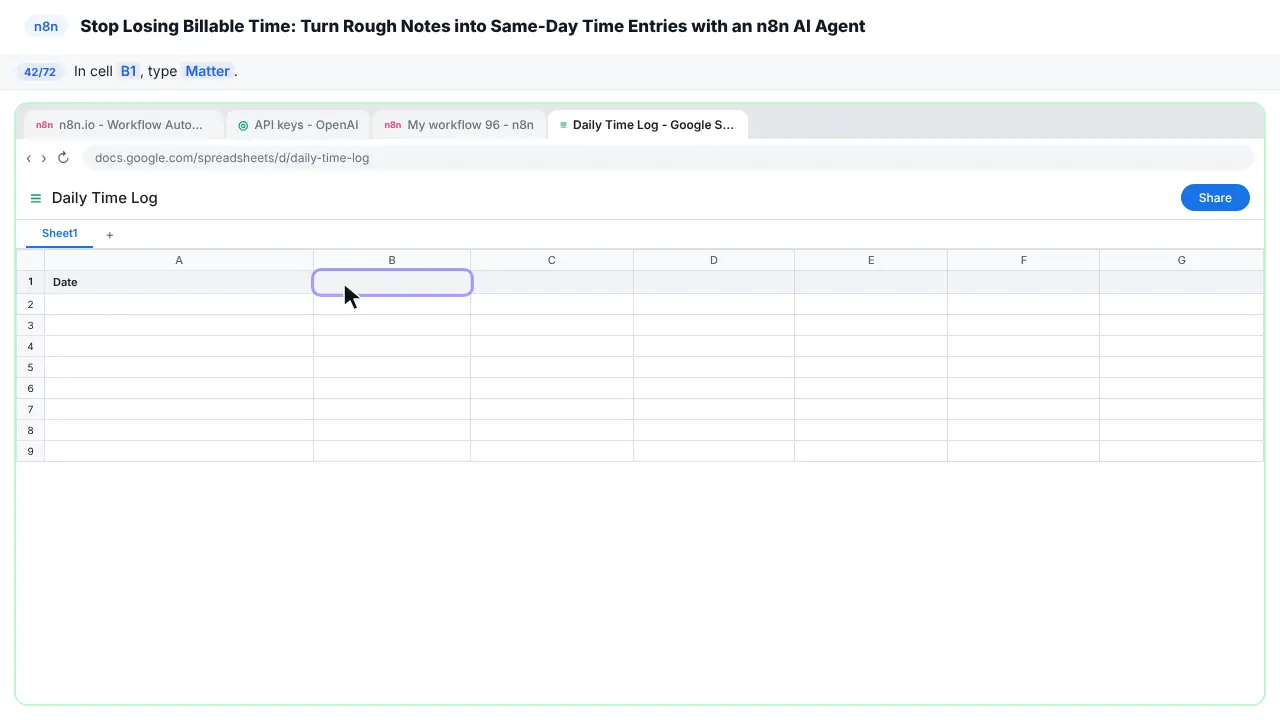
Step 42: Matter
B1 — Matter.
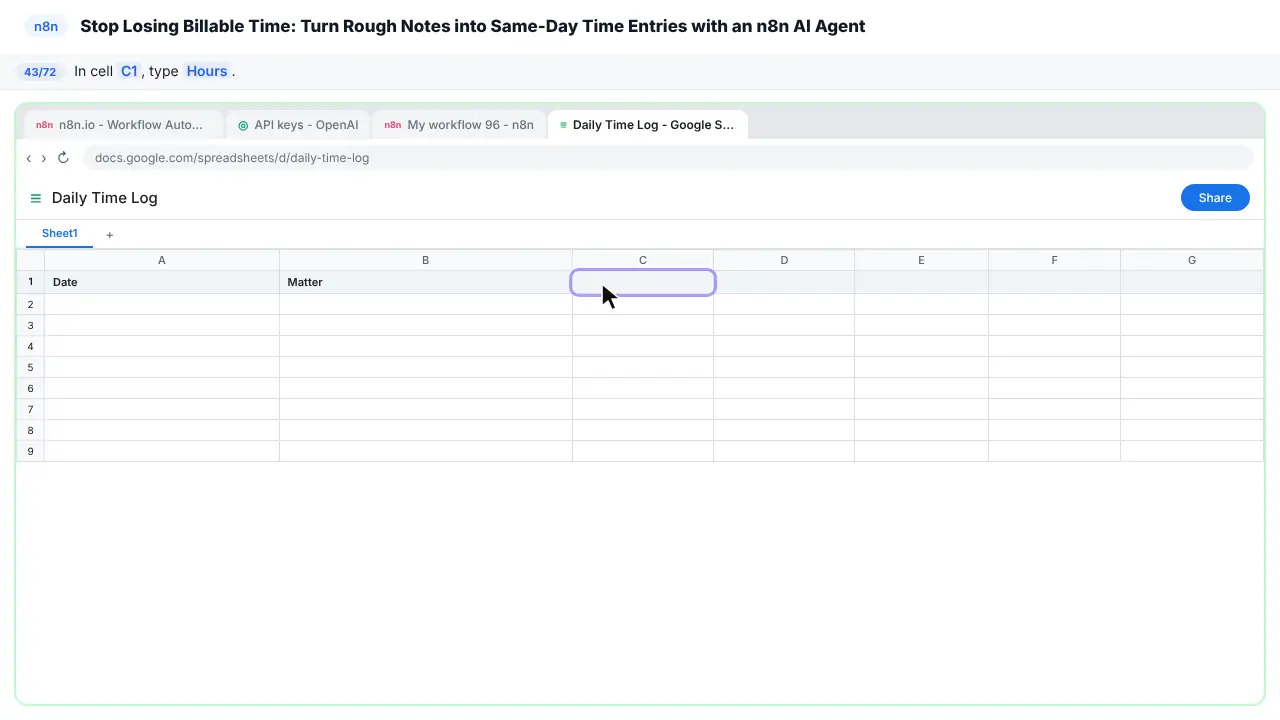
Step 43: Hours
C1 — Hours.
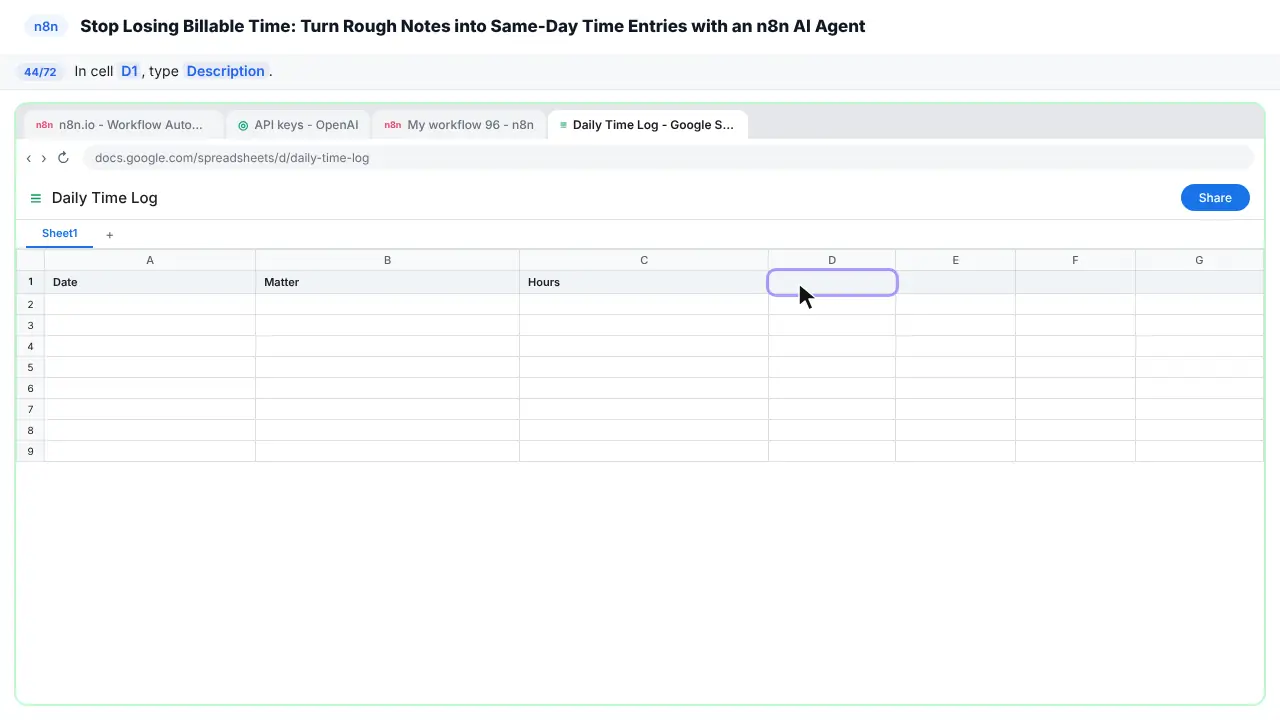
Step 44: Description
D1 — Description.
Step 45: Check
And E1 — Check. Five columns, matching exactly what the system prompt tells the agent to return. Each task becomes a row in this sheet.
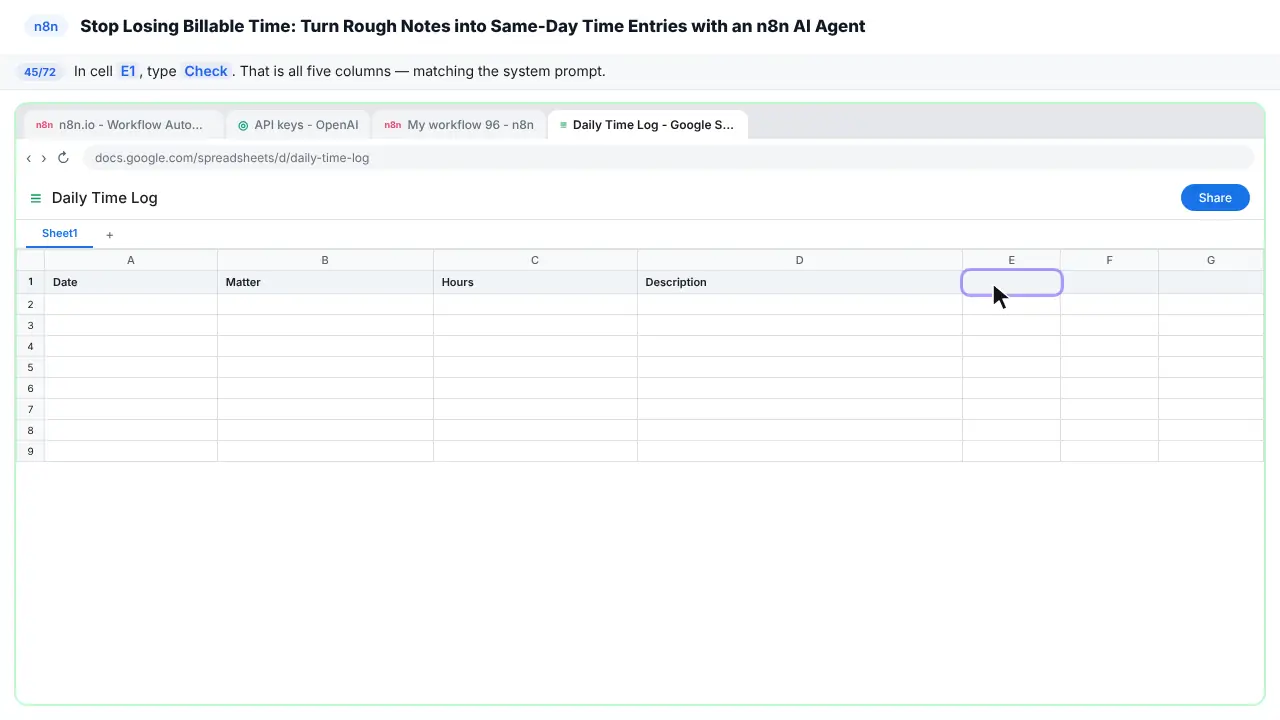
Step 46: Back to n8n
The spreadsheet is ready. Switch back to n8n and connect the Google Sheets node to it.
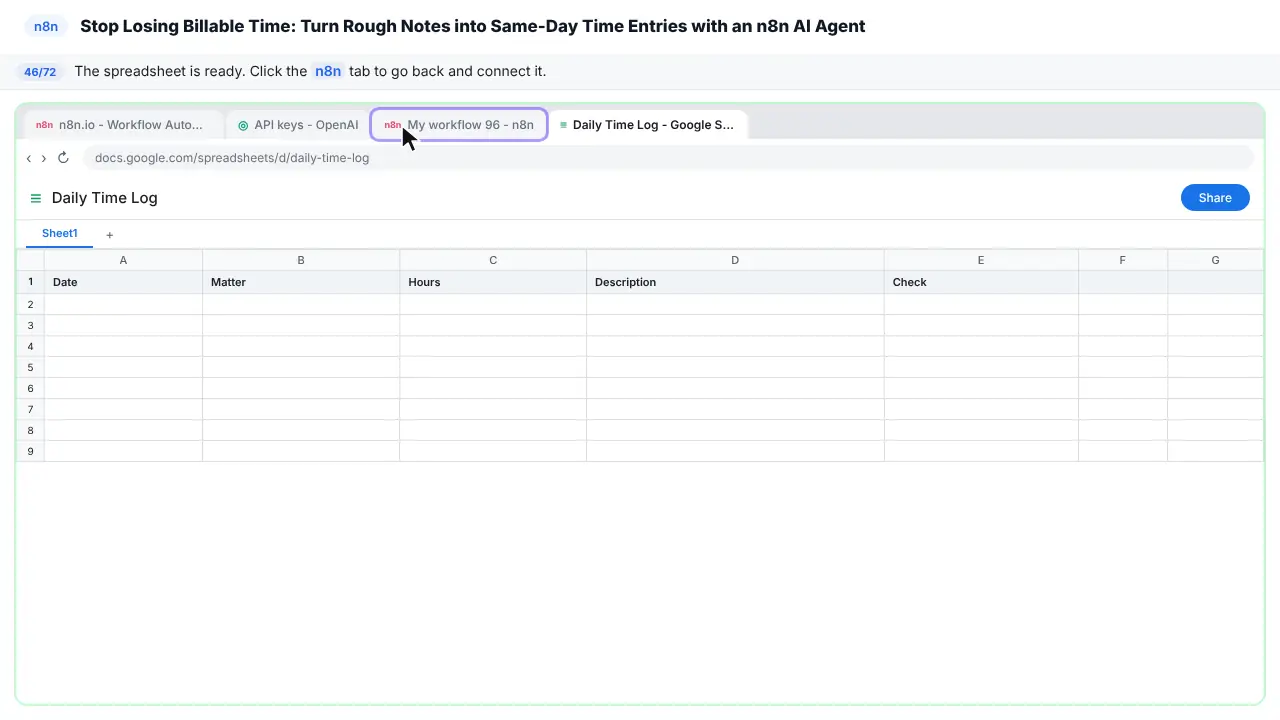
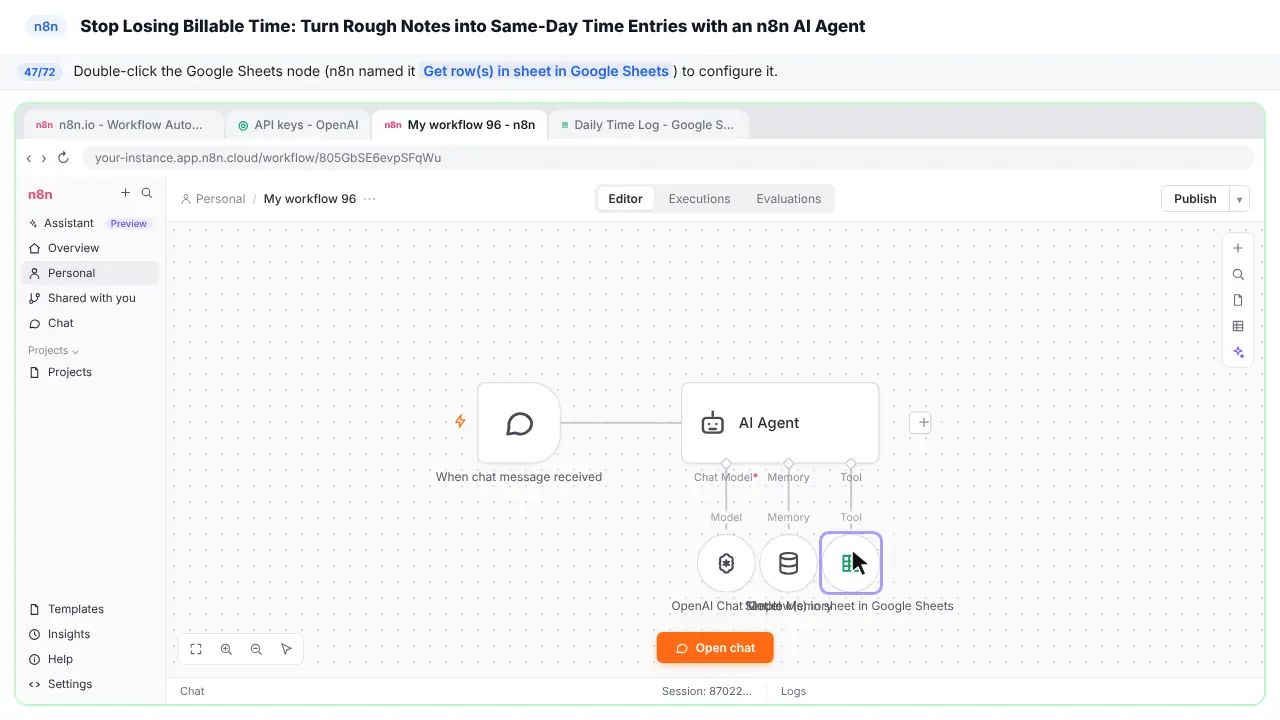
Step 47: Open the Sheets node
Double click the Google Sheets node to open it back up. Now we can connect it to the spreadsheet we just made.
Part 11: Configure Sheets
Step 48: Add a credential
Now we need to connect this to a real Google account.
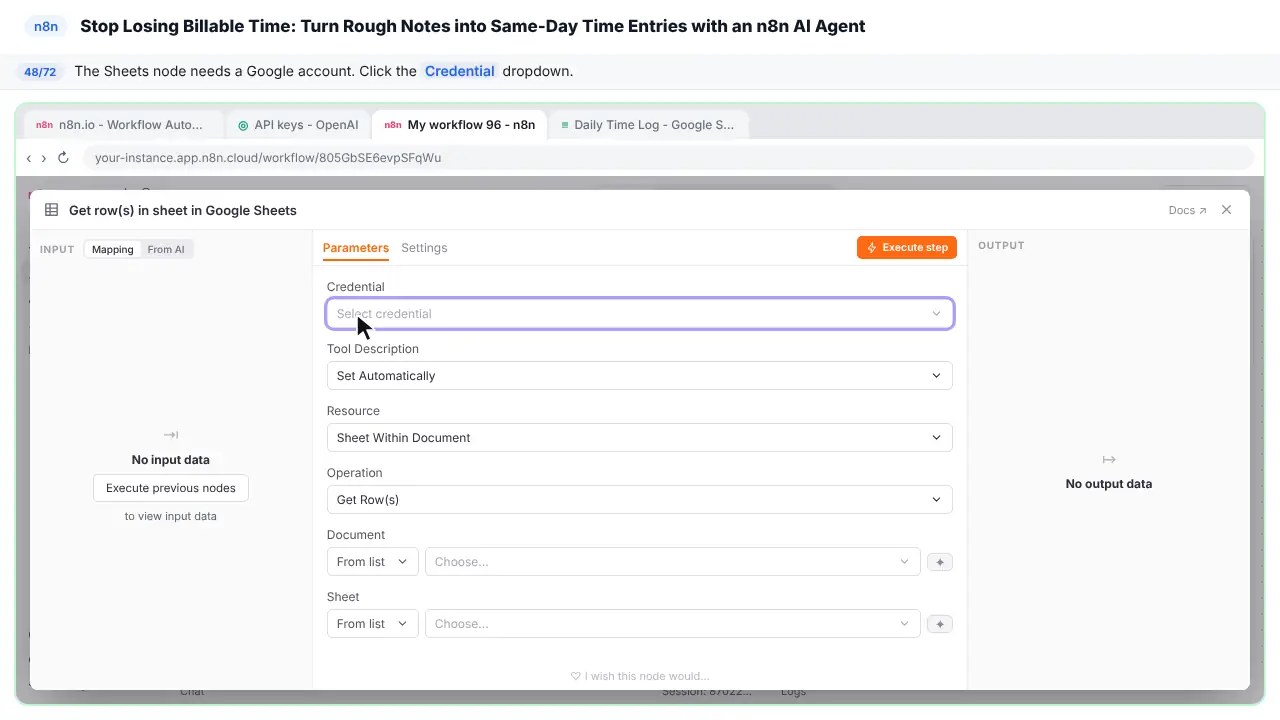
Step 49: Create a new credential
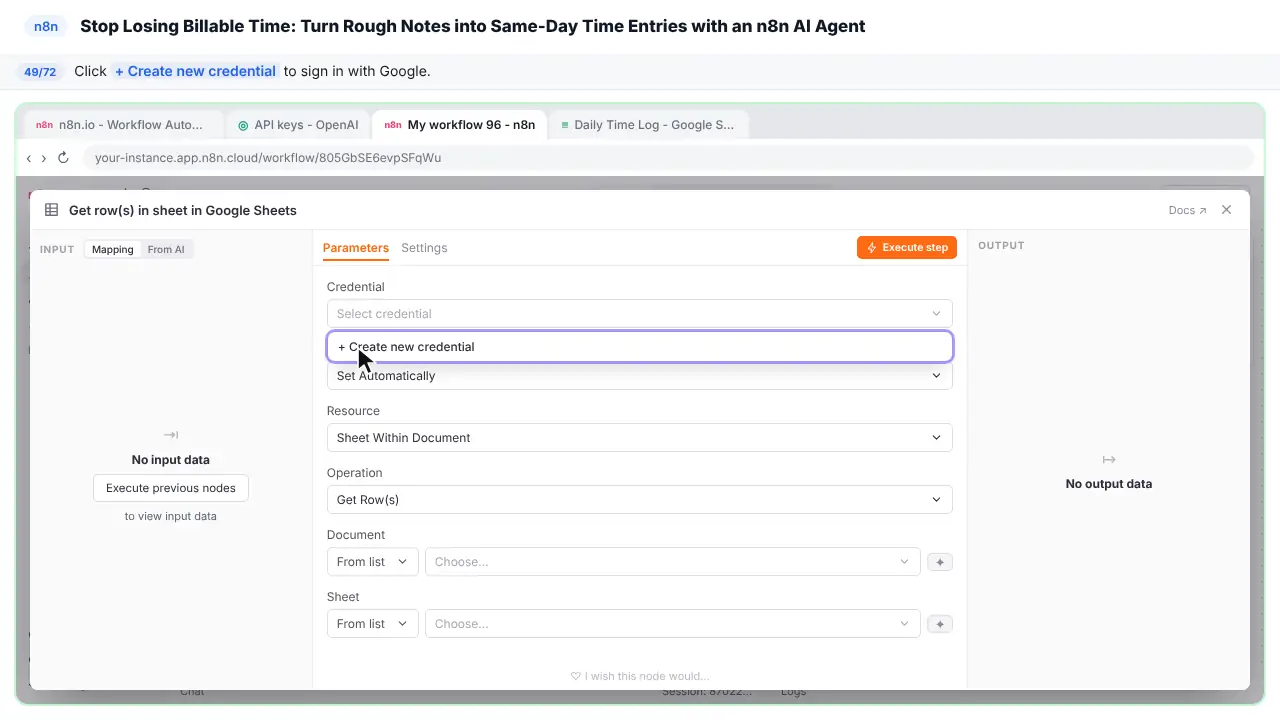
Create new credential — this one uses Google OAuth instead of an API key, so it is going to open a sign-in window.
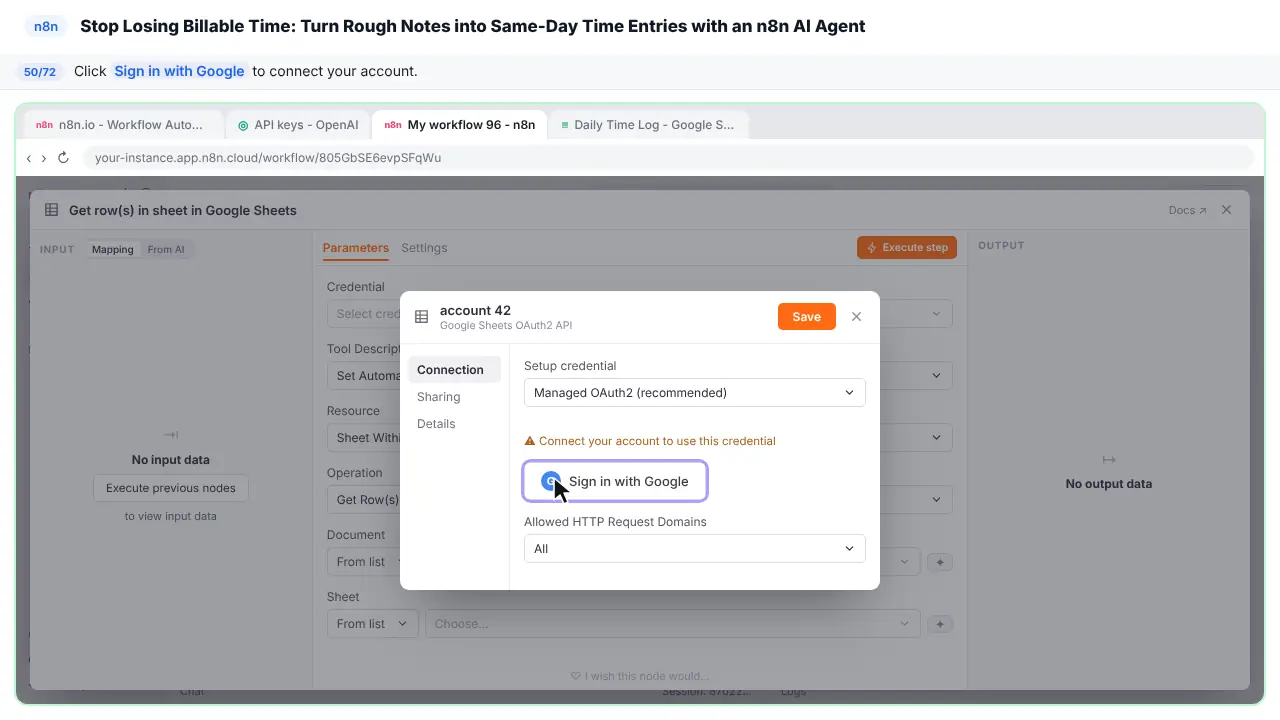
Step 50: Sign in with Google
This opens the Google account chooser so you can pick which account to connect.
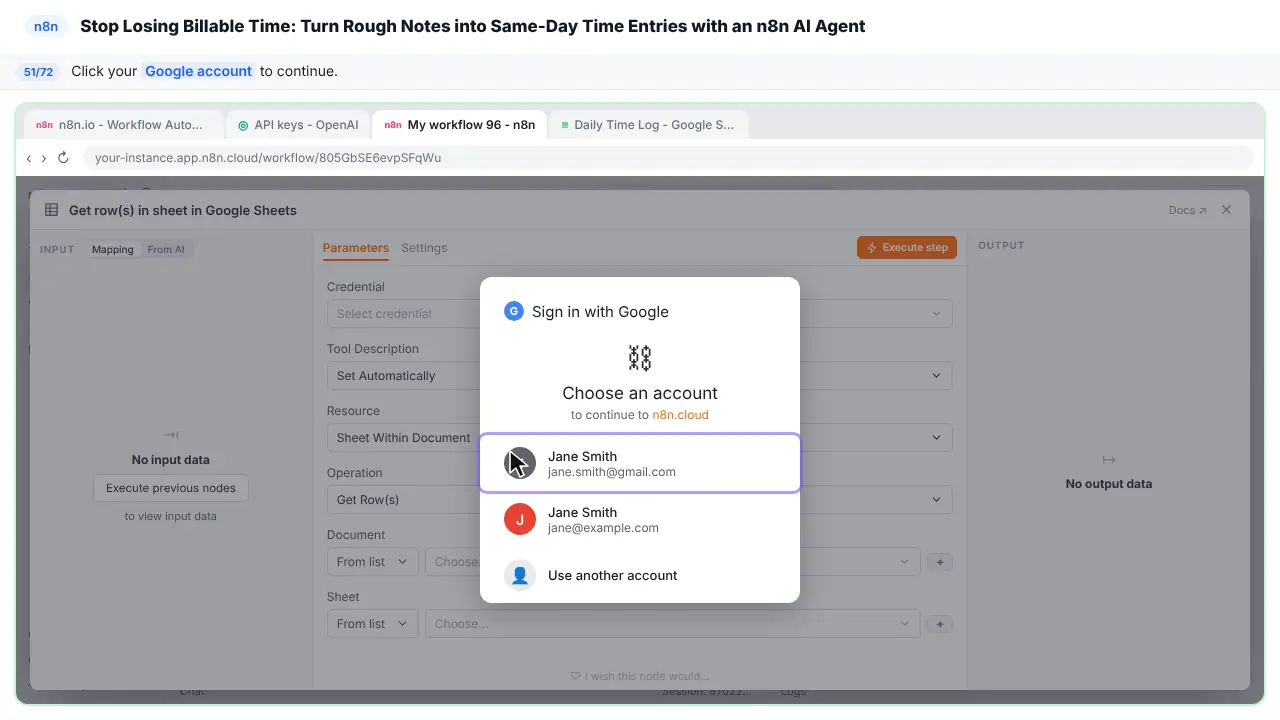
Step 51: Choose your account
Pick the Google account you want n8n to use. This is the account that owns the spreadsheet.
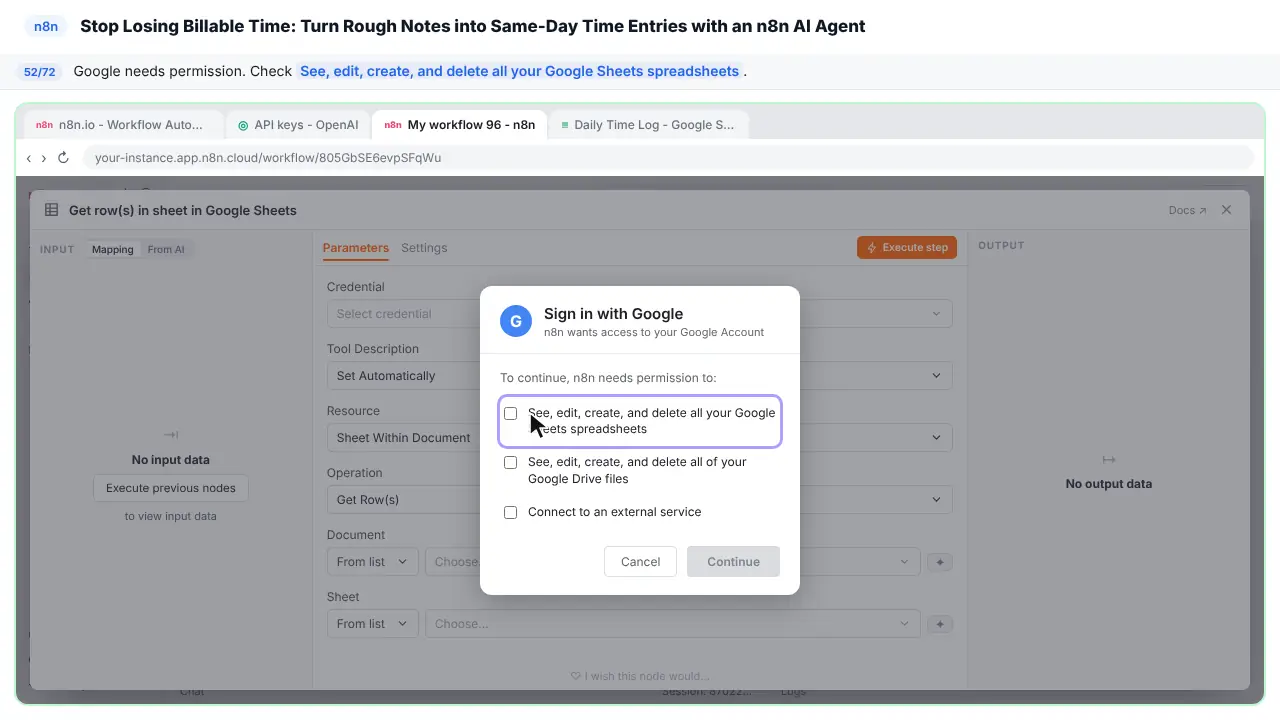
Step 52: Allow Sheets access
Google is asking what n8n is allowed to do. Check the first box — this lets n8n read and write your spreadsheets.
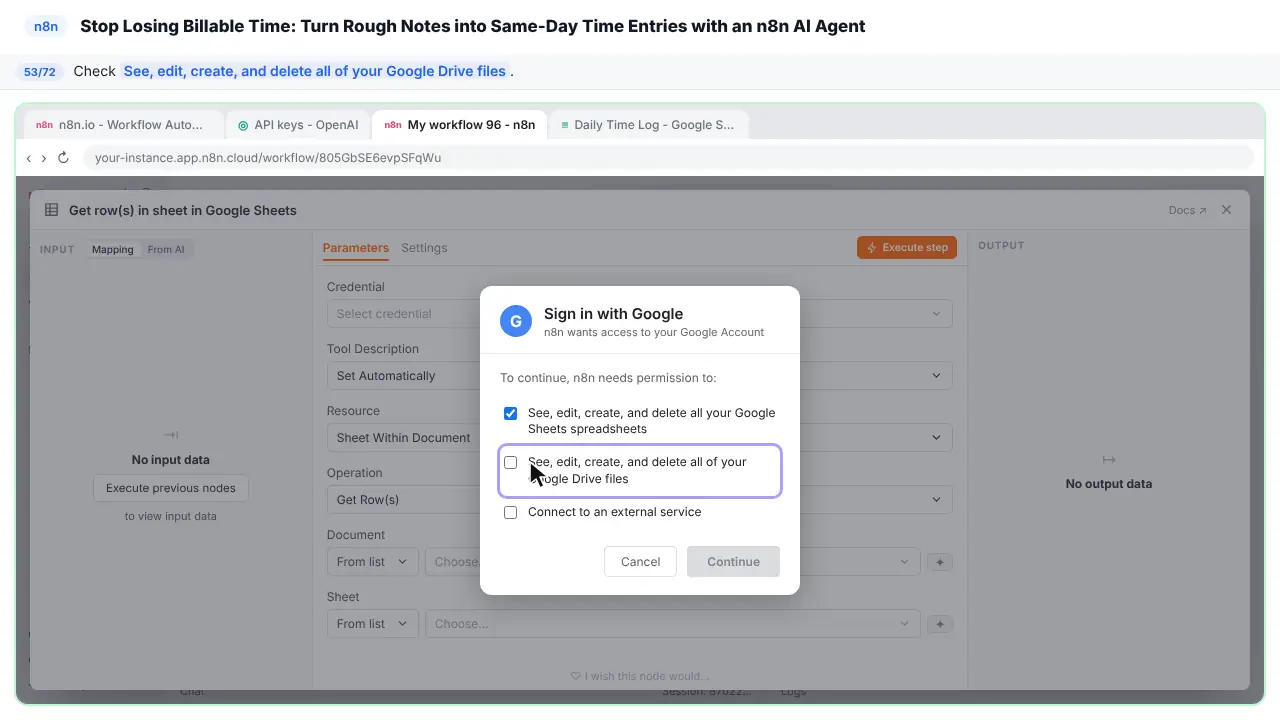
Step 53: Allow Drive access
Second box — n8n needs Drive access so it can find your spreadsheets by name.
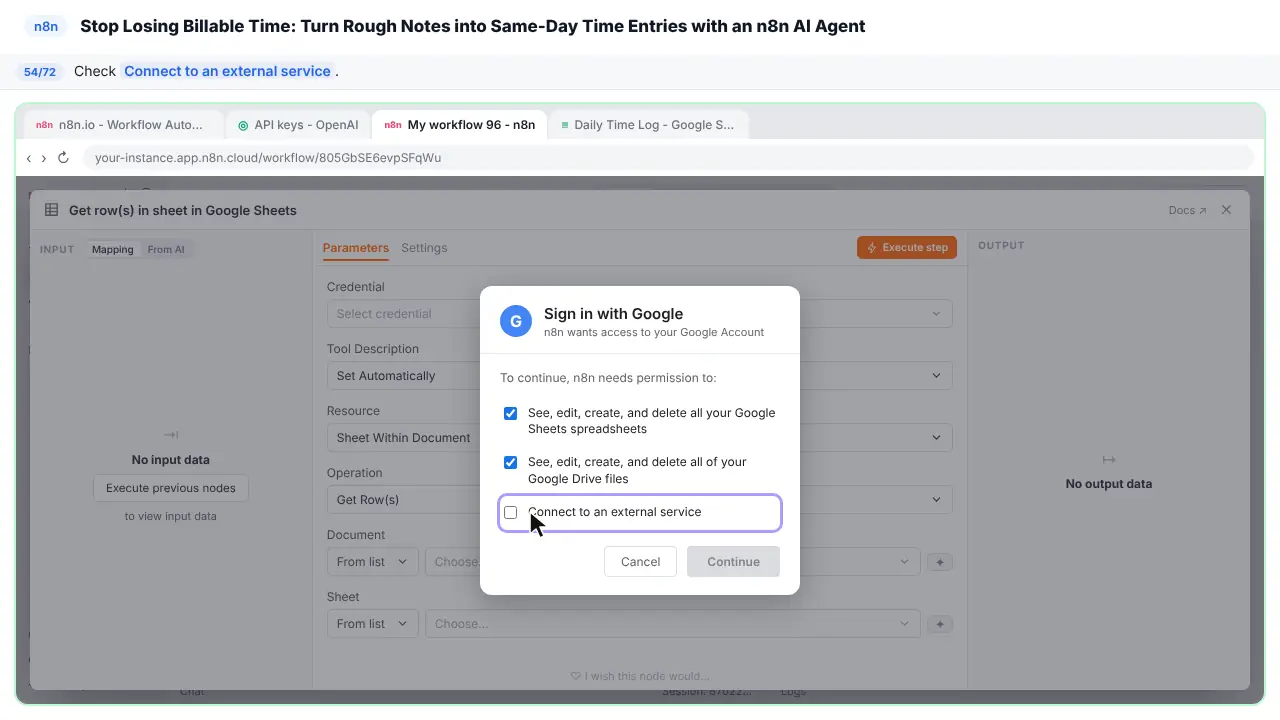
Step 54: Allow external service
Last one — this lets Google connect to n8n as an external service. Check it.
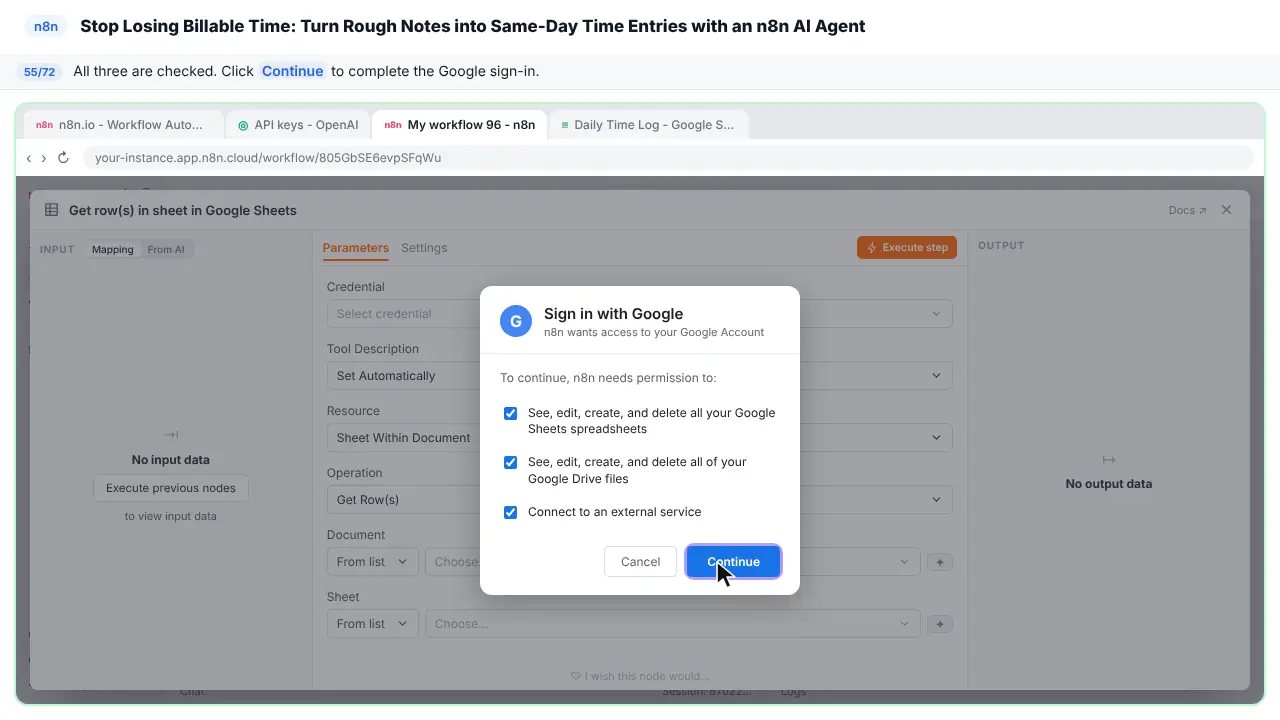
Step 55: Sign in
All three checked.
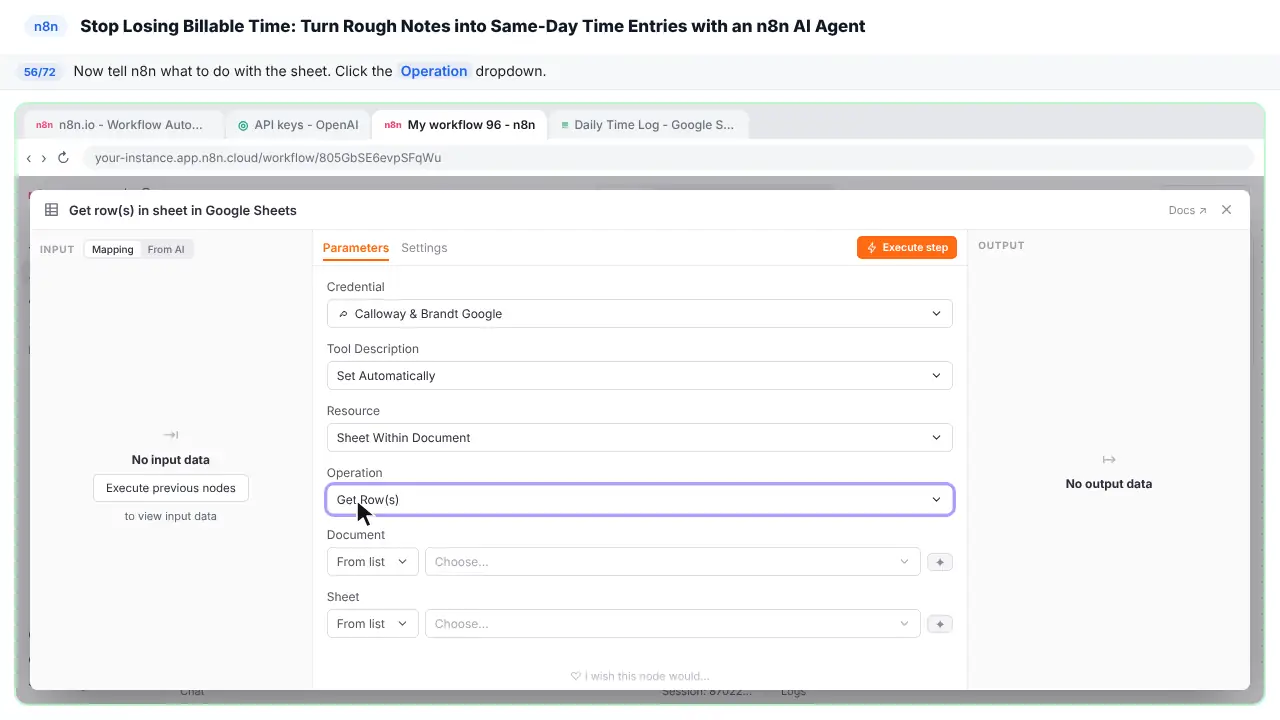
Step 56: Pick the operation
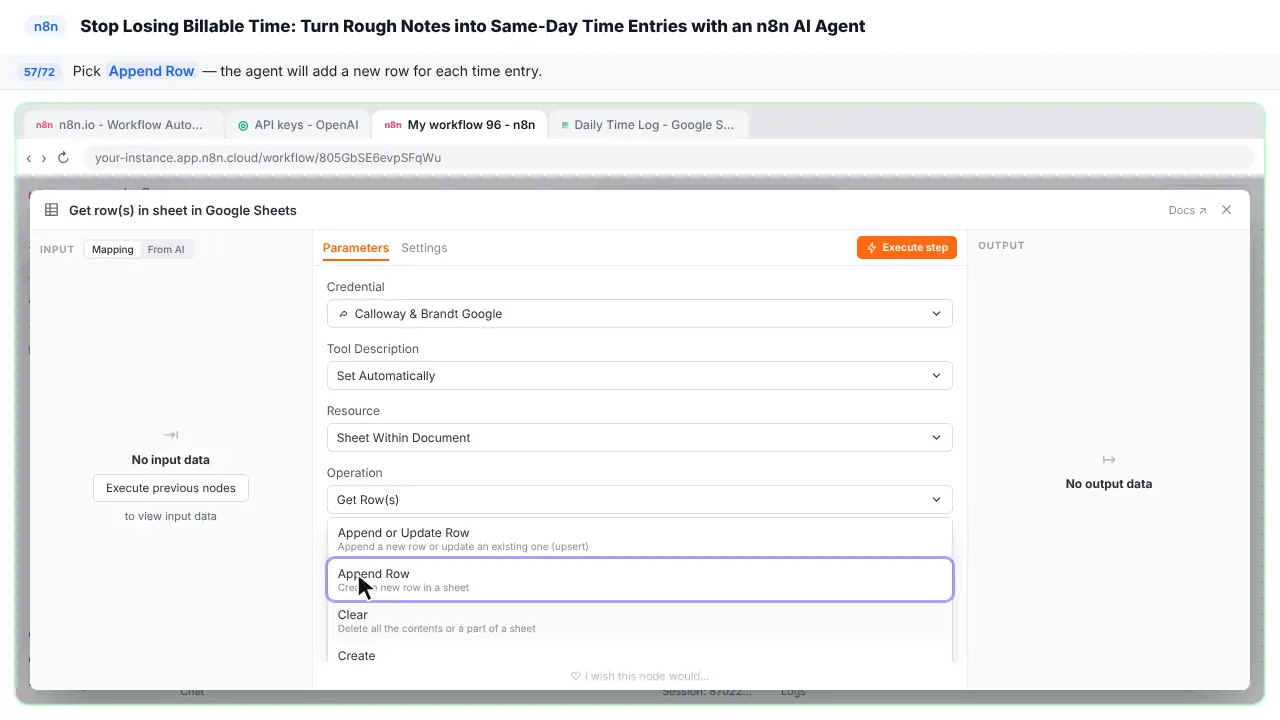
Now we tell the node what to do. By default it reads rows, but we want to add rows.
Step 57: Append Row
Append row. Every time entry the agent writes gets added as a new row at the bottom of the sheet.
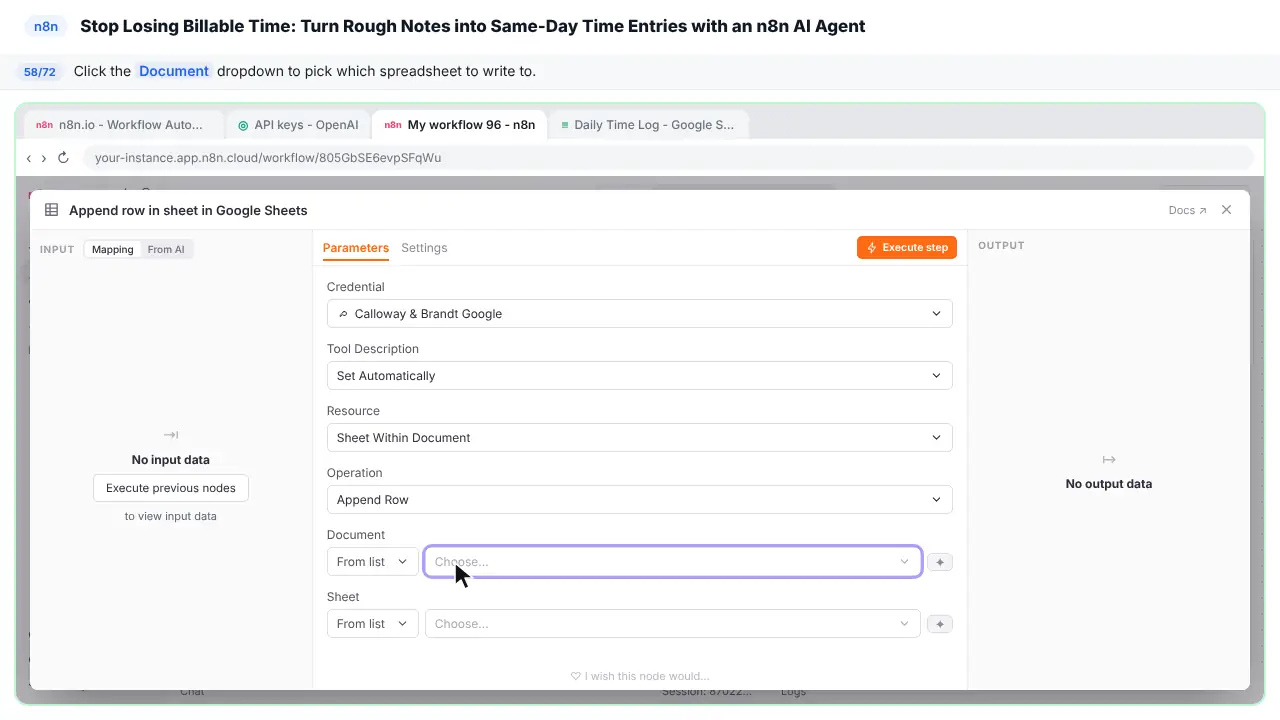
Step 58: Choose the spreadsheet
Now pick the spreadsheet.
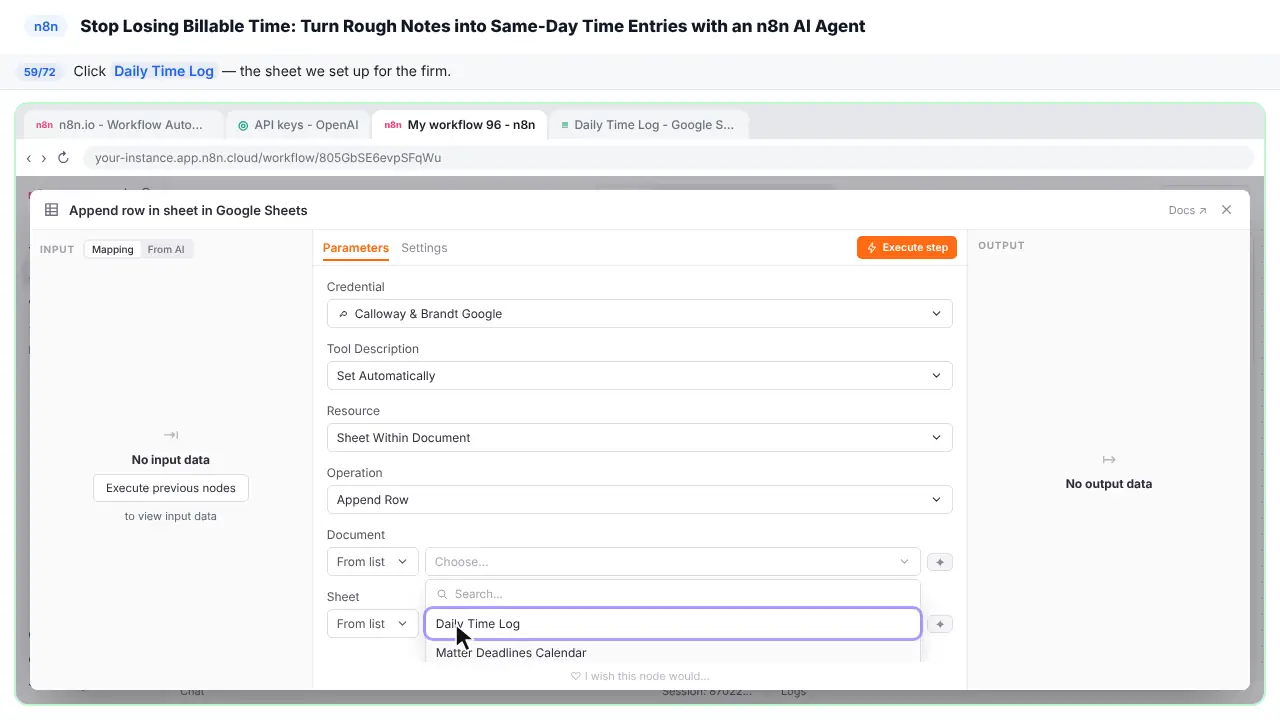
Step 59: Daily Time Log
Daily Time Log — the sheet we set up with columns for the date, the matter, the hours, the description, and the check.
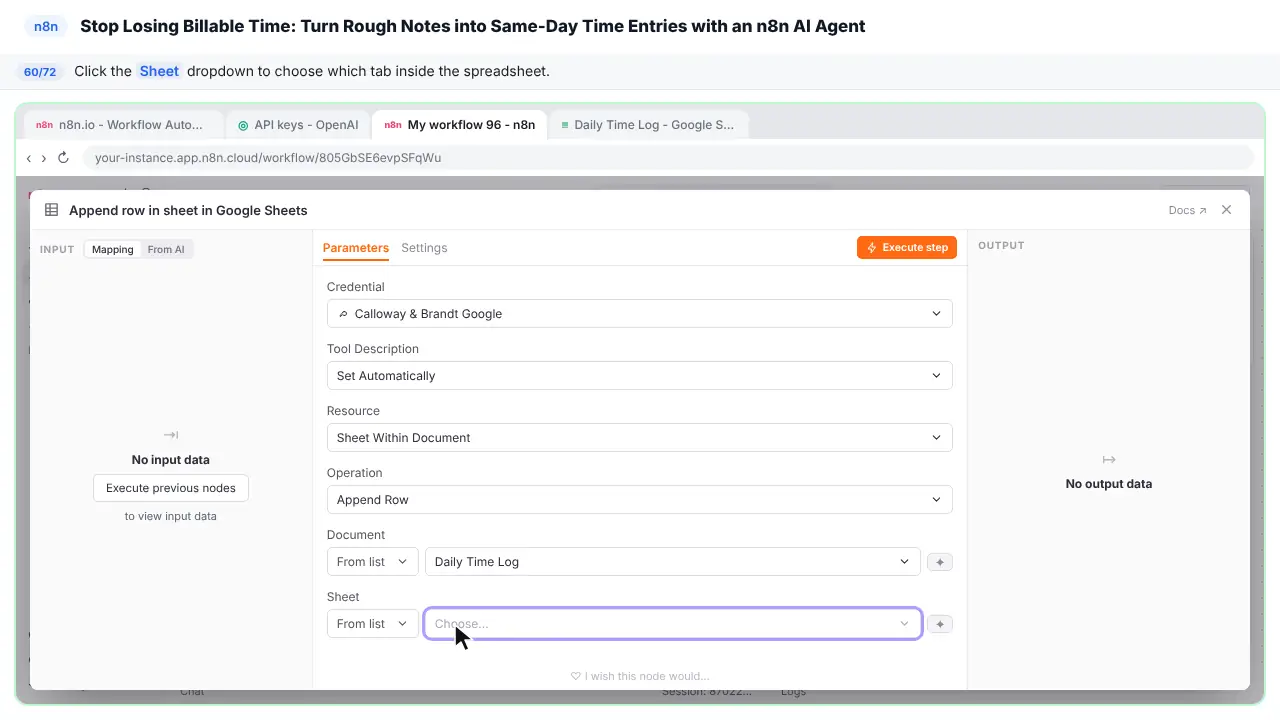
Step 60: Pick the sheet tab
Now pick which tab inside that spreadsheet.
Step 61: Sheet1
Sheet one — it is the only tab, so this is simple.
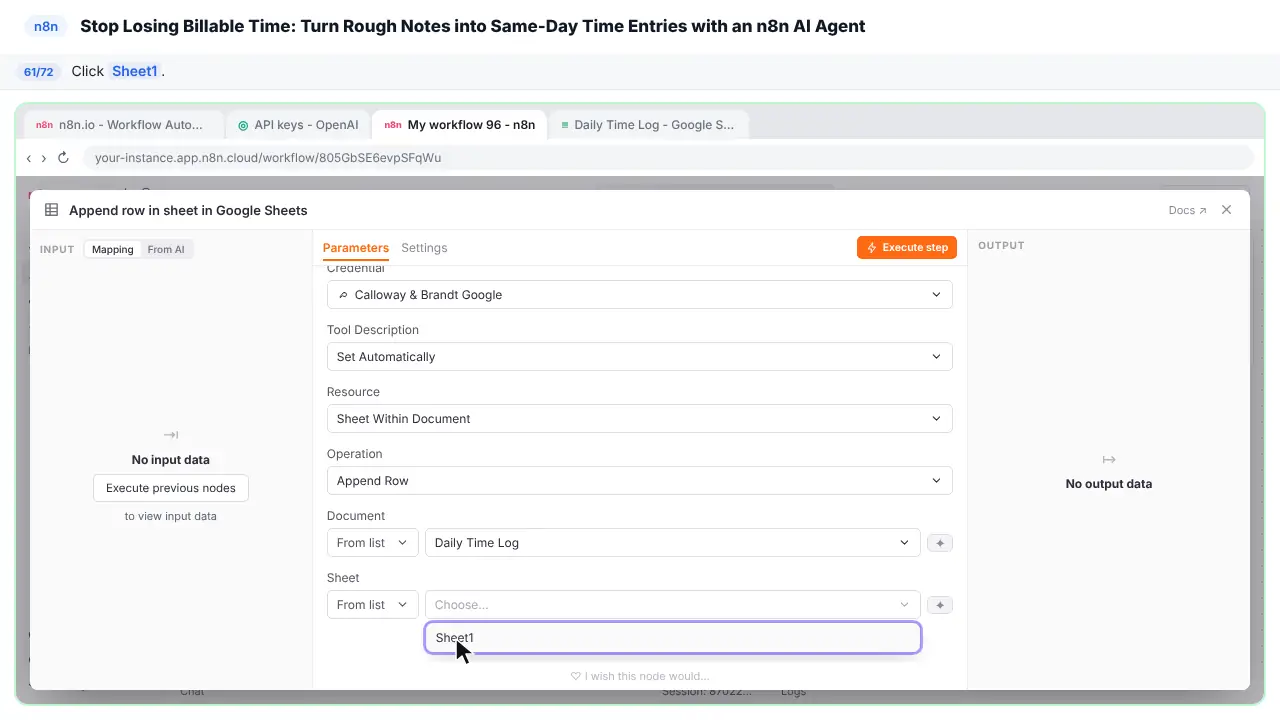
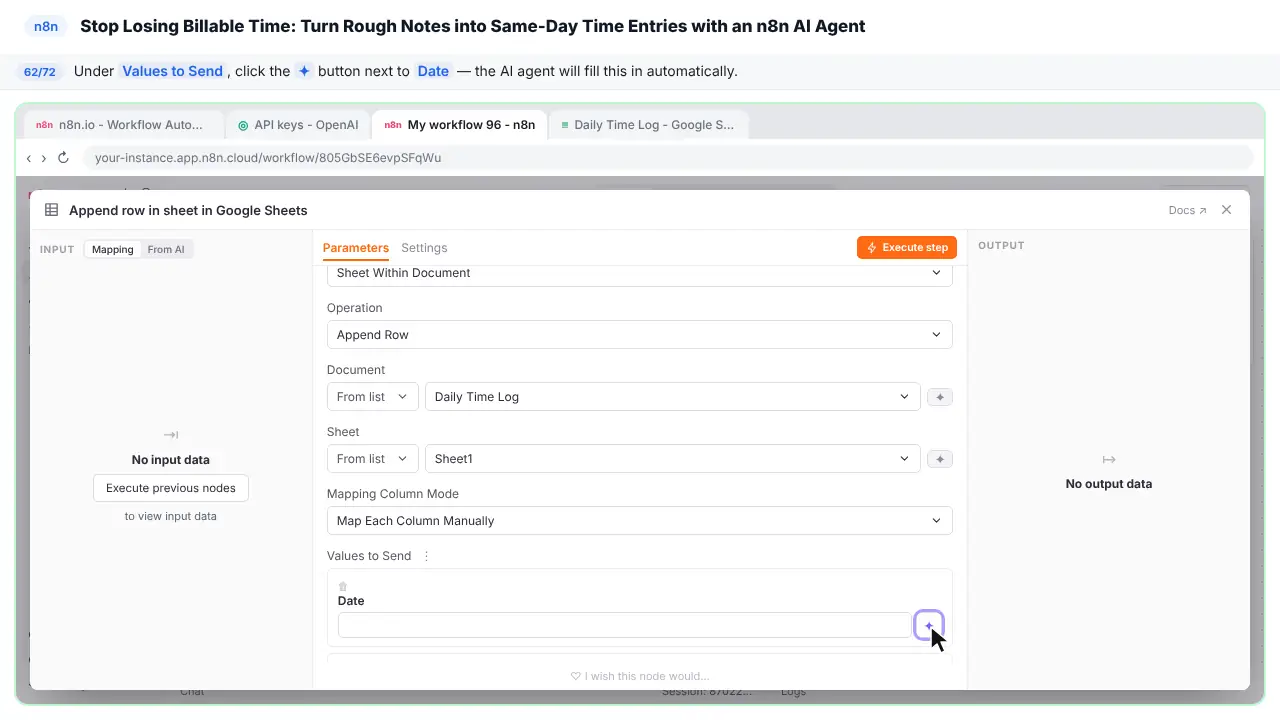
Step 62: Map the Date column
Now the columns. Each column has a purple button — click it and the AI agent figures out what data goes there.
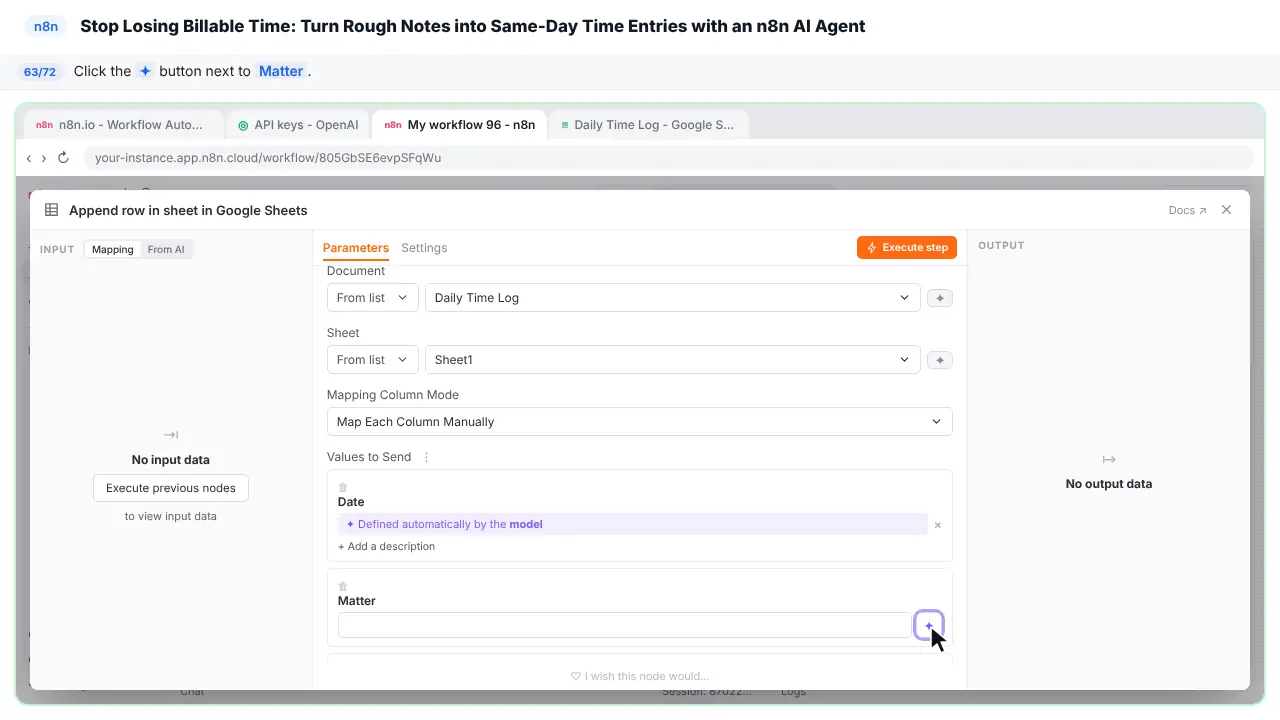
Step 63: Map the Matter column
Matter. Same thing — click the purple button.
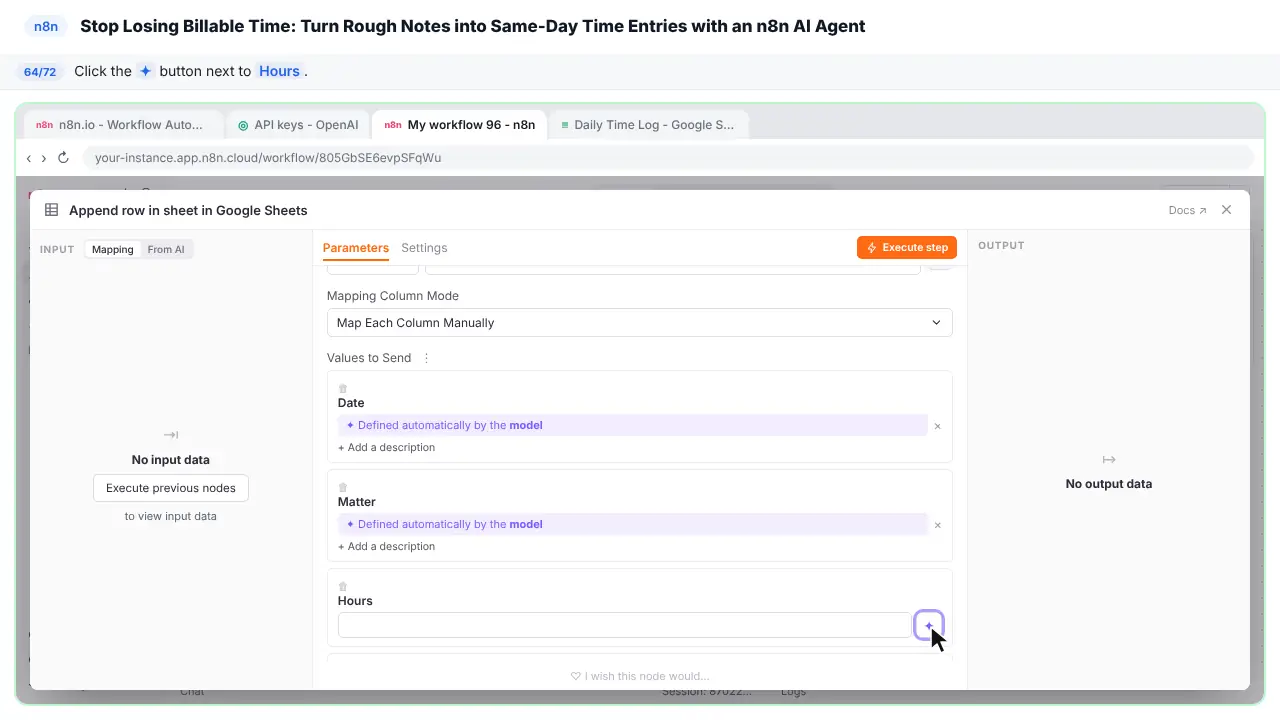
Step 64: Map the Hours column
Hours.
Step 65: Map the Description column
Description.
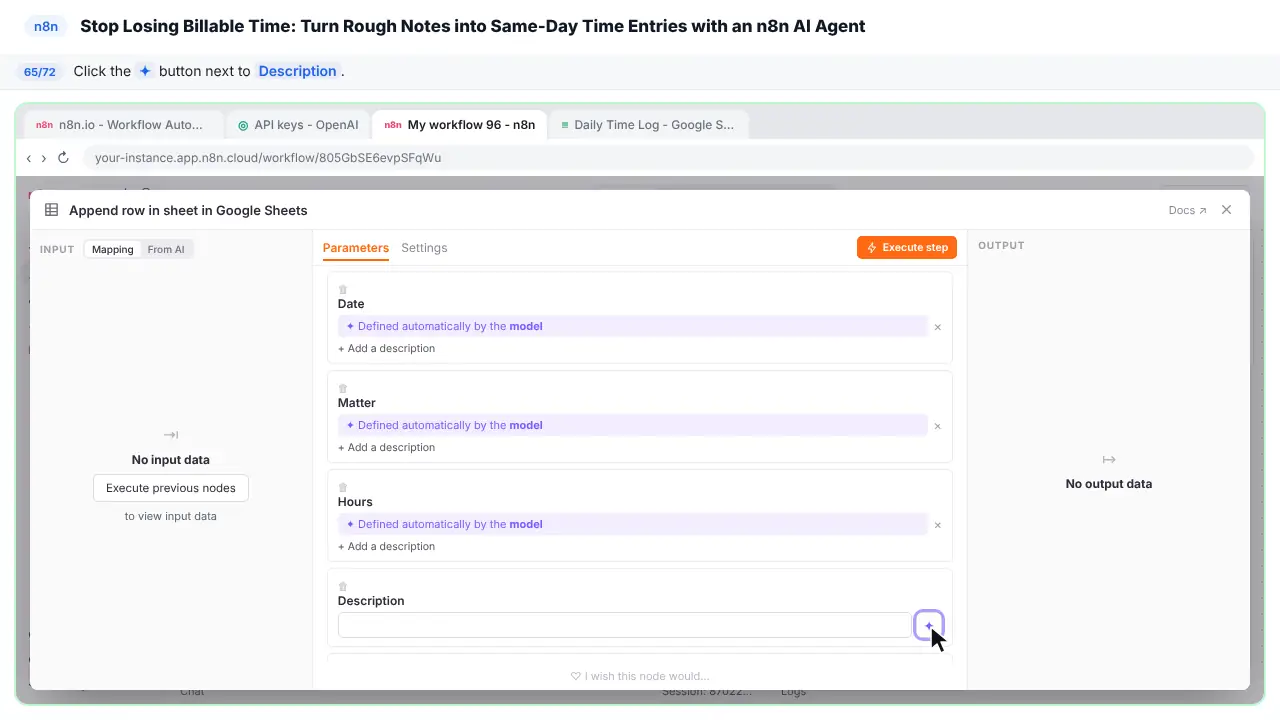
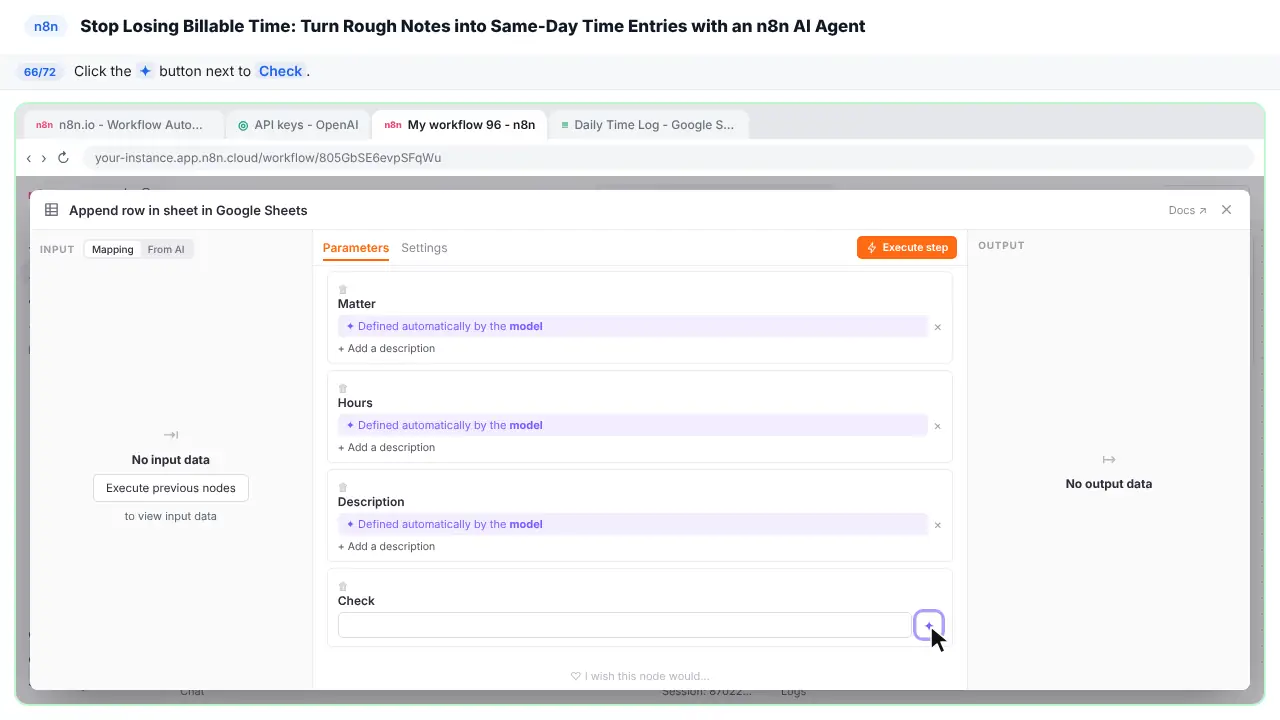
Step 66: Map the Check column
And check. Each one is now set to defined automatically by the model — the agent reads your column headers and figures out what goes where.
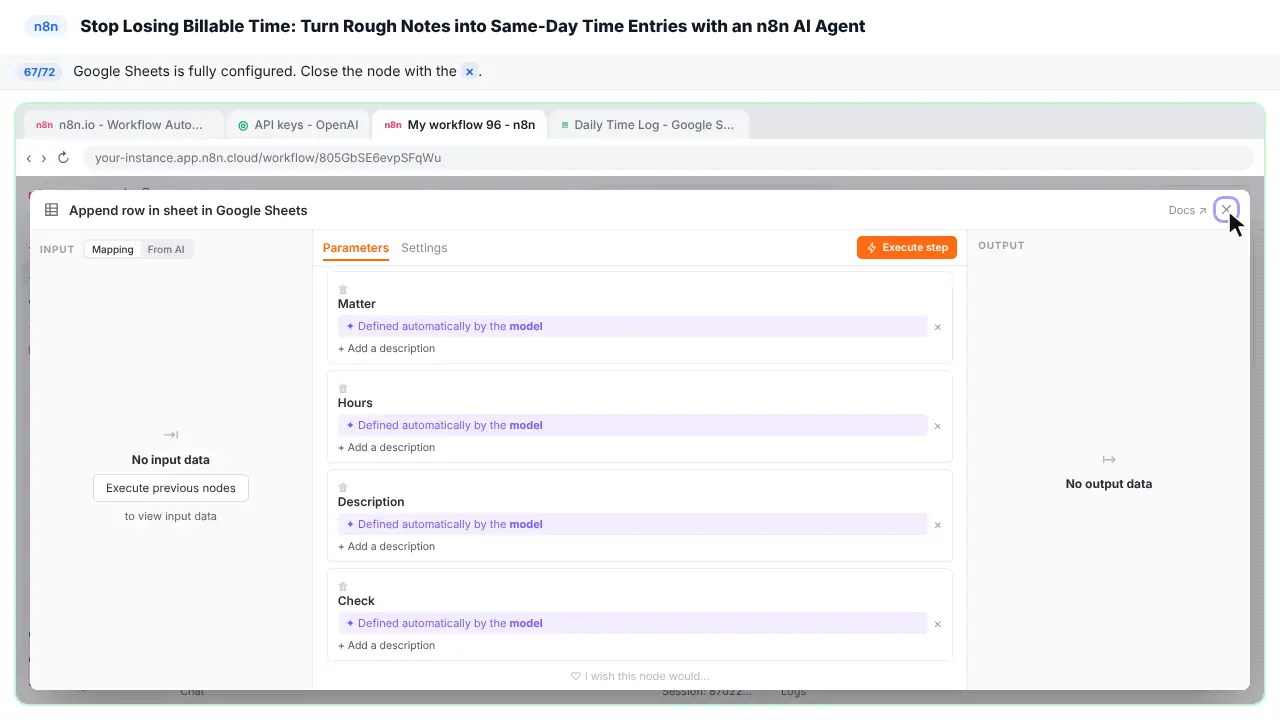
Step 67: Back to the canvas
The sheets tool is fully wired up — credential, operation, spreadsheet, sheet, and column mapping. Close it and let us test this thing.
Part 12: Test the agent
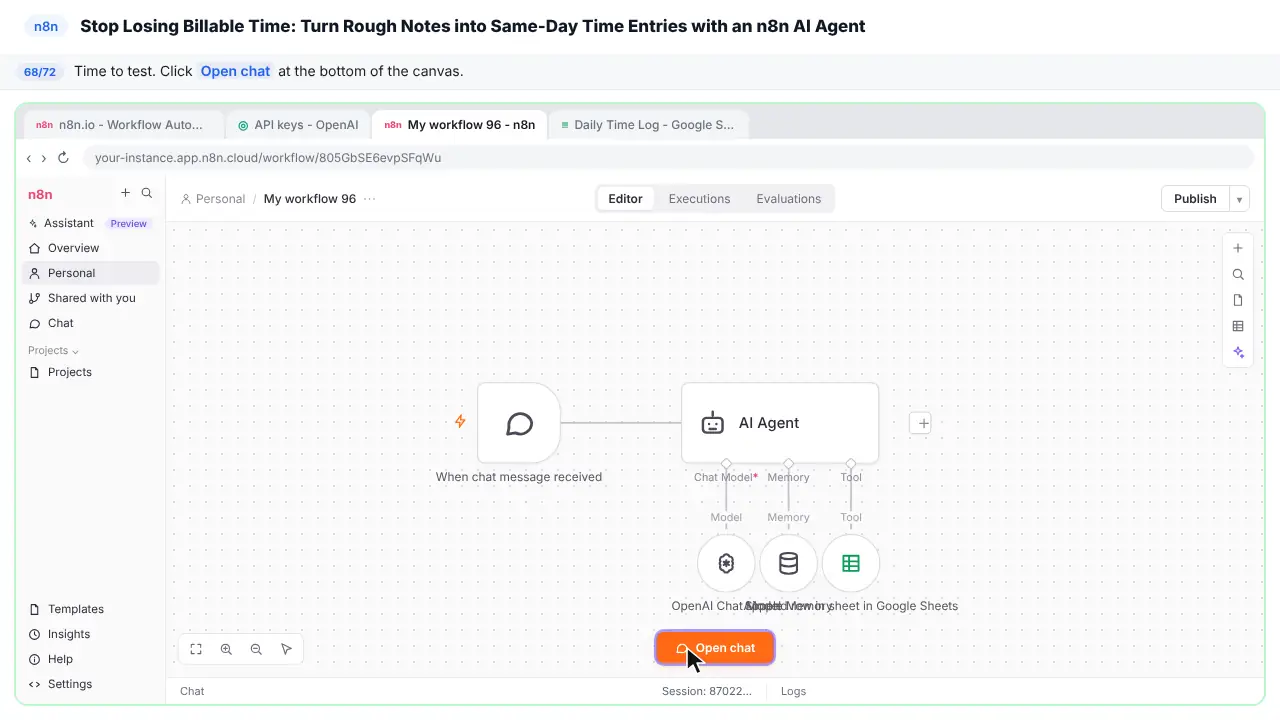
Step 68: Open the chat
Everything is connected. Time to see if it works.
Step 69: Paste today's notes
Give it today's notes the way you actually write them: a few words per task, two matters, one task with no time and one with no clear matter.
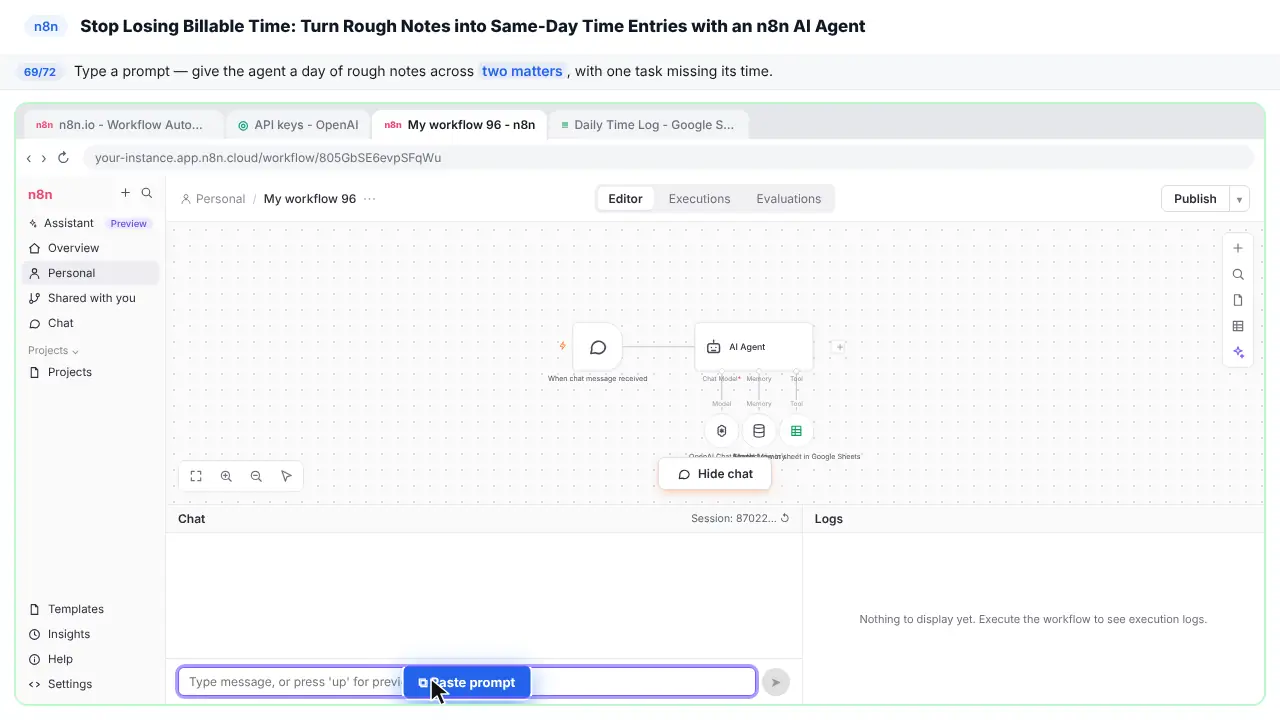
Log my time for Oct 19. Harlow Foods v. Brightway Logistics: 1.2 drafting our responses to their second set of interrogatories, and 0.4 on a call with Dana Harlow about collecting the shipping records. Pemberton Estate: reviewed the draft trust amendment, forgot to track the time. Also 0.3 emailing opposing counsel to move the Kessler deposition.
Step 70: Send the message
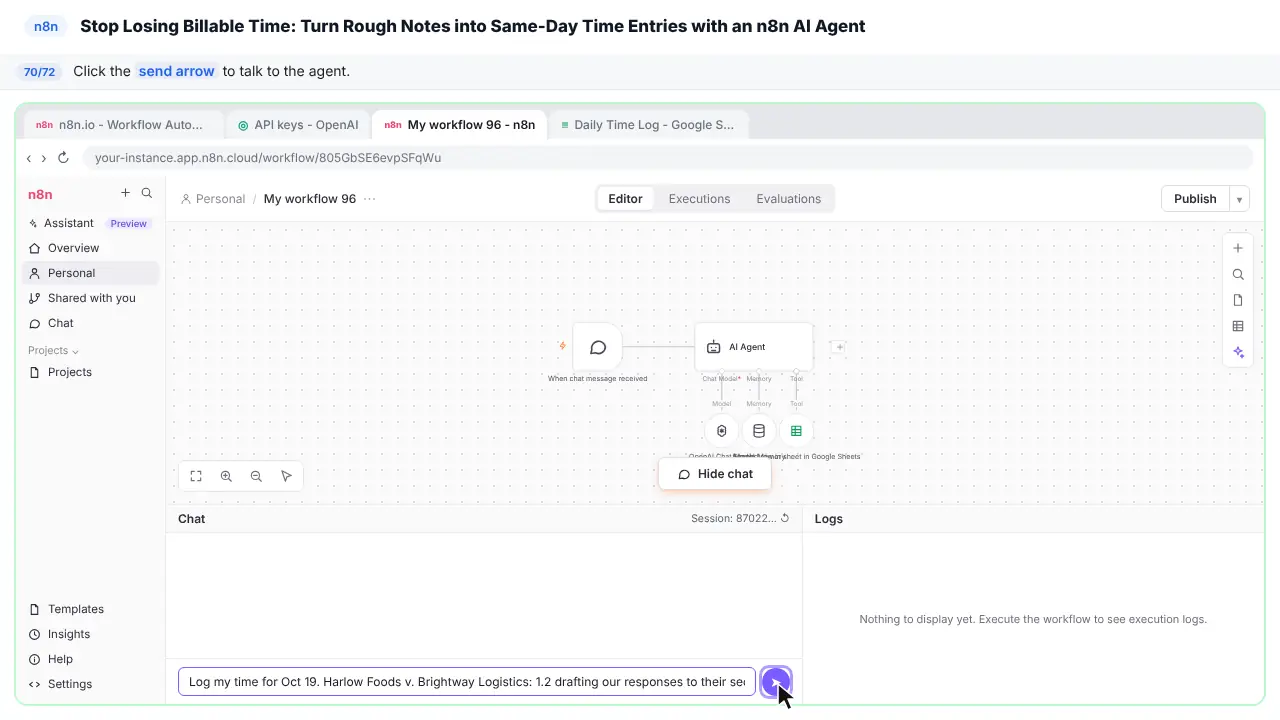
Send it off. The agent reads your system prompt and turns each task into one entry, with the matter, your hours exactly as written, a clean description, and a check.
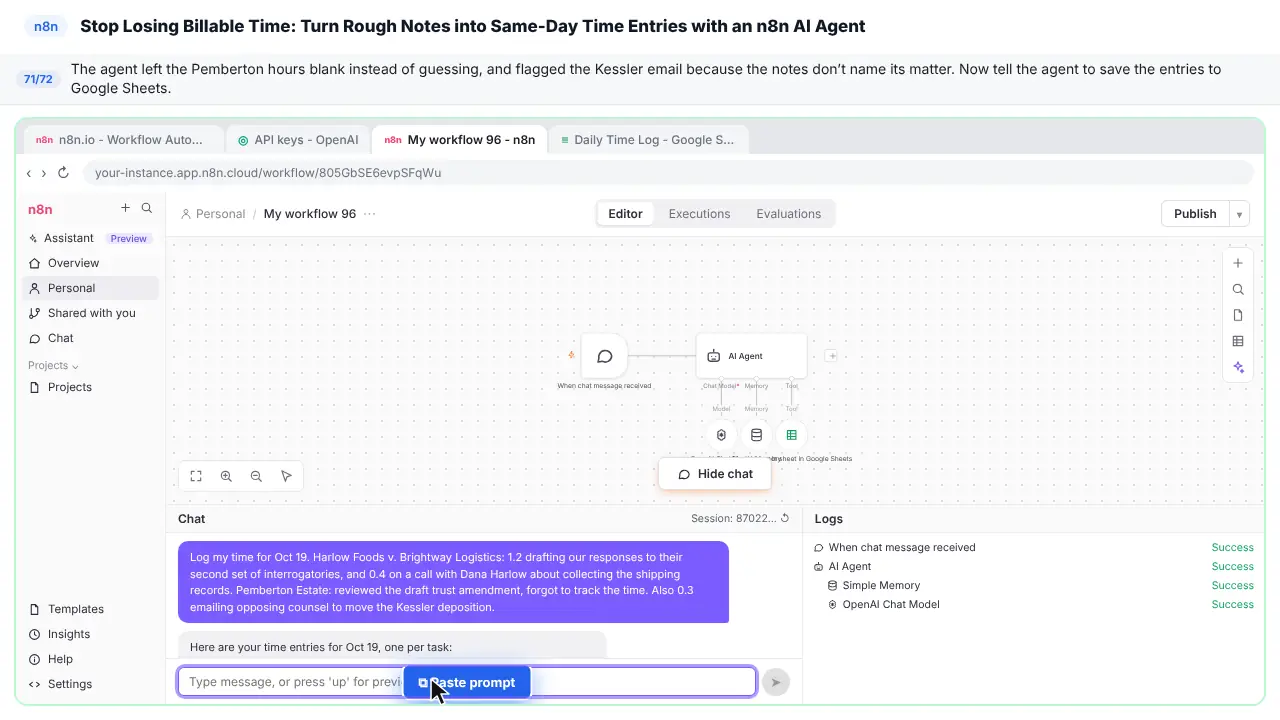
Step 71: Save to the sheet
Four entries. Two are ready to bill. For the trust amendment, it didn't guess the time. It says hours not given. And it couldn't tell which case the Kessler deposition belongs to, so it asks you to confirm. Now tell it to save them. This is where the Google Sheets tool kicks in.
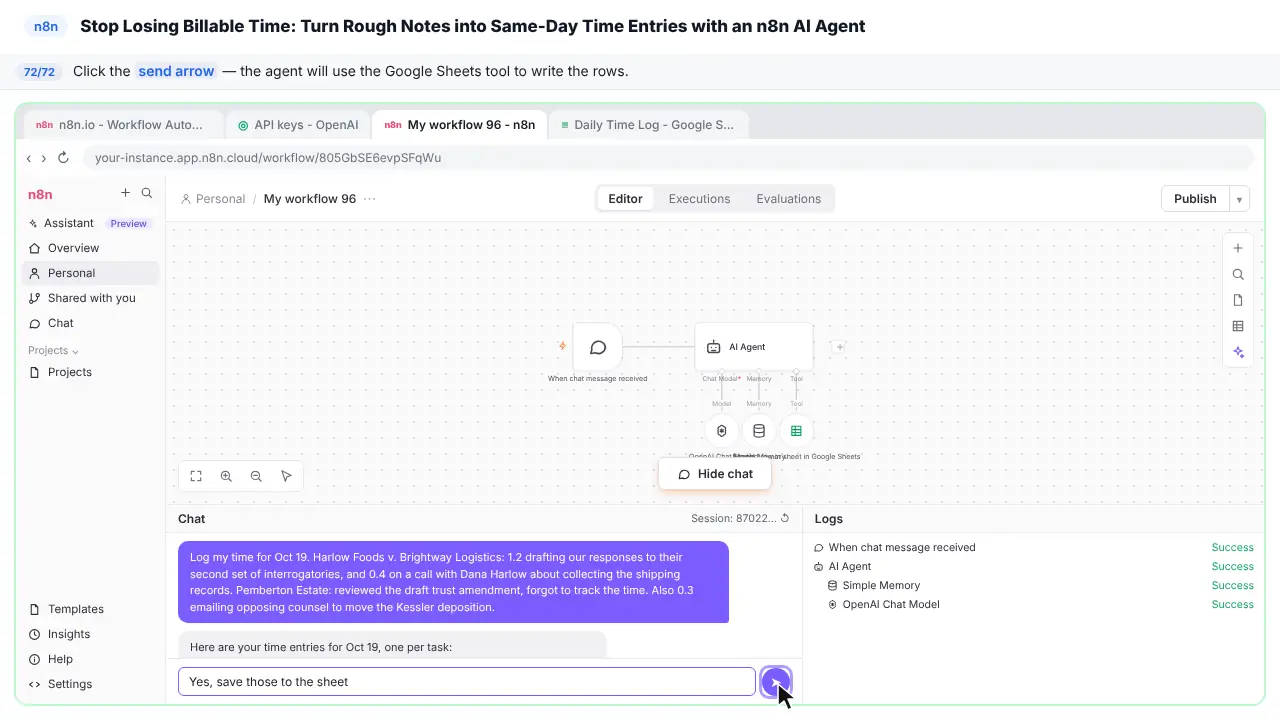
Step 72: Send it
Send it. The agent uses the Google Sheets tool to write each entry as a row — date, matter, hours, description, and check.
Part of these free courses: AI for Law Firms
Now do it yourself, free
Reading the steps is a start. Doing them is how it sticks. The interactive lesson puts you in a practice copy of n8n: you do every step yourself, it checks your work, and “Do it for me” finishes any step you get stuck on. Nothing touches your real accounts.
Practice “Build an n8n AI Agent That Turns a Lawyer's Rough Notes into Time Entries” step by stepThe example: one day across two matters
Calloway & Brandt LLP is a made-up litigation and business law firm, and every matter, client and person in the lesson is made up too. An associate's notes for Oct 19 cover Harlow Foods v. Brightway Logistics (1.2 hours drafting interrogatory responses and a 0.4 call with the client about shipping records), a trust amendment review for the Pemberton Estate with no time recorded, and 0.3 on an email to opposing counsel about the Kessler deposition, with no matter named.
The agent turns that into four entries. The two Harlow entries are marked Ready. The Pemberton entry says "Hours not given" and asks for the time before billing. The Kessler email is marked Unclear, because the notes don't say which case it belongs to. Then it saves all four to the Daily Time Log sheet.
Who this lesson is for
Associates, partners, paralegals and billing staff at small and midsize firms who want time recorded the same day, with descriptions clients don't question. You don't need to code: you click through n8n's editor, paste a system prompt and map five columns. The practice copy needs no n8n, OpenAI or Google account.
It is part of the AI for Law Firms course.
The rules that keep the bill honest
The system prompt says never invent, estimate or round hours. If the time wasn't recorded, the entry says so instead of a guess that ends up on a client's invoice. It also says never add facts, results or legal conclusions that aren't in the notes, and never include Social Security numbers, account numbers or other identifiers.
Your firm's own rules still apply: the increment you bill in, how descriptions must read, and whether client information may go into outside tools. Check them before you build it for real.
Why an agent and not just a chat
- The Check column (Ready, or what to confirm) turns month-end chasing into a short list.
- Unclear matters are flagged, so time is never billed to the wrong client by accident.
- Memory lets you say "save those" after it writes the entries.
- The Google Sheets tool writes the rows itself, so the time log fills in the same day.
Try it yourself, free
Reading the steps is a start. Doing them is how it sticks. The interactive module walks you through every click in a practice copy of n8n, checks each step, and never touches your real accounts.
Start “Build an n8n AI Agent That Turns a Lawyer's Rough Notes into Time Entries”Frequently asked questions
- Can an AI agent write time entries for a law firm?
- It can draft them from your notes. In the lesson an n8n AI agent turns pasted notes into one entry per task (date, matter, hours, description, check) and saves each one as a row in Google Sheets. The lawyer reads every row before it goes to billing.
- Will the agent estimate time I forgot to record?
- No. The system prompt says never invent, estimate or round hours. A task without time gets "Hours not given" and a check asking you to add it.
- What do I need to build it for real?
- An n8n account (the cloud trial or self-hosted), an OpenAI API key with a little credit, and a Google account for the sheet. First check your firm's policy on putting client information into outside tools.
- Does it know my firm's billing rules?
- Only the ones you put in the system prompt. Add your billing increment and description rules, and read every row before billing.
- Is this lesson free?
- Yes. Stepthrough is completely free and the practice copy needs no accounts.
More n8n tutorials
 Lovable + n8n: Build a Web App with an AI Backend
Build a contact form in Lovable and connect it to an n8n workflow — webhook trigger, AI Agent, Google Sheets, Gmail, and a Respond node that ties it all together.
Free · Live ~15 min Advanced
 AI Receipt Extractor: Receipts to Google Sheets with n8n
Drop a photo of a receipt into an n8n chat. An AI agent reads it, pulls out the date, vendor and amount, picks a category, and adds a row to Google Sheets.
Free · Live ~12 min Intermediate
 n8n AI Email Responder: Draft Gmail Replies Automatically
Build an n8n agent that watches your Gmail, reads each new customer email, and writes a reply as a draft in the same thread, ready for you to check and send.
Free · Live ~12 min Intermediate
 Daily Job Alerts: Email Each Tech Their Jobs from Google Sheets with n8n
Every morning at 7, n8n reads a plumbing company's jobs sheet, skips anything not assigned yet, and emails each job to the tech it's assigned to — customer, address…
Free · Live ~10 min Intermediate
 Gmail AI Triage: Auto-Label Every Email and Draft Replies
Build an n8n workflow that reads each new email, sorts it as a lead, a client or an invoice with a Text Classifier, adds the matching Gmail label, and drafts a reply to…
Free · Live ~18 min Advanced
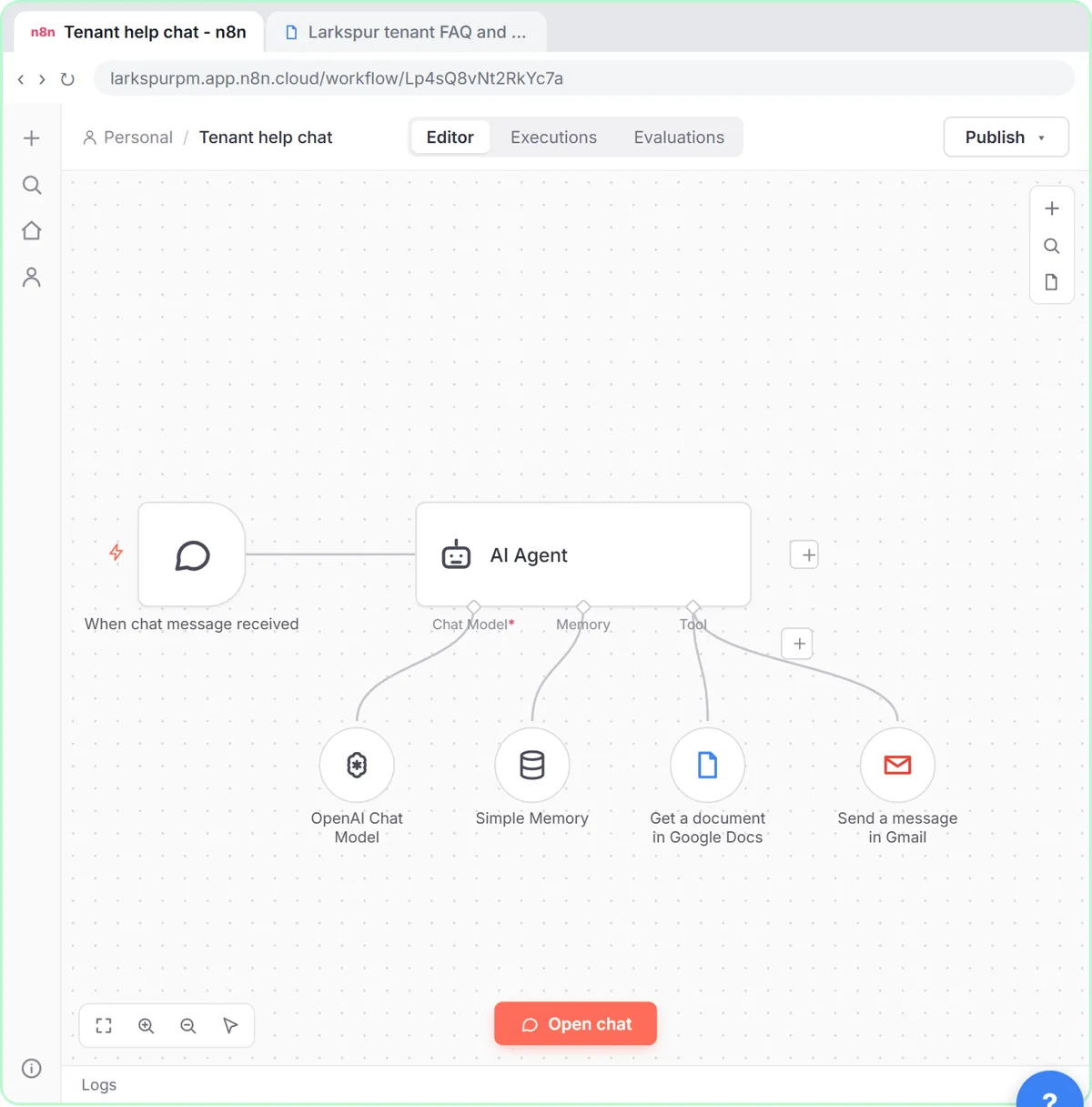 A Support Agent That Answers from Your Own Docs
Turn an n8n chat agent into a support agent that answers only from your policies in a Google Doc, refuses what it should, and hands off to a person by email.
Free · Live ~13 min Advanced
From the blog
Plain answers about an n8n AI agent that turns a lawyer's rough notes into time entries in Google Sheets, with hours exactly as written.
Oct 21, 2026 5 min read
✎n8n Law Firm Time Entry Agent: 9 Mistakes to AvoidMistakes that spoil an n8n time entry agent for lawyers, from letting it round hours to unclear matters, pasted identifiers and the wrong Sheets setup.
Oct 21, 2026 5 min read
Visual guides
This lesson’s key ideas as quick visual guides: swipe through the slides, or read the same guide as text.
 Build your first AI agent in n8n
ChatGPT answers. An agent does something with the answer.
Quote from a lesson One graphic
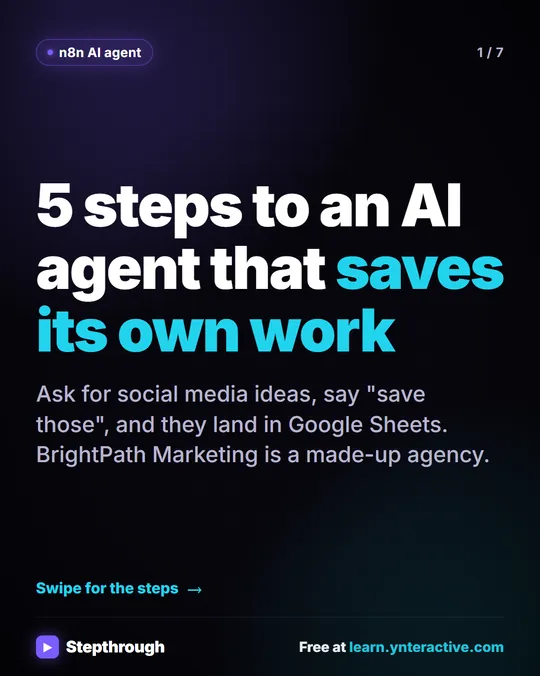 5 Steps to an n8n AI Agent That Saves to Google Sheets
A visual guide: build an n8n AI agent that writes social media ideas and saves each one as a Google Sheets row, in 5 steps from the free lesson.
Step-by-step guide 7 slides
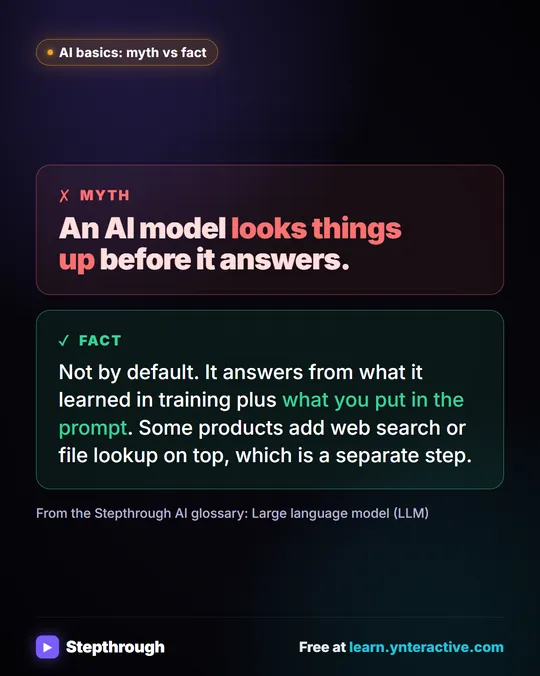 Myth: An AI Model Looks Things Up Before It Answers
Myth vs fact: by default a large language model answers from its training plus your prompt. Web search or file lookup is a separate step.
Myth vs fact One graphic
Free cheat sheets
Print it or save the PDF: the key steps and checks from this lesson on one page, free.
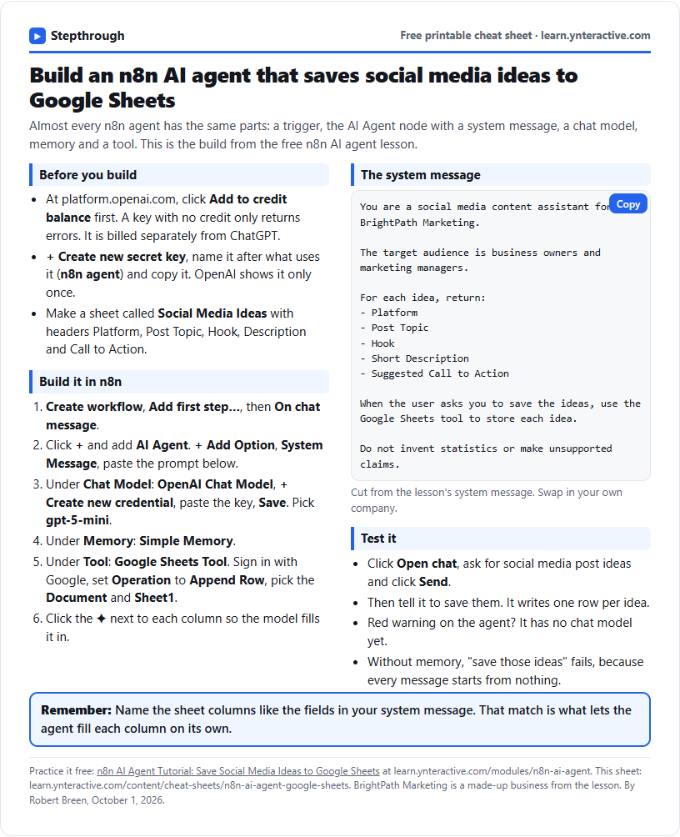 n8n AI Agent to Google Sheets Cheat Sheet
A free one-page cheat sheet for an n8n AI agent: chat trigger, AI Agent, system message, OpenAI model, Simple Memory and a Google Sheets tool.
Lesson cheat sheet Free PDF
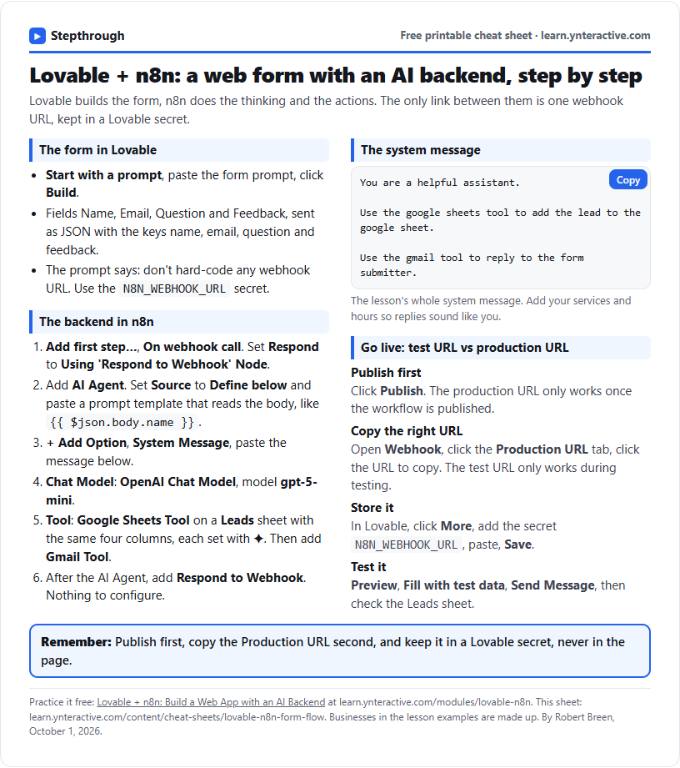 Lovable + n8n Form Flow Cheat Sheet
A free one-page cheat sheet: a Lovable form posts to an n8n webhook, and an AI Agent logs it in Google Sheets and replies by Gmail.
Lesson cheat sheet Free PDF
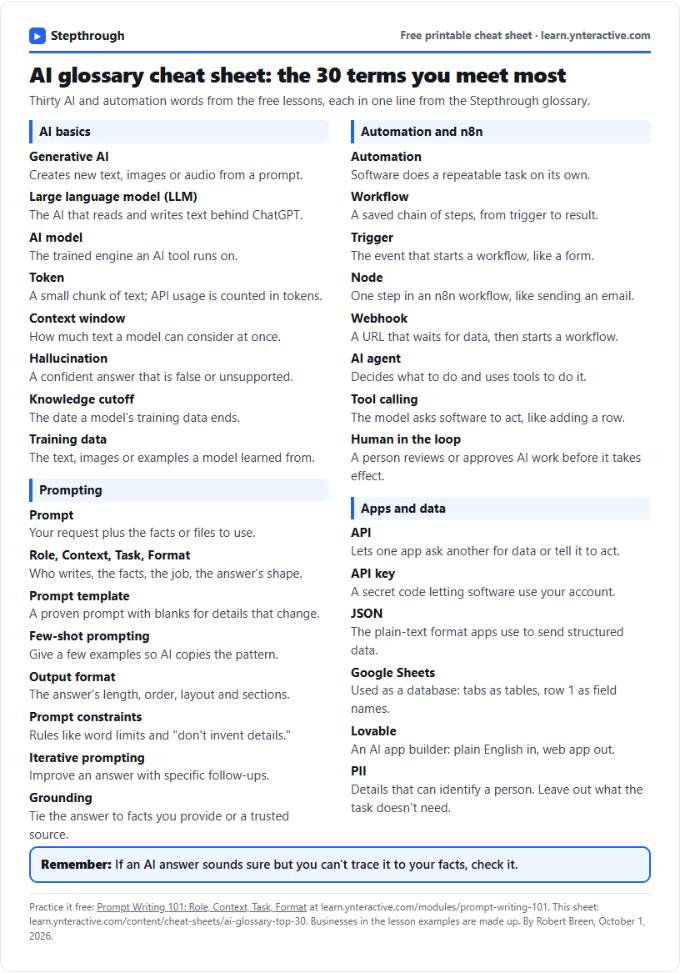 AI Glossary Cheat Sheet: 30 Terms in Plain English
A free one-page cheat sheet of 30 AI and automation terms in plain English: models, prompts, n8n workflows, apps and data.
Topic cheat sheet Free PDF
All free printable cheat sheets
Terms in this lesson
Plain-English definitions, each with an example from a free lesson.
Related prompts
- Case study interview questions prompt: Plan a client interview that gets a case study's before, during and after story in their own words, with follow-up probes and…
- Email subject lines prompt: Get ten honest subject lines for a finished email, each with preview text and a character count, grouped by approach so you can…
- SEO meta description prompt: Write short search-result descriptions for your web pages: what the page offers, who it is for and one reason to click, inside…
- Social post ideas prompt: A four-part ChatGPT prompt for social post ideas built on your services and real customer questions: platform, hook and call to…